
Bologna 170 - Car radio BLAUPUNKT - Free user manual and instructions
Find the device manual for free Bologna 170 BLAUPUNKT in PDF.
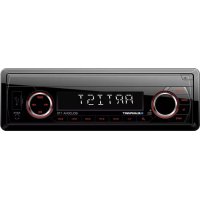



| Product type | Bluetooth car radio with USB, TF and AUX input |
| Brand | Blaupunkt |
| Model | Bologna 170 |
| Mounting bracket dimensions | 178 (width) x 97 (depth) x 50 (height) mm |
| Power supply | DC 12 V, negative ground |
| Current consumption | 10 A (max) |
| Maximum output power | 4 x 40 W |
| FM radio frequency range | 87.5 to 108 MHz |
| AM (MW) radio frequency range | 522 to 1620 kHz |
| FM sensitivity (S/N=30 dB) | 4 μV |
| AM sensitivity (S/N=20 dB) | 36 dBμV |
| FM stereo separation | Greater than 25 dB |
| Tone control - Bass (at 100 Hz) | ±10 dB |
| Tone control - Treble (at 10 kHz) | ±10 dB |
| Supported audio formats | MP3, WMA |
| Connections | USB, TF (microSD), 3.5 mm AUX input, Bluetooth, radio antenna |
| Bluetooth functions | Hands-free (calls), A2DP audio streaming |
| RDS | AF, TA, TP, EON, REG, PTY |
| Equalizer | Presets: CLASSICS, ROCK, POP, FLAT, EQ OFF + XBASS |
| Detachable front panel | Yes, with release button |
| Reset | RESET button (pen tip) |
| Maintenance and cleaning | Clean the front panel contacts with a cotton swab dipped in isopropyl alcohol |
| Safety | Protection fuse (check if the device does not turn on) |
Frequently Asked Questions - Bologna 170 BLAUPUNKT
User questions about Bologna 170 BLAUPUNKT
0 question about this device. Answer the ones you know or ask your own.
Ask a new question about this device
Download the instructions for your Car radio in PDF format for free! Find your manual Bologna 170 - BLAUPUNKT and take your electronic device back in hand. On this page are published all the documents necessary for the use of your device. Bologna 170 by BLAUPUNKT.
USER MANUAL Bologna 170 BLAUPUNKT
Turn on/off the unit 5
Mute. 5
Faceplate release 5
Sound adjustment 5
REG on/off 5
TA volume 5
LOC on/off 5
Stereo/mono 5
Beep on/off 5
AREA 6
EQ 6
XBASS 6
Display information. 6
Set the time 6
Liquid crystal display 6
ESP function 6
Auxiliary input 6
Reset function 6
Radio operation 6
Switching to radio mode 6
Selecting the frequency band 6
Selecting station 7
Automatic memory storing & program scanning 7
Manually store station & recall presentation 7
RDS (Radio Data System) operation 7
USB operation 8
TF operation 9
Bluetooth operation 9
Remote control 12
Specification 13
Troubleshooting 14
Installation instructions 183
Declaration of conformity
The Blaupunkt Competence Center Car Multimedia-Evo Sales GmbH declares that the device complies with the basic requirements and the other relevant regulations of the directive 2014/53/EU. The declaration of conformity can be found on the Internet under www.blaupunkt.com
CE
Declaration of Conformity with regard to the RE Directive 2014/53/EU Declaration of Conformity with regard to the RoHS Directive 2011/65/EU
Warranty
The warranty terms can be called up from www.blaupunkt.com
Warranty
If you ever need to use a repair service, you will find information about service partners in your country under www.blaupunkt.com
LOCATION OF KEYS
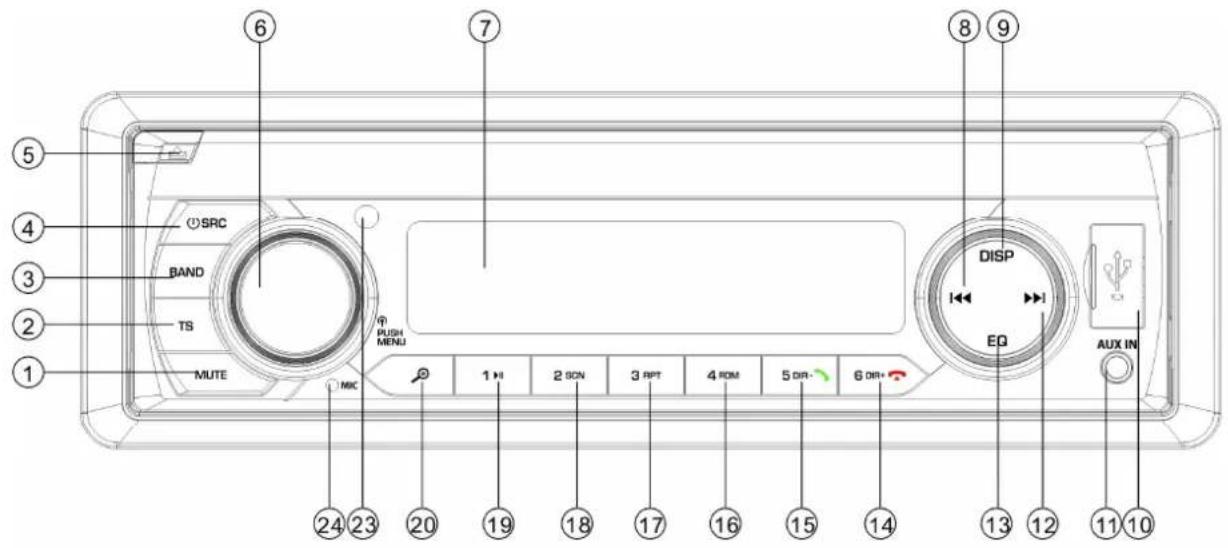
- "MUTE" button.
- "TS" button.
- "BAND" button.
- 0/SRC (source) button.
- " (panel release) button.
- "VOL/MENU" button.
- LCD display.
- (SEEK DOWN) button.
- "DISP" button.
- USB port.
- "AUX IN" jack.
- "SEEK UP" button.
- "EQ" button.
- "6 DIR+/r" button.*)
- "5 DIR-/ button.*)
- "4 RDM" button
- "3 RPT" button.
- "2 SCN" button.
- "1 button.
- MP3 search button
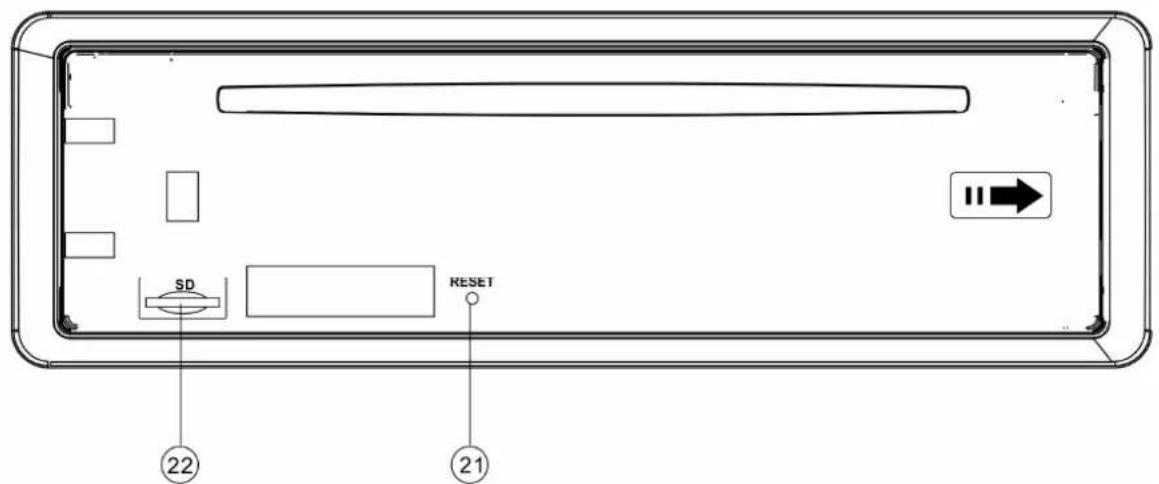
- RESET button.
- TF card slot. 23.IR SENSOR 24.MICPHONE
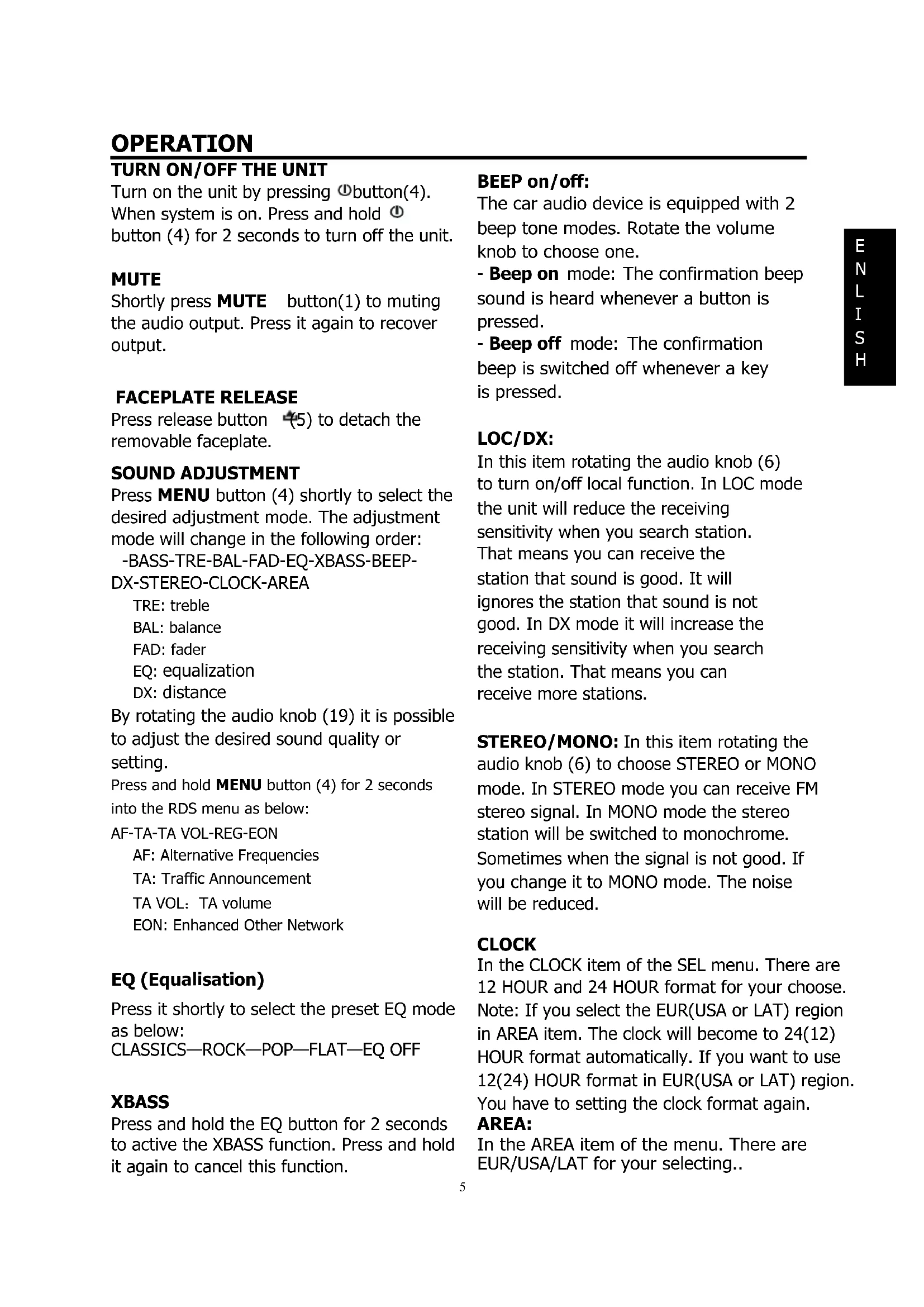
OPERATION
TURN ON/OFF THE UNIT
Turn on the unit by pressing the button (4). When the system is on, press and hold the button (4) for 2 seconds to turn off the unit.
MUTE
Shortly press the MUTE button (1) to mute the audio output. Press it again to recover the output.
FACEPLATE RELEASE
Press the release button (5) to detach the removable faceplate.
Sound Adjustment
Press the MENU button (4) briefly to select the desired adjustment mode. The adjustment mode will change in the following order: -BASS-TRE-BAL-FAD-EQ-XBASS-BEEP-DX-STEREO-CLOCK-AREA
TRE: treble, BAL: balance, FAD: fader, EQ: equalization, DX: distance
By rotating the audio knob (19), you can adjust the desired sound quality or setting.
Press and hold the MENU button (4) for 2 seconds to enter the RDS menu as below:
AF-TA-TA VOL-REG-EON
AF: Alternative Frequencies
TA: Traffic Announcement
TA VOL: TA volume
EON: Enhanced Other Network
EQ (Equalisation)
Press it briefly to select the preset EQ mode as below:
Press and hold the EQ button for 2 seconds to activate the XBASS function. Press and hold it again to cancel this function.
BEEP on/off:
The car audio device is equipped with 2 beep tone modes. Rotate the volume knob to choose one.
- Beep on mode: The confirmation beep sound is heard whenever a button is pressed.
- Beep off mode: The confirmation beep is switched off whenever a key is pressed.
LOC/DX:
In this item, rotating the audio knob (6) to turn on/off local function. In LOC mode, the unit will reduce the receiving sensitivity when you search for a station. That means you can receive the station that has good sound. It will ignore the station that does not have good sound. In DX mode, it will increase the receiving sensitivity when you search for a station. That means you can receive more stations.
STEREO/MONO: In this item, rotating the audio knob (6) to choose STEREO or MONO mode. In STEREO mode, you can receive FM stereo signal. In MONO mode, the stereo station will be switched to monochrome.
Sometimes when the signal is not good, if you change it to MONO mode, the noise will be reduced.
CLOCK
In the CLOCK item of the SEL menu, there are 12 HOUR and 24 HOUR formats for you to choose. Note: If you select the EUR (USA or LAT) region in the AREA item, the clock will become 24 (12) HOUR format automatically. If you want to use 12 (24) HOUR format in EUR (USA or LAT) region, you have to set the clock format again.
AREA:
In the AREA item of the menu, there are EUR/USA/LAT for your selection.
OPERATION
TA volume: This function allows you to define the minimum volume for the traffic announcements. The adjustable range is 10 43. The default value is 21. Rotate the volume knob to adjust the volume of the traffic.
REG on/off
When AF function is on, in the SEL menu you can switch on or off region mode in the REG item. Some broadcasting stations change their program from normal broadcasting to regional broadcasting for a certain time period. When region is on, the current listening program remains unchanged.
EON on/off
In the SEL menu, you can set the EON on/off. Normally, set the EON to on.
DISPLAY INFORMATION
Press the DISP button (9) to show the time for 5 seconds. Then it returns to show the information.
SET THE TIME
(1) Manual setting:
Press and hold the DISP button for 2 seconds. The hour of the time will be flashing. Press the ▸ button to set the correct hour. Press the DISP button shortly to change to minute. Also use the ▸ button to set the correct minute. After that, press the DISP button to confirm.
(2) Synchronize the time from the RDS station:
To receive an RDS station which has a good signal (the AF symbol on the LCD does not flash). Several minutes later, the time will be synchronized to the correct time by the station's signal. (Note: Non-RDS stations do not have this function.)
LIQUID CRYSTAL DISPLAY
Exhibit current frequency and activated functions on the display.
AUXILIARY INPUT
The unit can be connected to a portable audio player through the AUX IN jack (11). Press the SRC button to switch to AUX mode when an audio source is inserted into the unit.
RESET FUNCTION
The RESET button (21) must be activated with either a ballpoint pen or a thin metal object. The RESET button is to be activated for the following reasons:
- Initial installation of the unit when all wiring is completed.
- All the function buttons do not operate.
- Error symbol on the display.
Note: if press RESET button (21), the unit can't work yet, please use a cotton swab soaked in isopropyl alcohol to clean the socket on the front panel.
RADIO OPERATION
SWITCHING TO RADIO MODE
Press SRC button (4) to select radio mode, the radio mode appears in the display together with the memory band and frequency.
At radio mode, press BAND button (3) to select the desired band. The reception band will change in following order:

SELECTING STATION
Press button (12) or button (8) shortly to activate automatic seek function. It will search up/down a
station automatically. Press for 2 seconds until
"MANUAL" appears on the display, the manual tuning mode is selected. In this mode you can turn up/down a step frequency one by one till searched a station. If both buttons have not been pressed for 5 seconds, it will return to seek tuning mode and "AUTO" appears on the display.
AUTOMATIC STORING & PROGRAM SCANNING
Automatic storing
- Press TS button (2) for 2 seconds the radio searches from the 87.5MHz frequency and checks the signal strength until one cycle search is finished. And then some strong stations are stored into the corresponding preset number button of the FM3 band. In the first cycle it will in LOCAL mode to receive the stronger station. If it is less than 6 pcs station it will searching stations in 2nd cycle in LOCAL OFF mode.
- Program scanning
Press the TS button (2) briefly to scan preset stations. The radio will hold on each preset for 5 seconds with the mute released.
- MANUALLY STORE STATION & RECALL PRESET STATION
To store a station, press and hold one of the preset buttons (1~6) for 2 seconds. The current station is stored to that button. Briefly press the preset button (1~6) to directly listen to the station saved in that preset.
Rotate the audio knob to switch the AF function on or off.
Whenever AF is on, the symbol "AF" appears on the display.
The program name is displayed when receiving an RDS station.
"AF" starts blinking if the broadcasting signal gets worse.
"ALARM" will be displayed when an emergency broadcast is received. Meanwhile, the sound output level will be automatically adjusted to the preset output level when the volume control is set to minimum.
Regional Program Operation
When the AF function is on, in the REG item of the system menu, rotate the audio knob to turn the REG function on or off. When the AF function is off, the REG function cannot be set to off.
Some broadcasting stations change their program from normal broadcasting to regional broadcasting for a certain time period. When REG is on, the currently listened program remains unchanged. When REG is off, it allows the reception to move to the regional station.
- Listening to Traffic Announcement
In the TA item of the system menu, rotate the audio knob to switch the TA function on or off. When TA mode is on and a traffic announcement is transmitted: When the unit was in CD (MP3) or AUX mode, it will temporarily switch to radio mode.
Temporary switch over to an EON linked station when EON detects a traffic announcement on that other program. If the volume level was under the threshold point, it will be raised to the threshold point.
When TA mode is on, TA of individual segment is turned on. When a TP station is received, TP of individual segment is turned on.
TA interruption function
The current traffic announcement is cancelled by turning the TA function to STOP (in the TA item of the RDS menu, when
the TA station is not received it only has on/off. But when a TA station is received, the TA item will have on/stop/off for your
selection). But the TA mode will not be off.
Unwanted EON TA switching occurs when EON TA information is received from the current station and the radio switches to that EON linked station, but no information could be received because the EON linked station is located too far from that area. So the radio switches back to the current station again. In the above operation, a customer listens to a wrong program or mute sound for a while. The RDS data used are the PI, PS, AF, TP, TA, EON, and PTY data.
PS: Program Service Name
Broadcast station name data expressed in alphanumeric characters.
AF: Alternative Frequencies
Frequency list of broadcasting stations transmitting the same program.
TP: Traffic Program Identification
Identification data for traffic information-broadcasting station.
TA: Traffic Announcement Identification. Identification data showing whether traffic information is being transmitted or not.
EON: Enhanced Other Networks Information
Broadcasting information on PI, AF, TP, TA, etc., relating to networks other than the network used for current reception.
USB PLAY OPERATION
On the front panel of the unit, there is a USB interface (10). You can connect a USB
drive through this interface (10).
When you connect a USB drive through the interface, the unit will search for MP3/WMA files on the USB drive and start to play. If a USB drive is already inserted, keep pressing the SRC button (4) shortly until the USB mode display appears.
SELECTING FILES
Press the ⎮ button (8) or the ▸ button (12) to move to the previous file or the next file. The file number is shown on the display.
Hold the ⎮ button (12) or the ⎮ button (8) to fast forward or fast reverse. Playing starts when you release the button.
PAUSING PLAYBACK
Press button (19) to pause playback. Press it again to resume playback.
SCAN PLAY ALL FILES
Press the SCN button (18) to play the first few seconds of each file. Press again to stop the intro and resume normal playback.
REPEAT FUNCTION
There are 3 repeat modes:
RPT all --- RPT folder --- RPT one
Press the RPT button (17) to select one of them.
RPT all: Repeat all files.
RPT folder: Repeat all files of the folder.
RPT one: Repeat one song.
PLAYING ALL FILES IN RANDOM
Press RDM button (16) to play all files in random order. Press it again to cancel the random function.
SELECTING DIRECTORY UP/DOWN
Press DIR- button (15) or DIR+ button (14)
to select directory downward or upward. If the MP3 disc does not contain any directory,
there is no function of pressing DIR- button (15) or DIR+ button (14).
SELECTING FILES BY AS/PS BUTTON
Press AS button. It is activated the "Search file number" mode. Rotating knob (6) to select the file number then press knob (6) to confirm. The unit searches the selected file to play. You also can select the file by following direct numeric buttons:
M1-M6: 1-6
BAND:7
8
▶1:9
DISP: 0.
If the file number was selected, the unit waits for the knob (6) for a few seconds. The unit searches for the file after a few seconds, even if the knob (6) button is not pressed.
Note:
- The main unit can only support standard USB memory devices that are approved by Microsoft.
- USB MP3 players are not standardized, meaning different brands or models have their own standards. Therefore, our product cannot support every MP3 player.
- When connecting an MP3 player that has normal batteries (non-rechargeable), you should remove the batteries from the MP3 player before connecting it to the USB interface. Otherwise, it may cause the batteries to burst.
CAUTION
When there are important files on the USB device, do not connect it to the main unit to play. Any wrong operation may cause file loss, and our company assumes no responsibility for this.
TF OPERATION
There is a TF interface (22) on the front panel of the unit.
When you insert a TF card into the TF interface, the unit will search for MP3/WMA files on the card and start playing. The operation is the same as the MP3/WMA operation described above.
If in another mode, you can also press the SRC (4) button to select SD mode.
SUPPORTED MP3/WMA DECODING MODES
The main unit supports MP3/WMA (Windows Media Audio) decoding modes as below.
| Standard | Bit Rate (kbps) | Supports Mode |
| MPEG1 Audio Layer 3 (44.1kHz) | 32,48,64,96, 128,192,256, 320 | Stereo |
| Windows Media Audio (44.1kHz) | 64,96,128,192 | Stereo |
The USB solution can support:
- Folders: 500 max.
- File: 999 max.
- Depth of folder: 8 layers
- Size: 32 GB
CAUTION
When there are important files in the USB device or TF card, do not connect it to the main unit to play. And don't play the CD-R/RW disc that has important files in it. Because any wrong operation may cause files loss. And our company assumes no responsibility for this.
(i) When use Bluetooth, please make sure the mobile phone supports Bluetooth function. (ii) For the different kind of mobile phone, Bluetooth emissive power has some difference. To get the best conversation quality, it is commended that the distance between the mobile phone and the unit is within 3m. And please don't put any metal object or any obstacle between the path of the mobile phone and the unit.
PAIRING
1) On the mobile phone, select the
Bluetooth
2) set up. (Please refer to the instruction manual of your mobile phone on how to operate Bluetooth.) 2) "CAR KIT" should appear in the list on your mobile phone, please select "BP 170 BT" and then input password "0000". If it needs a password. 3) When successful paired, the BT mark will be displayed on LCD.
- Answering / rejecting an incoming call
When there is a phone is coming in. Press key to answer the call. Press key to reject the call.
Hang up a call
When finished a conversation, press key to hang up this call.
- Checking phone book / received /
dialed / missed call (for Android and iPhone mobile)
Press SRC key, it will show "PHONE" on the display. Press the button, it will show BOOK on the LCD. Then repeatedly press it, it will show items as below:
Note: In the first time, your mobile will receive a message that the unit will visit your mobile through Bluetooth. You have to agree and press "YES" to confirm.
(Note: It is necessary that the phone number is in the phone, not in the SIM card).
Call out
Making an outgoing call by inputting the phone number manually.
Press SRC key, it will show "PHONE" on the
display. Press and hold the key. The LCD
will become BLANK. Then you can enter the phone number and press the key to confirm
the dialing. (Note: If you inputted wrong
numbers, press the key to cancel
wrong numbers.)
In front panel, except there are 1~6 digits. Please note 0/7/8/9/*/# as below:
0: DISP button.
7: EQ 8: 9:
*: press and hold 5 key for 2 seconds.
: press and hold 6 key for 2 seconds.
Redialing an outgoing call
OPERATION
Press SRC key, it will show "PHONE" on the display. Press and hold the key for 2 seconds to redial the last phone number.
Making an outgoing call from the phone book / received / dialed / missed call (for Android and iPhone mobile)
- Please reference "Checking phone book / received / dialed / missed call" item, then select a phone number. Press the key to dial.
Note: If there are 2 SIM cards in your mobile phone, when you dial out a call from the front panel of the unit, the call will be dialed out from the default card (or it will ask which card to use each time you dial out).
- Transfer the call between mobile phone and unit
During the talking mode, you can press button (20) to transfer the phone call between the mobile phone and the unit.
- Bluetooth audio (A2DP function)
Press SRC button (4), it will show "PHONE" on the display. Then turn on the music player of your mobile phone and play a song. The sound will come out from the speaker of the
unit. Press key (19) on the front panel of the unit to pause/play the song. Press button (12) or button (8) to select next/previous song.
Connect/disconnect Bluetooth
Press and hold SRC button for 2 seconds to connect/disconnect Bluetooth.
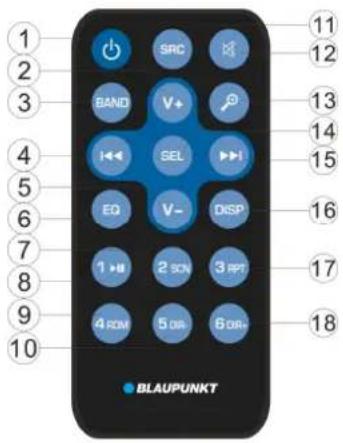
FUNCTION KEY & CONTROL
1.
Power ON/OFF Button.
- VOL+:
Volume up button.
- BAND:
To select FM1/FM2/FM3/MW1/MW2 band in RADIO mode.
4.
In RADIO mode: Press it shortly for seek down function. Press and hold it for manual turn down.
In MP3/WMA mode: Press it shortly to skip to the previous file. Press and hold it for fast reverse.
- VOL-:
Volume down button.
- EQ:
It is the EQ button.
- 2 SCN:
In RADIO mode: Number 2. See page 11 STATION STORING. In MP3/WMA mode: Press it to turn on/off SCANNING function.
- 1
In RADIO mode: Number 1. See page 11 STATION STORING.
In MP3/WMA mode: Press to pause/resume playing.
- 4RDM:
In RADIO mode: Number 4. See page 11 STATION STORING.
- 5 DIR-:
In MP3/WMA mode: turn on/off random function.
In RADIO mode: Number 5. See page 11 STATION STORING. In MP3/WMA mode: Press it to go back to previous folder.
- SRC:
It is a key in BT mode. *)
- 13.
It is the SRC function.
Press it to mute/recover the sound.
- SEL:
In RADIO mode: It is the TS function (See page 11).
In MP3/WMA mode: It is the file searching function (See page 12). In BT mode, its function is to call out; please reference page 14.
It is the same as the MENU button. Reference page 9.
15.
In RADIO mode: Press it shortly for the seek up function. Press and hold it for manual tuning up.
- DISP:
Press DISP to show the time.
- 3 RPT:
In RADIO mode: Number 3. See page 11, STATION STORING. In MP3/WMA mode: Press it to turn on/off the repeat function.
- 6 DIR+:
In RADIO mode: Number 6. See page 11, STATION STORING. In MP3/WMA mode: Press it to go to the next folder. When a call comes in or finishes, it is the key.*)
SPECIFICATION
GENERAL
Power Supply Requirements: DC 12 Volts, Negative Ground
Chassis Dimensions: 178 (W) x 97 (D) x 50 (H)
Tone Controls
- Bass (at 100 Hz): ±10 dB
- Treble (at 10 kHz): ±10 dB
- Maximum Output Power: 4x40 watts
- Current Drain: 10 Ampere (max.) (For Normal Power Version)
RADIO
FM
Frequency Coverage: 87.5 to 108 MHz; IF: 10.7 MHz
Sensitivity (S/N = 30 dB): 4 μV; Stereo Separation: >25 dB
AM (MW)
Frequency Coverage: 522 to 1620 kHz; IF: 450 kHz; Sensitivity (S/N = 20 dB): 36 dBμV
Before going through the checklist, check wiring connections. If any of the problems persist after the checklist has been made, consult your nearest service dealer.
| Symptom Cause Solution | ||
| No power. | The car ignition switch is not on. | If the power supply is connected to the car accessory circuits, but the engine is not moving, switch the ignition key to "ACC". |
| The fuse is blown. Replace the fuse. | ||
| Disc cannot be loaded or ejected. | Presence of CD disc inside the player. | Remove the disc in the player, then put a new one. |
| Inserting the disc in reverse direction. | Insert the compact disc with the label facing upward. | |
| Compact disc is extremely dirty or detective disc. | Clean the disc or try to play a new one. | |
| Temperature inside the car is too high. | Cool off or until the ambient temperature return to normal. | |
| Condensation. | Leave the player off for an hour or so, then try again. | |
| No sound. | Volume is in minimum | Adjust volume to a desired level. |
| Wiring is not properly connected. | Check wiring connection. | |
| Sound skips. | The installation angle is more than 30 degree. | Adjust the installation angle less than 30 degree. |
| The disc is extremely dirty or defective disc. | Clean the compact disc, then try to play a new one. | |
| The operation keys do not work. | The built-in microcomputer is not operating properly due to noise. | Press the RESET button. Front panel is not properly fix into its place. |
| The radio does not Work. The radio station automatic selection does not work. | The antenna cable is not connected. | Insert the antenna cable firmly. |
| The signals are too weak. | Select a station manually. | |
Stereo / mono mode 33
Enable/disable the beep sound 34
ZONE. 34
EQ 34
(Enhanced Other Network)
(Enhanced Other Network)
DISPLAY INFORMATION
(Enhanced Other Network)
0: Display button (DISP)
7: EQ:
8:
9:
*: Press and hold button (5) for 2 seconds.
: Press and hold button (6) for 2 seconds.
Remote control 83
Technical data. .84
(Enhanced Other Network)
station (Enhanced Other Network)
EQ (Equalizer)
Satta p/a/av summer (BEEP)
(Enhanced Other Network)
(Enhanced Other Network)
EQ (Sound adjustment)
VAESKEKRYSTAL DISPLAY 132
RESET FUNCTION 132
RADIO DRIFT 132
RDS (RADIO DATASYSTEM) OPERATION 133
TA-AFBRYDELSESFUNCTION 134
OPERATION OF USB PLAYER 134
SELECT FILES 1343
SCAN AND PLAY ALL FILES 1343
RANDOM PLAYBACK OF ALL FILES
135
SELECT CATALOG UP/DOWN 135
SELECT FILES USING AS / PS BUTTON
135
WARNING 135
TF OPERATION 135
DECODING STATES,
CONNECT / DISCONNECT BLUETOOTH 137
FUNCTION KEY & CONTROL 138
GENERAL INFORMATION 139
Declaration of Conformity
CLASSICS—ROCK—POP—FLAT—EQ OFF
XBASS
Press and hold the EQ button for 2 seconds to
LIQUID CRYSTAL DISPLAY
TP: Identification of traffic program
Identification data for traffic information TV station
TA: Identification of traffic announcements
Removal of the front panel 144
allows you to gradually skip
- MANUAL MEMORIZATION OF STATIONS AND SELECTION OF PRE-CONFIGURED STATIONS
(Enhanced Other Network)
(Enhanced Other Network)
PI, AF, TP, TA, etc. functions broadcast
0: Display button (DISP)
7:EQ: 8: 9:
*: Press and hold button (5) for 2 seconds.
: Press and hold button (6) for 2 seconds.
(Enhanced Other Network)
Information transmitted in the PI, AF, TP, TA, etc. functions concerning other networks originating from stations other than the currently received station.
USB PLAYER CONTROL
| B | |||
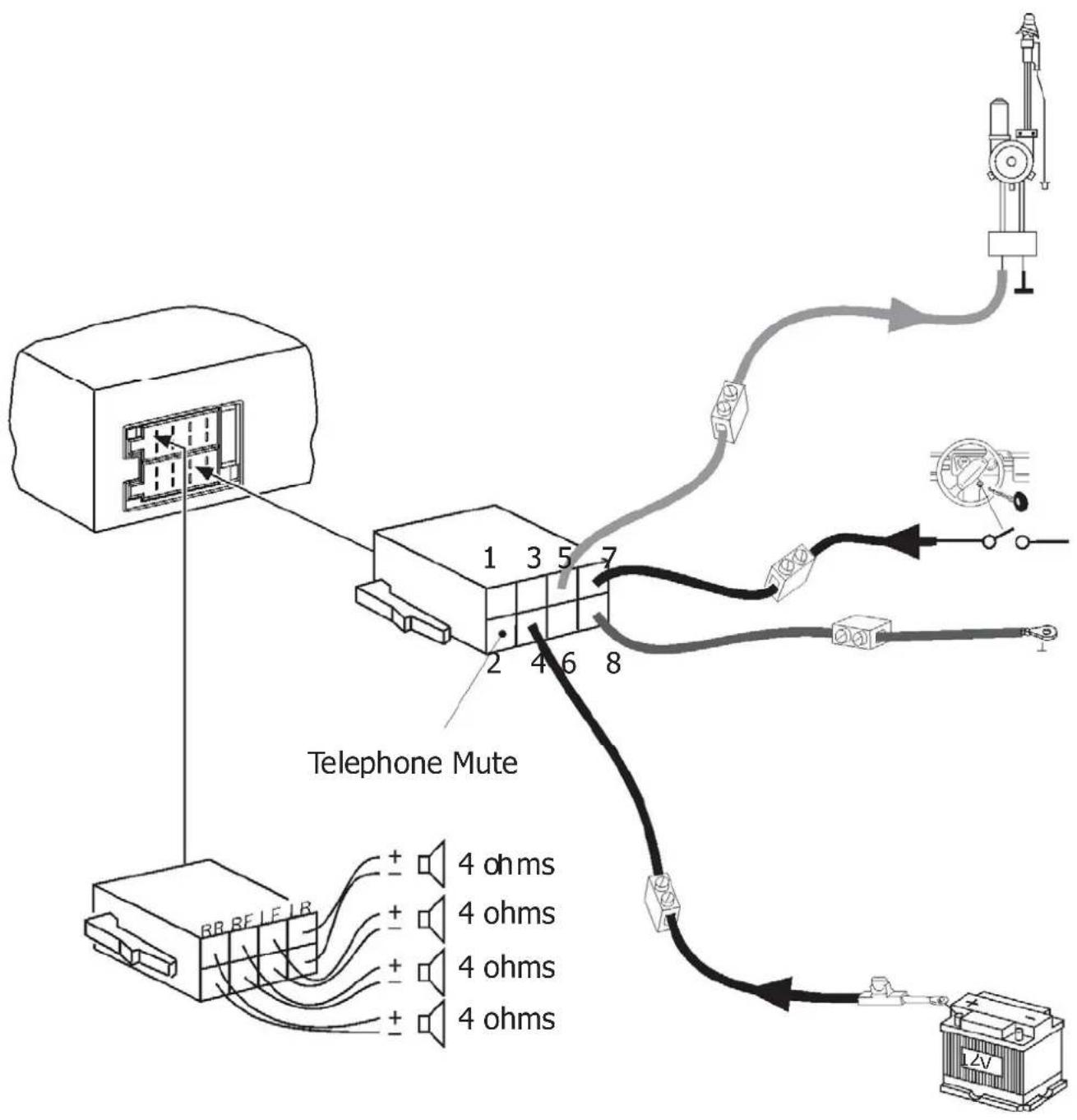
| 1 | NC | 1 | Speaker out RR+ |
| 2 | NC | 2 | Speaker out RR- |
| 3 | NC | 3 | Speaker out RF+ |
| 4 | Permanent +12V | 4 | Speaker out RF- |
| 5 | Auto antenna* | 5 | Speaker out LF+ |
| 6 | NC | 6 | Speaker out LF- |
| 7 | TI.15/Ignition | 7 | Speaker out LR+ |
| 8 | Ground | 8 | Speaker out LR- |

- Switched power supply +12 V / max. 150 mA
Subject to modifications! • Vorbehaltlich Modifikationen! • Sous réserve de modifications!
- Modificaciones reservadas! - Sob reserva de alterações! - Modifiche riservate! - Zmiany techniczne zastrzeżone! - Změny vyhrazeny! - Változtatás jogát fenntartva!
- Onder voorbehoud van modificaties - Omfattas av modifieringar - Jollei uudistustöitä


- DECLARATION OF CONFORMITY
- CE
- WARRANTY
- LOCATION OF KEYS
- OPERATION
- TURN ON/OFF THE UNIT
- MUTE
- FACEPLATE RELEASE
- SOUND ADJUSTMENT
- EQ (EQUALISATION)
- BEEP ON/OFF
- LOC/DX
- CLOCK
- AREA
- REG ON/OFF
- EON ON/OFF
- DISPLAY INFORMATION
- SET THE TIME
- MANUAL SETTING
- SYNCHRONIZE THE TIME FROM THE RDS STATION
- LIQUID CRYSTAL DISPLAY
- AUXILIARY INPUT
- RESET FUNCTION
- RADIO OPERATION
- SWITCHING TO RADIO MODE
- SELECTING STATION
- AUTOMATIC STORING & PROGRAM SCANNING
- MANUALLY STORE STATION & RECALL PRESET STATION
- REGIONAL PROGRAM OPERATION
- LISTENING TO TRAFFIC ANNOUNCEMENT
- TA INTERRUPTION FUNCTION
- USB PLAY OPERATION
- SELECTING FILES
- PAUSING PLAYBACK
- SCAN PLAY ALL FILES
- REPEAT FUNCTION
- PLAYING ALL FILES IN RANDOM
- SELECTING DIRECTORY UP/DOWN
- SELECTING FILES BY AS/PS BUTTON
- NOTE
- CAUTION
- TF OPERATION
- SUPPORTED MP3/WMA DECODING MODES
- PAIRING
- ANSWERING / REJECTING AN INCOMING CALL
- HANG UP A CALL
- CHECKING PHONE BOOK / RECEIVED
- DIALED / MISSED CALL (FOR ANDROID AND IPHONE MOBILE)
- CALL OUT
- MAKING AN OUTGOING CALL BY INPUTTING THE PHONE NUMBER MANUALLY
- FUNCTION KEY & CONTROL
- SPECIFICATION
- GENERAL
- RADIO
- FM
- AM (MW)
- PRESS AND HOLD BUTTON (6) FOR 2 SECONDS
- EQ (EQUALIZER)
- SATTA P/A/AV SUMMER (BEEP)
- EQ (SOUND ADJUSTMENT)
- XBASS
- MANUAL MEMORIZATION OF STATIONS AND SELECTION OF PRE-CONFIGURED STATIONS
- USB PLAYER CONTROL
Brand : BLAUPUNKT
Model : Bologna 170
Category : Car radio