EFDT630 - Keyboard SAMSUNG - Free user manual and instructions
Find the device manual for free EFDT630 SAMSUNG in PDF.
 FR
FR
 BG
BG
 CS
CS
 DA
DA
 DE
DE
 EL
EL
 EN
EN
 ES
ES
 ET
ET
 FI
FI
 HU
HU
 IT
IT
 KK
KK
 KO
KO
 LT
LT
 LV
LV
 NL
NL
 NO
NO
 PL
PL
 PT
PT
 RO
RO
 RU
RU
 SK
SK
 SL
SL
 SV
SV
 TR
TR
 UK
UK
 ZH
ZH
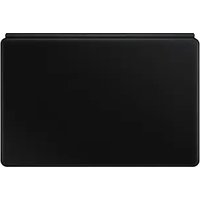
| Product Type | Keyboard case for tablet |
| Brand | Samsung |
| Model | EF-DT630 |
| Compatibility | Samsung Galaxy Tab S7 |
| Key layout | QWERTY/AZERTY depending on region |
| Function keys | Samsung DeX shortcut (Fn+DeX), Search key, Language key (Lang), navigation keys (arrow keys), virtual keyboard on/off (Fn+▲) |
| S Pen attachment | Yes, dedicated slot for S Pen charging |
| Connection | Built-in connector for tablet docking station |
| Power | Powered by tablet via connector (no battery) |
| Box contents | Keyboard case, quick start guide |
| Main material | Plastic with resistant coating |
| Maintenance and cleaning | Avoid exposure to moisture and solvents such as acetone (risk of stains, deformation or discoloration). Clean with a soft, dry cloth. |
| Safety | Do not apply strong pressure on the keyboard when the tablet screen is folded down to avoid damaging the screen. |
| Included software | Open source software (see opensource.samsung.com) |
| Dimensions (estimated) | Approximately 255 x 185 x 10 mm (fits Galaxy Tab S7) |
| Weight (estimated) | Approximately 350 g |
Frequently Asked Questions - EFDT630 SAMSUNG
User questions about EFDT630 SAMSUNG
0 question about this device. Answer the ones you know or ask your own.
Ask a new question about this device
Download the instructions for your Keyboard in PDF format for free! Find your manual EFDT630 - SAMSUNG and take your electronic device back in hand. On this page are published all the documents necessary for the use of your device. EFDT630 by SAMSUNG.
USER MANUAL EFDT630 SAMSUNG
- Please read this manual before using the device to ensure safe and proper use.
Images may vary by the product. - Some content may differ from your device depending on the region, and is subject to change without prior notice.
- For the latest version of the manual, refer to the Samsung website, www.samsung.com.
- EF-DT630 is optimised to connect with the SAMSUNG Galaxy Tab S7 and EF-DT730 is optimised to connect with the SAMSUNG Galaxy Tab S7+ and Galaxy Tab S7 FE.
- If the product is exposed to humidity or solvents such as acetone, it may get stained, wrinkled, misshapen, or change colour.
- This product includes certain free/open source software. To see the instructions for viewing the open source licence, go to the Samsung website (opensource.samsung.com).
Instructional icons
Warning: situations that could cause injury to yourself or others
Caution: situations that could cause damage to your device or other equipment
Note: notes, usage tips, or additional information
Getting started
Package contents
- Keyboard cover
Quick start guide

- The items supplied with the device and any available accessories may vary depending on the region or service provider.
- Appearances and specifications are subject to change without prior notice.
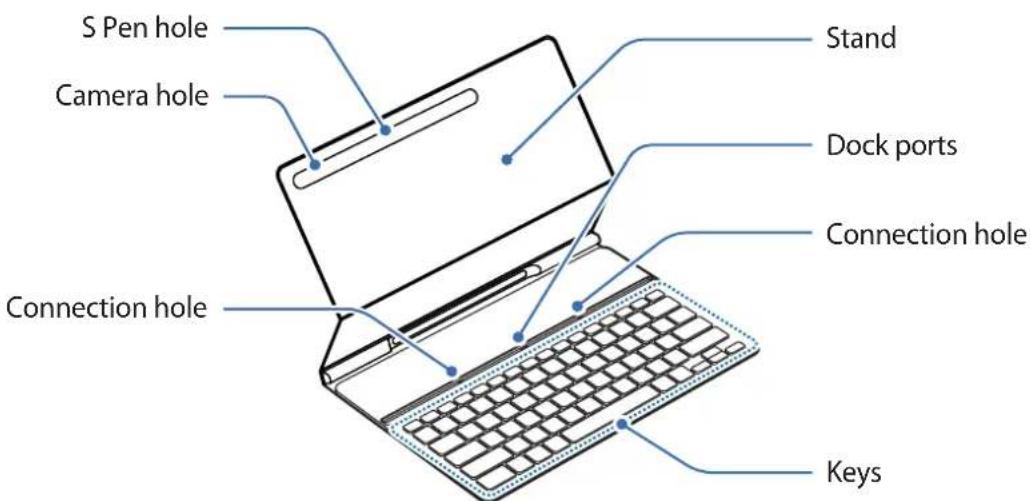
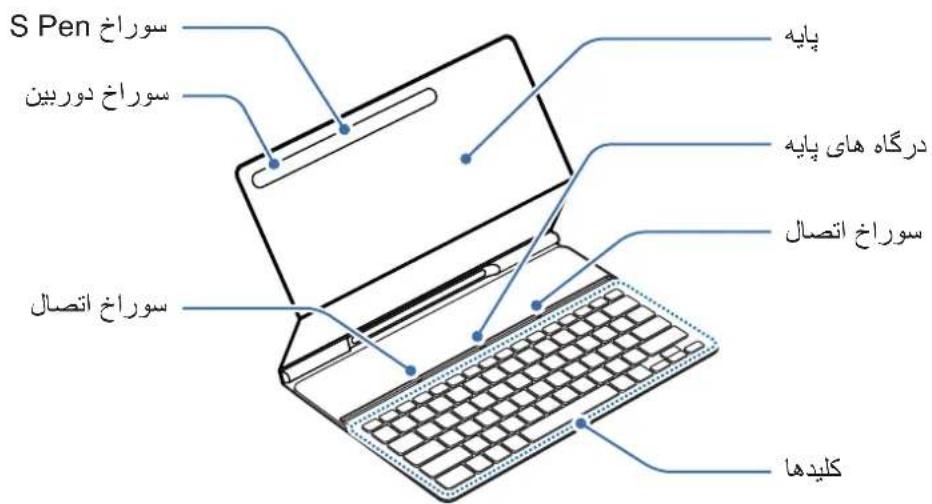
Device layout
Using the Keyboard
Connecting the keyboard
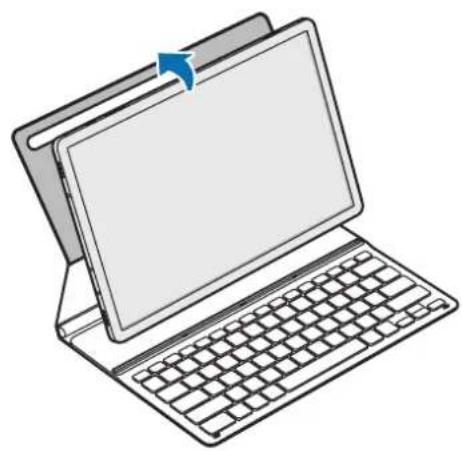
1 Position the tablet's rear camera to insert it into the camera hole and put the tablet in the stand.
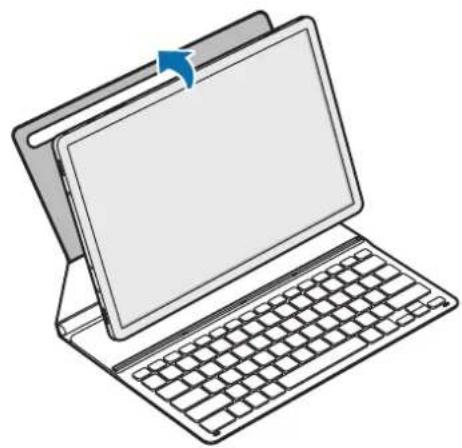
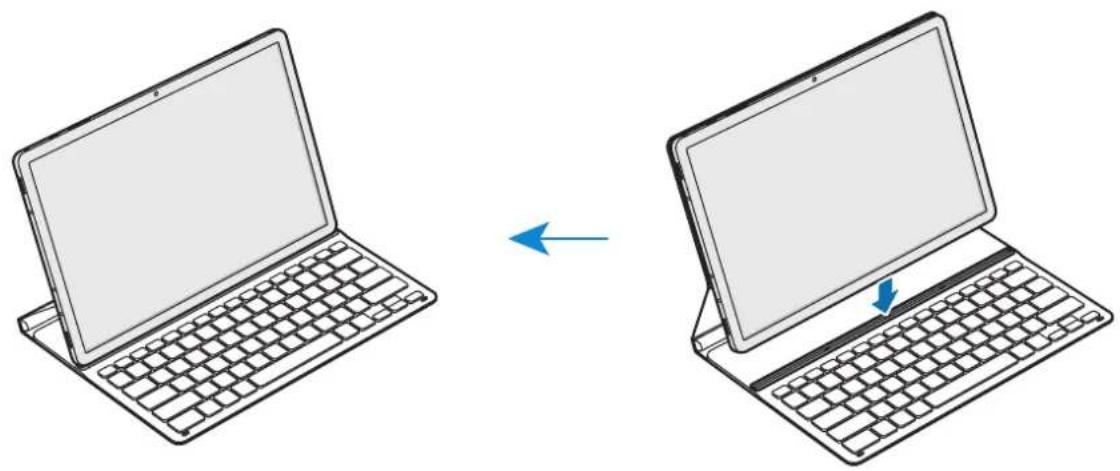
2 Insert the tablet into the connection hole to meet the tablet's connectors and the dock ports.
You can use the keyboard instantly.


You can use the keyboard as a screen cover. The screen turns off when you cover it with the keyboard, and it turns on when you open the keyboard.

Do not apply excessive pressure on the keyboard while covering the tablet's screen. Doing so may cause screen damage.
Using the keys
Set the input language on the tablet before you use the keyboard. For more information about setting the input language, refer to the tablet's user manual.
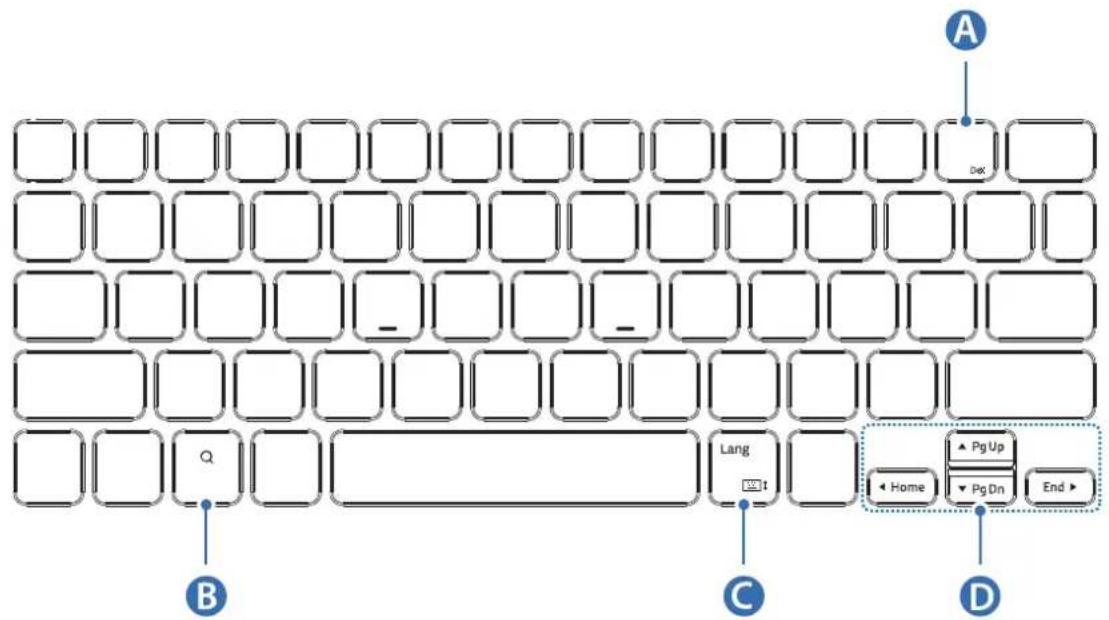
EF-DT630:
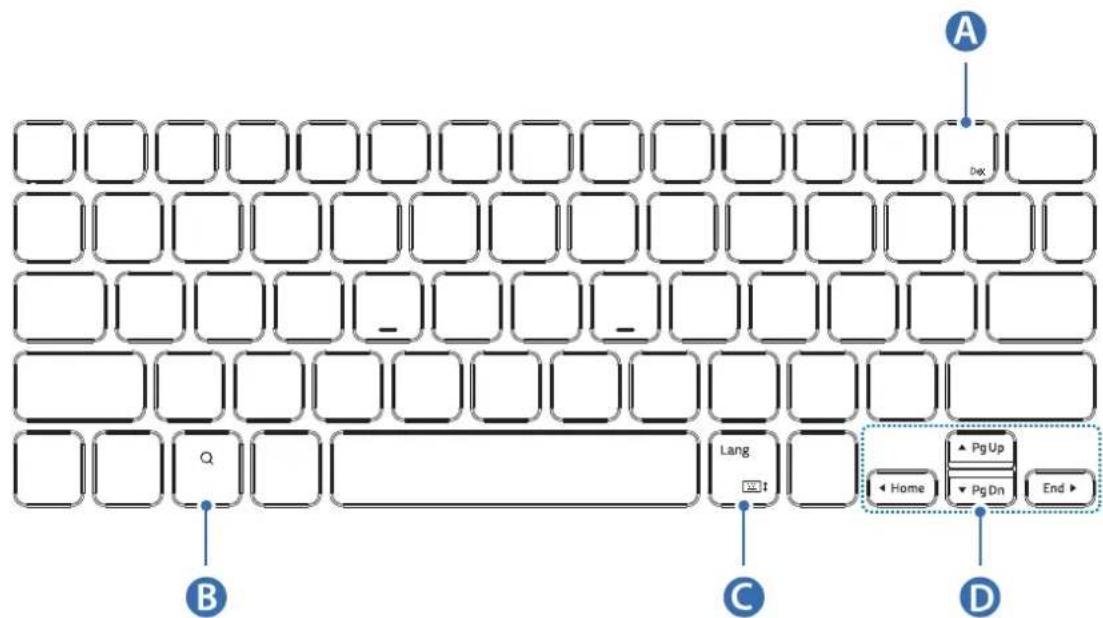
| A | • [Fn] + [DeX]: Launch or close Samsung DeX. |
| B | • Search the contents. |
| C | • [Lang]: Change between input languages. • [Fn] + :Enable or disable the on-screen keyboard. |
| D | • ▲/▼ / ▲/▲: Move cursor or system caret; • [Fn] + [▲]: Page Up • [Fn] + [▼]: Page Down • [Fn] + [▲]: Home • [Fn] + [▷]: End |
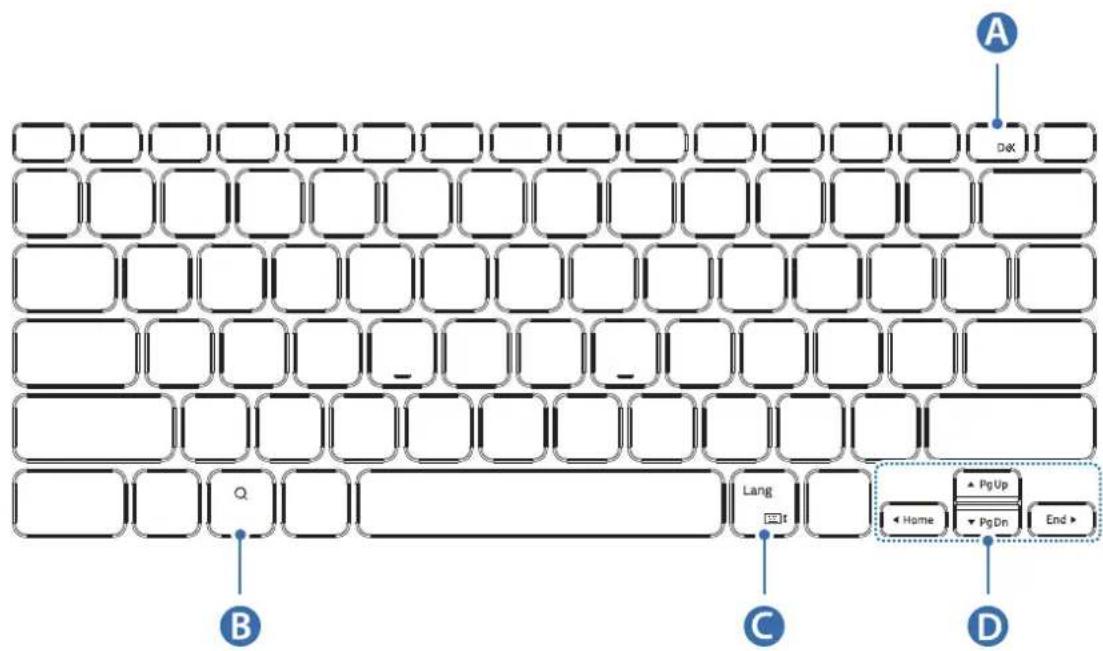
EF-DT730:
| A | • [Fn] + [DeX]: Launch or close Samsung DeX. |
| B | • Search the contents. |
| C | • [Lang]: Change between input languages. • [Fn] + [▲]ble or disable the on-screen keyboard. |
| D | • ▲/▼ / ▲/▶: Move cursor or system caret; • [Fn] + [▲]: Page Up • [Fn] + [▼]: Page Down • [Fn] + [▲]: Home • [Fn] + [▶]: End |
For more information about Samsung DeX, refer to the tablet's user manual.
Attaching the S Pen
Attach the S Pen to the tablet as shown in the image below.
You can also attach the S Pen after covering the keyboard cover.
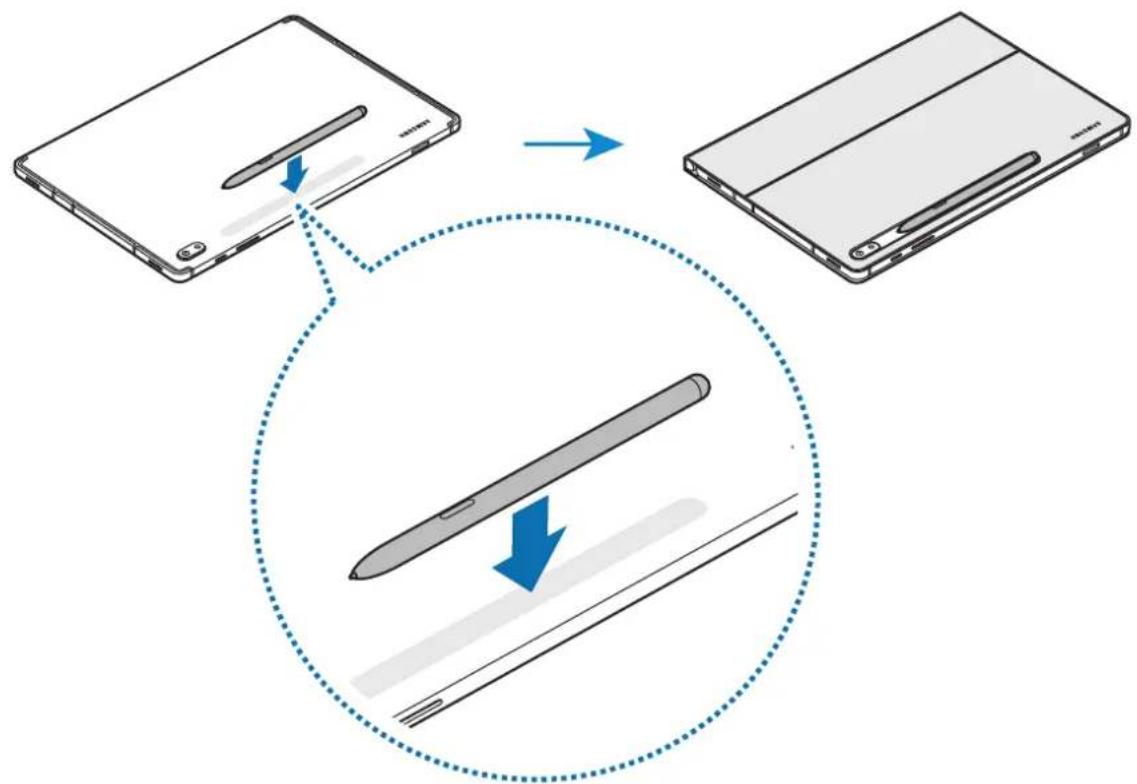

Make sure to place the nib of the S Pen to face the camera. The S Pen will not charge if it is misplaced.
Storing the S Pen
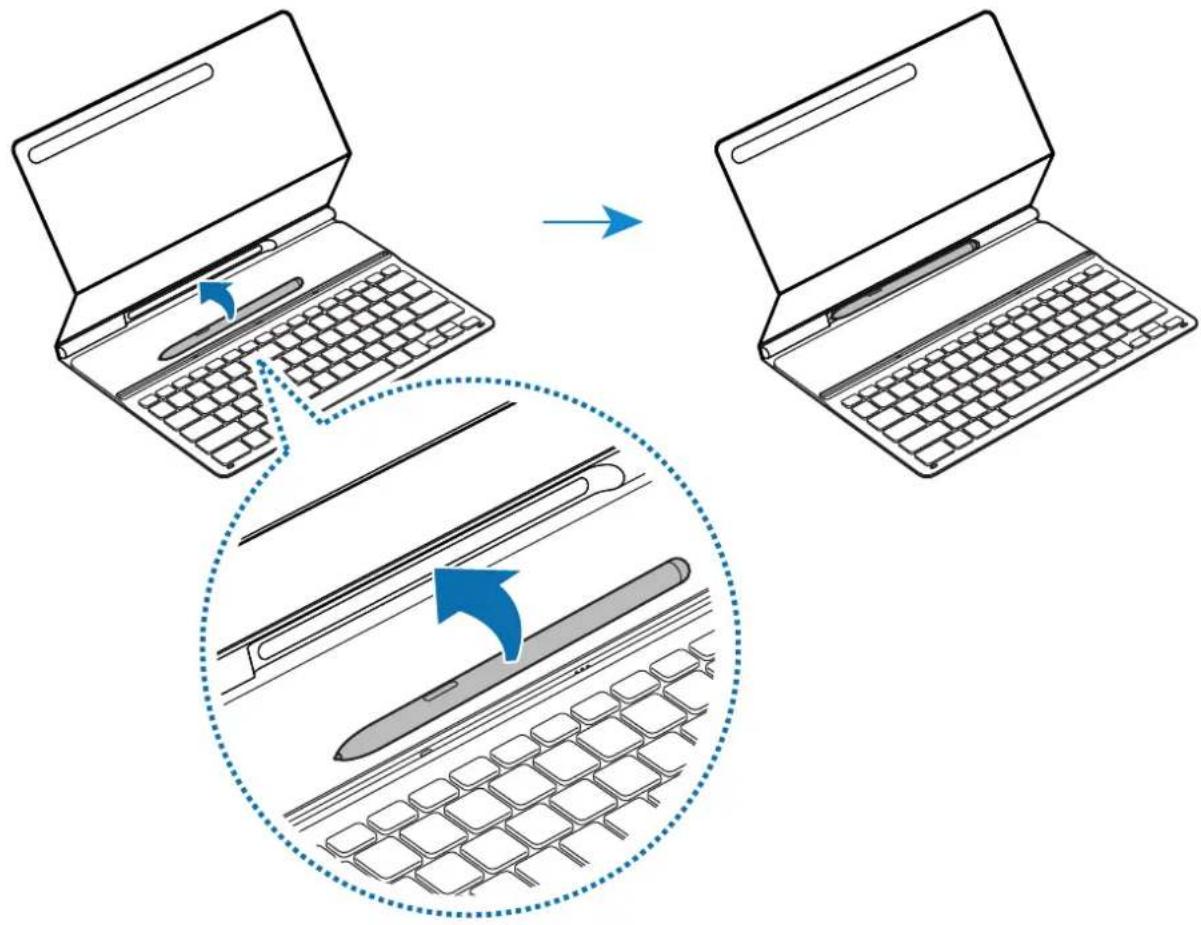
Store the S Pen as shown in the image below.
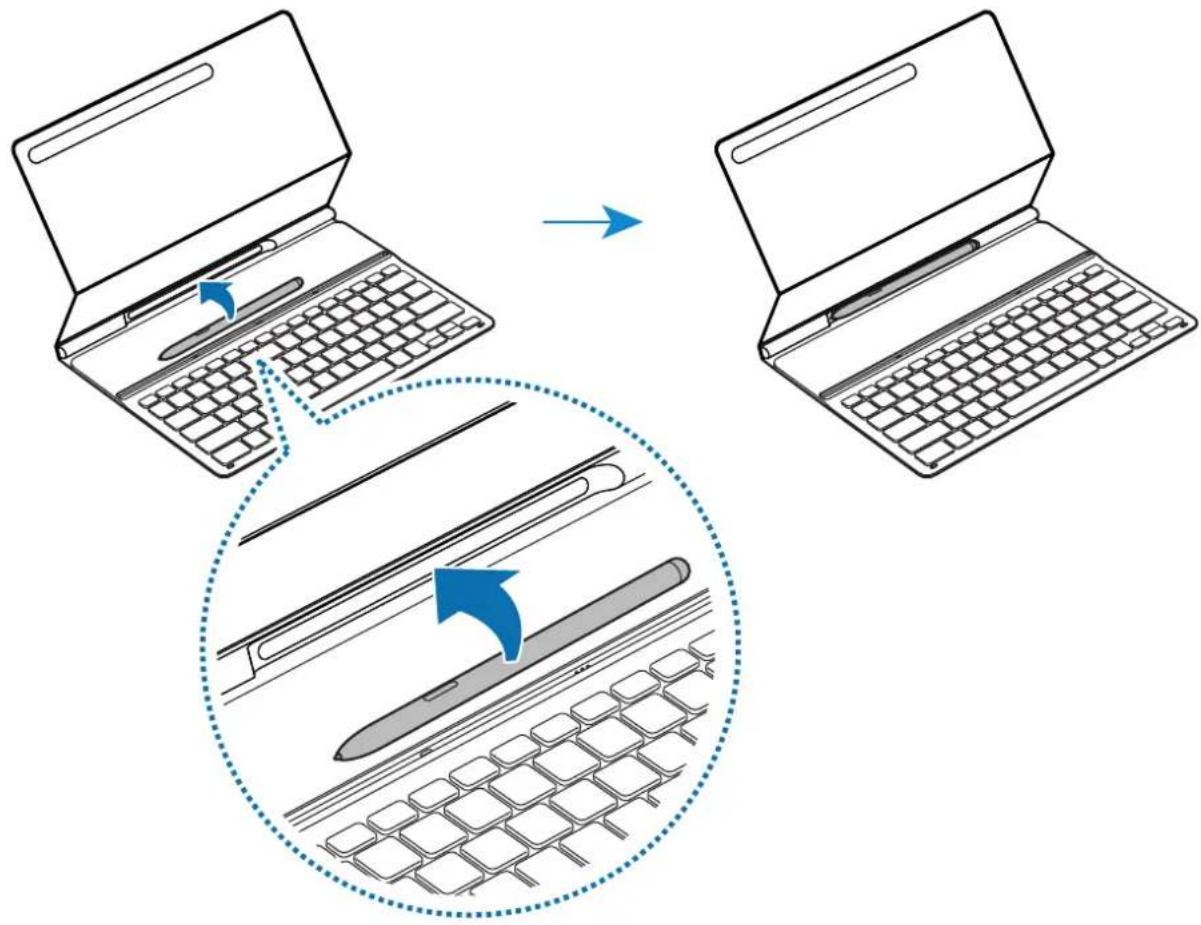
Copyright
Copyright © 2021 Samsung Electronics Co., Ltd.
This user manual is protected under international copyright laws.
No part of this manual may be reproduced, distributed, translated, or transmitted in any form or by any means, electronic or mechanical, including photocopying, recording, or storing in any information storage and retrieval system.
Trademarks
- SAMSUNG and the SAMSUNG logo are registered trademarks of Samsung Electronics Co., Ltd.
- All other trademarks and copyrights are the property of their respective owners.
Copyright © 2021 Samsung Electronics Co., Ltd.
Copyright © 2021 Samsung Electronics Co., Ltd.
Copyright © 2021 Samsung Electronics Co., Ltd.
Copyright © 2021 Samsung Electronics Co., Ltd.
Copyright © 2021 Samsung Electronics Co., Ltd.
Copyright © 2021 Samsung Electronics Co., Ltd.
Copyright © 2021 Samsung Electronics Co., Ltd.
ToBa pbKOBOCTBO Ha NOTpe6HTeJI e 3aUHTeHO OT MeKdYHaPODHNTe 3aKOHn 3a ABTOpCkO npaBO.
HnkOaCTOTpBkoBOcTBOTO He MoKe Da 6bDe Bb3POn3BexJaHa,pa3nPoCTpaHЯBaHa, npeBeJdaHa
IINI npExBbPJIHa NOk KaBbTO Ia e oopMa IINI NO KaKbBTO I da e HauNH, eJeKTPOHeH IINI
MexAHnueH,B TOBa YncIO oToKOpnIPAHe, 3aInc IINI CbXpaHeHne B KaKBaTO I da e CNCTema 3a
IHOPMaUHOHcBxpaHeHne N IN3BnUaHe.
TbproBcN MapKn
SAMSUNG i noroTo ha SAMSUNG ca pernctpupaH TbproBckn MapKn Ha Samsung Electronics Co., Ltd.
- Bcunckn octaHaJIb TbproBCKn MapKn ca co6CTBeHOCT Ha cbOTBeHTHe NTm npITexKaTeJI.
Prvo ovo pročitajte
- Prije koriSTEMja uredaja procitajte ovaj prisučnik da biste osigurali sigurno i pravilno koriSTEMje.
- Slike se mogu razlikovati po proizvodu.
- Neki sadrzaji mogu se razlikovati od vaseg uredaja, ovisno o području, i podložni su promjeni bez prethodne njave.
- Kako bist preuzeli majnoviju inačicu priručnika, posjetite Samsungovo mrežno mesto na adresi www.samsung.com.
- EF-DT630 optimiziran je za spajanje sa SAMSUNG Galaxy Tab S7, a EF-DT730 optimiziran je za spajanje sa SAMSUNG Galaxy Tab S7+ i Galaxy Tab S7 FE.
- Ako je proizvod izlozen vlazi ili otapalima kao sto je aceton, na njemu se mogu pojaviti mrlje,:noze se naborati, izobliciti ili promijeniti boju.
- Proizvod uključuje odreženi besplatni softver / softver otvorenog koda. Za pregled uputa za prikazivanje licenci otvorenog koda, posjetite internetsku stranicu tvrtke Samsung (opensource.samsung.com).
Ikone uputa
Upozorenje: Okolnosti u kojima možete ozljediti sebe ili druge
Oprez: Okolnosti u kojima su moguca ostecenja uredaja i ostale opreme
Napomena: Biljeske, savjeti za upotrebu ili dodatne informacije
Upoznavanje s uredajem
Sadržaj pakiranja
Copyright © 2021 Samsung Electronics Co., Ltd.
Ovaj je prisučnik zašićen prema mežunarodnim zakonima o autorskim pravima.
Nijedan dio ovog prisučnika ne smijete umnažati, distribuirati, prevoditi ni prenositi u bilokakvom oblik ili na bilo koji način, elektronički ili ručno, uključujuci fotokopiranje, snimanje ili Čuvanje na bilo kakvo sredstvo za pohranu, informatički oblik Čuvanja ili sustav dohvaćanja.
Zašitni znakovi
SAMSUNG i SAMSUNG logotip registrarani su zašitni znakovi tvrtke Samsung Electronics Co., Ltd.
- Svi ostali zašitni znakovi i autorska prava imaju svoje vlasnike.
Prvo pročitajte ovo
- Pročitajte ovaj prisćnik pre korišćenja ureža da biste obezbedili bezbednu i pravilnu upotrebu.
- Slike mogu da se razlikuju u zavisnosti od proizvoda.
- Odrešeni sadržaj se moze razlikovati od vašeg ureža u zavisnosti od regiona i moze se menjati bez prethodnog obavešenja.
- Najnoviju verziju prisuručnika potražite na veb-lokaciji kompanije Samsung www.samsung.com.
- EF-DT630 je optimizovan za povezivanje sa SAMSUNG Galaxy Tab S7, a EF-DT730 je optimizovan za povezivanje sa SAMSUNG Galaxy Tab S7+ i Galaxy Tab S7 FE.
- Ako je proizvod izložen vlaznosti ili rastvaračima, kao što je aceton, moze se zamrljati, smežurati, deformisati ili promeniti boju.
- Ovaj proizvod uključuje odreženi besplatni / softver otvorenog izvora. Da biste videli uputstva za gledanje licence otvorenog izvora, idite na veb stranicu kompanije Samsung (opensource.samsung.com).
Ikone sa uputstvima
Copyright © 2021 Samsung Electronics Co., Ltd.
Ovo uputstvo za upotrebu je zašićeno medunarodnim zakonima za zašitu autorskih prava. Nijedan deo ovog prisćnika se ne sme reprodukovati, distribuirati, prevoditi niti prenositi ni u Jednom obliku niti bilo kojim putem, elektronskim niti mehaničkim, što podrazumeva fotokopiranje, snimanje i skladištenje u okviru bilo kogSYSTEMA za skladištenje i preuzimanje informacija.
Zigovi
SAMSUNG i SAMSUNG logotip predstavlaju registrovaneŽigove kompanije Samsung Electronics Co., Ltd.
Svi ostali zigovi i autorska prava pripadaju odgovarajućim vlasnicima.
Leia-me
Copyright © 2021 Samsung Electronics Co., Ltd.
Este manual está protegado ao abrigo de leis de copyright internacional.
Copyright © 2021 Samsung Electronics Co., Ltd.
Copyright © 2021 Samsung Electronics Co., Ltd.
Copyright © 2021 Samsung Electronics Co., Ltd.
Copyright © 2021 Samsung Electronics Co., Ltd.
Copyright © 2021 Samsung Electronics Co., Ltd.
Copyright © 2021 Samsung Electronics Co., Ltd.
Telif Hakki © 2021 Samsung Electronics Co., Ltd.
Copyright © 2021 Samsung Electronics Co., Ltd.
nnaa nnaa nnaa nnaa nnaa nnaa nnaa nnaa nnaa nnaa nnaa nnaa nnaa nnaa nnaa nnaa nnaa nnaa nnaa nnaa nnaa nnaa nnaa nnaa nnaa nnaa nnaa nnaa nnaa nnaa nnaa nnaa nnaa nnaa naa
6907
SAMSUNG SAMSUNG Samsung Electronics Co., Ltd
- 1
115 1
. 1
.
1
www.samsung.com
α = 1 或 - 1
EF-DT730 SAMSUNG Galaxy Tab S7 EF-DT630
Galaxy Tab S7 FE & SAMSUNG Galaxy Tab S7+
J 1
i 1
j 1 j 1 j 1 j 1 j 1 j 1 j 1 j 1 j 1 j 1
(.opensource.samsung.com)
laiaJ glaJai
201 1

J 150000000000000000000000000000000000000000000

i 1

J
a
SΔOBC = SΔCOD + SΔBOC - SΔBOC
()
glia
1
O
15 10
15 1
1
1 1
1 1
1 1
Lai jolal
i j 15 15 15 15 15 15 15 15
:EF-DT630
Copyright © 2021 Samsung Electronics Co., Ltd.
1 1 1 1 1 1 1 1 1 1 1 1 1 1 1 1 1 1 1 1 1 1 1 1 1 1 1 1 1 1 1 1 1
y
Samsung Electronics Co., Ltd. Sis
#
J 1
iill 1
.
. www.samsung.com Samsung
EF-DT730 SAMSUNG Galaxy Tab S7 EF-DT630
.Galaxy Tab S7 FE , SAMSUNG Galaxy Tab S7+
a
(.opensource.samsung.com)
A
i 1

s 1111111111111111111111111111

aI 1 aIglo gI pIi I iI 1 1

p
aai
J
Copyright © 2021 Samsung Electronics Co., Ltd.
Bny naaHaHyBb HcyckaybIbI xaIbIKapalbIK aBTOpblK KykbIK Typalbl 3aHap 6oBbIHwa KopfaiHan.
Бул hyсaylbiktbiH eшбip 6eJIirH ke3 KeJIreH Tpyde Hemece ke3 KeJIreH aIicneH (JIeKTPoHbIK He MexaHnkaIbIK), cohBiH iwiHnde, fOToKeWiPy, Xa3y Hemece ke3 KeJIreH aKnapaTbIK KoIMaJa XHe Iblfapbl anly JxuHeciHde caTay apKbIbI KeWiPyre, TaPaTyFa, aydapyFa Hemece TacbImaJdAyFa 60lmamdbI.
Cayda 6eIrilepi
SAMSUNG JAne SAMSUNG Iorotnni — Samsung Electronics Co., Ltd. KOMnaHnrcbHbHt tipKeIreH cayda 6elrilepi.
- Baplbk 6aca cayda 6eIriepi MeH aBTOpbIK KYKbIKTap OlanpdbH Tnicti nelepiHmehwiri 60bln Ta6bila.
Read me first
- Please read this manual before using the device to ensure safe and proper use.
Images may vary by the product. - Some content may differ from your device depending on the region, and is subject to change without prior notice.
- For the latest version of the manual, refer to the Samsung website, www.samsung.com.
- EF-DT630 is optimized to connect with the SAMSUNG Galaxy Tab S7 and EF-DT730 is optimized to connect with the SAMSUNG Galaxy Tab S7+ and Galaxy Tab S7 FE.
- If the product is exposed to humidity or solvents such as acetone, it may get stained, wrinkled, misshapen, or change color.
- This product includes certain free/open source software. To see the instructions for viewing the open source license, go to the Samsung website (opensource.samsung.com).
Instructional icons
Warning: situations that could cause injury to yourself or others
Caution: situations that could cause damage to your device or other equipment
Note: notes, usage tips, or additional information
Getting started
Package contents
- Keyboard cover
Quick start guide

- The items supplied with the device and any available accessories may vary depending on the region or service provider.
- Appearances and specifications are subject to change without prior notice.
Device layout
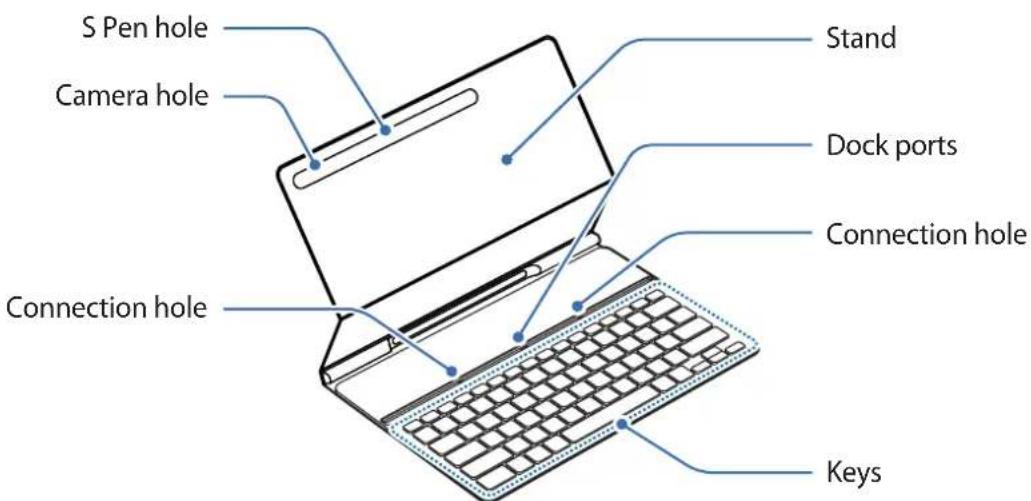
Using the Keyboard
Connecting the keyboard
1 Position the tablet's rear camera to insert it into the camera hole and put the tablet in the stand.
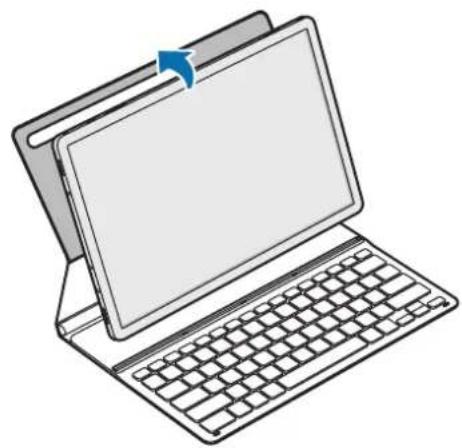
2 Insert the tablet into the connection hole to meet the tablet's connectors and the dock ports.
You can use the keyboard instantly.
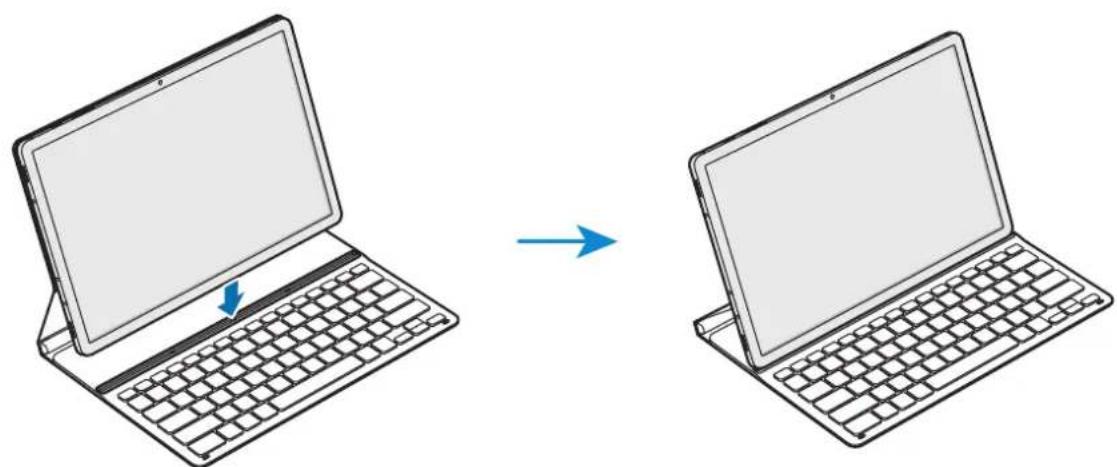

You can use the keyboard as a screen cover. The screen turns off when you cover it with the keyboard, and it turns on when you open the keyboard.

Do not apply excessive pressure on the keyboard while covering the tablet's screen. Doing so may cause screen damage.
Using the keys
Set the input language on the tablet before you use the keyboard. For more information about setting the input language, refer to the tablet's user manual.
EF-DT630:
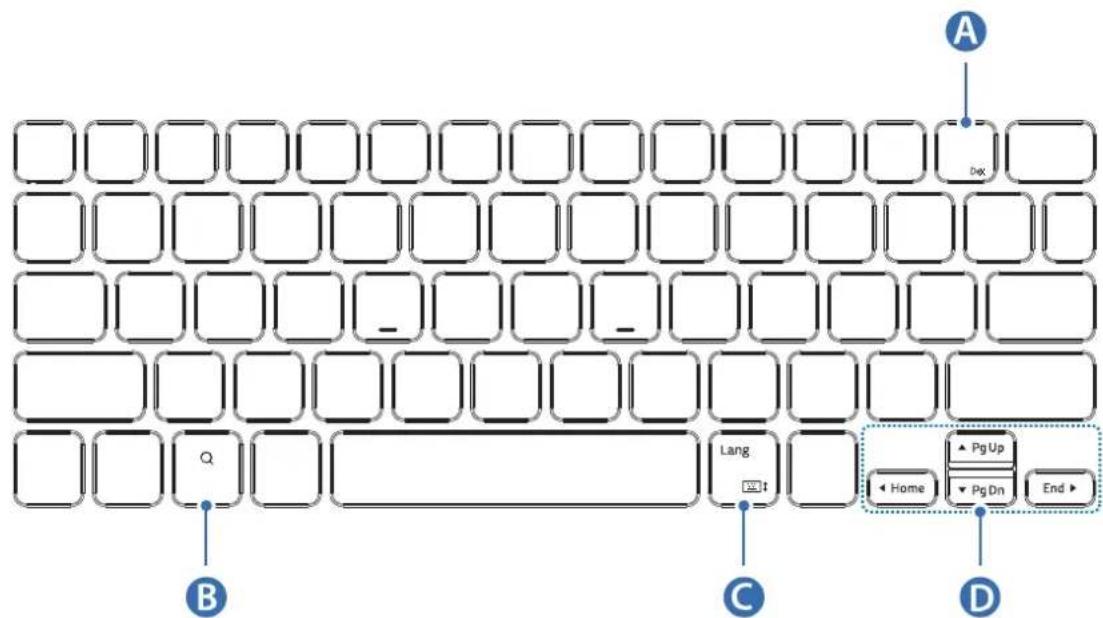
| A | • [Fn] + [DeX]: Launch or close Samsung DeX. |
| B | • Search the contents. |
| C | • [Lang]: Change between input languages. • [Fn] + :Enable or disable the on-screen keyboard. |
| D | • ▲/▼ / ▲/▲: Move cursor or system caret; • [Fn] + [▲]: Page Up • [Fn] + [▼]: Page Down • [Fn] + [▲]: Home • [Fn] + [▷]: End |
EF-DT730:
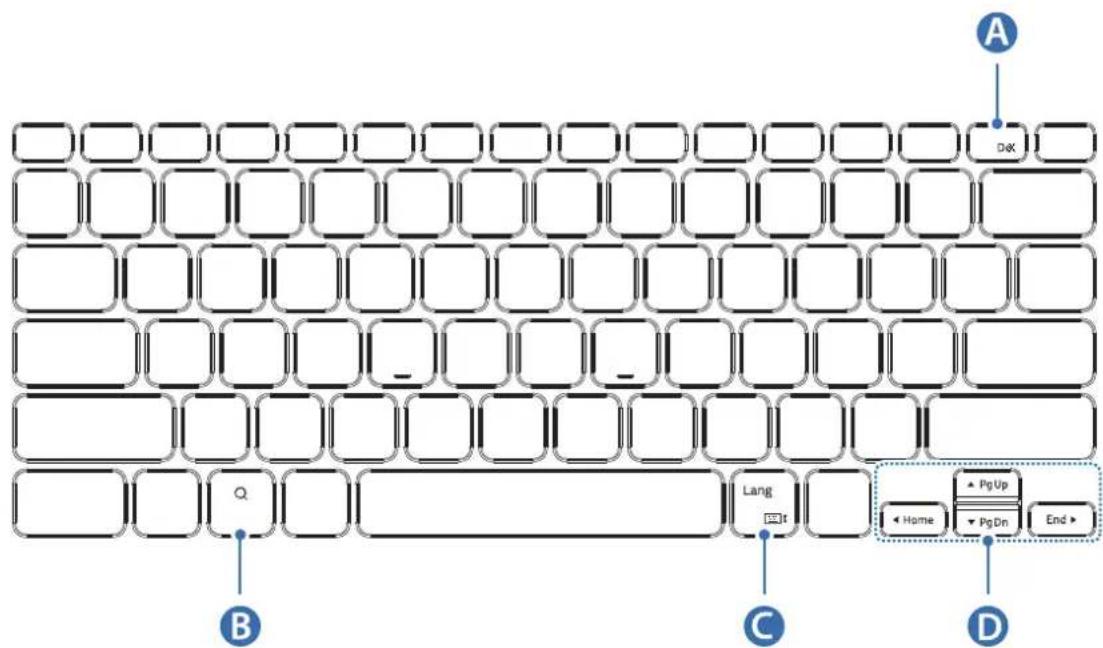
| A | • [Fn] + [DeX]: Launch or close Samsung DeX. |
| B | • Search the contents. |
| C | • [Lang]: Change between input languages. • [Fn] + [▲]ble or disable the on-screen keyboard. |
| D | • ▲/▼ / △/▶: Move cursor or system caret; • [Fn] + [▲]: Page Up • [Fn] + [▼]: Page Down • [Fn] + [▲]: Home • [Fn] + [▶]: End |
For more information about Samsung DeX, refer to the tablet's user manual.
Attaching the S Pen
Attach the S Pen to the tablet as shown in the image below.
You can also attach the S Pen after covering the keyboard cover.
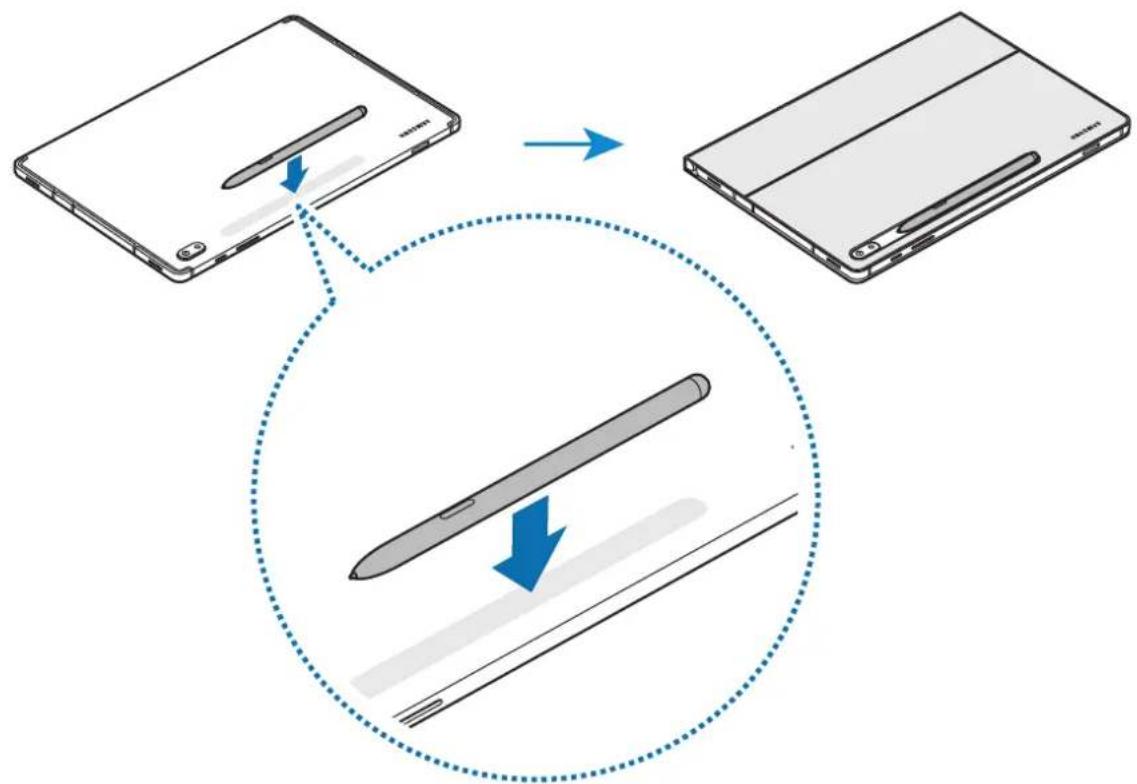

Make sure to place the nib of the S Pen to face the camera. The S Pen will not charge if it is misplaced.
Storing the S Pen
Store the S Pen as shown in the image below.
Copyright
Copyright © 2021 Samsung Electronics Co., Ltd.
This user manual is protected under international copyright laws.
No part of this manual may be reproduced, distributed, translated, or transmitted in any form or by any means, electronic or mechanical, including photocopying, recording, or storing in any information storage and retrieval system.
Trademarks
SAMSUNG and the SAMSUNG logo are registered trademarks of Samsung Electronics Co., Ltd.
- All other trademarks and copyrights are the property of their respective owners.
Leer primo
Copyright © 2021 Samsung Electronics Co., Ltd.
Copyright © 2021 Samsung Electronics Co., Ltd.
本使用者手册受國際著作權法所保護。

- Instructional icons
- Getting started
- Package contents
- Device layout
- Using the Keyboard
- Connecting the keyboard
- Using the keys
- Attaching the S Pen
- Storing the S Pen
- Copyright
- Trademarks
- TbproBcN MapKn
- Prvo ovo pročitajte
- Ikone uputa
- Upoznavanje s uredajem
- Sadržaj pakiranja
- Zašitni znakovi
- Prvo pročitajte ovo
- Ikone sa uputstvima
- Zigovi
- Leia-me
- 6907
- 1
- J
- a
- 10
- 1
- Lai jolal
- #
- p
- aai
- Cayda 6eIrilepi
- Read me first
- Leer primo
Brand : SAMSUNG
Model : EFDT630
Category : Keyboard