USER MANUAL Nyon BOSCH
natural_image
Illustration of a Bosch electric vehicle charging pad (no text or symbols on the device body)
Robert Bosch GmbH
Bosch eBike Systems
72703 Reutlingen
GERMANY
www.bosch-ebike.com
1 270 020 XBN (2016.05) T/152 WEU
Nyon
1 270 020 907/915

BOSCH
General Safety Rules

Read all safety warnings and all instructions. Failure to follow the warnings and instructions may result in electric shock, fire and/or serious injury.
Save all safety warnings and instructions for future reference.
The term “battery pack” used in these operating instructions, irrespective of model, refers both to standard battery packs (battery packs with holder on the bike frame) and to rack-type battery packs (battery packs with holder in the rear rack/ carrier).
▶ Make sure to not be distracted by the display of the on-board computer. If you do not focus exclusively on the traffic, you risk being involved in an accident. If you want to make entries in your on-board computer other than switching the assistance level, stop and enter the appropriate data.
▶ Before beginning any exercise program, seek advice from a doctor about which pressure you can place yourself under. This is the only way to avoid potential overloading.
When using a heart rate monitor the heart rate displayed may be distorted by electromagnetic interference. The heart rates displayed are for reference only. No liability can be accepted for consequences caused by incorrectly displayed heart rates.
▶ Do not open Nyon. Opening Nyon can destroy it and void any warranty claims.
▶ Do not use the on-board computer as a handle. Lifting the eBike up by the on-board computer can cause irreparable damage to the on-board computer.
▶ Nyon is not a medical product. The values displayed in the “Fitness” operating mode may differ from the actual values.
▶ Use the Nyon on-board computer only with the associated operating unit, which has its own joystick. The joystick on the operating unit has the same range of functions as the joystick on the on-board computer itself.
Read and observe the safety warnings and instructions in all operating instructions of the eBike system and in the operating instructions of your eBike.
▶ Do not plan your routes whilst you are cycling. Stop and wait until you are stationary before entering a new destination. If you do not focus exclusively on the traffic, you risk being involved in an accident.
▶ Abandon your route if the navigation system suggests a path or road which is too ambitious, risky or dangerous for you based on your cycling ability. Have your navigation system propose an alternative route.
▶ Do not ignore any road signs, even if the navigation system tells you to take a specific route. The navigation system cannot take roadworks or temporary diversions into account.
▶ Do not use the navigation system in situations which are safety-critical or unclear (road closures, diversions, etc.). Always carry extra maps and means of communication with you.
Product Description and Specifications
Intended Use
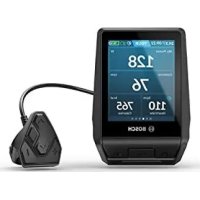
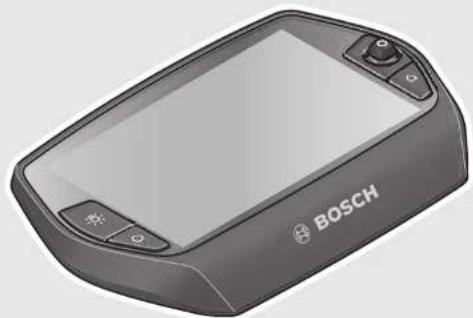
The Nyon on-board computer is designed to control Bosch eBike systems and display riding data.
Nyon is not suitable for a navigation without a bicycle (for hikers or motorists).
Product Features
The numbering of the components shown refers to the illustrations on the graphic pages at the beginning of the manual. All illustrations of bike parts except for the drive unit, onboard computer including operating unit, speed sensor and the corresponding holders are schematic and may differ on your eBike.
1 Joystick
2 Button "Home"
3 On-board computer
4 Holder for on-board computer
5 On/Off button for on-board computer
6 Bike lights button
7 Brightness sensor
8 USB port
9 Protective cap of USB port
10 Operating unit
11 Joystick on the operating unit
12 "Home" button on the operating unit
13 Decrease assistance level button
14 Increase assistance level button
15 Button push/start aid "WALK"
16 Lock latch for on-board computer
17 Locking screw for on-board computer USB charging cable (Micro A - Micro B)*
* not illustrated; available as accessory
Technical Data
| On-board computer Nyon |
| Article number | | 1 270 020 907/915 |
| Internal memory in total |
| 1 270 020 907 | GB | 1 |
| 1 270 020 915 | GB | 8 |
| Max. charging current,USB connection | mA 500 | |
| Charging voltage,USB connection | V | 5 |
| USB charging cable1) | | 1 270 016 360 |
| Operating temperature | °C -5...+40 | |
| Storage temperature | °C -10...+50 | |
| Charging temperature | °C 0...+40 | |
| Internal lithium-ion battery | V | 3.7 |
| mAh | 710 |
| Protection type2) | | IP x7 (watertight) |
| Supported wi-fi standards | | 802.11b/g/n(2.4 GHz) |
| Weight, approx. | kg 0.2 | |
| 1) Not included as part of standard delivery |
| 2) When USB cover is closed |
Assembly
To insert the on-board computer 3, slide it from the front into the holder 4.
To remove the on-board computer 3, press the lock latch 16 and slide the on-board computer toward the front out of the holder 4.
▶ Remove the on-board computer when you park the eBike.
It is possible to secure the on-board computer against removal in the holder. To do so, remove the holder 4 from the handlebar. Put the on-board computer in the holder. Screw the locking screw 17 (thread M3, 8 mm long) from below into the thread provided in the holder. Mount the holder back onto the handlebar.
Operation
Initial Operation
Requirements
The eBike system can only be activated when the following requirements are met:
- A sufficiently charged eBike battery pack is inserted (see operating instructions of the battery pack).
- The on-board computer is properly inserted in the holder (see "Inserting and removing the on-board computer", page English-2).
Switching the eBike System On/Off
Options for switching on the eBike system:
- Place the on-board computer into the holder 4.
- When the on-board computer and the eBike battery pack are inserted, briefly press the On/Off button 5 of the on-board computer.
- When the on-board computer is in button of the eBike battery pack (see battery pack operating instructions).
The drive is activated as soon as you step on the pedals (except for in the push assistance function or in assistance level "OFF"). The motor output depends on the settings of the assistance level on the on-board computer.
As soon as you stop pedaling when in normal operation, or as soon as you have reached a speed of 25/45 km/h, the assistance from the eBike drive is switched off. The drive is automatically re-activated as soon you start pedaling again and the speed is below 25/45 km/h.
Options for switching off the eBike system:
- Press the On/Off button 5 of the on-board computer for at least 1 second.
- Switch the eBike battery pack off by its On/Off button (see battery pack operating instructions).
- Remove the on-board computer out of its holder.
If no power is drawn from the drive for about 10 minutes (e.g. because the eBike is not moving) or no button is pressed on the Nyon, the eBike system will shut down automatically to save energy.
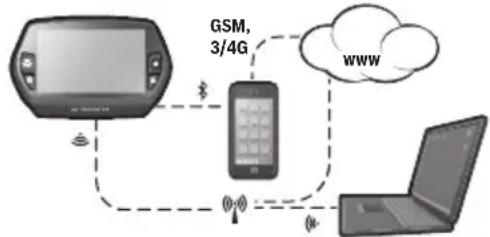
The "Nyon" operating system
The Nyon operating system consists of three components:
– the Nyon on-board computer with operating unit
- the smartphone application "Bosch eBike Connect"
- the online portal
Many configurations and features can be managed and used on all components. Some configurations and features can be accessed or operated only via certain components. The synchronization of data occurs automatically during Bluetooth®-/internet connection. The following table provides an overview of the available features.
flowchart
graph TD
    A["Smartphone"] -->|Wireless Signal| B["Smartphone"]
    B --> C["Laptop"]
    C -->|Wireless Signal| B
    B -->|Wireless Signal| D["Cloud"]
    D -->|Wireless Signal| B
    B -->|Wireless Signal| E["3/4G"]
    E -->|Wireless Signal| B
On-board computer
Smartphone application
Online portal
| Log in/registration √ √ √ | | | |
| Change of configurations | √ | √ | √ |
| Recording of journey data | √ | | |
| Real-time display of journey data √ | | | |
| Processing/analysis of journey data √ √ | | | |
| Creating user-defined displays | | √ | √ |
| Displays the current location* | √ | √ | √ |
| Navigation | √ | | |
| Route planning √ √ √ | | | |
| Display of remaining distance(circle around the current location) | √ | √ | |
| Training effect in real-time √ | | | |
| Overview of journeys √ √ | | | |
| Statistics “Dashboard” | √ | √ | √ |
| Purchase of “premium features” | | √ | |
*GPS required
Premium features
The standard features of the “Nyon” operating system can be expanded via the App Store for Apple iPhones and Google Play Store for Android devices through the purchase of “premium features”.
In addition to the free application “Bosch eBike Connect” there are several fee-based premium features. A detailed list of available additional applications can be found in the online manual under “www.Bosch-eBike.com/nyon-manual”.
Initial Operation of the On-board Computer
The battery pack is supplied partially charged. Before the first use, the Nyon battery pack must be fully charged via the USB port (see "Energy supply of the on-board computer", page .English-7) or the eBike system.
In order to use all the features of the operating system, you must also register online.
Registration at the On-board Computer
- Switch on the on-board computer using the On/Off button 5.
- Use the joystick 1 to select your preferred language (select by pressing the joystick) and follow the instructions.
You have the following options to put Nyon into operation:
- "TEST RIDE"
You can perform a test ride without having to register in advance or to enter data. After shutting down, all trip data will be deleted.
- "SET UP">"OFFLINE"
This is a very short registration process limited to Nyon. Offline means in this case that your journey and user data are only saved locally on the on-board computer.
Follow the instructions and choose one of the suggested answers. Entered data is kept after shutting Nyon down, but will not be synced to the online portal or smartphone application.
- "SET UP" > "ONLINE" > "PHONE"
This is a complete registration process.
Insert Nyon in the holder 4, download the application
"Bosch eBike Connect" to your smartphone and register using the application. Following registration, the journey data are stored and synchronized with the smartphone application and the online portal.
- "REGISTR." > "ONLINE" > "WI-FI"
This is a complete registration process. Go to an access point of a wi-fi network. Place your Nyon in the holder 4. After selecting a network and entering your ID and password, Nyon then connects to the WLAN network of your choice and you are directed to the “www.eBike-Connect.com” online portal where you can register. Following registration, the journey data are stored and synchronized with the online portal. You can then connect your Nyon to your smartphone (“Settings”>“Connections”>“Connect Smartphone”).
Registration via smartphone and Bluetooth® connection
A smartphone is not included in the delivery. To register with the smartphone internet connection is required, which, depending on the contract, can generate costs at your telephone provider. For the synchronization of data between the smartphone and online portal an Internet connection is also required.
To make use of the full range of functions provided by your onboard computer, you need a smartphone with the Android operating system, version 4.0.3 or a later version, or iOS 8 or a later version. A list of tested/approved smartphones, can be found in the online manual under
"www.Bosch-eBike.com/nyon-manual".
Smartphones with the above mentioned operating systems, which are not included in the list can be connected under certain circumstances with the on-board computer. However, a complete compatibility of the on-board computer with the smartphones not listed, can not be guaranteed.
Download the application "Bosch eBike Connect" to your smartphone from the App Store for Apple iPhones and Google Play Store for Android devices.
Start the application “Bosch eBike Connect” and follow the instructions. Detailed instructions can be found in the online manual under “www.Bosch-eBike.com/nyon-manual”.
If the application "Bosch eBike Connect" is active and there is a Bluetooth® connection to your on-board computer, data between on-board computer and smartphone will sync automatically.
Online registration
Internet access is required for online registration.
Open the online portal “Bosch eBike Connect” with your browser under “www.eBike-Connect.com” and follow the instructions. Detailed instructions can be found in the online manual under “www.Bosch-eBike.com/nyon-manual”.
Displays and configurations of the on-board computer
Note: All interface displays and interface texts on the following pages correspond to the release status of the software. Since the Nyon software is updated a number of times a year, the interface displays and/or interface texts may change slightly after an update.
Operating logic
A change in the display can be achieved during the trip via the operating unit 10. This way both hands can stay on the handlebars while cycling.
With the control elements on the on-board computer, you have the following options:
- Switch the on-board computer on or off using the On/Off button 5.
- The default mode of operation in "Settings">“My Nyon” can be reached via the “Home” (2 or 12) button.
- The bike lights can be switched on or off using the bike light button 6.
- Use the joystick 1 to navigate through the respective operating modes. Make a selection by pressing the joystick 1.
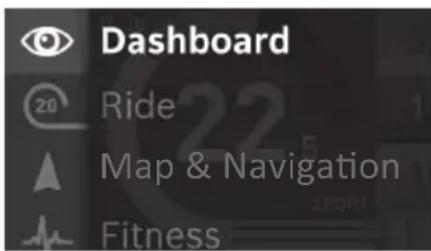
Press left on the joystick 1 to overlay the active operating mode with the main menu and to switch it to the main menu (see picture above).
If you press the joystick 1 right while in the active operating mode, the current screen is overlayed with the potential configuration options of the current operating mode. Move the joystick to the desired option and select it by pressing the joystick 1.
Tip: If you are in an active operating mode, you can switch directly to the next operating mode by pressing the joystick 1 up or down.
If Nyon is on the eBike, "Ride" is displayed after switching on the operating mode. If Nyon is not mounted on the eBike, "Dashboard" is displayed on the operating mode.
Main Menu
Symbol Operating mode Function
| “Dashboard” This operating mode displays various pieces of statistical data, the connection status and the synchronisation status. |
| “Ride” This operating mode provides current journey data. |
| “Map & Navigation” | Use this operating mode to download map data based on Open Street Map (OSM) over the web. You can navigate using these maps. |
| “Fitness” Via this mode you can view various fitness-related information. |
| “Settings” This operating mode allows you to set the basic configurations of your on-board computer. |

Operating mode "Dashboard"
This operating mode displays various pieces of statistical data, the connection status and the synchronisation status.
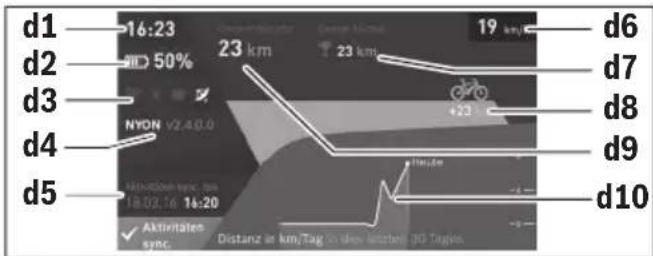
d1 Clock
d2 Charge level indicator of the eBike battery pack
d3 Connection status
d4 Nyon version information
d5 Nyon synchronisation information
d6 Speed/light status display (when the on-board computer is fitted)
d6 Charge level indicator of the on-board computer battery (when the on-board computer is removed)
d7 Highest number of kilometres travelled in a month
d8 Kilometres travelled in comparison to the previous month
d9 Total kilometres
d10 Daily kilometres travelled in the last 30 days
The following are synchronised:
-Saved routes and locations
- User-defined screens and riding modes
- User settings
Synchronisation is performed via WLAN or Bluetooth®. If both connection types are deactivated, you will receive a corresponding fault message.

Operating mode "Ride"
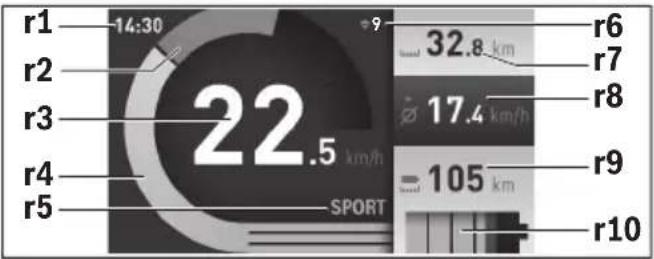
This operating mode provides current journey data.
gauge
| Route | Speed (km/h) |
|---|---|
| r1 | 14:30 |
| r2 | |
| r3 | 22.5 |
| r4 | |
| r5 | |
| SPORT | |
| r6 | 32.8 |
| r7 | |
| r8 | 17.4 |
| r9 | 105 |
| r10 | |
r1 Clock
r2 Own pedal power
r3 Speed
r4 Engine power
r5 Assistance-level indicator
r6 Shift recommendation/eShift displays
r7 Trip meter
r8 Average speed
r9 Coverage
r10 Charge level indicator of the eBike battery pack

Operating mode "Map&Navigation"
Use this operating mode to download map data based on Open Street Map (OSM) over the web. You can navigate using these maps.
The map material suitable for the place of residence is installed by the bike dealer for the respective buyer. If required, additional maps can be downloaded via your smartphone application "Bosch eBike Connect" and be transferred to your on-board computer. Detailed instructions can be found in the online manual under
"www.Bosch-eBike.com/nyon-manual".
If you have an active WLAN connection, it is possible to load any maps directly onto Nyon via "Settings">“Map & Navigation">“Map Manager”.
When you switch on Nyon, it begins the satellite search to receive GPS signals. Once a sufficient number of satellite signals is found, the operating mode displays
"Map&Navigation" on the map with the current location. In case of unfavourable weather conditions or locations, the satellite search may take a little longer. If the application fails to find satellites over a long period of time, restart Nyon.
Pressing the joystick 1 to the right allows you to change the zoom configuration of the map section by selecting the sub menu on the right side. You can display the range of your eBike battery pack or choose one from different navigation options. The zoom configurations for the map section can also be changed by pressing the joystick.
The basic remaining range of the battery can be extended by means of the "Topo. range" premium feature. The "Topo. range" feature then calculates and displays the battery's remaining range, taking into consideration the topographical conditions. Detailed instructions can be found in the online manual under "www.Bosch-eBike.com/nyon-manual".
Your nearest "Bosch eBike experts" are also shown under "Points of Interest". When you select a dealer, the route to it will be calculated and made available for you to select.
If you have entered the destination (town, street, house number), three different routes ("Scenic", "Fast" and "MTB")
(Mountain bike)) will be provided for you to choose from. Alternatively, you can opt to be guided home, select one of the last destinations used, or choose from saved locations and routes. (Detailed instructions can be found in the online manual under "www.Bosch-eBike.com/nyon-manual".) The selected route will be displayed as shown in the figure below.
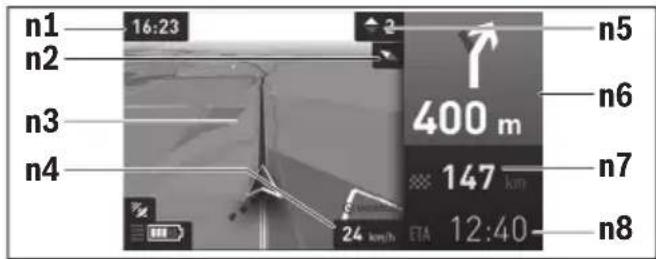
n1 Clock
n2 Compass needle
n3 Map
n4 Speed
n5 Shift recommendation
n6 Turn instructions and distance to the next turn
n7 Distance to destination
n8 Estimated time of arrival at destination
During the navigation, the guidance (e.g. turn left in 50 meters) will also be displayed via a cross fade in other operating modes.
If you interrupt a journey for which you are using navigation and then call up "Map & Navigation", you will be asked whether or not you wish to continue navigation. If you continue navigation, the navigation system will guide you to your last destination.
If you have imported GPX routes via the online portal, these will be transferred to your Nyon via Bluetooth® or via a WLAN connection. You can start these routes when you wish. If you are near a route, you can have the navigation system guide you to the starting point or you can start navigating along the route immediately.
If you are using intermediate destinations, a message will inform you when you have reached an intermediate destination.
Nyon is not suitable for a navigation without a bicycle (for hikers or motorists).
At temperatures below 0^ C, the altitude measurement is likely to deviate significantly.

Operating mode "Fitness"
Via this mode you can view various fitness-related information. Based on the activity levels provided in your registration, the effect of your previous activities will be displayed on your stamina level (training effect).
To check your heart rate, you can use a chest strap, which you can connect to Nyon via Bluetooth®.
Compatible models can be found in the online manual under "www.Bosch-eBike.com/nyon-manual".
A chest strap is not included in the delivery.
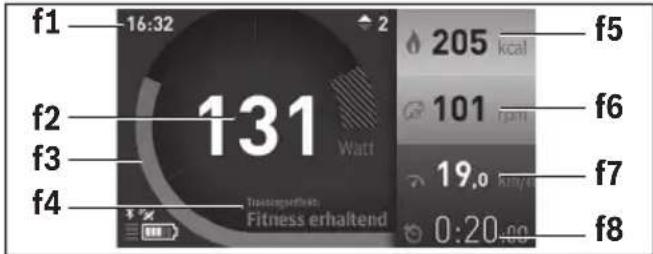
f1 Clock
f2 Current performance/heart rate*
f3 Display of the current training effect
f4 Training effect
f5 Kilocalories burned
f6 Current cadence
f7 Current speed
f8 Duration
* When using a chest strap to measure the heart rate (not included in the delivery), your current heart rate will be displayed instead of the performance.
Via the sub menus, you can reset the average values or switch to individualised displays. Detailed instructions can be found in the online manual under
"www.Bosch-eBike.com/nyon-manual".

Operating mode "Settings"
This operating mode allows you to set the basic configurations of your on-board computer.
Note: Some basic configurations can only be changed when Nyon is inserted into the holder 4.
To reach the "Settings" menu, press the joystick 1 down in the main menu until "Settings" is displayed.
Tip: If you press the joystick down long enough, you will also reach the "Settings" menu.
The following configurations can be made:
- “Connections”: You can configure the Bluetooth® configurations, a new smartphone connection, a WiFi connection or a heart rate monitor.
When you enable WiFi, Nyon searches for available networks. Found networks will be displayed. Use the joystick 1 to select the desired network and enter the password.
- "Map&Navigation": Here you can configure the map display and turn on automatic adaptation of the display, dependant on the ambient brightness.
- “My Profile”: Here you can also choose to display the active user.
- "My eBike": When Nyon is plugged in, you can change the pre-set value given by the manufacturer of the wheel circumference by ±5%.
The bicycle manufacturer or dealer may base the service date on the distance travelled and/or a period of time. The due date for the service is displayed under "Service".
Under "Shift Recommendation", you can switch the indication of a shift recommendation on and off.
If your eBike is equipped with "eShift", you can also configure your eShift system here (see "eShift (optional)", page English-9).
- “My Nyon”: Here you can search for updates, configure the Home button, automatically set the counters such as trip meter, calories burned and average values to “0” every night, or reset Nyon to the factory settings.
Under "Auto Brightness", the brightness of the display can be automatically adjusted.
Under “Altitude correction”, you can adjust the value displayed to the actual altitude to compensate for weather-related changes.
- “Region & Language”: You can set speed and distance in kilometres or miles, display clock in 12 or 24 hour format, select the time zone and set your preferred language. The current time is automatically taken from the GPS signal.
- In the "Help" menu item, you will find a selection of FAQs (frequently asked questions), contact details and information about the system and licenses.
Status display
Depending on the operating mode shown, all status indicators are not always displayed. Indicators already shown on the main screen will not be shown again. The position of the indicators may vary. If the on-board computer is taken out of its holder, the charging state of the Nyon battery of the on-board computer is displayed in place of the bike lights indicator.
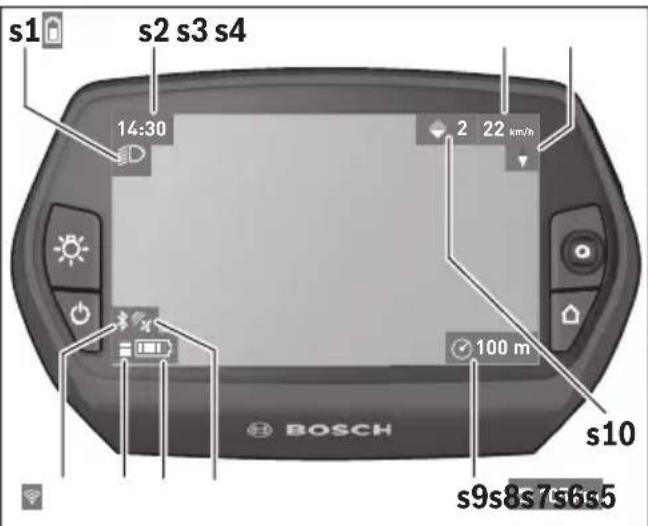
s1 Bike lights display/Charge level indicator of Nyon battery pack
s2 Clock display
s3 Speed display
s4 North display
s5 Bluetooth®/WiFi connection display
s6 Assistance level display
s7 Charge level indicator of the eBike battery pack
s8 GPS signal display
s9 Zoom range/remaining range display
s10 Shift recommendation
Energy supply of the on-board computer
If the on-board computer is in the holder 4, a sufficiently charged eBike battery pack is inserted into the eBike and the eBike system is turned on, then the Nyon battery pack is powered by the eBike battery pack.
If the on-board computer is removed from the holder 4, the energy is supplied via the Nyon battery pack. If the Nyon battery pack is weak, a warning message appears on the display.
To charge the Nyon battery pack, insert the on-board computer back into the holder 4. Note that if you do not charge the eBike battery pack straight away, the eBike system will automatically switch off after 10 minutes of inactivity. In this case, the charging of the Nyon battery pack will also cease.
You can also charge the on-board computer via the USB port. Open the protective cap 9. Connect the USB port 8 of the onboard computer via a micro USB cable with a standard USB charger (not included in the delivery) or the USB port of a computer (5 V charging voltage, max 500 mA charging current).
Note: If Nyon is shut down during charging, Nyon can only be switched on again if the USB cable has been disconnected (applies to 1 270 020 907 only).
If the on-board computer is removed from the holder 4, all values of the features are saved and can still be displayed.
Without recharging the Nyon battery pack, date and time will remain up to a maximum of 6 months. When switching back on, date and time are reset after a successful GPS fix.
Note: To achieve a maximum lifespan of the Nyon battery pack, the Nyon battery pack should be recharged every 6 months.
Switching on/shutting down the on-board computer
To switch on the on-board computer briefly press the On/Off button 5.
To shut down the on-board computer press the On/Off button 5 for at least 1 second.
If no button is pressed after 5 minutes, Nyon goes into power saving mode (back lighting off) and shuts down automatically after a further 5 minutes.
Nyon reset
If, contrary to expectations, Nyon can no longer be operated, then Nyon can be reset by simultaneously pressing the buttons 1, 2, 5 and 6. Carry out the reset only if absolutely necessary, as various configurations may be lost.
Battery Charge-control Indicator
The battery charge level indicator r10 (s7) displays the charge level of the eBike battery pack. The charge level of the Nyon battery pack can be read on the display s1. The charge level of the eBike battery pack can also be read on the LEDs on the eBike battery pack itself.
On indicator r10, each bar of the battery pack symbol is equivalent to a capacity of approx. 20 %:

The eBike battery pack is fully charged.

The eBike battery pack should be recharged.

The capacity for assisting the drive has been used up, and assistance is gently switched off. The remaining capacity will be provided for the bike light and the on-board computer.
The capacity of the eBike battery pack is enough for about 2 hours of lighting. This does not account for other consumers (e.g. automatic gearbox, charging external devices at the USB port).
If the on-board computer is removed from the holder 4, the last displayed battery charge level is saved.
Setting the Assistance Level
On the operating unit 10 you can set how much the eBike drive assists you while pedalling. The assistance level can be changed at any time, even while cycling.
Note: For individual versions, it is possible that the assistance level is pre-set and cannot be changed. It is also possible that less assistance levels are available for selection than listed here.
The following assistance levels (max.) are available:
- “OFF”: The motor assistance is switched off, and the eBike can be moved as a normal bicycle only by pedalling. The push assistance cannot be activated in this assistance level.
- “ECO”: Effective assistance at maximum efficiency for maximum cruising range
- “TOUR”: Uniform assistance, for touring with long cruising range
- "SPORT": Powerful assistance for sportive riding off road as well as for urban traffic
- “TURBO”: Maximum assistance, supporting highest cadence for sportive riding
To increase the assistance level, press the “+” 14 button on the operating unit until the desired assistance level appears in the display r5. To decrease the assistance level, press the button “-” 13.
The requested motor output is displayed in indicator r4. The maximum motor output depends on the selected assistance level.
When the on-board computer is removed from the holder 4, the last indicated assistance level is stored; the motor-output indicator r4 remains empty.
Switching the Push-assistance mode On/Off
The push-assistance feature makes it easier to push the eBike. The speed in this function depends on the set gear and cannot exceed 6 km/h (max.). The lower the set gear, the lower the speed in the push-assistance function (at full output).
The push-assistance function may only be used when pushing the eBike. Danger of injury when the wheels of the eBike do not have ground contact while using the push-assistance function.
To activate the push-assistance function, briefly press button "WALK" on your on-board computer. After activation, press button "+" within 3 s and keep it pressed. The eBike drive is switched on.
The push assistance is switched off as soon as one of the following occurs:
- You release button "+" 14,
- The wheels of the eBike are blocked (e.g. by actuating the brakes or impacting against an obstacle),
- The speed exceeds 6 km/h.
After releasing the “+” button, the push assistance remains on standby for another three seconds. Pressing the “+” button again within this period will reactivate the push assistance.
Note: On some systems the push-assistance function can be started directly by pressing the "WALK" button.
Note: The push assistance cannot be activated in the "OFF" assistance level.
Switching bike lights on/off
In the model, in which the lighting is powered by the eBike system, the front and rear light can be switched on and off at the same time via the on-board computer with the button 6. The illumination symbol s1 is displayed when the light is on.
Switching the bike light on and off has no effect on the back lighting of the display.
eShift (optional)
eShift is the integration of automatic gear shifting systems into the eBike system. You can configure the settings for the "eShift" function under "My eBike". The gear or the cadence is displayed in the "Ride", "Fitness" and "Map & Navigation" operating modes. If the field is not displayed, the user is informed of changes by means of an indication on the display. eShift mode is activated by holding down the "Home" button 12. It is only possible to activate eShift mode via the operating unit 10. You can exit "eShift" mode again by repeatedly pressing the "Home" button.
eShift with NuVinci H|Sync
The optimum gear for the respective speed is automatically set according to a pre-defined desired cadence. In manual mode you can choose between multiple gears.
In the “Cadence Control” mode, you can use the “-” or “+” button on the operating unit to increase or decrease the required cadence. If you hold down the “-” or “+” button, the cadence will increase or decrease in increments of five. The desired cadence is shown on the display.
In the "Gear Control" mode, you can use the “-” or “+” button on the operating unit to switch back and forth between several defined transmission ratios. The engaged gear is shown on the display.
Under "Gear calibration", you can calibrate the continuously variable transmission. Then follow the instructions on the display.
In the event of an error, it can also be necessary to perform calibration when riding. Confirm the calibration here too, and follow the instructions on the display.
The hub gear of the SRAM DD3 Pulse works on a speed-dependent basis. Regardless of which gear is engaged on the derailleur gears, one of the three gears of the gear hub will automatically be engaged.
It is also possible to use the “-” or “+” button to shift gear manually here. Automatic mode is activated automatically if you press the “-” button in first gear. If you press the “-” or “+” button in automatic mode, the mode changes back to manual mode. In automatic mode, only “A” is ever shown in the gear display. If the gear is shifted in automatic mode, the gear is not shown on the display.
If you are not in automatic mode, the engaged gear will be shown briefly on the display whenever the gear of the hub gear is shifted.
The drive unit recognises the gear shift and briefly reduces the motor assistance level as a result of it, which means the gear can also be shifted at any time under load or on a hill. If the eBike is brought to a stop from a speed of more than 10 km/h, the system may automatically shift down a gear to a set “Starting gear”. The “Starting gear” can be set under “My eBike”>“eShift (SRAM)”.
eShift with Shimano Di2
For Shimano eShift you use the Shimano control lever to shift gears.
The gear is always displayed in the eShift field. The gear is displayed briefly during a gear shift only when the eShift field is not visible (e.g. in settings).
The drive unit recognises the gear shift and briefly reduces the motor assistance level as a result of it, which means the gear can also be shifted at any time under load or on a hill. If the eBike is brought to a stop from a speed of more than 10 km/h, the system may automatically shift down a gear to a set "Starting gear". The "Starting gear" can be set under "My eBike">“eShift (Shimano)".
Error Code Indication
The components of the eBike system are continuously and automatically monitored. If an error is detected, the respective error code is indicated on the on-board computer.
Depending on the type of error, the drive unit is automatically shut off, if required. Continued travel without assistance from
the drive unit is possible at any time. However, have the eBike checked before attempting new trips.
▶ Have all repairs performed only by an authorised bike dealer.
| Code Cause Corrective Measure |
| 410 | One or more buttons of the on-board computer are blocked. | Check if any buttons are blocked, e.g. from dirt or debris. Clean the buttons, if required. |
| 414 | Connection problem of the operating unit | Have connections and contacts checked. |
| 418 | One or more buttons of the operating unit are blocked. | Check if any buttons are blocked, e.g. from dirt or debris. Clean the buttons, if required. |
| 419 | Configuration error | Restart the system. If the problem persists, contact your Bosch eBike dealer. |
| 422 | Connection problem of the drive unit | Have connections and contacts checked. |
| 423 | Connection problem of the eBike battery pack | Have connections and contacts checked. |
| 424 | Communication error among the components | Have connections and contacts checked. |
| 426 | Internal time-out error | Restart the system. If the problem persists, contact your Bosch eBike dealer. In this error status, it is not possible to display or adjust the wheel circumference in the basic settings menu. |
| 430 | Internal battery pack of the on-board computer is empty. | Charge the on-board computer (in the holder or via the USB port). |
| 431 | Software version error | Restart the system. If the problem persists, contact your Bosch eBike dealer. |
| 440 | Internal error of the drive unit | Restart the system. If the problem persists, contact your Bosch eBike dealer. |
| 450 | Internal software error | Restart the system. If the problem persists, contact your Bosch eBike dealer. |
| 460 | Error at USB connection | Remove the cable from the USB connection of the on-board computer. If the problem persists, contact your Bosch eBike dealer. |
| 490 | Internal error of the on-board computer | Have the on-board computer checked. |
| 500 | Internal error of the drive unit | Restart the system. If the problem persists, contact your Bosch eBike dealer. |
| 502 | Bike lighting error | Check the light and the associated wiring. Restart the system. If the problem persists, contact your Bosch eBike dealer. |
| 503 | Error of the speed sensor | Restart the system. If the problem persists, contact your Bosch eBike dealer. |
| 510 | Internal sensor error | Restart the system. If the problem persists, contact your Bosch eBike dealer. |
| 511 | Internal error of the drive unit | Restart the system. If the problem persists, contact your Bosch eBike dealer. |
| 530 | Battery pack error Switch off the eBike | remove the eBike battery pack and reinsert the eBike battery pack. Restart the system. If the problem persists, contact your Bosch eBike dealer. |
| Code Cause | Corrective Measure |
| 531 | Configuration error | Restart the system. If the problem persists, contact your Bosch eBike dealer. |
| 540 | Temperature error | The eBike is outside of the permissible temperature range. Switch off the eBike system and allow the drive unit to either cool down or heat up to the permissible temperature. Restart the system. If the problem persists, contact your Bosch eBike dealer. |
| 550 | An improper load was detected. | Remove load. Restart the system. If the problem persists, contact your Bosch eBike dealer. |
| 580 | Software version error | Restart the system. If the problem persists, contact your Bosch eBike dealer. |
| 591 | Authentication error Switch off the eBike system. Remove the battery pack and reinsert it. Restart the system. If the problem persists, contact your Bosch eBike dealer. |
| 592 | Incompatible component | Insert a compatible display. If the problem persists, contact your Bosch eBike dealer. |
| 593 | Configuration error | Restart the system. If the problem persists, contact your Bosch eBike dealer. |
| 595, 596 | Communication error Check the wiring to the transmission and restart the system. If the problem persists, contact your Bosch eBike dealer. |
| 602 | Internal battery pack error while charging | Unplug the charger from the battery pack. Restart the eBike system. Plug the charger into the battery pack. If the problem persists, contact your Bosch eBike dealer. |
| 602 | Internal battery pack error | Restart the system. If the problem persists, contact your Bosch eBike dealer. |
| 603 | Internal battery pack error | Restart the system. If the problem persists, contact your Bosch eBike dealer. |
| 605 | Battery pack temperature error | The eBike is outside of the permissible temperature range. Switch off the eBike system and allow the drive unit to either cool down or heat up to the permissible temperature. Restart the system. If the problem persists, contact your Bosch eBike dealer. |
| 605 | Battery pack temperature error while charging | Unplug the charger from the battery pack. Allow the battery pack to cool. If the problem persists, contact your Bosch eBike dealer. |
| 606 | External battery pack error | Check the wiring. Restart the system. If the problem persists, contact your Bosch eBike dealer. |
| 610 | Battery pack voltage error | Restart the system. If the problem persists, contact your Bosch eBike dealer. |
| 620 | Charging error Replace the charger. Contact your Bosch eBike dealer. |
| 640 | Internal battery pack error | Restart the system. If the problem persists, contact your Bosch eBike dealer. |
| 655 | Multiple battery pack errors | Switch off the eBike system. Remove the battery pack and reinsert it. Restart the system. If the problem persists, contact your Bosch eBike dealer. |
| 656 | Software version error Contact your Bosch eBike dealer so that he can perform a software update. |
| 7xx | Transmission error | Please observe the operating instructions provided by the transmission manufacturer. |
| No display | Internal error of the on-board computer | Restart your eBike system by switching it off and back on. |
Power Supply of External Devices via USB Connection
With the USB connection, it is possible to operate and charge most devices whose power supply is possible via USB (e.g., various mobile phones).
Prerequisite for charging is that the on-board computer and a sufficiently charged battery pack are inserted in the eBike.
Open the protective cap 9 of the USB port on the on-board computer. Connect the USB connection of the external device to the USB port 8 on the on-board computer using the USB charging cable Micro A – Micro B (available from your Bosch eBike dealer).
Once the consumer has been disconnected, the USB connection must be sealed again carefully with the protective cap 9.
▶ USB connections are not a waterproof. When cycling in the rain, do not connect any external devices and make sure that the USB port is fully covered by the protective cap 9.
Attention: Users connected to Nyon can affect the range of the eBike.
Notes on Riding with the eBike System
Careful Handling of the eBike
Please observe the operating and storage temperatures of the eBike components. Protect the drive unit, on-board computer and battery against extreme temperatures (e.g. from intense sunlight without adequate ventilation). The components (especially the battery pack) can become damaged through extreme temperatures.
Keep the screen of your Nyon clean. Dirt can cause faulty brightness detection. The day/night switch-over in the navigation mode can be distorted.
An abrupt change of environmental conditions, can cause the screen to fog up from inside. After a short time, a temperature adjustment takes place and the fog disappears.
Maintenance and Service
Maintenance and Cleaning
Do not immerse any components, including the drive unit, in water or clean them with pressurised water.
Clean your on-board computer using a soft cloth dampened only with water. Do not use any detergents.
Have your eBike system checked by an expert at least once a year (including mechanical parts, up-to-dateness of system software).
The bicycle manufacturer or dealer may also base the service date on the distance travelled and/or a period of time. In this case, the on-board computer displays a message telling you when the service date is due for four seconds after each time it is switched on.
For service or repairs on the eBike, please refer to an authorised bicycle dealer.
▶ Have all repairs performed only by an authorised bike dealer.
After-sales Service and Application Service
In case of questions concerning the eBike system and its components, please refer to an authorised Bosch eBike dealer.
For contact data of authorised Bosch eBike dealers, please refer to www.bosch-ebike.com
Transport
If you transport your eBike attached to the outside of your car, e.g. on a bike rack, remove the on-board computer and the PowerPack to avoid damaging them.
Disposal

The drive unit, on-board computer including operating unit, battery pack, speed sensor, accessories and packaging should be disposed of in an environmentally correct manner.
Do not dispose of eBikes and their components into household waste!
Only for EC countries:
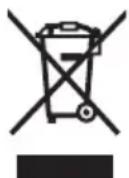
According to the European Guideline 2012/19/EU, electrical devices/tools that are no longer usable, and according to the European Guideline 2006/66/EC, defective or used battery packs/batteries, must be collected separately and disposed of in an environmentally correct manner.
The integrated battery pack in the on-board computer may only be removed for disposal. Opening the housing shell can destroy the on-board computer.
Please return battery packs and on-board computers that are no longer usable to an authorised bicycle dealer.
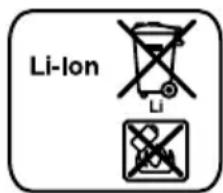
Li-ion:
Please observe the instructions in section "Transport", page English-12.
Subject to change without notice.
gauge
| Route | Speed (km/h) |
|---|---|
| r1 | 14:30 |
| r2 | 9 |
| r3 | 22.5 |
| r4 | |
| r5 | SPORT |
| r6 | 32.8 |
| r7 | |
| r8 | 17.4 |
| r9 | 105 |
| r10 | |
"www.Bosch-eBike.com/nyon-manual".
"www.Bosch-eBike.com/nyon-manual".
"www.Bosch-eBike.com/nyon-manual".
"www.Bosch-eBike.com/nyon-manual".
gauge
| Route | Speed (km/h) |
|---|---|
| r1 | 9 |
| r2 | 32.8 |
| r3 | 17.4 |
| r4 | 105 |
| r5 | SPORT |
| r6 | |
| r7 | |
| r8 | |
| r9 | |
| r10 | |
r1 Hora
"www.Bosch-eBike.com/nyon-manual".
gauge
| Route | Speed (km/h) |
|---|---|
| r1 | 14:30 |
| r2 | 9 |
| r3 | 22.5 |
| r4 | |
| r5 | SPORT |
| r6 | 32.8 |
| r7 | |
| r8 | |
| r9 | 17.4 |
| r10 | 105 |
flowchart
graph TD
    A["Remote Device"] -->|Wireless Signal| B["Smartphone"]
    B -->|3/4G Connection| C["WWW Cloud"]
    C --> D["Laptop"]
    B -->|Wireless Signal| D
Cykelcomputer
Smartphone-application
Online-portal
"www.Bosch-eBike.com/nyon-manual".
"www.Bosch-eBike.com/nyon-manual".
- "SET UP" (ASETUS) > "OFFLINE"
- "SET UP" (ASETUS) > "ONLINE" > "WI-FI"
"www.Bosch-eBike.com/nyon-manual".
"www.Bosch-eBike.com/nyon-manual".
"www.Bosch-eBike.com/nyon-manual".
"www.Bosch-eBike.com/nyon-manual".
"www.Bosch-eBike.com/nyon-manual".

* Bosch eBike Systems
72703 Reutlingen
GERMANY
Claus Fleischer
Senior Vice President
Gunter Flinspach
Vice President

Bosch eBike Systems, 72703 Reutlingen, GERMANY