Intuvia 100 - Counter BOSCH - Free user manual and instructions
Find the device manual for free Intuvia 100 BOSCH in PDF.
Pick your language and provide your email: we'll send you a specifically translated version.
| Product type | Cycling computer for electric bike |
| Brand | Bosch |
| Model | Intuvia 100 |
| Dimensions (L × H × D) | 83 × 57 × 25 mm |
| Weight | 82 g |
| Power supply | Powered by the bike's battery (6-20 V DC) |
| Screen type | Monochrome LCD screen 2.0 inches |
| Screen resolution | 128 × 64 pixels |
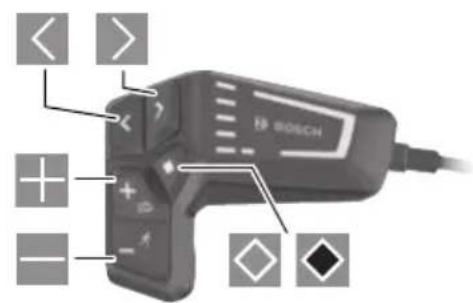
| Number of buttons | 4 control buttons |
| Connectivity | Bluetooth for connection to the eBike Connect app |
| Main functions | Display of speed, distance, range, assistance level, battery charge |
| Navigation data | Route guidance (with connected app) |
| Compatibility | Bosch eBike systems (Performance Line, Active Line, etc.) |
| Protection rating | IPX4 (splash resistant) |
| Operating temperature | -10 °C to +50 °C |
| Mounting | Handlebar mount (size 31.8 mm) with included cable |
| Care and cleaning | Clean with a slightly damp soft cloth; avoid pressurized water |
| Safety | Use only with original Bosch batteries and motors |
| Spare parts and repairability | Screen, cable, mount available separately; repair at authorized Bosch center |
| Available languages | French, English, German, Dutch, Italian, Spanish, etc. |
| Manual | Available as PDF (75 pages) |
Frequently Asked Questions - Intuvia 100 BOSCH
How to reset the daily odometer on the Intuvia 100?
To reset the daily odometer, press and hold the Mode button for about 3 seconds until the value flashes, then confirm.
See section 4.3 of the manual.
How to change the speed unit (km/h to mph)?
Go to the settings menu via the Mode button, select Units and choose km/h or mph.
The manual details the steps on page 12.
What do the icons on the screen mean?
The Battery icon indicates the charge level, Assistance the mode (Eco, Tour, Sport, Turbo), and Bar the instant power.
A complete guide is available on pages 23-25 of the manual.
How to update the firmware of the Intuvia 100?
Download the eBike Connect app on your smartphone, connect the screen via Bluetooth, then follow the update instructions in the 'Settings > Update' tab.
Make sure the bike battery is sufficiently charged.
The screen does not turn on, what to do?
Check that the bike is on and the battery is charged. If the screen remains off, disconnect and reconnect the screen cable. In case of failure, contact a Bosch dealer.
The troubleshooting manual is on page 45.
How to install the handlebar mount?
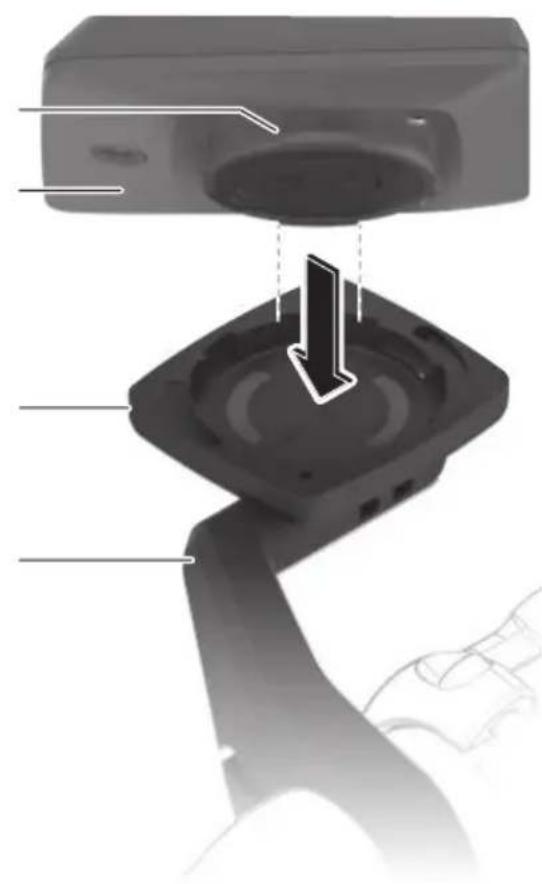
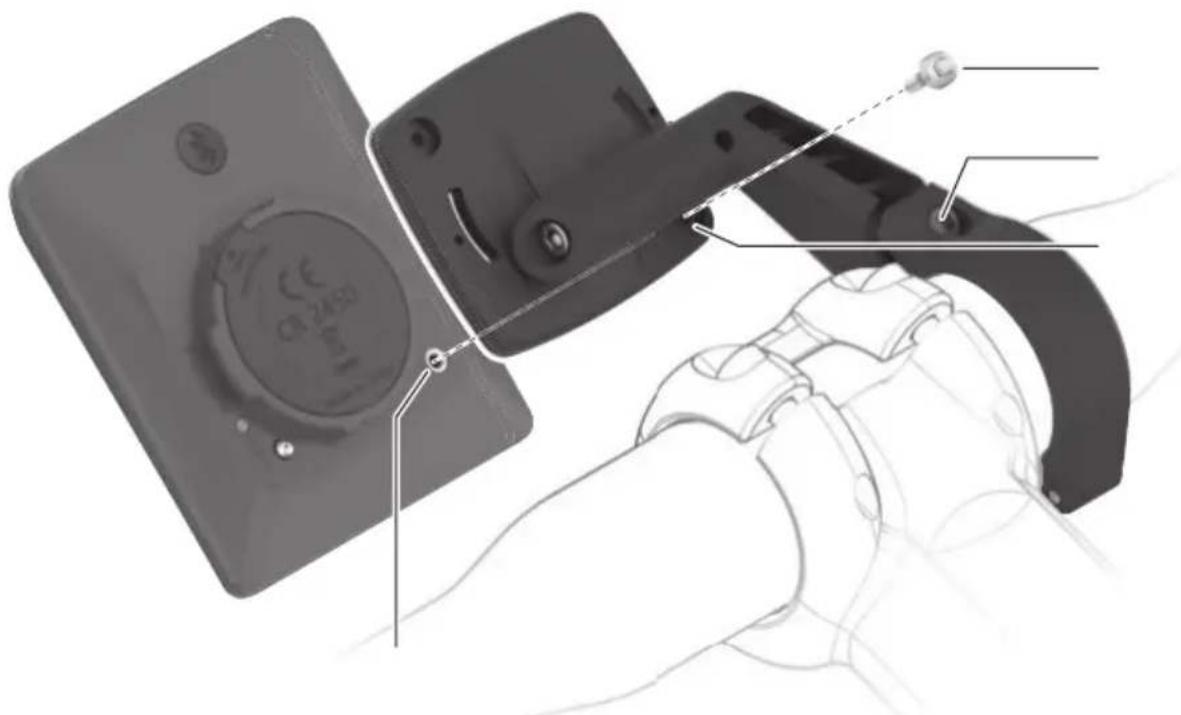
Place the mount on the handlebar at the desired location, tighten the screw with a Torx T20 screwdriver, then insert the screen by clipping it. Connect the supplied cable to the port on the back of the screen.
See diagram page 8.
See diagram page 8.
What is the standby time of the display?
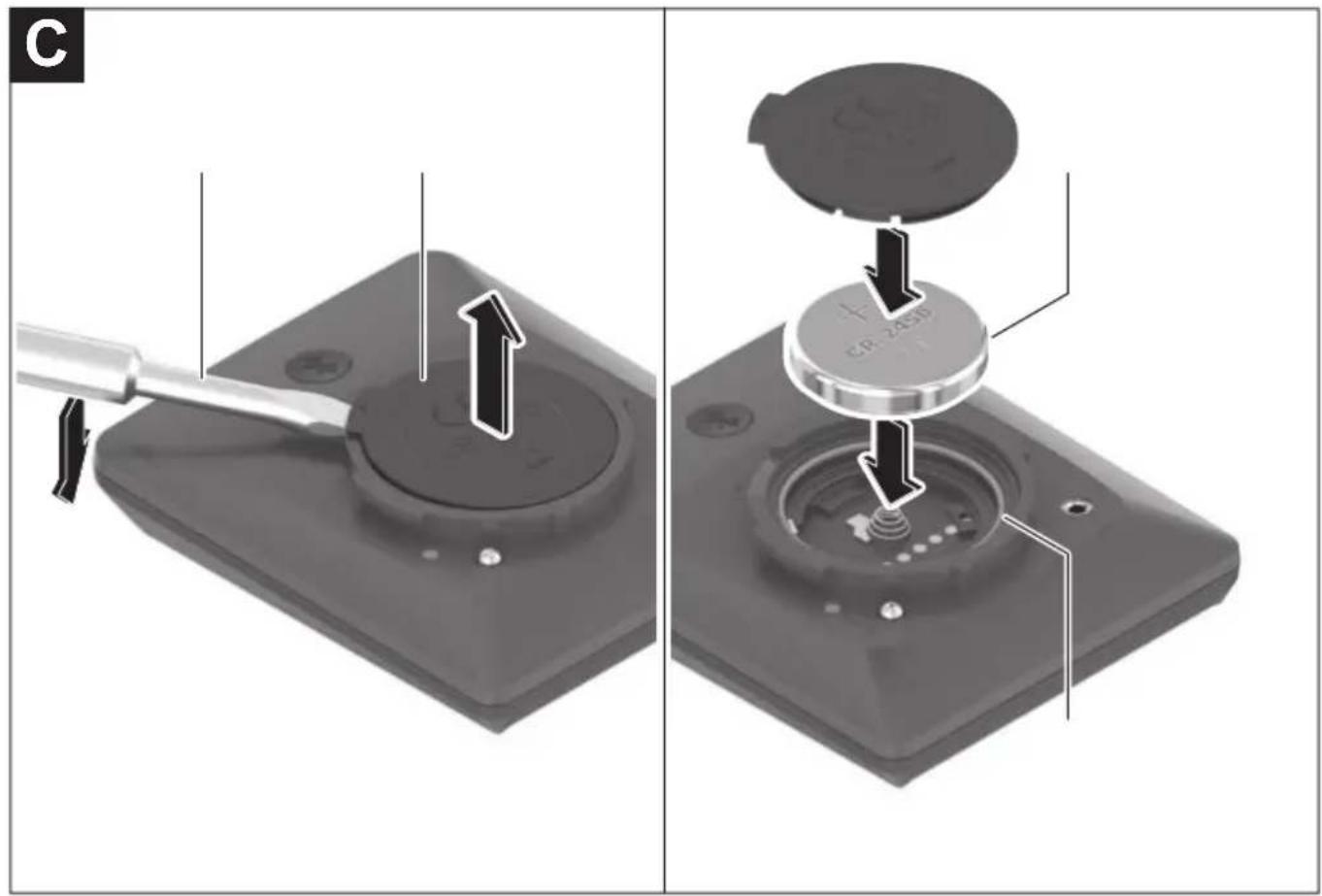
The Intuvia 100 is continuously powered by the bike's battery. It has no internal battery. In standby, consumption is negligible. If the bike is turned off, the screen automatically turns off.



Is the screen waterproof?
The protection rating is IPX4, meaning it is splash resistant (light rain). Avoid immersion in water and cleaning with high-pressure jet.
More info page 50.
More info page 50.
Can I use the Intuvia 100 with a non-Bosch motor?
No, the Intuvia 100 is specifically designed to work with Bosch eBike systems. It cannot be connected to other brands of motors.
Compatibility is detailed on page 5.
How to replace the connection cable?
Disconnect the old cable from both ends (screen and motor). Connect the new cable, ensuring the connectors click properly. Consult the manual for the wiring diagram (page 33).


Use only original Bosch cables.
User questions about Intuvia 100 BOSCH
0 question about this device. Answer the ones you know or ask your own.
Ask a new question about this device
No questions yet. Be the first to ask one.
Download the instructions for your Counter in PDF format for free! Find your manual Intuvia 100 - BOSCH and take your electronic device back in hand. On this page are published all the documents necessary for the use of your device. Intuvia 100 by BOSCH.
USER MANUAL Intuvia 100 BOSCH
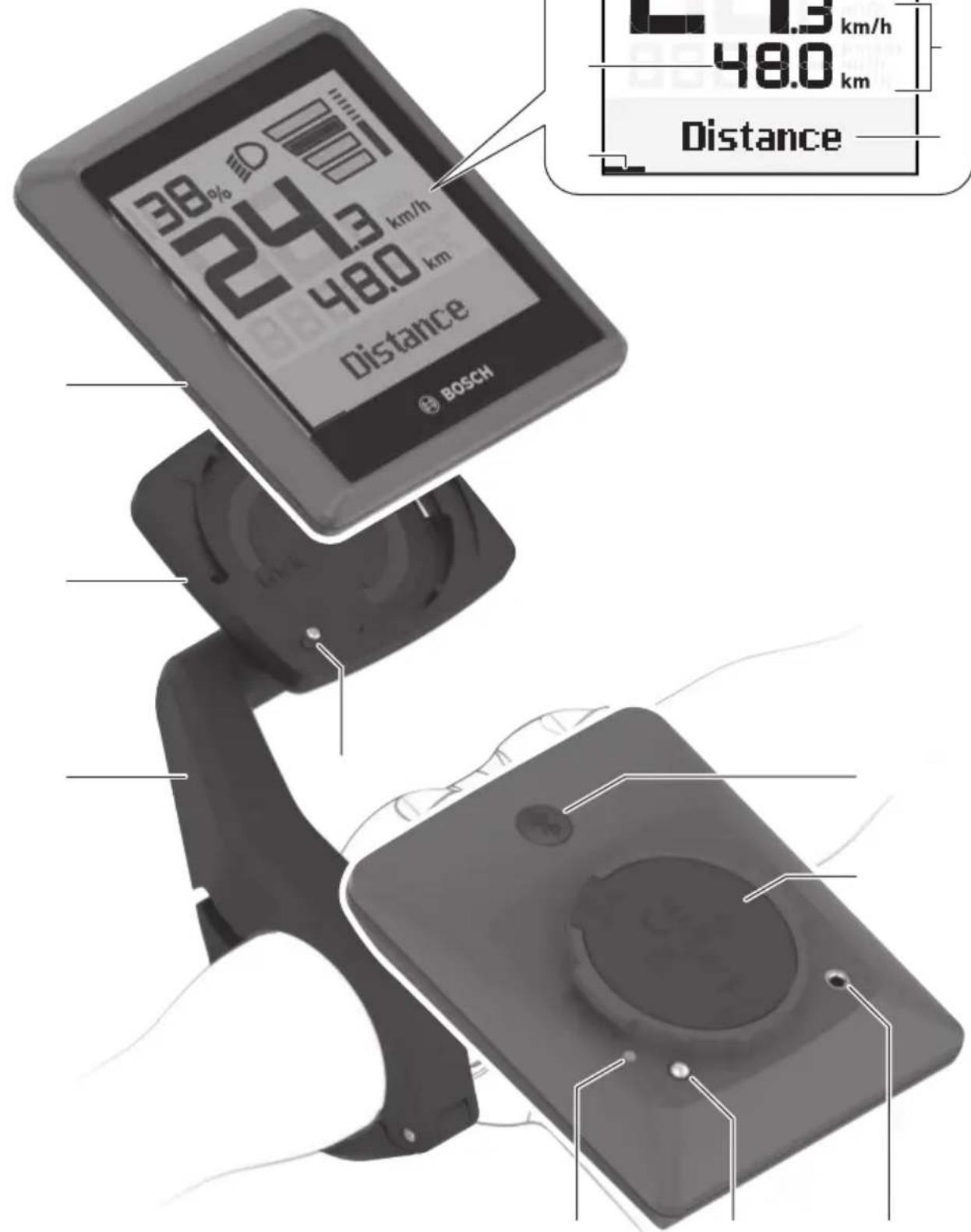
natural_image
Exterior view of a square electronic device with a black screen and 'BOSA' branding (no additional text or symbols)


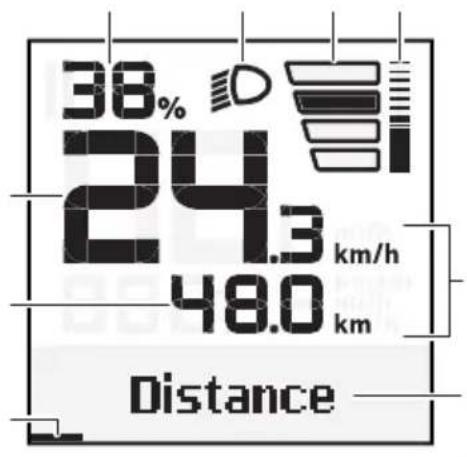
text_image
38% 52 24.3 km/h 48.0 km distance BOSCH 1.3 km/h 48.0 km Distance
bar
| Metric | Value | | :--- | :--- | | Percentage (%) | 38% | | Distance (km) | 24.3 km/h | | Distance (km) | 48.0 km |A

natural_image
Diagram of a device's internal components, showing a speaker base and cable assembly with no visible text or symbols.
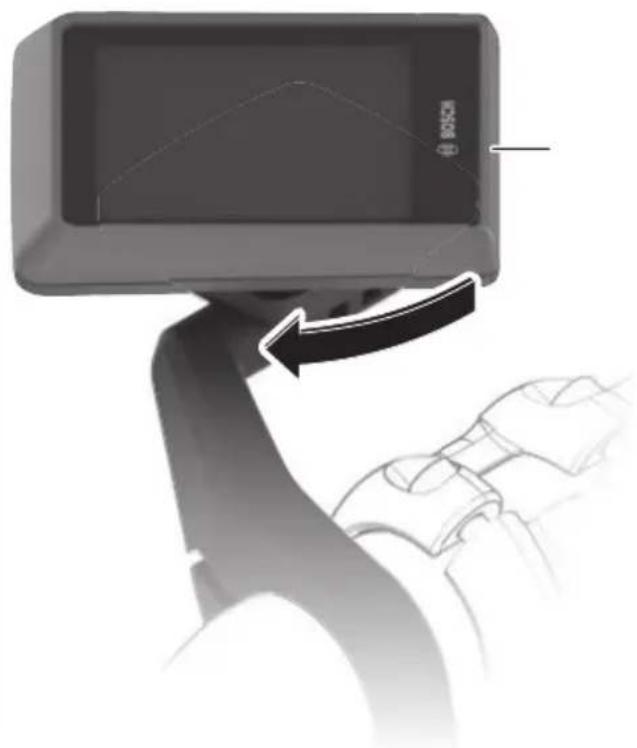
natural_image
Close-up of a hand gripping a device with a black arrow indicating motion (no text or symbols visible)B

text_image
Technical diagram showing a device with labeled components and a hand holding a device, including a circular component with '24-30' and a dotted line indicating assembly.
text_image
C CP-2350

natural_image
Pure horizontal lines and a gray bar on the right, no text or symbols present
natural_image
Abstract geometric pattern with horizontal lines and a central shaded rectangle (no text or symbols)

text_image
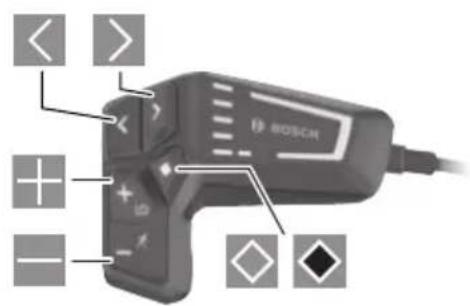
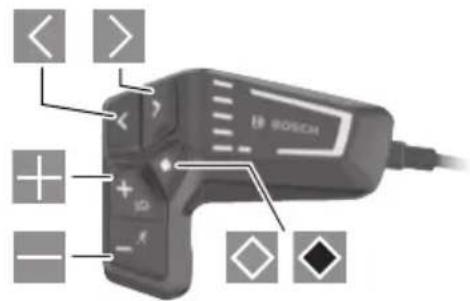
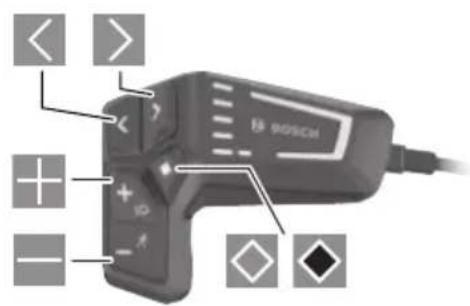
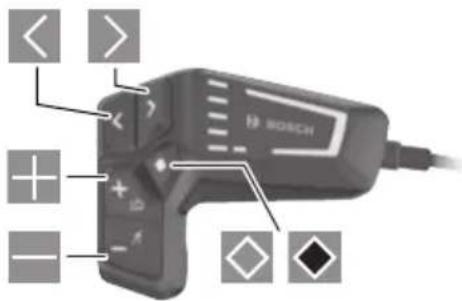
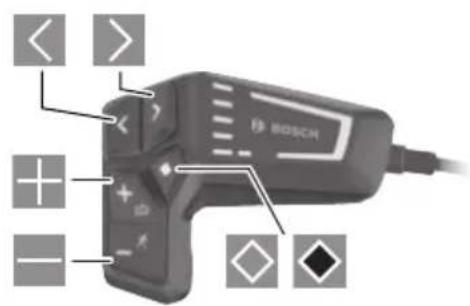
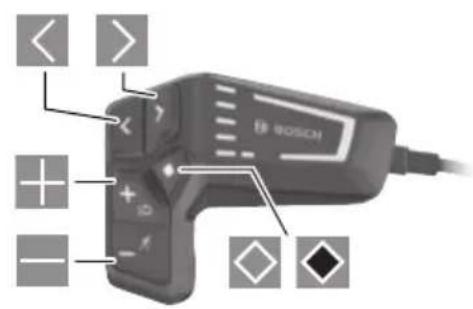
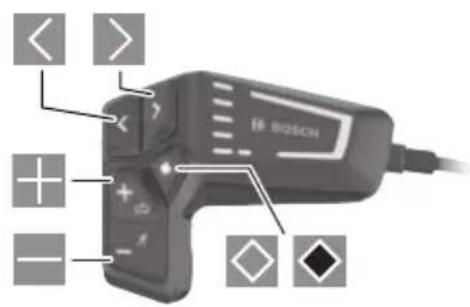
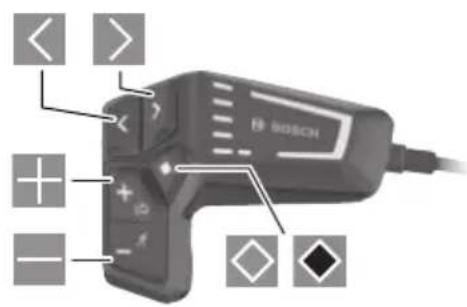
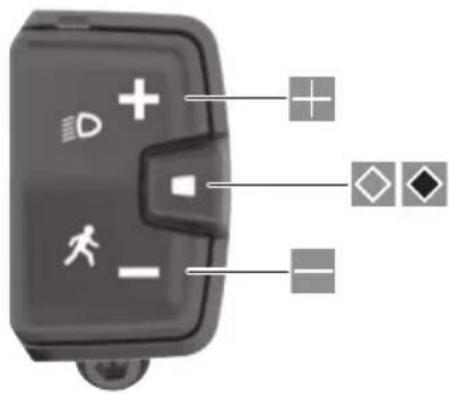
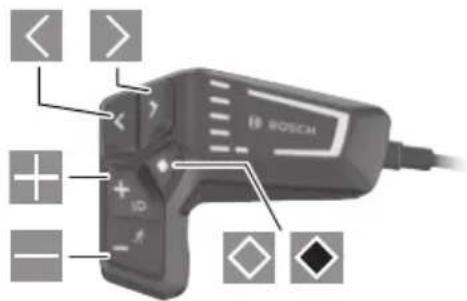
< > + + - - BOSCH
text_image
Diagram of a device control panel with labeled icons and connection points


natural_image
Blank white image with no visible content, text, or symbols


UKCA


text_image
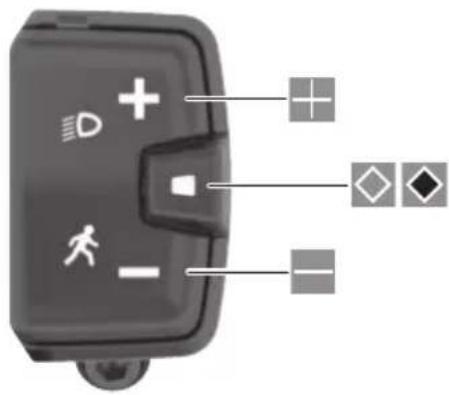
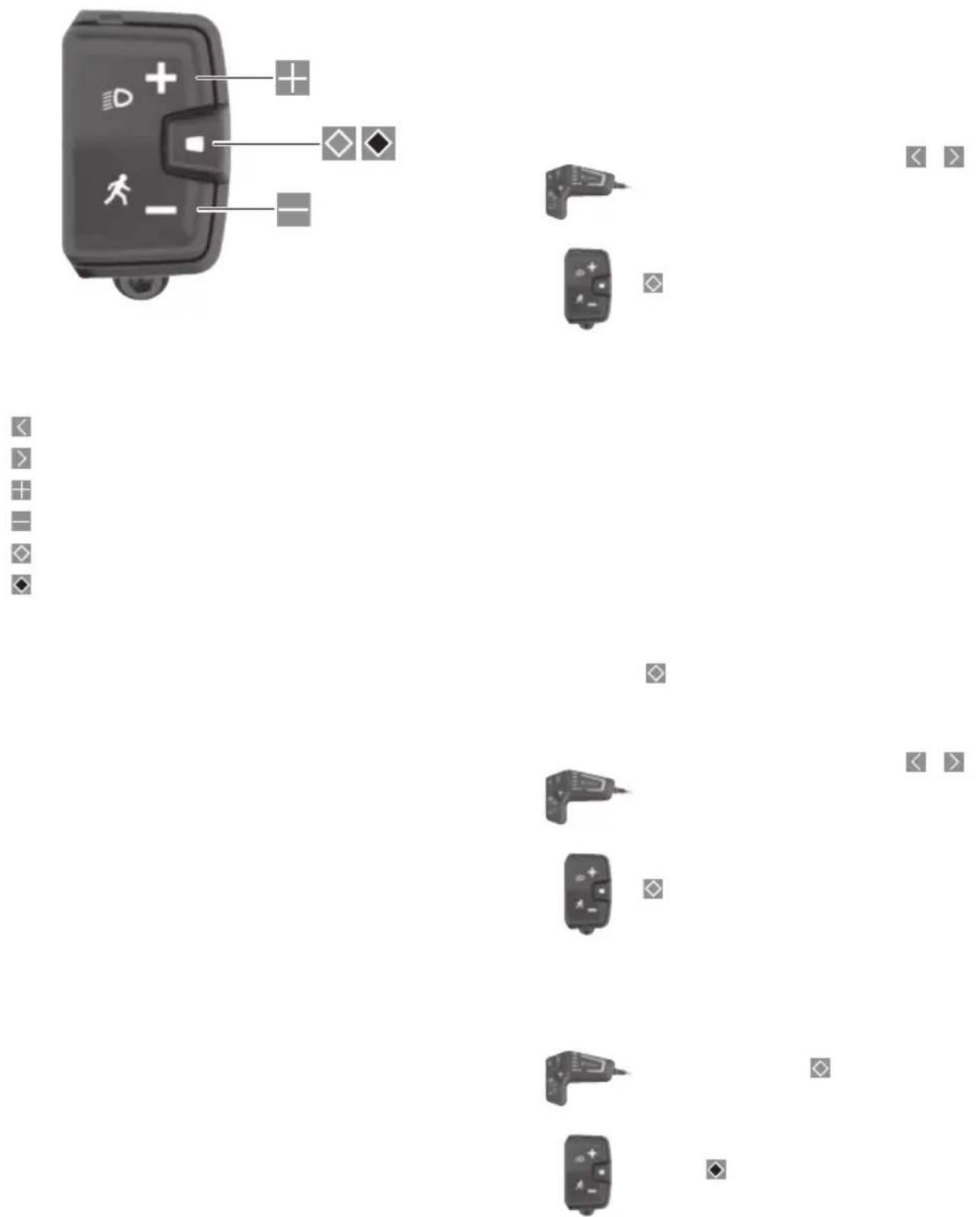
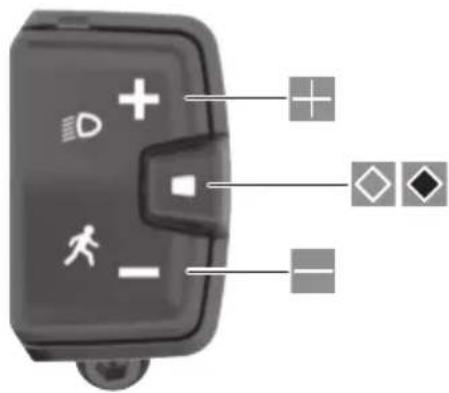
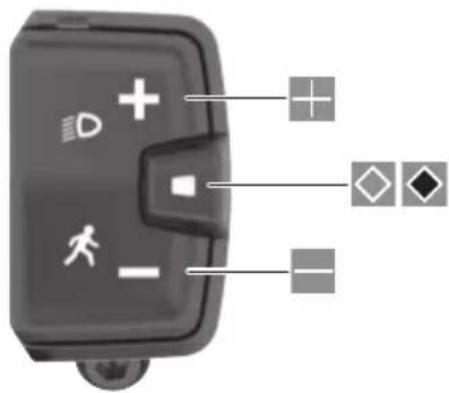
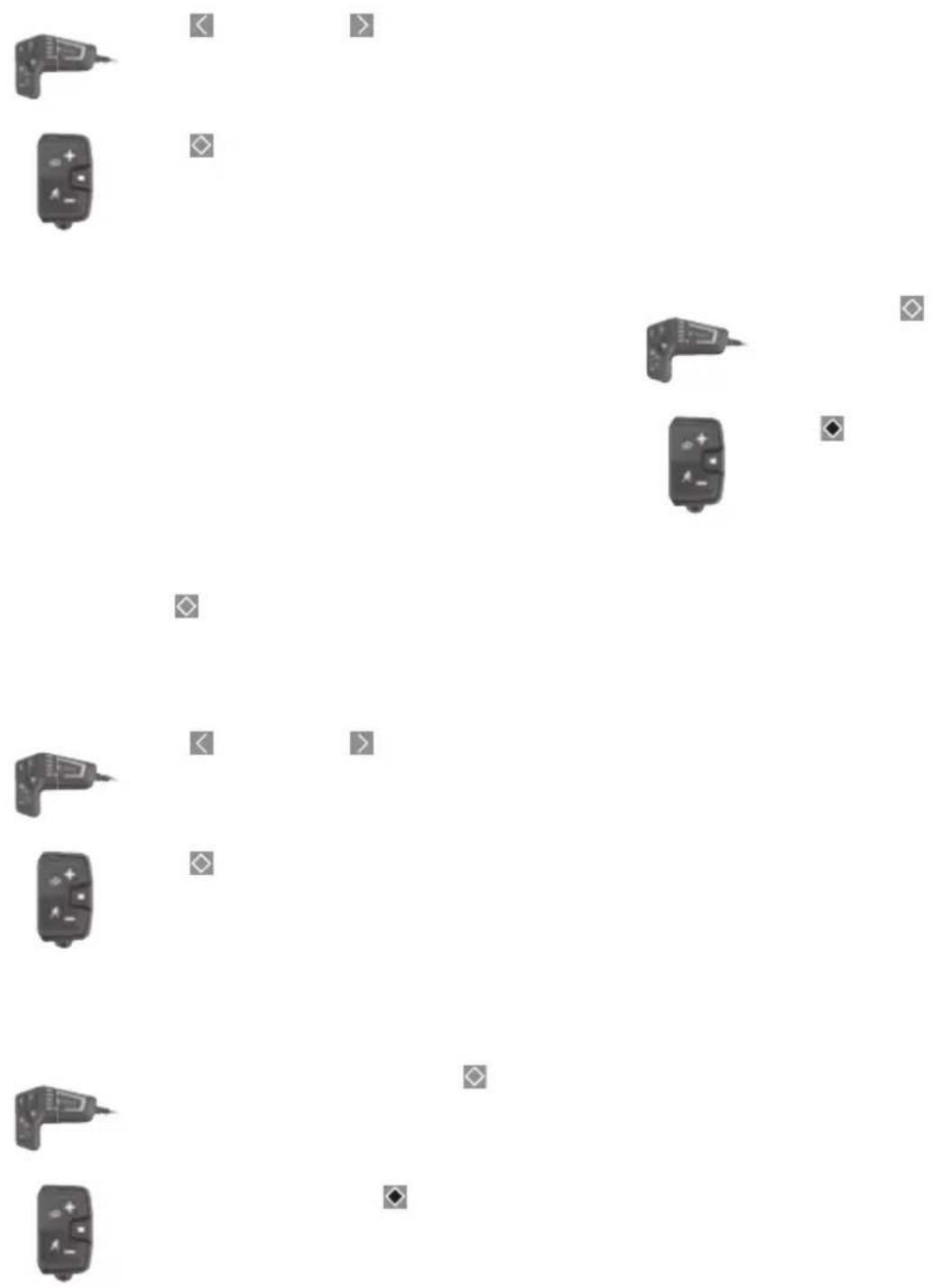
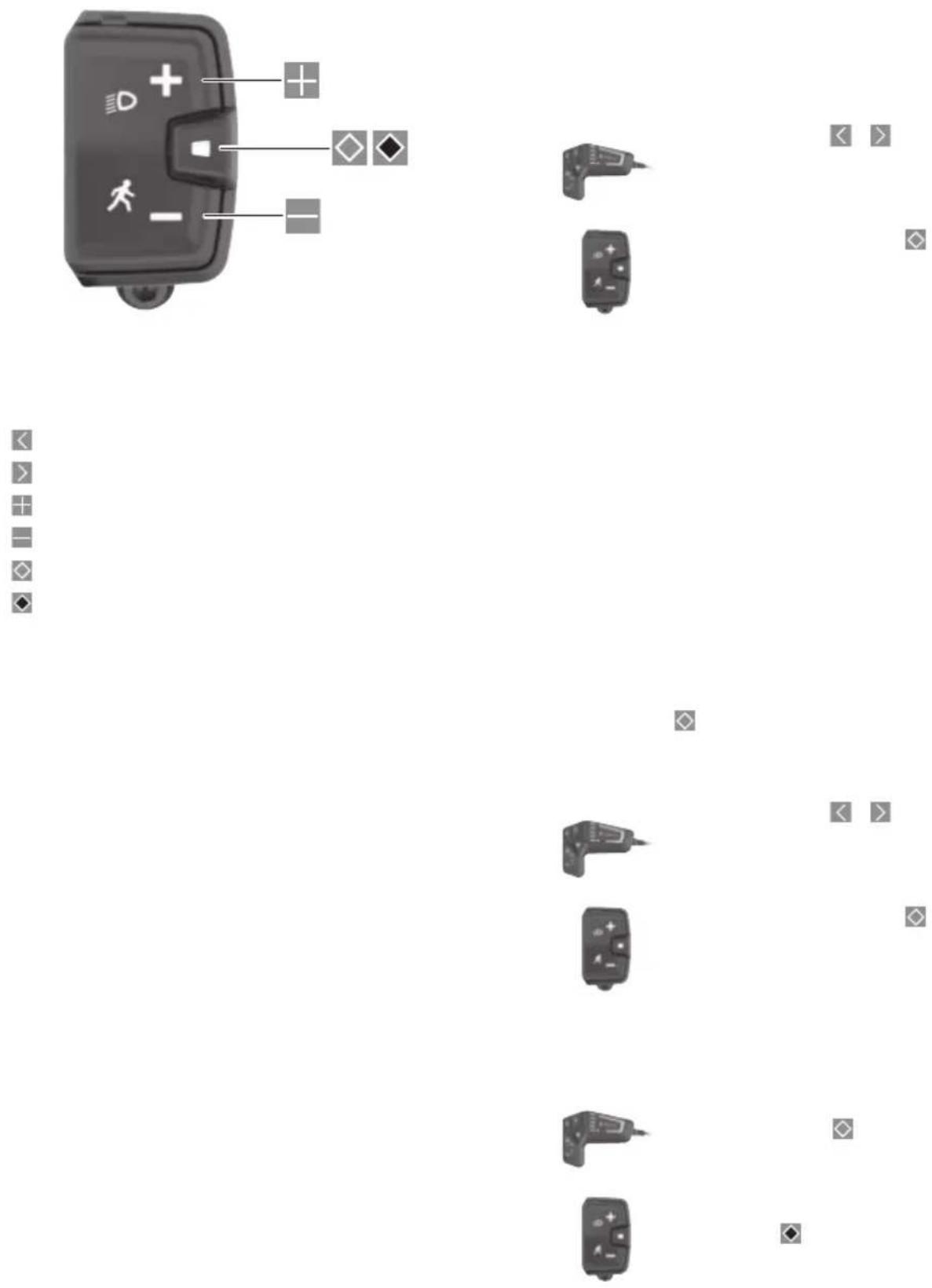
< > + + - + - + - BOSCH
text_image
Diagram of a device control panel with labeled icons and connection points


natural_image
Blank white image with no visible content, text, or symbols


natural_image
Pure horizontal lines and a gray bar on white background, no text or symbols present
natural_image
Pure horizontal lines with a single shaded vertical bar at the center (no text or symbols)

text_image
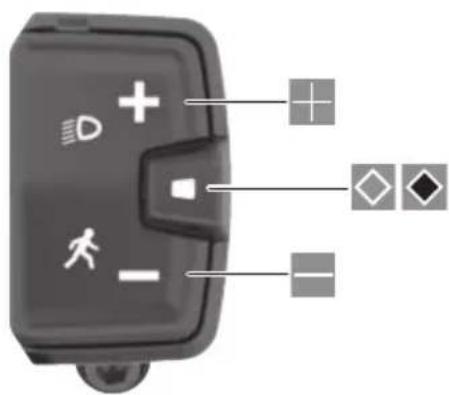
< > + - + ID BOSCH
text_image
Diagram of a device control panel with icons for mode, status, and function labels


FR
natural_image
Blank white image with no visible content, text, or symbols


natural_image
Pure horizontal lines and a gray rectangular bar on the right, no text or symbols present
natural_image
Pure horizontal lines with a single shaded vertical bar at the center (no text or symbols)

text_image
< > + + - - ◇ BOSCH


natural_image
Blank white image with no visible content, text, or symbols


natural_image
Pure horizontal lines and a gray rectangular bar on the right, no text or symbols present
natural_image
Pure horizontal lines with a single shaded vertical bar at the center (no text or symbols)

text_image
< > + + - - BOSCH
natural_image
Close-up of a black electronic device with icons and connections (no readable text or symbols)


natural_image
Blank white image with no visible content, text, or symbols


natural_image
Pure horizontal lines and a gray bar on the right, no text or symbols present
natural_image
Simple diagram with horizontal lines and a shaded rectangle, no text or symbols present

text_image
< > + - BOSCH
text_image
Diagram of a device control panel with labeled icons and connection points


natural_image
Blank white image with no visible content, text, or symbols


natural_image
Pure horizontal lines and a gray rectangular bar on the right, no text or symbols present
natural_image
Pure horizontal lines with a single shaded vertical bar at the center (no text or symbols)

text_image
< > + + - - BOSCH
text_image
Diagram of a device control panel with icons for display, function, and status indicators
natural_image
Abstract diagram with multiple camera icons and scattered square markers on a white background (no text or symbols)


natural_image
Blank white image with no visible content, text, or symbols


natural_image
Abstract geometric composition with horizontal lines and a shaded rectangle (no text or symbols)
natural_image
Pure horizontal lines with a single shaded vertical bar at the center (no text or symbols)

text_image
< > + - BOSCH
text_image
Diagram of a device control panel with icons for motion, navigation, and display indicators


natural_image
Blank white image with no visible content, text, or symbols


natural_image
Abstract diagram with horizontal lines and shaded rectangular blocks, no text or symbols present

text_image
< > + + - - SOSCH
text_image
Diagram of a device control panel with icons for mode, status, and function labels
natural_image
Grid of small electronic devices and symbols on a white background, no text or labels visible


natural_image
Blank white image with no visible content, text, or symbols


natural_image
Abstract diagram with horizontal lines and shaded rectangular blocks, no text or symbols present

text_image
< > + - BOSCH
text_image
Diagram of a device control panel with icons for mode, status, and function labels
natural_image
Grid of small electronic devices and symbols on a white background, no text or labels visible


natural_image
Blank white image with no visible content, text, or symbols


natural_image
Abstract diagram with horizontal lines and shaded rectangular blocks, no text or symbols present

text_image
< > + - BOSCH
text_image
Diagram of a device control panel with icons for mode, status, and function labels


natural_image
Blank white image with no visible content, text, or symbols


natural_image
Pure horizontal lines with a gray vertical bar at the center (no text or symbols)

text_image
< > + - + ID - ROSCH