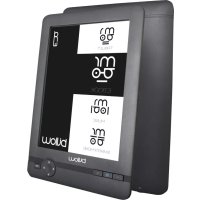
E01FL - E-reader Billow - Free user manual and instructions
Find the device manual for free E01FL Billow in PDF.



Frequently Asked Questions - E01FL Billow
User questions about E01FL Billow
0 question about this device. Answer the ones you know or ask your own.
Ask a new question about this device
Download the instructions for your E-reader in PDF format for free! Find your manual E01FL - Billow and take your electronic device back in hand. On this page are published all the documents necessary for the use of your device. E01FL by Billow.
USER MANUAL E01FL Billow
OT rIaBHOTo MeHIO n36epeTe nCTOpN aTHe N haTnCHeTe Enter.
MozheTe da n36epete BaunTe noCleHn 10 ueTHeN8 6bp30.
1.6 Book Reader
OT rnaBHoto MeHIO n36epete Address Book, hATnchete 6yToHa Enter, 3a da Bne3eTe BB BaWata 6n6nnoTeKa.
OT 6n6nnotekata, n3no13BaIte 6yToHnte cbc cTpeKn, 3a da n36epete eHa KNrA u HaTncHeTe 6yToHa Enter, 3a da ce nokaxe JxelaHaTa KNrA
Korato yeTe, Hatnche 6yToHnTe 3a nocoka, 3a da npomeHnTe cTpaHnCn.
B cheTeHe cTpaHnca,HaTncHeTe 6yToHa MeHIO,3a Da n3POn3BaTe MeHOTO C ONUIN.
1.7 Перлед на симки
HaTnCHete B rIaBHOTo MeHIO, n36epeTe KapTuHa, a Cnei TOBa HaTnCHete 6yToHa Enter, 3a Da BbBeTe npereNd Ha n306paXeHn.
I36epete I3o6paKeHne n HATncHeTe 6yToHa Enter, 3a da BnDnte Ha cyaIekpaH.
HaTnchHe 6yToHa Menu, 3a da n3NoJ3BaTe MeHIOTO COnuIN.
1.8 Konfugpaun
bblrapckn
OT rnaBHOTo MeHIO, n36epTe HacTpoKn n HaTncHeTe Enter.
I3noJ3BaIte KlaBnIte CbC CTpeKn n Enter, 3a da HacTponte BpeMeTo 3a e3NK n CnCTema nII dpyrN KopeKcnn
1.9 File Explorer
HaTnchete 6yToHa 3a MeHIOTo, n36epeTe Explorer n HaTnchete 6yToHa Enter, 3a Da BbBeTe Browser File.
- I36epete panka nnn faai, 3a da ce OTBOpn.
- HatncheTe 6yToHa Menu, 3a Da n3NoJ3BaTe MeHIOTo C OnZuN.
1.10 Calendar
OT rIaBHOTo MeHIO, n36epete Calendar n haTnchete Enter.
I3noJ3BaIte KnaBnIte cbc cTpeKn n Enter, 3a da nokaKeTe roHa Meceu n DeH.
1.11 User Manual
OT rnaBHOTo MeHIO, n36epete User Manual n haTnchete Enter.
Hnctpykunra 3a ynoTpe6a Ha eIekTPOHHa Knira ige ce OTBOPN
Technical Support
3a noBueye nHΦopMauny OTHOCHO TO3n pOdyKT, MoJyK, moJnoCetete Haunpa3dEe 3a NOdpbXka Ha HauNya ye6 caT www.billowtechnology.com nnH3npaTe Te NMeI Do Support@billowtechnology.com
Uvod
1.9 to File Explorer
PntnoTe to koupi Toueou, eIaEeEeepuvnon kai natoTo pKtpo Enter yia va eioeAeTc otov File Browser.
Thank you for choosing the E-Book E01FL
Product Description
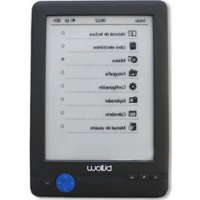
6" E-Ink E-Book where you can over 2,800 books and view images at a resolution of 800 × 600 pixels.
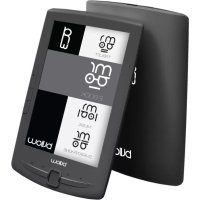
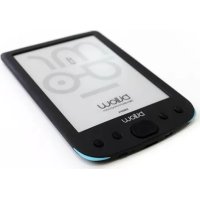
Its compact and stylish design offers a pleasant look while being lightweight. With its hotkeys everything will be at your fingertips.
Its processor is optimized for multitasking and rapid response to load of books and reading.
This E-Book has an internal flash memory of 4 GB and also includes a Micro SD card reader that allows you to expand your storage up to 32GB.
Its E-ink screen uses the best PVI technology, showing a clearly defined view for electronic ink.
This E-Book has the Front Light function that allows you to read with the lights off.
Billow's commitment to the ideal solution for the avid reader. Read your books as if it were paper!
Package contents
-E01FL
-Quick installation guide
-Mini Usb cable
Note:
Make sure that your package contains the items described above. If you find any items are missing or damaged, please contact your dealer.
System Requirements
-1 USB 2.0 port
-Operating System Windows
Parts description
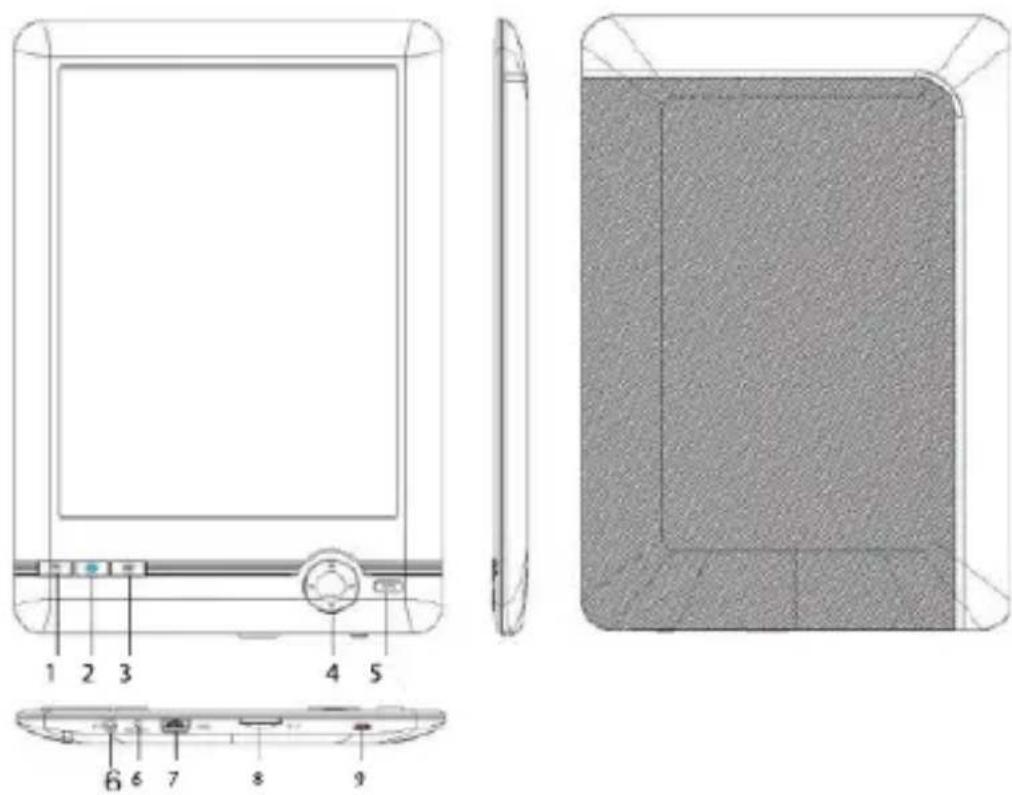

- Previous page
- Front lighting button, pressing it for a few seconds allows you to adjust the front lighting
- Menu
- Navigation buttons: up: previous page, down: next page, left: previous, right: next.
- OK: confirm, enter
- Reset button
- Mini USB port
- Micro SD slot
- Power button: Press it for 5 seconds to turn on or off the device.
Configuration and Use
1.1 On/Off
Hold down the power button for 5 seconds.
1.2 Charging the Ebook
For the first use, you must first charge it for 8 hours.
When the battery is low, charge it by connecting the supplied USB cable between the pc and eBook.
Do not load with power adapters.
1.3 Copy files to Ebook
Connect the eBook to your PC using the supplied USB cable. The device will act as a storage device.
Perform normal file management operation like other USB storage device.
1.4 Basic Concepts
Use the direction buttons to move to the desired item from the list.
Press the Enter button to confirm.
Press the Menu button to open the options menu.
Press Back to cancel the selection and return to the previous menu or press repeatedly to return to the main menu.
1.5 Reading History
From the main menu, select reading history and press Enter.
You can select your last 10 readings quickly.
1.6 Book Reader
From the main menu, select Address Book, press the Enter button to enter in your library.
From the library, use the direction buttons to select a book and press the Enter button to display the desired book
When reading, press the directional buttons to change pages.
In reading page, press the Menu button to use the options menu.
1.7 Viewing Photos
Press the main menu, select Picture, and then press the Enter button to enter the image viewer.
Select an image and press the Enter button to view full screen.
Press the Menu button to use the options menu.
1.8 Configuration
English
From the main menu, select Settings and press Enter.
Use the Arrow keys and Enter to set the language and system time or other adjustments
1.9 File Explorer
Press the menu button, select Explorer and press the Enter button to enter the File Browser.
- Select a folder or file to open.
- Press the Menu button to use the options menu.
1.10 Calendar
From the main menu, select Calendar and press Enter.
Use the Arrow keys and Enter to display year month and day.
1.11 User Manual
From the main menu, select User Manual and press Enter.
The eBook user manual will open
Technical Support
For more information about this product please visit our support section on our web site www.billowtechnology.com or send an email to Support@billowtechnology.com
Introduccion
EC DECLARATION OF CONFORMITY
We declare under our sole responsibility that the product
Brand name: BILLOW TECHNOLOGY
Model no: E01FL
Product description: Eink Book Reader with From Light
The measurements shown in this test report were made in accordance with the procedures given in the:
EMC DIRECTIVE: 2004108PEC
- RaHS DIRECTVE: 2011/65/EU
To which this declaration is based on with full comforance to the following European norms and standards:
EN55022:2006+AI-2007
EN5874:2019
Signed Jul 14, 2014

Inse Inis Baur Ecmner Managing Director
BILLOWTECNIOLOGY
ADU: Poligona Industrial Gastroenterology C/ Tecnologica, S Prestadoro 41120 Gevres (Sevilla), Spain
Wohoe: www.bifrostchnology.com

Importado por / Imported by:
APPROX IBERIA S. L.
CIF: B-91202499
Soporte专业技术/Technical support:
support@billowtechnology.com
MADE IN PRC
The content of this guide is subject to typographical errors

billo wtechnology.com
8:
bilocu
billowtechnology.com