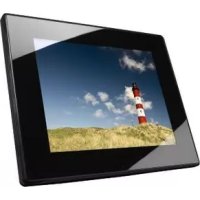
00095295 - Digital photo frame HAMA - Free user manual and instructions
Find the device manual for free 00095295 HAMA in PDF.


| Product type | Digital photo frame |
| Brand | Hama |
| Model | 00095295 |
| Dimensions (with stand) | 336 x 35 x 266 mm |
| Weight | approx. 1360 g |
| Power supply | Mains adapter 100-240 V AC / 50-60 Hz, output 9 V DC / 1.5 A |
| Power consumption | max. 10.5 W |
| Screen | 30.73 cm (12.1 inch) TFT-LED, 4:3 format |
| Screen resolution | 800 x 600 pixels (RGB) |
| Brightness | 190 cd/m² |
| Contrast ratio | 400:1 |
| Supported file formats | JPEG, JPG (up to 48 megapixels) |
| Compatible storage media | SD / SDHC / MMC cards, USB sticks (USB host) |
| Main functions | Photo display, slideshow with effects and music, calendar, clock, alarm, folder management, brightness, contrast, saturation, tint adjustments |
| Controls | Buttons on the frame and infrared remote control (CR2025 battery included) |
| Wall mounting | VESA 75 x 75 mm compatible |
| Operating temperature | 0 °C to 40 °C |
| Relative humidity | 10% to 80% (non-condensing) |
| Care and cleaning | Wipe the screen with a dry, soft cloth. Do not use products containing alcohol or harsh detergents. |
| Safety | Protect from moisture, shock, and overheating. Use only the supplied adapter. Do not open the device. |
| Package contents | Photo frame, mains adapter, remote control, instruction manual |
Frequently Asked Questions - 00095295 HAMA
User questions about 00095295 HAMA
0 question about this device. Answer the ones you know or ask your own.
Ask a new question about this device
Download the instructions for your Digital photo frame in PDF format for free! Find your manual 00095295 - HAMA and take your electronic device back in hand. On this page are published all the documents necessary for the use of your device. 00095295 by HAMA.
USER MANUAL 00095295 HAMA
natural_image
Portrait of a woman with black hair and red lipstick, hand near face, framed in a dark frame (no text or symbols visible)Operating Instructions
Bedienungsanleitung
Mode d'emploi
Design and functionality
A
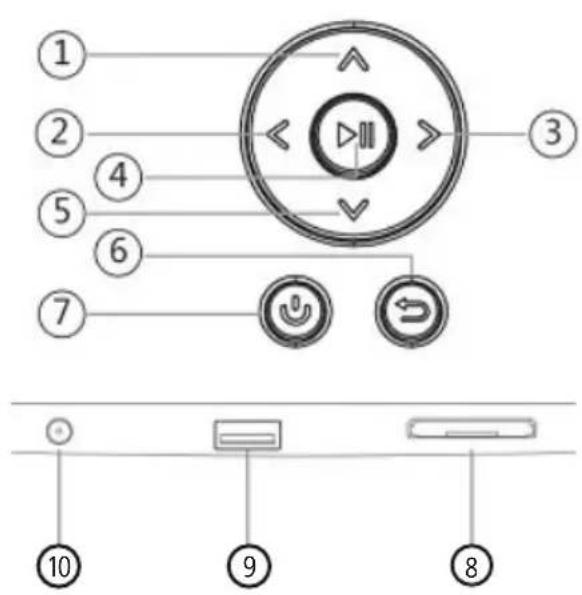
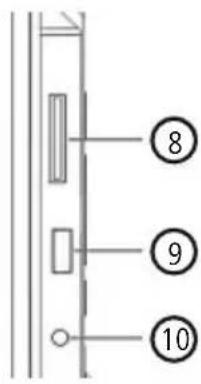
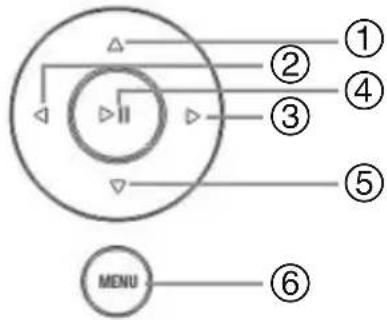
| A: Digital picture frame - Control and connection panel | ||
| 1 | ^ /△ | Control button up / switch to next file |
| 2 | < / ◀ | VOL- / left control button |
| 3 | >/ ▷ | VOL+ / right control button |
| 4 | ▶II | Play/Pause / OK/ENTER button |
| 5 | v/ ▽ | Control button down / switch to previous file |
| 6 | MENU/ ↩ | ESC / back button MENU = 2∅ |
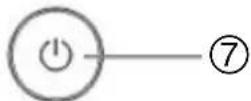
| 7 | ∅/↓ | ON/OFF button |
| 8 | SD/MMC/SDHC card slot | |
| 9 | USB (type A) | |
| 10 | Socket for power supply adapter | |
B
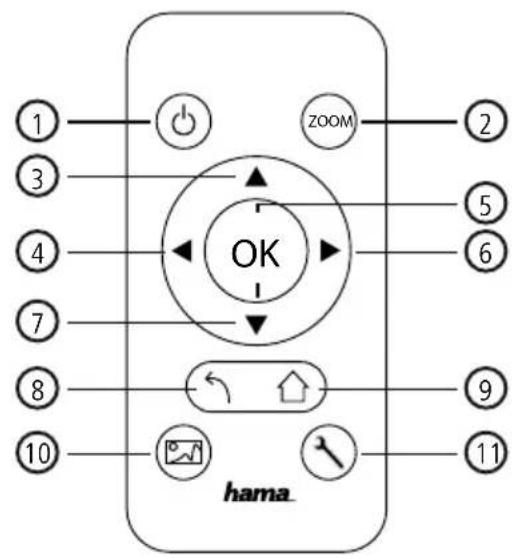
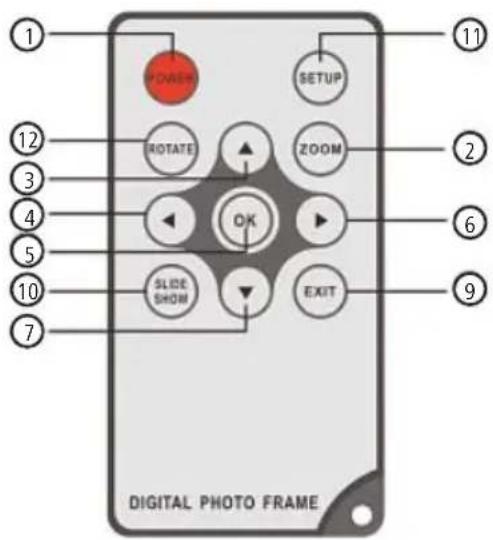
| B: Remote control | ||
| 1 | POWER/ ↓ | ON/OFF |
| 2 | ZOOM Image zoom function +/- | |
| 3 | ▲ | Up button |
| 4 | ◀ | View previous photo |
| 5 | OK | Confirm button; play/pause button in playback mode |
| 6 | ▶ | View next photo |
| 7 | ▼ | Down button |
| 8 | ↖ | Return to the previous menu |
| 9 | EXIT/ ↗ | Main / function menu |
| 10 | SLIDESHOW/ [IMAGE] | Starts the Photo Slideshow |
| 11 | SETUP/ ↖ | EXIT to system settings |
| 12 | ROTATE | R otate photo anticlockwise |
GB
Contents
-
Explanation of Warning Symbols and Notes 6
-
Package Contents...... 6
-
Safety Instructions 6
-
Defective Pixels 7
-
Getting Started...... 8
5.1 Setting up....8
5.2 Wall mounting......8
5.3 Inserting or changing the battery......9
5.4 Connecting the power supply......9
- Operation.... 10
6.1 Using the menu 10
6.2 System settings 11
- Functions 14
7.1 Photos 14
7.2 Calendar....15
7.3 Folder 16
- Additional functions...... 17
8.1 Slide show variations .....17
8.2 Causes of errors and error rectification....17
-
Care and Maintenance 18
-
Warranty Disclaimer.... 18
-
Service and Support 18
-
Technical specifications...... 19
-
Menu structure.... 23
-
Recycling Information 24
Thank you for choosing a Hama product.
Take your time and read the following instructions and information completely. Please keep these instructions in a safe place for future reference. If you sell the device, please pass these operating instructions on to the new owner.
1. Explanation of Warning Symbols and Notes

Warning
This symbol is used to indicate safety instructions or to draw your attention to specific hazards and risks.

Note
This symbol is used to indicate additional information or important notes.
2. Package Contents
- Digital picture frame
• 230V power supply unit - Remote control
• These operating instructions

Note
Check the delivery for completeness and visible damage. Inform your supplier/dealer in the event of incomplete or damaged deliveries.
3. Safety Instructions
- The product is intended for private, non-commercial use only.
- Protect the product from dirt, moisture and overheating, and only use it in a dry environment.
- Do not drop the product and do not expose it to any major shocks.
- Do not operate the product outside the power limits given in the specifications.
- Only connect the product to a socket that has been approved for the device. The socket must be installed close to the product and easily accessible.
- Disconnect the product from the network using the power button – if this is not available, unplug the power cord from the socket.
- Lay all cables so that they do not pose a tripping hazard.
- Do not bend or crush the cable.
- Do not modify the product in any way. Doing so voids the warranty.
- Do not attempt to service or repair the product yourself. Leave any and all service work to qualified experts.
- Keep the packaging material out of the reach of children due to the risk of suffocation.
- Dispose of packaging material immediately according to locally applicable regulations.

Warning - Batterien
- Immediately remove and dispose of dead batteries from the product.
- Only use batteries (or rechargeable batteries) that match the specified type.
- When inserting batteries, note the correct polarity (+ and - markings) and insert the batteries accordingly. Failure to do so could result in the batteries leaking or exploding.
- Do not overcharge batteries.
- Keep batteries out of the reach of children.
- Do not short circuit the batteries/rechargeable batteries and keep them away from uncoated metal objects.

Warning
- Do not open the product. Do not continue to operate the product if it is damaged, which may be indicated by smoke, odour or loud noises. Immediately contact your dealer or our service department (see item Service and Support).
- Do not use the product if the adapter, connection cable or power cable is damaged.
4. Defective Pixels

Note
Pixel defects can occur due to the manufacturing process. These manifest themselves as white or black pixels that permanently light up during playback. Within the context of production tolerances, a maximum of 0.01% of these pixel defects measured against the total size of the screen are permitted as a tolerance and are not considered a product defect.
5. Getting Started
5.1 Setting up
- Screw the foot into the threaded hole on the back of the device.
- Remove the protection foil from the display.
- Set the product on a flat, level surface where it will not slip.
- Do not place any other objects on top of the device.
5.2 Wall mounting
Alternatively, you may use the threaded hole on the back of the device to mount it to the wall using a VESA-compatible wall bracket.
VESA specification in the corresponding technical data.

Note on available accessories
You can find a selection of compatible Hama products at www.hama.com.

Note
- Before mounting, check that the wall you have chosen is suitable for the weight to be mounted. Also make sure that there are no electric, water, gas or other lines running through the wall at the mounting site.
- Buy special or suitable installation material from a specialised dealer for wall-mounting.
- Do not mount the product above locations where persons might linger.
5.3 Inserting or changing the battery
- Open the battery compartment of the remote control
- Insert a type CR2025 button cell battery, observing polarity.
- Remove the contact breaker strip from the battery if present.
- Close the battery compartment. Make sure that the cover closes easily and tightly.
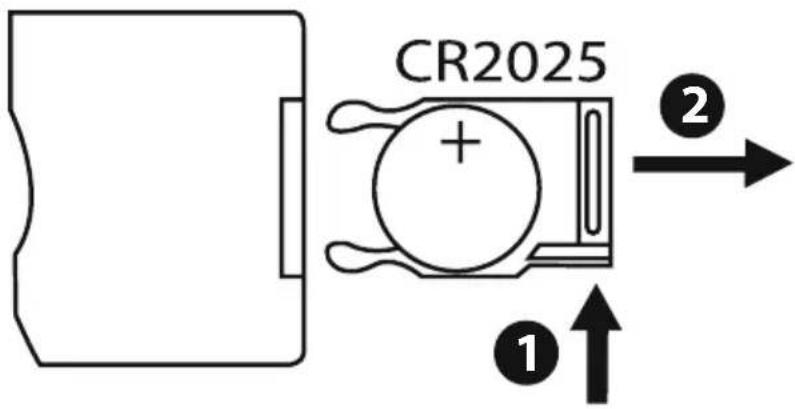
5.4 Connecting the power supply

Warning
- Only connect the product to a socket that has been approved for the device. The socket must be installed close to the product and easily accessible.
- Do not continue to operate the device if it becomes visibly damaged. (This is mandatory for all products with 220 V mains connections.)

Note
- The power supply unit is suitable for mains voltages of 100–240 V and therefore can be used worldwide. Please note that a country-specific adapter may be necessary.
-
You can find a selection of compatible Hama products at www.hama.com.
-
Connect the enclosed power supply unit to a properly installed socket.
- Then connect the lead of the power supply unit to the DC In of the device.
6. Operation
6.1 Using the menu
The device is equipped with a user-friendly menu. The menu appears on the screen.
The following types of storage media can be read:
• SD/SDHC - cards (up to 32 GB)
- USB storage media
Switch on the device by pressing the ON/OFF switch
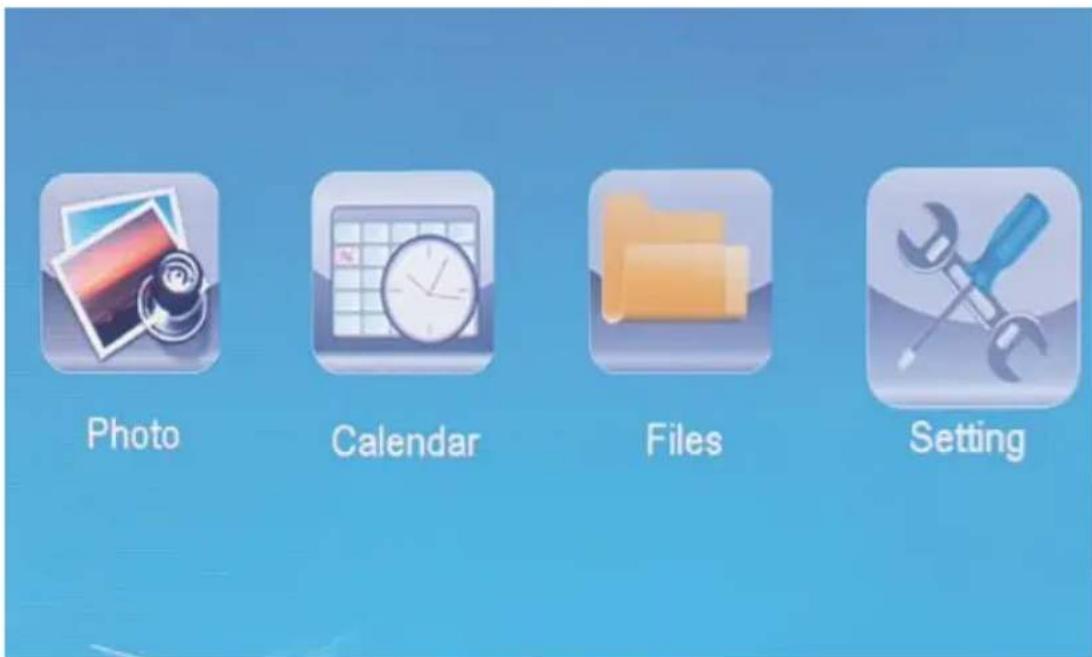
You open the main menu using the [MENU] button. In the menu, use the [◀][▶] buttons to move around, and select the desired function.
When you confirm your selection by pressing [OK], a corresponding submenu appears. In this menu, use the [▲] or [▼] buttons to move around, and select the desired line. The selected line is highlighted in colour.
Confirm your selection using the [OK] button. Usually, an additional menu will then appear, in which you move around using the [◀][▶][▲][▼] buttons and select the desired setting.
Use button [EXIT] to exit the current menu level.
For orientation purposes, the menu structure is also included in the Appendix.
You can control the device using the buttons on the rear or with the included remote control.
6.2 System settings

To enter the setup menu, press the [SETUP] button on your remote control or use the [◀][▶] buttons on the rear of the device or the remote control to access the "Settings" menu item
The following menu items are available:
| Photo Setup Calendar Setup System Setup | Display Mode | Slideshow |
| Display Ratio | Original | |
| Slide Speed | 3Sec. | |
| Slideshow Repeat | Circular | |
| Slideshow Effect | Random | |
| Slide Mode | Single Window | |
| Photo Setup | Display Mode | Select between two display modes |
| Music | Function menu for switching the music on/off during the slideshow | |
| Display Ratio | Adjust image to the screen | |
| Slide Speed | Select the time interval at which the images should change (3/5/15/30 sec.; 1/5/15 min.) | |
| Slideshow Repeat | Function menu for setting the playback loop | |
| Slideshow Effect | Function menu for setting the image transitions | |
| Slide Mode | Function for displaying up to four images simultaneously | |
| Calendar Setup | Date Function menu | for setting the date |
| Set Time Format | Function menu for setting the time | |
| Clock Time | ||
| Alarm Status | Function menu for setting the alarm time | |
| Alarm Time | ||
| Alarm Frequency | ||
| System Setup | Lanuage | Select the desired language menu/operating language |
| Brightness | Set the brightness, contrast, colour saturation, and tint of the device | |
| Contrast | ||
| Saturation | ||
| Hue | ||
| Power On | Set the time at which the device is to switch on or off. NOTE: Auto switch-on/switch-off function must first be activated! | |
| Auto Boot Time | ||
| Power Off | ||
| Auto Shut Time | ||
| Auto-Power-Frequency | ||
| Volume | ||
| Reset Setting | Function menu for resetting to factory settings | |
| Version | Function menu for displaying the current firmware version | |
| System Upgrade | Function menu for updating the firmware | |
| Start-up-Modus | Select a start up mode: main menu, photo, video, music, calendar |
7. Functions
7.1 Photos

The device starts a photo slide show automatically when a storage medium is inserted. If no storage medium has been inserted, the device uses the photos stored on the internal memory. You can navigate in the photo menu as follows:
- Use the [◀][▶][▲][▼] buttons on the device or remote control to select the symbol and then press [OK].
- In the default setting, the device displays the slide show upon start-up.
- Press the [EXIT] button on the remote control or the [MENU] button on the device to switch to picture preview mode.
- Use the [◀][▶][▲][▼] buttons to select a photo and then press [OK] to start playback.
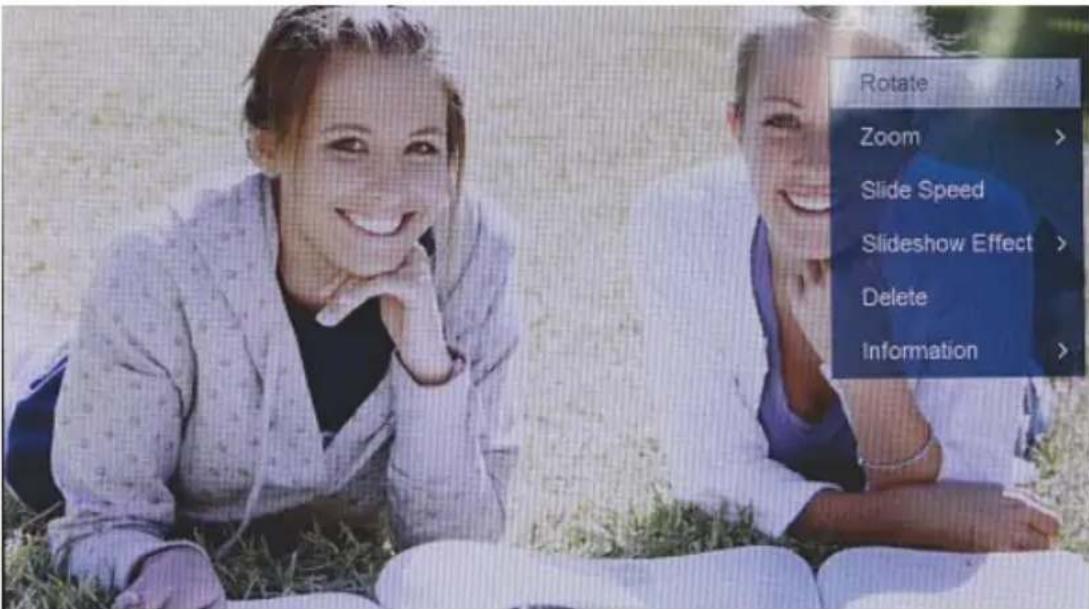
- During picture playback (or slide show), press the [PLAY/PAUSE] button on the remote control and then hold down [SETUP] for approx. 2 seconds to show options for the currently displayed picture.

NOTE
You can make additional changes to the settings in the music settings menu.
7.2 Calendar

Use the [◀][▶][▲][▼] buttons on the device or remote control to select the symbol and then press [OK].
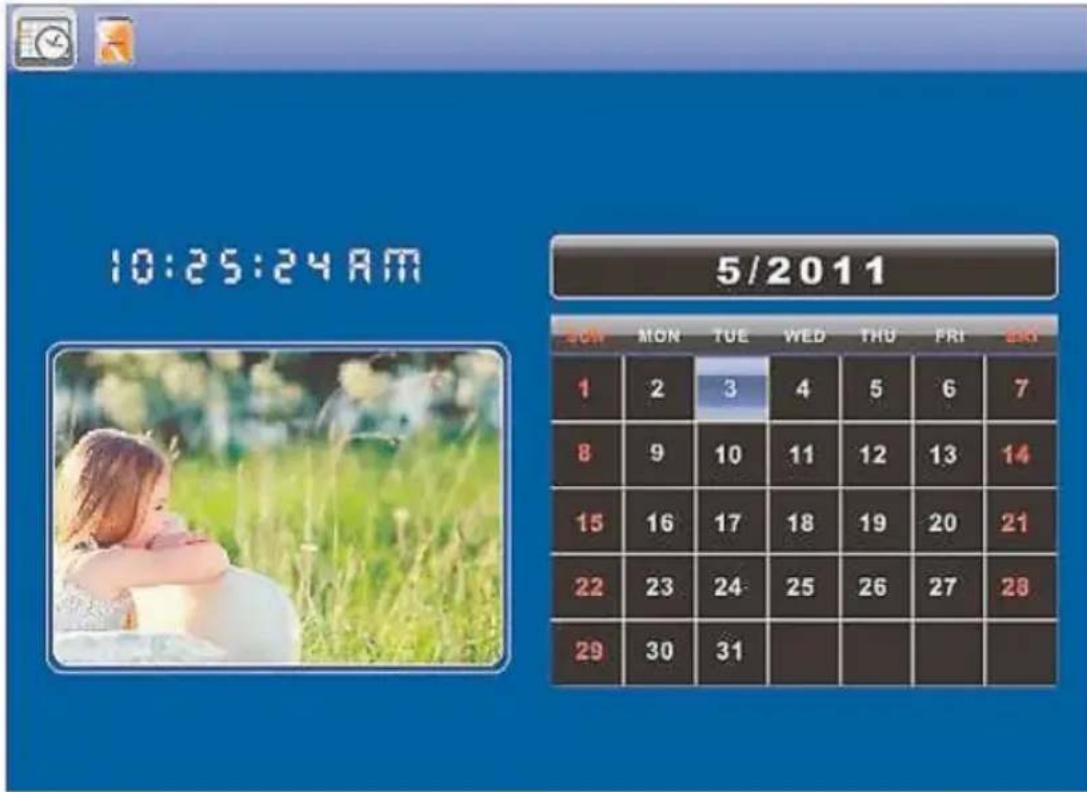
You can perform the following functions:
- You can change the year using the [◀][▶] buttons.
- You can change the month using the [▲][▼] buttons.

NOTE
- You can make additional changes to the settings in the calendar settings menu.
7.3 Folder

Use the [◀][▶][▲][▼] buttons on the device or remote control to select the symbol and then press [OK].
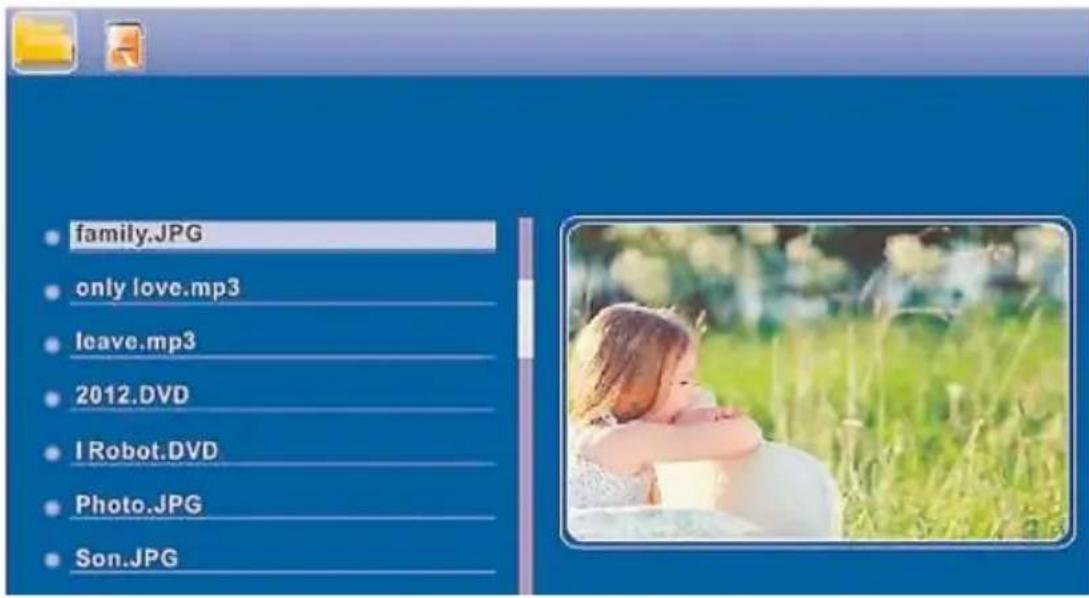
Use the [▲][▼] buttons to select a file and then press the [▶] button on the remote control or ③ on your device. A new menu window appears. You can use this window to save all of the files from the storage medium in the internal memory.
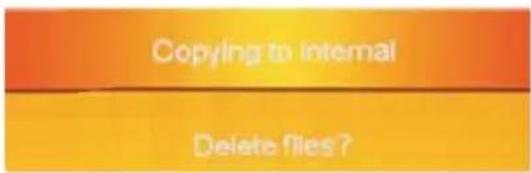
- Select Ja/Yes and then press [OK] to transfer the selected file from the storage medium to the internal memory.
- Press Nein/No to return to the folder level.

NOTE
Take care that only models equipped with internal memory support the internal storage of data. This feature is only available with certain models.
8. Additional functions
8.1 Slide show variations

natural_image
Close-up of green leaves with water droplets on the surface (no text or symbols)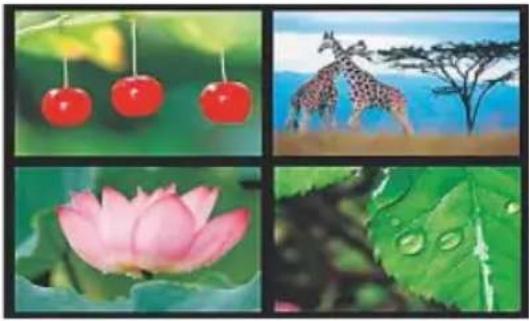
natural_image
Four-panel collage showing cherries, giraffe, pink lotus, and green leaves (no text or symbols)8.2 Causes of errors and error rectification
The following table can be used to localise and rectify minor errors with the device:
| Error Possible cause | Solution | ||
| General information | Display is blank | Device is switched off Switch on the device. | |
| Power supply adapter not connected correctly | Ensure that the power supply adapter is plugged in and connected to the device. | ||
| No mains power Check your fuse box. | |||
| Device is faulty | Inform our customer service department. | ||
| General information | Device turns off | By static electricity, such as occur during normal daily use on any commands or show a black screen, reset the device by pressing the happen that the device will go into Standby Mode. | In case that the device shouldn't rea |
| DPF | No image appears | No storage medium is inserted | Insert a storage medium. |
| The storage medium does not contain data | Check your storage medium. | ||

NOTE
- Contact our customer service department if the problem remains after taking the steps detailed above.
9. Care and Maintenance
The display on your device is located behind protective glass.
- Only clean the display with a dry, soft cloth.
- Do not apply pressure to the screen surface when you clean the device.
- To keep from damaging the surface, do not use solvents or alcohol-based cleaners to clean the device.

Note
For gentle cleaning and care of the display, we recommend that you use a microfibre cleaning cloth.
- Clean the rest of the device with a dry cloth. You can lightly dampen the cloth if the device is very dirty.
10. Warranty Disclaimer
Hama GmbH & Co. KG assumes no liability and provides no warranty for damage resulting from improper installation/mounting, improper use of the product or from failure to observe the operating instructions and/or safety notes.
GB
11. Service and Support
Please contact Hama Product Consulting if you have any questions about this product.
Hotline: +49 9091 502-115 (German/English)
Further support information can be found here:
www.hama.com
12. Technical specifications

Note
We reserve the right to make technical and design changes without prior notice.
| Digital Picture Frame 00118561 | |
| Power supply input 100-240V | AC / 50/60Hz / 0,4 A Max |
| Power supply output 5V DC / | 1.5A |
| Power consumption < 6.5 W | |
| Dimensions | 220 x 54 x 184 mm (with the base)220 x 4 x 184 mm (without the base) |
| Weight ca. 525 g | |
| Recommended ambient temperature for device | 0°C - 40°C (32 - 104 F) |
| Relative humidity 10 - 80 % | (non-condensing) |
| Display 24,64 cm (9.7") 4:3 TFT-LED | |
| Resolution 1024 x 768 (RGB) | |
| Brightness 150 cd/m2 | |
| Contrast 400 : 1 | |
| Button cell battery (CR 2025) | CR2025 3V |
| Kompatible Speichermedien SD/SDHC/MMC | |
| External connections USB Typ | A, Host |
| Supported file formats | JPEG, JPG (up to 64 MP) |
| Digital Picture Frame 00095291 | |
| Power supply input 100-240V | AC / 50/60Hz / 0,4 A Max |
| Power supply output 5V DC / | 1.5A |
| Power consumption < 6.8 W | |
| Dimensions | 234 x 56 x 198 mm (with the base)234 x 8 x 198 mm (without the base) |
| Weight ca. 580 g | |
| Recommended ambient temperature for device | 0°C - 40°C (32 - 104 F) |
| Relative humidity 10 - 80 % | (non-condensing) |
| Display 24,64 cm (9.7") 4:3 TFT-LED | |
| Resolution 1024 x 768 (RGB) | |
| Brightness 150 cd/m2 | |
| Contrast 400 : 1 | |
| Button cell battery (CR 2025) | CR2025 3V |
| Kompatible Speichermedien SD / SDHC / MMC | |
| External connections USB Typ A, Host | |
| Supported file formats | JPEG, JPG (up to 64 MP) |
| Digital Picture Frame 00095295 | |
| Power supply input 100-240V | AC / 50/60Hz / 0,4 A Max |
| Power supply output 9V DC / | 1.5A |
| Power consumption < 10.5 W | |
| Dimensions | 336 x 35 x 266 mm (with the base)336 x 20 x 266 mm (without the base) |
| Weight ca. 1360 g | |
| Recommended ambient temperature for device | 0°C - 40°C (32 - 104 F) |
| Relative humidity 10 - 80 % | (non-condensing) |
| Display 30,73 cm (12.1") 4:3 | TFT-LED |
| Resolution 800 x 600 (RGB) | |
| Brightness 190 cd/m2 | |
| Contrast 400 : 1 | |
| Button cell battery (CR 2025) | CR2025 3V |
| Kompatible Speichermedien SD/SDHC/MMC | |
| External connections USB Typ | A, Host |
| Supported file formats | JPEG, JPG (up to 48 MP) |
| Wall mount VESA VESA 75 mm x 75 mm | Digital Picture Frame 00118595 |
| Power supply input 100-240V | AC / 50/60Hz / 0,4 A Max |
| Power supply output 9V DC / | 1,5A |
| Power consumption < 7,5 W | |
| Dimensions 294 x 30 x 233 mm | |
| Weight ca. 1070 g | |
| Recommended ambient temperature for device | 0°C - 40°C (32 - 104 F) |
| Relative humidity 10 - 80 % | (non-condensing) |
| Display 30.73 cm (7") 16:9 TFT-LED | |
| Resolution 1024 x 768 (RGB) | |
| Brightness 190 cd/m2 | |
| Contrast 400 : 1 | |
| Button cell battery (CR 2025) | CR2025 3V |
| Kompatible Speichermedien SD/SDHC | |
| External connections USB Typ | A, Host |
| Supported file formats JPEG, | JPG (up to 16 MP) |
| Wall mount VESA | VESA 75 mm x 75 mm |
13. Menu structure
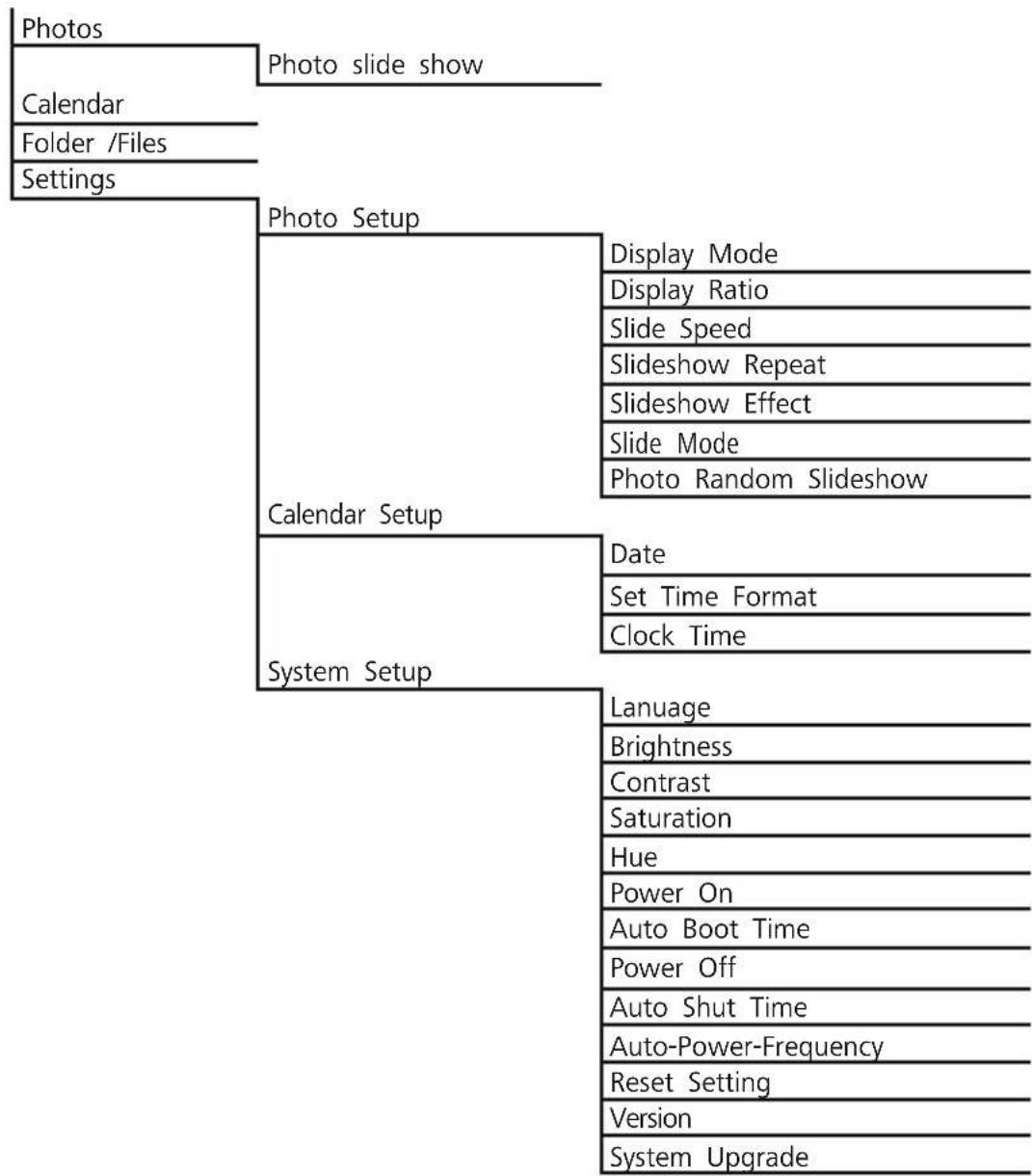
flowchart
graph TD
    A["Photos"] --> B["Photo slide show"]
    C["Calendar"] --> B
    D["Folder /Files"] --> B
    E["Settings"] --> F["Photo Setup"]
    F --> G["Display Mode"]
    F --> H["Display Ratio"]
    F --> I["Slide Speed"]
    F --> J["Slideshow Repeat"]
    F --> K["Slideshow Effect"]
    F --> L["Slide Mode"]
    F --> M["Photo Random Slideshow"]
    N["System Setup"] --> O["Calendar Setup"]
    O --> P["Date"]
    O --> Q["Set Time Format"]
    O --> R["Clock Time"]
    N --> S["Lanuage"]
    N --> T["Brightness"]
    N --> U["Contrast"]
    N --> V["Saturation"]
    N --> W["Hue"]
    N --> X["Power On"]
    N --> Y["Auto Boot Time"]
    N --> Z["Power Off"]
    N --> AA["Auto Shut Time"]
    N --> AB["Auto-Power-Frequency"]
    N --> AC["Reset Setting"]
    N --> AD["Version"]
    N --> AE["System Upgrade"]
14. Recycling Information
Note on environmental protection:
After the implementation of the European Directive 2012/19/EU and 2006/66/EU in the national legal system, the following applies: Electric and electronic devices as well as batteries must not be disposed of with household waste. Consumers are obliged by law to return electrical and electronic devices as well as batteries at the end of their service to the public collecting points set up for this purpose or point of sale. Details to this are based by the national law of the respective country. This symbol on the product, the instruction is or the package indicates that a product is subject to these regulations. By recycling, using the materials or other forms of utilising old devices/Batteries, you are making an important contribution to protecting our environment.
GB
A
118561, 118549, 118552, 95291
118595, 95295
B
118595 118549, 95291, 95295,118561
flowchart
graph TD
    A["1"] --> B["○"]
    C["2"] --> D["ZOOM"]
    E["3"] --> F["OK"]
    G["4"] --> F
    H["5"] --> F
    I["6"] --> F
    J["7"] --> F
    K["8"] --> L["←"]
    M["9"] --> N["Home Icon"]
    O["10"] --> P["○"]
    Q["11"] --> R["○"]
    S["hama"] --> T["○"]
118552

Hinweis
natural_image
Close-up of green leaves with water droplets on the surface (no text or symbols)
natural_image
Four-panel collage showing cherries, giraffe, pink lotus, and green leaves (no text or symbols)5.2 Installation murale

REMARQUE
natural_image
Close-up of green leaves with water droplets, no text or symbols visible
natural_image
Four-panel collage showing cherry tomatoes, a giraffe, a pink lotus flower, and a green leaf with water droplets (no text or symbols)- Do not open the product. Do not continue to operate the product if it is damaged, which may be indicated by smoke, odour or loud noises. Immediately contact your dealer or our service department (see item "Service and Support").
- Do not use the product if the adapter, connection cable or power cable is damaged.
4. Fallo de píxel

Nota
The following types of storage media can be read:
• Tarjetas SD/SDHC (hasta 32 GB)
i NOTA
natural_image
Close-up of green leaves with water droplets, no text or symbols visible
natural_image
Two-panel image: top shows three red cherries hanging on a green plant; bottom shows a pink lotus flower with green leaves (no text or symbols)
natural_image
Two-panel image: top shows giraffe in a natural setting with pine tree; bottom shows green leaf with water droplets (no text or symbols)Check the delivery for completeness and visible damage. Inform your supplier/dealer in the event of incomplete or damaged deliveries.

NOTA
natural_image
Close-up of green leaves with water droplets on the surface (no text or symbols)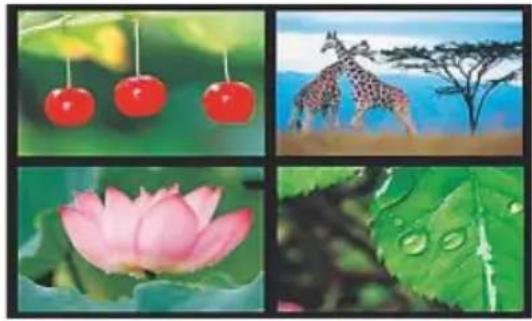
natural_image
Four-panel collage showing cherries, a giraffe, a pink lotus flower, and a green leaf with water droplets (no text or symbols)Check the delivery for completeness and visible damage. Inform your supplier/dealer in the event of incomplete or damaged deliveries.

AANWIJZING
natural_image
Close-up of green leaves with water droplets on the surface (no text or symbols)
natural_image
Two-panel image: top shows three red cherries hanging on a green plant; bottom shows a pink lotus flower with green leaves (no text or symbols)
natural_image
Two-panel image: top shows giraffes in a natural setting with a tree; bottom shows green leaf with water droplets (no text or symbols)9. Care and Maintenance

WSKAZÓWKA
- You can change the year using the [◀][▶] buttons.
- You can change the month using the [▲][▼] buttons.

WSKAZÓWKA
natural_image
Close-up of green leaves with water droplets on the surface (no text or symbols)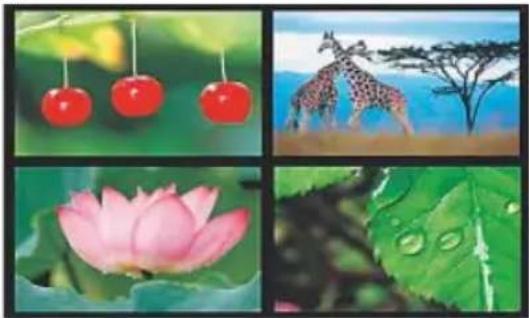
natural_image
Four-panel collage showing cherries, a giraffe, a pink lotus flower, and a green leaf with water droplets (no text or symbols)8.2 Causes of errors and error rectification ....171

MEGJEGYZÉS
H
natural_image
Close-up of green leaf with water droplets on its surface (no text or symbols)
natural_image
Four-panel collage showing cherries, a giraffe, a pink lotus flower, and a green leaf with water droplets (no text or symbols)8.2 Causes of errors and error rectification
The following table can be used to localise and rectify minor errors with the device:

UPOZORNĚNÍ
CZ
natural_image
Close-up of green leaves with water droplets (no text or symbols)
natural_image
Four-panel collage showing cherry tomatoes, a giraffe, a pink lotus flower, and a green leaf with water droplets (no text or symbols)Check the delivery for completeness and visible damage. Inform your supplier/dealer in the event of incomplete or damaged deliveries.
Tlačidlom [MENU] vyvoláte hlavné menu. V menu sa pohybujte pomocou tlačidiel [◀][▶] a zvolte požadovanú funkciu.
Ked' svoj výber potvrdíte tlačidlom [OK], zobrazí sa príslušné vedlajšie menu. Tu sa pohybujte pomocou tlačidla [▲] alebo [▼] a zvolte požadovaný riadok. Zvolený riadok je farebne zvýraznený.

UPOZORNENIE
natural_image
Close-up of green leaves with water droplets (no text or symbols)
natural_image
Four-panel collage showing cherry tomatoes, giraffe, pink lotus flower, and green leaves (no text or symbols)
NOTA
natural_image
Close-up of green leaves with water droplets (no text or symbols)
natural_image
Two-panel image: top shows red cherries on a green leaf; bottom shows pink lotus flowers on a green background (no text or symbols)
natural_image
Two-panel image: top shows giraffes in a natural setting with pine tree; bottom shows green leaf with water droplets (no text or symbols)i Indicatie
natural_image
Close-up of green leaves with water droplets (no text or symbols)
natural_image
Four-panel collage showing cherry tomatoes, giraffe, pink lotus flower, and green leaves (no text or symbols)86652 Monheim/Germany
www.hama.com