U3HDMIDVIDOCK - Other computer accessories i-TEC - Free user manual and instructions
Find the device manual for free U3HDMIDVIDOCK i-TEC in PDF.



User questions about U3HDMIDVIDOCK i-TEC
0 question about this device. Answer the ones you know or ask your own.
Ask a new question about this device
Download the instructions for your Other computer accessories in PDF format for free! Find your manual U3HDMIDVIDOCK - i-TEC and take your electronic device back in hand. On this page are published all the documents necessary for the use of your device. U3HDMIDVIDOCK by i-TEC.
USER MANUAL U3HDMIDVIDOCK i-TEC
USB 3.0 Dual Docking Station
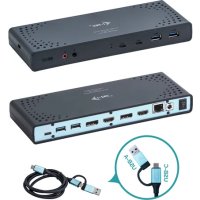
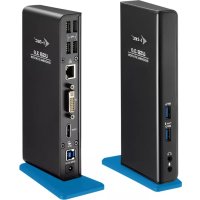
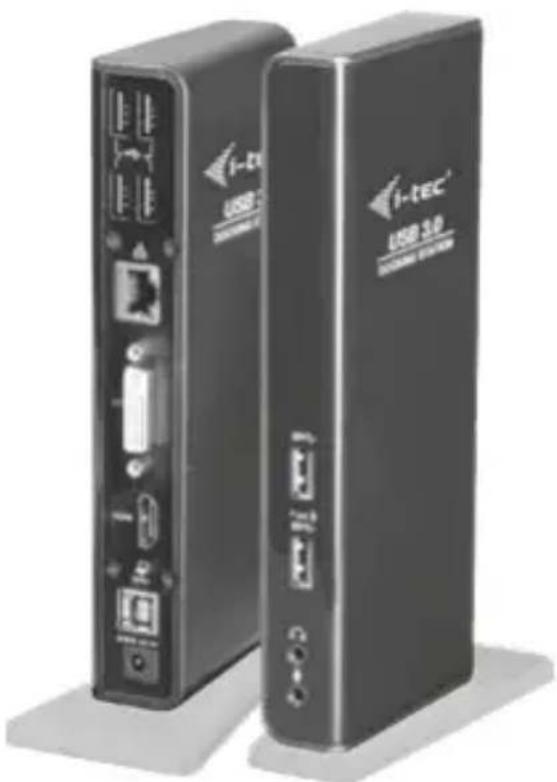
1x HDMI / 1x DVI-I / 1x Giga LAN / 1X USB 3.0 Charging Port / 1x USB 3.0 / 4x USB 2.0 1x Audio Output / 1x Microphone Input
User guide · Gebrauchsanweisung · Mode d'emploi Manual de instrucciones · Manuale · Uživotelská príručka Instrukcje obstugi · Uživotelská príručka · Vartotojo vadovas Handleiding
P/N: U3HDMIDVIDOCK
EN
Please read the entire instruction manual carefully. Detailed manual is available on our website www.i-tec.cz/en/ in the tab "Manuals, drivers". In case of any issues, please contact our technical support at: support@itecproduct.com
DE
USB 3.0 Dual Docking Station
ENGLISH. 04-06
DEUTsCH. 07-09
FRANÇAIS. 10-12
ESPANOL. 13-15
ITALIANO. 16-18
CESKY. 19-21
POLSKI 22-24
SLOVENSKY 25-27
LIETUVOS. 28-30
NEDERLANDS 31-33
WEEE. 34-35
FCC. 35
Declaration of Conformity. 36-37
European Ecodesign Directive. 38-40
INTRODUCTION
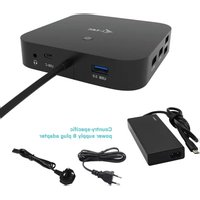
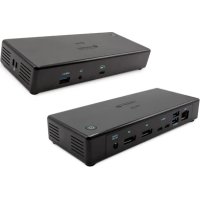
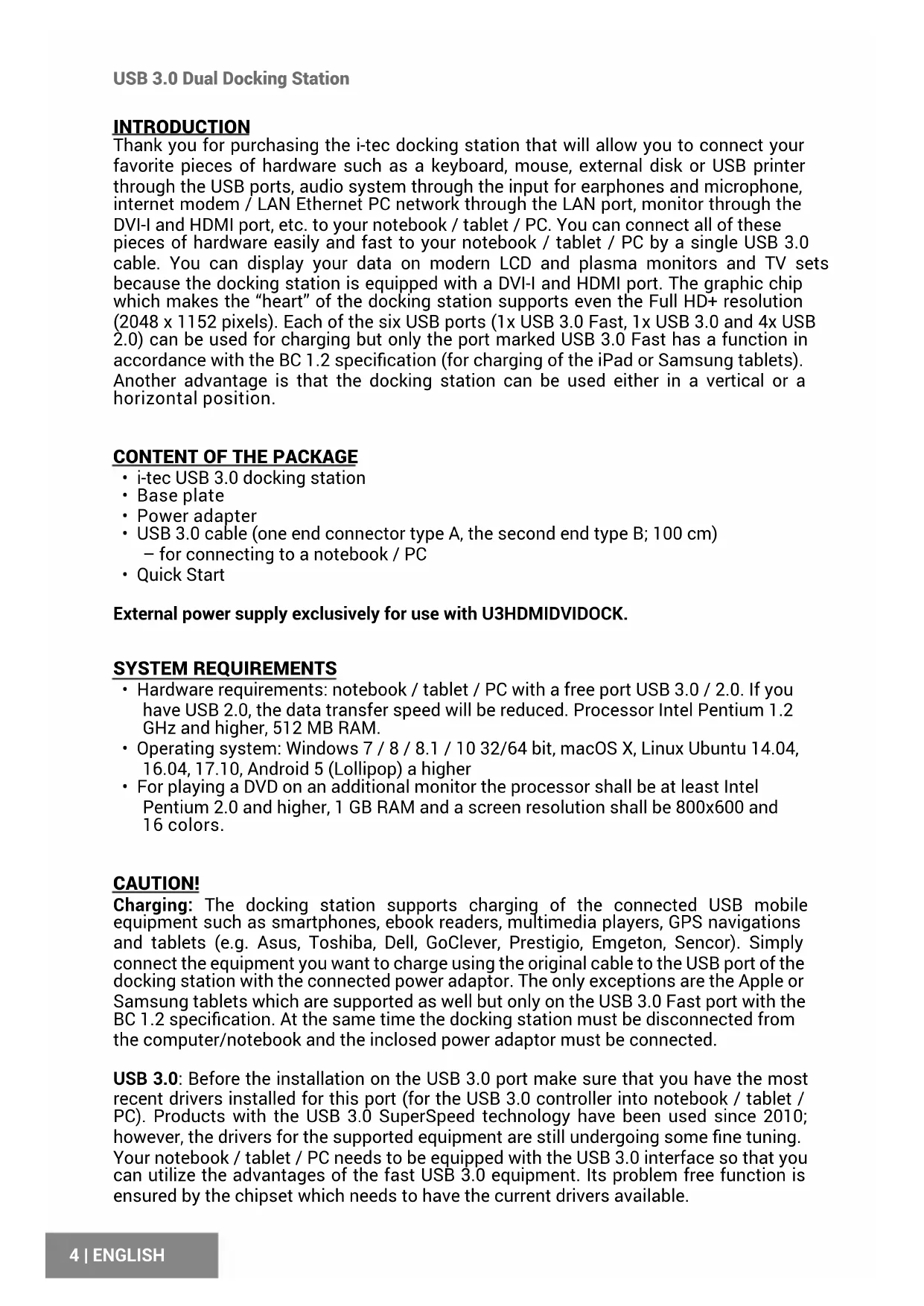
Thank you for purchasing the i-tec docking station that will allow you to connect your favorite pieces of hardware such as a keyboard, mouse, external disk or USB printer through the USB ports, audio system through the input for earphones and microphone, internet modem / LAN Ethernet PC network through the LAN port, monitor through the DVI-I and HDMI port, etc. to your notebook / tablet / PC. You can connect all of these pieces of hardware easily and fast to your notebook / tablet / PC by a single USB 3.0 cable. You can display your data on modern LCD and plasma monitors and TV sets because the docking station is equipped with a DVI-I and HDMI port. The graphic chip which makes the "heart" of the docking station supports even the Full HD+ resolution (2048 x 1152 pixels). Each of the six USB ports (1x USB 3.0 Fast, 1x USB 3.0 and 4x USB 2.0) can be used for charging but only the port marked USB 3.0 Fast has a function in accordance with the BC 1.2 specification (for charging of the iPad or Samsung tablets). Another advantage is that the docking station can be used either in a vertical or a horizontal position.
CONTENT OF THE PACKAGE
- i-tec USB 3.0 docking station
- Base plate
- Power adapter
- USB 3.0 cable (one end connector type A, the second end type B; 100~cm ) - for connecting to a notebook / PC
Quick Start
External power supply exclusively for use with U3HMDIDVIDOCK.
SYSTEM REQUIREMENTS
- Hardware requirements: notebook / tablet / PC with a free port USB 3.0 / 2.0. If you have USB 2.0, the data transfer speed will be reduced. Processor Intel Pentium 1.2 GHz and higher, 512 MB RAM.
- Operating system: Windows 7 / 8 / 8.1 / 10 32/64 bit, macOS X, Linux Ubuntu 14.04, 16.04, 17.10, Android 5 (Lollipop) a higher
- For playing a DVD on an additional monitor the processor shall be at least Intel Pentium 2.0 and higher, 1 GB RAM and a screen resolution shall be 800 × 600 and 16 colors.
CAUTION!
Charging: The docking station supports charging of the connected USB mobile equipment such as smartphones, ebook readers, multimedia players, GPS navigations and tablets (e.g. Asus, Toshiba, Dell, GoClever, Prestigio, Emgeton, Sencor). Simply connect the equipment you want to charge using the original cable to the USB port of the docking station with the connected power adaptor. The only exceptions are the Apple or Samsung tablets which are supported as well but only on the USB 3.0 Fast port with the BC 1.2 specification. At the same time the docking station must be disconnected from the computer/notebook and the inclosed power adaptor must be connected.
USB 3.0: Before the installation on the USB 3.0 port make sure that you have the most recent drivers installed for this port (for the USB 3.0 controller into notebook / tablet / PC). Products with the USB 3.0 SuperSpeed technology have been used since 2010; however, the drivers for the supported equipment are still undergoing some fine tuning. Your notebook / tablet / PC needs to be equipped with the USB 3.0 interface so that you can utilize the advantages of the fast USB 3.0 equipment. Its problem free function is ensured by the chipset which needs to have the current drivers available.
Problems that you can encounter during the installation or use of our USB 3.0 equipment are very often caused by the installed outdated drivers for the USB 3.0 controller or chipset of your notebook / tablet / PC. Other problems can be caused by outdated firmware of the USB 3.0 port controller. Most frequently it is one of the following manufacturers: Intel, Renesas (former NEC), Via (VLI), AS Media, Fresco Logic, Etron. You can find the most recent drivers for the i-tec products on our website www.i-tec.cz/en in the "Download" tab for the individual products.
INSTALLATION OF DRIVERS IN WINDOWS 7 / 8 / 8.1 / 10 (32/64 BIT VERSION)
Before the first use do not connect the docking station to the notebook / tablet / PC, until you install the corresponding drivers for the LAN and DVI-I. The equipment drivers need to be installed only before the first use.
Download the required software from our website www.i-tec.cz/en from the „Download“ tab for this product. Install the drivers according to the following procedure:
For the LAN and DVI-I port run the downloaded file, select the language of the installation and follow the instructions on the screen.
Note:
In Windows 7 / 8 / 8.1 / 10 install the DVI-I port as the "Administrator". The monitor may be flashing during the installation of the drivers - this is a standard process. After the completion of the installation we recommend restarting the notebook / tablet / PC.
HARDWARE INSTALLATION (CONNECTING THE DOCKING STATION TO A
NOTEBOOK / TABLET / PC)
- Turn ON the notebook / tablet / PC and connect the power adapter to the docking station.
- Connect the power adapter to the AC 110.0 V / 230.0 V mains.
Connect the USB 3.0 cable to the USB port type B on the back on all of the docking station.
- Connect the USB 3.0 cable to a free USB 3.0 / 2.0 port of your notebook / tablet / PC.
- Subsequently, the automatic installation of the ports in the individual systems will start.
INSTALLATION OF DRIVERS IN MACOS X
Before the first use do not connect the docking station to the MacBook / PC, until you install the corresponding drivers for the LAN and DVI-I port. The equipment drivers need to be installed only before the first use.
Download the required software from our website www.i-tec.cz/en from the „Download“ tab for this product. Install the drivers according to the following procedure:
For the LAN and DVI-I port run the downloaded file. Decompress the file on the desktop of your MacBook / PC as a virtual disc, select "Drivers" and then „DisplayLink Software Installer". Then select the language of the installation and follow the instructions on the screen. Enter the user password if necessary. The monitor may be flashing during the installation of the drivers - this is a standard process. After the completion of the installation restart the MacBook / PC.
HARDWARE INSTALLATION (CONNECTING THE DOCKING STATION TO A MACBOOK / PC)
- Turn ON the MacBook / PC and connect the power adapter to the docking station.
- Connect the power adapter to the AC 110.0 V / 230.0 V mains.
- Connect the USB 3.0 cable to the USB port type B on the back panel of the docking station.
- Connect the USB 3.0 cable to a free USB 3.0 / 2.0 port of your MacBook / PC.
- Subsequently, the automatic installation of the ports in the individual systems will start.
- After the completion of the installation restart the MacBook / PC.
SAFETY INSTRUCTIONS
- Do not expose to extreme temperatures and air humidity.
- Use the device on flat surfaces - you will prevent it from slipping and falling to the ground.
- Save the user manual for a possible use later.
In cooperation with the service department:
- Check functionality after falling to water or to the ground.
- Check functionality when the cover is broken.
- Send the device back if it does not work in accordance with the user manual.
FREQUENTLY ASKED QUESTIONS
Available on our website www.i-tec.cz/en on the "FAQ" tab of this product.
EINLEITUNG
USB 3.0 Dual Docking Station
RéPONSES AUX QUESTIONS FREQUÉMMENT POSÉES
USB 3.0 Dual Docking Station
INSTALLACE OVLADAÇÜV MACOS X
CASTO KLADENE OTÁZKY
CASTO KLADENE OTÁZKY
K dispozicii na našom webe www.i-tec.cz v založke „FAQ" pri tomto produkte.
JVADAS
Dékojame, kad jsigijote doko stotele i-tec su kuria prie nešiojamo kompiuterio/planëtes/ stacionaraus kompiuterio galite prijungti Jusug migstamus jrenginius (1 pav.), pvz. klaviatura, pele, isorinj diska arba USB spausdintuva per USB prievada, audioystema per jvesti ausinemis ir mikrofonui, interneto modema / LAN Eternetas PC per LAN prievada, monitoriu per DVI-I prievada ir t.t. Visus minetus jrenginius prijungsite nesudeteingai ir greitai prie Jusug nešiojamo kompiuterio/ planëtes/ stacionaraus kompiuterio tik su vienu USB 3.0 kabeliu. Kaip ekranagalite naudoti modernius LCD i ekranus ir televizorius, nes doko stotele turi DVI-lir HDMI prievada Grafinis Čipas, kuris yra doko stoteles „sirdimi" palaiko Full HD+ raiska (2048 x 1152 pikseiu). Visi šesi USB portai (1x USB 3.0 Fast, 1x USB 3.0 a 4x USB 2.0) turi jkrovimo funkcjja, taciau tik portas pažymetas USB 3.0 Fast turi funkcijpagal BC 1.2 specifikacija (iPado arba Samsung planëtes jkrovimui). Privalumu yra galimybeneaudoti doko stotele vertikalioje ir horizontaloje padetyje.
KOMPPLEKTACIJOJE
- i-tech USB 3.0 doko stotelé
- Stovelis
- Maitinimo adapteris
- USB 3.0 kabelis (vienes jungties galas tipas A,Kitas galas tipas B;100 cm) - prijungmui prie nešiojamo kompiuterio/ stacionaraus kompiuterio
Quick Start
USB 3.0 Dual Docking Station
This equipment is marked with the above recycling symbol. It means that at the end of the life of the equipment you must dispose of it separately at an appropriate collection point and not place it in the normal domestic unsorted waste stream. This will benefit the environment for all. (European Union only)
DEUTSCH
This equipment has been tested and found to comply within the limits of a Class B digital device pursuant to Part 15 of the FCC Rules. These limits are designed to provide reasonable protection against harmful interference in a residential installation.
EU DECLARATION OF CONFORMITY / EU KONFORMITÄTSERKLÄRUNG Déclaration EU DE CONFORMITE / DECLARATION UE DE CONFORMIDAD DICHIARAZIONE DI CONFORMITA UE / EU PROHLÁSENÍ O SHODE EU PREHLÁSENIE O ZHODE / EU DECLARACJA ZGODNOSCI ES ATITIKTIES DEKLARACIJA / EU-CONFORMITEITSVERKLARING
Manufacturer, Der Hersteller, Le fabricant, Fabricante, Produttore, Vyrobce, Vyrobca, Producent, Gamintojas, De fabrikant:
i-tec Technologies s.r.o., Kalvodova 2,
709 00 Ostrava - Mariánské Hory, Czech Republic
declares that this product / erklärt hiermit, dass das Produkt / déclare que ce produit / déclarare que este produito / dichiara che il seguente prodotto / tímtto prohlasuje, ze vyrobek / tymto prehlasuje, ze vyrobok / deklaruje, ze produit / siuo pareiskia, kad gaminys / verklaart hierbij dat het product
Product, Bezeichnung, Le prénom, Producto, Prodotto, Název, Názov, Nazwa,
Gaminys, Naam: i-tec USB 3.0 Dual Video DVI HDMI Docking Station + Glan + Audio + USB 3.0 Hub
Model, Modell, Modèle, Modelo, Modello, Modelis: U3HDMIDVIDOCK / DU3222D1
Determination, Bestimmung, La détermination, Determinación, Determinazione, Určeni, Určenie, Opcje, Ustatymas, Doel:
Product is determined for using in PC as equipment. Das Produkt ist für Austattung und als Zubehör von Computern bestimmt. Le produit est déterminé pour une utilisation sur PC comme équipement. El produit se détermina para usability en PC como equipo. Destinato per essere usato come attrezzatura informatica o come accessorio per computer. Vyrobek je urcen pro pristrojovy vbaveni a jako prisluosenstvo do počitaču. Vyrobok je urceny pre pristrojové vybavenie a jako prisluosenstvo do počitačov. Produkt jest przyznaczony do wspólpracy z komputerem jako akcesorium. Gaminys yra skirtas jrangai papildyi ir naudiojamas kaip priedas kompiuteriams. Het product is bedoeld als uitrusting voor apparaten en als computeraccessaire.
Meets the essential requirements according to / Es entspricht den Anforderungen der Richtlinien / Répond aux exigences essentielles selon / Cumple los requisitos esencias según / Soddisfa i requisiti essenziali secondo / Splnje tyto požadavky / Splna tieto požadavky / Spelnia nastepujace wymagania / Atitinka esminius reikalavimus pagal / Het voldoet aan de volgende vereisten:
EC Directive 2014/30/EU, 2014/35/EU, 2011/65/EU and 2009/125/ES
EMS (For EMC, Für EMC, Pour la CEM, Para EMC, Per la compatibilità elettromagnetica, Pro EMC, Pre EMC, Dla Kompatybilnosci elektromagnetycznej, Skirtas EMC, Voor EMC):
EN 55032:2012/AC:2013; EN 61000-3-2:2014; EN 61000-3-3:2013
EN 55024:2010+A1:2015
For Electrical Safety, Für die elektrische Sicherheit, Pour la sécurité électrique, Para la sécurité elektrica, Per la sicurezza elettrica, Pro Elektrickou bezpečnost, pre Elektricku bezpečnost', dla Bezpieczeniastwa, Elektros saugai, Voor elektrische veiligung:
EN 60950-1:2005+A1:2009+A2:2013
RoHS:
2011/65/EU; EU 2015/863
and it is safety under conditions of standard application / und ist sicher bei standardmäßiger Nutzung / et c'est la sécurité dans des conditions d'application standard / y es seguridad bajo conditiones de aplicacion estandar / ed è sicuro in condizioni d'uso normali / a je bezpečný za podminek obvykleho použití / a je bezpečný za podmienok obvykleho použitia / oraz jest Produktem bezpiecznym przy standardowym wykorzystwyaniu / ir naudojant jprastomis salygomis yra saugus/en is veilig onder de omstandigheden van normala gebruik.
Additional information, Ergänzende Angaben, Information additionnelle, Información Adicional, Informazioni integrative, Doplñujíci informace, Doplñujúce informácie, Dodatkowe informacea, Papildoma informacija, Aanvullende informatie:
Identification Mark, Identifikationskennzeichen, La marque d'identification, Marca de identificacion, Segno di identificazione, Identificačné značka, Identificačné značka, Znak identyifikacyjny, IdentifikavimoŽenklas, Identificatiemerk:

Ostrava 17.03.2020

Ing. Lumir Kraina
Executive Name and Signature, Geschäftsführer, Executif et signature, Nombre y firma del gerente,
Amministratore, Jednatel, Konatel, Nazwisko osoby upowaznionej, Vadovas, Zaakvoerder
EN Amendment to user manual providing all necessary information required by COMMISSION REGULATION (EU) 2019/1782. (This product meets all the requirements laid down by the above regulation).