A7S - Dashcam TrueCam - Free user manual and instructions
Find the device manual for free A7S TrueCam in PDF.


| Product Type | Dashcam |
| Brand | TrueCam |
| Model | A7S |
| Sensor | CMOS 1/3" 4.0 Megapixel OV4689 |
| Maximum Video Resolution | 2304x1296 @ 30 fps (2560x1080 @ 30 fps also available) |
| Viewing Angle | 130° (at 1080P) |
| Display | 2.7 inch LCD, 16:9 format |
| GPS Module | Built-in (via bracket), records position, speed, and time |
| Radar Detector | Yes, with database and voice alerts |
| G-Sensor | Yes, adjustable from 2G to 4.5G, auto-lock on impact |
| Motion Detection | Yes, adjustable (Low / Medium / High) |
| Loop Recording | Yes, adjustable (1 / 3 / 5 / 10 minutes) |
| Audio Recording | Built-in microphone, can be disabled via menu or button |
| Night Vision | WDR (Wide Dynamic Range) for better night quality |
| Lens Filters (optional) | CPL filter (anti-glare) and UV filter available |
| Storage | Micro SD card up to 32 GB (Class 10 recommended, minimum 8 GB) |
| Power Supply | Car charger 12-24V; built-in battery 400 mAh |
| Operating Temperature | -5°C to +40°C |
| Dimensions | 103 x 51 x 40 mm |
| Video Output | HDMI |
| Connectivity | USB 2.0 (Mini USB on device and bracket) |
| Display Languages | French, English, German, Czech, Polish, Hungarian, Russian, Chinese, Serbo-Croatian, Lithuanian, Bulgarian |
| Included Accessories | Car charger, camera mount (suction cup + adhesive), HDMI cable, USB cable, GPS/radar detector module, manual, CD |
| Maintenance | Soft lint-free cloth; avoid moisture, extreme temperatures, and shocks |
| Safety | Do not operate while driving; do not disassemble; use only the supplied charger |
| Spare Parts and Repairability | Removable micro SD card; built-in battery not user-replaceable; firmware update via website |
Frequently Asked Questions - A7S TrueCam
User questions about A7S TrueCam
0 question about this device. Answer the ones you know or ask your own.
Ask a new question about this device
Download the instructions for your Dashcam in PDF format for free! Find your manual A7S - TrueCam and take your electronic device back in hand. On this page are published all the documents necessary for the use of your device. A7S by TrueCam.
USER MANUAL A7S TrueCam
Full HD | Car DVR with GPS logger & Speed camera detector
EN - User manual
natural_image
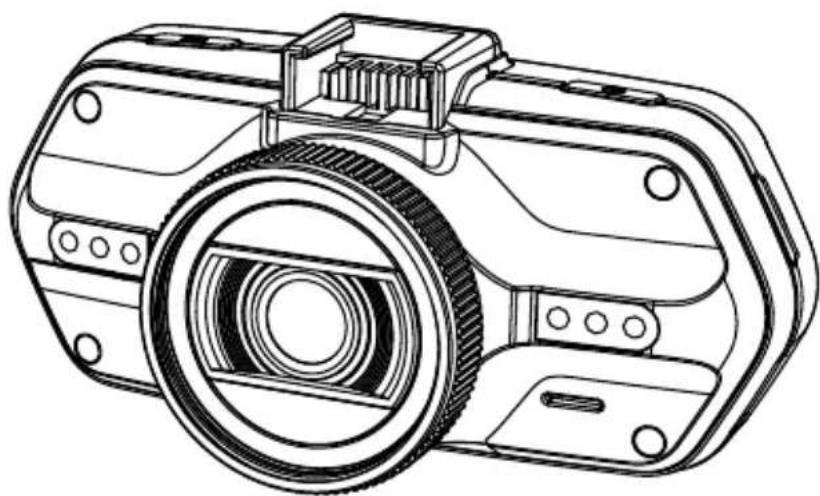
Line drawing of a camera with visible lens and mounting brackets (no text or symbols)TrueCam
Full HD | Car DVR with GPS logger & Speed camera detector
natural_image
Technical line drawing of a mechanical device with no visible text or symbols• 2304x1296@30FPS
• GPS logger & Speed camera detector
- Illuminated keyboard
• CPL & UV lens available
TrueCam A7s
User manual
Product picture & function....2
a) Device introduction....2
b) Button function....3
c) LED light status list....5
d) Product accessories....5
Basic operation....5
a) TF card installation....5
b) GPS / Speed camera detector installation....6
c) CPL installation (optional)....8
d) Power supply....9
e) Motion detection....9
f) GPS voice + units....9
g) G-sensor function....9
h) Video mode....10
i) Photo mode....13
j) Playback mode....13
k) Other functions....13
Menu setting....14
a) Video mode....14
b) Playback mode....17
Connection....18
a) TV or monitor connection....18
b) Computer connection....18
DVR player....19
Product specification....20
Product picture & function
a) Device introduction
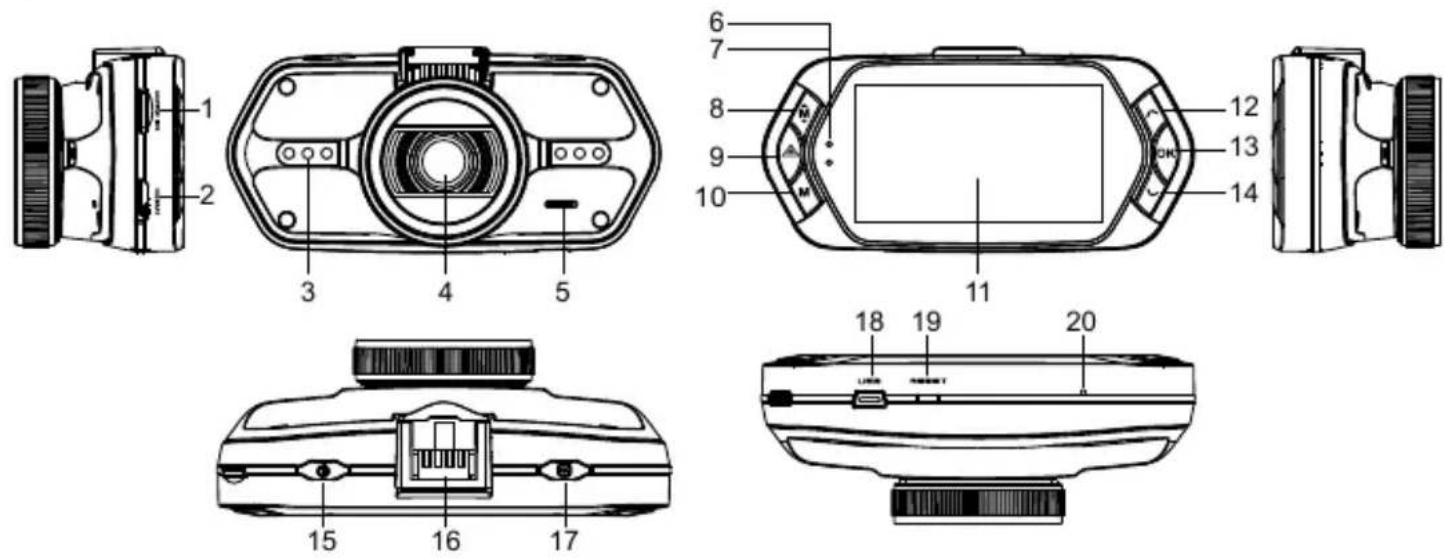
| 1. TF card slot | 2. HDMI port | 3. LED light |
| 4. Lens | 5. Speaker | 6. Status light (blue) |
| 7. Charging light (red) | 8. Menu button | 9. File protection button ▲ |
| 10. Mode button M | 11. LCD display | 12. Up button |
| 13. OK button | 14. Down button | 15. Power button |
| 16. Holder connector | 17. Photo button | 18. USB port |
| 19. Reset button | 20. Microphone |
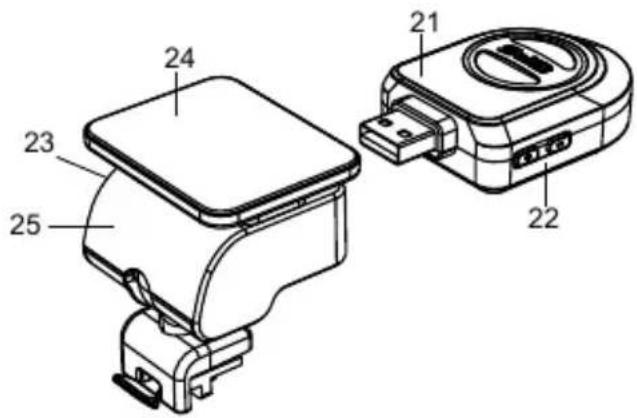
| 21. GPS module/Speed camera detector module |
| 22. Voice switch for speed camera detector |
| 23. Power input |
| 24. Sticker holder |
| 25. Camera holder |
b) Button function
Power button
Press this button for 2\~3 sec. to turn on / off the device.
In recording mode or standby mode, press to turn the LCD display on / off.
Photo button
In video mode, in any time, press this button to take a photo.
Reset button
If the device crashes, press this button to reset the device.
Menu button
Press this button to display the video settings. Double-click to show camera settings.
When the device is in recoding, press this button to change the flash light status "A", "↓", "∅".
File protection button
In the video mode, when the device is recording, press this button to set the recording video to be protected manually, so as to prevent it from being overwritten by loop recording.
In playback mode, press this button to lock or unlock the video file.
When file protection is active, the icon " 🔍 " will appear on LCD display.
Mode button
The device has only two modes, video mode and playback mode.
When this button is pressed during standby, the device will switch between these two modes.
When the device is recording, the button is not functional.
Up button
In recording mode or standby mode, press to turn the speedometer on / off.
In menu settings, press this button to move up.
In playback mode, press this button to choose the previous file.
In playback mode, when playing a video file, press this button to rewind playing.
OK button
In video mode, press this button to start/stop recording.
In playback mode, press this button to play / pause a video file.
In menu settings, press this button to confirm the menu setting.
Down button
In video mode, press this button to start / stop voice recording.
In menu settings, press this button to move down item.
In playback mode, press this button to choose the next file.
In playback mode, when playing video file, press this button to forward playing.
Audio switch
This button is only for speed camera detector.
Push this switch to turn on / off the voice of the speed camera detector.
c) LED light status list
| LED light | Status | Description |
| Status light (blue) | Flash | Device is recording |
| On | Device is in standby or playback mode | |
| Off | Device is off | |
| Charging light (red) | On | Charging battery |
| Off | Charging finish |
d) Product accessories
| 1. Car DVR x1 | 2. Car charger x1 | 3. Camera holder x1 | 4. Sticker x1 | 5. Sucker x1 |
| 6. HDMI cable x1 | 7. USB cable x1 | 8. User's manual x1 | 9. GPS / Speed camera detector module x1 | |
| 10. CD | 11. UV filter (optional) | 12. CPL filter (optional) | ||
Basic operation
a) TF card installation
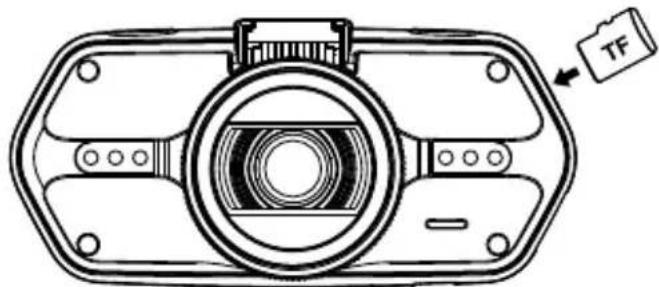
Insert the Micro SD card into the slot so that the connectors on the card are facing towards the camera display. When inserting or removing the SD card, keep your camera turned off.
natural_image
Technical line drawing of a camera module with no text or symbolsWe recommend formatting the SD card while in use once a month. This will prevent the creation of defective files and helps to protect the SD card itself against damage.
b) GPS / Speed camera detector installation
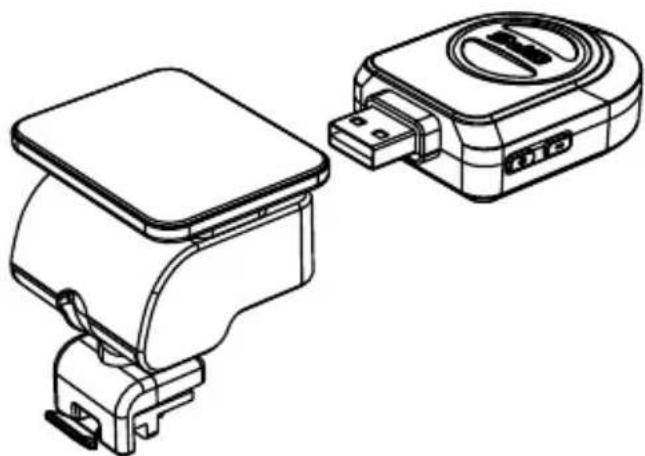
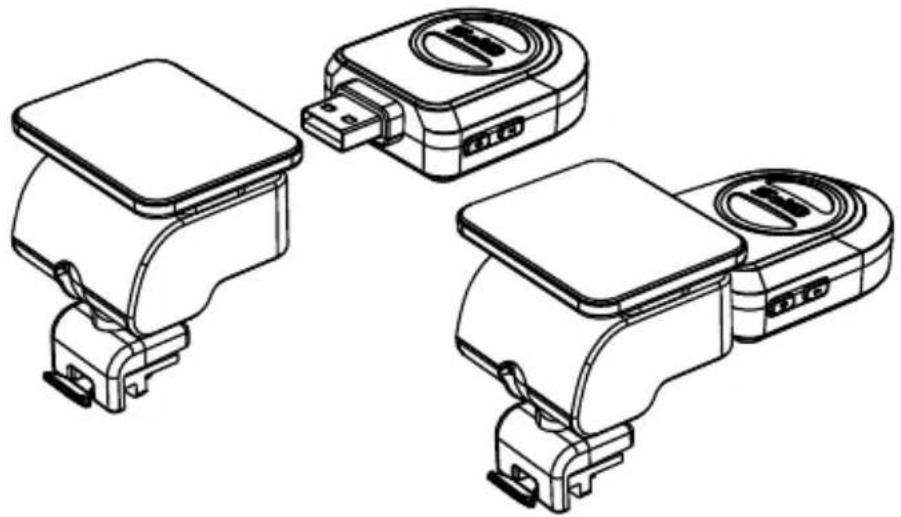
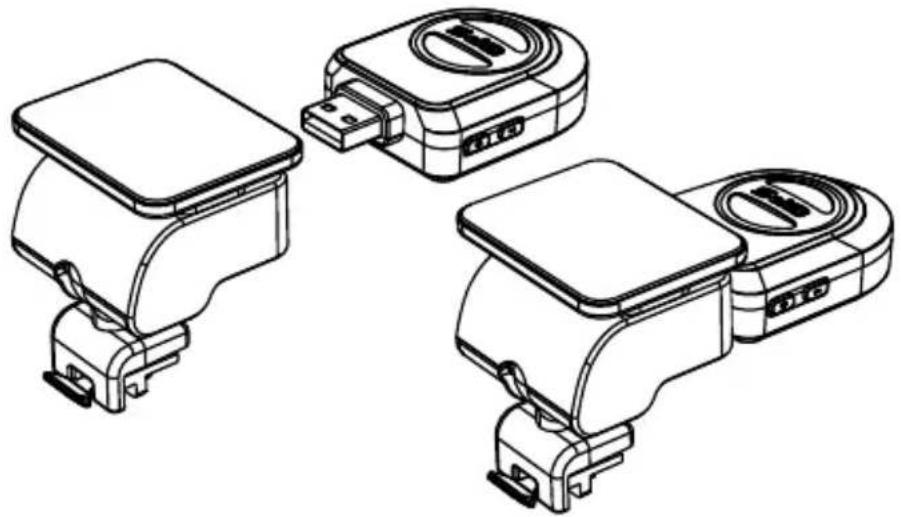
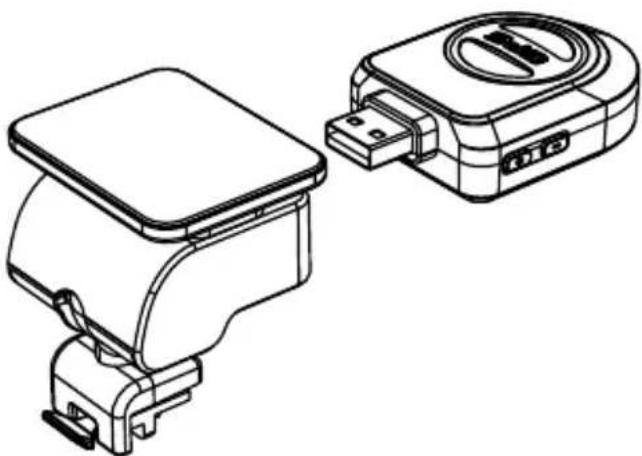
Insert GPS / Speed camera detector module into the camera holder, as in the picture bellow:
natural_image
Technical line drawing of a device with two views: one showing a flat panel and the other a rectangular device with ports (no text or symbols)Install the device on the windshield with the sticker or the sucker holder.
When the device is powered, speed camera detector speaker will provide voice instructions from the speed camera detector speaker, and the device will automatically start to receive GPS signal.
When the GPS signal is not available, GPS icon " 🔍" will be shown on the LCD display.
When connected to a GPS satellite, GPS icon " " will be shown on the LCD display.
Note: GPS module works properly only when it is plugged into the DVR mount adapter that is connected to a power into the car lighter.
When you want to change the voice alert setting, the GPS module must be connected to power into the car lighter according to the notes above.
Updating the database of radars and voice alerts can be found at: www.truecam.com/firmware/
HOW TO PROPERLY INSTALL THE GPS MODULE INTO THE DVR HOLDER?
natural_image
Line drawings of three different electronic device enclosures with ports and connectors (no text or symbols)To connect the GPS module and the dashcam mount correctly, use sufficient force so there is no visible gap between the GPS module and the mount. This connection is strong enough for the GPS module to hold firmly in place, even during long journeys.
c) CPL Installation (Optional)
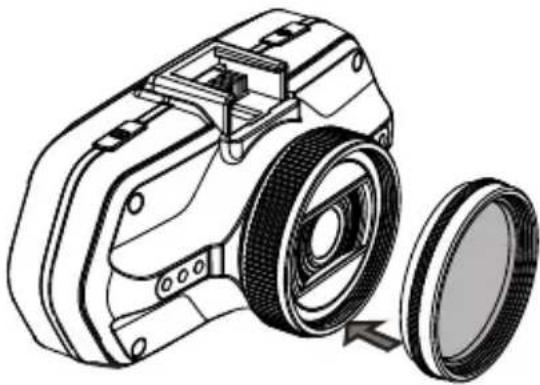
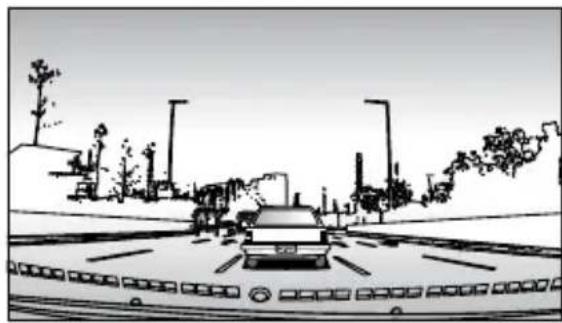
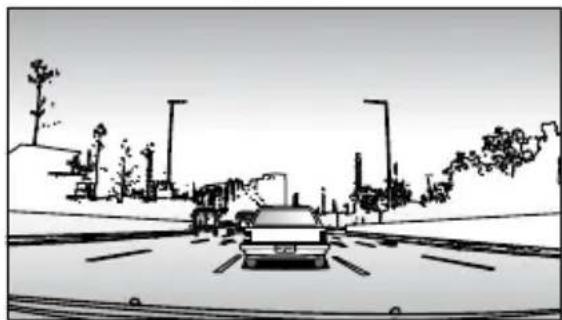
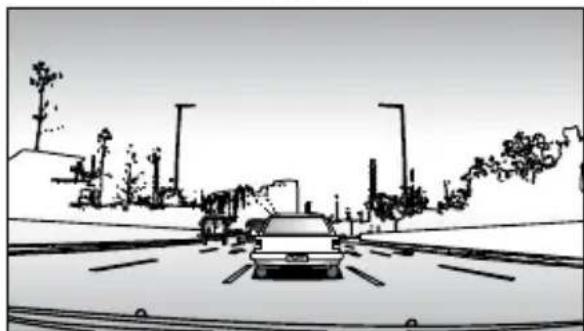
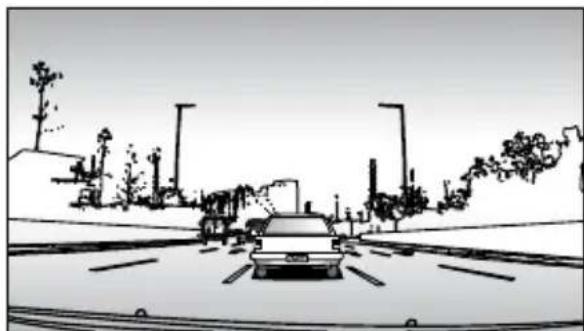
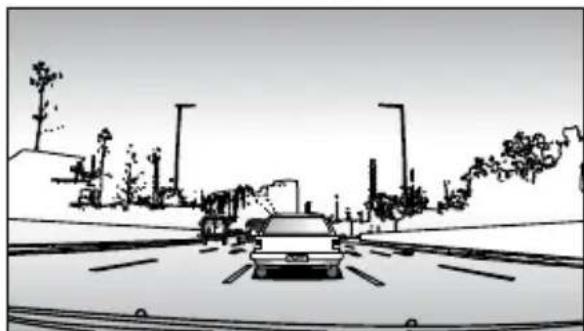
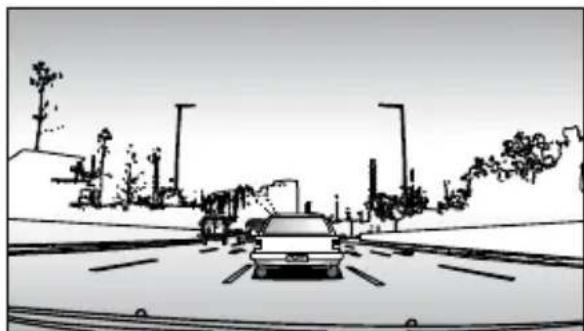
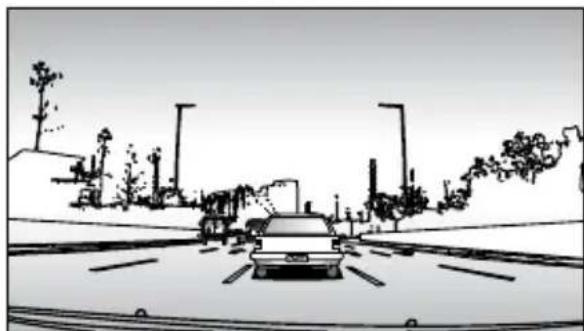
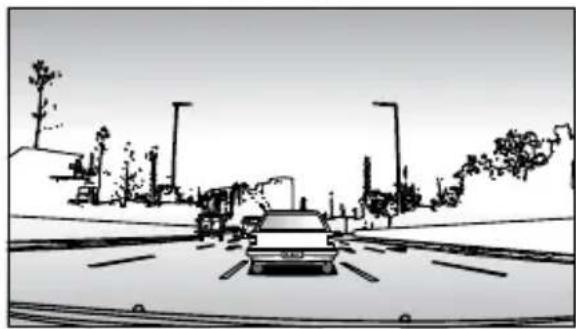
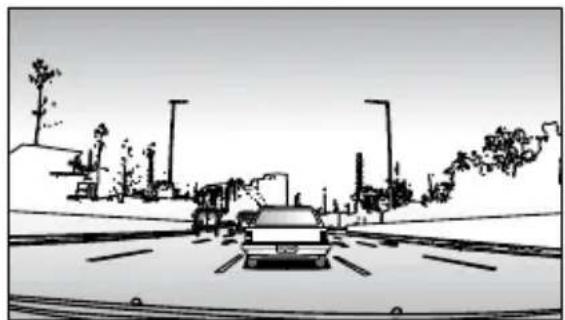
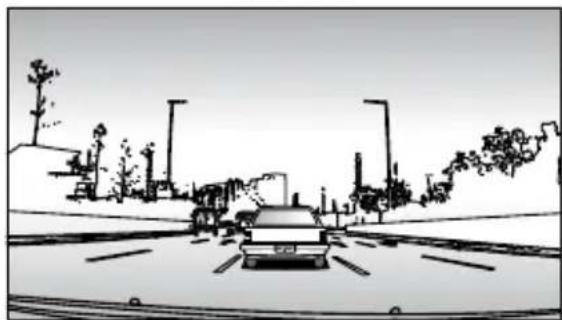
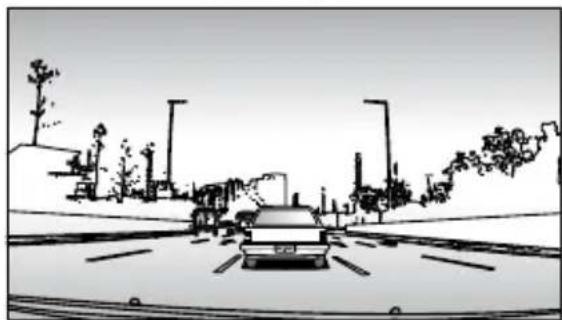
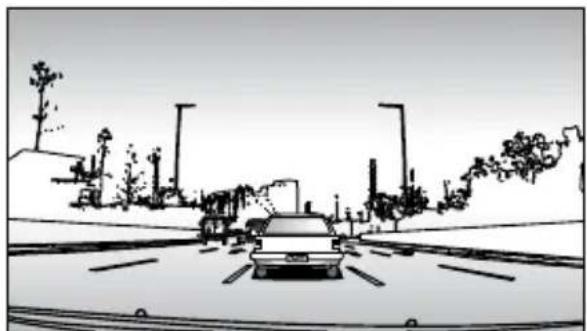
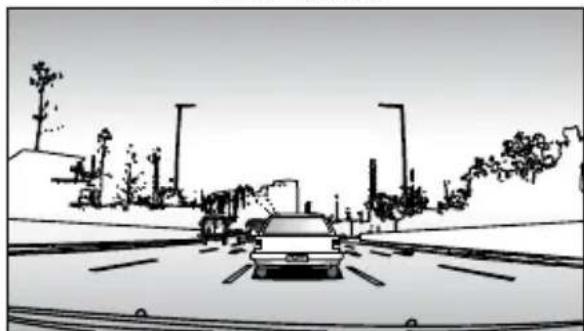
CPL: Circular-polarizing filter can reduce the inner reflection on the car windshield.
Without CPL
natural_image
Black-and-white line drawing of a car driving on a multi-lane road with trees and streetlights in the background (no text or symbols)With CPL
natural_image
Black-and-white sketch of a car driving on a road with trees and streetlights (no text or symbols)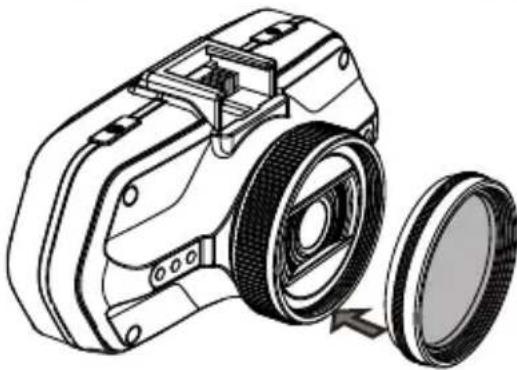
natural_image
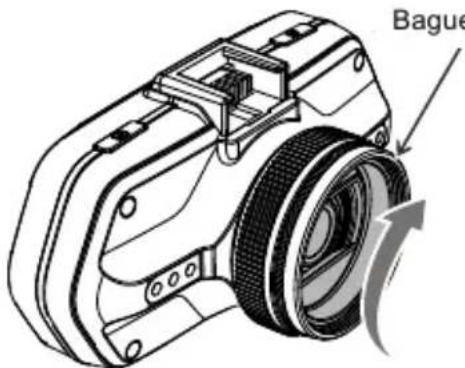
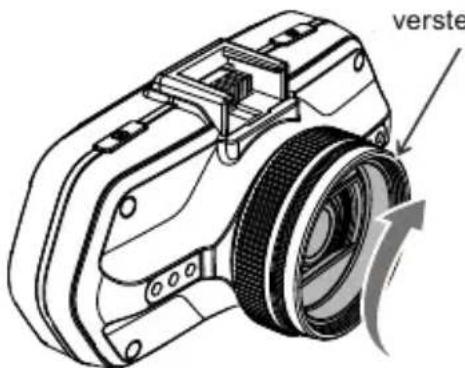
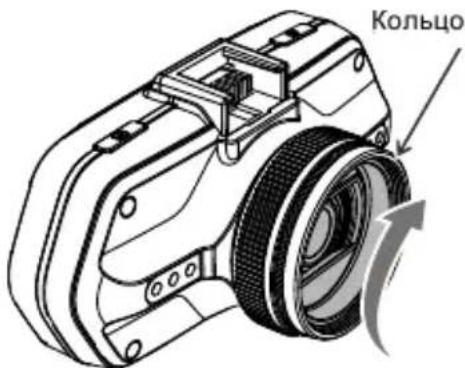
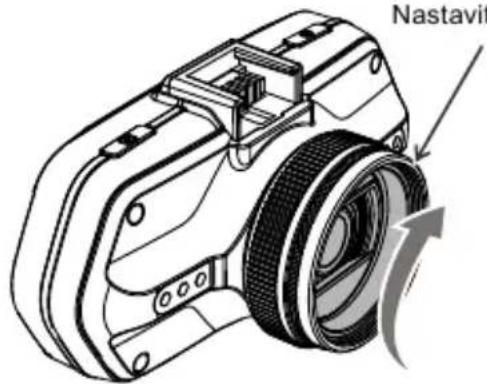
Technical line drawing of a camera with a magnified inset showing the wheel and lens (no text or symbols)Install the CPL by screwing the filter ring on the camera's lens.
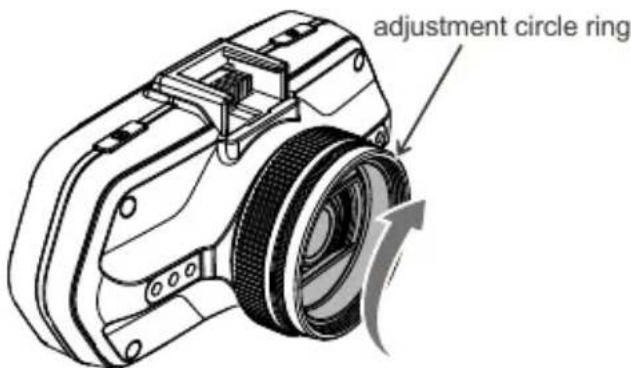
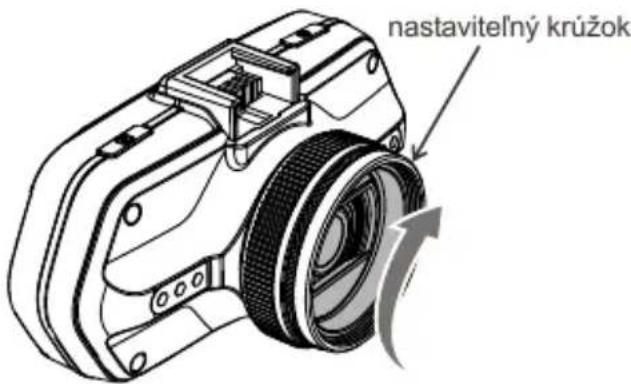
After installing the CPL on the lens, rotate the CPL adjustment ring to get an ideal polarized effect.
d) Power supply
Connect the USB port and the cigarette lighter socket with the car charger, then start the engine, the device will automatically power on and start recording.
Note: There are two mini USB ports, one is on the device, another one is on the camera holder.
When the charging USB cable is connected to the camera, only the camera will be powered. When the charging USB cable is connected to the camera holder, both the camera and the GPS / Speed camera detector will be powered. So if want to work with GPS / Speed camera detector module, car charger need connect with mini USB port on camera holder.
e) Motion detection
-
In the recording mode, press the Menu button to enter the settings, then select Motion Detection.
-
If the camera registers moving objects within its range, a flashing red dot "●" will appear on the display and the device will begin recording. Once there are no moving objects detected, the device automatically stops recording.
The intensity of movement depends on the selected motion detection sensitivity. Users must know that selecting high sensitivity may soon lead to a full memory card.
Note: It is not recommended to use the motion detection and loop recordings together.
f) GPS voice + units
Allows you to select the language of the GPS module and change distance units between KMH and MPH.
g) G-sensor function
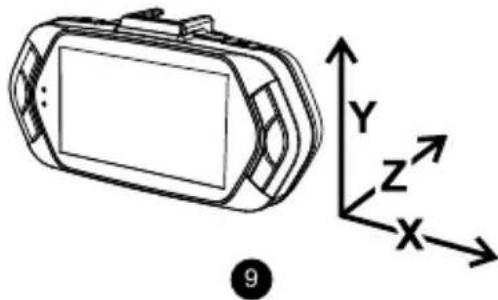
In case of an accident, the gravity sensor (G-sensor) can gather direction and other important data of the collision. According to the value set for the G-sensor sensitivity, the camera will determine whether to turn the protection mode on or not. If the protection mode is not turned on, the current video may be overwritten by loop recording. Be careful when setting the G-sensor to a high sensitivity as it may cause file locking even when driving on a rough road. This might fill up the memory card quickly. G-sensor directions are shown in the picture bellow:
natural_image
Line drawing of a 3D device with X, Y, Z coordinate axes labeled (no text or symbols on the device itself)h) Video mode
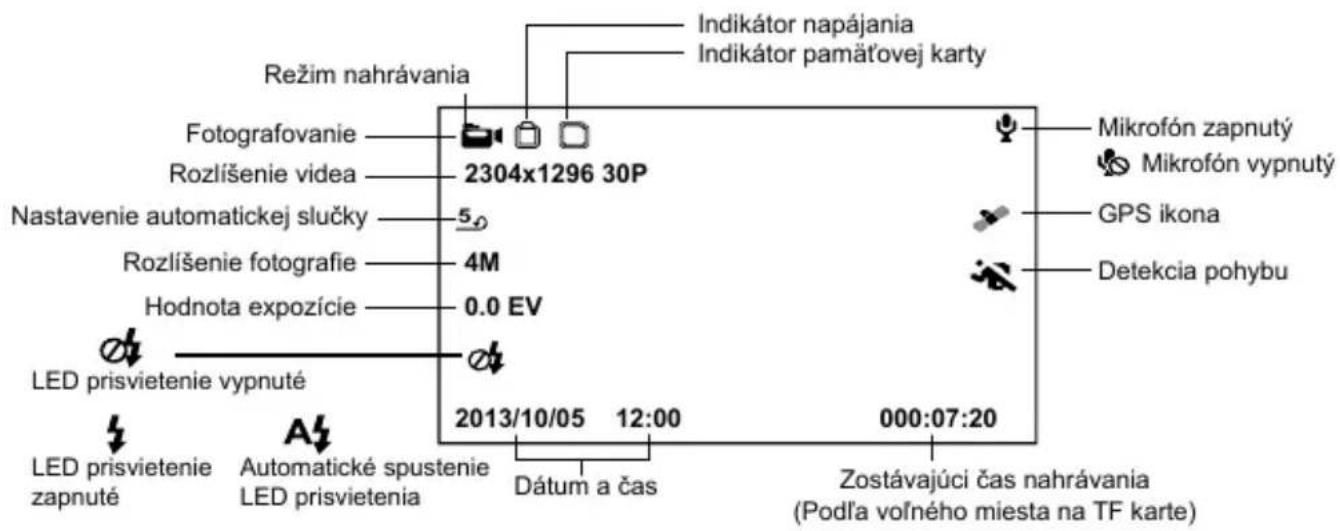
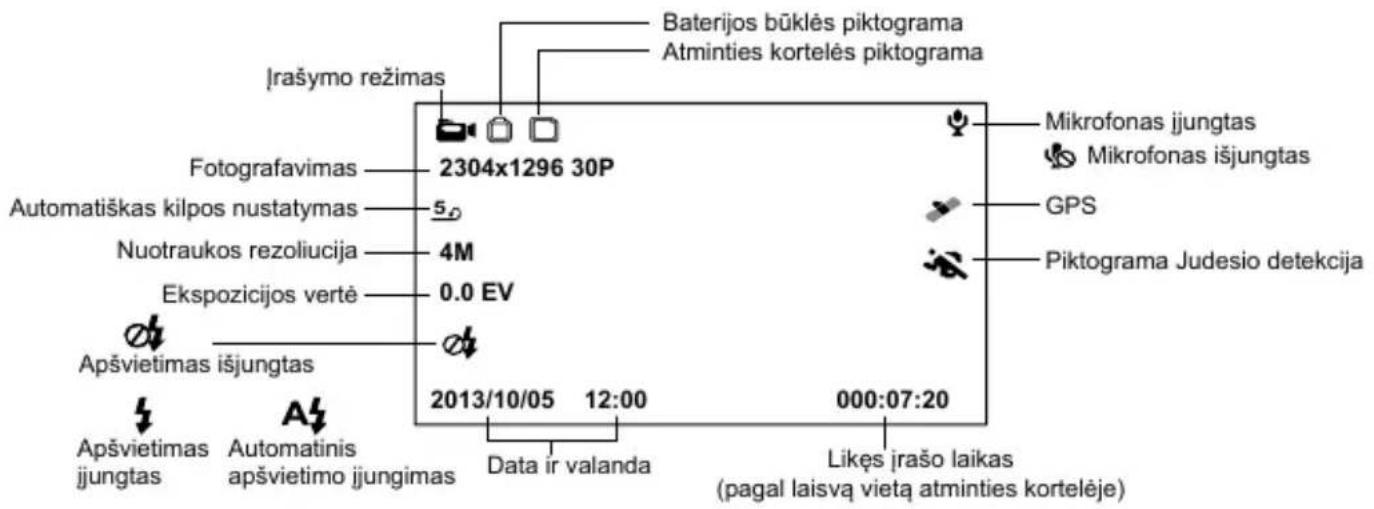
In the standby status of the video mode, LCD display will be shown as below:
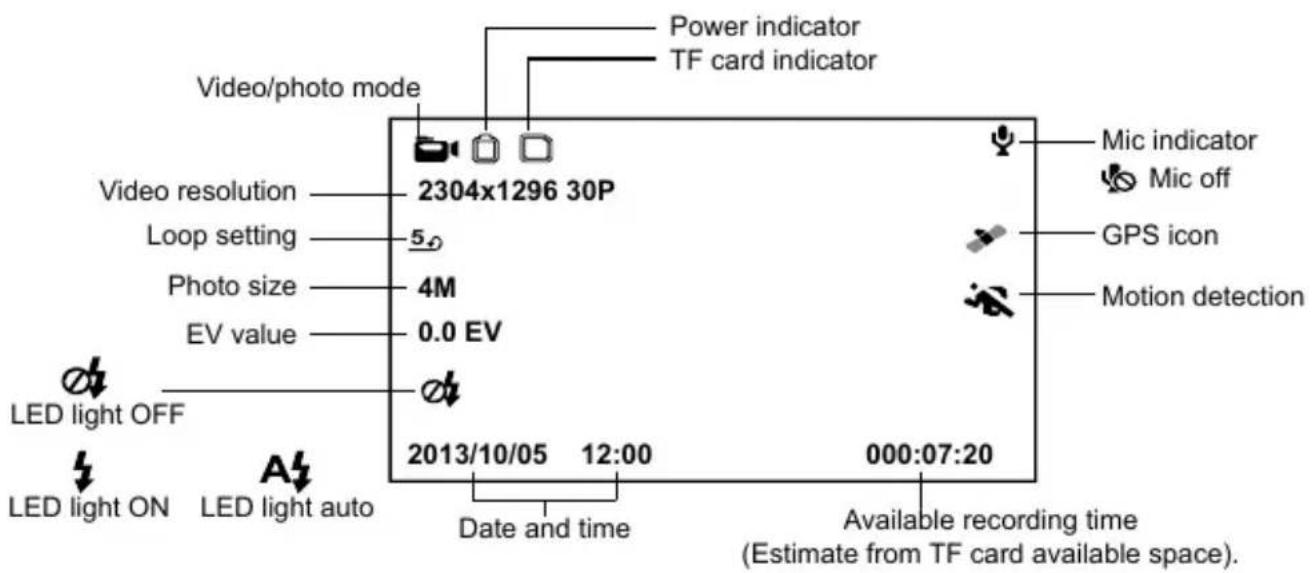
In the recording status of the video mode, LCD display will be shown as bellow:
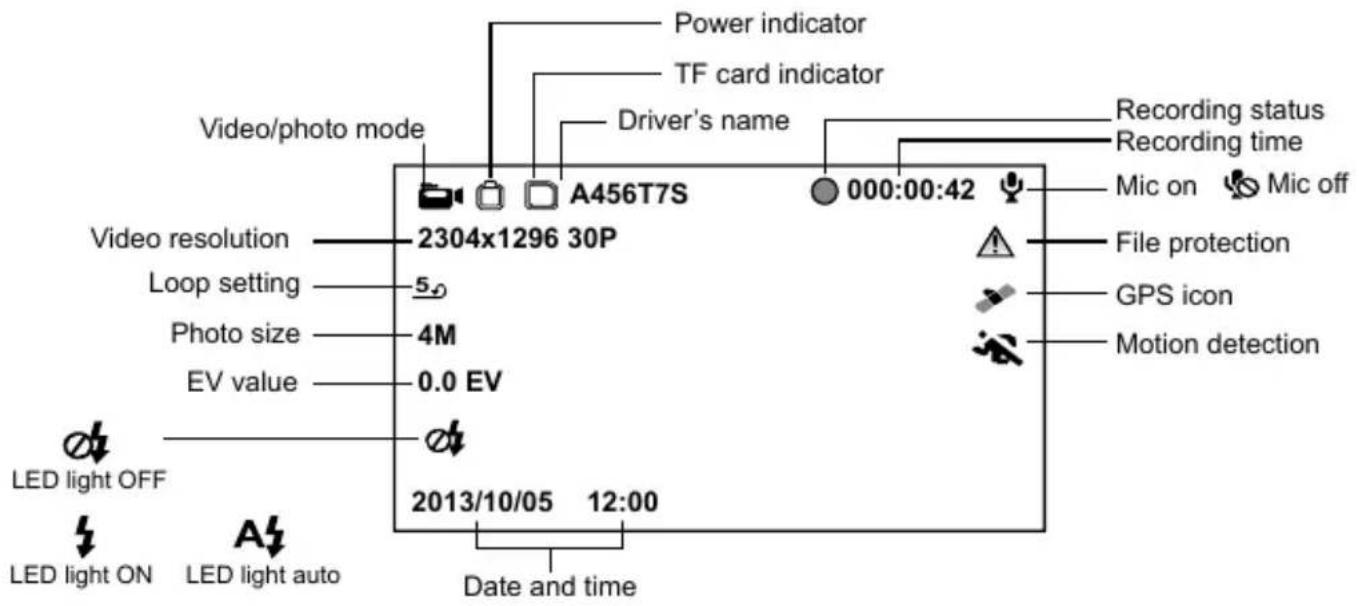
When in recording mode or standby mode, pressing up button will switch the screen to the picture bellow and information about current speed, compass and distance to speed camera will be shown.
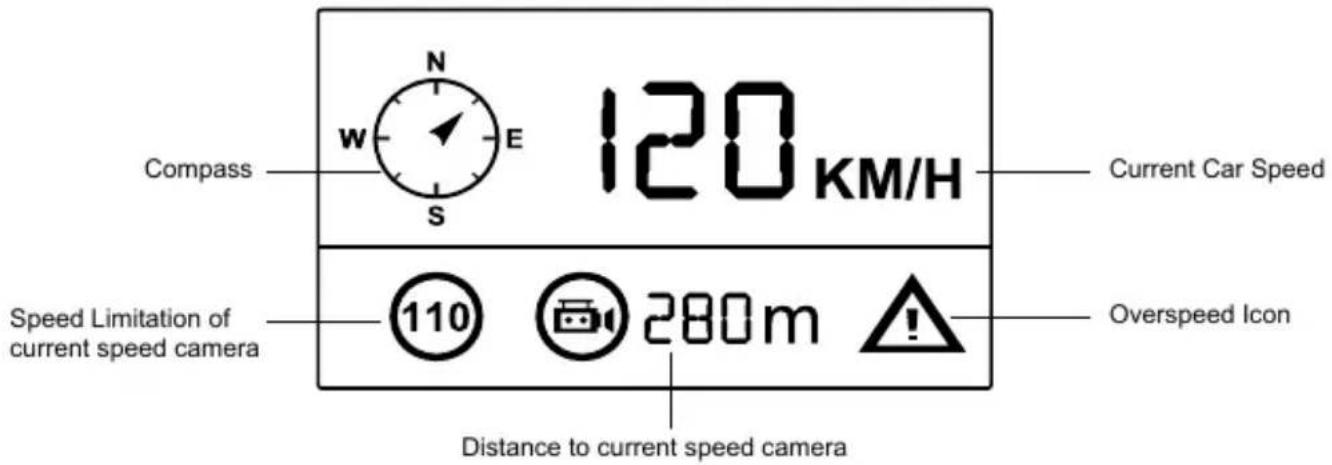
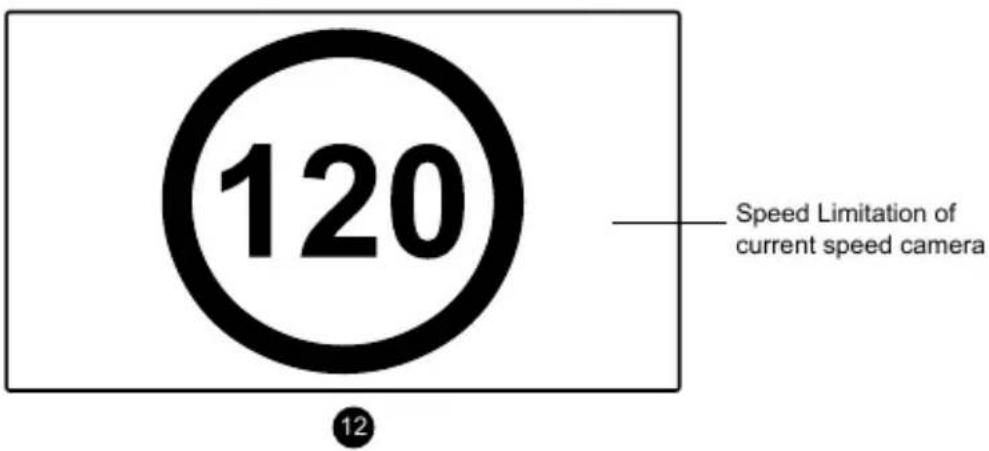
If the driving speed is above the current speed limit, the below picture will appear.
i) Photo mode
In recording mode, press the shutter button to take a photo. Only applies in the recording modes 1920x1080@45fps / 1920x1080@30fps / 1280x720@60fps / 1280x720@30fps.
j) Playback mode
Press the mode button to enter the playback mode, then press the menu button to choose a preview of a video / photo file on the internal or removable memory card. Use the direction button to control playback options.
| Preview in six image grid | |
| Up button | Previous file |
| Down button | Next file |
| OK button | Confirm |
| Menu button | Enter menu list |
| File protection button | Lock / Unlock video / Photo file |
| Mode button M | Change mode |
| Play | |
| OK button | Play / Pause |
| Mode button M | Back to six image grid preview |
k) Other functions
GPS coordinates view - allows to display GPS position within the video. Location is display in the form of coordinates.
Current speed view - allows to display current speed within the video, usable for future reference.
LED illumination - can be set to automatic or continuous. LED illumination is primarily used for situations such as monitoring of an accident in the dark, where the device can be used as a still camera.
Video lock - can be used to lock the video from subsequent overwriting by another video in the future. You can lock the videos either in the recording mode or in the playback mode.
Speed camera detection - this function enables / disables voice and visual alerts of speed cameras.
Menu setting
The device has two modes, the video mode and the playback mode.
a) In video mode:
| Setup | Menu item | Remark |
| Video resolution | 2560x1080@30fps / 2304x1296@30fps / 1920x1080@45fps / 1920x1080@30fps / HDR 1920x1080@30fps / 1280x720@60fps / 1280x720@30fps | Sets video resolution. |
| Loop setting | Off / 1 min / 3 min / 5 min / 10 min | Sets the length of the video time loop. |
| Photo size | 4M / 9M / 13M | Sets photo resolution. |
| Photo quality | Highest / Good / Normal | The higher quality is chosen, the more details will be captured, but the file size will increase. |
| Record audio | Off / On | Sets record audio or not. |
| Motion detection | Off / Low / Middle / High | Motion Detection function settings. |
| Sensor flip | Off / On | Rotates the image 180 degrees. |
| Flicker | Auto / 50 HZ / 60 HZ | Sets frequency NTSC(60Hz)PAL(50Hz). |
| ISO | Auto / 100 / 200 / 400 / 800 / 1600 / 3200 | According to the brightness during the recording, selecting [AUTO] will choose the optimal ISO sensitivity. |
| White balance | Auto / Sunny / Cloudy / Tungsten / Fluorescent | We recommend setting it to Auto. White Balance depends on light conditions. |
| Contrast | Standard / High / Low | Sets contrast. |
| Sharpness | Standard / High / Low | This feature indicates the contours' degree of sharpness during recording. Select higher sharpness for better capturing of details and face recognition. |
| EV | -2.0 / -1.7 / -1.3 / -1.0 / -0.7 / -0.3 / 0 / 0.3 / 0.7 / 1.0 / 1.3 / 1.7 / 2.0 | The "+" increases recording brightness. The "-" decreases brightness and darkens the recording. |
| Video quality | Highest / Good / Normal | The higher quality is chosen, the more details will be captured, but the file size will increase. |
| Power on delay | Off / 10s / 20s / 30s | Sets the delay when turning the camera on. |
| Power off delay | Off / 10s / 20s / 30s | Sets the delay when turning the camera off. |
| Auto power Off | Off / 1 min / 3 min / 5 min | By setting the time, the camera switches off automatically in the standby mode after a given period of time if it does not detect any motion. |
| LCD Screensaver | Off / Speedometer: 1 min / 3 min / 5 min / Display off: 1 min / 3 min / 5 min | Instead of playing recorded footage, the camera screen can be turned off after a certain time interval, or the Speedometer function can be set. |
| Time setup | Time zone / year / month / day / hour: minute | Date and Time settings. |
| Display time | Off / Date / Time / Date / Time | To set the time stamp on video. |
| GPS stamp | Off / On | Sets the display of the GPS in a video. |
| Velocity stamp | Off / On | Shows the speed in a video. |
| Driver name stamp | Off / On | Sets the display of the driver's name. |
| Driver name | - - - - - - - | Sets the driver's name. |
| G-sensor sensitivity | Off / 2G / 2.5G / 3G / 3.5G / 4G / 4.5G | G-Sensor sensitivity settings. |
| Key light | Auto / Off / On | Sets the backlighting of keys. |
| LED illumination | Auto / Off / On | It sets the the LED illumination function. |
| Beep sound | Off / On | Sets the camera's tones On/Off. |
| Language | English / German / Czech / Polish / Hungarian / Russian / Chinese / Serbian / French / Lithuanian / Bulgarian | Language settings. |
| GPS voice + units | 1. English KMH / 2. English UK MPH / 3. Deutsch KMH / 4. Polski KMH / 5. Čeština 1 KMH / 6. Čeština 2 KMH / 7. Lietuvių KMH / 8. Magyarország KMH / 9. Srpski KMH | To set speed camera alert voice. |
| Speed camera detection | On / Off | This function enables / disables voice and visual alerts of speed cameras. |
| Default settings | No / Yes | Resets the camera to the original factory settings. |
| Format | No / Yes | Formats data on the memory card. |
| Software version | TRCM_A7S_V## | Displays the installed FW version. |
b) In playback mode:
| Back to previous level | ||
| File protection operation | Protect the current file / Protect all files / Unprotect the current file / Unprotect all files | You can lock the file to protect it and against subsequent deletion. |
| Auto play | Video play one / Video play all / Video repeat one / Video repeat all | If this feature is set, the recorded photos and videos will be played automatically, one by one. |
| Delete file | Cancel / Delete this file / Delete all files | With this function, you can confirm the file deletion, undelete or delete all files. |
| Format | No / Yes | Formats data on the memory card. |
Connection
The camera can be set to output video to another device (TV or a computer monitor) and start the playback or adjust the settings.
a) TV or monitor connection
- Insert SD card to the camera.
- Connect HDMI cable to a TV and your camera.
- Turn on both devices.
- Set the input channel to HDMI on a TV or a monitor.
- Installation completed.
Connect the camera to a TV to watch a live video feed.
b) Computer connection
- Insert SD card to the camera.
- Use a USB cable to connect a PC to the camera. "Found new hardware" notification will appear on the screen.
- Open the removable disc folder to play any file.
DVR player
The DVR Player software can be found on the enclosed CD. The DVR Player for Windows only (an alternative program for MAC is on the CD).
The player automatically saves onto the memory card. Search the memory card on the computer where it can be found under DVR player. DVR Player will be displayed like this:
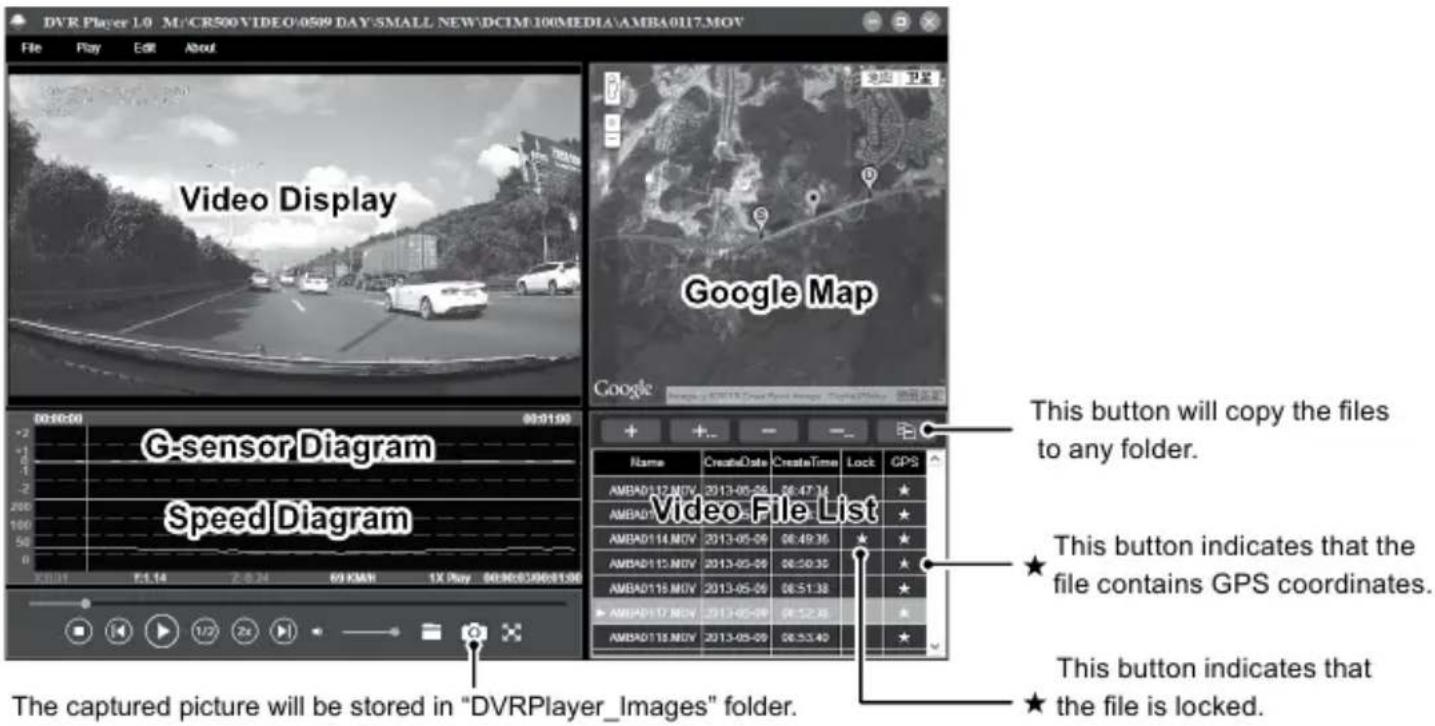
Note: Before using the player, please install Apple QuickTime, Microsoft DirectX 9.0C and Internet Explorer 7.0 or higher.
Product specification
| Camera | Resolution | 1/3" 4.0 mega CMOS sensor, OV4689, good night vision performance |
| Lens | F/NO=2.0, 130° horizon angle in 1080P | |
| Video | Standard | Mov file, H.264 compression |
| Resolution | 2560x1080@30fps / 2304x1296@30fps / 1920x1080@45fps / 1920x1080@30fps / HDR 1920x1080@30fps / 1280x720@60fps / 1280x720@30fps | |
| WDR function | Wide dynamic range, good night recording | |
| Audio | Built-in microphone, can be turned off by the menu or the button. | |
| Still image | 4M (2688x1512) / 9M (4000x2250) / 13M (4800x2700) | |
| LCD | 2.7inch 16:9 LCD display | |
| GPS Logger | GPS Logger for path, position, speed and time record.Replay path, position information on Google Maps. | |
| Speed camera detector | Work with speed camera database, when near a speed camera, the driver will be alerted. | |
| G-sensor | In case of an accident, the camera will automatically lock and protect the latest files so they cannot be deleted. | |
| Lens filters (optional) | CPL: Circular-polarizing filter can reduce the inner reflection on the car windshield.UV filter: Protects the lens and filters bright light. | |
| Other function | Illuminated keys for night operations. | |
| Uninterrupted cycle recording: Overwrite the oldest file if memory is full, no interruption to the recording process. | ||
| File protection function: Once a file is protected, it cannot be deleted during cycle recording. | ||
| Automatic recording after car engine starts. | ||
| SD card slot | Support up to 32 GB micro SD card (min capacity 8GB) Class 10 cards recommended | |
| Language | English / German / Czech / Polish / Hungarian / Russian / Chinese / Serbian / French / Lithuanian / Bulgarian | |
| Interface | USB | USB 2.0 |
| AV terminal | HDMI | |
| Battery | Built-in 400 mAh battery | |
| Power | 12-24V car charger | |
| Operating temperature | -5°C ~ 40°C | |
| Color | Black | |
| Size | 103 x 51 x 40 mm | |
Made in China.
Printing errors are reserved.
Precautions and notices
- For your own safety, do no use the camera's controls while driving.
- A window mount is needed when using the recorder in a car. Make sure that you place the recorder in an appropriate place, so as not to obstruct the driver's view or deployment of airbags.
- Make sure that no object is blocking the camera lens and no reflective material is placed near the lens. Please keep the lens clean.
- If the car windscreen is tinted or heated, it may limit the quality of the recording and, above all, the GPS signal.
- For general use it is recommended to have motion detection enabled. May lead to the memory card filling up quickly.
- The camera is primarily designed to operate while being constantly under power supply.
Safety notices for batteries
- Before first use, fully charge the battery.
- For charging only use chargers, that is specified for this type of battery.
- Use standard cables for charging, otherwise it could damage the device.
- Never connect to a mechanically damaged charger or if the batteries are swollen. Do not use batteries in this condition due to risk of explosion.
- Do not use any damaged adapter or charger.
- Charge at room temperature, never charge at a temperature below 0°C or at a temperature higher than 40°C.
- Avoid dropping the battery, don't puncture, or mutilate it. Definitely do not attempt to repair a damaged battery.
- Do not expose the charger or battery to moisture, water, rain, snow or any kind of various liquids.
- Do not leave the battery in the car, do not expose to direct sunlight and do not place it near heat sources. Strong light or high temperatures can damage the battery.
- Never leave batteries without supervision during charging, short circuit or accidentally overcharge. Some batteries are unsuitable for fast charging or being charged excessively. This can cause a shock, or due to charger failure, may cause leakage of aggressive chemicals, explosion or subsequent fire!
- In the case of excessive heating of the battery during charging, immediately disconnect it from the power supply.
- Do not place charger and charging battery on or near flammable objects. Beware of curtains, carpets, tablecloths etc.
- Once the battery or device with integrated battery is fully charged, disconnect it from the power supply.
- Keep the battery out of the reach of children and animals.
- Never disassemble the charger or battery. If the battery is integrated, do not disassemble the device, unless stated otherwise. Any such attempt is dangerous and can cause injury or damage to the product and subsequent loss of warranty.
- Do not dispose worn or damaged batteries into the trash, fire or into heating devices, but hand them in at collection points for hazardous waste.
Safety precautions
- Charge the battery under continuous supervision.
- Use only the charger supplied with your device. Use of another type of charger may result in malfunction and/or danger.
- Do not use the charger in a high moisture environment. Never touch the charger when your hands or feet are wet.
- Allow adequate ventilation around the charger when using it to operate the device or charge the battery. Do not cover the charger with paper or other objects that will reduce cooling. Do not use the charger while it is inside a carrying case.
- Connect the charger to a proper power source. The voltage requirements are found on the product case and/or packaging.
- Do not use the charger if it is visibly damaged. In case of damage, do not repair the equipment yourself!
- In case of device overheating, immediately disconnect the power source.
About GPS
- GPS is operated by the United States government, which is solely responsible for the performance of GPS. Any change to the GPS system can affect the accuracy of all GPS equipment.
- GPS satellite signals cannot pass through solid materials (except glass). When you are inside a tunnel or building, GPS positioning is not available. Signal reception can be affected by situations such as bad weather or dense overhead obstacles (e.g. trees, tunnels, viaducts and tall buildings).
- The GPS positioning data is for reference only.
Caring for your device
- Taking good care of your device will ensure trouble-free operation and reduce the risk of damage.
- Keep your device away from excessive moisture and extreme temperatures and avoid exposing your device to direct sunlight or strong ultraviolet light for extended periods of time.
- Do not drop your device or subject it to severe shock.
- Do not subject your device to sudden and severe temperature changes. This could cause moisture condensation inside the unit, which could damage your device. In the event of moisture condensation, allow the device to dry out completely before use.
- The screen surface can easily be scratched. Avoid touching it with sharp objects.
- Never clean your device with it powered on. Use a soft, lint-free cloth to wipe the screen and the exterior of your device. Do not use paper towels to clean the screen.
- Never attempt to disassemble, repair or make any modifications to your device. Disassembly, modification or any attempt at repair could cause damage to your device and even bodily injury or property damage and will void any warranty.
- Do not store or carry flammable liquids, gases or explosive materials in the same compartment as your device, its parts or accessories.
- To discourage theft, do not leave the device and accessories in plain view in an unattended vehicle.
- Overheating may damage the device.
Speed camera alerts
Caution:
- The camera includes supplementary software that is eligible to detect speed cameras and other traffic safety systems. Please verify that this supplementary software is according to the law of the state where the camera is used. Seller, producer or distributor assumes no responsibility for any damages incurred in connection with the use of cameras TrueCam and their functions.
- TrueCam is eligible to detect speed cameras and other systems used for securing safety in the traffic by finding out their GPS coordinates, which are ascertained from the public databases. The camera is not equipped by any system, which is able to detect radio waves, which are sent out by the speed cameras or other traffic safety system.
- The user of TrueCam is obligated to follow the rules of the traffic law of the country where TrueCam is used. Seller, producer or distributor assumes no responsibility for any possible sanctions, which are granted to the user of the TrueCam in the connection with the operation of the vehicle.
- You can activate this function in your GPS module by setting to ON position. You can receive alerts to warn you about the locations of speed camera, which will enable you to monitor your speed through these areas.
Database Update
- The elem6 s.r.o. is not liable, nor takes any responsibility, for the accuracy or validity of any coordinates of listed speed cameras or traffic cameras.
- The elem6 s.r.o. may from time to time offer an update for the coordinates of listed speed cameras or traffic cameras. All available updates, including voice alert updates, are available for download from our website www.truecam.eu. Please make sure to accurately follow the instructions for updates as stated on our website.
Other information
1)
For households: This marking indicates that this product should not be disposed with other household wastes throughout the EU. To prevent possible harm to the environment or human health from uncontrolled waste disposal, recycle it responsibly to promote the sustainable reuse of material resources. To return your used device, please use the return and collection systems or contact the retailer where the product was purchased.
They can take this product for environmental safe recycling.
In case of incorrect disposal of this kind of wastes user can be fined according to national laws.
User information for disposal of electric and electronic devices in countries outside the EU: The symbol stated above (crossed recycle bin) is valid only in countries in European Union. For correct disposal of electric and electronic devices ask your city hall or distributor of these devices. Everything is expressed by the symbol of crossed recycle bin on product, cover or printed materials.
2)
You can determine a warranty service at the place of purchase. In case of technical problems or queries contact your dealer who will inform you about the following procedure. Follow the rules for work with electric devices. User is not allowed to disassembly the device neither replace any of its components. To reduce the risk of electric shock, do not remove or open the cover. In case of incorrect setup and plug in of device you will expose yourself risk of electric shock.
3)
We recommend to have the most up-to-date firmware version installed. This ensures optimal functionality of the device: www.truecam.com/firmware/

Declaration of Conformity:
Hereby, elem6 s.r.o., declares that all TrueCam A7s products are in compliance with the essential requirements and other relevant provisions of the EU Directive 1999/5/EC.
Products are intended for sale without any restriction in Germany, Czech Republic, Slovak Republic, Poland, Hungary and other EU countries. The warranty period for products is 24 months from the date of purchase, unless otherwise specified. The warranty period of the battery is 24 months and 6 months for its capacity. You can download the Declaration of Conformity from the website: www.truecam.com/support/doc.
Manufacturer:
elem6 s.r.o.
TrueCam® brand is a registered trademark and our products are protected by patent. All rights reserved.

TrueCam
natural_image
Technical line drawing of a mechanical device with no visible text or symbolsnatural_image
Technical line drawing of a device with two views: top shows a flat panel, bottom shows a circular device with ports and buttons (no text or symbols)natural_image
Line drawing of three different electronic device modules with ports and connectors (no text or symbols)natural_image
Black-and-white line drawing of a car driving on a road with trees and streetlights in the background (no text or symbols)Mit CPL Filter
natural_image
Black-and-white line drawing of a car driving on a multi-lane road with trees and streetlights (no text or symbols)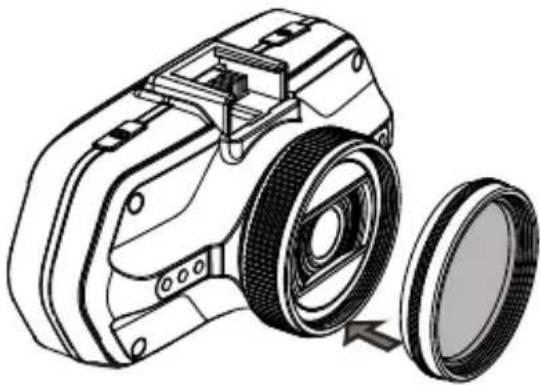
natural_image
Technical line drawing of a camera with a circular lens and mechanical components (no text or symbols)natural_image
Diagram of a 3D object with X, Y, Z coordinate axes and a numbered label (9), no readable text or symbols beyond axis indicators.h) Aufnahmemodus
natural_image
Line drawing of a mechanical device with a circular head and mounting holes (no text or symbols)natural_image
Technical line drawing of a camera frame with no text or symbolsnatural_image
Technical line drawing of a device with two views: front view and side view (no text or symbols)natural_image
Line drawings of three different electronic device enclosures with ports and connectors (no text or symbols)natural_image
Black-and-white sketch of a car driving on a road with trees and streetlights (no text or symbols)Z filtrem CPL
natural_image
Black-and-white sketch of a car driving on a multi-lane road with trees and streetlights (no text or symbols)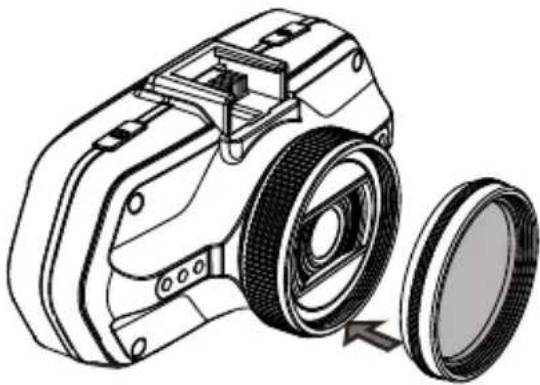
natural_image
Technical line drawing of a camera module with a circular lens assembly (no text or symbols)natural_image
Line drawing of a 3D device with X, Y, Z coordinate axes and a numbered label (9), no text or symbols present.h) Tryb nagrywania
natural_image
Technical line drawing of a mechanical device with no visible text or symbolsnatural_image
Technical line drawing of a camera frame with no text or symbolsnatural_image
Technical line drawing of a device with two views: one showing a flat panel and the other a circular device with ports (no text or symbols)natural_image
Line drawing of three different electronic device modules with ports and connectors (no text or symbols)natural_image
Black-and-white sketch of a car driving on a multi-lane road with trees and streetlights (no text or symbols)CPL szürövel
natural_image
Black-and-white sketch of a car driving on a multi-lane road with trees and streetlights (no text or symbols)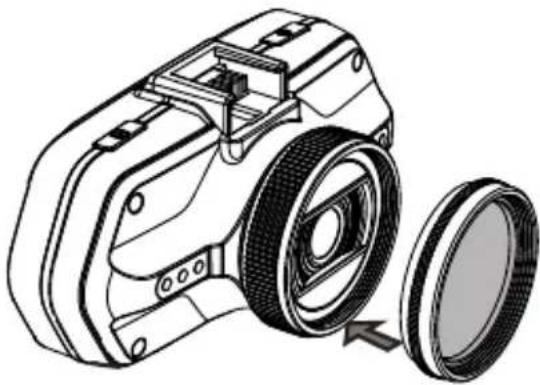
natural_image
Technical line drawing of a camera with a circular lens and mechanical components (no text or symbols)natural_image
Line drawing of a 3D device with X, Y, Z coordinate axes labeled (no text or symbols on the device itself)h) Felvétel üzemmód
natural_image
Technical line drawing of a mechanical device with no visible text or symbolsnatural_image
Technical line drawing of a camera frame with no visible text or symbolsnatural_image
Technical line drawing of a device with a flat panel and a rectangular device (no text or symbols)natural_image
Line drawings of three different electronic device modules with ports and connectors (no text or symbols)natural_image
Black-and-white sketch of a car driving on a road with trees and streetlights (no text or symbols)S CPL filtrem
natural_image
Black-and-white line drawing of a car driving on a multi-lane road with trees and streetlights (no text or symbols)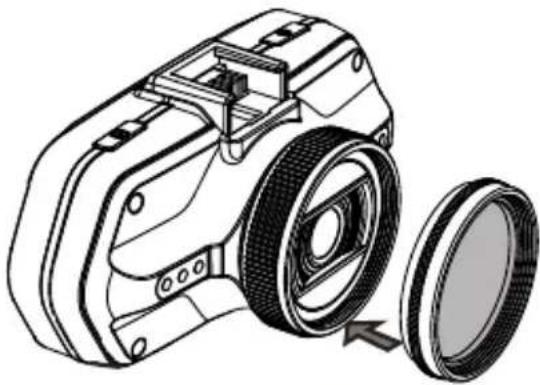
natural_image
Technical line drawing of a camera module with a circular lens assembly (no text or symbols)natural_image
Line drawing of a 3D device with X, Y, Z coordinate axes labeled (no text or symbols on the device itself)h) Režim nahrávání
natural_image
Technical line drawing of a mechanical device with no visible text or symbolsnatural_image
Technical line drawing of a mechanical component with no visible text or symbolsnatural_image
Technical line drawing of a device with two views: one showing a flat panel and the other a rectangular device with ports (no text or symbols)natural_image
Line drawing of three different electronic device modules with ports and connectors (no text or symbols)natural_image
Black-and-white sketch of a car driving on a road with trees and streetlights (no text or symbols)S CPL filtrom
natural_image
Black-and-white line drawing of a car driving on a multi-lane road with trees and streetlights (no text or symbols)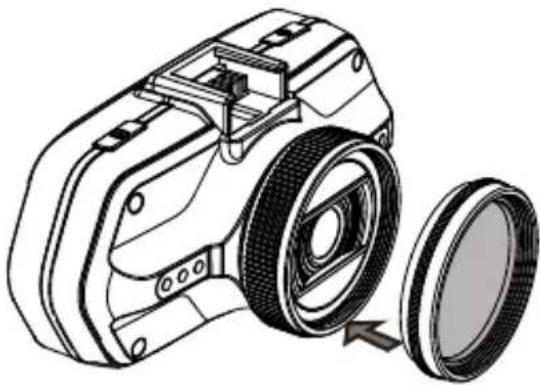
natural_image
Technical line drawing of a camera with a circular lens and mechanical components (no text or symbols)Umiestnite filter na závit videokamery.
natural_image
Line drawing of a 3D device with X, Y, Z coordinate axes labeled (no text or symbols on the device itself)h) Režim nahrávania
V pohotovostnom režime vyzerá stav na displeji takto:
natural_image
Technical line drawing of a mechanical device with no visible text or symbolsnatural_image
Technical line drawing of a mechanical component with no visible text or symbolsnatural_image
Technical line drawing of a device with two views: one showing a flat panel and the other a rectangular device with ports (no text or symbols)Pritvirtinkite jrenginj priekiniame stikle su lipniu tvirtinimu arba siurbtuku.
natural_image
Line drawing of three different electronic device modules with ports and connectors (no text or symbols)natural_image
Black-and-white sketch of a car driving on a multi-lane road with trees and streetlights (no text or symbols)Su CPL filtru
natural_image
Black-and-white sketch of a car driving on a road with trees and streetlights (no text or symbols)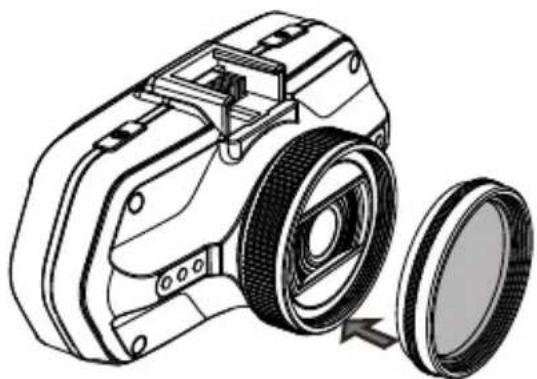
natural_image
Technical illustration of a camera with a circular lens and mechanical components (no text or symbols)natural_image
Line drawing of a 3D object with X, Y, Z coordinate axes labeled (no text or symbols on the object itself)h) Irašymo režimas
Laukimo režime ekranas atrodo taip:
natural_image
Technical line drawing of a mechanical device with no visible text or symbolsnatural_image
Technical line drawing of a mechanical component with no visible text or symbols5
natural_image
Technical line drawing of a device with two views: top shows a flat panel, bottom shows a circular device with ports (no text or symbols)natural_image
Line drawing of three different electronic device modules with ports and connectors (no text or symbols)natural_image
Black-and-white sketch of a car driving on a road with industrial structures and trees in the background (no text or symbols)Със CPL
natural_image
Black-and-white sketch of a car driving on a road with trees and streetlights in the background (no text or symbols)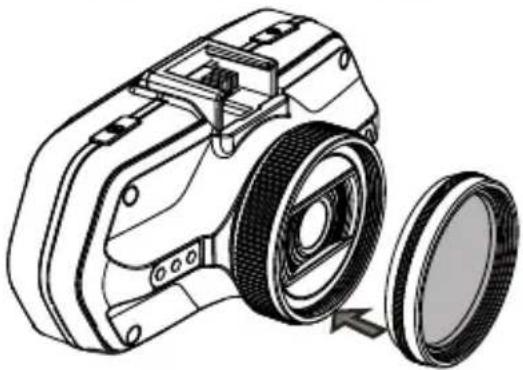
natural_image
Technical illustration of a camera with a circular lens and mechanical components (no text or symbols)natural_image
Line drawing of a 3D camera with X, Y, Z coordinate axes labeled (no text or symbols on the device itself)g) Видео режим
natural_image
Technical line drawing of a mechanical device with no visible text or symbolsnatural_image
Technical line drawing of a camera lens assembly with no text or symbolsnatural_image
Technical line drawing of a device with two views: front view and side view (no text or symbols)www.truecam.com/firmware/
COMMENT INSTALLER CORRECTEMENT LE MODULE GPS DANS LE SUPPORT DVR ?
natural_image
Line drawing of three different electronic device modules with ports and connectors (no text or symbols)natural_image
Black-and-white line drawing of a car driving on a multi-lane road with trees and streetlights in the background (no text or symbols)Avec CPL
natural_image
Black-and-white sketch of a car driving on a road with trees and streetlights (no text or symbols)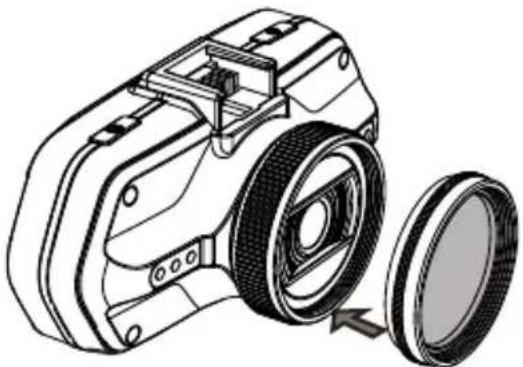
natural_image
Technical line drawing of a camera with a circular lens and mechanical components (no text or symbols)Bague de réglage
natural_image
Line drawing of a 3D device with X, Y, Z coordinate axes labeled (no text or symbols on the device itself)h) Mode vidéo
natural_image
Technical line drawing of a mechanical device with no visible text or symbols• 2304x1296@30FPS
• GPS-module & Flitscameradetector (optioneel)
• Verlicht toetsenbord
• CPL & UV-lens beschikbaar
TrueCam A7s
natural_image
Technical line drawing of a mechanical component with no visible text or symbolsnatural_image
Technical line drawing of a device with two views: front view and side view (no text or symbols)natural_image
Line drawing of three different electronic device modules with ports and connectors (no text or symbols)natural_image
Black-and-white line drawing of a car driving on a multi-lane road with trees and streetlights in the background (no text or symbols)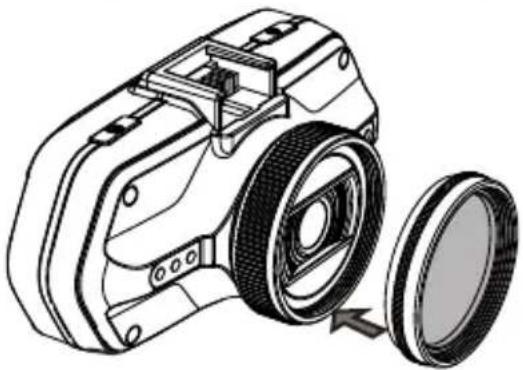
natural_image
Technical line drawing of a camera housing with a circular lens assembly (no text or symbols)natural_image
Black-and-white sketch of a car driving on a road with trees and streetlights (no text or symbols)verstelbare ring
natural_image
Line drawing of a 3D device with X, Y, Z coordinate axes labeled (no text or symbols on the device itself)g) Videomodus
natural_image
Technical line drawing of a mechanical device with no visible text or symbolsnatural_image
Technical line drawing of a mechanical component with no visible text or symbolsnatural_image
Technical line drawing of a device with two views: top shows a flat panel, bottom shows a circular device with ports and buttons (no text or symbols)www.truecam.com/firmware/
natural_image
Line drawings of three different electronic device modules with connectors and ports (no text or symbols)natural_image
Black-and-white line drawing of a car driving on a multi-lane road with trees and streetlights (no text or symbols)С фильтром
natural_image
Black-and-white sketch of a car driving on a road with trees and streetlights (no text or symbols)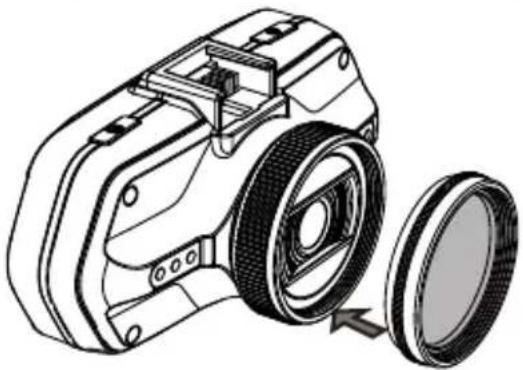
natural_image
Technical illustration of a camera housing with a circular lens assembly (no text or symbols)Кольцо регулировки
natural_image
Line drawing of a 3D device with X, Y, Z coordinate axes and a numbered label (9), no readable text or symbols beyond axis indicators.з) Режим записи
natural_image
Technical line drawing of a mechanical device with no visible text or symbolsnatural_image
Technical line drawing of a camera frame with no text or symbolsnatural_image
Technical line drawing of a device with two views: one showing a flat panel and the other a rectangular device with ports (no text or symbols)natural_image
Line drawings of three different electronic device modules with ports and connectors (no text or symbols)natural_image
Black-and-white sketch of a car driving on a road with trees and streetlights (no text or symbols)S filtrom CPL
natural_image
Black-and-white line drawing of a car driving on a multi-lane road with trees and streetlights (no text or symbols)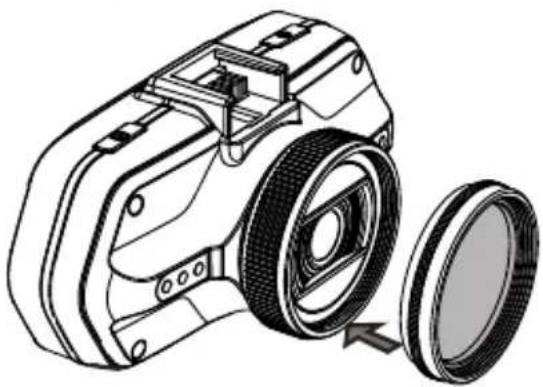
natural_image
Technical line drawing of a camera with a circular lens assembly (no text or symbols)Nastavitveni obroč
natural_image
Line drawing of a 3D camera with X, Y, Z coordinate axes labeled (no text or symbols on the device itself)h) Način snemanja
natural_image
Technical line drawing of a mechanical device with no visible text or symbolsnatural_image
Technical line drawing of a mechanical component with no visible text or symbolsPreporučuje se barem jednom mjesečno formatirati memorijsku karticu na računalu. Na taj ćete način ograničiti kreiranje nepravilnih datoteka koje u budućnosti mogu oštetiti karticu.
b) Instalacija GPS / detektora radara
Pričvrstite GPS modul / detektor radara na pričvršćivač kamere (prema slici):
natural_image
Technical line drawing of a device with two components: a flat panel and a circular device (no text or symbols)natural_image
Line drawings of three different electronic device modules with ports and connectors (no text or symbols)natural_image
Black-and-white line drawing of a car driving on a multi-lane road with trees and streetlights (no text or symbols)S CPL filterom
natural_image
Black-and-white sketch of a car driving on a multi-lane road with trees and streetlights (no text or symbols)