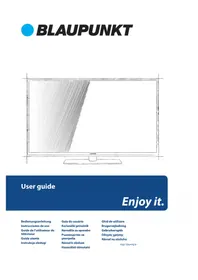
B50C4K - Television BLAUPUNKT - Free user manual and instructions
Find the device manual for free B50C4K BLAUPUNKT in PDF.



| Product type | LED 4K UHD TV |
| Brand | Blaupunkt |
| Model | B50C4K |
| Screen size (diagonal) | 127 cm (50 inches) |
| Weight | ≥ 20 kg (requires 2 people for transport) |
| Power supply | 100-240 V ~ 50/60 Hz (power cable provided) |
| Main functions | DVB-T/C/S2 tuner, USB recording, 7-day TV guide, teletext, HDMI CEC, hotel mode |
| Connectivity | HDMI (x4), VGA, USB, SCART, YPbPr, CI, RF, coaxial S/PDIF, headphone |
| Screen resolution | 3840 x 2160 pixels (4K UHD) |
| Maintenance and cleaning | Soft, damp cloth, clean water only (no detergent or solvent) |
| Safety | Wall mounting recommended (anti-tip strap), do not open, avoid moisture, turn off during storms |
| Spare parts and repairability | No user-serviceable parts; contact authorized customer service |
| General information | Manual available in 15 languages; reduced consumption with Ecohome mode (15% savings) |
Frequently Asked Questions - B50C4K BLAUPUNKT
User questions about B50C4K BLAUPUNKT
0 question about this device. Answer the ones you know or ask your own.
Ask a new question about this device
Download the instructions for your Television in PDF format for free! Find your manual B50C4K - BLAUPUNKT and take your electronic device back in hand. On this page are published all the documents necessary for the use of your device. B50C4K by BLAUPUNKT.
USER MANUAL B50C4K BLAUPUNKT
USB Multimedia Player
Important safety instructions

Please, read these safety instructions and respect the following warnings before the appliance is operated:
In order to prevent fire spread, always keep candles and other open fl ames away from this product.

- This TV with the weight of more than 20kg must be lifted and carried by at least two people.
- Be careful! This TV does not contain any parts which could be repaired by the user. In case of a fault, contact the producer or the authorized service. The contact with certain parts inside the appliance might endanger your life. The guarantee is not provided for the faults caused by non-professional interactions!
- Do not remove the rear part of the appliance.
- This appliance is designed for receiving and reproduction of video and sound signals. Any other use is strictly forbidden.
- The ideal distance to watch TV is approximately five times longer of the diagonal of the screen. The light striking upon the screen from other light sources can cause reflections and make the quality of the picture worse.
- Please, ensure the sufficient ventilation and appropriate distance of the appliance from other pieces of furniture.
- Install the product at least 5cm from the wall for ventilation.
- The TV set is designed to be used in moderate climate.
- The TV set is designed exclusively for the operation in a dry place. When using the appliance outside, please, make sure it is protected against moisture (rain, splashing water). Never expose the appliance to moisture.
- Do not place any containers with water on the appliance, such as vases, etc. These containers might get pushed over, which would endanger electric safety. Place the appliance exclusively on flat and stable surfaces. Do not place any objects such as newspaper or blankets, etc. on or under the appliance.
- Make sure the appliance does not stand on any power cables as they might get damaged. Mobile phones and other devices such as WLAN adapters, monitoring cameras with wireless signal transmission, etc. might cause electromagnetic interference and they should not be placed near the appliance.
- Do not place the appliance near heating elements or in a place with direct sunshine as it has a negative effect on cooling of the appliance. Heat storage is dangerous and it can seriously reduce the lifetime of the appliance. In order to ensure the safety, ask the qualified person to remove the dirt from the appliance.
- Try to prevent the mains cable or (if it is part of delivery) mains adapter damage. The appliance can only be connected with a supplied mains cable/adapter.
- Storms are dangerous for all electric appliances. If the mains or aerial wiring is struck by the lightening, the appliance might get damaged, even if it is turned off. Thus you should disconnect all the cables and connectors of the appliance before the storm.
- To clean the screen of the appliance use only a damp and soft cloth. Use only clean water, never detergents or in no case dissolvents.
- Position the TV close to the wall to avoid the possibility of it falling when pushed.
The instructions shown below are a safer way to set up the TV, by fixing
it to the wall, avoiding the possibility of it falling forwards if pulled. This will prevent the TV from falling forward and causing injury. This will also prevent the TV from damage.
This method is used if the TV is placed on a glass surface or you do not wish to screw anything into your furniture.
Ensure that children do not climb or hang onto the TV.
For this type of installation you will need a fastening chord
A) Using one/both of the top wall-mounting holes and screws (the screws are already supplied in the wall mounting holes) fasten one end of the fastening chord/s to the TV.
B) Secure the other end of the fastening chord/s to your wall.
- To use this model TV as a PC/laptop monitor it will need to be connected via the VGA input, it cannot be used as a PC/laptop monitor via the HDMI input. The HDMI Input is provided to view digital content with compatible external devices.
- The software on your TV and the OSD layout can be changed without notice.
Warning:
- Never connect any external devices to a live appliance. Switch off not only the TV but also the devices which are being connected! Plug the appliance plug into the wall outlet after connecting the external devices and the aerial!
- Always make sure there is free access to the appliance main switch and to its mains plug.
- The appliance is not designed for a use in a workplace fitted with monitors.
- The systematic use of headphones at high volume might lead to irreversible hearing damage.
- Ensure environmental disposal of this appliance and any components including batteries. When in doubt, please, contact your local authority for details of recycling.
- While installing the appliance, do not forget that furniture surfaces are treated with various varnishes, plastics, etc. or they might be polished. The additions contained in these products might cause destruction of base material of appliance stand. This will result in the holdovers of this material stuck to the furniture surface, which are difficult to remove, if not even impossible.
- The screen of your TV responds to the top quality requirements and it was checked in details for accidental faulty pixels several times. Due to the technological properties of the manufacturing process, it is not possible to eliminate the existence of a small number of faulty points on the screen for 100% (even with maximum care while production provided). These faulty pixels are not considered faults in terms of guarantee conditions, if their extent is not greater than the boundaries defi ned by DIN norm.
Important information regarding use of video games, computers, captions and other f xed image displays.
- The extended use of fixed image program material can cause a permanent "shadow image" on LCD screen (this is sometimes incorrectly referred to as "burnout to the screen"). This shadow image is then permanently visible on the screen in the background. It is a partly irreversible damage. You can avoid such a damage by respecting the following instructions:
- Reduce the brightness/contrast setting to a minimum viewing level.
- Do not display the fixed image for a long period of time. Avoid displaying of:
» Teletext time and charts,
TV/DVD menu, e.g. DVD contents,
» In the „Pause" mode (hold): Do not use this mode for a long time, e.g. while watching a DVD or a video.
Turn off the appliance if you are not using it.
Batteries
- Observe the correct polarity when inserting the batteries.
- Do not expose batteries to high temperatures and do not place them on locations where the temperature might increase quickly, e.g. near the fire or on the direct sunshine.
- Do not expose batteries to excessive radiant heat, do not throw them into the fire, do not disassemble them and do not try to recharge unrecoverable batteries. They could leak out or explode.
Never use different batteries together or mix new and old ones.
» Dispose of batteries in an environmentally friendly way.
» Most of the EU countries regulate the disposal of batteries by law.
Cd
Disposal
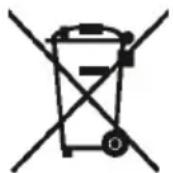
- Do not dispose of this appliance as unsorted municipal waste. Return it to a designated collection point for the recycling of WEEE. By doing so, you will help to converse resources and protect the environment. Contact your retailer or local authorities for more information.

3D Safety Information*
- If you watch the 3D imaging too closely or for a long period of time, it may harm your eyesight.
- Watching the TV or playing video games that incorporate 3D imaging with the 3D glasses for a long period of time can cause drowsiness, headaches or fatigue to you and/or your eyes. If you have a headache, or otherwise feel fatigued or drowsy, stop watching the TV and take a rest.
- Pregnant woman, seniors, persons with heart problems or persons who experience frequent drowsiness should refrain from watching 3D TV.
- Some 3D imaging may cause you to duck or dodge the image displayed in the video. Therefore, it is best if you do not watch 3D TV near fragile objects or near any objects that can be knocked over easily.
- Please prevent children under the age of 5 from watching 3D TV as it may affect their vision development.
Warning for photosensitization seizure:*
- Some viewers may experience a seizure or epilepsy when exposed to certain factors, including flashing lights or images in TV or video games. If you or anybody from your family has a history of epilepsy or seizure, please consult with your doctor before watching 3D TV. Also certain symptoms can occur in unspecified conditions without any previous history. If you experience any of the following symptoms, immediately stop watching the 3D imaging and consult a doctor: dizziness or light headedness, visual transition or altered vision, visual or facial instability, such as eye or muscle twitching, unconscious action, convulsion, loss of conscience, confusion or disorientation, loss of directional sense, cramps, or nausea. Parents should monitor their children, including teenagers, for these symptoms as they may be more sensitive to the effects of watching 3D TV.
Risk of photosensitization seizure can be reduced with the following actions.*
- Take frequent breaks from watching 3D TV.
- For those who have vision that is different in each eye, they should watch the TV after taking vision correction measures.
- Watch the TV so that your eyes are on the same level as the 3D screen and refrain from sitting too closely to the TV.
- Do not watch the 3D imaging when tired or sick, and avoid watching the 3D imaging for a long period of time.
- Do not wear the 3D glasses for any other purpose than viewing 3D imaging on a 3D TV.
- Some viewers may feel disoriented after watching 3D TV. Therefore, after you watch 3D TV, take a moment to regain awareness of your situation before moving.
- only for TVs with 3D function
What is included in the box
Supply of this TV includes following parts:
1x TV
- 1x Remote control
- 2x AAA batteries
- 1x User guide
1x Stand
- 1x Stand neck
- 1x RF cable
- 1xTV stand installation packet
- 3D glasses (optional)
Attaching the Stand
Please follow the instructions in the Stand installation leaflet, located in the accessories bag.
Getting started - initial set up
- Using the RF cable supplied, connect the TV to the TV Aerial wall socket. Connect the power cable to the Electrical outlet.
- Turn on the device with marked ON/OFF switch
- Insert the batteries supplied into the Remote control and press the Standby button to power on the TV.
- You will now be welcomed with the initial set-up screen. If it does not appear, on the remote control, please press [MENU] then 8-8-8-8 and the menu will appear. If you wish to make changes to any of the default settings, use the scroll / / / buttons. To exit this menu at anytime, press [EXIT] button.
- Please select desired language, country and environment.
Set LCN to ON if you want to arrange found channels by cable provider preferences (only applies to DVB-C channels).
To confirm settings press [OK] button.
- In the next step select the type of digital broadcasting. You can choose between DVB-T (terrestrial), DVB-C (cable) or DVB-S2(satellite)*. The analog channel will be searched automatically, as most of the cable network includes analog channels.
Press [OK] button to start the tuning process.
- Optional channel presets DVB-C: Select DVB-C if your TV is connected to a cable TV network. Keep all default settings as it is recommended.
Press [OK] button to start the tuning process.
If DVB-C channels are not found, contact your network provider for the valid "Network ID". Then perform a new search. Press the [MENU], select "Network ID" and enter the network ID.
- Optional channel presets DVB-S2*: Select "Satellite" in the "Digital-type" in the menu for the optional channel presets. Here you can choose between the various satellites. Since selection completed, then the channel list of the exact satellite will be available to be imported into your TV system. This take several seconds.
Confirm with [OK] button on the remote control, to start scanning.
TIP: If you are missing channels, the reason for this is likely to be signal strength, you should consider connecting signal booster and re-tuning the TV. TIP: As part of our continuing efforts to reduce energy consumption, we added a new Home Mode feature (appears on the first installation screen). This function helps reduce energy consumption up 15% compared to other modes. The image brightness is reduced using Home Mode. If this setting does not suit your environment, you can choose from other modes (Note: the Store mode is the optimal default mode, but consumes 15% more than the Home Mode).
* - Available only for TVs with DVB-S function
Remote control
STANDBY - Switch on TV when in standby or vice versa.
MUTE - Mute the sound or vice versa.
DTV-Switch to digital TV source.
RADIO - TV/RADIO - Switch to Digital and switch between TV and radio in Digital mode.
USB - Switch to USB source.
ATV-Switch to analog TV source.
DVD1-Switch to DVD mode
0-9-to select a TV channel directly.
TV GUIDE - Opens the 7 Day TV Guide (Digital mode).
- To return to the previous channel viewed.
VOL ▲/▼ - To increase / decrease the sound level.
S.MODE - Scrolls through sound mode options
P.MODE - Scrolls through picture mode options
FAV - To display favourites menu.
CH / -To increase or decrease the channel being watched.
( / / / / ) - Allows you to navigate the on-screen menus and adjust the system settings to your preference.
MENU - To display OSD menu.
EXIT-To exit all menus.
SOURCE - To display the input/source menu.
INFO - Press once for now/next channel information. Press twice for programme information about current programme.
ASPECT - To switch the screen between the different picture formats.
SLEEP - Press repeatedly to cycle through the sleep options.
AUDIO - To change the audio language (if available).
SUBTITLE - To switch the dialogue at the bottom of the screen (on/off).
TEXT - Teletext mode - To enter Teletext
TEXT HOLD - HOLD - Teletext mode - Hold current page which is displayed
TEXT/DVD ZOOM - DVD mode - Teletext Mode - To zoom in
ZOOM - DVD mode - Teletext Mode - To zoom in -
DISPLAY-To switch off the screen when listening to radio
DVD MENU1 - DVD mode - To display the DVD disc menu
Rec2 - PVR mode - PVR Record
DVD SETUP - DVD mode - To display the DVD setup menu
Rec List2 - PVR mode - Opens the list of recordings.
-
To restart the current chapter
-
To advance forward to the next chapter
-
To stop the playback / To EJECT the disc press/hold the button for 4 seconds.
-
To play in fast rewind mode.
-
To play in fast forward mode.
-Topay/pause
GOTO1 - DVD mode - To go to a specific chapter
A-B1 - DVD mode - Press once to set point, press a second time to return to point
ANGLE1 - DVD mode - Select different angle of DVD (if available)
REPEAT - DVD mode' - USB mode -To repeat playback
REVEAL - Teletext mode - To reveal or hide the hidden words
SIZE - Teletext mode - To change the display size in Teletext mode
TITLE - To display the DVD disc menu
D. DIS^1 -To display the current disc information
INDEX - Teletext mode - To display the index page
Red Green Yellow Blue button- Additional teletext and OSD functions
3D button3 - Switches between 3D type settings
1 - available only for TVs with DVD players
2 - available only with PVR function
3 - Available only for TVs with 3D function
TV buttons & Source menu
Eject*
Play/Pause*
Vol+Volume up and menu right
Vol-Volume down and menu left
CH+Programme/Channel up and menu up
CH-Programme/Channel down and menu down
MENUDisplaysMenu/OSD
SOURCE Displays the input source menu
STANDBY Standby Power On/Off
* - Only for models with DVD-Player
Choosing Mode Input/Source
To switch between the diff erent input/connections.
a) Using the buttons on the remote control:
-
Press [SOURCE/ AV] - The source menu will appear.
-
Press [] or [] to select the input you require.
-
Press[OK].
b) Using the buttons on the Television:
- Press[SOURCE].
- Scroll up / down using CH+/ CH- buttons to the input/source you require.
- PressVol+ to change input/source to the one selected.
Connections
| USB USB-Input | HDMI 1,2*,3*,4* in HDMI-Input 1,2*,3*,4* |
| VGA(PC) * VGA PC-Input | VGA (PC) Audio In* 3.5mm PC audio input |
| R/L - Video & YPbPr audio In* Component / Video audio input | Video (CVBS) * VIDEO Input |
| Mini YPbPr * Mini Component HD Input | YPbPr * Component HD Input |
| SCART * SCART-Input | CI Card IN SCART input |
| RF In RF / TV Aerial Input | Sat In* Satellite Input |
| COAX Audio Out * Digital Coax output | HEADPHONES 3.5mm Headphone output |
-Only on supported devices
TV Menu navigation
To access this menu, press [MENU] button on the remote control. To enter a menu press [OK]. If you wish to make changes to any of the default settings, use the scroll ( / / /) buttons. To confirm any settings press [OK] button. To exit this menu at anytime, press [EXIT] button.
Channel
Auto Tuning - Allows you to retune the television for all digital channels, digital radio stations and analogue channels.
Analogue Manual Tuning - Allows you to manually tune your analogue signal.
Digital Manual Tuning - Allows you to manually tune your digital signal.
Programme Edit - Allows you to delete, skip and add favourite channels.
Schedule List - Lists your programme reminders.
Signal Information - Information about DVB signal.
CI Information - Pay per view services require a "smartcard" to be inserted into the TV. If you subscribe to a pay per view service the provider will issue you with a 'CAM' and a "smartcard". The CAM can then be inserted into the COMMON INTERFACE PORT (CI Card In).
Dish Setup* - This menu is only available in DVB-S2 mode. You can select the type of satellite, your transponder and your LNB type, etc.
-
- Only for models with DVB-S tuner
Picture
Picture Mode - Choose from the following presets.
-Standard-Default settings
- Dynamic - Recommended settings for fast moving pictures
Mild - Set to be lighter in colour and less bright
- Personal - Lets you manually alter all the settings
Economy - Consume 15% less energy.
Contrast - Switch the balance between black and white.
Brightness - Increase or decrease the brightness of the picture.
Colour - Increases the colour from black and white.
Tint - Lets you increase or decrease the level of tint within the picture.
Sharpness - Increase or decrease the sharpness of the picture.
Colour Temperature - Choose from the following presets.
- Normal - Default settings
- Warm - Increases red within the picture
Cold-Increases blue within the picture
Noise Reduction - Choose from the following presets.
- Off-Turns noise reduction off
- Low-Minor system adjustment
- Middle-Medium system adjustments
- High - Maximum system adjustments
-Default-Default settings
3D Settings *
TIP: For the best 3D picture effect, watch your TV from vertical angle +/- 10^ .
3D Type - 3D Type- When connecting a 3D product sometimes the picture maybe displayed incorrectly; choose from the following settings to correct this. You can toggle these settings by pressing the '3D' button on your remote.
-
3D off - Turns 3D off
-
Side by Side 3D Format - 3D format is commonly used in 3D broadcasting, works by halving the horizontal resolution of videos to store left and right eye images in each frame. It effectively displays up to 960 × 1080 -pixel pictures to each eye, enabling TV stations to telecast 3D content at a much lower bandwidth compared with 3D Blu-ray discs. Typical supported resolutions are limited to 720p and
1080i for 3D TV programs. Users will need to manually select the correct 3D format to properly display side-by-side 3D content on a 3D TV.
- Top Bottom 3D Format - 3D format is alternative for 3D broadcast, which is pretty similar to side-by-side 3D except that it halves the vertical resolution instead. Available primarily up to 720p resolution, top-and-bottom 3D offers 1,280 pixels horizontally. The higher pixel count is generally considered more suitable for displaying panning motion in sports programs.
- Frame Alternative - As its name suggests, this format stacks the left and right eye images in each frame to retain the content's original resolution for the best 3D pictures. Most, if not all, 1080p 3D Blu-ray movie discs and 720p PS3 3D games are produced utilizing this technique. Another key diff erentiator is that all 3D TVs should be able to automatically detect frame-packing 3D signals and correctly display the content without user intervention.
- Line by Line - The picture signals for left and right eyes are interleaved in alternate lines. The left clip's resolution is halved then placed in the odd lines of the video stream. Correspondingly, the right clip's resolution is halved then placed in the even lines of the video stream. When combined the video stream totals 1920 × 1080 .
Exchange 3D L/R- change picture sequence for diff erent viewing
2D to 3D- Changes the picture from regular 2 dimensions to 3 (3D). Please note as content is being changed by the TV the effects are limited
3D to 2D- Changes the picture from 3D to regular 2 dimensions (2D).
2D to 3D Depth - Depth of pictures converted from 2D to 3D.
-Only for models with 3D function
Sound
Sound Mode - Choose from the following presets
-Standard-Default settings
Music - Emphasises music over voices
- Movie - Provides live and full sound for movies
- Personal - Selects your personal sound settings
Sports - Emphasises sound for sports
Tip: Treble and bass levels can only be adjusted when the sound mode 'Personal' is selected.
Treble - To adjust the level of high frequency within the sound.
Bass-To adjust the level of low frequency within the sound.
Balance - To switch the sound between the left and right speakers.
Auto Volume Level (AVL) - When 'on' is selected, the volume will stay at a constant level regardless of input/source.
Digital Output - This is the digital COAX Audio
output. Choose from the following options:
Off-Off
- Auto - Selects the best settings automatically
- PCM- Select this option if you are connecting to a Stereo Hi-fi via coax cable (Pulse-code modulation (PCM) is a digital representation of an analogue signal)
Audio Description - Additional sound track for visually impaired.
Available only on selected DTV shows.
Time
Clock - Set the date and time. Date and time is set up automatically in DVB mode.
Off Time - Allows you to set a specific time for your TV to turn off.
On Time - Allows you to set a specific time for your TV to turn on, the channel it will then display, the source it will be on and also the volume. This function can then be toggled to repeat every day or a certain day.
Time Zone - Change your current time zone.
Sleep Timer - Lets you set the sleep timer so the television automatically switches off after a set amount of time. Off -> 10min -> 20min -> 30min -> 60min -> 90min -> 120min -> 180min -> 240min.
Auto standby - Adjustment for the auto standby in hourly increments: Off -> 3h -> 4h -> 5h.
OSD Timer - Lets you adjust the amount of time the On Screen Menu stays on the screen before disappearing.
Lock
System Lock - Allows you to lock or unlock the menu. You will be asked to enter a 4 digit password. Use the button to quit the password input. Use the button to clear. Default password is 0000.
Set Password - Change the default password.
Channel lock - Lock specific TV channels.
Parental Guidance - Lock TV channels based on age restriction.
Key Lock - Lock the TV buttons.
Hotel mode
For access to Hotel mode press buttons, MENU 7 9 0 6". In hotel mode you may preset and lock some TV functions.
Setup
Language - Allows you to change the language of the menu.
TT Language - Encoding settings for the proper display of teletext characters.
Audio Languages - Allows you to change audio language on selected DVB channels.
Subtitle Language - Allows you to change subtitles language on selected DVB channels.
Hearing Impaired - If signal provides support for the hearing impaired, the subtitles can be played by pressing the "Subtitle". If you set Hearing Impaired ON and switch to a channel with supports for hearing impaired subtitles will be activated automatically.
Aspect Ratio - Within the EU the picture form varies depending on the channel/broadcast. There are a number of different options to best meet your needs.
-
Auto-Automatically displays the best picture format. So the picture is in the correct position. May have black lines at the top/bottom and/or sides.
-
4:3 - Displays the 4:3 picture in its original size. Side bars are shown to fill the 16:9 screen.
-
16:9 - Fills the screen with a regular 16:9 signal.
-
Zoom 1/2 - The picture is the correct proportion but zoomed in to fill the screen.
Full Screen - Stretch signal to fill the screen.
Blue Screen - Changes the background when there is no input between transparent and a blue background (Only available on some sources).
First Time Installation - Starts the first time installation.
Reset - This resets the menus to factory settings.
Software Update (USB) - From time to time we may release new firmware to improve the operation of the television (available to download). This menu lets you install the new software/ firmware onto the television. Further details of how to do this will be issued with the firmware. Contact the helpline or refer to the 'www.UMC-slovakia.sk/products-support/' website.
HDMI CEC* - Allows you to operate devices connected via HDMI with TV remote control.
- Auto power* - Automatically turn on/off connected devices via HDMI CEC
Device menu* - Allows you to access devices menu and operate the menu using TV remote control.
-
HDMI ARC^* - Sends audio signal from terrestrial/satellite broadcast via HDMI to the AV receiver without using any additional audio cables, this functions is available only on HDMI 2 output.
-
- HDMI CEC must be supported by connected device.
PC Settings*
Auto Adjust - Lets you automatically confi gure the television to be used as a computer monitor.
H Off set - Changes the horizontal position of the picture.
V Off set - Changes the vertical position of the picture.
Size - increase picture size.
Phase - To adjust delay time of phase in order to reduce the noise of picture
Position Reset - Changes back to the original settings
Tip: If the computer is left in-active for a period of time, the television will switch into a 'sleep' state (the screen will power off to save power). To switch back on press the standby button.
Tip: If you do not press any buttons for 10 seconds, the menu will automatically exit. You can change the length of time before the menu exits automatically - see 'OSD Timer' section.
- only for devices with VGA connector
7 Day TV Guide
TV Guide is available in Digital TV mode. It provides information about forthcoming programmes (where supported by the Digital channel). You can view the start and end time of all programmes and on all channels for the next 7 days and set reminders.
-
Press [TV GUIDE]. The following 7 Day TV Guide will appear.
-
Navigate through the menu using / / .
You can now:
Record selected TV channel and TV show by pressing the RED button.* only for models with recording function Set a reminder by pressing GREEN.
View a previous day by pressing YELLOW.
View the next day by pressing BLUE. [INFO] shows detailed information about the selected post
- Press[EXIT] to exit the 7 day TV Guide.
USB mode / Media player
USB mode offers playback of various different types of content that you have saved on your USB Memory Stick. On switching to USB source the USB mode menu screen will appear. The content will be divided into Photo, Music, Movie and Text based on file type.
- You can navigate through the menus using the scroll / / / buttons. To confirm the item you wish to play/view press [OK] button.
- Select the drive you require. (If your drive only has 1 partition you will only see 1 item).
- You can now access the item. Press OK to view.
- While viewing you may control the item playback modes by using the remote control buttons or by invoking playback navigation menu and selecting on-screen buttons / / / and [OK]
USB Record - Digital mode*
Built into this television is a USB record facility. This function is available in Digital mode when used in conjunction with a compatible USB memory stick or USB Hard drive. The benefits of this are as follows:
- Pause live TV and then playback, fast forward and rewind (up to live TV).
- One button record, if you decide you want to record the current programme.
- Easy programmable recording from the 7 day TV Guide
- Record TV and watch back on your computer/laptop.
Due to the nature of the product, it is necessary to use a high speed USB memory stick (as the TV reads from and writes to the memory stick at the same time, some memory sticks may not be suitable).
Minimum Specification - USB Memory Stick
-Read Speed - 20 MB/s (Mega Byte Per Second)
Write Speed - 6 MB/s (Mega Byte Per Second)
Pause Live TV (Time Shift) *
Pausing Live TV is very simple.
- Press the play/pause button and the television will pause and the live content will be recorded. To resume watching press play/pause again.
- Press fast forward to go forward in a recording (i.e. to skip adverts).
- Press fast rewind to go back in a recording (i.e. if you fast forwarded too far).
TIP: When you switch the TV to standby or change channel the Time Shift
memory is wiped. To restart time shift you must press play/pause button.
One Button Record
At any point in time you may decide to record the current channel that you are watching. To do this you need to press the [REC] button.
TIP: This television contains one TV tuner, therefore it can only record the channel you are watching or record one channel while the television is in standby mode.
Note: USB record function is only available in Digital TV mode. Due to copyright laws and illegal copying/recording it is not possible to record to/ from any other input/output source.
* - only for devices with built in PVR function
DVD Menu*
To access this menu, press [D. MENU] button on the remote control. If you wish to make changes to any of the default settings, use the scroll / / / buttons. To confirm any settings press [OK] button. To exit this menu at anytime, press [EXIT] button.
General Setup Page
TV Display - Choose from the following options 4:3
PanScan - PS Traditional picture format, often used on old film
- 4:3 LetterBox - LB Traditional picture which
has been adapted for widenscreen
- Wide - Widescreen picture format
OSD Language - Select desired language
Audio Setup Page
Speaker Setup - Choose from the following options
- LT/RT - Set LT/RT Downmix
- Stereo - Set Stereo Downmix
Dolby Digital Page
Dual Mono
- Stereo - Outputs 2 channels of sound both left and right
- Mono L - Outputs left side sound
Mono R - Outputs right side sound - Mix Mono - Outputs a single channel of sound
but mix between right and left
Dynamic Range - This is the difference between the quietest and loudest sounds. This setting works only with DVD discs recorded in Dolby digital.
Preference Page
TV Type - Choose from the following options
- NTSC - Normally used for discs from North America, Japan etc.
PAL - The standard for discs from UK/Europe, most of Asia, Australia etc
Multi-For both NTSC and PAL
Default - This option allows you reset all DVD settings to factory settings.
* - only for devices equipped with built in DVD Player
3D Amarillo 3D^3 - cambia entre differedes confi guraciones 3D.
1 -merican operations, including the use of a new 3D printer and an electronic system to produce 3D printed films.
2 -mericanos para losTelevisores con PVR integrado
3 -merican operations, including the U.S. and Canada, were conducted in 2014.
Botones de TV
Expulsar el disco*
- I/D - Lt/Rt downmix
-Estereo-Stereo downmix
Configuracion de Dolby Digital
Dual Mono
- Lt/Rt - Lt/Rt downmix
- Stereo - Stereo downmix
AD Switch - Additional sound track for visually impaired. Dodatni zvučni
USB mode / Media player
USB nudi prikazivanje raznih tipova sadržaja koje ste pospremiliu na USB memoriji. Prelaskom na USB izvor USB meni ce se pojaviti. Sadržaj ce biti podijeljen na Photo (fotografia je),
Music (muzika), Movie (fi lm) and Text (tekst) u zavisnosti od vrste dokumenta.
- Możete se kretati kroz meni koristeči ▲/▼ /▲ tipke Kako biste potvrdili Vaš izbor pritsnuti tipku [OK].
- Izaberite zeIjeni prenosnik. (ako prenosnik sadrzi 1 podjelu vidjecete.
samo 1 predmet). - Mozete pristupiti pritiskom na OK.
- Dok gledate mozete kontrolisati gledanje koristeci daljinski upravljac ili pozivanjem navigacijskogMMC i izborom tipaka / / a zatim [OK]
USB snimanje - Digitalni mode*
3aTO3N BnMOnTaqXueBneHoe6xOuMa KpenexHaKoPa.
A) KaTo n3non3BaTe eDnHn/Dbata OT rOpHnTe OTbOpn 3a MoHTaK Ha CTeHa N BInHTOBe (BInHToBeTe Ca IpeDbapuTeHo pa3NoJoxeHN B MOHTaKHNTE OTbOpn), 3akpenete EdnHn KpaH Na KpeneXHaTa Kopda/N KbM TeNeBu3opa.
6)3aKpeTe Dpyrna KpaHa KOpdaTa KbM cTeHaTa.
- UcTpoIcTbA, KOnTO HMaT VGA-KoHeKTop, He TpR6Ba Da 6bJaT N3N0JI3BaHn KaTo MOHITOp 3a KOMNIOTpBp, TbN KaTO TOBa e OCbIeCTBIMO nocpeIcTBOM HDMI.
Baxha nHΦopMaunr OTHoCHn3nON3BaHeTo Ha Bndeo mrgn, KomnOtpn, TeNeTeKCT n dpyr nnncnnnHa nukcapaHO n306paXeHne.
- PpOdbJIxKInTeJHATA yNoTpe6a Ha npOrpaMHn npOyKTn 3a fNkCnpaHO n3o6paKeHHe MOrA Ta cb3daT noCToRHeH
"3aceHbauo6pa3"Ha LCD-ekpHa(TObaAIBneHHe YecTo Ce npedctabnIorpeuho KaTo "3rapaHHe Ha ekpaHa").B To3n cnuyai 3aceHbauuTobpa3 ce H6JIIODaBa NoCToHHO
HaekpahKaTofoHOBOn3o6paKeHne.MoKeTe da n36eHerTe noo6Hn NOBpeu, KaTo c6bIIOdaBaTe cneHnTe INCTpyKcnn:
HamaNetoNoxOaIa3aIeHaMeMHmymHactpOKnTe 3a npKocT/koHTpaCT Ha n306paXeHHeTO.
He noka3BaIte npOdbJnxIeHIO BpeMe fIKcnpaHOTo I3o6paKeHne Ha ekpaHa.
- 364BaTe nokaBaHeTo Ha ekpaHa Ha:
TeIeTeKCTBpeMeHaNCxEmN
TV/DVD MeHIO, Hapnmupe CbDbpkaHne Ha DVD
BpejIM Pause(3aIbpxaHe, nay3a): He n3n03BaTe To3n pejIM npOdbJxnteHNO Bpeme, HanpImepdoKaTo rJeate DVD nnBnDneo
Ⅲклочеуpeда,ako He ro n3nON3BaTe
Batepnu
Korato noctabrte 6aTePnTE, cna3BaTne nolpnte ta m.
He n3laarate 6aTePnnte Ha npekomepeHO Bucoka TemepaTpyu Hne rOCTabraTe Ha MeTa, KbTeTo TEmpePaTpa 6bP30 MoKe da ce NOBUNHAnpimep 6IIN3o DO OfBn INn HA npka CbHueBa CBETInHa.
He n3laarate 6aTeepnnte Ha npekomepHa tonnna, He rni 3raepaTe, He rni pa3rno6BaTne Hc ce onntBaTne da npesapekdaTe 6aTeepn, KOITo He morat Da 6bDat npesapekdaH. Moke da ce noBtu Teu ot 6aTeepnTe NNI Te da ekcnloaoDnpat.
》Hnkora He KOM6HnHpaIte pa3nuehen TIN 6aTePnn n He cmecBaIte HOBn n CTapn 6aTePnn.
I3XbPJIaTe 6aTePnIte cbo6pa3Ho I3NcKBaHnTa 3a ekOIoTnHO peuKInpaHe.
B NOBueTeO CTpaHn OT EbponeNcKn CbHO3 CbIeCTByBaT 3aKOHO Bpa3npoe6n 3a nXbPJIHeTO Ha 6aTePN.
M3XbpbnaHe
He n3xbpIyTe To3n ypei 3aEINO C 6bITOBITE OtnaIbIc.3aHecTe ro BnyHKT, KbTeO ce c6bIpaT eNEKTPuYeCKN u ENEKTPoHNu OtnaIbIc. IIO To3n HauHH Bne CnOMaTe 3a ONa3BaHEno HA npIpOaNHTe pecypcn N OKOIHaTa CpeJa.3a No-nOpPo6Ha INΦOpMaJrCe o6bPhe TkBM MeCTHnTE OprAHn IIIN TbProBeca,OT KOROTO CTe 3akynnnIypeJa.
3DИнфорmaцяза6e3onacnoct\*
AkoIgdaTe 3D n3o6paXeHn TBppe 6n3o nn npOdbJxntenHO BpeMe,TOBa MoKe Da yBpeNi 3peHnTo Bn. IpOdbJnxTeNHO rnaHe Ha TeleBn3n HnnIrpaene Ha BnDeoIrpn, KOtTo CbDbpxaT 3D n3o6paXeHn N3nON3BaHTo Ha 3D ouIna,MOke da npuHN CBnHBOCT,rrabOboHne,npeyMopa n/nnnHaTobapBaHe Ha ouInte.AKO nonyUHTe rnaBo6OlnE,NO hKaKbB NaHH Ce nouyBCTBaTe n3MoPeHN nn Bn ce Docn,CnpTe IraDaHTo HA TeneBn3n nCnNoCHHe. BpeMeHHn JeeHn, Bb3pactHn Xopa,Lnca CbC bpDeuHn npo6JeMn nn. Lnua, N3nITBaUn NobuWeHa cbHnBOCT, 6n TprBaNo da Ce BB3DbpxaT ot IraDaHTo Ha 3D TeneBn3n. HkOn 3D n3o6paXeHn n3rHexdT ToIKOBa peAnCTNuHo, Ye Morat Da BN HApaT Da He HabedeTe nn Da ce OTpbNHte.Eto 3ao e Han-do6pe 6n3o Do Bac Da Hma YynPiBn NpeMeTn NN TaKNa, KOnTo neCHO Morat Da 6bDat ppeO6bpHaTn. Mon, He No3B0JaBaTe Ha dea NOD 5 roNnuHa B3pact Da IraPaTe 3D TeneBn3n, Tb kato TOBa MoKe Da zacerHe pa3BNTeHTo Ha 3peHneTo IM
IpeynpeKdHne 3a foToCyBCTBntHa ennnencn:*
Bb3moJHo e HkON 3pntenHa nOlyat npnnaBk nn ennnentuHepnctbn, KOraTo ca n3noKeHN Ha onpeDeEnH oakTopn, BkIouHTeHOnHa mraCnCBttnn Hn IIN 3o6paKHeHH B TebeN3IOHnata nporpaMaII INBnDoe uRPTe. Ako Bne IIN HkON OT cEmeCTBOTo BN IMaT NCTOPNa HA ennENTNUH pncTbn IIN dpyrnpnPaNbU, MOJI, KOHCytnpaTe Ce C Baunie nekap, npdI da rIeate 3D TeneBn3n. OcbEN ToBa, HkON CmNTOM MoKe Da ce npoBrt npn HeonpeDeEHNO6cToTeCTBa, 6e3 da Ca ce npoBBAIn npdei. Ako n3nTaTe HkONOT CNeHNTE CmNTOMn, He3a6abHO cnpeTe rneAheTo Ha 3D TeneBn3n Ice KOHCytnpaTe C nekap: 3amHocT, npniOuBaHe, npempeXbaHe NaorIeda, HapuSeHo 3peHne, 3pntenHa nIIN IInuEBA HectaBnHocT, kato HApnPmep TpeTneHa Ouyte nIIN IInuEBeNT MyckyIn, Hecb3HaTeHN DBNKeHn, KOHBynCn, 3ary6aHa cb3HaHne, 06bpKbaHe nIIN DeOpneHTaun, 3ary6aHa npedCTaba 3 MeCtoNOnOxKeHne, cnaMn IINI raHe. Podntenlte Tpr6Ba Da na6bIouDaBat CBOnTE deca, BkIouHTeHOn
TINHeIIXKbpNTe,3aIOIO6Hn CmMTOMn,TbKaTO Te ca NO-UYBCTBUNH KbM eΦeKTnte OT IJIeJaHETo Ha 3D TEeBn3n.
PuckbT OT FOToCyBCTBnTeHa enmJeNcna MoKe da 6bDe HamaNeH, aKo npEepnmuMe TcneHnTe DeiCTBnR.*
- Праразе чеки поочьки от гileданeto Ha 3D телевизи.Хopa, кою
IMAT pa3NINHДИONTPn Ha BCЯКО OKO, сLEДBA DA rILEdA TELEV3NIA,
СLEД KATO B3eMaT Heo6XODUMITE Мерки 3a KOPINUPaHe Ha 3peHNeTo.
rILEdAite TelenB3NIA Taka, ye OHTe Bn Da ca Ha HNBOTo Ha 3D ekpaHa
и He cIaIte npekaneho 6bI3O do TelenB3Opa. He rILEaIte 3D
TELEV3NIA, KORATO CTE n3MOpEHNn 60JIH Nn I36RbAite Da rILEaTe
3D n3O6paxeHnra TnpOblJxnteHNo BpeMe. He n3IOnlBaIte 3D
OcIINaTa 3a dpyu nцeN, oCBEN 3a rILEdaHe Ha 3D n3O6paxeHnna
Ha 3D TelenB3Op. Bb3MOKHO e HЯkon 3PITeN da ce NOyBCTBaT
deZopneHTnpaHn cLEd rILEdaHe Ha 3D TelenB3NIA. ETo 3aIo, cLEd KaTO
cte rILEdAni 3D TelenB3NIA, noUHHeTe 3a MOMeT, npEDn da CTaHete, 3a
da doIodet Ha ce6e cn.
*-Cama 3a moDeenu c3D yHKuua
KaKBO e BKNIOUeHO B NaKeTa
OKOMNJIeKTOBkAHa HTo3n TeNEBu3Op BKNHObBa CNeHnTe KOMNOHEHTN:
1 TeneBn3Op
1DuctaHNOHHOynpaBHeHne
- 26p.6atepu AAA
16p.PbkoBOcTBo3aynotpe6a
16p.nocTabka3aTeeneBn3Op
16p.nlaHka3a NOCTbKaTa
16p.RFka6eN
1 KOMNJIeKr KpeIeJHn eIeMeHTn 3a fIKCnpaHeTo Ha NOCTaBkTa KaM TeJIeBn3Opa
16p.3D ounila
Mонтуране на постаькада
Mona, cneBaIte HNCTpyKcIMTe 3a MOHTaX Ha nocTaBkata, BKNIOeHN B KOMNNEKTa CAKCEcoapTE.
PbRBOHaJHnHa HacTpoiKa
- KaTo n3nON3BaTe npedocTaBeHnBn RF Ka6eN, CbPjKeTe TeneBn3opa KbM cTeHHn KoHTaKT 3a TV aHTeHa. CbPjKeTe 3axpaHbaunna Ka6eN KbM eNeKTPnueckn KoHTaKT.
- Bknoye Te ypea, KaTo n3nO3BaTe KIOUa, MapKnpaH c ON/OFF (BKn./ N3Kn).
- NocTaBeTe B nctaHcUHOHTo ynpabLeHne 6aTePnTe, npedocTaBeHn 3aeHNo CypeLa, H aTncHete 6yToH Standby, 3a da BKIOuHTe TeneBnOpa.
- Ⅲe ce noBn ekpaHbT 3a nbpBOHaayHa HaCTpoJa. B cIyau, Ye To3n ekpaH He Ce NoBn, HATNCHETe 6yTOH [MENU] OT dNCTaHNoHHTO yCTPOcTBQ, CIE TOBA 8-8-8-8 m MeHTo Oe Ce noBn. Ako XeNaTe Da HApBaNTe IpOMeHN B KOrTo N da e OTHaCPOKNe, 3aJaDeHN NO noDpa3bnpaHe, n3noJ3BaYte 6yTOHtE ▲/▼/▲/■. 3a da n3ne3eTe OT TOBA MEHIO, HATNCHETe 6yTOH [EXIT].
5. Mon, n36pepee e3nk, nbpkaBa n OKonHa cpea.
HacpmoumeLCN ha ON, ako jenaeme da nodpeumge kanaumene no hauuna, no Koumo zu e nodpeun faaunm docmauyuk Ha Kaebnha meeubu3ra (omhacce camo 3a kanaumane DVB-C). 3a da notbpbnte Hactpoukata, Hatachete 6ytoh [OK].
6.CneBbauataCTbnkaeIaN36epeteTtnaHaunfoPoBOn3nbuahe. MokeTe daN36epete MeKdy DVB-T (HazemHo),DVB-C (Ka6enHo) nnDVB-S2* (catEnTHo).AHaJorOBnTE KaHaJIu ce TbpCrt abTomatNuHO, Tb KATO NOBEyeTo Ka6enHmpeXn BKNIOUbaT
aHaIorOBn KaHaJI.
HATNCHETe [OK], 3a da cTAPtupate npouceca no HAcTpoiBahe.
7.Доиьнгелпnpeбвapгелпннсачркн ha kaHann DVB-C:ИЗбepete DVB-C,akOBaшитTeleВиЗОЕСБьрзанКbMМpeka 3aKa6eHLHaTeLEBn3Я.IрпорьчамБИДаЗапаNTe BCuYKn HacTpOKN,3aJaDeHnNoNoDpa36Inpae.
CneTOBa HATNCHETe [OK], 3a Da 3anOHTbpcHeTo.
Ako He omkupeme DVB-C kaHAnu, cBpJxeme ce cbc c6o Ka6enen onepamop, 3a da nonyume bauDHa MPexOba uDeHmuKaua (Network ID). Cnod moBa 3anoHeme Hoo mbpcene. Hamuche [MENU], u36epeme Network ID u bbedeme c8oMa MPexOba uDeHmuKauaua. Cmapmuaume mBpcHemo, kmo Hamuche [OK].
8.ДоиьнгелпnpeдвapителннactpoинHaKaHnDVB-S2*:
I36epete Satelite (caten) ot kateropnata Digital-type (uΦpob TIN) B IaBHOTo MeHIO 3a DOnbHInTeHN HAcTPOKN Ha KaHAn. B TOBa MeHIO MoKeTe Da N36upate Mekdy pa3nUHN caTeNTN. Cnei 3aBpbWBeHa NaO6opa CNICKBcT c KaHAn 3a OnpeDeEN cTbTHNK ige 6bde DoCTbNeH 3a MMOpTnpaHe BB BaWata TB cnCTema. ToBa ue OTHEme HRAKONKO CEkyHdN.
3a da 3anouheTe TbpcHeTo,HaTncHeTe 6yToH [OK] Ha nCTaHnOHnHO ynpabHeHne.
TIP: Ako bu nuncbam kahanu, npuunama 3a moea haBepoamno ce obnju Ha cunama Ha cuzhana, zamoba e do6pe da Cbpxeme ycunbamen u da nobmopume Hacmpoukume.
TIP: Kamo yacm om npodjxumehume onumu da hamalum KOHCymaunma Ha ehep2u doabuxme Ho8a Ekonozuyha fynkuu (Ko70 ue budume u3nucana Ha ekpaHa 3a nbpohaayna Hcmanau. Ta Su fynkua ocuzyra ha hamane Ha KOHCymaunma Ha enekmpoehepu cdo 15% incbneue cdpyzume pexmu Ha pa6oma JpkocmmHa u3obpaxehuemo e hamaene Ha nocpecmbom u3noI3baHem Ha Ekonozuyhur pekum Ha pa6oma.Ako noo6ha hacmpouka He e ydo6ha 3a bac, moxeme da u36epeme dpye pexum Ha pa6oma (3a6eJkka: npopecuoHaHnmu pexum e onmumaneh pexum Ha pa6oma, 3adadeH no noopa3bupahe, Ho KOHCymupa c 15% nobee enekmpoehepu 8 cpabHeue c ekonozuynu).
* - Camo 3a Modenu c DVB-S myHe
VOL ▲/▼ - YBeHnHaBaHe/HaMaJIaBaHe Ha CJIaTa Ha 3ByKa
S.MODE -Пиндьхва HeпeЗВарпаHTITE3a peжMuHa 3ByKa
P.MODE -ПпдьжBaHeпрЗВариHTITEзpeхИМ Ha KapTINHaTa FAV -ПokажлбIMM MeHOTO.
CH ▲/▼ -П配电инавае Нард ИИн Назд спразм Канда, КоТTo rIeJaTe B MОMeHTa
(▲/▼/▲/OK) -ПОЗВОЛЯВAT ВИ Да ce DBИЖКITE NO MEHOTaHa eKpaHa nДа PerулпаTe HAcTpOиКITE Ha CnCTeMaTa CbRnACHO NpeДиоЧТAHINrTa Cn.
MENU-IV3BExKaHaHe Ha MeHIOTo 3a HAcTpoiKn Ha ekpaHa
EXIT-UN3n3aHeOTBCNcKMeHHTa
SOURCE-3a Da n3BeTeTe Ha eKpaHa MeHIO BXoI/N3ToUHNK.
INFO-HaTncheTe eINH nBt,3a da nOlyuHte HhOpMaun 3a Tekyu/ cnEJaBaKahAn.HaTncHeTe Dba nBtN 3a HhOpMaun OTHOCHO TekyuaTa nporpaMa.
ASPECT - ПразвклioчbaHe мexду pa3ичнite ФормTu 3a n3o6paхенп Ha ekpaHa
SLEEP-HaTncHeTe npOdbnJXnteJeH0,3a Da ce DbNjXnte npe3 pa3nHnTe
BapNaHTn 3a N3KJIIOUBaHe
AUDIO-CMaHa Ha ayuNo e3nKa (aKe oDocbHnHa yHKUraTa)
SUBTITLE -Ппевкюваhe мжду (Вкн./Изк.) Ha Диалогова прозер, pa3лоложен B донhaТа чст ha ekpaHa
TEXT - Teletext mode - Bn3aHe b pexm TeTeKT
TEXT HOLD - pexnM TeTeKCT - 3aIbpxaHe Ha ekpaHa Ha TekyuaTa CTpaHua
TEXT DVD ZOOM - pexm DVD - pexm TeleTeKCT - YBEnuBaHe Mauna6npaHTo
DISPLAY-ИЗклочанеHa ekраHa,КORATo cnlaTaTe paДио
DVD MENU1/Rec2 - pexim DVD -ИЗвекан Ha ekpan Ha Meиюну Ha DVD-ДИСКА - ржим PVR - 3апс Ha Teкуца ТелевизиоНha nporpaama
DVD SETUP/Rec List2 - peKIM DVD -ИЗБЕДАне Ha ekpaH Na MeHIO 3a HacTPOIka HA DVD -peKIM PVR - OTBAPR cNcBk C HanpaBeHITe Do MOMEHTa 3aПИСИ
- PecTapTnpaHe Ha TeKyuaTa rnaBa
-ПрдьлжаваннрелкмспдьашатгларВ
/△-CnnpaHnBa3npo3BekdaheTo (nne6ek)/I3BaKdaHe Ha DVD -HaTNCHTe 6yToHa 3a 4cekyHn.
-PexHM 6bp30 BpuaHe Ha3aJ.
-PexMM6bp3oHa nped.
Bb3npoun3BveJdahe/nay3a
GOTO1- pexMM DVD - 3a da bne3eTe B onpeJeHa rnaBa
A-B' - pexim DVD - HaTnchTe BeHbX, 3a Da 3aJaTe ToKa; HaTnchTe
TB 6yToHn m MeHIO Source
N3BaJdaHe*
Bb3npounBExkdaHe/Play3a*
VOL+YcunBaHe Ha 3ByKa n npuBnXBaHe HaaCHO B MEHOTO
Vol-HamalbaHe Ha 3Byka n npuBnKBaHe HanaBO B MEHOTO
CH+HaropeBcncbKaCnporpaM/KaHaNn npuDnBxKBaHeHaropeBMeHIO TO
CH- PnpdBnKBaHe HAnOly B CnncbKa C nporpaM/ KaHaNI INPpDnBnKBaHe HAnOly B MeHIO
MENU N3BExKaHe Ha ekpaH Ha MeHIO/HacTpoiKn Ha ekpaHa
SOURCE IVBExKaHa eKpaH MeHIOTo 3a BXOJaI N3TOUHK
STANDBY BkN./I3KKn. Ha 3axpaHbAHeTo
*-camo 3a ycmpoucmba, o60pydeau c e2paedH DVD-nleubp
I36op Ha pexm Input/Source
3a npBeknOuBaHe MeJy pa3nUHn BXoIOBe/Bp6Kn.
A)IocpeCTBOM 6yToHmTe Ha yCTpoiCTBOTo 3a
dntaHmOHHOynpaBneHme:
-
HatncheTe [SOURCE/AV] -Ie ce noBm MeHIO Source (n3ToUHnK).
-
HATNCHETe[▼]nH [▲], 3a Da n36peTe JxenAHHN N3TOHnK.
-
HatncheTe [OK].
B)IocpeCTBOM6yToHnTeHaTeNeBn3opa
- HaTnchTe [SOURCE].
2.Дижete ce Harope/HaOny ype3 6byOnTe CH+/CH-,3a da
Hamepnte JekanBxOJ/IN3TOUHNK.
3. HaTnchete Vol+, 3a Da CMeHInTe BXoJ/IN3TOUHnka C IN36paHnA OT BaC.
Bpb3kn
UBT-YBENuBa HHTeH3nteHa Ha ZbTa OT UepHo KbM 6aNo.
HioaHc - N03BOJRABa Da yBelenuBaTe nn HaMaJIbAte HNBOTo HA HIOaHCnTE B pAMKnTE Ha 3O6paKeHeNeTO.
Octpota-YBENuYBaNnHaMaJIbA OCTpoTaHa N306paXeHneTo.
UBeTOba TemnepaTypa -N36epeTe MeKdY
CneHnTe npeBapntenHn HacptpoKn:
-HopmaHo-HaCToPoiKa,3aJaPeHa no noPa36paHe.
-Tonno-YBelenuaba YepBeHHa CBAT B N3O6paKeHHeTO.
-CTydeHo-YBEnuaba CnHnA UBaT B n3O6paXeHHneTO.
NotckaHe Ha WyMa -N36peTe MeKdy
CneHnTe npedBapntenHn HacpoKn:
-3KIOUeHO -N3KIOUbaOyHKUNaTaHaMaIbAHe HaWyma
HnKo HnBO-MmHmMaHNopeynpaHeHaCnCTeMaTa
- CpeHNO HnBO - CpeHNo perylnpHahe Ha cnCTeMaTa
-BMCOKO HNBO-MakcmaHOp epynnpaHe Ha cncTeMaTa
-No nopa36npahe-HactpoKn,3aadaHn no nopa36npahe
3D HacrpoKn\*
3a Hn-IO6bP 3D efeKT Ha KapTnHaTa rIeJaTe Baunr TeneBn3Op nOd BepTKaEN bTbn +/-10°.
3D Tnn - 3D Tnn - Korato cBp3BaTe 3D npodykT, nohKora e Bb3MOxHOKaptnHaTa Da ce n3BeHe HnpabuHnO; 3a Da Kopurnapate ToBA, n36epeTe HkoAOT CneHNte HactpoKn. MoKeTe Da CMeHrTe Te3n HaCTpoKn, KaTo HATNCHeTe 3D 6yToHa Ha yCTPOINCTBOTo 3a DuctAHUHOH ynpabnHne.
-3D off -ИЗКЛЮЧВА 3D ФункURAТа
- Side by Side 3D Формат -Тои 3D Формат обиков�е
ce ИЗПОЛЗВа 3a ИЗЛьЧВа He Ha TeLEВИЗЮнHHnpedabAHn
B 3D Формат И ФунКцИОнпра KaTO HamaJIЯ BA HabONOBHnA
XopIN3OHTaIIHATA pe3OJIIOUЯ HA BINOde I3O6paKeHnIa, 3a da
3aIamETn IN3O6paKeHnIa B NOIe3peHnETo HA JABOTO INДСНО
OKO B EДИN KaIbP. ПОТои HaUNH eФeKTINBHO ce IN3BExKdI aD 960
x 1080-NIKCELOBn KapTInH KBm BCЯKO OKO, KATO NO3BOJBAAT Ha
TeLEBIV3IOHNHITe CTAHUN DA IN3ЛьчВAT 3D cbIbPkaHnE npN MHO
no-HNCKa YecTota B CpaBHeHne c 3D Blu-ray dinCKOBeTe. O6NUaHn
NoIbPkaHnE pe3OJIIOUcIMn 3a 3D TeLEBIV3IOHNHITe npOrpAmn
ca ORpaHnueHn Do 720p n 1080i. Heo6xOДIMо e nOTpe6NtELNTe
pbHNo DA IN36epaT NOxOДУЯЗM 3D Формат, 3a da ce IN3BeDe
npabINHO side-by-side 3D cbIbPkaHnETo Ha 3D TeLEBIV3Opa.
Top Bottom 3DΦopMat-To3n3DΦopMat e anTepeHaTuben 3a n3lbUbaHe Ha npedabAHnB 3DΦopMat, KOToe mHOro CxOJeH cΦopMat side-by-side 3D, c n3KJIuOHeHnTaOBA, Ye HamaJraBa HANOJBOHa BepTKaJIHATA pe3OJIQUHn, BMeCTO XOpI3OHaJIHATA.
Top-and-bottom 3D fopmat - no3B0JBa pe3oJIOUmao 720p nI3BExJaHe Ha I3O6paKeHneTo c 1280 NIKcena xOpN3OHTaIIHO. Po- rolemnT 6poi NIKceEn e oco6eHo NOxOJa,3a Bb3npOn3BExKaHe Ha 6bp3nte DnIXKeHnB CnOpTHnte nporpaMn.
-Frame Alternative -KakTo NOdCKa3Ba HrOBOTo IMe,TO3nΦOpMaT Cb6npaB eEINH KaIbp N3o6paXeHnraTb B NoJe3peHneTo Ha IABOTO
I IACHOTO OKo, 3a Da ce 3aana3n OpunuHaHaTa pe30IoUcna Ha CbIbpxKaHHeTo, C cen NoCTrAne Ha Hau-Do6po KaueCTBO Ha 3D KapTHaT. Noutn BcUnKn 1080p 3D Blu-ray dNCKOb e C fInmN 720p PS3 3D nprn Ca npOn3BedeHn C npUnarHTo Ha Ta3n TexHka. Dpyra 3NaHMa OTnUnTeHn HeptA e, Ye BCUnKn 3D TeneBn3Opn Tpa6Ba Da Imat Bb3MOXHOCT ABTOMaTHNO Da pa3No3HaBat frame-packing 3D cnHAnite Na Bb3Pon3BeJdAT npabINHO CbIbpxKaHHeTo, 6e3 Da ce Hana Ha Meca Ha Notpe6ntela.
Line by Line - CnHnHnTe Ha KapTHnata B nOle3peHneTo Ha JIABOT O IaCHOTO OKO CE BMbKBaT B pa3NIuHN IINHN. Pe3OIouNtA Ha JIaBtA KapTHa Ce pa3NOJOBBa, cNeD TOBa ce NoCTABB H NeeTHNtE IINHN Ha BVJeO NOTOKa. CbOTBeTHo, pe3OIouNtA Ha IaChATA KapTHa Ce pa3NOJOBBa, cNeD TOBa ce NoCTABB V YeTHNtE IINHN Ha BVJeO NOTOKa. Korato BVJeO NotoUNTe Ce KOM6HnHPaT, pe3OIouNtA ue 6bDe 1920x1080.
Exchange 3D L/R - npomHa Ha KaptnHaTa 3a rneJaHe c pa3nueH fOpMaHT Ha n3o6paKeHeneto.
2D KbM 3D - CMeHn KaPTnHaT O6nKHOBeHn AByn3MepeH fOpMaT KbM TpInn3MepeH (3D). MoJI, nMaIe IpeDbN, Ye Korato fOpMaTbT Ha CbIbPjxHaHneTo Ce CMeHn OT TeJeBn3Opa, eΦeKTnte 6bDat OrpaHueHn.
3D KbM 2D - Cmeha Kaptnatao fOpmat 3D Kb6nKHOBHeHdByn3Mepeh fOpmat.
2D KbM 3D Depth -ДьлбουнHa Ha KapTuHaTa ce npeo6pa3yBa ot 2D KbM 3D.
*-Cama 3a moDeu n 3D yHKnua
3Byk
Pekm3a 3Byka -M36peTe Mexdy cneHnTe npedBapntenHn HacTpoKn:
-CTaHdApTeH-HacTpoKn,3aJaDeHnNo noDpa3bnpaHe
-Myzukanen -Ppeada no-OTyetINBO My3Nkata B cpaBHeHne C rnaCobete
-ФИМOB-OcHryPRABa 3ByK ,Ha JxNBO ,KOraTo rIeJaTeФИM -IpecoHaHNo-MoXe Da 3aAdAteC BoU Co6CTBeHN HAcTPOiKN
- CnpTeH - Ha6JraHa 3ByKOBete, Cbbp3aHN CbC CnpTHTE CbCTe3AHN
CbBT: Husbama duckaHm u bac moKem de pezynupame camo kozamo cme b pexum, "PepcoHaen".
DnckaHT-PerynnpaHe Ha BnCOKIne YecToH Ha 3ByKa.
Bac-PerynnpaHe Hncknte YecToTn Ha 3Byka.
BaanC-PpeBKnIOUbaHe MekJy IeBnI DecHn BucOKoROBOpTeI.
ABTomuHOperynnpaHe HbOTo Ha 3Byka-Korato cte n36pan ON (Bkn.), cnata Ha 3Byka ce 3aIbpxKa Ha eEDHO HbO,6e3 da Ce BnIe OTe BXoD/ n3TOUHNK.
UΦOBn3XoJ -ToBa e n3BOBt 3a UΦpOB KoAKcnaJIeH ayIIO Ka6en. N36epete MExdy CneIHNTE BapNaHTN: -N3K.-N3KnIOuyeHO
-ABTO.-36npa aBTOMaTHUHO ONTUMaHHTe HAcTPOKn
-PCM -N36epeTe Ta3n NaCTpOJa, aKO CBbp3BaTe cTepeo NocpeDcTBOM KoAKCnAaEN Ka6eN (nyNC-KoD MoyJauZna (PCM) eLHPOBO Bb3PON3BExKaDaHe Ha aHaNoROB CunHa).
AD npebkIIOUcbatien -OnbHnHTenHa 3BvKoBa nCTa 3a xopa c hapuheNo 3peHne. DocbHa camo 3a n36paHn DTV nporpamm.
Bpeme
YacobnK-3aabaHe Ha DaTa n Yac.DaTAtu N acbTa ca aBTOMATNUHO HAcTpoEHN B pexm DVB.
BpeMe n3KnIOUeHO -I03BOJRA Da 3aDaBaTe BpeMe Ha N3KnIOUbaHe Ha TeJeBu3Opa.
BpeMe BkIIOUeHo - I03BOJRA Ba 3aDaBaTe BpeMe Ha BKIOUBaHe Ha TeIeBn3Opa, npu KoTo CE BKIOUBa ONpeJeH KaHaI, n3TOHnK nCnHa H3Byka. Ta3n OyHKnna MoKe da 6bde 3aJaDeHa B pexnM Ha IOBTopeHne 3a BCEKn DeH nn 3a ONpeJeH DeH.
Yacoba 30ha -PpomHa Ha Tekyuua YacOBn noC TaMep 3a peKIM X6epeHau -PiO3BOJIyBa Da HAcTPOIne TaMepa 3a ABOTMaTHUHO n3KnIOvBaHe Ha TeJeBUN3Opa CneI N3TuHae Ha 3aJaDeHo BpeMe. O/ N3KnIOvBaHe ->10 MHN.->20 MNH.->30 MNH.->60 MNH. ->90 MNH.->120 MNH.->180 MNH.->240 MNH.
ABTomatueh pexm rotoboct-HactpoKa 3a abtomatueh CTeh6aepxim:O/IMKIOUeHO- 3aca->4aca->5aca.
OSD TaImep -I03BOLIbBA da peryInpate npomexdybKa OT BpeMe, 3a KOETO MEHIOTO OCTaBa Ha ekpaHa, CneI KOETO I3ue3Ba.
3aKJIIOUyBaHe
3aKnIOuBaHe Ha CnCTeMaTa - I03BOJRA Da 3aKNIIOBATE NINOTKIOUoBaTe MeHToO. OT Bac Ce 3NcCKBa DA BBeJeTe 4-UNΦPOBa napona. Ⅲnon3BaIte 6yToH▼, 3a Da Ⅲne3eTe OT MeHTo 3aBbEJaHa napona. Ⅲnon3BaIte 6yToH ▲, 3a Da ⅢtpneTe BbEDeHTo. Napona, 3aJaHa no NoIPA36ipane, e 0000.
3aabaHa Na npona -PpomnaHa npolaTa, 3aandaHa no nopa3bnpahe.
3aKlouBaHe Ha KaHaJ - 3aKJIouBa onpeJeHn TB KaHaJI.
POnTeNcKoHTpO -3aKaIIOuBa TB KaHaJInte B CbOTBeTCTBnC Bb3paCTOBnTe OrpaHueHn.
ByToHbTe 3aKIOUeH - 3aKIOUcBa 6yTOHtE Ha TeJeBu3Opa.
Pexm, Xoten"
3a doctbndo pexnM XoTe"HaTncHete 6ytoHN MEHIO7906".BpexnmXoTe"MoKTe da 3aabaTe npedbapntenHO n da 3akIouBaTe HKOJfHKuHn Ha TebeBu3Opa.
Hactpoika
E3NK -No3BOJRABa da CMeHNTe e3Nka Ha MeHIOTa TT E3NK-HacTPOIKn 3a KoINpaHe Ha a36yHnTe 3Haun Ha TeNEtEkCTa. Ayno e3n -No3BOJRAcMaHa Ha ayDNO e3Nka 3a n36paHN DVB KaHAn.
E3nK Ha cy6TnPte - I03BOLBA CMHa Ha e3nKa Ha cy6TnPte 3a n36paHn DVB kahan.
Ybpehen cnyx - MoKeTe da n3BeDeTe cy6TnTpnte Ha ekpaHa, KaTo HATncHe 6yToH Subtite. Ako BKnOHTe fynKuIraTa Hearing impaired ON n npBeknOHTe Ha KaHaJ, KoITo NODbpXa cy6TnTp n 3a xopa
cYbpeHcnyx,cybntpnteIce ceakTNbnpaTABTomatuHO. YbpeHcnyx-BCTpaHnTeOTECfOpMaTaHaN3o6paKeHneTO BapnpaB3aBNCIMOCTOTKaHana/paDNIO3NbUBaHeTO.
CbueCTByBaT HAKONKo pa3nHn BapnaHTa,OT KOnTO Bne MoKeTe Da n36peTe NoxOJaNTe 3a Bac.
- ABTomatNo - ABTomatNo H36npa ONTmamHnna fOpmat 3a ekpaHHo n306paxKeHne, taka ye n306paxKeHneTo da e B NOxOJaTa TnOzHn. Moke da ce 3abEn3Bat YepHn nnHn Ha TOpHATA/DOJHATA qACT N/INN OTCTpaHn Ha ekpaHa.
-4:3-EkpaHHOTnI3o6paxHe nE bBb FOpmAT 4:3 cnPMAO opINHaHnna cN pa3MeP. CtpaHnHTne IeHTn ce noka3BaT, 3a da ce 3aBnHn ekpaHa B cbToHoSeHne 16:9.
-16:9-EkpaHbT ce 3aIbIbIa I34JIO c NOCTOReHc rHrHan 16:9. -
Ma7a6npahe 1/2 -И3o6pa9eHHeTo e c npabuHn npopucn, Ho e Ma7a6npaHo, 3a da 3aTbHn ceHn ekpaH.
-
LJIeKpAH-Pa3WUnpeh CnHAnC CEJIaIaJIbIbAHe Ha IeJINrEkpAH. CnH ekpan -Ipomeha FOHa, KORATo HMa BXOJaI CnHAn (HANuHO Camo 3a HAKON N3TOHNu).
PbboHaayHo HcTaIpaHe -Ctapnpa npBHOaHata nHCTana.
PpomHa Ha HAcTpoKNTe-Ta3n FyHKua Bpbua
HacTPOkNTe Ha MeHOTATA KbM a6pnuHO 3adaheHTe.
06HOBaBaHe Ha coTyepa -Ipez onpeJeHn nepnoHn Hne nycKaMeHa na3apa HoB coTyep, cenla da noo6pn pa6oTaTa Ha TeLEBn3Opnte (To3n coTyep moKe da ce CBaIa OT INTEpHET).TOBa MeHIO Bn NO3BOJBAda IHCTaIIpaTe HOB coTyep Ha TeLEBn3Opa. DOnbHInTeHN NoDpo6HocTn 3a TOBa KaK da N3BbPunTe IHCTaIIpaHEnTo Ie NOyUHTe 3aEDHO C HOBNcoTyep.CBbPjKeTe ce c OHnaH ONdena no NOdpbXka nnNoceTe CTpaHua www.umc-slovakia.sk/product-support/.
HDMI CEC* -ПОЗВOLЯBA ДА ИЗПОЛЗВATE yctpoiCTBA, CBbP3AHN nocpecdTomHDMI, cДистанционнToупавление Н TeleEBI3Opa.
- ABTomatmyo 3axpaHbahe* - ABtomatmyo BKJIOyBa/u3KJIOyBa3axpaHbaHTo KbM yCTpoiCTBa, CBp3aHn C HDMI CEC.
-MehnoHa yctpoBtBOTo* -Daba DocTbI Do MEHOTo Ha yctpoCTBOTo I NO3BOJRA To Da 6bJe ynpabnBaHO
NOCpeDCTBOM DnCTaHcUHOHHOTO ynpaBHeHHe Ha TeNeBn3Opa.
-HDMIARC*-I3npaaaaydnoCnHAnOTHaem/cateInTe padionpepaBATENncpeCTbOMHDMKbMAVaydno/
Bndeo npneMHNK 6e3 nIOnJIBaHeTo Ha DonbHInTeHn ayDIO Ka6eni. Ta3n yHKUIN e OocTbNHa cAmO 3a H3BOd HDMl 2.
* -HDMI CEC:mp86ea da ce noodbpxa om cbbp3ahomo ycmpoucmbo.
HactpoynKn 3a KOMNIOTp*
ABTOMMnHa HacToPkA -IO3BOJRA
aBtOMaTHUHO Da KOHOnrpynpaTe TeneBu3Opa 3a n3nON3BaHETo My KATO MOHTOp HA KOMNtbp.
Hauano-H-Ipomehxopn3oHTaHHTO
pa3noloxeHHe Ha n3o6paXeHneTo
Hauano-V-Ipomeha BepTKaHHTO nIOJKeHne Ha 1306paXeHHeTo.
Pa3Mep -YBENuBa pa3Mepa Ha n3o6paXeHneTo
Φa3a - PerynnpaHe Ha BpeMeTo 3a 3aKbCHeHne Ha a3aTa
CueI Da Ce HamaJIaT CMyuJeuHnTa B N3o6paKeHneTo.
Hoba hactpoiKa Ha no3uun -Bpbua 0a6pnuHo 3aadaeHnTe HactpoKn
CbbET: Ako He cme u3non3bauu Komnombpa 3a onpedenen nepuoom oBpeme, meenebu3opmb uce npebkIouu b pekum Sleep ,3acnubane" (ekpanb m ue ce u3kIouu, 3a da ce necmu enekmpoehepuera). 3a da 2o 8bpHeme 8 akmuhen pekum Ha pa6oma, Hamucheme 6ymoHa Standby
CbBT: Ako He Hamucheme Hmu eoun bymoh npoobjxhenue ha 10 cekyndu, avmomamuyno ue u3neeme om mekyuomo meHIO. 3a da npomeHume dbIkuHama Ha bpeMebu nepuO, npedu da ce akmubupa yHKUma ra aemomamuyno u3nu3aHe om MeHOMO, npouememe pa3den OSD Timer (OSD Taumep).
*-camo 3a ycmpoucmba c KOHekmop VGA
MHHMaHn n3NCKBaHn 3a USB naMeTn
CkopoCT Ha ueTeHe - 20MB/s (Mera6aIb Ta B cekyHda)
Pexm USB / Medya npeb
USB-pekmbT no3BOLBA B3npoun3BeJdahe Ha pa3nHn TnObe
cbdbpkaHne, cbxpaHEnHa Baawata USB KapTa-namet. Korato
npebKIOHTe Ha n3TOUHK USB, Ha ekpaHa ige ce NOBm MeHOTo Ha peKIM
USB. CbDbpKaHHeTo ige 6bIe pa3deneHo cnope TnPa faiN: CHMKn/
Photo, My3nKa/Music, DnMMr/Movie n TekCT/Text.
- Moxete Na npeBknUoyBaTe OeJHO MeHIO Ha npyro, c nOmoIHa △/▼/▲▶.3a Da nOTBbPdnte n36paHnE enEmeHT, HATNCHe 6yToH [OK].
2.ИЗберете дайberа,OT коюТО ИмATE hyжda.(Акдраиьерьт Имсамо сдно раделени,псь ВЖдTe само 1eMeHT).
3.Cera mate DocTbn Do enemeHTa. HATNCHEt [OK], 3a da ro pa3rneTaTe.
4.Дokato pa3rIeJxIaTe,MOKeTe Da KOHTpOJIuPaTe peKIMHa Ha Bb3POn3BExJaHe Ha eIeMeHTo IocpeIcTBOM 6yTOHInTe Ha INCTaHcIOHHOTo ynpaBJIeHne IIN KaTo N3BnKaTe MeHIO 3a HABURAqHa BaB3POn3BExJaHeTo I IN3NOr3BaTe 6yTOHInTe Ha ekpaHa
/ / ,n[OK].
DVD MeHIO*
3a da noIyUHTe DoCTbI DO TOBa MeHIO, HATNCHE6 6yTOH [D.MENU] Ha DCNTAHcNHOHHOTO ynpabHeHne. Ako JeJaTe Da HApBaNTe IpomEnB KOrTo I Da e OT HAcTPOJKeHTE, 3aDaJeHN PO NOIPA3bPuaHene, n3nON3BaHTe 6yToHNEA/▼/▲/▶. 3a Da NotBbPntE HAcTPOJkATA, HATNCHE6 6yTOH [OK]. 3a Da n3JIe3eTe OT TOBa MeHIO, HATNCHE6 6yTOH [EXIT].
CtpaHua c o6u n HacTpoiKn
TV Display/TB ekpan -ИЗбете edha ot cneHnTe onци:
-4:3 PanScan -PS TpaIuIIOHeH fOpMaT Ha I3o6paJKeHneTo, YcETo I3NoJIbAH 3a CTapUte fIIMN
-4:3 LetterBox -LB TpaDnUOHHo n3o6paXeHne, npncnoc6eNo 3a Wnpok ekpaH.
-単pokekpan-単pokoekepaHNO n3o6paXeHne
OSD Language -Изберете предночтань OT BAC e3NK
Sedmidenni TV program
Mod USB / Media player
MENU-For at vise OSD menu
EXIT-Ga ud af alle menuer
SOURCE - For at vise input/source menuen
TEXT - Teletext mode: For at gà til Teletext
TEXT HOLD-HOLD-Teletext mode: Hold nuvaerende side som vises
TEXT / DVD ZOOM - Teletext mode: DVD mode: For at zoome ind pä teksten
DISPLAY - Sluk for LCD panelet
DVD MENU1-DVD mode:For at vise DVD disc menu
SIZE - Teletext mode: For at skifte display storrelsen i Teletext mode
TITLE1 - DVD mode: For at vise DVD disc menu
D. DIS - Hvis information on DVD playback
3D button3 - Switches between 3D type settings
1 - kun tilgaengelig for tv med dvd-afspiller
2 - kun tilgaengelig med PVR-funktion
3-Tilgaardelig kun for tv med 3D-funktion
TV - knapper
DVD-Eject*
DVD-Play/Pause*
Vol+ Foroger lydstyrke /i MENU til horej
SOURCE Abner menu for valg af signal
STANDBY Taender/Slukker Stand-by
| RF In RF / TV Aerial Input | Sat In* Satellite Input |
| COAX Audio Out* Digital Coax output | HEADPHONES 3.5mm Headphone output |
* - afhanger af TV model
TV Menu
oupi npwaike c aeioupyie teletext kai ODD
Ktpivo nikkto3 -Xpnoiopoioietai yia tvv evaalayn eatau twv pu0iacew 3D
DTV-Switch to digital TV source.
RADIO - Prepnutie na Digital a prepinanie medzi TV a RADIO v rezime Digital
USB - Prepnutie na USB zdroj
DVD - Prepnutie na DVD zdroj
0-9-priama volba TV kanalu.
TV GUIDE-Otvara 7-dnovy TV program (Digitalny rezim)
AaBbBbBbBbBbBbBbBbBbBbBbBbBbBbBbBbBbBbBbBbBbBbBbBbBbBbBbBbBbBbBbBbBbBbBbBbBbBbBbBbBb
j 1
j 1
aaleell jj jglll xgo
p1211 0, a1111 1111 1111 1111 1111
J 1
aie aaeaae aee
a, jaiil aiey laii yaiy aaiy aaiy aaiy
a a a a a a a a a a a a a a
2 1 1 j j j j j j j j j j j j j j j j j j j j j j j j j j j j j j j j j j j j j j
y
4 j 1 j 1 j 1 j 1 j 1 j 1 j 1 j 1 j 1 j 1 j 1 j 1 j 1 j 1 j 1 j 1 j 1 j 1 j 1 j 1 j 1 j 1 j 1 j 1 j 1 j 1 j 1 j 1 j 1 j 1 j 1 j 1 j 1 j 1
1
Cill 5
(bil)
aalll jglj jbjl jbjl jbjl
Jgall jssll jssll Jgssll
aikk kaii jai VGA 1000
jll jll jll lss s s s s s s s s s s s s s
1g j 1
jglll llll jlll jlll
- 1515
jie jie jie jie jie jie jie jie jie jie jie jie jie jie jie jie jie jie jie jie jie jie jie jie jie jie jie jie jie jie jie jie jie jie jie
y
Aauii Aolo Ciajoe
4
a
Cial 2
y j 1
jll
y j 1
g jgi i gai ai gai all.
J 2
a11!jia
ai 1i i 1i 1i 1i 1i
Ae Jbcj 2g j
jbi 1
Jalil
joll jll all j
12, 12
jolal jolal oolal jolal
jao jao jao jao jao jao jao jao jao jao jao jao jao jao jao jao jao jao jao jao jao jao jao jao jao jao jao jao jao jao jao jao jao jao jao jao jao jao jao jao jao jao jao jao
gall jlaa gie aalil a gia hui yj kay Ls,
jai jai ai jai jai jai ai jai jai
j 1
Jj
j 5 j
Jiao ciao aolui jilili jie pao
i 1
jall) a y jll i 12
yabj jzal jayas la, (olall
aa,la jscjy jlls jglil ic alally o glg jgi
y
y 1
jlll 1
A( 1,2) .B( -34,34)
s
jio jge jia la yie g a geall gai gai gai gai gai
JQyj 10
aaiia aiai iiaii aiaaiia aiaaiia
aiee eae aee eae ae eae eae eae eae eae eae eae eae eae eae eae eae eae eae eae eae eae eae eae eae eae eae eae eae eae eae eae eae eae eae eae eae eae eae eae eae eae eae eae eae eae eae eae eae eae eae
J 1 J 1 J 1 J 1 J 1 J 1 J 1 J 1 J 1 J 1 J 1 J 1 J 1 J 1 J 1 J 1 J 1 J 1 J 1 J 1 J 1 J 1 J 1
a gl a 111 111 111 111 111 111 111 111 111 111 111 111 111 111 111 111 1
y 5 y 5 y
galln
Jg 100000000000000000000000000000000000000000000000000000000000000000000000000000000000
ylll lal yg 1y 1y 1y 1y 1y 1y 1y 1y 1y 1y 1y
aaiiaaii aaiii jil 1 gaiy i yaiy ai yaiy iaiy iaiy
aolua clll aal ylaal gaae nssn ssi jy jilill noj joll
Lai Lai gina n G jgall lda n Jalil 1e 1a
sill pae a, g, aill ie aull y oayy bll
sle ay aiall juall lge jaaall abll Jauy
a 1000000000000000000000000000000000000000000000000000000000000000000000000000
J 100
DIN Jg jg aaiiaa aagaaiaa aagaaiaa
jgssll 8 jgj g ygjjg jglg jglg jglg jglg jglg jglg jglg jglg jglg jglg jglg jglg jglg jglg jglg jglg jglg jglg jglg jglg jglg jglg jglg jglg jglg jglg jglg jglg jglg jglg jglg jglg jglg
a 1 a 1 a 1 a 1 a 1 a 1 a 1 a 1 a 1 a 1 a 1 a 1 a 1 a 1 a 1 a 1 a 1 a 1 a 1 a 1 a 1 a 1 a 1 a 1 a 1 a 1 a 1 a 1 a 1 a 1 a 1 a 1 a 1 a 1 a
aalall lal all gaaal / gaaal al
iJy la jge i, aIgai 1jai
lll 1
.DVD
a jial gai li a 1i: (jll) "a 0al" e g
aalssn aie jll
山
ylll lal yic aal al boll o
gall gagaa 2g aai jall s jall aajjlll jy
J 150 2 g a b jll a a 3 J 150 2 150 2 150 2 150 2 150 2 150 2 150 2 150 2
g jll aolao 2y jagill cly 1n yalall gay gai
buail
m = 311
Jylyl 1ik, DVB-S2 (L) DVB-C (y) DVB-T y glall ne (y) (y) (y) (y) (y) (y) (y) (y) (y) (y)
15 j 15 15 DVB-C 6
p,as Ls aal jaiy lal y baiy i
jaiy piai d. caiy aie [OK] jll ie baiy
Jusaii aaii ojiy DVB-C 10
. 10
"di [MENU] jll ie baiy
[OK] jll le biwally 10, alj y "4
DVB-S2* ayjlll y jlll aalll l 7
g jy gill "gill" aaln no "gelall yall"
Lg kay, ayjlll l gell aalll l alld
elqiy jy jy jy all ycllll jy jy jy jy
jlll ycllll ydl l qai n Ssi ydall ydae
qjy w, yjwll jolll pai i! lai yuul yia liu
biwl all jlae jy jy jy jy jy jy
aIac cdd ne jc kaill o (jgl) [OK] jllle
a 111 111 111 111 111 111 111 111 111 111 111 111 111 1
-
jgai gao 130
aill el jyI yle jalil cldla Jauu:
jalis
S OBC = S COD + S_ BOC
AAA
Jala
Jolal jic
aSLuUd Uuuu
jolil Jolz uJi Jo
1
Jalal
1
a: 15
Sall j 12eaiiIg g y Iooie jalil - 12eaiIg
Sall Cswll piS - Cswll
J (DTV) jiejil
jlll jll l l l l l l l l l l l
.USB - USB
Jtill jll J (ATV) 4jll jll
.DVD -DVD1
9-0
()
aai 1
S OBC = S COD + S BOC - S BOC
15 plisitly gell lssgill bilall jalil jio-1
aallll 1
1
[alal] [MENU] jie baiall,lae bai all 8-8-8-8 Jai aae
cui jie jie jie jie jie jie jie jie jie jie jie jie jie jie jie jie jie jie jie jie jie jie jie jie jie jie jie jie jie jie jie jie jie jie jie jie
biolil iIoc
Liai i aaiil alg jao aal gai 1jI
J (s) J) Home Mode
aaii i, 1
15 15
E
(1) Home Mode
i, 1
,,j(:).
-
1
jbaibial jabill yjbd -DVD -A-B1
aaiil 8
1) DVD -DVD ANGLE1
-USB -DVD1-(REPEAT)
LssI -gjy jzll (REVEAL)
1
(SIZE)
Aaiiall jaii g ayaiyll stiall/ yaiy
OSD/4a
jiaai jiaai jiaie jiaai
12
gssu/2-
jaiill joljll lalil gill alllr - /A
a 100000000000000000000000000000000000000000000000000
a
.(OSD)
aill 1000000000
Jusall/Jusll Jusil-Jusill
l /i 1
aalalalalalalalalalalalalalalalalalal
AsPECT
(SLEEP)
.
()(AUDIO)
a - SUBTITLE (A
(Jy/)
jz- (TEXT)
aaiyblal 1 - gjg jaii jaii - blaai - aail blaia
1
DVD-TEXT/DVD
j 5
-1DVD (ZOOM)
(DISPLAY)
1
DVD 1
PVR - PVR - Rec2
DVD DVD DVD
- PVR -Rec 2
Jlll Jlll Jldi 1
jlll jail 1 pao 1
4 2d j jj j j j j j j j j j j j j j j j j j j j j j j j j j j j j j j j j j j j j
.
-
IN 1aij
1
j j 1
gaii jai jia
glial l jil
G
:
J
3.5 wJ aclaw j
a_0c = 1 all oj 1 c0 b0 -
jaflll aieo yalee jaiill
Jusill jn jieil i [fai] [MENU] rj gbc
a
1 1
[OK] jzjie biai cai 1
aaii [EIT] [
g
1
aill jll jilill bua oolly ell 1 - jilill lall
A. 与 B. 与 C. 与 D. 与
aalal yjblil s jyblb yjblll jdlll jdlll bll all
1
aaiiiaai i jiljil bua aai jalll laiill buai all
alnall 1gll alal, gbi, bi all - cali jll
a 1
a 1
yds yds yds yds yds yds yds yds yds yds yds yds yds yds yds yds yds yds yds yds yds yds yds yds yds yds yds yds yds yds yds yds yds yds yds yds yds yds yds yds yds yds yds yds yds yds yds yds yds yds yds
aillll aallll 1 jzj- jgll l arj
auii jaiy i y
aagaa jy aai jyj
g jj j j 0000
aill aal 1 jil -i gail
eai gialn aall pabi jiei -
pilll bwo jial
1
aai jai 1111-
* a1 = y1a2 + y2 = y1 + y2
J010-+ 4j jaii iie Jy jai jai jai
yj yj yj yj yj yj yj yj yj yj yj yj yj yj yj yj yj yj yj yj yj yj yj yj yj yj yj yj yj yj yj yj yj yj yj yj yj yj yj yj yj yj yj yj yj yj yj yj yj yj yj
(3D off)
aalalalalalalalalalalalalalalalalalal
J 1
g j 1
'www.umc-slovakia.sk/products-support/' website
Djiaaiaai jie 1HDMICEC
HDMI
HDMI CEC 1
Lalal
aill jia, o jzll aai 1jzlal - jzll aia
ailll lllllllllllll
gaill lssll
G
j j 1
a
-
-
-
-
-
-
-
-
-
-
-
-
-
-
-
-
-
-
-
-
-
-
-
- 1.
-
-
-
-
-
-
-
-
-
-
-
-
-
-
-
-
-
-
-
-
-
-
Jusie 11 Jusie 11 22 - jusie 11
yannnnn nn nnnnnnnnnnnnnnnnnnnnnnnnnnnnnnnnnnnnnnnnnnnnnnnnnnnnnnnnnnnnnnnnnnnnnnnnnnnnnnnnnnnnnnnnnnnnnnnnnnnnnnn
(PCM)
A
aai jai jai jai jai
a
a 1
a
Jusu y 1000
jai
j 1
Jg yaiyaiiaol 0a Jsi Suy Ls, gail jnall gaii gial
aill aio jll abiall y - iio jll abiall
jaii jaiy jnssu 1e xu - jssu
20<-g1s 10<-j#
<-180<-12090<-60<-30<-
240
60 lae sly jy tll laln Iaio -
5<-4<3<-
a j 0jll b iie aie eie - aiee ie aie eie
L
JaaI
1 1
aai jai yjai aal kajg, caii 1 jil iuiu g, jai ai
.0000
- 12x - 1 > 0 或 12x + 1 > 0
1/4/7 1j jaiy aaiy jaii kaiy jaii
()
(OK) j00j 1000, 1000
Jrj j 1aie e aai Jaiil jaii iiai jaii jaii jaii jaii jaii jaii jaii jaii jaii jaii jaii jaii jaii jaii jaii jaii jaii jaii jaii jaii jaii jaii jaii jaii jaii jaii jaii jaii jaii jaii jaii jaii jaii jai
* USB
a 100000000000000000000000000000000000000000000000000000000000000000000
y 1
I 1
J 1
J 1
J 1
J 1
J 1
J 1
J 1
(a)/20-0cJ 6-
J 32
* (sio jll pail) jillall sijjilill cilll joll aal y
HDMIARC-yasll
HDM1 2
HDMICEC
j_1g_1 = 0 时 1 ≤ x < 1 *
aalss aolssy Ljat s jaiil ai gaii all 1 - jaiil baiil
0jwllg 1
.5.2011 1
.3jssall jssll -
e 1
a 1
J 1
10 10 10 10 10 10 10 10 10 10 10 10 10 10 10 10 10 10
(VGA) jall jall aagbia hgaagjall j
plj 7 odal jafll
J 7 7 7 7 7 7 7 7 7 7 7 7 7 7 7 7 7 7 7 7 7 7 7 7 7 7 7
aJl (Day TV Guide 7)
.1/4/7/▲ plisduaiai jie Jai
(RED).*jai jil glc bainl lss jial jall
(GREEN)
(YELLOW)
(BLUE).j jll i biaill ylll p 11111111111111111111111111111111111111
aJy jlll [EXIT]
Jd
- Stereo
jlll jlll jlll jll
jnnn nnnn nn nnnn nnnn nnnn nnnn nnnn nnnn nnnn nnnn nnnn nnnn nnnn nnnn nnnn nnnn nnnn nnnn nnnn nnnn nnnn nnnn nnnn nnnn nnnn nnnn nnnn nnnn nnnn nnnn nnnn nnnn nnnn nnnn nnnn nnnn
DVD jaiy jaiy jay jay jay jay
HOTEL
Hotel 7906"
1
jai jiai iie gai jai jai jai jai jai jai jai
jaiall g jia, jai
jie 1
()jill golgallplo jll jie bial
USB jaiy jaiy jaiy jaiy jaiy jaiy jaiy jaiy jaiy jaiy jaiy jaiy jaiy jaiy jaiy jaiy jaiy jaiy jaiy jaiy jaiy jaiy jaiy jaiy jaiy jaiy jaiy jaiy jaiy jaiy jaiy jaiy jaiy jaiy
J /
15 15
*DVD
121/4/7/DV/ DVD 1
biolai jaiyai jaii ciui y i jaiyai ciui jaiyai
[2] 10
Gg y aalll o0n 00 [EXIT]
aalil 11laol
4:3 ailll l jilj 1 - jil
PanScan
a
Lill - LetterBox 4:3
Wide
gall (OSD)
i 1