DeskJet 3524 - Printer HP - Free user manual and instructions
Find the device manual for free DeskJet 3524 HP in PDF.



| Brand | HP |
| Model | DeskJet 3524 |
| Category | Multi-function printer (print, scan, copy) |
| Dimensions (approx.) | 43.8 x 31.0 x 15.0 cm (W x D x H) |
| Weight (approx.) | 4.5 kg |
| Power supply | HP CQ191-60017 or CQ191-60018 power adapter; input 100-240 V AC, 50/60 Hz |
| Power consumption | Not specified in the manual; standard domestic use |
| Main functions | Print, scan, copy, wireless printing (Wi-Fi), ePrint (email printing), HP Wireless Direct |
| Ink cartridge type | Specific HP cartridges for Deskjet 3520 series |
| Paper tray capacity | Not specified; standard domestic use |
| Connectivity | USB 2.0, Wi-Fi 802.11 b/g/n, HP ePrint, Wireless Direct |
| Control panel | LCD screen (non-touch) with navigation buttons, OK, back, cancel, wireless, ePrint, power on/off |
| Supported operating systems | Windows (XP, Vista, 7), Mac OS X v10.6, v10.7 |
| Included software | HP drivers, electronic help, Readme file |
| Maintenance | Cartridge alignment; print head cleaning via software; exclusive use of HP adapter |
| Safety | Do not use damaged non-HP cartridge; unplug before maintenance; follow electrical instructions |
| Spare parts | Ink cartridges, power adapter, customer-replaceable print heads |
| Repairability | Replaceable print heads; 1-year manufacturer warranty (printer), 90 days (software) |
| General information | Manual available in multiple languages (FR, EN, DE, etc.); HP online support; legal conformity guarantee (2 years in France) |
Frequently Asked Questions - DeskJet 3524 HP
User questions about DeskJet 3524 HP
0 question about this device. Answer the ones you know or ask your own.
Ask a new question about this device
Download the instructions for your Printer in PDF format for free! Find your manual DeskJet 3524 - HP and take your electronic device back in hand. On this page are published all the documents necessary for the use of your device. DeskJet 3524 by HP.
USER MANUAL DeskJet 3524 HP
The CD will guide you through inserting cartridges, loading paper, aligning cartridges, and other printer setup steps.
Electronic Help
The electronic Help is automatically installed during printer software installation. Electronic Help includes instructions on product features and troubleshooting, with additional links to online content. It also provides product specifications, legal notices, environmental, regulatory, and support information.
Windows: After software installation, click Start > All Programs > HP > HP Deskjet 3520 series > Help.
Mac: During software installation, select HP Recommended Software in the Installation Options screen for the Help to be installed.
- Mac OS X v10.6: After software installation, choose Mac Help from Help. In the Help Viewer, click and hold the Home button, and then choose the Help for your device.
- Mac OS X v10.7: After software installation, choose Help Center from Help, click Help for all your apps, and then choose the Help for your device.

To find the European Union Regulatory Notice statement and compliance information, go to the electronic Help, click Appendix > Technical information > Regulatory notices > European Union Regulatory Notice or click Technical information > Regulatory notices > European Union Regulatory Notice. The Declaration of Conformity for this product is available at the following web address: www.hp.eu/certificates.
Readme
The Readme file contains HP support contact information, operating system requirements, and the most recent updates to your product information.
Windows: Insert software CD. On software CD locate ReadMe.chm. Double-click ReadMe.chm to open and then select ReadMe in your language.
Mac: Insert the software CD, and then double-click the Read Me folder located at the top-level of the software CD.
No CD/DVD drive?
For computers without a CD/DVD drive, go to www.hp.com/support to download and install the software.
Register your printer
Get quicker service and support alerts by registering at www.register.hp.com.
Ink usage
Ink from the cartridges is used in the printing process in a number of different ways, including in the initialization process, which prepares the device and cartridges for printing, and in printhead servicing, which keeps print nozzles clear and ink flowing smoothly. In addition, some residual ink is left in the cartridge after it is used. For more information, see www.hp.com/go/inkusage.
natural_image
Simple line icon of a mobile phone with signal waves (no text or symbols)
Scan to learn about your printer.
www.hp.com/eu/m/DJ3520
Standard data rates may apply
CX052-90014
Printed in [English]
Control panel

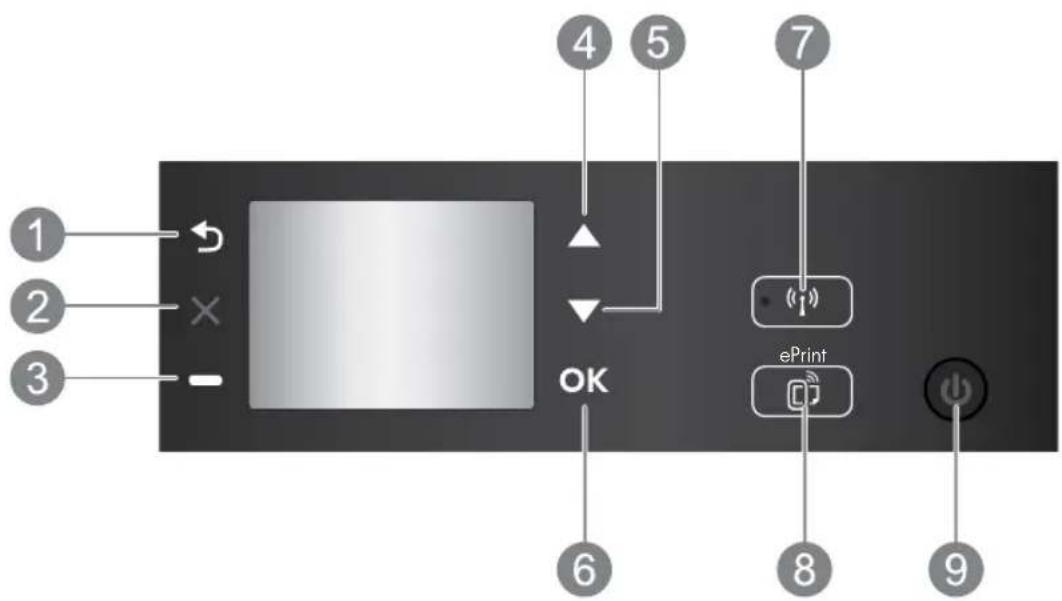
| 1 | Back: Returns to the previous screen. |
| 2 | Cancel: Stops the current operation or goes back to the home screen. |
| 3 | Selection button: Contextual button that changes depending on what is displayed on the screen. |
| 4 | Up button: Use this button to navigate menus and select number of copies. |
| 5 | Down button: Use this button to navigate menus and select number of copies. |
| 6 | OK: Confirms the current selecting. |
| 7 | Wireless status light and button: Blue light indicates wireless connection. Press the button to view wireless status and menu options. |
| 8 | ePrint button: Pressing button displays the Web Services menu where you can view printer's email address and make ePrint settings. ePrint is a free service from HP that allows you to print to your ePrint-enabled printer anywhere you can send an email. Using ePrint, print apps and ePrintCenter, in connection with HP web-connected printers (separately and collectively the “ePrintCenter System”), means agreeing to the Terms and Conditions on www.hp.com/go/ePrintCenter. |
| 9 | On button: Turns the printer on or off. |
Power specifications
Power adapter: CQ191-60017
Input voltage: 100-240Vac (+/- 10%)
Input frequency: 50/60Hz (+/- 3Hz)
Power adapter: CQ191-60018
Input voltage: 200-240Vac (+/- 10%)
Input frequency: 50/60Hz (+/- 3Hz)
Note: Use only with the power adapter supplied by HP.
Windows Mac
If you are unable to print:
- If your printer is connected directly to your computer with a USB cable, make sure the cable connections are secure.
- Make sure the printer is powered on. The On button will be lit green.
Make sure that the printer is set as your default printing device:
- Windows 7®: From the Windows Start menu, click Devices and Printers.
- Windows Vista®: On the Windows taskbar, click Start, click Control Panel, and then click Printer.
- Windows XP®: On the Windows taskbar, click Start, click Control Panel, and then click Printers and Faxes.
Make sure that your printer has a check mark in the circle next to it. If your printer is not selected as the default printer, right-click the printer icon and choose Set as Default Printer from the menu.
If your printer is connected directly to your computer with a USB cable and the software installation fails:
- Remove the CD from the computer's CD/DVD drive, and then disconnect the USB cable from the computer.
- Restart the computer.
- Insert the printer software CD in the computer's CD/DVD drive, then follow the onscreen instructions to install the printer software. Do not connect the USB cable until you are told to do so.
- After the installation finishes, restart the computer.
Windows XP and Windows Vista are U.S. registered trademarks of Microsoft Corporation. Windows 7 is either a registered trademark or trademark of Microsoft Corporation in the United States and/or other countries.
If you are unable to print:
- If your printer is connected to your computer with a USB cable, make sure the cable connections are secure.
- Make sure the printer is powered on. The On button will be lit green.
Check your print queue:
-
In System Preferences, click
-Print & Fax (Mac OS X v10.6).
-Print & Scan (Mac OS X v10.7) -
Click the Open Print Queue button.
-
Click a print job to select it.
-
Use the following buttons to manage the print job:
-Delete: Cancel the selected print job.
-Resume: Continue a paused print job.
- If you made any changes, try to print again.
Restart and reset:
- Restart the computer.
- Reset the printer.
a. Turn off the printer and unplug the power cord.
b. Wait a minute, then plug the power cord back in and turn on the printer.
If you are still unable to uninstall and reinstall the software:
Note: The uninstaller removes all of the HP software components that are specific to the device. It does not remove components that are shared by other products or programs.
To uninstall the software:
- Disconnect the HP product from your computer.
- Open the Applications: Hewlett-Packard folder.
- Double-click HP Uninstaller. Follow the onscreen instructions.
To install the software:
- Connect the USB cable.
- Insert the HP software CD into your computer's CD/DVD drive.
- On the desktop, open the CD and then double-click HP Installer.
- Follow the onscreen and the printed setup instructions that came with the HP product.
Networked printer use
Learn about wireless printing
For the most complete, up-to-date information about wireless printing, go to the HP Wireless Printing Center at www.hp.com/go/wirelessprinting.
Change from a USB connection to a wireless connection
If you first install the printer with a USB connection, you can later change it to a wireless network connection. To change the connection, perform the following steps:
Windows
- From the computer's start menu, select All Programs or Programs, and then select HP.
- Select HP Deskjet 3520 series.
- Select Printer Setup & Software.
- Select Convert a USB connected printer to wireless. Follow the onscreen instructions.
Mac
Use HP Setup Assistant in Applications/Hewlett-Packard/Device Utilities to change the software connection to wireless for this printer.
Share your printer with multiple computers
You can share the printer with other computers which are also connected to your home network. If the printer is already connected to your home network and installed on a network computer, for each additional computer you only need to install the HP printer software. During the software installation, select the Wireless (Network/Ethernet) connection when prompted, and then follow the instructions on the screen.
Connect wirelessly to the printer without a router
HP Wireless Direct allows you to print directly to your printer wirelessly, without a wireless router, from your Wi-Fi enabled devices (for example: computers or smartphones). To use Wireless Direct, you need to:
- Turn on Wireless Direct from the control panel, and get the Wireless Direct name and password if you have Wireless Direct security on:
a. From your printer's home screen, press the Wireless button and then select Settings.
b. If the display shows that Wireless Direct is Off, select Wireless Direct and then select On (No Security) or On (With Security).
Note: If you turn on security, only users with the password will be able to connect wirelessly to the printer. If you turn off security, anyone with a Wi-Fi device within Wi-Fi range of the printer will be able to connect to the printer.
c. Select Display Name to display the Wireless Direct name.
d. Select Display Password to display the Wireless Direct password if you have the Wireless Direct security on.
- From your wireless computer or mobile device, turn wireless on, search for and connect to the Wireless Direct name, for example: HP-Print-XX-Deskjet 3520 series. If you have Wireless Direct security on, enter the Wireless Direct password when prompted. Then print as you normally do from your computer or mobile device.
Note:
- Wireless Direct connection provides no Internet access.
• To use Wireless Direct from a computer, the printer software must be installed on the computer. - Wireless Direct connection is available even if the printer has a wireless connection to a home network.
If you cannot connect the printer to your wireless network...
- Get help from HP Wireless Printing Center: The HP Wireless Printing Center (www.hp.com/go/wirelessprinting) is an online reference guide to setting up your home network and HP printer for wireless printing. On this website, you will find information that can help you prepare your wireless network, set up or reconfigure your printer, and troubleshoot your setup (including using the Network Diagnostic Utility on Windows only).
- Confirm that Wireless is enabled on your printer. From the printer's control panel, press the Wireless button, if it shows Wireless Off, press Turn On.
-
Confirm that your printer is connected to your network. To do this:
-
From your printer's control panel, press the Wireless button.
- Select Settings to access the Wireless Settings menu.
- Select Print Report, and then select Test Report.
-
The Wireless Test Report is automatically printed.
-
Check the top of the report to see if something failed during the test.
- See the Diagnostics Results section for all tests that were performed, and whether or not your printer passed.
- From the Current Configuration section, find out the Network Name (SSID) to which your printer is currently connected. Make sure that the printer is connected to the same network as your computer.
Note: Your computer might be connected to a Virtual Private Network (VPN). Temporarily disable the VPN before proceeding with the installation. Being connected to a VPN is like being on a different network; you will need to disconnect the VPN to access the printer over the home network.
- Security software might be causing problems. Security software installed on your computer is designed to protect your computer against threats that can come from outside your home network. A security software suite can contain different types of software such as an anti-virus, anti-spyware, firewall and child protection applications. Firewalls can block communication between devices connected on the home network and can cause problems when using devices like network printers and scanners. A quick troubleshooting technique is to disable your firewall and check if the problem goes away.
Problems that you might see include:
- The printer cannot be found over the network when installing the printer software.
- You suddenly cannot print to the printer even though you could the day before.
- The printer shows that it is OFFLINE in the Printers and Faxes folder.
- The software shows the printer status is "disconnected" even though the printer is connected to the network.
- If you have an e-All-in-One, some functions work, like print, and others don't, like scan.
Tips for using security software:
- If your firewall has a setting called trusted zone, use it when your computer is connected to your home network.
- Keep your firewall up to date. Many security software vendors provide updates which correct known issues.
- If your firewall has a setting to not show alert messages, you should disable it. When installing the HP software and using the HP printer, you may see alert messages from your firewall software. You should allow any HP software which causes an alert. The alert message may provide options to allow, permit, or unblock. Also, if the alert has a remember this action or create a rule for this selection, make sure and select it. This is how the firewall learns what can be trusted on your home network.
If you still cannot connect the printer to your network, go to the HP Wireless Printing Center at www.hp.com/go/wirelessprinting, click Firewall Help, you can find more solutions there.
HP printer limited warranty statement
| HP product Duration of limited warranty | |
| Software Media 90 days | |
| Printer 1 year | |
| Print or Ink cartridges Until the HP ink is depleted or the "end of warranty" date printed on the cartridge has been reached, whichever occurs first. This warranty does not cover HP ink products that have been refilled, remanufactured, refurbished, misused, or tampered with. | |
| Printheads (only applies to products with customer 1 year replaceable printheads) | |
| Accessories 1 year unless otherwise stated | |
A. Extent of limited warranty
- Hewlett-Packard (HP) warrants to the end-user customer that the HP products specified above will be free from defects in materials and workmanship for the duration specified above, which duration begins on the date of purchase by the customer.
- For software products, HP's limited warranty applies only to a failure to execute programming instructions. HP does not warrant that the operation of any product will be interrupted or error free.
- HP's limited warranty covers only those defects that arise as a result of normal use of the product, and does not cover any other problems, including those that arise as a result of:
a. Improper maintenance or modification;
b. Software, media, parts, or supplies not provided or supported by HP;
c. Operation outside the product's specifications;
d. Unauthorized modification or misuse.
-
For HP printer products, the use of a non-HP cartridge or a refilled cartridge does not affect either the warranty to the customer or any HP support contract with the customer. However, if printer failure or damage is attributable to the use of a non-HP or refilled cartridge or an expired ink cartridge, HP will charge its standard time and materials charges to service the printer for the particular failure or damage.
-
If HP receives, during the applicable warranty period, notice of a defect in any product which is covered by HP's warranty, HP shall either repair or replace the product, at HP's option.
-
If HP is unable to repair or replace, as applicable, a defective product which is covered by HP's warranty, HP shall, within a reasonable time after being notified of the defect, refund the purchase price for the product.
-
HP shall have no obligation to repair, replace, or refund until the customer returns the defective product to HP.
-
Any replacement product may be either new or like-new, provided that it has functionality at least equal to that of the product being replaced.
-
HP products may contain remanufactured parts, components, or materials equivalent to new in performance.
-
HP's Limited Warranty Statement is valid in any country where the covered HP product is distributed by HP. Contracts for additional warranty services, such as on-site service, may be available from any authorized HP service facility in countries where the product is distributed by HP or by an authorized importer.
B. Limitations of warranty
TO THE EXTENT ALLOWED BY LOCAL LAW, NEITHER HP NOR ITS THIRD PARTY SUPPLIERS MAKES ANY OTHER WARRANTY OR CONDITION OF ANY KIND, WHETHER EXPRESS OR IMPLIED WARRANTIES OR CONDITIONS OF MERCHANTABILITY, SATISFACTORY QUALITY, AND FITNESS FOR A PARTICULAR PURPOSE.
C. Limitations of liability
-
To the extent allowed by local law, the remedies provided in this Warranty Statement are the customer's sole and exclusive remedies.
-
TO THE EXTENT ALLOWED BY LOCAL LAW, EXCEPT FOR THE OBLIGATIONS SPECIFICALLY SET FORTH IN THIS WARRANTY STATEMENT, IN NO EVENT SHALL HP OR ITS THIRD PARTY SUPPLIERS BE LIABLE FOR DIRECT, INDIRECT, SPECIAL, INCIDENTAL, OR CONSEQUENTIAL DAMAGES, WHETHER BASED ON CONTRACT, TORT, OR ANY OTHER LEGAL THEORY AND WHETHER ADVISED OF THE POSSIBILITY OF SUCH DAMAGES.
D. Local law
-
This Warranty Statement gives the customer specific legal rights. The customer may also have other rights which vary from state to state in the United States, from province to province in Canada, and from country to country elsewhere in the world.
-
To the extent that this Warranty Statement is inconsistent with local law, this Warranty Statement shall be deemed modified to be consistent with such local law. Under such local law, certain disclaimers and limitations of this Warranty Statement may not apply to the customer. For example, some states in the United States, as well as some governments outside the United States (including provinces in Canada), may:
a. Preclude the disclaimers and limitations in this Warranty Statement from limiting the statutory rights of a consumer (e.g., the United Kingdom);
b. Otherwise restrict the ability of a manufacturer to enforce such disclaimers or limitations; or
c. Grant the customer additional warranty rights, specify the duration of implied warranties which the manufacturer cannot disclaim, or allow limitations on the duration of implied warranties.
- THE TERMS IN THIS WARRANTY STATEMENT, EXCEPT TO THE EXTENT LAWFULLY PERMITTED, DO NOT EXCLUDE, RESTRICT, OR MODIFY, AND ARE IN ADDITION TO, THE MANDATORY STATUTORY RIGHTS APPLICABLE TO THE SALE OF THE HP PRODUCTS TO SUCH CUSTOMERS.
HP Limited Warranty
Dear Customer,
You will find below the name and address of the HP entity responsible for the performance of the HP Limited Warranty in your country.
You may have additional statutory rights against the seller based on your purchase agreement. Those rights are not in any way affected by this HP Limited Warranty.
Ireland: Hewlett-Packard Ireland Limited, 63-74 Sir John Rogerson's Quay, Dublin 2
United Kingdom: Hewlett-Packard Ltd, Cain Road, Bracknell, GB-Berks RG12 1HN
Malta: Hewlett-Packard International Trade B.V., Malta Branch, 48, Amery Street, Sliema SLM 1701, MALTA
South Africa: Hewlett-Packard South Africa Ltd, 12 Autumn Street, Rivonia, Sandton, 2128, Republic of South Africa
Hinweis
Strømadapter: CQ191-60018
Inngangsspenning: 200 - 240 V vs (+/- 10 %)
Inngangsfrekvens: 50/60 Hz (+/- 3 Hz)
Strømadapter: CQ191-60018
Toiteadapter: CQ191-60018
Sisendpinge: vahelduvpinge 200–240 V (+/- 10%)
Sisendsagedus: 50/60 Hz (+/- 3 Hz)
- Electronic Help
- Readme
- Ink usage
- Control panel
- Power specifications
- Windows Mac
- If you are unable to print:
- Make sure that the printer is set as your default printing device:
- If your printer is connected directly to your computer with a USB cable and the software installation fails:
- Check your print queue:
- Restart and reset:
- If you are still unable to uninstall and reinstall the software:
- To uninstall the software:
- To install the software:
- Networked printer use
- Learn about wireless printing
- Change from a USB connection to a wireless connection
- Windows
- Mac
- Share your printer with multiple computers
- Connect wirelessly to the printer without a router
- Note:
- If you cannot connect the printer to your wireless network...
- Tips for using security software:
- HP printer limited warranty statement
- Extent of limited warranty
- Limitations of warranty
- Limitations of liability
- Local law
- HP Limited Warranty
- Hinweis
Brand : HP
Model : DeskJet 3524
Category : Printer