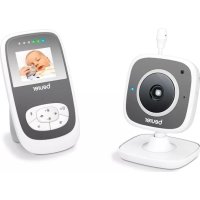
BY 99 Dual - Baby monitors BEURER - Free user manual and instructions
Find the device manual for free BY 99 Dual BEURER in PDF.



| Product type | Baby monitor |
| Brand | Beurer |
| Model | BY 99 Dual |
| Category | Baby monitors |
| Camera dimensions | 9 x 6.5 x 5.8 cm |
| Parent unit dimensions | 11.5 x 6.9 x 2.4 cm |
| Camera weight | 95 g |
| Parent unit weight | 80 g |
| Battery weight | 38 g |
| Power supply | 5 V USB power adapters (camera 1000 mA, parent unit 600 mA) |
| Battery type | Lithium-ion 2100 mAh, 3.8 V |
| Parent unit battery life | Up to 12 hours |
| Range | Up to 300 m without obstacles |
| Frequency | 2.4 - 2.483 GHz |
| Number of channels | 23 |
| Screen | LCD 2.4" |
| Main functions | Infrared night vision, nightlight, 5 lullabies, talk-back function, zoom, alarm, ECO mode, temperature sensor, push notifications, history, video monitoring via app |
| Connection | Wi-Fi 802.11 b/g/n (2.4 GHz) |
| Mobile app | Beurer CareCam (Android 4.0+ / iOS 7.0+) |
| Box contents | 1 camera, 1 parent unit, 2 power adapters, 1 lithium-ion battery, 1 instruction manual |
| Safety | Do not place within baby's reach, minimum distance of 2 m, do not immerse, use the supplied adapters |
| Maintenance and cleaning | Clean with a soft dry cloth; discharge the battery every 6 months to maintain capacity |
| Spare parts and repairability | Additional cameras available (ref. 163.752); repairs by customer service only |
Frequently Asked Questions - BY 99 Dual BEURER
User questions about BY 99 Dual BEURER
0 question about this device. Answer the ones you know or ask your own.
Ask a new question about this device
Download the instructions for your Baby monitors in PDF format for free! Find your manual BY 99 Dual - BEURER and take your electronic device back in hand. On this page are published all the documents necessary for the use of your device. BY 99 Dual by BEURER.
USER MANUAL BY 99 Dual BEURER
Baby Video Monitor 2 in 1 Gebrauchsanweisung. 2
Baby video monitor 2-in-1 Instructions for use. 22
Moniteur de surveillance video 2-en-1 Moded'emploi 40
E Baby Video Monitor 2 en 1 Instrucciones de uso .59
Baby Video Monitor 2 in 1 Istruzioni per l'uso 78
TR 2'si 1 arada görtündülü bebek monitoru
Kullanim kilavuzu 96
RUS Bundeohra 2B1 Hnctpykua nO npmehenio. 114
Monitor video danecka 2 w 1
Instrukcja obslugi 135
DEUTSCH

Read these instructions for use carefully and keep them for later use, be sure to make them accessible to other users and observe the information they contain.
Table of contents
- Getting to know your device 23
- Signs and symbols 24
- Intended use 24
- Notes 24
5.How the app works 26 - Unit description 27
6.1 "Baby" HD camera 27
6.2 "Monitor" parent unit 27
6.3 Display description 28
- Initial use of parent unit 28
7.1 Initial use of camera 28
7.2 Initial use of parent unit with battery ....28
7.3 Initial use of parent unit with mains part plug 29
- Operating the parent unit 29
8.1 Infrared night vision 29
8.2 Set the volume 29
8.3 Set the brightness 29
8.4 Intercom function 29
8.5 Settings menu 29
- Initial use via smartphone/tablet 32
9.1 Setting up the camera using an AndroidTM device 32
9.2 Setting up the camera on your iPhone®/ iPad® 32
9.3 Camera settings 32
9.3.1 Allocating a camera name / menu image 32
9.3.2 Setting the notification sensitivity 32
9.4 General settings 33
- Operating the camera via the app 33
10.1 Switching on the camera 33
10.2 Adding another camera 33
10.3 Removing a camera 33
10.4 Account settings / signing out 34
10.5 Infrared night vision function 34
10.6 Functions during live transmission in the app 34
10.6.1 Intercom function 34
10.6.2 Photo function / Video memory function 34
10.6.3 Lullabies 35
10.6.4 Temperature display 35
10.7 Using the camera for other end devices 35
10.8 Access to the user account via the web portal(PC) 35
- Useful information about the baby monitor 35
- Maintenance and cleaning 36
13.What if there are problems? 36 - Disposal 38
- Technical data 38
- Software Information 39
Included in delivery
- 1x WLAN camera
- 2x mains part plugs
- 1x parent unit
- 1x lithium-ion battery for parent unit
- 1x these instructions for use
Dear customer,
Thank you for choosing one of our products. Our name stands for high-quality, thoroughly tested products for applications in the areas of heat, gentle therapy, blood pressure/ diagnosis, weight, massage, beauty and air. Read these instructions for use carefully and keep them for later use, be sure to make them accessible to other users and observe the information they contain.
With kind regards,
Your Beurer team
1. Getting to know your device
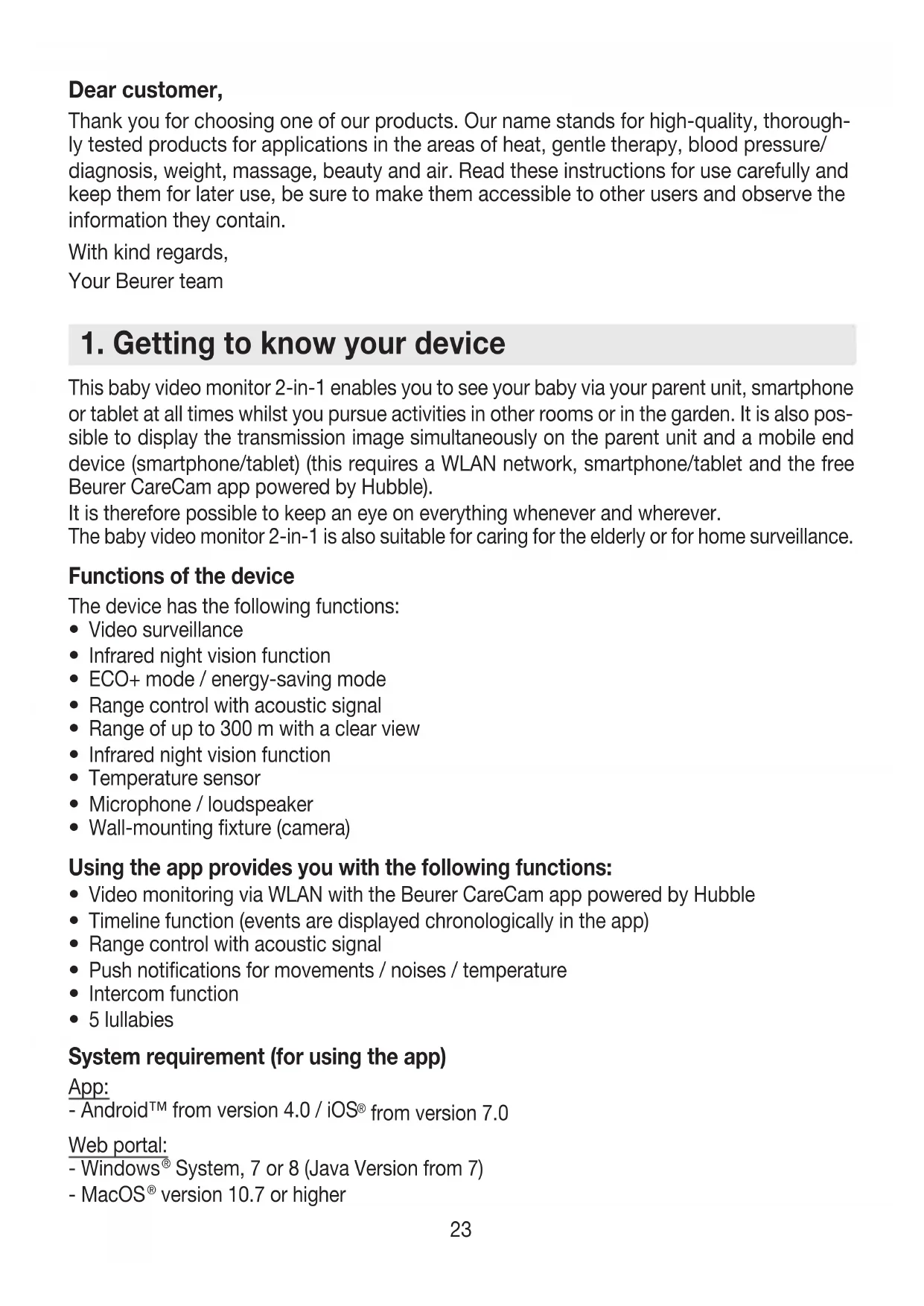
This baby video monitor 2-in-1 enables you to see your baby via your parent unit, smartphone or tablet at all times whilst you pursue activities in other rooms or in the garden. It is also possible to display the transmission image simultaneously on the parent unit and a mobile end device (smartphone/tablet) (this requires a WLAN network, smartphone/tablet and the free Beurer CareCam app powered by Hubble).
It is therefore possible to keep an eye on everything whenever and wherever.
The baby video monitor 2-in-1 is also suitable for caring for the elderly or for home surveillance.
Functions of the device
The device has the following functions:
Video surveillance
- Infrared night vision function
- ECO+ mode / energy-saving mode
- Range control with acoustic signal
- Range of up to 300 m with a clear view
- Infrared night vision function
- Temperature sensor
- Microphone / loudspeaker
- Wall-mounting fixture (camera)
Using the app provides you with the following functions:
- Video monitoring via WLAN with the Beurer CareCam app powered by Hubble
- Timeline function (events are displayed chronologically in the app)
- Range control with acoustic signal
- Push notifications for movements / noises / temperature
- Intercom function
- 5 lullabies
System requirement (for using the app)
App:
-AndroidTM from version 4.0 / iOS® from version 7.0
Web portal:
-Windows® System, 7 or 8 (Java Version from 7)
- MacOS® version 10.7 or higher
- Internet Explorer® version 8.0 or higher
- Firefox® version 11.0 or higher
- Chrome® version 18.0 or higher
- Safari® version 5.1 or higher
Camera:
-802.11 b/g/n (2.4 - 2.4835 GHz) WLAN
- Protected by at least WEP
2. Signs and symbols
The following symbols appear in these instructions for use:
| ! | WARNING Warning instruction indicating a risk of injury or damage to health |
| IMPORTANT Safety note indicating possible damage to the device/accessory | |
| i | Note Note on important information |
3. Intended use

WARNING
- Only use the baby video monitor 2-in-1 when you cannot mind your baby directly. It is not a substitute for your own personal, responsible supervision!
- You can also use the baby video monitor 2-in-1 as a room monitor.
- Improper use can be dangerous.
- The baby video monitor 2-in-1 is only intended for domestic/private use, not for commercial use.
- Respect the personal rights of others. All persons in the monitored room or who may be in the monitored room should be informed that there is a camera filming the room.
4. Notes

WARNING
Safety notes
- Always position the camera and power cord out of the reach of children. The power cord may cause strangulation or injury to children.
- Keep small parts out of reach of children.
- Keep packaging material away from children (risk of suffocation).
-
Never place the camera in the cot or within reach of your child.
-
Place the camera 2m away from your baby, in order to minimise the possibility of electrosmog pollution and noise pollution.
- Make sure that cables are not accessible to your child.
- Always make sure that the baby video monitor 2-in-1 is fully functioning before use and check that the battery in the parent unit is sufficiently charged when operating the device with the battery.
- Never submerge the camera and the parent unit in water. Never rinse it in running water.
- Never use the camera and the parent unit in proximity to moisture.
- Do not cover the camera and the parent unit with a towel or cover.
- Only use the mains part plugs included in delivery.
- Do not use the cable to pull the mains part plug out of the socket.
- If the mains connection cable of this device is damaged, it must be disposed of. If it cannot be removed, the device must be disposed of.
- This device may be used by children over the age of eight and by people with reduced physical, sensory or mental skills or a lack of experience or knowledge, provided that they are supervised or have been instructed on how to use the device safely, and are fully aware of the consequent risks of use.
Children must not play with the device. - Cleaning and user maintenance must not be performed by children unless supervised.
- Do not pull, twist or bend the mains cable.
- Pull the mains part plug out in the case of operational faults before the cleaning process, after charging and when the device is not in use.
- The camera, the parent unit and the mains part plugs should not come into contact with hot surfaces or sharp-edged objects.
- Do not use any additional parts that are not recommended by the manufacturer or offered as accessories.

Note
- Before making a claim, please check the battery in the parent unit and replace it if necessary.
- Repairs must only be carried out by Customer Services or authorised suppliers. Under no circumstances should you open or repair the camera or parent unit yourself, as faultless functionality could no longer be guaranteed thereafter. Failure to comply will result in voiding of the warranty.
- If you should have any questions about using the baby video monitor 2-in-1, please contact either your retailer or Customer Services.

WARNING
Safety notes on handling rechargeable batteries
- If your skin or eyes come into contact with fluid from the battery cell, flush out the affected areas with water and seek medical assistance.
- Observe the plus (+) and minus (-) polarity signs.
- If a battery has leaked, put on protective gloves and clean the battery compartment with a dry cloth.
-
Protect batteries from excessive heat.
-
Risk of explosion! Never throw batteries into a fire.
- If the device is not to be used for a long period, take the rechargeable batteries out of the battery compartment.
- Do not disassemble, split or crush the rechargeable batteries.
- Only use chargers specified in the instructions for use.
- Batteries must be charged correctly prior to use. The instructions from the manufacturer and the specifications in these instructions for use regarding correct charging must be observed at all times.
- Fully charge the battery prior to initial use.
- In order to achieve as long a battery service life as possible, fully charge the battery at least twice per year.
5. How the app works
Local
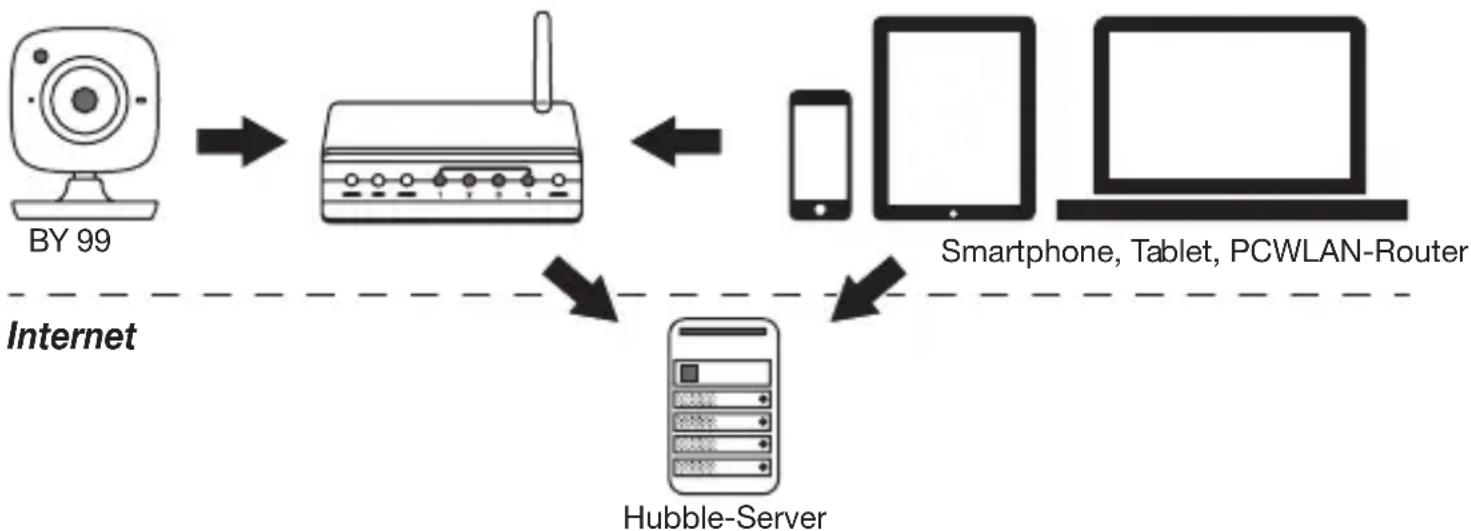

Note
If there is an active internet connection, the camera sends all recordings via the Hubble server. This is of vital importance when setting up the camera. Not all functions are available if there is no active internet connection (limited functionality).
- You can increase the range of the camera by placing it as high as possible near a door or a window.
- Other radio waves may possibly interfere with the transmission of the baby monitor. Therefore, do not position the baby monitor near devices such as microwaves, etc.
- The following other factors can interfere with the baby monitor's transmission or shorten its range: furniture, walls, houses, trees, environmental factors (such as fog, rain).

Note
On the Hubble homepage (http://hubbleconnected.com/beurer), you can activate the recording function at an additional charge. When the recording function is activated, events triggered by movements are automatically recorded and saved onto the Hubble server so that they can be viewed later.
6. Unit description
6.1 "Baby" HD camera
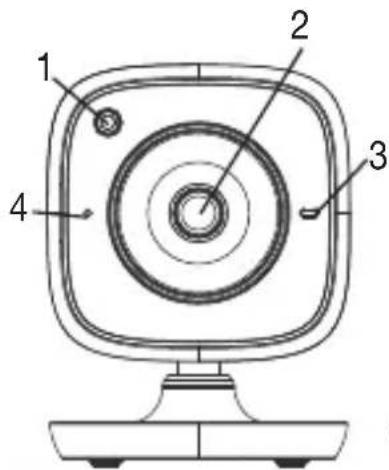
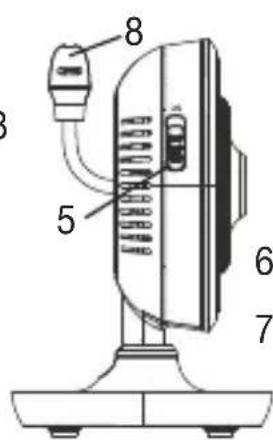
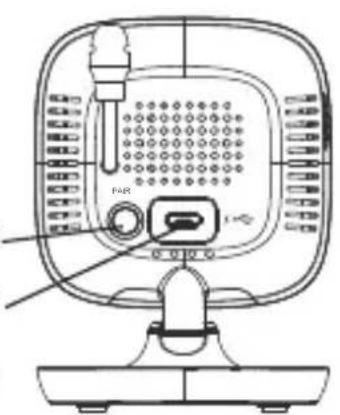
| 1. Brightness sensor (night vision function) 5. | ON/OFF button |
| 2. Camera lens 6. Pair button | |
| 3. Function light 7. Connection for “Baby” mains part plug | |
| 4. Microphone 8. Temperature sensor | |
*Function light status
| Function light lights up blue = Camera warm-up phase ~ 1 minute |
| Function light flashes red = Camera is not connected |
| Function light flashes red and blue = Camera is ready to connect |
| Function light flashes blue = Camera is connected |
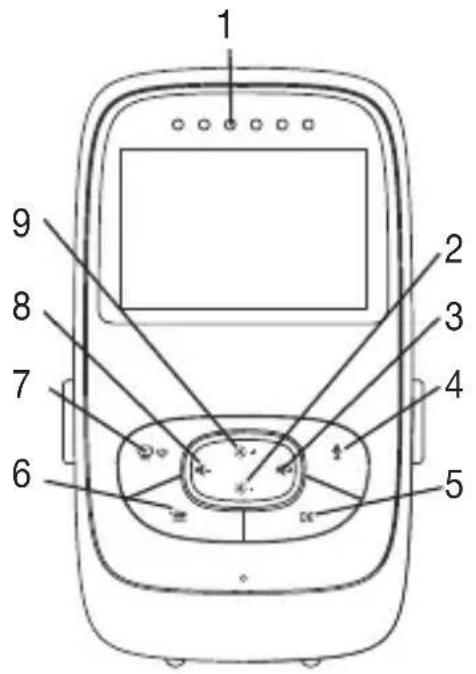
6.2 "Monitor" parent unit
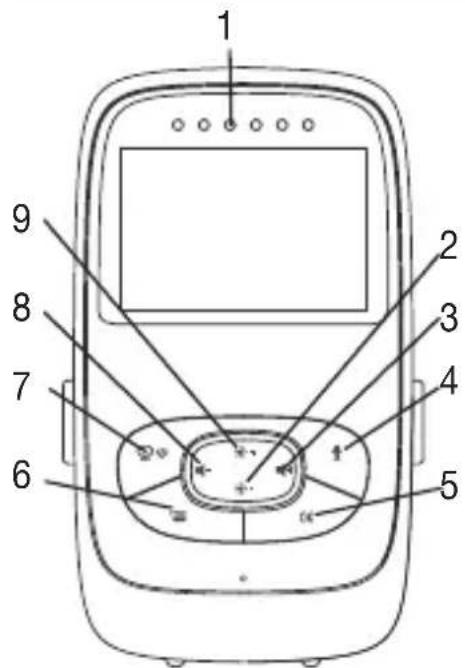
| 1. LED sound level indicator |
| 2. Bottom direction arrow / Reduce brightness |
| 3. Right direction arrow / Increase volume |
| 4. Intercom function |
| 5. OK button |
| 6. Menu button |
| 7. ON/OFF button |
| 8. Left direction arrow / Reduce volume |
| 9. Top direction arrow / Increase brightness |
6.3 Displaydescription
| Signal strength T.ill | |
| Temperature display 26°C | |
| Alarm clock | |
| Infrared night vision | |
| Lullaby | |
| Intercom function | |
| Alternating camera image | |
| Camera number 1 | |
| Battery state | |
| Energy-saving mode menu | |
| Camera menu | |
| Temperature menu | |
| Alarm clock menu | |
| Lullabies menu | |
| Zoom menu |
7. Initial use of parent unit
7.1 Initial use of camera
- Place the camera on a level, firm surface and point the camera lens at the area that you wish to monitor. Ensure that there are no other electrical devices in the proximity of the camera.

WARNING
Do NOT position the camera within reach of the baby!
- Connect the small end of the "Baby" camera mains part plug to the camera.
- Connect the other end of the mains part plug to the socket.
- Move the ON/OFF switch to "ON" to switch on the camera. The function light on the camera begins to glow blue.
- Push the ON/OFF switch downwards to switch off the camera.
7.2 Initial use of parent unit with battery
- Remove the assembly clip.
- Open the cover on the rear of the parent unit by sliding it downwards.
- Insert the battery included in delivery as shown.
- Slide the cover on the rear of the parent unit back up again, until you can hear and feel it slot into place.
-
Snap the assembly clip into place once more.
-
Press the ON/OFF button to switch on the parent unit. If the camera is already switched on, the transmission image from the camera will automatically appear on the screen. If the camera is still switched off, an acoustic signal is emitted and the following symbol appears on the monitor:
7.3 Initial use of parent unit with mains part plug
- Connect the small end of the "Monitor" parent mains part plug with the parent unit.
- Connect the other end of the mains part plug to the socket.
- The parent unit switches on automatically. Press the ON/OFF button to switch off the unit. If the parent unit and camera are already switched on, the transmission image from the camera will automatically appear on the screen of the parent unit.
8. Operating the parent unit
8.1 Infrared night vision
In order to ensure that clear transmission images can be seen on the screen even when it is dark, the baby video monitor 2-in-1 automatically activates the infrared night vision in the dark. When the infrared night vision is active, a moon symbol ( ) is shown on the screen.
8.2 Set the volume
The parent unit has 5 volume levels.
To adjust the volume, press the ( - ) button or the ( button.
8.3 Set the brightness
The parent unit has 5 brightness levels.
To adjust the brightness, press the ( +) button or the ( button.
8.4 Intercomfunction
The parent unit has an intercom function.
To activate the intercom function, hold down the ( button on the parent unit and speak into the unit. The words you have spoken can now be heard on the camera. To deactivate the intercom function, release the ( ) button again.
8.5 Settings menu
You can adjust the following settings in the menu of the parent unit: zoom function, lullabies, alarm, temperature unit, add/delete/view camera, alternating camera image and power-saving mode.
- To access the settings menu, switch the parent unit on and press the ( · button. The following settings menu appears at the bottom of the camera screen:

You can navigate through the menu using the ( ) buttons.

Zoom function
The parent unit has a zoom function to increase the size of the transmission image. To activate the zoom function, proceed as follows:
- Use the up/down direction arrows ( + ) to select the zoom function you require (1x or 2x).
- Confirm using the (OK) button.

Lullabies
Via the parent unit, you can activate one of five lullabies that will then be played over the camera. To activate one of the lullabies, proceed as follows:
Use the left/right direction arrows ( - ) select the menu item .
- Use the up/down direction arrows ( + ) to select the lullaby of your choice (1, 2, 3, 4 or 5).
- Confirm using the (OK) button.

Alarm
You can set an alarm on the parent unit – this will sound on the parent unit after 2, 4 or 6 hours, as you choose. To activate an alarm, proceed as follows:
Use the left/right direction arrows ( - ) to select the menu item .
- Use the up/down direction arrows ( 12 + ) to select the time period after which you wish the alarm to sound.
- Confirm using the (OK) button.

Temperature unit
You can set the device to display the temperature in degrees Celsius (^) or degrees Fahrenheit (^) .
Use the left/right direction arrows ( - ) to select the menu item .
- Use the up/down direction arrows ( ) to select the required unit of temperature.
- Confirm using the (OK) button.

Add camera
You can connect one parent unit with up to four cameras.
To add a camera to the parent unit, proceed as follows:
- Use the left/right direction arrows (▲-) to select the menu item.
- Use the up/down direction arrows ( ) to select the menu item.
- Confirm using the (OK) button. 1,2,3,4 appears on the screen.
-
Use the up/down direction arrows ( ) to select a number and confirm with the ( OK ) button. It appears on the screen and the unit searches for a camera.
-
Now hold down the PAIR button on the rear of the camera until an acoustic signal is heard and the transmission image from the camera that has been added appears on the screen.

Note
Additional cameras are available in stores under item number 163.752.


camera
If you wish to delete the connection to a camera, proceed as follows:
- Use the left/right direction arrows (▲-) to select the menu item.
- Use the up/down direction arrows ( ) to select the menu item.
- Confirm using the (OK) button. 1,2,3,4 appears on the screen.
- Use the up/down direction arrows ( ) to select the number of the camera that you wish to delete.
- Confirm using the (OK) button.


If you wish to select the transmission image from a camera, proceed as follows:
- Use the left/right direction arrows (▶) to select the menu item.
- Use the up/down direction arrows ( ) to select the menu item .
- Confirm using the (OK) button. 1,2,3,4 appears on the screen.
- Use the up/down direction arrows ( + ) to select the number of the camera that you wish to view.
- Confirm using the (OK) button.


Rating camera image
If you have multiple cameras registered, the "Alternating camera image" function is available. When this function is activated, the transmission images from the registered cameras appear on the screen in the form of a loop that changes every 12 seconds. To activate this function, proceed as follows:
- Use the left/right direction arrows ( ) to select the menu item.
- Use the up/down direction arrows ( ) to select the menu item.
- Confirm using the (OK) button.

Energy-saving mode
The parent unit has an energy-saving mode. When you activate the energy-saving mode, the screen switches off automatically after 5, 15 or 60 minutes, as you choose.
- Use the left/right direction arrows ( ) to select the menu item.

- Use the up/down direction arrows ( + ) to select the time period after which the screen should switch off automatically (5 mins, 15 mins or 60 mins).
- Confirm using the (OK) button.
9. Initial use via smartphone/tablet
9.1 Setting up the camera using an Android™ device
- Open the Google Play Store on your Android™ device.
- Look up the app "Beurer CareCam" and download it. Start the app and create a user account.
- Follow the further instructions in the app. As soon as the camera registration has been successfully completed, the transmission image of the installed camera appears.
- Position the camera (2 m away from the baby, out of the reach of children).
9.2 Setting up the camera on your iPhone®/iPad®
- Open the App Store on your iPhone®/iPad®.
- Search for the "Beurer CareCam" app and download it.
- Start the app and create a user account.
- Follow the further instructions in the app. As soon as the camera registration has been successfully completed, the transmission image of the installed camera appears.
- Position the camera (2 m away from the baby, out of the reach of children).
9.3 Camerasettings
In the camera settings you can, for example, allocate a name and a user image to the camera. You can also set the camera sensitivity to movement, sound and temperature, in order to be able to better specify when you should be informed.
9.3.1 Allocating a camera name / menu image
A personal name and menu image simplify the assignment of the cameras.
- When you see the current transmission image, tap the Beurer CareCam logo on the top left. You are taken to the camera menu.
- On the camera menu, tap the settings symbol ( ) of the camera.
- Tap on "Camera details".
- Here you can now tap "Camera name" to name the camera. If you would like to allocate a personal menu image, click on "Change image."
9.3.2 Setting the notification sensitivity
- Tap the settings symbol next to the camera in the camera menu.
- Tap the field with the orange warning triangle at the top. Now you can set the movement/ sound sensitivity and the limits for the temperature alarm. Limit values for the temperature alarm: 0 - 20^ or 21 - 40^ .

Note
Depending on the sensitivity setting, a notification appears in the app timeline that the camera has registered a movement, a sound or a temperature alarm.
If you allow push messages for the Beurer CareCam app on your smartphone/tablet, you will receive notifications even when you are not in the app (e.g. on the lock screen).
9.4 Generalsettings
In the general settings you can set the clock mode (12h / 24h) and temperature mode (^ / ^) . In addition, you can also activate the "Do not disturb" function.
- When you see the current transmission image, tap the Beurer CareCam logo on the top left. You are taken to the camera menu.
- Now tap on "Settings" at the top.
- To set the clock mode/temperature mode, tap the "General settings".
- To activate the "Do not disturb" function, first tap "Do not disturb" and then "ON" to the right. Now set the required length of time (3 hours max.) by moving the point.

Note
When the "Do not disturb" function is activated, you will not receive push messages during the period selected.
Further information and FAQs available at: http://www.beurer.com
10. Operating the camera via the app
10.1 Switching on the camera

IMPORTANT
Only use the mains part plug included in delivery.
- Connect the small end of the "Baby" mains part plug to the camera.
- Connect the other end of the mains part plug to the socket.
- Slide the ON/OFF switch on the side to "ON". The function light starts to glow blue. (Push the ON/OFF switch downwards to switch off the camera.)
- Open the "Beurer CareCam" app on your smartphone/tablet or the web portal on your PC.
- Log into your account.
- When you have correctly set up your camera (see Chapter 7), the transmission image appears on the display.
10.2 Adding another camera
It is possible to connect up to 4 cameras with one user account:
- When you see the current transmission image, tap the Beurer CareCam logo on the top left. You are taken to the camera menu.
- Now tap "Add camera" on the bottom left.
- Follow the instructions in the app. As soon as you have successfully logged in, the transmission image of the attached camera appears automatically.
10.3 Removing a camera
To remove a camera from your user account again, proceed as follows:
-
Tap the settings symbol ( in the camera menu of the camera you wish to remove.
-
Tap on "Camera details".
- Tap "Remove camera" and confirm.

Note
In doing so, all events on this camera are irrevocably deleted.
10.4 Account settings / signing out
In the account settings you can, amongst other things, change your password, view your app version or log out.
- When you see the current transmission image, tap the Beurer CareCam logo on the top left. You are taken to the camera menu.
- Now tap "Account" on the top right.
- In order to change your password, tap "Change password" and follow the instructions. If you would like to log out of your account, tap "Log out" and confirm.
10.5 Infrared night vision function
To ensure that clear transmission images can be seen on the screen even when it is dark, the camera automatically activates the infrared night vision function (black and white image display).
10.6 Functions during live transmission in the app
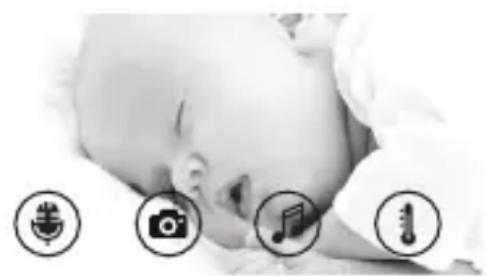

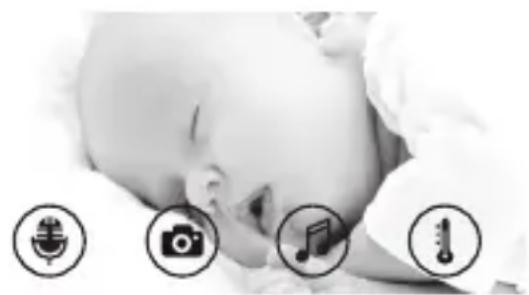
When you tap the transmission image, the following menu interface appears. After approx. 10 seconds, the menu interface disappears again.
These functions are only available in the app.
| 1 Intercom function 3 Lullabies | |
| 2 Photo function / video memory function (Android only™) | 4 Temperature display |
10.6.1 Intercom function

- Tap the microphone symbol (on the far left.
- The first time you do this, the message "Allow Beurer CareCam access to the microphone?" appears. Tap "Yes".
- To activate the intercom function, tap the push-to-talk button. The words you have spoken can now be heard on the camera. To deactivate the intercom function, tap the push-to-talk button again.
10.6.2 Photo function video memory function

- Tap the camera symbol (
- To take a photo of the current transmission image, tap the camera button. The image is saved in the image folder of your smartphone/tablet.

Note
If you have an Android™ end device, you can also record videos locally. To do this, tap the video symbol (▶).
10.6.3 Lullabies

You can activate one of five lullabies that will then be played over the camera:
- Tap the note symbol (J).
- Tap to choose your required lullaby. The lullaby now plays on the camera. To deactivate the lullaby, tap it again.
10.6.4 Temperature display
Tap the thermometer symbol (3). The current ambient temperature of the camera appears.
When you tap again on the thermometer symbol (1), you can change the temperature display between ^ C and ^ F .
10.7 Using the camera for other end devices
To use the camera with other end devices, you must log in with the same username + password as your user account.
10.8 Access to the user account via the web portal (PC)
It is possible to access your user account via the web portal.
You will have received a link to the web portal automatically via e-mail after setting up the camera.

Note
The transmission image and the timeline can only be displayed via the web portal. Other functions/settings options (such as the intercom function) are not available.
11. Useful information about the baby monitor
- If you operate the parent unit with the battery, this minimises electrosmog from electrical and magnetic alternating fields.
- You can increase the range of the baby monitor by positioning the camera as high up as possible near a door or window and ensuring that the battery is not too weak.
- Other radio waves may possibly interfere with the transmission of the baby monitor. Therefore, do not position the baby monitor near devices such as microwaves, WLAN, etc.
- The following other factors can interfere with the baby monitor's transmission or shorten its range: furniture, walls, houses, trees, environmental factors (such as fog, rain).
12. Maintenance and cleaning
The service life of the camera and the parent unit depend on careful handling.

IMPORTANT
- Remove the battery from the parent unit if the baby video monitor 2-in-1 is not in use for an extended period.
- You will get the maximum capacity from your battery if you run down the battery at least once every six months. To do this, disconnect the parent unit from the mains and run the battery down through normal use. Then fully charge the battery up again.
- The maximum battery capacity can only be reached after it has been charged several times and is dependent on many factors (battery state, ambient temperature, means and frequency of charging, etc.).
- Protect the camera and the parent unit from knocks, damp, dust, chemicals, drastic changes in temperature, electromagnetic fields and nearby sources of heat (ovens, heaters).
- Clean the camera/parent unit with a soft, dry cloth. Do not use any abrasive cleaning products.
13. What if there are problems?

IMPORTANT Forgotten password
If you have forgotten your password, tap "Forgotten password" in the app and enter your e-mail address. A new password will be sent to your e-mail address.
| Problem Solution | |
| The parent unit will not switch on. Check whether the “Monitor” mains part plug is properly plugged in, the battery is correctly inserted, the battery is full, needs charging or is damaged. | |
| An acoustic signal sounds from the parent unit. | Check whether the maximum range has been exceeded, the mains part plug for the camera (“Baby”) is correctly connected, the camera is switched on, the parent unit’s battery needs charging. |
| The parent unit is switched on, but is not making any noise. | To set your desired volume on the parent unit, press the right or left direction arrows during operation. |
| The parent unit switches itself off. | Recharge the parent unit’s battery. It could be that the parent unit is in energy-saving mode. Check whether the power-saving mode has been selected in the menu and deactivate it where necessary. |
| The signal is weak, the connection keeps breaking up or there is interference. | If another technical device such as a microwave is in the area between the camera and the parent unit, remove the technical device or switch it off. Check whether other factors, such as trees or anything else, are in the area between the camera and the parent unit, and change the position of the devices until the parent unit signals a connection. Check whether the camera and parent unit are inside the maximum receiving range. |
| If no transmission is possible, you have the option to retune the device signals digitally = pairing. | 1. Switch on the camera and parent unit. 2. Delete the camera in the menu of the parent unit and then set up the camera again as described in the “Add camera” section (see Chapter 8.5). |
| No connection can be established to the camera. | Switch your WLAN router off and back on again. Go through the registration again. |
| No connection can be made to the camera. | Check that the camera is within range of the WLAN router. If the function light flashes, place the camera closer to the WLAN router for better reception. |
| There is no alarm warning sound on the smart-phone/tablet. | Check whether your alarm settings have been activated. |
| Videos cannot be recorded on the end device. | Videos can only be saved on Android™ devices. |
| I cannot log into my user account after registration. | Check that the user name and password are correct. |
| I receive the error message “Your e-mail ID is not registered”. | Make sure that you have registered with us. First tap “Create user account”. |
| What should I do if I have forgotten my password? | In the app tap “Forgotten password” and enter your e-mail address. A new password will be sent to your e-mail address. |
| I have not received an e-mail, even though I have used the “Forgotten password” function. | The e-mail may be in the spam folder of your e-mail account. Check the spam folder for the e-mail. The e-mail may not have arrived yet. Check your e-mail account again after a few minutes. |
| If I try to add a new camera to my user account, no available cameras appear. | Press the “PAIR” button on the camera for 5 seconds and try again. |
| During the set-up process, no camera appears in the last step. The set-up process is interrupted. | Switch the camera off and back on again. Press the “PAIR” button until there is a beep. Wait for a minute until the indicator lamp flashes. The camera is now ready for the set-up process. Start the set-up process for the camera again. |
| If I try to view the transmission image, I receive the message that I should update my Firmware. | Conduct a Firmware update. We update the app from time to time to constantly improve the camera function. |
14. Disposal
Batteries must be disposed of through specially designated collection boxes, recycling points or electronics retailers. You are legally required to dispose of the batteries.
For environmental reasons, do not dispose of the device in the household waste at the end of its useful life.
Dispose of the unit at a suitable local collection or recycling point. Dispose of the device in accordance with EC Directive - WEEE (Waste Electrical and Electronic Equipment).
If you have any questions, please contact the local authorities responsible for waste disposal.
15. Technical data
23 channels
Frequency 2.4 - 2.483 GHz
Transmission power < 16dBm
Digital receiver
2.4" TFT display
Infrared technology
- ECO mode (parent unit)
- Camera dimensions: 9 × 6.5 × 5.8 cm
Parent unit dimensions: 11.5 × 6.9 × 2.4 cm
Weight: camera 95 g; parent unit 80 g; battery 38 g
- Range up to 300 m with a clear view
| Operation Mains parts provided: | Parent unit (5V USB/600mA) HD camera (5V USB/1000mA) Li-Ion battery (2100 mA) |
| Battery: Capacity | 2100mAh |
| Nominal voltage | 3.8V |
| Type designation | 19300 |
| Battery life (dependent on battery state, ambient temperature, means and frequency of charging, etc.) | Parent unit: 12 hours |
We hereby guarantee that this product complies with the European RED Directive 2014/53/EU.
Please contact the specified service address to obtain further information, such as the CE Declaration of Conformity.
16. Software Information
This product contains software (including firmware) and may also contain software from the open source community.
Any software from the open source community is licensed under Version 2 of the „GNU General Public License".
The specific license terms applicable to that software are available below:
https://hubbleconnected.com/opensource.
You although can contact the specified service address to obtain further information, such as the „Software License Agreement & Notices“.
FRANÇAIS

Chere cliente, cher client,
| Fonksiyon lambasi mavi yanıyorsa = Kamera,isınmaassistantısim 1 dakika |
| Fonksiyon lambasi kırkıyanıpSONUYORSA = Kamera®,®,®,®,®,®,®,®,®,®,®,®,®,®,®,®,®,®,®,®,®,®,®,®,®,®,®,®,®,®,®,®,®,®,®,®,®,®,®,®,®,®,®,®,®,®,®,®,®,®,®,®,®,®,®,®,®,®,®,®,®,®,®,®,®,®,®,®,®,®,®,®,®,®,®,®,®,®,®,®,®,®,®,®,®,®,®,®,®,®,®,®,®,®,®,®,®,®,®,®,® |
| Fonksiyon lambasi kırkıyanıpSONUYORSA = Kamera®,®,®,®,®,®,®,®,®,®,®,®,®,®,®,®,®,®,®,®,®,®,®,®,®,®,®,®,®,®,®,®,®,®,®,®,®,®,®,®,®,®,®,®,®,®,®,®,®,®,®,®,®,®,®,®,®,®,®,®,®,®,®,®,®,®,®,®,®,®,®,®,®,®,®, ® |
| Fonksiyon lambasi mavi yanıpSONUYORSA = Kamera®,®,®,®,®,®,®,®,®,®,®,®,®,®,®,®,®,®,®,®,®,®,®,®,®,®,®,®,®,®,®,®,®,®,®,®,®,®,®,®,®,®,®,®,®,®,®,®,®,®,®,®,®,®,®,®,®,®,®,®,®,®,®,®,®,®,®,®,®,®,®,®,®,®,®,®,®,®,®,®,®,®,®,®,®,®,®,®,®,® |
6.2 "Monitor" ebeveyn üntesi
Bb moXeTe npnBra3aTb K OJHOY uyeTHOJ 3aIINCn PONb3OBaTeJIy DO yeTbIpeX BN Deo KaMep.
- ПорсматрияTekуше ИЗобразжени CBидевокамерbl,надмITEHa JIorOTIN Beurer CareCam,pacnoLOXeHbI CBepxycneBa.BblpeiTe B MeHIO BiDeo KaMepbl.
- Haxmte cIeBa Ha «Add camera» (Io6aBntb Bndeokamepy).
CneyuTe yka3aHnM B npInoxKeHH. NocJe ycNeuHO perncpaun Ha dncnlee aBTOMaTtueckn I0BnTcN3O6paXeHne, nepedabaemoe c doabHeHOn BnDeOKaMepbl.
10.3 YdaJIeHneBnIeOKaMepbl
UTo6bI ydaIITb BndeOkaMepy n3 yyeTHoN 3aIncN NOlb3OBaTeJRA, DeiCTByIe CJIeNyIOUIM o6pa30M.
B MeHIO BnIeOKaMepb I Bbl6epnte CNMBON HacTpoiKn ( BnIeOKaMepb, KOtOpyIO Bbl XOTNTe ydaJIITb.
- Haxmte «Camera details» (Паразметрь вдевокамеры).
- Haxmte «Remove camera» (YdaIITb Bndeokamepy) n noTBePdnte.

Yka3aHne
Pn 3OM BCE CO6bITn, 3aHncaHHbIe daHHoKamepo, 6e3BO3BpAtoHO ydaJIOTcR.
10.4 Hactpoikn yyeTHoN 3aIncn/BbIXoN n3 yyeTHoN 3aIncN
B hactpoikax yueTHoN 3aHnCn Bbl MOxTe N3MeHnTb napOJb, npocMOTpeTb BepcHIO nCNoJIb-3yEMORO npINOxKeHn I BbiTN i3 yueTHoN 3aHnCn.
- ПорсматрияTekуше ИЗобразжени CBиdeokamepbl,нжмITEHa Jlorotn Beurer CareCam,pacnoJoxeHHbI CBepxu cIeBa.BI nepeiTe B MeHIO BnDEOKaMepbl.
- Haxmte «Account» (YueTha 3anncb) BBepy cnpaBa.
3.Утоби Измены napоль,нжмITE «Change password» (Измены napоль) и сеунite уka3aHЯМ.Еспи BыхOTITE BыITи n3 yueTHOJ 3aIncn,нжмITE BHN3y Ha «Log out» (Bbl-ntu n3 yueTHOJ 3aIncn)и NOДТВердNTe.
10.5ИнфракpacnaФункциноHouHOro BndeHn
ДяТOrO,TO6bI NВ TemHOTe MOxHO 6bIIO BnIeTb OTYeTJIINBOe I3O6paXKeHne C BnIeOKaMe-ры,IprN HAcTyIpeHn TEMHotb BnIeOKaMepa aBTOMaTnueCKn aKTNBnpye INHΦpaKpachHyO ΦyHKcIIO HOHOrO BnIeHn (YePho-6eJoE I3O6paXKeHne).
10.6Функцпprniloxkeня BOВремТраHCЯци n3o6paхеня