BT500v - Earphones JABRA - Free user manual and instructions
Find the device manual for free BT500v JABRA in PDF.



User questions about BT500v JABRA
0 question about this device. Answer the ones you know or ask your own.
Ask a new question about this device
Download the instructions for your Earphones in PDF format for free! Find your manual BT500v - JABRA and take your electronic device back in hand. On this page are published all the documents necessary for the use of your device. BT500v by JABRA.
USER MANUAL BT500v JABRA
- Charge your headset. 3
- Turn on your headset 4
- Pair it with your phone. 4
- Turning on/off call alert vibrate. 4
- Wear it how you like it 4
- How to. 5
7.What the lights mean. 5 - Call waiting. 6
- Troubleshooting & FAQ 6
10.Need more help? 7 - Taking care of your headset 7
12.Warranty .7 - Certification and safety approvals . 8
- Glossary 9
Thank you
Thank you for purchasing the Jabra BT500v Bluetooth® Headset. We hope you enjoy it! This instruction manual will get you started and ready to make the most of your headset.
Remember, driving comes first, not the call!
Using a mobile phone while driving can distract you and increase the likelihood of an accident. If driving conditions demand it (such as bad weather, high traffic density, presence of children in the car, difficult road conditions), pull off the road and park before making or answering calls. Also, try to keep conversations short and do not make notes or read documents.
Always drive safely and follow local laws.
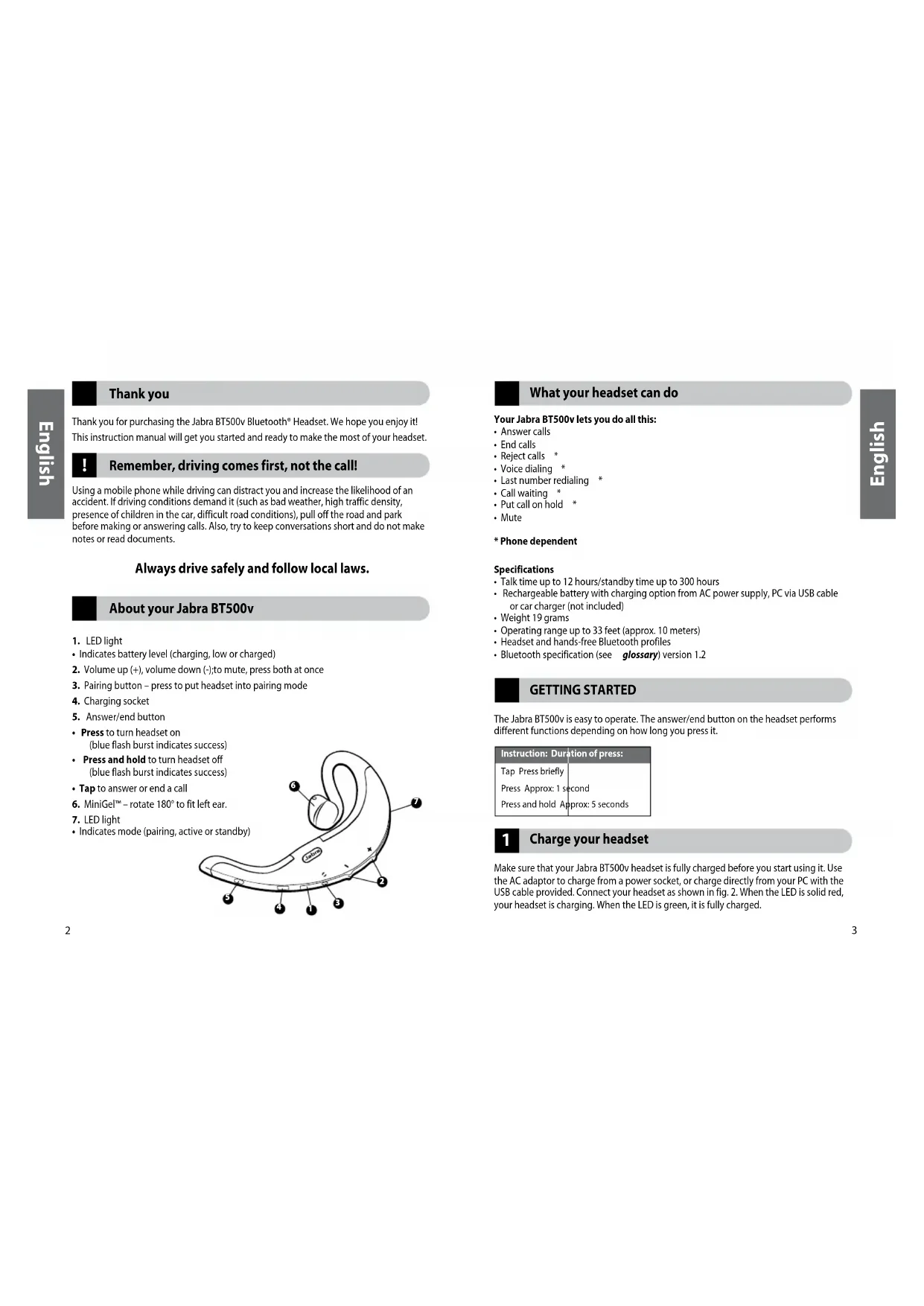
About your Jabra BT500v
- LED light
- Indicates battery level (charging, low or charged)
- Volume up (+), volume down (-); to mute, press both at once
- Pairing button - press to put headset into pairing mode
- Charging socket
- Answer/end button
Press to turn headset on (blue flash burst indicates success) - Press and hold to turn headset off (blue flash burst indicates success)
- Tap to answer or end a call
- MiniGel™ - rotate 180^ to fit left ear.
- LED light
Indicates mode (pairing, active or standby)
What your headset can do
Your Jabra BT500v lets you do all this:
Answer calls
End calls
- Reject calls *
Voice dialing
Last number redialing
Call waiting
Put call on hold
Mute
* Phone dependent
Specifications
- Talk time up to 12 hours/standby time up to 300 hours
- Rechargeable battery with charging option from AC power supply, PC via USB cable or car charger (not included)
Weight 19 grams - Operating range up to 33 feet (approx. 10 meters)
- Headset and hands-free Bluetooth profiles
- Bluetooth specification (see glossary) version 1.2
GETTING STARTED
The Jabra BT500v is easy to operate. The answer/end button on the headset performs different functions depending on how long you press it.
Instruction: Duration of press
Tap Press briefly
Press Approx: 1 second
Press and hold Approx: 5 seconds
1 Charge your headset
Make sure that your Jabra BT500v headset is fully charged before you start using it. Use the AC adaptor to charge from a power socket, or charge directly from your PC with the USB cable provided. Connect your headset as shown in fig. 2. When the LED is solid red, your headset is charging. When the LED is green, it is fully charged.
2 Turn on your headset
- Press the answer/end button to turn on your headset.
- Press and hold the answer/end button to turn off your headset.
3 Pair it with your phone
Before you use your Jabra BT500v, you need to pair it with your mobile phone.
1. Put the headset in pairing mode
Make sure the headset is on.
- Press the pairing button marked
2. Set your Bluetooth phone to 'discover' the Jabra BT500v
Follow your phone's instruction guide. This usually involves going to a 'setup,' 'connect' or 'Bluetooth' menu on your phone and selecting the option to 'discover' or 'add' a Bluetooth device.* (See example from a typical mobile phone in fig 5.)
3. Your phone will find the Jabra BT500v
Your phone then asks if you want to pair with it. Accept by pressing 'Yes' or 'OK' on the phone and confirm with the passkey or PIN = 0000 (4 zeros).
Your phone will confirm when pairing is complete. In case of unsuccessful pairing, repeat steps 1 to 3.
4. rning on/off call alert vibrate
The Jabra BT500v has a unique call alert feature that vibrates to inform you that are receiving a call. The vibrate function is enabled when you first turn on Jabra BT500v. If you turn on the device in the usual way without touching the volume button, the vibrate function will remain enabled.
- To turn off the vibrate, hold the volume down button while you turn the headset on.
- If you wish to re-activate the vibrate, hold the volume up button while you turn the headset on.
5 Wear it how you like it
The Jabra BT500v is ready to wear on your right ear. If you prefer the left, gently rotate the MiniGel™ ear piece 180^ . See fig. 1.
For optimal performance, wear the Jabra BT500v and your mobile phone on the same side of your body or within line of sight. In general, you will get better performance when there are no obstructions between your headset and your mobile phone.
6 How to...
Answer a call
- Tap the answer/end button on your headset to answer a call.
End a call
- Tap the answer/end button to end an active call.
Reject a call (dependent on your phone supporting this feature)
- Press the answer/end button when the phone rings to reject an incoming call. Depending on your phone settings, the person who called you will either be forwarded to your voice mail or hear a busy signal.
Make a call
- When you make a call from your mobile phone, the call will (subject to phone settings) automatically transfer to your headset.
Activate voice dialing (dependent on your phone supporting this feature)
- Tap the answer/end button. For best results, record the voice-dialing tag through your headset. Please consult your phone's user manual for more information about using this feature.
Redial last number (dependent on your phone supporting this feature)
- Press the answer/end button.
Adjust sound and volume (dependent on your phone supporting this feature)
- Press the volume up or down (+ or -) to adjust the volume.
- To mute, press both volume up and down at the same time. A low beep alert plays during a muted call.
To un-mute, tap either of the volume buttons.
7 What the lights mean
What you see What is the mean about your headset
Flashing blue light Flashing every second: active on a call
Flashing blue light Flashing every three seconds: in standby mode
Running low on battery
Solid red light Charging
Solid green light Fully charged
Solid blue light In pairing mode - see section 3
8 Call waiting
Call waiting and placing a call on hold (dependent on your phone supporting this feature)
This lets you put a call on hold during a conversation and answer a waiting call.
- Press the answer/end button once to put the active call on hold and answer the waiting call.
- Press the answer/end button to switch between the two calls.
- Tap the answer/end button to end the active conversation.
9 Troubleshooting & FAQ
I hear crackling noises
For the best audio quality, always wear your headset on the same side of the body as your mobile phone.
I cannot hear anything in my headset
- Increase the volume on the headset.
- Ensure that the headset is paired with the phone.
- Make sure that the phone is connected to the headset - if it does not connect either from the phone's Bluetooth menu or by tapping the answer/end button, follow the pairing procedure (see section 3).
I hear crackling noises
For the best audio quality, always wear your headset on the same side of the body as your mobile phone.
I cannot hear anything in my headset
- Increase the volume on the headset.
- Ensure that the headset is paired with the phone.
- Make sure that the phone is connected to the headset - if it does not connect either from the phone's Bluetooth menu or by tapping the answer/end button, follow the pairing procedure (see section 3).
I have pairing problems even though my phone indicates otherwise
You may have deleted your headset pairing connection in your mobile phone. Follow the pairing instructions in section 3.
Will the Jabra BT500v work with other Bluetooth equipment?
The Jabra BT500v is designed to work with Bluetooth mobile phones. It can also work with other Bluetooth devices that are compliant with Bluetooth version 1.1 or 1.2 and support a headset and/or hands-free profile.
I cannot use Reject call, call on hold, Redial or voice dialling
These functions are dependent on your phone supporting them. Please check your phone's manual for further details
10 Need more help?
See the inside cover for your country's support details.
11 Taking care of your headset
Always store the Jabra BT500v with the power off and safely protecte d
- Avoid storage at extreme temperatures (above 45^ / 113^ - including direct sunlight or below -10^ / 14^ ). This can shorten battery life and may affect operation. High temperatures may also degrade performance.
- Do not expose the Jabra BT500v to rain or other liquids.
12 Warranty
Jabra (GN Netcom) warrants this product against all defects in material and workmanship for a period of two years from the date of original purchase. The conditions of this warranty and our responsibilities under this warranty are as follows:
The warranty is limited to the original purchaser
- A copy of your receipt or other proof of purchase is required.
- The warranty is void if the serial number, date code label or product label is removed, or if the product has been subject to physical abuse, improper installation, modification, or repair by unauthorized third parties
- The responsibility of Jabra (GN Netcom) products shall be limited to the repair or replacement of the product at its sole discretion
- Any implied warranty on Jabra (GN Netcom) products is limited to two years from the date of purchase on all parts, including any cords and connectors
- Specifically exempt from any warranty are limited-life consumable components subject to normal wear and tear, such as microphone windscreens, ear cushions, decorative finishes, batteries, and other accessories
- Jabra (GN Netcom) is not liable for any incidental or consequential damages arising from the use or misuse of any Jabra (GN Netcom) product
- This warranty gives you specific rights and you may have other rights which vary from area to area
- Unless otherwise instructed in the User Manual, the user may not, under any circumstances, attempt to perform service, adjustments or repairs on this unit, whether in or out of warranty. It must be returned to the purchase point, factory or authorized service agency for all such work
- Jabra (GN Netcom) will not assume any responsibility for any loss or damage incurred in shipping. Any repair work on Jabra (GN Netcom) products by unauthorized third parties voids any warranty
13 Certification and safety approvals
CE
This product is CE marked according to the provisions of the R & TTE Directive (99/5/EC).
Hereby, GN Netcom, declares that this product is in compliance with the essential requirements and other relevant provisions of Directive 1999/5/EC.
For further information please consult http://www.jabra.com
Within the EU this device is intended to be used in Austria, Belgium, Cyprus, Czech Republic, Denmark, Estonia, Finland, France, Germany, Greece, Hungary, Ireland, Italy, Latvia, Lithuania, Luxembourg, Malta, Poland, Portugal, Slovakia, Slovenia, Spain, Sweden, The Netherlands, United Kingdom, and within EFTA in Iceland, Norway and Switzerland
Bluetooth
The Bluetooth® word mark and logos are owned by the Bluetooth SIG, Inc. and any use of such marks by GN Netcom is under license. Other trademarks and trade names are those of their respective owners.
14 Glossary
1 Bluetooth is a radio technology that connects devices, such as mobile phones and headsets, without wires or cords over a short distance (approx. 30 feet). Get more information at www.bluetooth.com.
2 Bluetooth profiles are the different ways that Bluetooth devices communicate with other devices. Bluetooth phones support either the headset profile, the hands-free profile or both. In order to support a certain profile, a phone manufacturer must implement certain mandatory features within the phone's software.
3 Pairing creates a unique and encrypted link between two Bluetooth devices and lets them communicate with each other. Bluetooth devices will not work if the devices have not been paired.
4 Passkey or PIN is a code that you enter on your mobile phone to pair it with your Jabra BT500v. This makes your phone and the Jabra BT500v recognize each other and automatically work together.
5 Standby mode is when the Jabra BT500v is passively waiting for a call. When you 'end' a call on your mobile phone, the headset goes into standby mode.

Dispose of the product
according to local
standards and regulations.
www.jabra.com/wee
Français
Dit appeared about better, daa na zdankin evening.
Espanol
Tryk pa knappen "Answer/end" for at taende for headsettet.
- Hold knappen "Answer/end" nede for at slukke for headset.
3 Tilslutning af headsettet til Telefonen (parring)
F or du tager Jabra BT500v-headsettet i brug, skal du parre det med en mobilitelefon.
- Indstil headset i parringtilstand
- Kontroller, at headsetter er taendt.
Tryk pā knappen "Pairing", der er mærket - Indstil Telefon til at 'sge after' Jabra BT500v-headsettet via Bluetooth
5 Opeote to onwc elet
To Jabra BT500v mnoepei va qoepeoi oTO 8Eci apti. Eav npotmuate oTo apioTepe, nepiotppeT npoeaekia To akouotko MiniGelkata 180°. Daite Tnv EIK. 1.
Fia Etiotn ano doon, va oopate To Jabra BT500v kai To kiVntOac TnEepuvo ano Tnv iDia nmaepa Tou ouwatoc n etoi wote v unapyei aneueBiac enapm eetaou toc,Vevika, n aoodoo th eiva kauTepe stav dev unapxov u mnoia metaTuou akouotikou kai Tou KivntuTneepuov.
6 w c v a
Anavriote e kaion
Pntnoe eapto koupi anavtnanc/epmuiaou oto aoutikoya va anavtnoe tka kon.
Tepaiaooc kianonc
Pntnote eap to kouun anavtnoq/tepuatou yia va tepuatioe tia evpyi
AnoppynknoC (eav n aeitoupyia aut unootnpetai ano to kivtoac)
Pnntae To kouani anavntno/tepuiaotou otavxutna to nIeepwvo, yia va atoppietae maieioepxoeynkAn. Avaloyao me tucpuoiaei tou nIeepwovou, to ppoowou noac Kaalei thpawOthe stov nTaeepwnt ng akoooeonjka KATEImuevou.
Ipaaypatonoinan klaionc
Ota npayatonoite me khan ano to kivto oac nlepwno, n khan (avloya me ticpuoiieic tou nlepwov) 0a metaapepebi autouata otoakoutikoac.
Evpyooinon oovntikc khaonc (eav n aeitoupyia autn unooptpietai ano to kivtoac)
Natnoe eaappa to kouuni aranvtnnc/tepuiaou. ta kalute anoteleouata, eyypaue t n paoan pfuvntiknc klannc meow tou akountikou. AvatpeETe oTo exyepidio xpnocuou tnlaepawov aoc yia nepiaodotepc nnpopopiec axetika m Tx npon autic ntc leiotopyiac.