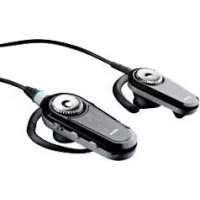
BT8010 - Earphones JABRA - Free user manual and instructions
Find the device manual for free BT8010 JABRA in PDF.



| Product Type | Bluetooth stereo/mono headset |
| Brand | Jabra |
| Model | BT8010 |
| Mono unit weight | 23 g |
| Total weight with stereo unit | 37 g |
| Talk time | Up to 10 hours |
| Standby time | Up to 300 hours |
| Music playback time | Up to 6 hours |
| Charging time | 2 hours |
| Operating range | Up to 10 meters |
| Bluetooth version | 2.0 |
| Supported profiles | A2DP, AVRCP, headset, hands-free |
| Display | Yes, display screen |
| Phone functions | Answer/end call, reject, call waiting, hold, voice command, redial |
| Music functions | Play/pause, skip forward, stop |
| Equalizer | Neutral, Rock, Pop, Jazz, Classical, Custom |
| Settings | Vibrate alert, screen brightness, caller ID, wearing side (right/left), language |
| Maintenance | Avoid extreme temperatures (45°C to -10°C), rain, humidity. Store safely. |
| Safety | Hearing protection: do not use at high volume for extended periods. Observe traffic regulations. |
| Warranty | 2 years |
| Spare parts and repairability | Not specified in the manual. Accessories provided: USB cable, charger, ear gels. |
Frequently Asked Questions - BT8010 JABRA
User questions about BT8010 JABRA
0 question about this device. Answer the ones you know or ask your own.
Ask a new question about this device
Download the instructions for your Earphones in PDF format for free! Find your manual BT8010 - JABRA and take your electronic device back in hand. On this page are published all the documents necessary for the use of your device. BT8010 by JABRA.
USER MANUAL BT8010 JABRA
to 2006 Latin, GN Mobile A/S (GN Network A/S), All rights reserved. Jabra* is a registered trademark of GN Mobile A/S (GN Network A/S). All other trademarks included herein are the property of their respective owners. The Bluetooth® word mark and logos are owned by the Bluetooth SKS, Inc. and any use of such marks by GN Mobile A/S (GN Network A/S) under license. (Design and specifications subject to change without notice
www.jabra.com
Made in China


Bluetooth
Jabra BT 8010
natural_image
Line drawing of a pair of wireless earbuds with a cord (no text or symbols)RELEASE YOUR JABRA
Jabra
Bluetooth headset
User manual
Jabra
TOLL FREE Customer Contact Details:
Phone Numbers:
Belgique/Belgie 0080072252272
Danmark 70252272
natural_image
Technical line drawing of two types of electronic devices with labeled components (no text or symbols present)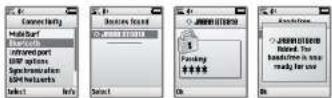
Fig 3
natural_image
Three-step diagram showing a mechanical or electrical component with curved ends and arrows indicating motion (no text or symbols)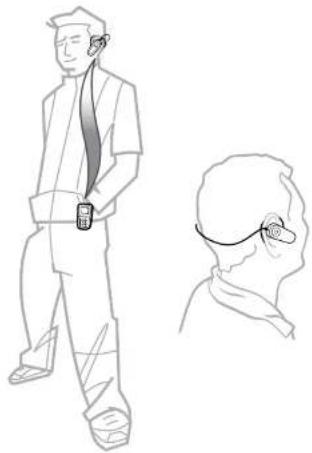
natural_image
Line drawing of a person wearing a headset and a side profile view (no text or symbols)PART NUMBER Rev. 91 00339
Jabra
BT8010
| English | GB |
| Français | F |
| Español | ES |
| Português | PT |
| Deutsch | DE |
| Italiano | IT |
| Nederlands | NL |
| Suomi | SU |
| Norsk | NO |
| Svenska | SE |
| Dansk | DK |
| Ελληνικά | GR |
English
Thank you 4
About your Jabra BT8010 5
What your new headset can do 6
GETTING STARTED 7
-
Charging your headset 7
-
Turning your headset On and Off 7
-
Pairing with a phone or other device 7
-
Understanding the display 8
-
Wearing your Jabra BT8010 9
-
Phone and Music mode 9
-
Working with two connected devices ....10
-
Basic usage of your Jabra BT8010 headset 11
-
Using your Jabra BT8010 headset for phone calls 11
-
Using your Jabra BT8010 headset for stereo music 12
-
Jabra BT8010 advanced functionality .... 13
-
The BT8010 Control Center 14
-
Troubleshooting and FAQs .... 15
-
Need more help? 16
-
Taking care of your headset 16
-
Warranty....16
-
Certification and safety approvals .... 17
-
Glossary 18

Thank you
Thank you for purchasing the Jabra BT8010 Bluetooth® Headset. We hope you enjoy it! This user manual will get you started, and ready to make the most of your headset.
Remember, driving comes first, not the call!
Using a mobile phone while driving can distract you and may increase the likelihood of an accident. If driving in bad weather, high traffic density, with children in the car, or under difficult road conditions, pull off the road and park before making or answering calls. Also, try to keep conversations short and do not take notes or read documents.
Use of this headset with both ears covered while driving is not permitted in certain countries. Remember: Always drive safely, avoid distractions and follow local laws.
Avoid using stereo headsets with the volume turned up for an extended period of time. Doing so may damage your hearing. It is advisable to keep the volume at a moderate level at all times.
Protect your hearing!
WARNING: Using the headphones at high volume may result in permanent hearing loss. If you experience ringing in your ears, reduce the volume or discontinue using the headphones. With continued use at high volume, your ears may become accustomed to the sound level, which may result in permanent damage to your hearing. Keep the volume at a safe level. Using headphones while operating a motor vehicle, motorcycle, watercraft or bicycle may be dangerous, and is illegal in some countries. Check your local laws. Use caution while using your headphones when you are engaging in any activity that requires your full attention. While engaging in any such activity, removal of the speakers from your ear area or turning off your headphones will keep you from being distracted, so as to avoid accident or injury.
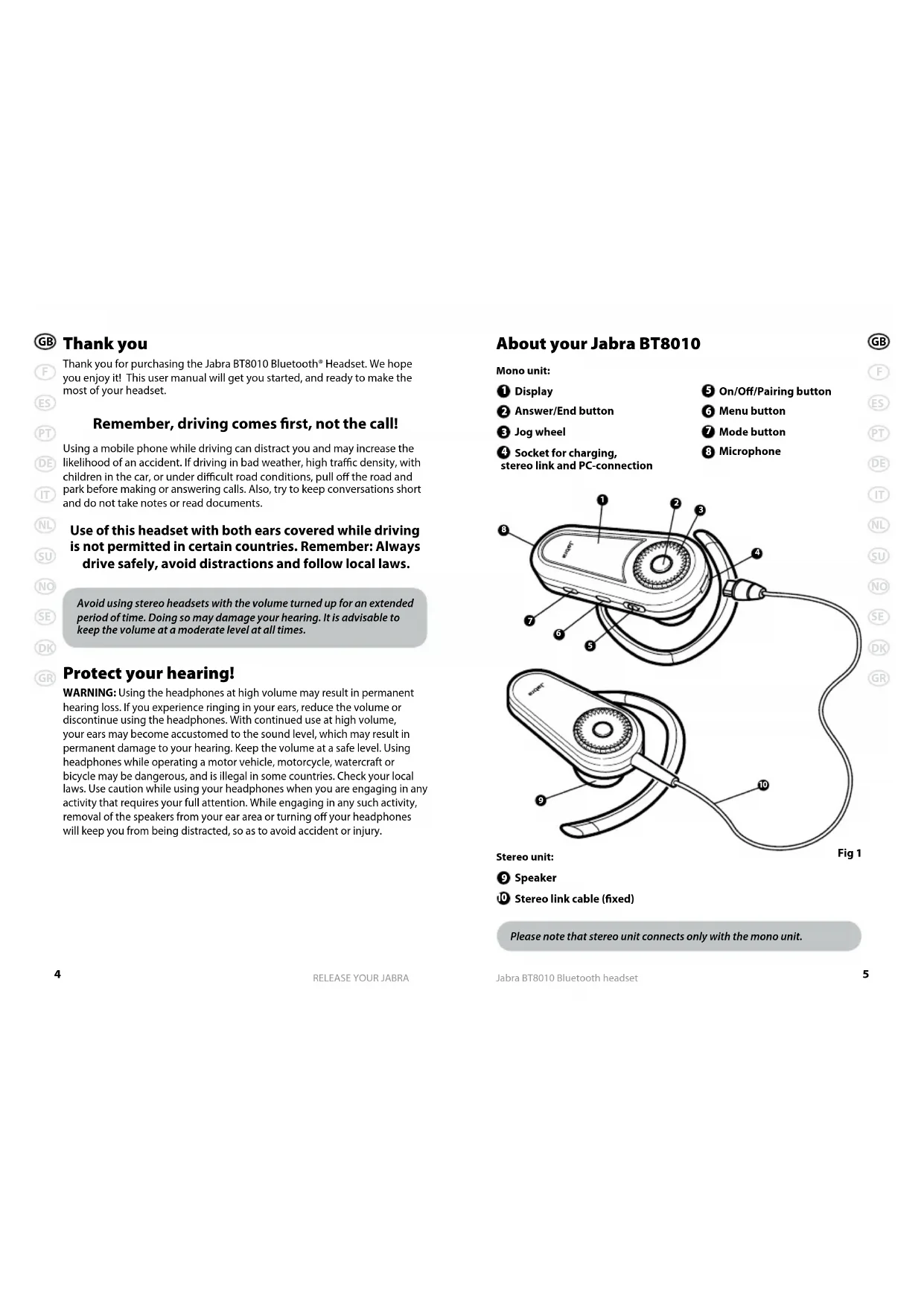
About your Jabra BT8010
Mono unit:
① Display
② Answer/End button
③ Jog wheel
④ Socket for charging, stereo link and PC-connection
5 On/Off/Pairing button
6 Menu button
⑦ Mode button
8 Microphone
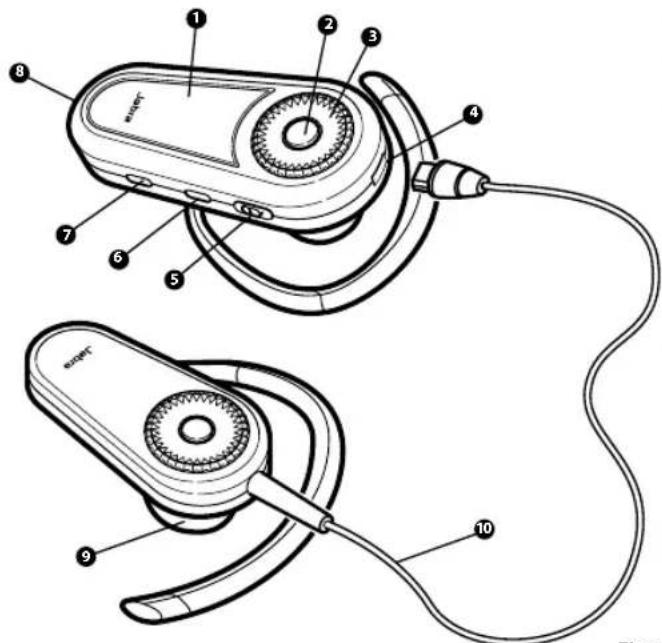
Fig 1
Stereo unit:
9 Speaker
10 Stereo link cable (fixed)
Please note that stereo unit connects only with the mono unit.

What your new headset can do
Your Jabra BT8010 can be connected with up to two devices for phone and music features:
| Phone features Music features |
| • Answer call • Play/Pause music* |
| • End call • Stop music* |
| • Reject call* • Skip track forward* |
| • Voice dialing* • Volume control |
| • Last number redialing* |
| • Call waiting* |
| • Put call on hold* |
| • Volume control |
* Phone/device dependent
Please consult sections "3. Pairing with a phone or other device" and "7. Working with two connected devices" for additional information.
Specifications
- Up to 10 hours of talk time or up to 300 hours of standby time or up to 6 hours of music playing time
- Internal rechargeable battery with charging option from AC power supply or PC via USB cable
• Weight of mono unit: 23 grams (4/5 oz)
• Total weight including stereo unit: 37 grams (1 ^1/3 oz)
• Operating range up to 10 metres (33 feet) - Advanced Audio (A2DP), Remote Control (AVRCP) as well as headset and hands-free Bluetooth profiles
• Bluetooth specification 2.0 (See Glossary, page 18)
GETTING STARTED
The buttons can activate different functionality, depending on the length of button press.
| Instruction: Duration of press |
| Tap Less than or equal to 0.8 seconds |
| Double tap Twice in less than or equal to 0.8 seconds |
| Press Approximately 0.8 – 1.5 seconds |
| Press and hold Equal or longer than 2.0 seconds |
1. Charging your headset
Charge your Jabra BT8010 for 2 hours to ensure that it is fully charged. Use only the chargers provided in the box – do not use chargers from any other devices as this might damage your Jabra BT8010.
Connect the mono unit to the AC power supply to charge from a power socket, or charge directly from your PC with the provided USB cable. When the display indicates "Charging complete" the headset is fully charged. The stereo unit does not require separate charging, as it draws power from the mono unit.
2. Turning your headset On and Off
- Slide the On/Off/Pairing button to the on position, in order to activate the headset. The display will indicate the welcome text.
- Slide the On/Off/Pairing button back to the off position, in order to deactivate the headset.
3. Pairing with a phone or other device
Before you can use your Jabra BT8010 you must pair it with a mobile phone and/or another Bluetooth enabled device. The first time you turn on your BT8010 (or if factory reset via the menu), it will automatically enter pairing mode. In this case skip directly to point 2 below. When pairing with your second device, please start with point 1 below.
1. Put the headset into pairing mode
- Turn the headset on
- Slide the On/Off/Pairing button forward until the display indicates "Pairing mode", then release the On/Off/Pairing button allowing it to slide back to on
2. Set your mobile phone or other device to 'discover' the Jabra BT8010
Follow your phone's user manual. This usually involves going to a "Setup," "Connect" or "Bluetooth" menu on your phone and selecting the option to discover or add a Bluetooth device. (See example from typical mobile phone in fig. 2)
3. Your phone will find the Jabra BT8010
Your phone or other device will ask if you want to pair with it. Accept with "Yes" or "Ok" and confirm with the passkey or PIN = 0000 (4 zeros). Your phone or other device will confirm when pairing is complete. In case of unsuccessful pairing repeat steps 1 to 3.
Please repeat the process when pairing your second device.
Note: Please note that you can pair a maximum of 2 devices with the BT8010.
4. Understanding the display
After pairing the Jabra BT8010 with a phone or another device the display could look as follows.
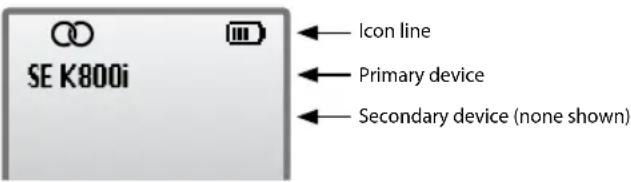
The icon line will display different icons based on current events.
In the above example the device is connected ( ) to a primary device called "SE K800i". Battery status ( ) is indicated.
Possible icons:

Connected to one or two devices

Call in progress

Playing music

Headset controls locked

Music mode (placed on the left of the battery indicator symbol)

Battery indicator
5. Wearing your Jabra BT8010
Your Jabra BT8010 is designed to be comfortably worn in two ways.
Worn as a mono headset:
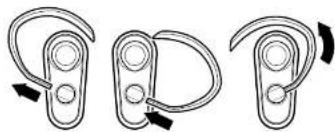
The Jabra BT8010 mono unit is ready to wear on the right ear. If you prefer the left, gently rotate the earhook 180°. See Fig 3.
- Hold the mono unit using your thumb and middle finger, pressing the earhook outwards with your index finger in order to create amble room for you to place it on your ear
- Shape the adjustable earhook to find the most comfortable fit for your ear
- Give the headset a small wiggle to find the most comfortable fit in your ear
For optimal performance, wear the Jabra BT8010 mono unit and your mobile phone on the same side of your body or within line of sight. In general, you will get better performance when there are no obstructions between the headset and the mobile phone. See Fig 4.
Note: The mono unit is by default optimized for right side wearing. If you prefer left side wearing you can orientate the display for left side wearing by accessing the menu, select Settings – Wearing – Left side. If changed to left side wearing, the display, stereo channels and volume control is inverted.
Worn as a stereo headset:
The Jabra BT8010 stereo unit is ready to wear on the left ear. If you prefer the right ear, gently rotate the earhook 180°. See Fig 3.
Connect the stereo unit by inserting the stereo link cable plug into the connector on the mono unit. Placing the stereo link cable on your neck, fix the two headset units on your ears as described above.
6. Phone and Music mode
The Jabra BT8010 starts up in Phone mode:
- Phone mode – In this mode the headset functions as a normal mono headset, and controls call functionality like call volume, last number redial, etc.
- Music mode – In this mode the headset functions as a remote control for your music player, and controls functionality like Play, Pause, Skip Track Forward, etc.
To switch between Phone and Music mode please tap the mode button. If you are wearing the headset, you will receive an audio notification that the mode has changed.
Note: If you start a music session from your music player, the headset will automatically change into Music mode.
Note: If you accept a call in Music mode the headset automatically changes to Phone mode. When you terminate the call, the headset will return to Music mode. Depending on the music device, the music will automatically resume.
7. Working with two connected devices
Your Jabra BT8010 lets you connect to two devices for phone and music features. Please note that the BT8010 will have different rights in terms of controlling these two devices.
| Primary device | Secondary device | |
| Phone features • Answer call • Answer call• End call • End call• Reject call* • Reject call*• Voice dialing* • Call waiting*• Last number redialing* • Put call on hold*• Call waiting* • Volume control• Put call on hold*• Volume control | ||
| Music features • Play/Pause music* • Headset• Stop music* automatically plays• Skip track forward* music, if initiated from• Volume control the secondary device• Volume control | ||
* Phone/device dependent
Note: The last paired device is automatically set as your primary device. If you would like to change your secondary device to your primary device, please press and hold the mode button. You will receive an audio notification indicating that the primary device has shifted.
Note: The primary and secondary device will be listed in the BT8010 display, with the primary device listed at the top.
8. Basic usage of your Jabra BT8010 headset
1. Locking the headset
- Press and hold the menu button to lock/unlock the headset controls
2. Wake up display
- Tap the menu button (if locked, please unlock the headset first)
3. Show caller ID
To protect your privacy, Caller ID is set to "On demand" by default. In this mode Caller ID will not be indicated, unless you specifically request it during an incoming call.
- During an incoming call, tap the menu button
Note: If you would like to activate Caller ID for all incoming calls, you can do so by accessing the menu, select Settings – Display – Caller ID - On.
4. Volume control
- Your Jabra BT8010 headset features an automatic volume control that adjusts the volume depending on the ambient noise level. For manual adjustment, turn the jog wheel clockwise to increase the volume or counter clockwise to decrease the volume (right side wearing).
Note: If the headset is set for left side wearing, the volume control is inverted (e.g. the volume is increased with a counter clockwise movement).
9. Using your Jabra BT8010 headset for phone calls
The operation of the basic call features is very similar to your mobile phone.
1. To answer a call
- You answer a call directly on the headset with a tap on the Answer/End button. A simple tap on the headset's Answer/End button will capture and transfer the call to the headset
2. To end or reject a call
- A tap on the Answer/End button terminates the active call
- You can also reject an incoming call directly from the headset. Press the Answer/End button and the call will be rejected. Depending on your mobile phone settings, the caller will either be forwarded to your voice mail or hear a busy signal
3. To make a call
- If you make a call from the mobile phone, the call will (subject to phone settings) automatically be transferred to the headset. If your phone does not support this function, tap the answer/end button on the BT8010 to receive the call on the headset
- Voice dialing is activated with a tap on the Answer/End button. For further information about using this feature, please consult your phone's user manual. You will get the best results if you record the voice-dialing tag through your headset
- Activate last number redial with a press on the Answer/End button on the headset
4. Call waiting and placing a call on hold
- Press once on the Answer/End button to put active call on hold and answer the waiting call
- Tap on the Answer/End button to end active conversation
- Swap between the two calls with a press on the Answer/End button
10. Using your Jabra BT8010 headset for stereo music
Before playing music please plug in the stereo unit for a full stereo experience. Please refer to section "5. Wearing your Jabra BT8010" for information on how to wear the headset.
Please ensure that the headset is in music mode (music mode icon indicated on display).
1. Play/pause
- Tap the Answer/End button
2. Skip track forward
• Double tap the Answer/End button
3. Stop the music
- Press the Answer/End button
11. Jabra BT8010 advanced functionality
You can choose between "Call List", "Phonebook" and "Settings" inside the menu. Please note that some features may not work as some mobile phones do not support all features.
To access and navigate the menu:
If the display is locked please press and hold the menu button.
- Tap the menu button to enter the menu
- Use the jog wheel to scroll up and down the menu
- Tap the Answer/End button to select an item
- Tap the menu button to step back in the menu
1. Call list
This item accesses the latest 15 incoming calls, for convenient call back directly from the headset.
- Access the menu and select "Call list"
- Select between "List" and "Reset list"
- Selecting "List" you will see a list of the latest incoming calls
- Navigate to the desired number
- Tap the Answer/End button to call the selected number
- Select "Reset list" to clear the call list
2. Phonebook
This item allows you to make calls from the headset phonebook (max. 30 entries).
- Access the menu and select "Phonebook"
- Navigate to the desired contact
- Tap the Answer/End button to call the selected contact
Note: The phonebook is created and maintained using the BT8010 Control Center PC application. Please refer to section "12. The BT8010 Control Center" for additional information.
3. Settings
Access the menu and select "Settings", to adjust the following settings:
Vibrate alert: Select between "On" and "Off"
Display: Control display "Brightness" and "Caller ID"
Brightness can be set to different levels. Please note that the level of brightness will impact battery performance.
Caller ID can be set to "On" or "On demand" (default).
Wearing: Can be set to "Right side" (default) or "Left side"
If set to "Left side" the display, stereo channels and volume control will be inverted, thereby optimizing the mono unit for left side wearing.
Language: Select your preferred language
The BT8010 is shipped with "English" (default) display text and room for a personal language. The personal language is inactive until downloaded*.
Equalizer: Select between "Neutral" (default), "Rock", "Pop", "Jazz", "Classical" and "Personal". The "Personal" setting is inactive until downloaded*
Paired devices: Select "Delete all" to delete all paired devices
Factory reset: Select this item to return to factory settings
WARNING: Selecting this item will delete all paired devices, call list, phonebook, personal equalizer settings and personal language.
About: Select this item to check the current headset software version.
* The personal language and personal equalizer settings are conveniently loaded, updated or deleted using the BT8010 Control Center PC application. Please check on www.jabra.com/BT8010 for information and availability.
12. The BT8010 Control Center
Using the BT8010 Control Center PC application, you can customize your BT8010 in a number of ways.
At the time of writing this user guide, the following functionality was planned for initial launch:
- Phonebook – Create and organize your headset phonebook
• Languages – Download a personal language to your headset - Upgrade headset – Update your headset with the latest headset software release from Jabra
We plan to introduce personal equalizer settings and more at a later stage.
Please visit www.jabra.com/BT8010 to download the application. An updated list of functionality, installation instructions and a detailed user guide is also available at the website. Please note that you must register your BT8010 with Jabra before downloading the PC application.
13. Troubleshooting and FAQs
I hear crackling noises
Bluetooth is a radio technology, which means it is sensitive to objects between the headset and the connected device. It is designed for the headset and the connected device to be used within 10 metres (33 feet) of each other, with no major objects in the way (walls, etc.).
I cannot hear anything in the headset
Increase the volume in the headset. Ensure that the headset is paired to a device that is playing. Make sure your phone is connected to the headset by checking the phone's menu or by tapping the Answer/End button.
I have pairing problems
You may have deleted the pairing connection in your mobile phone. Follow the pairing instructions in section 3.
My controls do not work
Please check that the headset is turned on, and then press and hold the menu button to unlock the headset controls.
My display is off
Please check that the headset is turned on, and then tap the menu button to activate the display.
I have problems streaming in stereo from another device (PC, MP3-player etc.)
Make sure the other device supports Bluetooth 1.1 or 1.2 and Advanced Audio Distribution Profile (A2DP) for Bluetooth stereo. In order to control your phone's music player from the headset, ensure that Audio Video Remote Control Profile (AVRCP) is supported. Please consult the other device's manual for how to pair to a headset.
I can hear stereo but the music control buttons do not work
The connected device must support the Bluetooth profile for remote control, AVRCP, to make the music control buttons work. If the connected device is your primary device, try to re-connect by turning the headset or device off and on. Please note that some features can only be operated from the primary device. Please consult section "7. Working with two connected devices".
I cannot use reject call, call on hold, redial or voice dialing
These features are dependent on the ability of your phone to support a hands-free profile. Please consult your phone's manual for details.
Please note that some features can only be operated from the primary device. Please consult section "7. Working with two connected devices".
Will it be possible to listen to radio on my phone with the Jabra BT8010? Being able to listen to radio via Bluetooth depends on your phone. Most of the mobile phones currently on the market require a corded headset that uses the cord as an antenna.
14. Need more help?
Jabra offers customer support online at www.jabra.com or you can see the inside cover for the support details of your country.
15. Taking care of your headset
• Always store the Jabra BT8010 in a safe place with the power off.
- Avoid storage at extreme temperatures (above 45^ / 113^ , including direct sunlight, or below -10^ / 14^ ). This can shorten battery life and may affect operation. High temperatures may also degrade performance. Low temperatures (down to -10C/114F) will shorten battery life and may affect operation but should not permanently damage the Jabra BT8010.
- Do not expose the Jabra BT8010 to rain or moisture.
16. Warranty
Jabra (GN Netcom) warrants this product against all defects in material and workmanship for a period of two years from the date of original purchase. The conditions of this warranty and our responsibilities under this warranty are as follows:
- The warranty is limited to the original purchaser
- A copy of your receipt or other proof of purchase is required
- The warranty is void if the serial number, date code label or product label is removed, or if the product has been subject to physical abuse, improper installation, modification, or repair by unauthorized third parties
- The responsibility of Jabra (GN Netcom) products shall be limited to the repair or replacement of the product at its sole discretion
- Any implied warranty on Jabra (GN Netcom) products is limited to two years from the date of purchase on all parts, including any cords and connectors
- Specifically exempt from any warranty are limited-life consumable components subject to normal wear and tear, such as microphone windscreens, ear cushions, decorative finishes, batteries, and other accessories
-
Jabra (GN Netcom) is not liable for any incidental or consequential damages arising from the use or misuse of any Jabra (GN Netcom) product
-
This warranty gives you specific rights and you may have other rights which vary from area to area
- Unless otherwise instructed in the User Manual, the user may not, under any circumstances, attempt to perform service, adjustments or repairs on this unit, whether in or out of warranty. It must be returned to the purchase point, factory or authorized service agency for all such work
- Jabra (GN Netcom) will not assume any responsibility for any loss or damage incurred in shipping. Any repair work on Jabra (GN Netcom) products by unauthorized third parties voids any warranty
17. Certification and safety approvals
CE
This product is CE marked according to the provisions of the R & TTE Directive (99/5/EC). Hereby, GN Netcom, declares that this product is in compliance with the essential requirements and other relevant provisions of Directive 1999/5/EC.
For further information please consult www.jabra.com
Within the EU this device is intended to be used in Austria, Belgium, Cyprus, Czech Republic, Denmark, Estonia, Finland, France, Germany, Greece, Hungary, Ireland, Italy, Latvia, Lithuania, Luxembourg, Malta, Poland, Portugal, Slovakia, Slovenia, Spain, Sweden, The Netherlands, United Kingdom, and within EFTA in Iceland, Norway and Switzerland.
Bluetooth
The Bluetooth® word mark and logos are owned by the Bluetooth SIG, Inc. and any use of such marks by GN Netcom is under license. Other trademarks and trade names are those of their respective owners.

18. Glossary

Bluetooth is a radio technology that connects devices, such as mobile phones and headsets, without wires or cords over a short distance 10 metres (approx. 33 feet). Get more information at www.bluetooth.com

Bluetooth profiles are the different ways that Bluetooth devices communicate with other devices. Bluetooth phones support either the headset profile, the hands-free profile or both. In order to support a certain profile, a phone manufacturer must implement certain mandatory features within the phone's software.

Pairing creates a unique and encrypted link between two Bluetooth devices and lets them communicate with each other. Bluetooth devices will not work if the devices have not been paired.

Passkey or PIN is a code that you enter on your mobile phone to pair it with your Jabra BT8010. This makes your phone and the Jabra BT8010 recognize each other and automatically work together.

Standby mode is when the Jabra BT8010 is passively waiting for a call. When you 'end' a call on your mobile phone, the headset goes into standby mode.

A2DP (Advanced Audio Distribution Profile) is a Bluetooth profile that enables stereo sound. Both the headset and the device it connects to must support A2DP in order to hear A2DP sound in the headset.
AVRCP (Audio Video Remote Control Profile) is a Bluetooth profile that enables remote control of the device that the headset is connected to. Both the headset and the device it connects to must support AVRCP in order for AVRCP to work.

AVRCP (Audio Video Remote Control Profile) is a Bluetooth profile that enables remote control of the device that the headset is connected to. Both the headset and the device it connects to must support AVRCP in order for AVRCP to work.

Dispose of the product according to local standards and regulations. www.jabra.com/weee
Français
Merci....20
A propos du Jabra BT8010....21
Fig 1
Fig 1
Unità stereo:
Trilalarm: Selecteer "On" (Aan) of "Off" (Uit).
Display: Instellen op de display van "Brightness" (Helderheid) en "Caller ID" (Nummerweergave)
Fig 1
Stereo-enhet:
9 Høyttaler
10 Stereo-kabel (fast)

- TOLL FREE Customer Contact Details:
- Jabra
- BT8010
- English
- Thank you
- Remember, driving comes first, not the call!
- Use of this headset with both ears covered while driving is not permitted in certain countries. Remember: Always drive safely, avoid distractions and follow local laws.
- Protect your hearing!
- About your Jabra BT8010
- What your new headset can do
- Specifications
- GETTING STARTED
- Charging your headset
- Turning your headset On and Off
- Pairing with a phone or other device
- Put the headset into pairing mode
- Set your mobile phone or other device to 'discover' the Jabra BT8010
- Your phone will find the Jabra BT8010
- Understanding the display
- Possible icons:
- Wearing your Jabra BT8010
- Worn as a mono headset:
- Worn as a stereo headset:
- Phone and Music mode
- The Jabra BT8010 starts up in Phone mode:
- Working with two connected devices
- Basic usage of your Jabra BT8010 headset
- Locking the headset
- Wake up display
- Show caller ID
- Volume control
- Using your Jabra BT8010 headset for phone calls
- To answer a call
- To end or reject a call
- To make a call
- Call waiting and placing a call on hold
- Using your Jabra BT8010 headset for stereo music
- Play/pause
- Skip track forward
- Stop the music
- Jabra BT8010 advanced functionality
- To access and navigate the menu:
- Call list
- Phonebook
- Settings
- The BT8010 Control Center
- Troubleshooting and FAQs
- I hear crackling noises
- I cannot hear anything in the headset
- I have pairing problems
- My controls do not work
- My display is off
- I have problems streaming in stereo from another device (PC, MP3-player etc.)
- I can hear stereo but the music control buttons do not work
- I cannot use reject call, call on hold, redial or voice dialing
- Need more help?
- Taking care of your headset
- Warranty
- Certification and safety approvals
- CE
- Bluetooth
- Glossary
- Français
Brand : JABRA
Model : BT8010
Category : Earphones