
56K SERIAL CONTROLLER FAXMODEM - Modem US ROBOTICS - Free user manual and instructions
Find the device manual for free 56K SERIAL CONTROLLER FAXMODEM US ROBOTICS in PDF.



User questions about 56K SERIAL CONTROLLER FAXMODEM US ROBOTICS
0 question about this device. Answer the ones you know or ask your own.
Ask a new question about this device
Download the instructions for your Modem in PDF format for free! Find your manual 56K SERIAL CONTROLLER FAXMODEM - US ROBOTICS and take your electronic device back in hand. On this page are published all the documents necessary for the use of your device. 56K SERIAL CONTROLLER FAXMODEM by US ROBOTICS.
USER MANUAL 56K SERIAL CONTROLLER FAXMODEM US ROBOTICS
56K Serial Controller Faxmodem
Quick Installation Guide
Guide d'installation rapide
Installationsanleitung
Guida per l'installazione rapida
Guía breve de instalación
Příručka pro rychlou instalaci
Snabbinfallationsguide
Kpaṭkoe rykoBoDCTBO NO yCTaHOBKe
Installasjonsveiledning
Hizli Kurulum Kilavuzu
dʒLJ Léfátés Léfátés
Contents
English 3
Introduction 3
Installation 4
Troubleshooting 9
Additional Information 13
Francais. 15
Introduction 15
Installation 16
Dépannage 22
Modem installation 76
Felsökning 81
Additional Information 84
Pycckn 87
YcTaHOBka 87
YctaHOBka MoDema 88
YctpaHHe HncnpaBHOcte 93
IOnoJIHnTeJIbHbIe CBeDeHnI 96
Norsk. 97
- 56K Serial Controller Faxmodem
- Serial modem cable
Power adapter - USRobotics Installation CD-ROM
- Telephone cable and/or adapter/splitter
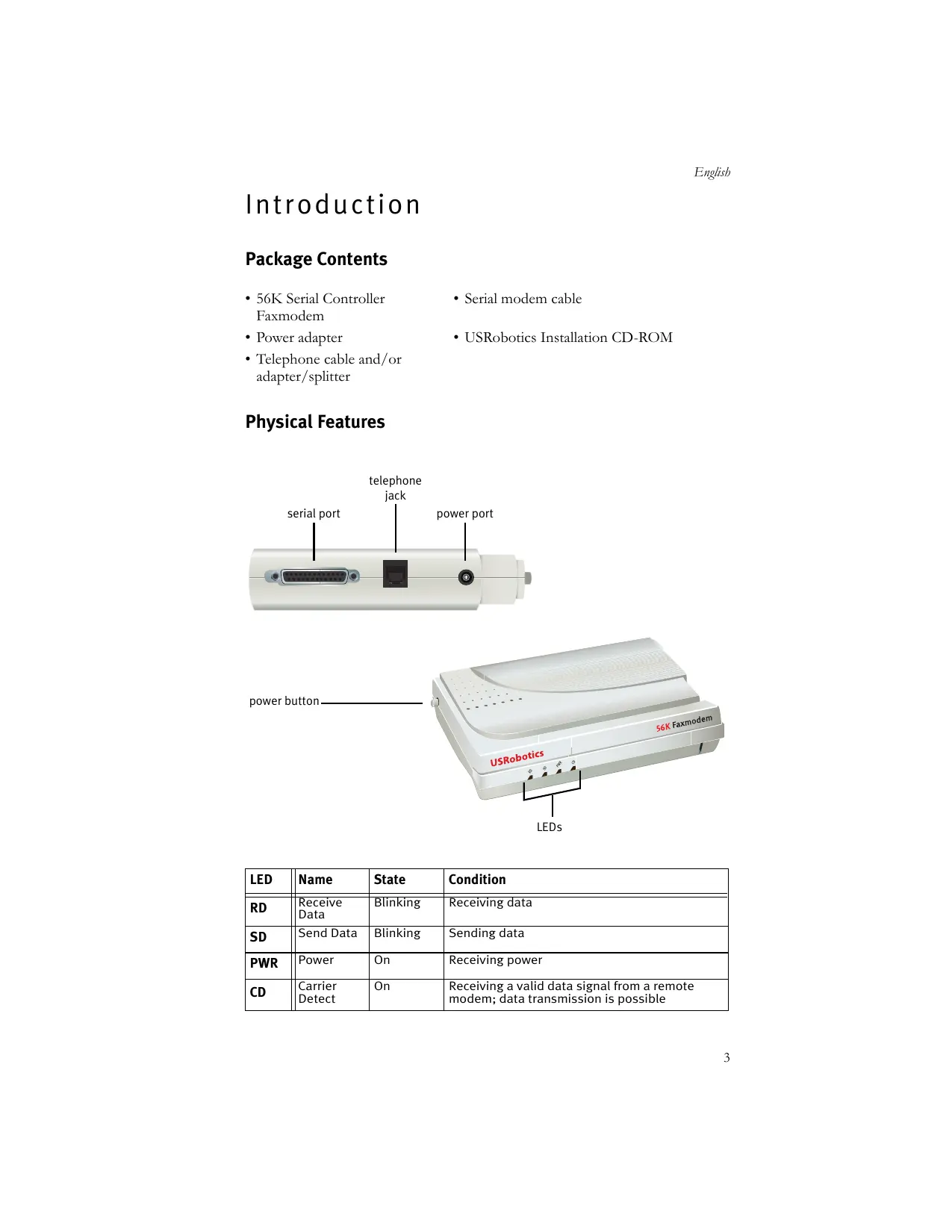
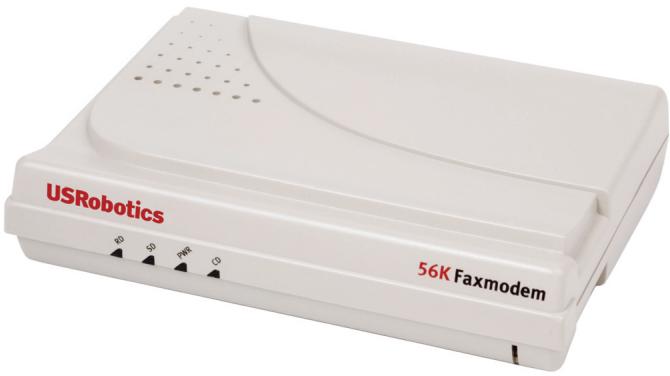
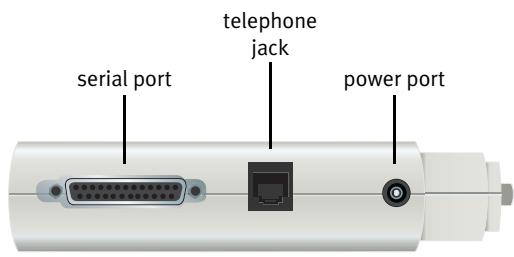
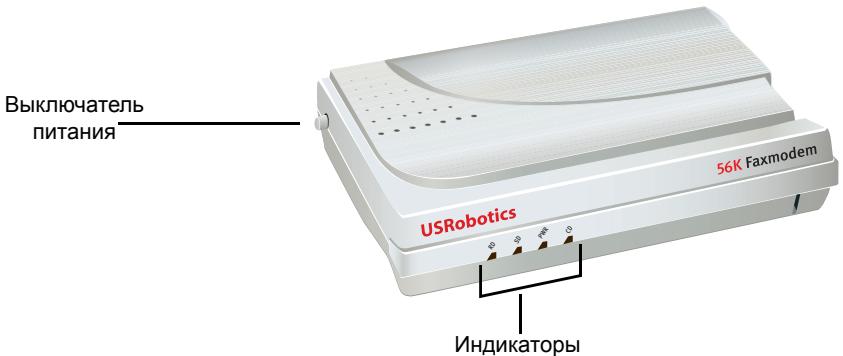
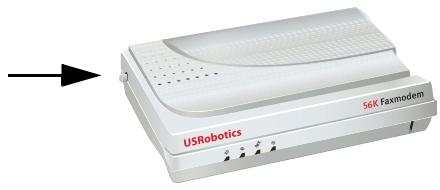
Physical Features

| LED | Name | State | Condition |
| RD | Receive Data | Blinking | Receiving data |
| SD | Send Data | Blinking | Sending data |
| PWR | Power | On | Receiving power |
| CD | Carrier Detect | On | Receiving a valid data signal from a remote modem; data transmission is possible |
System Requirements
- Analogue telephone line
- Operating system: Windows Vista™, Windows® XP, Windows® 2000, Windows NT® 4.0, Windows® Me, Windows® 98, or Windows® 95 OSR2
CD-ROM drive
Available serial port
500 MHz processor or higher
128 MB RAM
Installation
Step One: Prepare for installation
- Uninstall all other modems that are installed on your computer. For instructions, refer to the documentation for your previous modem.
- Unplug all telephone and power cords connected to your previous modems.
- Shut down your computer.
Step Two: Install the hardware
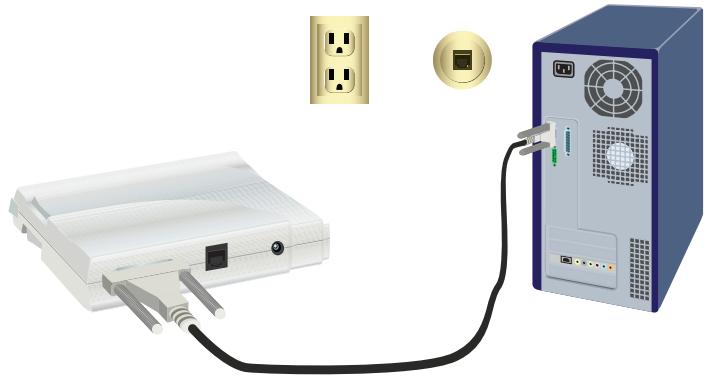
- Find the serial port on the back of your computer by looking for the label, COM, MODEM, RS-232, |O|O|, or SERIAL. Do not use the AUX, GAME, LPT, or PARALLEL port.
If your computer has only a 25-pin serial port, you need to purchase a DB25/DB25 serial cable. The serial modem cable provided with the 56K Serial Controller Faxmodem is intended for use with a 9-pin serial port on your computer.
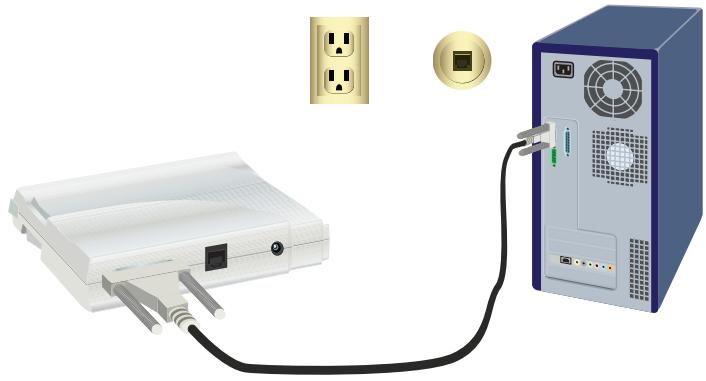
- Use a serial modem cable to connect the serial port on the modem to a serial port on your computer.
Caution: Use an analogue phone line only. The modem will be damaged if you connect it to a digital phone line.
Most office phones are wired through digital lines. If you do not know whether your phone line is analogue or digital, consult your telephone service provider or building facilities department.
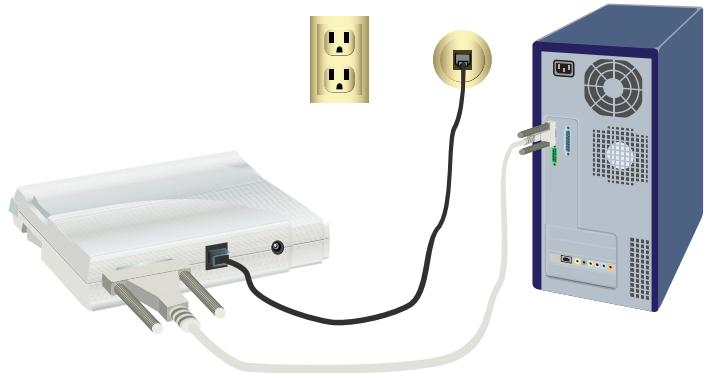
- Use the provided telephone cord to connect the phone jack on the modem an analogue telephone wall jack.
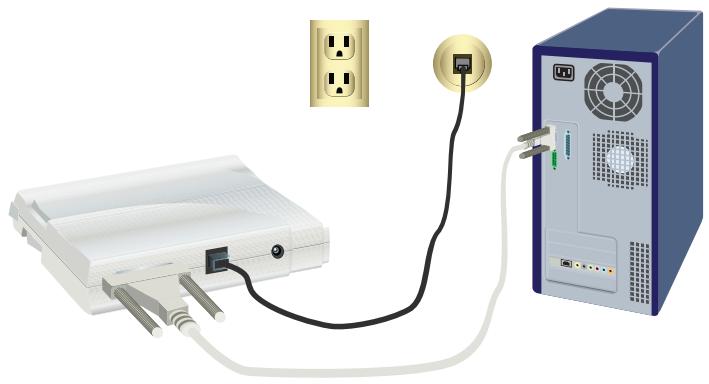
English
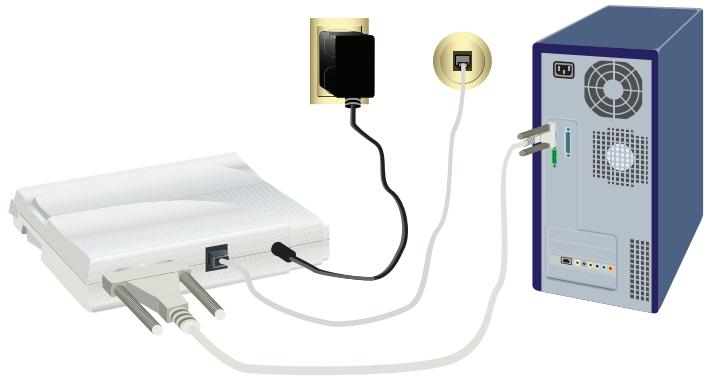
- Use the provided power adapter to connect the power port on the modem to an electrical outlet.
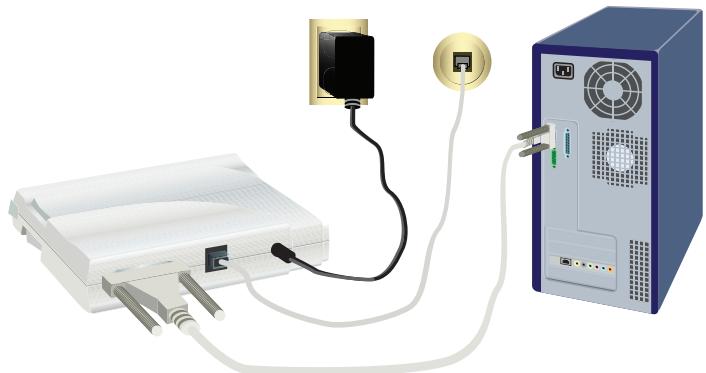
- Press and release the power button to turn the modem on.
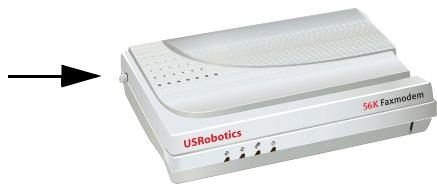
Note: If the power LED does not light, the modem may not be turned on. Make sure that the power supply is connected between the modem and the electrical outlet.
- Turn your computer on.
Step Three: Install the drivers
Windows Vista
You must be logged in as an administrator in order to install this modem. When you turn your computer on, Windows automatically detects the modem.
- Insert the USRobotics Installation CD-ROM into your CD-ROM drive.
- If the CD does not start automatically, click Windows Start > Computer and double-click the CD-ROM drive.
- If the Auto Play window appears, click run autorun.exe.
- If prompted, enter the password of an administrative user and press ENTER.
- If prompted by the USRobotics Installation CD-ROM, select your preferred language and accept the End User License Agreement.
-
Click Install Modem and follow the on-screen instructions to install the driver for the modem.
-
If a Windows Security message appears, click Install.*
Windows XP
You must be logged in as an administrator in order to install this modem. When you turn your computer on, the Found New Hardware Wizard starts.
- If the Found New Hardware Wizard prompts you to search online, select No, Not this time and follow the on-screen instructions to install the generic driver.
- When the Found New Hardware Wizard is finished, insert the USRobotics Installation CD-ROM into your CD-ROM drive.
- If the CD does not start automatically, click Windows Start > My Computer and double-click the CD-ROM drive.
- If prompted, select your preferred language and accept the End User License Agreement.
- Click Install Modem and follow the on-screen instructions to install the driver for the modem.
- If you see a prompt regarding Windows Logo testing, click Continue Anyway.**
- Click Finish to complete the installation.
Windows Me
- When the New Hardware Wizard detects the modem, insert the Installation CD-ROM into your CD-ROM drive.
- Select Automatic search for a better driver (Recommended) and click Next.
- When prompted, click Finish.
Windows 2000
- Insert the Installation CD-ROM into your CD-ROM drive.
- If prompted, select your language and accept the End User License Agreement.
The U.S. Robotics Faxmodem Installation Wizard starts.
- Click Next.
- Click Yes in any Digital Signature Not Found window that appears.
- When prompted, click Finish to complete the installation.
Windows 98SE
- When the Add New Hardware Wizard detects the modem, insert the Installation CD-ROM into your CD-ROM drive and click Next.
- Select Search for the best driver for your device (Recommended) and click Next.
- Select CD-ROM drive and click Next. Windows installs the U.S. Robotics 56K FAX EXT driver.
- Click Next, then click Finish to complete the installation.
Windows NT
- Before you log on, insert the USRobotics Installation CD-ROM into your CD-ROM drive.
- Click Windows Start > Settings > Control Panel.
- Double-click Modems. The Modems Properties Window appears.
- Click Add.
- When the Install New Modem window appears, click Next.
- When Windows detects the Standard Modem driver, click Change.
- Click Have Disk.
- Type D: \ and click OK, where D is the drive letter assigned to your CD-ROM drive.
- Select U.S. Robotics 56K FAX EXT (non-PnP) and click OK.
- Click Next.
- Click Finish to complete the installation. When the Modem Properties window appears, you will see the COM port that is assigned to your modem.
- Click Close.
- If the System Settings Change window appears, click Yes to restart your computer.
Windows 95 OSR2
- When the Update Device Driver Wizard detects the modem, insert the Installation CD-ROM into your CD-ROM drive and click Next.
- When prompted, click Finish to complete the installation.
Congratulations. You have successfully completed the installation procedure. Please register your 56K Serial Controller Faxmodem at www.usr.com/productreg/.
Additional software (optional)
For your convenience, The USRobotics Installation CD-ROM provides the following optional software that complements your modem:
- USR MoH enables the V.92 feature "Modem On Hold" which suspends your Internet connection when the modem detects an inbound telephone call.***
- Phonetools software lets you send and receive faxes and is included as an optional piece of software for your convenience.
To install any of these programs:
- Eject the USRobotics Installation CD-ROM and re-insert it into the CD-ROM drive.
If the USRobotics Installation CD-ROM does not start automatically:
A. Click Windows Start > Run.
B. In the Run dialogue box, type D:\setup.exe where D is the drive letter assigned to your CD-ROM drive.
- On the USRobotics Installation CD-ROM, select Software.
- Select the software that you want to install.
- Click Install and follow the on-screen instructions to install the software.
Troubleshooting
General
If you have any trouble with the modem, first perform the following steps:
- Verify that all connectors and power cables are properly connected to the modem and the back of your computer.
- Verify that the modem is switched on and the CD or PWR LED is on.
- Verify that the modem is connected to a serial port on the back of your computer. Do not use the AUX, GAME, LPT, or PARALLEL port.
- Shut down and restart your computer.
If you still have trouble with the modem, follow these steps to verify whether it was installed correctly:
Windows Vista:
- Click Windows Start > Control Panel.
- Click Hardware and Sound.
- Click Phone and Modem Options.
On the Modems tab, you should see a description of the modem. If you do not, the installation was not successful; perform the installation procedure again.
- On the Modem's tab, select the description of the modem and click Properties.
- On the Diagnostics tab, click the Query Modem button.
If you see a series of commands and responses from the modem, the installation was successful.
If you do not see a series of commands and responses, the installation was not successful; perform the installation procedure again.
Windows 95/98/Me:
- Click Windows Start > Settings > Control Panel.
- Double-click the Modems icon.
On the Modems Properties screen, you should see a description of the modem. If you do not, the installation was not successful; perform the installation procedure again.
- On the Diagnostics tab, ensure that the correct modem is highlighted, then click More Info.
If you see a series of commands and responses from the modem, the installation was successful.
If you do not see a series of commands and responses, the installation was not successful; perform the installation procedure again.
Windows NT:
- Click Windows Start > Settings > Control Panel.
- Double-click the Modems icon.
On the Modems Properties screen, you should see a description for the modem. If you do not, the installation was not successful; perform the installation procedure again.
Windows 2000/XP:
- Click Windows Start > Settings (if applicable), > Control Panel.
- Double-click the Phone and Modem Options icon.
On the Modems tab, you should see a description of the modem. If you do not, the installation was not successful; perform the installation procedure again.
- On the Modems tab, ensure that the correct modem is highlighted and click the Properties button.
- On the Diagnostics tab, click the Query Modem button.
If you see a series of commands and responses from the modem, the installation was successful.
If you do not see a series of commands and responses, the installation was not successful; perform the installation procedure again.
My communication software does not recognize the modem.
Solution 1:
Your communication software may not function properly if any of the following are true:
- More than one version of the software is installed on your computer.
- You are using an old version of the software.
- More than one communication software package is installed on your computer.
USRobotics highly recommends using the communication software provided with the modem on the USRobotics Installation CD-ROM.
Solution 2:
Your software's COM port settings may be incorrect. In the setup section of your software, ensure that the software's port settings match those for the modem. For instructions on adjusting the port settings in your software, refer to your communication software's documentation.
Solution 3:
Make sure that your Windows Dial-Up Networking connection is using the correct modem.
Windows Vista:
- Click Windows Start > Control Panel > Network and Internet > Network and Sharing Center > Manage network connections.
- Right-click the description of the dial-up networking connection, and select Properties.
- Make sure that your new modem is selected.
Windows XP:
- Click Windows Start > Control Panel, and double-click Network Connections.
- Double-click the description of the dial-up networking connection, and select Properties.
- Make sure that your new modem is selected.
Windows 2000:
- Click Windows Start > Settings > Network and Dial-up Connections.
- Double-click the description of the dial-up networking connection, and select Properties.
- Make sure that your new modem is selected.
Windows NT, Me, 98, and 95:
- Double-click My Computer.
- Double-click Dial-Up Networking.
English
- Right-click the connection you are trying to use, and select Properties.
- Make sure that your new modem is selected.
My modem doesn't dial out or doesn't answer incoming calls.
Solution 1:
You may have a bad telephone cord. Try another telephone cord.
Solution 2:
You may have plugged the modem's phone cord into a digital line. Contact the department responsible for your phone system if you are unsure whether your phone line is analogue or digital.
Solution 3:
If your phone system requires an access code to access an outside line, be sure to include the code in the number that you are dialling.
Solution 4:
If your voice mail alters your dial tone when messages are waiting, restore the normal dial tone by retrieving your messages before using the modem to dial out.
My modem sounds as if it is connecting to another modem, but the connection fails.
You may have a poor connection. Try placing the call again.
My modem isn't achieving a 56K Internet connection.
Solution 1:
Contact your ISP to verify that the number you are dialling supports V.90/V.92 speeds.
Solution 2:
Contact your telephone company to verify that the telephone line for your modem supports V.90/V.92 speeds.
Solution 3:
Line interference or the routing of the telephone call to your ISP may be causing a slower connection speed. Try placing the call again.
Solution 4:
Verify that the modem is connecting to a V.90/V.92 server. A pair of 56K modems will not connect to each other at 56K speeds.
Additional Information
For regulatory and warranty information, see the User Guide on the USRobotics Installation CD-ROM.
For operation and configuration information, see the User Guide on the USRobotics Installation CD-ROM.
For additional troubleshooting and technical support, see:
- The User Guide on the USRobotics Installation CD-ROM.
- The Support section of the USRobotics Web site at www.usr.com/support/.
Many of the most common difficulties that users experience have been addressed in the FAQ and Troubleshooting Web pages for your modem. The Support pages also contain current support contact information and documentation.
- The support contact information on the last page of this guide.
Introduction
Contenu de la boîte
Windows NT, Me, 98, and 95:
Windows NT, Me, 98, and 95:
56K Serial Controller Faxmodem
- Serial modem cable
Power adapter
- USRobotics Installation CD-ROM
- Telephone cable and/or adapter/splitter
Windows NT, Me, 98, and 95:
Windows NT, Me, 98, and 95:
Windows NT, Me, 98, and 95:
Step Two: Install the hardware
Windows NT, Me, 98, and 95:
Additional Information
1.
2.
www.usr.com/support/.
3.
YctahOBka
KomnJIeKT NOCTABKN
56K Serial Controller Faxmodem
MoJEMHbI KabeJIb IocJIeIOBaTeJIbHO HHTepceica
AДаПТер ПИТАнЯ
- YCTaHOBOUHbI KOMIIaKT-DINCK
TeJIeOHHbI Ka6eJIb H/HJH aJaITep/pa3BeTBHTeJIb
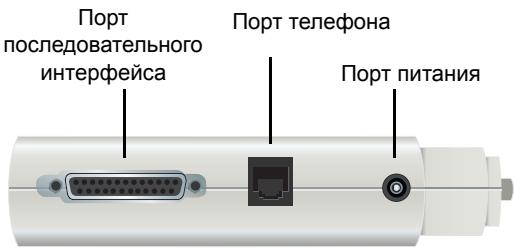
3JIeMeHtbl
Uar 1: PnDroTOBka K yCTaHOBKe
- YdaJIHTe BCE IpyrHe MOJEMbI, yCTaHOBJIEHHbIe Ha 3TOM KOMIIbIOTpe. JJIa CIIpaBKN cM. JOKyMeHTaUHIO IIpeKHeRo MOJEMA.
- OToeINHInTe BCE TeJIefoHHbIe Ka6JIIn, a TaKKe Ka6JIIn IITaHHra OT paHee yCTaHOBJEHHbIX MOdEMOB.
- 3aBepiHTe pa60Tu KOMIbIbTepe.
War 2: YctaHOBka o6OpydoBaHnna
1.Чтобнын Истп последоватьни пор на заимец паимьюгета, надите поръ, обозсанени КамСOM, MODEM, RS-232, IOIOI ИН SERIAL. He Исторьшто постъ AUX, GAME, LPT ИН PARALLEL.
EcJIN KOMIIbIOTep OCHaIIeH TOJIbKO 25-IIIbIpbKOBbIM IOcJIeIOBaTeJIbHbIM IOpTOM, IOTpe6yETcI pInHO6pctN Ka6JIb IOcJIeIOBaTeJIbHOrO INHTepfSeIca DB25/DB25.
Ka6eJIb IocJIeIOBaTeJIbHOrO HHTepfSeHa, PnJIlaRaembl K IpEJaHa3HaueH JIIa IIIOKJIIOUeHHa K 9-ITbIbPkOBOMy IocJIeIOBaTeJIbHOMy IOpTu Ha KOMIIbIOTpe.
2.ДЯ coeHHeHn IocJIeIOBaTeJbHorO IOpTa Ha MoIeMe C IocJIeIOBaTeJbHbIM IopTOM Ha KOMIIbIOTepe HcIIob3yIte IOcJIeIOBaTeJbHbKa6JIb MOIeMa.
BHMaHne! Heo6xOJHMO HcIOJIb3OBaTb TOJIbKO aHaJOROBYIO TeJefoHHyIO JInHHIO. IprI IOKJIIOUeHHN K uHΦpOBoIeTeJefoHHoJIHHN MoJEM BbIJeTn3 cTpor.
B 60JIbIHHCTBe OfHcOB TeJIefoHbI IIOJIKIIHOeHbI K IINpOBBIM JINHHaM.EcJIH HeN3BecTHo,KaKaJ IINHn HcIOJIb3yeTc(aHaJIOrOBa HJIN IINΦpOBa),O6paHTeCb B TeJIefoHHyU cIJyKoy HJIN OTJeJI, OTBeauOIIh 3a KOMMyHNkaIHH B 3daHH.
3.ДлЯ ПОДКЛЮЧЕНТе ЛЕФОнHOrO THe3Да MоДeMa K HAcTeHNoI PO3eTKe aHaJIorOBOrO TeJElФОHa ПОЛьЗУrTeCb IПиЛЯгaEMbIM TeЛeФОHHbIM Ka6eJIeM.
4.ДлЯ ПОДКЛIOUeHЯ ПОТа ПИТаHЯ MОДema K 3JIeKTPHueCKOу pO3eTke HcIOJIb3yIte aDAITETeP INHTaHЯ, BXOДЯПИВ KOMIIJIeK TIOCTaBKN..
- HaKMnTe H OTNCTHTE KHOIIK Ky INTahnIy BkJIIOeHnMoDEma.
Ppimechne ecn INIINKATOp nITaNHe 3aTopaetc, BO3MOxHO, Moem He BkJIoueH. Y6eIITecb, YTO Ka6eIb nITaNrnoIOKJIOUeH OHN M KOHcOM K MoEMy, a dpyrM - K 3JIeKTPuYeCKo pO3eTke.
- BKJIIOUHTNE KOMIIbIbOTep.
Uar 3. YctaHObKa dpaIbEpOB
Windows Vista
IJIy yCTaHOBKN DaHHoro MOJema Heo6XoHMO BOHTN B CnCTeMy KaK aIMHHnCTpaTOP. IpiN BKJIIOUeHHN KOMIIbIOTepa OC Windows abTomathueckn pacIO3HaET MoJEM.
- BctaBte yctaHObHbI KOMIIaKT-dNcK USRobotics B dNcKOBoD CD-ROM.
- EcJIN KOMIIaKT-ДИСК He 3aIyCkaeTcЯ ABTomaTHueCKH, B cHTeMe Windows IIeJIKHInTe IIyck> KomIbIOTep H IBaJkIbI IIeJIKHInTe 3HaQOK IINCKOBOJa KOMIIaKT-ДИSCKOB.
3.Пип NOЯВЛeHHN OKHA aВTO3aIycca IeJIKNHt e autorun.exe.
4.Пин ПОЯВЛЕHINCOOTBETCTBYIOJIERO3aIIPOca BBeДИTe ПAPОЛь ПОЛьЗOBаTeJIAнНakMHTe KJIaBnIy ENTER.
5.Пи ПОЯВЛeEHн 3апocа усТановочERO kOMПАкт-ДИССКА USRObOtics Bbl6epHTe 3bIK И ПИМНTe yCJIOBHЯ JINIeH3NHHORO corJIaIIeHnЯ Для KOHeHORO 1IOJIb3OBaTeJIЯ. - IIeJIKNHTe Install Modem (YcTaHOBHTb MODEM) IN CJIeIyIte HHCtpyKIIHm Ha 3KpaHe, YTObI yCtAHOBHTb IpaIbep IJIa MoDEM.
7.Пи NOЯВЛeHнСоБшЕнь"Be3OПасноctb Windows"шЕЛКНHTe YcTaHOBHTb.*
Windows XP
IJIy yCTaHOBKN DaHHORO MOJEMa HeOxOJHMO BOHTN B CnCTeMy KaK aDMHHCTpaTOp. IPrn BKJIIOUeHHN KOMIIbIOTepa 3aIyckaetcmaCTep o6HapyKeHHN HOBOrO O6OpuyOBaHHN.
- EcJIN MacTepe6HapUkeHHHOBOrO 6OpUIOBaHnBbIaET3aIIPOc Ha BbIIOJIHeHne IOnsKa B INTepHeTe, BbIePHTe No, not this time (HeT, He B 3TOr pa3) n CJIeDyIte HNCTpyKIIHM Ha 3KpaHE, YTO6bI yCTaHOBHTb YHNBepCaJIbHbI JpaIbEp.
- KorДа pa6oTa maCTepa 6hApuyKeHnO6OpyIOBaHn3aBepIeHa, BCTaBbTe yCTaHOBOUHbI KOMIIaKT-ⅡNcK USRObitics B IINCKOBOD.
-
EcJH KOMIIaKT-ДИСК He 3aIyUcKaETcA BTOMaTHUeCKH, B CHTeMe Windows IIeJIKHInTe Iyck > Moi KOMIIbIOTep IN BaJkIbI IIeJIKHInTe 3HaOHK INsKOBOJa.
4.Пи ПОЯВЛЕHн COOTBETCTBYIQUero 3aIIpOca BbIbepHTe 3bIK N IIpHmIte YcJIOBnJIINIEH3HOHHORO COJIaIIHHeHn IJI KOnEChHO TIOJIb3OBaTeJI. -
ΜιεληκΗΝΤΕ Install Modem (ΥγταHOBHTB ΜΟDEM) έςλεύητε ένχεργΚΙημΑ ἀκραής, ζτόβος γγταHOBHTB ἔραινΒερ Δύλη ΜΟDEM.
- Пиг OTображенизаписа на Тостеровни на сobмецимость c Windows, НжмITE Бс равно пpoJOJKNТь.
- HαχMnte KhoIky FToTObO, YTO6bI 3aBepHHTb yCTaHOBVKy.
Windows Me
- KorДа мacrEp yctaHOBKN HOBOrO o6OpyIOBaHHЯ O6HApYKHT MoIeM, BCTaBbTe yCTaHOBOUHbI KOMIIaKT-DINCK B INCKOBOJ.
- Bb6epHTe ABtOMaTHueckH IIoHcK HAnJyUHIErO IpaIbepa (peKOMeHdyetc) HnAKMHTe KHOIIky Next (JaJIee).
3.Пи ПОЯВЛЕнHH 3аПОСа НжмITE KHOПКу Finish (ToTOBO).
Windows 2000
- BCTaBbTe yCtAHOBOuHbI KOMIIaKT-ⅡNcK B DnCKOBoD.
2.Пи ПОЯВЛЕHINСоOTBETCTByIooIero 3aIIpOca BbIbepHTe 3bIK,IpoUHTHeJIiueH3HOHHOe COrIaIIeHne IJIa KOHeuHOro IIOJIb3OBaTeJIЯ IIpHMHTe erOycJIOBnIy. - 3aynyckaetcmaTep yctaHOBKN U.S. Robotics Faxmodem.
- HαKMHTe KHOIIky Next (JaJIee).
- IIeJIKNHTe Yes (Ja) B IOBHBIIEMcR OKHe "IINHpOBAa IIOIIINcH He NaIeHa"
6.Пи ПОИВЛЕнHH 3aIIpOca NaHKMHTe Finsh (ToTOBO), YTObI 3aBepHHTb yCTaHOBky.
Windows 98SE
- KorДа мacrEp yctaHOBKN HOBOrO o6OpyIOBaHHr O6HApYKHT MoIeM, BCTaBBTe yctaHOBOuHbI KOMIIaKT-DINCK B INCKOBOD I HAIKMITE KHOIIKy Next (JaJIee).
- Bb6epHTe IIpoH3BecTH IOHcK Hau60JIe CBeJero IpaIbepa JIA yCtpoiCTBa (PeKOMeHdyetc) H NaKMHTe KHOIIky Next (JaJIee).
- BbI6epHTe YcTpo'CTBO YTeHHaKoT-ДИСКOB И HαЖМHTe KHOIIky Next (JaJIee).
- Cnctema Windows yctaHOBNT npaiBep IJIA U.S. Robotics 56K FAX EXT.
- HaKMHTe KHOIIky Next (JaJIee), 3aTeM HaKMHTe Finish (TOTOBO), YTO6bI 3aBepIIIb yCTaHOBKY.
Windows NT
- Ппждуем BOITN B cHCTeMy, BcTaBbTe yctaHOBOuHbI KOMIIaKT-ДИСК USRoboticsВДИСКOBOD.
- B cHCTeMe Windows IIeJIKNHTe Iyck HacptoiKa IaHeJIynpaBJIenna.
- Довжны НжмITE на 3нчOK Modems (MoДемы). Повится OKHO "Свйства моДема".
- HαχMnte KHOIIKy Add (Ió6aBHTb).
- KorДа ПОЯВТСЕ КНО “СБОИСТВА мODЕма”, НAZКМITE KHOПКУ Next (ДаJIe).
- KorДa Windows obHapyKHT ДраьВер станДарТHorO MOДema, НжмTe KHOПКу Change (ИзMeHNTb).
- HαχMHTe KHOIIky Have Disk (YcTaHOBHTb cДИСКа).
- BBeIHTe D:\nHaKMMTe KHOIIky OK (D COOTBETCTByeT 6yKBE HmEHN IINCKOBOJa).
- BbI6epHTe U.S. Robotics 56K FAX EXT (non-PnP) H IIeJIKNHTe OK.
- HaKMMTe KHOIIky DaJIe. HaKMITE KHOIIky FOToBO, YTO6bI 3aBepHITb yCTaHOBky.
- Ha BkJIaJIke "CBoIcTBA MoIeMa" MoKHO y3HaTb, KaKoI COM-IOpt Ha3NaueH MOIeMy.
- NaKMnTe KHOIIKy Close (3aKpbITb).
Pycckn
- EcJIN IIOBHTcK OKHO N3MeHHeI IapamETpOB cNCTeMbI, HaxMMTe KhoNKy Da, YTO6bI Ipe3arpy3HTb KOMIIbIOTep.
Windows 95 OSR2
- KorДа Мастетр obHOBJIeHЯ ДраиВЕРОв obHApyKHT moIeM, BCTaBbTe yCTaHOBOUHbI KOMIIaKT-ДИСКВ ДИСКОВД И HαЖМITE KHOПКу Next (ДаJIee).
- Пи повьлесни заиме Finish (Fotobo), YTOби 3aBepHITb yCTaHOBky.
Поздравлес! роцетура установки вллпина успшно. Заргострпуне на Веб-узлес www.usr.com/productreg/.
YctaHOBka donoJIHnTeIbHOrO nporpaMMHOrO oecneueHna
Дя уюбста на установочим komпakт-днcke USRobotics IIpeIOCTaBJIeTcЯ ДJOIOJIHNTeJIbHoe IIporpaMMHoe obecпeчен He JIA MoIeMa, BKJIIOUca cJIeIyIouHne IIporpaMMbl.
Iporpamma USR MoH o6ecnHbAeT IOJIepeKky fynKuHN "Modem On Hold" (MoJEM B peKHMe yepKaHHN) IPOTOKOJIa V.92, KOtOpaIIO3BOJIaTe yepKaTb HHTepHer-coeINHeHne, KOrJa MOJEM O6hApUKNBaET IOCTyIIeHne BXOJIaIero TeJefoHHo BO bI3OBA. JIra IcNoJIb3OBAHnE fynKUn "Modem On Hold" (MoJEM B peKHMe yepKaHHN) cJIeIyET IOJIINCaTbcSHa YcJIyry OxKnDaHnB Bbl3OBov y CBOero IOCTaBIIHKa TeJefoHHbIX ycIyr.
- IpoIpaMMHoe oBecIeueHHe Phonetools IO3BOJIaET OTIIpaBJIaTb I IIpIHHMaTb aKcIMHJIbHbIe IOKUMeHTb I BXOJNT B COCTaB IIpHJIaRaemoro IpoIpaMMHOrO oBecIeueHn.
YTo6bI yCTaHOBHTJIIO6yIO H3 3THX IIporpAMM, BbIIOJIHNTE cJIeJyIOUIne JeIcTBnI.
- ИЗБЛЕКНТе устаноюньй кOMПАKT-ДИСК USROBOTICS И сCHOВА BCTАБТЕ ERO В ДИССКОВД.
EcJIN yCTaHOBouHbI KOMIIaKT-JIcK USRobotics He 3aIyCaetcA bTOMaTHueckH, erO MoKHO 3aIyCTHTb BpyHyIO cJIeIyIOIHm O6pa30M:
Windows Vista — ΙlleJKHnTe Iyck > KOMIbIOpTe, a 3aTeM IBaJKBI ΙlleJKHnTe 3HaOHK INCKOBOJa KOMIIaKT-ⅡNCKOB.
Windows XP - IIeJIKHHTe IIyck > Moi KOMIbIOTep, a 3aTeM IBaJkIb IIeJIKHHTe 3Haoyok INCKOBOJa KOMIIaKT-INCKOB.
Windows 2000, Me, 98, NT HIN 95 — Ha pa6oohem cToJIe IBaJKBI IIeJIKNHTe 3HaOJK Moi KOMIIbIOTep, a 3aTeM IBaJKBI IIeJIKNHTe 3HaOJK INCKOBOJa KOMIIaKT-IMCKOB.
- Ha ekpaHe yctaHOBOUHOro KOMnAKT-ДнСka USRobotics BbIepeHrTe Software (ПрогамMHoe obecпeueHne).
- Bb6epHTe IIporpamMHOe oecIeHHe, KOTOpoe HeoXOIMMo yCTaHOBTb.
- HαχΜΗΤe ΚΚΟΠΚy Install (YcτaHOBHTb) и сίеύνητe ένιντρυκιμή M ha ḋκρaHε, ζτόδы ycτaHOBHTb προραμMmHoe σθεςηουνη.
YctpaHHe HeIcnpabBHOCTeI
067ne
EcJIN IIpH pa6Ote c MOIeMOM BO3HNKJIH IIpo6JIeMbI, CHaJa BbIIIOJIHHTe CJIeDyIOIIHe IeIcTBHJ.
- Поберытпразьльбовсь пкючень С ex pa3bemOB n Ka6JIeи nHTaHn K moDEMу n 3aДнeн PaHEJN KOMIIbHOTepa.
- Y6eIHTecb, YTO MOJEM BKJIIOUeH IN RopHT HJINKaTOp CD HJIN PWR.
- Y6eIHTecb, YTO MOJEM IIOKJIHOueH K IIOcJIeIOBATEJBHOMY IOpTy Ha 3aJIHeI IaHeJI KOMIbIOTepa. He IcIIb3yIte IOpTbI AUX, GAME, LPT HJIIN PARAL-LEL.
- 3aBepiHTe pa60Tu H Ipe3aIpy3HTe KOMIIbIOTep.
EcJIN BO3HNKAIOT IPO6JIeMbI IIPII pa6ote c MOJeMOM, IPOBepbTe IpaBNJIbHOCTb eRO yCTaHOBKN, BbIIIOJIHHB CJIeDyUOUIne IeHCTBn.
Windows Vista:
- B cHcTeMe Windows haxmte Iyck >IaHeJb ynpabJeHHa.
- BbI6epHTe O6OpyIOBaHnHe n 3ByK.
- IIeJIKNHTe 3NaOH TeJeOHN MoIeM.
Ha BKJaIke MoIeMbI OTo6pa3HTc8 OINcaHne MoIeMa. EcJH OINcaHHe He OTo6paKaaETc8, yCTaHOBka BbIIIOJIHeHa C OIN6KaMn. IOBTOPHe IpoUeDpyy ycTaHOBKn.
- Ha BKJIaIke "MoIeMbI" BbI6epHte OIIHcAHHe MoIeMa HHaKMHTe KHOIIky CBoICTBa.
- Ha BkJaIke IHaarHocTHKa HaxKMITE KHOIIky OnpocHTb MoEm. EcJIH IORBJIeTcI IOCLJEIOBaTeJIbHOCTb KOMaHI N OTBeTOB MOJema, yCTaHOBka 6blla BBIOJIHeHa ycIIeIIHO.
EcJIN IocJIeIOBaTeJIbHOCTb KOMaHn H OTBeTOB MOIeMa He OTo6pa3HTcra, IIpoH3OIIeJI c60I yCTaHOBKn; IIOBTOpHTe IIpoUeDpyy UCTaHOBKn.
Windows 95/98/Me:
- B cHcTeMe Windows IIeJIKNHTe IIyck > HacrpoiKa > IaHeJIb yIpaBJIeHHJ.
2.ДвждьИЕЛКНITEЗHAчOKMoДeMbI.
Ha 3KpaHe CBoHCTBa MoJaMa IIINBOJNTcI OIIncAHne MoJaMa. EcJIIn OIIncAHnHe He OTO6paxKaetc, yCTaHOBka BbIIOJIHeHa c OIIIN6kAMn. IIOBTOpHTe IpoIeDpyy UcTaHOBKn.
- Y6eIITecb, yTO Ha BkJIaIke JHaarHocTHKa BbI6paH HUxKbI MoIeM, 3aTeM hAxKMITE KHOIIKy CBeIeHH. EcJIN IIOyBJIaeTcI IOcJIeIOBaTeJIbHOCTb KOMaHД I OTBeTOB MOIeMa, yCTaHOBka 6blJa BBIOJIHeHa ycIIeIIHO.
EcIIIIOJIeIOBaTeJIbHOCTb KOMaHII H OTBeTOB MOIeMa He OTO6pa3HTcra, IIPOH3OIIeJI c6oI yCTaHOBKn; IIOBTOpHTe IPOUeIpyy UCTaHOBKn.
Pycckn
Windows NT:
- B cHCTeMe Windows IIeJIKNHTe Iyck > HacTpOuKa > IaHeJIb yIpaBJIeHHJ.
2.ДвждьИЕЛКНITEЗHAчOKMoДeMbI.
Ha 3KpaHe CBoHCTBa MoJaMa IIINBOJNTc8 OINHcAHne MoJaMa. EcJIH OINHcAHNe He OTO6paxKaeTc8, yCTaHOBka BbIIOJIHeHa c OIIIN6KaMn. IIOBTOpHTe IpoIeIpyy UcTaHOBKn.
Windows 2000/XP:
- B cHCTeme Windows HaxMMte IIyck > Hactpoika (ecJIN hMeetc) > IHaHeJIy npabJIeHHa.
2.Двждынжмпт ha 3haoyk TeJeoh H moJem.
Ha BKJaIKe MoJEmbI OTo6pa3HTcR OINcaHHe MoJEma. EcJIn OINcaHHe He OTo6paKaaeTcR, yCTaHOBka BbIIIOJIHeHa C OIN6kAMn. IOBtOpHTe IIpoUeIpy yCTaHOBKn.
- Y6eIHTecb, YTO Ha BkJIaIke "MoIeMbI" BbI6paH HUxKbI IIOPT MOIeMa, 3aTeM HaKMHTe KHOIIKy CBoiCTBa.
- Ha BkJaIke IHaIgHocTHka HauKMHTe KHOIIky OIIPOcHTb MoDEM.
EcII INIOBJIeTcIIOCLJeIOBaTeJIbHOCTb KOMaHД I NTBeTOB MOJema, yctaHObKa 6blJa BbIIIOJIHeHa ycIIeIIHO.
EcJIH IOcJIeIOBaTeJIbHOCTb KOMaHI N OTBeTOB MOIeMa He OTO6pa3HTcra, IIpoH3OII c60I yCTaHOBKn; IIOBTOpHTe IIpoIeIpyy UCTaHOBKn.
ПPORpamMHoe obecneueHne ДЯпердачданных Hepacno3Haet MOnem.
Peehenne 1:
IporpamMHOe oecneueHHe IJIepeaun DaHHbIX MoKet yHKUHOHPoBaT HeHaJIeKaIIMM O6pa3OM IIHN HaJIuHn CJIeIyUOIIx fakTOPOB.
Ha KOMIIbIOTepe yctaHOBJEHO HeCKOJIbKO BepCh IIporpaMMHOro 0ecIeHeHH.
- Icnoj3yetyctcaTapaBepnI npoPamMHO oOecieeHn.
Ha KOMIbItepe yCTaHOBJIeHO HeCKOJIbKO IaKeTob KOMMyHnKaIIOHO HOr IporpaMMHOrO o6ecIIeHn.
USRobotics HACTOJEJIbHO peKOMeHJyET HcIOJIb3OBaTb KOMMyHNkaIHHOE IIporpaMMHoe oEecIIeueHHe, IocTaBJIeEMo c MoJeMOM Ha yCTaHOBOUHOM KOMIIaKT- DnCke USRobotics.
PeeHne 2:
Bo3MOJHNO, HeIpaBnJIbHO Bb6paHbI IpaMaTePbI COM-IOpTa B IpoIgPamMHom o6ecIeueHnn. Y6eIInTEcB, YTO B pa3JeIe HacTpoE K IpoIgPamMHO O6ecIeueHnn yKa3aH IOPT, COOTBeTCTByIOHm MOeMy. JIA IIOJIyHeHn IHCTpyKIIH NIO HAcTpoJIe IpaMaTePbO MoIeMa cM. IOKUMeHTaHIO IIO IpoIgPamMHOMy O6ecIeueHn DJII IpeJaun DaHHbIX.
PeeHne 3:
Y6eIHTecb, YTO JJIa COeINHHeHn yJaJIeHHORO IIOKJIIOueHn K cETn Windows HcIOJIb3yETc4 COOTBeTCTBYIOIIH MoDEM.
Windows Vista:
- B cHCTeMe Windows hAkmIte Iyck IaHeJIb yIpaBJIeHHra > CeTb H IOdkJIIOUeHHRA K IHTepHety IeHTp yIpaBJIeHHra ceTAMn H 06IHM IOctYIOM YIpaBJIeHHc CEtEBbIMH IOdkJIIOUeHHMaH.
2.Праьои КнОПКОМMbIINIIIeJIKNHITe OIIHcAHne COeIINHEny yДAJeHHORIOIIOKJIIOUChENK CseTHN BbIbepHTe CBoiCTBa. - Y6eIITecb, YTO BbIbpaH HOBbIMoJEM.
Windows XP:
- B cHcTeMe Windows HauKMHTe Iyck > IIaHeJIb yIpaBJIeHHN IBaJbI IIeJIKHHTe CeTeBBIe IOIKJIIOueHHN.
2.Двждь IиЕКНHTe OINcaHne COeINHeHn yIaJIeHHOrI IOKJIHOeHnI N BbI6epHTe CBoiCTBa. - Y6eIITecb, YTO BbIbpaH HOBbIMoDEM.
Windows 2000:
- 1.B cHCTeme Windows IIeJIKNHTe Iyck > HacrpoiKa > Cetb ydaJIeHHbI IOcTyI K cetn.
2.Двждь IиЕЛКНИТе OINHСЕ COEINHENY yIaJIeHHORIOIIOKJIIOUHeHЯ И BbIбepHTe CBoIcTba. - Y6eIHTecb, YTO BbIbpaH HOBbIMoDEM.
Windows NT, Me, 98, and 95:
1.Двждын haЖмITE Ha 3HaYOK Moi KOMnIbIOTep.
2.ДвждынжмITEHa YdaJIeHHbI NOctTuN K cetH.
3. IIeJIKNHTe IpaBOI KHOIIKOI MbIIIN HcIIIOJIb3yEmoe coeIHHeHne IN BbI6epHTe CBoICTBa.
4. Y6eIHTecb, YTO BbIbpaH HOBbIMoDEM.
MoDem He BbINOJHЯeT Ha6Op IIN He OTBeuayet HbXOJaIe 3BOHKn.
PeweHne 1:
Bo3MOxHO, TeJIeΦoHHbI IIOBOOD IOBpeKJeH. HcNoJIb3yIte IpyrO TeJIeΦoHHbI IIOBOD.
PeeHne 2:
Bo3MOxH0, TeIefoHHbI IPOBOJ MOEma IIOKJIIOUeH K IINfoPobO JINHH. EcJIn TOUHO HEN3BecTHO, KaKaJ 3TO JINHHa (IINfoPobA HJIN aHaJIIOrOBa), O6paHTteCB B OTJeI, OTBeuaIOHn 3a pa6oTy TeIefoHHbIX cHCTeM.
Pechene 3:
EcJINIJIY BIXOJa HA BHeIHIOJIHHIO Tpe6yETcKoI IOCTuJa, Iprn HApope Homepa CJeJyET IO6aBHTb 3TOT KOJ.
PeeHne4:
EcJIN pRn HcIOJIb3OBAHNN rJOIOcoBOI NOOTb TOHaJIbHbI cHrHaJI pRn HAJIuHN OKHJaIOUHX COOOIIeHH N3MeHЯETcA, BOCCTaHOBNTe O6bUHbI TOHaJIbHbI cHrHaJI C I IOMOIIbIO H3BJIeueHHN COOOIIeHH IIpeE NcIOJIb3OBAHHeM MOdema JJIa BBIOJIHeHHa H6oba.
Pycckn
Moemy He ydaetcyaYCTaHOBtB COeINHeHne C INHTepHeTOM Ha ckopoCTn 56 K6nt/c.
PeweHne 1:
O6paHTTeCb K IIPOBaIepy ycIyr IHTepHeTa, YTO6bI y6eIHTbcraB TOM, YTO H6HpAeMbHOMep IIOJIePckHBaETCKOpocTb V.90/V.92.
PeueHne 2:
O6paHTTEcB TTeJIefoHHHyo KOMIIaHHIO, YTO6bIy6eINITbcra B TOM, YTO TeJIefoHHaJ IINHnI DaHHORo MoIema IIOJIepKHNBaET CKOpocTb V.90/V.92.
PeueHne 3:
Hn3ka cKOpocb coeINHeHHa MOKeT 6bITb CB3aHa C NOMExAMn Ha JInHHN IIn MapIpyTH3aUnHe TeJefoHHoro Bb3Oba Do IpObaJepa ycJyr INTePheHa. POnbTaIteCb Do3BOHNtbc eIe pa3.
PeeHne 4:
Trinn 1: Forbered installeringen
Trinn 3: Installer driverne
Windows Vista
Du mā vare pálogget som administrator for ā kunne installere dette modemet.
Nár du slár pā datamaskinen, vil Windows automatisk registrere modemet.
- Sett inn installerings-CDen for USRobotics i CD-ROM-stasjonen.
- Hvis CDen/DDke starter automatisk, klikker du pa Windows Start >Datamaskin og dobbeltklikker pa CD-ROM-stasjonen.
- Hvis Auto Play-vinduet vises, klikker du pa run autorun.exe.
- Legg inn administratorpassordet när du blir bedt om det, og trykk deretter på ENTER.
- Velg sprák hvis installerings-CDen ber om det, og godta deretter sluttbruker-lisensen.
- Klikk på Install Modem (installer modem) og følg instruksjönene på skjernen forå installere driveren for modemet.
- Hvis det vises en sikkerhetsmelding i Windows, klikker du pa Installer.*
Windows XP
Du mā vare pálogget som administrator for ā kunne installere dette modemet.
Nár du slár pā datamaskinen, starter Veiviser for funnet maskinvara.
Windows NT, Me, 98, and 95:
Step Two: Install the hardware
Windows NT, Me, 98, and 95:
jssll jzll slwll jaiall 1
MODEM COM
^i AUX SERIAL ^i|O|O| RS-232
.PARALLEL LPT GAME
25 25
J.25DB/25DB 25db/25db
a jgall sluill
56K Serial Controller Faxmodem
a 9 2
2
jssSll
pagall lcl gell iia Jusgill jgiell ell p
gagll jie ciiu .b08 sbli iia bi puiu:ji
J 1
gall gall lal 10000000000000000000000000000000000000000000
y
.5
J 1 1 1 1 1 1 1 1 1 1 1 1 1 1 1 1 1 1 1 1 1 1 1 1 1 1 1 1
.6
ailll
aJ 1 J 1 1 1 1 1 1 1 1 1 1 1 1
Windows Vista
1 1 1 1 1 1 1 1 1 1 1 1 1 1 1 1 1 1 1 1 1 1 1 1 1 1 1 1 1 1 1 1
J 1
USRobotics
JCD 2
Computer < (山) Start Windows
ab gaaal jai jao g a [jao jai jai (g)
.CD-ROM
3
Autorun.exe
4
.(J)TEREN 1
CD-ROM 5
End User
. (j) License Agreement
LJIgIg (p) Install Modem 6
aagall jaiy jaiy aaii iiaiiie
Windows 1
. (_111) Install
Windows XP
J 1234567890
Found New Hardware 1234567890.
. (s) Wizard
Automatic search for a better drive 2
jLj (Recommended)
Search for the best driver for your device 2.2
(Recommended)
(1) Next ((4y - 2x)^2)
Next 3
.()
Windows 4
Next U.S. Robotics 56K Faxmodem EXT
Jy (j) Finsh (g)
Windows NT
CD-ROM 1
USRobotics
ab
< <Windows.2
.()Modems
aagai jgaiuuiuui
.(A)Add 4
(1) Next 品 品 1
Gj j 10000000000000000000000000000000000000000000000000000
(Change
.(s) Have Disk .7
DfJg()OKgJgJgJg.8
aBaaal aJ 1
U.S. Robotics 56K Faxmodem EXT (PnP) .9
.(g)OK g
(1) Next 1.10
.11
iia i jyj yj yj yj yj yj yj yj yj
com
.(g) Close .12
Yes gai jai 13.
jssSll jss sley (paj)
Windows 95OSR 2
) Update Device Driver Wizard 1.
aagaaal jai jai gall (jiaai
CD-ROM
L
Aio 113 Jauac Jusy (J)Finish 2
S OBC = S COD + S_ BOC
J 1
56K Serial Controller Faxmodem
. www.usr.com/productreg/
#
CD-ROM 100000000000000000000000000000000000000000000000000000000000000000000000000000000
(USRnN (USR MoH 0
(1) "Modem On Hold" 92.V
Laii jy Jua 11
a
"Modem On Hold"
J (a) Call Waiting
aolal
()Phonetools
aai j 1
1
aai jy bui yu aai yu u yu u yu u yu
.1
USRobotics
a
a
USRobotics
<Windows Vista
0
a j 1
a
WindowsXP
0
J 1
ab
95 j NT 98 Me 2000Windows o
gà [gj] jǎi jiāi jiāi jiān jiān jiān
J (K) My Computer
aBgiznlll j 1j 1j 1j
2
.()Software USRobotics
.3
1e yj 1y j (C) Install q J 4
aaii
g
ale 1
i 1
08yaaiaaiall 1
i
2
.PWR LED CD
gill lll gle lului jia jiaia gall jn 3
1
jLPT jGAME AUX
.PARALLEL
A. = , = , = . 4
Silll lglal 0g gall glg 4g jj 1
J 1
:Windows Vista
<Windows 1
.
2
"paalglll 3
y j 1
J 1 J 2
1 1
y
- 1234567890
4
aillai jg jgl gals
jz j 5
pIgga Ieai
i 1
i 1
(3) a1 + a2 + a3 = 6,a4 + a5 + a6 = 8
:Windows Me/98/95
<Windows.1
"da" jai jia jao 2
Modems Properties 1
j(p)
J 1
1 1
ylll y a a a a a a a
1
Diagnostics 3.3
gall 1
) More Info
Cilgaleall
y
iJ 1
:Windows NT
<Windows.1
"pa" jai jia jaojai 2
Modems Properties 1
(pall)
y
1
:WindowsXP/2000
<Windows 1
aai 1<(Jc)
2
a 1
j5 jJ 10
1
S OBC = S COD + S BOC - S BOC
g jai g aall jaj
jai
jz j 4
jaiy jaiy jaiy jaiy jaiy jaiy jaiy jaiy jaiy jaiy jaiy jaiy jaiy jaiy jaiy jaiy jaiy jaiy jaiy jaiy jaiy jaiy jaiy jaiy jaiy jaiy jaiy jaiy jaiy jaiy jaiy jaiy jaiy jaiy jali y jali y jali y jali y jali y jali y jali y jali y jali y
:3J
Windows "glll lll" jnnn n nn nnnn
:Windows Vista
<Windows.1
aai jya<ci jilg aaii
a 1
a 2
122 9
Jaila
.3
:WindowsXP
<Windows.1
yai jia jai jai jai
S ACD = S COD + S_ DCE
Juaai 2
.
.3
:Windows 2000
<Windows 1
.
Jusai 2
.
3
:95 989 Me9 Windows NT
jgssll jgs ggsjai jai jai 1
1 2
.
Jusai 1 g jn Js glal .3
Jaiia 1
4
y
1
i 1
:2
a a a a a a a a a a a a a a a a a a a a a a a a a a a a a a a a a a a a a a
:3
J 1 J 1 J 1 J 1 J 1 J 1 J 1 J 1 J 1 J 1 J 1 J 1 J 1 J 1 J 1 J 1 J 1 J 1 J 1 J 1 J 1 J 1
56 4e 2n 1y j 1 y
1
gic 4.111ISP-1V.90/V.92
2 即
gall gll 1n j 10.90/V.92
:3
IISP 11111111111111111111111111111
:4
J 56 56 56
Additional Information
For regulatory and warranty information, see the User Guide on the USRobotics Installation CD-ROM.
For operation and configuration information, see the User Guide on the USRobotics Installation CD-ROM.
For additional troubleshooting and technical support, see:
- The User Guide on the USRobotics Installation CD-ROM.
- The Support section of the USRobotics Web site at www.usr.com/support/.
Many of the most common difficulties that users experience have been addressed in the FAQ and Troubleshooting Web pages for your modem. The Support pages also contain current support contact information and documentation.
The support contact information on the last page of this guide.
1. USRobotics: www.usr.com/support/
| Model Number | Serial Number |
| 5630G |
| United States | www.usr.com/emailsupport | (888) 428-9450 |
| Canada | www.usr.com/emailsupport | (888) 428-9450 |
| Austria / Österreich / Ausztria | www.usr.com/emailsupport/de | 07110 900 116 |
| Belgium / Belgiiè | www.usr.com/emailsupport/nl | 070 23 35 45 |
| Belgium/ Belgique | www.usr.com/emailsupport/be | 070 23 35 46 |
| Czech Republic / Česká republika | www.usr.com/emailsupport/cz | |
| Denmark | www.usr.com/emailsupport/ea | 38323011 |
| Finland | www.usr.com/emailsupport/ea | 08 0091 3100 |
| France | www.usr.com/emailsupport/fr | 0825 070 693 |
| Germany / Deutschland | www.usr.com/emailsupport/de | 0180 567 1548 |
| Greece / Ελλάδα | www.usr.com/emailsupport/gr | |
| Hungary / Magyarország | www.usr.com/emailsupport/hu | 0180 567 1548 |
| Ireland | www.usr.com/emailsupport/uk | 1890 252 130 |
| Italy / Italia | www.usr.com/emailsupport/it | 39 02 69 43 03 39 |
| Luxembourg / Luxemburg | www.usr.com/emailsupport/be | 342 080 8318 |
| Middle East/Africa | www.usr.com/emailsupport/me | +44 870 844 4546 |
| Netherlands / Nederland | www.usr.com/emailsupport/nl | 0900 202 5857 |
| Norway | www.usr.com/emailsupport/ea | 23 16 22 37 |
| Poland / Polska | www.usr.com/emailsupport/pl | |
| Portugal | www.usr.com/emailsupport/pt | 21 415 4034 |
| Russia / Рosción | www.usr.com/emailsupport/ru | 8 800 200 20 01 |
| Spain / España | www.usr.com/emailsupport/es | 902 117964 |
| Sweden / Sverige | www.usr.com/emailsupport/se | 08 5016 3205 |
| Switzerland / Schweiz / Suisse /Svizzera | www.usr.com/emailsupport/de | 0848 840 200 |
| Turkey / Türkiye | www.usr.com/emailsupport/tk | 0212 444 4 877 |
| United Arab Emirates | www.usr.com/emailsupport/me | 0800 877 63 |
| United Kingdom | www.usr.com/emailsupport/uk | 0870 844 4546 |