
56K USB MODEM - Modem US ROBOTICS - Free user manual and instructions
Find the device manual for free 56K USB MODEM US ROBOTICS in PDF.



User questions about 56K USB MODEM US ROBOTICS
0 question about this device. Answer the ones you know or ask your own.
Ask a new question about this device
Download the instructions for your Modem in PDF format for free! Find your manual 56K USB MODEM - US ROBOTICS and take your electronic device back in hand. On this page are published all the documents necessary for the use of your device. 56K USB MODEM by US ROBOTICS.
USER MANUAL 56K USB MODEM US ROBOTICS
Introduction 1
Installation Instructions 2
Troubleshooting 6
Additional Information 8
CE Compliance 9
Francais 11
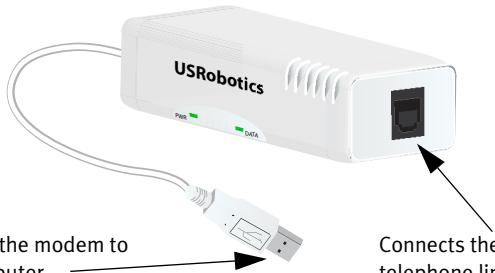
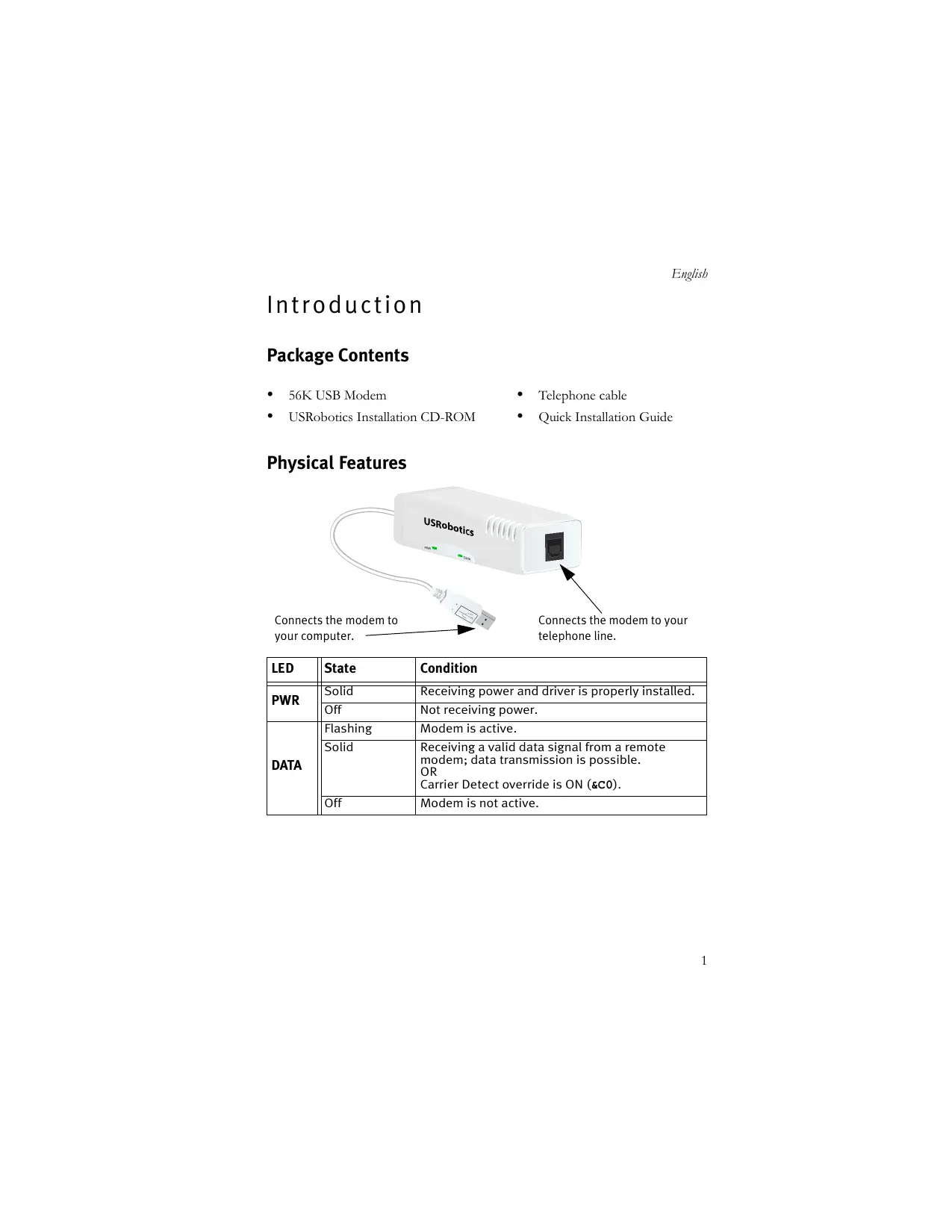
Connects the modem to your computer.
Connects the modem to your telephone line.
| LED | State | Condition |
| PWR | Solid | Receiving power and driver is properly installed. |
| Off | Not receiving power. | |
| DATA | Flashing | Modem is active. |
| Solid | Receiving a valid data signal from a remote modem; data transmission is possible. OR Carrier Detect override is ON (&c0). | |
| Off | Modem is not active. |
System Requirements
Operating System
Windows VistaTM, Windows® XP, or Windows® 2000
Linux kernel 2.4.20 or higher
Mac OS X 10.4.3 or later
Other
Intel Pentium III 600 MHz processor or equivalent
- CD-ROM drive
Available USB port
- 56K Compatible analogue telephone line
Country telephone adapter
Installation Instructions
Step One: Prepare for Installation
- Uninstall all other modems that are installed on your computer. For instructions, refer to the documentation for your previous modem.
- Unplug all telephone and power cords connected to any previous modem(s).
Step Two: Install the Hardware
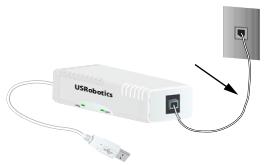
- Use the provided telephone cord to connect the phone jack on the modem to an analogue telephone wall jack.
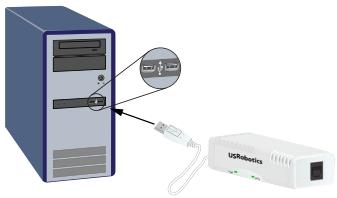
To connect a telephone to the same line as the 56K USB Modem for V.92 features such as "Modem on Hold", you will need to use a telephone line splitter to connect your modem and telephone to the same wall jack. - Insert the 56K USB Modem in to an available USB port on your computer.
Step Three: Install the Modem Driver
Windows Vista
You must be logged in as an administrator in order to install this modem.
- When the Found New Hardware Wizard appears, select Locate and install driver software (recommended).
- If prompted for permission, click Continue.
- If prompted, select Don't search online.
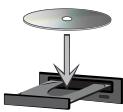
- When prompted, insert the USRobotics Installation CD-ROM into your CD-ROM drive.
Windows searches for the modem driver automatically.
OR
If prompted, click Next to instruct Windows to search for the driver.
- If prompted by Windows Security, click Install.*
Windows installs the modem driver. - When installation is complete, click Close.
- The PWR LED on the modem will light.
Congratulations. You have successfully completed the installation procedure.
Please register your 56K USB Modem at www.usr.com/productreg/.
Windows XP:
You must be logged in as an administrator in order to install this modem.
- When the Found New Hardware Wizard appears, select No, not this time and click Next.
- Select Install the software automatically (Recommended), but do not click Next.
If you accidentally clicked Next, click Back.
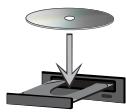
- Insert the USRobotics Installation CD-ROM into your CD-ROM drive.
Windows searches for the modem driver automatically.
OR
If prompted, click Next to instruct Windows to search for the driver.
- If Windows displays a message regarding logo testing, click Continue Anyway.*
- Click Finish to complete the installation.
- The PWR LED on the modem will light.
Congratulations. You have successfully completed the installation procedure.
Please register your 56K USB Modem at www.usr.com/productreg/.
Windows 2000:
You must be logged in as an administrator in order to install this modem.
- When the Found New Hardware Wizard appears, click Next.
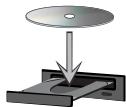
- Insert the USRobotics Installation CD-ROM into your CD-ROM drive.
- Select Search for a suitable driver for my device (recommended) and click Next.
- Select only CD-ROM drives and click Next.
- When Windows locates the driver for the modem, click Next.
- If a Digital Signature Not Found window appears, click Yes.*
- Click Finish to complete the installation.
- The PWR LED on the modem will light.
Congratulations. You have successfully completed the installation procedure.
Please register your 56K USB Modem at www.usr.com/productreg/.
Linux Kernel 2.4.20 or Higher
You need a USB modem driver (CDC ACM) compiled into a Linux kernel 2.4.20 or higher or as a loadable module for your kernel. Installation of the modem under these kernels is fully automatic provided your kernel has the Plug and Play module enabled (default). You do not need to install any drivers off the USRobotics installation CD-ROM.
Congratulations. You have successfully completed the installation procedure.
Please register your 56K USB Modem at www.usr.com/productreg/.
Mac OS X 10.4.3 or Later
- Insert the USRobotics Installation CD-ROM into your CD-ROM drive.
- Go to Finder and double-click the CD icon.
- Double click USRobotics 56K USB Modem pkg to launch the installer, and follow the on-screen instructions.
- Go to Apple > System Preferences > Network. If prompted, click OK.
- Select USB Modem from the Show menu.
- Select the Modem tab.
- Scroll through the Modem list, select USRobotics 56K USB Modem and click Apply Now.
The PWR LED on the modem may not light until you initiate a connection to your Internet service provider (ISP).
Congratulations. You have successfully completed the installation procedure.
Please register your 56K USB Modem at www.usr.com/productreg/.
Additional Software
You can now install any of the additional software on the USRobotics Installation CD-ROM, including optional software that complements your modem and provides full V.92 features.
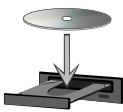
For your convenience, the USRobotics Installation CD-ROM provides additional optional software tools for Windows users that complements your modem, including the following:
- USR MoH enables the V.92 feature "Modem On Hold", which suspends your Internet connection when the modem detects an inbound telephone call.* For more information on using USR MoH, see the User Guide on the USRobotics Installation CD-ROM.
To see the additional software tools for your modem, select Software on the USRobotics Installation CD-ROM.
Troubleshooting
General
This procedure addresses a number of symptoms that you might experience with your modem.
- Verify that the cables are connected correctly. This includes all cables connecting the telephone line, the modem, and your computer.
- If possible, test your modem with a different phone cord and/or wall jack.
- Try a different USB port on the computer. If a USB hub is being used, try plugging directly into the USB port on the computer.
- Shut down and restart your computer.
- Verify that the modem was installed correctly:
Windows Vista
A. Click Windows Start > Control Panel.
B. Click Hardware and Sound.
C. Click Phone and Modem Options and then click the Modems tab. You should see U. S. Robotics V.92 USB Modem and a COM port setting. If you do not see a description of your modem, repeat the installation procedure.
D. On the Modems tab, select the description of your modem and click Properties.
E. On the Diagnostics tab, click the Query Modem button.
If you see a series of commands and responses from the modem, the installation was successful.
If you do not see a description of your modem, the installation was not successful; repeat the installation procedure.
Windows XP
A. Click Windows Start > Control Panel.
B. Click Phone and Modem Options and then click the Modems tab.
You should see U. S. Robotics V.92 USB Modem and a COM port setting. If you do not see a description of your modem, repeat the installation procedure.
C. Highlight the description of your new modem, and click Properties.
D. Click the Diagnostics tab and then click the Query Modem button.
If you see a series of commands and responses from the modem, the installation was successful.
If you do not see a description of your modem, the installation was not successful; repeat the installation procedure.
Windows 2000
A. Click Windows Start > Settings > Control Panel.
B. Double-click the Phone and Modem Options icon.
C. Click the Modemstab.
Make sure that U. S. Robotics V.92 USB Modem is selected. If you do not see a description of your modem, repeat the installation procedure.
D. Click the Properties button.
E. Click the Diagnostics tab.
F. Click the Query Modem button.
If you see a series of commands and responses from the modem, the installation was successful.
If you do not see a series of commands and responses, the installation was not successful; repeat the installation procedure.
Linux 2.4.20 or higher
A. Verify you have a USB modem driver (CDC ACM) compiled into a Linux kernel 2.4.20 or higher or as a loadable module for your kernel.
B. Verify the PWR LED on the modem is lit.
C. Unplug the USB modem from your computer, then plug the modem back in. If the PWR LED does not light, try another USB port on your computer.
D. For advanced troubleshootinging information, see the Linux folder on the USRobotics Installation CD-ROM
Mac 10.4.3 or later
A. Go to Apple > System Preferences > Network.
B. Select USB Modem from the Show menu. If USB Modem is not listed, repeat the installation procedure.
C. Select the Modem tab.
D. Verify that USRobotics 56K USB Modem is shown as your current modem.
If the modem is not selected; scroll through the Modem list, select USRobotics 56K USB Modem and click Apply Now.
If the installation was still not successful; repeat the installation procedure making sure you plug the modem directly in to a USB port on your computer.
Additional Information
For regulatory and warranty information, see the User Guide on the USRobotics Installation CD-ROM.
For operation and configuration information, see the User Guide on the USRobotics Installation CD-ROM.
For troubleshooting and technical support, see:
- The User Guide on the USRobotics Installation CD-ROM.
- The Support section of the USRobotics Web site at www.usr.com/support/.
Many of the most common difficulties that users experience have been addressed in the FAQ and Troubleshooting Web pages for your 56K USB Modem. The Support pages also contain current support contact information and documentation.
- The support contact information on the last page of this guide.
CE Compliance
Declaration of Conformity
We, U.S. Robotics Corporation of 935 National Parkway, Schaumburg, Illinois, 60173-5157 USA, declare under our sole responsibility that the product, USRobotics 56K USB Modem, Model 5637, to which this declaration relates, is in conformity with the following standards and/or other normative documents.
EN60950-1
EN55022
EN55024
We hereby declare that the above named product is in conformity with the essential requirements and other relevant provisions of Directive 1999/5/EC.
The conformity assessment procedure referred to in Article 10(3) and detailed in Annex II of Directive 1999/5/EC has been followed.
An electronic copy of the original CE Declaration of Conformity is available at the U.S. Robotics website: www.usr.com
Network Compatibility Declaration
This equipment is designed to work satisfactorily on all European Union PSTN (Public Switching Telephone Network) networks.
This equipment is supplied with a suitable PSTN connector for the country in which it was supplied. If it is required to use this equipment on a different network to the one for which it was supplied, the user is advised to contact the vendor for guidance regarding connection.
Introduction
Contenu de la boîte
56K USB Modem
- CD-ROM d'installation USRobotics
www.usr.com/productreg/.
Windows XP:
www.usr.com/productreg/.
www.usr.com/productreg/.
www.usr.com/productreg/.
www.usr.com/productreg/
United Arab Emirates
www.usr.com/emailsupport/me o8oo 877 63
United Kingdom
www.usr.com/emailsupport/uk o87o 844 4546