
56K PCI FAXMODEM V92 - Modem US ROBOTICS - Free user manual and instructions
Find the device manual for free 56K PCI FAXMODEM V92 US ROBOTICS in PDF.


| Product Type | Internal PCI modem |
| Supported Standards | V.92, V.90, V.34, V.32bis, Fax Group 3 |
| Maximum Download Speed | 56 kbit/s (V.92/V.90), limited to 53.3 kbit/s per FCC |
| Maximum Upload Speed | 48 kbit/s (V.92), 33.6 kbit/s (V.34) |
| Fax Speed | Up to 14.4 kbit/s |
| Interface | 32-bit PCI bus |
| Connectors | 1 RJ-11 jack for phone line, 1 RJ-11 jack for telephone |
| Required Line Type | Standard analog line (not digital line) |
| Compatible Operating Systems | Windows 98, Windows Me, Windows 2000, Windows XP |
| Power | Provided by PCI bus (no external power) |
| Main Functions | Internet connection, fax, Modem On Hold function (V.92), Internet call notification |
| Included Software | Drivers, Instant Update software, Internet Call Notification software |
| Maintenance and Cleaning | Unplug the computer before cleaning; use a dry, lint-free cloth; do not use liquids or aerosols |
| Safety | Unplug the computer and all cables before installation; discharge static electricity by touching an unpainted metal surface |
| Spare Parts and Repairability | Not user-serviceable; contact USRobotics technical support for any repairs |
Frequently Asked Questions - 56K PCI FAXMODEM V92 US ROBOTICS
User questions about 56K PCI FAXMODEM V92 US ROBOTICS
0 question about this device. Answer the ones you know or ask your own.
Ask a new question about this device
Download the instructions for your Modem in PDF format for free! Find your manual 56K PCI FAXMODEM V92 - US ROBOTICS and take your electronic device back in hand. On this page are published all the documents necessary for the use of your device. 56K PCI FAXMODEM V92 by US ROBOTICS.
USER MANUAL 56K PCI FAXMODEM V92 US ROBOTICS
U.S. Robotics Corporation
935 National Parkway
Schaumburg, Illinois
60173-5157
USA
No part of this documentation may be reproduced in any form or by any means or used to make any derivative work (such as a translation, transformation, or adaptation) without written permission from U.S. Robotics Corporation. U.S. Robotics Corporation reserves the right to revise this documentation ad to make changes in the products and/or content of this document from time to time without obligation to provide notification of such revision or change. U.S. Robotics Corporation provides this documentation without warranty of any kind, either implied or expressed, including, but not limited to, implied warranties of merchantability and fitness for a particular purpose. If there is any software on removable media described in this documentation, it is furnished under a license agreement included with the product as a separate document, in the hard copy documentation, or on the removable media in a directory named LICENSE. If you are unable to locate a copy, please contact USRobotics and a copy will be provided to you.
UNITED STATES GOVERNMENT LEGEND If you are a United States government agency, then this documentation and the software described herein are provided to you subject to the following:
All technical data and computer software are commercial in nature and developed solely at private expense. Software is delivered as "Commercial Computer Software" as defined in DFARS 252.227-7014 (June 1995) or as a "commercial item" as defined in FAR 2.101(a) and as such is provided with only such rights as are provided in USRobotics standard commercial license for the Software. Technical data is provided with limited rights only as provided in DFAR 252.227-7015 (Nov 1995) or FAR 52.227-14 (June 1987) whichever is applicable. You agree not to remove or deface any portion of any legend provided on any licensed program or documentation contained in, or delivered to you in conjunction with, this Administrator Guide.
Copyright © 2005 U.S. Robotics Corporation. All rights reserved. U.S. Robotics and the USRobotics logo are registered trademarks of U.S. Robotics Corporation. Other product names are for identification purposes only and may be trademarks of their respective companies. Product specifications subject to change without notice.
Contents
English Installation Instructions 1
English Installation Instructions
Prepare for installation.

CAUTION: To avoid the risk of electrical shock, make sure your computer and all peripheral devices are turned off and unplugged. Disconnect all telephone cables from any existing modems before opening the computer's cover. Touch an unpainted metal area of your computer's case to ground yourself, which protects your equipment from electrostatic discharge.

NOTE: USRobotics recommends uninstalling any other modems that are installed in your system and unplugging all telephone cords connected to these modems. Refer to your previous modem's documentation for instructions.
Write your new USRobotics modem's serial number in the box below. The serial number is located on the white bar code sticker on the modem and on the modem's box. If you ever need to call our Technical Support department, you will need this number and your Model Number to receive assistance.
| Model Number | Serial Number |
| 5670 |
Install the Modem.
Step 1: Physically install the modem in your computer.
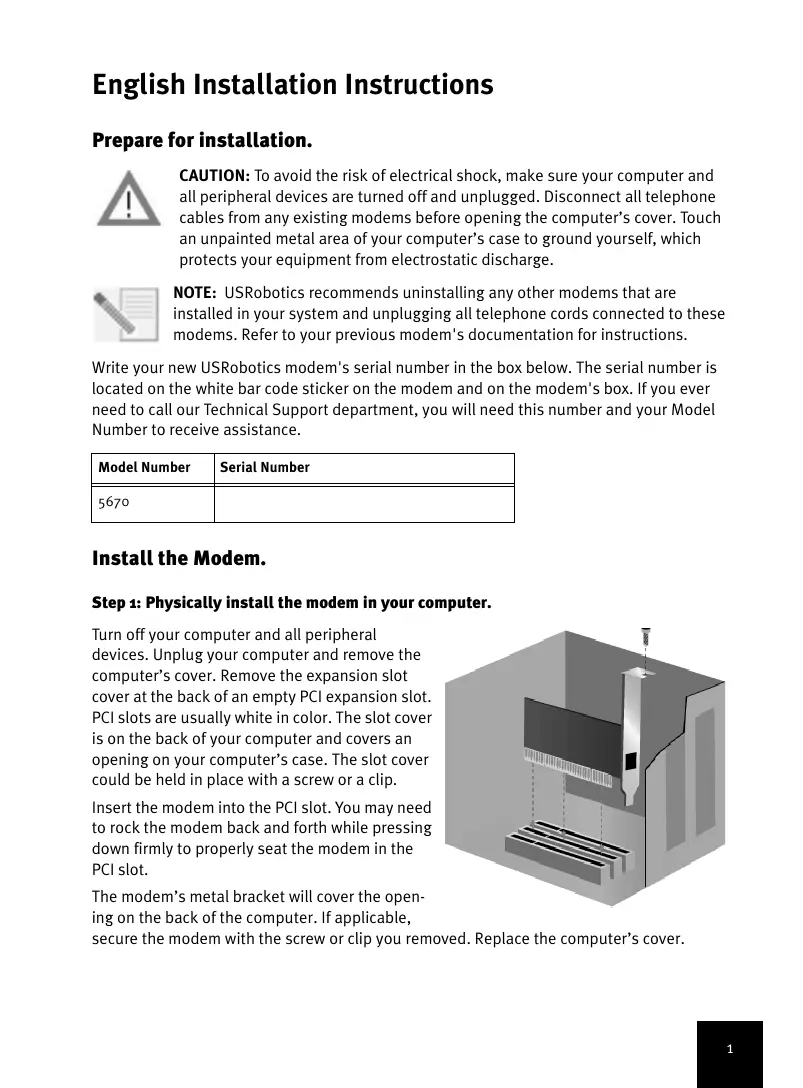
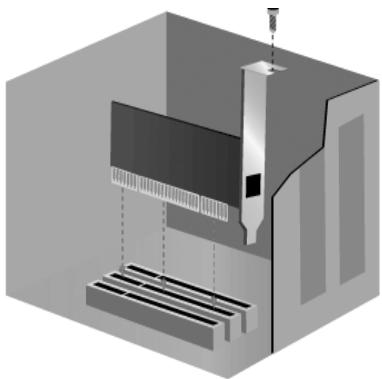
Turn off your computer and all peripheral devices. Unplug your computer and remove the computer's cover. Remove the expansion slot cover at the back of an empty PCI expansion slot. PCI slots are usually white in color. The slot cover is on the back of your computer and covers an opening on your computer's case. The slot cover could be held in place with a screw or a clip.
Insert the modem into the PCI slot. You may need to rock the modem back and forth while pressing down firmly to properly seat the modem in the PCI slot.
The modem's metal bracket will cover the opening on the back of the computer. If applicable,
secure the modem with the screw or clip you removed. Replace the computer's cover.
Step 2: Connect the modem to an analogue phone line.
Plug one end of the provided phone cord into the jack on the modem labeled l . Plug the other end into an analogue phone wall jack. When you are not using your modem, you can use a telephone by plugging the telephone's cord into the modem's l jack.

CAUTION: The USRobotics 56K PCI Faxmodem requires a standard analogue telephone line. Do not connect your modem to a digital telephone line. Digital lines are commonly used in office buildings and hotels. If you are unsure whether your line is analogue or digital, ask your network administrator or your local telephone company.
Step 3: Install the modem drivers.
Driver installation varies by operating system. Follow the instructions below for your version of Windows.
Windows XP

NOTE: If at any time during the installation you are prompted to select the location of your installation drivers, select the following location on the Installation CD-ROM (assuming D: is your CD-ROM drive):
D:\2000 XP
- Reconnect your computer and peripherals and turn your computer on.
- Log into Windows.
- When the Found New Hardware Wizard appears, select No, not this time and click Next.
- Insert the Installation CD-ROM into your CD-ROM drive.
- When a Hardware Installation warning appears, click Continue Anyway*.
- When Windows is finished installing the drivers, click Finish.
Windows 2000

NOTE: If at any time during the installation you are prompted to select the location of your installation drivers, select the following location on the Installation CD-ROM (assuming D: is your CD-ROM drive):
D:\2000 XP
- Reconnect your computer and peripherals and turn your computer on.
- Log into Windows.
-
When the Found New Hardware Wizard appears, click Next, then insert the Installation CD-ROM into your CD-ROM drive.
-
Select Search for a suitable driver for my device (Recommended) and click Next.
- Select CD-ROM drives and click Next.
- When Windows locates the correct drivers for the PCI Simple Communications Controller, click Next.
If a "Digital Signature Not Found" screen appears, click Yes to continue.**
- When Windows is finished installing the drivers, click Finish.
Windows Me

NOTE: If at any time during the installation you are prompted to select the location of your installation drivers, select the following location on the Installation CD-ROM (assuming D: is your CD-ROM drive):
D:\
- Reconnect your computer and peripherals and turn your computer on.
- Log into Windows.
- When the Add New Hardware Wizard appears, insert the Installation CD-ROM into your CD-ROM drive.
- Install the U.S. Robotics V.92 PCI Faxmodem Enumerator as follows:
A. Select Automatic search for a better driver (Recommended) and click Next.
B. When the wizard is finished installing the drivers, click Finish.
The wizard then begins a search for drivers for the U.S. Robotics V.92 PCI Faxmodem.
- Install the U.S. Robotics V.92 PCI Faxmodem as follows.
A. Verify that Automatic search for a better driver (Recommended) is selected and click Next.
B. When Windows is finished installing the drivers, click Finish.
Windows 98

NOTE: If at any time during the installation you are prompted to select the location of your installation drivers, select the following location on the Installation CD-ROM (assuming D: is your CD-ROM drive):
D:\
- Reconnect your computer and peripherals and turn your computer on.
- Log into Windows.
- When the Add New Hardware Wizard appears, insert the Installation CD-ROM into your CD-ROM drive and click Next.
- Install the U.S. Robotics V.92 PCI Faxmodem Enumerator as follows:
A. Select Search for the best driver for your device (Recommended) and click Next.
B. Select CD-ROM and click Next.
C. When the wizard locates the correct drivers for the U.S. Robotics V.92 PCI Faxmod Enumeration, click Next.
D. When the wizard is finished installing the drivers, click Finish.
The wizard then begins a search for drivers for the U.S. Robotics V.92 PCI Faxmodem.
- Install the U.S. Robotics V.92 PCI Faxmodem as follows.
A. Click Next.
B. Select Search for the best driver for your device (Recommended) and click Next.
C. Select CD-ROM and click Next.
D. When Windows locates the correct drivers for the U.S. Robotics V.92 PCI Faxmodem, click Next.
E. When Windows is finished installing the drivers, click Finish.
Windows 95

NOTE: If at any time during the installation you are prompted to select the location of your installation drivers, select the following location on the Installation CD-ROM (assuming D: is your CD-ROM drive):
D:\
- Reconnect your computer and peripherals and turn your computer on.
- Insert the Installation CD-ROM into your CD-ROM drive before Windows opens.

NOTE: You need to install both the U.S. Robotics V.92 PCI Faxmodem Enumerator and the U.S. Robotics V.92 PCI Faxmodem.
- When the New Hardware Found or Update Device Driver Wizard appears, follow the on-screen instructions.
Install the Software.
Insert the Installation CD-ROM into your CD-ROM drive. The Installation CD-ROM window should automatically appear.
If your Installation CD-ROM is already in the drive, and the Installation CD-ROM interface is not displayed, eject and reinsert the Installation CD-ROM. If the CD-ROM interface still does not appear, click Windows Start and then Run. Type D:\setup.exe in the "Run" dialog box. (If your CD-ROM drive uses a different letter, type that letter in place of "D.")
Install the Instant Update software.
The Instant Update software automatically notifies you of any updates to your modem's code.
To Install the Instant Update Software:
- At the Installation CD-ROM interface, click Software.
- Select Instant Update and click Install.
- Follow the on-screen instructions to install the Instant Update software.
Install the Internet Call Notification software.
Internet Call Notification enables the V.92 feature, "Modem On Hold," which allows you to suspend your Internet connection when there is an inbound telephone call. If you are connecting to a service provider that supports V.92, you will receive a message informing you of an incoming call. In addition, if you subscribe to Caller ID service, the number of the incoming call will be displayed in the computer's message window. You will then have the option to accept the call or to ignore it. If you choose to accept the call, another message will appear notifying you of the length of time that the provider's system will wait on hold before the data connection is terminated. You can then return to the connection when the call is completed without losing the connection.
If you are connecting to a service provider that does not support V.92, you will receive a message informing you of an incoming call. You will then have the option to accept the call or to ignore it. If you choose to accept the call, your data connection will be terminated.
To Install the Internet Call Notification software:
- At the Installation CD-ROM interface, click Software.
- Select USRobotics Internet Call Notification and click Install.
- Follow the on-screen instructions to complete the installation of the software.
Register your modem.
When you register your modem online, USRobotics will use your information to:
Inform you of future product support notices, alerts, and changes to our support offerings.
- Invite you to participate in market research, new product definition studies, and beta test programs.
- Invite you to participate in promotional campaigns.
We respect our customers' privacy. USRobotics will not sell or provide any personal information that identifies you or any individual to any outside source.
To register your modem:
- Connect to your Internet service provider.
- At the Installation CD-ROM interface, click Support.
- Select Product Registration and click the link to register your modem.
You can also register your modem online at
http://www.usr.com/productreg
Uninstallation Instructions
Step 1: Uninstall the modem drivers.
Windows XP
- Click Windows Start and then Control Panel.
-
Double-click Add or Remove Programs.
-
Select U.S. Robotics V.92 PCI Faxmodem.
- Click Change/Remove.
Windows 2000
- Click Windows Start, Settings, and then Control Panel.
- Double-click Add/Remove Programs.
- Select U.S. Robotics V.92 PCI Faxmodem.
- Click Change/Remove.
Windows 95/98/Me
- Click Windows Start, Settings, and then Control Panel.
- Double-click Add/Remove Programs.
- Select U.S. Robotics V.92 PCI Faxmodem.
- Click Add/Remove.
Step 2: Finish removing the modem from the computer.

CAUTION: To avoid the risk of electrical shock, make sure your computer and all peripheral devices are turned off and unplugged. Disconnect all telephone cables from any existing modems before opening the computer's cover. Touch an unpainted metal area of your computer's case to ground yourself, which protects your equipment from electrostatic discharge.
Turn off your computer and all peripheral devices. Unplug your computer and disconnect all telephone cables from any modems. Remove the computer's cover. Remove the modem from the PCI expansion slot.
Troubleshooting
If you have any difficulty with your modem, first make sure that it was installed correctly.
- Make sure that your modem is physically installed correctly in your computer. With your computer turned off, you will need to press the modem in firmly so that it is seated properly in its slot. When the modem is installed correctly, you will no longer see any part of the gold edge. See Step 1 in this guide for complete instructions. If your modem still does not work, turn off your computer, remove the modem, and reinstall it in another PCI slot.
- Next, make sure that the drivers have been installed correctly. Follow the instructions for your operating system:
Windows XP
A. Click Windows Start and then Control Panel.
B. Double-click System.
If you do not see the System icon, make sure you are in Classic View by clicking Switch to Classic View on the upper left side of the window.
C. Click the Hardware tab and then the Device Manager button.
D. Click to expand Modems.
You should see U.S. Robotics V.92 PCI Faxmodem listed. This means that the installation was a success.
If your modem is not listed, shut down and restart your computer. If it is still not listed, go to the next Troubleshooting category in this guide, "My computer isn't recognising my modem." or uninstall your modem and reinstall it.
Windows 2000
A. Click Windows Start, Settings, and then Control Panel.
B. Double-click System.
C. Click the Hardware tab and then the Device Manager button.
D. Click to expand Modems.
You should see U.S. Robotics V.92 PCI Faxmodem listed. This means that the installation was a success.
If your modem is not listed, shut down and restart your computer. If it is still not listed, go to the next Troubleshooting category in this guide, "My computer isn't recognising my modem." or uninstall your modem and reinstall it.
Windows 95/98/Me
A. Click Windows Start, Settings, and then Control Panel.
B. Double-click the System icon.
C. Click the Device Manager tab, then click to expand HSFMODEM.
You should see U.S. Robotics V.92 PCI Faxmodem Enumerator listed.
D. Click to expand Modem or Modems.
You should see U.S. Robotics V.92 PCI Faxmodem listed. This means that the installation was a success.
If your modem is not listed, shut down and restart your computer. If it is still not listed, go to the next Troubleshooting category in this guide, "My computer isn't recognising my modem." or uninstall your modem and reinstall it.
My computer isn't recognising my modem.
If Plug and Play fails to find the modem as new hardware, you need to check the following:
- With your computer turned off, confirm that the modem is firmly seated in the PCI slot. The modem should sit evenly in the slot with no part of the gold edge showing.
- With your computer turned off, try installing the modem in another PCI slot.
- Check your computer manual to make sure that the PCI slot is configured properly.
My modem seemed to install correctly but doesn't work or is performing erratically.
Possible solution:
Hardware resources are not properly assigned to your modem. Although PCI devices can share IRQs, there are devices on the market which do not share IRQs properly. If the modem has been assigned to an IRQ with one of these devices, the modem may perform erratically.
Windows XP
- Click Windows Start and then Control Panel.
- Double-click System.
If you do not see the System icon, make sure you are in Classic View. Click Switch to Classic View on the upper left side of the window.
- Click the Hardware tab and then the Device Manager button.
- Click to expand Modems and look for U.S. Robotics V.92 PCI Faxmodem.
If a yellow exclamation point appears over the modem's description, your modem is in conflict with another device.
With your computer turned off, try installing the modem in another PCI slot. Check your computer manual to make sure that the PCI slot is configured properly.
If an available IRQ does not exist, you may need to remove, disable, or relocate another device. Refer to that device's documentation for more information about removing, disabling, or relocating it.
Windows 2000
- Right-click the My Computer icon on your desktop.
- Click Properties, click the Hardware tab, then click Device Manager.
- In the list of devices, double-click the Modem's category and look for your modem's description.
If a yellow exclamation point appears over the modem's description, your modem is in conflict with another device. With your computer turned off, try installing the modem in another PCI slot. Check your computer manual to make sure that the PCI slot is configured properly.
If an available IRQ does not exist, you may need to remove, disable, or relocate another device. Refer to that device's documentation for more information about removing, disabling, or relocating it.
Windows 95/98/Me
- Right-click the My Computer icon on your desktop.
- Click Properties and then click the Device Manager tab.
- In the list of devices, double-click the Modem or Modems category and look for your modem's description.
If a yellow exclamation point appears over your modem's description, your modem is in conflict with another device. With your computer turned off, try installing the modem in another PCI slot. Check your computer manual to make sure that the PCI slot is configured properly.
If an available IRQ does not exist, you may need to remove, disable, or relocate another device. Refer to that device's documentation for more information about removing, disabling, or relocating it.
My software isn't recognising my modem.
Possible solution:
Your communications software may not function properly if you have more than one version of the software installed, you are using an older version, or you have more than one communications application installed on your system. We highly recommend using the communications software provided with your modem on the Installation CD-ROM.
Possible solution:
Your software's COM port settings may be incorrect. There should be a place in the Setup section of your software that addresses port settings. Make sure the software's port settings match those for your modem. To check which COM port your modem is using, check the settings as described in the beginning of the "Troubleshooting" section of this guide. Check your communication software's documentation for instructions on adjusting the port settings in your software.
Possible solution:
If you are using software which uses a Windows modem description and you had a previous modem installed, you may need to update your software's setting to reflect the use of the USRobotics V.92 PCI Faxmodem.
Possible solution:
If you are using Windows-based software which has its own list of modems to select from, you may need to update the software for use with this modem. For best operation, select Standard Modem or Hayes Compatible from the list of manufacturers. You may also need to select the modem's COM port. To check which COM port your modem is using, check the settings as described in the beginning of the "Troubleshooting" section of this guide.
Possible solution:
Windows 2000/XP
Make sure you have uninstalled all previously installed modems from your system.
Windows 95/98/Me
If you are using Dial-Up Networking, it may not be configured correctly. Check your configuration and make sure that you have your new USRobotics modem selected.
- Double-click My Computer,
- Windows Me users only: double-click Control Panel.
- Double-click Dial-Up Networking, right-click the connection you are trying to use, and click Properties.
My modem won't dial out or doesn't answer incoming calls.
For Both Dialing and Answering Problems
Possible solution:
You may have a bad phone cord connection to your modem, or your phone cord may be plugged into the wrong jack. The phone cord should be plugged into the jack on the modem and into the wall jack. Use the phone cord included in your modem's box, if possible.
Possible solution:
You may have devices between the modem and the phone jack. There should be no line splitters, fax machines, or other devices between the modem and the wall jack.
Office Users
Possible solution:
You may have plugged your modem's phone cord into a digital line. This will cause permanent damage to your modem. Contact the department responsible for your phone system if you are unsure whether or not your phone line is digital.
Possible solution:
If your phone system requires dialing "9" to access an outside line, be sure to add "9" before the number you are dialing.
Voice Mail Users
Possible solution:
If you have voice mail provided by your local phone company, your dial tone may be altered when messages are waiting. Retrieve your voice mail to restore your normal dial tone.
My modem sounds like it's trying to connect to another modem but fails.
Possible solution:
You may have a poor connection. All calls are routed differently, so try placing the call again.
My modem isn't achieving a 56K Internet connection.

NOTE: Due to current FCC regulations, maximum download speed is limited to 53.333 bps.
The V.92 and V.90 protocols allow for download speeds of up to 56K and the V.92 protocol adds upload speeds of up to 48K, but line conditions may affect the actual speeds during a given connection. Due to unusual telephone line configurations, some users will not be able to take full advantage of V.92 or V.90 technology at this time.
In order to achieve a V.92 or V.90 connection:
- The server you're dialing into must support and provide a digital V.92 or V.90 signal. Your ISP can provide you with a list of dial-up connections and information on what those connections currently support.
- The telephone line between your ISP and your modem must be capable of supporting a 56K connection and contain only one digital-to-analogue conversion. The 56K signal from your ISP begins as a digital signal. Somewhere between the ISP and your modem, there will be a digital-to-analogue signal conversion so that your modem can receive the data. There must be no more than one digital-to-analogue signal conversion in the path from your ISP to your modem. If more than one analogue-to-digital conversion occurs, your connect speeds will default to V.34 (33.6 Kbps). There may also be impairments on the local lines between your ISP and your modem. These impairments can prevent or limit V.92 or V.90 connection speeds. All telephone calls are routed differently, so you should try making your connection several times. One way to test this is to dial into a long distance location. Long distance lines are often much clearer than local lines. It is important to note that telephone companies are constantly upgrading their systems. Lines that do not support 56K today may support 56K in the near future.
- Your modem must be connecting to a V.92 or V.90 server. A pair of 56K modems will not connect to each other at 56K speeds.
Support Resources
If you have not fixed your problem after trying the suggestions in the "Troubleshooting" section, you can receive additional help via one of these convenient resources:
World Wide Web
The USRobotics Web site contains useful product information, documents, downloads, and updated FAQs.
http://www.usr.com/support
Are You Still Having Problems?
- Contact the dealer who sold you the modem.
The dealer may be able to troubleshoot the problem over the phone or may request that you bring the modem back to the store for service.
- Contact the USRobotics Technical Support Department. Questions about USRobotics modems can be answered by technical support specialists.
Country
United States and Canada
Webmail
www.usr.com/emailsupport
Telephone
(888) 428-9450
Hours
8:00 A.M.-6:00 P.M. Central Time Monday-Friday
For regulatory information and warranty information, see the User Guide on the USRobotics Installation CD-ROM.
http://www.usr.com/productreg