
HD-AVU2 - External hard drive BUFFALO - Free user manual and instructions
Find the device manual for free HD-AVU2 BUFFALO in PDF.

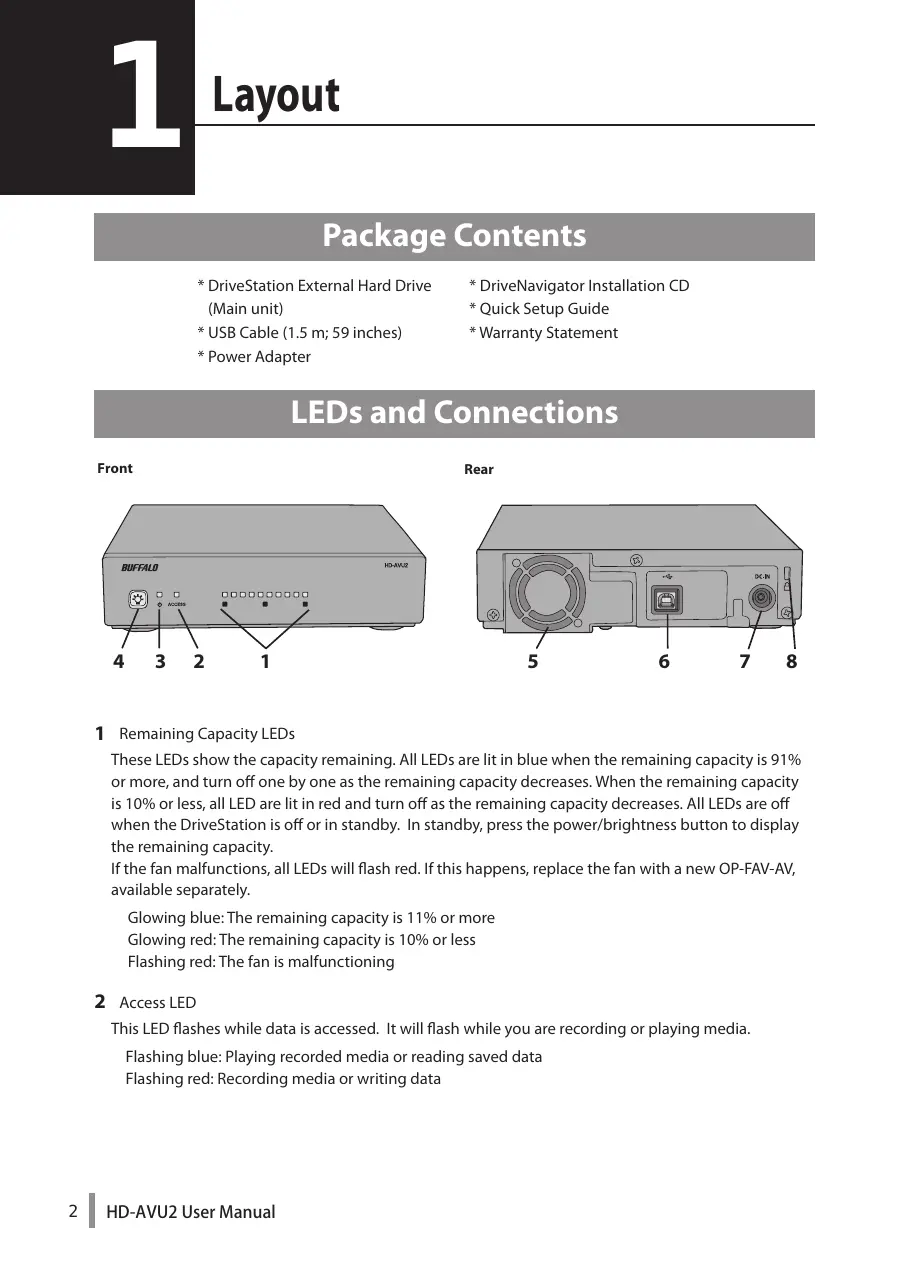


| Product type | External USB 2.0 hard drive |
| Brand | BUFFALO |
| Model | HD-AVU2 |
| Dimensions (L x H x D) | 174 x 45 x 158 mm |
| Weight | Approximately 1 kg |
| Interface | USB 2.0 (compatible with USB 1.1) |
| Connector | USB 2.0 Type B |
| Maximum transfer speed | 480 Mbps |
| Default formatting | FAT32, 1 partition |
| Remaining capacity indicated by LED | Yes, 5 blue/red indicators |
| Power supply | External AC adapter, 100-240 V AC, 50/60 Hz, power consumption 12 W (average) |
| Main functions | Automatic backup (Backup Utility), transfer acceleration (TurboPC/TurboCopy), RAM disk (RAMDISK), encryption (SecureLockMobile), power management (Eco Manager) |
| Compatible operating systems | Windows 7 (32/64-bit), Vista (32/64-bit), XP (32-bit), Mac OS X 10.4 or later |
| Cooling fan | Yes, replaceable (model OP-FAV-AV available separately) |
| Operating temperature | 5°C to 35°C |
| Operating humidity | 20% to 80% (non-condensing) |
| Maintenance and cleaning | Clean with a dry, soft cloth. Do not use abrasive or liquid products. |
| Safety | Do not disconnect during access (blinking LED). Use the safe removal procedure of the operating system. Do not place heavy objects on it. |
| Spare parts and repairability | Replaceable fan (OP-FAV-AV). Standard AC adapter and USB cable. |
| Package contents | Hard drive, USB cable (1.5 m), AC adapter, installation CD, quick start guide, warranty statement |
Frequently Asked Questions - HD-AVU2 BUFFALO
User questions about HD-AVU2 BUFFALO
0 question about this device. Answer the ones you know or ask your own.
Ask a new question about this device
Download the instructions for your External hard drive in PDF format for free! Find your manual HD-AVU2 - BUFFALO and take your electronic device back in hand. On this page are published all the documents necessary for the use of your device. HD-AVU2 by BUFFALO.
USER MANUAL HD-AVU2 BUFFALO
USB 2.0 External Hard Drive
HD-AVU2
User Manual
Layout 2
Recommended Usage 2
Software 3
Specifications 10
Table of Contents
1 Layout 2
Package Contents 2
LEDs and Connections 2
2 Recommended Usage 4
Warning. 4
How To Unplug This Unit 6
For Windows 6
For Macintosh 7
3 Software 8
Installing software on a PC 8
Software 9
TurboPC. 9
TurboCopy 9
Backup Utility. 9
RAMDISK Utility 9
Buffalo Tools Launcher 9
SecureLockMobile. 9
eco Manager. 9
Disk Formatter 9
4 Specifications 10
Specifications 10
Package Contents
-
DriveStation External Hard Drive (Main unit)
-
DriveNavigator Installation CD
-
USB Cable (1.5 m; 59 inches)
-
Quick Setup Guide
-
Power Adapter
-
Warranty Statement
LEDs and Connections
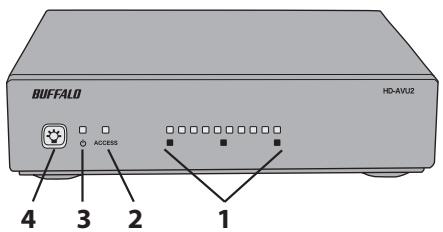
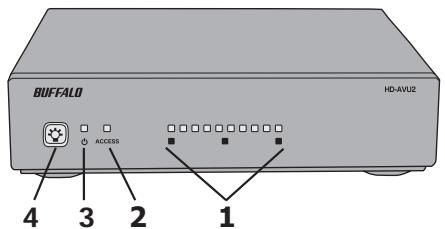
Front
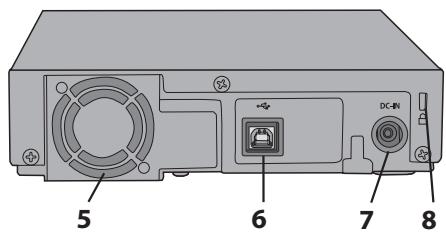
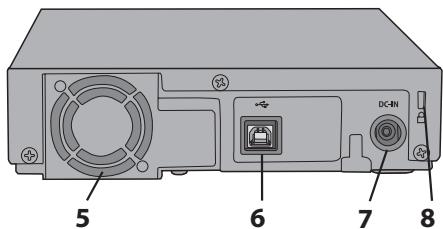
Rear
1 Remaining Capacity LEDs
These LEDs show the capacity remaining. All LEDs are lit in blue when the remaining capacity is 91% or more, and turn off one by one as the remaining capacity decreases. When the remaining capacity is 10% or less, all LED are lit in red and turn off as the remaining capacity decreases. All LEDs are off when the DriveStation is off or in standby. In standby, press the power/brightness button to display the remaining capacity.
If the fan malfunctions, all LEDs will flash red. If this happens, replace the fan with a new OP-FAV-AV, available separately.
Glowing blue: The remaining capacity is 11% or more
Glowing red: The remaining capacity is 10% or less
Flashing red: The fan is malfunctioning
2 Access LED
This LED flashes while data is accessed. It will flash while you are recording or playing media.
Flashing blue: Playing recorded media or reading saved data
Recording media or writing data
3 Power LED
This LED shows whether or not the DriveStation is powered on.
Glowing blue : Power is on
Glowing red : Standby mode (power will turn on when your computer is powered on)
Off : Power is off
4 Power/Brightness Button
This button toggles main power on and off. While power is on, it can also adjust LED brightness. In standby, press this button to show remaining capacity for 10 seconds.
Turn on
Press the button to turn on power.
Turn off
Hold the button in for 3 seconds to turn power off.
LED brightness
Press the button while the power is on to adjust LED brightness. Each time your press the button it cycles through the brightness levels Bright -> Normal -> Dark -> Off.
Checking remaining capacity from standby mode
If the DriveStation is in standby mode, press the button to light up the remaining capacity LEDs for 10 seconds..
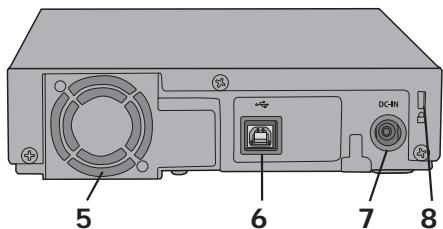
5 Cooling Fan
6 USB Connector
7 Power Connector
8 Security Slot
Warning
To avoid damage to your data, follow these precautions:
- Never configure this unit as a destination for virtual memory.
-
Never perform any of the following operations while accessing this unit:
-
Unplug the USB or power cable
- Turn off your computer
-
Log off, log on, or switch users
-
AUTO Power Management with PC Feature
-
This device's power turns automatically ON as the computer it is connected to is ON.
- You must connect the AC adapter to this device. The power supplied from USB is not enough to operate this device.
- It may take a while until the power LED of this device is lit in red after you turn off your computer.
-
If this device is connected to an AC adapter with USB hub, the power LED of this device may not be lit even though you turn on your computer. In such a case, unplug this device from the USB hub.
-
This unit supports hot-plugging. You can plug or unplug the USB cable while this unit or your PC is on. However, never unplug the USB cable while the Power/Access LED is flashing, or your data may be lost or damaged.
- If you want to use with other USB devices, use a USB hub manufactured by Buffalo (sold separately).
- Always refer to your PC and peripheral devices.
- You cannot boot an OS from this drive.
- Do not lean any object against this unit. It may cause the unit to malfunction.
- If you use this unit with Windows 7, Vista, or XP on a computer with a USB 1.1 port, you may receive a message indicating that a high-speed USB hub is connected to a non high-speed USB device. To continue, click "X".
- The maximum size of a file on the default FAT 32 partition is 4 GB. To use the drive with files larger than 4 GB, reformat the drive with NTFS or Mac OS extended, which allow larger file sizes.
- If you are going to recover from Macintosh, disconnect this unit.
It may not be recovered without removing this unit.
- You may hear some noise while this unit is working, especially while booting or being accessed. This is normal.

This device becomes hot
This device releases the heat from inside through the case. The surface of the case will be hot, but it is normal. Even when the power is off, the device is still warm due to the standby current. If the heat stays in the case, this device may malfunction.
- Do not place this unit vertically when using it.
-
Do not cover this device with such as a cloth.
-
A delayed write error may be displayed by some computers when they return from an energy-saving state. If this happens, detach your drive before putting your computer into an energy-saving mode.
- If the power/access LED does not turn off when you turn off your computer, unplug the USB cable from the drive.
- If you configure multiple partitions on the drive, format each volume before use.
- Mac OS X may not recognize this device at boot. If this happens, unplug the USB cable, then plug it again after a few seconds.
- If your Windows computer will not boot while this drive is connected, then connect the drive to your computer after rebooting Windows. Also, refer to your computer's manual to change the BIOS setting to boot from an internal hard drive if you want to turn on or off your computer while this unit is connected.
- The cooling fan inside the DriveStation operates only if the internal temperature becomes high.
- To reduce the risk of receiving or causing the electromagnetic interference, please use the USB cable supplied.
- When the drivers for this unit are installed, devices are added to [Device Manager].
To display [Device Manager], follow the instruction below:
Windows 7.......Click [Start], right click [Computer], and click [Manage]. If "Do you want to allow the following program to make changes to this computer?", click [Yes] and click [Device Manager].
Windows Vista..................................................Click [Start], right click [Computer], and click [Manage]. If "A program needs your permission to continue" is displayed, click [Continue] and click [Device Manager].
Windows XP..................................................Click [Start] and right click [My Computer]. Click [Manage] and then [Device Manager].
| Location to be added | Device name to be added |
| [Universal Serial Bus controllers] | [USB Mass Storage Device] |
| [Disk drives] | [BUFFALO External HDD USB Device] |
How To Unplug This Unit
For Windows
Unplugging the DriveStation incorrectly can corrupt data. Please be careful! If your computer is turned off, then it is always safe to unplug the DriveStation.
If your computer is turned on, please follow the procedure below to unplug your DriveStation. This example shows Vista, but other versions of Windows are similar.
1 Click the icon (Windows 7/ Vista)/ (Windows XP) in the syntax.
2 When the menu opens, click the device name.
| OS | Device name |
| Windows 7 | "Eject USB-SATA Bridge - HD-AVU2 (E:)" |
| Windows Vista/XP | "Safely remove USB Mass Storage Device - Drive (E:)" |

Notes:
- If TurboPC is enabled, then "TurboPC" may be part of the device name for Vista or Windows XP.
- In these examples, the DriveStation is drive E in Windows. Your DriveStation may have a different drive letter.
3 A message that indicates you can safely remove the unit will appear. Click [OK] and unplug the DriveStation.
Notes:
- You do not have to click [OK] if your OS is Windows 7 or Windows XP. The message will automatically disappear.
- If you've reformatted the DriveStation with NTFS partitions, the procedure above may not dismount your DriveStation. If this happens, please shut down your computer before disconnecting the DriveStation.
1 Make sure that the DriveStation's access LED is not flashing. Drag and drop the DriveStation's drive icon from the desktop to the Trash.
Note:
- If you have created multiple partitions on the DriveStation, drag and drop the icons for each partitions to the Trash.
2 It's now safe to unplug the DriveStation from your Mac.
The DriveNavigator Installation CD includes several optional software packages for use with Windows computers. Note that while the DriveStation can work with Mac OS X, no Mac OS X compatible software is included with it. These programs are for Windows XP, Vista, and Windows 7 only.
Installing software on a PC
The software included in this package can be installed from the DriveNavigator program on the Utility CD. To install it, use the following procedure.
1 Insert the Utility CD into your computer.
DriveNavigator will launch automatically. If DriveNavigator does not launch, navigate to the Utility CD and double-click [DriveNavi.exe].
If the auto-play screen is displayed, select [Run DriveNavigator].
If "Do you want to allow the following program to make changes to this computer?" is displayed by Windows 7, click [Yes].
If "A program needs your permission to continue" is displayed by Vista, click [Continue].
2 Click [Begin Installation].
3 Click [Additional Software Installation].
4 Select the software to install and click [Install].
Step through the wizard to install the selected software.
Software
TurboPC
This software can increase data transfer speeds for your DriveStation.
TurboCopy
This software uses caching to increase data transfer speeds.
Backup Utility
Backup Utility is software to back up and restore data from your PC. To use, select a source drive to be backed up and a target location for backup data.
RAMDISK Utility
This software uses the memory in your computer as a virtual hard drive "RAMDISK". RAMDISK is recognized as a hard drive by your computer, and you can read and write data to it like any other hard drive.
Buffalo Tools Launcher
Buffalo Tools Launcher lets you easily launch software from the Buffalo utility suite. Just click an icon to launch the desired Buffalo tool or utility.
SecureLockMobile
SecureLockMobile encrypts the data on your DriveStation, preventing the data from being accessed by anyone but you.
eco Manager
eco Manager for HD lets you put the DriveStation into sleep mode to save power.
Disk Formatter
This software lets you easily reformat your DriveStation.
Specifications
※ For the most up-to-date information and products, go to www.buffalotech.com.
| Interface | USB | |
| Standard | USB Specification Rev. 2.0 | |
| Connector | USB 2.0 B | |
| Seek time | 11 msec maximum | |
| Transfer speed | 480 Mbps maximum (with USB 2.0 connection) | |
| Factory default format | 1 FAT 32 partition | |
| External dimensions (D x H x W) | 158 x 45 x 174 mm; 6.2 x 1.8 x 6.9 inches (excluding protruding parts) | |
| Consumption Power | Average 12 W, Maximum 24 W | |
| Power | AC 100 - 240 V; 50/60 Hz | |
| Operating Environment | Temperature | 41° - 95°F; 5° - 35°C |
| Humidity | 20 - 80% (no condensation) | |
| Compatible OS | Windows 7 (32/64 bit), Vista (32/64 bit), XP (32 bit)Mac OS X 10.4 or later | |
External USB 2.0-Festplatte
HD-AVU2
Benutzerhandbuch
Layout 2
Buffalo Tools Launcher 9
SecureLockMobile. 9
eco Manager. 9
Disk Formatter 9
Buffalo Tools Launcher
Buffalo Tools Launcher 9
SecureLockMobile 9
eco Manager. 9
Disk Formatter 9
4 Especillas. 10
Especificationes 10
3 Hagablick [Additional Software Installation] (Instalacion de software adicular).
4 Selezione el software que desea instalar y haha ticen [Install] (Instalar).
Buffalo Tools Launcher
Buffalo Tools Launcher 9
SecureLockMobile 9
eco Manager. 9
Disk Formatter 9
4 Spécifications 10
Spcifications 10
Buffalo Tools Launcher
Buffalo Tools Launcher 9
SecureLockMobile. 9
Eco Manager. 9
Disk Formatter 9
Buffalo Tools Launcher
PykoBoDCTBO NOIb30BaTeJia
Cxema 2
1
PekomeHdaqun no npimHeHHIO ...4
2
ПPORpamMHoe o6ecneueHne......8
3
Texhneckne xapaKtepcntknu 10
Copepkanhe
1 Cxema 2
Kompltektnoctabkn 2
IHHdNkaTopbInpa3beMbl. 2
2 PeKoMeHdaCuIINnOpPmEHeHnIO .........4
BhimaHne! 4
OTKJIUeHneuCyCTpOuCTBa 6
BOC Windows 6
B Macintosh 7
Buffalo Tools Launcher 9
SecureLockMobile 9
eco Manager. 9
Disk Formatter 9
4 TexHnueckmexapaKTepeNCTnKn 10
TexnuecknxexapakTepncTNkn 10
KOMПЛЕКТ NOCTaBKN
BHeuHnI JKeCTKnI dNcK DriveStation (OCHOBHOI 6IoK)
Ka6eNB USB (1,5 M; 59 ДюйMOB)
*БлOK Ппань
- YCTaHOBOUHbI KOMnAekt-ДиСk DriveNavigator
*PykoBoDCTBO Quick Setup Guide
*TapaHTnHbIe 06aTeNbctBa
ИнданkaTopы И разбемы
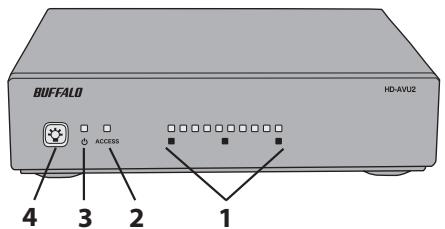
Ipeepnra ctopoHa
TbIbHaCTopOHa
1 INHdkaTopbIOCTabUeOcR CBO6oNHO MeCTa
3TN INHINKATOpbl yka3bIaIOCTabWueecBc6oDHOe MeTo. EcnIOctaIc9 91% INI 6OJIe e CBO6oHOrO MeCTa, Bce INHINKATOpbl CBETATC cIHIM. IIO Mepe UMeHbWeHnI MeCTa OHI ODN H 3a dpyUm rachy.T.ECNIOCTAOCb 10% INI MHeE CBO6oHOrO MeCTa, Bce INHINKATOpbl CBETATC KpacTbIM N BYIKIIuOaIOTcN IO Mepe UMeHbWeHnI MeCTa. EcnYcTPOJcTBO DriveStation bIKIooHeNo IIN HaxODITcB Pexmme OxNiDaHnI, Bce INHINKATOpbl BBIKIIuOaIOTcN. Korda YcTPOJcTBO HAXODITcB B COCTOAHnN OXNiDaHnI, DIn OTO6paKeHnI OCTabWueoCBA6oDHorO MeCTa HxMnTe KNOpKy BKIIUOeHnI PNTAHnI N perylnnpOBKn IArkOCTN.
CBeTcNtHm:OCTaONCb 11% CBO6oHOro MeCTa NII 60JIe
CBeTcR KpaChbIM:OCTaIIOcb 10% CBO6oHOrO MeCTa NmMeHee
MngaIOT KpaChbIM: HneNoJaDN B BeHTnJIrTope
2 INHdkaTop Access (DocTyn)
3TOT INHnKATOP MNaTeI npi DoCTyne K daHHbIM. OH 6yJeT MnRaTb npi 3aPiCS nII N BoCpOu3BeDeHn nn HhIX.
Mnraet CINIM: BOCPON3BeDeHne 3aNNs Nll YTeHne COXpAHHeHHbIX daHHbIX
Miraet KpaChbIM: 3aIncb MylbTmEmdInHoro 06beKta nn daHHbx
3 INdkaTop nntaHn
3TOT INHINKATop yKa3bIBAeT, BKNIOUEN Li DriveStation.
CbetntcCINHM: nTaHne BkIIOueHo
CBeTnTc KpaChbIM: pexim OxuaHna (NtTaHne BkIouHTc npn BkIoueHm KOMnbIoTepa)
BbIKHueH: nTaHne BbIKIIOyeHO
4 KhoIIka BkIIOueHnI pITaHnI nperyIuropBKn IApKoCTn
3Ta KHONka BkIIOaet N BybIKIOaET OCHOBHe NITAHne. EcNITAHne BKJIIOUeHO, C NOMOuBIO 3Toi KHN KaTKe MoXHO OTPeryIINPOBaT bApKoCTb INDnKaTOPOB. HaxMnte 3Tu KHOJky, YTO6bl nOCMOTpeTB OCTABWeecs CBO6OdHoe MeCTO, KOrDa yCTpoIcTBo HaxODNTCB PexKIMe OxNiDaHnY. Bpemr oTO6paKeHn DaHHbIX - 10 cekyHd.
BkJIOueHue
Haxmnte 3Tu KhoNkU, yTO6bI BKJIQUOHTb NITaHne.
BbIKJIoueHue
YTo6bI BvIKJIOuHTb NITaHHe, yIepKJBaTe 3Ty KHOKNy HaxaToB TteeHne 3 cekyHd.
ApKocmb uHoukamopob
Ecn yctpoicbo He 6ydt OTKIOUeHO, pnp BOCCTaHOBHeHN MoKeT POn3OHT c6oJ.
- Bo Bpemra pa60Tb daHHoe yctpoiCTBO MOxet n3daBaTb шуm, oco6eHNO BO Bpemra 3aRpy3kn IINI DOCTyNA K daHHbIM. 3To HOpMaJIbHO.

UcTpoIcTBoCTaIOnTOropaUM
TeNIO n3 yCTpoiCTBa BbIXoNDHT hApNyJy uepe3 KOpNyc. NObepxHOCTb KOpNyc pa3OrpReBaETcR, HO 3TO HopMaJIbHo. DaJe npn BbIKIIOUeHIn NiTaHnY aCTpoiCTBO OCTaETcT eNIIbIM n3-3a TOrO, UTo HaxoNDTCB B pexIme OxNiDaHnE. EcnI TeNIO octaETcB KOpNcy, yCTpoiCTBO MOKet pa60TaTB HePpaBUNbHO.
Pa60TaC yCtpoCTBOM, He pa3MeaIteero BepTikalbHO.
- He NaKpbIbaiTe yCtpoiCTBO TkaHbIO nT.П.
- Ha keKOTbIX KOMblOtepax pRn BbIXOe I3 peXIMa 3Heproc6epeXeHn MOKeT NOBJIbTcBc coo6uHHe O6 OwI6ke OTIOJeHHo3 aIiNCn. B 3tOM cIyuae nepeD nepeKJIoueHnEM KOMblOTepa B pexim 3Heproc6epeXeHn OKIIouHTe JcEeKmI dNCK.
- Ecnin nHnDnKATOP nHTaHnI nn HnDnKATOP Access (DocTyn) He BbIKJIOUaETc npn BbIKJIOUeHnn KOMMbIoTepa, oTKIoUHTe Ka6eB USB OT XecTKOro DnCKa.
- Eczm dnck pa36bnt Ha Heckolbko pa3dneIOB, nepei nCnoJIb3ObaHnem KaJdbI TOM Heo6xOIMO otΦopMaTnpoBaTb.
- OC Mac OS X mocket He paacno3HaTb daHnoe yctpoiCtBO npri 3aIpy3Ke. B 3Tom cnyae otKlIOHTe Ka6eIb USB n CHOBa noDkJIIOUHTe erO uepe3 HeckoJIbKO cekyHd.
- Eçnl KOMNbIOpTe nopД упраВлЕнeМ OC Windows He BbINOJIHЯТЗагузky, KOrda NOrkILOUeH daHbIy JęcEΤΚΙДИС, NOДКЛЮчАte JęcEΤΚΙДИС K KOMNbIOpTepy nOcne nepeZarpy3κι OC Windows. O6paTINTECb TAKJxE K pyKOBODCTBy K KOMNbIOpTepy 3a INΦOpMaцeH O TOM, KAK N3MeHITb HAcTpoiKn BIOS對於 3aRpy3κι C BHyTpEHHero JęcEΤΚΟ RIO DICKA, EÇnl KOMNbIOpTe HxJHOb BKJIQUHTb IINI BbIKLIOUHTb, KOrda DaHHO yCtpoICTBO NOdKlIOUeHO.
* OxlaJdaIoUm BeHTnIaTOp, yCTaHOBnEHnB b YcTpoIcTBe DriveStaion, pa6OtaET TOnbKO B TOM Clyuae, eCNI BHyTpeHHra TEMpePaTypa cTAHOBITcBAICOKoI. - Дя снжени риcka Bлияни пл ВОЗноковени лійктрмагнITHыхnomex Incnoьу Te Ka6eJIb USB n3 komпл ekta постбки.
- Посné установки драиьеров дадного ќестою диска в [Диспетчepе усточь] повлиютуговы усточь. [Посné установки драиьеров дадного ќестою диска в [Диспетчepе усточь] повлиютуговы усточь.
YtO6bI OTkpBbT [DInCneTpuey cTpoiChTB], CdeJaTe cIeNyUoee.
OC Windows 7. HaxMITE KhoNky [Ipyck], npaBoi KhoNIOK MblSi uEJIKNHTe [KomNbIoTeP] n BbIeRPeTte [InpaBnHEnHe]. EcnI noAHTcra coo6ueHne «Pa3peWntb cIeNyUoSei nporpaMMe BHeCTe NImeHEnHa hToM KomNbIoTepe?», HaxMITE KhoNkY [Ja] n UeienKHTne [DncNeteHep yctpoCTb].
OC Windows Vista.... Haxmte KhoKy [Pcy], npaBoi KhoKoM Mblu mIeKHnTE [Kombtoep] n BbEpHe [UnpaBneHnE].Ecni noaBntc coo6ueHne «Iporpamme tpe6yeTcra papeHne Ha npoDOnJkeHne》,haxmte KhoKy [IpoDOnKnTb] n BbEpHe [DinCneTHe yctPoIcTB].
OC Windows XP......Hakmite KhoNky [Pnyck] u zenKhnte [Mo'kompbIopep] npaBoi KhoNko Mblu. 1eKhnte [UnpabLeHne], a 3aTeM [DinCneTep yctpoiCTB].
3 OTo6pa3ntc coo6ueneO TOM, yTO yCTPOiCtBO MOxHO 6e3OpacHO n3Bnueb. Haxmnte KhoNky [OK] n3BnEKeNTe yCTPOiCtBO DriveStation.
Приимechаши.
BOCWindows7nWindowsXPnaKIMaTbKHOJky[OK]He Tpe6yETc.Coo6eHneIcue3het abTomatuheckn.
- Ecnn Dnck DriveStation 6bln otfoopmatnpoBaB nNTFS, npnbdeHna Bblse npocedpa MoKet He npmbectn K erO oTKIoueHIn. B 3Tom cnyae nepeD oTKIoueHem yctpoiCTBa DriveStation BbIKIOHTe KOMNbIoTe.
1 Y6eINTEcB B TOM, yTo Ha ycIpoiCTBe DriveStation He MInraeT INHdNkAToP Access (ДocTyn). Перетаиnte 3нaчok ќectKOrO dinca DriveStation c pa6oeryo CTonaВ KOp3InHy.
Приимейанne.
- Eçn ha yctpoiCTBe DriveStation co3daHo HeckoIbKO pa3dEnOB, nepetaIte B KOp3nHy 3NaKIn Bcex pa3dEnOB.
2 Tenepb DriveStation moXHO 6e30nacHO OTKJIIOHTb OT KOMNbIOTepa Mac.
Ha yctaHOBOUHOM KOMnAKT-DINCKe DriveNavigator haxoOnTc HecKoJIbKO nakETOB npOrpAMMHorO obecneueHnra Ha bIb6op Iyra KOMNbIOTePOB c OC Windows. O6paTInTe BHNMaHne, YTO, XOTy ycTroPcSTBO DriveStation coBMeCTmO c OC Mac OS X, Ha daHHom dncke oTCyTCTByET IIO, coBMeCTmOe c Mac OS X. 3TN npOrpAMMbI npEJaHa3NaYeHbToIbko dlya OC Windows XP,Windows Vista n Windows 7.
YctaHObKa npoRpaMMHoro o6ecneueHna KOMnblOTeP
IporpamMHOe oecneHHe n3 daHHoro naKeTa moKHo yctaHOBnTb c IOMOu bIO npOrpamMbDriveNavigator, codepauecna KaMNaKT-dncke c npOrpamMbIM oecneHHeM. YTo6bl yCTaHOBnTB 3TO npOrpamMHOe oecneHHe, cdeJaTe cIeDyUoee.
1 BctabbTe KOMnakT-DnCK C npporpamMbIM o6ecneueHnEM B KOMnbIOTep.
Прогамma DriveNavigator оTKpoetса abTomaTческ.Еслn DriveNavigator He oTKpoetc,пегдnte Na komпakT-ДИСС с пграMMbIM obecneueHem И двжды щелкнITE Файl[DriveNavi.exe].
EcnOTo6pa3ntcOKNoABo3aynska,Bb6epuTe[3anyckDriveNavigator].
Ecn y Bac cTour OC Windows 7 n noBHTcra coo6eHne «Pa3peuHTb cIeIyoUe i nporpamme BHeCTn I3MeHEnHa hTOM KOMbIyTepe?», HaxMnte KHOJky [Ja].
EcnB Windows Vista oTo6pa3ntc coo6eHne «PpOrpAmMe Tpe6yetc pa3peSeHne Ha npOdoJxHHe), HaxMnte KHOIIky [PpOdoJxHtB].
2 ⅢeIKNHtE [Begin Installation] (Haayatb yctaHOBky).
3 Μεικηνιte [Additional Software Installation] (Установka дононтульноуnpорразмнoro обecneyения).
4 Bb6epnte nporpaMMy dny yctahOBKn u zeknhte [Install] (YcTahOBnTB).
BbIIOHnTe Bce DeIcTbIa, IpeIaNaraemblc MaCTepOM, Iy UcTaHOBKn Bbl6paHHo IIporpaMMbl.
Buffalo Tools Launcher
Buffalo Tools Launcher no3BolnaT terke 3aynckab nporpammbi n3 nporpammHoro naKeta Buffalo.Дя 3ayncKa hyxHOrO cpeCTBa nInn clyXe6HO nporpammbi Buffalo npocTo uenKhnte coOTBeTCTByuOuI 3HaUOK.
SecureLockMobile
Iporpamma SecureLockMobile wuΦpyet daHbIe Ha DriveStation, 6naorapra yemy doctyn K aTmM daHHbIM bdyete IMeTb TOnbKO Bbl HNKTO dpyroI.
eco Manager
Buffalo Tools Launcher 9
SecureLockMobile 9
eco Manager 9
Disk Formatter. 9
4 规格 10
规格 10
包装内容
Buffalo Tools Launcher
Buffalo Tools Launcher. 9
SecureLockMobile 9
eco Manager 9
Disk Formatter. 9
4 規格 10
規格 10
封包内容
Buffalo Tools Launcher
Buffalo Tools Launcher. 9
SecureLockMobile 9
eco Manager 9
Disk Formatter 9
4 10
10
邯KIJK
LED brightness(LED 背景)
1 DriveStation的ACKSLEDGacakbiJitahnTJtHcHsiSi.DriveStation的DraribhaiiKQeBtBtHgHmEeHjTJHcHJtHcHJHcHJHcHJHcHJHcHJHcHJHcHJHcHJHcHJHcHJHcHJHcHJHcHJHcHJHcHJHcHJHcHJHcHJHcHJHcHJHcHJHcHJHcHJHcHJHcHJHcH
:
Buffalo Tools Launcher
Buffalo Tools Launcher 9
SecureLockMobile 9
eco Manager 9
Disk Formatter 9
4 10
574 10
山
* a nnnnnae DriveStation (nannnnnnn)
*a USB (1.5 u.; 59 n)
*aunnnnnae
- uwwuauuauu DriveNavigator
- Quick Setup Guide
*
W LED
aannn
aun
1 LED
wLED wnuuauuauuauuauuauu uW LED wnuuauuuuuuuuuuuuuuuuuuuuuuuuuuuuuuuuuuuuuuuuuuuuuuuuuuuuuuuuuuuuuuuuuuuuuuuuuuuuuuuuuuuuuuuuuuuuuuuuuuuuuuuuuuuuuuuuuuuuuuuuuuuuuuuuuuuuuuuuuuuuuuuuuuuuuuuuuuuuuuuuuuuuuuuuuuuuuuuuuuuuuuuuuuuuuUU
11% wannnnn
10%
wuuu:wwuuuwwu
2 WLED mnnnnaa
LED 1n nn nnnn nnnn nnnn nnnn nnnn nnnn nnnn nnnn nnnn nnnn nnnn nnnn nnnn nnnn nnnn nnnn nnnn nnnn nnnn nnnn nnnn nnnn nnnn nnnn nnnn nnnn nnnn nnnn nnnn nnnn nnnn nnnn nnnn nnnn
1
()
前:国
4 1
L W LED
aunnnnnaeannnnnne annnnnne aennnnnne nnnnnnne
- 电电电电电电电电电电电电电电电电电电电电电电电电电电电电电电电电电电电电电电电电电电电电电电电电电电电电电电电电电电电电电电电电电电电电电电电电电电电电电电电电电电电电电电电电电电电电电电电电电电电电
a aae eae aeae aeae aeae aeae aeae aeae aeae aeae aeae aeae aeae aeae aeae aeae aeae aeae aeae aeae aeae aeae aeae aeae aeae aeae aeae aeae aeae aeae aeae aeae aeae aeae aeae aeae aeae aeae aeae aeae aeae aeae aeae aeae aeae aeae aeae aeae aeae aeae aeae aeae aaee
- wnuuunnuuuaaauauauauauac AC 1uauu u USB lW LED uauuuuauuuuauuuuauuuuuuuuuuuuuuuuuuuuuuuuuuuuuuuuuuuuuuuuuuuuuuuuuuuuuuuuuuuuuuuuuuuuuuuuuuuuuuuuuuuuuuuuuuuuuuuuuuuuuuuuuuuuuuuuuuuuuuuuuuuuuuuuuuuuuuuuuuuuuuuuuuuuuuuuuuuuuuuuuuuuuuuuuuuuuuuuuuuuuuuuuuuuuuuuuUU
* aunnnaaannnnnnaanennnnnnaaennnnnnaaennnnnnaaennnnnnaaennnnnnaaennnnnnaaennnnnnaaennnnnnaaennnnnnaaennnnnnaaennnnnnaaennnnnnaaennnnnnaaennnnnnaaennnnnnaaennnnnnaaennnnnnaaennnnnnaaennnnnnaaennnnnnaaennnnnnaaaannnnnnaaannnnnnaaannnnnnaaannnnnnaaannnnnnaaannnnnnaaannnnnnaaannnnnnaaannnnnnaaannnnnnaaannnnnnaaannnnnnaaannnnnnaaannnnnnaaannnnnnaaannnnnnaaannnnnnaaannnnnnaaannnnnnaaannnnnnaaannnnnnaaaannnnnnaaaannnnnnaaaannnnnnaaaannnnnnaaaannnnnnaaaannnnnnaaaannnnnnaaaannnnnnaaaannnnnnaaaannnnnnaaaannnnnnaaaannnnnnaaaannnnnnaaaannnnnnaaaannnnnnaaaannnnnnaaaannnnnnaaaannnnnnaaaannnnnnaaaannnnnna aaannnn
* wnnnnaaonnnsu USB au uauu USB nannau Buffalo (wnnnnnnn)
*
* 1
lunusulwulwulwulwul Windows 7, Vista wla XP lunusulwulwulwulwul USB 1.1
lunusulwulwulwulwulwul USB wla wla wla wla USB wla wla wla wla
lunusulwulwul "X"
* wawwawawawawawawaf 32 4 GBwnnnaowwwawuynnnn 4 GB uwwuwwuwwuwwuwwuNTFS wMa Mac OS wauwwuwwuwwuwwuwwu
* wunnnaaannnnnnaayana Macintosh nnaanrnnnnaaannn
* aauatauuiuuaaunnuuunnuuunnuuunnuunnuunnuunnuunnuun

aunuaananaananaanana
aannnnnnaanennnnnnnnnnnnnnnnnnnnnnnnnnnnnnnnnnnnnnnnnnnnnnnnnnnnnnnnnnnnnnnnnnnnnnnnnnnnnnnnnnnnnnnnnnnnnnnnnnnnnnnnnnnnnnnnnnnnnnnnnnnnnn
·
- wuWnWnWnWnWnWnWnWnWnWnWnWnWnWnWnWnWnWnWnWnWnWnWnWnWnWnWnWnWnWnWnWnWnWnWnWnWnWnWnWnWnWnWnWnWnWnWnWnWnWnW
* 1
* wW LED uonnnnntnnu/nuuayauauauauauauauauuauuauu u USB
* wwnnnaanannnnn nn nnnnnnnnnnnnnnnnnnnnnnnnnnnnnnnnnnnnnnnnnnnnnnnnnnnnnnnnnnnnnnnnnnnnnnnnnnnnnnnnnnnnnnnnnnnnnnnnnnnnnnnnnnnnnnn
*Mac OS X a7auiuuiuuiuuiuuiuuiuui uuiuuiuuiuuiuuiuuiuuiuuiuuiuuiuuiuuiuuiuuiuuiuuiuuiuuiuuiuuiuuiuuiuuiuuiuuiuuiuuiuuiuuiuuiuuiuuiuuiuuiuuiuuiuuiuuiuuiuuiuuiuuiuuiuuiuuiuuiuuiuuiuuiuuiuui
* lunuswauwauwauwau Windows lnuuwwauwauwauwau wauuwwauwauwauwauwauwauwauwauwauwauwauwauwauwauwauwauwauwauwauwauwauwauwauwauwauwauwauwauwauwauwauwauwauwauwauwauwauwauwauwauwauwauwauwauwauwauwauwauwauwauwau
* Wnnaeunnnnneauuueuuuueu DriveStation uunnnnneunnnnneunnnn
* waaananaaannnnaaannnnnnaanennnnnnnnnnnnnnnnnnnnnnnnnnnnnnnnnnnnnnnnnnnnnnnnnnnnnnnnnnnnnnnnnnnnnnnnnnnnnnnnnnnnnnnnnnnnnnnn
* 1 (Device Manager]
[Device Manager] (韵)
Windows 7.
[Start] [Start] [Computer] [Start] [Start] [Start] [Start] [Start] [Start] [Start] [Start] [Start] [Start] [Start] [Start] [Start] [Start] [Start] [Start] [Start] [Start] [Start] [Start] [Start] [Start] [Start] [Start] [Start] [Start] [Start] [Start] [Start] [Start] [Start] [Start] [Start] [Start
Windows Vista.. [Start] (a) [Computer] (a) [Manag] "A program needs your permission to continue" (15) [Continue] (a) [Device Manager]
Windows XP [Start] (B) My Computer (Manag) [Device Manager] -
| िपन्दिल्तान्यान्यान्यान | िपन्दिल्तान्यान्यान |
| [Universal Serial Bus controllers] (अनुपागूल्वान्यान्यान्यान्यान) | [USB Mass Storage Device] (अनुपागूल्वान्यान्यान्यान्मे USB) |
| [Disk drives] (सम्थल्तान्यान) | [BUFFALO External HDD USB Device] (सम्थल्तान्यान्यान्यान्मे BUFFALO) |
Windows
nnaan DriveStation nanaan aataaiaaaan ananannnnnnnnnnnnnnnnnnnnnnnnnnnnnnnnnnnnnnnnnnnnnnnnnnnnnnnnnnnnnnnnnnnnnnnnnnnnnnnnnnnnnnnnnnnnnnnnnnnnnnnnnnnnnnnnnnnnnnnnnnnnnnnnnnnnnnnnnnnnn nn
| OS | ### |
| Windows 7 | "Eject USB-SATA Bridge - HD-AVU2 (E:)" (###USB-SATA - HD-AVU2 (E:)) |
| Windows Vista/XP | "Safely remove USB Mass Storage Device - Drive (E:)" (###USB - Drive (E:)) |
Safely remove USB Mass Storage Device - Drive(E:)


5:15PM
W
TurboPC "TurboPC" Vista Windows XP
- DriveStation E WindowsDriveStation
wannan "A program needs your permission to continue" (Iuunnnnnaa) (Continue) (nunna)
2 [Begin Installation] (v)
3 [Additional Software Installation] (
4. 1aanwauuunrueauuun [Install] (
Backup Utility uuaawwauwauwauwauwauwauwauwauwauwauwauwauwauwauwauwauwauwauwauwauwauwauwauwauwauwauwauwauwauwauwauwauwauwauwauwauwauwauwauwauwauwauwauwauwauwauwauwauwauwauw
RAMDISK Utility
RAMDISK"
Buffalo Tools Launcher
※ yayauyauyauyauyauyauyauyauyauyauyauyauyauyauyauyauyauyauyauyauyauyauyauyauyauyauyauyauyauyauyauyauyauyauyauyauyauyauyauyauyauyauyauyauyauyauyauyauyauyauyau
| xiahuangwuyu | USB | |
| muaowuyu | USB Specification Rev. 2.0 | |
| xinru | USB 2.0 B | |
| xiahuangwuanyu | xiahuang 11 msec | |
| muaowuyangwuanyu | xiahuang 480 Mbps (xiahuo USB 2.0) | |
| xiahuangwuanyuanyu | FAT 32 1 w### | |
| xiahuangwuanyan (D x H x W) | 158 x 45 x 174 m###; 6.2 x 1.8 x 6.9 m### (###au###au###au###) | |
| xiahuangwuanyan | 12 W ### 24 W | |
| xiahuangw | AC 100 - 240 V; 50/60 Hz | |
| xiahuangwuanyan###yuyu | 41° - 95° F; 5° - 35° C | |
| 20 - 80% (###au###) | ||
| xiahuangwuanyan###yuyu###yuyu | Windows 7 (32/64 m###), Vista (32/64 m###), XP (32 m###) Mac OS X 10.4 ###m### | |
USB 2.0
HD-AVU2
P
b. H_2
Y
- 1
A
1.
J
bn + 1bn = b_n
y
LED
1
1
Windows
v. Macintosh J
a_1^x = 2 - 12 + 1 = - 1
..
9
9 TurboPC
TurboCopy
9 Backup Utility
RAMDISK Utility
9 Buffalo Tools Launcher
9 SecureLockMobile
9 eco Manager
9 Disk Formatter
1.
1.
#
DriveNavigator 一 _ 一 ^ 一
Quick Setup Guide *
jialiaill jyy
Jgjzjjjjjj
(4) DriveStation
(a091,0Jb)USB
Jill
LED
ailllll (gllll/l) power/brightness jll
a aalaae aagaae alaae aee
abaaall llll 1 aalaaal baiuall j
ailllll lalilal
(1) Power/Brightness 2
G. LED E 1
.1 1
山
jill jill jll lde la
J
1 1
LED
gbsb ciy jn baiy aji jj gbc biai lgs y s .LED gbsb hiai jilll jjglbc
.Bright -> Normal -> Dark -> Off
aaiiie
.1 1 . 1 1 1 1 1 1 1 1 1 1 1 1 1 1 1 1 1 1 1 1 1 1
S OBC = S COD + S_ BDO
USB
JdI J0a V
juulilyiaia A
#
aill llll
yall 1sill s0 yol o
JL USB
jssll
Jusuillall jUjssll uuuu
jssss 0 jdo1s wlll
Jusill 4y Jusall jusssll uj y loaic lilj jglll his Jus
jlll USB 000001 jll l k y . jlll l 000001
J 1
.
jlllLED 100000000000000000000000000000000000000
.USB e jso jolal lal all alall .g .jssll jaiy jaiy jaiy
1J 1
JL JLL (JUSSL) Power/Access USB L
(uaiae g) Buffalo aabwus USB e jya USB 1a1y
Aaalaiial aajll jzjgjjgssll
jll 12a jia jia pbi dai k
1 USB 1.1 XP VistaXP Vista Windows 7 abwbsdall
X" 3j jai aaiall. aie ae jy J USB jag aer hui hub e jg
a a a a a a a a a a a a a a a a a a a a a a a a a a a a a a a a a a a a a a a a a a a a a a a a a a a a a a a a a
.
Jus Jus Jus Jus Jus Jus Jus Jus Jus Jus Jus Jus Jus Jus Jus Jus Jus Jus
aalal jgi gai jgiydi ldi jdi ydi
(0j 1) [Device Manager]
:dl [Device Manager]
(204 念 念 念 念 念 念 念 念 念 念 念 念 念 念 念 念 念 念 念 念 念 1 [Computer] [Computer]
program to make changes to this computer
[Device Manager] (Yes)
S OBC = S COD + S_ BOC
q (Computer) q (Start]..Windows Vista
A program needs your permission to a all s d g b a d a d a d a d a d a d a d 1. (s) [Manage]
[Continue] (A) (A) (A) (A) (A) (A) (A) (A) (A) (A) (A) (A) (A) (A) (A) (A) (A) (A) (A) (A) (A) (A) (A) (A) (A) (A) (A) (A) (A) (A) (A) (A) (A) (A)
[Device Manager]
J. (My Computer] (1) [Start]
(0j (j) [Device Manager] (j) [Manage]
11 + 2 = 14
WindowsXPWindows7gdsjlll (g) [OK] g jf jf jf jf
Laii aill
JNTFS DriveStation
.DriveStation JJJJJJJJJJJJJJJJJJJJJJJJJJJJJJJJJJJJJJJJJJJJJJJJJJJJJJJJJJJJJJJJJJJJJJJJJJJJJJJJJJJJJJJJJJJJJJJJJJJJJJJJJJJJJJJJJJJJJJJJJJJJJJJJJJJJJJJJJJJJJJJJJJJJJJJJJJJJJ
DriveStation
(心all)Trash all chw
4k = 3
()Trash
Mac
Mac OS X 10 Mac OS X 10 Mac OS X 10 Mac OS X 10 Mac OS X 10 Mac OS X 10 Mac OS X 10 Mac OS X 10 Mac OS X 10 Mac OS X 10 Mac OS X 10 Mac OS X 10 Mac OS X 10 Mac OS X 10 Mac OS X 10 Mac OS X 10 Mac OS X 10 Mac OS X 20 Mac OS X 20 Mac OS X 20 Mac OS X 20 Mac OS X 20 Mac OS X 20 Mac OS X 20 Mac OS X 20 Mac OS X 20 Mac OS X 20 Mac OS X 20 Mac OS X 20 Mac OS X 20 Mac OS X 20 Mac OS X 20 Mac OS X 20 Mac OS X 20 Mac OSX 20 Mac OSX 20 Mac OSX 20 Mac OSX 20 Mac OSX 20 Mac OSX 20 Mac OSX 20 Mac OSX 20 Mac OSX 20 Mac OSX 20 Mac OSX 20 Mac OSX 20 Mac OSX 20 Mac OSX 20 Mac OSX 20 Mac OSX 20 Mac OSX 20
i
a aal lal alal alal alal alal alal alal alal alal alal alal alal alal alal alal alal alal alal alal alal alal alal alal alal alal alal alal alal alal alal alal alal alal alal alal alal alal alal alal
jssssll 5dellal ydlal algall jai
J. DriveNavigator J. DriveNavigator [DriveNavi.exe]
.(DriveNavigator) [Run DriveNavigator]
Do you want to allow the following program to make changes to this? [Yes] Windows 7
"J" A program needs your permission to continue 15.15.15.15.15.15.15.15.15.15.15.15.15.15.15.15.15.15.15.15.15.15.15.15.15.15.15.15.15.15.15.15.15.15.
(一 一 一 一) [Begin Installation]
.(J)[Additional Software Installation]
.(C) [Install] gjg jglalall
aal caiy jll caiy lally aaii ai gbi
TurboPC
.DriveStation Jdai dai jao jao jao jao jao
TurboCopy
aaii iiaai iaii iaii iaii iaii iaii
Backup Utility
aalalal alalalalalalalalalalalalalalalalalalalalalalalalalalalalal
RAMDISK Utility
RAMDISK 50
Buffalo Tools Launcher
jill blldu. dcll Buffalo 10000000000000000000000000000000000000000000000000000000000000000000000000
SecureLockMobile
Jg Jg Jg Jg Jg Jg Jg Jg Jg Jg Jg Jg Jg Jg Jg Jg Jg Jg Jg Jg Jg Jg Jg Jg Jg Jg Jg Jg Jg Jg Jg Jg Jg Jg Jg Jg Jg Jg Jg Jg Jg Jg Jg Jg Jg Jg Jg Jg Jg Jg Jg