
DriveStation Combo4 1.0TB - External hard drive BUFFALO - Free user manual and instructions
Find the device manual for free DriveStation Combo4 1.0TB BUFFALO in PDF.


| Product type | External hard drive |
| Brand | Buffalo |
| Model | DriveStation Combo4 1.0TB |
| Capacity | 1 TB (1000 GB) |
| Interface | USB 2.0, FireWire 400, FireWire 800, eSATA |
| Maximum transfer speed | 480 Mbit/s (USB 2.0), 800 Mbit/s (FireWire 800), 1.5 Gbit/s (eSATA) |
| Default formatting | FAT32 (1 partition) |
| Dimensions (L x H x D) | 38 x 128 x 228 mm |
| Weight | 1.5 kg |
| Power consumption | 24 W |
| Operating temperature | 5 °C to 35 °C (41 °F to 95 °F) |
| Operating humidity | 20% to 80% (non-condensing) |
| Compatible operating systems | Windows XP, Vista, 7; Mac OS X 10.2.8 or later |
| Hot-swap support | Yes (USB and FireWire) |
| Included software features | eco Manager, TurboPC, TurboCopy, Backup Utility, RAMDISK Utility, Disk Formatter, SecureLockMobile |
| Encryption | Yes (via SecureLockMobile) |
| Indicators | Power (blue), Access (blinking) |
| Precautions | Do not disconnect during access; do not use as virtual memory; do not block ventilation |
| Warranty | Visit www.buffalotech.com |
Frequently Asked Questions - DriveStation Combo4 1.0TB BUFFALO
User questions about DriveStation Combo4 1.0TB BUFFALO
0 question about this device. Answer the ones you know or ask your own.
Ask a new question about this device
Download the instructions for your External hard drive in PDF format for free! Find your manual DriveStation Combo4 1.0TB - BUFFALO and take your electronic device back in hand. On this page are published all the documents necessary for the use of your device. DriveStation Combo4 1.0TB by BUFFALO.
USER MANUAL DriveStation Combo4 1.0TB BUFFALO
FireWire/ USB/eSATA Hard Drive
HD-HSQ(V2)
User Manual
Layout 2
Recommended Usage ....3
Software 7
Troubleshooting 9
Specifications ....10
1
2
3
4
5
Table of Contents
1 Layout 2
LED and Connections 2
2 Recommended Usage 3
Warning 3
Dismounting the DriveStation....5
For Windows ....5
For Macintosh....6
3 Software 7
Installing software on a Windows PC 7
Optional Software 8
eco Manager....8
TurboPC....8
TurboCopy 8
Backup Utility....8
RAMDISK Utility 8
Buffalo Tools Launcher ....8
Disk Formatter 8
SecureLockMobile 8
4 Troubleshooting 9
I can see the DriveStation in (My) Computer but I cannot access it. ......9
I cannot see the DriveStation in (My) Computer. 9
My backup program cannot save files to the DriveStation. 9
5 Specifications 10
Specifications 10
1
Layout
LED and Connections
Front

natural_image
Line drawing of a rectangular electronic device with a labeled component (1), no text or symbols present.① Power/Access LED
Power on: blue
Access: flashing
Rear
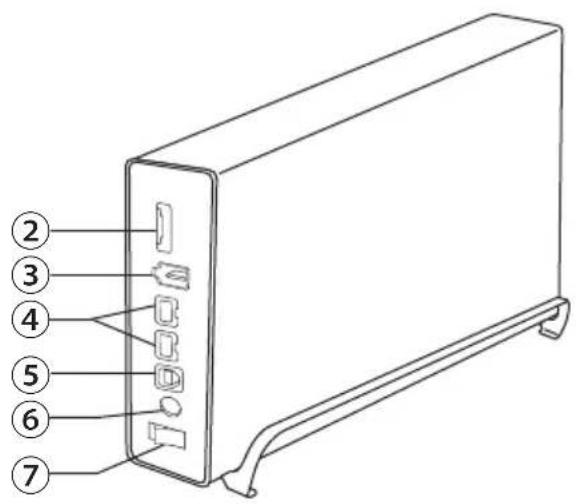
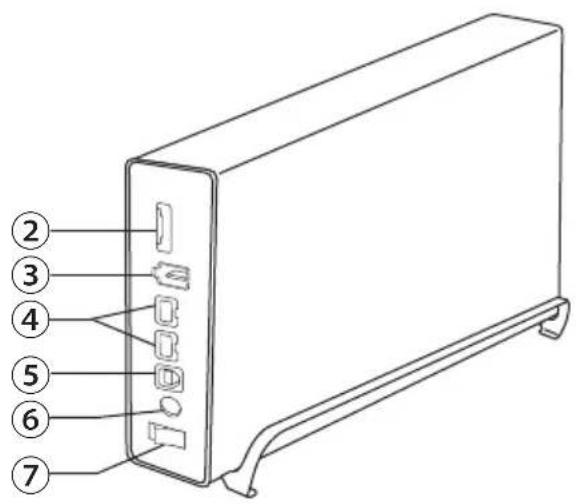
② eSATA
③ FireWire 400 (IEEE 1394) port 6 pin
④ FireWire 800(IEEE 1394b) port 9 pin
⑤ USB
⑥ Power Adapter
⑦ Power On/Off
2
Recommended Usage
Warning
To avoid damage to your data, follow these precautions:
* Never configure this unit as a destination for virtual memory.
* Never perform any of the following operations while the access LED is flashing:
- Unplug the cables
- Turn off your computer
-
Put your computer into standby, hibernate, or sleep mode
-
The maximum size of a file on the default FAT32 partition is 4 GB. To use the drive with files larger than 4 GB, reformat the drive with NTFS or Mac OS extended, which allow larger file sizes.
- Mac OS X may not recognize this device at boot. If this happens, unplug the cables, then plug it again after a few seconds.
- This unit supports hot-plugging for USB and FireWire connections. You can plug or unplug the data cable while the DriveStation and your PC are on. However, never unplug the cables while the power/access LED is flashing, or your data may be lost or damaged.
- Do not lean any object against this unit. It may cause the unit to malfunction.
- If you use this unit with Windows 7, Vista, or XP on a computer with a USB 1.1 port, you may receive a message indicating that a high-speed USB hub is connected to a non high-speed USB device. To continue, click [X].
- You may hear some noise while this unit is working, especially while booting or being accessed. This is normal.
• Always refer to the manuals for your computer and peripheral devices. - If you will be installing Mac OS on this drive, use a FireWire connection.
- If you will be installing Windows on this unit, use an eSATA connection.
- Before changing connection types, such as from eSATA to USB, turn off the DriveStation.
- After a system crash, Mac OS may ask you to insert your OS X system disk to recover the OS. Disconnect the DriveStation from your Mac before initiating the recovery process.

This device becomes hot
This device is designed to release heat through its case. The surface of the case may become quite hot in normal use. Even when the unit is off, the case may still be warm from standby current. If heat is trapped in the unit and not allowed to escape, the drive may malfunction.
- Do not cover the DriveStation with anything that might trap heat, such as a cloth.
- Do not place any object which blocks the release of heat near the DriveStation.
- When the driver for this unit is installed, devices are added to [Device Manager].
To display Device Manager, follow the instructions below:
Windows 7/Vista ....Click [Start], right-click [Computer], and click [Manage]. When "A program needs your permission to continue" is displayed, click [Continue] or [Yes] and then [Device Manager].
Windows XP ....Click [Start] and right-click [My Computer].
Click [Manage] and then [Device Manager].
| Location to be added Device name to be added | ||
| USB Universal Serial Bus | controllers | USB Mass Storage Device |
| Disk drives | ***** USB Device | |
| eSATA Disk drives | BUFFALO External HDD | |
| FireWire Disk drives | BUFFALO INC. HDD IEEE1394 SBP2 Device | |
Dismounting the DriveStation
For Windows
■ For USB/ FireWire
Unplugging the DriveStation incorrectly can corrupt data. Please be careful! If your computer is turned off, then it is always safe to unplug the DriveStation.
If your computer is turned on, please follow the procedure below to unplug your DriveStation. This example shows Vista, but other versions of Windows are similar.
1 Click the icon 📋 (Windows 7/ Vista)/ 📋 (Windows XP) in the systray.
2 When the menu opens, click the device name.
USB
| OS Device name | |
| Windows 7 "Eject BUFFALO INC.USB-SATA Bridge" | |
| Windows Vista/XP "Safely remove USB Mass Storage Device – Drive (E:)" |
FireWire
| OS Device name | |
| Windows 7 "Eject BUFFALO_ | NC. HDD" |
| Windows Vista/XP "Safely remove BUFFALO INC. HDD IEEE1394 SBP2 Device – Drive (E:)" | |
Safely remove USB Mass Storage Device - Drive(E:)

Note:
If TurboPC is enabled, "TurboPC" may be part of the device name.
3 A message that indicates you can safely remove the unit will appear. Click [OK] and unplug the DriveStation.
Note:
You do not have to click [OK] if your OS is Windows 7 or Windows XP. The message will automatically disappear.
■eSATA
Refer to the manual for your eSATA interface.
If the DriveStation is used as a boot disk, do not disconnect it from your computer. If a boot disk is disconnected and then reconnected, the computer may not boot properly afterward.
Turn off your computer before connecting or disconnecting the DriveStation via eSATA.
For Macintosh
If OS X is installed on the DriveStation as the boot drive, do not disconnect the DriveStation from the Mac.
1 Drag the DriveStation's icon to the trash to dismount the drive.
Note:
If you've created multiple partitions on the DriveStation, dismount each partition separately before unplugging the drive.
2 It's now safe to unplug the DriveStation from your Mac.
3
Software
Installing software on a Windows PC
1 Connect the DriveStation to your computer.
2 Double-click on [HD-HSQ] in [(My) Computer].
3 Double-click on [DriveNavi.exe].
The DriveNavigator wizard will launch. If Windows displays the message "A program needs your permission to continue", click [Continue] or [Yes].
4 Click [Begin Installation].
5 The License Agreement will open. Click [I accept].
6 Click [Additional Software Installation].
7 Select the target software and click [Install].
The wizard will guide you through installation.
Optional Software
eco Manager
eco Manager lets you put the DriveStation into sleep mode to save power.
TurboPC
TurboPC can increase data transfer speeds for your Buffalo product.
TurboCopy
TurboCopy uses caching to increase data transfer speeds.
Backup Utility
Backup Utility is software to back up and restore data from your PC. To use, select a source drive to be backed up and a target location for backup data.
RAMDISK Utility
This software uses the memory in your computer as a virtual hard drive "RAM drive". The RAM drive is recognised as a hard drive by your computer, and you can read and write data to it like any other hard drive.
Buffalo Tools Launcher
Buffalo Tools Launcher lets you easily launch software from the Buffalo utility suite. Just click an icon to launch the desired Buffalo tool or utility.
Disk Formatter
Disk Formatter lets your format many types of drives, including external hard drives like your Buffalo DriveStation.
SecureLockMobile
SecureLockMobile encrypts the data on your DriveStation, preventing the data from being accessed by anyone but you.
4
Troubleshooting
I can see the DriveStation in (My) Computer but I cannot access it.
The Drive may require formatting. Try using the Disk Formatter Utility. Consult the manual for the Disk Formatter Utility for more help.
I cannot see the DriveStation in (My) Computer.
Verify that the power LED is on. If it is not, then ensure that the power switch is in the on position. Check your cables! The DriveStation should be connected to your computer by one and only one data cable. Check that both ends are correctly plugged in.
Verify that the hard drive inside the DriveStation is spinning. This can be verified by placing your hand on the side of the case and feeling for a slight vibration.
Also, after the DriveStation has been powered on for fifteen minutes or more it will begin to get warm. If neither of the proceeding tests verified that the hard drive is spinning, then please contact technical support for further assistance.
My backup program cannot save files to the DriveStation.
Reformat your DriveStation with NTFS or Mac OS Extended. FAT32 is limited to 4 GB file sizes.
Specifications
※ For the most up-to-date information and latest products, go to www.buffalotech.com.
| Interface USB 2.0, FireWire 400. FireWire 800, eSATA | ||
| Transfer speed Max 480 Mbps (USB 2.0) * | Max 800 Mbps (FireWire 800)Max 1500 Mbps (eSATA ) | |
| Factory defaults FAT32 (1 partition) | ||
| External dimensions 38 x 128 x 228 mm | ||
| Power Consumption 24 W | ||
| Weight 1.5 kg | ||
| Operating Environment | Temperature 41° | -95°F; 5°-35°C |
| Humidity 20 - 80% (no condensation) | ||
| Compatible OS Windows XP | Windows VistaWindows 7Mac OS X 10.2.8 or later | |
* For best results, this drive should be connected to a high-speed USB 2.0 port. If you use this drive with a low-speed USB 1.1 interface, transfer speeds will be much slower.
FireWire-/USB-/eSATA-Festplatte
HD-HSQ(V2)
Benutzerhandbuch
Layout 2
Buffalo Tools Launcher ....8
Disk Formatter 8
SecureLockMobile 8
natural_image
Technical line drawing of a rectangular electronic device with a labeled component (1), no text or symbols present.② eSATA
③ FireWire 400-Port (IEEE 1394), 6-polig
④ FireWire 800-Port (IEEE 1394b), 9-polig
⑤ USB
⑥ Stromadapter
⑦ Ein-/Ausgeschaltet
2
Hinweis:
Buffalo Tools Launcher
Buffalo Tools Launcher 8
Disk Formatter 8
SecureLockMobile....8
natural_image
Line drawing of a rectangular electronic device with a labeled component (1), no text or symbols present.Buffalo Tools Launcher
Buffalo Tools Launcher ....8
Disk Formatter 8
SecureLockMobile 8
4 Dépannage 9
natural_image
Line drawing of a rectangular electronic device with a labeled component (1), no text or symbols present.① Voyant Power/Access (Alimentation/Accès)
② eSATA
③ Port FireWire 400 (IEEE 1394) 6 broches
④ Port FireWire 800 (IEEE 1394b) 9 broches
⑤ USB
⑥ Adaptateur d'alimentation
⑦ Bouton On/Off de l'alimentation
2
Buffalo Tools Launcher
Buffalo Tools Launcher ....8
Disk Formatter 8
SecureLockMobile 8
natural_image
Technical line drawing of a rectangular electronic device with a labeled component (1), no text or symbols present.Vista posteriore

① LED Power/Accesso
Buffalo Tools Launcher
Buffalo Tools Launcher 8
Disk Formatter....8
SecureLockMobile 8
natural_image
Technical line drawing of a rectangular electronic device with a labeled component (1), no text or symbols present.Buffalo Tools Launcher
Buffalo Tools Launcher....8
Disk Formatter....8
SecureLockMobile 8
4 故障排除 9
natural_image
Technical line drawing of a rectangular electronic device with a labeled component (①), no text or symbols present.① 电源/访问 LED
电源打开:蓝色
访问:闪烁
后面

② eSATA
③ 6 针 FireWire 400 (IEEE 1394) 端口
④ 9 针FireWire 800 (IEEE 1394) 端口
⑤ USB
⑥ 电源适配器
⑦ 电源开/关
2
警告
Buffalo Tools Launcher
卸載 DriveStation ....5
針對 Windows....5
針對 Macintosh....6
3 軟體 7
Buffalo Tools Launcher....8
Disk Formatter....8
SecureLockMobile 8
4 疑難排解 9
natural_image
Technical line drawing of a rectangular electronic device with a labeled component (1), no text or symbols present.① 電源/存取 LED 指示燈
電源開啟:藍色
存取:閃爍
背面

Buffalo Tools Launcher
natural_image
Technical line drawing of a rectangular electronic device with a labeled component (no text or symbols present)①電源ランプ
Buffalo Tools Launcher....8
Disk Formatter....8
SecureLockMobile....8
4 문제 해결 9
natural_image
Line drawing of a rectangular electronic device with a labeled component (1), no text or symbols present.① 전원/액세스 LED
전원 켜짐:파란색
액세스: 깜박임
후면
Buffalo Tools Launcher
Buffalo Tools Launcher 8
Disk Formatter....8
SecureLockMobile 8
4 การแก้ไขปัญหา 9
natural_image
Technical line drawing of a rectangular electronic device with a labeled component (no text or symbols present)Buffalo Tools Launcher
8 ......Backup Utility
8 RAMDISK Utility
8 Buffalo Tools Launcher
8 Disk Formatter
8 SecureLockMobile
natural_image
Line drawing of a rectangular electronic device with a labeled component (①), no text or symbols present.eSATA ②
تحذير
ملاحظة:
Buffalo Tools Launcher
يТИحّل Emergency Management Program Buffalo Tools Launcher النقر preventive hundred万人 للاوي، أو Additional perspective of Buffalo.
Disk Formatter


- FireWire/ USB/eSATA Hard Drive
- HD-HSQ(V2)
- User Manual
- Table of Contents
- Layout 2
- Recommended Usage 3
- Software 7
- Troubleshooting 9
- Specifications 10
- 1
- Layout
- LED and Connections
- 2
- Recommended Usage
- Warning
- To avoid damage to your data, follow these precautions:
- This device becomes hot
- Dismounting the DriveStation
- For Windows
- ■ For USB/ FireWire
- Note:
- ■eSATA
- For Macintosh
- 3
- Software
- Installing software on a Windows PC
- Optional Software
- eco Manager
- TurboPC
- TurboCopy
- Backup Utility
- RAMDISK Utility
- Buffalo Tools Launcher
- Disk Formatter
- SecureLockMobile
- 4
- Troubleshooting
- Specifications
- FireWire-/USB-/eSATA-Festplatte
- Benutzerhandbuch
- Hinweis:
- Dépannage 9
- 故障排除 9
- 警告
- 軟體 7
- 疑難排解 9
- ①電源ランプ
- 문제 해결 9
- ① 전원/액세스 LED
- การแก้ไขปัญหา 9
- تحذير
Brand : BUFFALO
Model : DriveStation Combo4 1.0TB
Category : External hard drive