
G502 Proteus Core - Mouse LOGITECH - Free user manual and instructions
Find the device manual for free G502 Proteus Core LOGITECH in PDF.


| Product type | Wired gaming mouse |
| Brand | Logitech |
| Model | G502 Proteus Core |
| Dimensions (L x W x H) | 132 x 75 x 40 mm |
| Weight (without cable) | 168 g (adjustable with 5 x 3.6 g) |
| Sensor type | Delta Zero optical sensor |
| Resolution (DPI) | 200 to 12,000 DPI (adjustable in steps) |
| Number of buttons | 11 programmable buttons |
| Scroll wheel | Dual mode (free-spin or click-to-click) |
| Lighting | Customizable RGB (Logitech G logo) |
| Connection | USB 2.0 (braided cable, 2.1 m) |
| Software | Logitech Gaming Software |
| Compatibility | Windows 7/8/10, macOS 10.10+, Linux (partial) |
| Power | Via USB port (5 V, 100 mA) |
| Weight system | 5 cartridges of 3.6 g, distributed in the chassis |
| Onboard memory | Yes (up to 3 profiles) |
| Material | ABS plastic with non-slip coating |
| Care and cleaning | Clean with a soft, dry cloth; avoid liquids |
| Safety | Do not expose to moisture; turn off before cleaning |
| Spare parts and repairability | Replacement feet available; user-removable weight system |
| Warranty | 2 years (depending on country) |
Frequently Asked Questions - G502 Proteus Core LOGITECH
User questions about G502 Proteus Core LOGITECH
0 question about this device. Answer the ones you know or ask your own.
Ask a new question about this device
Download the instructions for your Mouse in PDF format for free! Find your manual G502 Proteus Core - LOGITECH and take your electronic device back in hand. On this page are published all the documents necessary for the use of your device. G502 Proteus Core by LOGITECH.
USER MANUAL G502 Proteus Core LOGITECH
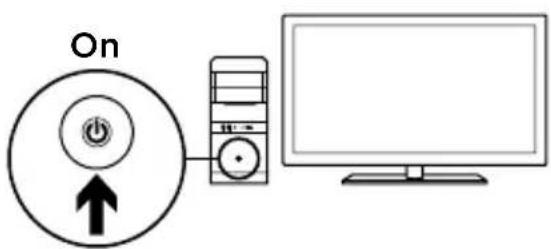
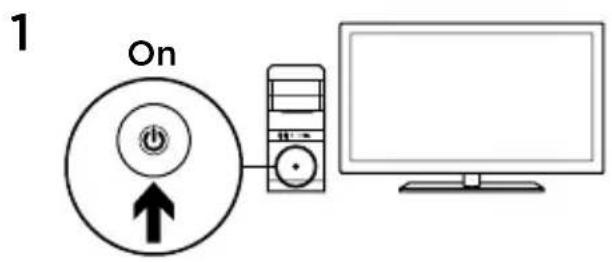
Your G502 is ready to play games.
If you would like to customize your G502, refer to the next section.
3

You can customize the three onboard profiles of the G502—surface tuning, button programming, and tracking behavior—using the Logitech Gaming Software. Download this free software and learn how to customize the G502 at www.logitech.com/support/g502
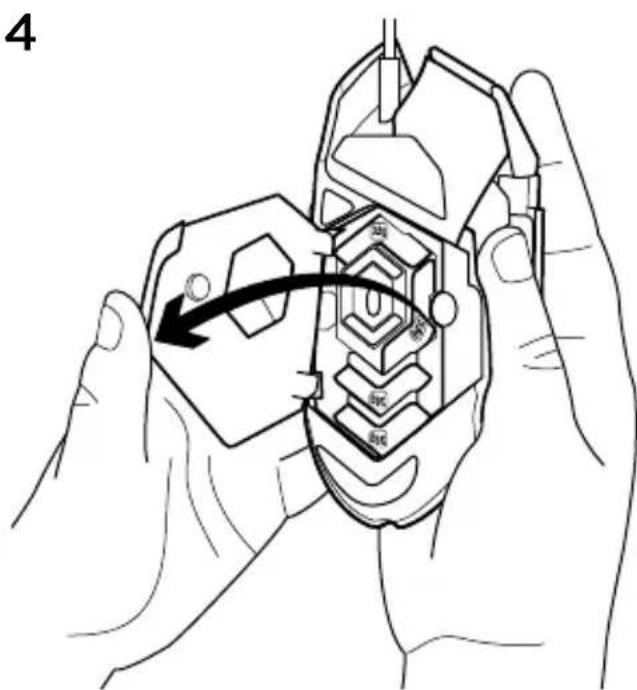
4 English
To adjust the weight and balance of your G502, first open the weight door by grasping the mouse firmly in your right hand and pulling the blue tab down with your left thumb.
5
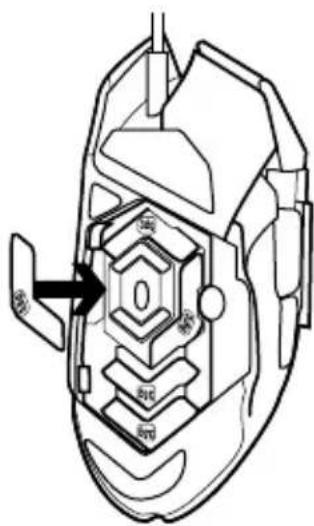
You can place up to five 3.6 gram weights in a number of different orientations. Experiment with different positions for the weights to find an overall weight and balance that feels right for you.
English
6

After inserting the weights, close the weight door by inserting the tabs on the weight door into the slots on the left side of the mouse and rotating the door down until the magnet holds the weight door firmly closed.
6
English
7
Out of the box, the sensor for the G502 is configured to deliver amazing tracking across a wide range of surfaces. For an extra edge, it can also be further tuned for optimal performance with the specific surface that you use for gaming. To tune the sensor, use the Logitech Gaming Software.
11 fully programmable buttons
- Left (Button 1)
- Right (Button 2)
- Wheel click (Button 3)
- Back (Button 4)
- Forward (Button 5)
- DPI Shift (Button G6)
- DPI Down (Button G7)
- DPI Up (Button G8)
- Scroll left (wheel tilt left)
- Scroll right (wheel tilt right)
- Profile select (Button G9)
- Wheel mode shift (not programmable)

English
| Profile 1*(High-DPI gaming) | Profile 2*(Low-DPI gaming) | Profile 3*(Standard: unshifted) | Profile 3*(Standard: G-shifted) | |
| DPI values 120 | 0, 2400, 3200, 6400 | 400, 800, 1600, 2400 | 2400 2400 | |
| Default DPI value | 2400 1600 2400 | 2400 | ||
| DPI Shift value 1 | 200 400 N/A N/A | |||
| Reports/sec 10 | 00 1000 500 500 | |||
| 1 Button 1 | (left click) | Button 1(left click) | Button 1(left click) | Button 1(left click) |
| 2 Button 2 | (right click) | Button 2(right click) | Button 2(right click) | Button 2(right click) |
| 3 Button 3 | (middle click) | Button 3(middle click) | Button 3(middle click) | Ctrl-T |
| 4 Button 4 (back) Button 4 (back) Button 4 (back) Ctrl-Shift-Tab | ||||
| 5 Button 5 (forward) | Button 5 (forward) | Button 5 (forward) | Ctrl-Tab | |
| 6 DPI Shift (sniper) DPI Shift (sniper) G-Shift (double functions) | N/A | |||
| 7 DPI Down DPI Down Ctrl-C Ctrl-X | ||||
| 8 DPI Up DPI Up Ctrl-V Ctrl-Z | ||||
| 9 Scroll left Scroll left Scroll left Ctrl-F4 | ||||
| 10 Scroll right Scroll right Scroll right Ctrl-Shift-T | ||||
| 11 Next profile Next profile N next profile Ctrl-O | ||||
Onboard profiles
The G502 has three preconfigured profiles, one each for high sensitivity gaming, low sensitivity gaming, and standard mouse usage. Use Button 9 (see mouse drawing) to rotate through these default profiles. When you change profiles, the DPI indicator lights will change color from cyan to blue for three seconds and will indicate the new mode as shown here:

natural_image
Three identical triangular shapes with internal markings, no text or symbols presentProf. 1 Prof. 2 Prof. 3
DPI indicators
DPI values are shown using the three LEDs indicated in the mouse drawing. The image below shows which DPI value is being indicated by the LED panel.

natural_image
Five identical triangular shapes with internal lines, no text or symbols presentDPI 1 DPI 2 DPI 3 DPI 4 DPI 5
Hyperfast Scroll Wheel
The G502 features Logitech's exclusive dual-mode hyperfast scroll wheel.
Click the button right below the wheel (Button G12) to switch between the two modes.
Tips
Weight and balance tuning is very much an exercise in personal preference.
Generally speaking, more weight makes it easier to control high DPI settings, while less weight makes low-DPI gaming less fatiguing.
Centering weights along an imaginary line between your thumb and right-side
grip finger(s) will help maintain optimal front-to-back balance
The effects of changing weights may not be immediately apparent. After changing the position or number of weights, give yourself some time to experience the difference before changing them again.
Try the default profile settings in practice games before changing these settings.
Advanced gamers can customize each game according to their specific button configuration and sensitivity switching needs. The Logitech Gaming Software stores this information and applies it automatically when the game is detected.
If the mouse doesn't work
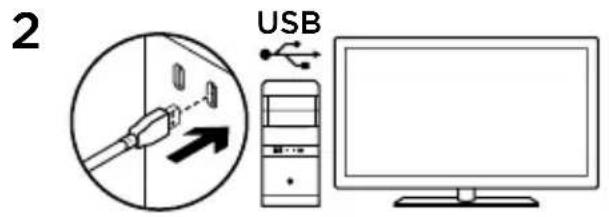
- Unplug and re-plug the USB cable to ensure a good connection.
- Try the mouse USB cable in another USB port on the computer.
- Use only a powered USB port.
- Try rebooting the computer.
- If possible, test the mouse on another computer.
- Visit www.logitech.com/support/g502 for more suggestions and assistance.
What do you think?
Please take a minute to tell us.
Thank you for purchasing our product.
www.logitech.com/ithink
1

2

natural_image
Three identical triangular shapes with internal markings, no text or symbols presentProf. 1 Prof. 2 Prof. 3
DPI-Anzeigen
natural_image
Technical line drawing of a mechanical component with no visible text or symbolsnatural_image
Three identical triangular shapes with internal markings, no text or symbols presentProf. 1 Prof. 2 Prof. 3
www.logitech.com/ithink
1
2

natural_image
Three identical triangular shapes with internal markings, no text or symbols presentProf. 1 Prof. 2 Prof. 3
Indicatori DPI
natural_image
Five identical triangular shapes with internal lines, no text or symbols presentDPI 1 DPI 2 DPI 3 DPI 4 DPI 5
Scroller iperveloce
www.logitech.com/ithink
natural_image
Technical line drawing of a mechanical component with no visible text or symbolsnatural_image
Three identical triangular shapes with internal markings, no text or symbols presentProf. 1 Prof. 2 Prof. 3
Indicadores de DPI
natural_image
Five identical triangular shapes with internal lines, no text or symbols presentDPI 1 DPI 2 DPI 3 DPI 4 DPI 5
www.logitech.com/ithink
natural_image
Technical line drawing of a mechanical component with no visible text or symbolsnatural_image
Three identical triangular shapes with internal markings, no text or symbols presentProf. 1 Prof. 2 Prof. 3
Indicadores de PPP
natural_image
Five identical triangular shapes with internal lines, no text or symbols presentDPI 1 DPI 2 DPI 3 DPI 4 DPI 5
www.logitech.com/ithink
natural_image
Technical line drawing of a mechanical component with no visible text or symbolsnatural_image
Three identical triangular shapes with internal markings, no text or symbols presentProf. 1 Prof. 2 Prof. 3
DPI-indicators
www.logitech.com/ithink
natural_image
Technical line drawing of a mechanical component with no visible text or symbolsnatural_image
Three identical triangular shapes with internal markings, no text or symbols presentProf. 1 Prof. 2 Prof. 3
Dpi-indikatorer
natural_image
Five identical triangular shapes with internal lines, no text or symbols presentDPI 1 DPI 2 DPI 3 DPI 4 DPI 5
www.logitech.com/ithink
natural_image
Technical line drawing of a mechanical component with no visible text or symbolsnatural_image
Three identical triangular shapes with internal markings, no text or symbols presentProf. 1 Prof. 2 Prof. 3
Dpi-indikatorer
natural_image
Five identical triangular shapes with internal lines, no text or symbols presentDPI 1 DPI 2 DPI 3 DPI 4 DPI 5
www.logitech.com/ithink
natural_image
Technical line drawing of a mechanical component with no visible text or symbolsnatural_image
Three identical triangular shapes with internal markings, no text or symbols presentProf. 1 Prof. 2 Prof. 3
Ppt-indikatorer
natural_image
Five identical triangular shapes with internal lines, no text or symbols presentDPI 1 DPI 2 DPI 3 DPI 4 DPI 5
www.logitech.com/ithink
natural_image
Technical line drawing of a mechanical component with no visible text or symbolsnatural_image
Three identical triangular shapes with internal markings, no text or symbols presentProf. 1 Prof. 2 Prof. 3
DPI-merkkivalot
natural_image
Five identical triangular shapes with internal lines, no text or symbols presentDPI 1 DPI 2 DPI 3 DPI 4 DPI 5
www.logitech.com/ithink


natural_image
Technical line drawing of a mechanical component with no visible text or symbolsnatural_image
Three identical triangular shapes with internal markings, no text or symbols presentProf. 1 Prof. 2 Prof. 3
natural_image
Five identical triangular shapes with internal diagonal lines, no text or symbols presentDPI 1 DPI 2 DPI 3 DPI 4 DPI 5
www.logitech.com/ithink
natural_image
Technical line drawing of a mechanical component with no visible text or symbolsnatural_image
Three identical triangular shapes with internal markings, no text or symbols presentProf. 1 Prof. 2 Prof. 3
DPI göstergeleri
natural_image
Five identical triangular shapes with internal lines, no text or symbols presentDPI 1 DPI 2 DPI 3 DPI 4 DPI 5
www.logitech.com/ithink

natural_image
Technical line drawing of a mechanical component with no visible text or symbols6
natural_image
Five identical triangular shapes with internal markings, no text or symbols presentDPI 1 DPI 2 DPI 3 DPI 4 DPI 5
natural_image
Three identical triangular shapes with internal markings, no text or symbols presentProf. 1 Prof. 2 Prof. 3
www.logitech.com/ithink
© 2014 Logitech. All rights reserved. Logitech, the Logitech logo, and other Logitech marks are owned by Logitech and may be registered. All other trademarks are the property of their respective owners. Logitech assumes no responsibility for any errors that may appear in this manual. Information contained herein is subject to change without notice.
621-000319.003
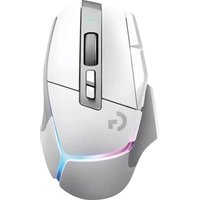


Brand : LOGITECH
Model : G502 Proteus Core
Category : Mouse