
BLUETOOTH-USB INTERFACE CNC - Audio Interface BLAUPUNKT - Free user manual and instructions
Find the device manual for free BLUETOOTH-USB INTERFACE CNC BLAUPUNKT in PDF.

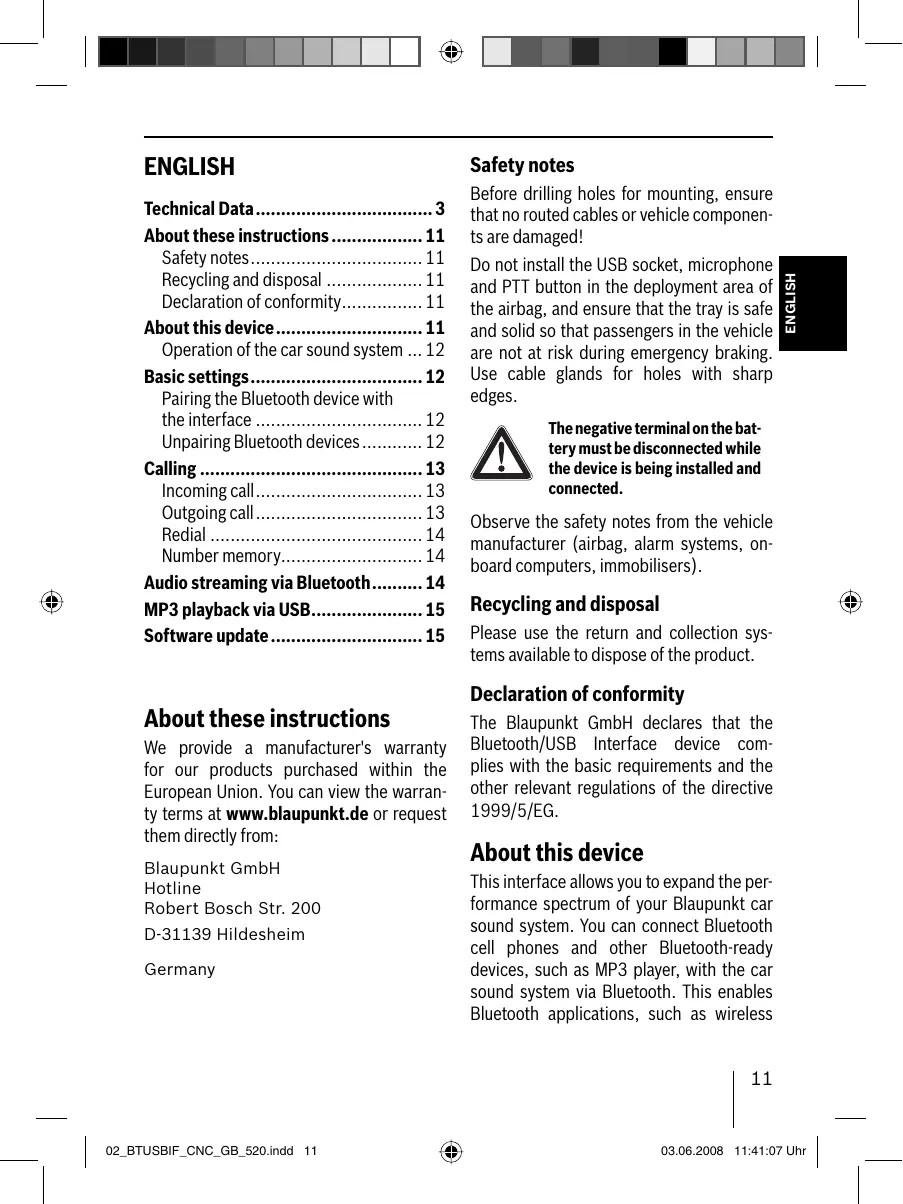


| Product Type | Bluetooth/USB Audio Interface |
| Brand | BLAUPUNKT |
| Model | BLUETOOTH-USB INTERFACE CNC |
| Category | Audio Interface |
| Compatibility | Blaupunkt car radios with C'n'C interface |
| Bluetooth Functions | Hands-free, audio streaming, pairing up to 5 devices |
| USB Functions | MP3 playback from USB stick (FAT16/FAT32) |
| Default PIN Code | 1234 |
| Firmware Update | Via USB stick (FAT16/32, 4 MB min.) |
| Power Supply | Via car radio harness |
| Dimensions (approx.) | 10 x 5 x 2 cm |
| Weight (approx.) | 50 g |
| Operating Temperature | -20°C to +60°C |
| Connections | USB cable, microphone jack, PTT button |
| Maintenance | Clean with a dry, soft cloth |
| Safety | Follow vehicle instructions (airbags, cables) |
| Recycling | Use local collection systems |
| Certifications | Directive 1999/5/EC |
| Package Contents | Interface, microphone, PTT button, cables, manual |
Frequently Asked Questions - BLUETOOTH-USB INTERFACE CNC BLAUPUNKT
User questions about BLUETOOTH-USB INTERFACE CNC BLAUPUNKT
0 question about this device. Answer the ones you know or ask your own.
Ask a new question about this device
Download the instructions for your Audio Interface in PDF format for free! Find your manual BLUETOOTH-USB INTERFACE CNC - BLAUPUNKT and take your electronic device back in hand. On this page are published all the documents necessary for the use of your device. BLUETOOTH-USB INTERFACE CNC by BLAUPUNKT.
USER MANUAL BLUETOOTH-USB INTERFACE CNC BLAUPUNKT
Bluetooth / USB - Interface C`C (Command and Control)
7607545520


http://www.blaupunkt.com
①
(2)
About these instructions 11
Safety notes. 11
Recycling and disposal 11
Declaration of conformity. 11
About this device. 11
Operation of the car sound system ... 12
Basic settings. 12
Pairing the Bluetooth device with the interface 12
Unpairing Bluetooth devices. 12
Calling 13
Incoming call. 13
Outgoing call. 13
Redial 14
Number memory. 14
Audio streaming via Bluetooth. 14
MP3 playback via USB. 15
Software update. 15
About these instructions
We provide a manufacturer's warranty for our products purchased within the European Union. You can view the warranty terms at www.blaupunkt.de or request them directly from:
Blaupunkt GmbH
Hotline
Robert Bosch Str. 200
D-31139 Hildesheim
Germany
Safety notes
Before drilling holes for mounting, ensure that no routed cables or vehicle components are damaged!
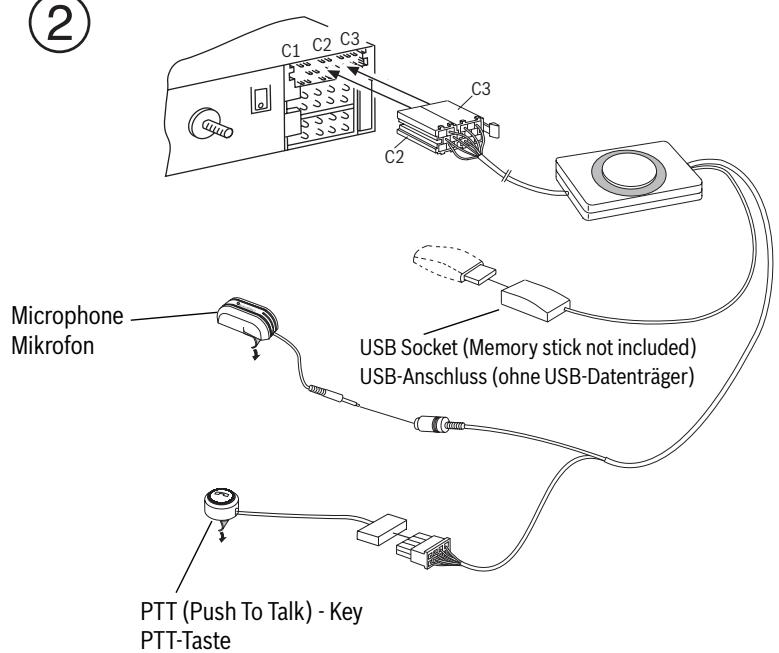
Do not install the USB socket, microphone and PTT button in the deployment area of the airbag, and ensure that the tray is safe and solid so that passengers in the vehicle are not at risk during emergency braking. Use cable glands for holes with sharp edges.

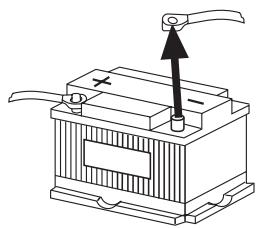
The negative terminal on the battery must be disconnected while the device is being installed and connected.
Observe the safety notes from the vehicle manufacturer (airbag, alarm systems, onboard computers, immobilisers).
Recycling and disposal
Please use the return and collection systems available to dispose of the product.
Declaration of conformity
The Blaupunkt GmbH declares that the Bluetooth/USB Interface device complies with the basic requirements and the other relevant regulations of the directive 1999/5/EG.
About this device
This interface allows you to expand the performance spectrum of your Blaupunkt car sound system. You can connect Bluetooth cell phones and other Bluetooth-ready devices, such as MP3 player, with the car sound system via Bluetooth. This enables Bluetooth applications, such as wireless
hands-free calling and Bluetooth streaming. In addition, this interface provides an additional USB connection.
This interface supports the command-and-control interface (C'n'C) of Blaupunkt. The C'n'C interface allows you an even more convenient control of devices and data carriers that are connected to the car sound system via this C'n'C-ready interface.
Operation of the car sound system
After connecting this interface to a C'n'C-ready Blaupunkt car sound system, you can control the functions and settings via the car sound system. For some functions, you also have access to the PTT button of this interface.
These instructions also describe the operation via your car sound system. Please also observe the operating instructions of your car sound system, if the operation described in these instructions deviates from that of your Blaupunkt car sound system.
Basic settings
Pairing the Bluetooth device with the interface
Use your Bluetooth device (e.g. a cell phone or MP3 player) to search for other Bluetooth devices.
Note:
For further details, please read the instructions of your Bluetooth device (keyword "Registering" or "Pairing").
Press the PTT button for approx. 4 seconds until it starts flashing.
OR:
On the car sound system, press the MENU-OK button.
Press the X or ±b button repeatedly until "BLUETOOTH" appears on the display.
Press the button to open the menu.
Press the ±b or ±b button repeatedly until "PAIR" appears.
Press the button to select the "PAIR" menu item.
Your Bluetooth device can now be paired.
Upon request, enter the PIN 1234 in your Bluetooth device.
You can pair up to 5 Bluetooth devices with the interface. If additional devices are paired, the data of the device paired first are deleted from the list in each case.
Unpairing Bluetooth devices
You can unpair selected individual Bluetooth devices or all currently paired devices.
To unpair a single Bluetooth device,
on the car sound system, press the MENU-OK button.
Press the or ±b button repeatedly until "BLUETOOTH" appears on the display.
Press the button to open the menu.
Press the ±b or ±b button repeatedly until "UNPAIR" appears.
Press the > button to select the "UNPAIR" menu item.
The display of the car sound system shows the list of paired Bluetooth devices.
- Select the desired device using the ±b or ±b button.
Press the button to unpair the selected device.
The selected device is being unpaired. If the device is connected with the interface during unpairing, the Bluetooth connection is automatically disconnected.
To unpair all paired devices,
on the car sound system, press the MENU-OK button.
Press the X or ±b button repeatedly until "BLUETOOTH" appears on the display.
Press the button to open the menu.
Press the ±b or ±b button repeatedly until "UNPAIRALL" appears.
Press the > button to select the "UNPAIRALL" menu item.
OR:
Press and hold the PTT button for at least 30 seconds.
Calling
If you connected a Bluetooth cell phone with the interface, you can accept and make calls via the car sound system. The microphone of the interface and the loudspeakers of the car sound system then allow hands-free calling.
Incoming call
Answering an incoming call
Briefly press the PTT button.
OR:
On the car sound system, press the MENU-OK button.
The incoming call is being answered. You can use the microphone and the loudspeakers of the car sound system to make
a phone call. The volume can be adjusted via the car sound system.
Rejecting an incoming call
Press the PTT button for a longer period of time.
OR:
On the car sound system, press the ESCAPE button.
The incoming call is being rejected.
Ending an ongoing call
Briefly press the PTT button.
OR:
On the car sound system, press the ESCAPE button.
The current call is being ended.
Outgoing call
To make a phone call,
on the car sound system, press the MENU-OK button.
Press the X or ±b button repeatedly until "BLUETOOTH" appears on the display.
Press the button to open the menu.
Press the ±b or ±b button repeatedly until "DIAL NEW" appears.
Press the button to select the "DIAL NEW" menu item.
If you already made calls, the display shows the number dialed last.
Press the ±b or ±b button to select the first digit of the phone number.
Change to the next digit in each case using the button and select the next digit with the ±b or ±b button.
After entering the complete number,
press the MENU-OK button to make the call.
The display shows "CALL" and the duration of the call.
Notes:
- If you entered an invalid number, the display shows "INVALID NUMBER".
- If the call could not be placed, the display shows "CALL ERROR".
- With an existing connection with the interface, many cell phones allows you to enter the number directly on the phone and to place the call (pick up). The interface then takes over the call.
Redial
To call the number dialed last,
press the DIS button on the car sound system for longer than 2 seconds.
The number dialed last is displayed.
Press the MENU-OK button.
The call is being made.
Number memory
You can store and call up phone numbers using the memory buttons of the car sound system.
Storing numbers
To store a number,
enter the number as described in the chapter "Outgoing call".
After entering the complete number,
press the desired memory button for longer than 2 seconds.
The number is being stored under the selected memory button.
Calling a stored number
To call a stored number,
press the DIS button on the car sound system for longer than 2 seconds.
Press the memory button with the desired number.
The number appears on the display.
Press the MENU-OK button.
The call is being made.
Audio streaming via Bluetooth
To transfer audio files to the car sound system via Bluetooth, you must activate this function in your Bluetooth device. To do so, the Bluetooth device must be connected with the interface and support this function (for further details, please read the instructions of your Bluetooth device).
To select Bluetooth audio streaming as audio source,
press the SRC button on the car sound system repeatedly until "BT-STREAM" (or the name of the connected device) appears on the display.
Note:
You can control the playback of tracks via Bluetooth audio streaming from the car sound system if your Bluetooth device supports it.
The functions track selection, playback interruption (pause) and fast searching forward and reverse are available to control the audio streaming. Please read the instructions of your Blaupunkt
car sound system for information about selecting these functions, e.g. in MP3 mode.
Please note that not all Bluetooth devices allow a remote control or support all functions listed.
MP3 playback via USB
You can connect a USB data carrier with MP3 files with the interface to play back the MP3 files via the car sound system. The car sound system must be switched on.
Note
Always switch off the device before connecting or disconnecting the USB data carrier so that the data carrier is correctly registered and unregistered.
Connect the USB device with the USB cable of the interface.
press the SRC button on the car sound system repeatedly until "USB" (or the name of the connected device) appears on the display.
Notes:
- If your car sound system features a separate USB connection, an audio source connected to it may also appear as "USB" on the display.
- Control the playback via the car sound system. For further details, please read the chapter about MP3 mode in the instructions of your Blaupunkt car sound system.
- Please note that car sound systems with MP3 browse mode require information about the directories of the data carrier and the files stored in them. If these data cannot be trans
ferred quickly enough to the car sound system, e.g. in case of a large number of directories and files, the car sound system automatically returns to normal display from the MP3 browse mode.
Software update
You can update the software of the interface yourself to render the interface compatible with newer cell phones.
Note:
If you update the software, these operating instructions may no longer be current. Please download a current version of the instructions from www.blaupunkt.de.
The following are required to update the software:
- USB data carrier (e.g. USB stick) with FAT16 or FAT32 formatting and at least 4 MB free memory capacity
- Computer with Internet access
ZIP software
Updating
On the USB device, create the "Blaupunkt" directory at the top level. Example: "W:\Blaupunkt"
- Load the software of the Bluetooth/USB interface from www.blaupunkt.de and store it in a directory of your computer.
Unzip the ZIP file and copy the unzipped files to the Blaupunkt directory on the USB device.
- Deactivate the USB device at the computer.
Connect the USB device with the USB cable of the interface.
Turn on the car sound system.
In the menu of the car sound system, select the "CDC ON" setting (for further details, please read the following chapter, "Adjusting the rear AUX input mode").
Press and hold the PTT button while switching the car sound system off and on again.
Release the PTT button.
The loading process starts.
Select CD Changer (CDC) at the car sound system as the audio source.
The display shows the progress of the load process. At the same time, the title numbers "1" through "5" are shown in ascending order and the current time for every title number. After the load process has completed, the display shows the track number "99" and the time "59:59".
Notes:
- If the progress indicator stops before the end of the loading process, disconnect the USB data carrier and reconnect it to the USB cable of the interface. If this is not successful, repeat the update process.
-
If the time "00:00" is displayed at the end of the loading process, an error occurred. In this case, repeat the update process.
-
Select the "CDC OFF" setting in the menu.
Switch the car sound system off and on again.
The new software is now activated.
Note:
During the update, two files with information about the interface and the update process are created in the "Blaupunkt" directory of the USB data carrier. Both files can be opened and read on a computer using a plain text editor:
- The "id.txt" file contains information about the status of the interface, e.g. the current hardware and software version as well as the Bluetooth ID of the interface.
- The "setup.log" file contains information about the process of the update, e.g. the message about a successful installation or any errors that occurred.
Adjusting the rear AUX input mode
To toggle between "CDC OFF" and "CDC ON",
press the MENU-OK button of the car sound system.
The display shows "MENU".
Press the × or button repeatedly until "VARIOUS MENU" appears on the display.
Press the button to open the menu.
Press the ±b or ±b button repeatedly until "CDC OFF" or " CDC ON" is displayed.
Press the < or > button to toggle between "CDC OFF" and "CDC ON".
If you change the setting, the device briefly switches off and back on again with the selected setting (Reset).
More information about the Bluetooth interface can be found at:
www.blaupunkt.de
Subject to changes!
FRANÇAIS
Software-actualising. 37
Salvo Modifications!
PORTUGUES
Dados&Tecnicos 3
COnpJxHeNHe Bluetooth-ycTroPcTB C INHTepfeyCOM 106
YdaenHe cOpJxKeHnBluetooth-ycTpoiCTB 107
3BOHKN PO TeAefoHy. 107
BxodAun Bb3OB 107
IcxOaIyI Bbl3OB 108
Tobtop Bb30Ba 108
TamaTb Hmepob 109
IToTOKOBoe ayANO uepez3 Bluetooth..109
BoctpoH3BeEHeHme MP3 uepe3 USB ... 109
06HOBAAEHNIEIpoRpaMMHOro 0eceueHn. 110
KdaHHoH mHcTpyKcHH
Ha HaaHn H3DeAHH, KytIeHHbIe B EByoTeckOM CoIO3e, pacIpoCTpaHReTc 3aBODCKaR rapaHTn. YcIoBn rapaHTn Bbl MoKeTe IIOCMOTpeTb TIO aDpcy www.blaupunkt.de HAn 3aIpOcNTb B:
Blaupunkt GmbH
Hotline
Robert Bosch Str. 200
D-31139 Hildesheim
Yka3aHnI IO texHnke 6e30nacHOCTN
Tpea CBePaeHnem KpeIeXbIx OTBepCTn y6eAnbCra, YTO He 6ydyTIOBpeXdHbI IpoAoXeHHbIe Ka6eAH NHN DeTaAN aBTOMo6HnA. He MOHTnpuYntrHe3do USB, MKNpOfoH n KHOJIky PTT B 30ne Cpa6aTbIAHn IOaUweK 6eOtaNtacHocTH, O6eTeyBte AAN HNX 6e3oTtacHoe MeTo, YTO6bI pRn abapnHOM TOpMooXeHHn HE CO3aBaALocb OTAcHocTH AIN TaccaxKnPOB aBTOMo6Hn. B OTBepCTnX c OCTpbIMN KpaAMN NCTOaB3OBaTb Ka6eAbHbIE BBOAbI.

Ha Bpem MoTaxa H IOKJIIOUeHn OTOeAHnHTb MmHyCoby KLEMMy OTaKymyAToPA.
TIN3OM BbIIOANHTb yka3aHnI IO 6eOtonac-HOCTN IPOUN3BOUInTeA ABTOMO6nIA (IOyUka 6eOtonacHOCTN, CnHaN3aUn, 6oPTOBOKMTbIOTep, MMo6nua3ep).
YtHn3aunn H Tepepa60Ta
AynuHn3aunn CTapOn aannapaTpyb BocIOIa3yInTeCb DOCTyINhIM NYHKTaM N PInEma n C6opa BTOPCbIPB.
3aBHeHneO COOTBeTCTBHN
HactoIzIMФnPma Blaupunkt GmbH 3aAB
AerT, YTO yCTPOINCTBO "INHTeppeic Bluetooth/ USB" COOTBETCTBYET OCHOBOTIOIaIouIMM Tpe6ObaHnIM NApYHM CTeUHaIbHbIM IpeAD
THCaHnIM DNepeKTHBbl 1999/5/EG.
OdaHHom yctpoNCTBe
Blaorapd aHHOMy Hntepcecy Bby MoKTe pacuHnptb Bo3MOxHocTH Bauei abTomarHHToBl Blaupunkt. C NmOuIbO Bluetooth Bby MoKTe IIOcOeHNrTb K
Baue aBToMaHHTOLe Mo6nAbHbIe TeAe-fohblcnoepKkoBtluooh,taKaKe dpyrHe nOAdepxNBAIOuine TexHOAnrIOo BluTooth yctpoiCTBa,HaPnMep MP3- Tneepbl. TaKIM o6pa30m, y Bac IOraBAAETCBAOMXHOCTb POAB3OBaTbCpNHOKeHNMa BTooth,HaPnMep,6ecPBOADHO rPoMKoCB83bH Nn IOTOKOBIM ayNo uepe3 Bluetooth.Kpome toro,3TO Daet DOIOANHTeAbHbI pa3bEm USB.
DaHHbIM INThepfeic TIOAdepKINBaet INThepFeic Command-and-Control (C'n'C) ot Blaupunkt. INThepFeic C'n'C TIO3BOAerBam OcuyIeCTBAITb eue 6olee KOMpOpTHoe yIppABLeHne YCTPOICTBAMN HHOCTeAAMN DaHHbIX, TIOAOEHNHeHHBM N ABTOMaHTHnTOle Upeez TIOAdepKINBaIoUm CTaHaPT C'n'C INThepFeic.
YtpaBHeHne C TOMOuIbIO abTOMaHHTOAbI
Tocle IODcoeHHeHHaDHnro INHTepfeca K aBTOMaHHTOLe Blaupunkt, IOD-depxkBaIOUe cTAHApdT C'nC, Bbl MoKeTe yIpaBArTb fYHKuJMaM N HAcTpOkaMn C TMOUbAOBTOMaHHToBl. ABy HeKOTobix fYHKuN Bbl MoKeTe IIOb3ObaTbCa TaKke N KhoTIKOPTT INHTepFeca.
B daHOM pyKoBOAcTBe pINbOaHTc TaKxe HOTnCaHne ynpabAeHHN C TOMOsbIO BaWe ABTomaHHTOnbl. PoXaLyNCa, Co6LIOaTe TaKxe HnCtpyKuHIO IO kCtIyatauNN BaWe ABTomaHHTOnbl, eCAn ONnCaHHoe B DaHHOM pyKoBOAcTBe ynpabAeHHne OTnUHaETcR O TAkOBOrO, I3AOKeHHOr BO INHCTpyKuNN BaWe ABTomaHHTOnbl Blaupunkt.
Ba30BbIe HacTpoKn CoPaxKeHne BluetoothyCTpoiCTB C INHTeppeiCOM
HaHnTe CnOmoBbBo BaWero Bluetoothy cTpoiCTBa (HaIpImep, MoNbHoro TelefoHa Hm MP3-tneepa) npoune ycTpoiCTBa Bluetooth.
Птимеанно:
ПочтпгдэлэтогинстукцьвБашero Bluoteoh-устояства(cmoTpHte nCoby"coTpRjxEHNe"nAN"cPapBahne").
Haxmnte u ydepxnBaTe KhoTky PTT pHm. 4 cekyHbI, Ioka OHa He Haunhet MHTb.
MHN:
Haxmnte Ha aBTOMaHHTOte KHOITKY MENU·OK.
HaxnMaTe KHOPIKy Y Hn A, TOKa Ha DnCTIae He TIOBNTc HADINCb "BLUETOOTH".
HaxMnte KHOITKy >,uTO6bl OTKpbITb MEHIO.
HaxmMaTe KHOITky A HN N Y, TOKa Ha AnCTIae He IIOBNTcH aADTncb "PAIR" (coTprXeHne).
HaxMnte KHOIky ,UTo6bl OTKpbITb TYPHKMeHIO"PAIR".
Ceyac MoxHNO Ipon3BecTH COpIpaKeHne BaWero Bluetooth-ycTpoIcTBa.
TocLe 3aIpOca BBeAHTe B BaIeM Bluetooth-ycTroPcTBe PIN-KoA 1234.
BbMOxTe yCTaHOBnTb COITPRJKeHne D0 5 Bluetooth-yCTPOINCTCB C HHTeppeFcOM. IPrn COITPRJKeHN6OaIbIeRO KOAMueCTBa yCTPOINCTB DaHHble COOTBeTCTBYIOJIeRO paHee COITPRJKeH HOrO yCTPOINCTBa YdaAIAHOTcN3 CTINCKa.
Ydaenne coopjkeHHnBluetooth-yctpoIcTB
BbMOKeTe ueHeHaPiPaBHeHNO ydaAHTb COIpyXeHne COTdEaBbHIMN yCTPOINCTBaMnBluetooth HAN CO BcEMN TEKyuImN COIpyXeHHbIMN yCTPOINCTBaMn.
Aa ydaenHn COpRKeHn C OTeAbHbIM ycTpoiCTBOM Bluetooth,
HaxMITE Ha aBTOMaHTHOte KHOITKY MENU·OK.
HaxmMaTe KHOITky Y HnA TOKa Ha dNCTIae He TIOBHTcR HaDTINCb "BLUETOOTH".
Haxmnte KHOITky ,UTo6bl OTKpbITb MEHIO.
HaxmMaTe KHTKy X HN Y, TOKa Ha DCPTTHe ITOBHTCn HAITNCb "UNPAIR" (ydaaleHne cOtpJxehn).
Haxmnte KhoIky ,UTo6bl OTKpbITb TnyHKT MeHIO "UNPAIR".
Ha nCIIe e ABToMaHHTOJI b OTo6paXaETc CnICOK cOpJKeHHbIX Bluetooth-ycTPOIcTB.
Bb6epHTe KHOIIKOI AN NAN XeAaeMoe yCTPOIcTBO.
Haxmnte KhoTky>,dnyyaaleHncoTIPJxHeHn C BbIbpaHHbIM yCTPOINCTBOM.
CoIpyKeHne C BbI6paHHbIM yCTpoHCTBOM ydaAHTcra. Ecn Bo BpeM ydaAeHncoIpyKeHna Baue yCTPOHCTBO coEaHHeO c HInTepeHcom, TO IponCxOaNT aBtOMaTHuecko pa3beAnHeHne Bluetooth-coaHHeHn.
Aa ydaenHn COpJxehn CO BCemn COIpyxehbIMN ycTpoNCTBaMn
HaxMITE Ha aBTOMaHTHOte KHOITKY MENU·OK.
HaxmMaTe KHOITky NnN A, Toka Ha dNCTIe He IIOBHTcra HaADINCb "BLUETOOTH".
HaxMnte KHOITKy >,yTO6bl OTKpbITb MEHIO.
HaxnMaTe KHOITky Nnn Y, TOKa Ha dNCTIe He TIOBHTc HAdTINCb "UNPAIRALL" (ydaaleHne Bcex coipra- xhen).
Haxmnte KhoTky ,TO6bl OTKpbITb TnHKT MeHO "UNPAIRALL".
VAN:
Haxmnte uyepeXnBaTe KhoIpy PTT B teueHne MmHmym 30 cekyHa.
3BOHKn TTo TeAefoHy
EcBb coeHHHTe C nHTepfeyncOM MoNAbHbI TeAefoH C IOAdepKkoj Bluetooth,TO Bb CMOXeTe OcyuieCTBAITb H pINHMaTb 3BOHK C TOMOsbIO aBTOMaHHToBl. Bb CMOXeTe 3BOHtB ITO rPOMKO CB3N C TOMOsbIO MHKpOfoHa nHTeppeCa N DAHAmKOB aBTOMaHTObl.
BxOaIyN Bbl3OB
TpHnHTb BXOdAunBbI3OB
HaxmTe KpaTkoBpeMeHHO KHOTKy PTT.
NAN:
Haxmnte Ha aBTOMaHTHOte KHTKY MENU·OK.
OcuyectBAAETC TIPHEM BXOAAEBO Bb30Ba. Bbl MOxTe BECTN TEaEOHHbI pa3ROBOP C NOMOUBM KPOoHO H DAHAmKOB aBTOMaHTHOJI. rPOMKOt bMOXHO hAcTpaHBaTb Ha aBTOMaHTHOe.
OTKAOHHTb BXOJAIIH BbI3OB
HaxmnteAnTeaHoKhoNtkyPTT.
NAN:
Haxmnte Ha aBTOMaHTOte KHOITKY ESCAPE.
Пюнсховп OTКLOHEнe BXOДЯгero Bbl30Ba.
3aBepuMb TeKyuPin pa3roBOp
HaxmTe KpaTkoBpeMeHHO KHOITKY PTT.
NAN:
Haxmnte Ha aBTOMaHTOte KHOITKY ESCAPE.
Tekyuynpa3roBOp 3aBepuaetcA.
NcXO4A7IeN Bbl3OB
YTO6bI IIO3BOHHTB,
HaxMITE Ha aBTOMaHTHOte KHOITKY MENU·OK.
HaxmMaTe KHOJIky YI HAI X, TOKa Ha DnCTIae He IIOBNTcH HADTINCb "BLUETOOTH".
Haxmnte KHOITKy >,uTO6bl OTKpbITb MEHIO.
HaxmMaTe KHOITky A HnN Y, TOKa Ha AnCTIae He IIOBHTcH aHtncb "DIAL NEW" (Ha6paTb HObbl).
Haxmnte KhoTIky ,TO6bl OTKpbITb TnyHKT MeHIO "DIAL NEW".
EcnBby yke ocyuieCTBaIIN 3BOHN,TO Ha AnCnIae 6yTe OTo6paXaTbCa TocAeHn H6paHHbHOMep.
HaxmMaTe KHOITky A HAI N Y, UTO6bl BbIpaTb IepByIO uOpy TelefoHHoro HOMepa.
IpexOAnTe KHOIIKOJ K CLeAUYIOSeMy pa3pAHy N BbIbnpaIte KHOIIKOJ AHN Y cAeDyUOyU OuΦpy.
TIOcIe TOrO, KaK Bbl IIOAHOCTbIO BBeAM HOMep,
HAXMNTe KHOITKy MENU·OK, yTo6blOCUJeeCTBnTb 3BOHOK.
Ha nCπλee oTo6paKaεtca "CALL" (3BOHOK)
I IPOdoλKHTeλbHOCTb 3BOHka.
Пгимechanical:
- ECAH BBy BBEA HHeEiCTBnTeA hBbI HOMep, To Ha dncTnEe 6yDeT OTo6paKaTbcra "INVALID NUMBER".
- EÇM OÇUŞECTBNTB 3BOHOK He ydaALOCb, To Ha ḤncΠaee 6ydet OTo6paKaTbca "CALL ERROR" (Oшибka 3BOHka).
-Пин haHnHn COeHHeHn C nHTepFeHcOM MHOrHe MObHbHbTe TEaEOHbI IIO3BOAIAOT BBOAnTb HOMepa HeNOCpeCTBeHHo Ha TeLEOHe N OcyUeCTBArTb (OTKHOJrTb) 3BOHKn. B taKOM cLyuae INHTepFeHc PnHHMaet pa3ROBOp.
TobTop Bbl30Ba
YTO6bI IO3BOHnTb IIO TOCaEDHemy Ha6paHOMy HOMepy,
HaxMHTe Ha aBTOMaTHNTOLe KHOIky DIS UydepxnBaHTe ee 6oae 2 cekyHa.
OTo6paKaJaTcA TIOcAeHn H6paHHbI HOMep.
HaxMMTe KHOITky MENU·OK.
OcncyctBnEeTc3BOHOK.
TAMATb HOMePOB
BbMOKTe NcTIOb3OBAbTKOHIKN TAmrNTaBTOMaHHTOJI Dn 3aTIOMHaHHN H Bbl3OBa TeAeOHHbIX HOMePOB.
3aTOMHHTb Homep
YTo6bI CoXpaHntb Homep,
BVeAHTe HOMep, KaK 3TO yKa3aHO B rAabe "IcxOJaIIN Bbl3OB".
TIOCAe TOrO, KaK Bbl IOAHOCTbIO BBeH NHomep,
HaxMMTe XeLaemyIO KHTKpy TAmrtnu ydepxBaIte ee 6oane 2 cekyHa.
Homep 3aPOMHaETcI IOA BbI6paHHoKHOPTKOITAMTIN.
Ha6op HOMepa H3 PAMrTH
UTo6bHa 6aPbTb HOpem H3 PAmrTH,
HaxMHTe Ha aBTOMaTHNTOLe KHOIky DIS uyepxnBaYte ee 6oae 2 cekyHa.
Haxmnte Khotky Taamrnc CKeIaemblM HOMEpom.
Homep 0To6paKaetcHa NAcTnIe.
HaxMNTe KHOITKy MENU·OK.
OcuyeeCTBAAeTc3BOHOK.
ПOTOKOBoe aydno uepe3 Bluetooth
UTo6blIpePeaBaTb ayAno-paAInBly uepe3 Bluetooth Ha aBTOMaHHTOly, Bbl DoAnKnBbl aKTNBnPoBaTb DaHHyIO fYHKnIO B CBOeM Bluetooth-yCTpoiCtBE. DAn 3TOrO Bluetooth-yCTpoiCtBO dAnXHO 6blb CoEaHHeO C nHTepFeiCom N doAnXHO IOnAdepKnBaTb 3Ty fYHKnIO (UTo6bl 3TO y3HaTb, YntaTe, PoxaLyNCTa, INCTpyKnIO BaWero Bluetooth-yCTpoiCTBa).
YtO6bI BbIbPaTb TIOTOKOBoe aydno TIO Bluetooth B KaueCTBe aydnoHcTouHnka,
HaxnMaTe Ha aBTOMaTHOTe KHTKY SRC Do Tex Iop, Toka Ha DCITee He TIOBHTcra "BT-STREAM" (HnHa3BaHne COIprKeHHOrO yCTpoCTBa).
Птимechанiste:
BbMOxTe yIpaAaTb BocPOn3Be-DeHnEM TpeKOB HcNoA3y4 fYHKuIO nToKoBO rayno nBoeuth,ecn Baue Bluetooth-yctpoCTBO 3TO nOd-epXnBaET.
Aa yPpabLeHnI ITOKOBbIM ayHNO B BaWem pacTnpJxehHN HMeIOTCa CLeayUOuHne FyHKuN: Bbl6op TpeKa, IIpepbBAHHe BOCTpon3BeDeHn (NaY3a) 6bICTpbI NOnCK BtpeEa/Ha3aD. IpoTuHTe, ToXaALyHCTa, B INCHtpyKuHn Ha BaWy ABToMaHrHToLy Blaupunkt, KaK BbHpaIOTc DaHHbIe FyHKuN, K IIpImepy, B pexmme BoCtpon3BeDeHn MP3-ФaIIoB.
YuNbIe TIOxALyHCTa, YTO He BCE Bluetooth-ycTPOINCTBa IO3BOAHOIT OCUJECTBb DnCTAHUONHOE UYPaBAEHNHe /IOdepXBAOT BcpeHNCaENHbE yHKun.
BocIpOu3BeDeHne MP3 uepe3 USB
BbMOKTeIIOAKnOuHTb K INHtepFeCy HocHTeBaHHbIX USBc MP3-paAamn, YTO6bI BOCpOn3BecTH MP3-paAbl C IO-MoUbIO abTOMaHHTOaI. ABTomaHHTOla DOXKaHa 6bTB BKHOueHa.
Птумейанne
Bcerda BbikouaHTe yctpoCTBO, PpeXe Yem TIOKHOUaTb IAN OTKIOUaTb
HOCHTeB daHHbIX USB,ДЯ erOkoppeKTHOrO pactIO3HaBaHNu ydaAenneHn.
IIOKIAOHTe USB-HOCHTeB K USB-Ka-6eALIO HHTepceHca.
HaxmMaTe Ha aBTOMaHrHToIe KHOITky SRC Do Tex Iop, TOKa Ha HcTIIee He TIOBHTcra "USB" (Mn HA3BaHne COPTpJxEHHO yCTpoIcTBa).
Птимеанnia:
ECAH B BaWei aBTOMaHHTOnTe eCTb co6CTBeHHbI USB-pa3bEm,TOIOCo- eHNHeHHbI uepe3 Hero ayDIOHOCTOuH NK MoKet TaKke OTo6paKaTbCra Ha AnCIIae KaK "USB".
BocpnOn3BeDeHnEM MoXHO yIpaBAArTb C ITOMOUbIO aBTOMaHHTOaBl. IpoTuTHe AIN 3TOBO HNCTpyKuIN BaWeABTOMaHHToBl Blaupunkt rAby O pexmte BocpnOn3BeDeHnMP3-ФaMLOB.
ItoKalynta,yuNbBaTe,TO aBtOMaHHTOAM cpexHmOM 6pay3epa MP3 Heo6xoDnma HnΦopMaunO dNpekTOPnX HocHTeA daHHbIX O coXpaHeHHbIX B HnxΦaJax. Ecn 3TN daHHbIe,K IIpMepy,IIpi 60bUOM KOAnueCTBe DnpeKTopn I paJIoB, He MOrT 6bITb DOcTaTOUHO 6bICTpo IIpeDaHbHa aBTOMaHTOnY,TO OHa aBTOMaTHueCKN Bo3BpaAaETcraH3 peKIma 6pay3epa MP3 K ctaHapTHO INDAKauNI.
06HOBaEHe NpOprpaMMHOro 0ececTeueHn
BbMOKTe CaMOCTOaTeNbHO 06HOBHTb IPOrpaMMHoe OeCEIeHHe INTEppeCa, UTO6bI CaeAaTb ERO COBMecTHMbIM C HOBbIMM MoEAMMH COTOBbIX TeAEFOHOB.
Птимеанно:
Korda Bbl 6bHOBIAeTe IpOgrpaMMHoe
06ecIeueHHe, DaHHa INcTpyKUIN IO
3KcIIyatauM MoKet OKa3aTbc yKe
He aKTyaIbHO. 3arpy3nTe aKTyaIbHyIO
INcTpyKUIO IO aDpcy B INHTepHET
www.blaupunkt.de.
AaOBVAHnI pporpaMMHOrO oecTeueHnBAM TOTpe6yIOTc:
HocHTeBdaHHbIX USB(HaIprMep,USB-Фa3ka),OTΦopMaTHPOBaHHbI ITOFAT16 Hn FAT32 HmEIOUIM MHN.4M6 Cbo6oHOrO MeCTa B TAmTIn
KOMTbIOpTeP cOCTyITOM B INHTepHET
- ApxHBatop ZIP
06HOBaeHne
Co3aIe B KOpHeB0d HpeKToPn USB-HocTeAe HpeKToPnIO "Blaupunkt".Ппмер:"W:\Blaupunkt"
CkaaTe IprpamMHe oBecneueHne HntepFeica Bluetooth/USB co ctpaHnUbI www.blaupunkt.de n coxpaHnte erO B AnpeKTopHH Ha BaWeM KOMTbIO-Tepe.
Pa3apxNBpyTe ZIP-paIaN cKoTIpyIte HaxOJaIuIeScra TaM DaHHbIe B AnpeKTOpHIO "Blaupunkt" Ha USB-HocHTeIe.
AeakTNBnpyTe HocHTeIb DaHHbIX USB B TIK.
IIOKIAOHTe HOCHTaDaHHbIX USB K USB-Ka6eIo HInTepeHcCa.
BKAIOUHTe aBTOMaHHTOly.
BbI6epHTe B MeHIO BaWeJ aBTOMaHnToJIbI HAcTPOHy "CDC ON" (PiOuHTe, IOnKaIyIcTa, dA 3TOr CLeAUYUryI rABy "HaCtPOKa peXHMa dN BxOda AUX Ha TblbHO CTOpOHe").
Haxmnte uyepeKnBaTe KhoTky PTT nIpi NTOM BbIKAOHTe N CHOBA BKIOHTe aBTOMaHHTOly.
OTnyctTe KhoTky PTT.
HauhnaeTc3aqrpy3ka.
BbI6epHTe B KaueCTBe HcTOUHnKa ay- Ano Ha aBTOMaHHTOte CD-yeHdXep (CDC).
HaДиспл.e OTO6paxaetc TpoRpecc Tpo- cecca 3aRpy3kn.Пр n 3tOM TpoIcxOAnT OTO6paxeHne HOMePoB TpeKOB TIO B03- pactaIoUeIOT "1"do "5",aTaKke TeKyuSeE BpemdA KaxDoTo TpeKa.TIO 3aBePseHn N IPOcecca 3aRpy3kn HaДиCПeee OTO6paxa- etcHomeP TpeKa "99"ИВpemr "59:59".
Приимechану:
EcnHnHnKaTOpIporpeccaOCTaHaBnBaetcdoOKOnuHaHHIPOecca3a-rgy3Kn,CaeDeYETN3BLeybUSB-HocnteNbHIOBTOPHIOADCOeHNHTberoKUSB-KaBeIIOHTepFeIca.Ecn3ToHePiINHeCnpe3yIbTaTa,IOBTOPTeOTepaIIOAKTyAun3aU.
EcnIOOKOHaHINIPOUecca3aRpy3KnOTo6paKaetcBpeMa"00:00",3oO3Haayet,HTO HMeET MeCtO OUn6ka.B TakOM CAYae IOBTopTe OepauuioAKTyuaH3aunH.
BbIbepHTe B MeHIO HacTpoNky "CDC OFF".
BbIKIOUHTe IN CHOBA BKIOUHTe aBTOMaHHTOy.
HObOE IporpaMMHoe o6ecIeueHne TeTepb aKTNBHO.
Приимechanical:
BoBpemakTyaun3aunn BAnpeKTopnn "Blaupunkt"USB-HocnteAco3daIOTcA DbaΦaIIa CInHOpMaunne O6 INTePΦeue COnepaunn akTyaun3aunn.ObaΦaIIa MoXHO OTKpbIBaTb NHTaTb Ha KOMTbIOtepe C IIOMOUIO PPOCTO TReKTBOTO peDaKTopa:
BФaIe "id.txt" HaxoAnTcH INHOpMaunio O cTaTyce INThepFeIca, HApnMep, O TeKyuIeBercn anAmpaTHoroN IPrOpaMMHOrO oBeCneueHnA taKaJx eNDeHTnΦkAtop (ID) Bluetooth INThepFeIca.
BΦaIe "setup.log" HaxoAnTcHnHΦopMaunO xOde aKtYaAun3aunu, KπPmepy, coo6ühenoe yCteuHou yCTAHOBKe HnBo3HKnUxN OUn6kax.
HaCtpoJa peXHMa DIA BXOaAUX Ha TbIbHOI CTopoHe
All following FCC statements are valid for the Industry Canada Standard (IC) as well.
1. General
Interference Warning: (according to FCC part 15.19)
This device complies with Part 15 of the FCC Rules. Operation is subject to the following two conditions:
(1) this device may not cause harmful interference, and
(2) this device must accept any interference received, including interference that may cause undesired operation
Caution: (pertaining to FCC part 15.21)
Modifications not expressly approved by this company could void the user's authority to operate the equipment
2. Specific Part 15.105
Information to the user:
2.1 For Class A digital device
(A digital device that is marketed for use in a commercial, industrial or business environment, exclusive of a device which is marketed for use by the general public or is intended to be used in the home.)
Note: This equipment has been tested and found to comply with the limits for a Class A digital device, pursuant to part 15 of the FCC Rules. These limits are designed to provide reasonable protection against
harmful interference when the equipment is operated in a commercial environment. This equipment generates, uses, and can radiate radio frequency energy and, if not installed and used in accordance with the instruction manual, may cause harmful interference to radio communications. Operation of this equipment in a residential area is likely to cause harmful interference in which case the user will be required to correct the interference at his own expense.
RF Radiation Exposure
This equipment complies with FCC RF radiation exposure limits set forth for an uncontrolled environment. This equipment should be installed and operated with a minimum distance of 20 centimeters between the radiator and your body.
This transmitter must not be co-located or operating in conjunction with any other antenna or transmitter.

Service numbers
| Country: | Phone: | Fax: | |
| Germany | (D) | 01805000225 | 05121-49 4002 |
| Austria | (A) | 01-610 39 0 | 01-610 393 91 |
| Belgium | (B) | 02-525 5444 | 02-525 5263 |
| Denmark | (DK) | 44 898 360 | 44-898 644 |
| Finland | (FIN) | 09-435 991 | 09-435 99236 |
| France | (F) | 01-4010 7007 | 01-4010 7320 |
| Great Britain | (GB) | 01-89583 8880 | 01-89583 8394 |
| Greece | (GR) | 210 94 27 337 | 210 94 12 711 |
| Ireland | (IRL) | 01-46 66 700 | 01-46 66 706 |
| Italy | (I) | 02-369 2331 | 02-369 62464 |
| Luxembourg | (L) | 40 4078 | 40 2085 |
| Netherlands | (NL) | 00 31 24 35 91 338 | 00 31 24 35 91 336 |
| Norway | (N) | +47 64 87 89 60 | +47 64 87 89 02 |
| Portugal | (P) | 2185 00144 | 2185 00165 |
| Spain | (E) | 902 52 77 70 | 91 410 4078 |
| Sweden | (S) | 08-75018 50 | 08-75018 10 |
| Switzerland | (CH) | 01-8471644 | 01-8471650 |
| Czech. Rep. | (CZ) | 02-6130 0446 | 02-6130 0514 |
| Hungary | (H) | 76 5889 704 | - |
| Poland | (PL) | 0800-118922 | 022-8771260 |
| Turkey | (TR) | 0212-335 07 23 | 0212-3460040 |
| USA | (USA) | 800-950-2528 | 708-6817188 |
| Brasil (Mercosur) | (BR) | 0800 7045446 | +55-19 3745 2773 |
| Malaysia (Asia Pacific) | (MAL) | +604-6382 474 | +604-6413 640 |
Blaupunkt GmbH
Robert-Bosch-Str. 200
D-31139 Hildesheim