
FORCE GC30 - Joystick MSI - Free user manual and instructions
Find the device manual for free FORCE GC30 MSI in PDF.


| Product type | Game controller (joystick) |
| Brand | MSI |
| Model | FORCE GC30 |
| Dimensions | 156 x 115 x 62 mm |
| Weight | Approximately 275 g |
| Power supply | Rechargeable lithium-ion battery (800 mAh) or USB |
| Connectivity | 2.4 GHz wireless (USB dongle) and wired USB-C |
| Compatibility | PC, PS4, PS3, Android (OTG mode) |
| Main functions | Two analog sticks, directional pad, 12 buttons, LT/RT triggers, vibration, turbo, programmable mode |
| Care and cleaning | Clean with a soft, slightly damp cloth; do not use solvents. |
| Safety | Do not expose to moisture or extreme temperatures; do not disassemble. |
| Spare parts and repairability | Limited availability; contact MSI support for battery or stick replacement. |
| General information | 2-year warranty; made in China; ergonomic controller with dual vibration. |
Frequently Asked Questions - FORCE GC30 MSI
User questions about FORCE GC30 MSI
0 question about this device. Answer the ones you know or ask your own.
Ask a new question about this device
Download the instructions for your Joystick in PDF format for free! Find your manual FORCE GC30 - MSI and take your electronic device back in hand. On this page are published all the documents necessary for the use of your device. FORCE GC30 by MSI.
USER MANUAL FORCE GC30 MSI
Thank you for choosing MSI Force GC30/GC20 to be your gaming companion. This exquisite gaming controller will surely give you a delightful and professional experience in PC games.
This guide provides instructions and illustrations to help you get the most from the controller, and it is recommended to read this guide before using it.
Package Contents
MSI GC30/ GC20 GAMING Controller
USB Dongle x1 (GC30 only)
USB Connector Cable x1
▶ OTG Cable x1 (android device only)
▶ Additional D-pad Cover
▶ User Guide
System Requirements
▶ PC with available USB port
▶ Windows 10/8.1/8/7
PS3 platform
▶ Android OS 4.1 and above
Specifications
▶ Interface: USB
▶ Operating System: Windows 10/8.1/8/7, Android 4.0 and above, PS3
▶ Number of Keys: 14
▶ Cable Length: 2M cable and 30cm OTG cable for Android device
▶ Dimension: 156 x 105 x 62.5 mm
▶ Operating Band ( MHz ): 2409MHz\~2475MHz(GC30 only)
▶ Target output power: ≤ 1 mw(GC30 only)
Overview
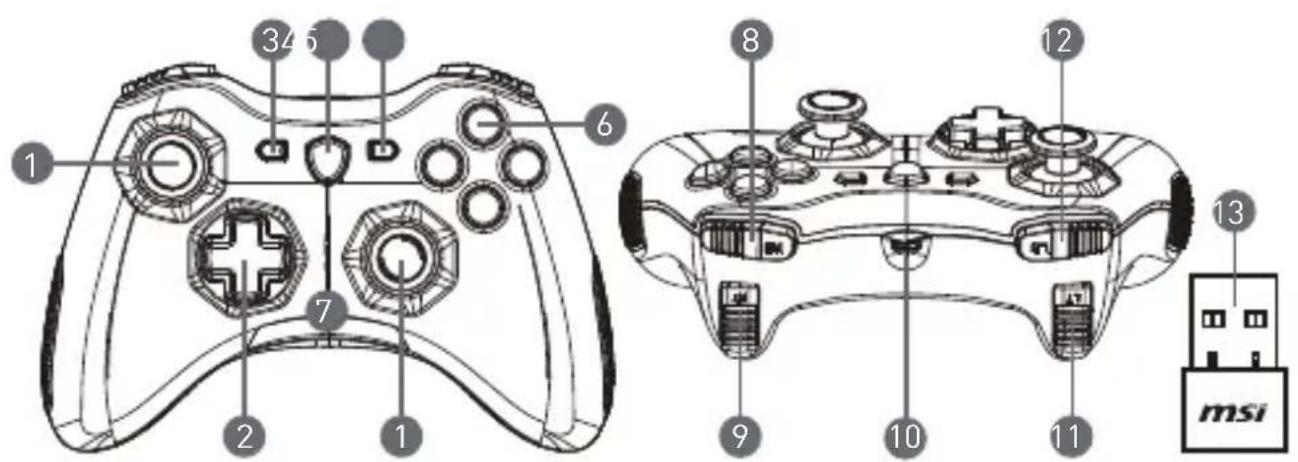
- Analog Stick
- D-pad
- Back
- Mode Switch Button
- Start
- Action Buttons
-
Mode LED Indicators
-
RB Button
- RT Button
- Micro USB Port
- LB Button
- LT Button
- USB Dongle (GC30 only)
- Reset Hole (GC30 only)
Hardware Installation
Wireless Mode (GC30 only)
- Connect the USB dongle to your PC/ PS3/ Android device.
- The controller should be ready for use immediately.
- If the controller is not activated, first please check if the battery of the controller is being charged.
- Second, check if a proper Controller Mode is selected for use. Refer to the Mode LED indicators may help users to learn which Controller Mode is selected.
- Third, insert a paperclip or a needle into the reset hole in the back side of the controller with a couple of seconds.
Wired / Charging Mode
- Connect the controller to your PC with a USB cable.
-
The controller should be ready for use immediately.
-
If the controller is not activated, check if a proper Controller Mode is selected for use. Refer to the Mode LED indicators may help users to learn which Controller Mode is selected.
NOTE
- Press B and Back keys to turn off the controller immediately.
- The controller will be switched to sleep mode in 5 minutes if there is no signal detected under pairing mode.
How to Recharge the Controller (GC30 only)
- Connect GC30 to your PC with a USB cable.
- The charging mode will be activated automatically, and four of the Mode LED Indicators will all be flashing while charging.
- The corresponding two Mode LED Indicators to the selected Controller Mode will be flashing while the battery is in low power capacity status.
- It may take roughly 2 to 3 hours to have GC30 fully recharged, depending on the power source connected to the controller.
How to Select the Controller Mode
-
Default Mode
-
Select this mode to use the default settings for the controller.
• The 1st and 2nd Mode LED indicators glow when this mode is selected. -
Analog Mode
-
Select this mode for DirectInput Analog Mode. Users are allowed to define the analog stick of the controller as their need.
-
When Default Mode is selected, long press the Mode Switch Button for 3 seconds to select Analog Mode.
• The 1st and 3rd Mode LED indicators glow when this mode is selected. -
Digital Mode
-
Select this mode for DirectInput Digital Mode. Users are allowed to define the D-pad of the controller as their need.
-
When Analog Mode is selected, short press the Mode Switch Button for 1 second to select Digital Mode.
• The 1st and 4th Mode LED indicators glow when this mode is selected. -
Android Mode
-
Select this mode while the controller is connected to an android device.
- When Digital Mode is selected, long press the Mode Switch Button for 3 seconds to select Android Mode.
• The 3rd and 4th Mode LED indicators glow when this mode is selected.
02 繁體中文
簡介
▶ PC met beschikbare USB-poort
▶ Windows 10/8.1/8/7
PS3 platform
▶ Android OS 4.1 en later
Specifications
Hardware Installation
Trådløs tilstand (kun GC30)
Wired / Charging Mode
Brand : MSI
Model : FORCE GC30
Category : Joystick