
H32S80GFX - Television HAIER - Free user manual and instructions
Find the device manual for free H32S80GFX HAIER in PDF.

 FR
FR
 BG
BG
 CS
CS
 DA
DA
 DE
DE
 EL
EL
 EN
EN
 ES
ES
 ET
ET
 FI
FI
 HU
HU
 IS
IS
 IT
IT
 LT
LT
 LV
LV
 MK
MK
 NL
NL
 NO
NO
 PL
PL
 PT
PT
 RO
RO
 RU
RU
 SK
SK
 SL
SL
 SQ
SQ
 SV
SV
 TR
TR
 UK
UK
| Product type | LED Full HD TV |
| Brand | Haier |
| Model | H32S80GFX |
| Screen size (diagonal) | 32 inches (81 cm) |
| Resolution | 1920 x 1080 pixels (Full HD) |
| Refresh rate | 60 Hz |
| Aspect ratio | 16:9 |
| TV system | ATV (PAL, SECAM) / DTV (DVB-T/C/T2/S2) |
| Audio power | 16 W |
| Power consumption (nominal) | 55 W |
| Standby consumption | ≤ 0.5 W |
| Supply voltage | 100-240 V ~ 50/60 Hz |
| Operating temperature | +5 to +40 °C |
| Operating humidity | 25 to 80% |
| Storage temperature | -15 to +45 °C |
| Storage humidity | < 80% |
| Atmospheric pressure | 86 to 106 kPa |
| Smart functions | Netflix, Prime Video, YouTube, built-in Google Assistant |
| Eye protection | Low blue light mode (Low, Medium, High) |
| Accessibility | TalkBack, speech synthesis, subtitles, bold text, color correction, audio description, accessibility shortcut |
| Remote control | With dedicated Netflix, Prime Video, YouTube buttons, and tactile dots on the 5 key |
| Included accessories | Remote control, user manual, stand installation guide, stand base, warranty card, power cord, screws (4xST4x20, 2xST3x8) |
| Built-in e-manual | Yes, accessible from the home screen in Apps |
Frequently Asked Questions - H32S80GFX HAIER
User questions about H32S80GFX HAIER
0 question about this device. Answer the ones you know or ask your own.
Ask a new question about this device
Download the instructions for your Television in PDF format for free! Find your manual H32S80GFX - HAIER and take your electronic device back in hand. On this page are published all the documents necessary for the use of your device. H32S80GFX by HAIER.
USER MANUAL H32S80GFX HAIER
More Creation More Possibilities
H32S80GFX
H32K85GFX
User Manual EN
Illustrations in this guide are provided for reference only and may differ from the actual product appearance. Product design and specifications may be changed without notice.
LED Television
TURNING ON THE TV
- Install the stand and place the TV on a solid surface.
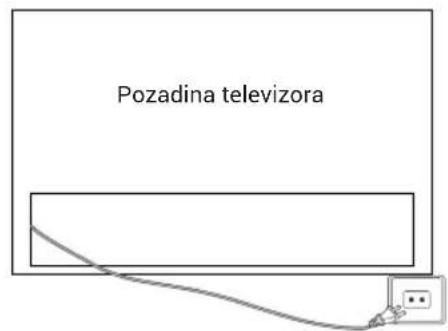
- Connect the antenna or cable to the ANT aerial socket on the back of the TV set.
- Power: Plug the cord into a working power outlet.
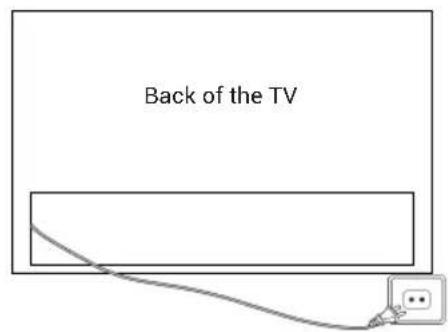
- Turn the TV on:
Press on the remote control or POWER button at the bottom/side of the TV.
BUTTON CONTROL

ACCESSORIES
Remote Control - 1 pc, User's Manual - 1 pc
Base Installation Guide - 1 pc Base Stand - 1 set
Warranty Card - 1 pc Power cord - 1 pc
*Screws (4xST4x20, 2xST3x8) - 6 pcs

H32K85GFX: The specification of the base fixing screw is ST4x20 - 4 pcs.
GENERAL SPECIFICATIONS
| Size (Diagonal) | 32" |
| Resolution | 1920x1080 |
| Max Refresh rate | 60Hz @ 1920x1080 |
| Aspect Ratio 16 | 9 |
| TV System ATV | (PAL, SECAM)/DTV (DVB-T/C/T2/S2) |
| Video Signal System | PAL, SECAM |
| Input Power Voltage | 100-240V~50/60Hz |
| Rated Power | 55W |
| Audio Output | 16W |
| Standby Power consumption | ≤ 0.5W |
| Environmental Condition | Operating ambient temperature: +5°C to +40°C Operating environment humidity: 25%~80% Storage Temperature: -15°C~+45°C Storage Humidity: <80% Atmospheric Pressure: 86~106Kpa |
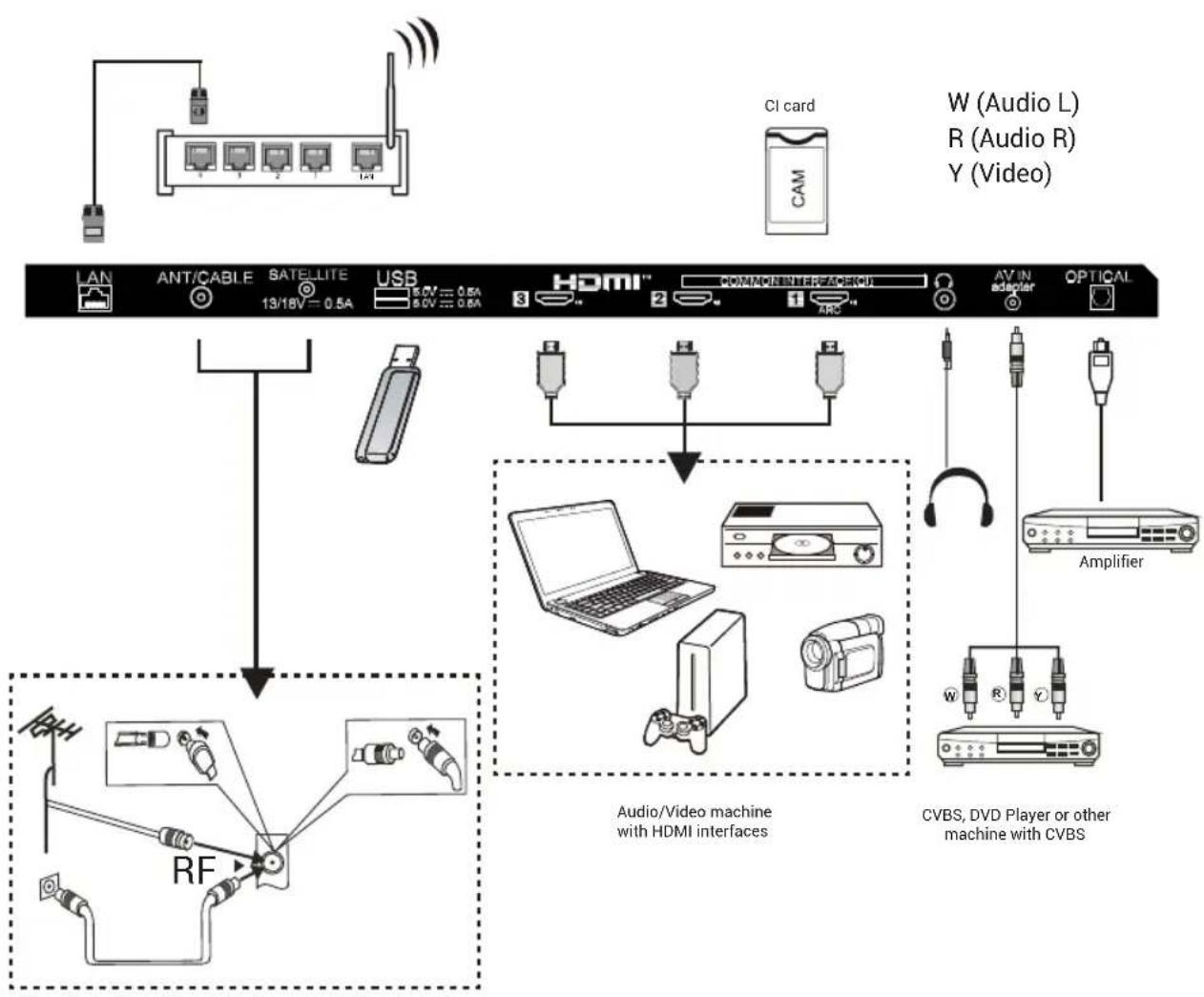
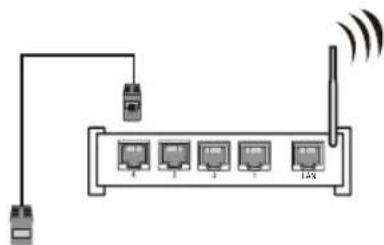
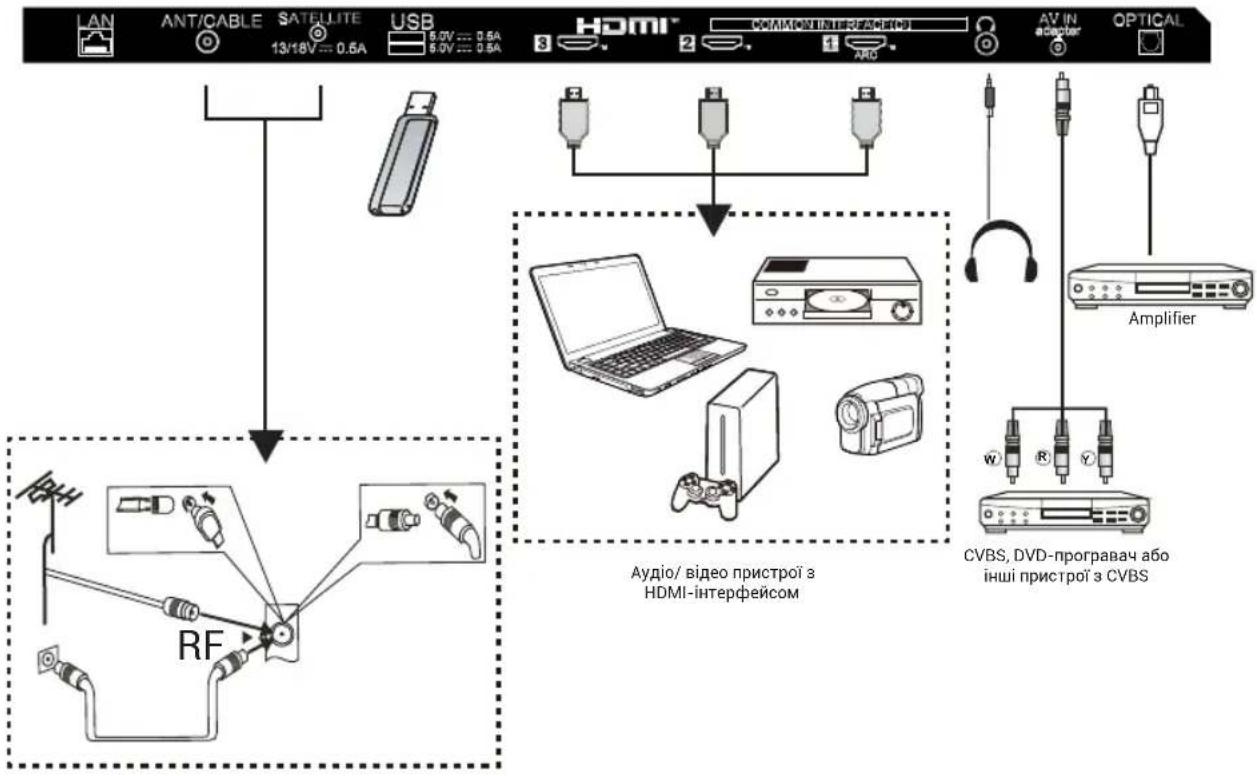
Please refer to the user's manual of the equipment to be connected as well. You can use the input terminals on the TV set rear as follows.
It can be connected to the following appliances: VCR, multi disc player, DVD, camcorder, video game or stereo system, etc.
Note:
- Sometimes it will not support different devices because the device supplies nonstandard signal.
- The equipment and connecting cables shown in the picture are not included and need to be purchased separately.
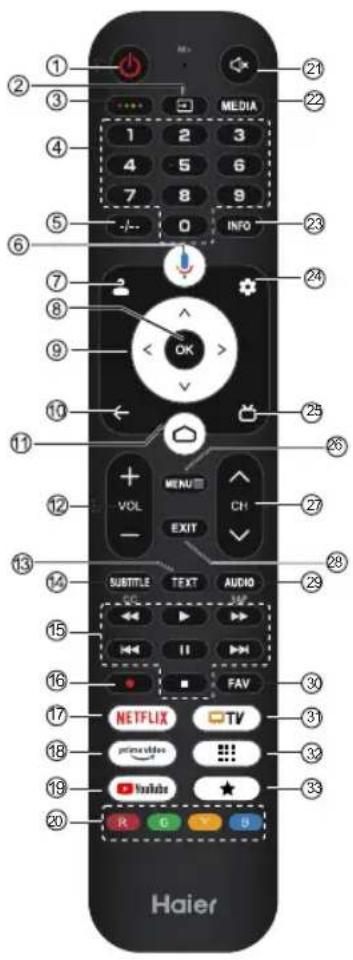

Subject to the actual product functions.
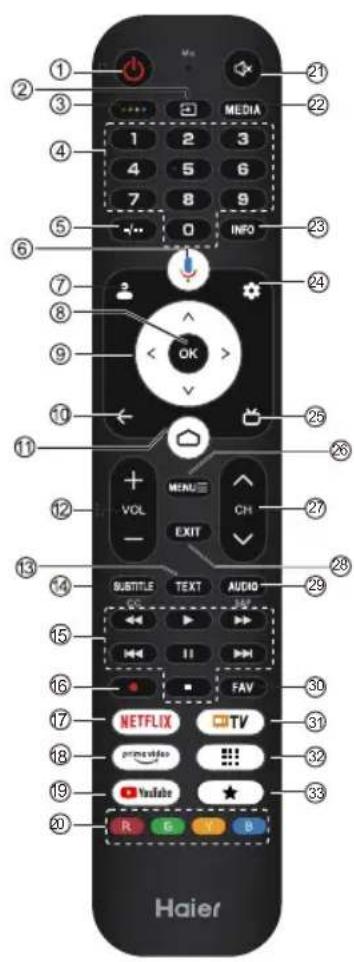
| # Item Descriptions | ||
| 1 | Power | Press to turn the TV on or off. When your TV is off, power still flows through it. To completely disconnect power, unplug the power cord. |
| 2 | Press to open the input source list. | |
| 3 | Press to open Soft Keyboard. | |
| 4 | 0~9 number Press to enter a TV channel number. | |
| 5 | -/- | Press to set the TV channel number input. |
| 6 | Press to open the Google Assistant. | |
| 7 | Press to open user account page. | |
| 8 OK Enter the selected option or perform the selected operation. | ||
| 9 | ▲▼▲ | Press to navigate the on-screen menu. |
| 10 BACK Return to the previous menu. | ||
| 11 Press to Open the Home Page. | ||
| 12 VOL+/VOL- Press VOL+ or VOL- to adjust volume level. | ||
| 13 | TEXT | Show or hide Teletext. |
| 14 | SUBTITLE Press to set subtitle function. | |
| 15 | Media Control media playback in Media mode. | |
| 16 | REC | Press button to start recording (In DTV mode). |
| 17 NETFLIX Press to open the NETFLIX. | ||
| 18 | prime video | Press to open the prime video. |
| 19 | YouTube | Press to open the YouTube. |
| 20 | Coloured buttons | Implement the relevant operations according to the prompt at the bottom of the menu in the text. |
| 21 Press to Open the mute. | ||
| 22 | MEDIA | Press to open the Media Center. |
| 23 | INFO | Press to display the channel information |
| 24 | Press to open the settings menu. | |
| 25 | Press to display electronic programme guide in TV mode. | |
| 26 | MENUE | Press to open or close the on-screen menu. |
| 27 | CH√/CHA | Press CH√ CHchange TV channels. |
| 28 | EXIT | Exit the current operation. |
| 29 | AUDIO | Press to set NICAM in ATV. Select the Sound Tracks in DTV. |
| 30 | FAV | Press to display your favourite channel. |
| 31 | TV | Press to enter the last input source in LiveTV. |
| 32 | Press to open the app list. | |
| 33 | ★ | Create a shortcut for your favorite app. |
Eye-protection Function: (In color temperature standard mode meets TUV low blue light requirements)
Low Blue Light - Low Blue Light mode on your TV is designed to reduce the level of blue light to protect your eyes. Press Remote control Settings → Display&Sound → Display → Advanced Settings → Low Blue Light (Optional: Off, Low, Middle, High).
To reduce eye strain and protect eyes when you watch TV for a period of time, you are recommended to:
- Take regular and frequent breaks, avoid watching TV for periods of more than one hour.
Watching TV for long periods of time may cause eye fatigue.
- Look away from the TV screen and focus on distant objects for at least 10 minutes during watch break time.
- Relax yourself during watch break time by doing eye exercises or outdoor activities.
- The best recommended viewing distance is 3 times the vertical height of the TV screen.
- Regular breaks and exercises are extremely helpful in relieving eye strain and fatigue.
INITIAL SETUP
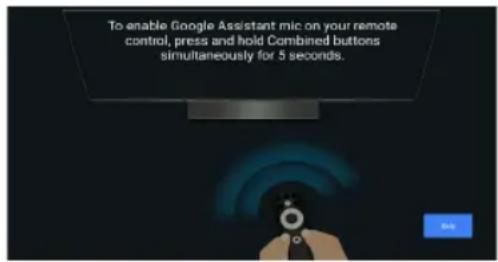
The first time you turn on your TV, the setup wizard will guide you through setting up basic settings. Please follow the text prompts to complete the initial setup.
E-Manual
E-Manual is built into your TV and can be displayed on the screen. To learn more about your TV features, access your E-Manual by referring to the following. E-Manual may be available depending on the region or model.
- Press the HOME button to access the home page.
- Press the UP/DOWN/LEFT/RIGHT and OK buttons to select and enter "E-Manual" in "Apps".
Note: The picture is only for reference.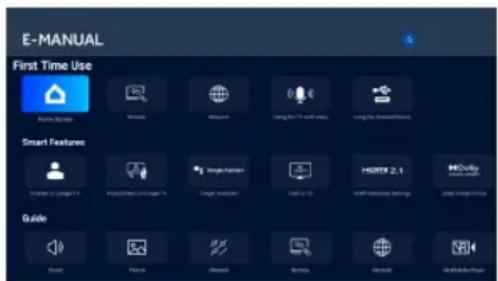
Accessibility function description
Talkback (Screen reader)
Talkback is a screen reader accessibility feature that assists visually impaired users by reading aloud on-screen text, menu items, and other elements. It can also be set up to use with the Accessibility Shortcut.
Text to speech
A Text To Speech Engine is a software component that converts text into natural-sounding speech.
The Text To Speech Engine works in the background, supplying the core speech synthesis functionality.
Applications such as screen readers, virtual assistants, or language learning tools often call upon the Text To
Speech Engine to generate audio output, but the engine itself does not interact with users directly.
This page provides settings to pick the active Text To Speech Engine if there are multiple engines installed in the system, to set basic configurations for Text To Speech engines, like language, reading speed, etc.
Text Scaling
This configuration could scale the text in system-wide applications up or down based on end user's need.
Bold Text
This configuration allows the text in system-wide applications to be bolded for better readability.
Color correction
The "Color correction" setting is designed to help people with color vision differences see on-screen colors more clearly. By enabling this option, you can adjust the way colors are displayed, making it easier to enjoy your favorite shows and apps.
Accessibility shortcut
When the Accessibility shortcut is on, the end user can press both the BACK and DOWN buttons for 3 seconds to start an accessibility feature.
This setting could help the end user to choose the targeted accessibility feature of the shortcut, or to switch the shortcut function on and off.
Keyboard accessibility
Time to take action (accessibility timeout)
This setting allows users to adjust how long messages and notifications stay on the screen.
A longer display time increases the chance that the end user notices the message and takes the necessary action.
Key repeat delay
This setting allows users to adjust the key repeat delay, which can help the end user have a better experience when pressing buttons on the remote control.
Switch Access
Switch Access lets users interact with the TV using one or more switches. Switch Access can be helpful if the end user's interaction with the remote control is limited.
ACCESSIBILITY FUNCTION DESCRIPTION EN
Audio Description
The end user will hear a description of what's happening on screen in supported movies and shows by enabling this setting.
Captions
The "Captions" settings let users turn captions on or off and decide the visual appearance of the captions in supported apps.
High contrast text
The "High Contrast Text" setting makes on-screen text easier to read by using brighter colors and clearer outlines. This feature is especially helpful for people who find regular text hard to read.
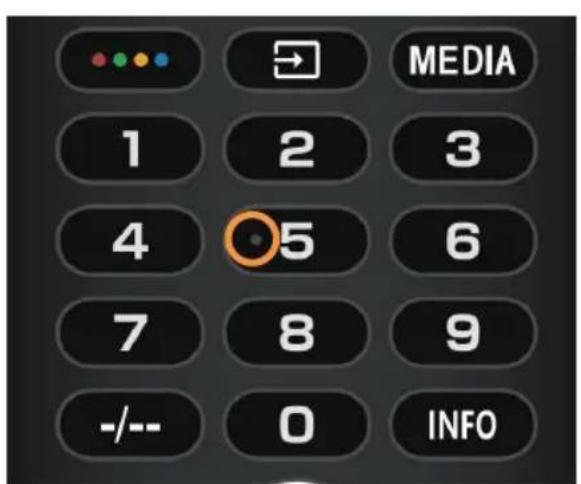
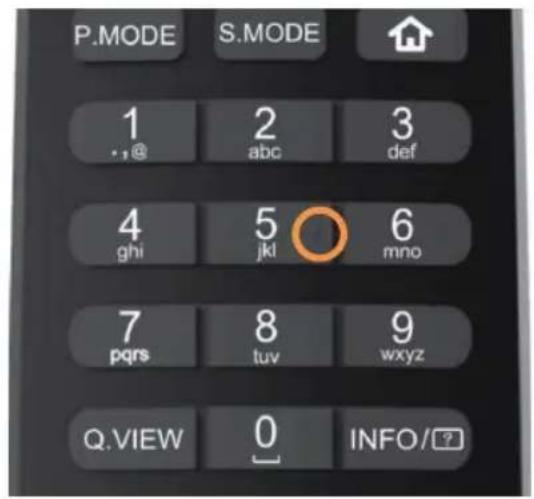
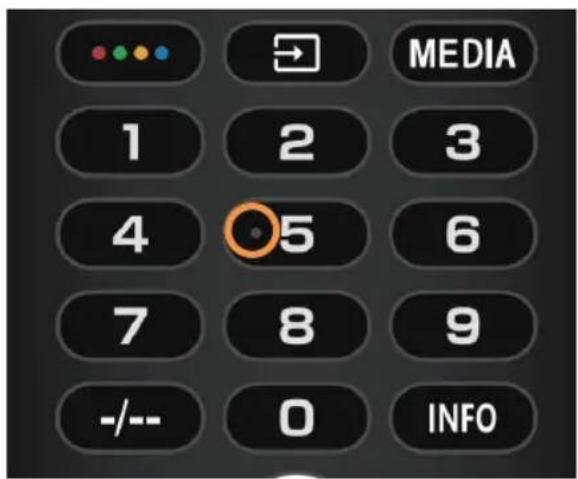
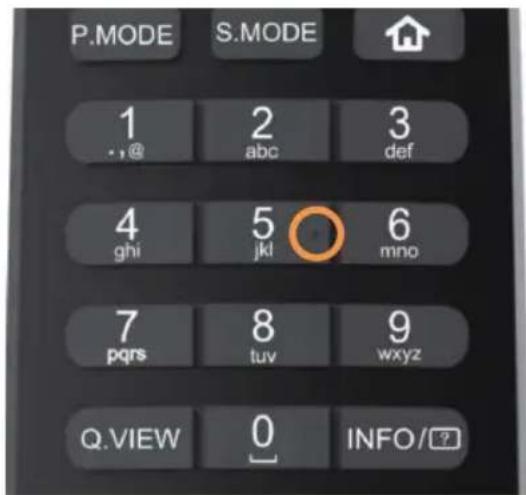
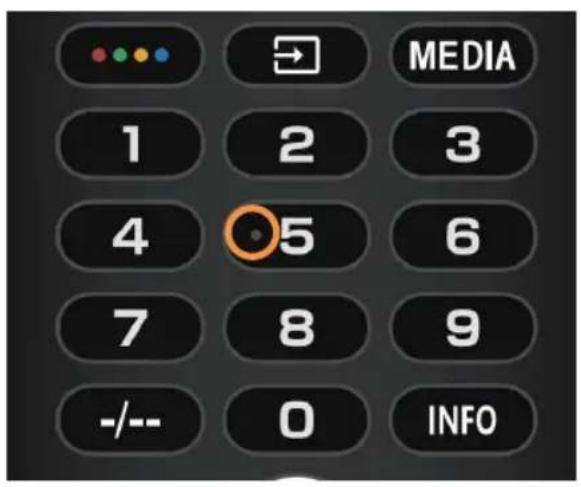
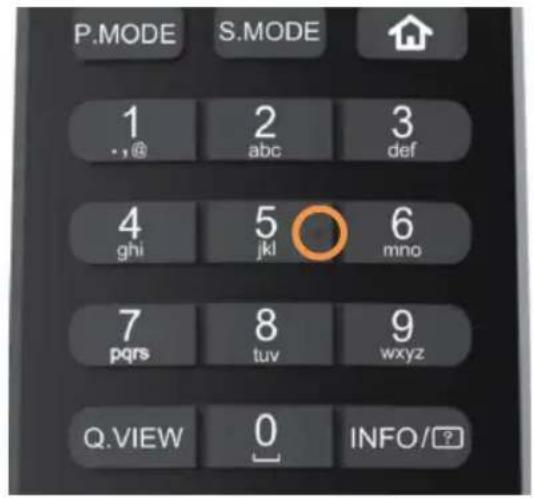
Tactile dots on the remote control buttons
The TV remote control has tactile dots on the number 5 button to help you find the buttons easily. For example, among the numeric buttons, only the number 5 has a tactile dot to help you find all the numeric buttons.
TURNING ON THE TV
- Connect the device to the power supply, because it may not work with a non-standard signal.
- The cables and connections shown in the image are not included in the package and must be purchased separately.
W (left audio)
R (right audio)
Y (video)

NOTE
Check the product for damage.
| #ЕLEMENTОПИСИ | |
| 1 | ЖИВLENHЯ |
| 2 | |
| 3 | |
| 4 | Плфри 0~9На |
| 5 | --- |
| 6 | |
| 7 | |
| 8 | OK |
| 9 | ▲▼ |
| 10 | HA3AДНатспь,шобоверн'tи до пооредього мени. |
| 11 | HATNCHITb,шоб ВIDКРNTI Google Assistant. |
| 12 | Гунист +/- al'džАa |
| 13 | Al'sdZanjDž |
| 14 | AIsdZanjDž |
| 15 | 3Ml |
| 16 | REC |
| 17 | NETFLIX HATNCHITb,шоб ВIDКРNTI NETFLIX. |
| 18 | prime video |
| 19 | YouTube HATNCHITb,шоб ВIDКРNTI YouTube. |
| 20 | Kolbopobii KhoNkII |
| 21 | |
| 22 | 3Ml |
| 23 | INFO HATNCHITb,шоб ВIDКРNTI MediaHTP. |
| 24 | |
| 25 | |
| 26 | MEHIO = |
| 27 | CHV/CHA |
| 28 | EXIT BnIa |
| 29 | AUDIO |
| 30 | FAV |
| 31 | TV |
| 32 | |
| 33 | ★ |
Function of the button: (In standard mode, it corresponds to the low temperature setting, which is suitable for low light levels)
Low Blue Light mode - a mode that reduces the level of blue light on your TV, designed to reduce the level of light to protect your eyes. Press on the remote control: Settings → Display&Sound → Display Advanced Settings → Low Blue Light (Available parameters: Off, Low, Middle, High).
To reduce eye strain during prolonged TV viewing, it is recommended
- To make regular breaks and adjust the TV brightness to a comfortable level.
Prolonged TV viewing may cause eye strain.
Do not sit too close to the TV screen and do not concentrate your eyes on the screen for more than 10 minutes during breaks. - Stretch and exercise your eyes or take a break and rest your eyes. - Recommended distance from the TV screen is at least 3 times the vertical height of the TV screen. - Regular breaks and eye exercises help reduce eye strain and fatigue.
INITIAL SETUP
During the first use of the TV, the master setup will guide you through the basic settings.
Please follow the text instructions for the initial setup.
Electronic Manual
The electronic manual is built into the TV and can be displayed on the screen.
To learn more about the remote control, refer to the electronic manual in the next chapter. The availability of the electronic manual depends on the model region.
1. Press the HOME button to access the main page. 2. Press the UP/DOWN/LEFT/RIGHT buttons and the OK button to enter the "E-Manual" in the Apps section.
Accessibility
High Contrast Text
This setting adjusts the text on the screen to be clearer through the use of high contrast and outlines. It is especially useful for people who have difficulty reading normal text.
Remote Control Buttons
The remote control for the TV has buttons with numbers to help you navigate between channels.
For example, press the number buttons to select a channel. The number buttons are located at the top of the remote.
GENERAL TECHNICAL INFORMATION
TalkBack (Screen reader)
TalkBack (Screen reader)
1.
- Low Blue Light (Off, Low, Middle, High) Settings Display&Sound Display Advanced Settings Low Blue Light
(1 + u) + ... + (π/1 + z) + π/1 = π/1 + u + π/1 = π/2 + u
1
y
TV INSTALLATION
- Mount the stand and place the TV on a stable surface.
- Connect the antenna or cable to the ANT antenna connector on the back of the TV.
- Power: Plug the cable into a working outlet.
- Turn on the TV:
Press on the remote control or the POWER button on the bottom/side of the TV.
CONTROL VIA BUTTONS

ACCESSORIES
Remote control - 1 pc User manual - 1 pc
*Screws (4 x ST4 x 20, 2 x ST3 x 8) - 6 pcs.
NOTE
H32K85GFX: Specification of screw for fixing the stand is ST4 × 20 - 4 pcs.
GENERAL SPECIFICATIONS
| Veličina (Dijagonalno) | 32" |
| Rezolucija | 1920 × 1080 |
| Maksimalna stopa osvježavanja | 60 Hz @ 1920 × 1080 |
| Omjer stranica | 6:9 |
| TV system ATV (PAL, SECAM)/DTV (DVB-T/C/T2/S2) | |
| Video signalni system | PAL, SECAM |
| Ulazni napon napajanje | 100-240 V ~ 50/60 Hz |
| Nazivna snaga | 55 W |
| Audio izlaz | 16 W |
| Potrošnja energije u stanju pripravnosti | ≤0,5 W |
| Okolinski uvjeti | Radna temperatura okoline: +5°C do +40°C Vlažnost radnog okruženja: 25% ~ 80% Temperatura skladištenja: -15°C ~ +45°C Vlažnost skladištenja: < 80% Atmosferski pritsak: 86 ~ 106 kPa |
User manual - 1 pc.
Installation manual for the base - 1 pc. Antenna cable - 1 pc.
Base stand - 1 set. Antenna cable - 1 pc.
Screws (4xST4x20, 2xST3x8) - 6 pcs.
NOTE
H32K85GFX: Screw for fixing the base ST4x20 - 4 pcs.
GENERAL TECHNICAL SPECIFICATIONS
SETUP INSTRUCTIONS
- Set up the stand and place the TV on a stable surface.
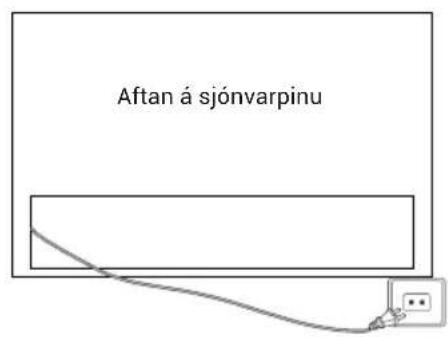
- Connect the antenna or cable to the ANT antenna input on the back of the TV.
- Electricity: Plug the cord into a live electrical outlet.
- TURNING ON THE TV
- BUTTON CONTROL
- ACCESSORIES
- NOTE
- INITIAL SETUP
- E-MANUAL
- ACCESSIBILITY FUNCTION DESCRIPTION
- TEXT TO SPEECH
- TEXT SCALING
- BOLD TEXT
- COLOR CORRECTION
- ACCESSIBILITY SHORTCUT
- KEYBOARD ACCESSIBILITY
- KEY REPEAT DELAY
- SWITCH ACCESS
- ACCESSIBILITY FUNCTION DESCRIPTION EN
- AUDIO DESCRIPTION
- CAPTIONS
- HIGH CONTRAST TEXT
- TACTILE DOTS ON THE REMOTE CONTROL BUTTONS
- ELECTRONIC MANUAL
- TALKBACK (SCREEN READER)
- TV INSTALLATION
- CONTROL VIA BUTTONS
- GENERAL SPECIFICATIONS
- GENERAL TECHNICAL SPECIFICATIONS
- SETUP INSTRUCTIONS
Brand : HAIER
Model : H32S80GFX
Category : Television