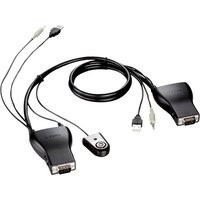
DKVM-222 - Switch D-LINK - Free user manual and instructions
Find the device manual for free DKVM-222 D-LINK in PDF.


| Product Type | USB 2-Port KVM Switch |
| Brand | D-Link |
| Model | DKVM-222 |
| Number of Supported Computers | 2 |
| Input Connectors | USB (keyboard/mouse), VGA (video), 3.5mm audio jack (speakers) |
| Output Connectors | USB (keyboard/mouse), VGA (monitor), 3.5mm audio jack (speakers) |
| Switching Methods | Infrared remote control, keyboard shortcuts |
| Keyboard Shortcuts | Scroll Lock (twice): switch PC + audio; Caps Lock (twice): switch PC without audio |
| LED Indicators | Green and orange LEDs to indicate selected PC |
| Audio Functions | Included audio switch (optional via keyboard shortcut) |
| Operating System Compatibility | Windows, Mac OS X (10.6 and later) |
| BIOS Requirements | USB boot support; disable Power On function if necessary |
| Recommended Connection | Directly to motherboard USB port, avoid USB hubs |
| Package Contents | KVM switch, remote control, installation CD |
| Maintenance | Clean with a dry cloth; no special maintenance required |
| Technical Support | On the website dlink.com/support |
Frequently Asked Questions - DKVM-222 D-LINK
User questions about DKVM-222 D-LINK
0 question about this device. Answer the ones you know or ask your own.
Ask a new question about this device
Download the instructions for your Switch in PDF format for free! Find your manual DKVM-222 - D-LINK and take your electronic device back in hand. On this page are published all the documents necessary for the use of your device. DKVM-222 by D-LINK.
USER MANUAL DKVM-222 D-LINK
2-PORT USB KVM SWITCH WITH AUDIO SUPPORT
DKVM-222
If any of these items are missing from your packaging, please contact your reseller
PRODUCT SET-UP
HARDWARE SETUP
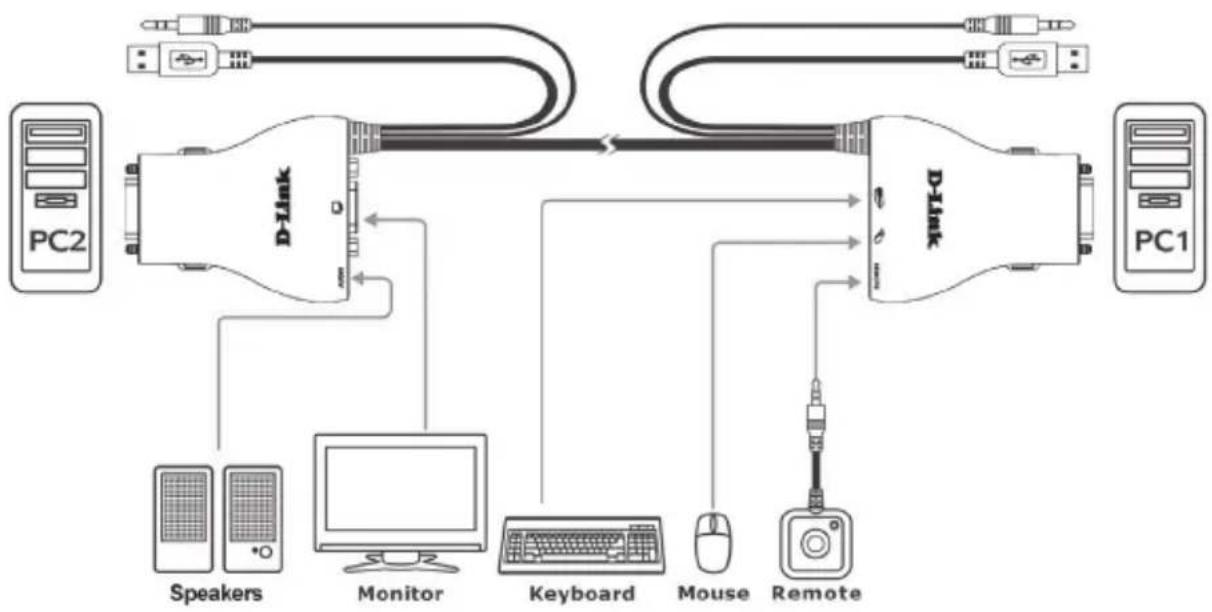
Please follow the diagram below to connect the KVM switch to your workstation computers. Speakers are optional.
For additional information regarding setup and operation please see the User Manual on the Installation CD included with your KVM switch.
flowchart
graph TD
    PC2["PC2"] --> D1["D-Link"]
    D1 --> PC1["PC1"]
    D1 --> D2["D-Link"]
    D2 --> PC1
    D1 --> Speakers["Speakers"]
    D1 --> Monitor["Monitor"]
    D1 --> Keyboard["Keyboard"]
    D1 --> Mouse["Mouse"]
    D1 --> Remote["Remote"]
    PC1 --> PC2
    PC2 --> PC1
    style PC2 fill:#f9f,stroke:#333
    style PC1 fill:#ccf,stroke:#333
    style Speakers fill:#dfd,stroke:#333
    style Monitors fill:#dfd,stroke:#333
    style Keyboard fill:#dfd,stroke:#333
    style Mouse fill:#dfd,stroke:#333
    style Remote fill:#dfd,stroke:#333
Note:
This KVM Switch will not detect whether a computer is on or off if the "Power On" function is set in the BIOS. If you switch to a computer that is turned off, nothing will be displayed on the monitor.
SWITCH OPERATION
Remote Control Switching
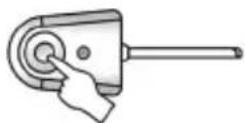
Push the remote control button to switch between computers.
The green and orange LEDs indicate the selected PC.
Hot key Switching (for Microsoft Windows ^® PCs)
Press the Scroll Lock key two times to switch between PCs, including audio.
Press the Caps Lock key two times to switch between PCs but maintain the audio feed of the original computer.
TROUBLESHOOTING
SETUP AND CONFIGURATION PROBLEMS
- WHEN TURNING THE COMPUTER ON, THE KEYBOARD IS NOT DETECTED, OR A KEYBOARD / MOUSE ERROR MESSAGE IS DISPLAYED.
If the computer's BIOS does not support USB boot-up, the system may be unable to detect the mouse and keyboard during startup. Please ensure that your PC BIOS supports USB boot-up, and upgrade your PC's firmware if necessary.
- THE COMPUTER'S BIOS IS CORRECTLY CONFIGURED BUT THE COMPUTER IS STILL UNABLE TO DETECT THE MOUSE AND KEYBOARD.
Be sure to directly connect the USB KVM switch to USB port on the PC's motherboard rather than through a port on a PCI card, Card Bus, or USB Hub.
- WHEN SWITCHING TO PC2, THE COMPUTER STILL DISPLAYS PC1.
The KVM switch may not function correctly while a computer is powered off or still booting up. Ensure that the second PC is powered on and use the hot key or remote control button to switch between computers.
- HOW DO I SET A HOT KEY IN MAC 10.6?
Please CTRL + click or right-click on the green taskbar icon and click on Setting to open the settings menu to set a hotkey.
TECHNICAL SUPPORT
dlink.com/support
PACKUNGS- INHALT
INHALT

INSTALLATIONS-CD
ENTHÄLT SETUP-ASSISTENTEN UND TECHNISCHE HANDBÜCHER
2-PORT USB KVM SWITCH MIT AUDIO SUPPORT
DKVM-222
CONFIGURATION DU PRODUIT
INSTALLATION DU MATÉRIEL
- BIOS KOMPUTERA JEST PRAWIDŁOWO SKONFIGUROWANY, ALE KOMPUTER NIE MOŻE WYKRYĆ MYSZY ANI KLAWIATURY.
2-PORT USB KVM-SVITSJ MED LYDSUPPORT
DKVM-222
Brand : D-LINK
Model : DKVM-222
Category : Switch