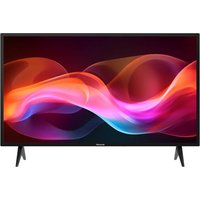
40FA4E - TV SHARP - Free user manual and instructions
Find the device manual for free 40FA4E SHARP in PDF.


User questions about 40FA4E SHARP
0 question about this device. Answer the ones you know or ask your own.
Ask a new question about this device
Download the instructions for your TV in PDF format for free! Find your manual 40FA4E - SHARP and take your electronic device back in hand. On this page are published all the documents necessary for the use of your device. 40FA4E by SHARP.
USER MANUAL 40FA4E SHARP
Important safety instructions

Please, read these safety instructions and respect the following warnings before the appliance is operated:
In order to prevent fire always keep candles and other open flames away from this product.

- Television sets with 43'' size screens or more must be lifted and carried by at least two people.
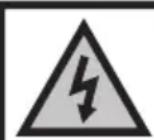
- This TV does not contain any parts which could be repaired by the user. In case of a fault, contact the manufacturer or the authorised service agent. Contact with certain parts inside the TV might endanger your life. The guarantee does not extend to faults caused by repairs carried out by unauthorized third parties.
- Do not remove the rear part of the appliance.
- This appliance is designed for the receiving and reproduction of video and sound signals. Any other use is strictly forbidden.
- Do not expose the TV to dripping or splashing liquid.
- To disconnect the TV from mains please unplug the mains plug from the mains socket.
- If the supply cord is damaged, it must be replaced by the manufacturer, a service agent or similarly qualified persons in order to avoid a hazard.
- The suggested distance to watch HD TV is approximately three times longer than the screen diagonal size. Reflections on the screen from other light sources can make the quality of the picture worse.
- Ensure the TV has sufficient ventilation and is not close to other appliances and other pieces of furniture.
- Install the product at least 5cm from the wall for ventilation.
- Ensure that the ventilation openings are clear of items such as newspapers, table-cloths, curtains, etc.
- The TV set is designed to be used in a moderate climate.
- The TV set is designed exclusively for operation in a dry place. When using the TV outside, please, make sure it is protected against moisture (rain, splashing water). Never expose to moisture.
- Do not place any objects, containers filled with liquids, such as vases, etc. on the TV. These containers might get pushed over, which would endanger electric safety. Place the TV exclusively on flat and stable surfaces. Do not place any objects such as newspaper or blankets, etc. on or under the TV.
- Make sure the appliance does not stand on any power cables as they might get damaged. Mobile phones and other devices such as WLAN adapters, monitoring cameras with wireless signal transmission, etc. might cause electromagnetic interference and they should not be placed near the appliance.
- Do not place the appliance near heating elements or in a place with direct sunlight as it has a negative effect on cooling of the appliance. Heat storage is dangerous and it can seriously reduce the lifetime of the appliance. In order to ensure the safety, ask a qualified person to remove the dirt from the appliance.
-
Try to prevent damage to the mains cable or mains adapter. The appliance can only be connected with the supplied mains cable/adapter.
-
Storms are dangerous for all electric appliances. If the mains or aerial wiring is struck by lightening the appliance might get damaged, even if it is turned off. You should disconnect all the cables and connectors of the appliance before a storm.
- To clean the screen of the appliance use only a damp and soft cloth. Use only clean water, never detergents and in no case use solvents.
- Position the TV close to the wall to avoid the possibility of it falling when pushed.
- WARNING - Never place a television set in an unstable location. A television set may fall, causing serious personal injury or death. Many injuries, particularly to children, can be avoided by taking simple precautions such as:
- Use cabinets or stands recommended by the manufacturer of the television set.
- Only use furniture that can safely support the television set.
- Ensure the television set is not overhanging the edge of the supporting furniture.
- Not place the television set on tall furniture (for example, cupboards or bookcases) without anchoring both the furniture and the television set to a suitable support.
- Not place the television set on cloth or other materials that may be located between the television set and supporting furniture.
- Educate children about the dangers of climbing on furniture to reach the television set or its controls.
- Ensure that children do not climb or hang onto the TV.
- If your existing television set is being retained and relocated, the same considerations as above should be applied.
- The software on your TV and the OSD layout can be changed without notice.
- Note: In case of electrostatic discharge (ESD) the apparatus may show incorrect function. In such case, switch the TV off and back on. The TV will work normally.
Warning:
- Do not use TV set directly after unpacking. Wait until TV warms up to the room temperature before using it.
- Never connect any external devices to a live appliance. Switch off not only the TV but also the devices which are being connected! Plug the TV plug into the wall socket after connecting any external devices and the aerial!
Always make sure there is free access to the TV mains plug. - The appliance is not designed for a use in a workplace fitted with monitors.
- The systematic use of headphones at high volume might lead to irreversible hearing damage.
- Ensure environmental disposal of this appliance and any components including batteries. When in doubt, please, contact your local authority for details of recycling.
- While installing the appliance, do not forget that furniture surfaces are treated with various varnishes, plastics, etc. or they might be polished. The chemicals contained in these products might have a reaction with the TV stand. This could result in bits of the material sticking to the furniture surface, which are difficult to remove, if not impossible.
- The screen of your TV has been produced under top quality conditions and was checked in detail for faulty pixels several times. Due to the technological properties of the manufacturing process, it is not possible to eliminate the existence of a small number of faulty points on the screen (even with maximum care while in production). These faulty pixels are not considered faults in terms of guarantee conditions, if their extent is not greater than the boundaries defined by DIN norm.
-
The manufacturer cannot be held responsible, or be liable, for customer service-related issues related to the third party content or services. Any questions, comments or service-related inquiries relating to the third party content or service should be made directly to the applicable content or service provider.
-
There are a variety of reasons you may be unable to access content or services from the device unrelated to the device itself, including, but not limited to, power failure, the Internet connection, or failure to configure your device correctly. SCEP, its directors, officers, employees, agents, contractors and affiliates shall not be liable to you or any third party with respect to such failures or maintenance outages, regardless of cause or whether or not it could have been avoided.
- All third party content or services accessible via this device is provided to you on an "as-is" and "as available" basis and SCEP and its affiliates make no warranty or representation of any kind to you, either express or implied, including, without limitation, any warranties of merchantability, non-infringement, fitness for a particular purpose or any warranties of suitability, availability, accuracy, completeness, security, title, usefulness, lack of negligence or error-free or uninterrupted operation or use of the content or services provided to you or that the content or services will meet your requirements or expectations.
- 'SCEP' is not an agent of and assumes no responsibility for the acts or omissions of third party content or service providers, nor any aspect of the content or service related to such third party providers.
- In no event will 'SCEP' and/or its affiliates be liable to you or any third party for any direct, indirect, special, incidental, punitive, consequential or other damages, whether the theory of liability is based on contract, tort, negligence, breach of warranty, strict liability or otherwise and whether or not SCEP and/or its affiliates have been advised of the possibility of such damages.
Important information regarding use of video games, computers, captions and other fixed image displays.
- The extended use of fixed image program material can cause a permanent "shadow image" on the LCD screen (this is sometimes incorrectly referred to as "burnout to the screen"). This shadow image is then permanently visible on the screen in the background. It is irreversible damage. You can avoid such a damage by following instructions below:
- Reduce the brightness/contrast setting to a minimum viewing level.
- Do not display the fixed image for a long period of time. Avoid displaying of:
» Teletext time and charts,
TV menu
» In the n Pause mode (hold): Do not use this mode for a long time, e.g. while watching a video.
Turn off the appliance if you are not using it.
Batteries
- Observe the correct polarity when inserting the batteries.
- Do not expose batteries to high temperatures and do not place them on locations where the temperature might increase quickly, e.g. near the fire or on the direct sunshine.
- Do not expose batteries to excessive radiant heat, do not throw them into the fire, do not disassemble them and do not try to recharge un-rechargeable batteries. They could leak or explode.
» Never use different batteries together or mix new and old ones.
» Dispose of batteries in an environmentally friendly way.
» Most of the EU countries regulate the disposal of batteries by law.
Disposal
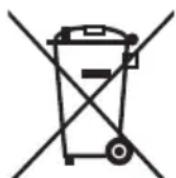
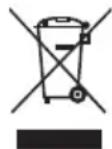
- Do not dispose of this TV as unsorted municipal waste. Return it to a designated collection point for the recycling of WEEE. By doing so, you will help to conserve resources and protect the environment. Contact your retailer or local authorities for more information.
Cd
CE Statement:
- Hereby, Sharp Consumer Electronics Poland sp. z o.o. declares that this equipment is in compliance with the essential requirements and other relevant provisions of RED Directive 2014/53/EU.
- The full text of the EU declaration of conformity is available by following the link www. sharpconsumer.com/documents-of-conformity/
What is included in the box
Supply of this TV includes following parts:
- 1x TV - 1x User guide
- 1x Remote control - 1x TV stand installation packet
- 2x AAA batteries - 1x Technical leaflet
- 1x Warranty card
Attaching the Stand
Please follow the instructions in Technical leaflet, located in the accessories bag.
Getting started - initial set up
- Insert the batteries supplied into the Remote control.
- Using the RF cable supplied, connect the TV to the TV Aerial wall socket.
- Connect the power cable to the Electrical outlet and switch the TV on by using the standby button on the TV.
- After turning the TV on, you will be welcomed by the First Time Installation menu.
If it does not appear, on the remote control, please press [MENU] then 8-8-8-8 and the menu will appear.
If you wish to make changes to any of the default settings, use the scroll / / buttons. To exit this menu at anytime, press [EXIT] button.
- Please set desired settings in FIRST TIME INSTALLATION screen. DVB Antenna - You can choose between Terrestrial (DVB-T), Cable (DVB-C) or Satellite (DVB-S)*.
Language - Set the TV Menu language.
Country - Set the desired country.
Tunning Mode - Choose if you want to tune only Digital (DTV) Analogue (ATV) or both Digital and Analogue (DTV + ATV)
Environment - Select the location of TV.
For home use, please select Home Mode. For shop demonstration mode, set Store Mode.
Sorting by LCN - Set LCN to ON if you want to arrange channels by provider preferences (only applies to DVB-T and DVB-C channels).
- Press [ENTER] button to start the tuning process.
- Optional channel presets DVB-C:
Keep all default settings as recommended. If DVB-C channels are not found, contact your network provider for the valid "Network ID". Then perform a new search. Press the [MENU], select "Network ID" and enter the network ID.
- Optional channel presets DVB-S2*: Select "Satellite" in the "DVB Antenna" in the menu for the optional channel presets. Here you can choose between the various satellites. Since selection completed, then the channel list of the exact satellite will be available to be imported into your TV system.
Confirm with [ENTER] button on the remote control, to start scanning.
TIP: If you are missing channels, the reason for this is likely to be signal strength, you should consider connecting signal booster and re-tuning the TV.
-
- Available only for TVs with DVB-S tuner
Remote control
Refer to remote control picture on the second page of this user manual.
- STANDBY - Switch on TV when in standby or vice versa.
- MUTE - Mute the sound or vice versa.
- 0-9 - to select a TV channel directly
- TV/RADIO - Switch to Digital and switch between TV and radio in Digital mode.
- FAV-To display favourites menu.
- VOL + / - To increase/decrease the sound level.
- RECLIST - No function
- GUIDE - Opens the 7 Day TV Guide (Digital mode).
- CH + / - To increase or decrease the channel being watched.
- REC - No function
- MTS - To change the audio language (if available).
- ASPECT - To switch the screen between the different picture formats.
- MENU - To display OSD menu.
- ( / / / ) - Allows you to navigate the on-screen menus and adjust the system settings to your preference. While watching TV, press ENTER to show Channel list.
- SOURCE - To display the input/source menu.
- EXIT-To exit all menus.
- DISPLAY - Press to display the source and channel's information
- COLOUR BUTTONS- Additional teletext and OSD functions
-
- To play in fast rewind mode.
- INDEX - Teletext mode - To display the index page
-
- To play in fast forward mode.
- TTX - Teletext mode - To enter Teletext
- Push 1x to restart the current chapter/push 2x for previous chapter
- SUB.PG - Teletext mode - Switch to the next subpage
-
- To advance forward to the next chapter
- REVEAL - Teletext mode - To reveal or hide the hidden words
- -To stop the playback
- HOLD - Teletext mode - Hold current page which is displayed
29.▶-To play/pause - CANCEL - Press this button in Teletext when searching for a page to return to TV mode. When the page is found, a notification will appear on the screen. Press the CANCEL button again to return to Teletext and view the page.
- SIZE - Teletext mode - To change the display size in Teletext mode
- SUBTITLE - To switch the dialogue at the bottom of the screen (on/off).
TV buttons*
Vol+ Volume up and menu right
Vol-Volume down and menu left
CH+Programme/Channel up and menu up
CH-Programme/Channel down and menu down
MENUDisplaysMenu/OSD
SOURCE Displays the input source menu
STANDBY Standby Power On/Off
*for TV with buttons
TV Control Stick*
TV control stick is located on the lower left corner of back side of the TV. You can use it instead of remote control to control most of the functions of your TV.
While TV is in standby mode:
- short press of control stick - Power On
While watching TV:
RIGHT/LEFT - volume up/volume down
UP/DOWN - changes channel up/down
- long press UP (or DOWN) - Displays Sources/Inputs menu
- short press - Displays Menu
- long press - Standby Power Off
While in menu:
RIGHT/LEFT/UP/DOWN - navigation of cursor in on-screen menus
- short press - OK/Confirm selected item
- long press - Back to previous menu
*for TV with control stick
TV Control button*
TV control button is located on the bottom side of the TV front.
Short press - open or navigate menu
Long press - OK/Confirm selected item
*for TV with control button
Choosing Mode Input/Source
To switch between the different input/connections.
a) Using the buttons on the remote control:
- Press [SOURCE] - The source menu will appear.
- Press [] or [] to select the input you require.
- Press [ENTER].
b1) Using the buttons* on the Television:
- Press [SOURCE].
- Scroll up/down using CH+/CH- buttons to the input/source you require.
- Press [VOL + ] to change input/source to the one selected.
b2) Using the TV control stick*:
- Press control stick UP (or DOWN) for few seconds to enter SOURCES menu.
- With control stick choose the input/source you require.
- By short press of control stick to center, you will change input/source to the one selected.
* -optional
Connections
Please follow the instructions in Technical leaflet, located in the accessories bag.

USB
USB-Input 1, 2*

HDMI 1,2,3 in
HDMI-Input 1, 2^ 3^

VGA(PC)*
VGA PC-Input

VGA (PC) Audio In*
3.5mm PC audio input
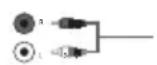
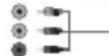
R/L - Video & YPbPr audio In*
Component / Video audio input

Video (CVBS)*
VIDEO input
| Component / YPbPr* Component HD Input | |
| SCART* SCART-Input | |
| CI Card IN CI input | |
| RF In RF / TV Aerial Input | |
| Sat In* Satellite Input | |
| Digital Optical Audio Out* Digital optical output | |
| Digital COAX Audio Out* Digital Coax output | |
| HEADPHONES* 3.5mm Headphone output |
-Only on supported devices
TV Menu navigation
To access this menu, press [MENU] button on the remote control. To enter a menu press [ENTER]. If you wish to make changes to any of the default settings, use the scroll ( / / /) buttons. To confirm any settings press [ENTER] button. To exit this menu at anytime, press [EXIT] button.
Picture
Picture Mode - Choose from the following presets.
ü Dynamic - Recommended settings for fast moving pictures
Standard-Default settings
ü Mild - Set to be lighter in colour and less bright
ü Personal - Lets you manually alter all the settings
Economy - Consume 15% less energy.
Contrast - Switch the balance between black and white.
Brightness - Increase or decrease the brightness of the picture.
Colour - Increases the colour from black and white.
Tint - Lets you increase or decrease the level of tint within the picture (for NTSC signal only)
Sharpness - Increase or decrease the sharpness of the picture.
Colour Temperature - Choose from the following presets.
Cold-Increases blue within the picture
ü Normal - Default settings
Warm-Increases red within the picture
Noise Reduction - Filters and reduces the
noise (interference) of the picture
Aspect Ratio - Picture format varies depending on the channel/broadcast.
There are a number of different options to best meet your needs.
Auto - Automatically displays the best picture format.
So the picture is in the correct position. May have black lines at the top/bottom and/or sides.
ü 4:3 - Displays the 4:3 picture in its original size.
Side bars are shown to fill the 16:9 screen.
ü 16:9 - Fills the screen with a regular 16:9 signal.
Zoom 1/2 - The picture is the correct proportion but zoomed in to fill the screen.
Dot by Dot (HDMI) - Will display the picture in its original resolution without any change.
HDMI Mode - settings for HDMI sources.
Auto - recommended option, TV will set best option
based on connected device by HDMI.
ü Video - picture will be with overscan to get
optimal aspect ratio for watching movies.
VGA/PC** - picture will be without overscan. Set this option manually in case part of screen is hidden, after you connect PC to the TV.
PC*
Auto Adjust - Lets you automatically configure the
television to be used as a computer monitor.
H Offset - Changes the horizontal position of the picture.
V Offset - Changes the vertical position of the picture.
Size - increase picture size.
Phase - To adjust delay time of phase in order to reduce the noise of picture
TIP: If the computer is left in-active for a period of time, the
television will switch into a 'sleep' state (the screen will power off
to save power). To switch back on press the standby button.
-Only on supported devices
Sound
Sound Mode - Choose from the following presets
u Standard - Default settings
ü Music - Emphasises music over voices
Movie - Provides live and full sound for movies
ü Sports - Emphasises sound for sports
Personal - Selects your personal sound settings
Equalizer-Adjusts the volume of different sound
frequencies. The equalizer sound levels can only be adjusted
when the sound mode 'Personal' is selected.
Balance - To switch the sound between the left and right speakers.
Auto Volume Level (AVL) - When 'on' is selected, the volume
will stay at a constant level regardless of input/source.
Surround Sound - Allows you to turn surround sound effect ON or OFF.
Digital Output - This is the digital Audio output.
Choose from the following options:
u Off-Off
u Auto - Selects the best settings automatically
PCM - Select this option if you are connecting to a Stereo
Hi-fi via digital cable (Pulse-code modulation (PCM) is
a digital representation of an analogue signal)
SPDIF Delay (ms) - Enables the user to adjust sound setting to sync picture and audio for external speakers connected via digital audio output.
Audio Delay (ms) - Enables the user to adjust sound setting to sync picture and audio for TV speakers.
Audio Description - Additional sound track for visually impaired.
Available only on selected DTV shows.
AD Volume - to adjust volume of Audio Description sound track
Channel
Auto Tuning - Allows you to retune the television for all digital channels, digital radio stations and analogue channels.
Analogue Manual Tuning - Allows you to
manually tune your analogue signal.
Digital Manual Tuning - Allows you to manually tune your digital signal.
Channel Edit - Allows you to delete, skip and add favourite channels.
Red Button - delete selected channel.
u Yellow Button - Move selected channel. Go with cursor to channel, which you wish to move to different position, then press YELLOW button. Now move selected channel with UP, DOWN arrow to desired position and press YELLOW button again to confirm its new position in channel list.
ü Blue Button - Skip selected channel. Channels selected to Skip will not be displayed while pressing CH+ or CH- buttons.
Schedule List - Lists your programme reminders.
Signal Information - Information about DVB signal.
CI Information - Pay per view services require a "smartcard" to be inserted into the TV. If you subscribe to a pay per view service the provider will issue you with a 'CAM' and a "smartcard". The CAM can then be inserted into the COMMON INTERFACE PORT (CI Card In).
Satellite Setup* - This menu is only available in DVB-S2 mode. You can select the type of satellite, your transponder and your LNB type, etc.
- Only for models with DVB-S tuner
Time
Clock - Set the date and time. Date and time is
set up automatically in DVB mode.
Off Time - Allows you to set a specific time for your TV to turn off.
On Time - Allows you to set a specific time for your TV to turn on, the channel it will then display, the source it will be on and also the volume.
This function can then be toggled to repeat every day or a certain day.
Time Zone - Change your current time zone.
Sleep Timer - Lets you set the sleep timer so the television
automatically switches off after a set amount of time.
Auto standby - Adjustment for the auto standby in
hourly increments: Off -> 3h -> 4h -> 5h
OSD Timer - Lets you adjust the amount of time the On
Screen Menu stays on the screen before disappearing.
Lock
System Lock - Allows you to lock or unlock the menu. You will be asked to enter a 4 digit password. Use the button to quit the password input. Use the button to clear. Default password is 0000.
Set Password - Change the default password.
Channel lock - Lock specific TV channels.
Parental Guidance - Lock TV channels based on age restriction.
Key Lock - Lock the TV buttons.
ü Off - All TV buttons are unlocked
ü Full - All TV buttons are locked
Settings
Language - Allows you to change the language of the menu.
TT Language - Allows you to change Teletext language.
Audio Languages - Allows you to change audio
language on selected DVB channels.
Subtitle Language - Allows you to change subtitles
language on selected DVB channels.
Hearing Impaired - If signal provides support for the hearing impaired, the subtitles can be played by pressing the "Subtitle". If you set Hearing Impaired ON and switch to a channel with supports for hearing impaired subtitles will be activated automatically.
Blue Screen - Changes the background when there is no input between transparent and a blue background (Only available on some sources).
First Time Installation - Starts the first time installation.
Reset TV - This resets the menus to factory settings.
Software Update (USB) - From time to time we may release new firmware to improve the operation of the television (available to download). This menu lets you install the new software/firmware onto the television.
Further details of how to do this will be issued with the firmware.
WARNING: Do not turn off the TV's power until the upgrade is complete!
HDMI CEC* - Allows you to operate devices
connected via HDMI with TV remote control.
ü CEC Control - set CEC functions on/off.
Audio Receiver - Sends audio signal from terrestrial/satellite broadcast via HDMI to the AV receiver without using any additional audio cables, this functions is available only on HDMI 1 or 2 output (- optional base on model).
Device Auto Power Off - Automatically turn off connected devices via HDMI CEC, when you turn off TV.
TV Auto Power On - when you turn on any of connected HDMI CEC devices, TV will start up automatically.
Device List - show list of connected CEC devices
- Device Menu - Allows you to access devices menu and operate the menu using TV remote control.
Version Info - shows version of TV software
Store Mode** - switch ON/OFF shop demonstration mode
-
- HDM1 CEC must be supported by connected device.
** - available only if store mode was selected during first time installation
- HDM1 CEC must be supported by connected device.
7 Day TV Guide
TV Guide is available in Digital TV mode. It provides information about forthcoming programmes (where supported by the Digital channel). You can view the start and end time of all programmes and on all channels for the next 7 days and set reminders.
- Press [TV GUIDE]. The following 7 Day TV Guide will appear.
- Navigate through the menu using / / .
You can now:
Set a reminder by pressing GREEN.
View a previous day by pressing YELLOW.
View the next day by pressing BLUE.
[INFO] shows detailed information about the selected post
- Press [EXIT] to exit the 7 day TV Guide.
USB mode / Media player
USB mode offers playback of various different types of content that you have saved on your USB Memory Stick. On switching to USB source the USB mode menu screen will appear. The content will be divided into Photo, Music, Movie and Text based on file type.
- You can navigate through the menus using the scroll
/ / / buttons. To confirm the item you wish to play/view press [ENTER] button. - Select the drive you require. (If your drive only has 1 partition you will only see 1 item).
- You can now access the item. Press ENTER to view.
- While viewing you may control the item playback modes by using the remote control buttons or by invoking playback navigation menu and selecting on-screen buttons / / / and [ENTER]
NOTE: USB extension cables are not recommended as they can cause a reduction in picture/audio quality and stoppages during play back of USB content.
BaxHn mHctpyKznn 3a 6e30napoCT

Ipeu da 3anoheTe pa6oTa cypea, moJnpoueTe HNCTpykunTe 3a 6e3onacnoT nCna3BaTe npdeynpejKdHnra, noocuEHnNo-dony:
C ue npedotbpaTbaHe Ha noxap BnHaRn dpbXkTe CBeuN nn dpyr n3TOUHnCu Ha OTKpNT orbH daJeU OT To3n npOdyKT.

TeBnOpTe cekpaHn O T43" Tp86Ba da 6bDat NOBunraHn HocEHn OT NoHe Dbama duyn.
To3n TeIeBn3Op He cIbIbPka qactN, KOnTO 6xHa MOrnn Da ce nonpaBAt OT nOtpBeHTeJIa B Cnyau Ha nobpeDa ce CBpbKteC npOn3BODnteJI nn CynblHomooeh CepBn3. DOnnpBt Do onpeJeHn qactN, HAMIPAuCe B TeIeBn3Opa MoKe da 6bJe OnaceH 3a KInBota Bn. FapAnzraTa He e BaIIuHa B Cnyau Ha nobpeDn BCJeCTBHe Ha peMOHTn, N3BbPbBaHn OT HeyIbJIHOMoUeH NTpeTn CTpaHn.
He cBaIaIte 3aHaTa yAcT Ha ypeDa.
Toba yctpoiCTBO e npoeKTIpaHO 3a nOlyuYabaHe n Bb3npOn3BexJaHaHe Ha BnIeO u 3ByKOu CnHaN. BcKaKaB BnD pyra yNtpe6a e cTporo 3a6paHaHa.
- Na3eTe TeLeBn3Opa O T KaIeUu ININ pa3INBaUc Ce TeHocTN.
3aДаИЗКЛIOUHTeTeJIeBUN3OpaOT OCHOBHToEneKTPo3aXpaHBaHe,MOI, N3BaTeTe UENCEla OT KOHTaKTA.
B cnuyaey 3axpaHbauyraKab6b6nOBpeH,ToTpr6Ba da 6bde 3amehenOT npOnzBODHTeY,HEROB cepBnNIMOTnIcC nOdoHa KBaHnFkauyra C cen Da 6b6ne HsEhata eEBHTyaJHa onaCHOCT.
- PpenopbHHTeHTo pa3ctOHe 3a rIeJaHe Ha HD TeleBn3n e np6n3nteHNO dnaRoHaHa ekpaHa, yMHOKeH No nT PbTN. OTPaKeHnra T BpXy ekpaHa OT dpYr N3TOUHnCu Ha CBETnHa MoTa D a BNoWt KaueCTBOTo Ha KapTnHaTa.
- YBepeTe Ce, Ye TeneBn3OpbT e NocTaBeH Ha DoCTaTbUHO npoBeTpnoM MRCTo, KaKTo Iue He e pa3NoJIOKeH B HenOceDCTBeHa 6IIN3OCT do DpyrEneKTPOyPeDN IIN DomAKHNCKO O63aBeXdaHe.
3a nocturahe Ha do6pa BeHTnlaun, MOHTnpaTe ypeHa Ha MHHMaJIHO pa3cTOrHne ot 5 cm ot cteHaTa.
YBepeTe Ce,Ye BeHTnlaaHOnHHTe OTBOpN He ca 3aKpTN O T PpeMeTn KaTo HApnPmep BcTHNu, NOKpNBKN, 3aBeCN I.T.H.
TeBnOpbTe npoeKtpaH 3a n3noI3BaHe npu ymepeHn KInMaTnHy cIOBna.
ToT Tp8Ba Da 6bde n3nOJI3BaH eINHCTBHeHO h cyxM MeCTa. Korato N3nOJI3BaTe TeNEBUN3OpA Ha OTKpIto, MoJy YBepeTe ce, ye e 3aUInTe HOT BODa (DbjD, pa3JIbBaUa ce BOJa). HIKORA He I3JraaiTe To3n EeKTPooypeiHa BOJa.
He noctabnIte HnkaBn npedmetn,cbIOBe C TeuHcTn, KaTO Ba3n I dp. Bbpxy TeneBnOpa. Te MoarTa Da bDaT 6yTHaTn, KoTo 6n DoBeno Do onaCHOCT OT TOKOB yIap. NocTabnIte TeneBnOpa eINHCTBeHO Bbpy NIOCKN cTaNHN NOBbPxHoCTn. He noctabnIte npedmetn, KaTO HanpImep BcTeHnU, NOKPUBKn T.H. Bbpy NII NOIeTneBnOpa.
- YBepete ce, Ye ypeTbHe n e noCTaBeH BbPxy 3axpaHbaun Ka6en. Toba 6n rnoBpeuIIO. Mo6uHNr TepeoHn uDpyru yctpoiCtBA, KaTo 6e3xuHmpeXOBu KApTu, KaMepu 3a Ha6NIOJeHne C 6e3xuHn PpeDaBaHe n T.H. MoRa Ta a npUHHr EneKtpomarHHTn CMUeHn H He Tp6Ba Da 6bDat NoCTaBAAHn B 6bn3OcT do ypeA.
He nocTabraTe TeneBn3opa B 6nI3OCT Do ypeNi, nI3TOuHnK Ha BnCoka TemnepaTypa, KaTOn H N Ma MeTa C npKa C bHueBa CbETnHa, TbN KaTo TOBA OKa3Ba OTrpuCaTeHNO BnIaHnE BbPxy OxJaXaHeTo My.
AkymynipaHTo Ha ToPnHa e onaCHO mOKe cepno3HO da HamaJIN XNBOTa Ha ycTpoiCTBO.To. O6bPHeTe ce KbM KBaIINuPapaHO nIue 3a NOUcTBaHe Ha HATpyNaHaT a MPbCOTn OT ypeDa, c cen OcnHypBaHe Ha 6e3OnacHata My pa6Ota.
- PanaTe MpeXOBn Ka6eN n aanTep OT nobpeKdaHe. YpeBt MoKe Ja 6bJe CbP3BaH eINHCTBeHO C npEIOCTaBEHnTe MpeXOB Ka6eN / aanTep.
- 6pynte npedctabnbaat onachocst 3a BCNUKN eNEKtpoypeu. Ako rnaBHOT3axpaHbAHe NIN aHTehata 6bDat nopaeHN OTMbNHNy, ypeBt MoKe Da 6bNe NOBpeH DenOp IN KOrato E n3KnUoyen. PpeDu Bpyr Tp6Ba Da n3KnIOUHTe BCNUKN Ka6eIN N KOHEKTOPI OYCTPOICTBOTO.
3a nouctbaHe Ha ekpaHa n3noI3BaIte eHnCTBeHo BnaKHa mEka Kbpna. H3noI3BaIte caMo uNCTa Boda, HNKora nouctBaun npenapatn B HHKAKB Cnyaip a3TBOpNTeIN. - NocTabeTe TeneBn3Opa B 6JIn3OCT Do CTHe, C cIen n36yRbAne Ha Bb3MoXhOcTTa OT naJaHe, B cIyuaY e 6bJe 6yTHaT.
BHIMAHHE: Hukora He noctabaite Telebeun3opa Bbpxy Hectaunno Macto. ToM Moze da naHe n Da npuHn cepno3HO fN3uecko HapaHraBaHe nn Cmbpt. MHorO HapaHraBaHn, Oc6eHo Ha neca, Morat Da ce n36erHaT KaTo ce npedpneMaT cneHnTe lechn npedna3Hm MepKn:
-ИЗползБаиTeшкФОBEин cToiKN,прелорьанOTпроIЗБODИТЕЯ На TeIeBn3Opa.
-ИЗпONSЗВайтсамоMe6eи,КОТоMогаTбeз�аCHOдСлжат3a onopaHaTeLEBn3Opa. - YBepete Ce, Ye TeneBn3OpbT He BnCn Ha p6ba Ha Te3n Me6einn.
- He nocTabraIte TelenBnOpa Bbpxy BucOKn Me6eNn (HaNP. 6iofeTn nn en taeXepKn) 6e3 da 3axBaHTe KaKTo Me6eNtTe, taKa n TelenBnOpa KbM noDxoJa o npa.
He nocTabraTe TeneBn30pa Bbpxu NOKPnBka nn npMaTePnaH, KOITOMorat da ce HAMnpaT MeKdy TeneBn30pa n CnyKeunTe 3a ONopa Me6eni.
3a0n3HaTe DeaTa C onacHocTne npi KaTepeHe Bbpxy Me6eNtTe, 3a da DOCTnIHat TeleBnOpa nIn ByToHnTe My. - YBepete ce, Ye deuata He ce KaTepeTn He Bucrt Bbpxy TepeBu3opa.
Ako hactoianr Bnte neBun3op 6bJe 3ana3en n npemecTeH, Tpa6Ba da ce npinoxat CbIuTE npedna3Hm Mepkn.
CoTepbHa Baunna TeneBn3Op, KaKTo n EkapHnO To oΦopMneHn Moat da 6bDat npomeHn 6e npedBaupTeHn H3BcTe.
3a6eJekKa: B cnyaHa eKtPoCTaTuHcpeApaTja (ESD) ypeBt moKe Da noka3Ba HnPaBnHa fynKcIy.AKO TOBa ce cnyu, n3KnIOUeTe TeJeBnOpa, cIe KoeTo ro BkIoUeTe HaHO. TeJeBnOpbt 3aNoUHe da pa6oTH HopMaJIHo.
BHUMAHNE:
He n3no3BaIte TeneBn3Opa HenocpeCTBeHo cIe npaOnaKoBaHe. Ppei Da ro BkIIOuHTe N3UaKaITe, DOKaTO ce akImaTn3npa Do CtaHa TempepaTypa.
Hnkora He Cbbp3BaIte BbHnH yctpoiCTBa DOkato TeneBn3OpBT e BkIOUeH.NKIOUbaIte He cAmO TepeBn3Opa,aNyctpoiCTBaTA,KoTc ce Cbbp3BaT.BKnIOUeTe IeNceJa Ha TeneBn3Opa B KOHTaHa CTHeTa, cNeI KaTO CTe Cbp3aIN BbHnHInTe yctpoiCTBa N Ka6eJa Ha aHTeHaTa.
BnHaIe yBepBaITe,Ye mMa DoCTbI Do 3axpaHbaunr Ka6en Ha TeJeBn3Opa.
- YpeIbT He e npedHa3HaueH 3a ynoTppe6a Ha pa6oTHO MxCTO, o6OpyDbaHO C MOHTOPN.
CnCTeMHata ynoTpe6a Ha cnUyuaKn npn Bucoka cna Ha 3Byka MoKe da DOBeDe do Heo6paTMn yBpeKaDaHn Ha cnya.
- YBepete ce, ue ypeIbT I BCNUK HiEROB N KOMIOHeHTN, BKNIOUHTeH OaTePN, Ue 6bIaT n3XbPneHn Pio 6e3oNaCen 3a OKoJIHaTa CpeDa HauIN. Ppi CbMHeHn OTHOCHO NocJeHOTo, Ce CbPKeTe C MeCTHIne Blaact, OT KOITO Ue NOJyUte NOBEe INHOpMaun 3a HauINHtE Ha peuNKlnpahe.
- Pn MOHTnpaHc Ha yCTpoiCTBOTO He 3a6paBraIte, Ye NOBbpxHOCTnTe Ha pa3JIuHnTE Me6eNIObKHOBeHO Ca o6pa6oTeHN C NaKOBe, NlaCTMaCn I.T.H. INI c NaONpAHN. XIMIKaINTe, KOInTO Ce CbDbpKaT B Te3N pOpyKT MoRaT Da Cb3daAT peakCuNc NocTabKaTa HA TeneBn3OpA. Toba MoKe Da IOBeE Do 3aJIenBaHc Ha YacTN OT MaTePnJala 3a NOBbPxHOCTTa Ha
Me6eJIte, cIeN KoETo IpeMaxBaHeTo IM 6n 6uNo TpydNo uIn dOpN HeBb3MOxHO.
EkpaHbT Ha BaWnIa TeEbn3Op e npOn3BeDen npu yCNoBna Ha Na-BvCOKo KaueCTBO n He KcONKoKpTaHO npOBepBaH DeTaNHO 3a DeeKTHN PIKCeJI. Nopadn TexHOJIOUHNHe OOCeHocTN Ha npOn3BOdCTBeHnRA IpOec, PbHNOTo eIIMMHNpaHe Ha MInHMaJIHnB 6poi DeeKTHN PIKCeJI Ha ekPaHa He e Bb3MOXHO (DOpnPiMaKcImaIIHa rPnKa B Inpceca Ha npOn3BOdCTBO).TezI DeeKTHN PIKCeJI Hc Ce CHTAT 3a DeeKTHN, NO OTHOWeHne Ha rapAHIOHnTE YCNoBnA, B cIyuaa Ye TexHnB 6poi He hADBmUba IpaHnUte, onpeJeHn B cTaNdapTa DIN.
- PpOu3BODIHTeJIrHe HcOuOTROBOPHOC3a IPO6JIeMn, CbP3AHn CNotpe6nteKToO6cNyKBaHe Ha cBdIbPxKaHne NmU yCnyn, NpeIOCTaBeHn OT TpeTn Nmua. BcKaKBr VbInpocn, KomeHTapn Nm 3aITbAHn, OTHacsiu Ce KbM CbDbPxKaHne NmU yCnyn, NpeIOCTaBeHn OT TpeTn CTpaHn CNEJa Da 6bDaT OTNpaBHaN DInpeKTHO KbM DoCTaBuNkA Ha CbDbPxKaHne NmU yCnyn.
CbIeCTByBaT pa3nHn npuHn, npaHn KOTo e Bb3MOxHO da HmATE DOCTbn Do cbIbPjxHaHe nnn ycnyr ot YcTPOICTBOTo, KOTo He ca CbBp3aHn CbC camTO ycTPOICTBO, BKIOUHTeHNO, Ho He cAmo, ppeKbCBAHe Ha enEeKtpnueCTBOTo, Bpb3KaTa c INHTepHe,TnHnHe npabunHO KOHpynpaHe Ha ycTPOIcTBOTo BN. SCEP, HeHNITe MeHNIXbpr, pbKOBOIDTeNn, cnJyKtEnn, npedCTaBHTeNn, n3NbHNTeNn I NOpa3deneHHe HocT OTROBOPHOCT nped Bac nnn TpeTa CTpaHa No OTHOWeHne Ha taKaBa HeBb3MOXHOCT nnn npKeCbAHn 3a NpOdpbJka, He3ABNCIMo OT npuHnHaTa, n EbeHTyaHnTa Bb3MOxHOCT NocJeDHTe Da 6bxa MoRn Da 6bdat N36erHaTn.
- cIaIOTO cbIbpxHHe IIN ycLyHn Ha TpeTn CTpaHn, DocIbTHNo Upe3 TOBa yCTpoiCTBO Bn ce npedocTabra "kakTo-e" n "kakTo e HAIuHNO" IN SCEP n HeHnITE NOpda3deHEnr HBe NpEoCTabAT KAKBTO n da 6NIO rapaHnIn, DIPeKTHn IIN KOCBeHN, BKIOUHTeHNO, 6e3 orpaHnueHne, BCNUr rapAHn 3a npOdaBaEMoCT, IINca HApuyHeNe, pnproHOCT 3a onpeHeneHa Zen, IIN kAKBtO n da 6NIo rapaHnN 3a rOHOCT, DOCTbNHOCT, ToOHCT, NJIHOTa, CnHyPOCT, 3aRNaBE, NONE3HOCT, 6e3nORpeSha IIN HenpeKbCHATA paOta IIN N3NON3BaHe Ha CbIbpxHneto IIN ycLyrTe, KOInTo Ca Bn npedocTabraHn, IIN Ye TOBa CbIbpxHnE IIN ycLyr nIe OTROBAPrTa H BaWnte N3NCKBaHn IIN OaKaBAHn.
"SCEP" He e npdeCTaBHTe H He Noema OTROBOPHOCT 3a DeIcTBnTAtnn Be3JeHCTBnTA Ha TpeTne CTpaHn, DoCTaBnuNn Ha CbDbpXaHHe nn yCnyn, HnTo 3a KoITOn Da 6nlo acNeKT Ha CbDbpXaHHeTo nn yCnyrata, Cbbp3aHa C TaKuBa DoCTaBnuNt.
B HNKoCnuyaN SCEP N/INHeHHTe NoDpa3JeHHe H HocT OTROBOPHOCT KbM Bac nI IN Dpyr TpeTn CTpaHn 3a KaKBtO n Da 6nIO npKeN, KOCBeHN, CNEuAHLN, CnyauHn, HakaTaTeHn, 3aKOHomeHn IN IdpYr UeTI, He3aBucmO daJI TeOpHraT a 3a OTROBOPHOCT Ce OCHOBaHa DoTROBOP, Heno3BoJeHO yBpeXdaHe, He6peXHoCT, HapUeHne Ha rapaHcTAt, 6e3BnHObHa OTROBOPHOCT n T.H. n DaJI N SCE Pn/INn HeHHte NoDpa3JeHHe H ca 6NI IN ppeynppeHn 3a Bb3MOxHocTTa OT Bb3NHkBAHeTO Ha TaKInBa UeTI.
Baxha uHΦopMaζη OTHOCHO 3nON3BaHeTo Ha BnDeo nrgu, KomnIoTpN, HApnucn IpyrnporpaMn c ΦukcnpaH o6pa3.
IpoobJnxTeHnata ynoTpe6a Ha nporpaMn MaTePnAin C fNkCupan H o6pa3 MoKe da IOBeede Do NocToHHa "cHKA B o6pa3a" Ha TeHOKpncTaHnna ekpaH (NoHkora HenpabUNHO HapuHaO "nperaH He eKpaHa"). TaHnBa B o6pa3a OCTaba NoCToRnHBOuIMMa BBb FOHOpeXIM. Toba e Heo6paTmna NobpeJa. MoKeTe Da a n36eHHe, KaTO cneBAte INHCTpyKUInTE, NOCOeHN No-DoNy:
- Hamalte Hactpoikata 3a npKoCT/KOHpact Do Bb3MOXHO HaHnCKNTe HnBa,Ha KOnTO MoKeTe Da rneJaTe.
He Bb3npo3BExaJte Oukcpanh 6pa3 3a Dblr npnoi OT BpeMe. N36arBaTe Bb3npo3BExaHTo Ha:
»ВрemeиДиагамнHaTeNeTeKCT,
TV MEHIO
npn 3aBpKhahe B pexkM ,ay3a" : He n3non3BaIte To3n pexkM 3aToJIeMI npIOND, HApIMep DOKaTO rJeDAte BnDEOkJIn.
I3KJIQUyBaIe ypeDa, KOraTo He To I3NoJ3BaTe.
Batepnu
- PnI NOCTaBHeTo Ha 6aTePunTe O6bPHeTe BHMaHne DaJI NpIpaTepTe bT e Cna3eH npabuHIO.
He n3naarate 6aTeepnte Ha Bucokn TemnepaTpyn He ngocTabaHn MeCTa, KbTeTo TEmnpaTpaTa 6n MoIgJa Ce nobuHn 6bp3o (kato HApnPmep 6n3o Do orbHn Hn Ha DnpeKTHa CbHueBa CBETNIHa).
He n3laarate 6aTeepnnte Ha cnHa IbYncta ToPiHa, He rXbPJIaTe BOrh, He rI pa3rno6BaIte Hc ce OINTBaIte Da npEzapExkDaTe 6aTeepn, KOnTo He ca cneuaHNo npriOdoHn 3a ToBa. B IpOTuBeH CnyaH e Bb3MoXHo Te da npOTEkat nn da ekCnloOpnat.
》Hikora He n3nO3BaTe 3aENo pa3nUHy 6aTePnN HcMecBaTHe HOBn I CTapn TaKbA.
IM3XbPJIyTeI3pa3xoJeHte6aTePNNo 6e3oNaceH 3a OKoHaTa CpeHaHaHH.
IM3XbBpIaHToHa6aTePnEperynpaHO Cbc 3aKOH B noBeYeTO cTpaHOnOTEC.
I3BExKaHe OTeKcnPloaTaUa
He n3xbpIyTe To3n TeIeBn3Op Hape cIpyrnte 6bTOBn OTnabu. BbpHete Ro B hAkoN OT ONpeDeneHnte CEHTPOBE 3a peuKlnpaHe cbrlacHo DInpeKTNBata 3a NYEEO. IIO TO3n HaIN NoIOMarate 3ana3BaHTo Ha pecypcn n 3auNTaBe OkONHATA cPeda. 3a NOBuee INΦopMaunCe CBpbXeTe C HAI-6n3KnJIO Bac TbPROBc INC MeCTHnTE Bnactn.
CE Dekaupaun:
C HactoIto, Sharp Consumer Electronics Poland sp. zo.o. 3aABA, ye TOBa o6OpyDbaHe e B CbOTBeTCTBne C OCHOBHnTe n3NCKBaHn I npTu yMeCTHn pa3nope6n Ha InpEeKtNbA 2014/53/EC (RED) 3a paAnocbOpbJxehn.
- Пьлниг Тект На Декларцунда за сботberтбипе На EC можete Дд поче te Ha aDPEC www sharpcnsumer.com/documents-of-conformity/
KaKBO e BKNJIOyeHO B NaKeTa
Pn 3akynbahe Ha To3n TeJeBu3Op, ige noIyUHTe CneHNTe eIemEnTu:
TeBn3op-16p. NaKeT 3a MoTax Ha
TeNEBn3IOHHaTa NoCTaBkA - 16p.
-ДиuctaHOnHOynpaBHeHne
PbKOBOCTBOHaNtpe6nten
-16p.
-16p.
BaTeepn pa3Mep AAA-2 6p.
TexHHuecka 6poospa-16p
- rapaHnOHHa KapTa - 16p
PpikpenBaHe Ha noctaBkata
CleBaIte yka3aHnraT B TexHnueckata NICTOBKa, KOrTo ige otKpneTe B Top6uKhata C npHaadJIeXHoCTN.
Пьрв NTbKN - nbpBOHaayalna NaCTpoiKa
- NocTabete npedoctabeHnTe Bn 6aTeepnB DnctahuOHHOynpabJIeHne.
- CbpxTe TeneBnOpa c aHTeHhTo rHe3o Ha cTeHaT, n3noJ3BaKn npedocTabeHnRt Bn paNouecToTe Ka6en.
3.CbbpkeTe 3axpaHbaunKa6eI KbM eNEKTPueckn KOHTI IN3IOJI3BaIte 6yToHa 3apeXIM Ha rTOBHOCT Bbpxy TeJEBu3Opa,3a Da FO BKIOHITe.
4.CnK KaTO BKNIOUHTe TEJIeBUN3Opa,ue 6bJe NOKa3aHO MeHOTo 3a IIpbBOHaJHnHnCTaJauu.
B cnuyaay ce TaKbB He ce noBn, HATncHete [MENU] /MEHIO/ n 8-8-8-8 Bbpxy DnctAHUHOHOTO ynpabNEHne, CnE KOeTO MEHOTO ue 6bDe NOKa3aHO. Ako JekaTe da HApBaNTe npOMEH B HAKON OT fapuH0 3aAdeHnte HAcTPOkN, n3NON3BaHTe 6yToHtte 3a PpeBbptane (▲/▼/▲/)。3a n3XoD OT MeHOTO BbB BCEKN eINH MOMHT, HATncHete 6yToH [EXIT]/IV3XOД/.
5.ИЗберете КеланITE OT Bac HacTpOи B ekpan ПьрвалhaMHCTanaIaIra.
LHPOB Tn-MoKTe Da n36epeMeMky Ha3EmHO (DVB-T), Ka6enHo (DVB-C) mN CaTeNtHo (DVB-S)*.
E3NK-3aDaBaHe Ha e3NK 3a MeHIO To HA TeNEBn3Opa.
Dbpxkaba-3aDaBaHe Ha dbpKkaBa no n36Op.
PexnHa HactpoKa -n36peTe daJnxKeNaeTe da NaCTponTe eDInHCTBeno LUnpOB (DTV),AHAlorOB(ATV), nINn DbaTa BnDa -UnpOB uAHAlorOB (DTV +ATV)
3a06nkaIa cpeHa -n36op Ha MeCTOnONIOxHHeTo HA TeNEBn3opa. 3a ynoTpeBa B DOMaunH ycNobn, n36peTe Eko cpea. 3a peXIM Ha DEMoHCTpaUNB MaarAnH, 3aainTe DEMoHCTpaUNA. LCN-BKIOUeTE LCN, 3a da nopeDIne KaHAnTE no npEINOHTAHnO tdoCTaBvNK (npINOJxMo eHNCTBeHo 3a KaHAn DVB-T n DVB-C).
-
Hatnche 6ytoh [ENTER], 3a da cnapate npoueca ha hactpoiBahe.
-
Ппебарпелни Насторк no n36op 3a kahan DVB-C:
IopbpaBn no npda36pahe, kaTcpe npenopbya.
AKe He 6bdam omkpumu DVB-C KaHAnu ce cebpxeme c docmabuka cu Ha MPekObu ycnyu, 3a da noJyume bauDeH "Network ID"/ MpekOB udehmufukamop/. Cned moBa u3nbHeme HoBo mbpcehe. HamucHeme [MENU], u36epeme "Network ID" u b8eDeme MPekobua udehmufukamop.
8.Ппебарптелнн Habсторкnoи66op 3a KaHann DVB-S2*:
I36epete "CateiIN" B "Liofpob TnIN" B MeHOTo 3a IpeBaPntENH NaCTpOKn 3a KaHJIInTe NO n36Op. OT TK MoXeTe Da n36npate n3Mexdy pa3nUnHIne caTeiNtN. Cne KaTo n36OpbT 6bJe npKlnouen,
CnncbkbTcKaHaHnHa onpeJeHHe caTeHNTe MoKeJa 6bde HmnpTpapB H TeBn3NoHnHaTa Bn CnCTema.
IOTBbpeTe c6yToH [ENTER] Ha dNCTaHcHOnHoTo ynpabHeHne, 3a da CTApTnPaTe cKaHnPae.
IORCHEHNE: Ako uma lunceau KaHAnu, npuunHama 3a moBa Hau-BepormHo e B cunama Ha cuZHaJa. Ipu eb3MoXHoc mcbpxeme ycunBamen Ha cuZHaJa u Hacmpoume meneBu3opa omHO6o.
* - Hanuchoeundcbeho npu meenebuzopuc DVB-S myhep.
Дистанционно упаВлени.
BnKTe cHmKata OT BToPATA cTpaHua Ha HactoIOTOpbKOBOcTBO ha notpe6ntela.
- STANDBY/PEXKIM HA TOTOBHOC/T- BKNIOUbaHe Ha TeJIeBn3opa, KOraTo e B PEXKIM HA TOTOBHOC UIN O6paTHO.To.
- MOTE /6E3 3BYK/ -ИЗКПЮУВане Ha 3BYka Или ОбразноTO.
3.0-9-1npeKeTHeH36OpHaTeBnHOHeH KaHaJ. - TV/RADIO /LUNΦPOBA TEJLEBUN3N/PAJNO/ -IpemnHaBaHe B LINΦpOB pexIM N INpeBKNIOVAHc Mekdy TeneBUN3N n paINO (B LINΦpOB pexIM).
5.FAV/IO6UMN/-nOKa3BaHe Ha MeHIOTO C NIO6UMN KaHaJI.
6.VOL+--yBEnuabaHe/HaMaJaBaHe cunTaHa 3ByKa. - RECLIST - Hama yHKun
- GUIDE/CIPABOCHNK/OTBapHeHa CeDEmHHeBHnTeHeBn3NoHcnpabOCHN(BuΦpOBpeKmM).
- CH+/-- npeMeCTBaHe Ha rIeHaHn KaHaJI CbC CTbNkA Harope NnHaIOny.
- REC-Hama yHKuHa
11.MTS-npomHaHaaydnoe3nka(akoehaHNo) - ASPECT /IPOONOPUH/ - npeBkIIOuBaHe Ha ekpaHa B pa3nHHTe KapTINHH FOpmTu.
- MENU /MEHIO/ - NOKa3BaHe Ha OSD MeHIO.
- ( / 1 / / / / / / / / / / / / / / / / / / / / / / / / / / / / / / / / / / / ENTER) - no3B0JRA Ba Da ynpaBnBaTe pa3mHnTe MeHIOTa Ha ekpaHa N da peryInpaTe CnCTemHnTe HAcTpoKn Cnopei npedNoHTaHnra TcN. Po Bpeme Ha rneDaHe HaTuChete 6yToH ENTER 3a nperled Ha cnncbKa C kaHaJI.
- SOURCE /M3TOUHMK/ - NOKA3BaHe Ha MeHIO 3a BXOHNs CnHAn/ N3TOUHKnA.
- EXIT /ɪn3XOD/ -ɪn3XOD OT BCNUKNI MEHHTa.
- DISPLAY - HaTnchete, 3a da ce nokaxe HhOpmaunra Ta 3a n3TOHnKa
- UBETHN BYTOH-NoTbJIHTeHN HfHKUN 3a TeTeKCT N OSD
- -Bb3npoun3BexKaHe BpeKIM 6bp30 npeBbptaHe Ha3aJ.
- INDEX - PexMM Ha TeJeTeKCT - 3a nokaBaHe Ha INdeKcHaTa CTpaHua
- -Bb3npo3Bekdahe BpeKIM 6bp30 nppeBpTaHe Hanpei
- TTX/TEJETEKCT/ -peXMM TeJETeKCT-BIN3aHe BTeJETeKT
- HatncheTe 1x, 3a da pectapntipate Tekyuata rnaBa/HatncheTe 2x 3a npednHa rnaBa
- SUB.PG-PexMM TeIeTeKCT- IpeBKnIOUbaHe KbM CneBauaTa noDCTpaHnla
- -IpeMHnHaBe CbNkA HanpeK bM cneBaTa rnaBa
- REVEAL - Pekim Ha TeneTekCT - 3a pa3KpmbHe mnn ckpmbHe hckpntte Dymn
- -3a cnipaHe Ha Bb3npoN3BekJaHcTeO
- HOLD - pexim TeTeKCT - 3aIbpxaHe Ha TeKyuata Noka3aHa CTpaHnla
- Nb3npounBekdane/nay3a
- CANCEL - HaTnchete To3n 6yToH B TeTeKeCTa, KOrato Tbpcnte CTpaHnla, 3a Da Ce BbpHeTe B TeEbn3NoHen pexm. Korato CTpaHnlaTa 6bJe HamepeHa, Ha ekpaHa Ie Ce IoBn I3BecTne. HaTnchete OTHO Bo 6yToHa CANCEL, 3a Da Ce BbpHeTe KbM TeTeKeCTa I da Bnnte CTpaHnlaTa.
- SIZE - PexkIM Ha TeTeKCT - 3a npomHa Ha pa3mepa Ha dncnpe B pexkIM Ha TeTeKCT
- SUBTITLE/CYBTNTPM/-BKNIOUBAHe N N3KIOUBAHe Ha DnANoTa B DOHaTt Ha eKpaHa.
Бутон ha TeileBn3opa*
Vol+ yBENUaBaHe Ha CnNaTa Ha 3ByKa N npemHbAHe KbM MEHOTOBJACHO
Vol- HamaJIaBaHe Ha CnIaTa Ha 3ByKa I nIpeMInHaBaHe KbM MEHIO TO BIABO
CH+ nporpaMa/KaHaI Harope n IpemHabAhe KbM MeHTo rope
CH- nporpama/kaHan HadoJy n npemHHaHe KbM MeHIOTo 0ny
MENU noka3Ba MeHIO/OSD
SOURCE NOKa3BaHe Ha MeHIO 3a N3TOUHnKa Ha BXOeH CNrHaJ.
STANDBY BKJIIOUBAHe/ɪəKJIIOUBAHe Ha TeneBn3opa,doKaTo e BpeJIM Ha IOTOBHOCT.
*- npu modenu c 6ymoHa meeneu3opa
BpeXMM Ha FOToBHOCT:
KpaTKo HaTnCKaHe Ha JxOoiCTnKa - BKJIOUbaHe
DokaTo rneDaTe TeneBn3nA:
HAJRCHO/HANBAO-yeBnUaBaHe/HamaIbAHe cNtTa Ha 3ByKa
HAROPE/HADONY-npeBKnUoyBaHe Ha KaHaI HaroPe/HaOny
- npOdbnKnteHNO haTnCKaHe Ha 6yToH HAGOPE (nHn HAIOJY) - noka3Ba MeHIO N3TOUHn/CxOHN CnHAn
KpaTKo HaTnCKaHe - NOKa3BaHe Ha MeHIO
- npOdbJnxTeHNO HaTnCKaHe - NoCTaBnE BpeKIM Ha RotOBHOCT
DokaTo ceHAMnPaTe B MeHIOTo:
HAJRCHO/HANBAO/HAGOPE/HADOJY-HABUNIPAHeHaKypcopaB MeHIOTaHaekpHa
KpaTko HaNTCKaHe - OK / NtBbpxJaBaHa Ha 36paH enemHT
- ПоблжКТУНо HAТИСКАнe - ВьltаKe КБМпpeДИSHОТMeHIO
*-npu modenu cdoxoucmuk
HaTuscheTe npOdbIxHKeTEnHO-OK/NotBbpeTe n36paHnne enEmeHT
*-3a meeneu3op cKoHmpohen 6ymoh
I36op Ha peXIM 3a BXOeH cunHaJ/ I3TOUHNK
IpeBkIOUBaHe MeJy pa3nHHTe BXoHN CnHaN/CbP3BaHNA.
a) YnOTope6a Ha 6yToHInTe Ha nDcTaHcNHOHHoTo YnpabneHHe:
-
HaTncheTe 6yToH [SOURCE] - n3BeJxJa ce MeHIOTo 3a n3ToUHnK haCnIHAn.
2.CnTeTOBaHaTnCHHeTe[▼]nHn[▲],3aJa n36peTe npednoHTaHnO T BAc BXoEN CnHn. -
HATNCHeTe [ENTER].
61) ynotpe6a ha 6ytoHnTe Ha TeneBu3opa*:
- HaTnchTe 6yToH [SOURCE].
2.ПпeвьртeteHaRope/HaDoJy cnomoUtaHa 6byToHnTe CH+/CH-3a Da DoCTuHrHeTe Do XeNaHnO T BAc N3TOuHnK Ha BXoJeHc CunHaJ. - HatncheTe [VOL+], 3a Na npomeHnTe BXoDnna CnHa/InTOuHnKa KbM To3N, KoITo CTe IN36paNN.
61) YnOTope6a Ha JxKoCTnKa*:
- HataChTe JdoKCTnKa HAOPE (nn HAHOJy) n ro 3aApbXte HkoJIco CekyHm 3a BxOoB MeHIO N3TOUHILN.
2.ИЗбетежеланьOTBacBXOДENCINHAN/ИЗTOUHNKcNOMOHTaHaДJOOKCTNKA. - C kpaTko HaTnCKaHe ZeHTbPa Ha JKOJCTNka MoKeTe Da npOMEHtBe BXODHnCnHaI / N3TOUHNka.
*-no u360p
Cbbp3BaHe
CneBaIte yka3aHnTa B TexHnueckata IInCTOBKa, KOrTo ige OTKpneTe B Top6uKhata C npHaadNeXHoCTn.
USBbxo1,2*
HDMI 1,2*,3* in
BxOa3aHDMI1,2*,3*
VGA (PC)*
VGA PC-BXoA
VGA (PC) Audio In*
3.5 MM PC aydno BxoD
中
R/L - Video & YPbPr audio In*
KOMHOHeHTeH / BnDeo ayDNo BXoJ
Video (CVBS)*
BUNEO BxOa
Component/YPbPr*
KOMNOHeHTeH HD BXoD
1
SCART*
SCART-BXoI

CI Card IN
CI BxOa
RF In
BxOa aHTeHa RF / TV
Sat In*
Bxod 3a caTeNT
Digital Optical Audio Out*
UΦOB onTnueH n3XoD
Digital COAX Audio Out*
UΦpOB KoakcnAneHn3XoD
CNYUANKN
3.5 MM m3XoJ 3a CnyuzaJIKN
*-EduhcmeeHo npu ycmpoicmbama, koumo 20 noodbpxam
UnpaBleHne Ha MeHIOTo Ha TeJeBu3Opa
3a DocbI Do TOBa MeHIO HaTnCHTe 6yToH [MENU] Bbpyx DnCTaHNoHHoTo ynpabneHHe. 3a Da Bne3eTe B MeHIO To HA TnCHTe 6yToH [ENTER]. Ako Xelaete Da HapabNTe npomeHN B HAKO nO t o a6pnuHO 3a daJeHte NaCtpoKu, N3N0L3BaYte 6yToHTE 3a npeBbPTane ( / /) .3a NOBbPjDaBaHe Ha HAcTpoKa HaTnCHTe 6yToH [ENTER]. 3a n3XoD ot MeHIO To BB BCEKn eINH MOMENT, HaTnCHTe 6yToH [EXIT]/N3XOD/.
Kaptnha
PekmHa KaptnHaT-Im3epeTe HkoT O TneHnTe npdBapntHo 3aAdeHn HactpoKn.
ü CtaHdapTeH -фа6рчHo 3aJaDeHn HAcTpOuKN
UdHannmnyeHN - npenopbHTeHHn HAcTpoKn
3a 6bp30dBnHexe Ce KapTuHn
UymepeH-cno-6neuIcBeTOBE nno-HNCKaRPKOCT
ü Nepcohaen - no3BOLRA Ba Da npomeHrTe pbHBO BCNUKn HAcTpoKN
u KhoHOMueH-KoHcyMnpa 15% no-MaIko eHeprna.
KoHTpact- npomraHa Ha 6anaHcMa MeJy 6aNo u cepHo.
RpkocT - yBENuAba Nn HaMaJbA npKoCTTa Ha KapTuHaTa.
LBT-yBENuBaZuBeTOBTeOTUepHO6AIO.
OTTeHbK - N03BOJBA yBEnuBaHaHe nIi HaMaJIraBaHe Ha CTeneHTa
Ha HhoaHcnte B KapTuHaTa (eDnHCTBeHo npu NTSc cnHaJ).
OctpoTa -yBENuBaHnHaMaJIbBA OCTpoTaHa KaPTnHaTa.
UBeTobA TempeaTypa -I36peTe HrKoR OT CneHnTe npedBapuTEJHo 3aJaDeHn HaCtpoiKn.
ü CtydeHa - yBENuHbA BnHnBcBtB KApTnHaTa
HopmaHa-6pnoHO3aadeHn HactpoKn
U Tonla - yBENuYaB aepBbHn UBT B KApTnHaTa
HamaIbAhe Ha yMa - ΦιπTpμpaHe n HamaIbAbe Ha yMa (HHTepΦeHCHO) OT N3JbYBaHaTa KAPTHa.
TeneBn3noHH nponopun - φOpMaTbT Ha KapTInHaTa MoKe Da Bapupa B 3aBcIMOCT OT KaHana/ɪnMbYbaHeTo. CbIeCTbByBaT rOJaB6pOi pa3NUnHOnuH, KONTO da OTRObApT Hau-do6pe Ha hyKdTe Bu.
U ABTomauHNo -ABTomauHNo Bb3npOn3BekJaHe Ha Hau-Do6pna FopMaT Ha KapTuHaT. KaPTuHaTa E B ONTMaJIHOTo CN NIOJKeHne.Bb3MOxHo e Da Ima YepHN JINHH B rOpHata/DonHata qact n/nn CTpaHNTe.
4:3- Noka3BaHe Ha KapTnHa c fOpMaT 4:3 B opuRnHaJIHHa
H pa3Mep. Noka3BaT ce uePHn JeHTn, KOINTo 3aIbJBA
OCTaTbKa OTEKpAHa BB fOpMaT 16:9.
ü 16:9- ekpaHbT ce 3aIbIba npn HopMaJIeH cnHrHan 16:9.
U Zoom /yBennuHHe/ 1/2 - KapTHaTa e B npaBnHaT a nponopun, Ho yBelenueHa, 3 da 6bde n3bnHeN ekpHa.
U ToKa no ToKa (HDMI) - NOKa3BaHe Ha KapTuHaTaB OpUrHuHaTaN peOJIOuJa 6e3 npOMeHn.
PexmHDMI-HacptpOK3aN3toUHnHaHDMICrHan. U ABToMaTuChE peKIM- npenopbTuTeHaOnu. TeBnOpbT 3e3aJaHe Hau-Do6paTa OnuHa N3bYOTyCTPOJCTBO,N3TOUHKnHaHDMICrHan.
U Bundeopexum-KapTnHaTa Ue npExBpIpaAMKInTe Ha ekpaHa C cen NoluyabaHe Ha ONTMaHnTELeBn3NOHHnpONOpuN 3a TneJaHe Ha fIMM.
U VGA/PC* - nok3BaHaTa KapTuHa HMa Da npexBbpnpaMKNTe Ha ekpHa. Ta3n onuMozKe da 6bJe 3aJaDe hpaHbPHo, BcnyauyeacT oekpHa ocTaHe cKpnT, cneKaTO KOMNIOBpBt 6bJe CbBp3AhkBM TeneBn3Opa.
PC*
AbTomaTuHa HacTpOka -I03BOLJaBa aBTOMaTuHc KOHfNpyPnPaHe Ha TeLEBn3Opa 3a N3PON3BaHETo MY KaTO MOHTOP.
Xopn3oHTanen oocet -npomeh XOpn3oHTaJIHOTO nOLOXKeHne Ha KapTuHaTa.
BepTKaen oocet -npOMeHr BepTKaHHTO NOIOXeHne Ha KapTHHaTa.
Pa3Mep -yBEnuaba pa3Mepa Ha KapTuHaTa.
Φa3a -perynipaHe Ha a3a0BTo 3aKbCHeHne c cIeHAmJIraBeHa WymaOT KapTnHaTa.
NORCHEHNE: Ako Komnombpmbm e Heakmuhen 3a u3becmen nepuod om 8peme, mebeuzopbm ue npemue B cbcmohue cBn (ekpaHb m ce u3kIouc, 3a da ce cbxpanu ehepzur). 3a da 20 BKIOUme omHOBO, Hamucheme bymoHa 3a pexum Ha zomoeHocm.
*Eduhcmoeho npu ycmpoicmama, koumo 20 noodpkaam
3Byk
3BykoB pexIM -N36epete HAKO8 OT CJIeHNHTe
PpeBapNTeHNo 3aDaHeH NaCTpOKN
U CTaHdApTeH - 0a6pnuH0 3aJaDeHn HAcTpoKu
My3nka -noDuepTaba My3nkata HaI rnaCOBeTe
uΦnMn -npedocTABXINbIeH3ByK 3a rIeJaHe HaΦnMn
Cnopt- noDyeptan 3Byk 3a rneJaHe Ha CnpT
U N36epeTe JnHHTe CN HAcTpoKn 3a 3ByK
Ekbana3ep - PerynnpaHe Ha pa3nnHHTe 3ByKOb YecToTn.
Hbata Ha ekbaaJ3epa Morat da 6baT peynapH eINCTBEHO, KORAtoe n36paH 3ByKOB pexim 'Ipecohan'
BanaHc -PpeBKnUoyBaHe Ha 3ByKa MExy JneBnTe NDeCHnTe RoBOpNTeIN.
ABTO.HNBO Ha CNlata Ha 3Byka-Korato Ta3n FyHKUe BKJIIOUeHa,CINlTa Ha 3BykaIe OCTaHe Ha NOCTOHHHO HNBO,HE3aBUNMOOTBXODHNAURH/NTOHTHNUKA.
Surround Sound - NO3BOJRA BnДа BKIOUBAte mN3KIOUBAte eOeKaTa 3a CbpaYHa 3Byka.
UHPOBn3XoJ-UHPOBayINO n3XoJ.
136epeTe HAKOa OT CneHnTe OIuIN:
uM3Kn.-N3KNIOUeHO
u ABTomatuHO - aBtOMaTnueH n36Op Ha Hau-Do6pnte HAcTpOKn
uPCM- n36peTe Ta3n OnuA kO ce CbPb3BaTe KbM Hi Fi cTepeo ue3 uΦpOB Ka6en (mNpycho-KoobaTa Moyauaunr (PCM) npedctabIra uΦpOBO npedctabRHe Ha aHaNoorOB cnHanl)
SPDIF 3aKbCHeHne (ms) - NO3BOJRABa Ha NoTpe6nTeIa da peYIInpa 3ByKOBnTE HAcTPOkN TaKa, Ye KapTINHaTa n ayDNOT BbHnroBOpNTe I Da 6bDaT CNHXPOHN3npaHn.
Ayno 3akbcHeHne (ms)-no3B0nlaBa Ha noTpe6bnteJa peYInpap3ByKOBInTe HacTpoNk TaKa, Ye KapTINHaTa N ayDnTo OT ROBOpNTInTe Ha TeneBnOpa Da 6bDaT CNHXPOHN3npaHn.
3BykOBO onncahne -OnbHnTeHe nOncaTeHe KaHaI, npEHa3HaueH 3a 3pnte c yBpeDeHo 3peHne. DocTbNeH eNHCBeHO 3a N36paHn CnPpOBn TeneBn3NoHH npedeBaHna.
UDVolume-HaCtpoBbHe HAcNtAHa3BvKaHaaynOONcHneTo.
KaHaJ
AToMaTuHa HacTpoKa -No3BoJaBa Bn Da HacTpOnte OTHOBoTeNeBn3Opa 3a BCNUKn UΦpOBu KaHAn, UΦpOBu paIIO CTaNtU n aHaIOrOBu KaHAn.
AHaIorOBo pBHyO cKaHnpaHe -No3BOJBa Bn da HAcTPOIne PbYHO aHaIorOBn CnHAn.
UΦpOBo pBcHObKaHnpaHe -no3BOJBa Bn da HacTpOnTe pBcHOb UΦpOBu CnHaI.
PedaKunHa KaHann - N03BOLnBa Bn Ja n3TpNaBe, npeckaaye Wn do6aBTe JIO6mN KaHann.
U YepBEN 6yToH - N3TpNBaHe Ha N36paH KaHaJ.
ü KbI 6ytoh - npemecBaHe Ha n36paH KaHaI. NocTabete Kycpopa Bbyxq KaHana, KOTo JKeaAeTe Da npemecTne, CnEi KoETo HATNCheTe XbTTN 6yToH. CnE ToBa npemecTe He 36paHnKaHAn Cbc CTpeKa HATOPE/HADONY Do JKeHAnaT aNo3uNBA CnncBka C KaHAn i HAATNCheTe XbTTN 6yTOH OSe BeDhbX, 3a da NotBbpDnTe n360paCn
ü CnH 6yToH - npOnyckaHe Ha n36paH KaHaI. N36paHnTe 3a npOnyckaHe KaHaI HMa Da 6bDat NOKa3BaHn PnHnTaNcKaHe Ha 6yToHn CH+ /kHaHn HanpeD/ nn CH-/kHaHn Ha3a#.
Cnncbckcrpaqun-cnncbucnBaunTeHaonmHnna3a nporpaMn.
Hhopmaa3a cHrHa - HhOpMaua 3a cnphOBnTeNEBnHOHeCNrHaJ.
CINHΦopMaIa - nIaTeHnTe yCnyr n3NcKBaT B TeNeBn3Opa Da 6bJe NoCTaBeHa "cMapTkapTa".Ako ce a6oHnape 3a nIaTeHa ycnyra, OIOCTaBnKbT ue Bn n3dane 'CAM' n "cMapTkapTa". CAM MoKeJa 6bJe NoCTaBeHa B OBUINHTEPFENCEH IIOPT (CI Card In).
CateHnTHa KOHfpyaun*TOBa MeHIO eOCTbHNO eHNCTBeHO B pexm DVB-S2. MoKeTe Na 36epeTe Bua Ha caTeNTa, Baunr TpaHcNoHep, BuaHa Baunr LNB nT.H.
*EduhcmeeHo npu moedenu c DVB-S myhep
Bpeme
AbTomauHcHxPOHN3nPaHe - aBTOMaTuHc 3aJaBaHe Ha Toueh
cac n daTa Ha TeleBn3Opa. Heo6xoJIMo e TeleBn3OpbT da 6bJe pa6OtN
C uHpOB CnHan n/nn NHTepHET Bpb3ka. 3a pBuHO peryInpaHe na
HaCTpoKInTe 3a ToeH cac n DaTa N3KIOUeTe yHKuYraTAp "ABTomauHc
CnHXPOHN3nPaHe". Ako "ABTomauHc CO HxPOHN3nPaHe" 6bJe n3KIOUeHo,
a YacbT n DaTata - HAcTPOEHn Pb4HO, Ta3n INHΦopMaun ige 6bJe
HyInpaHa npn PpeCyTaHOBBAHe Ha 3axpaHbaHeTo Ha TELEBn3Opa.
YacOBHnK-BbBeTe DaTa n yac.DaTa n YacbT ca aBTOMaTuH0 3aJaDeHn BpeKM DVB.
Bpeme 3a n3KIOUbahe - IO3BOJRABa Bn da 3a daJeTeOppeJeIeHO Bpeme 3a N3KIOUbaHe Ha TeNeBu3Opa.
Bpeme 3a BkIIOUBaHe -no3BONBA Bn da 3aDAnTe onpepeHOb Bpeme 3a BKIIOUBaHe Ha TeLEBn3Opa, Da n36epTe KaHa, KoTo Ue 6bDe NOKa3AH,KaKTo N IN3TOUYHnKa HA B3npOn3BeXJaHe IN CInaTa Ha 3Byka. Ta3N cyHKUma MoKe da 6bDe ppeBKnIOueHa Taka, Ye da CE NOBTapra BCEKn DeH mN B ONpepeH DeH.
Yacoba 30Ha - npomHa Ha Tekyuata Bn yacoba 30Ha.
Taimepa 3a 3acnBahe -no3B0JraBa Bn da HacTpOnTe Taimepa 3a 3acnBaHe TaKa, Ye TeNeBn3OpbT da Ce n3KlOuBa aBTOMaTuHO Cne onpeJeH nepoIOT BpMe.
Auto standby/ABTomaTHNO NOCTABRHE BpeKIM Ha
TOTOBHOC/ -perynipaHe Ha ABToMaTnHnT PEXMM HA TOTOBHOCT Bacobn CtbKn: Off /M3KIIuOeHo/- > 3y -> 4y -> 5y.
OSD TaHMeP -No3B0JbBA Bn da perynipate nepnoa ot BpeMe, 3a KOeTO MeHIOTo OCTaBa Ha ekpaHa Npei Da n3Ye3He.
3aKJIIOUbaHe
CnCTeMHO 3aKIOUbaHe - N03BOJRABa Bn Da 3aKIOUHTe INN OTKIOUHTe MeHIO.To. 6bDeTe npKaHeHn Da BBeTe napOa ot 4 CmBONA. H3NON3BaIte 6yToH △, 3a Na ppeYctAHOBITE BBeXdHaHTo Ha napOla. H3NON3BaIte 6yToH ▷, 3a da n3uCTne. D6pNUHO 3aJaHeHt a napOla e 0000.
3aabaHa Ha npoma -npomHa Ha a6pHHO 3aJaHeHa Ta npona.
3aKnIOuBaHe Ha KaHann -3aKnIOUBaHe Ha onpeJeEH TeJeBn3IOHH KaHaJI.
Podntenckn KOnTpon -3aKIOUBaHe Ha TeIeBn3IOHNN KaHaJIbB3 OCHOBa Ha Bb3pACTOBO ORpaHnueHne.
3aKIOUbaHe Ha 6yToHnTe -3aKIOUbaHe Ha 6yToHnTe Ha TeNeBu3Opa.
U N3KIOUOHeNo - BCNUK6yToHn Ha TeNEBUN3Opa ca OTKIOUeHN
üПьлно-Всчк6утонHaTepeизораca3aknIOueHIn
Hac troponk
E3NK -no3BONBA Bn da npomeHrTe e3Nka Ha MeHIOTo.
E3NK Ha TeTeKCT - Bb3MOXHOCT 3a npOMHa Ha e3NKa Ha TeTeKCT.
Ayno e3nui -no3B0JbBA Bn da npomeHte aynO e3nuiTe Ha n36paHn uΦpOu KaHAn.
E3nkHa cy6TnTpTe -No3BOJRABa Bn da npomehrTe e3nkA ha cy6TnTpTe Ha n36paHn cnpoBN KaHAn.
Ybpehen Cnyx -Pn HauHne Ha cy6tntpu 3a Xopa c Ybpehen Cnyx B onpeHeneHN KaHAn, NocHeHIne MoRat da 6bDat NOKa3BaHn Upe3 HATNCKe H a 6yToH "Subtite" /Cy6tntpu/. Ako BKIOUHTe fynKcIyra "Hearing Impaired" n npEKBIOUHTe Ha KaHAn, 3a KOnTO Ta e noDbpKaHa, cy6tntpuTe ue 6bDat NOKa3BaHn ABOTMaTHNo.
CnH ekpan - npi nnnca Ha BXOeH cnHnI npomeH foHa H npo3paueH nII CNH (haJIuHcH cAmO npn HAKON n3TOUHN).
PbPBOHaJaHa HcTaIaIaIaI - CApTnPaHe Ha PpBOHaHaJHaTa HcTaIaIaIaIaI.
Reset TV/Bb3ctahOBBaHe Ha a6pHNo 3a4aHeHte HactpoKn/ DeiCTBnETo 8 B3CTaHOBmEHOTata Do a6pHNO 3a4aHeHnIM BnI.
Akyann3aun Ha cofoTyepa (USB)- nepnoDnHOn n3daBame HOB bpMpyep C cen noDopBaHe pa6oTaHa TeNeBu3Opa (HaIuHc H3a n3TeTnane).TOBa MeHIO BnNo3BOJRA Da NHCtAnpate HOBncoTyep/ bpMpyep B TeneBnOpa. DOnbHnTeHn NoPpO6HoCTN OTHOCHO 3nBHeHnTo HA TOBa ige 6bDaT NOKa3aHn 3aeHNO C bFbpMpyepa.
BHMMAHNE:He u3KIOueaume meNeBuaOp npedu naepzpaXdAema da e npuknOuno.
HDMI CEC* - NO3BOJRA Bn da paBOTITE c yCTPOINCTBaTc, CBpb3AH Upe3 HDMIC NOMOHTa Ha NCTAHUONHOTo YnpaBNeHHe Na TeneBn3opa.
ü CEC ynpabHeBn- BKNIOHbHe/INKIOHbHe Ha yHKUNTe 3a
ynpabneneHa nontpe6ntenckneN eNkTPOHN yctpoNCTBa.
U Aynno npneMHNK -I3npaauaynO CnHAnOT HaemHO/
caTeIHTHO n3NbBaHe ype3 HDMKbM ayDIO BnDeo npneMHnka
6e3 nOoMTa Ha DoTbHnHTeHN aayNo KaBenn. Ta3n yHKnua
eDocTbHnHa eHNCTBeHO npn H3nOJ3BaHe Ha H3XoJeH CNrHaI
HDMI 1* nnn 2* npodykunia (^* - onuohna 6a3a Ha moedeja).
ABTOMaTHNO 3KNIIOVAHe Ha yCTpOINCTBO
abTomaTnHOn H3KnIOUbaHe Ha ycToPcIbTaTa,Cbbp3AHn 4pe3HDMI CEC, npn H3KnIOUbaHe Ha TeneBn3opa.
u ABTomauho BkIOUbahe - npn BkIOUbaHe Ha yCTpoICTBO, CBbP3aHO ue3 HDMl CEC, TeeneBnOpt ige 6bJe BkIOUeH ABtomauHo.
u Cnncbk cyctpoctBa -NOKa3BaHe Ha
CnncbK BCnueK CEC ycTpoJCTBa.
U MeHIO Ha yctpoNCTBO - N03BOJRA DoCTbN U npBaNHe H A MeHOTaTa Ha ycTPOINCTBaTa Ype3 INCTAHUNHOHTO U npBaNHe H A TeNEBnOpa.
Hhopmaa3a Bepnra-TnKa3Ba BepnTaHa coOpTyepa Ha TeNeBn3opa
Demohctpaun** - BKIOUOBAHe/N3KIOUOBAHe HapeXIM 3a DEMOHCTpaun B MaRa3H
*-HDMI CECmpraea da ce noodbpxa om cebpahomo ycmpoicmeo.
**-HauHo e cAm o aKo peXum DeMoHcmpauae 6un u36paH npu npbpoHaayHomo unCmuaPae
CedemndeBentelEBn3noHcnpaBOuHk
TeneBnIOHHNtCnpaBOuHKe e DoCTbpeH npu cHPOB peKIM Ha pa6ota.To npedocTabra HOpmaun3a npedctoAHTe nporpam (ako ce noDtbpaOOTcHPOBNA KaHa).Tam MoKeTe Da BnITe HaaHnIg KpaHnIg Cac Ha BCNUKn pOrpAm, Ha BCNUKn KaHaII 3a CneBaHTe 7 dHn I da 3aDaTe HAnOMHnHn.
- HacntHeTe [TVGUIDE].Ie ce nOBn CeemHBeHNrT TeneBn3noHc npabOuHnK.
- YnpabJIbAaTe MeHIOTo, KaTO n3NON3BaTe 6yToHInTe △/▼/▲/■. MoXKeTe Da:
3aainTe haonmHnHa cHaTnCKaHe Ha 3ELEHn6yToH. PperneJaTe ppeHHnHa nC hAtnCKaHe Ha XbNTn6yToH.
IperneJaTe cIeBaunr deHc Hauckane Ha CINHn6byToH.
[INFO] noka3Ba noDpo6Ha nHΦopMaζη 3a n36paHaT a ny6nkaζη
- HatncheTe [EXIT] 3a n3xOJ OT CeIeMnHeBnIy TeIeBn3nOHeH cnpaBOuHnK.
Pexm USB /MymmeHnpeh
Pekim USB daBa Bb3MOKHOCT 3a Bb3Pon3BExJaHe Ha pa3nHn BVIOBe CbIbpxKaHne, 3anameTeHN BbPxy USB KapTaC nAmet. Pnp BKIOUbaHe HA USB n3TOuHnK, Ha ekpaHa ige ce noRbM MeHo 3a pa6Ota B peXIM USB. CbIbpxKaHnETo ige 6bJe pa3deneHo Ha ChmKn, My3Nka, FInMM IN TekCTOBO B 3aBNCMOCT OT TnPa faiNoBe.
- Moxete Da ynpabnaBaTe MeHIOTo, n3non3BaKn 6ytoHtE △/▼/▶. HaTncHeTe 6ytoH [ENTER], 3a da NotBbPdnte enemeHa, KoITo Jenaete Da Bb3pnoun3BeJeTe/nperneJaTe.
2.ИЗберете усточьTO,OT KOETO кениerte Да Вьзпpon3beTeфaIN.(Ако усточьTO BnIMa calo edINДл,и БИДNTe calo edINenement). - Beue mame dooctbn do eemeHtA. Hatnche TE OK 3a nperei.
4.ПоВрemeHa npereJekdaHTo moKeTe da ynpaBnBaTe peKIMnTe Ha Bb3POnu3BexKaHe Ha enEmeHTa C NOMOHTa Ha 6yToHInTe Ha nCTaHcIOHHOTo ynpaBnEHeNe IIN KaTO n3BeTeMeHIOTo 3a HABrnpaHe n 36pepeTe 6yToHInTe Ha ekpaHa ▲/▼/▶n [ENTER]
3A6EJEXKKA: IVnon3BaHemo Ha USB ka6enu 3a yobnkaBaHe He ce npenopb4Ba, mbu kamo moBa moKe da doBeDe do HamaIbaHe Ha Kauecmbomo Ha Kapmunama/3Eyka u npek6cbAHua no 6peme Ha 6b3npou3Bexdahemo Ha USB cbDpXaHue.
Sedmidenni TV program
STANDBY Standby Taend/Sluk
3,5mm PC audio-input


R/L - Video og YPbPr audio-indgang*
Component / Video audio input


Video (CVBS)*
VIDEO input


Component/YPbPr*
KComponent HD-input
| SCART* SCART-Input | |
| CI kort-indgang | |
| CI-input | |
| RF-indgang | |
| RF / TV-antenna-input | |
| Sat Indgang* Satellit-input | |
| Digital optisk audio-udgang* Digital optisk output | |
| Digital COAX audio-udgang* Digital Coax-output | |
| HOVEDTELEFONER* 3,5mm hovedtefon-output |
* - Kun for understotted enheder
TV-menu-navigation
Versionsinfo - viser TV'ets softwareversion
Butikstilstand** - sætter butiksdemonstrationstilstand ON/OFF
u Anevpy-AeEvpyoioiOn
uAutopato-Autopatn EniOoytwbEAtiotwpuOmuoeW
u PCM - EπiEeTε av npayatoTIOeIe oUvδeon με εva OTEpeoovikó ouotma Hi-fi μεω oμαεovikou kaλωdiou (To Pulse-code modulation PCM) (Δiaupopφωη πaλικού κωδika) εivai n Ψριακή avanapadσaon ενος avaloyikou σημatoc)
'EAeyxoc CEC -evpyoioi(on)/anevpyoioi(off) tic,lambdaic CEC.
U Eknc Hxou -TLeVnXnto ano mTaDoo nEiyiac Kepaac/
dopupopou meow HDMI oTov sKtn AV xwpc va xpoaioiovvta
enipoo0e ta kalwa iXou. H aeitoupyia autn diatietai movo yia
Eeodo HDMI 1* n2" npayyn (^* - npaoipetikn bao nOto mvTeLo).
u Autopatn Anevepyooinon ouakeunc - O ouvdepeve c oukeuec meow HDMI CEC anevepyoiouvtai autouata, malic anevepyoioinote nTv tneopaon.
u Autopatn Evpyooinon Tnaeopaoc-otav evpyoioite oioeodnoote auoeedeuevec ouakeuec HDMI CEC, n tnalepaon 0a evpyoioietai autupaata.
U AioTa Suokewv -epavicieta iota twovud8e6evwovokewv CEC u Mevo Suokeun- EITpenei TnV npoaaon 0t evouTwv oukeuwkai npuhuiou tou evou Touc eow Tou nlexipiotpiou nTneopaanc.
IInpoopiec ekdoan- emuaviiei Tnv ekdoan Tou loyioikou tnc tnleopaanC
Botones* de la television
Palanca* de control de la television
Olulised ohutusjuhised
ETTEVAATUST
ELEKTRILÖOGIOHT
ARGEAVAGE

Digital COAX Audio Out*
Digitalne koaksialvajlund


HEADPHONES*
Composant/Entree audio video

Vidéo (CVBS)*
EntreeVIDEO
Component/YPbPr*
Digital COAX Audio Out*
VGA (PC)* VGA PC-Ing
| VGA (PC) Audio In*3.5mm PC audio ingang | |
| R/L - Video & YPbPr audio In*Component / Video audio ingang | |
| Video (CVBS)*VIDEO ingang | |
| Component/YPbPr*Component HD Ingang | |
| SCART*SCART-Ingang | |
| CI Card INCI ingang | |
| RF InRF / TV Antenne ingang | |
| Sat In*Satelliet ingang | |
| Digital Optical Audio Out*Digitale optische uitgang | |
| Digital COAX Audio Out*Digitale Coax uitgang | |
| HEADPHONES*3.5mm Hoofdtelefon uitgang |
Saía de Coaxial digital

AUSCULTADORES*
Controlo CEC - liga/desliga as funcoes CEC.
Digital COAX Audio Out*
lesire coaxialà digitala


CASTI*
lesire cagli 3,5 mm
* - Doar la disponibile compatibile
Mod USB/Player media
Digital COAX Audio Out*
Digitány koaxíány vystup

HEADPHONES*
3.5mm sluchadlov yystup
* -len pre vybrane modely
TV menu navigácia
Do menu sa dostanete stlacenim tlacidla [MENU] na dialkovom ovladaci. Do ponuky sa dostanete stlacenim [ENTER]. Ak chcete zmenit akekolvek predvolene nastavenie, pouzite tlacidla pre / / / rolovanie.
Akékolvek nastavenie potvrdite tlacdilm [ENTER]. Menu mozete kedykolvek opustit stlacenim tlacdla [EXIT].
Obraz
b1) Paina television painikkeita*:
The terms HDMI, HDMI High-Definition Multimedia Interface, HDMI trade dress and the HDMI Logos are trademarks or registered trademarks of HDMI Licensing Administrator, Inc.

The DVB logo is the registered trademark of the Digital Video Broadcasting - DVB - project.

Manufactured under license from Dolby Laboratories. Dolby, Dolby Audio, and the double-D symbol are trademarks of Dolby Laboratories Licensing Corporation.
Compatible les in USB Mode
| Media File Ext. | Codec | Remark | ||
| Video Audio | ||||
| Movie | .mpg MPEG-1, MPEG-2 | MP3, AAC, PCM, AC3 | Max Resolution: 1920x1080 Max Data rate: 40 Mbps | |
| .avi | Xvid, MJPEG, MPEG-4 SP/ASP, H.263/H.264 | Max Resolution: 1920x1080 Max Data rate: 20 Mbps | ||
| /ts MPEG-2, H.264, H.265 | HEVC | |||
| ".mov/ .mkv" | MPEG-4 SP/ASP, H.263/H.264, H.265/HEVC | |||
| .dat MPEG-1 | ||||
| .mp4 | MPEG-4 SP/ASP, H.263/H.264, H.265/HEVC | |||
| MPEG-1, MPEG-2 | Max Resolution: 720x576 Max Data rate: 40 Mbps | |||
| .vob MPEG-2 | ||||
| Music | .mp3 - MP3 | Sample Rate 8K-48KHz Bit rate: 32K - 320Kbps Channel: Mono/Stereo | ||
| ".m4a/ .aac" | - AAC | Sample Rate 16K-48KHz Bit rate: 32K ~ 442Kbps Channel: Mono/Stereo | ||
| Photo | ".jpg/ .jpeg" | Progressive JPEG Max Resolution: 1024x768 | ||
| Baseline JPEG Max Resolution: 15360x8640 | ||||
| .bmp BMP | Max Resolution: 9600x6400 Pixel Depth 1/4/8/16/24/32 bpp | |||
| .png | Non-Interlaced Max Resolution: 9600x6400 | |||
| Interlaced Max Resolution: 1280x800 | ||||