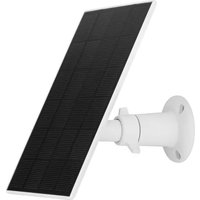
PPIC90600 - Surveillance Camera ABUS - Free user manual and instructions
Find the device manual for free PPIC90600 ABUS in PDF.



| Product type | Solar panel for surveillance camera |
| Brand | ABUS |
| Model | PPIC90600 |
| Dimensions (without bracket) | 173,5 x 120,5 x 12,5 mm |
| Weight (without bracket) | 170 g |
| Cable length | 3 m |
| Power supply | Solar panel, rated voltage 4.5 V, rated current 570 mA |
| Protection rating | IP65 |
| Operating temperature | -20 °C to 60 °C |
| Battery charging temperature | 0 °C to 45 °C |
| Operating humidity | 10 - 90 % |
| Main functions | Recharging the battery of the WiFi Cam camera via micro-USB; recommended tilt angle 30°; orientation towards the south (northern hemisphere) or north (southern hemisphere) |
| Compatibility | ABUS WiFi Cam camera with built-in battery |
| Package contents | Solar panel, 3 m cable, wall mount, drilling template, new battery compartment cover, cover lock, cable ties, quick start guide, safety instructions |
| Maintenance and cleaning | Clean dust and dirt from the solar panel regularly to ensure optimal performance. |
| Safety | Ensure watertightness of micro-USB connections and battery cover; charging is interrupted below 0 °C to protect the battery. |
| Installation | Wall mounting with bracket, orientation according to sunlight, tilt at 30°, micro-USB connection to camera. |
| System requirements | App2Cam Plus application, updated firmware, "Solar" operating mode activated in camera settings. |
Frequently Asked Questions - PPIC90600 ABUS
User questions about PPIC90600 ABUS
0 question about this device. Answer the ones you know or ask your own.
Ask a new question about this device
Download the instructions for your Surveillance Camera in PDF format for free! Find your manual PPIC90600 - ABUS and take your electronic device back in hand. On this page are published all the documents necessary for the use of your device. PPIC90600 by ABUS.
USER MANUAL PPIC90600 ABUS
Security Tech Germany

| ABUS SOLARPANEL FÜR WLAN AKKU CAM | QUICK GUIDE
PPIC90600
INHALTSVERZEICHNIS
TABLE OF CONTENTS
Deutsch
| Scope of delivery | 11 |
| Installation | 12 |
| Important notes | 17 |
| Technical data | 18 |
Francais
ABUS Solar Panel for Wi-Fi Battery Cam (PPIC90600)

Solar panel incl. 3 meter cable

Wall bracket

Installation material

Drilling template

New cover for the back of the Wi-Fi battery cam

Cap for new cover

Cable clamps
Quick-start guide

Safety information
INSTALLATION
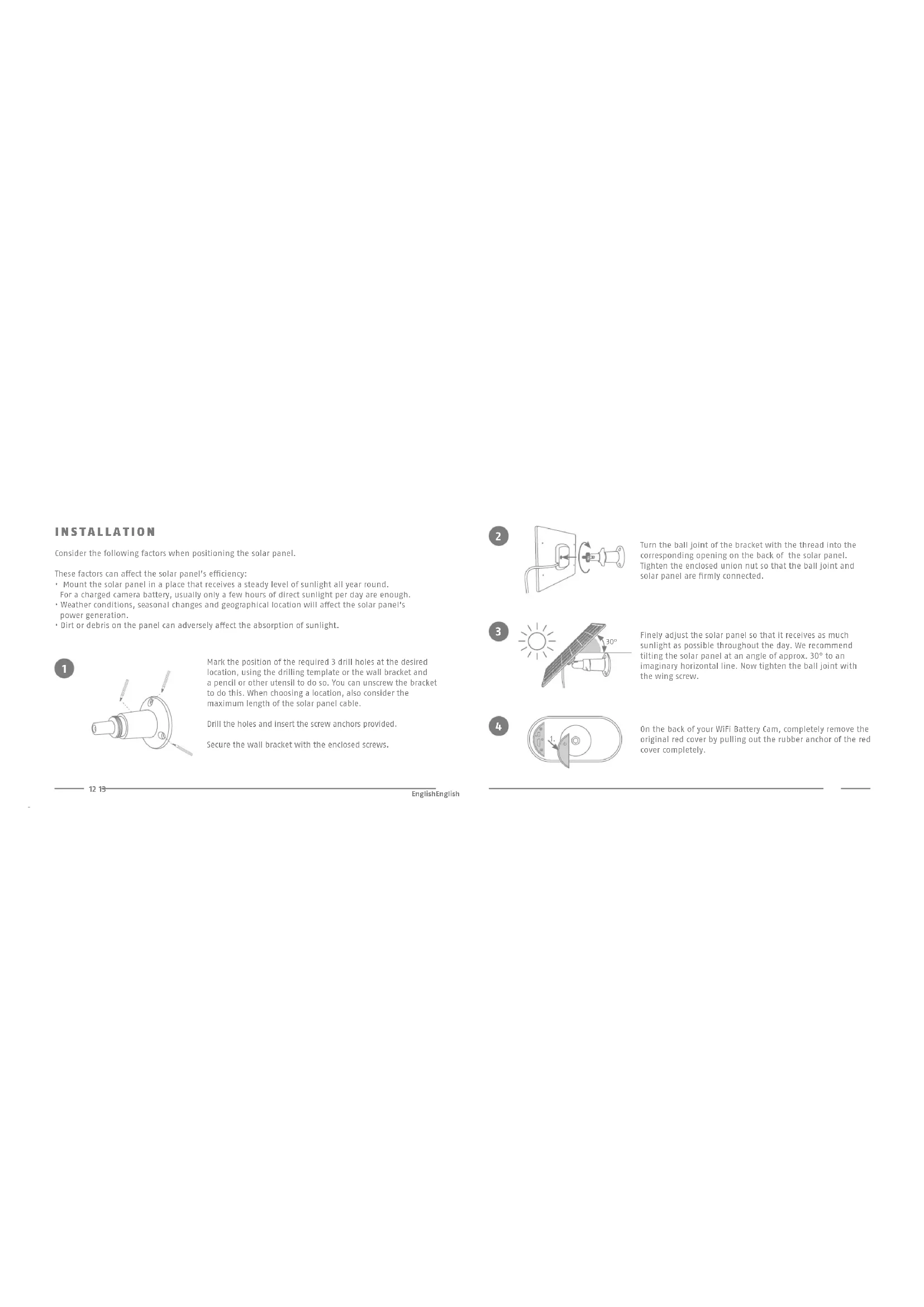
Consider the following factors when positioning the solar panel.
These factors can affect the solar panel's efficiency:
- Mount the solar panel in a place that receives a steady level of sunlight all year round. For a charged camera battery, usually only a few hours of direct sunlight per day are enough.
- Weather conditions, seasonal changes and geographical location will affect the solar panel's power generation.
- Dirt or debris on the panel can adversely affect the absorption of sunlight.
1
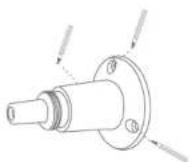
Mark the position of the required 3 drill holes at the desired location, using the drilling template or the wall bracket and a pencil or other utensil to do so. You can unscrew the bracket to do this. When choosing a location, also consider the maximum length of the solar panel cable.
Drill the holes and insert the screw anchors provided.
Secure the wall bracket with the enclosed screws.
2

Turn the ball joint of the bracket with the thread into the corresponding opening on the back of the solar panel. Tighten the enclosed union nut so that the ball joint and solar panel are firmly connected.
3

Finely adjust the solar panel so that it receives as much sunlight as possible throughout the day. We recommend tilting the solar panel at an angle of approx. 30° to an imaginary horizontal line. Now tighten the ball joint with the wing screw.
4
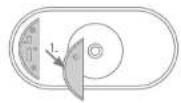
On the back of your WiFi Battery Cam, completely remove the original red cover by pulling out the rubber anchor of the red cover completely.
INSTALLATION
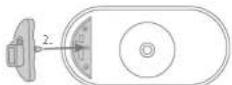
Insert the new red cover that came with the solar panel so that the new cover sits completely plane to the back of the WLAN Battery Cam and ensures waterproofing.

Tip: To position the small rubber anchor on the inside of the new cover, you can use a narrow object, such as a very small screwdriver. Make sure that the anchor holds the new red cover securely.
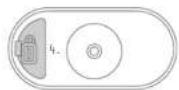
Important: To ensure the required watertightness, the new cover must sit flat and centered all around with no bulging.
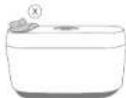


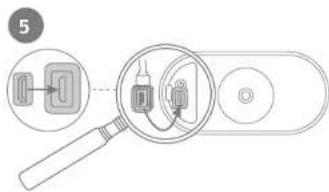
Connect the micro USB plug of the solar panel cable to the micro USB port of the Wi-Fi battery cam. Make sure that the connector is properly and firmly seated. Also make sure that the rubber seals are seated correctly to ensure waterproofness. Tip: In the live view of the app, you can see via the battery symbol - similar to the charging of a smartphone - as soon as the solar panel charges the camera battery in sunshine.

Once all the components have been assembled, check again that the new cover on the back of the camera and the micro-USB connector are fitted tightly so that the connection is waterproof. Depending on the mounting situation on site: You can use the cable clamps to fix the cable between the solar panel and the camera to provide strain relief or as desired.
COMMISSIONING
For operation with solar panel please ensure:
App
- App2Cam Plus -
•The latest firmware version must be installed on your WLAN base station and WLAN battery cam.
Check version? In the app, follow the path:
Overview -> Menu -> Settings -> Advanced settings -> Device settings -> Check for firmware update.
The points you must pay attention to when updating the firmware via the app are described in the operating instructions for the WLAN battery cam.
- In the settings of the WLAN battery cam that is connected to the solar panel, the operating mode must be set to „Solar“. To do this, follow the path in the app:
Overview -> Menu -> Settings -> Advanced Settings ->
Camera 1 or 2 Settings -> Operating Mode
IMPORTANT NOTES
The best location for your solar panel is where...
√ it is installed so that it receives as much sunlight as possible throughout the day: usually facing the south if in the northern hemisphere (e.g. in Europe, North America, Asia), or facing the north if in the southern hemisphere (e.g. in South America, Australia).
√ It is aligned at an angle of approx. 30° (in relation to an Imaginary horizontal line)
Also note the following:
• Regularly remove dust and dirt from the solar panel.
- When the temperature drops below 0°C , the camera is no longer charged via the solar panel so as to protect the battery
- Make sure the micro USB plug is properly inserted into the micro USB port of the camera for proper waterproofing.
- If the micro USB plug is not connected to the micro USB port, you must correctly place the rubber cap on the red cover of the camera for the required waterproofness.
- For information on the ABUS WiFi Battery Cam with base station, please refer to the camera's operating instructions.
TECHNICAL DATA
| Dimensions 173.5 x 120.5 x 12.5 mm (without bracket) | |
| Weight 170 g (without bracket) | |
| Cable length 3 m | |
| Operating temperature -20°C to 60°C | |
| Wi-Fi Battery Cam charging temperature | 0°C to 45°C |
| Protection class IP65 | |
| Operating humidity 10 - 90% | |
| Operating voltage 4.5 V | |
| Operating current 570 mA |
CONTENU DE LA LIVRAISON
PPIC90600
Solar Panel for Wi-Fi Battery Cam

Brand : ABUS
Model : PPIC90600
Category : Surveillance Camera