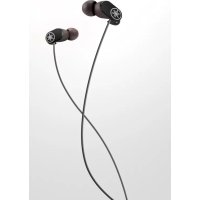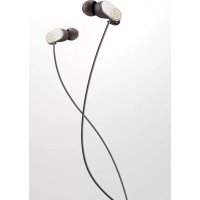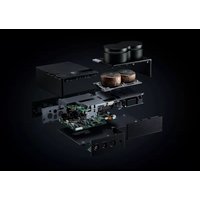
HA-L7A - Earphones YAMAHA - Free user manual and instructions
Find the device manual for free HA-L7A YAMAHA in PDF.



User questions about HA-L7A YAMAHA
0 question about this device. Answer the ones you know or ask your own.
Ask a new question about this device
Download the instructions for your Earphones in PDF format for free! Find your manual HA-L7A - YAMAHA and take your electronic device back in hand. On this page are published all the documents necessary for the use of your device. HA-L7A by YAMAHA.
USER MANUAL HA-L7A YAMAHA
Please Read First....4
Getting ready 5
Listening to music (basic playback operations) 11
Listening with your preferred sound....14
Other functions....16
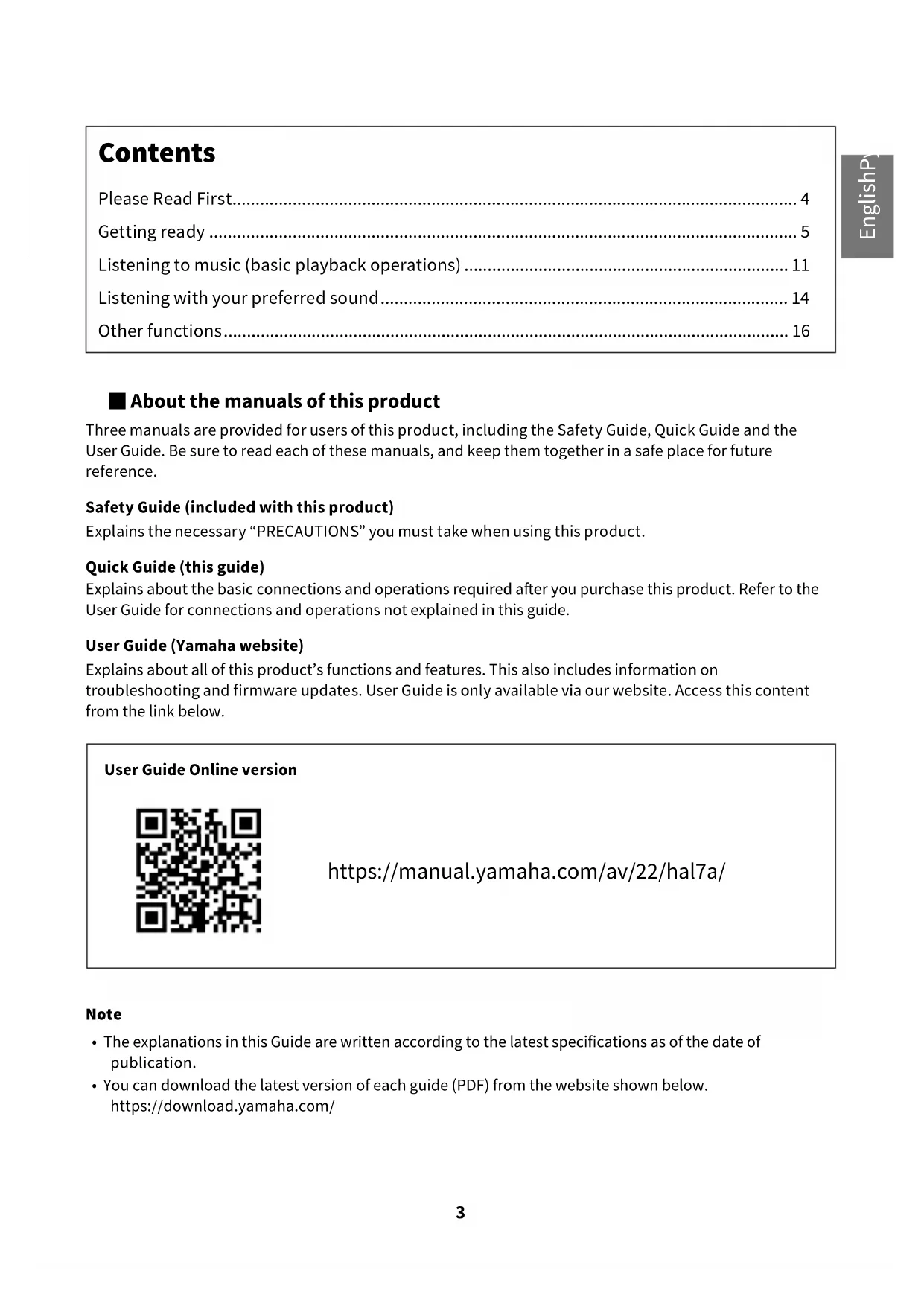
■ About the manuals of this product
Three manuals are provided for users of this product, including the Safety Guide, Quick Guide and the User Guide. Be sure to read each of these manuals, and keep them together in a safe place for future reference.
Safety Guide (included with this product)
Explains the necessary "PRECAUTIONS" you must take when using this product.
Quick Guide (this guide)
Explains about the basic connections and operations required after you purchase this product. Refer to the User Guide for connections and operations not explained in this guide.
User Guide (Yamaha website)
Explains about all of this product's functions and features. This also includes information on troubleshooting and firmware updates. User Guide is only available via our website. Access this content from the link below.
User Guide Online version

text_image
QR code image containing encoded data, no visible human-readable texthttps://manual.yamaha.com/av/22/hal7a/
Note
- The explanations in this Guide are written according to the latest specifications as of the date of publication.
- You can download the latest version of each guide (PDF) from the website shown below. https://download.yamaha.com/
Please Read First
Thank you for purchasing this Yamaha product. The HA-L7A is a standalone headphone amplifier that lets you listen to the audio from devices that are connected to this unit via digital/analog connection, and can play back high-definition audio from a computer that's connected to this unit via USB. You can play back audio through headphones and through an external amp.

CAUTION
This content indicates risk of injury.
• To prevent hearing loss, observe the following points.
- Do not listen at high volumes for an extended period of time.
- When switching between audio input sources or output destinations, temporarily turn down the volume.
- Do not make sudden changes in volume.
- Do not turn this product on while you are wearing headphones.
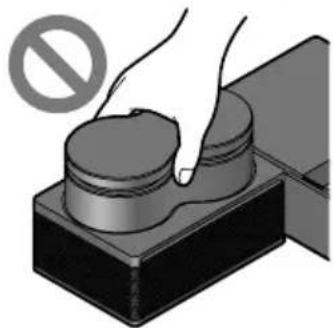
- Do not move around or pick up the product while holding the transformer unit.
natural_image
Illustration of a hand pressing down on a mechanical component with a no-smoking symbol (no text or labels)- You might drop the product, injuring yourself or causing a malfunction.
- Applying excessive force to this part may cause it to break.
Getting ready
1 Checking the included items
The following items are included with this product. Make sure that everything is present.
□ Remote control × 1
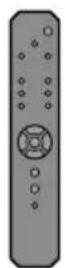
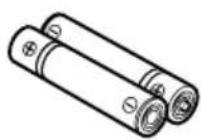
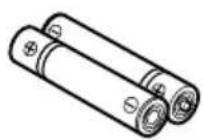
□ Batteries (AA, R6, UM-3) × 2
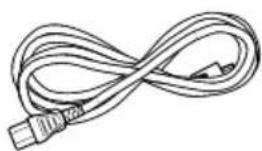
□ Power cord × 1
natural_image
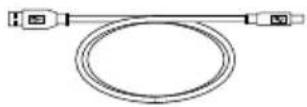
Line drawing of a twisted cable with a USB port (no text or symbols)☐ USB cable (Type-A to Type-B), 1.5 m × 1
NOTE
- There may be more than one power cord included with this product in certain regions. Use the cord that's appropriate for the power outlet where you will use it.
□ Safety Guide × 1
□ Quick Guide × 1
■ Getting the remote control ready
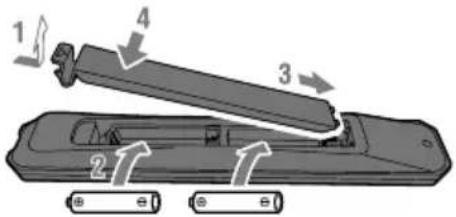
Insert the included batteries into the remote control in the correct orientation (+/-).
text_image
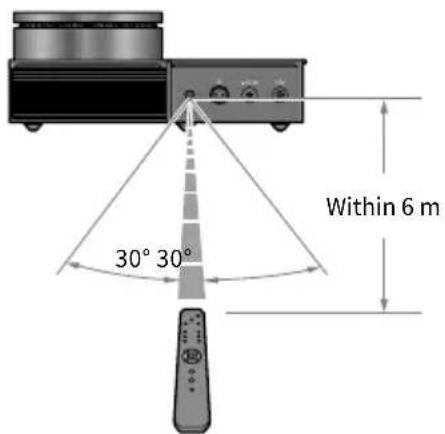
Diagram of a battery pack with labeled components and directional arrows indicating movement or forceThe remote control for this product transmits infrared signals, which operate within the range shown in the following illustration.
text_image
Within 6 m 30° 30°2 Connecting your devices
■ Sample connection diagram
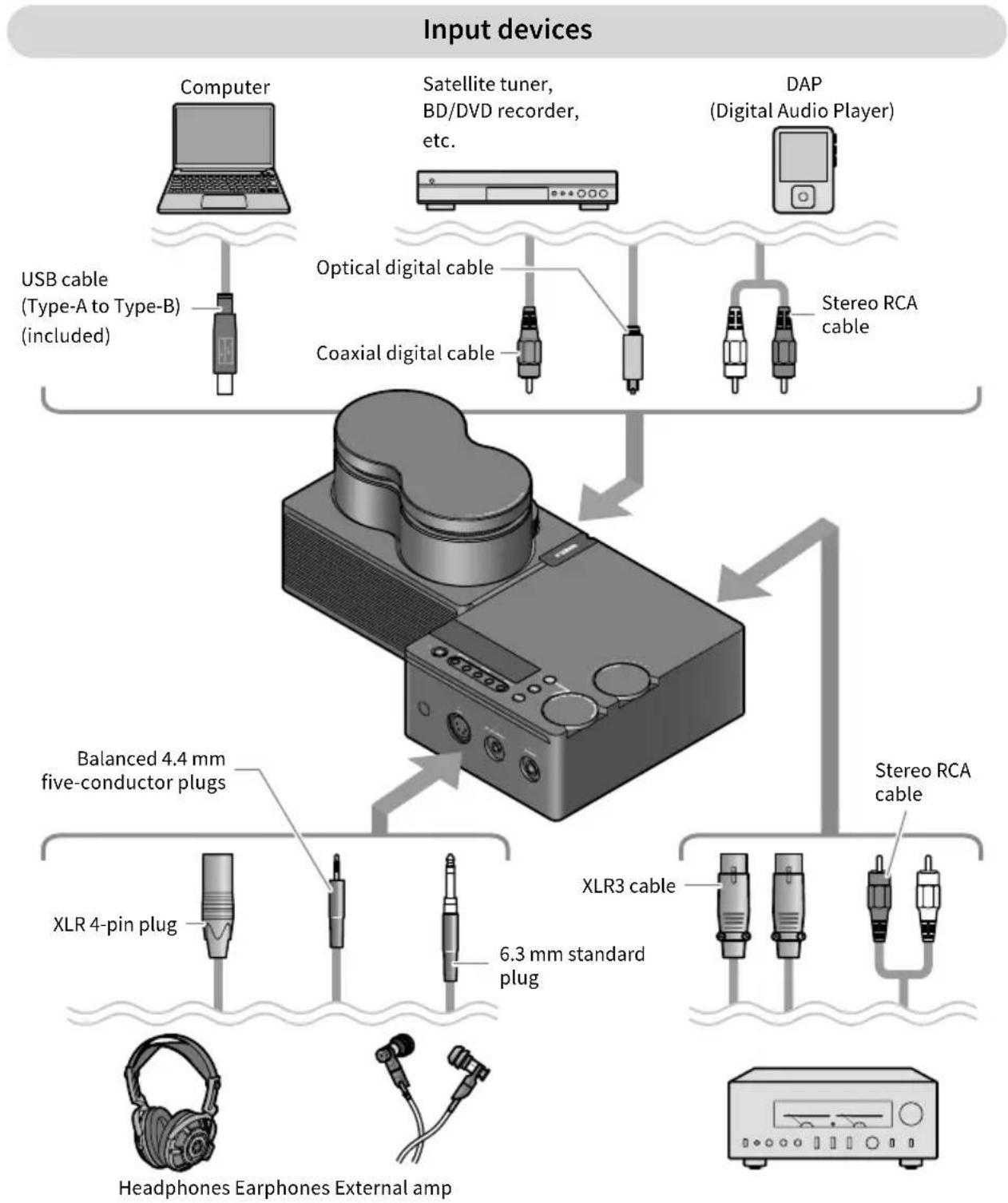
This is an example of how to connect various devices and cables to this product.
Refer to the User Guide when connecting to an external amp.
flowchart
graph TD
    A["Input devices"] --> B["Computer"]
    A --> C["Satellite tuner, BD/DVD recorder, etc."]
    A --> D["DAP (Digital Audio Player)"]
    B --> E["USB cable (Type-A to Type-B) (included)"]
    C --> F["Optical digital cable"]
    C --> G["Coaxial digital cable"]
    D --> H["Stereo RCA cable"]
    I["Headphones Earphones External amp"] --> J["XLR 4-pin plug"]
    I --> K["6.3 mm standard plug"]
    L["Balanced 4.4 mm five-conductor plugs"] --> M["XLR3 cable"]
    N["Stereo RCA cable"] --> O["Stereo RCA cable"]
Output devices
■ 2-1 Connecting an audio device (digital or analog)
This shows how to connect this product to an audio device via digital or analog connection. For a digital connection, you'll need a commercially available optical digital cable or coaxial digital cable. For an analog connection, you'll need a commercially available stereo RCA cable. For a DAP (Digital Audio Player), you may need an adaptor cable.
Digital connections
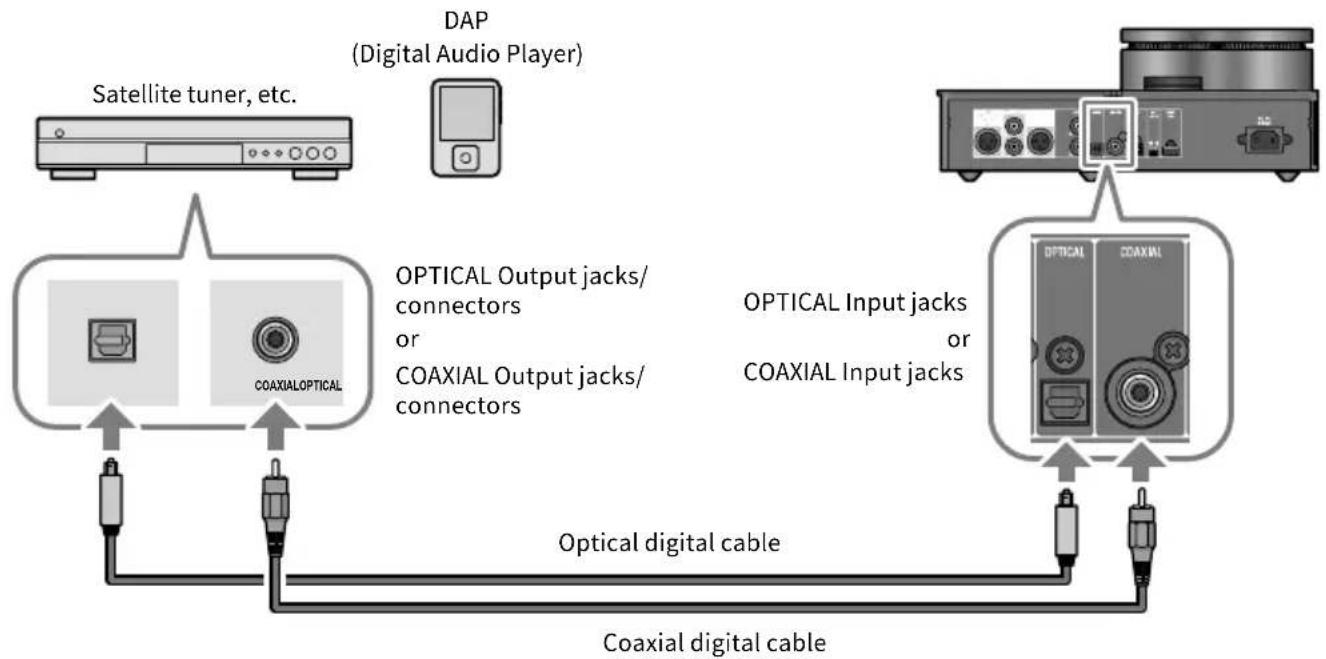
flowchart
graph TD
    A["Satellite tuner, etc."] --> B["Coaxial Optical"]
    C["DAP (Digital Audio Player)"] --> B
    B --> D["Optical digital cable"]
    D --> E["Coaxial digital cable"]
    F["OPTICAL Output jacks/ connectors or COAXIAL Output jacks/ connectors"] --> B
    G["OPTICAL Input jacks or COAXIAL Input jacks"] --> D
NOTE
- This product can play back two-channel PCM digital audio. If there is a setting on your audio device for digital audio output, use the PCM output (2 ch) setting.
Analog connections
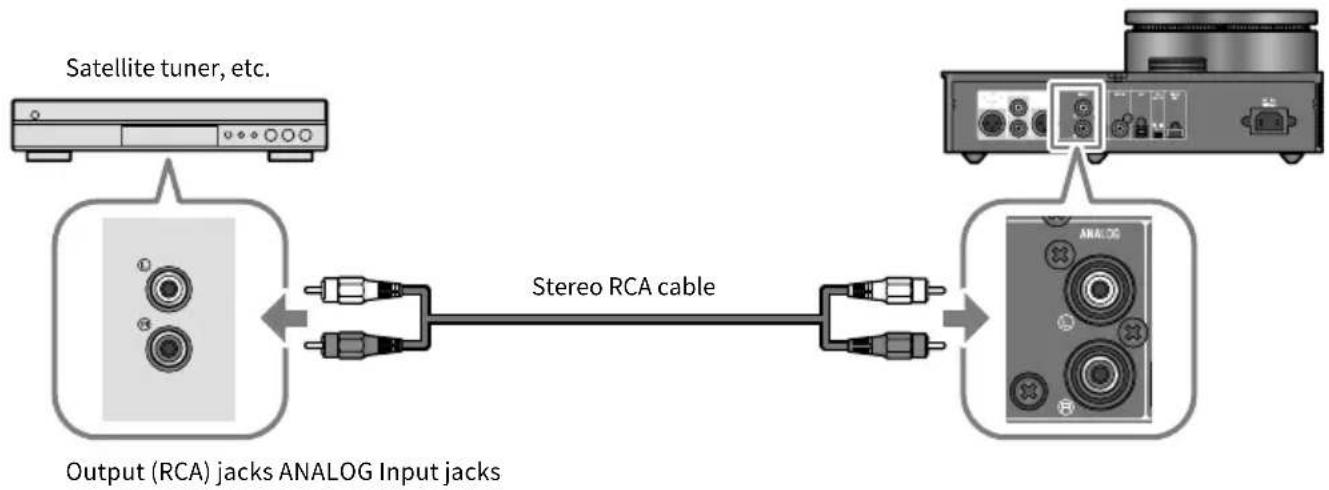
flowchart
graph LR
    A["Satellite tuner, etc."] --> B["Output (RCA) jacks ANALOG Input jacks"]
    B --> C["Stereo RCA cable"]
    C --> D["Analog"]
■ 2-2 Getting your computer ready and making connections (USB)
Some steps may be required on your computer before you can use USB DAC. If you're using Windows on your computer, you must install the "Yamaha Steinberg USB Driver" USB driver supplied by Yamaha. If you're using macOS, you can use the standard driver for the OS, and there is no need to install a USB driver. See User Guide for details on which operating systems are supported.
Installing the USB driver on your computer (Windows only)
Before connecting this product to your computer, follow the steps below to install the USB driver on your computer.
1 Access the following website and search for "Yamaha Steinberg USB Driver".
Software download Web page:
URL: https://download.yamaha.com/
2 Download the latest driver.
3 Extract (decompress) the downloaded file.
4 Install the driver on your computer.
Follow the steps in the installation guide included with the driver you downloaded to install the software.
5 Once installation is complete, quit all open applications.
NOTE
- If an older version of this driver exists on your computer, uninstall it before installing the new one.
Connecting to your computer via USB
Use the included USB cable to connect this product to your computer.
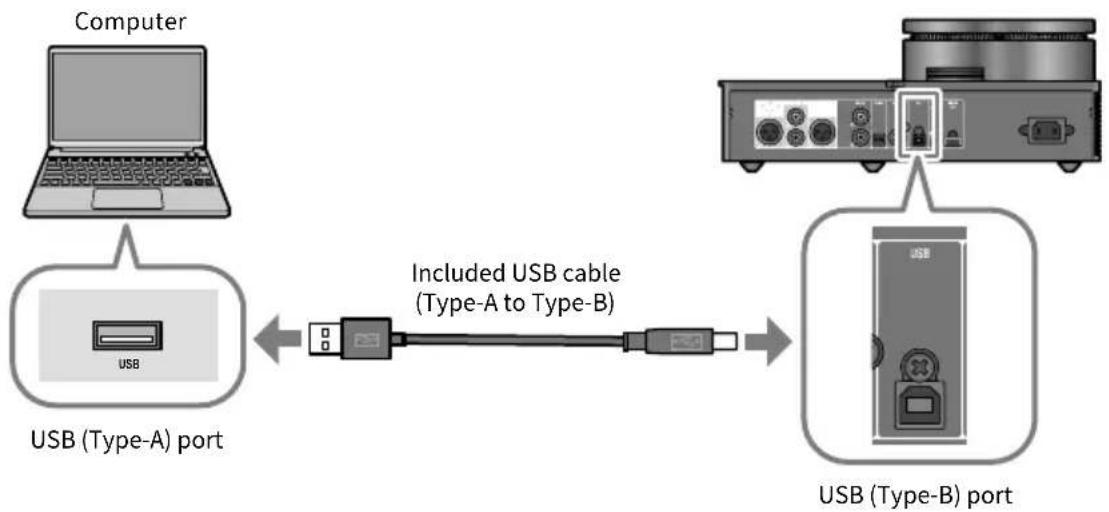
flowchart
graph LR
    A["Computer"] --> B["USB (Type-A) port"]
    B <--> C["Included USB cable (Type-A to Type-B)"]
    C <--> D["USB (Type-B) port"]
■ 2-3 Connecting a pair of headphones
This shows how to connect your headphones to this product. Use the input jack or connector that matches the plug shape of your headphone cable.
XLR 4-pin plugs
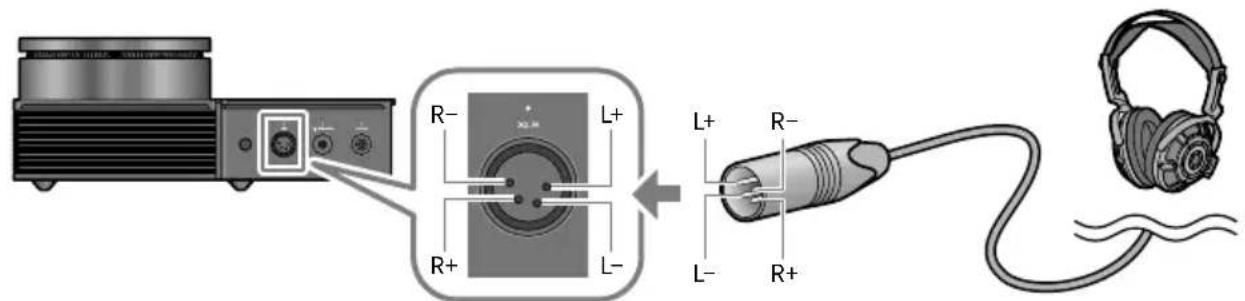
text_image
R- L+ L+ R- L- R+ L+XLR connector
Balanced 4.4 mm five-conductor (TRRRS) plugs
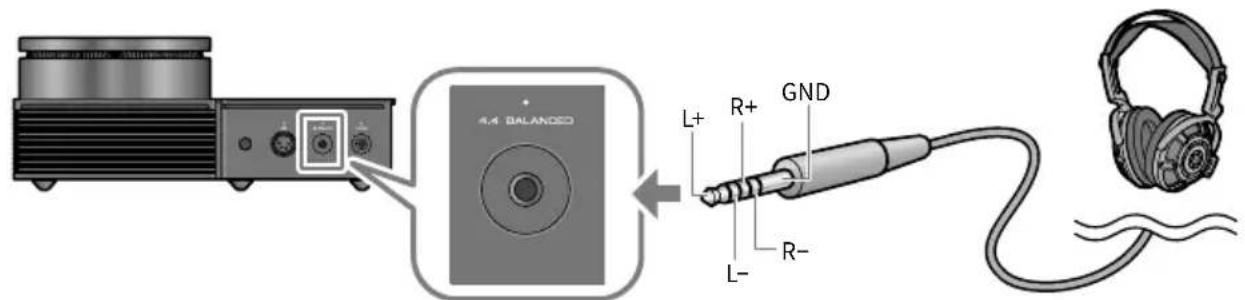
text_image
4.4 BALANCED L+ R+ GND L- R-4.4 BALANCED jack
6.3 mm (1/4-inch) standard plugs
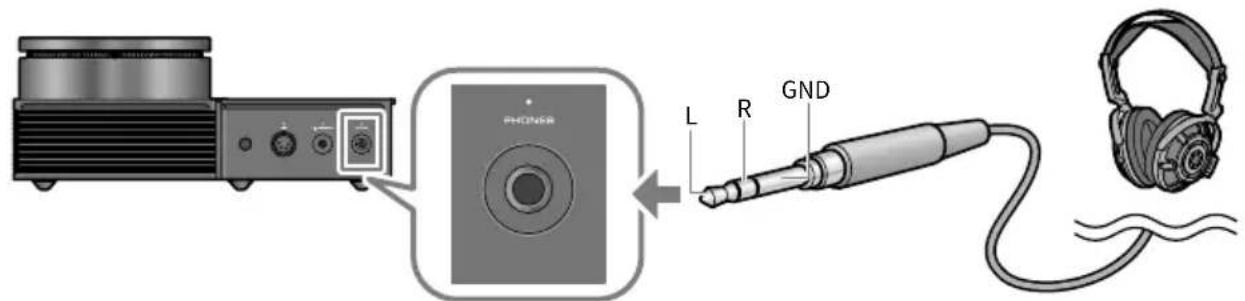
text_image
PHONSOR L R GNDPHONES jack
3 Connecting the AC power cord
Connect the included AC power cord after connecting all other devices.
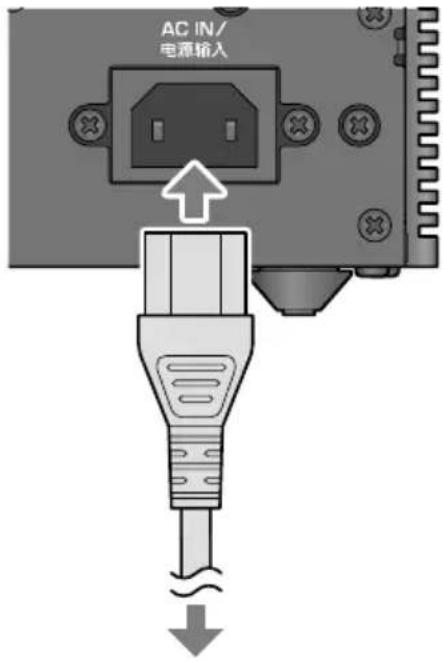
text_image
AC IN/ 电源输入Connect to the AC outlet
Listening to music (basic playback operations)
This explains the basic operations for listening to audio (such as music) from your audio device or computer on this product. The following steps show you how to do this from the operating panel on top of this product. See User Guide for details on how to use the remote control.
1 Turning on the audio device or computer
Turn on the power of the audio device or computer that's connected to this product.
2 Turning on this product
Press the [⏻] power button on the operating panel. The indicator to the left of the power button lights up when the power is on.
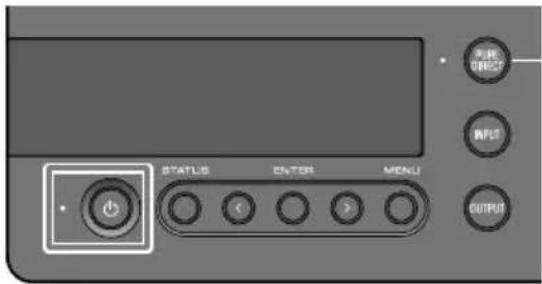
text_image
PURE DIRECT INPUT OUTPUT STATUS ENTER MENUTo turn off the power (standby), press the [ ⏻] power button again.
NOTE
- The auto power standby feature on this product automatically turns off the power (standby) when the unit is not operated and nothing is played back for 20 minutes. See User Guide for details.
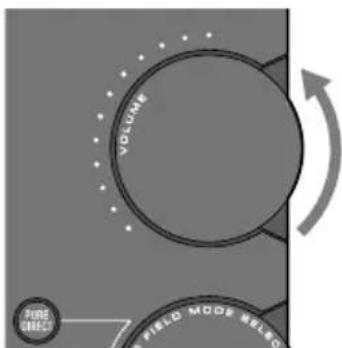
3 Turning the volume all the way down
Turn the [VOLUME] knob on the operating panel all the way down (counterclockwise) to minimize the volume (the indicators encircling the knob should be unlit).
text_image
VOLUME PURE DIRECT FIELD MODE SELSO4 Selecting the audio input source and output destination
This shows how to select the input source (input jack) and output destination (headphones jack or [PRE/LINE OUT] jacks) for the audio.
1 Press the [INPUT] button on the operating panel to select the audio input source.
The input switches between USB, OPTICAL, COAXIAL and ANALOG each time you press the button, and the input source name is shown in the information display.
![YAMAHA HA-L7A - Press the [INPUT] button on the operating panel to select the audio input source. - 1](/content/2026/04/653689/images/f773f2da05b06e207c9eabf33db5745186a8c0ce28cd3ee71cfac181b88437e1.jpg)
text_image
PURE DIRECT INPUT STATUS ENTER MENU OUTPUT2 Press the [OUTPUT] button on the operating panel to select the audio output destination.
The output switches between, HP 6.3mm, PRE OUT (LINE OUT), HP XLR and HP 4.4mm each time you press the button, and the output destination name is shown in the information display.
![YAMAHA HA-L7A - Press the [OUTPUT] button on the operating panel to select the audio output destination. - 1](/content/2026/04/653689/images/1fea814f5876fc9b4e69282d38d8031980ac8a30084caa29642b5097c6fc610f.jpg)
text_image
PINE DIRECT INPUT STATUS ENTER MENU OUTPUTFor example, to listen to your computer's audio in a pair of headphones plugged into the [PHONES] jack, set the input source to USB and the output destination to HP 6.3mm.
5 Playing back sound from your audio device or computer
Play back the audio on your audio device or computer.
To play back audio from your computer, set the computer's audio output destination to "Yamaha USB DAC".
For Windows users:
Start menu > Settings > System > Sound [Output]
For macOS users:
System Settings > Sound > [Output] tab
The method to use depends on the OS version.
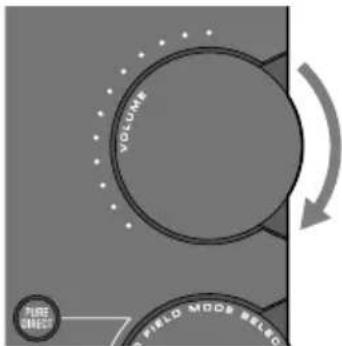
6 Adjusting the volume
Gradually turn the [VOLUME] knob on the operating panel clockwise to raise the volume until it reaches an appropriate level. The knob range indicators light up according to the volume.
text_image
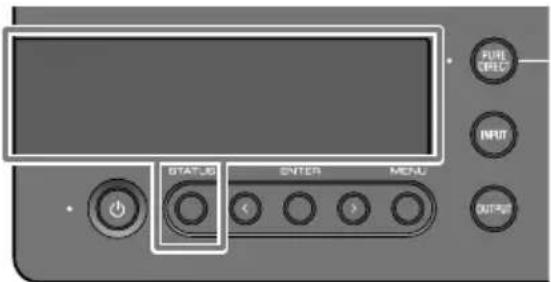
VOLUME FIELD MODE RELIO FIRE DIRECT■ About the information display
The information display on the top of this unit shows various information such as the current input and output names. The display type changes when you press the [STATUS] button. See User Guide for details.
text_image
RUN OUTPUT INPUT OUTPUT STATUS ENTER MENLListening with your preferred sound
Listening with various effects (SOUND FIELD MODE)
This product includes different sound field effects (SOUND FIELD MODE). Select the desired mode according to the contents you are listening to. The SOUND FIELD MODE add depth and reverberation to the sound through signal processing (DSP).
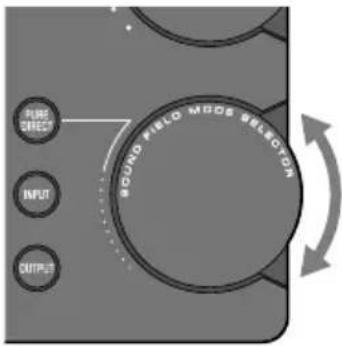
Selecting the SOUND FIELD MODE
Turn the [SOUND FIELD MODE SELECTOR] knob on the operating panel to select the desired SOUND FIELD MODE. The name of the SOUND FIELD MODE you selected appears in the information display.
text_image
FINE DIRECT INPUT OUTPUT SOUND FIELD MODE SELECTORSOUND FIELD MODE
| STRAIGHT Plays the sound without applying the sound field effect. | |
| CINEMA | Gives a greater sense of immersion and presence to movies with action scenes, such as action and SF movies. The effect increases the separation between dialogue and sound effects or background music. |
| DRAMA | Lets you comfortably enjoy animated shows, dramas, variety shows and other content where voice is important.The effect increases the separation between dialogue and sound effects or background music, making the dialogue sound more real and adding a comfortable sense of reverberation. |
| MUSIC VIDEO | Simulates a comfortable spatial placement of vocals and musical instruments, for enjoying music videos and other content.This creates a pleasant sense of space and sonic placement. |
| CONCERT HALL | A setting that creates the echoes and space of a live concert in a hall, letting you enjoy the performance as if you were part of the venue.This creates a sense of envelopment, enthusiasm, unity and realism. |
| OUTDOOR LIVE | Recreates the open-air feeling of an outdoor setting, letting you enjoy the sense of watching a live performance outdoors.This creates a sense of unity, openness and realism, reproducing a unique outdoor space by keeping the reverberations to an appropriate level. |
| BGM | This setting is suitable for listening to background music where the sound is localized outside the head, letting you relax and listen to music.Uses Yamaha’s proprietary high-definition HRTF (Head Related Transfer Function) technology to process the stereo position of the sound outside your head. |
Default setting
STRAIGHT
NOTE
- The SOUND FIELD MODE is remembered for each audio input.
- When using PURE DIRECT, the sound is played without applying the sound field effect, regardless of the setting.
Listening with higher-definition sound quality (PURE DIRECT)
When PURE DIRECT is turned on, the various processing modes and circuits except for the basic functions necessary for playback, are stopped, which allows for higher playback definition with less noise.
How to use PURE DIRECT
Press the [PURE DIRECT] button on the operating panel to toggle this function on/off. When PURE DIRECT is on, the indicator to the left of the [PURE DIRECT] button lights up.
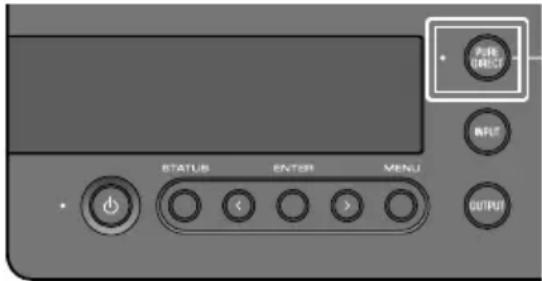
text_image
Pulse DIRECT OK/UT STATUS ENTER MENU OUTPUTNOTE
- When PURE DIRECT is on, some functions are disabled. When you try to operate this product, "NOT AVAILABLE" appears in the information display. See User Guide for details.
Other functions
Refer to the User Guide for the content listed below, which is not explained in this guide.
Names of parts on this product and on the remote control
Using the remote control
Content shown in the information display
Connecting to an external amp
Connect an external amp (a preamp or power amp), an active speaker or similar equipment to the [PRE/LINE OUT] output jacks to output audio from this product.
Various functions and settings accessible from the setting menu
- Setting the DAC filter
Changes the type of DAC digital filter used. - Setting the DAC lock range
This function is used to reduce jitter and improve sound quality. - Setting the output gain for the headphones and the PRE/LINE OUT output
- Setting an upper limit for the volume
- Setting the default volume used when the power is turned on
- Adjusting the left/right balance
- Setting the auto power standby function
- Checking the firmware version and initializing this product
Other topics not listed above

text_image
QR code image containing encoded data, no visible human-readable textUser Guide
Setting menu list
Firmware update function
Troubleshooting
Specifications
Table des matières
text_image
QR code image containing encoded data, no visible human-readable texthttps://manual.yamaha.com/av/22/hal7a/
Note
natural_image
Illustration of a hand pressing down on a mechanical component with a prohibition symbol (no text or labels)□ Piles (AA, R6, UM-3) × 2
natural_image
Line drawing of a coiled cable with a USB port (no text or symbols)text_image
L R MassePrise PHONES
text_image
VOLUME PURE CHECK FIELD MODE SELECTAu sujet de l'écran
text_image
QR code image containing encoded data, no visible human-readable texttext_image
QR code image containing encoded data, no visible human-readable texthttps://manual.yamaha.com/av/22/hal7a/
Hinweis
natural_image
Illustration of a hand pressing down on a cylindrical object with a prohibition symbol (no text or labels)natural_image
Line drawing of a coiled cable with a USB port (no text or symbols)text_image
Diagram of a battery pack with labeled components and directional arrows indicating movement or forceURL: https://download.yamaha.com/
text_image
VOLUME FIRE EFFECT FIELD MODE RELICtext_image
QR code image containing encoded data, no visible human-readable texttext_image
QR code image containing encoded data, no visible human-readable texthttps://manual.yamaha.com/av/22/hal7a/
Obs
natural_image
Illustration of a hand pressing down on a cylindrical object with a prohibition symbol above (no text or labels)natural_image
Line drawing of a coiled cable with a connector (no text or symbols)Webbadress: https://download.yamaha.com/
text_image
VOLUME FIRE EFFECT FIELD MODE RELIC■ Om informationsdisplayen
text_image
QR code image containing encoded data, no visible human-readable texttext_image
QR code image containing encoded data, no visible human-readable texthttps://manual.yamaha.com/av/22/hal7a/
Nota
natural_image
Illustration of a hand pressing down on a cylindrical object with a prohibition symbol (no text or labels)natural_image
Line drawing of a coiled cable with a connector (no text or symbols)text_image
Diagram of a handheld device with labeled parts and directional arrows indicating movement or assembly.URL: https://download.yamaha.com/
text_image
R- L+ L- R+ L+ R- L- R+Connettore XLR
text_image
L R TERRAPHONES jack
text_image
VOLUME FIELD MODE SELECT PURE CHECKtext_image
QR code image containing encoded data, no visible human-readable texttext_image
QR code image containing encoded data, no visible human-readable texthttps://manual.yamaha.com/av/22/hal7a/
Nota
natural_image
Illustration of a hand pressing down on a mechanical component with a no-smoking symbol (no text or labels)□ Pilas (AA, R6, UM-3) × 2
text_image
Diagram of a battery pack with labeled components and directional arrows indicating movement or forceURL: https://download.yamaha.com/
text_image
VOLUME FIRE EFFECT FIELD MODE RELICtext_image
QR code image containing encoded data, no visible human-readable texttext_image
QR code image containing encoded data, no visible human-readable texthttps://manual.yamaha.com/av/22/hal7a/
Opmerking
natural_image
Illustration of a hand pressing down on a cylindrical object with a prohibition symbol (no text or labels)natural_image
Line drawing of a USB cable with a connector (no text or symbols)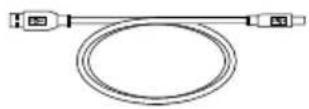
OPMERKING
text_image
Diagram of a handheld device with labeled parts and directional arrows indicating motion or movementURL: https://download.yamaha.com/
text_image
R- L+ XLR-connector L+ R- L- R+ XLR-connectortext_image
VOLUME FIRE EFFECT FIELD MODE RELIC■ Over de informatiedisplay
text_image
QR code image containing encoded data, no visible human-readable texttext_image
QR code image containing encoded data, no visible human-readable texthttps://manual.yamaha.com/av/22/hal7a/
Примечание
natural_image
Illustration of a hand pressing down on a mechanical component with a no-smoking symbol (no text or labels)natural_image
Line drawing of a coiled cable with a connector (no text or symbols)text_image
Diagram of a handheld device with labeled parts and directional arrows indicating motion or movementtext_image
PHONSER L R GNDГнездо PHONES
text_image
VOLUME FIXED MODE SELECT FIRE BESTtext_image
VOLUME FIELD MODE SELECT PURE CHECKtext_image
QR code image containing encoded data, no visible human-readable texthttps://download.yamaha.com/
©2023 Yamaha Corporation
Published 08/2023
AMEM-A0