CHAOS - Synthesizer BEHRINGER - Free user manual and instructions
Find the device manual for free CHAOS BEHRINGER in PDF.



| Product type | Eurorack synthesizer module / chaos generator |
| Brand | Behringer |
| Model | CHAOS |
| Width (HP) | 16 HP |
| Depth | 35 mm (power cable included) |
| Weight | 150 g (approx.) |
| Power supply | +12 V / -12 V via Eurorack bus, typical consumption 100 mA |
| Internal clock | 63 Hz to 255 Hz (≈ 3.78 to 3780 BPM) |
| CV inputs | For BIAS, RATE, JITTER, SPREAD, STEPS, FEEDBACK (3 inputs) |
| Trigger outputs | 3 outputs (t1, t2, t3), adjustable duration (1–99%) |
| Voltage outputs | 3 X outputs (X1, X2, X3) + 1 Y output |
| Voltage ranges | 0–2 V, 0–5 V or -5 V to +5 V (selectable) |
| Built-in scales | 6 scales: Major, Minor, Pentatonic, Pelog, Raag Bahar, Raag Shri |
| Custom scales | Yes, via sampling (min. 50 notes) |
| Reset | Long press (2 s) on t and X feedback buttons |
| Firmware update | Via 48 kHz .wav file, Rate CV input |
| Maintenance | Clean with a dry cloth; avoid water, heat sources and flames |
| Safety | Do not block ventilation; use specified accessories; operating temperature 5–45°C |
| Repairability | Replaceable fuse; contact Music Tribe for warranty repair |
| General information | Eurorack module, requires compatible case |
Frequently Asked Questions - CHAOS BEHRINGER
User questions about CHAOS BEHRINGER
0 question about this device. Answer the ones you know or ask your own.
Ask a new question about this device
Download the instructions for your Synthesizer in PDF format for free! Find your manual CHAOS - BEHRINGER and take your electronic device back in hand. On this page are published all the documents necessary for the use of your device. CHAOS by BEHRINGER.
USER MANUAL CHAOS BEHRINGER
EN Safety Instruction
- Please read and follow all instructions.

- Keep the apparatus away from water, except for outdoor products.

- Clean only with a dry cloth.

-
Do not block any ventilation openings. Install in accordance with the manufacturer's instructions.
-
Do not install near any heat sources such as radiators, heat registers, stoves or other apparatus (including amplifiers) that produce heat.
-
Use only attachments/accessories specified by the manufacturer.
tables. Use caution to prevent tip-over when moving the cart/apparatus combination.
-
Avoid installing in confined spaces like bookcases.
-
Do not place near naked flame sources, such as lighted candles.
-
Operating temperature range 5° to 45°C (41° to 113°F).
-
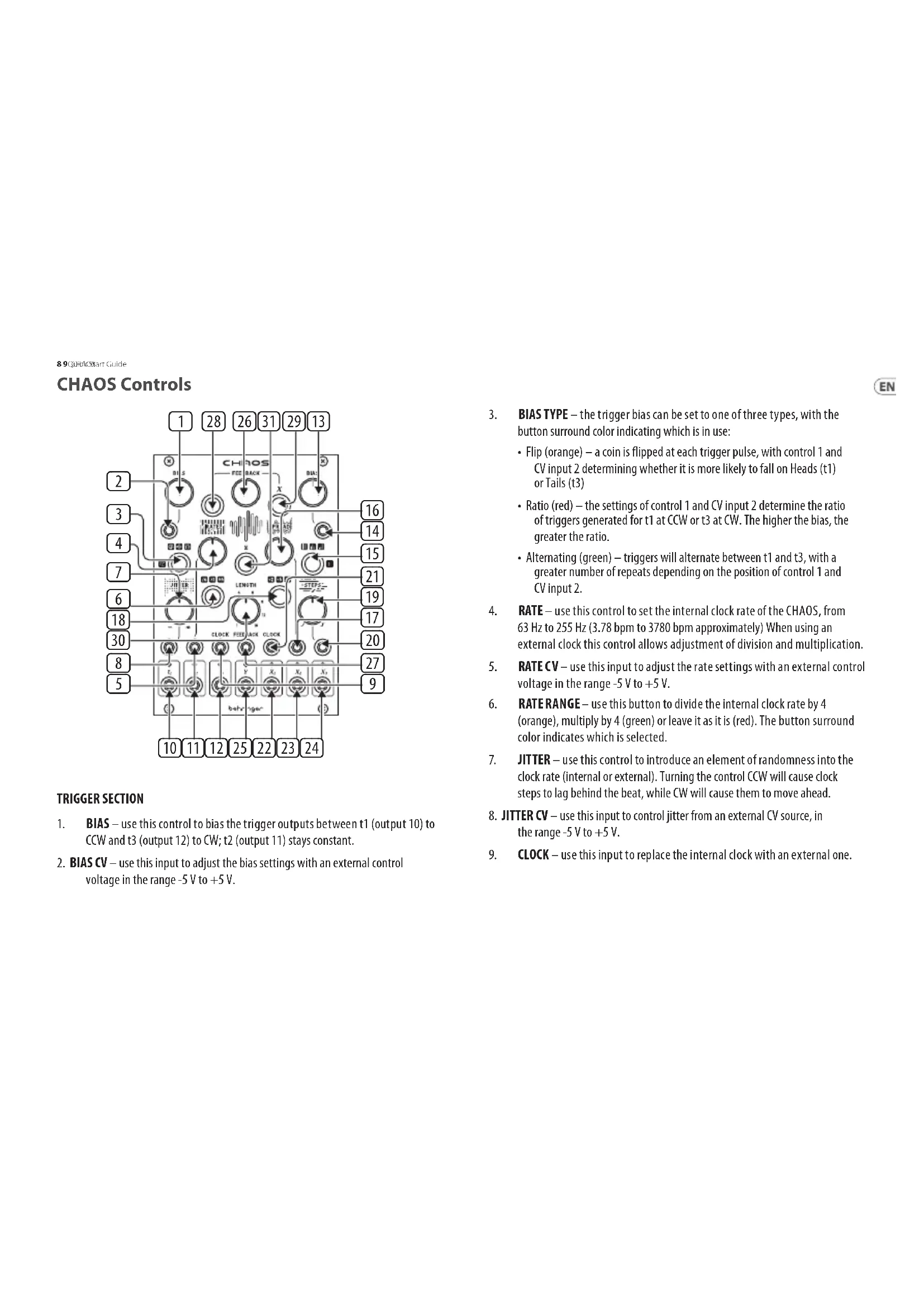
BIAS – use this control to bias the trigger outputs between t1 (output 10) to CCW and t3 (output 12) to CW; t2 (output 11) stays constant.
-
BIAS CV - use this input to adjust the bias settings with an external control voltage in the range -5V to +5V .
-
BIAS TYPE – the trigger bias can be set to one of three types, with the button surround color indicating which is in use:
- Flip (orange) – a coin is flipped at each trigger pulse, with control 1 and CV input 2 determining whether it is more likely to fall on Heads (t1) or Tails (t3)
- Ratio (red) – the settings of control 1 and CV input 2 determine the ratio of triggers generated for t1 at CCW or t3 at CW. The higher the bias, the greater the ratio.
- Alternating (green) – triggers will alternate between t1 and t3, with a greater number of repeats depending on the position of control 1 and CV input 2.
-
RATE — use this control to set the internal clock rate of the CHAOS, from 63 Hz to 255 Hz (3.78 bpm to 3780 bpm approximately) When using an external clock this control allows adjustment of division and multiplication.
-
RATE CV – use this input to adjust the rate settings with an external control voltage in the range -5 V to +5 V.
-
RATERANGE—use this button to divide the internal clock rate by 4 (orange), multiply by 4 (green) or leave it as it is (red). The button surround color indicates which is selected.
-
JITTER – use this control to introduce an element of randomness into the clock rate (internal or external). Turning the control CCW will cause clock steps to lag behind the beat, while CW will cause them to move ahead.
-
JITTER CV – use this input to control jitter from an external CV source, in the range -5 V to +5 V.
-
CLOCK – use this input to replace the internal clock with an external one.
10 11Q405 Start Guide
CHAOS Controls
- 12 – TRIGGER OUTPUTS – use these outputs to access triggers t1, t2 and t3. Press and hold button 3 (Bias Type) and use the Bias control (1) to adjust the trigger duty from 1% to 99%, with 50% at 12 o'clock. Press and hold button 3 and use the Jitter control (7) to randomize the trigger duty, with higher settings giving greater randomization. When the internal clock is used the three trigger outputs trigger the three voltage outputs.
VOLTAGE SECTION
- BIAS - use this control to bias the voltages output on outputs 22 to 24 between lower voltages to CCW and higher voltages to CW.
- BIAS CV – use this input to adjust the bias settings with an external control voltage in the range -5 V to +5 V.
-
CONTROL REACTION – the way in which the three voltage outputs 22 to 24 react to the settings of controls 13, 16 and 19 (and their associated CVs) can be set in three ways, with the button surround color indicating which is in use:
-
As Controls (orange) – all settings exactly follow the controls.
- Equal and Opposite (red) – X2 output (23) follows the controls exactly, while X1 (output 22) and X3 (output 24) do the exact opposite.
-
Sliding Scale (green) – X1 output (22) follows the controls exactly, while X3 (output 24) does the exact opposite and X2 (output 23) lies between the two other outputs.
-
SPREAD - use this control to set the distribution of the control voltages. Turning the control CCW will bias the voltages to the center of their range, at 12 o'clock the full range is used but still with a bias towards the center. Going further CW allows more extreme ranges to be used.
-
SPREAD CV – use this input to adjust the spread settings with an external control voltage in the range -5 v to +5 v. Spread CV can also be used to apply a random value to the X outputs by pressing button 31 to sample the CV input.
-
RANGE – use this button to set the CHAOS' voltage range. Choose from 0 V – +2 V (orange), 0 V – +5 V (red) or -5 V – +5 V (green). The button surround color indicates which is in use. This button is also used to select a preset scale (see Scales below).
- STEPS – use this control to select how the CHAOS steps between voltages. At 12 o'clock the steps are instantaneous in time with the clock used. Turning the control further CCW will add a portamento-like smoothness to the transitions, with more extreme settings generating random smoothed voltages. Turning CW quantizes the voltages to a selected scale (see Scales below) with the highest setting producing a single, root note.
- STEPS CV – use this input to adjust the steps settings with an external control voltage in the range -5 V to +5 V.
- CLOCK - use this input to clock the voltages X1, X2 and X3 from an external clock rather than from t1, t2 and t3.
- 24 – VOLTAGE OUTPUTS – use these outputs to access voltages X1, X2 and X3.
Y SECTION
-
Y OUTPUT - the Y output is a voltage output, separate to the X outputs, but related to X2. It operates over the range -5V to +5V and can have its parameters adjusted by pressing and holding the Control Reaction button (15) and altering the following controls:
-
Rate (4) – adjusts the division of X2 that will produce Y from 164 to Unity.
- Bias (13) – works as it does with the X voltages.
- Spread (16) – works as it does with the X voltages.
- Steps (19) – works as it does with the X voltages.
12 18Q405 Start Guide
CHAOS Controls
FEEDBACK SECTION
- FEEDBACK - use this control to set the probability level of the voltage and trigger sampling between totally random at extreme CCW and CW and entirely locked at 12 o'clock.
- FEEDBACK CV – use this input to adjust the feedback settings with an external control voltage in the range -5 V to +5 V.
- t FEEDBACK – use this button to apply the feedback settings from controls 26 and 30 and CV 27 to the trigger generator.
- X FEEDBACK – use this button to apply the feedback settings from controls 26 and 30 and CV 27 to the voltage generator.
- LENGTH – use this control to set the loop length, from 1 step to 16 steps.
SAMPLING SECTION
- SAMPLE – use this button to either sample a voltage on the Spread CV input (17) for use by the voltage generator, or to input custom scales (see Scales below)
SCALES
The CHAOS comes loaded with six preset scales to be used by the voltage generators. Each has C as a root note, so in order to use different keys the Steps control (19) should be turned fully CW with no external CV applied in order to obtain a root note output. Your audio source can then be returned to the desired key.
The six scales are accessed by pressing and holding the Range button (18) for two seconds, then using the same button to step through the scales. The color and flash rate of the button surround indicates which scale is selected:
• Major (Orange, slow flash): C, D, E, F, G, A, B, C
• Minor (Red, slow flash): C, D, Eb, F, G, Ab, Bb, C
- Pentatonic (Green, slow flash): C, D, E, G, A, C
• Pelog Gamelan (Orange, fast flash): C, Db, Eb, G, Ab, C
• Raag Bahar (Red, fast flash): C, D, Eb, F, G, A, Bb, B, C
• Raag Shri (Green, fast flash): C, Db, E, G, Ab, B, C
Not pressing the button for more than two seconds will exit scale selection. Please note that the scale is not stored and will revert to last used when the CHAOS is next powered up. To reset scales back to factory settings press and hold the Sample button (31) for two seconds, release, and press again until the Range button LED (18) stops flashing.
Custom scales can also be programmed into the CHAOS. Apply a CV from a suitable keyboard, such as the Behringer Swing, to the Spread CV input (17) and a gate from the same source to the X Clock input (21). When you are ready press and hold the Sample button for two seconds. The button surround will flash when ready to sample. Play the scale that you wish to use. It is recommended that at least fifty notes are played, and that notes you wish to sound more often are played more often. For example, if C3 is wanted twice as often as C4 then play sixteen C3s and eight C4s. This means that C3 has twice the likelihood of being played than C4. Press the Sample button again to end recording. Please note that your custom scale is not stored when the CHAOS is powered down.
FIRMWARE UPDATE
The Chaos firmware is updated via a 48 kHz sample rate .wav file. To update the Chaos first download the .zip of the file, unzip it and load it into a suitable audio file player.
Set the headphone out of the player to around 60–70% of maximum volume and connect it to the Rate CV input of the Chaos (5).
Remove all external connections to and from the Chaos, except the file player.
Power up the Chaos while holding down the T Feedback button (28).
The T and X feedback button LEDs will flash alternately until the file is played.
During file playback, which typically takes around two minutes the T and X feedback button LEDs will flash quickly, and the Rate Range button LED will be lit in green if the level is suitable. Other LEDs will flash occasionally.
When the update is complete, assuming that it was successful, the panel will return to normal.
If the update was not successful then power down, adjust the player level and try again.
14 15 QAD's Start Guide
RESET
With the update to firmware V1.4.0 a reset function has been added. Press and hold buttons 28 & 29 (t & X) for two seconds to re-purpose the CV inputs 8 & 21 (Jitter and Steps) as reset inputs for the t section and X section respectively. A further press and hold for two seconds will cause the sockets to return to their normal use.
IMPORTANT NOTE
Powering up the Chaos while pressing the Control Reaction button (15) will cause the control LEDs to dim and change color. Should this occur power off the Chaos and power up again while pressing the button to return to normal operation.
HINTS AND TIPS
- Keep the Feedback control (26) just before or after 12 o'clock for slow variation of the loop.
- The Y output can be used as a modulation source for any of the CV inputs.
- When clocked internally the three voltage outputs are rhythmically independent, so can produce polyrhythms.
- The feedback loop can be reset at any time in operation by pressing buttons 28 or 29 twice in quick succession.
Power Connection
EN
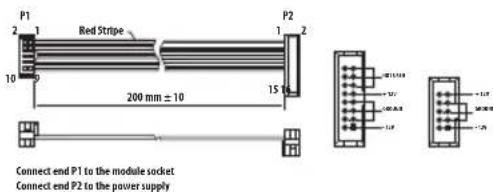
The module comes with the required power cable for connecting to a standard Eurorack power supply system. Follow these steps to connect power to the module. It is easier to make these connections before the module has been mounted into a rack case.
- Turn the power supply or rack case power off and disconnect the power cable.
- Insert the 16-pin connector on the power cable into the socket on the power supply or rack case. The connector has a tab that will align with the gap in the socket, so it cannot be inserted incorrectly. If the power supply does not have a keyed socket, be sure to orient pin 1 (-12 V) with the red stripe on the cable.
- Insert the 10-pin connector into the socket on the back of the module. The connector has a tab that will align with the socket for correct orientation.
- After both ends of the power cable have been securely attached, you may mount the module in a case and turn on the power supply.
Installation
The necessary screws are included with the module for mounting in a Eurorack case. Connect the power cable before mounting.
Depending on the rack case, there may be a series of fixed holes spaced 2 HP apart along the length of the case, or a track that allows individual threaded plates to slide along the length of the case. The free-moving threaded plates allow precise positioning of the module, but each plate should be positioned in the approximate relation to the mounting holes in your module before attaching the screws.
Hold the module against the Eurorack rails so that each of the mounting holes are aligned with a threaded rail or threaded plate. Attach the screws part way to start, which will allow small adjustments to the positioning while you get them all aligned. After the final position has been established, tighten the screws down.
16 17Q405 Start Guide
CHAOS Controles
| Trigger Section | |
| Controls Bias, Rate, Jitter | |
| Buttons Bias Type, Rate Range | |
| Inputs | Bias, Rate, Jitter CVsClock |
| Outputs t1, t2, t3 triggers | |
| Voltage Section | |
| Controls Bias, Spread, Steps | |
| Buttons Control Reaction, Range | |
| Inputs | Bias, Spread, Steps CVsClock |
| Outputs X1, X2, X3 voltages | |
| Y Section | |
| Output Y voltage | |
| Feedback Section | |
| Controls Feedback, Length | |
| Buttons t Select, X Select | |
| Input Feedback CV | |
| Sample Section | |
| Button Sample | |
| Inputs | |
| CV Inputs | 3.5 mm TS jack.Range -5 V to +5 V.100 kΩ impedance. |
| Clock Inputs | 3.5 mm TS jack.+8 V maximum.100 kΩ impedance.t clock 1 kHz maximum.X clock 8 kHz maximum. |
| Outputs | |
| CV outputs | 3.5 mm TS jack.Range -5 V to +5 V. |
| Trigger outputs | 3.5 mm TS jack.0 V to +8 V (V-trigger). |
| Power Consumption +12 V, 40 mA -12 V | |
| Physical | |
| Standard operating temperature | 5°C to 40°C (41°F to 104°F) |
| Dimensions | 91.12 x 128.5 x 41.2 mm(3.59 x 5.1 x 1.62") |
| Eurorack 18 HP | |
| Weight 0.17 Kg (0.38 lbs) | |
EN
96 97 Quick Start Guide
技术参数
Other important information

Important information

Please register your new Music Tribe equipment right after you purchase it by visiting musictribe.com. Registering your purchase using our simple online form helps us to process your repair claims more quickly and efficiently. Also, read the terms and conditions of our warranty, if applicable.
- Malfunction. Should your Music Tribe Authorized Reseller not be located in your vicinity, you may contact the Music Tribe Authorized Fulfiller for your country listed under "Support" at musictribe.com. Should your country not be listed, please check if your problem can be dealt with by our "Online Support" which may also be found under "Support" at musictribe.com. Alternatively, please submit an online warranty claim at musictribe.com BEFORE returning the product.
3. Power Connections
Before plugging the unit into a power socket, please make sure you are using the correct mains voltage for your particular model. Faulty fuses must be replaced with fuses of the same type and rating without exception.
1. Registro online.
Other important information

Responsible Party Name: Music Tribe Commercial NV Inc.
Address: 122 E. 42nd St.1, 8th Floor NY, NY 10168, United States
Email Address: legal@musictribe.com
CHAOS
This equipment has been tested and found to comply with the limits for a Class B digital device, pursuant to part 15 of the FCC Rules. These limits are designed to provide reasonable protection against harmful interference in a residential installation. This equipment generates, uses and can radiate radio frequency energy and, if not installed and used in accordance with the instructions, may cause harmful interference to radio communications. However, there is no guarantee that interference will not occur in a particular installation. If this equipment does cause harmful interference to radio or television reception, which can be determined by turning the equipment off and on, the user is encouraged to try to correct the interference by one or more of the following measures:
- Reorient or relocate the receiving antenna.
- Increase the separation between the equipment and receiver.
- Connect the equipment into an outlet on a circuit different from that to which the receiver is connected.
- Consult the dealer or an experienced radio/TV technician for help.
This equipment complies with Part 15 of the FCC rules. Operation is subject to the following two conditions:
(1) this device may not cause harmful interference, and (2) this device must accept any interference received, including interference that may cause undesired operation.
Important information:
Changes or modifications to the equipment not expressly approved by Music Tribe can void the user's authority to use the equipment.
CE
Hereby, Music Tribe declares that this product is in compliance with General Product Safety Regulation (EU) 2023/988, Directive 2014/30/EU, Directive 2011/65/EU and Amendment 2015/863/EU, Directive 2012/19/EU, Regulation 519/2012 REACH SVHC and Directive 1907/2006/EC.
Full text of EU DoC is available at https://community.musictribe.com/
EU Representative: Music Tribe Brands DK A/S Address: Gammel Strand 44, DK-1202 København K, Denmark
UK Representative: Music Tribe Brands UK Ltd. Address: 8 th Floor, 20 Farringdon Street London EC4A 4AB, United Kingdom

Correct disposal of this product: This symbol indicates that this product must not be disposed of with household waste, according to the WEEE Directive (2012/19/EU) and your
national law. This product should be taken to a collection center licensed for the recycling of waste electrical and electronic equipment (EEE). The mishandling of this type of waste could have a possible negative impact on the environment and human health due to potentially hazardous substances that are generally associated with EEE. At the same time, your cooperation in the correct disposal of this product will contribute to the efficient use of natural resources. For more information about where you can take your waste equipment for recycling, please contact your local city office, or your household waste collection service.
型号: CHAOS 合成器与采样器
制造商: Empower Tribe Commercial FZE – Made in China 中国制造
CAN ICES-003 (B)/NMB-003 (B)
We Hear You
- EN Safety Instruction
- CHAOS Controls
- VOLTAGE SECTION
- Y SECTION
- FEEDBACK SECTION
- SAMPLING SECTION
- SCALES
- FIRMWARE UPDATE
- RESET
- IMPORTANT NOTE
- HINTS AND TIPS
- Power Connection
- Installation
- CHAOS Controles
- Other important information
- Power Connections
- Registro online.
- CHAOS
- Important information:
- CE
- 型号: CHAOS 合成器与采样器
Brand : BEHRINGER
Model : CHAOS
Category : Synthesizer