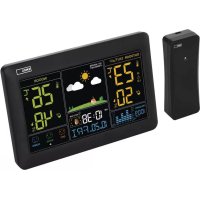
E0387 - Weather Station Emos - Free user manual and instructions
Find the device manual for free E0387 Emos in PDF.



| Product type | Wireless weather station |
| Brand | Emos |
| Model | E0387 |
| Station power supply | 3 AA 1.5 V batteries or AC adapter (not included) |
| Outdoor sensor power supply | 2 AA 1.5 V batteries |
| Outdoor sensor dimensions | 20 × 38 × 100 mm |
| Radio range | Up to 80 m in open air |
| Transmission frequency | 433 MHz, 10 mW e.r.p. max. |
| Max. number of sensors | 3 |
| Radio-controlled clock | DCF77 (German signal) |
| Indoor temperature | -10 °C to +50 °C, resolution 0.1 °C |
| Outdoor temperature | -40 °C to +60 °C, resolution 0.1 °C |
| Temperature accuracy | ±1 °C (0 to 50 °C), ±1.5 °C (other ranges) |
| Indoor and outdoor humidity | 1% to 99% RH, resolution 1% |
| Humidity accuracy | ±5% (30-80% RH), ±8% (20-29% and 81-95%), ±12% (1-19% and 96-99%) |
| Atmospheric pressure | 800 to 1100 hPa (units: mmHg, inHg, hPa/mb) |
| Weather forecast | Based on pressure, icons: sunny, cloudy, overcast, rain, snow |
| Moon phases | Display of the 12 main phases |
| Alarm clock | Built-in with snooze function (5 min) |
| Backlight | Permanent with adapter (3 levels), temporary on batteries (10 s) |
| Max/min value display | Temperature and humidity, resettable manually or automatically at midnight |
| Temperature alarm | Adjustable for each sensor (max and min) |
| Comfort icon | Emoticon: GOOD (40-70% RH), DRY (<40%), HUMID (>70%) |
| Maintenance | Soft, slightly damp cloth, without solvent. Do not immerse. |
| Safety | Do not expose to flames, do not repair yourself, use new alkaline batteries |
Frequently Asked Questions - E0387 Emos
User questions about E0387 Emos
0 question about this device. Answer the ones you know or ask your own.
Ask a new question about this device
Download the instructions for your Weather Station in PDF format for free! Find your manual E0387 - Emos and take your electronic device back in hand. On this page are published all the documents necessary for the use of your device. E0387 by Emos.
USER MANUAL E0387 Emos
natural_image
Technical line drawing of a front panel with labeled components (no text or symbols beyond basic diagram)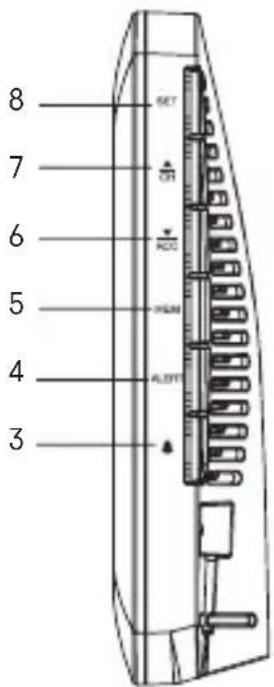
2
2
3
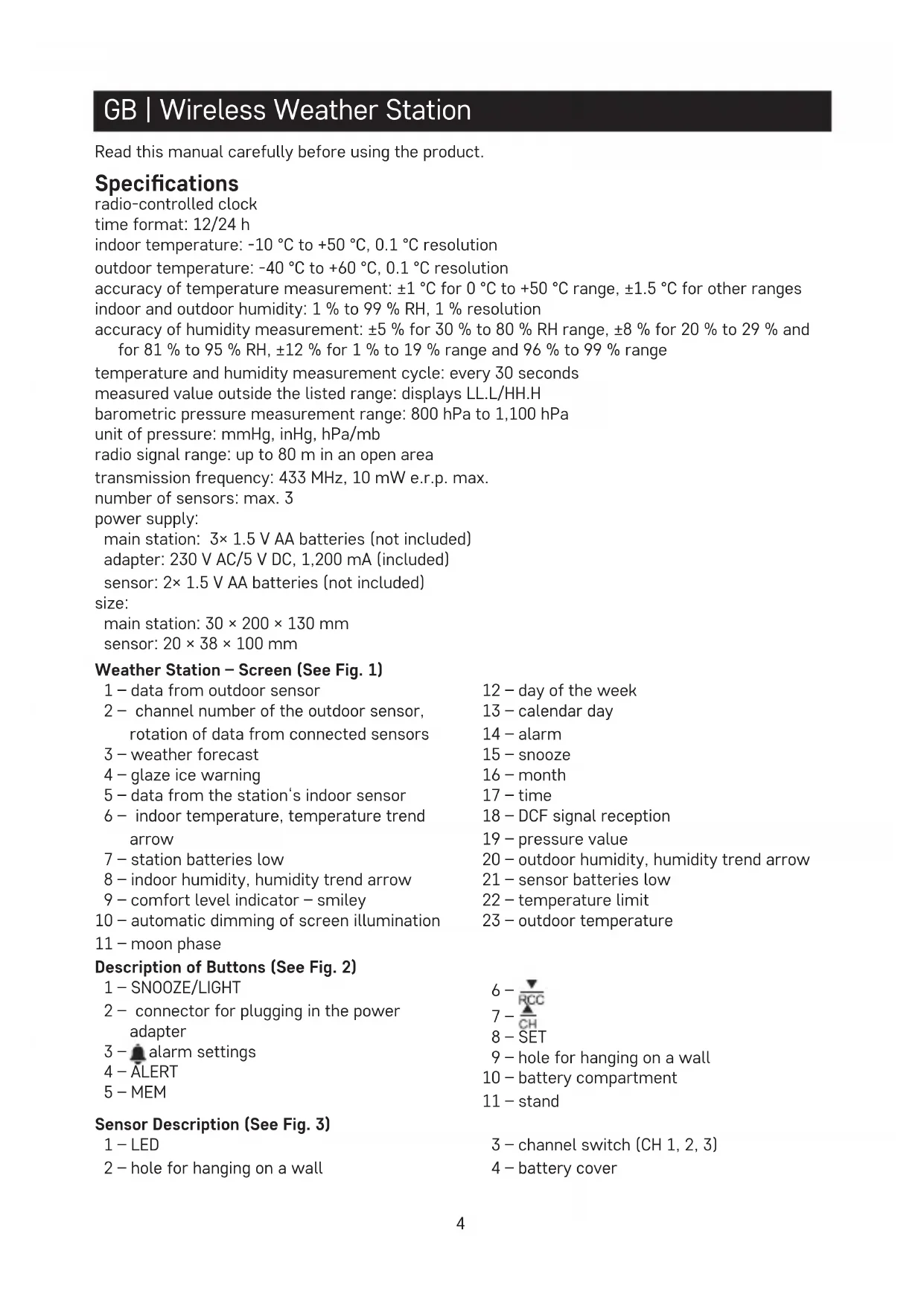
GB | Wireless Weather Station
Read this manual carefully before using the product.
Specifications
radio-controlled clock
time format: 12/24 h
indoor temperature: -10 °C to +50 °C, 0.1 °C resolution
outdoor temperature: -40 °C to +60 °C, 0.1 °C resolution
accuracy of temperature measurement: ±1\ ircC for 0\ ircC to +50\ ircC range, ±1.5\ ircC for other ranges
indoor and outdoor humidity: 1 % to 99 % RH, 1 % resolution
accuracy of humidity measurement: ±5 % for 30 % to 80 % RH range, ±8 % for 20 % to 29 % and for 81 % to 95 % RH, ±12 % for 1 % to 19 % range and 96 % to 99 % range
temperature and humidity measurement cycle: every 30 seconds
measured value outside the listed range: displays LL.L/HH.H
barometric pressure measurement range: 800 hPa to 1,100 hPa
unit of pressure: mmHg, inHg, hPa/mb
radio signal range: up to 80 m in an open area
transmission frequency: 433 MHz, 10 mW e.r.p. max.
number of sensors: max. 3
power supply:
main station: 3× 1.5 V AA batteries (not included)
adapter: 230 V AC/5 V DC, 1,200 mA (included)
sensor: 2× 1.5 V AA batteries (not included)
size:
main station: 30 × 200 × 130 mm
sensor: 20 × 38 × 100 mm
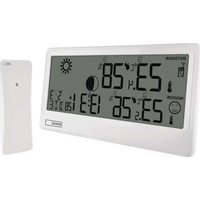
Weather Station – Screen (See Fig. 1)
1 – data from outdoor sensor
2 - channel number of the outdoor sensor, rotation of data from connected sensors
3 - weather forecast
4 – glaze ice warning
5 – data from the station's indoor sensor
6 – indoor temperature, temperature trend arrow
7 - station batteries low
8 – indoor humidity, humidity trend arrow
9 - comfort level indicator - smiley
10 - automatic dimming of screen illumination
11 - moon phase
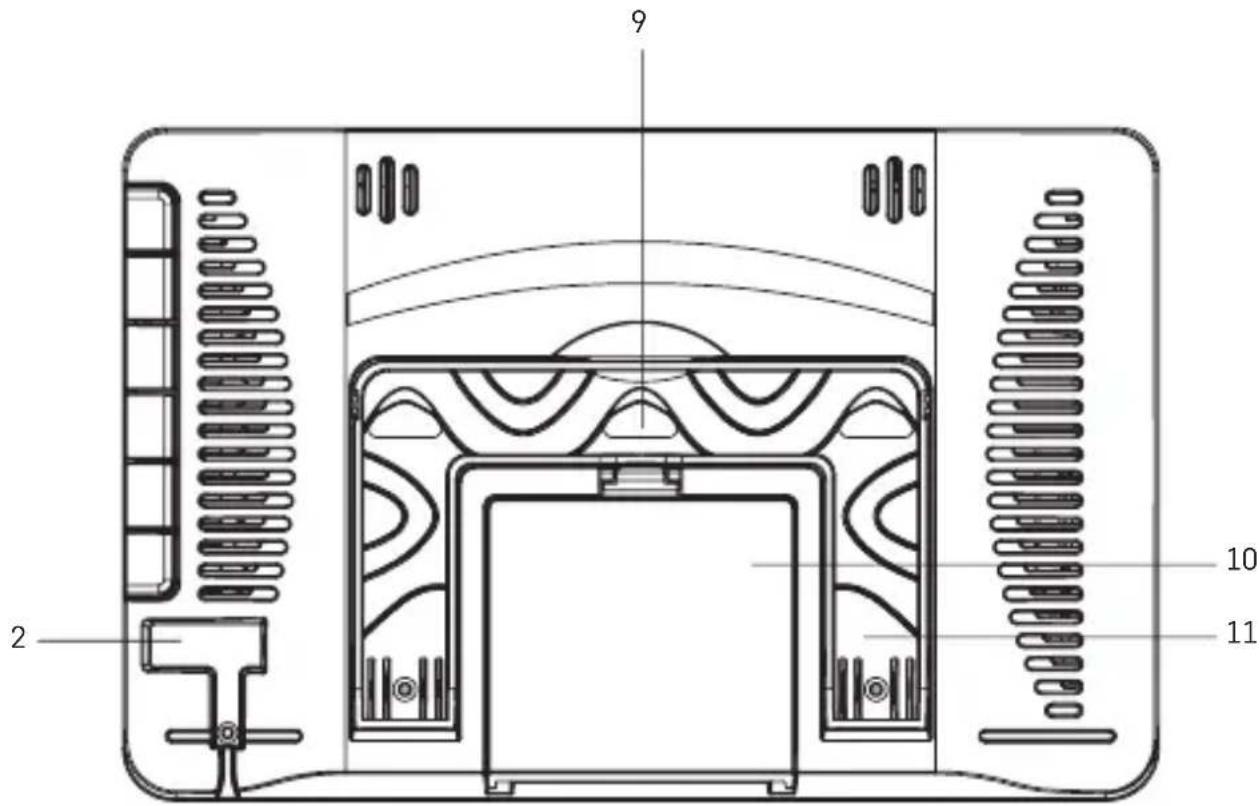
Description of Buttons (See Fig. 2)
1 - SNOOZE/LIGHT
2 - connector for plugging in the power adapter
3 - alarm settings
4 - ALERT
5 - MEM
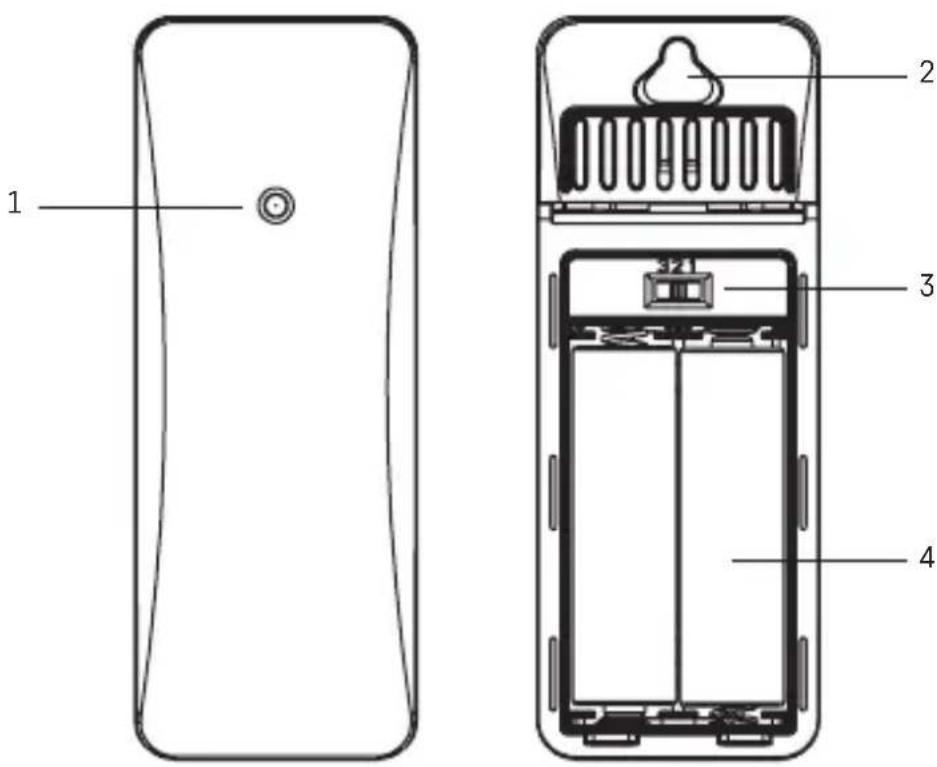
Sensor Description (See Fig. 3)
1 - LED
2 - hole for hanging on a wall
12-day of the week
13 – calendar day
14 - alarm
15 - snooze
16 - month
17 - time
18 - DCF signal reception
19 - pressure value
20 – outdoor humidity, humidity trend arrow
21 - sensor batteries low
22 - temperature limit
23 – outdoor temperature

8 - SET
9 – hole for hanging on a wall
10 - battery compartment
11 - stand
3-channel switch (CH 1, 2, 3)
4 - battery cover
Getting Started
- Plug the power adapter into the station, then insert batteries first into the weather station (3× 1.5 V AA), then into the outdoor sensor (2× 1.5 V AA). When inserting the batteries, make sure the polarity is correct to avoid damaging the weather station or sensor. Only use 1.5 V alkaline batteries of the same type; do not use rechargeable 1.2 V batteries. The lower voltage may cause both of the units to not function.
- Place the two units next to each other. The weather station will detect the sensor signal within 3 minutes. If signal from the sensor is not detected, long press the CH button on the weather station to repeat the search.
- If the outdoor temperature reading disappears from the screen, long press the CH button on the weather station. The weather station will reset all values and repeat the search for sensor signal.
- We recommend placing the sensor on the north side of the house. The range of the sensor may decrease substantially in areas with a large number of obstacles.
- The sensor is resistant to dripping water; however, it should not be continuously exposed to rain.
- Do not place the sensor onto metal objects; doing so will reduce the transmission range.
- If the low battery icon is displayed, replace batteries in the sensor or the weather station.
Switching Channels and Connecting Additional Sensors
- Select channel - 1, 2 or 3 - for the sensor by repeatedly pressing the CH button. Then, long-press the CH button. The 🎨_icon will start flashing.
- Remove the battery compartment cover on the back of the sensor and insert batteries (2× 1.5 V AA).
- Set the chosen sensor channel number (1, 2, 3) by sliding the CH button located in the battery compartment of the sensor. Data from the sensor will be loaded within 3 minutes.
- If sensor signal is not detected, remove the batteries and reinsert them.
Displaying Data from Multiple Sensors, Automatic Cycling through Values from Connected Sensors
Press the CH button repeatedly to display data from all connected sensors one by one. You can also activate automatic cycling through data from all connected sensors:
1. Turning on cycling
Repeatedly press the CH button until the ⬆ icon appears on the screen.
Data from all connected sensors will be shown automatically and repeatedly one after another.
2. Turning off cycling
Repeatedly press the CH button until the 🔒 icon disappears.
Note: automatic cycling can only be activated if 2 or 3 sensors are paired with the station.
Radio-Controlled Clock (DCF77)
After being registered by the wireless sensor, the weather station will automatically start searching for DCF77 signal (DCF for short) for 7 minutes; the (•) icon flashes. During the search, no other items on the screen will be updated and the buttons will be disabled (except SNOOZE/LIGHT). Once the signal is detected, the icon will stop flashing (•) stays on the screen) and current time will be displayed. During daylight saving time, DST appears on the screen. If no signal is detected, the DCF icon will not be shown. The weather station will then automatically repeat the search for DCF signal every 3 hours. To manually repeat the search for DCF signal, long-press the RCC button. To cancel the search, short-press the RCC button. DCF signal will be synchronised daily between 1:00 and 5:00.
Note: If the weather station detects DCF signal but the current time on the screen is incorrect (e.g. shifted ±1 hour), you must set the correct time zone for the country where you are using the station, see Manual Settings.
In standard conditions (at safe distance from sources of interference, such as TV sets or computer monitors), the reception of time signal takes several minutes. If the weather station does not detect the signal, follow these steps:
-
Move the weather station to another location and try to detect the DCF signal again.
-
Check the distance of the clock from sources of interference (computer monitors or television sets). The distance should be at least 1.5 to 2 m during the reception of signal.
- When receiving DCF signal, do not place the weather station near metal doors, window frames and other metal structures or objects (washing machines, dryers, refrigerators, etc.).
- In reinforced concrete structures (cellars, high-rise buildings, etc.), the reception of DCF signal is weaker, depending on the conditions. In extreme cases, place the weather station close to a window in the direction of a transmitter.
Reception of DCF77 radio signal is affected by the following factors:
- thick walls and insulation, basements and cellars;
- inadequate local geographical conditions (these are difficult to assess in advance);
• atmospheric disturbances, thunderstorms, electrical appliances with no interference elimination, television sets and computers located near the DCF receiver.
Manual Settings
- Long-press the SET button.
- Then, repeatedly press the SET button to choose settings for:
calendar language – button beeping on/off (BP ON/FF) – DCF signal reception on/off (RCC ON/OFF) – time zone (ZOE) – year – date format – month – day – 12/24h time format – hours – minutes – °C/°F unit of temperature – unit of pressure.
- Navigate between the values by pressing SET, adjust settings using the up and down arrows

Calendar language abbreviations are as follows:
GER - ENG - ITA - FRE - DUT - SPA - DAN.
Atmospheric Pressure – History
The station displays atmospheric pressure and a chart of pressure readings in the last 12 hours in field no. 19.
The chart of pressure history is animated (cannot be changed).
Moving the weather station to another place will affect the measured values.
Measurement will stabilise within 12 hours of battery insertion or relocation of the weather station.
Temperature and Humidity Trend
| temperature and humidity trend indicator |  | no arrow | [SAKA] |
| rising constant | falling |
Moon Phase
The moon phase is displayed in field no. 11. Icons for the main phases of the moon are as follows:
 |
1 - new moon
2-waxing crescent
3 - waxing crescent
4 – first quarter
5 – waxing gibbous
6 - waxing gibbous
7 - full moon
8-waning gibbous
9 – waning gibbous
10 - last quarter
11 - waning crescent
12-waning crescent
Displaying Maximum and Minimum Temperature and Humidity Readings
Press the MEM button repeatedly to gradually display the maximum and minimum readings of temperature and humidity.
Holding the MEM button while viewing MAX/MIN values will erase the memory.
The memory of measured values is automatically erased every day at 00:00.
Setting an Alarm
Long-press the button; ALM will appear on the screen and the alarm time setting will start flashing.
Set the time by repeatedly pressing the ▲/buttons; confirm and navigate in the menu by pressing
. Press the button again to activate the alarm.
Alarm active - Icon displayed.
Alarm deactivated - icon not displayed.
Snooze Function
The ringing of the alarm can be postponed by 5 minutes using the SNOOZE/LIGHT button located on the top part of the weather station.
Press the button when the alarm starts ringing. The zicon will be flashing.
To cancel the SN00ZE function, press any other button – the Z icon will not be displayed.
The alarm will trigger again the next day.
If you do not press any button while the alarm is ringing, the ringing will stop automatically after 2 minutes.
Station Screen Illumination
When powered via adapter:
Permanent screen illumination is set by default.
Repeatedly pressing the SNOOZE/LIGHT button allows you to set 3 illumination modes (100 %, 50 %, off).
When powered only by 3× 1.5 V AA batteries:
Screen illumination is off. Pressing the SNOOZE/LIGHT button will turn screen illumination on for 10 seconds, then it turns off again. When the station is only powered by batteries, permanent screen illumination cannot be activated!
Note: The inserted batteries serve as backup for the measured/set data.
If batteries are not inserted and you unplug the adapter, all data will be erased.
Automatic Dimming of Screen Illumination
When the station is powered from the adapter, you can programme automatic dimming of screen illumination from 100 % to 50 %.
Long-press the SN00ZE/LIGHT button; the function icon will start flashing.
Repeatedly pressing the ▲/▼ button activates (ON) or deactivates (OFF) the function.
Confirm the setting by pressing SNOOZE/LIGHT; the time setting will start flashing (1 hour resolution).
Press the ▲/▼ button repeatedly to set the hour when you want the dimming to activate, confirm by pressing SNOOZE/LIGHT.
Press the ▲/▼ button repeatedly to set the hour when you want the dimming to deactivate, confirm by pressing SN00ZE/LIGHT.
The screen illumination will dim at the set time.
Note:
Once you have set activation (ON)/deactivation (OFF), the setting will save automatically after 20 seconds unless you press another button.
By default, the screen is set to dim from 22:00 until 8:00.
If you press the SNOOZE/LIGHT button during the set time, screen brightness will return to 50 % after 10 seconds.
Weather Forecast
The station uses changes in atmospheric pressure to forecast weather for the next 12–24 hours for an area within the radius of 15–20 km.
The accuracy of weather forecast is 70–75 %. The forecast icon is displayed in field no. 3.
As the weather forecast may not be 100 % accurate, neither the manufacturer nor the seller can be held responsible for any loss caused by an incorrect forecast.
When you first set or reset the weather station, it takes approximately 12 hours before the weather station begins forecasting correctly.
Weather Forecast Icons
 |  |  |  |  |  |  |  |
| sunny cloudy | overcast rain snow |
The snowflake icon ⚙️! will be flashing at outdoor temperature between 0 °C and +2.9 °C.
The snowflake icon will remain on the screen at outdoor temperature below 0 °C.
Comfort Level Indicator – Smiley
The comfort level indicator is displayed in field no. 9.
If indoor humidity is between 40–70 % RH, the screen will display the 🧑️ icon.
If indoor humidity is lower than 40 % RH, the screen will display the icon.
If indoor humidity is higher than 70 % RH, the screen will display the HUMID icon.
Setting Temperature Limits for Maximum and Minimum Temperature
Temperature limits can be set independently for up to 3 outdoor temperature sensors.
Press the CH button repeatedly to select the number of the sensor you want to set the temperature limit for.
Long-press the ALERT button. The value for setting a maximum temperature alert will start flashing.
Use the ▲/▼ buttons to set the value of choice (1 °C resolution).
Holding the buttons speeds up the value adjustment.
Then press the ALERT button and set the minimum alert temperature
After the value is set, press the ALERT button and press the ▲/▼buttons repeatedly to activate (ON) or deactivate (OFF) the function.
When the set temperature limit is exceeded, an audio alarm will sound 4× per minute and the value will start flashing.
Pressing any button silences the audio signal but the value will continue flashing.
The value will stop flashing once it drops below the set temperature or you deactivate the temperature alert function.
Upkeep and Maintenance
The product is designed to serve reliably for many years if used properly. Here are some tips for proper operation:
- Read the manual carefully before using the product.
- Do not expose the product to direct sunlight, extreme cold and humidity and sudden changes in temperature. This would reduce measuring accuracy. Do not place the product in locations prone to vibration and shocks – may cause damage.
- Do not subject the product to excessive force, impacts, dust, high temperatures or humidity – doing so may cause malfunction, shorten battery life, damage batteries and deform plastic parts.
- Do not expose the product to rain or moisture if it is not designed for outdoor use.
- Do not place any open flame sources on the product, e.g. a lit candle, etc.
- Do not put the product in places with inadequate air flow.
- Do not insert any objects into the product's vents.
- Do not tamper with the internal electrical circuits of the product – doing so may damage the product and will automatically void the warranty. The product should only be repaired by a qualified professional.
- To clean the product, use a slightly moistened soft cloth. Do not use solvents or cleaning agents – they could scratch the plastic parts and cause corrosion of the electric circuits.
- Do not immerse the product in water or other liquids.
- The product may not be exposed to dripping or splashing water.
- In the event of damage or defect of the product, do not perform any repairs by yourself. Have it repaired in the shop where you bought it.
- This device is not intended for use by persons (including children) whose physical, sensory or mental disability or whose lack of experience or knowledge prevents them from using it safely. Such persons should be instructed in how to use the device and should be supervised by a person responsible for their safety.

Do not dispose with domestic waste. Use special collection points for sorted waste. Contact local authorities for information about collection points. If the electronic devices would be disposed on landfill, dangerous substances may reach groundwater and subsequently food
chain, where it could affect human health.
Hereby, EMOS spol. s r. o. declares that the radio equipment type E0387 is in compliance with Directive 2014/53/EU. The full text of the EU declaration of conformity is available at the following internet address: http://www.emos.eu/download.
urni format: 12/24 h
notranja temperatura: -10 °C do +50 °C z ločljivostjo 0,1 °C
Indikator razine ugode – Smješko
Indikator razine ugode prikazan je u polju br. 9.
station principale: 3× pile de 1,5 V de type AA (pas fournies)
adaptateur: AC 230 V/DC 5 V, 1 200 mA (fourni)
station principale: 30 × 200 × 130 mm
Icona comfort – smiley

- GB | Wireless Weather Station
- Specifications
- Weather Station – Screen (See Fig. 1)
- Description of Buttons (See Fig. 2)
- Sensor Description (See Fig. 3)
- Getting Started
- Switching Channels and Connecting Additional Sensors
- Displaying Data from Multiple Sensors, Automatic Cycling through Values from Connected Sensors
- Turning on cycling
- Turning off cycling
- Radio-Controlled Clock (DCF77)
- Reception of DCF77 radio signal is affected by the following factors:
- Manual Settings
- Atmospheric Pressure – History
- Temperature and Humidity Trend
- Moon Phase
- Displaying Maximum and Minimum Temperature and Humidity Readings
- Setting an Alarm
- Snooze Function
- Station Screen Illumination
- When powered via adapter:
- When powered only by 3× 1.5 V AA batteries:
- Automatic Dimming of Screen Illumination
- Weather Forecast
- Weather Forecast Icons
- Comfort Level Indicator – Smiley
- Setting Temperature Limits for Maximum and Minimum Temperature
- Upkeep and Maintenance
- Indikator razine ugode – Smješko
- Icona comfort – smiley
Brand : Emos
Model : E0387
Category : Weather Station