
Katar Elite Wireless - Mouse CORSAIR - Free user manual and instructions
Find the device manual for free Katar Elite Wireless CORSAIR in PDF.



| Product Type | Wireless Gaming Mouse |
| Connection Type | 2.4 GHz Wireless and Bluetooth |
| Resolution | 400 to 3000 DPI (5 preset levels, adjustable in 50 DPI increments) |
| Number of Buttons | 6 |
| Power Source | Built-in Rechargeable Battery |
| Configuration Software | iCUE (download from corsair.com) |
| Onboard Memory | Yes (stores DPI settings) |
| LED Indicators | Battery status, wireless connection, and DPI level |
| Maintenance and Cleaning | Wipe with a soft, dry cloth |
| Safety | Rechargeable battery: follow local recycling guidelines |
| Spare Parts and Repairability | USB wireless receiver available separately; battery not user-replaceable |
| General Information | Brand: CORSAIR, Model: Katar Elite Wireless, Category: mouse |
Frequently Asked Questions - Katar Elite Wireless CORSAIR
User questions about Katar Elite Wireless CORSAIR
0 question about this device. Answer the ones you know or ask your own.
Ask a new question about this device
Download the instructions for your Mouse in PDF format for free! Find your manual Katar Elite Wireless - CORSAIR and take your electronic device back in hand. On this page are published all the documents necessary for the use of your device. Katar Elite Wireless by CORSAIR.
USER MANUAL Katar Elite Wireless CORSAIR
natural_image
Abstract black silhouette of a stylized sailboat or ship (no text or symbols)CORSAIR
natural_image
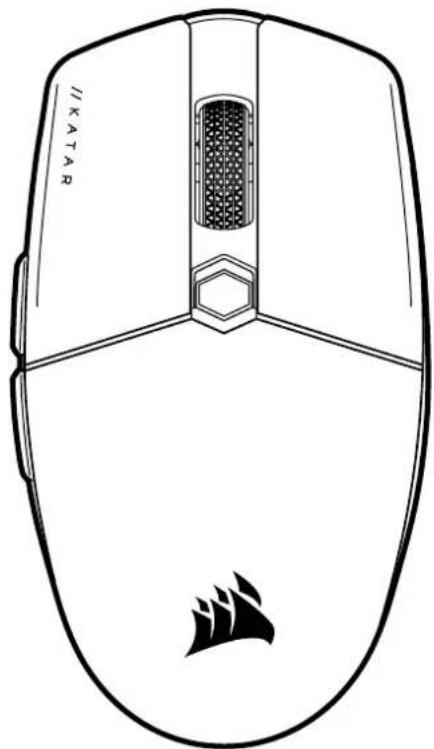
Line drawing of a computer mouse with a textured screen and tail fin (no text or symbols)KATAR ELITE WIRELESS
SLIPSTREAM WIRELESS GAMING MOUSE
EN ENGLISH
FR FRANÇAIS (EURO)
CF FRANÇAIS (CAN)
DE DEUTSCH
NL NEDERLANDS
DA DANSK
FI SUOMI
SV SVENSKA
NO NORSK
IT ITALIANO
ES ESPAÑOL (EURO)
LA ESPAÑOL (LATIN AMERICA)
PT PORTUGUÊS (EURO)
BP PORTUGUÊS (BRAZIL)
PL POLSKI
RU РУССКИЙ
TC 繁體中文
JA 日本語
KO 한국어
AR العربية
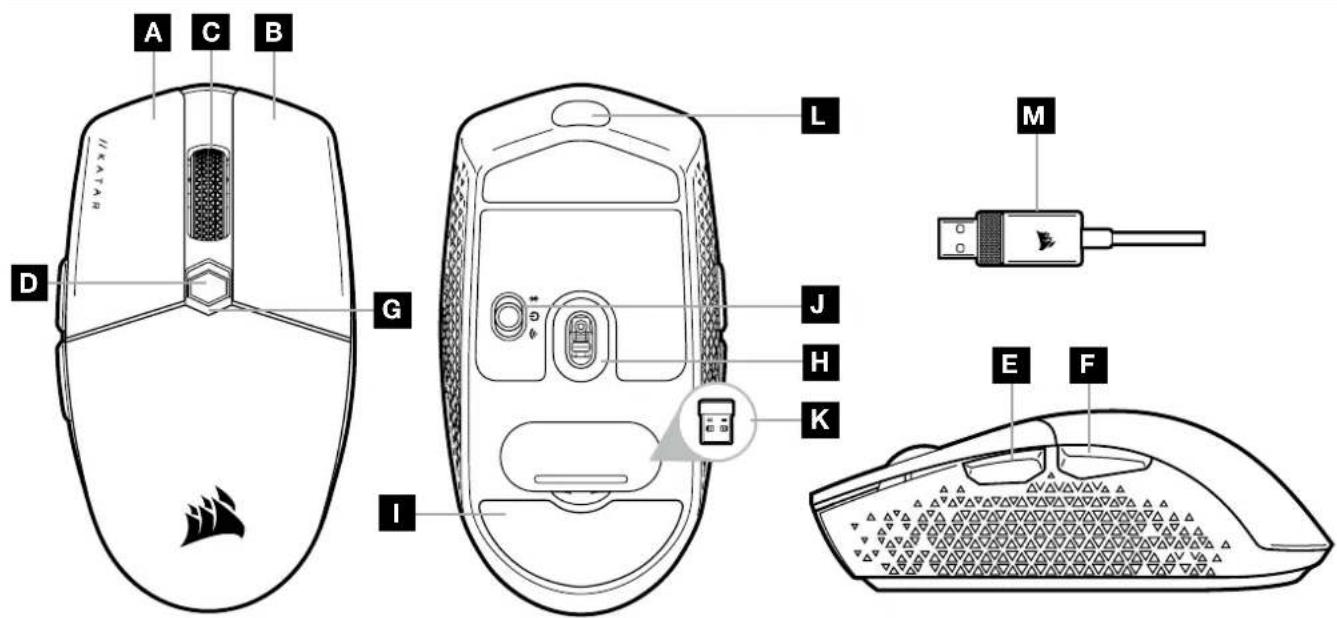
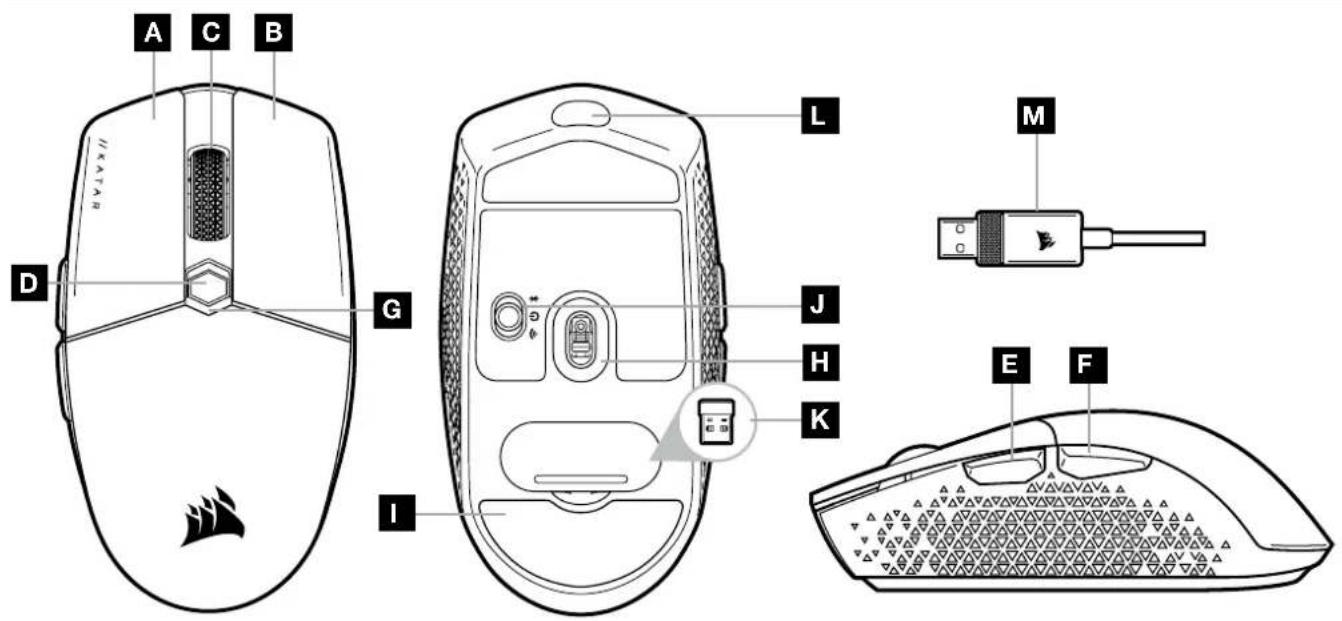
GETTING TO KNOW YOUR MOUSE
text_image
A C B D G L M I J H K E FA LEFT CLICK BUTTON
B RIGHT CLICK BUTTON
C MIDDLE CLICK BUTTON
D DPI CYCLE BUTTON
E FORWARD BUTTON
F BACKWARD BUTTON
G MULTI-PURPOSE LED INDICATOR
H OPTICAL GAMING SENSOR
I PTFE GLIDE PADS
J POWER/WIRELESS MODE SWITCH
K USB WIRELESS RECEIVER
L USB CHARGING/DATA PORT
M USB CHARGING/DATA CABLE
SETTING UP 2.4GHz SLIPSTREAM WIRELESS
Hyper-fast sub-1ms wireless connection is designed for no-compromise gaming grade performance.
Toggle power/wireless mode switch to "2.4GHz" position to turn on your mouse.
Connect the USB wireless receiver to an available USB 2.0 or 3.x port located on the front panel of your PC or nearby USB port (e.g. on CORSAIR MM700, MM800, MM1000 mousepads).
The battery/wireless LED indicator will turn solid white when connected.
Download the iCUE software from www.corsair.com/downloads.
Run the installer program and follow instructions for installation.
If reconnection is required, initiate USB wireless receiver pairing via the iCUE software settings menu.
SETTING UP BLUETOOTH® WIRELESS
Bluetooth wireless is best for everyday computing tasks, productivity, and office applications.
Initiate Bluetooth pairing on your Bluetooth 4.0 or higher enabled device.
Press and hold DPI CYCLE button.
Toggle power/wireless mode switch to "BT" position to turn on your mouse.
Follow the instructions to successfully connect your device.
The battery/wireless LED indicator will turn solid blue when connected.
ON-THE-FLY DPI TUNING
The mouse has a unique feature where you can adjust the current onboard DPI stage setting in 50 DPI increments without the software, so you can jump right into the action while you find the perfect sensitivity setting.
| FUNCTION SHORTCUT DPI INDICATOR | ||
| Increase DPI by 50 | Hold DPI cycle button (D) and press forward button (E) | Blinks green |
| Decrease DPI by 50 | Hold DPI cycle button (D) and press backward button (F) | Blinks red |
| Reset DPI stage | Hold DPI cycle button (D) then both forward (E) and backward buttons (F) for 2 seconds | Blinks yellow |
On-the-fly DPI changes are saved to the onboard memory and can be further adjusted in granular 1 DPI steps in iCUE. If iCUE is running, then changes are saved to the software profile directly.
MOUSE STATUS LED INDICATORS
Various aspects of mouse operation are communicated through the status LED indicators located behind the scroll wheel and the bottom of the mouse.
| BATTERY STATUS MULTI-PURPOSE LED INDICATOR | |
| Battery charging Pulsing green | |
| Battery critical, recharge required Pulsing red | |
| Battery low, recharge soon Blinking red | |
| Battery medium Blinking amber | |
| Battery high Blinking green | |
| Battery charged Green | |
| WIRELESS STATUS | |
| 2.4GHz wireless mode – pairing | Blinking white |
| 2.4GHz wireless mode – paired | White |
| 2.4GHz wireless mode – pairing failed | Pulsing white |
| BT wireless mode – pairing | Blinking blue |
| BT wireless mode – paired Blue | |
| BT wireless mode – pairing failed | Pulsing blue |
| DPI STAGE STATUS | |
| Stage #1 – 400 DPI | Red |
| Stage #2 – 800 DPI | White |
| Stage #3 – 1200 DPI Green | |
| Stage #4 – 1600 DPI | Purple |
| Stage #5 – 3000 DPI | Capri |
BATTERY REMOVAL INFORMATION
This product uses a rechargeable battery and safety guidelines must be followed in the event that the product is disabled for disposal and recycling. To safely remove the battery for disposal and recycling, follow the numbered steps with the below diagrams.

text_image
Exploded view diagram of a computer mouse with labeled parts including head, chassis, and internal componentsCORSAIR MEMORY, Inc. encourages customers to recycle used electronic hardware and rechargeable batteries in accordance with local laws and regulations.
FCC ID: 2AAFMRGP0131 (Mouse)
FCC ID: 2AAFMRGP0119 (Dongle)
IC: 10954A-RGP0131 (Mouse)
IC: 10954A-RGP0119 (Dongle)
PRÉSENTATION DE LA SOURIS
text_image
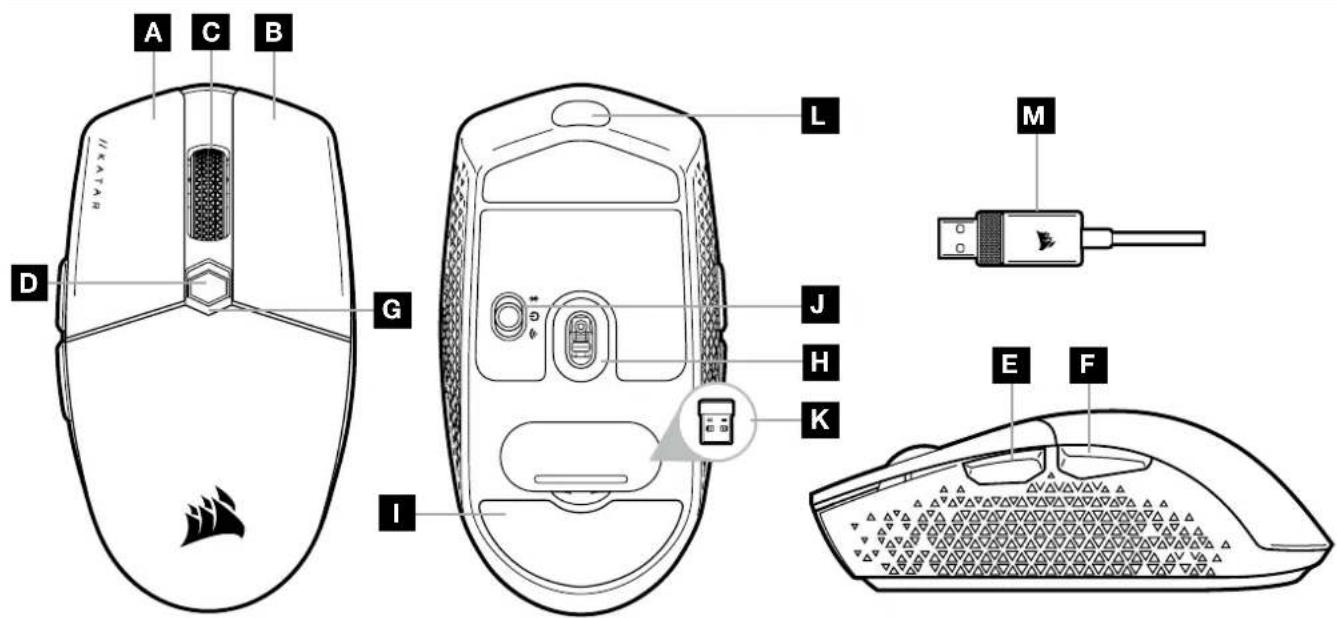
A C B D G I L M J H K E FA BOUTON CLIC GAUCHE
B BOUTON CLIC DROIT
C BOUTON CLIC DU MILIEU
D BOUTON CYCLE DPI
E BOUTON SUIVANT
F BOUTON PRÉCÉDENT
G VOYANT À LED MULTIFONCTION
H CAPTEUR GAMING OPTIQUE
I PATINS EN PTFE
J SWITCH ALIMENTATION/MODE SANS FIL
K RÉCEPTEUR SANS FIL USB
L PORT DE CHARGEMENT/DONNÉES USB
M CÂBLE DE CHARGEMENT/DONNÉES USB
text_image
Exploded view diagram of a computer mouse with numbered parts for identificationtext_image
A C B D G L M I J H K E FA BOUTON DE CLIC GAUCHE
B BOUTON DE CLIC DROIT
C BOUTON CLIC DU MILIEU
D BOUTON DE DÉFILEMENT DE PPP
E BOUTON SUIVANT
F BOUTON PRÉCÉDENT
G VOYANT DEL MULTIFONCTION
H CAPTEUR DE JEU OPTIQUE
I PATINS EN PTFE
J COMMUTATEUR D'ALIMENTATION/ DE MODE SANS FIL
K RÉCEPTEUR SANS FIL USB
L PORT USB DE RECHARGE/DONNÉES
M CÂBLE USB DE RECHARGE/DONNÉES
CONFIGURATION DE LA CONNEXION SANS FIL SLIPSTREAM WIRELESS 2,4 GHz
text_image
Exploded view diagram of a computer mouse with numbered parts for identificationtext_image
A C B D G L M I J H K E Ftext_image
Exploded view diagram of a computer mouse with numbered parts for identificationtext_image
A C B D G L M I J H K E FA LINKERMUISKNOP
B RECHTERMUISKNOP
C MIDDELSTE MUISKNOP
D DPI-SCHAKELKNOP
E VOORUITKNOP
F ACHTERUITKNOP
G MULTIFUNCTIONELE LEDINDICATOR
H OPTISCHE GAMINGSENSOR
I PTFE-GLIJPADS
J STROOM-/DRAADLOZE MODUS-SCHAKELAAR
K DRAADLOZE USB-ONTVANGER
L USB LAAD-/DATAPOORT
M USB LAAD-/DATAKABEL
2,4 GHz SLIPSTREAM WIRELESS-VERBINDING INSTELLEN
text_image
Exploded view diagram of a computer mouse with numbered parts for identificationtext_image
A C B D G I L M J H K E FA KNAP TIL VENSTREKLIK
B KNAP TIL H∅JREKLIK
C KNAP TIL MIDTERKLIK
D KNAP TIL DPI-CYKLUS
E FREMAD-KNAP
F TILBAGE-KNAP
G MULTIFUNKTIONEL LED-INDIKATOR
H OPTISK GAMING-SENSOR
I PTFE-GLIDEPUDER
J TÆND/SLUK-KNAP/TRÅDL∅S OMSKIFTER
K TRÅDL∅S USB-MODTAGER
L USB-STIK TIL OPLADNING/DATA
M USB-KABEL TIL OPLADNING/DATA
OPSÄETNING AF 2,4 GHz SLIPSTREAM WIRELESS
text_image
Exploded view diagram of a computer mouse with numbered parts for identificationtext_image
A C B D G L M I J H K E FA VASEN PAINIKE
B OIKEA PAINIKE
C KESKIPAINIKE
D DPI-SYKLIPAINIKE
E ETEEN-PAINIKE
F TAAKSE-PAINIKE
G LED-MONITOIMI-ILMAISIN
H OPTINEN PELIANTURI
I PTFE-LIUKUPALAT
J VIRTAKYTKIN/LANGATON TILA -KYTKIN
K LANGATON USB-VASTAANOTIN
L USB-LATAUS/DATALITÄNTÄ
M USB-LATAUS/DATAKAAPELI
LANGATTOMAN 2,4 GHz SLIPSTREAM -YHTEYDEN MÄÄRITYS
text_image
Exploded view diagram of a computer mouse with numbered parts for identificationtext_image
A C B D G L M I J H K E FA VÄNSTERKNAPP
B HÖGERKNAPP
C MITTENKNAPP
D DPI-CYKELKNAPP
E FRAMÅTKNAPP
F BAKÅTKNAPP
G FLERFUNKTIONELL LED-LAMPA
H OPTISK GAMINGSENSOR
I PTFE-GLIDDYNOR
J REGLAGE FÖR STRÖM/TRÅDLÖST LÄGE
K TRÅDLÖS MOTTAGARE (USB)
L USB-PORT FÖR LADDNING/DATA
M USB-KABEL FÖR LADDNING/DATA
KONFIGURERA 2,4 GHz SLIPSTREAM WIRELESS
text_image
Exploded view diagram of a computer mouse with labeled parts including head, chassis, and internal componentstext_image
A C B D G L M I J H K E FA VENSTREKLIKK-KNAPP
B H∅YREKLIK-KNAPP
C MIDTKLIKK-KNAPP
D DPI CYCLE-KNAPP
E FOROVER-KNAPP
F BAKOVER-KNAPP
G LED-INDIKATOR MED FLERE FUNKSJONER
H OPTISK SPILLSENSOR
I PTFE-GLIDEPUTER
J STR∅M-/TRÅDL∅SMODUS-KNAPP
K USB TRÅDL∅S MOTTAKER
L USB LADE-/DATAPORT
M USB-LADE-/DATAKABEL
GJ∅RE 2,4 GHz SLIPSTREAM TRÅDL∅S KLAR TIL BRUK
text_image
Exploded view diagram of a computer mouse with numbered parts for identificationtext_image
A C B I K L M D G H J K E F IA PULSANTE SINISTRO
B PULSANTE DESTRO
C PULSANTE CENTRALE
D PULSANTE SELEZIONE DPI
E PULSANTE AVANTI
F PULSANTE INDIETRO
G INDICATORE LED MULTIFUNZIONE
H SENSORE OTTICO GAMING
I PIEDINI IN PTFE
J INTERRUTTORE ALIMENTAZIONE/
MODALITÀ WIRELESS
K RICEVITORE WIRELESS USB
L PORTA DI RICARICA/DATI USB
M CAVO DI RICARICA/DATI USB
CONFIGURAZIONE DELLA CONNESSIONE SLIPSTREAM WIRELESS A 2,4 GHz
text_image
Exploded view diagram of a computer mouse with numbered parts for identificationtext_image
A C B D G L M I J H K E Ftext_image
Exploded view diagram of a computer mouse with numbered parts for identificationtext_image
A C B D G L M I J H K E Ftext_image
Exploded view diagram of a computer mouse with numbered parts for identificationtext_image
A C B D G I L M J H K E Ftext_image
Exploded view diagram of a computer mouse with numbered parts for identificationtext_image
A C B D G L M I J H K E Ftext_image
Exploded view diagram of a computer mouse with labeled parts including head, body, and interior compartmentstext_image
A C B D G L M I J H K E FA LEWY PRZYCISK KLIKANIA
B PRAWY PRZYCISK KLIKANIA
C ŚRODKOWY PRZYCISK KLIKANIA
D PRZYCISK ZMIANY DPI
E PRZYCISK DO PRZODU
F PRZYCISK DO TYŁU
G WIELOFUNKCYJNY WSKAŻNIK LED
H GAMINGOWY CZUJNIK OPTYCZNY
I ŚLIZGACZE Z PTFE
J PRZEŁĄCZNIK ZASILANIA I TRYBU BEZPRZEWODOWEGO
K ODBIORNIK BEZPRZEWODOWY USB
L PORT USB DO ŁADOWANIA
I TRANSMISJI DANYCH
M PRZEWÓD USB DO ŁADOWANIA
I TRANSMISJI DANYCH
KONFIGURACJA ŁĄCZNOŚCI BEZPRZEWODOWEJ 2,4 GHz SLIPSTREAM WIRELESS
text_image
Exploded view diagram of a computer mouse with numbered parts for identificationtext_image
A C B D G L M I J H K E Ftext_image
Exploded view diagram of a computer mouse with numbered parts for identificationtext_image
A C B D G L M I J H K E Ftext_image
Exploded view diagram of a computer mouse with numbered parts for identificationtext_image
A C B D G L M I J H K E Ftext_image
Exploded view diagram of a computer mouse with numbered parts for identificationtext_image
A C B D G L M I J H K E Ftext_image
Exploded view diagram of a computer mouse with numbered parts for identificationProduct Name (제품명칭): KATAR ELITE WIRELESS Gaming Mouse
Model No.(모델명): RGP0131 (Mouse), RGP0119 (Dongle)
text_image
A C B D G I L M J H K E Ftext_image
Exploded view diagram of a computer mouse with numbered parts for identification© 2022 CORSAIR MEMORY, Inc. All rights reserved. CORSAIR and the sails logo are registered trademarks of CORSAIR in the United States and/or other countries. All other trademarks are the property of their respective owners. Product may vary slightly from those pictured.
49-002426 AA