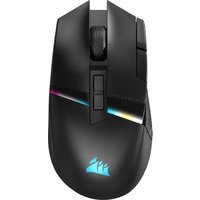
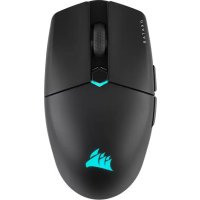
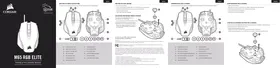
CH-9000056-NA - Mouse CORSAIR - Free user manual and instructions
Find the device manual for free CH-9000056-NA CORSAIR in PDF.


Pick your language and provide your email: we'll send you a specifically translated version.
| Product Type | Wired Gaming Mouse |
| Model | CH-9000056-NA |
| Brand | Corsair |
| Dimensions (L x W x H) | 124.9 x 67.2 x 42.0 mm |
| Weight | 110 g (without cable) |
| Cable Length | 1.8 m braided fiber |
| Connection Type | USB 2.0 Type-A |
| Sensor | Optical, up to 18,000 DPI |
| Button Count | 8 programmable buttons |
| Switch Type | Omron mechanical switches (50M clicks) |
| Lighting | 3-zone RGB via iCUE software |
| Onboard Memory | Yes, for up to 3 profiles |
| Polling Rate | Up to 1000 Hz |
| Material | Matte plastic with rubberized sides |
| Software | Corsair iCUE |
| Warranty | 2 years |
| Cleaning Instructions | Wipe with a dry, lint-free cloth |
| Safety Warnings | Avoid exposure to liquids; unplug before cleaning |
| Spare Parts Availability | Replacement mouse feet and cable available |
| Repairability | Limited disassembly; warranty void if opened |
Frequently Asked Questions - CH-9000056-NA CORSAIR
How do I connect the Corsair CH-9000056-NA mouse to my computer?
Plug the USB cable into an available USB port on your computer. The mouse should be recognized automatically. For full customization, install the Corsair iCUE software.
What do I do if the mouse cursor is not moving?
Check that the USB cable is securely connected. Try a different USB port. If the issue persists, restart your computer. Ensure the mouse sensor lens is clean and not obstructed.
How can I change the DPI sensitivity?
Use the DPI button located on top of the mouse (usually near the scroll wheel) to cycle through preset DPI levels. You can adjust these levels in the Corsair iCUE software.
Is the mouse compatible with macOS?
Yes, the mouse is compatible with macOS. However, the iCUE software for full customization is available for Windows. Basic functions (pointer movement and clicks) will work on both systems.
How do I clean the mouse?
Unplug the mouse. Use a soft, dry, lint-free cloth to wipe the exterior. For stubborn dirt, slightly dampen the cloth with water. Do not use alcohol or abrasive cleaners. Ensure the sensor lens is clean.
Can I reprogram the buttons?
Yes, using the Corsair iCUE software. You can assign keyboard keys, macros, or multimedia commands to each button. The mouse has 8 programmable buttons.
What is the lifespan of the mouse switches?
The Omron mechanical switches are rated for 50 million clicks, providing long-term durability.
Does the mouse have onboard memory?
Yes, the mouse can store up to 3 profiles in its onboard memory, allowing you to bring your settings to other computers without needing iCUE installed.
How do I adjust the RGB lighting?
Open the Corsair iCUE software, select your mouse, and go to the Lighting section. You can choose from preset effects or create custom colors and patterns for each of the 3 RGB zones.
What should I do if the mouse wheel is not working?
First, check for debris around the wheel. Clean gently with compressed air. In iCUE, check that the wheel scroll function is not disabled or reassigned. If the problem continues, contact Corsair support.
User questions about CH-9000056-NA CORSAIR
0 question about this device. Answer the ones you know or ask your own.
Ask a new question about this device
No questions yet. Be the first to ask one.
Download the instructions for your Mouse in PDF format for free! Find your manual CH-9000056-NA - CORSAIR and take your electronic device back in hand. On this page are published all the documents necessary for the use of your device. CH-9000056-NA by CORSAIR.