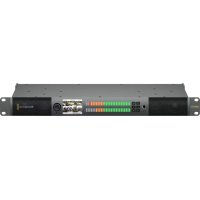
Audio Monitor 12G - Hi-fi system Blackmagic Design - Free user manual and instructions
Find the device manual for free Audio Monitor 12G Blackmagic Design in PDF.
Download the instructions for your Hi-fi system in PDF format for free! Find your manual Audio Monitor 12G - Blackmagic Design and take your electronic device back in hand. On this page are published all the documents necessary for the use of your device. Audio Monitor 12G by Blackmagic Design.
USER MANUAL Audio Monitor 12G Blackmagic Design
Installation and Operation Manual November 2018 Blackmagic Audio Monitor 12G English, 日本語, Français, Deutsch, Español, 中文, 한국어, Русский, Italiano, Português and TürkçeLanguages To go directly to your preferred language, simply click on the hyperlinks listed in the contents below. English 3 日本語 24 Français 46 Deutsch 68 Español 90 中文 112 한국어 134 Русский 156 Italiano 178 Português 200 Türkçe 222Welcome Thank you for purchasing a Blackmagic Audio Monitor for your production needs! We hope you share our dream for the television industry to become a truly creative industry by allowing anyone to have access to the highest quality video equipment. Audio monitoring is crucial for any video production workflow, whether it’s broadcast, post production or live production. Blackmagic Audio Monitor gives you all the features of professional audio monitors in a compact rack mount design. You can connect to virtually all types of audio equipment for high quality monitoring. The original Blackmagic Audio Monitor supports 6G-SDI for connecting Ultra HD video up to 30 frames per second. Blackmagic Audio Monitor 12G supports 12G-SDI for connecting Ultra HD video up to 60 frames per second and also supports level A and B 3G-SDI video signal inputs. This instruction manual contains all the information you need to start using your BlackmagicAudio Monitor. Please check the support page on our web site at www.blackmagicdesign.com for the latest version of this manual and updates to your Blackmagic Audio Monitor’s internal software. Keeping your internal software up to date will always ensure you get all the latest features. When downloading software, please register with your information so we can keep you updated when new software is released. We are constantly working on new features and improvements, so we would love to hear from you! Grant Petty CEO Blackmagic Design English 3Contents Blackmagic Audio Monitor 12G Getting Started 5 Introducing Blackmagic Audio Monitor 5 Plugging in Audio 5 Selecting your Audio Source 6 Connecting Video Outputs 6 Using Blackmagic Audio Monitor 7 Using the Control Panel 7 LCD 7 Audio Level Meters 8 Solo Left and Solo Right 8 Channel Up and Channel Down 8 Input 9 Mute 9 Volume 9 Audio Monitor Setup 10 Blackmagic Audio Monitor Setup 10 Mac OS X Installation 10 Windows Installation 10 Updating the Internal Software 10 Meter Tab 11 Configure Tab 13 Changing Network Settings 13 Installing the optional BlackmagicDolby
Decoder Module 14 Installing the Module 14 Confirming Dolby Audio 15 Developer Information 16 Controlling Blackmagic Audio Monitor 12G using Telnet 16 Blackmagic Audio Monitor 12G Ethernet Protocol V1.0 16 Help 20 Regulatory Notices 21 Safety Information 22 Warranty 23 4Getting Started Introducing Blackmagic Audio Monitor Blackmagic Audio Monitor and Blackmagic Audio Monitor 12G are single rack real time audio monitoring solutions that can be used with a variety of video and audio sources in live, post production and broadcast environments. Blackmagic Audio Monitor connects to SD/HD/3G/6G-SDI, digital AES/EBU and analog audio equipment to ensure outputs have the correct audio levels. The 12G model supports 12G-SDI so you can connect Ultra HD video up to 60 frames per second. Left and right channel LED level meters let you see where your audio is peaking and the built in LCD shows your SDI video input plus important information such as input connection type, video format,frame rate, audio channels and volume level. You can monitor up to 16 channels of embedded SDI audio, or use XLR connectors for balanced analog and AES/EBU digital audio.There are also RCA connectors so you can plug in consumer equipment such as HiFi systems and iPods. Your Blackmagic Audio Monitor includes two high quality internal full range speakers and two sub woofers that give you a wide range of frequencies for clear and deep sound reproduction, or you can connect a headset for confident sound monitoring that is great if you are in a noisy environment! The front panel of Blackmagic Audio Monitor 12G The rear panel of Blackmagic Audio Monitor 12G Plugging in Audio Blackmagic Audio Monitor supports virtually all types of audio equipment! If you want to connect SDI signals in SD, HD, 2K or even Ultra HD, you can plug in via the SDI input using a standard BNC connector. The 12G model supports level A and B 3G-SDI video signal inputs. Plug in using XLR connectors if you want to monitor digital AES/EBU audio from equipment including disk recorders and digital audio consoles, or from analog equipment such as audio mixers or Betacam SP decks. Analog audio from consumer equipment such as VCRs and DVD players can be connected using standard RCA connectors. You can also connect headphones via the 1/4” TRS headphone jack when you need to listen to your audio privately without disturbing others. 5Getting Started1. HDMI 2. SDI embedded audio 3. XLR for AES/EBU
4. XLR for Analog audio 5. RCA for consumer audio connections
Selecting your Audio Source After plugging in your audio equipment to Blackmagic Audio Monitor, all you need to do is select your connection by pressing the INPUT button on the control panel. When your input is selected and audio is present, you’ll notice the audio level meter LEDs illuminated. The audio level meter consists of 2 rows of colored LEDs and are brightly lit so you can easily confirm your audio input is working. The INPUT button lets you cycle through your audio connections and you can see them on the color LCD with information including input type, audio channels and volume level. That’s all you need to do to monitor audio with Blackmagic Audio Monitor. Connecting Video Outputs If you need video as well as audio monitoring, Blackmagic Audio Monitor’s video outputs let you monitor video with audio on a large screen, or connect to more video equipment. The HDMI output and SDI loop output can be used to monitor video and embedded audio. You can connect to SD, HD, 2K and even Ultra HD capture devices such as DeckLink 4K Extreme with a single SDI cable. Connect video with embedded audio to recording decks such as HyperDeck Studio via SD/HD-SDI or the latest Ultra HD display and projectors via HDMI. The selection buttons allow you to choose which input you wish to monitor, isolate left and right stereo channels, move up or down through available audio channels, and mute the speakers or headphones.
SOLO LEFT SOLO RIGHTCH CHINPUT SDI 1080PsF/30 Ch 1&2 6Getting StartedUsing Blackmagic Audio Monitor Using the Control Panel Blackmagic Audio Monitor’s control panel provides fast access to critical functions and status. LCD The built in color LCD features a text overlay that displays important status information, such as your selected input, the video format if SDI is connected, selected audio channels, and the volume level for your speakers or headphones. The LCD will also display any incoming SDI video signal. If there is no SDI video detected, a music icon will be displayed. The following information is displayed for each selected input: SDI input SDI, video format, selected audio channels. -45 -30 -20 -10 -3 +3 LR0SOLOLEFTSOLORIGHTCH CHINPUTSDI 1080PsF/30 Ch 1&2 The color LCD displays audio and video information including connection type, video format, selected audio channels and volume level. -45 -30 -20 -10 -3 +3
LR0SOLOLEFTSOLORIGHTCH CHINPUT
Analog Ch 1&2 A music icon is displayed on the LCD unless monitoring an SDI video signal. Balanced AES/EBU XLR input AES/EBU, selected audio channels. Balanced XLR analog inputs Analog, selected audio channels. Unbalanced RCA analog inputs HiFi, selected audio channels. 7Using Blackmagic Audio MonitorAudio Level Meters Blackmagic Audio Monitor’s level meters feature two banks of green, orange and red LEDs that show the strength of your audio levels. If all LEDs are lit, your audio levels are too high and are clipping. The behaviour of the audio level meters will change depending on which meter type setting you have selected in the Audio Monitor Setup utility. If you are using VU metering, adjust the output levels on your audio equipment so the meter peaks at the 0dB indicator on the control panel. This maximizes the signal to noise ratio and ensures your audio is at the highest quality. Ifyour audio peaks beyond the 0dB indicator there is a high risk of sound distortion. Please refer to the ‘Audio Monitor Setup’ section for information on installing Blackmagic Audio Monitor Setup and setting the level meter types. Solo Left and Solo Right These buttons let you isolate left and right channel audio so you can listen for any potential audio problems in each channel independently. -45 -30 -20 -10 -3 +3
SOLOLEFTSOLORIGHTCH CHINPUT SDI 1080PsF/30 Ch 1&2 Selecting Solo Left deactivates the right audio channel. The audio level meter will continue to display both levels. To monitor left channel audio: 1 Press the Solo Left button. The button will become backlit green and your audio will play through the left speaker only. 2 Press Solo Left again to return to stereo audio monitoring. To monitor right channel audio: 1 Press the Solo Right button. The button will become backlit green and your audio will play through the right speaker only. 2 Press Solo Right again to return to stereo audio monitoring. Channel Up and Channel Down These buttons let you cycle through 16 channels of audio embedded in your SDI connection. Press the channel up button to move up through 8 pairs of audio channels. Press the channel down button to move down through the pairs of channels. 8Using Blackmagic Audio MonitorInput Repeatedly pressing the INPUT button cycles through the SDI, AES/EBU, Analog and HiFiinputs so you can select which video and audio equipment you wish to monitor. The selected audio input can be listened to via the built in speakers, plus you can monitor the audio on CH 1 & 2 of the HDMI output. NOTE The HDMI output will display black video when the analog, AES/EBU or HiFiinputs are selected. The SDI Loop output always outputs the video and audio connected to the SDI input. Mute This button mutes Blackmagic Audio Monitor’s control panel speakers and headphones. Mutingthe audio will not affect your audio input and will only affect the speakers and headphones output. Pressing the MUTE button again will restore audio to the control panel speakers or headphones. Alternatively, increasing the volume will also restore audio. Volume This knob adjusts the volume for the speakers or headphones independently. Volume level is displayed on the built in LCD. When headphones are connected, Blackmagic Audio Monitor’s speakers will mute and audio is outputted via headphones. Volume can easily be adjusted up or down by turning the volume knob clockwise or counterclockwise. -45 -30 -20 -10 -3 +3
LR0SOLOLEFTSOLORIGHTCH CHINPUT
SDI 1080PsF/30 Ch 1& 2 The volume level is displayed on the control panel LCD. 9Using Blackmagic Audio MonitorAudio Monitor Setup Blackmagic Audio Monitor Setup The Blackmagic Audio Monitor Setup utility is used toset your desired audio level meter type, plus update the internal software on your BlackmagicAudio Monitor. The setup utility can be installed using the included SD card, but we recommend downloadingthe latest version from the Blackmagic Design support center at www.blackmagicdesign.com/support. When the original Blackmagic Audio Monitor is connected to a computer via USB, you can change the configure settings and update the internal software using the setup utility. On Blackmagic Audio Monitor 12G, you can also update the unit and change settings via Ethernet, however, to change network settings you will need to be connected via USB. Blackmagic Audio Monitor Setup runs on macOS Sierra or later, and Windows 8 or later. Mac OS X Installation 1 Double click the installer file from the supplied media or from your downloads folder ifyou downloaded the software from the Blackmagic Design website. 2 Follow the install prompts and Mac OS X will automatically install the software. Windows Installation 1 Double click the installer file from the supplied media, or downloads folder if you downloaded the software from the Blackmagic Design website. 2 Follow the install prompts and accept the terms in the License Agreement and Windows will automatically install the software. Updating the Internal Software 1 Connect your Blackmagic Audio Monitor to your computer via USB or Ethernet. 2 Open Blackmagic Audio Monitor Setup. 3 Click the configuration icon and the utility will inform you if an update is required. 4 If an update is required, click the ‘update’ button and allow the software installation to complete. Click the Update button to apply the internal software update.A progress bar will show you the status of your update. 10Audio Monitor Setup5 Click the ‘close’ button when the update is finished. Update your Blackmagic Audio Monitor’s internal software and change configuration settings using the Blackmagic Audio Monitor Setup utility Meter Tab With the setup utility open, click on the configuration icon to reveal the audio level meters settings. You can select from VU, PPM or loudness meter types with EBU and BBC measurement scales. While the VU meter has now become standardized, PPM and loudness meters provide scaling systems and measurements for perceived loudness. The table on the following page shows the supported audio level meters and measurement scale combinations. Meter Type Scale Type Measurement Scale How to Use VU – -45 to +3 Printed on unit PPM EBU -12 to +12 Stick-on label PPM BBC 1 to 7 Stick-on label Loudness EBU +9 -18 to +9 Stick-on label Loudness EBU +18 -36 to +18 Stick-on label Loudness Full Scale +9 -41 to -14 Stick-on label Loudness Full Scale +18 -59 to -5 Stick-on label
This meter averages out short peaks and troughs in your audio signal. It’s mostly used to monitor peaks in a signal, however, because of its averaging capability it can also be used to monitor the perceived loudness of your audio. PPM This meter displays a “peak hold” feature that momentarily holds the signal peaks, and a slow fall back so you can easily see where your audio is peaking. 11Audio Monitor SetupLoudness This meter displays the subjective quality of loudness in your audio signal. Today’s broadcast standards include loudness metering for consistent audio loudness levels. The VU and PPM meters feature a selectable reference level of -18dB or -20dB so you can monitor your audio to suit different international broadcasting standards. Your Blackmagic Audio Monitor’s LED reference behavior will change with each selected meter type. Stick-on labels with accurate dB reference scales are provided with your BlackmagicAudio Monitor to help you easily identify where your audio is peaking. To apply the stick on labels, simply peel and stick the desired scale in between the colored LED meters and over the current VU scale markings. Two labels are provided for each audio level meter type and measurement scale. Label sheets are also available from your local Blackmagic Design support office. Visit the Blackmagic Design support center at www.blackmagicdesign.com/support to find your local support team. To choose a meter setting to display on your Blackmagic Audio Monitor, click on your desired meter type and then click ‘save’. Stick-on labels are provided so you can accurately identify where your audio is peaking for each meter type. 12Audio Monitor SetupConfigure Tab Blackmagic Audio Monitor 12G has an additional ‘configure’ tab that lists the software version number and contains your Blackmagic Audio Monitor’s network settings. You can also label your unit with a custom name. Naming the unit helps you quickly locate it when connected remotely. Naming your Blackmagic Audio Monitor 12G To name your Blackmagic Audio Monitor 12G: 1 Click on the ‘configure’ tab. 2 In the ‘details’ setting, click the ‘name’ text box and enter a new label. 3 Click ‘save’. Changing Network Settings Accessing your Blackmagic Audio Monitor 12G over a network is the easiest way to manage multiple units. You can do this using Blackmagic Audio Monitor Setup. By default, your Blackmagic Audio Monitor 12G is configured to automatically acquire a network address, making it easy to immediately select it from the setup utility home screen. If you are having trouble finding a Blackmagic Audio Monitor 12G on your network, or you have previously set it to use a static address incompatible with your current network, you may need to change its network settings locally. You can do this via USB. Changing Network Settings via USB To change network settings via USB, connect your Blackmagic Audio Monitor 12G to a computer running the Blackmagic Audio Monitor Setup utility with a USB cable. You can find your Blackmagic Audio Monitor 12G’s USB connector on its rear panel. Once connected, select your Audio Monitor 12G from the Blackmagic Audio Monitor Setup utility home screen, and navigate to the ‘configure’ tab. Here you can toggle between dynamic and static network addresses. If you select a static IP, you can manually configure the address, subnet mask, and gateway. 13Changing Network SettingsInstalling the optional BlackmagicDolby
Decoder Module Dolby has now discontinued the Dolby decoder module, however if you have the module for the original Blackmagic Audio Monitor and would like to install it, please follow the instructions on this page. NOTE Blackmagic Audio Monitor 12G does not support the optional Dolbydecodermodule. WARNING Ensure that power is disconnected from your Blackmagic Audio Monitor before installing the Dolby decoder module, as installation requires the removal of the chassis lid to access the motherboard. This process should only be performed byqualified individuals. Precautions should also be taken to reduce the risk of electrostatic discharge while installing the module. Installing the Module By installing a Blackmagic Dolby decoder module you can monitor Dolby Digital or Dolby E audio used in modern film and television productions. Dolby 5.1 surround sound is encoded with front left and right channels, rear surround left and right channels, a center channel, plus one channel for low bass frequencies. The Dolby decoder is a 72 pin SIMM module that is easily installed into the empty SIMM slot on Blackmagic Audio Monitor’s motherboard. To install the Blackmagic Dolby decoder module: 1 Ensure Blackmagic Audio Monitor’s power is unplugged. 2 Unscrew all Blackmagic Audio Monitor’s 21 lid screws using a Phillips head screwdriver. Remove the lid. 3 Hold the Blackmagic Dolby decoder module with its contacts facing the empty SIMM slot. The SIMM’s keyway needs to be aligned with the slot key or the SIMM will not seat. 4 Gently insert the module into the SIMM slot until the contacts are firmly seated. 5 Lean the module towards the rear of Blackmagic Audio Monitor until the metal clips fasten to each side of the module. 6 Replace Blackmagic Audio Monitor’s lid and screw in the 21 lid screws. After installing the Blackmagic Dolby decoder module, place the supplied Dolby sticker on Blackmagic Audio Monitor’s back panel near the warning label so you can easily see the Dolby module has been installed. 14Installing the optional BlackmagicDolby® Decoder ModuleConfirming Dolby Audio When Dolby encoded audio is detected by Blackmagic Audio Monitor the Dolby logo will appear on the top right corner of the control panel LCD. You can monitor 4 pairs of Dolby surround channels by pressing the control panel channel up and down buttons.
Holding the Blackmagic Dolby decoder module by the top edges, align the module’s keyway to the SIMM slot key and gently insert the module until it is firmly seated.
Lean the Blackmagic Dolby decoder module towards the rear of the chassis until the metal clips fasten to both sides 15Installing the optional BlackmagicDolby® Decoder ModuleDeveloper Information Controlling Blackmagic Audio Monitor 12G using Telnet The Blackmagic Audio Monitor 12G Ethernet Protocol gives you the freedom to build your own custom control solutions for your Blackmagic Audio Monitor 12G. For example, you can create your own software application or web interface to control your Blackmagic Audio Monitor 12G via Ethernet from your computer. The first step is to connect your Blackmagic Audio Monitor 12G to your computer via Ethernet. You can do this by connecting to the same network your computer is connected to, or you can connect Blackmagic Audio Monitor 12G directly to your computer. NOTE If Blackmagic Audio Monitor 12G is connected directly to your computer, set your computer to a manual static IP address. Set the first three blocks of numbers in the IP address to match your Blackmagic Audio Monitor 12G and set the subnet mask to
255.255.255.0. You can leave the gateway or router setting blank as it will not be used
in a direct connection between your computer and Blackmagic Audio Monitor 12G. If your network settings are set correctly, you can now open the Terminal application on macOS, or enable Telnet command line utilities on Windows and enter Blackmagic Audio Monitor 12G Ethernet Protocol commands. These commands can be programmed into your application and triggered by related items on a custom user interface of your own design. Using Telnet on macOS and Windows 1 On macOS, open the Terminal application which is located within the Applications > Utilities folder. To open the command prompt in Windows, click on the ‘start’ menu and type ‘cmd’ in the search bar. Press ‘enter’. 2 Type in “telnet” and a space followed by the IP address of your computer, then another space and “9996”, which is the default port number for Blackmagic Audio Monitor 12G. For example: telnet 192.168.25.253 9996 Press ‘enter’. The Protocol Preamble screen will appear. Blackmagic Audio Monitor 12G Ethernet Protocol V1.0 Summary The Blackmagic Audio Monitor 12G Ethernet Protocol is a text based protocol that is accessed by connecting to TCP port 9996 on a Blackmagic Audio Monitor 12G. The Blackmagic Audio Monitor 12G sends information in blocks which each have an identifying header in all-caps, followed by a full-colon. A block spans multiple lines and is terminated by a blank line. Each line in the protocol is terminated by a new line character. 16Developer InformationUpon connection, the Blackmagic Audio Monitor 12G sends a complete dump of the state of the device. After the initial status dump, status updates are sent every time the Blackmagic Audio Monitor 12G status changes. To be resilient to future protocol changes, clients should ignore blocks they do not recognize,up to the trailing blank line. Within existing blocks, clients should ignore lines they do notrecognize. Legend ↵ line feed or carriage return … and so on Version 1.0 of the Blackmagic Audio Monitor 12G Ethernet Protocol was released with Blackmagic Audio Monitor 12G 3.0 software. Protocol Preamble The first block sent by the Blackmagic Audio Monitor 12G is always the protocol preamble: PROTOCOL PREAMBLE: Version: 1.0 The version field indicates the protocol version. When the protocol is changed in a compatible way, the minor version number will be updated. If incompatible changes are made, the major version number will be updated. Device Information The next block contains general information about the connected Blackmagic Audio Monitor 12G device. If a device is connected, the Blackmagic Audio Monitor 12G will report the attributes of the Blackmagic Audio Monitor 12G: AUDIOMONITOR DEVICE:↵ Model: Blackmagic Audio Monitor 12G Label: Blackmagic Audio Monitor 12G Only the label can be modified. AUDIOMONITOR DEVICE:↵ Label: My new name
The response will be ACK: AUDIOMONITOR DEVICE: Label: My new name The next block will show the network settings which can only be changed via the Blackmagic Audio Monitor Setup utility when connected over USB. This is for information only. NETWORK: Dynamic IP: 1 Current address: 0.0.0.0 Current subnet: 0.0.0.0 Current gateway: 0.0.0.0 The next block is the meter type. AUDIO METER: Meter Mode: VU (-20dBFS Ref) 17Developer InformationThis can be changed to VU (-20dBFS Ref), VU (-18dBFS Ref), PPM EBU (-20dBFS Ref), PPM EBU (-18dBFS Ref), PPM BBC (-20dBFS Ref), PPM BBC (-18dBFS Ref), Loudness (EBU +9 scale) or Loudness (EBU +18 scale) AUDIO METER:↵ Meter Mode: Loudness (EBU +18 scale)
The response will be ACK: AUDIO METER: Meter Mode: Loudness (EBU +18 scale) The next block is the input type. AUDIO INPUT: Routing: Speaker Stereo SDI Stereo 1-2 This can be changed to SDI Stereo 3-4, SDI Stereo 5-6, SDI Stereo 7-8, SDI Stereo 9-10, SDI Stereo 11-12, SDI Stereo 13-14, SDI Stereo 15-16, XLR AES/EBU Stereo 1-2, XLR Analog Stereo or RCA Stereo AUDIO INPUT:↵ Routing: Speaker Stereo XLR AES/EBU Stereo 1-2
The response will be ACK: AUDIO INPUT: Routing: Speaker Stereo XLR AES/EBU Stereo 1-2 The next block is the audio output state. This indicates the current headphone and speaker volume settings as well as the state of the mute and solo buttons. AUDIO OUTPUT: Gain: Speaker Stereo 0 Gain: Headphone Stereo 0 Mute: false Solo: Off The volume gain settings can be set between 0 and 255. Mute can be true or false and Solo can be Off, Left or Right AUDIO OUTPUT:↵ Gain: Speaker Stereo 125
The response will be ACK: AUDIO OUTPUT: Gain: Speaker Stereo 125 Solo: Right 18Developer InformationChecking the Connection While the connection to the Blackmagic Audio Monitor 12G is established, a client may send aspecial no-operation command to check that the Blackmagic Audio Monitor 12G is stillresponding: PING:↵
If the Blackmagic Audio Monitor 12G is responding, it will respond with an ACK message as for any other recognized command. Checking valid Protocol Commands While the connection to the Blackmagic Audio Monitor 12G is established, a client may send a special HELP command to obtain a list of supported Telnet commands: HELP:↵
AUDIOMONITOR DEVICE: Model: <label> [read only] Label: <label> Unique ID: <label> [read only] NETWORK: Dynamic IP: <boolean> [read only] Current address: <IP_address> [read only] Current subnet: <IP_address> [read only] Current gateway: <IP_address> [read only] AUDIO METER: Meter Mode: <enum> -> <enum> = <”VU (-20dBFS Ref)” | “VU (-18dBFS Ref)” | “PPM EBU (-20dBFS Ref)” | “PPM EBU (-18dBFS Ref)” | “PPM BBC (-20dBFS Ref)” | “PPM BBC (-18dBFS Ref)” | “Loudness (EBU +9 scale)” | “Loudness (EBU +18 sca le)”>; AUDIO INPUT: Routing: <enum1> <enum2> -> <enum1> = <”Speaker Stereo”>; <enum2> = <”SDI Stereo 1-2” | “SDI Stereo 3-4” | “SDI Stereo 5-6” | “SDI Stereo 7-8” | “SDI Stereo 9-10” | “SDI Stereo 11-12” | “SDI Stereo 13-14” | “SDI Stereo 15-16” | “XLR AES/EBU Stereo 1-2” | “XLR Analog Stereo” | “RCA Stereo”>; AUDIO OUTPUT: Gain: <enum> <integer> -> <enum> = <”Speaker Stereo” | “Headphone Stereo”>; <integer> = <0..255>; Mute: <boolean> -> <boolean> = <true | false>; Solo: <enum> -> <enum> = <”Off” | “Left” | “Right”>; 19Developer InformationHelp Getting Help The fastest way to obtain help is to go to the Blackmagic Design online support pages and check the latest support material available for your Blackmagic Audio Monitor. Blackmagic Design Online Support Pages The latest manual, software and support notes can be found at the Blackmagic Design support center at www.blackmagicdesign.com/support. Blackmagic Design Forum The Blackmagic Design forum on our website is a helpful resource you can visit for more information and creative ideas. This can also be a faster way of getting help as there may already be answers you can find from other experienced users and Blackmagic Design staff which will keep you moving forward. You can visit the forum at https://forum.blackmagicdesign.com Contacting Blackmagic Design Support If you can’t find the help you need in our support material or on the forum, please use the “Send us an email” button on the support page to email a support request. Alternatively, click on the “Find your local support team” button on the support page and call your nearest Blackmagic Design support office. Checking the Software Version Currently Installed To check which version of Blackmagic Audio Monitor Setup is installed on your computer, open the About Blackmagic Audio Monitor Setup window. On Mac OS, open Blackmagic Audio Monitor Setup from the Applications folder. Select About Blackmagic Audio Monitor Setup from the application menu to reveal theversion number. On Windows 8, open Blackmagic Audio Monitor Setup from the Blackmagic AudioMonitor Setup tile on your Start page. Click on the Help menu and select AboutBlackmagic Audio Monitor Setup to reveal the version number. How to Get the Latest Software Updates After checking the version of Blackmagic Audio Monitor Setup installed on your computer, please visit the Blackmagic Design support center at www.blackmagicdesign.com/support to check for the latest updates. While it is usually a good idea to run the latest updates, it is wise to avoid updating any software if you are in the middle of an important project. 20HelpRegulatory Notices Disposal of waste of electrical and electronic equipment within the European union. The symbol on the product indicates that this equipment must not be disposed of with other waste materials. In order to dispose of your waste equipment, it must be handed over to a designated collection point for recycling. The separate collection and recycling of your waste equipment at the time of disposal will help conserve natural resources and ensure that it is recycled in a manner that protects human health and the environment. Formore information about where you can drop off your waste equipment for recycling, please contact your local city recycling office or the dealer from whom you purchased the product. This equipment has been tested and found to comply with the limits for a Class A digital device, pursuant to Part 15 of the FCC rules. These limits are designed to providereasonable protection against harmful interference when the equipment is operated in a commercial environment. This equipment generates, uses, and can radiate radio frequency energy and, if not installed and used in accordance with the instructions, maycause harmful interference to radio communications. Operation of this product in a residential area is likely to cause harmful interference, in which case the user will be required to correct the interference at personal expense. Operation is subject to the following two conditions: 1 This device may not cause harmful interference. 2 This device must accept any interference received, including interference that may cause undesired operation. Connection to HDMI interfaces must be made with high quality shielded HDMI cables. This equipment has been tested for compliance with the intended use in a commercial environment. If the equipment is used in a domestic environment, it may cause radio interference. 21Regulatory NoticesSafety Information The following safety information applies to mains powered products. This equipment must be connected to a mains socket outlet with a protective earthconnection. To reduce the risk of electric shock, do not expose this equipment to dripping orsplashing. This equipment is suitable for use in tropical locations with an ambient temperature of up to 40ºC. Ensure that adequate ventilation is provided around the product and is not restricted. When rack mounting, ensure the ventilation is not restricted by adjacent equipment. No operator serviceable parts inside. Refer servicing to your local Blackmagic Design service centre. Use only at altitudes not more than 2000m above sea level. Warning for Authorized Service Personnel Caution - Double Pole/Neutral Fusing The power supply contained in this equipment has a fuse in both line and neutral conductors and is suitable for connection to the IT power distribution system in Norway. 22Safety InformationWarranty 12 Month Limited Warranty Blackmagic Design warrants that this product will be free from defects in materials and workmanship for a period of 12 months from the date of purchase. If a product proves to be defective during this warranty period, Blackmagic Design, at its option, either will repair the defective product without charge for parts and labor, or will provide a replacement in exchange for the defective product. In order to obtain service under this warranty, you the Customer, must notify Blackmagic Design of the defect before the expiration of the warranty period and make suitable arrangements for the performance of service. The Customer shall be responsible for packaging and shipping the defective product to a designated service center nominated by Blackmagic Design, with shipping charges pre paid. Customer shall be responsible for paying all shipping charges, insurance, duties, taxes, and any other charges for products returned to us for any reason. This warranty shall not apply to any defect, failure or damage caused by improper use or improper or inadequate maintenance and care. Blackmagic Design shall not be obligated to furnish service under this warranty: a) to repair damage resulting from attempts by personnel other than Blackmagic Design representatives to install, repair or service the product, b) to repair damage resulting from improper use or connection to incompatible equipment, c) to repair any damage or malfunction caused by the use of non Blackmagic Design parts or supplies, or d) to service a product that has been modified or integrated with other products when the effect of such a modification or integration increases the time or difficulty of servicing the product. THIS WARRANTY IS GIVEN BY BLACKMAGIC DESIGN IN LIEU OF ANY OTHER WARRANTIES, EXPRESS OR IMPLIED. BLACKMAGIC DESIGN AND ITS VENDORS DISCLAIM ANY IMPLIED WARRANTIES OF MERCHANTABILITY OR FITNESS FOR A PARTICULAR PURPOSE. BLACKMAGIC DESIGN’S RESPONSIBILITY TO REPAIR OR REPLACE DEFECTIVE PRODUCTS IS THE WHOLE AND EXCLUSIVE REMEDY PROVIDED TO THE CUSTOMER FOR ANY INDIRECT, SPECIAL, INCIDENTAL OR CONSEQUENTIAL DAMAGES IRRESPECTIVE OF WHETHER BLACKMAGIC DESIGN OR THE VENDOR HAS ADVANCE NOTICE OF THE POSSIBILITY OF SUCH DAMAGES. BLACKMAGIC DESIGN IS NOT LIABLE FOR ANY ILLEGAL USE OF EQUIPMENT BY CUSTOMER. BLACKMAGIC IS NOT LIABLE FOR ANY DAMAGES RESULTING FROM USE OF THIS PRODUCT. USER OPERATES THIS PRODUCT AT OWN RISK. © Copyright 2018 Blackmagic Design. All rights reserved. ‘Blackmagic Design’, ‘DeckLink’, ‘HDLink’, ‘Workgroup Videohub’, ‘Multibridge Pro’, ‘Multibridge Extreme’, ‘Intensity’ and ‘Leading the creative video revolution’ are registered trademarks in the US and other countries. All other company and product names may be trade marks of their respective companies with which they are associated. 23Warrantyインストール/オペレーション マニュアル 2018年11月
USB 2.0 SDI IN SDI LOOP OUT AES/EBU IN
のキーを合わせます。モジュールを ゆ っ く り と 差 し 込 ん で 、し っ か りと固 定します。 Blackmagic Dolbyデコーダーモジュールを筐体の後方に向かって傾け、金属製のクリップで両側を固 定します。 オプションのBlackmagic Dolby®デコーダーモジュールをインストール 37Developer Information Controlling Blackmagic Audio Monitor 12G using Telnet The Blackmagic Audio Monitor 12G Ethernet Protocol gives you the freedom to build your own custom control solutions for your Blackmagic Audio Monitor 12G. For example, you can create your own software application or web interface to control your Blackmagic Audio Monitor 12G via Ethernet from your computer.The first step is to connect your Blackmagic Audio Monitor 12G to your computer via Ethernet. You can do this by connecting to the same network your computer is connected to, or you can connect Blackmagic Audio Monitor 12G directly to your computer. NOTE If Blackmagic Audio Monitor 12G is connected directly to your computer, set your computer to a manual static IP address. Set the first three blocks of numbers in the IP address to match your Blackmagic Audio Monitor 12G and set the subnet mask to 255.255.255.0. You can leave the gateway or router setting blank as it will not be used in a direct connection between your computer and Blackmagic Audio Monitor 12G.If your network settings are set correctly, you can now open the Terminal application on macOS, or enable Telnet command line utilities on Windows and enter Blackmagic Audio Monitor 12G Ethernet Protocol commands. These commands can be programmed into your application and triggered by related items on a custom user interface of your own design. Using Telnet on macOS and Windows 1 On macOS, open the Terminal application which is located within the Applications > Utilities folder.To open the command prompt in Windows, click on the ‘start’ menu and type ‘cmd’ in the search bar. Press ‘enter’.2 Type in “telnet” and a space followed by the IP address of your computer, then another space and “9996”, which is the default port number for Blackmagic Audio Monitor 12G.For example:telnet 192.168.25.253 9996Press ‘enter’. The Protocol Preamble screen will appear. Blackmagic Audio Monitor 12G Ethernet Protocol
SummaryThe Blackmagic Audio Monitor 12G Ethernet Protocol is a text based protocol that is accessed by connecting to TCP port 9996 on a Blackmagic Audio Monitor 12G. The Blackmagic Audio Monitor 12G sends information in blocks which each have an identifying header in all-caps, followed by a full-colon. A block spans multiple lines and is terminated by a blank line.Each line in the protocol is terminated by a new line character.Upon connection, the Blackmagic Audio Monitor 12G sends a complete dump of the state of the device. After the initial status dump, status updates are sent every time the Blackmagic Audio Monitor 12G status changes.Developer Information 38To be resilient to future protocol changes, clients should ignore blocks they do not recognize,up to the trailing blank line. Within existing blocks, clients should ignore lines they do notrecognize. Legend ↵ line feed or carriage return … and so on Version 1.0 of the Blackmagic Audio Monitor 12G Ethernet Protocol was released with Blackmagic Audio Monitor 12G 3.0 software. Protocol Preamble The first block sent by the Blackmagic Audio Monitor 12G is always the protocol preamble: PROTOCOL PREAMBLE: Version: 1.0 The version field indicates the protocol version. When the protocol is changed in a compatible way, the minor version number will be updated. If incompatible changes are made, the major version number will be updated. Device Information The next block contains general information about the connected Blackmagic Audio Monitor 12G device. If a device is connected, the Blackmagic Audio Monitor 12G will report the attributes of the Blackmagic Audio Monitor 12G: AUDIOMONITOR DEVICE:↵ Model: Blackmagic Audio Monitor 12G Label: Blackmagic Audio Monitor 12G Only the label can be modified. AUDIOMONITOR DEVICE:↵ Label: My new name
The response will be ACK: AUDIOMONITOR DEVICE: Label: My new name The next block will show the network settings which can only be changed via the Blackmagic Audio Monitor Setup utility when connected over USB. This is for information only. NETWORK: Dynamic IP: 1 Current address: 0.0.0.0 Current su bnet: 0.0.0.0 Current gate w ay: 0.0.0.0 The next block is the meter type. AUDIO METER: Meter Mode: VU (-20dBFS Ref) This can be changed to VU (-20dBFS Ref), VU (-18dBFS Ref), PPM EBU (-20dBFS Ref), PPM EBU (-18dBFS Ref), PPM BBC (-20dBFS Ref), PPM BBC (-18dBFS Ref), Loudness (EBU +9 scale) or Loudness (EBU +18 scale) Developer Information 39AUDIO METER:↵ Meter Mode: Loudness (EBU +18 scale)
The response will be ACK: AUDIO METER: Meter Mode: Loudness (EBU +18 scale) The next block is the input type. AUDIO INPUT: Routing: Speaker Stereo SDI Stereo 1-2 This can be changed to SDI Stereo 3-4, SDI Stereo 5-6, SDI Stereo 7-8, SDI Stereo 9-10, SDI Stereo 11-12, SDI Stereo 13-14, SDI Stereo 15-16, XLR AES/EBU Stereo 1-2, XLR Analog Stereo or RCA Stereo AUDIO INPUT:↵ Routing: Speaker Stereo XLR AES/EBU Stereo 1-2
The response will be ACK: AUDIO INPUT: Routing: Speaker Stereo XLR AES/EBU Stereo 1-2 The next block is the audio output state. This indicates the current headphone and speaker volume settings as well as the state of the mute and solo buttons. AUDIO OUTPUT: Gain: Speaker Stereo 0 Gain: Headphone Stereo 0 Mute: false Solo: Off The volume gain settings can be set between 0 and 255. Mute can be true or false and Solo can be Off, Left or Right AUDIO OUTPUT:↵ Gain: Speaker Stereo 125
The response will be ACK: AUDIO OUTPUT: Gain: Speaker Stereo 125 Solo: Right Developer Information 40Checking the Connection While the connection to the Blackmagic Audio Monitor 12G is established, a client may send aspecial no-operation command to check that the Blackmagic Audio Monitor 12G is stillresponding: PING:↵
If the Blackmagic Audio Monitor 12G is responding, it will respond with an ACK message as for any other recognized command. Checking valid Protocol Commands While the connection to the Blackmagic Audio Monitor 12G is established, a client may send a special HELP command to obtain a list of supported Telnet commands: HELP:↵
255.255.255.0. You can leave the gateway or router setting blank as it will not be used in
a direct connection between your computer and Blackmagic Audio Monitor 12G. If your network settings are set correctly, you can now open the Terminal application on macOS, or enable Telnet command line utilities on Windows and enter Blackmagic Audio Monitor 12G Ethernet Protocol commands. These commands can be programmed into your application and triggered by related items on a custom user interface of your own design. Using Telnet on macOS and Windows 1 On macOS, open the Terminal application which is located within the Applications > Utilities folder. To open the command prompt in Windows, click on the ‘start’ menu and type ‘cmd’ in the search bar. Press ‘enter’. 2 Type in “telnet” and a space followed by the IP address of your computer, then another space and “9996”, which is the default port number for Blackmagic Audio Monitor 12G. For example: telnet 192.168.25.253 9996 Press ‘enter’. The Protocol Preamble screen will appear. Blackmagic Audio Monitor 12G Ethernet Protocol V1.0 Summary The Blackmagic Audio Monitor 12G Ethernet Protocol is a text based protocol that is accessed by connecting to TCP port 9996 on a Blackmagic Audio Monitor 12G. The Blackmagic Audio Monitor 12G sends information in blocks which each have an identifying header in all-caps, followed by a full-colon. A block spans multiple lines and is terminated by a blank line. Each line in the protocol is terminated by a new line character. Upon connection, the Blackmagic Audio Monitor 12G sends a complete dump of the state of the device. After the initial status dump, status updates are sent every time the Blackmagic Audio Monitor 12G status changes. 60Developer InformationTo be resilient to future protocol changes, clients should ignore blocks they do not recognize,up to the trailing blank line. Within existing blocks, clients should ignore lines they do notrecognize. Legend ↵ line feed or carriage return … and so on Version 1.0 of the Blackmagic Audio Monitor 12G Ethernet Protocol was released with Blackmagic Audio Monitor 12G 3.0 software. Protocol Preamble The first block sent by the Blackmagic Audio Monitor 12G is always the protocol preamble: PROTOCOL PREAMBLE: Version: 1.0 The version field indicates the protocol version. When the protocol is changed in a compatible way, the minor version number will be updated. If incompatible changes are made, the major version number will be updated. Device Information The next block contains general information about the connected Blackmagic Audio Monitor 12G device. If a device is connected, the Blackmagic Audio Monitor 12G will report the attributes of the Blackmagic Audio Monitor 12G: AUDIOMONITOR DEVICE:↵ Model: Blackmagic Audio Monitor 12G Label: Blackmagic Audio Monitor 12G Only the label can be modified. AUDIOMONITOR DEVICE:↵ Label: My new name
The response will be ACK: AUDIOMONITOR DEVICE: Label: My new name The next block will show the network settings which can only be changed via the Blackmagic Audio Monitor Setup utility when connected over USB. This is for information only. NETWORK: Dynamic IP: 1 Current address: 0.0.0.0 Current subnet: 0.0.0.0 Current gate w ay: 0.0.0.0 The next block is the meter type. AUDIO METER: Meter Mode: VU (-20dBFS Ref) This can be changed to VU (-20dBFS Ref), VU (-18dBFS Ref), PPM EBU (-20dBFS Ref), PPM EBU (-18dBFS Ref), PPM BBC (-20dBFS Ref), PPM BBC (-18dBFS Ref), Loudness (EBU +9 scale) or Loudness (EBU +18 scale) AUDIO METER:↵ Meter Mode: Loudness (EBU +18 scale)
The response will be ACK: AUDIO INPUT: Routing: Speaker Stereo XLR AES/EBU Stereo 1-2 The next block is the audio output state. This indicates the current headphone and speaker volume settings as well as the state of the mute and solo buttons. AUDIO OUTPUT: Gain: Speaker Stereo 0 Gain: Headphone Stereo 0 Mute: false Solo: Off The volume gain settings can be set between 0 and 255. Mute can be true or false and Solo can be Off, Left or Right AUDIO OUTPUT:↵ Gain: Speaker Stereo 125
The response will be ACK: AUDIO OUTPUT: Gain: Speaker Stereo 125 Solo: Right 62Developer InformationChecking the Connection While the connection to the Blackmagic Audio Monitor 12G is established, a client may send aspecial no-operation command to check that the Blackmagic Audio Monitor 12G is stillresponding: PING:↵
If the Blackmagic Audio Monitor 12G is responding, it will respond with an ACK message as for any other recognized command. Checking valid Protocol Commands While the connection to the Blackmagic Audio Monitor 12G is established, a client may send a special HELP command to obtain a list of supported Telnet commands: HELP:↵
255.255.255.0. You can leave the gateway or router setting blank as it will not be used in a
direct connection between your computer and Blackmagic Audio Monitor 12G. If your network settings are set correctly, you can now open the Terminal application on macOS, or enable Telnet command line utilities on Windows and enter Blackmagic Audio Monitor 12G Ethernet Protocol commands. These commands can be programmed into your application and triggered by related items on a custom user interface of your own design. Using Telnet on macOS and Windows 1 On macOS, open the Terminal application which is located within the Applications > Utilities folder. To open the command prompt in Windows, click on the ‘start’ menu and type ‘cmd’ in the search bar. Press ‘enter’. 2 Type in “telnet” and a space followed by the IP address of your computer, then another space and “9996”, which is the default port number for Blackmagic Audio Monitor 12G. For example: telnet 192.168.25.253 9996 Press ‘enter’. The Protocol Preamble screen will appear. Blackmagic Audio Monitor 12G Ethernet Protocol V1.0 Summary The Blackmagic Audio Monitor 12G Ethernet Protocol is a text based protocol that is accessed by connecting to TCP port 9996 on a Blackmagic Audio Monitor 12G. The Blackmagic Audio Monitor 12G sends information in blocks which each have an identifying header in all-caps, followed by a full-colon. A block spans multiple lines and is terminated by a blank line. Each line in the protocol is terminated by a new line character. Upon connection, the Blackmagic Audio Monitor 12G sends a complete dump of the state of the device. After the initial status dump, status updates are sent every time the Blackmagic Audio Monitor 12G status changes. 82Informationen für Entwickler (Englisch)To be resilient to future protocol changes, clients should ignore blocks they do not recognize,up to the trailing blank line. Within existing blocks, clients should ignore lines they do notrecognize. Legend ↵ line feed or carriage return … and so on Version 1.0 of the Blackmagic Audio Monitor 12G Ethernet Protocol was released with Blackmagic Audio Monitor 12G 3.0 software. Protocol Preamble The first block sent by the Blackmagic Audio Monitor 12G is always the protocol preamble: PROTOCOL PREAMBLE: Version: 1.0 The version field indicates the protocol version. When the protocol is changed in a compatible way, the minor version number will be updated. If incompatible changes are made, the major version number will be updated. Device Information The next block contains general information about the connected Blackmagic Audio Monitor 12G device. If a device is connected, the Blackmagic Audio Monitor 12G will report the attributes of the Blackmagic Audio Monitor 12G: AUDIOMONITOR DEVICE:↵ Model: Blackmagic Audio Monitor 12G Label: Blackmagic Audio Monitor 12G Only the label can be modified. AUDIOMONITOR DEVICE:↵ Label: My new name
The response will be ACK: AUDIOMONITOR DEVICE: Label: My new name The next block will show the network settings which can only be changed via the Blackmagic Audio Monitor Setup utility when connected over USB. This is for information only. NETWORK: Dynamic IP: 1 Current address: 0.0.0.0 Current subnet: 0.0.0.0 Current gate w ay: 0.0.0.0 The next block is the meter type. AUDIO METER: Meter Mode: VU (-20dBFS Ref) 83Informationen für Entwickler (Englisch)This can be changed to VU (-20dBFS Ref), VU (-18dBFS Ref), PPM EBU (-20dBFS Ref), PPM EBU (-18dBFS Ref), PPM BBC (-20dBFS Ref), PPM BBC (-18dBFS Ref), Loudness (EBU +9 scale) or Loudness (EBU +18 scale) AUDIO METER:↵ Meter Mode: Loudness (EBU +18 scale)
The response will be ACK: AUDIO METER: Meter Mode: Loudness (EBU +18 scale) The next block is the input type. AUDIO INPUT: Routing: Speaker Stereo SDI Stereo 1-2 This can be changed to SDI Stereo 3-4, SDI Stereo 5-6, SDI Stereo 7-8, SDI Stereo 9-10, SDI Stereo 11-12, SDI Stereo 13-14, SDI Stereo 15-16, XLR AES/EBU Stereo 1-2, XLR Analog Stereo or RCA Stereo AUDIO INPUT:↵ Routing: Speaker Stereo XLR AES/EBU Stereo 1-2
The response will be ACK: AUDIO INPUT: Routing: Speaker Stereo XLR AES/EBU Stereo 1-2 The next block is the audio output state. This indicates the current headphone and speaker volume settings as well as the state of the mute and solo buttons. AUDIO OUTPUT: Gain: Speaker Stereo 0 Gain: Headphone Stereo 0 Mute: false Solo: Off The volume gain settings can be set between 0 and 255. Mute can be true or false and Solo can be Off, Left or Right AUDIO OUTPUT:↵ Gain: Speaker Stereo 125
If the Blackmagic Audio Monitor 12G is responding, it will respond with an ACK message as for any other recognized command. Checking valid Protocol Commands While the connection to the Blackmagic Audio Monitor 12G is established, a client may send a special HELP command to obtain a list of supported Telnet commands: HELP:↵
USB 2.0 SDI IN SDI LOOP OUT AES/EBU IN
Blackmagic Dolby解码模块向 Blackmagic Audio Monitor机身 后侧倾斜,直至模块两边的金属夹扣紧并固定。安装Blackmagic Dolby®解码模块(选购) 125Developer Information Controlling Blackmagic Audio Monitor 12G using Telnet The Blackmagic Audio Monitor 12G Ethernet Protocol gives you the freedom to build your own custom control solutions for your Blackmagic Audio Monitor 12G. For example, you can create your own software application or web interface to control your Blackmagic Audio Monitor 12G via Ethernet from your computer. The first step is to connect your Blackmagic Audio Monitor 12G to your computer via Ethernet. You can do this by connecting to the same network your computer is connected to, or you can connect Blackmagic Audio Monitor 12G directly to your computer. NOTE If Blackmagic Audio Monitor 12G is connected directly to your computer, set your computer to a manual static IP address. Set the first three blocks of numbers in the IP address to match your Blackmagic Audio Monitor 12G and set the subnet mask to
255.255.255.0. You can leave the gateway or router setting blank as it will not be used
in a direct connection between your computer and Blackmagic Audio Monitor 12G. If your network settings are set correctly, you can now open the Terminal application on macOS, or enable Telnet command line utilities on Windows and enter Blackmagic Audio Monitor 12G Ethernet Protocol commands. These commands can be programmed into your application and triggered by related items on a custom user interface of your own design. Using Telnet on macOS and Windows
On macOS, open the Terminal application which is located within the Applications > Utilities folder. To open the command prompt in Windows, click on the ‘start’ menu and type ‘cmd’ in the search bar. Press ‘enter’.
Type in “telnet” and a space followed by the IP address of your computer, then another space and “9996”, which is the default port number for Blackmagic Audio Monitor 12G. For example: telnet 192.168.25.253 9996 Press ‘enter’. The Protocol Preamble screen will appear. Blackmagic Audio Monitor 12G Ethernet Protocol V1.0 Summary The Blackmagic Audio Monitor 12G Ethernet Protocol is a text based protocol that is accessed by connecting to TCP port 9996 on a Blackmagic Audio Monitor 12G. The Blackmagic Audio Monitor 12G sends information in blocks which each have an identifying header in all-caps, followed by a full-colon. A block spans multiple lines and is terminated by a blank line. Each line in the protocol is terminated by a new line character. Developer Information 126Upon connection, the Blackmagic Audio Monitor 12G sends a complete dump of the state of the device. After the initial status dump, status updates are sent every time the Blackmagic Audio Monitor 12G status changes. To be resilient to future protocol changes, clients should ignore blocks they do not recognize,up to the trailing blank line. Within existing blocks, clients should ignore lines they do notrecognize. Legend ↵ line feed or carriage return … and so on Version 1.0 of the Blackmagic Audio Monitor 12G Ethernet Protocol was released with Blackmagic Audio Monitor 12G 3.0 software. Protocol Preamble The first block sent by the Blackmagic Audio Monitor 12G is always the protocol preamble: PROTOCOL PREAMBLE: Version: 1.0 The version field indicates the protocol version. When the protocol is changed in a compatible way, the minor version number will be updated. If incompatible changes are made, the major version number will be updated. Device Information The next block contains general information about the connected Blackmagic Audio Monitor 12G device. If a device is connected, the Blackmagic Audio Monitor 12G will report the attributes of the Blackmagic Audio Monitor 12G: AUDIOMONITOR DEVICE:↵ Model: Blackmagic Audio Monitor 12G Label: Blackmagic Audio Monitor 12G Only the label can be modified. AUDIOMONITOR DEVICE:↵ Label: My new name
The response will be ACK: AUDIOMONITOR DEVICE: Label: My new name The next block will show the network settings which can only be changed via the Blackmagic Audio Monitor Setup utility when connected over USB. This is for information only. NETWORK: Dynamic IP: 1 Current address: 0.0.0.0 Current subnet: 0.0.0.0 Current gateway: 0.0.0.0 The next block is the meter type. AUDIO METER: Meter Mode: VU (-20dBFS Ref) Developer Information 127This can be changed to VU (-20dBFS Ref), VU (-18dBFS Ref), PPM EBU (-20dBFS Ref), PPM EBU (-18dBFS Ref), PPM BBC (-20dBFS Ref), PPM BBC (-18dBFS Ref), Loudness (EBU +9 scale) or Loudness (EBU +18 scale) AUDIO METER:↵ Meter Mode: Loudness (EBU +18 scale)
The response will be ACK: AUDIO METER: Meter Mode: Loudness (EBU +18 scale) The next block is the input type. AUDIO INPUT: Routing: Speaker Stereo SDI Stereo 1-2 This can be changed to SDI Stereo 3-4, SDI Stereo 5-6, SDI Stereo 7-8, SDI Stereo 9-10, SDI Stereo 11-12, SDI Stereo 13-14, SDI Stereo 15-16, XLR AES/EBU Stereo 1-2, XLR Analog Stereo or RCA Stereo AUDIO INPUT:↵ Routing: Speaker Stereo XLR AES/EBU Stereo 1-2
The response will be ACK: AUDIO INPUT: Routing: Speaker Stereo XLR AES/EBU Stereo 1-2 The next block is the audio output state. This indicates the current headphone and speaker volume settings as well as the state of the mute and solo buttons. AUDIO OUTPUT: Gain: Speaker Stereo 0 Gain: Headphone Stereo 0 Mute: false Solo: Off The volume gain settings can be set between 0 and 255. Mute can be true or false and Solo can be Off, Left or Right AUDIO OUTPUT:↵ Gain: Speaker Stereo 125
The response will be ACK: AUDIO OUTPUT: Gain: Speaker Stereo 125 Solo: Right Developer Information 128Checking the Connection While the connection to the Blackmagic Audio Monitor 12G is established, a client may send aspecial no-operation command to check that the Blackmagic Audio Monitor 12G is stillresponding: PING:↵
If the Blackmagic Audio Monitor 12G is responding, it will respond with an ACK message as for any other recognized command. Checking valid Protocol Commands While the connection to the Blackmagic Audio Monitor 12G is established, a client may send a special HELP command to obtain a list of supported Telnet commands: HELP:↵
Blackmagic Dolby 디코더 모듈의 맨 가장자리 부분을 집어 모듈 키 홈을 SIMM 슬롯 키에 맞춘 뒤, 모듈이 완전히 장착될 때까지 천천히 집어넣습니다. Blackmagic Dolby 디코더 모듈의 옆면이 금속 클립에 잠길 때까지 모듈을 섀시 뒷면 방향으로 젖힙니다. Blackmagic Dolby® Decoder Module 옵션 설치하기 147Developer Information Controlling Blackmagic Audio Monitor 12G using Telnet The Blackmagic Audio Monitor 12G Ethernet Protocol gives you the freedom to build your own custom control solutions for your Blackmagic Audio Monitor 12G. For example, you can create your own software application or web interface to control your Blackmagic Audio Monitor 12G via Ethernet from your computer.The first step is to connect your Blackmagic Audio Monitor 12G to your computer via Ethernet. You can do this by connecting to the same network your computer is connected to, or you can connect Blackmagic Audio Monitor 12G directly to your computer. NOTE If Blackmagic Audio Monitor 12G is connected directly to your computer, set your computer to a manual static IP address. Set the first three blocks of numbers in the IP address to match your Blackmagic Audio Monitor 12G and set the subnet mask to 255.255.255.0. You can leave the gateway or router setting blank as it will not be used in a direct connection between your computer and Blackmagic Audio Monitor 12G.If your network settings are set correctly, you can now open the Terminal application on macOS, or enable Telnet command line utilities on Windows and enter Blackmagic Audio Monitor 12G Ethernet Protocol commands. These commands can be programmed into your application and triggered by related items on a custom user interface of your own design. Using Telnet on macOS and Windows
On macOS, open the Terminal application which is located within the Applications > Utilities folder.To open the command prompt in Windows, click on the ‘start’ menu and type ‘cmd’ in the search bar. Press ‘enter’. Type in “telnet” and a space followed by the IP address of your computer, then another space and “9996”, which is the default port number for Blackmagic Audio Monitor 12G.For example:telnet 192.168.25.253 9996Press ‘enter’. The Protocol Preamble screen will appear. Blackmagic Audio Monitor 12G Ethernet Protocol
SummaryThe Blackmagic Audio Monitor 12G Ethernet Protocol is a text based protocol that is accessed by connecting to TCP port 9996 on a Blackmagic Audio Monitor 12G. The Blackmagic Audio Monitor 12G sends information in blocks which each have an identifying header in all-caps, followed by a full-colon. A block spans multiple lines and is terminated by a blank line.Each line in the protocol is terminated by a new line character.Developer Information 148Upon connection, the Blackmagic Audio Monitor 12G sends a complete dump of the state of the device. After the initial status dump, status updates are sent every time the Blackmagic Audio Monitor 12G status changes. To be resilient to future protocol changes, clients should ignore blocks they do not recognize,up to the trailing blank line. Within existing blocks, clients should ignore lines they do notrecognize. Legend ↵ line feed or carriage return … and so on Version 1.0 of the Blackmagic Audio Monitor 12G Ethernet Protocol was released with Blackmagic Audio Monitor 12G 3.0 software. Protocol Preamble The first block sent by the Blackmagic Audio Monitor 12G is always the protocol preamble: PROTOCOL PREAMBLE: Version: 1.0 The version field indicates the protocol version. When the protocol is changed in a compatible way, the minor version number will be updated. If incompatible changes are made, the major version number will be updated. Device Information The next block contains general information about the connected Blackmagic Audio Monitor 12G device. If a device is connected, the Blackmagic Audio Monitor 12G will report the attributes of the Blackmagic Audio Monitor 12G: AUDIOMONITOR DEVICE:↵ Model: Blackmagic Audio Monitor 12G Label: Blackmagic Audio Monitor 12G Only the label can be modified. AUDIOMONITOR DEVICE:↵ Label: My new name
The response will be ACK: AUDIOMONITOR DEVICE: Label: My new name The next block will show the network settings which can only be changed via the Blackmagic Audio Monitor Setup utility when connected over USB. This is for information only. NETWORK: Dynamic IP: 1 Current address: 0.0.0.0 Current subnet: 0.0.0.0 Current gateway: 0.0.0.0 The next block is the meter type. AUDIO METER: Meter Mode: VU (-20dBFS Ref) Developer Information 149This can be changed to VU (-20dBFS Ref), VU (-18dBFS Ref), PPM EBU (-20dBFS Ref), PPM EBU (-18dBFS Ref), PPM BBC (-20dBFS Ref), PPM BBC (-18dBFS Ref), Loudness (EBU +9 scale) or Loudness (EBU +18 scale) AUDIO METER:↵ Meter Mode: Loudness (EBU +18 scale)
The response will be ACK: AUDIO METER: Meter Mode: Loudness (EBU +18 scale) The next block is the input type. AUDIO INPUT: Routing: Speaker Stereo SDI Stereo 1-2 This can be changed to SDI Stereo 3-4, SDI Stereo 5-6, SDI Stereo 7-8, SDI Stereo 9-10, SDI Stereo 11-12, SDI Stereo 13-14, SDI Stereo 15-16, XLR AES/EBU Stereo 1-2, XLR Analog Stereo or RCA Stereo AUDIO INPUT:↵ Routing: Speaker Stereo XLR AES/EBU Stereo 1-2
The response will be ACK: AUDIO INPUT: Routing: Speaker Stereo XLR AES/EBU Stereo 1-2 The next block is the audio output state. This indicates the current headphone and speaker volume settings as well as the state of the mute and solo buttons. AUDIO OUTPUT: Gain: Speaker Stereo 0 Gain: Headphone Stereo 0 Mute: false Solo: Off The volume gain settings can be set between 0 and 255. Mute can be true or false and Solo can be Off, Left or Right AUDIO OUTPUT:↵ Gain: Speaker Stereo 125
The response will be ACK: AUDIO OUTPUT: Gain: Speaker Stereo 125 Solo: Right Developer Information 150Checking the Connection While the connection to the Blackmagic Audio Monitor 12G is established, a client may send aspecial no-operation command to check that the Blackmagic Audio Monitor 12G is stillresponding: PING:↵
If the Blackmagic Audio Monitor 12G is responding, it will respond with an ACK message as for any other recognized command. Checking valid Protocol Commands While the connection to the Blackmagic Audio Monitor 12G is established, a client may send a special HELP command to obtain a list of supported Telnet commands: HELP:↵
255.255.255.0. You can leave the gateway or router setting blank as it will not be used
in a direct connection between your computer and Blackmagic Audio Monitor 12G. If your network settings are set correctly, you can now open the Terminal application on macOS, or enable Telnet command line utilities on Windows and enter Blackmagic Audio Monitor 12G Ethernet Protocol commands. These commands can be programmed into your application and triggered by related items on a custom user interface of your own design. Using Telnet on macOS and Windows 1 On macOS, open the Terminal application which is located within the Applications > Utilities folder. To open the command prompt in Windows, click on the ‘start’ menu and type ‘cmd’ in the search bar. Press ‘enter’. 2 Type in “telnet” and a space followed by the IP address of your computer, then another space and “9996”, which is the default port number for Blackmagic Audio Monitor 12G. For example: telnet 192.168.25.253 9996 Press ‘enter’. The Protocol Preamble screen will appear. Blackmagic Audio Monitor 12G Ethernet Protocol V1.0 Summary The Blackmagic Audio Monitor 12G Ethernet Protocol is a text based protocol that is accessed by connecting to TCP port 9996 on a Blackmagic Audio Monitor 12G. The Blackmagic Audio Monitor 12G sends information in blocks which each have an identifying header in all-caps, followed by a full-colon. A block spans multiple lines and is terminated by a blank line. Each line in the protocol is terminated by a new line character. Upon connection, the Blackmagic Audio Monitor 12G sends a complete dump of the state of the device. After the initial status dump, status updates are sent every time the Blackmagic Audio Monitor 12G status changes. 170Developer InformationTo be resilient to future protocol changes, clients should ignore blocks they do not recognize,up to the trailing blank line. Within existing blocks, clients should ignore lines they do notrecognize. Legend
line feed or carriage return … and so on Version 1.0 of the Blackmagic Audio Monitor 12G Ethernet Protocol was released with Blackmagic Audio Monitor 12G 3.0 software. Protocol Preamble The first block sent by the Blackmagic Audio Monitor 12G is always the protocol preamble: PROTOCOL PREAMBLE: Version: 1.0 The version field indicates the protocol version. When the protocol is changed in a compatible way, the minor version number will be updated. If incompatible changes are made, the major version number will be updated. Device Information The next block contains general information about the connected Blackmagic Audio Monitor 12G device. If a device is connected, the Blackmagic Audio Monitor 12G will report the attributes of the Blackmagic Audio Monitor 12G: AUDIOMONITOR DEVICE:↵ Model: Blackmagic Audio Monitor 12G Label: Blackmagic Audio Monitor 12G Only the label can be modified. AUDIOMONITOR DEVICE:↵ Label: My new name
The response will be ACK: AUDIOMONITOR DEVICE: Label: My new name The next block will show the network settings which can only be changed via the Blackmagic Audio Monitor Setup utility when connected over USB. This is for information only. NETWORK: Dynamic IP: 1 Current address: 0.0.0.0 Current su bnet: 0.0.0.0 Current gate w ay: 0.0.0.0 The next block is the meter type. AUDIO METER: Meter Mode: VU (-20dBFS Ref) 171Developer InformationThis can be changed to VU (-20dBFS Ref), VU (-18dBFS Ref), PPM EBU (-20dBFS Ref), PPM EBU (-18dBFS Ref), PPM BBC (-20dBFS Ref), PPM BBC (-18dBFS Ref), Loudness (EBU +9 scale) or Loudness (EBU +18 scale) AUDIO METER:↵ Meter Mode: Loudness (EBU +18 scale)
The response will be ACK: AUDIO METER: Meter Mode: Loudness (EBU +18 scale) The next block is the input type. AUDIO INPUT: Routing: Speaker Stereo SDI Stereo 1-2 This can be changed to SDI Stereo 3-4, SDI Stereo 5-6, SDI Stereo 7-8, SDI Stereo 9-10, SDI Stereo 11-12, SDI Stereo 13-14, SDI Stereo 15-16, XLR AES/EBU Stereo 1-2, XLR Analog Stereo or RCA Stereo AUDIO INPUT:↵ Routing: Speaker Stereo XLR AES/EBU Stereo 1-2
The response will be ACK: AUDIO INPUT: Routing: Speaker Stereo XLR AES/EBU Stereo 1-2 The next block is the audio output state. This indicates the current headphone and speaker volume settings as well as the state of the mute and solo buttons. AUDIO OUTPUT: Gain: Speaker Stereo 0 Gain: Headphone Stereo 0 Mute: false Solo: Off The volume gain settings can be set between 0 and 255. Mute can be true or false and Solo can be Off, Left or Right AUDIO OUTPUT:↵ Gain: Speaker Stereo 125
The response will be ACK: AUDIO OUTPUT: Gain: Speaker Stereo 125 Solo: Right 172Developer InformationChecking the Connection While the connection to the Blackmagic Audio Monitor 12G is established, a client may send aspecial no-operation command to check that the Blackmagic Audio Monitor 12G is stillresponding: PING:↵
If the Blackmagic Audio Monitor 12G is responding, it will respond with an ACK message as for any other recognized command. Checking valid Protocol Commands While the connection to the Blackmagic Audio Monitor 12G is established, a client may send a special HELP command to obtain a list of supported Telnet commands: HELP:↵
Solleva il modulo di decodifica Dolby di Blackmagic dagli angoli e allinea la fessura con lo slot SIMM. Inseriscilo fino a bloccarlo in posizione. 191Installare il modulo opzionale Blackmagic Dolby® Decoder ModuleDeveloper Information Controlling Blackmagic Audio Monitor 12G using Telnet The Blackmagic Audio Monitor 12G Ethernet Protocol gives you the freedom to build your own custom control solutions for your Blackmagic Audio Monitor 12G. For example, you can create your own software application or web interface to control your Blackmagic Audio Monitor 12G via Ethernet from your computer. The first step is to connect your Blackmagic Audio Monitor 12G to your computer via Ethernet. You can do this by connecting to the same network your computer is connected to, or you can connect Blackmagic Audio Monitor 12G directly to your computer. NOTE If Blackmagic Audio Monitor 12G is connected directly to your computer, set your computer to a manual static IP address. Set the first three blocks of numbers in the IP address to match your Blackmagic Audio Monitor 12G and set the subnet mask to
255.255.255.0. You can leave the gateway or router setting blank as it will not be used
in a direct connection between your computer and Blackmagic Audio Monitor 12G. If your network settings are set correctly, you can now open the Terminal application on macOS, or enable Telnet command line utilities on Windows and enter Blackmagic Audio Monitor 12G Ethernet Protocol commands. These commands can be programmed into your application and triggered by related items on a custom user interface of your own design. Using Telnet on macOS and Windows 1 On macOS, open the Terminal application which is located within the Applications > Utilities folder. To open the command prompt in Windows, click on the ‘start’ menu and type ‘cmd’ in the search bar. Press ‘enter’. 2 Type in “telnet” and a space followed by the IP address of your computer, then another space and “9996”, which is the default port number for Blackmagic Audio Monitor 12G. For example: telnet 192.168.25.253 9996 Press ‘enter’. The Protocol Preamble screen will appear. Blackmagic Audio Monitor 12G Ethernet Protocol V1.0 Summary The Blackmagic Audio Monitor 12G Ethernet Protocol is a text based protocol that is accessed by connecting to TCP port 9996 on a Blackmagic Audio Monitor 12G. The Blackmagic Audio Monitor 12G sends information in blocks which each have an identifying header in all-caps, followed by a full-colon. A block spans multiple lines and is terminated by a blank line. Each line in the protocol is terminated by a new line character. Upon connection, the Blackmagic Audio Monitor 12G sends a complete dump of the state of the device. After the initial status dump, status updates are sent every time the Blackmagic Audio Monitor 12G status changes. 192Developer InformationTo be resilient to future protocol changes, clients should ignore blocks they do not recognize,up to the trailing blank line. Within existing blocks, clients should ignore lines they do notrecognize. Legend ↵ line feed or carriage return … and so on Version 1.0 of the Blackmagic Audio Monitor 12G Ethernet Protocol was released with Blackmagic Audio Monitor 12G 3.0 software. Protocol Preamble The first block sent by the Blackmagic Audio Monitor 12G is always the protocol preamble: PROTOCOL PREAMBLE: Version: 1.0 The version field indicates the protocol version. When the protocol is changed in a compatible way, the minor version number will be updated. If incompatible changes are made, the major version number will be updated. Device Information The next block contains general information about the connected Blackmagic Audio Monitor 12G device. If a device is connected, the Blackmagic Audio Monitor 12G will report the attributes of the Blackmagic Audio Monitor 12G: AUDIOMONITOR DEVICE:↵ Model: Blackmagic Audio Monitor 12G Label: Blackmagic Audio Monitor 12G Only the label can be modified. AUDIOMONITOR DEVICE:↵ Label: My new name
The response will be ACK: AUDIOMONITOR DEVICE: Label: My new name The next block will show the network settings which can only be changed via the Blackmagic Audio Monitor Setup utility when connected over USB. This is for information only. NETWORK: Dynamic IP: 1 Current address: 0.0.0.0 Current su bnet: 0.0.0.0 Current gate w ay: 0.0.0.0 The next block is the meter type. AUDIO METER: Meter Mode: VU (-20dBFS Ref) 193Developer InformationThis can be changed to VU (-20dBFS Ref), VU (-18dBFS Ref), PPM EBU (-20dBFS Ref), PPM EBU (-18dBFS Ref), PPM BBC (-20dBFS Ref), PPM BBC (-18dBFS Ref), Loudness (EBU +9 scale) or Loudness (EBU +18 scale) AUDIO METER:↵ Meter Mode: Loudness (EBU +18 scale)
The response will be ACK: AUDIO METER: Meter Mode: Loudness (EBU +18 scale) The next block is the input type. AUDIO INPUT: Routing: Speaker Stereo SDI Stereo 1-2 This can be changed to SDI Stereo 3-4, SDI Stereo 5-6, SDI Stereo 7-8, SDI Stereo 9-10, SDI Stereo 11-12, SDI Stereo 13-14, SDI Stereo 15-16, XLR AES/EBU Stereo 1-2, XLR Analog Stereo or RCA Stereo AUDIO INPUT:↵ Routing: Speaker Stereo XLR AES/EBU Stereo 1-2
The response will be ACK: AUDIO INPUT: Routing: Speaker Stereo XLR AES/EBU Stereo 1-2 The next block is the audio output state. This indicates the current headphone and speaker volume settings as well as the state of the mute and solo buttons. AUDIO OUTPUT: Gain: Speaker Stereo 0 Gain: Headphone Stereo 0 Mute: false Solo: Off The volume gain settings can be set between 0 and 255. Mute can be true or false and Solo can be Off, Left or Right AUDIO OUTPUT:↵ Gain: Speaker Stereo 125
The response will be ACK: AUDIO OUTPUT: Gain: Speaker Stereo 125 Solo: Right 194Developer InformationChecking the Connection While the connection to the Blackmagic Audio Monitor 12G is established, a client may send aspecial no-operation command to check that the Blackmagic Audio Monitor 12G is stillresponding: PING:↵
If the Blackmagic Audio Monitor 12G is responding, it will respond with an ACK message as for any other recognized command. Checking valid Protocol Commands While the connection to the Blackmagic Audio Monitor 12G is established, a client may send a special HELP command to obtain a list of supported Telnet commands: HELP:↵
Metal klipler ünitenin her bir yanına sıkıca oturana kadar, Blackmagic Dolby kod çözücüyü kasanın arkasına doğru yaslayın. 235Opsiyonel Blackmagic Dolby® Kod Çözücü Modülünün TakılmasıYazılım Geliştirici Bilgileri Controlling Blackmagic Audio Monitor 12G using Telnet The Blackmagic Audio Monitor 12G Ethernet Protocol gives you the freedom to build your own custom control solutions for your Blackmagic Audio Monitor 12G. For example, you can create your own software application or web interface to control your Blackmagic Audio Monitor 12G via Ethernet from your computer. The first step is to connect your Blackmagic Audio Monitor 12G to your computer via Ethernet. You can do this by connecting to the same network your computer is connected to, or you can connect Blackmagic Audio Monitor 12G directly to your computer. NOTE If Blackmagic Audio Monitor 12G is connected directly to your computer, set your computer to a manual static IP address. Set the first three blocks of numbers in the IPaddress to match your Blackmagic Audio Monitor 12G and set the subnet mask to
255.255.255.0. You can leave the gateway or router setting blank as it will not be used
in a direct connection between your computer and Blackmagic Audio Monitor 12G. If your network settings are set correctly, you can now open the Terminal application on macOS, or enable Telnet command line utilities on Windows and enter Blackmagic Audio Monitor 12G Ethernet Protocol commands. These commands can be programmed into your application and triggered by related items on a custom user interface of your own design. Using Telnet on macOS and Windows 1 On macOS, open the Terminal application which is located within the Applications > Utilities folder. To open the command prompt in Windows, click on the ‘start’ menu and type ‘cmd’ in the search bar. Press ‘enter’. 2 Type in “telnet” and a space followed by the IP address of your computer, then another space and “9996”, which is the default port number for Blackmagic Audio Monitor 12G. For example: telnet 192.168.25.253 9996 Press ‘enter’. The Protocol Preamble screen will appear. Blackmagic Audio Monitor 12G Ethernet Protocol V1.0 Summary The Blackmagic Audio Monitor 12G Ethernet Protocol is a text based protocol that is accessed by connecting to TCP port 9996 on a Blackmagic Audio Monitor 12G. The Blackmagic Audio Monitor 12G sends information in blocks which each have an identifying header in all-caps, followed by a full-colon. A block spans multiple lines and is terminated by a blank line. Each line in the protocol is terminated by a new line character. 236Yazılım Geliştirici BilgileriUpon connection, the Blackmagic Audio Monitor 12G sends a complete dump of the state of the device. After the initial status dump, status updates are sent every time the Blackmagic Audio Monitor 12G status changes. To be resilient to future protocol changes, clients should ignore blocks they do not recognize,up to the trailing blank line. Within existing blocks, clients should ignore lines they do notrecognize. Legend ↵ line feed or carriage return … and so on Version 1.0 of the Blackmagic Audio Monitor 12G Ethernet Protocol was released with Blackmagic Audio Monitor 12G 3.0 software. Protocol Preamble The first block sent by the Blackmagic Audio Monitor 12G is always the protocol preamble: PROTOCOL PREAMBLE: Version: 1.0 The version field indicates the protocol version. When the protocol is changed in a compatible way, the minor version number will be updated. If incompatible changes are made, the major version number will be updated. Device Information The next block contains general information about the connected Blackmagic Audio Monitor 12G device. If a device is connected, the Blackmagic Audio Monitor 12G will report the attributes of the Blackmagic Audio Monitor 12G: AUDIOMONITOR DEVICE:↵ Model: Blackmagic Audio Monitor 12G Label: Blackmagic Audio Monitor 12G Only the label can be modified. AUDIOMONITOR DEVICE:↵ Label: My new name
The response will be ACK: AUDIOMONITOR DEVICE: Label: My new name The next block will show the network settings which can only be changed via the Blackmagic Audio Monitor Setup utility when connected over USB. This is for information only. NETWORK: Dynamic IP: 1 Current address: 0.0.0.0 Current subnet: 0.0.0.0 Current gateway: 0.0.0.0 The next block is the meter type. AUDIO METER: Meter Mode: VU (-20dBFS Ref) 237Yazılım Geliştirici BilgileriThis can be changed to VU (-20dBFS Ref), VU (-18dBFS Ref), PPM EBU (-20dBFS Ref), PPM EBU (-18dBFS Ref), PPM BBC (-20dBFS Ref), PPM BBC (-18dBFS Ref), Loudness (EBU +9 scale) or Loudness (EBU +18 scale) AUDIO METER:↵ Meter Mode: Loudness (EBU +18 scale)
The response will be ACK: AUDIO METER: Meter Mode: Loudness (EBU +18 scale) The next block is the input type. AUDIO INPUT: Routing: Speaker Stereo SDI Stereo 1-2 This can be changed to SDI Stereo 3-4, SDI Stereo 5-6, SDI Stereo 7-8, SDI Stereo 9-10, SDI Stereo 11-12, SDI Stereo 13-14, SDI Stereo 15-16, XLR AES/EBU Stereo 1-2, XLR Analog Stereo or RCA Stereo AUDIO INPUT:↵ Routing: Speaker Stereo XLR AES/EBU Stereo 1-2
The response will be ACK: AUDIO INPUT: Routing: Speaker Stereo XLR AES/EBU Stereo 1-2 The next block is the audio output state. This indicates the current headphone and speaker volume settings as well as the state of the mute and solo buttons. AUDIO OUTPUT: Gain: Speaker Stereo 0 Gain: Headphone Stereo 0 Mute: false Solo: Off The volume gain settings can be set between 0 and 255. Mute can be true or false and Solo can be Off, Left or Right AUDIO OUTPUT:↵ Gain: Speaker Stereo 125
The response will be ACK: AUDIO OUTPUT: Gain: Speaker Stereo 125 Solo: Right 238Yazılım Geliştirici BilgileriChecking the Connection While the connection to the Blackmagic Audio Monitor 12G is established, a client may send aspecial no-operation command to check that the Blackmagic Audio Monitor 12G is stillresponding: PING:↵
If the Blackmagic Audio Monitor 12G is responding, it will respond with an ACK message as for any other recognized command. Checking valid Protocol Commands While the connection to the Blackmagic Audio Monitor 12G is established, a client may send a special HELP command to obtain a list of supported Telnet commands: HELP:↵
ManualGo.com