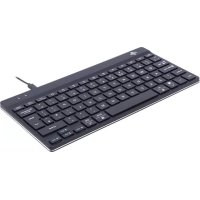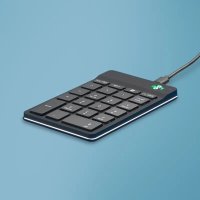
R-Go Tools Numpad Break - Keyboard

Numpad Break - Keyboard R-Go Tools - Free user manual and instructions

Find the device manual for free Numpad Break R-Go Tools in PDF.

📄 118 pages English EN Download 💬 AI Question 10 questions ⚙️ Specs
Notice R-Go Tools Numpad Break - page 8
Pick your language and provide your email: we'll send you a specifically translated version.
Product type Ergonomic numeric keypad
Brand R-Go Tools
Model Numpad Break
Connectivity Wired (USB-C) or wireless (Bluetooth)
Compatibility Windows XP/Vista/10/11, Mac
Power Rechargeable battery via USB-C
Break indicator Three-color LED: green (healthy), orange (break), red (too long)
Software R-Go Break (key customization and break tracking)
Multi-device connection Up to 3 devices (channels 1, 2, 3)
Use Left or right hand, free placement on desk
Ergonomic features Light keystroke, slim design, relaxed wrist position
Dimensions Not specified (estimated: approx 90 x 140 mm)
Weight Not specified (estimated: approx 150 g)
Box contents Numpad, USB-C cable, USB-C to USB-A converter, secondary link cable
Maintenance Clean with a soft, dry cloth; do not use abrasive products
General information Made by R-Go Tools; website: r-go.tools

Frequently Asked Questions - Numpad Break R-Go Tools

How to connect the numeric keypad via Bluetooth?
Turn on the numeric keypad by switching the switch to 'On'. Press and hold the Tab key for 3 seconds. The Bluetooth indicator flashes. On your computer, go to Bluetooth settings, enable Bluetooth, add a device and select 'Break'.
Can I use this numeric keypad with a cable?
Yes, the wired version connects directly via a USB-C cable to your computer. If your computer only has a USB-A port, use the provided USB-C to USB-A converter.
How to charge the battery?
Use the provided USB-C cable (01) to connect the numeric keypad to a USB port on your computer or a charger. The LED turns red during charging.
What do the colors of the break indicator mean?
Green indicates healthy work, orange signals it's time for a short break, and red means you have been working for too long.
How to customize the keys of the numeric keypad?
Download and install the R-Go Break software from https://r-go.tools/break_web_fr. This software allows you to reprogram the keys and configure break alerts.
Is the numeric keypad compatible with Mac?
Yes, it is compatible with Mac. Follow the Bluetooth procedure: turn on the keypad, press Fn + the chosen channel (1, 2, or 3) for 3 seconds, then connect in Bluetooth system preferences.
I can't find my numeric keypad in the Bluetooth list. What should I do?
Check that the battery is charged (plug in the charging cable for at least 5 minutes). Make sure Bluetooth is enabled on your computer and that the keypad is in pairing mode (Tab held for 3 seconds).
How to connect the numeric keypad to another R-Go Break keyboard?
Use the provided cable 03 to link the numeric keypad to an R-Go Split Break or Compact Break keyboard. Plug one end into the keypad and the other into the keyboard.
What to do if my numeric keypad is not working properly?
Check the cable connection, try another USB port, reconnect directly without a hub, restart the computer, or test on another PC. If the problem persists, contact info@r-go-tools.com.
Can the numeric keypad be used with the left or right hand?
Yes, its design allows ambidextrous use. Place it on the side of your non-dominant hand for balanced load distribution and shoulder-width posture.

User questions about Numpad Break R-Go Tools

0 question about this device. Answer the ones you know or ask your own.

Ask a new question about this device

The email remains private: it is only used to notify you if someone responds to your question.

No questions yet. Be the first to ask one.

Download the instructions for your Keyboard in PDF format for free! Find your manual Numpad Break - R-Go Tools and take your electronic device back in hand. On this page are published all the documents necessary for the use of your device. Numpad Break by R-Go Tools.

USER MANUAL Numpad Break R-Go Tools

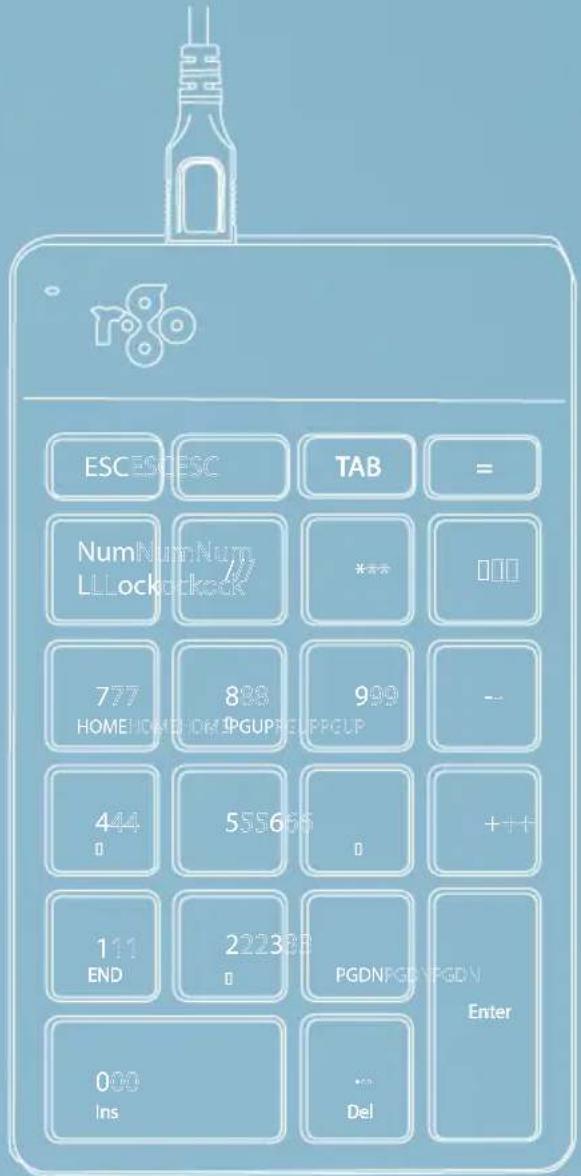
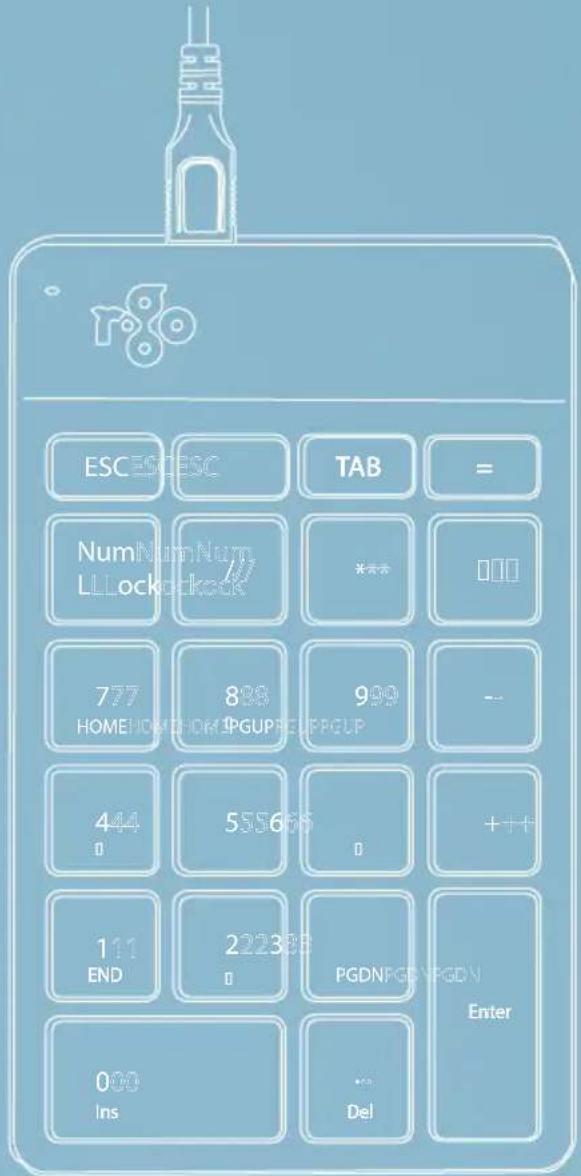
text_image ESCESC TAB = NumNumNum LLockock *** 00 777 882 930 -- 414 555636 0 + 111 222332 PGDNPGDPGDN END 000 Ins ... Del Enter

R-Go Numpad Break

English manualp.2R-Go Tools Numpad Break - R-Go Numpad Break - 1
Deutsche Anleitungp.15R-Go Tools Numpad Break - R-Go Numpad Break - 2
Manuel en françaisp.28R-Go Tools Numpad Break - R-Go Numpad Break - 3
Nederlandse handleidingp.41R-Go Tools Numpad Break - R-Go Numpad Break - 4
Polski podręcznikp.54R-Go Tools Numpad Break - R-Go Numpad Break - 5
Manual en españolp.67R-Go Tools Numpad Break - R-Go Numpad Break - 6
Manual em portuguêsp.80R-Go Tools Numpad Break - R-Go Numpad Break - 7
Manuale italianop.93R-Go Tools Numpad Break - R-Go Numpad Break - 8
Svensk manualp.106R-Go Tools Numpad Break - R-Go Numpad Break - 9

R-Go Tools Numpad Break - R-Go Numpad Break - 10

text_image ESCESC TAB = NumNumNum LLlocked *** 000 777 888 999 -- HOMENOMONPGUPREUPPGUP 444 5556 0 +++1 111 END 2223 PGDNPGDYPGDN Enter 000 Ins ... Del

R-Go Tools Numpad Break - R-Go Numpad Break - 11

ergonomic numpad

R-Go Numpad Break

wired | wireless

Contents

Product overview 5

Setup Wired 6

Setup Wireless

R-Go Break 13

Troubleshooting 14

Our ergonomic R-Go Numpad Break numeric keypad offers all the ergonomic features you need to type in a healthy way. Thanks to the light keystroke, minimal muscle tension is needed while typing. Its thin design ensures a relaxed, flat position of hands and wrists while typing. You can operate this numeric keyboard with your left or right hand and decide yourself where to place it on your desktop. By operating the numpad with the hand that is not using the mouse, both hands remain within shoulder width as you work. The load will be equally divided between both hands. The R-Go Numpad Break keyboard also has an integrated break indicator, which indicates with colour signals when it is time to take a break. Green means you are working healthy, orange means it is time to take a break and red means you have been working too long. #stayfit

System requirements/Compatibility: Windows XP/Vista/10/11

R-Go Tools Numpad Break - Contents - 1

text_image QR code image with no visible text or symbols beyond the matrix pattern

For more information about this product, scan the QR code! https://r-go.tools/numpad_web_en

01 R-Go Break indicator
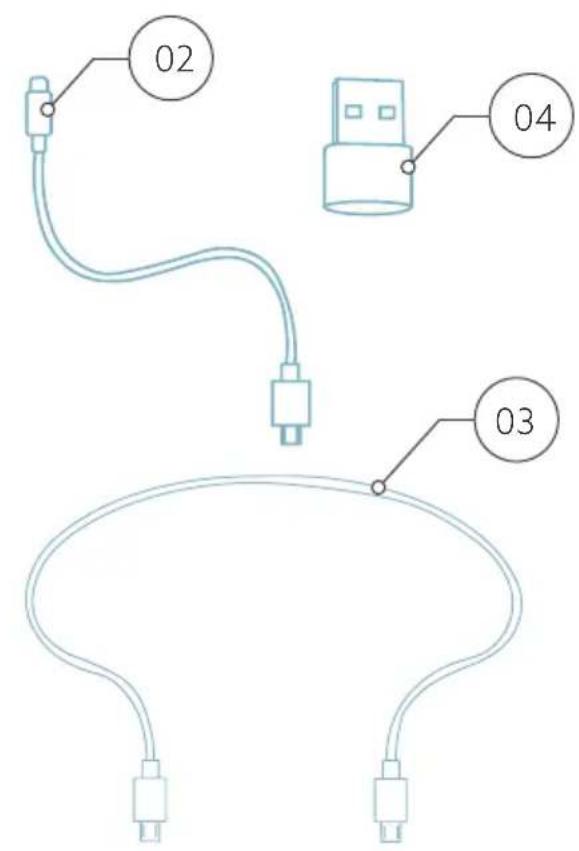
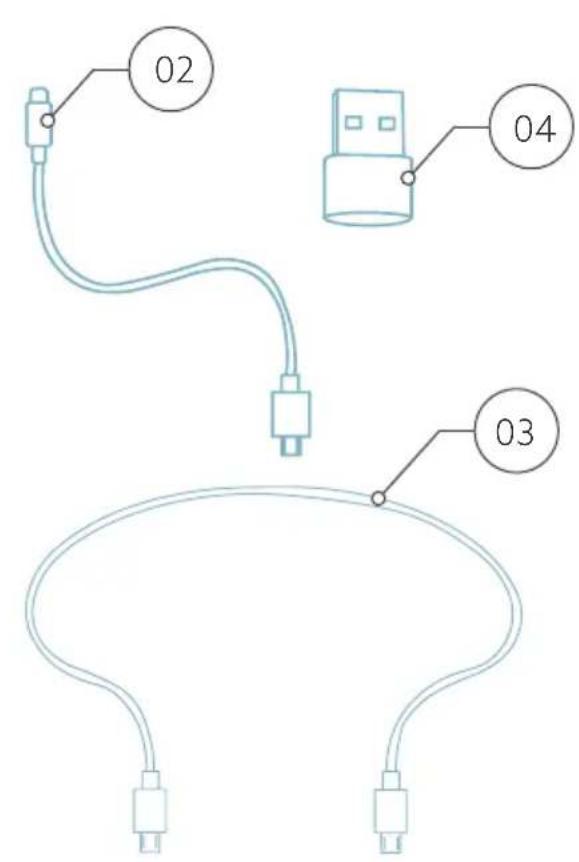
02 Wired version: Cable to connect numpad to PC Wireless version: Charging cable
03 Cable to connect numpad to R-Go Split Break keyboard or R-Go Compact Break keyboard
04 USB-C to USB-A converter

R-Go Tools Numpad Break - Contents - 2

text_image 01 ESCESC TAB = Lock Nominal Home 83 90 HOME PGLP - 44 5 6 0 0 11 2 3 Enter END 0 PCDN 00 Ins Del

R-Go Tools Numpad Break - Contents - 3

text_image 02 04 03

A Connect the numpad to your computer by plugging the USB-C end of cable 02 into your computer and the micro USB end into the numpad. If you have a USB-A port in your computer, use the USB-C to USB-A converter 04.

R-Go Tools Numpad Break - Contents - 4

flowchart
graph TD
    A["User"] --> B["Switch"]
    B --> C["Control Button"]
    C --> D["Monitor"]
    D --> E["OK"]
    E --> F["Display"]
    F --> G["Balance"]
    G --> H["Return"]
    H --> I["Next Button"]

B (Optional) Connect the numpad another keyboard (for example the R-Go Split Break) by using cable 03.

R-Go Tools Numpad Break - Contents - 5

flowchart
graph TD
    A["Start"] --> B["Node 1"]
    B --> C["Node 2"]
    C --> D["Node 3"]
    D --> E["Node 4"]
    E --> F["Node 5"]
    F --> G["End"]
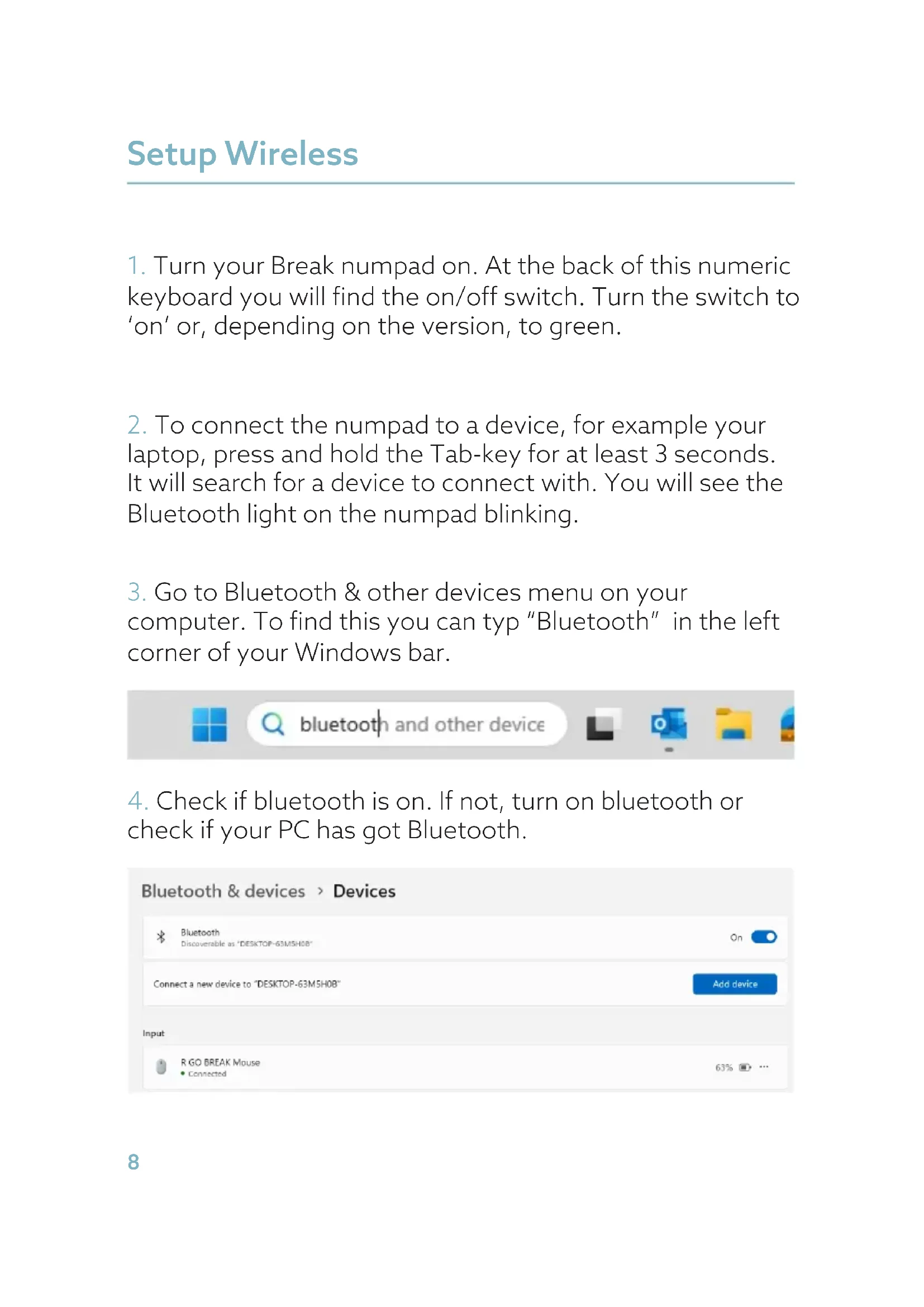
  1. Turn your Break numpad on. At the back of this numeric keyboard you will find the on/off switch. Turn the switch to 'on' or, depending on the version, to green.
  2. To connect the numpad to a device, for example your laptop, press and hold the Tab-key for at least 3 seconds. It will search for a device to connect with. You will see the Bluetooth light on the numpad blinking.
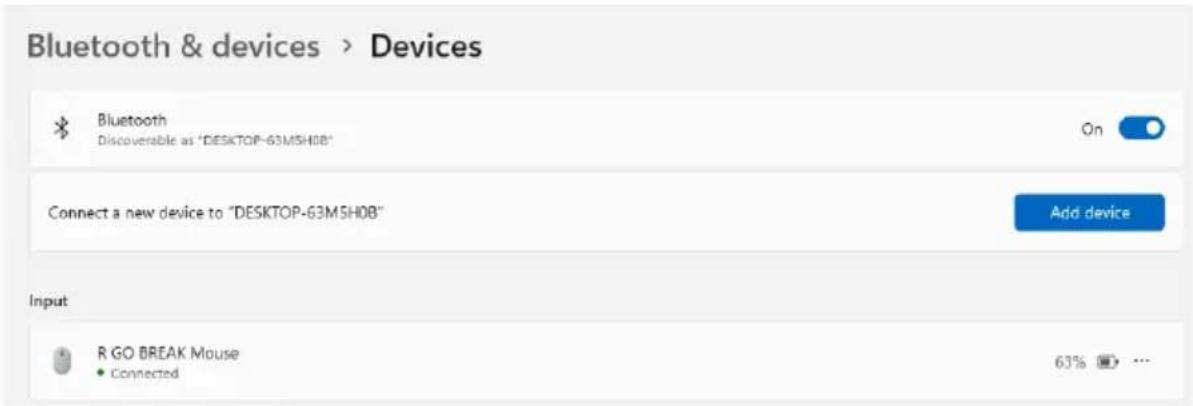
  3. Go to Bluetooth & other devices menu on your computer. To find this you can typ "Bluetooth" in the left corner of your Windows bar.

R-Go Tools Numpad Break - Contents - 6

text_image bluetooth and other device
  1. Check if bluetooth is on. If not, turn on bluetooth or check if your PC has got Bluetooth.
R-Go Tools Numpad Break - Contents - 7

text_image Bluetooth & devices > Devices Bluetooth Discoverable as "DESKTOP-63M5H0B" On Connect a new device to "DESKTOP-63M5H0B" Add device Input R GO BREAK Mouse Connected 63% ...
  1. Click on "Add device" and then "Bluetooth". Select your Break numpad. The numpad will then connect to your chosen device.

Add a device

×

Add a device

Choose the kind of device you want to add.

R-Go Tools Numpad Break - Add a device - 1

Bluetooth

Audio devices, mice, keyboards, phones, pens, controllers, and more

R-Go Tools Numpad Break - Add a device - 2

Wireless display or dock

Wireless monitors, TVs, or PCs that use Miracast, or wireless docks

I can't find my Break numpad. What to do?

If you can't find your Break numpad, please check if the battery is full (connect the charging cable with USB-C). When the battery is low the LED light on the keyboard will turn red to indicate that the numpad is charging. When charged for minimal 5 minutes, you can try to connect again.

How do I know if my device had got Bluetooth?

To check if your PC has got Bluetooth, type at the bottom in the Windows bar "device manager".

R-Go Tools Numpad Break - Add a device - 3

R-Go Tools Numpad Break - Add a device - 4

device manag

R-Go Tools Numpad Break - Add a device - 5

R-Go Tools Numpad Break - Add a device - 6

You will see the following screen (see picture). When your PC hasn't got bluetooth, you won't find 'bluetooth' in the list. You won't be able to use Bluetooth devices'.

  1. To charge this numpad, connect it to your computer using cable 01.

Mac

  1. Turn your Break numpad on. At the back of this numeric keyboard you will find the on/off switch. Turn the switch to 'on' or, depending on the version, to green.

  2. To connect the numpad to a device, for example your laptop, press and hold the Tab-key for at least 3 seconds. It will search for a device to connect with. You will see the Bluetooth light on the numpad blinking.

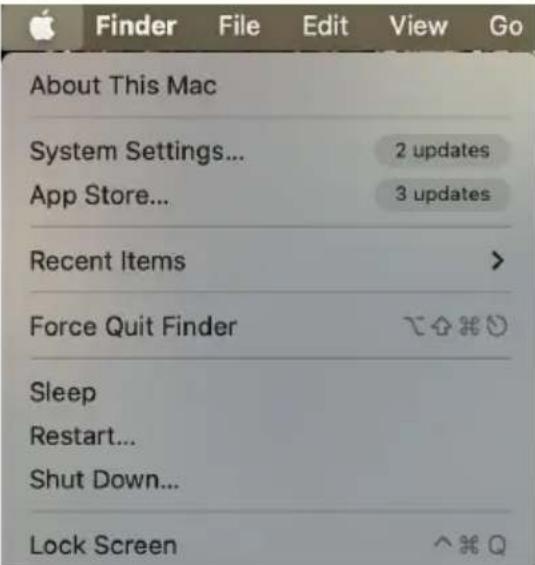
  3. Go to Bluetooth on your screen. To find this you click on the Mac icon in the upper left and go to System settings.
R-Go Tools Numpad Break - Mac - 1

text_image About This Mac System Settings... App Store... Recent Items > Force Quit Finder Sleep Restart... Shut Down... Lock Screen
  1. Check if Bluetooth is on. If not, turn on Bluetooth or check if your PC has Bluetooth.

R-Go Tools Numpad Break - Mac - 2

text_image Search User Apple ID Apple ID Suggestions 2 Wi-Fi Bluetooth Network VPN Bluetooth This Mac is discoverable as "MacBook Pro from User" while Bluetooth Settings is open. My Devices R GO BREAK Mouse Connected Generic Not Connected
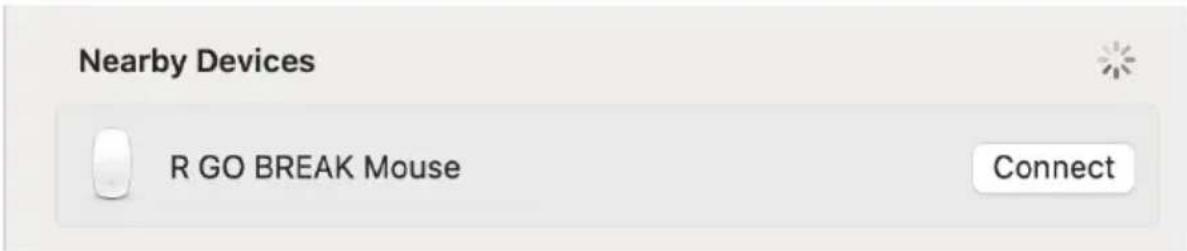
  1. Scroll down to 'Nearby Devices' and click Connect.
R-Go Tools Numpad Break - Mac - 3

text_image Nearby Devices R GO BREAK Mouse Connect

R-Go Break

Download the R-Go Break software at https://r-go.tools/bs

The R-Go Break software is compatible with all R-Go Break keyboards and mice. It gives you insight into your work behaviour and gives you the possibility to customize your keyboard buttons.

The R-Go Break is a software tool that helps you to remember to take breaks from your work. As you work, the R-Go Break software controls the LED light on your Break mouse or keyboard. This break indicator changes color, like a traffic light. When the light turns green, it means you are working healthily. Orange indicates that it is time for a short break and red indicates that you have been working too long. This way you receive feedback on your break behavior in a positive way.

For more information about the R-Go Break software, scan the QR code! https://r-go.tools/break_web_en

Is your numpad not working properly, or do you experience problems while using it? Please follow the steps mentioned below.

  • Check if the numpad is connected using the correct connector and cable (page 4-7)
  • Connect the numpad to another USB port of your computer
  • Connect the numpad directly to your computer if you are using an USB hub
  • Restart your computer
  • Test the numpad on another computer, if it is still not working contact us via info@r-go-tools.com.
R-Go Tools Numpad Break - R-Go Break - 1

text_image ESCESCESC TAB = NumNumNum LLlocked *** 000 777 888 999 -- HOMENOMONPGUPREUPPGUP 444 5556 0 ++++ 111 END 222388 PGDNPGDYPGDN Enter 000 Ins ... Del
text_image QR code image with no visible text or symbols beyond the matrix pattern
text_image 01 ESCESC TAB = Lock Nom/7 7/83 90 HOME PGLP 4.4 5 6 0 0 11 2 3 END PCDN Enter 00 Del ine

R-Go Tools Numpad Break - R-Go Break - 2

text_image 02 04 03

bluetooth and other device

R-Go Tools Numpad Break - R-Go Break - 3

R-Go Tools Numpad Break - R-Go Break - 4

R-Go Tools Numpad Break - R-Go Break - 5

R-Go Tools Numpad Break - R-Go Break - 6

text_image Bluetooth & devices > Devices Bluetooth Discoverable as "DESKTOP-63M5H08" Connect a new device to "DESKTOP-63M5H08" Add device Input R GO BREAK Mouse • Connected 63% ▶ ...
text_image Add a device

Add a device

Choose the kind of device you want to add.

R-Go Tools Numpad Break - Add a device - 1

Bluetooth

Audio devices, mice, keyboards, phones, pens, controllers, and more

R-Go Tools Numpad Break - Add a device - 2

Wireless display or dock

Wireless monitors, TVs, or PCs that use Miracast, or wireless docks

text_image Search User Apple ID Apple ID Suggestions 2 Wi-Fi Bluetooth Network VPN Bluetooth This Mac is discoverable as "MacBook Pro from User" while Bluetooth Settings is open. My Devices R GO BREAK Mouse Connected Generic Not Connected
text_image Nearby Devices R GO BREAK Mouse Connect
text_image QR code image with no visible text or symbols beyond the matrix pattern
text_image QR code image with no surrounding text or symbols

bluetooth and other device

R-Go Tools Numpad Break - Add a device - 3

R-Go Tools Numpad Break - Add a device - 4

R-Go Tools Numpad Break - Add a device - 5

R-Go Tools Numpad Break - Add a device - 6

text_image Bluetooth & devices > Devices Bluetooth Discoverable as "DESKTOP-63M5H08" Connect a new device to "DESKTOP-63M5H08" Add device Input R GO BREAK Mouse • Connected 63% ▶ ...
text_image Add a device

Add a device

Choose the kind of device you want to add.

R-Go Tools Numpad Break - Add a device - 1

Bluetooth

Audio devices, mice, keyboards, phones, pens, controllers, and more

R-Go Tools Numpad Break - Add a device - 2

Wireless display or dock

Wireless monitors, TVs, or PCs that use Miracast, or wireless docks

text_image Search User Apple ID Apple ID Suggestions 2 Wi-Fi Bluetooth Network VPN Bluetooth This Mac is discoverable as "MacBook Pro from User" while Bluetooth Settings is open. My Devices R GO BREAK Mouse Connected Generic Not Connected
text_image Nearby Devices R GO BREAK Mouse Connect
text_image QR code image with no visible text or symbols beyond the matrix pattern
text_image QR code image containing encoded data, no visible human-readable text

bluetooth and other device

R-Go Tools Numpad Break - Add a device - 3

R-Go Tools Numpad Break - Add a device - 4

R-Go Tools Numpad Break - Add a device - 5

R-Go Tools Numpad Break - Add a device - 6

text_image Bluetooth & devices > Devices Bluetooth Discoverable as "DESKTOP-63M5H08" On Connect a new device to "DESKTOP-63M5H08" Add device Input R GO BREAK Mouse • Connected 63% ▶ ...
text_image Add a device

Add a device

Choose the kind of device you want to add.

R-Go Tools Numpad Break - Add a device - 1

Bluetooth

Audio devices, mice, keyboards, phones, pens, controllers, and more

R-Go Tools Numpad Break - Add a device - 2

Wireless display or dock

Wireless monitors, TVs, or PCs that use Miracast, or wireless docks

text_image About This Mac System Settings... App Store... Recent Items > Force Quit Finder Sleep Restart... Shut Down... Lock Screen
text_image Search User Apple ID Apple ID Suggestions 2 Wi-Fi Bluetooth Network VPN Bluetooth This Mac is discoverable as "MacBook Pro from User" while Bluetooth Settings is open. My Devices R GO BREAK Mouse Connected Generic Not Connected
text_image Nearby Devices R GO BREAK Mouse Connect

Download de R-Go Break software op

https://r-go.tools/bs

text_image QR code image with no visible text or symbols beyond the matrix pattern
text_image QR code image containing encoded data, no visible human-readable text
text_image bluetooth and other device
text_image Bluetooth & devices > Devices * Bluetooth Discoverable as "DESKTOP-63M5H0B" On Connect a new device to "DESKTOP-63M5H0B" Add device Input R GO BREAK Mouse • Connected 63% ...

Choose the kind of device you want to add.

R-Go Tools Numpad Break - Add a device - 3

Bluetooth

Audio devices, mice, keyboards, phones, pens, controllers, and more

R-Go Tools Numpad Break - Add a device - 4

Wireless display or dock

Wireless monitors, TVs, or PCs that use Miracast, or wireless docks

text_image Search User Apple ID Apple ID Suggestions 2 Wi-Fi Bluetooth Network VPN Bluetooth This Mac is discoverable as "MacBook Pro from User" while Bluetooth Settings is open. My Devices R GO BREAK Mouse Connected Generic Not Connected
text_image Nearby Devices R GO BREAK Mouse Connect
text_image QR code image with no visible text or symbols beyond the matrix pattern

bluetooth and other device

R-Go Tools Numpad Break - Add a device - 5

R-Go Tools Numpad Break - Add a device - 6

R-Go Tools Numpad Break - Add a device - 7

R-Go Tools Numpad Break - Add a device - 8

Bluetooth & devices > Devices

R-Go Tools Numpad Break - Add a device - 9

Bluetooth

Discoverable as "DESKTOP-63M5H08"

On

R-Go Tools Numpad Break - Add a device - 10

Connect a new device to "DESKTOP-63M5H0B"

Add device

Input

R-Go Tools Numpad Break - Add a device - 11

R GO BREAK Mouse

- Connected

63% □…

Choose the kind of device you want to add.

R-Go Tools Numpad Break - Add a device - 12

Bluetooth

Audio devices, mice, keyboards, phones, pens, controllers, and more

R-Go Tools Numpad Break - Add a device - 13

Wireless display or dock

Wireless monitors, TVs, or PCs that use Miracast, or wireless docks

text_image Search User Apple ID Apple ID Suggestions 2 Wi-Fi Bluetooth Network VPN Bluetooth This Mac is discoverable as "MacBook Pro from User" while Bluetooth Settings is open. My Devices R GO BREAK Mouse Connected Generic Not Connected
text_image Nearby Devices R GO BREAK Mouse Connect

https://r-go.tools/bs

text_image QR code image with no visible text or symbols beyond the matrix pattern
text_image bluetooth and other device
text_image Bluetooth & devices > Devices * Bluetooth Discoverable as "DESKTOP-63M5H0B" On Connect a new device to "DESKTOP-63M5H0B" Add device Input R GO BREAK Mouse • Connected 63% ▶ ...

Choose the kind of device you want to add.

R-Go Tools Numpad Break - Add a device - 14

Bluetooth

Audio devices, mice, keyboards, phones, pens, controllers, and more

R-Go Tools Numpad Break - Add a device - 15

Wireless display or dock

Wireless monitors, TVs, or PCs that use Miracast, or wireless docks

text_image Search User Apple ID Apple ID Suggestions 2 Wi-Fi Bluetooth Network VPN Bluetooth This Mac is discoverable as "MacBook Pro from User" while Bluetooth Settings is open. My Devices R GO BREAK Mouse Connected Generic Not Connected
text_image Nearby Devices R GO BREAK Mouse Connect

https://r-go.tools/bs

text_image QR code image with no visible text or symbols beyond the matrix pattern

o software R-Go Break,

lê o código QR!

https://r-go.tools/break_web_pt

text_image QR code image with no visible text or symbols beyond the matrix pattern
text_image bluetooth and other device
text_image Bluetooth & devices > Devices Bluetooth Discoverable as "DESKTOP-63M5H0B" On Connect a new device to "DESKTOP-63M5H0B" Add device Input R GO BREAK Mouse Connected 63% ...

Choose the kind of device you want to add.

R-Go Tools Numpad Break - Add a device - 16

Bluetooth

Audio devices, mice, keyboards, phones, pens, controllers, and more

R-Go Tools Numpad Break - Add a device - 17

Wireless display or dock

Wireless monitors, TVs, or PCs that use Miracast, or wireless docks

text_image About This Mac System Settings... App Store... Recent Items > Force Quit Finder Sleep Restart... Shut Down... Lock Screen
text_image Search User Apple ID Apple ID Suggestions 2 Wi-Fi Bluetooth Network VPN Bluetooth This Mac is discoverable as "MacBook Pro from User" while Bluetooth Settings is open. My Devices R GO BREAK Mouse Connected Generic Not Connected
text_image Nearby Devices R GO BREAK Mouse Connect

https://r-go.tools/bs

text_image QR code image with no visible text or symbols beyond the matrix pattern
text_image QR code image with no surrounding text or symbols
text_image bluetooth and other device
text_image Bluetooth & devices > Devices * Bluetooth Discoverable as "DESKTOP-63M5H0B" On Connect a new device to "DESKTOP-63M5H0B" Add device Input R GO BREAK Mouse • Connected 63% ▶ ...

Choose the kind of device you want to add.

R-Go Tools Numpad Break - Add a device - 18

Bluetooth

Audio devices, mice, keyboards, phones, pens, controllers, and more

R-Go Tools Numpad Break - Add a device - 19

Wireless display or dock

Wireless monitors, TVs, or PCs that use Miracast, or wireless docks

text_image Search User Apple ID Apple ID Suggestions 2 Wi-Fi Bluetooth Network VPN Bluetooth This Mac is discoverable as "MacBook Pro from User" while Bluetooth Settings is open. My Devices R GO BREAK Mouse Connected Generic Not Connected
text_image Nearby Devices R GO BREAK Mouse Connect

Ladda ner programvaran R-Go Break på

https://r-go.tools/bs
text_image QR code image containing encoded data, no visible human-readable text
Table of contents Click a title to access it
Manual assistant
Powered by Anthropic
Waiting for your message
Product information

Brand : R-Go Tools

Model : Numpad Break

Category : Keyboard