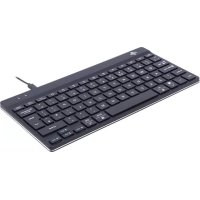
Compact Break - Keyboard R-Go Tools - Free user manual and instructions
Find the device manual for free Compact Break R-Go Tools in PDF.



| Product Type | Ergonomic Keyboard |
| Brand | R-Go Tools |
| Model | Compact Break |
| Dimensions (approx.) | 326 x 120 x 18 mm |
| Weight (approx.) | 500 g |
| Power | USB-C (wired) or rechargeable battery (wireless) |
| Compatibility | Windows XP/Vista/10/11, macOS via Bluetooth |
| Connectivity | USB-C wired or Bluetooth 5.0 (up to 3 devices) |
| Break indicator | Three-color LED (green, orange, red) for break reminders |
| Function keys | Programmable via R-Go Break software |
| Built-in USB hub | Yes, 1 USB-C port for accessories |
| Software | R-Go Break (downloadable at r-go.tools/bs) |
| Maintenance and cleaning | Clean with a soft, dry cloth. Do not use aggressive liquid products. |
| Safety | Do not expose to water or moisture. Use only with the provided adapter. |
| Spare parts and repairability | Contact technical support for any replacement. No user-serviceable parts. |
Frequently Asked Questions - Compact Break R-Go Tools
User questions about Compact Break R-Go Tools
0 question about this device. Answer the ones you know or ask your own.
Ask a new question about this device
Download the instructions for your Keyboard in PDF format for free! Find your manual Compact Break - R-Go Tools and take your electronic device back in hand. On this page are published all the documents necessary for the use of your device. Compact Break by R-Go Tools.
USER MANUAL Compact Break R-Go Tools
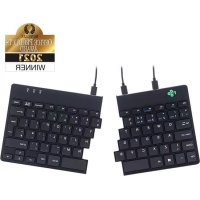
Our ergonomic R-Go Compact Break keyboard offers all the ergonomic features you need to type in a healthy way. Thanks to the light keystroke, minimal muscle tension is needed while typing. Its thin design ensures a relaxed, flat position of hands and wrists while typing. When using both keyboard and mouse at the same time, your hands always stay within shoulder width. This natural posture reduces muscle tension in your shoulder and arm and prevents RSI complaints. The R-Go Compact Break keyboard also has an integrated break indicator, which indicates with colour signals when it is time to take a break. Green means you are working healthy, orange means it is time to take a break and red means you have been working too long. #stayfit
System requirements/Compatibility: Windows XP/Vista/10/11
For more information about this product, scan the QR code! https://r-go.tools/compactbreak_web_en
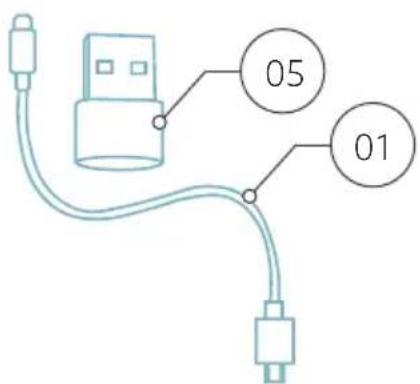
01 Wired version: Cable to connect keyboard to PC Wireless version: Charging cable
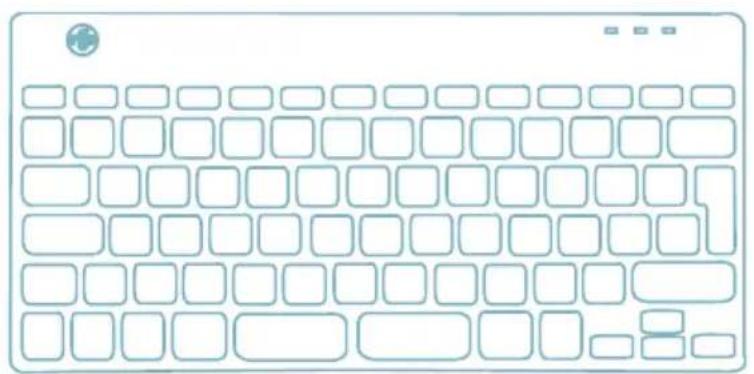
02 R-Go Break indicator
03 Caps Lock indicator
04 Scroll Lock indicator
05 USB-C to USB-A converter
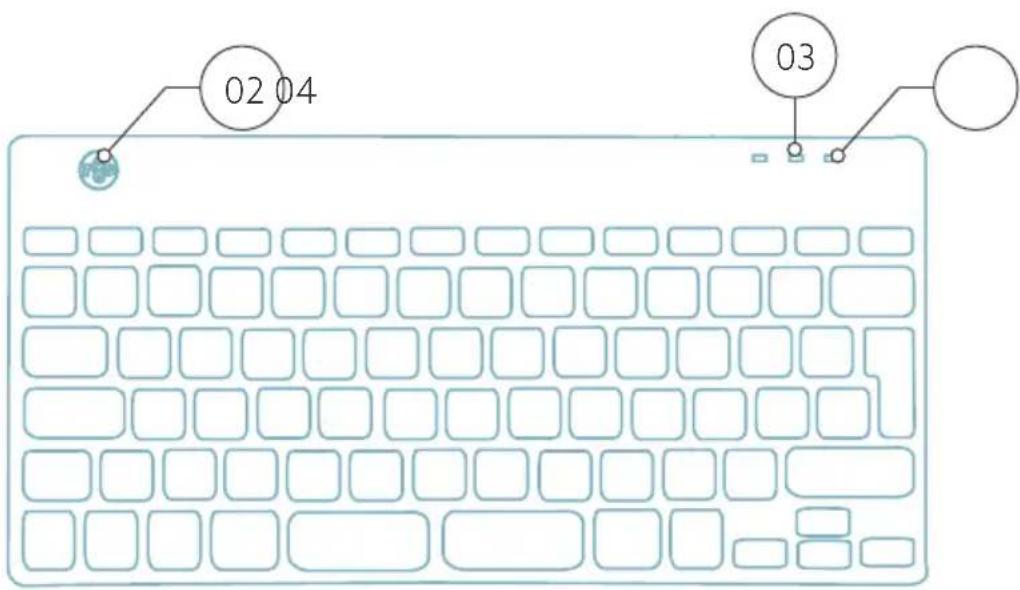
Overview USB-ports
1 Hub - other devices (not to computer)
2 Connect to computer

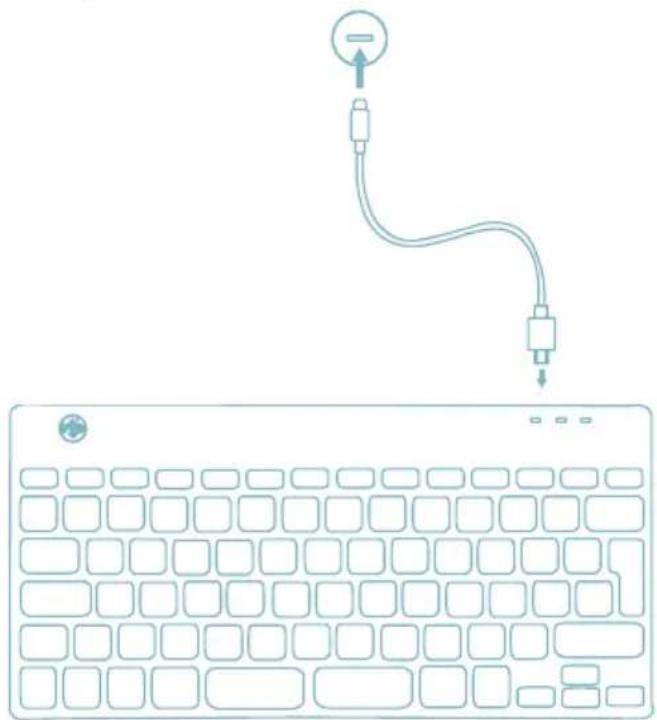
A Connect the keyboard to your computer by plugging the USB-C end of cable ① into port ② and USB-C end into your computer.
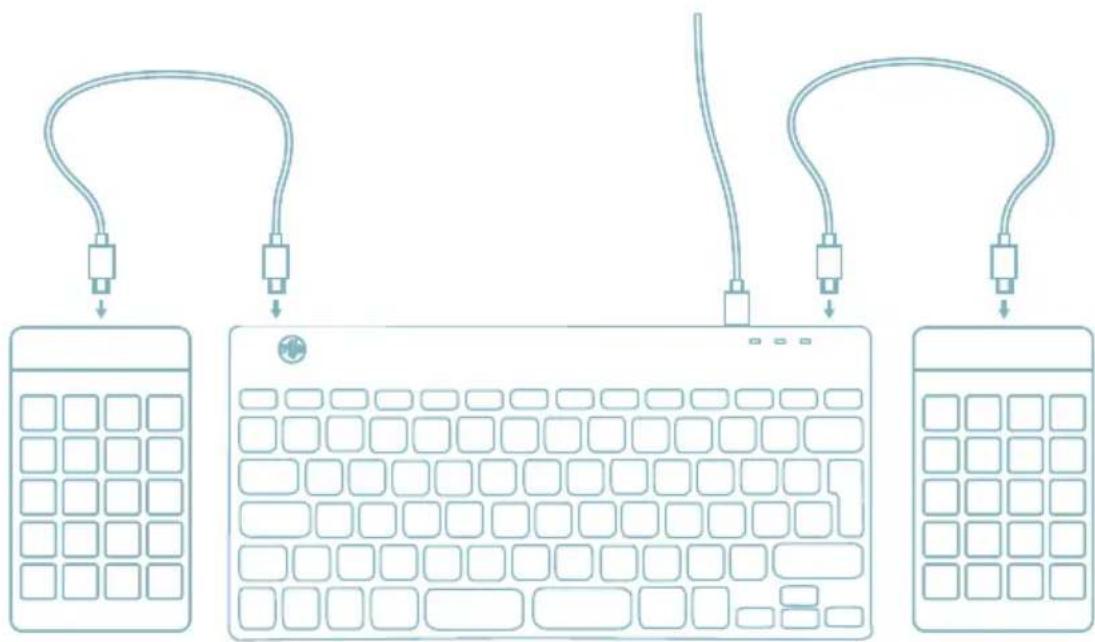
B (Optional) Connect Numpad or another device to the keyboard by plugging them into port 01 or 03.
- Turn your Break keyboard on. At the back of the keyboard you will find the on/off switch. Turn the switch to 'on' or, depending on the version, to green.
-
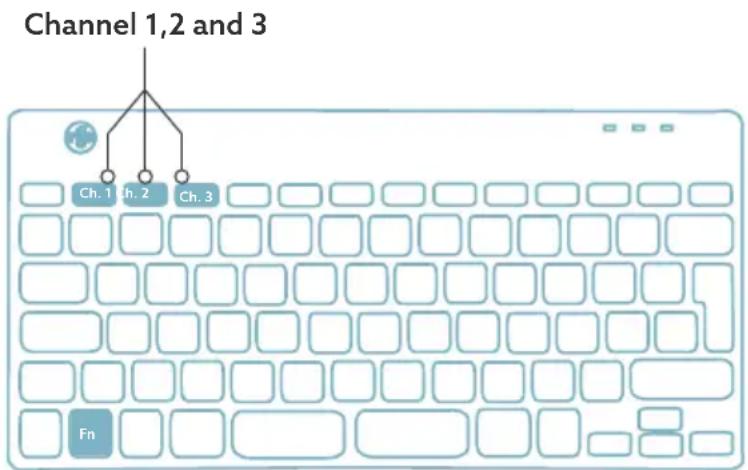
It is possible to connect this keyboard to 3 different devices, such as your PC, laptop or mobile phone. To connect it, you can choose channel 1,2 or 3. Each channel can be connected to one device. To connect the keyboard to one device, for example your laptop, press and hold the Fn- key together with the key of your chosen channel for at least 3 seconds. It will search for a device to connect with. You will see the Bluetooth light on the keyboard blinking.
-
Go to Bluetooth & other devices menu on your computer. To find this you can typ "Bluetooth" in the left corner of your Windows bar.

Q bluetooth and other device


- Check if bluetooth is on. If not, turn on bluetooth or check if your PC has got Bluetooth.
Bluetooth & devices > Devices

Bluetooth
Discoverable as 'DESKTOP-63M5H08'
On

Connect a new device to "DESKTOP-63M5HOB"
Add device
Input

RGO BREAK Mouse
- Connected
63%
- Click on "Add device" and then "Bluetooth". Select your Break keyboard. The keyboard will then connect to your chosen device.
Add a device

Add a device
Choose the kind of device you want to add.

Bluetooth
Audio devices, mice, keyboards, phones, pens, controllers, and more

Wireless display or dock
Wireless monitors, TVs, or PCs that use Miracast, or wireless docks
I can't find my Break keyboard. What to do?
If you can't find your Break keyboard, please check if the battery is full (connect the charging cable with USB-C). When the battery is low the LED light on the keyboard will turn red to indicate that the keyboard is charging. When charged for minimal 5 minutes, you can try to connect again.
How do I know if my device had got Bluetooth?
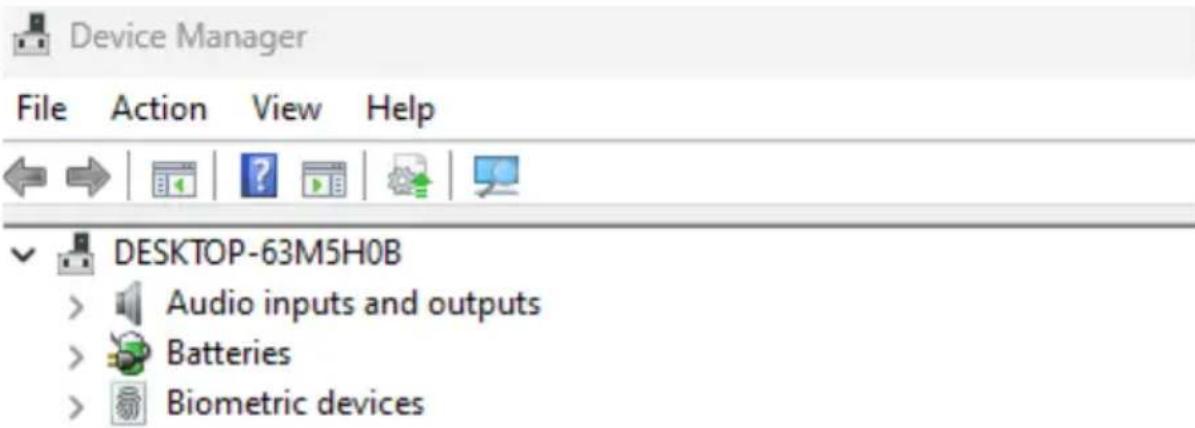
To check if your PC has got Bluetooth, type at the bottom in the Windows bar "device manager".

You will see the following screen (see picture). When your PC hasn't got bluetooth, you won't find 'bluetooth' in the list. You won't be able to use Bluetooth devices'.
- To connect 3 different devices to 3 channels please repeat steps above for each device.
- Do you want to switch between devices? Press shortly the Fn- key together with your chosen channel (1,2 or 3). Now you are able to quickly switch between for example your PC, laptop and mobile phone.
- To charge this keyboard, connect it to your computer using cable 01.
Mac
- Turn your Break keyboard on. At the back of the keyboard you will find the on/off switch. Turn the switch to 'on' or, depending on the version, to green.
-
It is possible to connect this keyboard to 3 different devices, such as your PC, laptop or mobile phone. To connect it, you can choose channel 1,2 or 3. Each channel can be connected to one device. To connect the keyboard to one device, for example your laptop, press and hold the Fn- key together with the key of your chosen channel for at least 3 seconds. It will search for a device to connect with. You will see the Bluetooth light on the keyboard blinking.
-
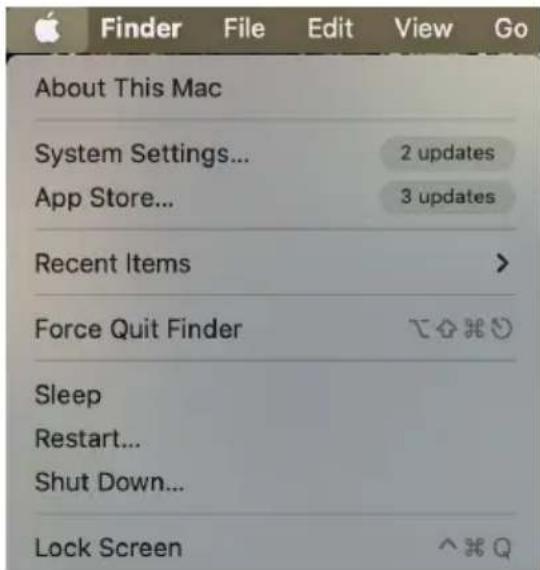
Go to Bluetooth on your screen. To find this you click on the Mac icon in the upper left and go to System settings.
- Check if Bluetooth is on. If not, turn on Bluetooth or check if your PC has Bluetooth.
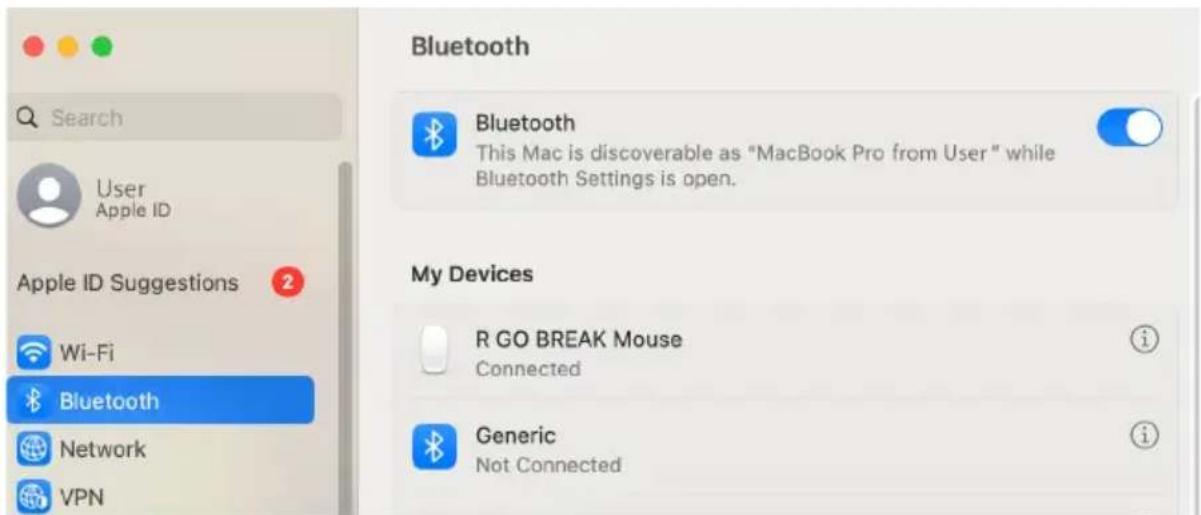
- Scroll down to 'Nearby Devices' and click Connect.
Nearby Devices

R GO BREAK Mouse
Connect
The function keys are marked on the keyboard in blue.
To activate a function key on your keyboard, press the Fnkey at the same time as the selected function key.
Note: Fn + A = Break indicator light On/Off
Download the R-Go Break software at https://r-go.tools/bs
The R-Go Break software is compatible with R-Go Break keyboards and mice. It gives you insight into your work behaviour and gives you the possibility to customize your keyboard buttons.
The R-Go Break is a software tool that helps you to remember to take breaks from your work. As you work, the R-Go Break software controls the LED light on your Break mouse or keyboard. This break indicator changes color, like a traffic light. When the light turns green, it means you are working healthily. Orange indicates that it is time for a short break and red indicates that you have been working too long. This way you receive feedback on your break behavior in a positive way.
For more information about the R-Go Break software, scan the QR code!
https://r-go.tools/break_web_en
Is your keyboard not working properly, or do you experience problems while using it? Please follow the steps mentioned below.
- Check if the keyboard is connected using the correct connector and cable (page 4-7)
- Connect the keyboard to another USB port of your computer
- Connect the keyboard directly to your computer if you are using an USB hub
- Restart your computer
- Test the keyboard on another computer, if it is still not working contact us via info@r-go-tools.com.


Choose the kind of device you want to add.

Bluetooth
Audio devices, mice, keyboards, phones, pens, controllers, and more

Wireless display or dock
Wireless monitors, TVs, or PCs that use Miracast, or wireless docks
Q bluetooth and other device


Bluetooth & devices > Devices

Bluetooth
Discoverable as "DEXTOP-63M5HOB"
On

Connect a new device to "DESKTOP-63M5HOB"
Add device
Input

RGO BREAK Mouse
- Connected
63%
Choose the kind of device you want to add.

Bluetooth
Audio devices, mice, keyboards, phones, pens, controllers, and more

Wireless display or dock
Wireless monitors, TVs, or PCs that use Miracast, or wireless docks
bluetooth and other device


Bluetooth & devices > Devices

Bluetooth
Discoverable as 'DEXTOP-6M5HOB'
On

Connect a new device to "DESKTOP-63M5HOB"

Input

R GO BREAK Mouse
- Connected
63%
0
Choose the kind of device you want to add.

Bluetooth
Audio devices, mice, keyboards, phones, pens, controllers, and more

Wireless display or dock
Wireless monitors, TVs, or PCs that use Miracast, or wireless docks
Q bluetooth and other device


Bluetooth & devices > Devices

Bluetooth
Discoverable as 'DESKTOP-63M5H08'
On

Connect a new device to "DESKTOP-63M5HOB"
Add device
Input

RGO BREAK Mouse
- Connected
63%
Choose the kind of device you want to add.

Bluetooth
Audio devices, mice, keyboards, phones, pens, controllers, and more

Wireless display or dock
Wireless monitors, TVs, or PCs that use Miracast, or wireless docks
Q bluetooth and other device


Bluetooth & devices > Devices

Bluetooth
Discoverable as 'DESKTOP-63M5H08'
On

Connect a new device to "DESKTOP-63M5HOB"
Add device
Input

RGO BREAK Mouse
- Connected
63%
Choose the kind of device you want to add.

Bluetooth
Audio devices, mice, keyboards, phones, pens, controllers, and more

Wireless display or dock
Wireless monitors, TVs, or PCs that use Miracast, or wireless docks
Q bluetooth and other device


Bluetooth & devices > Devices

Bluetooth
Discoverable as 'DESKTOP-63M5H08'
On

Connect a new device to "DESKTOP-63M5HOB"
Add device
Input

RGO BREAK Mouse
- Connected
63%
Choose the kind of device you want to add.

Bluetooth
Audio devices, mice, keyboards, phones, pens, controllers, and more

Wireless display or dock
Wireless monitors, TVs, or PCs that use Miracast, or wireless docks
Q bluetooth and other device


Bluetooth & devices > Devices

Bluetooth
Discoverable as "DESKTOP-63M5H08"


Connect a new device to "DESKTOP-63M5HOB"

Input

RGO BREAK Mouse
- Connected


Choose the kind of device you want to add.

Bluetooth
Audio devices, mice, keyboards, phones, pens, controllers, and more

Wireless display or dock
Wireless monitors, TVs, or PCs that use Miracast, or wireless docks
Q bluetooth and other device


Bluetooth & devices > Devices

Bluetooth
Discoverable as 'DESKTOP-63M5H08'
On

Connect a new device to "DESKTOP-63M5HOB"
Add device
Input

RGO BREAK Mouse
- Connected
63%
Choose the kind of device you want to add.

Bluetooth
Audio devices, mice, keyboards, phones, pens, controllers, and more

Wireless display or dock
Wireless monitors, TVs, or PCs that use Miracast, or wireless docks
Ladda ner programvaran R-Go Break pa https://r-go.tools/bs
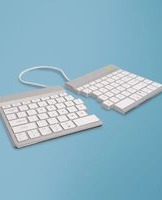

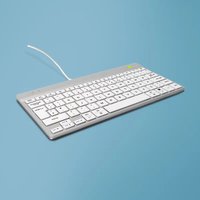
Brand : R-Go Tools
Model : Compact Break
Category : Keyboard