Split Break - Keyboard R-Go Tools - Free user manual and instructions
Find the device manual for free Split Break R-Go Tools in PDF.



| Product type | Split ergonomic keyboard |
| Brand | R-Go Tools |
| Model | Split Break |
| Category | Keyboard |
| Connection | USB-C (cable included) |
| Compatibility | Windows XP/Vista/10/11 |
| Connection cable between the two parts | 31.5 cm and 51.5 cm (included) |
| PC connection cable | USB-C to USB-A (adapter included) |
| Break indicator | Integrated (green, orange, red) |
| LED indicators | Num lock, caps lock, scroll lock |
| Integrated numpad | Yes (right side, activated by Num Lock) |
| USB hub | Yes (port 01 for additional peripherals) |
| Software | R-Go Break (downloadable) |
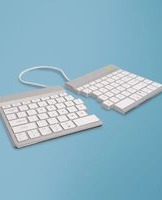
| Design | Two independent parts, adjustable position |
| Typing | Light, minimal muscle tension |
| Design | Slim for a flat hand and wrist position |
| Function keys | Marked in blue, activation via Fn |
| Special function | Fn + A activates/deactivates the break indicator |
| Package contents | Split keyboard, cables, USB-C to USB-A adapter, guide |
Frequently Asked Questions - Split Break R-Go Tools
User questions about Split Break R-Go Tools
0 question about this device. Answer the ones you know or ask your own.
Ask a new question about this device
Download the instructions for your Keyboard in PDF format for free! Find your manual Split Break - R-Go Tools and take your electronic device back in hand. On this page are published all the documents necessary for the use of your device. Split Break by R-Go Tools.
USER MANUAL Split Break R-Go Tools
natural_image
Line drawing of two electronic devices with keys and connectors, no text or symbols presentR-Go Split Break
English manual
Deutsches Handbuch p.11
natural_image
Line drawing of a keyboard with square keys and two cables (no text or symbols)
natural_image
Abstract geometric pattern with white lines on a light blue background, no text or symbols presentergonomic keyboard
R-Go Split Break
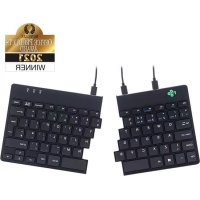
Our ergonomic R-Go Split Break keyboard offers all the ergonomic features you need to type in a healthy way. The two keyboard parts can be placed in any desired position and gives you maximum freedom. This unique design ensures a natural and relaxed position of the shoulders, elbows, and wrists. Thanks to the light keystroke, minimal muscle tension is needed while typing. Its thin design ensures a relaxed, flat position of hands and wrists while typing. The R-Go Split Break keyboard also has an integrated break indicator, which indicates with colour signals when it is time to take a break. Green means you are working healthy, orange means it is time to take a break and red means you have been working too long. #stayfit
System requirements/Compatibility: Windows XP/Vista/10/11

For more information about this product, scan the QR code! https://r-go.tools/splitbreak_web_en
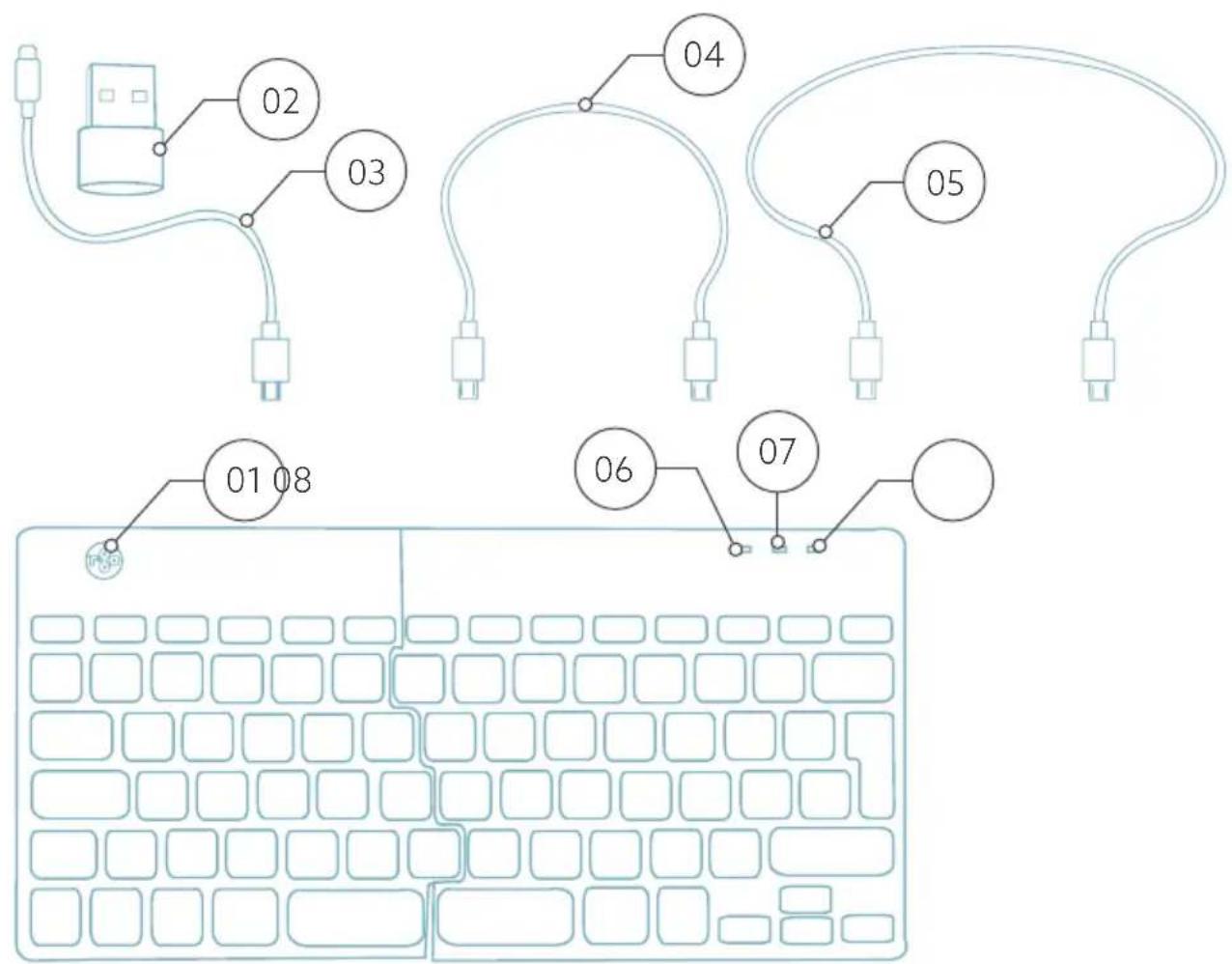
01 R-Go Break indicator
02 USB-C to USB-A converter
03 Cable to connect keyboard to PC (USB-C)
04 Cable (31,5 cm) to connect the two parts
05 Cable (51,5 cm) to connect the two parts
06 Num Lock indicator
07 Caps Lock indicator
08 Scroll Lock indicator
flowchart
graph TD
    A["Port 01"] --> B["Grid Layout"]
    C["Port 02"] --> D["Grid Layout"]
    E["Port 03"] --> F["Grid Layout"]
    G["Port 04"] --> H["Grid Layout"]
    I["Port 05"] --> J["Grid Layout"]
    K["Port 06"] --> L["Grid Layout"]
    M["Port 07"] --> N["Grid Layout"]
    O["Port 08"] --> P["Grid Layout"]
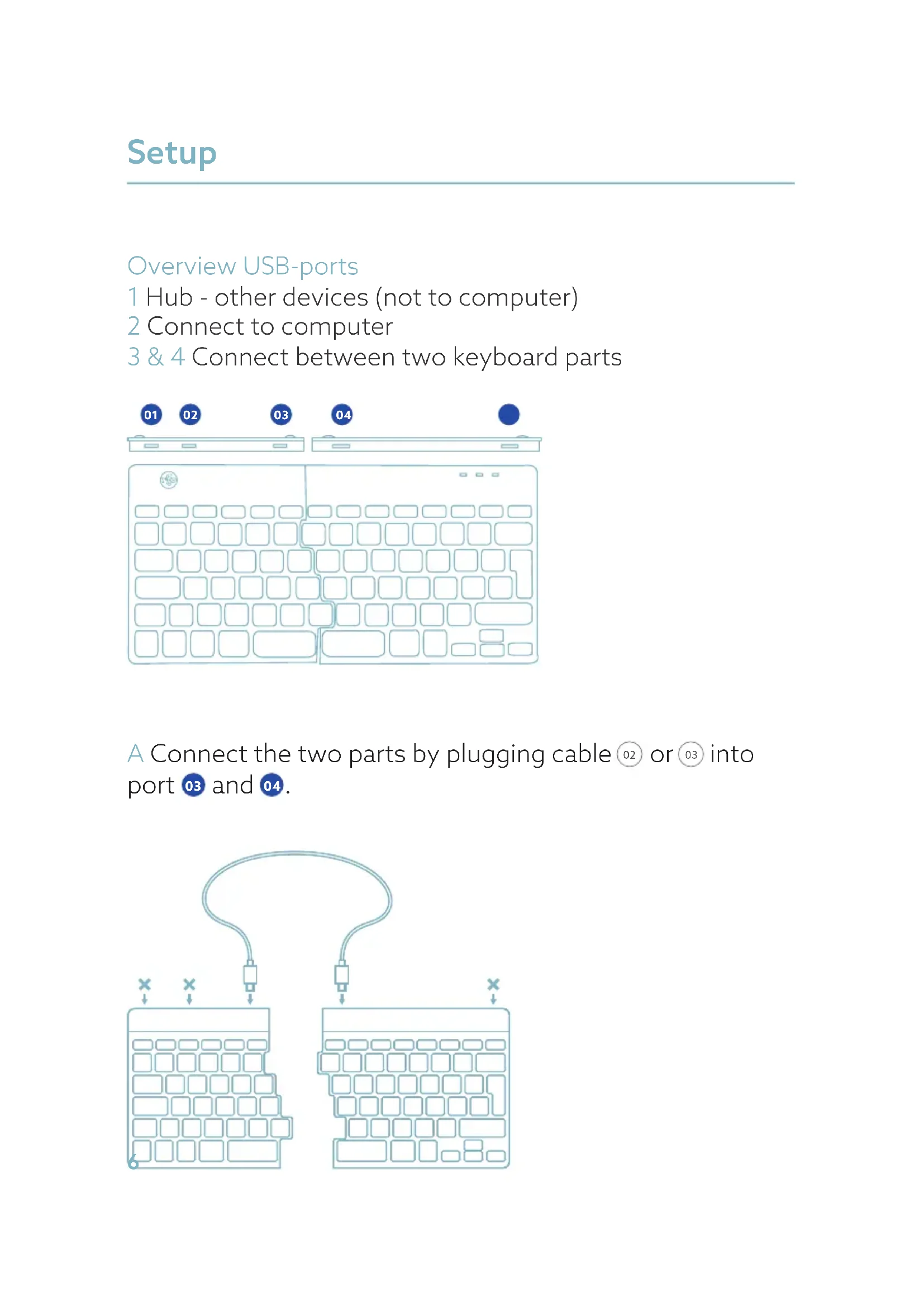
Overview USB-ports
1 Hub - other devices (not to computer)
2 Connect to computer
3 & 4 Connect between two keyboard parts
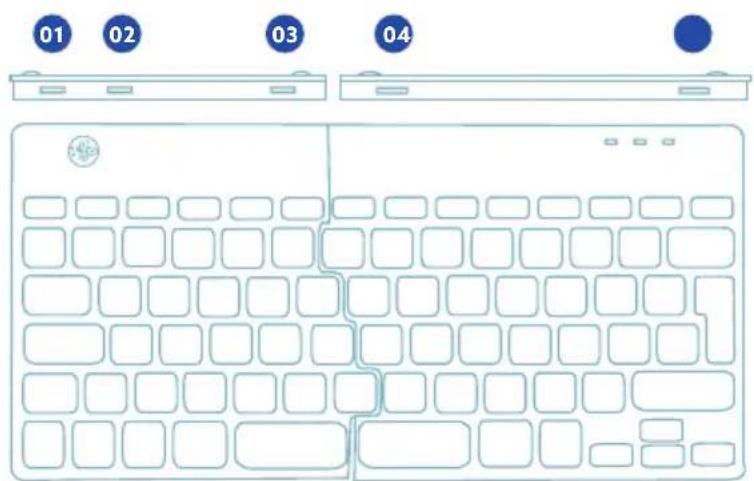
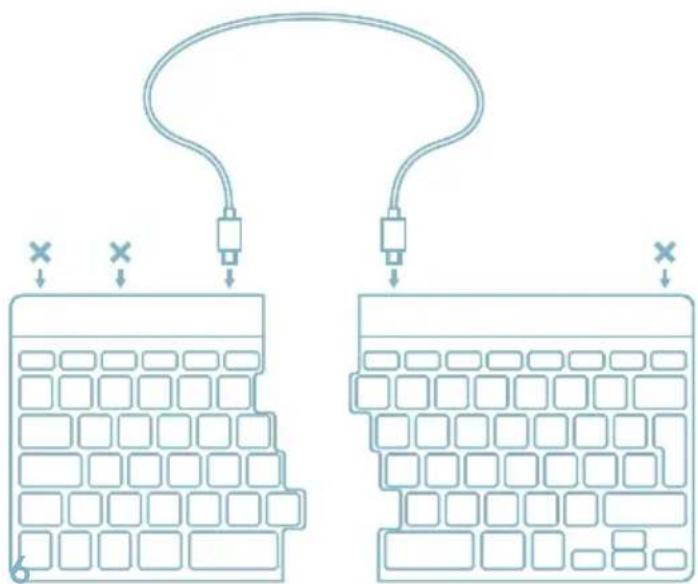
A Connect the two parts by plugging cable 02 or 03 into port 03 and 04.
flowchart
graph TD
    A["Grid Layout 1"] --> B["Line Cable"]
    C["Grid Layout 2"] --> B
    D["Grid Layout 3"] --> B
    E["Grid Layout 4"] --> B
    F["Grid Layout 5"] --> B
    G["Grid Layout 6"] --> B
    H["Grid Layout 7"] --> B
    I["Grid Layout 8"] --> B
    J["Grid Layout 9"] --> B
    K["Grid Layout 10"] --> B
    L["Grid Layout 11"] --> B
    M["Grid Layout 12"] --> B
    N["Grid Layout 13"] --> B
    O["Grid Layout 14"] --> B
    P["Grid Layout 15"] --> B
    Q["Grid Layout 16"] --> B
    R["Grid Layout 17"] --> B
    S["Grid Layout 18"] --> B
    T["Grid Layout 19"] --> B
    U["Grid Layout 20"] --> B
    V["Grid Layout 21"] --> B
    W["Grid Layout 22"] --> B
    X["Grid Layout 23"] --> B
    Y["Grid Layout 24"] --> B
    Z["Grid Layout 25"] --> B
    AA["Grid Layout 26"] --> B
    AB["Grid Layout 27"] --> B
    AC["Grid Layout 28"] --> B
    AD["Grid Layout 29"] --> B
    AE["Grid Layout 30"] --> B
    AF["Grid Layout 31"] --> B
    AG["Grid Layout 32"] --> B
    AH["Grid Layout 33"] --> B
    AI["Grid Layout 34"] --> B
    AJ["Grid Layout 35"] --> B
    AK["Grid Layout 36"] --> B
    AL["Grid Layout 37"] --> B
    AM["Grid Layout 38"] --> B
    AN["Grid Layout 39"] --> B
    AO["Grid Layout 40"] --> B
    AP["Grid Layout 41"] --> B
    AQ["Grid Layout 42"] --> B
    AR["Grid Layout 43"] --> B
    AS["Grid Layout 44"] --> B
    AT["Grid Layout 45"] --> B
    AU["Grid Layout 46"] --> B
    AV["Grid Layout 47"] --> B
    AW["Grid Layout 48"] --> B
    AX["Grid Layout 49"] --> B
    AY["×"] --> AZ["×"]
    BA["X"] --> BB["X"]
    BC["X"] --> BD["X"]
    BE["X"] --> BF["X"]
    BG["X"] --> BH["X"]
    BI["X"] --> BJ["X"]
    BK["X"] --> BL["X"]
    BM["X"] --> BN["X"]
    BO["X"] --> BP["X"]
    BP["X"] --> BR["X"]
    BS["X"] --> BT["X"]
    BU["X"] --> BV["X"]
    BW["X"] --> BX["X"]
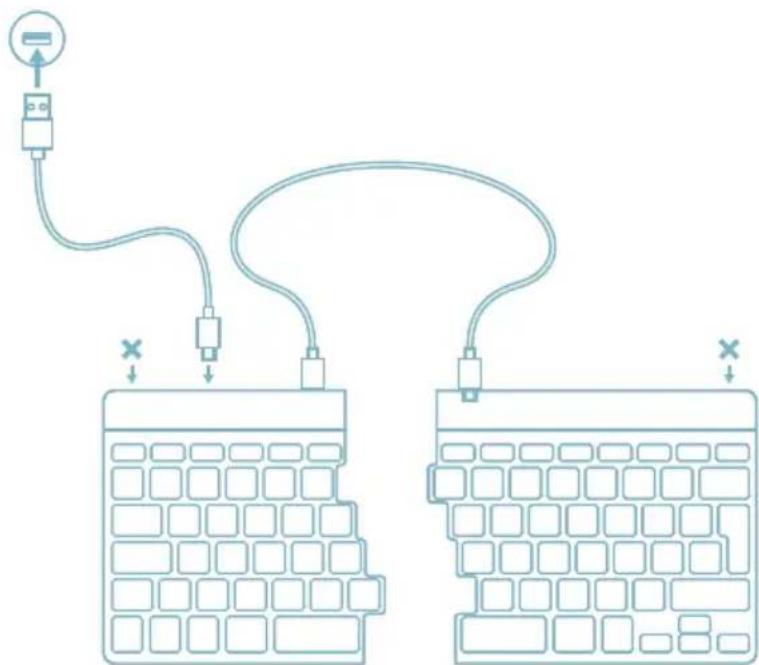
B Connect the keyboard to your computer by plugging the USB-C end of cable 01 into port 02 and the other end into the USB-port of your computer.
flowchart
graph TD
    A["Device"] --> B["Switch"]
    B --> C["Grid 1"]
    B --> D["Grid 2"]
    C --> E["Switch"]
    D --> F["Switch"]
    style A fill:#f9f,stroke:#333
    style E fill:#ccf,stroke:#333
    style F fill:#ccf,stroke:#333
C (Optional) Connect Numpad or another device to the keyboard by plugging them into port 01.

flowchart
graph TD
    A["Input"] --> B["Stage 1"]
    B --> C["Stage 2"]
    C --> D["Stage 3"]
    D --> E["Output"]
The function keys are marked on the keyboard in blue.
To activate a function on the left side of your keyboard, press the Fn-key at the same time as the selected function key. Only activates function keys on the left side of the keyboard.
To use the Numpad integrated in the right side of the keyboard (printed on the keyboard in light blue) activate Num Lock. To use normal keys again, deactivate Num Lock. Only activates the integrated Numpad on the right side of the keyboard.
Note: Fn + A = Break indicator light On/Off
Download the R-Go Break software at https://r-go.tools/bs
The R-Go Break software is compatible with all R-Go Break keyboards. It gives you insight into your work behaviour and gives you the possibility to customize your keyboard buttons.
The R-Go Break is a software tool that helps you to remember to take breaks from your work. As you work, the R-Go Break software controls the LED light on your Break mouse or keyboard. This break indicator changes color, like a traffic light. When the light turns green, it means you are working healthily. Orange indicates that it is time for a short break and red indicates that you have been working too long. This way you receive feedback on your break behavior in a positive way.

For more information about the R-Go Break software, scan the QR code! https://r-go.tools/break_web_en
Is your keyboard not working properly, or do you experience problems while using it? Please follow the steps mentioned below.
- Check if the keyboard is connected using the correct connectors and cables (page 5-6).
- Connect the keyboard to another USB port of your computer.
- Connect the keyboard directly to your computer if you are using an USB hub.
- Restart your computer.
- Test the keyboard on another device, if it is still not working contact us via info@r-go-tools.com.

natural_image
Line drawing of a keyboard with square keys and two cables (no text or symbols)
natural_image
Abstract geometric pattern with white lines on a light blue background, no text or symbols presentnatural_image
Line drawing of a handheld electronic device with grid layout and attached tags (no text or symbols)clavier ergonomique
R-Go Split Break
Ergonomic keyboard
natural_image
Line drawing of a handheld electronic device with grid layout and attached tags (no text or symbols)Voor meer informatie over dit product, scan de QR-code! https://r-go.tools/splitbreak_web_nl
https://r-go.tools/bs

Brand : R-Go Tools
Model : Split Break
Category : Keyboard