
ZV1F - Camera SONY - Free user manual and instructions
Find the device manual for free ZV1F SONY in PDF.



| Product type | Digital camera |
| Brand | Sony |
| Model | ZV-1F |
| Dimensions (L × H × D) | 105.5 × 60.0 × 46.4 mm |
| Weight (with battery and card) | Approx. 256 g |
| Power supply | Rechargeable battery NP-BX1, 3.6 V |
| Screen | TFT touch screen 7.5 cm (type 3.0) |
| Image sensor | CMOS type 1.0 (13.2 × 8.8 mm) |
| Effective pixels | Approx. 20.1 million |
| Main functions | Still image capture, movie recording, slow-motion/fast-motion, smartphone connection |
| Connectivity | USB Type-C, Wi-Fi IEEE 802.11 b/g/n, Bluetooth 2.4 GHz |
| Storage | SD memory card or Memory Stick (sold separately) |
| Included accessories | NP-BX1 battery, USB Type-C cable, wind screen, wind screen adapter, lens cap |
| Maintenance and cleaning | Use a blower or cleaning cloth to remove dust from packaging materials |
| Safety | Do not expose the lens to direct sunlight; do not use near medical devices sensitive to magnets; stop using if the screen is damaged |
| Operating temperature | 0 °C to 40 °C |
| Storage temperature | -20 °C to 55 °C |
Frequently Asked Questions - ZV1F SONY
User questions about ZV1F SONY
0 question about this device. Answer the ones you know or ask your own.
Ask a new question about this device
Download the instructions for your Camera in PDF format for free! Find your manual ZV1F - SONY and take your electronic device back in hand. On this page are published all the documents necessary for the use of your device. ZV1F by SONY.
USER MANUAL ZV1F SONY
https://www.sony.net/ SonyInfo/Support/
SONY.
5-041-855-31(1)
HL-ANZ
ZV-1F

"Help Guide" (Web manual)
Refer to "Help Guide" for in-depth
instructions on the many
functions of the camera.
https://rd1.sony.net/help/dc/2210/h_zz/
Digital Camera / Startup Guide EN
We use environmentally conscious packaging materials
Environmentally conscious packaging materials were used for the camera and supplied accessories.
Note the following due to the characteristics of the packaging materials.
- Powder, etc. from the packaging materials may adhere to the camera or supplied accessories. In this case, remove it with a commercially available blower or cleaning paper before use.
- The packaging materials will deteriorate with continuous use. Be careful when carrying the product by the packaging.
About the manual for this camera

"Help Guide" (Web manual)
https://rd1.sony.net/help/dc/2210/h_zz/
ZV-1F Help Guide


This guide describes the necessary preparations to start using the product, basic operations, etc. For details, refer to the "Help Guide" (web manual).
Looking for valuable information, such as essential points on shooting
This website introduces convenient functions, ways of usage, and setting examples.
Refer to the website when you set up your camera.

Tutorials
https://www.sony.net/tutorial/dc/zv1f/
Preparations
Checking the supplied items
The number in parentheses indicates the number of pieces.
- Camera (1)
- Wind screen adaptor (1)
- Rechargeable battery pack NP-BX1 (1)
- Lens cap (1) (attached to the camera)
- USB Type-C® cable (1)
- Startup Guide (this manual) (1)
- Wind screen (1) (attached to the wind screen adaptor)
Reference Guide (1)
EN
Inserting the battery pack (supplied)/memory card (sold separately) into the camera
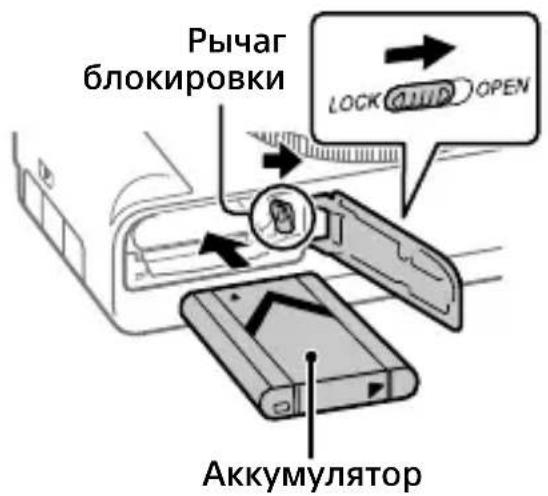
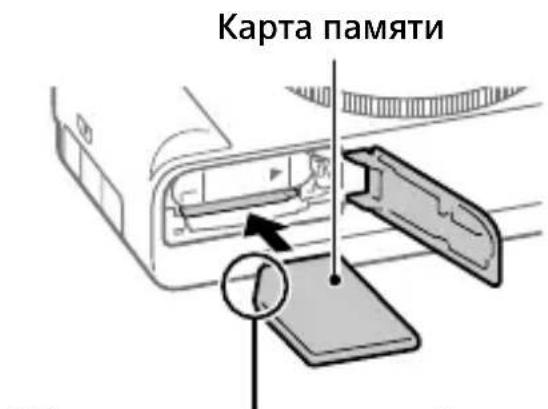
Open the battery/memory card cover, and insert the battery pack and a memory card into the camera. Then, close the cover.


Ensure the notched corner faces correctly.
Battery pack
Make sure that the battery pack is facing in the correct direction, and insert it while pressing the battery lock lever.
Memory card
Insert the memory card with the notched corner facing as illustrated.
This camera is compatible with SD memory cards or Memory Stick media. For details on the compatible memory cards, refer to the "Help Guide."
When you use a memory card with this camera for the first time, format the card using the camera in order to stabilize the performance of the memory card.
Note
- Formatting erases all data, including protected images. Once erased, this data cannot be restored. Save valuable data to a computer, etc. before formatting.
Charging the battery pack

1 Turn the power off.
If the camera is turned on, the battery pack will not be charged.
2 Using a USB Type-C cable (supplied), connect the USB Type-C terminal of the camera to an external power source, such as a commercially available USB AC adapter or mobile battery.
The charge lamp will light up when charging starts. When the charge lamp turns off, charging is completed.
Performing initial setup for the camera
By connecting the camera and a smartphone with the Bluetooth function, you can perform initial camera setup such as date and time settings from the smartphone. Install the dedicated smartphone application on your smartphone in advance.
Install the dedicated smartphone application from the following webpage. Also, update to the latest version of the application.

https://www.sony.net/ca/
EN
1 Press the ON/OFF (Power) button to turn on the camera.
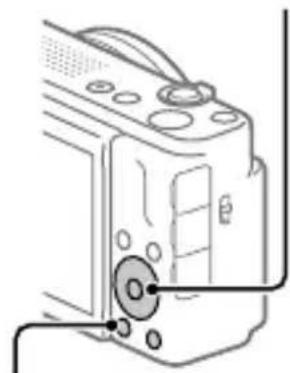
2 Select the desired language and then press the center of the control wheel.
- The privacy notice screen will appear. Read the privacy notice regarding biometrics by opening the link using your smartphone, etc.
3 Press the center of the control wheel.
4 Follow the instructions on the camera screen to register your smartphone.
- Launch the dedicated application on your smartphone to pair the camera with your smartphone.
- If you select to register your smartphone later, the area/date/time setting screen will appear.
To register your smartphone to the camera after the initial setup, select MENU (Network)
→[Smartphone Connect]→ [Smartphone Regist.].
ON/OFF (Power) button
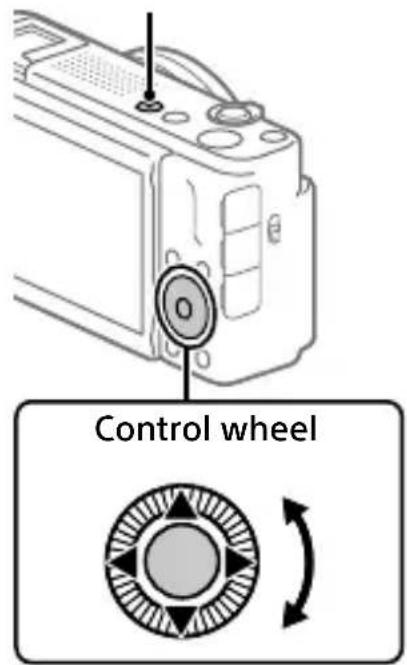
Select items: ▲/▼/▲/▶/
Confirm : Center button
5 Perform the initial camera setup on the screen of the dedicated application.
-
Follow the instructions on the screen to set the following items.
-
Area/Date/Time
- Auto Power OFF Temp.
- Device Name
You can change these settings later from the camera menu.
Shooting
Shooting movies
1 Press the Still/Movie/S&Q button to select the movie recording mode.
Each time you press the button, the shooting mode switches in the order of still image shooting mode, movie recording mode, and slow-motion/quick-motion shooting mode.
2 Press the MENU button and select
(Shooting) [Shooting Mode]
[foot Mode] the desired shooting mode.
Still/Movie/S&Q button
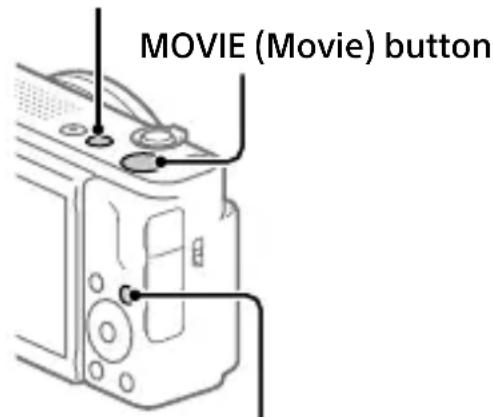
MENUButton
3 Press the MOVIE (Movie) button to start recording.
4 Press the MOVIE (Movie) button again to stop recording.
Hint
- The start/stop movie recording function is assigned to the MOVIE (Movie) button in the default settings. Even without switching shooting modes in Step 1, you can start movie recording from still image shooting mode by pressing the MOVIE (Movie) button.
Using the wind screen (supplied)
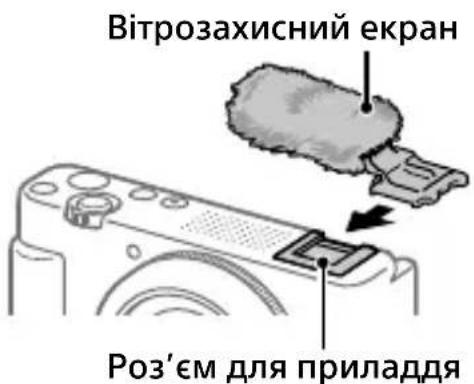
Use the wind screen to reduce wind noise picked up by the internal microphone when recording a movie.
Attach the wind screen to the Accessory Shoe.

Shooting still images
1 Press the Still/Movie/S&Q button to select the still image shooting mode.
Each time you press the button, the shooting mode switches in the order of still image shooting mode, movie recording mode, and slow-motion/quick-motion shooting mode.
2 Press the MENU button and select (Shooting) → [Shooting Mode] → [Shoot Mode] → the desired shooting mode.
![SONY ZV1F - Press the MENU button and select (Shooting) → [Shooting Mode] → [Shoot Mode] → the desired shooting mode. - 1](/content/2026/04/604047/images/ccc60edae9fa16d4cb900f8f9444d7ac97d25b3ea0eaf87e4a6d1e714d0032cd.jpg)
3 Press the shutter button halfway down to focus.
4 Press the shutter button all the way down.
Viewing
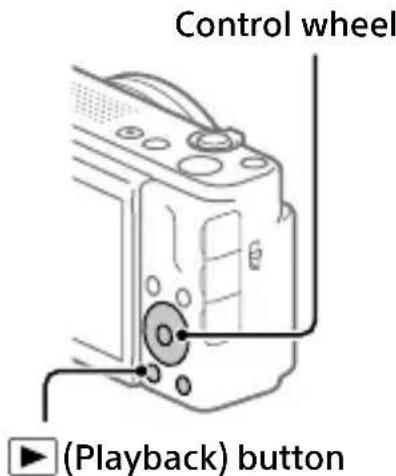
1 Press the (Playback) button to switch to the playback mode.
2 Select an image with the control wheel.
You can move to the previous image/ next image by pressing the left/right side of the control wheel.
To start playing back a movie, press the center button on the control wheel.
About the dedicated smartphone application
By using the dedicated smartphone application, you can transfer images to the smartphone and view images stored on the camera on the smartphone.
To use the dedicated application, you need to pair the camera with your smartphone.
For details on the pairing method, refer to the following Help Guide (Web manual) URL:

https://rd1.sony.net/help/dc/2210_pairs/h_zz/
Note
- The name, operating method, screen display, etc. of the dedicated application may change without notice due to future version upgrades.
Notes on use
Refer to "Precautions" in the "Help Guide" as well.
Notes on handling the product
- This camera is designed to be dust- and moisture-resistant, but is not waterproof or dust-proof.
- Do not leave the lens exposed to a strong light source such as sunlight. Because of the lens's condensing function, doing so may cause smoke, fire, or a malfunction inside the camera body or the lens. If you have to leave the camera exposed to a light source such as sunlight, attach the lens cap to the lens.
- If sunlight or other strong light enters the camera through the lens, it may focus inside the camera and cause smoke or fire. Attach the lens cap when storing the camera. When shooting with backlighting, keep the sun sufficiently far away from the angle of view. Even if it is slightly away from the angle of view, smoke or fire may still occur.
- Do not directly expose the lens to beams such as laser beams. That may damage the image sensor and cause the camera to malfunction.
- This camera (including accessories) has magnet(s) which may interfere with pacemakers, programmable shunt valves for hydrocephalus treatment, or other medical devices. Do not place this camera close to persons who use such medical devices. Consult your doctor before using this camera if you use any such medical device.
- This camera is equipped with a magnetic sensor. If the camera is placed too close to a magnet or a device with an internal magnet, the camera may turn on. Take care not to place the camera near any magnetic devices.
- Increase the volume gradually. Sudden loud noises can damage your ears.
- Do not leave the camera, the supplied accessories, or memory cards within the reach of infants. They may be accidentally swallowed. If this occurs, consult a doctor immediately.
Notes on the monitor
- The monitor is manufactured using extremely high-precision technology, and over 99.99% of the pixels are operational for effective use. However, there may be some small black dots and/or bright dots (white, red, blue or green in color) that constantly appear on the monitor. These are imperfections due to the manufacturing process and do not affect the recorded images in any way.
- If the monitor is damaged, stop using the camera immediately. The damaged parts may harm your hands, face, etc.
Notes on continuous shooting
When shooting still images continuously, the monitor may flash between the shooting screen and a black screen. If you keep watching the screen in this situation, you may experience uncomfortable symptoms such as feeling of unwellness. If you experience uncomfortable symptoms, stop using the camera, and consult your doctor as necessary.
Notes on recording for long periods of time or recording 4K movies
Depending on the camera and battery temperature, the camera may become unable to record movies or the power may turn off automatically to protect the camera. A message will be displayed on the screen before the power turns off or you can no longer record movies. In this case, leave the power off and wait until the camera and battery temperature goes down. If you turn on the power without letting the camera and battery cool sufficiently, the power may turn off again, or you may still be unable to record movies.
- The camera body and battery may become warm with use - this is normal.
-
If the same part of your skin touches the camera for a long period of time while using the camera, even if the camera does not feel hot to you, it may cause symptoms of a low-temperature burn such as redness or blistering. Pay special attention in the following situations and use a tripod, etc.
-
When using the camera in a high temperature environment
-
When someone with poor circulation or impaired skin sensation uses the camera
-
When using the camera with [Auto Power OFF Temp.] set to [High]
Notes on using a tripod
Use a tripod with a screw less than 5.5mm (7/32 inches) long. Otherwise, you cannot firmly secure the camera, and damage to the camera may occur.
Sony accessories
Using this unit with products from other manufacturers may affect its performance, leading to accidents or malfunction.
Warning on copyrights
Television programs, films, videotapes, and other materials may be copyrighted. Unauthorized recording of such materials may be contrary to the provisions of the copyright laws.
Notes on location information
If you upload and share still images or movies taken with this camera on the Internet while the location information is linked with the dedicated smartphone application, you may accidentally reveal the location information to a third party. To prevent third parties from obtaining your location information, deactivate the [Location Information Linkage] function of the dedicated application.
Notes on discarding or transferring this product to others
Before discarding or transferring this product to others, be sure to perform the following operation to protect private information.
- Select [Setting Reset] [Initialize].
Notes on discarding or transferring a memory card to others
Executing [Format] or [Delete] on the camera or a computer may not completely delete the data on the memory card. Before transferring a memory card to others, we recommend that you delete the data completely using data deletion software. When discarding a memory card, we recommend that you physically destroy it.
Note on network functions
When you use network functions, unintended third parties on the network may access the camera, depending on the usage environment. For example, unauthorized access to the camera may occur in network environments to which another network device is connected or can connect without permission. Sony bears no responsibility for any loss or damage caused by connecting to such network environments.
How to turn off wireless network functions (Wi-Fi, etc.) temporarily
When you board an airplane, etc., you can turn off all wireless network functions temporarily using [Airplane Mode].
For Customers in the U.S.A. and Canada
This equipment complies with FCC radiation exposure limits set forth for an uncontrolled environment and meets the FCC radio frequency (RF) Exposure Guidelines. This equipment has very low levels of RF energy that is deemed to comply without testing of specific absorption rate (SAR).
The available scientific evidence does not show that any health problems are associated with using low power wireless devices. There is no proof, however, that these low power wireless devices are absolutely safe. Low power Wireless devices emit low levels of radio frequency energy (RF) in the microwave range while being used. Whereas high levels of RF can produce health effects (by heating tissue), exposure of low-level RF that does not produce heating effects causes no known adverse health effects. Many studies of low-level RF exposures have not found any biological effects. Some studies have suggested that some biological effects might occur, but such findings have not been confirmed by additional research.
This equipment has been tested and found to comply with ISED radiation exposure limits set forth for an uncontrolled environment and meets RSS-102 of the ISED radio frequency (RF) Exposure rules.
For Customers in the U.S.A.
For question regarding your product or for the Sony Service Center nearest you, call 1-800-222-SONY (7669).
Supplier's Declaration of Conformity
Trade Name:SONY
Model:WW145753
Responsible Party : Sony Electronics Inc.
Address: 16535 Via Esprillo, San Diego, CA 92127 U.S.A.
Telephone Number : 858-942-2230
For Customers in Europe
| IEEE802.11 b/g/n | 2 400 MHz < 60 mW e.i.r.p. |
| Bluetooth 2 | 400 MHz < 10 mW e.i.r.p. |
Hereby, Sony Corporation declares that this equipment is in compliance with Directive 2014/53/EU.
The full text of the EU declaration of conformity is available at the following internet address:
https://www.compliance.sony.eu
Hereby, Sony Corporation declares that this equipment is in compliance with the UK relevant statutory requirements.
The full text of the declaration of conformity is available at the following internet address:
https://compliance.sony.co.uk
For Customers in Indonesia
IEEE802.11b/g/n 2400MHz
Bluetooth 2400 MHz
Specifications
Camera
[System]
Camera Type: Digital Camera
[Image sensor]
Image format: 13.2mm× 8.8mm (1.0 type), CMOS image sensor
Effective pixel number of camera: Approx. 20 100 000 pixels
Total pixel number of camera: Approx. 21000000 pixels
[Monitor]
7.5 cm (3.0 type) TFT drive, touch panel
[General]
Rated input: 3.6V = -1.5W
Operating temperature: 0^ to 40^ (32°F to 104°F)
Storage temperature: -20^ to 55^ (-4^ to 131^)
Dimensions (W/H/D) (Approx.): 105.5 × 60.0 × 46.4 mm ( 41/4 × 23/8 × 17/8 in.)
Mass (Approx.): 256 g (9.1 oz)
(including battery pack, SD Card)
[Wireless LAN]
Supported format: IEEE 802.11 b/g/n
Frequency band: 2.4 GHz
Security: WEP/WPA-PSK/WPA2-PSK
Connection method: Wi-Fi Protected SetupTM (WPS)/ Manual
Access method: Infrastructure mode
Rechargeable battery pack NP-BX1
Rated voltage: 3.6V
Design and specifications are subject to change without notice.
Trademarks
- USB Type-C® and USB-C® are registered trademarks of USB Implementers Forum.
- Wi-Fi, the Wi-Fi logo and Wi-Fi Protected Setup are registered trademarks or trademarks of the Wi-Fi Alliance.
- The Bluetooth® word mark and logos are registered trademarks owned by Bluetooth SIG, Inc. and any use of such marks by Sony Group Corporation and its subsidiaries is under license.
- QR Code is a trademark of Denso Wave Inc.
- In addition, system and product names used in this manual are, in general, trademarks or registered trademarks of their respective developers or manufacturers. However, the ^TM or ^ marks may not be used in all cases in this manual.
Additional information on this product and answers to frequently asked questions can be found at our Customer Support Website.
https://www.sony.net/
EN
https://rd1.sony.net/help/dc/2210/h_zz/
ZV-1F Guide d'aide

https://www.sony.net/ca/
Bouton ON/OFF (Alimentation)
FR

Pour selectionner des
elements: / / / / Pour confirmer:Bouton central
https://rd1.sony.net/help/dc/2210/h_zz/
ZV-1F Guía de ayuda
https://www.sony.net/ca/
https://rd1.sony.net/help/dc/2210/h_zz/
ZV-1F Guida

https://www.sony.net/ca/
Wi-Fi Protected SetupTM (WPS)/
$$ \text {m a n u a l e} $$
https://www.sony.net/ca/
https://rd1.sony.net/help/dc/2210/h_zz/
ZV-1F
Hilfe

https://www.sony.net/ca/
https://rd1.sony.net/help/dc/2210/h_zz/
ZV-1F Helpgids

https://www.sony.net/ca/
Nominate spanning: 3,6 V ---
https://rd1.sony.net/help/dc/2210/h_zz/
https://www.sony.net/ca/
https://rd1.sony.net/help/dc/2210/h_zz/
https://www.sony.net/ca/
105,5 × 60,0 × 46,4 mm
https://rd1.sony.net/help/dc/2210/h_zz/
ZV-1F Sugóutmutato

https://www.sony.net/ca/
https://rd1.sony.net/help/dc/2210/h_zz/
ZV-1F Priručka

https://www.sony.net/ca/
1 Stlačením tlacidla ON/OFF (Napájanie) zapniteOTOAPARAT.
2 Zvolte požadovany jazyk a potom stlačte stred ovladacieho kolieska.
- Zobrazsa obrazovka upozornim na ochranu sukromia. Precitajte si upozornenie na ochranu sukromia ohladom biometrie otvorenim prislu'sneho odkazu pomocou svojho smartfónu atd.
3 Stlache stred ovladacieho kolieska.
Tlačidlo ON/OFF (Napájanie)

Volba polożiek: ▲/▼/▲/▶/V/ Potvrdenie: Stredové tlacidlo
4 Podla pokynov na obravokte fotoaparatu zaregistrujte svoj smartfon.
- Spustite prislušné aplikáciu vo svojom smartfône, aby bolo możné spárovat Fotoaparát s vašim smartfónom.
- Ak sa rozhodnete zaregistrovat' svoj smartfon neskôr, zobrázi sa obrazovka nastavenia oblasti/datumu/času.
- Ak chcete zaregistrovát svoj smartfón do fotoparátu po počiatočnom nastavení, zvolte MENU → (Network) → [Smartphone Connect] → [Smartphone Regist.].
06paaataecb K daHHomy Be6-caity npn HacTpoKe KaMepbl.

Yue6HbIe MaTePnaJIbl
https://www.sony.net/tutorial/dc/zv1f/
I PoiDrToTobKa
Поберka komплектуни
YncnoB CkO6kax yKa3bIbAeT KOJIuYeCTBO WtYK.
- Kamepa (1)
- AkkymyTop NP-BX1 (1)
- Ka6eIb USB Type-C® (1)
- BeTpO3aUHTbI KcpaH (1) (PpNkpeIeN KaIaNTepy BeTpO3aUHTHOrO 3KpaHa)
- AДаNTep BeTpO3aUHTHOrO эКраHa (1)
KpbIuKa o6BeKTnBa (1)
(HaideBaetcHa KaMepy)
-PykoBOIDCTBONoHaaypa6OtbI
(Данhoe руковдъо) (1)
CnpaBoUHnK(1)
BcTaBka aKKymyIaTopa (npnlaeraTc)/kapTbI naMaTn (npoJaTeCra OTdEJIbHo) B KaMepy
OTKpoTe KpbIaKy OTCeKa aKKymyIaTopa/KapTbI NaMrtu N BCTaBbTe aKKymyIaTOp N KapTy NaMrtu B KaMepy. 3aTeM 3aKpoTe KpbIaKy.
RU
Y6eHNTecb, yTo cpe3aHHbIyroI paCNOLOXKeH npaBnJIbHO.
AkkymyIaTOp
Y6eIITecb B TOM, yTO aKKymyJrTop HnpaBJIeH npaBnJIbHO, n BCTaBbTe erO, Haxmaj pbyar 6JOKnPOBKn aKKymyJrTopa.
Kapta naЯту.
BCTaBbTe KapTu NaMAtu TaKIM 06pa3OM, yTO6bl 3a3y6peHbI yrOJI 6bl paCNoJIOKeH, KaK NOKa3aHO Ha pNCyHke.
Данна камета сбмсma c Kapamn NamrTSD nMemory Stick.
Ioppo6He o coBmectnmbix KapTAX namrtn cm. "CnpaBOuHoe pyKOBoDCTBO".
Pn nCnoB3OBaHn KaPTbI NaMaTn C daHHoN KaMepoB B nepBbI pa3 OToOpMaTnpuYTe KaPTy C NOMOUsbIO KaMepbI dIra oBeCneueHnca6nJIbHOpa60TbI KaPTbI NaMaTn.
PpmeHne
-ФорMaTnPoBaHne ydaJIaTe BCE daHHbIe, BKJIIOUa 3aUINuEHHbIe n3O6paXeHn. IocNe ydaJIeHn BOCCTaHOBITb 3TN daHHbIe 6yIeT HeBO3MOxHo. IpeEd fOpMaTnPoBaHnem COxpaHInTe ueHHbIe DaHHbIe Ha KOMNbIoTepe n T.I.
3apянka aKKymyЯTopa

1 OTKJIIOUHTe pNTaHne.
Ecn Kamepa BkIoueHa, aKKymyJrTop He 6ydet 3apxKaTbcra.
2 Cnomoou Ka6eJy USB Type-C (npunaraetc) noKJIouHte pa3beM USB Type-C KamepbI K BHeuHemy nCTOuyHKy nHTaHn, Hapmep mHeouemcyB npodaxe aanTepy nepemehHoro ToKa USB nn nepehoCHOMy aKKymylrTopy.
Korda naHayHeTc3apdka,3aRopntcnaHdkatop 3apdKn.KoRa 3apdKa 3aBepwnTc, nHdkatop 3apdKn norachet.
https://www.sony.net/ca/
1 Haxmte KhoNky ON/OFF (Iitahne) Дя BKJIoueHЯ KaMepbl.
2 BbI6epnTe HxKhbl I3blk, a 3aTeM hXMMte no ceHtpy Kolecnka ynpablenen.
- IoRbntc3 kpaH yBeOmJIeHnO KOHnIeHuaJIbHOCTN. IpOHTte yBeOmJIeHne O KOHnIeHuaJIbHOCTN KacatJIb 6nOMetpN,OTKpbIB CcblKy C NOMOuCMapTfoHa nT.I.
3 Haxmte no ceHtpy KoIecnka ynpaBneHna.
KhoNka ON/OFF (Ntahne)

BbI6Op nyHKTOB: / / / / RU
PoiTBePjKeHne: UeHTpaJIbHaJ
KHONKa
4ДЯpernctrpaunn cMaprTfoHa cIeDyTe HNCTpyKcHMa 3KpaHe KaMepbl.
- 3anyctnte cneuaJIbHoe npIIOxHeHa cMapTfoHe dIra cOnpJxHnKaMepbI CO cMapTfoHOM.
- EcIn Bbl BblbepTe peRnCTpaunIO CmapTfoHa N03Ke, NOBNTcRA 3KpaH yCTaHOBKn Oblactn/daTbI/BpeMeHN.
- Дя Perinctpaцин смартфona Ha KaMepe посе Начально Настой Выберпгte MENU (Cetb) [Фун.порк. смарт.] [Perinctp.cmaptфona].
5 BbINOJIHHeHne HauJIbHOJ HaCTpoiKN IJa KaMepbI Ha 3KpaHe cNeuaJIbHOrO npILOXeHnY.
Cpok rapaHTn (neT): 2. Cpok cnjx6bl (neT): 7.
IpnOBnApUxKeHnnpOn3BOOCTBeHHbIX HeIOCTaTKOB n3dJIINB TeueHne Cpoka rapaHTn CoHn IIn ABTopu3OBaHHbIe CepBnCHbIe LcHTpbI (ACU) no CBOemy yCMOTpeHnIO JIn6o yCTpaHrt INxC NcNoJb3OBaHHem HObIx INI BOCCTaHOBJEHbIX 3aIyAcTei, JIn60 3aMeHrT n3dJIe aHaJIoRnHbIM HObIM INI BOCCTaHOBJEHbIM, JIn6o BO3MeCTaYpNaeHHyIO CTOnMoct. PeKomeHnyETcA COxpaHNT bOKyMeHT, NOITBEpxKaIoussI DaTy NOKyKNN 3dJeLII.
Дя coхраня Гарази Heo6xOIMO CO6JIIOdaTb INHCTpyKcIN No IcnoIb3OBaHnIO, XpaHeHIO N TpaHCnopTnpOBKe, 3KcNlyaTnpOBaTb I3JeIne TOJbKO B JInuHbIX I DomaUHIX ZeIax, He NOBBePraTb MOINKaCIN IIN HeKBaIIINΦUncpoBaHHomy peMOHTY, He yJaJIaTb 3TNKeTKy C cepINHbIM HomepOM.
TapaHTn CoHn He orpaHnUBAeT npaba Notpe6nteJen, yCTaHOBHeHHbIe npIMeHMbIM 3aKOHOdaTeJIbCTBOM BOTHOWeHN TOPROBNI NOTpe6nteJIbCKmN TOBaPAMN.
Cnyk6a noDepKKn:
Pocca 8 800 200 76 67
Bénapycb 8 820 0071 76 67
Ka3axCTaH 8 800 070 70 35
Дугпстранbl+74952587669
e-mail info@sony.ru
https://rd1.sony.net/help/dc/2210/h_zz/
ZV-1F DoBikka


Y cIbOMy noci6Hnky onncaHO Heo6xIDHI dii 3 NiIroTOBKn Do noaTky KOpNCTyBaHHRA BnpO6OM, OCHOBHI onepauiToIo. DOKJaDi Hi BiDOMOCTi DNIBITbcra B noci6Hnky «IOBikKa» (Be6-DoBIDnK).
https://www.sony.net/ca/
1 HaTnchitb KhONky ON/OFF (XnBJIeHHa), 06 yBIMKHyTN foToanapat.
2 Bn6epitb notpi6Hy MOBy i HaTncHITb nOcepeuHi dNcKa KepyBaHHa.
3'ЯВЯETbCЯ ekpaH cNoBiUeHHЯ npo KOHΦIeHciHicTb.ПрочТaTe y cNoBIuEHHI npo KOHΦIeHciHicTb npo 36npaHHa BiMeTpnuHnx DaHnx, BiKpNBuN NOcIIaHHa 3a DOONOMOIO CmApTfoHa ToIo.
3 Hatachitb nocepeHHi ncka KepyBaHHa.
KhoNka ON/OFF (XnBneHn)

Bn6epitb noTpipHn nyHKT: A/V/4/10
ПиТВерпьTe: ueHTpaJIbHa KHOнKa
UA
4 ь6 3apecctpyBaTN cMapTfoH, dOpTpmyITeCb IHCTpyKcii Ha ekpaH i foToanapata.
- 3anycitb cneiajbHy nporpaMy Ha cmapTfoHi, uo6 yTBOpTu napy mixk fotoanapatom i cmapTfoHom.
-Якwo BV Bn BiPiWnte 3apeectpyBaTn cMapTfoH Ni3HiWe,3'YBNTbcR ekpaH HanaStTyBaHHa perioHy/daTn/yacy. - Μιοб заpeepsilon pyBaTи смартфон Ha ФоTOanapati nicя
- поаTKOBOrO наlaштуВання, виберить MENU → (Мерека) → [Фун.3'ЕДH.CmApT.] → [Peepsilon.cMapTфОHy].
5 BnkoHaTe noaTKObe HalaStyBaHHa FOToanapata Ha ekpaHcneiaIbHOI nporpamn.
-ДOTpIMyITeCb Bka3IBOK Ha ekpaHi, ьбВCTaHOBHTn TaKi HalaSTYBaHHJ.
- PerioH/daTa/uaC
-Temn.abT.BMk.KuB.
-IM'Я npucpoIO
Li HanaTsyBaHH MoXHa 3MiHnTi Ni3HiWe y MeHIO fOtoanapata.
3йомka
Bideo3HOMka
1 Hatachitb KhoNky Foto/Bideo/S&Q, 06 Bn6paTn peKIM BiDeo3HOMKn. 3op3y, KOJI N HataNcKaTe KHOJky, peKIM 3IOMKN 3MiHIOETbcraB TaKOMy npAiky: peKIM fOTOrpaΦyBaHHa, peKIM BiDeO3HOMKn, 3IOMka BVynOBiJIbHeHOMy/npnCKopeHOMy peKIMi.
2 HaTnchItb KhoNky MENU i Bn6epiTB (3noMka) [Pexm 3noMkn] [KIM 3oMkn] nOtpi6Hni peXm 3oMkn.
3 306 po3noatn 3aHnc, HATNCiTb KHonky MOVIE (Bideo3HOMka).
4 406 3yynnntn 3a nnc, HATNCiB KhONky MOVIE (bideo3mka) ue pa3.
Пидазka
3a 3amOByBaHHaM yHKiia NOaTKy/3ynHeHHa BiDeo3HOMKn npn3HaueHa Khoi MOVIE (BiDeo3HOMka). HabItb 6e3 nepemKaHHa peXmIB 3HOMKn Ha Kpoi 1 Bn MoKeTe noaTn BiDeo3HOMky 3peXmMy FOTo3HOMKn, HATNCHyBUn KHOJKy MOVIE (BiDeo3HOMka).
BnKopncTahnBaItpo3axnchoro ekpaHa (doaetbca)
BnKOpNCToByTe BITpO3axnChn ekpaH dIy UcyHeHHa YmBy BITpy, 0o 3aNcYcTbCra BHyTpIiShHIM MIKpofoHom nIac BiJeO3nOMKn. Pd'cHaHTe BITpO3axnChn ekpaH do PO3'Emy dIy npnaDJa.
ΦOTO3HOMKa
1 Hatachitb KhoNky Foto/BiJeO/S&Q, 06 Bn6paTHpeXm foTo3HOMKn.
UOpa3y, KOJI N Bn HaTnCKaTe KHOnKU, peXIM 3HOMKn 3MiHIOETbC8 B TaKOMY IopIaKy: peXIM FOToRpaΦyBaHHa, peXIM BiDeO3HOMKn, 3HOMKa ByNobIbHeHOMy/npnCKopeHOMy peXIMi.
2HaTnCHiTb KhONky MENU i Bn6epiTb (3HOMka) [PexKm 3HOMKn] [EeKm 3HOMKn] noTpHi pexKm 3HOMKn.
![SONY ZV1F - 2HaTnCHiTb KhONky MENU i Bn6epiTb (3HOMka) [PexKm 3HOMKn] [EeKm 3HOMKn] noTpHi pexKm 3HOMKn. - 1](/content/2026/04/604047/images/bf6a31cf1e07159736806ca9a9bb82a8326f51b8d95ced47f56492e7ea6c1900.jpg)
3 HaTnchItb KhoNkCy cnycky do noJIOBHH, 0o6 BnKoHaTu φokycBaHna.
4 NOBHICTU HaTnCHiTb KHONKY cnycky.
Ipeperla
1HaTnCHiTb KHONky BIDTBOpEHNa), 06 nepeynB peKm BiIDTBOpEHNa.
2 3a ДОПOMΟΤΟ ДИСΚΑ КЕРУBAннь ВИБЕРТВ 30БРАЖЕнг.
Ioo6 nepexoHTn Do nonepeHbOro/ NaCTynHO 306paXeHHa,HaTnCKaTe IIBn/npaBn Kpa DnCKa KepyBaHHa.
Io6 po3noatn BiTbOpEHn Bideo, HATNCiTB KHOPI NOcepeDnHi DnCKa KepyBaHHa.
ДиСК КерУВаHHЯ
KhoNka BIDTBOpEHnA
IInΦopMaúi Ipo CneúaIbHy npOgpaMу IJy cMapTΦoHy
3a donomoroio cneiaibhoi nporpamn IJy cMapTfoHy moxHa nepeHocHTN 3o6paXeHHa h CmapTfoH i npeRJaATn Ha CmapTfoHi 3o6paXeHHa 3
fotoanapaty.
Дя Викорисань сецiaльной рогами Heo6xIDNo yTBOPuTn napy mixk фOTOanapaTom i cMapTфOHOM.
[3araJIbHi BiIDomOCTi]
HomHaJIbHa BxIDHa NOTyXHicTb: 3,6B1,5BT
Poboua TemnepaTpa: BiD 0°C Do 40°C
Tempepatya 36epiraHHa: BiD-20°Cdo55°C
Pozmipn (L/B/Γ) (npu6JI.): 105,5×60,0×46,4 MM
Maca (npn6).: 256 r (3 6aTaapeeio Ta KapToIO SD)
[BézdoToBa lokaIbHa mepeKa]
https://rd1.sony.net/help/dc/2210/h_zz/
ZV-1F Hjalpguide
![SONY ZV1F - [BézdoToBa lokaIbHa mepeKa] - 1](/content/2026/04/604047/images/41f53f5b77c2b6c35a661bed149c0e85414c80af3b2c16c6fa3ea5d4fda73fa6.jpg)
https://www.sony.net/ca/
https://rd1.sony.net/help/dc/2210/h_zz/
ZV-1F Kayttoopas
![SONY ZV1F - [BézdoToBa lokaIbHa mepeKa] - 2](/content/2026/04/604047/images/83a57b2ca06dbe78078cd9ad0836c52f32b4270b7b7a8f694ff8ddde5e1b403e.jpg)
https://www.sony.net/ca/
https://rd1.sony.net/help/dc/2210/h_zz/
https://www.sony.net/ca/
https://rd1.sony.net/help/dc/2210/h_zz/
https://www.sony.net/ca/
Nominal spaending: 3,6 V ---
- SONY.
- HL-ANZ
- ZV-1F
- "Help Guide" (Web manual)
- We use environmentally conscious packaging materials
- About the manual for this camera
- Looking for valuable information, such as essential points on shooting
- Tutorials
- Preparations
- Checking the supplied items
- Inserting the battery pack (supplied)/memory card (sold separately) into the camera
- Battery pack
- Memory card
- Note
- Charging the battery pack
- Turn the power off.
- Using a USB Type-C cable (supplied), connect the USB Type-C terminal of the camera to an external power source, such as a commercially available USB AC adapter or mobile battery.
- Performing initial setup for the camera
- Perform the initial camera setup on the screen of the dedicated application.
- Shooting
- Shooting movies
- Press the Still/Movie/S&Q button to select the movie recording mode.
- Press the MENU button and select
- Press the MOVIE (Movie) button to start recording.
- Press the MOVIE (Movie) button again to stop recording.
- Hint
- Using the wind screen (supplied)
- Shooting still images
- Press the Still/Movie/S&Q button to select the still image shooting mode.
- Press the MENU button and select (Shooting) → [Shooting Mode] → [Shoot Mode] → the desired shooting mode.
- Press the shutter button halfway down to focus.
- Press the shutter button all the way down.
- Viewing
- About the dedicated smartphone application
- Notes on use
- Refer to "Precautions" in the "Help Guide" as well.
- Notes on handling the product
- Notes on the monitor
- Notes on continuous shooting
- Notes on recording for long periods of time or recording 4K movies
- Notes on using a tripod
- Sony accessories
- Warning on copyrights
- Notes on location information
- Notes on discarding or transferring this product to others
- Notes on discarding or transferring a memory card to others
- Note on network functions
- How to turn off wireless network functions (Wi-Fi, etc.) temporarily
- For Customers in the U.S.A. and Canada
- For Customers in the U.S.A.
- Supplier's Declaration of Conformity
- For Customers in Europe
- For Customers in Indonesia
- Specifications
- Camera
- [System]
- [Image sensor]
- [Monitor]
- [General]
- [Wireless LAN]
- Rechargeable battery pack NP-BX1
- Trademarks
- Podla pokynov na obravokte fotoaparatu zaregistrujte svoj smartfon.
- I PoiDrToTobKa
- Поберka komплектуни
- BcTaBka aKKymyIaTopa (npnlaeraTc)/kapTbI naMaTn (npoJaTeCra OTdEJIbHo) B KaMepy
- AkkymyIaTOp
- Kapta naЯту.
- PpmeHne
- 3apянka aKKymyЯTopa
- OTKJIIOUHTe pNTaHne.
- Cnomoou Ka6eJy USB Type-C (npunaraetc) noKJIouHte pa3beM USB Type-C KamepbI K BHeuHemy nCTOuyHKy nHTaHn, Hapmep mHeouemcyB npodaxe aanTepy nepemehHoro ToKa USB nn nepehoCHOMy aKKymylrTopy.
- 4ДЯpernctrpaunn cMaprTfoHa cIeDyTe HNCTpyKcHMa 3KpaHe KaMepbl.
- BbINOJIHHeHne HauJIbHOJ HaCTpoiKN IJa KaMepbI Ha 3KpaHe cNeuaJIbHOrO npILOXeHnY.
- ь6 3apecctpyBaTN cMapTfoH, dOpTpmyITeCb IHCTpyKcii Ha ekpaH i foToanapata.
- BnkoHaTe noaTKObe HalaStyBaHHa FOToanapata Ha ekpaHcneiaIbHOI nporpamn.
- 3йомka
- Bideo3HOMka
- Пидазka
- BnKopncTahnBaItpo3axnchoro ekpaHa (doaetbca)
- ΦOTO3HOMKa
- Hatachitb KhoNky Foto/BiJeO/S&Q, 06 Bn6paTHpeXm foTo3HOMKn.
- 2HaTnCHiTb KhONky MENU i Bn6epiTb (3HOMka) [PexKm 3HOMKn] [EeKm 3HOMKn] noTpHi pexKm 3HOMKn.
- Ipeperla
- IInΦopMaúi Ipo CneúaIbHy npOgpaMу IJy cMapTΦoHy
- [3araJIbHi BiIDomOCTi]
- [BézdoToBa lokaIbHa mepeKa]
Brand : SONY
Model : ZV1F
Category : Camera