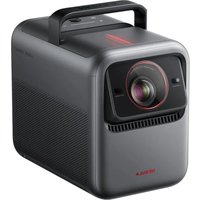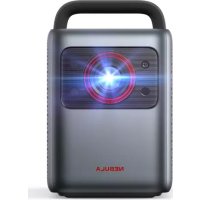
Cosmos Laser 4K - Projector NEBULA - Free user manual and instructions
Find the device manual for free Cosmos Laser 4K NEBULA in PDF.



| Product type | 4K Laser Projector |
| Brand | Nebula |
| Model | Cosmos Laser 4K (D2350) |
| Native resolution | 3840 × 2160 (4K UHD) |
| Light source | ALPD 3.0 Laser |
| Contrast ratio | 1,500,000:1 (dynamic) |
| Screen size | 60 to 150 inches |
| Throw ratio | 1.27:1 |
| Keystone correction | Automatic and manual |
| Focus | Automatic |
| Built-in speaker | 30 W |
| Noise level | 28 dB |
| Connectivity | HDMI (CEC), USB, Wi-Fi 2.4/5 GHz (802.11 a/b/g/n/ac), Bluetooth 5.0 |
| Power | 100-240 V~, 50/60 Hz, 2.5 A (max. 200 W) |
| Standby power consumption | < 0.5 W |
| Operating temperature | 0°C to 35°C |
| Laser safety | IEC 60825-1 Class 1, IEC 62471-5:2015 RG1 |
| Maintenance | Soft lint-free cloth; lens cleaning wipe |
| Repairability | Only to be handled by an authorized service center |
| Warranty | 12 months (quality issues) |
Frequently Asked Questions - Cosmos Laser 4K NEBULA
User questions about Cosmos Laser 4K NEBULA
0 question about this device. Answer the ones you know or ask your own.
Ask a new question about this device
Download the instructions for your Projector in PDF format for free! Find your manual Cosmos Laser 4K - NEBULA and take your electronic device back in hand. On this page are published all the documents necessary for the use of your device. Cosmos Laser 4K by NEBULA.
USER MANUAL Cosmos Laser 4K NEBULA
natural_image
Black NEBULA portable projector with LED and textured grille (no visible text or symbols on device body)User Manual
Nebula Cosmos Laser / Nebula Cosmos Laser 4K
| English 01 | |
| Deutsch 29 | |
| Español 59 | |
| Français 89 | |
| Italiano 119 | |
| Nederlands 149 | |
| Português 179 | |
| 日本語 | 209 |
| 한국어 | 233 |
| 繁体中文 | 257 |
| لغربية | 279 |
Important Safety Instructions
Read all instructions before you use this device. Do not make any changes or create settings that are not described in this manual. If physical injury, loss of data, or damage is caused by failure to follow instructions, the warranty does not apply.
Setup
• Do not place heavy or sharp objects on this device.
• To avoid electric shock, do not disassemble the device.
- Only use attachments or accessories specified by the manufacturer.
- Keep away from any heat sources.
- Place in a dry and well-ventilated area.
- Do not place this device on soft surfaces such as tablecloths or carpets. The device could catch fire.
- Do not look straight at the projector lens during operation. The intense light beam may damage your eyes.
• To prevent overheating, do not block or clog the ventilation openings.
- To reduce the risk of fire and/or electric shock, do not expose the device to rain or moisture. Objects filled with liquids, such as vases, should not be placed on this device.
- Turn off and remove the cable if this product emits smoke or any strange odor.
- Unplug from the power source when not in use for a long period of time.
• Always handle the device with care. Avoid touching the lens.
- Do not allow children to handle the device without supervision.
- Avoid extreme vibrations. It may damage the internal components.
- The power cord shall connect to socket-outlet with a grounding/earthing connection.
- The power supply should be installed near the equipment; for pluggable equipment, the socket-outlet must be easily accessible.
- Only use the power cord provided by the manufacturer. An unauthorized power cord may cause danger and violate the authorization of the projector as well as the guarantee.
- The plug of the power cord is considered as the disconnect device. Once unplugged, the projector is disconnected from the power source.
- Do not use the device in an environment where the temperature is too high or too low. Never expose the device to strong sunshine or wet environments.
- Before you make or change any connections, ensure that all devices are disconnected from the power outlet.
- Never touch the mains cable of the mains connection with wet hands.
- The suitable temperature range for projector D2341 or D2350 and its accessories is 32°F-95°F / 0°C-35°C.
- The suitable temperature range for 4K Streaming Dongle D0480 and its accessories is 32°F-104°F / 0°C-40°C.
- The suitable temperature for remote C008 is 113°F / 45°C maximum.
- It is recommended to operate the device in an environment with a temperature that ranges from 41°F-77°F / 5°C-25°C.
- When operating, place the device in an environment that has a normal room temperature and good ventilation.
- Possibly hazardous optical radiation emitted from this product may be harmful to the eyes. Do not stare at the operating beam.
Battery
- The remote control contains batteries which can be swallowed. Keep the remote control out of the reach of children.
- Keep away from heat, direct sunlight, or fire to avoid risk of explosion. Never dispose of by burning.
- Remove the batteries when the remote control has not been used for a long period of time.
- Replace the batteries only with the same or equivalent type.
- Batteries contain chemical substances, and they should be disposed of properly.
⚠️ CAUTION: RISK OF EXPLOSION IF BATTERY IS REPLACED BY AN INCORRECT TYPE. DISPOSE OF USED BATTERIES ACCORDING TO THE INSTRUCTIONS.
Hearing Safety
- To avoid hearing damage, do not listen for extended periods at high volume. Set the volume at a safe level.
Cleaning
- Use a soft, lint-free cloth. Never use liquid, gaseous, or easily flammable cleansers to clean.
-
Do not use any liquid cleaning agents to clean the lens to avoid damaging the coating film on the lens.
-
Wipe the surfaces gently. Be careful that you do not scratch the surface.
- Use lens cleaning paper to clean the lens of the projector.
Repairs
- Do not make any repairs to this device yourself. Only have your projector repaired by an authorized service center.
- Improper maintenance can result in injuries to persons or damage to this device.
• Refer servicing to qualified service personnel.
Laser Safety
• RG1 IEC 62471-5:2015
- Complies with IEC 60825-1:2014 Class 1 and IEC 62471-5:2015 Risk Group 1.
• Potential hazards may exist during lamp or product servicing.
• Service shall be performed only by authorized, trained servicing personnel.
- Do not open the enclosure of the product.
- When the enclosure of the product is damaged, discontinue use.
- Do not open the enclosure of laser module inside the product.
- When the enclosure of laser module inside the product is damaged, discontinue use.
- Laser inside, be aware of the risk of skin or corneal burns.
• The lable is located at the bottom of the enclosure.
What's Included
北

。
。

4E

。

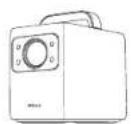
| 1 | Nebula Cosmos Laser / Cosmos Laser 4K |
| 2 | Nebula 4K Streaming Dongle |
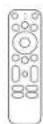
| 3 | Remote Control |
| 4 | Power Cord |
| 5 | AAA Batteries x 2 |
| 6 | Quick Start Guide |
At a Glance
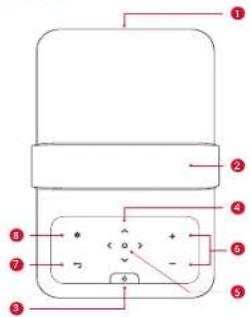
Top and Front Panel
text_image
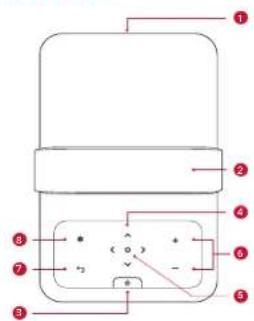
Diagram of a device with numbered components and labeled parts, likely for assembly or labeling.| 1 | Lens |
| 2 | Handle |
| 3 | Power Button |
| Press to power on.Press and hold for 3 seconds to power off. | |
| 4 | Navigation Buttons |
| Move through the menu. | |
| 5 | Confirm a Selection |
| 6 | Volume Up/Down |
| 7 | Back |
| Return to a previous menu.When in Bluetooth Speaker Mode, press again to switch to Projector Mode. | |
| 8 | Settings (Projector) |
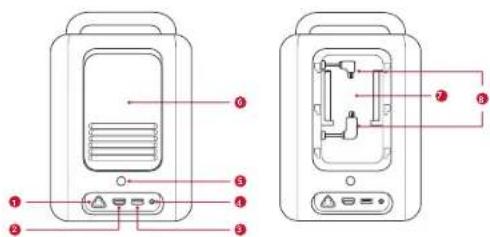
Rear View
text_image
Diagram of a two-part device with labeled ports and internal components, showing front and side views with numbered labels.| 1 | AC IN |
| • Connect to power supply. | |
| 2 | HDMI |
| • Connect to a playback device with HDMI output. | |
| 3 | USB |
| • Connect to a USB storage device. |
| 4 | AUX |
| • Connect to headphones or an external speaker. | |
| 5 | Infrared Receiver |
| 6 | Back Cover |
| 7 | Streaming Dongle Compartment |
| 8 | Micro-USB/Micro-HDMI Connectors |
| • Connect to the Streaming Dongle. |
Bottom View
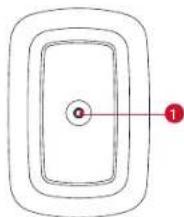
natural_image
Simple diagram of concentric rectangular shapes with a central circle and a red arrow pointing to the center (no text or symbols)① 1/4" Tripod Socket
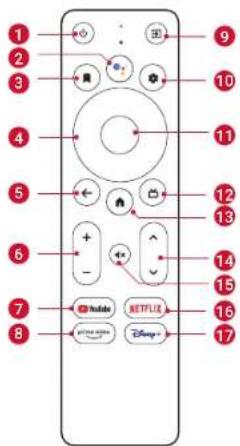
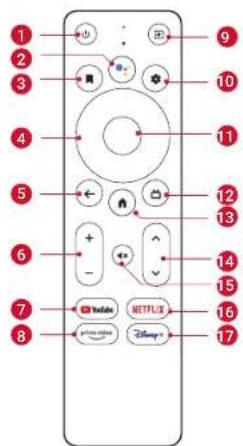
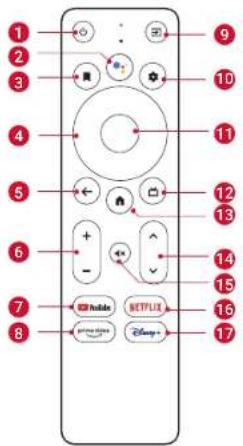
Remote Control
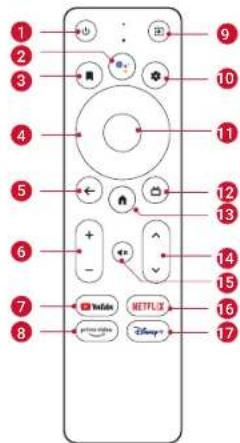
text_image
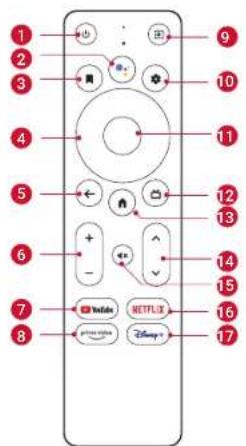
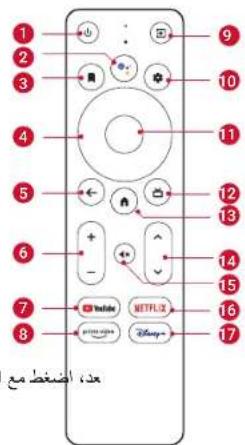
1 2 3 4 5 6 7 8 9 10 11 12 13 14 15 16 17 Netflix Disney+| 1 | ⏻ | Power on/off or switch to Standby Mode. |
| 2 | Activate the Google Assistant. | |
| 3 | Open an app, move it, or remove it from your home screen favorites.Select a channel to add to or remove from the watch list. | |
| 4 | Navigation Buttons M | Move through the menu. |
| 5 | ← | Return to the previous screen or action. |
| 6 | + - | Volume up/down. |
| 7 | YouTube | Open YouTube. |
| 8 | prime video | Open Prime Video. |
| 9 | Select an input source. | |
| 10 | Access the settings page. | |
| 11 | Confirm Button Confirm a selection. | |
| 12 | Guide (Open Live TV EPG) | |
| 13 | Go to the home screen. | |
| 14 | Channel up/down. | |
| 15 | Mute or resume the sound. | |
| 16 | NETFLIX | Open Netflix. |
| 17 | Open Disney+ Video. | |

- On the remote, press and hold the Home and Back buttons simultaneously for about 10 seconds. After Bluetooth connected, you can operate by using the remote.
Getting Started
Installing 4K Streaming Dongle
- Press up to open the back cover.
- Correctly connect the included 4K Streaming Dongle to the Micro-USB/Micro-HDMI connectors, then close the dongle compartment by pressing down on the back cover.
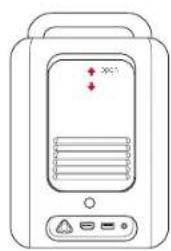
natural_image
Line drawing of a portable electronic device with ventilation slots and control buttons (no text or symbols)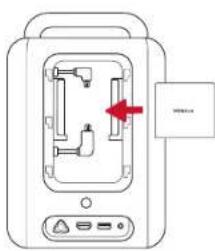
text_image
Diagram of a device with internal components and a red arrow indicating a specific area, labeled 'VOC100'Connecting to Power
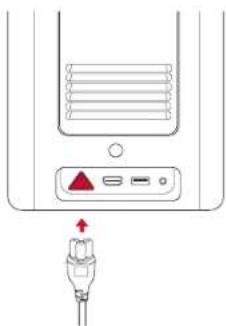
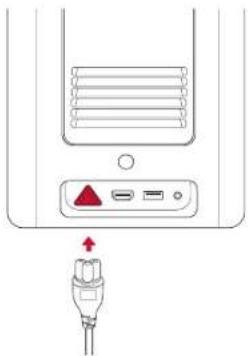
Connect the power cord to the device, and then to the power supply.
natural_image
Diagram of a device rear panel with a red warning triangle and connected plug (no text or symbols)Preparing the Remote
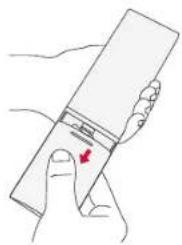
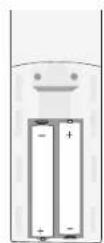
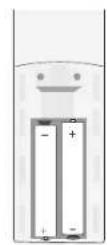
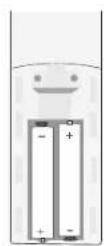
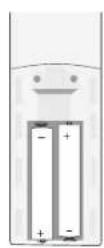
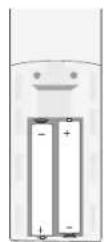
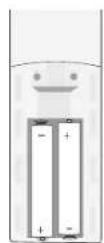
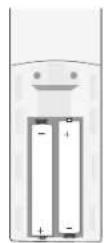
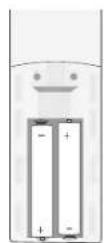
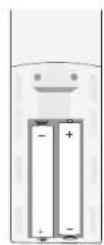
- Press and slide down to open the battery cover.
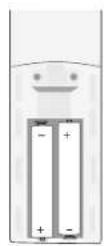
- Insert 2 new AAA batteries, matching the polarity (+ / -) as indicated. Close the battery cover until it clicks into place.
natural_image
Illustration of a hand holding a rectangular object with a red arrow pointing to it, no text or symbols present.1
2

- The distance between the remote and the projector should not exceed 10 ~m / 33 ft .
Positioning Your Projector
You can position your projector in the following ways.
- Front: The projector is placed on the table in front of the screen. This is the most common way to position the projector for quick setup and portability.
- Rear: The projector is placed on the table behind the screen. A special rear projector screen is required.
- Front Ceiling: The projector is suspended upside-down in front of the screen. The ceiling/wall mount kit is required.
- Rear Ceiling: The projector is suspended upside-down from behind the screen. A special rear projector screen and ceiling/wall mount kit are required.

- After powering on the projector, press the Settings button on the projector, then go to Advanced Settings > Projector Mode and select a setting.
- It is unnecessary to tilt the projector toward the projection surface. This device is featured with autofocus and auto-keystone correction.
- You may also install the projector onto a tripod (sold separately) if necessary.
- The distance between the projector lens and the screen determines the projection image size.
| Screen Size Distance Between Projector Lens and Screen | |
| 60 inches 1.68 m / 5.51 ft | |
| 70 inches 1.97 m / 6.46 ft | |
| 80 inches 2.25 m / 7.38 ft | |
| 90 inches 2.53 m / 8.30 ft | |
| 100 inches 2.81 m / 9.22 ft | |
| 110 inches 3.10 m / 10.17 ft |
| 120 inches 3.37 m / 11.06 ft |
| 130 inches 3.65 m / 11.98 ft |
| 140 inches 3.93 m / 12.89 ft |
| 150 inches 4.22 m / 13.85 ft |
Powering On/Off
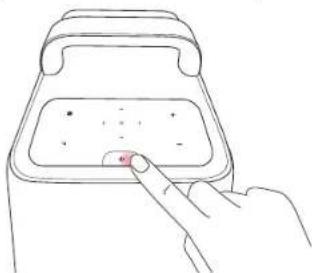
Press the power button to power on.
Press and hold the power button for 3 seconds to power off.
natural_image
Line drawing of a hand pressing a button on a device with a keypad (no text or symbols)| Steady Blue Powered On | ||
| Steady Red Standby Mode | ||
| Steady Red Powered Off |

- When powered on, press the power button to switch to Standby Mode.
- In HDMI Source Mode, the projector will switch to Standby Mode after 10 minutes of button inactivity or when no signal is detected.
- When Standby Mode lasts for 1 hour, the projector will automatically power off.
Setup
When using the projector for the first time, follow the on-screen display (OSD) instructions to complete the basic setup.
- Bluetooth connection
- Select your language
- Set up your TV with your Android phone (Optional)
- Wi-Fi connection
• Sign in with your Google account
Remote Buttons
For the best experience, add Nebula to the TV list and set up the remote buttons. Follow the on-screen instructions to complete the setup. After a successful setup, you can control the volume, power, and input of your device by using the remote.
- Press the Settings button on the remote.
- Select Set Up Remote Buttons > Add Device > TV, then select Nebula as the TV.
AutoFocus Keystone
When you power on the projector or move it to another location, the projector will automatically focus and perform keystone correction.
- After setting up the remote controls, you can also press and hold the Input Source button on the remote to activate this feature.
- You can also manually adjust the focus and perform keystone correction in the Settings menu. (See Device Settings)
Auto Screen Fit
This projector can automatically adjust the alignment to your screen size.
- To activate this function, press the Settings button on the projector, then select Image Correction > Auto Screen Fit.
Nebula Connect App
To easily control the projector, we recommend you to download the devoted Nebula Connect app.
- Download the Nebula Connect app from the App Store (iOS devices) or Google Play (Android devices).
- Enable Bluetooth on your phone and select this projector as the device to be connected.
- Open the Nebula Connect app and follow the on-screen instructions to complete the connection setup.
System Update
To fully enhance your experience with this product with the latest features, you are recommended to update the system from time to time. (See Settings)
Settings
Device Settings
Go through the setup process when you turn on the projector for the first time. Press the Settings button on the projector to access the settings menu of this device.
| Picture | |
| Brightness | Adjust brightness based on your environment. |
| Picture Mode | The projector is preset with several predefined picture modes so that you can choose one to suit your environment and input source.Standard: Keeps natural looking colors with a balance of warm and cool tones.Vivid: Provides more picture details and color sharpness.Soft: Provides warm colors with lower light.Movie: Provides the best colors for watching movies.Game: Increases the brightness and response time level for playing video games.Picture Custom: Manually set the contrast, saturation, sharpness, color temperature, and gamma, or reset the values. |
| Aspect | Adjust the width and the height proportion of the display. You can select from these options: Auto, 16:9, 16:10, 4:3. |
| HDR | Turn High-Dynamic Range on or off. HDR enables the projector to automatically detect the brightness and darkest points of the input source and optimize settings to reproduce contents under high dynamic range. |
| Audio | |
| Volume | Adjust the volume of the built-in speaker. |
| Audio Mode | The projector is preset with several predefined sound modes so that you can choose one to suit your environment and input source.Standard: Keeps the original sound.Music: Enhances the treble for listening to the music.Movie: Creates a surround-sound listening experience for watching movies.News: Make voices more clear and dynamic for listening.Audio Custom: Manually set audio settings such as bass, midrange, and treble. |
| Dolby | Adjust the Dolby DRC Mode. |
| Image Correction | |
| One-Click Focus and Keystone Correction | Automatically focus and perform keystone correction. |
| Keystone Correction | Automatically or manually perform keystone correction. Manual keystone correction is only available when auto keystone correction is off. |
| Focus | Autofocus: Activate or deactivate Autofocus.Manual Focus Correction: Manually adjust the focus. |
| Screen Zoom Zoom in or out of the projection image. | |
| Auto Screen Fit | Activate to automatically adjust the image size to your surface. |
| HDMI | |
| Input Access Select Android TV or HDMI as the input source. | |
| HDMI 2.0 Auto/Off/On |
| About | |
| Projector Info | Check the current system firmware version and the projector firmware version. |
| Contact Us | Check our regional hotlines to contact our customer service team. |
| Nebula Connect | Scan the QR code to install the Nebula Connect app. |
| Advanced Settings | |
| Language Select your language. | |
| Projector Mode | Front: The device is located in front of the projection surface.Rear: The device is located behind the projection surface.Front Ceiling: The device is hanging from the ceiling in an upside-down position. The image is rotated by 180 degrees.Rear Ceiling: The device is hanging from the ceiling in an upside-down position behind the projection surface. The image is rotated by 180 degrees and horizontal mirrored. |
| Eyesight Protection | Activate or deactivate the eyesight protection function. |
| ToF Calibration | If the picture is still unclear after cleaning the lens, calibrate the Time-of-Flight (ToF) sensor. |
| Back to Default | Restore settings to default. |
System Settings
On the remote, press the Settings button to access the setting menus of the system.
| Network & Internet | See available networks. |
| Accounts & Sign-In | Sign in to make the most of the Android TV. |
| Apps See all apps installed. | |
| Device Preferences | About:Check the product information, upgrade firmware, reset the system, or rename the device.Date & Time:Set date and time. Select time zone, time format, and automatic time calibration.Language:Select an on-screen display language spacecraft:Check and manage keyboards.Sound:Select the sound formats.Storage:View the internal storage usage.Home Screen:Set the channels and apps on the home screen.Google Assistant:Sign in to get better voice control of your TV.Chromecast Built-in:Choose to show notifications on all Android devices connected to your Wi-Fi and let them control media casting to this device.Screen Saver:Change the screen saver settings.Location:Check the location status.Usage & Diagnostics:Automatically send diagnostic information to Google, like crash reports and usage data from your device, apps, and Chromecast built-in.Accessibility:Set the caption settings.Reboot:Reboot the system or cancel. |
| TV Settings | Display:Adjust screen resolution, display mode, and screen position.HDMI CEC:Enable HDMI CEC to allow this projector to communicate back and forth with your TV through HDMI ports. This projector and your TV can control each other.One Key Play allows this projector to use the TV as the active source when playback starts.Audio Output:Adjust Dolby DRC mode. |
| Remotes & Accessories | Search for accessories for pairing. |
| Set Up Remote Buttons | Add Device: Add a TV, AV receiver, or a soundbar to experience remote button controls. With the remote control, you can control volume, power, and input on TVs, AV receivers, and soundbars. |
Using Your Projector
Select an App
Once connected to a wireless network, you can access online services, enjoy movies, music, and pictures, and browse online. Apart from the pre-installed apps, you can also download more apps from Google Play.
Voice Assistant
After setup, press the Google Assistant button on the remote, you can speak to the Google Assistant and request your commands.
Wireless Screen Mirroring
Wirelessly cast movies, games, and music from your compatible iOS, MacOS, Android, or Windows device right to Nebula Cosmos Laser / Cosmos Laser 4K.

- Make sure that Nebula projector and your device are connected to the same network. The network can be a WiFi network or your phone's hotspot.
- Certain content may be unavailable to be cast due to copyright restrictions. In this case, you can stream the content via the same app installed on the projector. For example, copyrighted content from Netflix cannot be mirrored or cast. You need to download Netflix from Google Play.
iOS Devices
iOS devices support AirPlay while your Nebula projector does not have AirPlay preloaded. You need to install the Nebula Manager app from Google Play, and then install the AirScreen app from the Nebula Manager app to enable AirPlay on your Nebula projector.
Screen Mirroring From iPhone or iPad:
- Swipe up to display the control console and tap the AirPlay icon.
- Select "D2341/D2350" as the device you want to cast to.
Streaming Video From iPhone or iPad:
- Open the streaming apps you want to cast on the Nebula projector and select a video to play.
- Click the AirPlay icon or cast icon in the top right corner to cast to the projector.
Screen Mirroring From Mac:
Click the AirPlay icon on the Mac and select the Nebula projector to start mirroring.
- To stop mirroring, click the AirPlay icon again and then select Turn AirPlay Off.
- The AirPlay icon in the menu bar is blue when the function is active.
Android Devices
Your Nebula projector supports Chromecast, which means you can mirror or stream videos from your Android devices that support Chromecast.
Screen Mirroring:
- Go to Settings > Connected Devices > Connection Preferences > Cast on your phone.
- Select "D2341/D2350" as the device you want to cast to.
Streaming Videos:
Chromecast can only open applications that support Chromecast, such as YouTube and Prime Video. To find more information about apps that support Chromecast, please install the Google Home app on your phone.
- Play a video and click the Chromecast button at the top to search for a Chromecast-compatible device.
- Select "D2341/D2350" as the device you want to cast to.
Windows 10 PC
You can stream videos from a Windows 10 PC to your Nebula projector by using the Chrome browser.
- Launch the Chrome browser on your Windows 10 computer, at the top right corner of the browser. Click More > Cast.
- Select "D2341/D2350" as the device you want to cast to.
Bluetooth Speaker Mode
You can use this projector as a standalone Bluetooth speaker.
- Press the Settings button on the projector, then select Bluetooth Speaker Mode. You can also enter Bluetooth Speaker Mode in the Nebula Connect app.
- Enable Bluetooth on your phone and select "Nebula-XXXXXX" as the device to be connected.
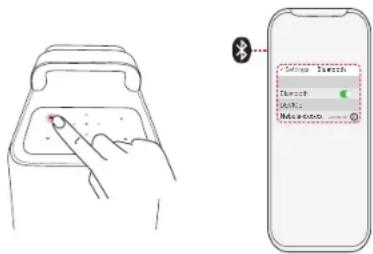
text_image
Send to Sketch Start Make a copy
• The projector light will be shut off shortly.
- Press the Back button to exit Bluetooth Speaker Mode.
Playing Video from HDMI Devices
This projector supports connections with vairous HDMI playback devices such as TV sticks, TV boxes, DVD players, set-top boxes (STB), game consoles, or other devices.
- Connect this projector to an HDMI playback device with an HDMI cable (not included).
- Press the Input Source button on the remote to select your HDMI playback device as the input source. Alternatively, select HDMI on the home menu and press the Confirm button.
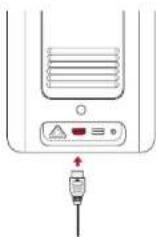

- The HDMI port and USB port cannot be used for video or audio streaming simultaneously.
- The projector will automatically start the HDMI playback when connected to an HDMI playback device for the first time.
Connecting to USB Storage Device
With this projector, you can enjoy music, video, and pictures that are stored on a USB storage device (not included).
To play from a USB storage device:
- Download the File Explorer app from Google Play.
- Insert the USB storage device into the USB port.
- Select music, videos, or photos from the USB drive that you want to play.
- Open the pre-installed multimedia player app and select the desired files to play. If no multimedia player app is available, download one from Google Play.
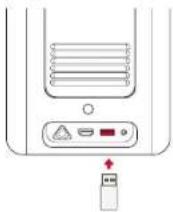

- The maximum memory capacity of the supported USB storage device is 4 TB.
Connecting to External Sound Devices
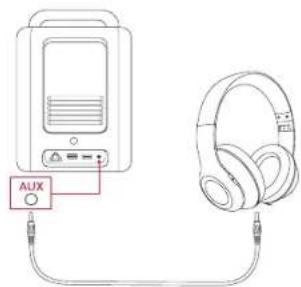
This projector can also be connected to external sound output devices, including headphones and speakers; when connected to external speakers, the built-in speaker system is disabled.
To play sound through external sound devices:
- Use a 3.5mm audio cable or an adapter (not included) to connect your headphones or external speaker.
- Connect the other end of the audio cable to the AUX port on this projector.
- You will hear audio from your external sound devices.
text_image
AUX
- Before connecting headphones, turn down the volume to avoid hurting your ears.
Specifications
- Specifications are subject to change without notice.
| Input 100-240V~50/60 Hz, 2 | 5A |
| Power Consumption < 200 W | |
| Standby Power Consumption | < 0.5 W |
| Resolution 1920x1080 (D234) | 1); 3840x2160 (D2350) |
| Compatible Resolutions | 480i (60Hz), 480p (60HZ), 576i (50Hz), 576p (50Hz), 720p (30Hz), 720p (50Hz), 720p (60Hz), 1080p (24Hz), 1080p (30Hz), 1080p (50Hz), 1080p (60Hz), 1080i (50Hz), 1080i (60Hz), 4K2K (23.976Hz), 4K2K (25Hz), 4K2K (30Hz), 4K2K (50Hz), 4K2K (60Hz), 4096 (23.976Hz), 4096 (25Hz), 4096 (30Hz), 4096 (50Hz), 4096 (60Hz) |
| Contrast Ratio 1500000:1 (Dynamic) | |
| Aspect Ratio 16:9 | |
| Screen Size 60"-150" | |
| Throw Ratio 1.27:1 | |
| Light Source Laser (ALPD 3.0) | |
| Focus Auto | |
| Keystone Correction Auto | |
| Speaker Output Power 20 W | (D2341); 30 W (D2350) |
| Noise 28 dB | |
| Wi-Fi | MIMO Wi-Fi 2.4GHz/5.0GHz 802.11 a/b/g/n/ac |
| Bluetooth Version 5.0 | |
| Bluetooth Range | 25 m / 82 ft |
| Video Format | H.265 10-bit 4K*2K@75fps, VP9 4K*2K @75fps, AVS2-P2 up to 4K*2K@75fps, H.264 AVC 4K*2K@30fps, MPEG1/2/4 ASP, WMV/VC-1, AVS+, RealVideo8/9/10 and other video formats |
| Audio Format | MPEG1/2/4, MVC, MP3, WMA/WMA-pro, FLAC, OGG (AC3, Dolby Digital Plus) and other audio formats |
| Photo Format | HD JPEG, BMP, PNG |
| USB Format | FAT, FAT32, NTFS, EXFAT |
| Operating Temperature | 0°C-35°C / 32°F-95°F |
| Remote Control Batteries | AAA x 2 |
Troubleshooting
1. No image appears?
- Check the connection and make sure to select the correct input source.
2. Is the image too large or too small?
- Move the projector closer to or further from the screen.
- Press the Settings button on the projector, then select Screen Zoom and adjust the image size.
3. Blurry image?
- Place on a stable, flat surface and wait until the autofocus works.
4. Reversed image?
- Press the Settings button on the projector, then select Advanced Settings > Projector Mode and switch to a correct state.
5. No sound?
• Make sure that mute isn't on.
- Please refer to the audio file formats supported. (See Specifications)
6. The remote doesn't work?
- Make sure that the remote has been successfully paired with the projector.
- Make sure there are not any obstacles between the remote and the projector.
- Change batteries if they are depleted.
Notice
CE
This product complies with the radio interference requirements of the European Community.
Declaration of Conformity
Hereby, Anker Innovations Limited. declares that this device is in compliance with the essential requirements and other relevant provisions of Directive 2014/53/EU. For the Declaration of Conformity, visit the Web site https://uk.seenebula.com.
UK CA
This product complies with the radio interference requirements of the United Kingdom.
Declaration of Conformity
Hereby, Anker Innovations Limited declares that this device is in compliance with Radio Equipment Regulation 2017. The full text of the UK declaration of conformity is available at the following internet address: https://uk.seenebula.com.
RF exposure information for D2341 or D2350: The Maximum Permissible Exposure (MPE) level has been calculated based on a distance of d=20 cm between the device and the human body. To maintain compliance with RF exposure requirement, use product that maintain a 20cm distance between the device and human body. Bluetooth Operating Frequency Range: 2402\~2480 MHz; Bluetooth Maximum Output Power: 6.99 dBm(EIRP); 2.4G Operating Frequency Range: 2402\~2477 MHz; 2.4G Maximum Output Power: 5.84 dBm(EIRP).
RF exposure information for D0480: The Maximum Permissible Exposure (MPE) level has been calculated based on a distance of d=20 cm between the device and the human body. To maintain compliance with RF exposure requirement, use product that maintain a 20cm distance between the device and human body. Bluetooth Operating Frequency Range: 2402\~2480 MHz;
Bluetooth Max Output Power: 8.96dBm(EIRP).
Wi-Fi Max Output Power: 19.67 dBm (EIRP for2.4G); 19.62 dBm (EIRP for 5G); Wi-Fi Operating Frequency Range: 2412\~2472 MHz (2.4G); 5150\~5250 MHz, 5725\~5850 MHz (5G).
RF exposure information for C008: The Maximum Permissible Exposure (MPE) level has been calculated based on a distance of d=20 cm between the device and the human body. To maintain compliance with RF exposure requirement, use product that maintain a 20cm distance between the device and human body. Bluetooth Operating Frequency Range: 2402\~2480 MHz; Bluetooth Max Output Power: 8.2 dBm(EIRP).
The following importer is the responsible party (contract for EU matters)
Anker Innovations Deutschland GmbH I Georg-Muche-Strasse 3, 80807 Munich, Germany The following importer is the responsible party (contract for UK matters):
Anker Technology (UK) Ltd I Suite B, Fairgate House, 205 Kings Road, Tyseley, Birmingham, B11 2AA, United Kingdom

Your product is designed and manufactured with high quality materials and components, which can be recycled and reused.

This symbol means the product must not be discarded as household waste, and should be delivered to an appropriate collection facility for recycling. Proper disposal and recycling helps protect natural resources, human health and the environment. For more information on disposal and recycling of this product, contact your local municipality, disposal service, or the shop where you bought this product.
Warning information for D0480
5150\~5350 MHz (for IC: 5150\~5250 MHz) can be used indoor only.
| AT | BE | BG | HR | CY | CZ | DK | |
| EE | FI | FR | DE | EL | HU | IE | |
| IT | LV | LT | LU | MT | NL | PL | |
| PT | RO | SK | SI | ES | SE | UK |
FCC Statement
This device complies with Part 15 of the FCC Rules. Operation is subject to the following two conditions: (1) this device may not cause harmful interference, and (2) this device must accept any interference received, including interference that may cause undesired operation. Warning: Changes or modifications not expressly approved by the party responsible for compliance could void the user's authority to operate the equipment.
Note: This equipment has been tested and found to comply with the limits for a Class B digital device, pursuant to Part 15 of the FCC Rules. These limits are designed to provide reasonable protection against harmful interference in a residential installation.
This equipment generates uses and can radiate radio frequency energy and, if not installed and used in accordance with the instructions, may cause harmful interference to radio communications. However, there is no guarantee that interference will not occur in a particular installation. If this equipment does cause harmful interference to radio or television reception, which can be determined by turning the equipment off and on, the user is encouraged to try to correct the interference by one or more of the following measures: (1) Reorient or relocate the receiving antenna. (2) Increase the separation between the equipment and receiver. (3) Connect the equipment into an outlet on a circuit different from that to which the receiver is connected. (4) Consult the dealer or an experienced radio/TV technician for help.
FCC Radio Frequency Exposure Statement
The device has been evaluated to meet general RF exposure requirements. The device can be used in fixed/mobile exposure condition. The min separation distance is 20cm.
Notice: Shielded cables
All connections to other computing devices must be made using shielded cables to maintain compliance with FCC regulations.
The following importer is the responsible party.
Company Name: Fantasia Trading LLC
Address: 5350 Ontario Mills Pkwy, Suite 100, Ontario, CA 91764
Telephone: 1-800-988-7973
IC Statement:
This device complies with Industry Canada licence-exempt RSS standard(s). Operation is subject to the following two conditions: 1. this device may not cause interference, and
- this device must accept any interference, including interference that may cause undesired operation of the device."
When using the product, maintain a distance of 20cm from the body to ensure compliance with RF exposure requirements.
5150\~5250 MHz can be used indoors only.
HDMI, and HDMI logo and High-Definition Multimedia Interface are trademarks or registered trademarks of HDMI licensing LLC in the United States and other countries.
Bluetooth®
The Bluetooth ^® word mark and logos are registered trademarks owned by the Bluetooth SIG, Inc. and any use of such marks by Anker Innovations Limited is under license. Other trademarks and trade names are those of their respective owners.
Dolby
AUDIO
Manufactured under license from Dolby Laboratories. Dolby, Dolby Audio, and the double-D symbol are trademarks of Dolby Laboratories Licensing Corporation.
Warranty
30-Day Money-Back Guarantee for Any Reason
You may return your undamaged product and packaging within 30 days of purchase to receive a FULL REFUND for any reason. If the reason for return isn't quality-related, the customer must pay for the return shipping.
12-Month Warranty for Quality-Related Issues
Nebula's products are warranted to be free from material and workmanship defects for 12 months from the date of purchase. Within this period, Nebula will provide a replacement and cover any return shipping costs for products that fail in normal use.
Please Note: Any provided shipping labels must be used within 20 days from the date they're issued by Nebula Support.
Anker Innovations Limited
Room 1318-19, Hollywood Plaza, 610 Nathan Road, Mongkok,
Kowloon, Hong Kong
text_image
Diagram of a device with numbered components, likely an electronic or electronic component layouttext_image
Diagram of a portable air conditioner unit with labeled ports and indicator lights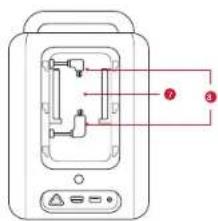
text_image
Diagram of a device with labeled ports and internal components, showing numbered labels ①, ②, and ③.natural_image
Simple diagram of concentric rectangular shapes with a central circle and a red arrow pointing to the center (no text or symbols)text_image
Diagram showing two views of a device with labeled ports and a red arrow indicating a process or operation.natural_image
Diagram of a device rear panel with a red warning triangle and a black cable connector (no text or symbols)natural_image
Illustration of a hand holding a rectangular device with a red arrow pointing to the screen (no text or symbols present)1
2

natural_image
Line drawing of a hand pressing a button on a device with a red circular mark (no text or symbols)text_image
Diagram showing a hand interacting with a device and a smartphone displaying 'Save Search' with a 'SOME!' button.
This product complies with the radio interference requirements of the United Kingdom.
The device has been evaluated to meet general RF exposure requirements. The device can be used in fixed/mobile exposure condition. The min separation distance is 20cm.
Notice: Shielded cables
All connections to other computing devices must be made using shielded cables to maintain compliance with FCC regulations.
Firmenname: Fantasia Trading LLC
Anschrift: 5350 Ontario Mills Pkwy, Suite 100, Ontario, CA 91764
Telephone: 1-800-988-7973
IC Statement:
• this device may not cause interference, and
- this device must accept any interference, including interference that may cause undesired operation of the device.
5150\~5250 MHz can be used indoors only.
Please Note: Any provided shipping labels must be used within 20 days from the date they're issued by Nebula Support.
Anker Innovations Limited
Room 1318-19, Hollywood Plaza, 610 Nathan Road, Mongkok, Kowloon, Hong Kong
text_image
Diagram showing various electronic devices including a projector, battery, remote control, and USB cable with red labels.| 1 | Nebula Cosmos Laser/Cosmos Laser 4K |
| 2 | Nebula 4K Streaming Dongle |
| 3 | Mando a distancia |
| 4 | Cable de alimentación |
| 5 | 2 pilas AAA |
| 6 | GUÍA DE INICIO RÁPIDO |
Vista general
text_image
Diagram of a device with numbered components, likely an electronic or mechanical component layouttext_image
Diagram of a portable air conditioner unit with labeled ports and indicator lights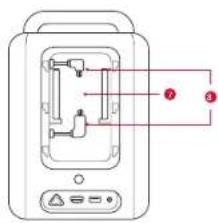
text_image
Diagram of a device with labeled ports and internal components, showing numbered annotations pointing to ports ①, ②, and ③.text_image
Diagram showing concentric rectangular shapes with a central circle labeled 'O' and a red arrow pointing to the center.text_image
Diagram showing two views of a device with labeled ports and a red arrow indicating a process or operation.natural_image
Diagram of a device rear panel with a red warning triangle and a cable outlet, no text or symbols present.natural_image
Illustration of a hand holding a rectangular object with a red arrow pointing to it, no text or symbols present.1

2

natural_image
Line drawing of a hand pressing a button on a device (no text or symbols)This product complies with the radio interference requirements of the United Kingdom.
Anker Technology (UK) Ltd I Suite B, Fairgate House, 205 Kings Road, Tyseley, Birmingham, B11 2AA, Reino Unido

The device has been evaluated to meet general RF exposure requirements. The device can be used in fixed/mobile exposure
condition. The min separation distance is 20cm.
Notice: Shielded cables
All connections to other computing devices must be made using shielded cables to maintain compliance with FCC regulations.
• this device may not cause interference, and
- this device must accept any interference, including interference that may cause undesired operation of the device.*
5150\~5250 MHz can be used indoors only.
Please Note: Any provided shipping labels must be used within 20 days from the date they're issued by Nebula Support.
Anker Innovations Limited
Room 1318-19, Hollywood Plaza, 610 Nathan Road, Mongkok, Kowloon, Hong Kong
text_image
Diagram of a device with numbered components and labeled parts, likely for assembly or labeling.text_image
Diagram of a portable air conditioner unit with labeled ports and indicator lights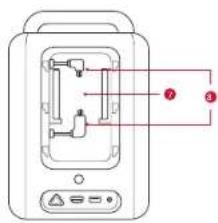
text_image
Diagram of a device with labeled ports and internal components, showing numbered labels ①, ②, and ③.text_image
Diagram showing concentric rectangular shapes with a central circle labeled 'O' and a red arrow pointing to the center.natural_image
Line drawing of a portable water heater with control panel and indicator lights (no text or symbols)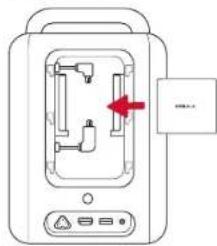
text_image
Diagram of a kitchen appliance with labeled components and a red arrow indicating a directional change.natural_image
Diagram of a device rear panel with a red triangular indicator and a connected plug symbol (no text or labels)natural_image
Illustration of a hand holding a rectangular device with a red arrow pointing to the screen (no text or symbols present)1
②

natural_image
Line drawing of a hand pressing a button on a device (no text or symbols)| Bleu fixe Sous tension | ||
| Rouge fixe Mode veille | ||
| Rouge fixe Hors tension |

Application Nebula Connect
natural_image
Diagram of a device with a connector and indicator lights, no text or symbols present
Hereby, Anker Innovations Limited. declares that this device is in compliance with the essential requirements and other relevant provisions of Directive 2014/53/EU. Pour consulter la déclaration de conformité, visitez le site web : https://uk.seenebula.com.

This product complies with the radio interference requirements of the United Kingdom.
-
this device may not cause interference, and
-
this device must accept any interference, including interference that may cause undesired operation of the device.*
Please Note: Any provided shipping labels must be used within 20 days from the date they're issued by Nebula Support.
Anker Innovations Limited
Room 1318-19, Hollywood Plaza, 610 Nathan Road, Mongkok, Kowloon, Hong Kong
text_image
Diagram of a device with numbered components, likely an electronic or mechanical component layouttext_image
Diagram of a portable air conditioner unit with labeled ports and indicator lights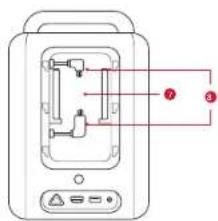
text_image
Diagram of a device with labeled ports and internal components, showing numbered labels ①, ②, and ③.natural_image
Simple diagram of concentric rectangular shapes with a central circle and a red arrow pointing to the center (no text or symbols)natural_image
Line drawing of a portable air conditioner unit with control panel and indicator lights (no text or symbols)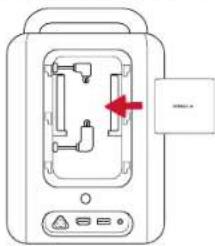
text_image
Diagram of a kitchen appliance with labeled components and a red arrow indicating a directional flow or movement.natural_image
Diagram of a device rear panel with a red warning triangle and a black plug, no text or symbols presentnatural_image
Illustration of a hand holding a smartphone with a red arrow pointing to the screen (no text or symbols present)1
2

natural_image
Line drawing of a hand pressing a button on a device with a red dot on the screen (no text or symbols)text_image
Diagram showing a hand interacting with a device and a smartphone displaying a 'Baidu' link screen with Chinese text.
Hereby, Anker Innovations Limited. declares that this device is in compliance with the essential requirements and other relevant provisions of Directive 2014/53/EU. Per la Dichiarazione di Conformità visitare il sito https://uk.seenebula.com.
UK CA
This product complies with the radio interference requirements of the United Kingdom.
Anker Technology (UK) Ltd I Suite B, Fairgate House, 205 Kings Road,
Tyseley, Birmingham, B11 2AA, Regno Unito

The device has been evaluated to meet general RF exposure requirements. The device can be used in fixed/mobile exposure condition. The min separation distance is 20cm.
Notice: Shielded cables
All connections to other computing devices must be made using shielded cables to maintain compliance with FCC regulations.
• this device may not cause interference, and
- this device must accept any interference, including interference that may cause undesired operation of the device."
5150\~5250 MHz can be used indoors only.
Please Note: Any provided shipping labels must be used within 20 days from the date they're issued by Nebula Support.
Anker Innovations Limited
Room 1318-19, Hollywood Plaza, 610 Nathan Road, Mongkok, Kowloon, Hong Kong
text_image
Diagram of a device with numbered components and labeled parts, likely for assembly or labeling.text_image
Diagram of a portable air fryer with labeled ports and internal compartments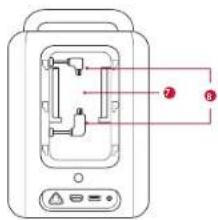
text_image
Diagram of a device with labeled ports and internal components, showing numbered annotations pointing to ports ⑦ and ③.natural_image
Abstract diagram with concentric rectangular shapes and a central circle, no text or symbols present① 1/4" Statiefaansluiting
Afstandsbediening
text_image
1 2 3 4 5 6 7 8 9 10 11 12 13 14 15 16 17 YouTubenatural_image
Line drawing of a portable electronic device with ventilation slots and ports (no text or symbols)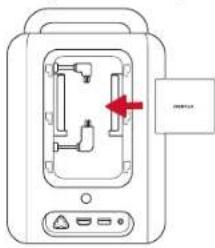
text_image
Diagram of a device with labeled ports and a red arrow indicating a directional flow or movement, possibly illustrating a process or system.natural_image
Diagram of a device rear panel showing a connector with a red arrow pointing to the cable (no text or symbols present)natural_image
Illustration of a hand holding a smartphone with a red arrow pointing to the screen (no text or symbols present)1
2

natural_image
Line drawing of a hand pressing a button on a device with a keypad (no text or symbols)natural_image
Diagram of a device rear panel with labeled ports and a red connector (no text or symbols)
natural_image
Diagram of a device rear panel showing ventilation slots, indicator lights, and a small battery with an arrow pointing to it (no text or symbols present)
Hereby, Anker Innovations Limited. declares that this device is in compliance with the essential requirements and other relevant provisions of Directive 2014/53/EU. De verklaring van conformiteit vindt u op de website https://uk.seenebula.com.

This product complies with the radio interference requirements of the United Kingdom.
This device complies with Part 15 of the FCC Rules. Operation is subject to the following two conditions: (1) This device may not cause harmful interference, and (2) this device must accept any interference received, including interference that may cause undesired operation.
Warning: Changes or modifications not expressly approved by the party responsible for compliance could void the user's authority to operate the equipment.
Note: This equipment has been tested and found to comply with the limits for a Class B digital device, pursuant to part 15 of the FCC Rules. These limits are designed to provide reasonable protection against harmful interference in a residential installation.
This equipment generates uses and can radiate radio frequency energy and, if not installed and used in accordance with the instructions, may cause harmful interference to radio communications. However, there is no guarantee that interference will not occur in a particular installation. Als deze apparatuur schadelijke interferentie veroorzaakt voor radio- of televisieontvangst, wat kan worden vastgesteld door het apparaat uit en weer in te schakelen, wordt de gebruiker aangemoedigd om de interferentie te corrigeren door een of meer van de volgende maatregelen te nemen: (1) draai of verplaats de ontvangstantenne. (2) Increase the separation between the equipment and receiver. (3) Connect the equipment into an outlet on a circuit different from that to which the receiver is connected. (4) Consult the dealer or an experienced radio/TV technician for help.
The device has been evaluated to meet general RF exposure requirements. The device can be used in fixed/mobile exposure condition. The min separation distance is 20cm.
Notice: Shielded cables
All connections to other computing devices must be made using shielded cables to maintain compliance with FCC regulations.
Company Name: Fantasia Trading LLC
Address: 5350 Ontario Mills Pkwy, Suite 100, Ontario, CA 91764
Telephone: 1-800-988-7973
IC Statement:
• this device may not cause interference, and
- this device must accept any interference, including interference that may cause undesired operation of the device.*
5150\~5250 MHz can be used indoors only.
Please Note: Any provided shipping labels must be used within 20 days from the date they're issued by Nebula Support.
Anker Innovations Limited
Room 1318-19, Hollywood Plaza, 610 Nathan Road, Mongkok, Kowloon, Hong Kong
text_image
Diagram showing various electronic devices including a remote, battery, and control panel with labeled pins 12 and 45.| 1 | Nebula Cosmos Laser/Cosmos Laser 4K |
| 2 | Nebula 4K Streaming Dongle |
| 3 | Controlo remoto |
| 4 | Cabo de alimentação |
| 5 | Pilhas AAA x 2 |
| 6 | GUIA DE INÍCIO RÁPIDO |
Breve descrição
Painel superior e frontal
text_image
Diagram of a device with numbered components, likely an electronic or mechanical component layouttext_image
Diagram of two electronic devices with labeled ports and internal components, showing numbered labels for identification.natural_image
Simple diagram of concentric rectangular shapes with a central circle and a red arrow pointing to the center (no text or symbols)natural_image
Front view of a portable electronic device with indicator lights and ports (no readable text or symbols)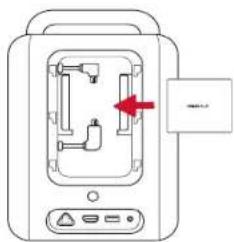
text_image
Diagram of a device with internal components and a red arrow indicating a directional flow or operation.natural_image
Diagram of a device rear panel showing ports and a connected plug (no text or symbols)natural_image
Illustration of hands holding a rectangular object with a red arrow indicating a specific area (no text or symbols present)1
2

natural_image
Line drawing of a hand pressing a button on a device with a red circular mark (no text or symbols)natural_image
Diagram of a device with an attached plug and indicator lights, no text or symbols present
Hereby, Anker Innovations Limited. declares that this device is in compliance with the essential requirements and other relevant provisions of Directive 2014/53/EU. Para obter a Declaração de Conformidade, visite o site https://uk.seenebula.com.

This product complies with the radio interference requirements of the United Kingdom.
Anker Technology (UK) Ltd I Suite B, Fairgate House, 205 Kings Road, Tyseley, Birmingham, B11 2AA, Reino Unido

Warning: Changes or modifications not expressly approved by the party responsible for compliance could void the user's authority to operate the equipment.
Note: This equipment has been tested and found to comply with the limits for a Class B digital device, pursuant to part 15 of the FCC Rules. These limits are designed to provide reasonable protection against harmful interference in a residential installation.
This equipment generates uses and can radiate radio frequency energy and, if not installed and used in accordance with the instructions, may cause harmful interference to radio communications. However, there is no guarantee that interference will not occur in a particular installation. Se este equipamento causar de facto interferências nocivas à receção de rádio ou de televisão, o que pode ser determinado desligando e ligando o equipamento, recomenda-se ao utilizador que tente eliminar as interferências através de uma ou mais das seguintes medidas: (1) Reoriente ou coloque a antena recetora noutro local. (2) Increase the separation between the equipment and receiver.(3) Connect the equipment into an outlet on a circuit different from that to which the receiver is connected. (4) Consult the dealer or an experienced radio/TV technician for help.
The device has been evaluated to meet general RF exposure requirements. The device can be used in fixed/mobile exposure condition. The min separation distance is 20cm.
Notice: Shielded cables
All connections to other computing devices must be made using shielded cables to maintain compliance with FCC regulations.
Company Name: Fantasia Trading LLC
Address: 5350 Ontario Mills Pkwy, Suite 100, Ontario, CA 91764
Telephone: 1-800-988-7973
IC Statement:
• this device may not cause interference, and
- this device must accept any interference, including interference that may cause undesired operation of the device."
5150\~5250 MHz can be used indoors only.
Please Note: Any provided shipping labels must be used within 20 days from the date they're issued by Nebula Support.
Anker Innovations Limited
Room 1318-19, Hollywood Plaza, 610 Nathan Road, Mongkok,
Kowloon, Hong Kong
安全にご使用いただくために
text_image
Diagram showing various household appliances and devices with numbered labels (12, 4b, qSG)① Nebula Cosmos Laser / Cosmos Laser 4K
text_image
Diagram of a device with numbered components and labeled ports, likely for electrical or electronic labeling.text_image
Diagram of two electronic devices with labeled ports and internal components, showing numbered parts for identification.natural_image
Simple diagram of concentric rectangular shapes with a central circle and a labeled point (1), no text or symbols present.① 1/4" 三脚用ソケット
リモコン
text_image
1 2 3 4 5 6 7 8 9 10 11 12 13 14 15 16 17 YouTube Netflix Disney+natural_image
Line drawing of a portable electronic device with ventilation slots and control buttons (no text or symbols)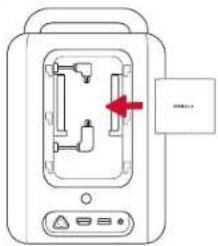
text_image
Diagram of a device with labeled ports and a red arrow indicating a directional flow or movement, next to a label box with Chinese characters.電源に接続する
natural_image
Diagram of a computer interface showing a cable connector with a red arrow pointing to the cable (no text or symbols present)リモコンのセットアップ
natural_image
Illustration of hands holding a rectangular device with a red arrow pointing to the screen (no text or symbols)①
2

natural_image
Line drawing of a hand pressing a button on a device with a keypad (no text or symbols)text_image
Diagram showing a hand interacting with a device and a smartphone displaying a 'Search' button with Chinese text.
text_image
Diagram of a device component with numbered parts labeled 1 through 8text_image
Diagram of a two-chamber electric heater with labeled ports and internal componentsnatural_image
Simple diagram of concentric rectangular shapes with a central dot and label '1' (no text or symbols within shapes)① 1/4" 삼각대 소켓
리모컨
text_image
1 2 3 4 5 6 7 8 9 10 11 12 13 14 15 16 17 YouTube Netflix Disney+natural_image
Line drawing of a portable electronic device with ventilation slots and control buttons (no text or symbols)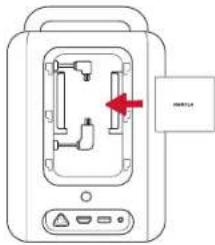
text_image
Diagram of a device with labeled ports and an arrow indicating direction, showing internal components and a 'HAPPLE' label.전원에 연결하기
natural_image
Diagram of a device rear panel with a red warning triangle and a plug symbol, no text or labels present.리모컨 준비
natural_image
Illustration of hands holding a rectangular object with a red arrow pointing to it (no text or symbols present)1
2

natural_image
Line drawing of a hand pressing a button on a device with a keypad (no text or symbols)text_image
Diagram showing a hand interacting with a device and a smartphone displaying 'Micro Starch' with a 'Smart' button.
Anker Innovations Limited
Room 1318-19, Hollywood Plaza, 610 Nathan Road, Mongkok, Kowloon, Hong Kong
重要安全須知
text_image
Diagram of a device rear panel with numbered components for identificationtext_image
Diagram of two electronic devices with labeled ports and internal components, showing front and back views with numbered labels.natural_image
Simple diagram with concentric rectangular shapes and a central circle, no text or symbols present① 1/4"三腳架插座
遥控器
text_image
1 2 3 4 5 6 7 8 9 10 11 12 13 14 15 16 17 YouTube Netflix Google+natural_image
Line drawing of a portable electronic device with ventilation slots and control buttons (no text or symbols)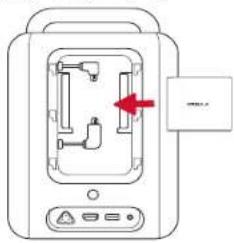
text_image
Diagram of a device with labeled ports and a red arrow indicating a directional flow or movement, possibly illustrating a process or system.接通電源
將電源線連接到裝置,然後連接到電源。
natural_image
Diagram of a computer interface showing a port with a red warning triangle and a cable connector (no text or symbols)準備遙控器
natural_image
Illustration of hands holding a rectangular device with a red arrow indicating a change (no text or symbols present)1
2

natural_image
Line drawing of a hand pressing a button on a device with a red button (no text or symbols)text_image
Diagram of a portable air conditioner unit with labeled ports and internal compartments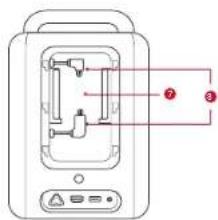
text_image
Diagram of a microwave oven with labeled ports and internal componentstext_image
Diagram of a device rear panel with numbered labels pointing to key componentsnatural_image
Simple diagram of concentric rectangular shapes with a central circle and a numbered label (1) pointing to the center (no text or symbols beyond the number)المنظمة السفلي

جهاز التحكم عن بُعد
text_image
1 2 3 4 5 6 7 8 9 10 11 12 13 14 15 16 17 YouTube NETFLUO Disney- 组成,###natural_image
Illustration of hands holding a rectangular object with a red arrow pointing to a small green component (no text or symbols)1
②
natural_image
Line drawing of a portable electronic device with ventilation slots and ports (no text or symbols)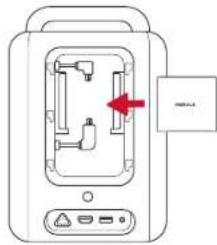
text_image
Diagram of a device with labeled ports and an arrow indicating a directional change, accompanied by a label 'PUBA' in the corner.
natural_image
Diagram of a computer RAM module with indicator lights and ports (no text or symbols)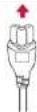
natural_image
Line drawing of a hand pressing a button on a device tray (no text or symbols)For FAQs and more information, please visit:
www.SeeNebula.com www.ankerjapan.com

support@anker.com

+1 (800) 988 7973 (US) Mon-Fri 9:00am - 5:00pm (PT)
+44 (0) 1604 936200 (UK) Mon-Fri 6:00 - 11:00 (GMT)
+49 (0) 69 9579 7960 (DE) Mo-Fr 6:00 - 11:00
©Anker Innovations Limited. All rights reserved. NEBULA and the NEBULA logo are trademarks of Anker Innovations Limited, registered in the United States and other countries. All other trademarks are the property of their respective owners.
Model: D2341 D2350
V02
4 الإستعمال : 1. أ stylistically elegant, مانيographic (العربية) وَلَّمَّةِ الْمُسْتَّدِهُ (الْمُسْتَّدِهُ) وَلَّمَّةِ الْمُسْتَّدِهُ (الْمُسْتَّدِهُ) وَلَّمَّةِ الْمُسْتَّدِهُ (الْمُسْتَّدِهُ)
Anker Innovations Limited
,Room 1318-19, Hollywood Plaza, 610 Nathan Road, Mongkok Kowloon, Hong Kong