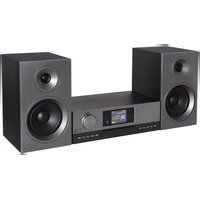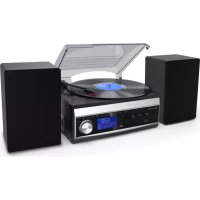
MCD1820 - Hi-fi system Soundmaster - Free user manual and instructions
Find the device manual for free MCD1820 Soundmaster in PDF.



| Brand | Soundmaster |
| Model | MCD1820 |
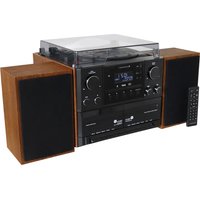
| Product type | Hi-fi system with CD player, cassette deck, DAB+/FM tuner, vinyl turntable, USB and auxiliary input |
| Power supply | 230 V ~ 50 Hz |
| Display | LCD display |
| Supported audio formats | Audio CD, MP3 (CD and USB) |
| Playback sources | CD, cassette, DAB+, FM, USB, vinyl turntable (phono), 3.5 mm auxiliary input |
| Main functions | MP3 encoding (CD, radio, phono, cassette, aux), timer (alarm/sleep), 5-mode equalizer, CD programming, repeat/shuffle |
| Output power | 2 x 6 W RMS (estimated) |
| Connectivity | 3.5 mm headphone jack, 3.5 mm auxiliary jack, USB port, speaker output (binding posts), line output (RCA) |
| Antenna | Supplied FM/DAB antenna, dedicated connector |
| Turntable | Speeds 33/45 RPM, 45 RPM adapter included, switchable auto-stop |
| Cassette deck | Playback and fast forward |
| Timer function | Sleep timer (15-90 min), programmable alarm (CD, DAB, FM, USB) |
| Equalizer | Flat, Classic, Rock, Pop, Jazz |
| Remote control | Yes, with AAA batteries (not included) |
| Safety | Class 1 laser (CD), automatic standby (ERP), surge protection |
| Care and cleaning | Soft dry cloth, clean the CD window, avoid abrasive products |
| Weight | Approx. 4 kg (estimated) |
| Dimensions (approx.) | 300 x 250 x 150 mm (estimated) |
| Included accessories | Remote control, FM/DAB antenna, user manual |
Frequently Asked Questions - MCD1820 Soundmaster
User questions about MCD1820 Soundmaster
0 question about this device. Answer the ones you know or ask your own.
Ask a new question about this device
Download the instructions for your Hi-fi system in PDF format for free! Find your manual MCD1820 - Soundmaster and take your electronic device back in hand. On this page are published all the documents necessary for the use of your device. MCD1820 by Soundmaster.
USER MANUAL MCD1820 Soundmaster
natural_image
Black-and-white photo of a portable electronic music kit with two speakers and a CD, no visible text or symbols on the main components.DEUTSCH
ENGLISH
FRANÇAIS
NEDERLANDS
ITALIANO
Hersteller
natural_image
Diagram of a battery pack with an arrow indicating downward movement, no text or symbols presentINSTALLATION
LIEFERUMFANG
Copyright by Woerlein GmbH, 90556 Cadolzburg, www.soundmaster.de
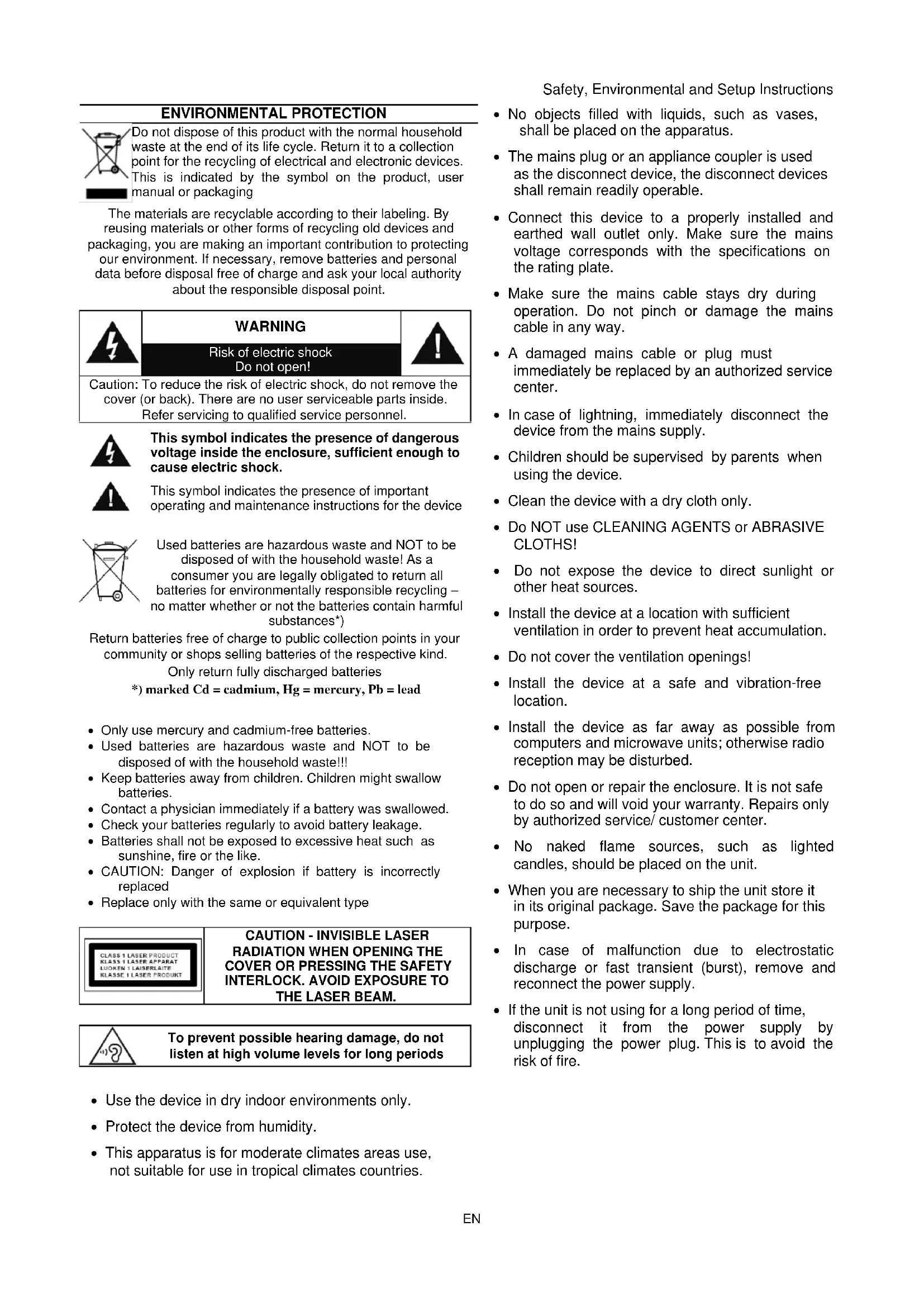
Do not dispose of this product with the normal household waste at the end of its life cycle. Return it to a collection point for the recycling of electrical and electronic devices. This is indicated by the symbol on the product, user manual or packaging
The materials are recyclable according to their labeling. By reusing materials or other forms of recycling old devices and packaging, you are making an important contribution to protecting our environment. If necessary, remove batteries and personal data before disposal free of charge and ask your local authority about the responsible disposal point.
| WARNINGRisk of electric shockDo not open! |
Caution: To reduce the risk of electric shock, do not remove the cover (or back). There are no user serviceable parts inside. Refer servicing to qualified service personnel.

This symbol indicates the presence of dangerous voltage inside the enclosure, sufficient enough to cause electric shock.
This symbol indicates the presence of important operating and maintenance instructions for the device
Used batteries are hazardous waste and NOT to be disposed of with the household waste! As a consumer you are legally obligated to return all batteries for environmentally responsible recycling – no matter whether or not the batteries contain harmful substances*)
Return batteries free of charge to public collection points in your community or shops selling batteries of the respective kind. Only return fully discharged batteries ^* marked Cd = cadmium, Hg = mercury, Pb = lead
- Only use mercury and cadmium-free batteries.
- Used batteries are hazardous waste and NOT to be disposed of with the household waste!!!
- Keep batteries away from children. Children might swallow batteries.
- Contact a physician immediately if a battery was swallowed.
- Check your batteries regularly to avoid battery leakage.
- Batteries shall not be exposed to excessive heat such as sunshine, fire or the like.
- CAUTION: Danger of explosion if battery is incorrectly replaced
- Replace only with the same or equivalent type
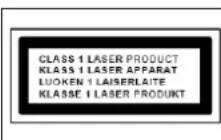
CAUTION - INVISIBLE LASER RADIATION WHEN OPENING THE COVER OR PRESSING THE SAFETY INTERLOCK. AVOID EXPOSURE TO THE LASER BEAM.
To prevent possible hearing damage, do not listen at high volume levels for long periods
- Use the device in dry indoor environments only.
- Protect the device from humidity.
- This apparatus is for moderate climates areas use, not suitable for use in tropical climates countries.
Safety, Environmental and Setup Instructions
- No objects filled with liquids, such as vases, shall be placed on the apparatus.
- The mains plug or an appliance coupler is used as the disconnect device, the disconnect devices shall remain readily operable.
- Connect this device to a properly installed and earthed wall outlet only. Make sure the mains voltage corresponds with the specifications on the rating plate.
- Make sure the mains cable stays dry during operation. Do not pinch or damage the mains cable in any way.
- A damaged mains cable or plug must immediately be replaced by an authorized service center.
- In case of lightning, immediately disconnect the device from the mains supply.
- Children should be supervised by parents when using the device.
- Clean the device with a dry cloth only.
- Do NOT use CLEANING AGENTS or ABRASIVE CLOTHS!
- Do not expose the device to direct sunlight or other heat sources.
- Install the device at a location with sufficient ventilation in order to prevent heat accumulation.
- Do not cover the ventilation openings!
- Install the device at a safe and vibration-free location.
- Install the device as far away as possible from computers and microwave units; otherwise radio reception may be disturbed.
- Do not open or repair the enclosure. It is not safe to do so and will void your warranty. Repairs only by authorized service/ customer center.
- No naked flame sources, such as lighted candles, should be placed on the unit.
- When you are necessary to ship the unit store it in its original package. Save the package for this purpose.
- In case of malfunction due to electrostatic discharge or fast transient (burst), remove and reconnect the power supply.
- If the unit is not using for a long period of time, disconnect it from the power supply by unplugging the power plug. This is to avoid the risk of fire.
LOCATION OF CONTROLS
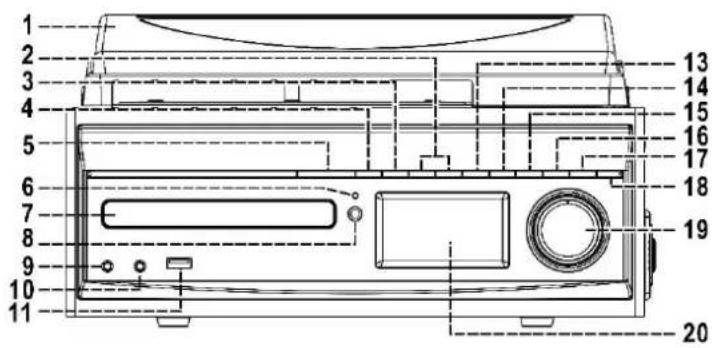
1 Dust cover
2 TUNE
3 REC
4 ▲ Open/close
5 ON / STANDBY
6 Standby LED indicator
7 CD door
8 Remote sensor
9 3.5mm headphone jack
10 3.5 Aux-In jack
11 USB socket
13 ■ / Enter
14 ▶ Play/Pause
15 FOLDER / PRESET
16 MEM / MENU
17 EQ
18 FUNCTION
19 Volume up/down
20 LCD display
21 Tape forward / Eject
22 Cassette door cover
23 Spindle adaptor
24 Cartridge holder
25 Turntable speed selector
26 Pick up holder
27 FM/DAB antenna
28 Line out socket (L/R)
29 Speaker socket (L/R)
30 Auto stop switch
31 AC power cord
text_image
1 2 3 4 5 6 7 8 9 10 11 13 14 15 16 17 18 19 20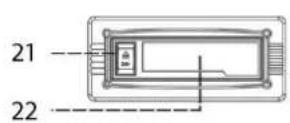
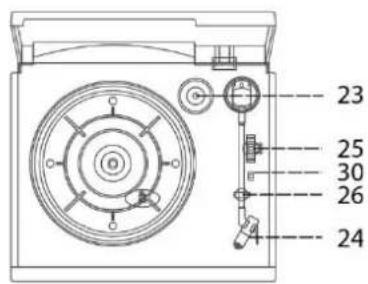
text_image
23 25 30 26 24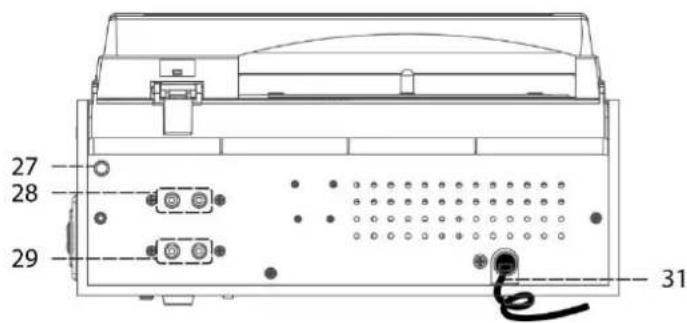
text_image
27 28 29 31Caution:
Usage of controls or adjustments or performance of procedures other than those specified herein may result in hazardous radiation exposure.
This unit should not be adjusted or repaired by anyone except qualified service personnel.
ERP power management
The unit will turn off automatically after 15 minutes in standby mode if there is no audio signal. To turn on the unit again press the "ON / STANDBY" button.
REMOTE CONTROL
1 ON / STANDBY
2 MEM / MENU
3 TUNE -
4 ■ / ENTER
5 FOLDER / PRESET ▼
6 PLAY MODE
7 VOL -
8 SLEEP / TIMER
9 DELETE / INFO
10 FUNCTION
11 ▶ PLAY/PAUSE
12 ▶TUNE +
13 FOLDER / PRESET ▲
14 • REC
15 SCAN
16 VOL +
17 EQ
18 TS (Track separation)
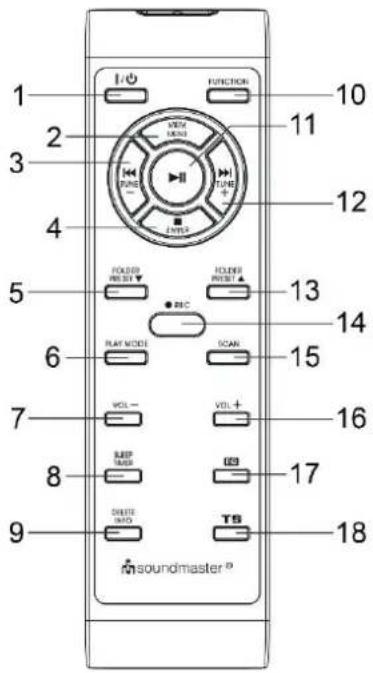
text_image
1 2 3 4 5 6 7 8 9 FUNCTION VIEW MOUNT PULSE TURRY LITER FOLDER POSITION RRC FLUORE POSITION FLAT MODE SCAN VOL - VOL + BEEP RASS UID DELETE DATA TS 10 11 12 13 14 15 16 17 18 soundmaster®BATTERY INSTALLATION OF REMOTE CONTROL
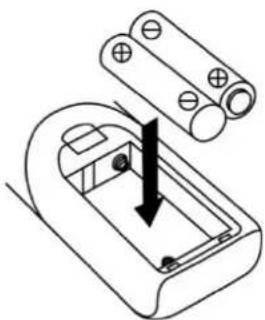
The battery compartment is located on the back of the remote control.
- Remove the battery compartment door by pressing in on the tab and lifting it off.
- Insert two AAA size batteries (not included) into the battery compartment following the polarity markings inside the battery compartment.
- Replace the battery compartment door.
natural_image
Diagram of a battery pack with two batteries and a downward arrow indicating force or movement (no text or symbols)INSTALLATION
CONTENT OF DELIVERY
Main unit
Instruction manual
Remote control
Antenna
ANTENNA INSTALLATION
Attach the included Antenna to the FM/DAB antenna socket at the back side of the unit. Should you have an external aerial you can connect this as an alternative!
POWER SUPPLY
Before connecting the device, make sure that your mains voltage corresponds to the information on the rating label. Make all other connections before connecting to the mains.
Do not cover the ventilation openings and leave enough space around for ventilation.
Connect the power cord to AC outlet and connect the speaker jack to the speaker socket located on the rear side of unit.
BASIC OPERATIONS
POWER ON / OFF
Press "ON / STANDBY" to turn the unit on.
Press the button again to turn off the unit in standby mode.
SELECTING MODES
During playing mode, press repeatedly the "FUNCTION" button to switch between the modes.
ADJUSTING VOLUME
Adjust with "Volume + / -" the desired volume.
DAB
- Press "FUNCTION" button to select "DAB" mode. At first selection the unit start to fully scan of the DAB channel from 5A to 13F.
- Tune to the required DAB channel by pressing the "◀◀ TUNE -" or "▶▶ TUNE +" button step by step.
Note:
If there is no DAB+ reception at any time, change the position of the unit or adjust the antenna. Press "SCAN" button on the remote control to start a new search.
If DAB reception is poor, dropouts may occur or the sound will be muted. Change the position to improve the reception.
DAB INFORMATION
Press repeatedly "DELETE / INFO" on the remote control to cycle through the DAB information.
STORE PRESET STATION
You can store up to total of 10 DAB radio stations in the memory.
- In DAB mode, choose the desired radio station. Press and hold "MEM / MENU", "Empty P1" will show on the display. Press the "TUNE -" or "TUNE +" to choose the desired station number.
- Press the "■ / ENTER" button to confirm and 'Preset 1 Stored' will show on the display.
- Repeat the above 1 - 2 steps to store further stations.
RECALL PRESET STATIONS
Press the "FOLDER / PRESET" button on the unit to select preset stations forward and the "■ / ENTER" button to choose the stored station.
You can also press "FOLDER PRESET ▼ or "FOLDER PRESET " on the remote control to select the stored station.
You can overwrite a present station by storing another radio station in its place.
DAB MENU
The device must be in DAB mode. Enter the DAB menu by pressing the "MEM / MENU" button. Select with "◀◀ TUNE −" or "▶◀ TUNE +" the one of the following settings and confirm with
"ENTER":
a) Full scan:
Starts the complete station scan. The DAB frequency band is scanned for available stations.
b) Manual tune:
To do so you need to know the station frequency. This can be found on the internet site of the broadcasting service. Select individual frequencies and confirm with “■ / ENTER”.
c) DRC (Digital Range Control):
The term DRC describes the ratio between the quietest and the loudest sound. If the dynamic range is very high there are very soft sounds as well as very loud sounds.
Under some circumstances this may present a problem with playback. Let us assume that you are listening to a radio station in a relatively loud environment. By increasing the volume you can play the quiet sections louder.
This however has the disadvantage that the loud sections become uncomfortably loud. It makes sense here to reduce the dynamic range. Select between the options:
DRC off: The dynamic range is not reduced.
DRC high: The dynamic range is sharply reduced.
DRC low: The dynamic range is slightly reduced.
d) Prune:
It may be that you can no longer receive some stations after a station scan or change of location. With this function you can delete these stations from the reception list. Select "YES" and confirm with "■ ENTER".
e) System:
See under "SYSTEM SETTINGS".
FM
Press "FUNCTION" to select the FM mode.
Automatic station search
Press on the remote control “◀◀ TUNE –” or “▶◀ TUNE +” to select the search direction. Press “SCAN” to start the search. The unit stops automatically when a station is found.
Manual search
Briefly press “◀◀ TUNE –” or “▶◀ TUNE +” to adjust the frequency in 50kHz steps.
STORE PRESET STATION
Is the same as in DAB mode.
RECALL PRESET STATION
Is the same as in DAB mode.
FM MENU
The device must be in FM mode. Enter the FM menu by pressing the "MEM / MENU" button. Select with "◀◀ TUNE –" or "▶▶TUNE +" the one of the following settings and confirm with "■/ ENTER":
a) Scan setting:
Select the desired option for automatic station search.
- All stations: Search for all stations that can be received. In this case, station search also stops for weak stations.
- Strong stations only: Only clear stations are searched.
b) Audio setting:
Select the MONO or STEREO for FM reception.
c) System:
See under "SYSTEM SETTINGS".
CD
- Getting start
- Press "FUNCTION" button to select "CD" mode.
- Press "▲" button to open the CD door.
- Place a CD with the printed side facing up inside the tray & then close the CD door.
- After reading, the playback starts automatically.
● Play / Pause mode ▶II
- Press the "▶II" button to start playback, the first track will start playback.
- To interrupt, press the "▶II" button once, and the playing time will be flashing on the LCD display. Press again to resume normal playback.
- Stop mode
If "■ /ENTER" button is pressed during play or pause mode, system will go to stop mode.
- Skip mode (skip up skip down)
- During play or pause mode, if "▶TUNE +" button is pressed, the unit will go to next track and display the track no. and then remain the play or pause mode.
- During play or pause mode, if "◀ TUNE –" is pressed, the unit will go back to the beginning of the track, original track no. is display and remain the play or pause mode.
- After step 2, press "TUNE –" again will go to the previous track and remain the play or pause mode.
- For MP3 disc
- After focus search is performing, the total number of track and album will be shown on the LCD display.
- Press "FOLDER / PRESET" on the unit or "FOLDER / PRESET ▼/▲" on the remote control to select the album number.
- Press "◀◀ TUNE –" or "▶◀ TUNE +" button to select the track number.
- When the desired track and album is being selected, press the “▶” button to start playback.
Remark:
MP3 track format requirement:
- MP3 bit rate: 32 kbps\~256 kbps.
- The performance of playing MP3 disc is various from the quality of recording disc and the method of recording. Furthermore, the searching lead-time for MP3-CD is longer than
normal CD due to difference format.
ID3 (file/title/artist/album) function
Press "DELETE / INFO" on the remote control until the LCD display show "file - ... "during playback of MP3, the file / title / artist / album name is being displayed in sequence. Press "DELETE / INFO" again to disable the function.
Remark:
- in that case if no name had been assigned for the track, "no title "or "no artist "is being displayed" on LCD display.
- No title/album name can be recognized if the input format on the disc/mass media is not supporting by the system.
- The system support only English and numeral for ID3 function.
- Repeat/random mode (by remote handset)
Press the "PLAY MODE" button during playback to select repeat and random function, a single track, single folder (MP3 only) or all the tracks can be played in difference mode as follow:
For CD

flowchart
graph LR
    A["(1) Repeat 1"] --> B["(2) Repeat all track"]
    B --> C["(3) Random"]
    C --> D["(4) Off mode"]
Indicator
| Play mode | on LCD display |
| Repeat track | |
| Repeat all | ALL |
| Random | |
| Off mode |
For MP3 disc/file
(1) Repeat 1 (2) Repeat 1 Folder (3) Repeat all tracks

flowchart
graph TD
    A["(5) Off mode"] --> B["Arrow"]
    B --> C["(4) Random"]
Indicator
| Play mode | on LCD display |
| Repeat single track | |
| Repeat single folder | |
| Repeat all tracks | ALL |
| Random mode | |
| Off mode |
CD / MP3 disc programming
Up to 40 tacks can be programmed for disc play in any order. Before use, be sure to press the "■ / ENTER" button.
-
Set in CD mode & stop the playback.
-
Press the "MEM / MENU" button, "001 PR01" will appear on LCD display.
- Select a desired track by pressing "◀◀ TUNE –" or "▶▶ TUNE +".
- Press the "MEM / MENU" button to store the track into memory.
- Repeat steps 3 and 4 to enter additional tracks into the memory if necessary.
- When all the desired tracks have been programmed, press "▶II" button to play the disc in assigned order.
- Press "■ / ENTER" button to terminate program play.
After programmed the CD tracks and stay at stop mode, press "◀◀ TUNE –" or "▶TUNE +" to review the tracks being programmed.
➢ Press “■ / ENTER” button again at CD stop mode to cancel all programmed memory, display will appear “PGM CLEAR” few seconds.
For MP3 disc / file, press the "FOLDER / PRESET" button to select the first track of next folder directly and hence to speed up the song selection.
The programming mode will automatically stop if no button is being pressed in a period of about 10 seconds after pressing the "MEM / MENU" button.
Remark: There is a bookmark function of the unit under CD & USB playback. When the device is switched to other function during CD/USB playback, the CD/USB will automatically resume from the last playback section once it switched back to CD/USB mode.
USB
Connecting
The system is able to decode and playback all MP3 file which stored in the memory media with USB connecting port.
- Set the system at standby mode first or other function except USB mode.
- Plug-in the USB pen-drive with the face up & make sure it going into completely. Insert straight without bending.
- Connecting the USB upside down or backwards could damage the audio system or the storage media (USB thumb drive). Check to be sure the direction is correct before connection.
- Press "FUNCTION" button to select "USB" mode.
- The system will start reading the storage media automatically after connecting, and LCD display will show the total number of MP3 files being detected.
- Repeat the same playback procedure as playing CD/MP3 disc as above.
Remark
- The system can detect and read the file under MP3 format only though the USB port.
- If connect the system to MP3 player via the USB socket, due to variances in MP3 encoding format, some MP3 player may not be able to play via the USB socket. This is not a malfunction of the system.
- USB port does not support connection with USB extension cable and is not designed for communication with computer directly.
ENCODING
The system is able to encode normal CD/Turntable/DAB radio...etc to MP3 format and recording at memory media with USB connecting port. Before starting the encoding, please insert the memory media (USB pen drive) to the system & make sure it had adequate free memory size for recording:
A) CD encoding
I) Encoding 1 track
- Perform normal playback of the CD track you want to encode.
- Press "● REC " button during the playback of the desire track and the system will show "REC_ONE" for a while.
- Then display will change to show "REC>>USB" and flashing. Encoding is performing now, the selected CD track will start to play as well.
- After completing of recoding, unit will stop playback automatically.
II) Encoding whole disc
- Stay at CD stop mode by press "■ / ENTER" button.
- Press "● REC " button the system will show" REC_ONE" for a while.
- Press "● REC " again and the unit will show "REC_ALL".
- Then the system will show "REC>>USB" and flashing. Encoding is performing now, the whole CD will start to play as well.
- After completed whole disc recoding, unit will stop playback automatically.
III) Encoding by program
- Place a CD with the printed side facing up inside the tray & then close the co door.
- Select the desire tracks by following "CD disc programming" procedures 2-4. Then press "■ ENTER" button to stay in stop mode with program memory.
- Press the "● REC" button and the unit will display "REC_ALL" for a while
- Then the system will show "REC>>USB" and flashing. Encoding is performing now, the programmed CD tracks will start to play as well.
- After completing of encoding according to the program memory, unit will stop playback automatically.
Remark:
- If both recoding source (USB pen drive) being detected by the system during encoding, please press "◀◀ TUNE –" or "▶▶TUNE +" to select the desired source. Then press " ● REC " button again to continuous the process.
- The recording speed is 1:1 and according to the actual plying time of the CD track
- The system will create a "audio" folder and then store the encoding track in it.
- The recording format is preset at - MP3 bit rate: 128 kbps, sampling rate: 44.1khz
- No song title will be recorded during encoding mode
- To interrupt the recording, press the "■ / ENTER" button during recording mode.
- Recording will be completed only entire song being encoded, if terminate the encoding process intermediately, there is no track being recorded nor stored to the USB.
B) Phono encoding
1) Select "PHONO/AUX" mode and then press "● REC" directly.
2) Then the system will show "REC>>USB" and flashing. Encoding is performing now.
3) Start playback at Phono for the track which you want to record to media position.
4) To finish the recoding, press the "■ / ENTER" button. The text on LCD display stop flashing and return to "PHONO/AUX" mode.
C) Cassette encoding
1) Select "TAPE" mode and then press the "● REC " button directly.
2) Then the system will show "REC>>USB" and flashing. Encoding is performing now.
3) Start playback of cassette tape which the track you prepare to record.
4) To finish the recoding, press the "■ / ENTER" button. The text on LCD display stop flashing and return to "TAPE" mode.
1) Select DAB or FM mode and then select the desire radio station
2) Press the "●REC" button to start the encoding.
3) Then the system will show "REC>>USB" and flashing. Encoding is performing now.
4) To finish the recoding, press the "■ / ENTER" button. The text on LCD display stop flashing and return to "TUNER" mode.
Remark:
- If the radio reception signal is not strong enough, the system cannot start the encoding process and the text "NO GOOD" will show on the LCD display.
- The recording quality and performance for radio encoding is not stable due to interference of radio reception. This is not a malfunction of the system.
E) Aux-in encoding
Connect another audio device, e.g. (portable) CD player, MP3 player, (portable) cassette player, iPod, etc. To this system via a cord with 3.5mm jack plugs (not supplied).
Connect one end of this cord to the 3.5mm headphone jack on the external device and the other end to the 3.5mm Aux-in jack on the side of the unit.
When connected in this way it is possible to:
- Play back the music already on the connected device.
- Encode and convert the music files from the connected device to USB into MP3 format.
- Follow the same procedure as Phono encoding described in this manual.
Track separation (by remote handset)
You can divide the recording music from Phono, Aux, Tape, DAB or FM Radio to USB track by trace during encoding. Every time when press the “TS” (track separation) button once at remote handset during encoding from those source to USB, the system will generate a new track and continuous the recording. The text “SAVING” will appear on LCD display one time, it mean the unit is creating a new track successfully and perform recording continuously.
Encoding bit rate (by remote control)
You can select the desired bit rate for encoding to USB, the selectable range from 32 / 64 / 96 /128 / 192 / 256 kbps.
- Set in "PHONO/AUX" or "TAPE" function.
- Press "DELETE / INFO" and the LCD display will show the default bit rate (128 kbps).
- Press "◀◀ TUNE –" or "▶◀ TUNE +" to select the desired bit rate for encoding.
- Press again "DELETE / INFO" button to confirm the setting and the LCD display resume to "Phono/Aux" mode.
File delete at USB (by remote control)
The system is able to erase the file stored inside the USB pen drive by following:
- Insert the media storage and set at "USB" mode.
- Press the "DELETE / INFO" button and the LCD display will show (del ---001).
- Press "◀◀ TUNE –" or "▶▶TUNE +" to select the file going to delete.
- Press "DELETE / INFO" to enter "Yes / No" selection and then "◀ TUNE –" or "▶ TUNE +" to select "Yes" or "No".
- With "DELETE / INFO" button, confirm the setting.
Remark :
Press "■ ENTER" button once at remote control to quite delete mode.
Removing of USB
To remove the USB, turn off the power or switch the function mode to either CD, Tape or Radio first. For USB port – un-plug it by pulling out the USB socket directly.
TAPE
General operation
Cassette playback : The system will start the playback automatically after inserting of cassette tape
Stop and ejection : Press the "Tape forward / Eject" button completely inwards and the cassette tape will be ejected though the cassette door cover. The "Tape forward / Eject" button will keeping at lowest height position.
Fast forward : Press the "Tape forward / eject" button half inwards during playback mode, the tape winding forward direction. The "Tape forward / Eject" button will keeping at middle height position.
Slightly press the "Tape forward / Eject" button again to resume normal playback. The "Tape forward / Eject" button will resume to the highest position.
Remark
- Make sure the direction is correct when inserting the tape into the system.
- There is some searching noise can be heard and the system cannot perform normal playback function during fast forward mode.
- This is recommended to take out the cassette tape from the system every time after listening and don't leave the cassette tape inside the system when not under playback mode.
PHONO
Noted:
- Remove the stylus protector.
- Be sure that the tone arm is being detached from the tone arm rest before operating and re-secured again afterwards.
- Select the "PHONO/AUX" function.
- Set the "Speed selector" to the proper position depending on the record to be played.
- Place the record on the platter (use the spindle adaptor if required).
- Lift the tone arm from the rest and slowly move it to the record side. The platter will start to rotate.
- Place the tone arm to the desired position of the record.
- At the end of record, the platter will automatically stop rotating. Lift the tone arm from the record and return it to the rest.
- To stop manually, lift the tone arm from the record and return it to the rest.
Remark: As some kind of record the auto-stop area was out of the unit setting, so it will stop before the last track finish. In this case, select the auto-stop switch to "Off" position, then it will run to the end of the record but will not stop automatically (turn off the unit by power button or switch back the auto-stop switch to "on" position to stop the platter rotate). Then put back the tone arm to the rest position.
SLEEP
Sleep setting (by remote control)
- Press "SLEEP / TIMER" button and sleep indicator "zzz" will be shown on the LCD display.
- Keep pressing the button to adjust the sleep timer in the order of 90 > 75 >60....15 minutes.
- System will stop and go to standby mode automatically after the selected timing.
- To cancel the sleep mode, press "SLEEP / TIMER" until the unit show "off".
Remark:
If press the sleep button once and the sleep indicator "zzz" will appear on the LCD display, the system will go to standby mode automatically after selected minutes.
EQUALIZER (EQ)
This unit provides 5 differences sound mode to enhance your listening experience. You can select the desired effect by pressing the "EQ" button repeatedly at following sequence:

flowchart
graph LR
    A["FLAT"] --> B["CLASSIC"]
    B --> C["ROCK"]
    C --> D["POP"]
    D --> E["JAZZ"]
    E --> A
TIMER
Timer clock setting (by remote control)
This function allows the system to turn on automatically and wake you up by CD, DAB, FM Radio or USB mode respectively.
First, set the unit in standby mode and then press & hold the "SLEEP / TIMER" button to enter the setting mode, the LCD display will show "SET TIMER" then change to "SELECT SOURCE" and the timer "icon will flash on display:

soundmaster®
MCD1820 / English Instruction Manual
- Wake up source: press the "FUNCTION" button repeatedly to select the source from "CD" -- "FM" -- "DAB" -- "USB". Press "Timer" button to confirm the selected source.
- Wake up time: press "◀◀ TUNE –" or "▶◀ TUNE +" to set the hour & then press "Timer" button to enter the hours. Press "◀◀ TUNE –" or "▶◀ TUNE +" to set minutes and press "SLEEP / TIMER" to store the memory.
Active/de-active timer function
- To active the timer, press once the "SLEEP / TIMER" button on remote control until the timer indicator "💡" is shown on LCD display.
- To cancel timer function by press once again "SLEEP / TIMER" button until the timer indicator " 🔍" disappear.
CLOCK
- Set unit in standby mode.
- Press and hold "MEM / MENU", the LCD display will show "SET CLOCK" and then "12HR or 24HR". With "I◀ TUNE –" or "▶TUNE +" select the appropriate area hour format (12hr/24hr). Confirm with "MEM / MENU".
- The hour is flashing. Set with "◀◀ TUNE –" or "▶◀ TUNE +" the correct hour. Press "MEM / MENU" to store the setting.
- The minutes are flashing. Set with "◀◀ TUNE –" or "▶◀ TUNE +" the correct minutes. Then press "MEM / MENU" to store the setting.
HEADPHONE
To listen to music privately, use headphones with a 3.5mm stereo jack plug and connect them to the headphones socket on the right side of the system. The speaker will be muted.
SYSTEM SETTING
- In DAB or FM mode, press "MEM / MENU".
- Select with "◀ TUNE –" or "▶ TUNE +" "System" and confirm with "■ / ENTER".
- Set the following settings with "◀◀ TUNE –" or "▶◀ TUNE +" and confirm each by pressing "■ ENTER".
a) Language
Press "FOLDER / PRESET ▼/▲" to select the language (English, German, French, Italiano, Dutch) and confirm with "■ ENTER".
b) Factory Reset
Reset the product to factory default status. Select with “◀◀ TUNE –” or “▶◀ TUNE +” “YES” and press “■ / ENTER” to confirm.
Note: All settings and radio stations will be erased.
c) SW Version
Show the current installed software version.
The current version of the manual can be downloaded from www.soundmaster.de
Technical changes and misprints reserved.
Copyright by Woerlein GmbH, 90556 Cadolzburg, www.soundmaster.de
Duplication only with the permission of Woerlein GmbH
text_image
CEPROTECTION DE L'ENVIRONNEMENT

14 ▶▶▶ Lecture/Pause
15 DOSSIER / PRÉRÉGLAGE
16 MÉMOIRE / MENU
17 EQ
18 FONCTION
19 Volume haut/bas
20 Écran LCD
21 Avance de la cassette / Éjection
natural_image
Diagram of a battery pack with an open circuit board and two cylindrical batteries (no text or symbols)INSTALLATION
CONTENU DE L'ENVOI
- Fonctions de lecture/pause ▶II
natural_image
Diagram of a battery pack with an open circuit board and two cylindrical batteries (no text or symbols)INSTALLATIE
LEVERINGSOMVANG
Hoofdeenheid
▶ Afstandsbediening
Gebruiksaanwijzing
Antenne
INSTALLATIE VAN DE ANTENNE
28 Presa line out (S/D)
29 Presa altoparlante (S/D)
natural_image
Diagram of a battery pack with an open circuit board and two cylindrical batteries (no text or symbols)INSTALLAZIONE
D 90556 Cadolzburg, Germany
Tel: +49 9103 71 67 0
Fax: +49 9103 71 67 12
E-Mail: info@soundmaster.de
Internet: www.soundmaster.de
Hereby, Wörlein GmbH declares that this device is in compliance with the essential requirements and other relevant provisions of Directive 2014/53/EU.
A copy of the declaration of conformity can be obtained from the above address.
natural_image
Black-and-white photo of a vintage CD-ROM and audio recording device (no visible text or symbols)PORTUGUÊS
SVENSKA
ČEŠTINA
SLOVENSKÝ
Hersteller
natural_image
Diagram of a battery pack with an open circuit board and two cylindrical batteries (no text or symbols)INSTALAÇÃO
CONTEÚDO DA EMBALAGEM
*) markerade Cd = kadmium, Hg = kvicksilver, Pb = bly
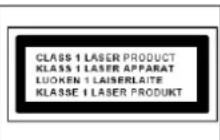
VARNING - OSYNLIG LASERSTRÅLNING NÄR DU ÖPPNAR LOCKET ELLER TRYCKER PÅ SÄKERHETSSPÄRREN. UNDVIK EXPONERING FÖR LASERSTRÅLEN.
text_image
Technical diagram of a device rear panel with numbered components and labeled partsnatural_image
Diagram of a battery pack with an open circuit board and two cylindrical batteries (no text or symbols)INSTALLATION
INNEHÅLL VID LEVERANS
Huvudenhet
Fjärrkontroll
Bruksanvisning
Antenn
INSTALLATION AV ANTENN
natural_image
Diagram of a battery pack with an arrow indicating downward movement, no text or symbols presentINSTALACE
OBSAH DODÁVKY
Hlavní jednotka
Dálkový ovladač
Návod k obsluze
Anténa
MONTÁŽ ANTÉNY
Cadolzburg, www.soundmaster.de
natural_image
Diagram of a battery pack with an open circuit board and two cylindrical batteries (no text or symbols)INŠTALÁCIA
OBSAH DODANIA
Prístroj
Dial'kové ovládanie
Návod na používanie
Anténa
INŠTALÁCIA ANTÉNY
D 90556 Cadolzburg, Germany
Tel: +49 9103 71 67 0
Fax: +49 9103 71 67 12
E-Mail: info@soundmaster.de
Internet: www.soundmaster.de
Hereby, Wörlein GmbH declares that this device is in compliance with the essential requirements and other relevant provisions of Directive 2014/53/EU.
A copy of the declaration of conformity can be obtained from the above address.