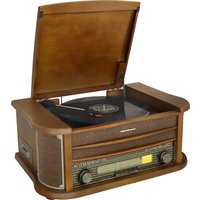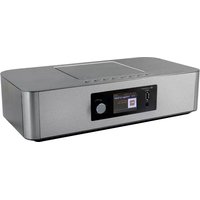
ICD2020 - Hi-fi system Soundmaster - Free user manual and instructions
Find the device manual for free ICD2020 Soundmaster in PDF.


| Brand | Soundmaster |
| Model | ICD2020 |
| Product type | Integrated hi-fi system |
| Power supply | External power adapter: input 100-240 V~50/60 Hz, output DC 18 V 1.2 A |
| Audio power | 2 x 15 W |
| Network connectivity | Dual-band Wi-Fi 2.4 GHz / 5 GHz, WPS support |
| Internet radio | Access to thousands of stations and podcasts via the Frontier Silicon portal |
| Digital radio | DAB/DAB+ (Band III 174.928 – 239.200 MHz) |
| FM radio | FM (87.5 – 108 MHz) with RDS |
| Bluetooth | Version 2.1 + EDR, device name: ICD2020 |
| CD player | Audio CD, programming, repeat, random playback |
| USB port | Playback of MP3, WMA, WAV, AAC, FLAC, ALAC files from a USB stick |
| AUX input | RCA (L/R) jack for external sources |
| Headphones | 3.5 mm jack |
| Equalizer | Presets: Normal, Jazz, Rock, Classic, Pop, My EQ (customizable) |
| Additional functions | Dual alarm, sleep timer, UNDOK app (iOS/Android), DLNA streaming (DMR) |
| Display | Screen with adjustable brightness (6 levels) |
| Maintenance | Clean with a soft dry cloth. Do not use detergents or abrasive cloths. |
| Laser safety | Class 1 laser product – invisible laser radiation when open. Avoid exposure. |
| Repairability | No user-serviceable parts. Refer all servicing to qualified personnel. |
| Standby consumption | < 2 W (with "Keep network connected" function) |
Frequently Asked Questions - ICD2020 Soundmaster
User questions about ICD2020 Soundmaster
0 question about this device. Answer the ones you know or ask your own.
Ask a new question about this device
Download the instructions for your Hi-fi system in PDF format for free! Find your manual ICD2020 - Soundmaster and take your electronic device back in hand. On this page are published all the documents necessary for the use of your device. ICD2020 by Soundmaster.
USER MANUAL ICD2020 Soundmaster
natural_image
Exterior view of a modern audio device with speaker grille and control panel (no readable text or symbols)DEUTSCH
ENGLISH
FRANÇAIS
NEDERLANDS
ITALIANO
ESPANOL
PORTUGUÊS
DANSK
SVENSKA
ČEŠTINA
SLOVENSKÝ
Hersteller
DAB+ (DIGITALRADIO)....16
UKW (FM)....18
BLUETOOTH ^® 19
AUX-IN....19
EINSCHLAFTIMER - SLEEP 19
WECKER - ALARM....19
UNDOK....20
KOPFHÖRERBETRIEB 20
WERKSEINSTELLUNG 20
STÖRUNGSBEHEBUNG 21
TECHNISCHE DATEN 23
BEDIENELEMENTE
FRONTANSICHT
text_image
Diagram of a device rear panel with labeled ports and indicators, including a monitor, switch, and navigation controls.1 USB /5V-A Ausgang
text_image
Diagram of a CD-ROM drive with labeled buttons and ports, showing two connected buttons labeled 17 and 18.17 DC IN
18 AUX IN
FERNBEDIENUNG
text_image
Radio 1 FM CD USB DAB ST AMS INTRO REPEAT SLEEP AUDIO ED + Bass Treble RANDOM USER PROGRAM 7 MENU PAIN 20 8 21 9 OK 22 23 10 SET CLOCK + V 24 25 11 P - TIMER 26 27 1 2 3 4 5 6 7 8 9 13 INFO 0 DIM 281
2
3
4
5
6
7
8
[Non-Text]
text_image
Schlüssel: 0 1 2 3 4 5 6 7 8 9 . _ - @ , a b c d e f g h i j k l m n o p q r s B K S P O K C A N C E Ltext_image
Windows Media Player Library > Music > Album > Bob Acri Organize > Streams > Create playlist > Allow Internet access to home media... ✓ Allow remote control of my Player... Turn on media streaming with HomeGroup... Title Sleep Away Library Playlots Music Artol Album Genre Videos Pictures Recorded TV Jazz 2004text_image
Windows Media Player Library > Playlists > text Organize > Screen > Credits playlistTitle Length Rating
1 All Out of Love + 06 All-1 Play all Play Play next Music Tuesc190 Play to Add to Edit Rate Find album info Remove from list Move clean Properties Find in library Open file locationtext_image
Play To - [1992.1.07] Clear List All Out of Line Connecting media you...text_image
DAB 03:28 BBC Radio 6Music to vote for a track that missed out on the 6Music playlist- Radiosender suchen
text_image
FM 03:28 Alice 97.3 Best Music in the worldCopyright by Woerlein GmbH, 90556 Cadolzburg, www.soundmaster.de
Do not dispose of this product with the normal household waste at the end of its life cycle. Return it to a collection point for the recycling of electrical and electronic devices. This is indicated by the symbol on the product, user manual or packaging
The materials are reusable according to their markings. By reusing, recycling or other forms of utilization of old devices you make an important contribution to the protection of our environment.
Please contact your local authorities for details about collection points.
| WARNINGRisk of electric shockDo not open! |
Caution: To reduce the risk of electric shock, do not remove the cover (or back). There are no user serviceable parts inside. Refer servicing to qualified service personnel.

This symbol indicates the presence of dangerous voltage inside the enclosure, sufficient enough to cause electric shock.

This symbol indicates the presence of important operating and maintenance instructions for the device
Used batteries are hazardous waste and NOT to be disposed of with the household waste! As a consumer you are legally obligated to return all batteries for environmentally responsible recycling – no matter whether or not the batteries contain harmful substances*)
Return batteries free of charge to public collection points in your community or shops selling batteries of the respective kind.
Only return fully discharged batteries
*) marked Cd = cadmium, Hg = mercury, Pb = lead
- Only use mercury and cadmium-free batteries.
- Used batteries are hazardous waste and NOT to be disposed of with the household waste!!!
- Keep batteries away from children. Children might swallow batteries.
- Contact a physician immediately if a battery was swallowed.
- Check your batteries regularly to avoid battery leakage.
- Batteries shall not be exposed to excessive heat such as sunshine, fire or the like.
- CAUTION: Danger of explosion if battery is incorrectly replaced
- Replace only with the same or equivalent type
CAUTION - INVISIBLE LASER RADIATION WHEN OPENING THE COVER OR PRESSING THE SAFETY INTERLOCK. AVOID EXPOSURE TO THE LASER BEAM.
To prevent possible hearing damage, do not listen at high volume levels for long periods
- Use the device in dry indoor environments only.
- Protect the device from humidity.
- This apparatus is for moderate climates areas use, not suitable for use in tropical climates countries.
Safety, Environmental and Setup Instructions
- No objects filled with liquids, such as vases, shall be placed on the apparatus.
- The mains plug or an appliance coupler is used as the disconnect device, the disconnect devices shall remain readily operable.
- Connect this device to a properly installed and earthed wall outlet only. Make sure the mains voltage corresponds with the specifications on the rating plate.
- Make sure the mains cable stays dry during operation. Do not pinch or damage the mains cable in any way.
- A damaged mains cable or plug must immediately be replaced by an authorized service center.
- In case of lightning, immediately disconnect the device from the mains supply.
- Children should be supervised by parents when using the device.
- Clean the device with a dry cloth only.
- Do NOT use CLEANING AGENTS or ABRASIVE CLOTHS!
- Do not expose the device to direct sunlight or other heat sources.
- Install the device at a location with sufficient ventilation in order to prevent heat accumulation.
- Do not cover the ventilation openings!
- Install the device at a safe and vibration-free location.
- Install the device as far away as possible from computers and microwave units; otherwise radio reception may be disturbed.
- Do not open or repair the enclosure. It is not safe to do so and will void your warranty. Repairs only by authorized service/ customer center.
- No naked flame sources, such as lighted candles, should be placed on the unit.
- When you are necessary to ship the unit store it in its original package. Save the package for this purpose.
- In case of malfunction due to electrostatic discharge or fast transient (burst), remove and reconnect the power supply.
- If the unit is not using for a long period of time, disconnect it from the power supply by unplugging the power plug. This is to avoid the risk of fire.
TABLE OF CONTENT
LOCATIONS OF CONTROLS ....2
REMOTE CONTROL ....3
TROUBLESHOOTING....23
TECHNICAL SPECIFICATIONS....24
LOCATIONS OF CONTROLS
FRONT VIEW TOP VIEW
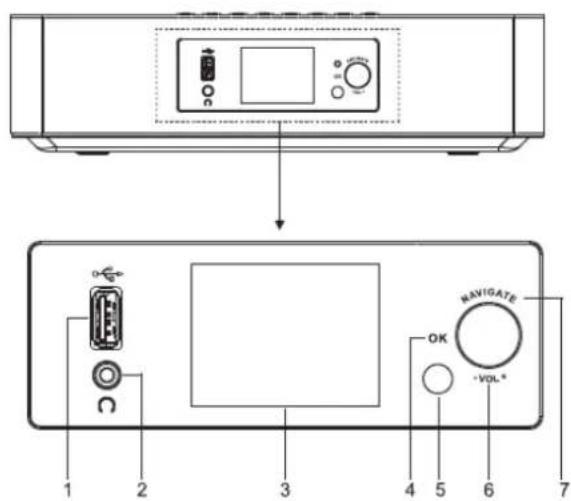
text_image
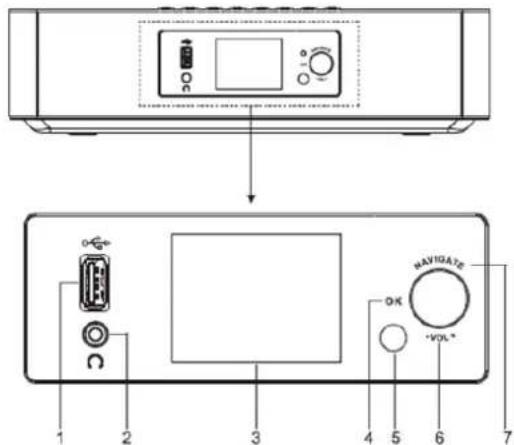
Diagram of a device rear panel with labeled ports and control buttons, showing front and back views with numbered labels.1 USB /5V-1A output
* Connect to a USB device for music playback
*Connect to recharge mobile device
2 Headphone socket
3 Display
4/6/7 OK
*Press to select or skip selection
VOL+/VOL-
*Rotate to increase or decrease the volume level
NAVIGATE
*Rotate to move down or move up on the menu screen
5 Remote sensor
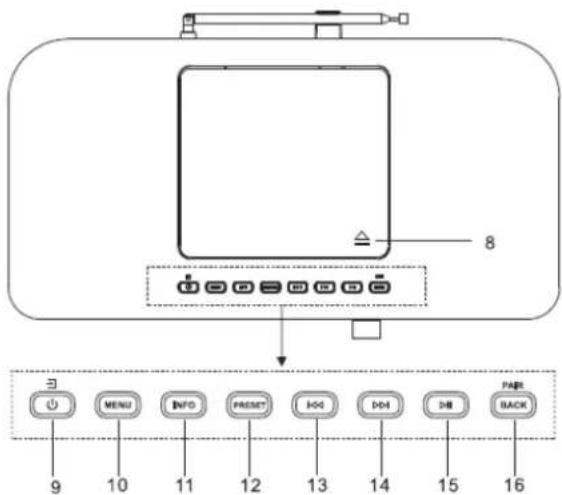
8
* Press to open the CD-door
* Press and hold for power on and power off
* Press to change the source
10 MENU
* Press to display the Menu
text_image
8 ≡ MENJ INFO PREST IHD DDH PARE BACK 9 10 11 12 13 14 15 1611 INFO
* Press to show the information in CD/USB/DAB/FM and Internet radio mode
12 PRESET
*Press to display preset station list in DAB/FM/Internet Radio mode
13
* Press to select previous track in CD/USB/FM/Internet Radio mode
14
* Press to select next track in CD/USB/DAB/FM, Internet radio
15
* Press to play and pause in CD, USB and BT
16 PAIR/BACK
* Press and hold to activate the pairing function in BT or disconnect the existing paired BT device
* Press to return previous menu
BACK VIEW
text_image
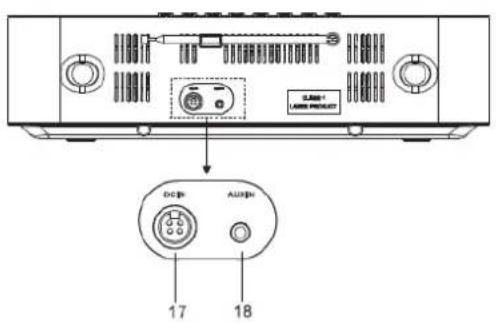
CLDN < LARE PRODUCT DC DN AUD DN 17 1817 DC IN
18 AUX IN
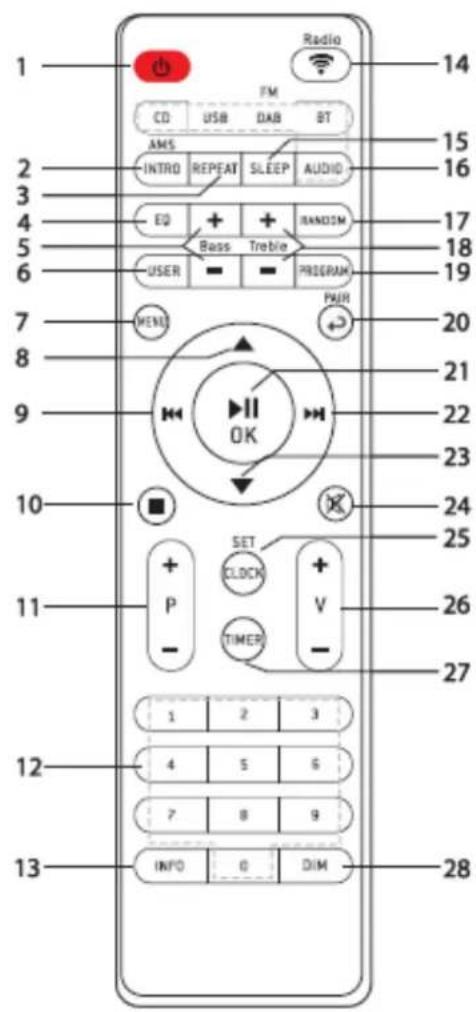
REMOTE CONTROL
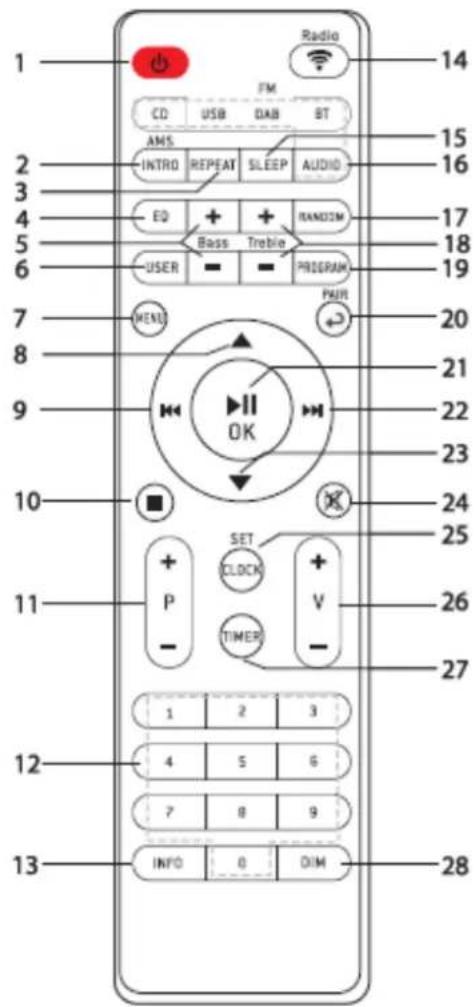
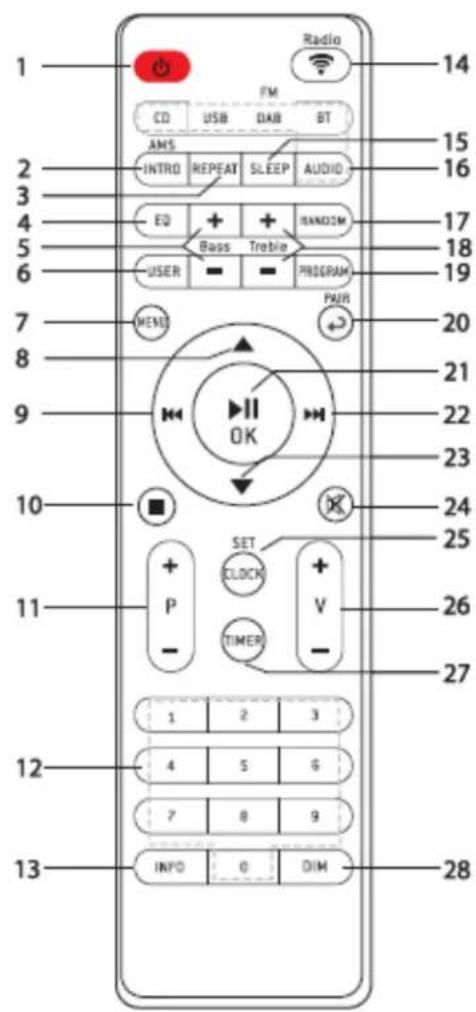
1
* Turn the unit ON or in STANDBY mode
2 INTRO/AMS
* Press to start browsing of all tracks in CD
* Press to automatically search for channel in DAB and FM; when in searching, press again can stop it.
3 REPEAT
* Press to select a repeat playback mode in CD
4 EQ
* Press to select sound characteristics: Normal/Jazz/Rock/Classic/Pop/My EQ
5 BASS+/-
* Press to adjust the BASS in USER mode
6 USER
*Press to allow you to adjust the Bass and Treble in USER mode
7 MENU
* Press to display the Menu
8 ▲
*Press to move up on the menu screen
9
* Press and hold for fast backward in CD and USB
* Press to select previous track in CD and USB
* Press to display the channel list in DAB, FM and internet radio
* Press for fine tuning in FM
* Press and hold for manual tuning in FM
text_image
Radio FM CD USB DAB BT AMS INTRO REPEAT SLEEP AUDIO EQ + Bass Treble RANDOM USER PROGRAM MENU PAIR OK SET CLOCK V TIMER P - 1 2 3 4 5 6 7 8 9 INFO 0 DIM 14 15 16 17 18 19 20 21 22 23 24 25 26 27 12 1310

* Press to stop playing in CD/USB mode
* Press to skip the beginning of current/previous/subsequent album
* Press to select previous/next preset channel in FM and DAB
12 0-9 numeric
13 INFO
* Press to show the information in CD/USB/DAB/FM and Internet radio mode
14 RADIO/
* Press to select the internet radio
15 SLEEP
* Press to set sleep timer
16 CD/USB/DAB/FM/BT/AUDIO
* Press to select the corresponding AUDIO source. ( CD/USB/DAB/FM/BT/AUDIO)
17 RANDOM
* Press to play tracks randomly in CD
18 TREBLE+/-
* Press to adjust the TREBLE in USER mode
19 PROGRAM
* Press to program in CD and preset channel in DAB, FM and internet radio * Long press to save preset channels
20 PAIR
* Press to return to previous menu
* Press and hold to activate the pairing function in BT or disconnect the existing paired BT device
21 ▶II/OK
* Press to play/pause in BT/CD/USB and internet radio * To select or skip to subsequent menu in BT/CD/USB and internet radio
22
*Press and hold for fast forward in CD and USB
*Press to select the next track in CD and USB
*Press to display channel list in DAB/FM and internet radio
*Press for fine tuning in FM
*Press and hold for manual tuning in FM
23
* Press to move down on the menu screen
24
* Press to mute or resume the sound
25 CLOCK
* Press and hold to set clock
26 V+/-
*Press to increase/ decrease the volume level
27 TIMER
* Press to set the Timer
28 DIM
*Press to select different levels of brightness for the display screen
- Press and slide the back cover to open the battery compartment of the remote control.
- Insert two AAA size batteries. Make sure the (+) and (-) ends of the batteries match the (+) and (-) ends indicated in the battery compartment.
- Close the battery compartment cover.
GETTING STARTED / SET UP
Connect the unit to a suitable power source using the power supply provided. After showing a starting screen, it will enter the last used listening mode. When the unit is started for the first time, the setup wizard will be launched automatically.
GET THE NETWORK ENVIRONMENT READY
Make sure you have setup the wireless network and you have the WEP, WPA or WPA2 security password to activate the connection.
You may also use the WPS (WiFi Protected Setup) function for easy pairing between the network device and ICD2020. Check if the light indicators on the network device are in appropriate status.
MAIN MENU
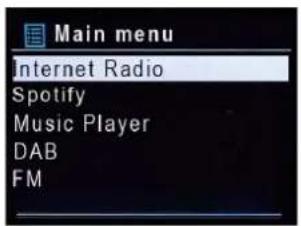
Under the main menu, you can select the following modes: Internet Radio, Spotify, Media player (USB), DAB, FM, Bluetooth®, CD, AUX-In, Sleep and Alarm.
text_image
Main menu Internet Radio Spotify Music Player DAB FMSYSTEM SETTINGS
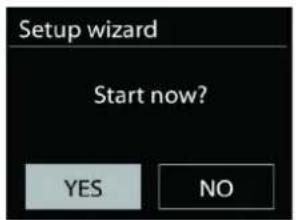
At the first time operation, system asks if you want to start the Setup Wizard. The Setup wizard guides you through the basic setup parameters for Time/Date and Network connection. To change any settings later all setting functions are accessible from the Settings Menu.
Note: If the setup wizard is terminated prematurely without a network setup, the device generates its own WiFi access so that the device can be configured using the UNDOK APP.
text_image
Setup wizard Start now? YES NONetwork connection indicator:
Wi = Network connection established.
※ = Network connection not established.
1. Language
Select English/Finnish/French/Italian/Danish/Dutch/German/Norwegian Polish/Portuguese/Spanish/Swedish/Turkish as menu language
2. Time/Date Display format
Select 12 or 24 as the time format.
3. Auto update
The time and date can be updated manually or automatically from DAB, FM or network.
Auto update works with data sent over DAB, FM or the Internet. The clock is only updated when it is in a corresponding mode, so it is suggested to select a mode you use regularly.
DAB and FM use time signals broadcast with radio transmissions. Network uses a time signal sent from the Internet radio portal when in any network connected mode.
4. Time zone/daylight
Set your time zone. If your country uses daylight saving and it is in effect, turn on the Daylight saving option. (only available when Auto update from Internet is selected)
5. Manual update
If you set No update, the wizard prompts you to set the time and date manually. The date and time are displayed as dd-mm-yyyy and hh:mm.
The active value appears as flashing. Adjust each value with the "NAVIGATE" knob. Once the value is set, press the knob to continue setting with next value.
6. Network
Keep Network connected
Select this option when the unit should the network connection in standby keep, when the function is confirmed, the unit wills faster connecting the internet and it is possible to switch on the unit with the "UNDOK" app.
Note: The standby power consumption is slightly increased with this function.
WLAN region
Select the WLAN region to obtain the optimal WLAN connectivity: Europe.
Scanning for the network
ICD2020 is compatible with all common network protocols and encryption methods. It searches for the available networks and list them out for you.
There will be hints for the type of network – if your network devices support WPS function, it will be [WPS] before the SSID (the name of the network device). Select the one you want to connect.
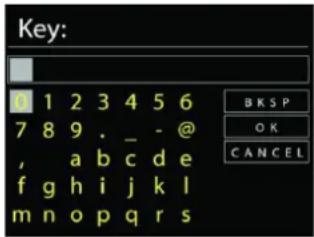
For the wireless connection, you will be asked for input the encryption in the next step. To enter the network's key, use the "NAVIGATE" knob to move the cursor through the characters and press "OK" to confirm. As each character is selected, the key is built up near the top of the display.
There are three options accessible by tuning the navigate reel back before the first characters – Backspace, OK and Cancel.
text_image
Key: 0 1 2 3 4 5 6 7 8 9 . _ - @ , a b c d e f g h i j k l m n o p q r s B K S P O K C A N C E LWPS encrypted network
WPS encrypted networks are identified by WPS at the start of the network name when the
ICD2020 searches the available AP. Use one of the following methods of connection: There is the shortcut WPS key on the unit.
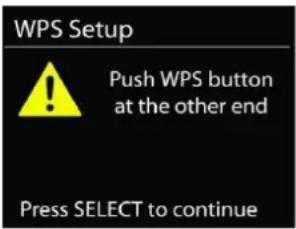
Push button
ICD2020 prompts you to press the connect button on the router. It then scans for a ready Push Button Connect network and connects.
text_image
WPS Setup ! Push WPS button at the other end Press SELECT to continuePin
ICD2020 generates an 8-digit code number which you enter into the wireless router, access point, or an external registrar.
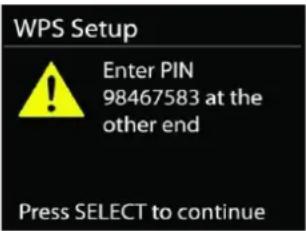
text_image
WPS Setup Enter PIN 98467583 at the other end Press SELECT to continueSkip WPS
Enter key as for a standard encrypted network.
For more information on setting up a WPS encrypted network, see your WPS router's instructions.
Completion
ICD2020 attempts to connect to the selected network.
Network settings
Please wait Connecting..\
It will show connected if the setup is successful. If connecting fails,
ICD2020 returns to a previous screen to try again.
Press "OK" to quit the setup wizard.
Setup wizard

Setup wizard completed
Press SELECT to exit
EQUALISER
Several preset EQ modes are available: Normal, Jazz, Rock, Classic, Pop and My EQ.
In the My EQ settings, you can create your own EQ with custom bass and treble settings.

Equaliser
Normal
Jazz
Rock
Classic
Pop
NETWORK
- Network wizard
Enter to search AP SSID, then input the WEP / WPA key or choose Push Button/Pin/Skip WPS to connect to the wireless network.
- PBC Wlan setup
Push Button Configuration, it is to connect the AP that supports WPS (Wi-Fi Protected Setup).
- View settings
View the information of current connected network: Active connection, MAC address, Wlan
region, DHCP, SSID, IP address, Subnet mask, Gateway address, Primary DNS and Secondary DNS.
- WLAN region
Select the WLAN region to obtain the optimal WLAN connectivity: Europe or Australia.
- Manual settings
Choose wireless network connection and enable or disable DHCP (Dynamic Host Configuration Protocol).
- Network profile
ICD2020 remembers the last four wireless networks it has connected to, and automatically tries to connect to whichever one of them it can find. From here you can see the list of registered networks. You can delete unwanted networks by turning and pressing then choosing YES to confirm delete.
- Keep network connected
If you choose to keep network connected, the WiFi will not disconnect even you are in standby mode. Otherwise, the connection will only available in internet radio and music player modes. This option allows ICD2020 to be ready for DLNA streaming in any operating modes.
When Keep network connected is selected the standby power consumption is raised.
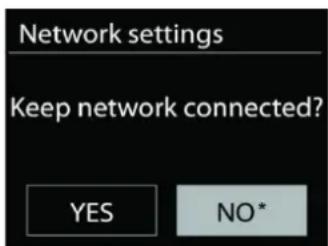
text_image
Network settings Keep network connected? YES NO*TIME/DATE
Set the time manually or automatically update, time format, time zone and daylight.
BRIGHTNESS
You may change the backlight of each environment (Normal or standby) to High, Medium High, Medium, Medium Low, Low or Off
LANGUAGE
Change it as your preference.
SOFTWARE UPDATE
From time to time, software upgrades may be created with bug fixes and/or additional features. You can either check manually or set ICD2020 to check periodically automatically (this is the default). If newer available software is detected, you will be asked if you want to go ahead with an update. If you agree, the new software is then downloaded and installed. After a software upgrade, all user settings are maintained.
NOTE: Before starting a software upgrade, ensure that ICD2020 is plugged into a stable main power connection. Disconnecting power during an upgrade may permanently damage the unit.
INFO
View the firmware version and the radio ID.
INTERNET RADIO
ICD2020 can play thousands of radio stations and podcasts from around the world though a broadband Internet connection.
When you select Internet radio, ICD2020 directly contacts the Frontier Silicon Internet radio portal (which is supported by Airable) to get a list of stations.
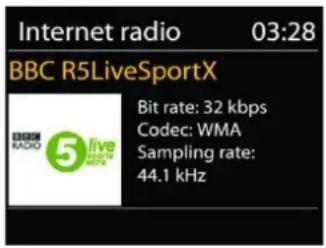
text_image
Internet radio 03:28 BBC R5LiveSportX BIT rate: 32 kbps Codec: WMA Sampling rate: 44.1 kHzThe portal also enables multiple lists of favorite stations that you can personalize.
If you are already listening to an Internet radio station, you can press "BACK" button to quickly return to the last visited branch of the menu tree, rather than "MENU" to go to the first menu of Internet radio mode.
- Last listened
When Internet radio mode restarts, the last-listened station is selected. To select another recently used station, enter here to select the listed station. Most recent stations appear at the top of the list.
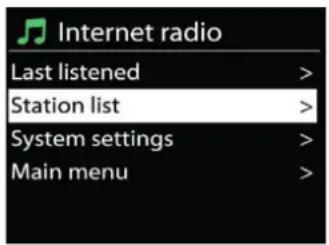
text_image
Internet radio Last listened > Station list > System settings > Main menu >- Station list
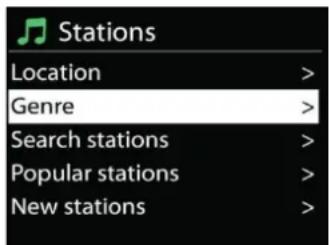
Browse Internet broadcasts that organized into different categories, Location, Genre, Popular and New. You can also find the station with Search by keyword.
text_image
Stations Location > Genre > Search stations > Popular stations > New stations >- Favorites
Favorites are stored with the Internet radio portal, and are available through all Internet radios registered on the same account. Before favorites can be used, the radio has to be registered with the Internet radio portal.
- My added stations
Even though the Internet radio portal contains thousands of stations, you may want to listen to stations not listed. You can add your own via the portal.
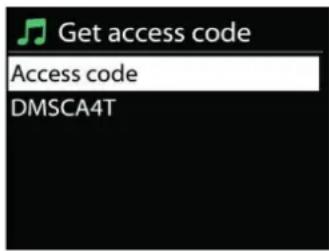
To register your ICD2020, choose Station list > Help > Get access code to get your radio's unique portal access code first. (Do not confuse the portal access code with the Radio ID from System settings.
text_image
Get access code Access code DMSCA4TVisit the portal website at http://nouvola.link/sr
If this is your first visit to the portal, register for a new account, entering the following information:
- access code,
- your e-mail address,
- password,
- radio model.
If you already have an account and wish to add an additional radio, log in to your account and select My preferences > Add another Wi-Fi radio.
Once your radio is registered with the portal, you can immediately use the Internet radio favourites and added stations features.
- Presets
To store an Internet radio preset, press and hold the “PROGRAM” key on Remote Control until the display shows the “Save preset” screen. Select one of the 20 presets to save the current station and press “OK” to confirm.
To select a preset, press briefly the "PRESET" button or "PROGRAM" on Remote Control, then select one of the listed preset stations and press "OK" to confirm. Or press 0 to 9 on the Remote Control to directly recall the presets.
• Now playing information
While the stream is playing, the screen shows its name and description. To view further information, press "INFO" button on the radio or Remote Control. Each time you press "INFO" button, another set of information is displayed, cycle through name/description, genre/location, reliability, codec/sampling rate, playback buffer and today's date.
SPOTIFY
Use your phone, tablet or computer as a remote control for Spotify.
Go to spotify.com/connect to learn how
The Spotify Software is subject to third party licenses found here:
https://www.spotify.com/connect/third-party-licenses
MEDIA PLAYER
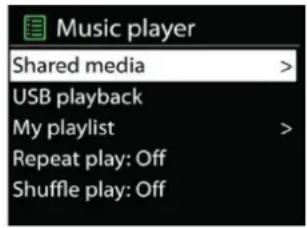
Music player mode plays audio files in MP3, WMA, WAV, AAC, FLAC or ALAC format from a computer on the local network. If you are already playing a music file, you can press "BACK" button on the radio to quickly return to the last visited branch of the menu tree.
text_image
Music player Shared media > USB playback My playlist > Repeat play: Off Shuffle play: OffYou can use “▶▶” button or “◀◀” button to play the previous or the next track.
- Shared media
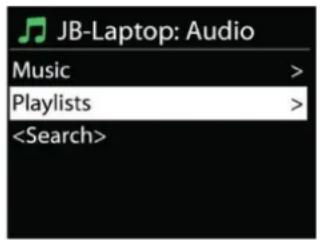
If you have set up shared media, you should see an entry consisting of
From this point on, the menus are generated from the shared media server. The first menu shows a list of media types, for example Music, Video, Pictures and Playlists. ICD2020 can only play music and playlists.
text_image
JB-Laptop: Audio Music > Playlists >There is also a search function which finds tracks in a similar way to Internet radio search.
From Music, there are numerous ways of selecting tracks including Genre, Artist, Album, Composer and Rating. Once you have found a track you want to play, press the "NAVIGATE" knob.
A short press plays the track immediately.
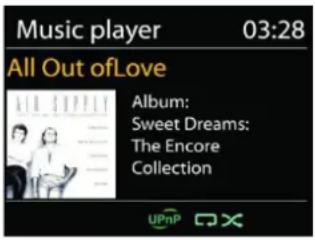
text_image
Music player 03:28 All Out of Love Album: Sweet Dreams: The Encore Collection UPnP CX- Prune Server
From time to time, it is maybe necessary to remove server displaying question marks in front of the server name from the server list. For example, if the device is moved to a new network or if a Wake-on-line is removed from your current network.
To perform this function: go to menu by using the Menu button > Prune servers > and select Yes.
- USB playback
From this point on, menus are generated from the folders on the USB device. Browse folders with the "NAVIGATE" knob and "BACK" button, or by using the UNDOK app. The display shows folder and file names (not necessarily track names).
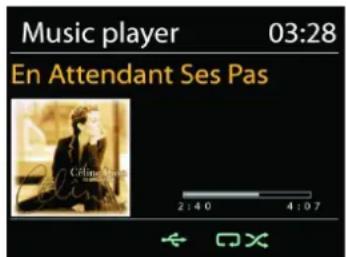
Once you have found a track you want to play, press the "NAVIGATE" knob on the device or click on the song title in UNDOK app.
- Repeat / Shuffle
Allow you to repeat tracks or play them in random order.
• Now playing information
While a track is playing, the screen shows its track and artist (UPnP). There is also a progress bar with figures for elapsed and total track time. At the bottom of the screen, an icon indicates UPnP depending on the source. To view further information, press "INFO" button.
Each time you press "INFO" button, another set of information is displayed, cycling through the information: track/artist/progress bar/track times, album, codec/sampling rate, playback buffer and today's date.
• DMR (DLNA Streaming)
Shared music is a way of music streaming which you look for the music list and control playback from ICD2020. This topic will introduce another way to do the music
streaming which is not necessary to control playback on ICD2020.
You can share the music files from PC, Android mobile or tablet, and directly use your PC,
Android mobile, tablet or iPhone / iPad to control music playback on the ICD2020. It is simple called DLNA streaming.
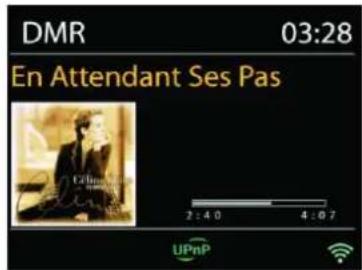
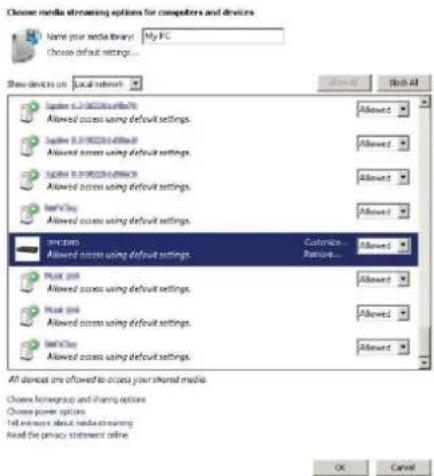
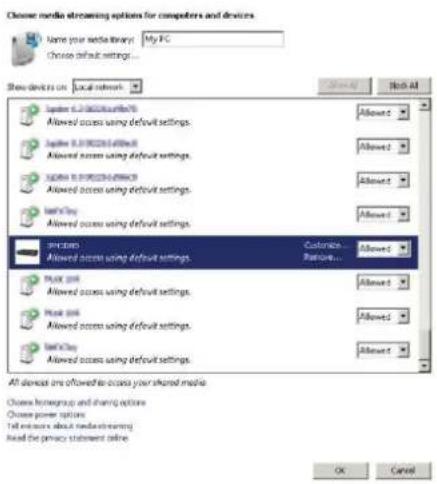
The PC system requirements for DLNA are Windows 7 or above, together with Windows Media Player 12. Setup as below:
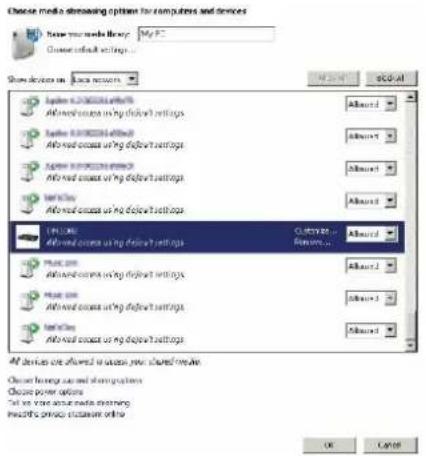
Firstly, share the media on your PC to ICD2020.
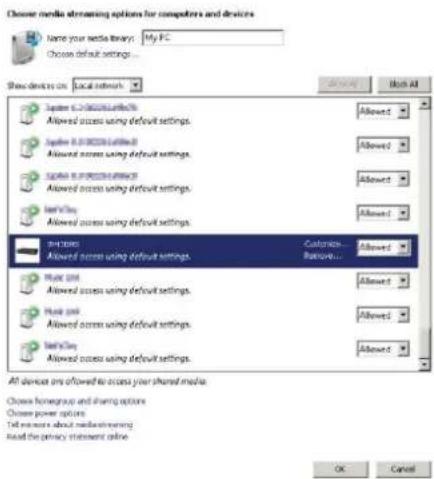
text_image
Choose media streaming options for computers and devices Name your media library: My PC Choose default settings... Show devices on: Local network System 1.0.0000.0.0000.0.0000.0.0000.0.0000.0.0000.0.0000.0.0000.0.0000.0.0000.0.0000.0.0000.0.0000.0.0000.0.0000.1.1 Allowed access using default settings. Allowed access using default settings. Allowed access using default settings. Allowed access using default settings. Allowed access using default settings. Allowed access using default settings. Allowed access using default settings. Allowed access using default settings. Allowed access using default settings. Allowed access using default settings. Allowed access using default settings. Allowed access using default settings. Allowed access using default settings. Allowed access using default settings. Allowed access using default settings. Allowed access using default settings. Allowed access using default settings. Allowed access using Default Allowed access using default settings. Allowed access using default settings. Allowed access using default settings. Allowed access using default settings. Allowed access using default settings. Allowed access using default settings. Allowed access using default settings. Allowed access using default settings. Allowed access using default settings. Allowed access using default settings. Allowed access using default settings. Allowed access using default settings. Allowed access using default settings. Allowed access using default settings. Allowed access using default settings. Allowed access using default settings. Allowed access based on the same format. Allowed access based on the same format. Allowed access based on the same format. Allowed access based on the same format. Allowed access based on the same format. Allowed access based on the same format. Allowed access based on the same format. Allowed access based on the same format. Allowed access based on the same format. Allowed access based on the same format. Allowed access based on the same format. Allowed access based on the same format. Allowed access based on the same format. Allowed access by system Allowed access by system Allowed access by system Allowed access by system Allowed access by system Allowed access by system Allowed access by system Allowed access by system Allowed access by system Allowed access by system Allowed access by system Allowed access by system Allowed access by system Allowed access by system Allowed access by system Allowed access by system Allowed access by system Allowed access by system Allowed access by system Allowed access by system Allowed access by systemControl Panel > Network and Internet > Network and Sharing Center > Media streaming options
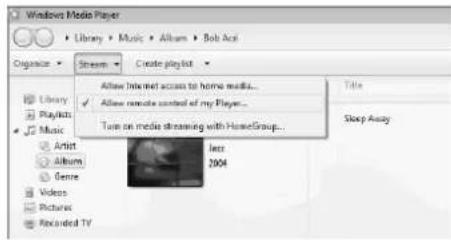
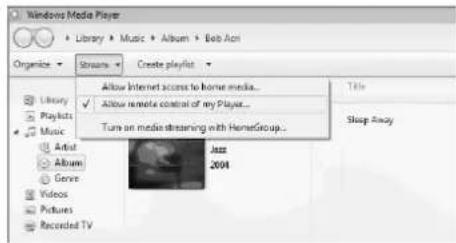
Open Windows Media Player to enable Allow remote control of my Player.
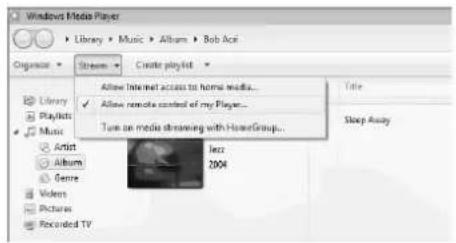
text_image
Windows Media Player Library > Music > Album > Bob Aci Organizer > Stream > Create playlist Allow Internet access to home media... Allow remote control of my Player... Turn on media streaming with HomeGroup... Title Sleep Away Library Playlists Music Artist Album Genre Videos Pictures Recorded TV Jazz 2004Right click any music in the library and choose Play to ICD2020. Then a box of music playback pops up for the streaming.
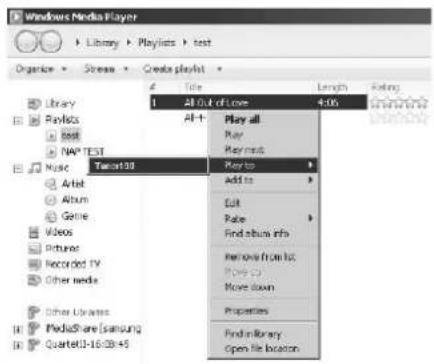
text_image
Windows Media Player Library > Playlists > test Organize > Stress > Create Playlist Title Length Rating Library Playlists All+ All Out of Love 4:06 Play all Play must Music Tumor100 Add to Edit Rate Find album info Remove from list Move Go More down Properties Find in library Open file location Artlet Album Genre Videos Pictures Recorded TV Other media Other Libraries MediaShare [samsung] Quartell-1-16:0k+5Then a box of music playback pops up for the streaming.
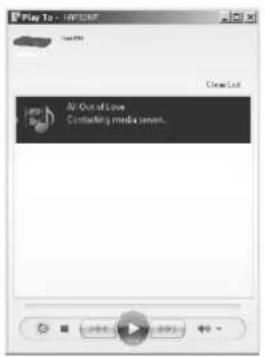
text_image
Play To - MP-CNF Air Out of Love Contacting media server.• Control on Smartphone / Tablet
You may search (with keyword: DLNA) and install any free or commercial DLNA Apps from Google Play or Apple Store if you are using Android mobile, tablet or iPhone / iPad.
It is suggested to use iMediaShare on Android mobile, tablet or iPhone/iPad.
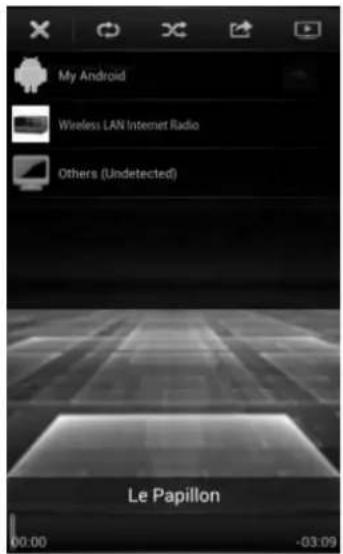
text_image
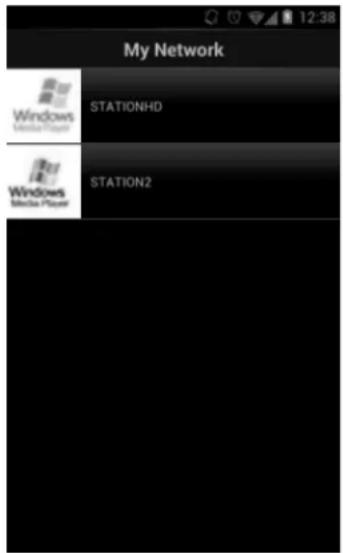
My Android Wireless LAN Internet Radio Others (Undetected) Le Papillon 00:00 -03:09Procedures for playing shared music on the app are as follows:
- Select ICD2020 as the player.
- Select music server and choose the music.
NOTE: Some Apps may not support streaming music from iPhone/iPod but iPhone/iPod could still be used to control streaming music from other servers.
Some Apps may allow to play the music to multi players at the same time.
Some Apps can create a playlist if you choose several music.
Study the own instruction of the software or Apps you use to enjoy DLNA streaming if necessary.
text_image
My Network Windows Media Player STATIONHD Windows Media Player STATION2DAB
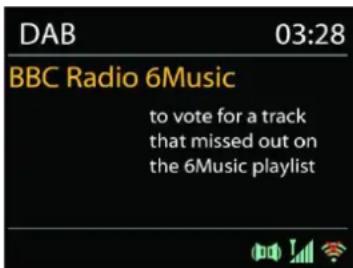
DAB mode receives DAB or DAB plus digital radio signal and displays information about the station, streaming audio and the program details.
text_image
DAB 03:28 BBC Radio 6Music to vote for a track that missed out on the 6Music playlist- Scanning for stations
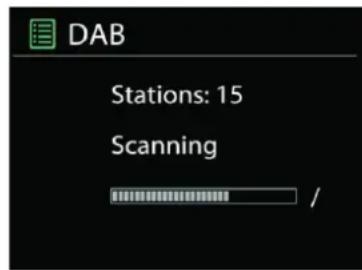
The first time you select DAB radio mode, or if the station list is empty, ICD2020 automatically performs a full scan to see what stations are available. You may also need to start a scan manually to update the list of stations for one of the following reasons:
• Available stations change from time to time.
- If reception was not good for the original scan, this may result in an empty or incomplete list of available stations.
- If you have poor reception of some stations (burbling), you may wish to list only stations with good signal strength.
text_image
DAB Stations: 15 Scanning /To start a scan manually, choose Full scan. To scan only stations with good signal strength, select Local scan.
Once the scan is complete, the radio shows a list of available stations.
To remove stations that are listed but not unavailable, choose Prune invalid.
Press the "BACK" button to view a list of stations and press "OK" to select. Once selected, the station plays and the screen shows information about station, track or show as broadcast.
- Presets
To store an Internet radio preset, press and hold the “PROGRAM” on Remote Control until the display shows the “Save preset” screen. Select one of the 40 presets to save the current station and press “OK” to confirm. Or press 0 to 9 on the Remote Control to store the current playing station into the preset directly.
To select a preset, press briefly the "PRESET" button on the unit or "PROGRAM" on Remote Control, then select one of the listed preset stations and press "OK" to confirm. Or press 0 to 9 on the Remote Control to directly recall the presets.
Now playing information
While the stream is playing, the screen shows its name and DLS (Dynamic Label Segment) information broadcast by the station giving real-time information such as program name, track title and contact details. Stereo broadcasts are indicated with an icon at the bottom of the screen. To view further information, press “INFO” button on the radio.
Each time you press “INFO” button on the radio, another set of information is displayed, cycling through DLS text, program type, ensemble name/frequency, signal strength/error rate, bite rate/codec/channels and today’s date.
SETTINGS
• Dynamic range compression (DRC)
If you are listening to music with a high dynamic range in a noisy environment, you may wish to compress the audio dynamic range. This makes quiet sounds louder, and loud sounds quieter. You can change DRC as off, low or high.
- Station order
You can choose the order of the DAB station list to be either Alphanumeric, Ensemble or Valid.
Ensemble lists groups of stations that are broadcast together on the same ensemble. Valid lists valid stations first, alphanumerically, then off-air stations.
FM
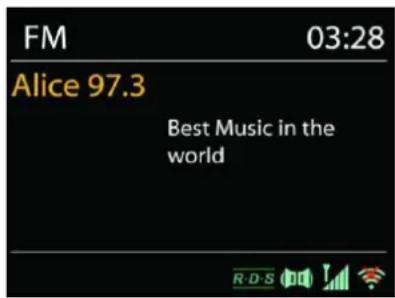
FM radio mode receives analogue radio from the FM band and displays RDS (Radio Data System) information about the station and where broadcast.
To full scan, press "INTRO" remote key. The frequency display starts to run and scans the FM full band.
To manual scan, press and hold “” or “” button on panel or “P+” or “P-” remote key. The frequency display starts to run and scans the FM band and stops at the next station.
To fine tune press the “or” remote key. The unit search in 0.05 MHz steps.
text_image
FM 03:28 Alice 97.3 Best Music in the world- Preset
To store an Internet radio preset, press and hold the “PROGRAM” button on Remote Control until the display shows the “Save preset” screen. Select one of the 40 presets to save the current station and press “OK” to confirm. Or press 0 to 9 on the Remote Control to store the current playing station into the preset directly.
To select a preset, press briefly the "PRESET" button or "PROGRAM" button on Remote, then select one of the listed preset stations and press "OK" to confirm. Or press 0 to 9 on the Remote Control to directly recall the presets.
• Now playing information
While the stream is playing, the screen shows its frequency, or if RDS signal is available, station name and any further RDS information such as program name, title and other details. Stereo broadcasts are indicated with an icon at the bottom of the screen. To view further information, press Info button on the radio.
Each time you press "INFO" button on the radio, another set of information is displayed, cycling through Radio text, program type, frequency and today's date.
SETTINGS
- Scan settings
Choose FM at first, it will go to a specific station playing. Then press "MENU" on the radio to get above table.
By default, FM scans stop at any available station. This may result in a poor signal-to-noise ratio (hiss) from weak stations. To change the scan settings to stop only at stations with good signal strength, select "Yes" after choosing Strong station only.
- Audio settings
All stereo stations are reproduced in stereo. For weak stations, this may result in a poor signal-to-noise ratio (hiss). To play weak stations in mono, select FM weak reception: Listen in mono only and then YES.
BLUETOOTH®
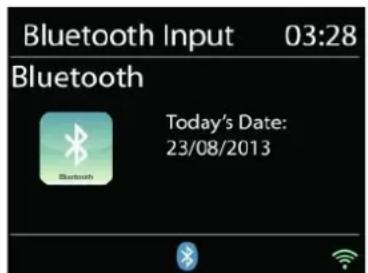
When you select the Bluetooth mode, the device is entering to pairing and the BT icon at the bottom of the screen will flash.
Turn on your smartphone, tablet or other Bluetooth devices to search for the device.
The Bluetooth pairing name is "ICD2020".
text_image
Bluetooth Input 03:28 Bluetooth Today's Date: 23/08/2013When pairing is successful, the Bluetooth indicator will light up and stop flashing.
To release BT pairing, turn off or unpair your smartphone, table or other Bluetooth devices.
Press “▶II” on the radio or Remote Control to start or pause the playback. You can press “◀◀” or “▶◀” on the radio or Remote Control to play the previous or next track.
AUX IN
Connecting DVD player / Set-Top Box / TV outputs to analogue inputs from the sound board.
Use a RCA audio cable to connect the DVD player/TV outputs with the AUX (L/R) input socket from the sound board.
CD MODE
Notice!
Improper operation can result in material damages!
Do not insert any recording media that deviate from the standard CD format (eg: mini-discs) into the CD player. These may not be played and ejected correctly. Insert only one disc at a time into the CD player.
- Press → button on the unit and press ▶▶ till "CD" displayed, then press "OK" on the knob or press the "CD" button on remote control to choose CD.
-
Put a disc (with printing side facing up) inside. The display will say "Loading" and the disc functions will not work while the disc is loading. After Reading the display shows the following information in CD mode:
-
CD mode
- Time
- Elapsed playback time in minutes
- Track number
- Playback status (playing/pause)
The Playback will begin automatically once the table of contents is read. The display will show "No Disc" when the unit is set to CD mode and there is no CD inside.
- To pause/resume playback of the CD, press the “ ” button
- To switch to the next track, press the “ ” button once
- To fast forward through a track, press and hold the “▶▶” button.
- To switch to the previous track, press the “” button twice
- To fast backward through a track, press and hold “ ” button.
- To stop CD playback, press the “” button on the remote control.
- To eject the disc press in stop mode the “ ” button on the unit.
CD Program
- Set the unit in Stop mode
- Press the "PROGRAM" button on the Remote Control. The display will show "T01 P01" and "T01" flash.
- Choose with "◀◀" or "▶◀" or 0 to 9 on the Remote Control, the track which should be programmed and confirm the track by pressing the "PROGRAM" button on the Remote Control. The display changes to "P02".
- To choose more tracks do step 3 again.
- If all tracks are programmed press the “▶II” button on the unit or Remote Control to start the programmed playback.
Shuffle mode
Press the "RANDOM" button on the Remote Control. The display will show the Shuffle indicator.
Repeat one track
During playback press the "REPEAT" button on the Remote Control once to repeat playback of the song you are listening to.
Repeat all tracks
During playback press the “REPEAT” button on the Remote Control twice to repeat all songs from the CD. To cancel the Repeat mode press the “REPEAT” button on the Remote Control until all symbols in the display disappear.
SLEEP
To set the sleep timer, press "SLEEP" on the unit or Remote Control. Choose from Sleep OFF, 15mins, 30mins, 45mins or 60mins.
Once you select a sleep period, the system returns to the "Now playing" screen.
If you go under Main Menu to Sleep press "MENU" on the unit or Remote Control to return to the "Now playing" screen.
ALARM
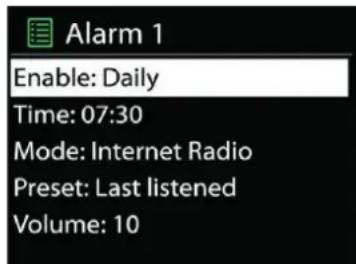
There are two versatile wake-up alarms with snooze facility, and a sleep function to turn the system off after a set period. Each alarm can be set to start in a particular mode.
Select Alarm under Main menu to set or change an alarm.
text_image
Alarm 1 Enable: Daily Time: 07:30 Mode: Internet Radio Preset: Last listened Volume: 10Select the alarm number (1 or 2) then configure the following parameters:
- Enable: on/off, Frequency: Daily, Once, Weekends or Weekdays,
- Time
- Mode: Buzzer, Internet Radio, CD, DAB or FM,
- Preset: Last listened, 1 - 40,
• Volume: 0 - 32
To activate the new settings, scroll down and select Save.
The screen shows active alarms with an icon at the bottom left.
UNDOK
The ICD2020 supports remote control from Apple iPhone, iPad and Android using the UNDOK app. The apps are available in Apple's app store and Google's android play.
The UNDOK app allows you to:
- Create a group
- Rename a group
- Edit a group - add or remove one or more products
- Delete a group
• Control a group - choose operating mode and browse for content - Adjust volume for an entire group or for individual products within a group
• Control products which have not been assigned to any group - Control all the modes of the ICD2020, including Internet Radio, Media Player, USB playback, DAB, FM, Bluetooth, CD and AUX-In
- Adjust the volume level of current playback
- Setting EQ for various audio presets
- Setting Sleep timer
- Editing the displayed name of the radio.
HEADPHONE
To listen to music privately, use headphones with a 3.5 stereo jack plug and connect it to the headphones socket. The speakers will then be muted.

To prevent possible hearing damage, do not listen at high volume levels for long periods.
FACTORY RESET
A factory reset resets all user settings to default values, so that time and date, network configuration and presets are lost. However, the ICD2020 's current software version is maintained, as is registration with the Internet radio portal. Internet radio favourites therefore remain unless you re-register your ICD2020 with another account on the portal website.
TROUBLESHOOTING
| Error | Remedy |
| The device does not switch on. | Check it the power adaptor is connected properly. |
| Switch automatically off | Due to ErP2 requirements and environmental protection, the unit automatically switches to standby mode when no music is played for more than 15 minutes. |
| No sound. | 1. Turn on the sound as it may be muted2. Increase the volume.3. Pull any connected headphone or speaker from the connector jack. |
| No network connection can be established. | 1. Check the LAN cable or the WLAN function.2. Try to set an IP address at the device.3. Activate the DHCP function on the router and make the connection again at the device.4. A firewall is activated on the network – set the respective program in such a way that access is possible.5. Reboot the router |
| WiFi connection cannot be established. | 1. Check the availability of WLAN network on the router.2. Place the device closer to the router.3. Make sure the password is correct. |
| Wired connection cannot be established. | 1. Check the availability of LAN network on the access point.2. Reconnect or even replace the LAN cable. |
| No station is found. | 1. Check the network as well as the access point and firewall.2. The station may not be available currently, try it again later or select another station.3. The link of the station is changed or the station no longer transmits – ask the provider for information.4. The link of manual added station is not correct, make sure it is correct and re-enter. |
| Hiss in FM mode | Check/move the FM antenna or move the radio |
| No stations available / burbling / intermittent in DAB mode. | 1. Move the radio.2. Rescan local stations only (high-strength).3. Check the local DAB coverage. |
| Alarm does not work. | 1. Switch on the alarm.2. Due to the volume setting, refer to the solutions of “No sound”.3. The source of alarm was set to be station but there is no network connection. Change the source of alarm or reconfigure the connection. |
| USB driver or MP3 player is not detected. | 1. Check if the USB driver or MP3 player is plugged properly.2. Some USB hard disks need external power supply, make sure it is connected to the power.3. Not all MP3 players can be read directly on the device – use an USB drive instead. |
| NetRemote does not show or connect to ICD2020 | 1. Reopen the App.2. If you have several streaming from several devices at the same time, it may cause crash, reboot ICD2020 and/or your device. |
| All other undetermined cases. | ICD2020 may process large amount of data after a period of operation, no matter in which mode, it will cause the system freeze or malfunction. Reboot ICD2020 if necessary. |
| The normal function of the product may be disturbed by strong Electro-MagneticInterference. If so, simply reset the product to resume normal operation by following the instruction manual. In case the function could not resume, please use the product in other location. | |
| The device may malfunction when used in areas with strong radio interference. The device will work properly again once there is no more interference. | |
| Under the environment with Conducted Immunity disturbance, the sample may malfunction. It will automatically recover to normal when the Conducted Immunity disturbance stopped. |
TECHNICAL SPECIFICATIONS
| Power supply | : Use only the supplied adapter |
| Power input | : 100-240V~50/60Hz |
| Power output | : DC 18V 1.2A |
| DAB+ range | : Band III 174.928 - 239.200 MHz |
| FM range | : 87.5 – 108MHz |
| Bluetooth® Version | : Version 2.1 + EDR |
| Connectivity | : WiFi Dual modes to support 2.4GHz and 5GHz WiFi system |
| Audio power output | : 2×15 W |
| Standby consumption with setting “Keep network in standby” | : < 2W |
The current instruction manual can be downloaded from www.soundmaster.de
Technical changes and misprints reserved
Copyright by Woerlein GmbH, 90556 Cadolzburg, www.soundmaster.de
Duplication only with the permission of Woerlein GmbH.



| USB driver or MP3 player is not detected. | 1. Check if the USB driver or MP3 player is plugged properly.2. Some USB hard disks need external power supply, make sure it is connected to the power.3. Not all MP3 players can be read directly on the device – use an USB drive instead. |
| NetRemote does not show or connect to ICD2020 | 1. Reopen the App.2. If you have several streaming from several devices at the same time, it may cause crash, reboot ICD2020 and/or your device. |
| All other undetermined cases. | ICD2020 may process large amount of data after a period of operation, no matter in which mode, it will cause the system freeze or malfunction. Reboot ICD2020 if necessary. |
| The normal function of the product may be disturbed by strong Electro-MagneticInterference. If so, simply reset the product to resume normal operation by following the instruction manual. In case the function could not resume, please use the product in other location. | |
| The device may malfunction when used in areas with strong radio interference. The device will work properly again once there is no more interference. | |
| Under the environment with Conducted Immunity disturbance, the sample may malfunction. It will automatically recover to normal when the Conducted Immunity disturbance stopped. |
TECHNICAL SPECIFICATIONS
| Power supply | : Use only the supplied adapter |
| Power input | : 100-240V~50/60Hz |
| Power output | : DC 18V 1.2A |
| DAB+ range | : Band III 174.928 - 239.200 MHz |
| FM range | : 87.5 – 108MHz |
| Bluetooth® Version | : Version 2.1 + EDR |
| Connectivity | : WiFi Dual modes to support 2.4GHz and 5GHz WiFi system |
| Audio power output | : 2×15 W |
| Standby consumption with setting “Keep network in standby” | : < 2W |
The current instruction manual can be downloaded from www.soundmaster.de
Technical changes and misprints reserved
Copyright by Woerlein GmbH, 90556 Cadolzburg, www.soundmaster.de
Duplication only with the permission of Woerlein GmbH.



PROTECTION DE L'ENVIRONNEMENT
text_image
Diagram of a device rear panel with labeled ports and control buttons, showing front panel and back panel layout.1 Sortie USB/5 V = A
text_image
Main menu Internet Radio Spotify Music Player DAB FMASSISTANT DE CONFIGURATION
text_image
Stations Location > Genre > Search stations > Popular stations > New stations >text_image
Stations Location > Genre > Search stations > Popular stations > New stations >text_image
JB-Laptop: Audio Music > Playlists >text_image
Windows Media Player Library > Music > Album > Rob Act Organize > Stream > Create playlist Library Playlots Music Artist Album Genre Videos Pictures Recorded TV Allow internet access to home media... Allow remote control of my Player... Turn on media streaming with HomeGroup... Next 2004 Title Sleep Awaytext_image
Windows Media Player Library > Playlists > test Organize > Stream > Create layout Library Replots Next MAP TEST Name Topic Album Genre Views Pictures Recorded TV Other media Other Libraries MediaShare [emnaung] Quoted3-16.00+5 All Out of Love 4.0% Play all Play Playment Play to Add to Edit Page Find album info Remove from bit Options More than Properties Find library Open the locationtext_image
Play To - 100% OFF Close List All Out of Use Contacting media review...text_image
DAB 03:28 BBC Radio 6Music to vote for a track that missed out on the 6Music playlisttext_image
FM 03:28 Alice 97.3 Best Music in the worldSOFTWARE-UPDATE....9
INFO....9
INTERNETRADIO....9
SPOTIFY 11
MEDIASPELER....11
DAB....15
FM 16
MEERDERE RUIMTES....17
BLUETOOTH ^® 18
AUX-IN 18
CD....19
SLAAP 20
ALARM....20
UNDOK 20
HOOFDTELEFOON 21
TERUGZETTEN IN FABRIEKSINSTELLINGEN....21
PROBLEMEN OPLOSSEN....21
TECHNISCHE SPECIFICATIES ....23
text_image
Diagram of a device rear panel with labeled ports and control buttons, showing front and back views with numbered labels.text_image
Main menu Internet Radio Spotify Music Player DAB FMINSTALLATIEBEHEER
Setup wizard voltooid
Open Windows Media Player om Allow remote control of my Player in te schakelen.
text_image
Choose media streaming options for computers and devices Choose your mail/fallery: My PC Choose default settings... Show devices on: Local network System 0.1-0.25834 default Allowed access using default settings. System 0.1-0.25834 default Allowed access using default settings. System 0.1-0.25834 default Allowed access using default settings. Send by: Allowed access using default settings. Include Allowed access using default settings. Remove... Allow Allow access using default settings. Allow Allow access using default settings. Allow Allow access using default settings. All devices are allowed to access your shared media. Choose browser groups and sharing options Choose power options Tell me more about media ensuring Read the primary statement online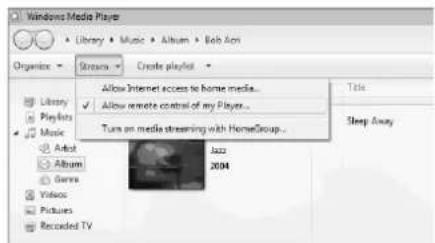
text_image
Windows Media Player Library Music Album Bob Ann Organize Streams Create playlist Allow Internet access to home media... ✓ Allow remote control of my Player... Turn on media streaming with HomeGroup... Title Sleep Away Library Playlists Music Artool Album Games Videos Pictures Recorded TV Jazz 2004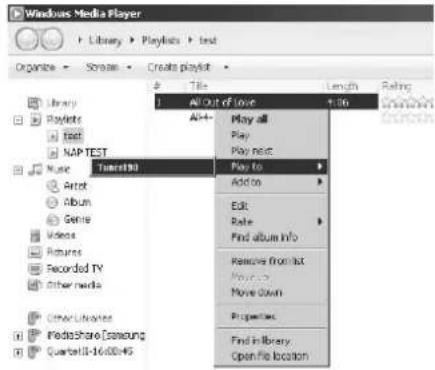
text_image
Windows Media Player Library > Playlists > test Organize > Screen > Create playlist Title All out of love Play all Play next Play to Add to Edit Role Find album info Remove from list Move down Properties Find in library Open file location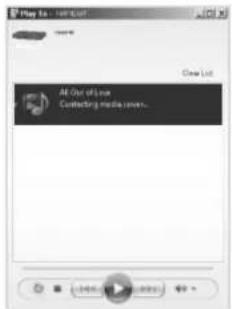
text_image
Play to - 100 Litter All Out of Line Connecting media cover...• Bediening via Smartphone/Tablet
text_image
DAB 03:28 BBC Radio 6Music to vote for a track that missed out on the 6Music playlisttext_image
FM 03:28 Alice 97.3 Best Music in the worldtext_image
Main menu Internet Radio Spotify Music Player DAB FMhttps://www.spotify.com/connect/third-party-licenses
RIPRODUTTORE MULTIMEDIALE
text_image
Windows Media Player Library > Playlists > test Organize > Screen > Credits playlist P Title Length Rating 1 All Out of Love +16 AlH+ Play all Play Play next Play to Add to Edit Rate Find album info Remove from list Preview None down Properties Find in library Open file location Library Reprint test NAP TEST Music Artist Album Genre VC005 Pictures Recorded TV Other media Other Libraries MediaShare (Samsung) Querbest-16c08-45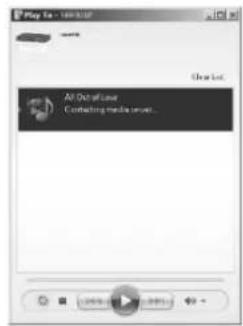
text_image
Play 1 - 100% OFF All Out of Use Contacting media cover...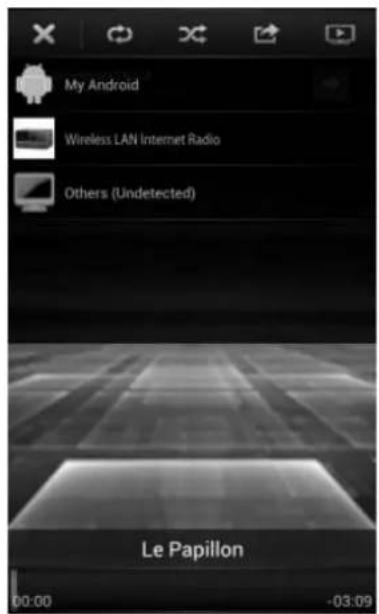
text_image
My Android Wireless LAN Internet Radio Others (Undetected) Le Papillon 00:00 -03:09text_image
DAB 03:28 BBC Radio 6Music to vote for a track that missed out on the 6Music playlisttext_image
FM 03:28 Alice 97.3 Best Music in the worldtext_image
Diagram of a device rear panel with labeled ports and control buttons, showing internal components and connections.text_image
Main menu Internet Radio Spotify Music Player DAB FMAJUSTES DEL SISTEMA
text_image
Setup wizard Start now? YES NOPush WPS button at the other end
Press SELECT to continue
Código pin
Enter PIN 98467583 at the other end
Press SELECT to continue
Omitir una red WPS
Please wait Connecting .. \
Setup wizard completed
Press SELECT to exit
text_image
Network settings Keep network connected? YES NO*HORA/FECHA
text_image
Internet radio Last listened > Station list > System settings > Main menu >- Lista de emisoras
text_image
Stations Location > Genre > Search stations > Popular stations > New stations >- Favoritos
text_image
Music player Shared media > USB playback My playlist > Repeat play: Off Shuffle play: Offtext_image
JB-Laptop: Audio Music > Playlists >text_image
Music player 03:28 All Out of Love Album: Sweet Dreams: The Encore CollectionControl Panel > Network and Internet > Network and Sharing Center > Media streaming options
text_image
Choose media streaming options for computers and devices Name your media library: My PC Choose default settings... Show devices to: Local network Allow access using default settings. Allow access using default settings. Allow access using default settings. Allow access using default settings. Allow access using default settings. Access Allow access using default settings. Customs... Random... Allow access Allow access Allow access Allow access Allow access Allow access Allow access Allow access Allow access Allow access Allow access Allow access Allow access Allow access Allow access Allow access Allow access Allow access Allow access Allow access Allow access Allow access Allow access Allow access Allow access Allow access Allow access Allow access Allow access Allow access Allow access Allow access Allow access Allow access All devices are allowed to access your shared media. Choose hypergroup and sharing options Choose power options Tell more about media streaming Read the privacy statement online. OK CancelAbra Windows Media Player y active Allow remote control of my Player.
text_image
Windows Media Player Library > Music > Album > Bob Aci Organize > Stream > Create playlist Library Playlists Music Artist Album Genre Videos Picture Recorded TV Allow Internet access to home media... Allow remote control of my Player... Turn on media streaming with HomeGroup... Jazz 2004 Title Sleep Assaytext_image
Windows Media Player Library > Playlists > test Organize > Stream > Create playlist Library Playbox Best NAP TEST Music Artist Album Genre Videos Pictures Recorded TV Other media Other Libraries MediaShare [samsung] Quartet01-16:08:45 1 All out of Love 4:06 Play all Play next Play to Add to Edit Rate Find album info Remove from loc. Move up Move down Properties Find library Open file locationtext_image
Play To - MP3207 All Out of Love Contacting media server.text_image
DAB 03:28 BBC Radio 6Music to vote for a track that missed out on the 6Music playlisttext_image
DAB Stations: 15 Scanning /text_image
FM 03:28 Alice 97.3 Best Music in the world- Presintonía
text_image
Alarm 1 Enable: Daily Time: 07:30 Mode: Internet Radio Preset: Last listened Volume: 10CONTROLO REMOTO....3
text_image
Diagram of a device rear panel with labeled ports and indicators, including navigation controls and a switch.1 Saída USB/5V 1A
text_image
Main menu Internet Radio Spotify Music Player DAB FMtext_image
Setup wizard Start now? YES NOtext_image
WPS Setup ! Push WPS button at the other end Press SELECT to continuePin
text_image
WPS Setup Enter PIN 98467583 at the other end Press SELECT to continueIgnorar WPS
text_image
Network settings Please wait Connecting . . \text_image
Setup wizard ✓ Setup wizard completed Press SELECT to exittext_image
Network settings Keep network connected? YES NO*HORA/DATA
text_image
Internet radio Last listened > Station list > System settings > Main menu >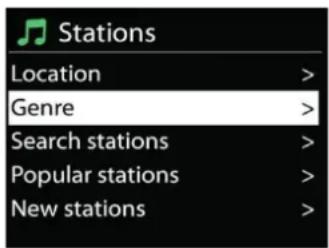
text_image
Stations Location > Genre > Search stations > Popular stations > New stations >- Favoritos
text_image
Music player Shared media > USB playback My playlist > Repeat play: Off Shuffle play: Offtext_image
JB-Laptop: Audio Music > Playlists >text_image
Music player 03:28 All Out of Love Album: Sweet Dreams: The Encore Collection- Limpar servidor
Control Panel > Network and Internet > Network and Sharing Center > Media streaming options
Abra o Windows Media Player para ativar a opção Allow remote control of my Player.
text_image
Choose media streaming options for computers and devices Name your media library: My PC Choose default settings... Show devices on: Local network Options Allowed access using default settings. Allowed access using default settings. Allowed access using default settings. Allowed access using default settings. Allowed access using default settings. Allowed access using default settings. Allowed access using default settings. Allowed access using default settings. Allowed access using default settings. Allowed access using default settings. Allowed access using default settings. Allowed access using default settings. Allowed access using default settings. Allowed access using default settings. Allowed access using default settings. Allowed access using default settings. Allowed access using default settings. Allowed access using defaults. Allowed access using defaults. Allowed access using defaults. Allowed access using defaults. Allowed access using defaults. Allowed access using defaults. Allowed access using defaults. Allowed access using defaults. Allowed access using defaults. Allowed access using defaults. Allowed access using defaults. Allowed access using defaults. Allowed access using defaults. Allowed access using defaults. Allowed access using defaults. Allowed access using defaults. Allowed access using defaults. Allowed access using defaults. Allowed access using defaults. Allowed access using defaults. Allowed access using default settings. Allowed access using default settings. Allowed access using default settings. Allowed access using default settings. Allowed access using default settings. Allowed access using default settings. Allowed access using default settings. Allowed access using default settings. Allowed access using default settings. Allowed access using default settings. Allowed access using default settings. Allowed access using default settings. Allowed access using default settings. Allowed access using default settings. Allowed access using default settings. Allowed access using default settings. Allowed access based on the media streaming system.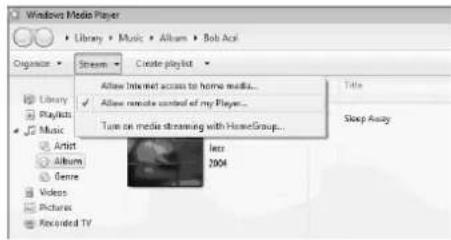
text_image
Windows Media Player Library > Music > Album > Bob Act Organize > Stream > Create playlist Library Playlists Music Artist Album Genre Videos Pictures Recorded TV Allow Internet access to home media... Allow remote control of my Player... Turn on media streaming with HomeGroup... lass 2004 Title Sleep Assaytext_image
Windows Media Player Library > Playlists > test Organize > Stream > Create playlist Library Playbox Best NAP TEST Music Artist Album Genre Videos Pictures Recorded TV Other media Other Libraries MediaShare [samsung] Quartet01-16:08:45 All out of Love 4:06 Play all Play next Play to Add to Edit Rate Find album info Remove from loc. Move up Move down Properties Find library Open file locationtext_image
Play To - MP3207 All Out of Love Contacting media server.• Controlar no Smartphone/Tablet
text_image
DAB 03:28 BBC Radio 6Music to vote for a track that missed out on the 6Music playlist- Procurar estações
text_image
DAB Stations: 15 Scanning /text_image
FM 03:28 Alice 97.3 Best Music in the world- Predefinições
text_image
Alarm 1 Enable: Daily Time: 07:30 Mode: Internet Radio Preset: Last listened Volume: 10text_image
Diagram of a device rear panel with labeled ports and indicators, showing front panel and back panel layout.text_image
Main menu Internet Radio Spotify Music Player DAB FMSYSTEMINDSTILLINGER
text_image
Setup wizard Start now? YES NOVælg English/Finnish/French/Italian/Danish/Dutch/German/Norwegian Polish/Portuguese/Spanish/Swedish/Turkish som menusprog.
2. Tids-/datoformat
Push WPS button at the other end
Press SELECT to continue
WPS Setup

Enter PIN 98467583 at the other end
Press SELECT to continue
Brug ikke WPS
Please wait Connecting .. \
Setup wizard completed
Press SELECT to exit
EQUALISER
text_image
Network settings Keep network connected? YES NO*TID/DATO
text_image
Internet radio Last listened > Station list > System settings > Main menu >- Stationsliste
text_image
Stations Location > Genre > Search stations > Popular stations > New stations >- Favoritter
https://www.spotify.com/connect/third-party-licenses
MEDIEAFSPILLER
text_image
Music player Shared media > USB playback My playlist > Repeat play: Off Shuffle play: Offtext_image
JB-Laptop: Audio Music > Playlists >text_image
Music player 03:28 All Out of Love Album: Sweet Dreams: The Encore CollectionThen a box of music playback pops up for the streaming.
text_image
Choose media decreasing option for consoles and devices Show your media library: My PC Choose default settings... Show device on: Console servers System 3.0.0000.00.0000 All media uses my default settings. System 3.0.0000.00.0000 All media uses my default settings. System 3.0.0000.00.0000 All media uses my default settings. All media uses my default settings. For instance: All media uses my default settings. C:\Users\... Remove... All devices are allowed to access your shared media. Open remote access and streamlines Choose power options Tell us your active media viewing Choose the private stream online. OK Cancel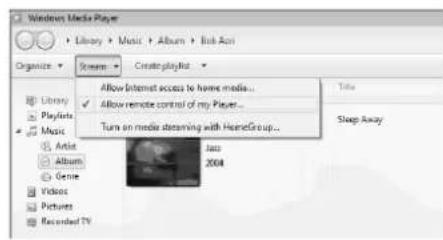
text_image
Windows Media Player Library > Music > Album > Bob Act Organize > Stream > Create playlist Allow Internet access to home media... ✓ Allow remote control of my Player... Turn on media streaming with HomeGroup... Java 2004 Title Sleep Away Library Playlists Music Artist Album Genre Video Pictures Recorded TV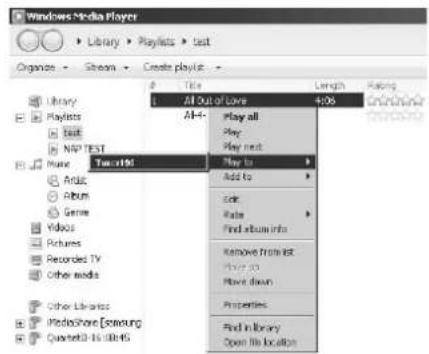
text_image
Windows Media Player Library > Playlists > test Organize > Stream > Create playlistAll Out of Love 406
All- Play all Play Play next Play to Add to Edit Rate Find album info Remove from list Move down Properties Find in library Open the location Library Playlists test NAP TEST Music Artist Album Genre Videos Pictures Recorded TV Other media Other Libraries MediaShare [Samsung] Quverber 16.00:45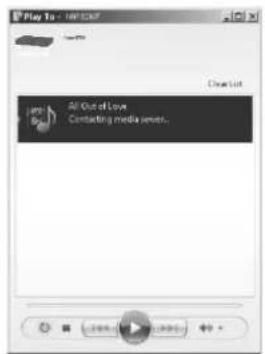
text_image
Play To - 100 MHz All Out of Love Contacting media series.DAB
text_image
DAB 03:28 BBC Radio 6Music to vote for a track that missed out on the 6Music playlisttext_image
DAB Stations: 15 Scanning /text_image
FM 03:28 Alice 97.3 Best Music in the worldtext_image
Alarm 1 Enable: Daily Time: 07:30 Mode: Internet Radio Preset: Last listened Volume: 10*) markerade Cd = kadmium, Hg = kvicksilver, Pb = bly
VARNING - OSYNLIG LASERSTRÅLNING NÄR DU ÖPPNAR LOCKET ELLER TRYCKER PÅ SÄKERHETSSPÄRREN. UNDVIK EXPONERING FÖR LASERSTRÅLEN.

INNEHÅLLSFÖRTECKNING
REGLAGENS PLACERING ....2
FJÄRRKONTROLL 3
HÄMTA STARTADE/KONFIGURATION ....5
FÖRBERED NÄTVERKSMILJÖN 5
HUVUDMENY....5
text_image
Diagram of a device rear panel with labeled ports and indicators, including a monitor, switch, and navigation controls.1 USB/5V -1A-utgång
text_image
Main menu Internet Radio Spotify Music Player DAB FMSYSTEMINSTÄLLNINGAR
text_image
Setup wizard Start now? YES NOPush WPS button at the other end
Press SELECT to continue
Pin
Enter PIN 98467583 at the other end
Press SELECT to continue
Skippa WPS
Please wait Connecting .. \
Setup wizard completed
Press SELECT to exit
EQUALIZER
text_image
Custom streaming options for consoles and devices Use your metadata: My PC Choose default settings. Categories on: Local settings System 0.2.000000000000000000000000000000000000000000000000000000000000000000000000000000000000000000000 Allowed access using default settings: Allowed access using default settings: Allowed access using default settings: Allowed access using default settings: Allowed access using default settings: Allowed access using default settings: Allowed access using default settings: Allowed access using default settings: Allowed access using default settings: Allowed access using default settings: Allowed access using default settings: Allowed access using default settings: Allowed access using default settings: Allowed access using default settings: Allowed access using default settings: Allowed access using default settings: Allowed access using default settings: Allowed access using double Allowed access using default settings: Allowed access using default settings: Allowed access using default settings: Allowed access using default settings: Allowed access using default settings: Allowed access using default settings: Allowed access using default settings: Allowed access using default settings: Allowed access using default settings: Allowed access using default settings: Allowed access using default settings: Allowed access using default settings: Allowed access using default settings: Allowed access using default settings: Allowed access using default settings: Allowed access using default settings: Allowed access based on default settings: Allowed access based on default settings: Allowed access based on default settings: Allowed access based on default settings: Allowed access based on default settings: Allowed access based on default settings: Allowed access based on default settings: Allowed access based on default settings: Allowed access based on default settings: Allowed access based on default settings: Allowed access based on default settings: Allowed access based on default settings: Allowed access based on default settings: Allowed access based on default settings: Allowed access based on default conditions: My PC Allowed access based on default conditions: My PC Allowed access based on default conditions: My PC Allowed access based on default conditions: My PC Allowed access based on default conditions: My PC Allowed access based on default conditions: My PC Allowed access based on default conditions: My PC Allowed access based on default conditions: My PC Allowed access based on default conditions: My PC Allowed access based on default conditions: My PC Allowed access based on default conditions: My PCAll functions are offered to discuss your shared media.
cnoelemeacric and transporters
Choose pretest options
Tall memore wood made streaming
Read the privacy statement online

text_image
Windows Media Player Library > Music > Album > Bob Aci Organize > Streams > Create playlist Allow Internet access to home media... ✓ Allow remote control of my Player... Turn on media streaming with HomeGroup... Title Playlists Music Album Genre Videos Pictures Recorded TV Jazz 2004 Sleep Away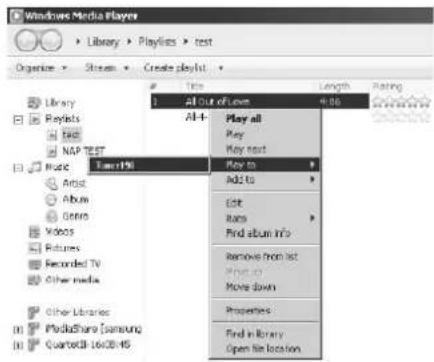
text_image
Windows Media Player Library > Playlines > test Organize > Stream > Create playlist Title 1 All out of Love 4.06 Play all Play text Play to Add to Edit Runs Find album info Remove from list Play to Move down Properties Find in library Open file location Library Reprint Text NAP TEST Music Artist Album Genre Videos Returns Recorded TV Other media Other Libraries MediaShare [samsung] Quantell 1608-16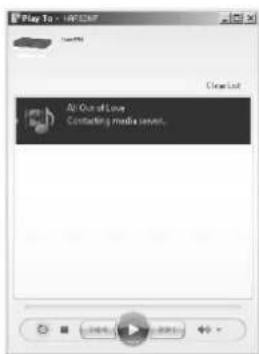
text_image
Play To - MP327 Air Out of Love Contacting media server.- Kontroll på Smartphone/Tablet
text_image
DAB 03:28 BBC Radio 6Music to vote for a track that missed out on the 6Music playlisttext_image
FM 03:28 Alice 97.3 Best Music in the world- Förinställningar
text_image
Diagram of a device rear panel with labeled ports and indicators, including a monitor, switch, and navigation controls.1 Výstup USB/5V 1 A
text_image
CLAMP LARGE PRODUCT DC/DVD AUD/DVD 17 1817 DC IN
18 AUX IN
DÁLKOVÝ OVLADAČ
text_image
Radio 1 FM CD USB DAB BT AMS INTRO REPEAT SLEEP AUDIO EQ + Bass Treble RANOSM USER ■ ■ PROGRAM 7 MENU 20 21 9 OK 22 23 10 SET CLOCK + V P - TIMER 24 25 12 1 2 3 4 5 6 7 8 9 13 INFO 0 DIM 281
text_image
Main menu Internet Radio Spotify Music Player DAB FMSYSTÉMOVÁ NASTAVENÍ
text_image
Setup wizard Start now? YES NOtext_image
WPS Setup ! Push WPS button at the other end Press SELECT to continuePin
Enter PIN 98467583 at the other end
Press SELECT to continue
Přeskočit WPS
Please wait Connecting .. \
Setup wizard completed
Press SELECT to exit
text_image
Network settings Keep network connected? YES NO*ČAS/DATUM
text_image
Internet radio Last listened > Station list > System settings > Main menu >- Seznam stanic
text_image
Stations Location > Genre > Search stations > Popular stations > New stations >- Oblíbené
text_image
Music player Shared media > USB playback My playlist > Repeat play: Off Shuffle play: Offtext_image
JB-Laptop: Audio Music > Playlists >text_image
Music player 03:28 All Out of Love Album: Sweet Dreams: The Encore CollectionControl Panel > Network and Internet > Network and Sharing Center > Media streaming options
text_image
Choose media streaming options for computers and devices Name your media library: My PC Choose default settings... Show devices on: Local network System 8.0.0023.4.0015 Allowed access using default settings. System 8.0.0023.4.0016 Allowed access using default settings. System 8.0.0023.4.0017 Allowed access using default settings. System City Allowed access using default settings. PNC-100 Allowed access using default settings. Customize... Allowed... Allowed... Allowed... Allowed... Allowed... Allowed... Allowed... Allowed... Allowed... Allowed... Allowed... Allowed... Allowed... Allowed... Allowed... Allowed... Allowed... Allowed... Allowed... Allowed... Allowed... Allowed... Allowed... Allowed... Allowed... Allowed... Allowed... Allowed... Allowed... Allowed... Allowed... Allowed... Allowed... Allowed... Allowed... Allowed... Allowed... Allowed... Allowed... Allowed... Allowed... Allowed... Allowed... Allowed... Allowed... Allowed... Allowed... Allowed... Allowed... Allowed... Restricted All allows are allowed to access your shared media. Choose homegroup and sharing options. Choose power options. Tell more access about media streaming. Read the privacy statement online. OK Cancel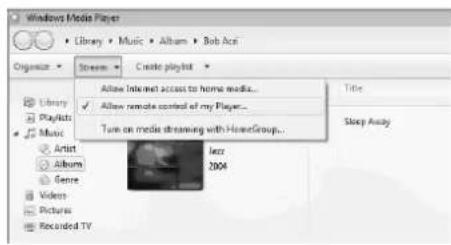
text_image
Windows Media Player Library Music Album Bob Act Organize Stream Create playlist Allow Internet access to home media... ✓ Allow remote control of my Player... Turn on media streaming with HomeGroup... Jazz 2004 Title Sleep Audio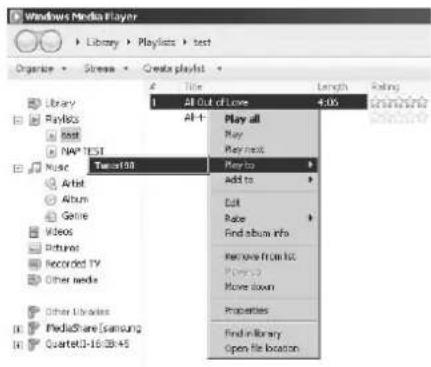
text_image
Windows Media Player Library > Playlists > test Organize > Stress > Create playlist 1 All Out of Love 4.05 All 1 Play all Play Play next Play to Add to Edit Rate Find album info Remove from hit Playbox Move down Properties Find in library Open file location Library Playloss test NAV*TEST Music Artist Album Genre Videos Pictures Recorded TV Other media Other Libraries MediaShare [Samsung] QuartetC3-10:28:45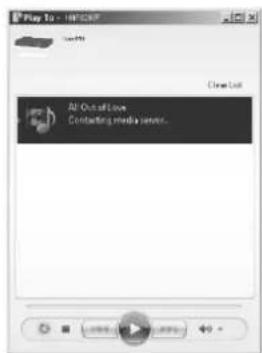
text_image
Play To - HIFCSP All Out of Live Contacting media server.text_image
DAB 03:28 BBC Radio 6Music to vote for a track that missed out on the 6Music playlist• Hledání stanic
text_image
DAB Stations: 15 Scanning /text_image
FM 03:28 Alice 97.3 Best Music in the worldtext_image
Alarm 1 Enable: Daily Time: 07:30 Mode: Internet Radio Preset: Last listened Volume: 10Cadolzburg, www.soundmaster.de
text_image
Diagram of a device rear panel with labeled ports and indicators, including navigation controls and ports 1-7.1 USB/5 V 1 A vystup
text_image
Main menu Internet Radio Spotify Music Player DAB FMSYSTÉMOVÉ NASTAVENIA
text_image
Setup wizard Start now? YES NOtext_image
WPS Setup ! Push WPS button at the other end Press SELECT to continuePin
Enter PIN 98467583 at the other end
Press SELECT to continue
Preskočit' WPS
Please wait Connecting..\
Setup wizard completed
Press SELECT to exit
text_image
Network settings Keep network connected? YES NO*ČAS/DÁTUM
text_image
Internet radio Last listened > Station list > System settings > Main menu >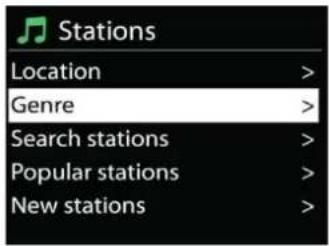
text_image
Stations Location > Genre > Search stations > Popular stations > New stations >- Obl'úbené
text_image
Music player Shared media > USB playback My playlist > Repeat play: Off Shuffle play: Offtext_image
JB-Laptop: Audio Music > Playlists >text_image
Music player 03:28 All Out of Love Album: Sweet Dreams: The Encore CollectionControl Panel > Network and Internet > Network and Sharing Center > Media streaming options
Otvorte Windows Media Player, zapnite Allow remote control of my Player.
text_image
Choose media streaming options for computers and devices Name your media library: My PC Choose default settings... Show devices on: Local network Japan 8.2.00000000000000 Allowed access using default settings. Japan 8.2.00000000000000 Allowed access using default settings. Japan 8.2.00000000000000 Allowed access using default settings. Japan's Day Allowed access using default settings. All devices are allowed to access your shared media. Choose homegroup and sharing options Choose power options Tell more about media streaming. Read the privacy statement online. OK Cancel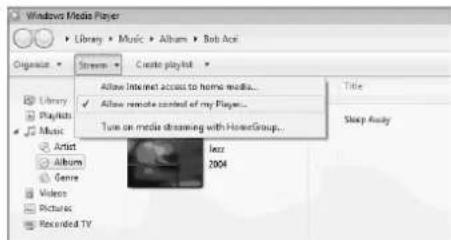
text_image
Windows Media Player Library > Music > Album > Bob Ace Organize > Stream > Create playlist Library Playlists Music Artist Album Genre Videos Pictures Recorded TV Allow Internet access to home media... Allow remote content of my Players... Turn on movie streaming with HomeGroup... Less 2004 Title Sleep Audio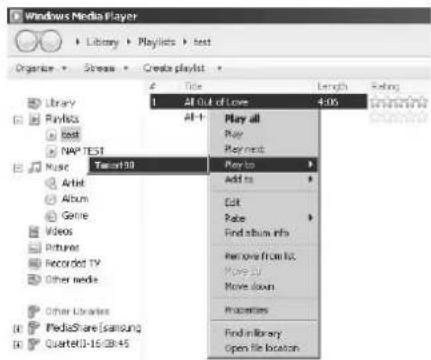
text_image
Windows Media Player Library > Playlists > test Organize > Stream > Create playlist 1 All out of Love 4:06 All+ Play all Play Play next Music Tamil93 Add to Edit Raise Find album info Remove from bus Move up Move down Properties Find in library Open file location Radio Play Play next Audio Album Genre Videos Pictures Recorded TV Other media Other Libraries MediaShare [Samsung] Quartel01-16:28:45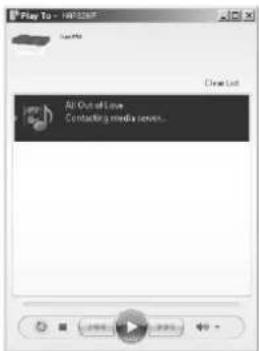
text_image
Play To - HKEYCOM PlayTo Clear List All Out of Love Contacting media server...- Ovládanie na smartfóne/tablete
text_image
DAB 03:28 BBC Radio 6Music to vote for a track that missed out on the 6Music playlisttext_image
DAB Stations: 15 Scanning /text_image
FM 03:28 Alice 97.3 Best Music in the worldtext_image
Alarm 1 Enable: Daily Time: 07:30 Mode: Internet Radio Preset: Last listened Volume: 10D 90556 Cadolzburg, Germany
Tel: +49 9103 71 67 0
Fax: +49 9103 71 67 12
E-Mail: info@soundmaster.de
Internet: www.soundmaster.de
Hereby, Wörlein GmbH declares that this device is in compliance with the essential requirements and other relevant provisions of Directive 2014/53/EU.
A copy of the declaration of conformity can be obtained from the above address.