ManualGo.com
HWS50A - Soundbar SAMSUNG - Free user manual and instructions
Find the device manual for free HWS50A SAMSUNG in PDF.

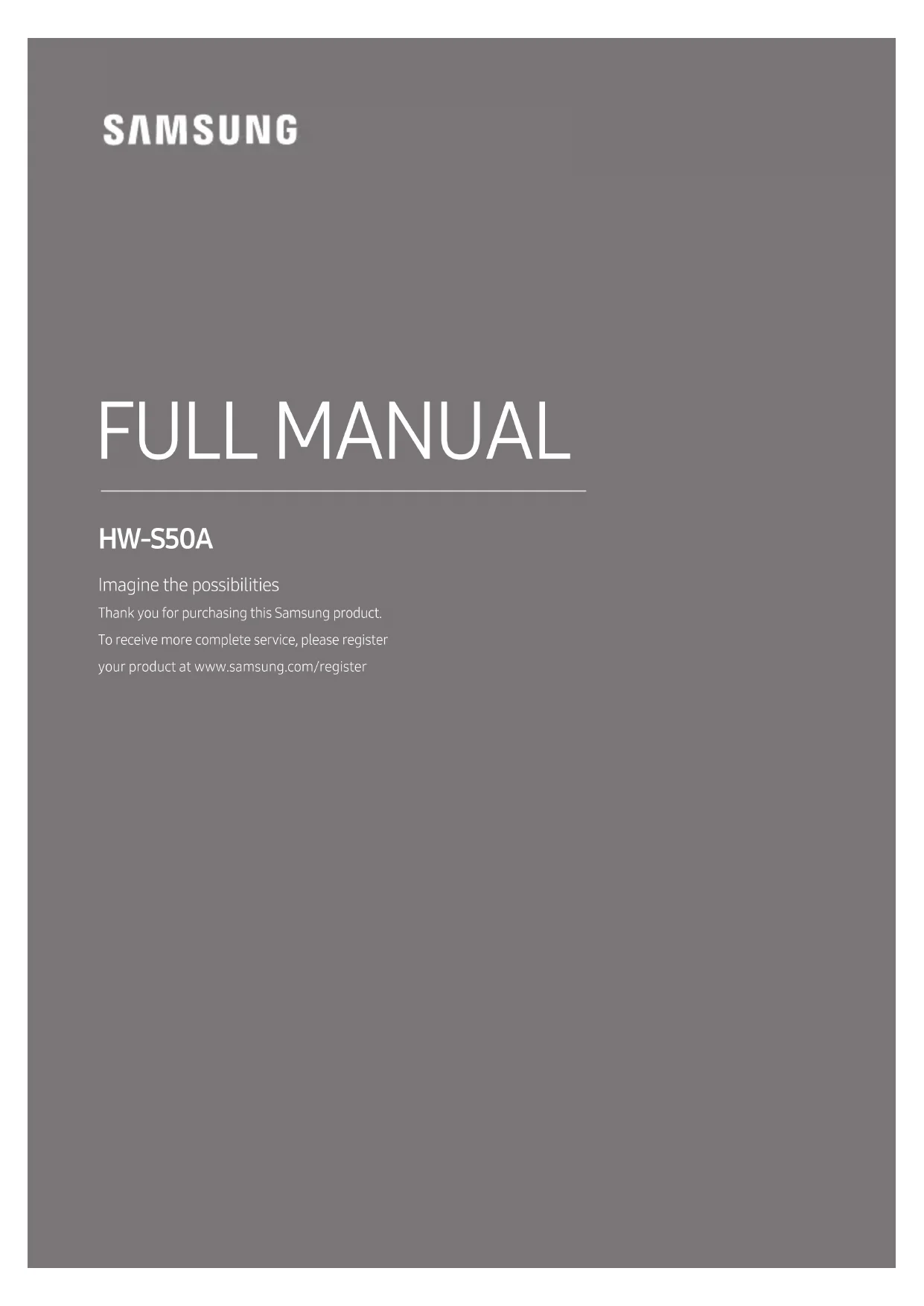


Download the instructions for your Soundbar in PDF format for free! Find your manual HWS50A - SAMSUNG and take your electronic device back in hand. On this page are published all the documents necessary for the use of your device. HWS50A by SAMSUNG.
USER MANUAL HWS50A SAMSUNG
HW-S50A FULL MANUAL Imagine the possibilities Thank you for purchasing this Samsung product. To receive more complete service, please register your product at www.samsung.com/registerENG - 2 SAFETY INFORMATION SAFETY WARNINGS TO REDUCE THE RISK OF ELECTRIC SHOCK, DO NOT REMOVE THE COVER (OR BACK). NO USER-SERVICEABLE PARTS ARE INSIDE.
REFER SERVICING TO QUALIFIED SERVICE
PERSONNEL. Refer to the table below for an explanation of symbols which may be on your Samsung product. CAUTION RISK OF ELECTRIC SHOCK. DO NOT OPEN.This symbol indicates that high voltage is present inside. It is dangerous to make any kind of contact with any internal part of this product.This symbol indicates that this product has included important literature concerning operation and maintenance.Class II product : This symbol indicates that it does not require a safety connection to electrical earth (ground).If this symbol is not present on a product with a power cord, the product MUST have a reliable connection to protective earth (ground).AC voltage : This symbol indicates that the rated voltage marked with the symbol is AC voltage.DC voltage : This symbol indicates that the rated voltage marked with the symbol is DC voltage.Caution, Consult instructions for use : This symbol instructs the user to consult the user manual for further safety related information. WARNING
- To reduce the risk of re or electric shock, do not expose this appliance to rain or moisture. CAUTION
- TO PREVENT ELECTRIC SHOCK, MATCH WIDE BLADE OF PLUG TO WIDE SLOT, FULLY INSERT.
- This apparatus shall always be connected to a AC outlet with a protective grounding connection.
- To disconnect the apparatus from the mains, the plug must be pulled out from the mains socket, therefore the mains plug shall be readily operable.
- Do not expose this apparatus to dripping or splashing. Do not put objects lled with liquids, such as vases on the apparatus.
- To turn this apparatus off completely, you must pull the power plug out of the wall socket. Consequently, the power plug must be easily and readily accessible at all times.ENG - 3 PRECAUTIONS
1. Ensure that the AC power supply in your
house complies with the power requirements listed on the identication sticker located on the bottom of your product. Install your product horizontally, on a suitable base (furniture), with enough space around it for ventilation (7~10 cm). Make sure the ventilation slots are not covered. Do not place the unit on ampliers or other equipment which may become hot. This unit is designed for continuous use. To fully turn off the unit, disconnect the AC plug from the wall outlet. Unplug the unit if you intend to leave it unused for a long period of time.
2. During thunderstorms, disconnect the AC
plug from the wall outlet. Voltage peaks due to lightning could damage the unit.
3. Do not expose the unit to direct sunlight or
other heat sources. This could lead to overheating and cause the unit to malfunction.
4. Protect the product from moisture (i.e.
vases), and excess heat (e.g. a replace) or equipment creating strong magnetic or electric elds. Unplug the power cable from the AC wall socket if the unit malfunctions. Your product is not intended for industrial use. It is for personal use only. Condensation may occur if your product has been stored in cold temperatures. If transporting the unit during the winter, wait approximately 2 hours until the unit has reached room temperature before using.
5. The battery used with this product contains
chemicals that are harmful to the environment. Do not dispose of the battery in the general household trash. Do not expose the battery to excess heat, direct sunlight, or re. Do not short circuit, disassemble, or overheat the battery. CAUTION : Danger of explosion if the battery is replaced incorrectly. Replace only with the same or equivalent type.ENG - 4 Fabric cleaning Remove any dirt or stain on the product surface immediately. Removing and cleaning can be less effective for some substances or if left for a prolonged time. CAUTION
- Use a vacuum cleaner or an adhesive lint roller to remove dust, handprints, and the likes. – Some cleaning brushes may damage the product, depending on the materials they contain. – Towels and cleaning clothes may leave lint or dirt on the product.
- Do not use a nail or other tools to scratch the dirt off. It may damage the fabric.
- To remove oil or liquid stains, use a clean white cloth moist with water. If the stain persists, wipe it with a mixture of water and neutral detergent (such as dishwashing soaps) and a cloth. – A non-neutral detergent or cleaner may cause discolouration or fabric damage. – After cleaning, use a dry cloth or hairdryer to dry the area. – Do not use excessive force to avoid discolouration or fabric damage.ENG - 5 CONTENTS 01 Checking the Components 7 Inserting Batteries before using the Remote Control (AA batteries X 2) ------------------------- 7 02 Product Overview 8 Top Panel of the Soundbar ------------------------- 8 Bottom Panel of the Soundbar ------------------------- 9 03 Using the Remote Control 10 How to Use the Remote Control
Using the Hidden Buttons (Buttons with more than one function)
Output specications for the different sound effect modes
Connecting an SWA-9100S (Sold Separately)
Connecting an SWA-W500 (Sold Separately)
05 Using a wired connection to the TV 22 Method 1. Connecting with HDMI
Method 2. Connecting using an Optical Cable
06 Using a wireless connection to the TV 26 Connecting via Bluetooth
26ENG - 6 07 Connecting an External Device 28 Connecting using an Optical Cable
08 Connecting a USB Storage Device 29 09 Connecting a Mobile Device 31 Connecting via Bluetooth
- For more information about the power supply and power consumption, refer to the label attached to the product. (Label: Bottom of the Soundbar Main Unit)
- To purchase additional components or optional cables, contact a Samsung Service Centre or Samsung Customer Care.
- For more information about the wallmount see page 37.
- Design, specications are subject to change without prior notice.
- The appearance of the accessories may differ slightly from the illustrations above. Inserting Batteries before using the Remote Control (AA batteries X 2) Slide the back cover in the direction of the arrow until it is completely removed. Insert 2 AA batteries (1.5V) oriented so that their polarity is correct. Slide the back cover back into position.ENG - 8 02 PRODUCT OVERVIEW Top Panel of the Soundbar Top Panel Position the product so that the SAMSUNG logo is located on the top.
LED indicatorThe LED Indicator ashes, glows, or changes colour depending on the Soundbar's current mode or status. The colour of the LED indicator and the number of lights indicate the active mode as described below.
- The Multicolour LED changes to White, Cyan, Green, Red, Yellow, Orange, Purple and Blue depending on the mode or status. Power Turns the power on and off. Volume Adjusts the volume. Source
- Press the (Source) button to change the mode. Each time you change the mode, the LED lights in white and then turns off. LED IndicatorWhite On -> Off White On -> Off White On -> Off “Digital Audio In” or “TV ARC”“Bluetooth” “USB”ENG - 9
- When you plug in the AC cord, the power button will begin working in 4 to 6 seconds.
- When you turn on this unit, there will be a 4 to 5 second delay before it produces sound.
- If you hear sounds from both the TV and Soundbar, go to the Settings menu for the TV audio and change the TV speaker to External Speaker. Bottom Panel of the Soundbar
USB (5V 0.5A) Connect a USB device here to play music les stored on the USB device through the Soundbar.
DC 24V (Power Supply In) Connect the AC/DC power adapter.
DIGITAL AUDIO IN (OPTICAL) Connect to the digital (optical) output of an external device.
HDMI (ARC) Connect to the HDMI (ARC) port on a TV.
- When disconnecting the power cable of the AC/DC power adapter from a wall outlet, pull the plug. Do not pull the cable.
- Do not connect this unit or other components to an AC outlet until all connections between components are complete.ENG - 10
03 USING THE REMOTE CONTROL
How to Use the Remote Control VOL WOOFERSOUNDBARSOUND MODE PAIR
Power Turns the Soundbar on and off. LED Indicator Cyan Blinks X1
- Auto Power Down Function The unit turns off automatically in the following situations: – In “Digital Audio In” or “TV ARC” / “Bluetooth” / “USB” mode if there is no audio signal for 20 minutes.
(Source) Press to select a source connected to the Soundbar.
(Mute) Press the (Mute) button to mute the sound. Press it again to unmute the sound. LED Indicator Blinks X RepeatlyENG - 11
SOUND MODE By pressing the button, you can select the desired audio mode. Each time the mode changes, the Multicolour LED blinks in white. LED Indicator White Blinks X1 “Adaptive Sound” “Music” “DTS Virtual:X” “Standard” – Adaptive Sound Analyzes the content in real time and automatically provides an optimal sound eld based on the characteristics of the content. – Music Provides more natural and room lling sound for music content. – DTS Virtual:X Immersive 3D sound from any content. – Standard Outputs the original sound.
- Bluetooth Power On/Off This feature automatically turns the Soundbar on when it receives a connection request from a previously connected TV or Bluetooth device. The setting is On by default. – Press and hold the SOUND MODE button for more than 5 seconds to turn off the Bluetooth Power function.
- DRC (Dynamic Range Control) On/Off Lets you apply dynamic range control to Dolby Digital tracks. Press and hold the SOUND MODE button for more than 5 seconds while the Soundbar is powered off to turn DRC (Dynamic Range Control) on or off. With the DRC turned on, loud sound is reduced. (The sound may be distorted.) SOUND MODE button LED Indicator VOL WOOFER SOUND MODE PAIR 5 Sec Cyan Blinks X1 On (Default) Off Red Blinks X1 DRC On/Off Toggle On OffENG - 12
- Until pairing is complete, the Multicolour LED changes as Red → Green → Blue in turn. LED Indicator Red → Green → Blue Blinks Pairing Connection is complete Cyan Blinks X3
p (Play / Pause) You can also play or pause music by pressing the button in "USB" mode.
- Music Skip Press the Right button to select the next music le. Press the Left button to select the previous music le.ENG - 13
(Sound Control) By pressing the button, you can select the desired audio mode. The desired settings can be adjusted using the Up/Down buttons. Each time the mode changes, the Multicolour LED blinks in white. LED Indicator White Blinks X1 “Treble” “Bass” “Sync” “Centre Level” – To control the volume of the treble or bass sound, select “Treble”, “Bass”, “Sync”, or “Centre Level” in Sound Settings, and then adjust the volume between -6~+6 by using the Up/Down buttons. 7 Band EQ Press and hold the (Sound Control) button for about 5 seconds to adjust the sound for each frequency band. 150Hz, 300Hz, 600Hz, 1.2kHz, 2.5kHz, 5kHz, and 10kHz are selectable using the Left/ Right buttons and each can be adjusted to a setting between -6 to +6 using the Up/Down buttons. (Make sure the Sound mode is set to “Standard”.) 7 Band EQ VOL WOOFER SOUND MODE PAIR 5 Sec Press and hold the (Sound Control) button for about 5 seconds. Using the Left/Right buttos and each can be adjusted to setting between -6 to+6. “150Hz” “150Hz” “300Hz” “600Hz” “1.2kHz” “2.5kHz” “5kHz” “10kHz” – To control the volume of the each speaker select “Centre Level” in Sound Settings, and then adjust the volume between -6~+6 by using the Up/Down buttons. – If the video on the TV and audio from the Soundbar are not synchronised, select “Sync” in Sound Control, and then set the audio delay between 0~300 milliseconds by using the Up/Down buttons. (Not available in “USB” or “Bluetooth”mode.) – “Sync” is only supported for some functions.ENG - 14
SOUND MODE VOL WOOFER SOUNDBAR SOUND MODE VOL WOOFER SOUNDBAR SOUND MODE VOL WOOFER SOUNDBAR SOUND MODE VOL WOOFER SOUNDBAR When subwoofer is connected, push the button up or down to adjust the woofer level to -12 or between -6 to +6. When subwoofer is disconnected, push the button up or down to adjust the bass level between -6 to +6. To set the woofer (bass) volume level to 0 (Default), press the button. (If Soundbar connected to wireless subwoofer (sold separately)).
VOLUME Push the button up or down to adjust the volume. LED Indicator White moves to right X1 Volume Up White moves to left X1 Volume DownENG - 15 Using the Hidden Buttons (Buttons with more than one function) Hidden Button Reference page Remote Control Button Function WOOFER (Up) TV remote control On/Off page 16 Left TV Auto connect On/Off page 27 Up ID SET page 19 (Sound Control) 7 Band EQ page 13 SOUND MODE DRC On/Off page 11 Bluetooth Power On/Off page 11 PAIR Bluetooth Multi connection On/Off page 34 Outputspecicationsforthedifferentsoundeffectmodes Effect Input Output With Soundbar only With Subwoofer Only With Subwoofer & Wireless Rear Speaker Kit Adaptive Sound
- The Samsung Wireless Rear Speaker Kit, and Subwoofer can be purchased separately. To purchase a Kit or the Subwoofer, contact the vendor you purchased the Soundbar from.ENG - 16 Adjusting the Soundbar volume with a TV remote control Adjust the Soundbar volume using the TV’s remote control.
- This function can be used with IR remote controls only. Bluetooth remote controls (remote controls that require pairing) are not supported.
- Set the TV speaker to External Speaker to use this function.
- Manufacturers supporting this function: VIZIO, LG, Sony, Sharp, PHILIPS, PANASONIC, TOSHIBA, Hisense, RCA TV remote control On/Off
1. Turn Off the Soundbar.
2. Push up and hold the WOOFER button for 5 seconds.
Each time you push the WOOFER button up and hold it for 5 seconds, the mode switches in the following order: “Off-TV Remote” (Default mode), “Samsung-TV Remote”, “All-TV Remote”. The LED indicator status changes each time the mode is changed, as shown below. Remote Control Button LED Indicator Status SOUND MODE VOL WOOFERSOUNDBAR 5 Sec "Off-TV Remote" (Default mode) Red Blinks X1 Disable the TV remote control. SOUND MODE VOL WOOFERSOUNDBAR 5 Sec "Samsung-TV Remote" Cyan Blinks X1 Enable a Samsung TV’s IR remote control. SOUND MODE VOL WOOFERSOUNDBAR 5 Sec "All-TV Remote" Blue Blinks X1 Enable a third-party TV’s IR remote control.ENG - 17
04 CONNECTING THE SOUNDBAR
Connecting Electrical Power Use the power components to connect the Soundbar to an electrical outlet in the following order:
- For more information about the required electrical power and power consumption, refer to the label attached to the product. (Label: Bottom of the Soundbar Main Unit)
1. First connect the power cable to the AC/DC adapter.
Connect the AC/DC adapter (with the power cable) to the Soundbar.
2. Connect the power cord to a wall socket.
- If you unplug and reconnect the power cord when the product is turned on, the Soundbar turns on automatically.
- Make sure to rest the AC/DC Adapter at on a table or the oor. If you place the AC/DC Adapter so that it is hanging with the AC cord input facing upwards, water or other foreign substances could enter the Adapter and cause the Adapter to malfunction.ENG - 18 Connecting an SWA-9100S (Sold Separately) Expand to true wireless surround sound by connecting the Samsung Wireless Rear Speaker Kit (SWA-9100S, sold separately) to your Soundbar.
1. Connect the Wireless Receiver Module to 2 Surround Speakers.
2. Check the standby status of the Wireless Receiver Module after plugging it into an electrical outlet.
- The LINK LED indicator (blue LED) on the Wireless Receiver Module blinks. If the LED does not blink, press the ID SET button on the back of the Wireless Receiver Module with a pen tip for 5~6 seconds until the LINK LED indicator blinks (in Blue). For more about the LED, please refer to the SWA-9100S user manual. ID SET
Press the Up button on the remote control for 5 seconds.
- Until pairing is complete, the Multicolour LED changes as Red → Green → Blue in turn. Remote Control Button LED Indicator SOUNDMODE PAIR 5 Sec Red → Green → Blue Blinks Pairing Connection is complete Cyan Blinks X3 CAUTION
- If your Soundbar was playing music when it connects to the SWA-9100S, you may hear some stuttering from the woofer as the connection nalizes.
4. Check if the LINK LED is solid blue (connection complete).
STANDBY LINK STANDBY LINK Blue is On The LINK LED indicator stops blinking and glows a solid blue when a connection is established between the Soundbar and the Wireless Receiver Module.
5. If the SWA-9100S is not connected, repeat the procedure from Step 2 through 4.ENG - 20
Connecting an SWA-W500 (Sold Separately)
1. Turn off the Soundbar by pressing the (Power) button on the remote control.
VOL WOOFER SOUNDBAR SOUNDMODE PAIR Red Blinks X3
2. Plug in the Wireless Subwoofer, and then check its standby status.
- Plug the Wireless Subwoofer power cord into an electrical outlet and into the Wireless Subwoofer to turn on the Wireless Subwoofer. The LINK LED indicator (blue LED) on the Wireless Subwoofer blinks. If the LED does not blink, press the ID SET button on the rear of the Wireless Subwoofer with a pen tip for 5~6 seconds until the LINK LED indicator blinks (in Blue). For more about the LED, please refer to the SWA-W500 user manual. Rear of the Wireless Subwoofer
Front of the Wireless Subwoofer
- The main unit is heavy. Be careful not to pinch your ngers when pressing the ID SET button or connecting the power cord to the rear of the unit.
- The upper part of the subwoofer is prone to scratches. Handle it carefully. Speaker Unit Bottom of the Wireless Subwoofer
- Do not press on or strike the Speaker Unit on the bottom of the body. You can deform or damage the speaker.ENG - 21
Press the Up button on the remote control for 5 seconds.
- Until pairing is complete, the Multicolour LED changes as Red → Green → Blue in turn. Remote Control Button LED Indicator SOUND MODE PAIR 5 Sec Red → Green → Blue Blinks Pairing Connection is complete Cyan Blinks X3
4. Check if the LINK LED is solid blue (connection complete).
Front of the Wireless Subwoofer Stops blinking. Glows blue. The LINK LED indicator stops blinking and glows a solid blue when a connection is established between the Soundbar and the Wireless Subwoofer.
5. If the SWA-W500 is not connected, repeat the procedure from Step 2 through 4.
NOTES – Do not connect the power cord of this product or your TV to a wall outlet until all connections between components are complete. – Before moving or installing this product, be sure to turn off the power and disconnect the power cord. – The maximum transmission distance of the wireless signal of the main unit is about 10 m, but may vary depending on your operating environment. If a steel-concrete or metallic wall is between the main unit and the wireless subwoofer, the system may not operate at all, because the wireless signal cannot penetrate metal. PRECAUTIONS – Wireless receiving antennas are built into the wireless subwoofer. Keep the units away from water and moisture. – For optimal listening performance, make sure that the area around the wireless subwoofer and Wireless Receiver Module (Sold separately) is clear of any obstructions.ENG - 22 05 USING A WIRED CONNECTION TO THE TV Method 1. Connecting with HDMI CAUTION
- When both the HDMI cable and optical cable are connected, the HDMI signal is received rst.
- To connect the HDMI cable between the TV and Soundbar, be sure to connect the terminals marked ARC. Otherwise, the TV sound may not be output.
- The recommended cable is High Speed HDMI Cable with Ethernet. Connecting the TV that supports HDMI ARC (Audio Return Channel) HDMI IN (ARC)
HDMI (ARC) DIGITAL AUDIO IN (OPTICAL) Connect to the HDMI IN (ARC) port of your TV.HDMI CableBottom of the SoundbarConnect to the HDMI (ARC) port of the Soundbar main unit.Top of the Soundbar LED IndicatorWhite On -> Off“TV ARC”1. With the Soundbar and TV turned off, connect the HDMI cable as shown in the gure.2. Turn on the Soundbar and TV.3. TV sound is output from the Soundbar.ENG - 23
- When the TV sound is not output, press the top panel of the Soundbar or the (Source) button on the remote control to select the “Digital Audio In” mode.
- When the sound is not output, check the HDMI Cable connection again.
- Use the volume buttons on the TV’s remote control to change the volume on the Soundbar. NOTES
- When you connect the TV that supports the HDMI ARC (Audio Return Channel) to the Soundbar with an HDMI cable, you can transmit the digital video and audio data without connecting a separate optical cable.
- We recommend you use a coreless HDMI cable if possible. If you use a cored HDMI cable, use one whose diameter is less than 14 mm.
- This function is not available if the HDMI cable does not support ARC.
- When the audio in a broadcast is encoded in Dolby Digital and the “Digital Output Audio Format” on your TV is set to PCM, we recommend that you change the setting to Dolby Digital. When the setting on the TV is changed, you will experience better sound quality. (The TV menu may use different words for Dolby Digital and PCM depending on the TV manufacturer.)ENG - 24 Method 2. Connecting using an Optical Cable Pre-connection Checklist
- When both the HDMI cable and optical cable are connected, the HDMI signal is received rst.
- When you use an optical cable and the terminals have covers, be sure to remove the covers. LED Indicator White On -> Off “Digital Audio In” DC 24V SERVICE
(OPTICAL) OPTICAL OUT Bottom of the Soundbar Optical Cable (not supplied) Top of the Soundbar
1. With the TV and Soundbar turned off, connect the DIGITAL AUDIO IN (OPTICAL) port on the
Soundbar and the OPTICAL output port on the TV with the optical cable (not supplied), as shown in the gure.
2. Turn on the Soundbar and TV.
3. Press the (Source) button on the top panel or remote control, and then select the “Digital
4. The TV sound is output from the Soundbar.ENG - 25
Using the Q-Symphony Function For Q-Symphony, the Soundbar syncs with a Samsung TV to output sound through two devices for optimum surround effect. When the Soundbar is connected, the option, “TV+Soundbar” appears under the Sound Output menu of the TV. Select the corresponding menu. LED Indicator White On -> Off “Digital Audio In” TV Menu
Optical Cable (not supplied) HDMI Cable
- TV menu example: TV + [AV] Soundbar series name [HDMI] NOTES
- It can operate according to the Codec supported by TV.
- This function is supported only when the HDMI Cable or Optical Cable (not supplied) is connected.
- This function is available in Samsung TVs released in or after 2020 and some Soundbar models.ENG - 26 06 USING A WIRELESS CONNECTION TO THE TV Connecting via Bluetooth When a Samsung TV is connected using Bluetooth, you can hear stereo sound without the hassle of cables.
- Only one Samsung TV can be connected at a time.
- Samsung TV that supports Bluetooth can be connected. Check the specications of your TV. The initial connection
Red → Green → Blue Blinks Pairing Connection is complete Cyan Blinks X3 When in “Bluetooth” mode 5 Sec
- Until pairing is complete, the Multicolour LED changes as Red → Green → Blue in turn. “Ready to connect via Bluetooth.”
3. Select “[AV] Samsung Soundbar S5A-Series” from the list on TV’s screen.
An available Soundbar is indicated with “Need Pairing” or “Paired” on the TV’s Bluetooth device list. To connect the Samsung TV to the Soundbar, select the message, and then establish a connection.
4. You can now hear Samsung TV sound from the Soundbar.
- If there is a connection log between the Soundbar and Samsung TV, the Soundbar is automatically connected by changing its mode to “Bluetooth”.ENG - 27 If the device fails to connect
- If you have an existing Soundbar (e.g., [AV] Samsung Soundbar S5A-Series) on the list of speakers on the Samsung TV, delete it.
- Then repeat steps 1 through 3. Disconnecting the Soundbar from the Samsung TV Press the (Source) button on the top panel or on the remote control to select the mode other than “Bluetooth”.
- Disconnecting takes time because the Samsung TV must receive a response from the Soundbar. (The time required may differ, depending on the Samsung TV model.) TV Auto connect On/Off To cancel the automatic Bluetooth connection between the Soundbar and TV, press the Left button on the remote control for 5 seconds with the Soundbar in “Bluetooth Ready” status. (Toggle On → Off) Left button LED Indicator 5 Sec Cyan Blinks X1 On (Default) Off Red Blinks X1 Bluetooth Ready Toggle On Off Notes on Bluetooth connection
- Locate a new device within 1 m to connect via Bluetooth communication.
- If asked for a PIN code when connecting a Bluetooth device, enter <0000>.
- The Soundbar automatically turns off after 20 minutes in the Ready state.
- The Soundbar may not perform Bluetooth search or connection correctly under the following circumstances: – If there is a strong electrical eld around the Soundbar. – If several Bluetooth devices are simultaneously paired with the Soundbar. – If the Bluetooth device is turned off, not in place, or malfunctions.
- Electronic devices may cause radio interference. Devices that generate electromagnetic waves must be kept away from the Soundbar main unit - e.g., microwaves, wireless LAN devices, etc.ENG - 28
OPTICAL OUT Bottom of the Soundbar Optical Cable (not supplied) Top of the Soundbar BD / DVD player / Set-top box / Game console
1. With the external device and Soundbar turned off, connect the DIGITAL AUDIO IN (OPTICAL) port
on the Soundbar and the OPTICAL output port on the external device with the optical cable (not supplied), as shown in the gure.
2. Turn on the Soundbar and external device.
3. Press the (Source) button on the top panel or remote control, and then select the “Digital
4. The external device sound is output from the Soundbar.ENG - 29
08 CONNECTING A USB STORAGE DEVICE
You can play music les located on USB storage devices through the Soundbar.
(OPTICAL) USB (5V 0.5A) DC 24V Micro USB to USB adapter Cable (not supplied) LED Indicator White On -> Off “USB”
1. Connect the Soundbar with the USB stick by the USB adapter cable above.
- The Micro USB to USB adapter cable is sold separately. To purchase, contact a Samsung Service Centre or Samsung Customer Care.
2. Press the (Source) button on the top panel or remote control, and then select the “USB” mode.
3. Play music les from the USB storage device through the Soundbar.
- The Soundbar automatically turns off (Auto Power Down) if no USB device has been connected for more than 20 minutes.ENG - 30 File Format Type Compatibility list Extension Codec Sampling Rate Bitrate *.mp3 MPEG 1 Layer2 16kHz ~ 48kHz 80kbps~320kbps MPEG 1 Layer3 16kHz ~ 48kHz 80kbps~320kbps MPEG 2 Layer3 16kHz ~ 48kHz 80kbps~320kbps MPEG 2.5 Layer3 16kHz ~ 48kHz 80kbps~320kbps *.wma Wave_Format_MSAudio1 16kHz ~ 48kHz 56kbps~128kbps Wave_Format_MSAudio2 16kHz ~ 48kHz 56kbps~128kbps *.aac AAC 16kHz ~ 96kHz 48kbps~320kbps A AC-LC 16kHz ~ 96kHz 128kbps~192kbps 5.1ch 320kbps HE-AAC 24kHz ~ 96kHz 48kbps~64kbps 5.1ch 160kbps *.wav - 16kHz ~ 48kHz up to 3000kbps *.ac FLAC 32kHz ~ 192kHz 162kbps ~ 8,100kbps *.aiff AIFF 32kHz ~ 192kHz 1,024kbps ~ 9,216kbps *.ogg OGG 1.1.0 16kHz ~ 48kHz 50kbps~500kbps
- If there are too many folders (about 200) and les (about 2000) stored on the USB device, it may take the Soundbar some time to access and play les.ENG - 31
09 CONNECTING A MOBILE DEVICE
Connecting via Bluetooth When a mobile device is connected using Bluetooth, you can hear stereo sound without the hassle of cables.
- When you connect a paired Bluetooth device with the Soundbar off, the Soundbar automatically turns on. The initial connection
- When connecting to a new Bluetooth device, make sure the device is within 1 m distance.
Red → Green → Blue Blinks Pairing Connection is complete Cyan Blinks X3 When in “Bluetooth” mode 5 Sec
- Until pairing is complete, the Multicolour LED changes as Red → Green → Blue in turn. “Ready to connect via Bluetooth.”
2. On your device, select “[AV] Samsung Soundbar S5A-Series” from the list that appears.
3. Play music les from the device connected via Bluetooth through the Soundbar.
If the device fails to connect
- If you have an existing Soundbar (e.g., [AV] Samsung Soundbar S5A-Series) on the list of speakers on the Mobile device, delete it.
- Then repeat steps 1 and 2. mobile deviceENG - 32 Notes on Bluetooth connection
- Locate a new device within 1 m to connect via Bluetooth communication.
- If asked for a PIN code when connecting a Bluetooth device, enter <0000>.
- The Soundbar automatically turns off after 20 minutes in the Ready state.
- The Soundbar may not perform Bluetooth search or connection correctly under the following circumstances: – If there is a strong electrical eld around the Soundbar. – If several Bluetooth devices are simultaneously paired with the Soundbar. – If the Bluetooth device is turned off, not in place, or malfunctions.
- Electronic devices may cause radio interference. Devices that generate electromagnetic waves must be kept away from the Soundbar main unit - e.g., microwaves, wireless LAN devices, etc.
- The Soundbar supports SBC data (44.1kHz, 48kHz).
- Connect only to a Bluetooth device that supports the A2DP (AV) function.
- You cannot connect the Soundbar to a Bluetooth device that supports only the HF (Hands Free) function.
- When connecting the Soundbar to a Bluetooth device, place them as close to each other as possible.
- The farther the Soundbar and Bluetooth device are from each other, the lower the sound quality will become. The Bluetooth connection may break when the devices are out of the effective range.
- The Bluetooth connection may not function as intended in areas with poor reception.
- A Bluetooth device may experience noise or malfunction under in the following conditions: – When the body is in contact with the signal transceiver on the Bluetooth device or Soundbar – In corners or when there is an obstacle in proximity, such as a wall or partition, where electrical changes may occur. – When exposed to radio interferences by other products operating on the same frequency ranges, such as medical equipment, microwave ovens, and wireless LAN devices. – Obstacles such as doors and walls may still impact the sound quality even when the devices are within the effective range.
- Note that your Soundbar cannot be paired with other Bluetooth devices while using the Bluetooth option.
- This wireless device may cause electrical interference during operation.ENG - 33 Bluetooth Power On/Off If a previously paired Bluetooth device tries to pair with the Soundbar when the Bluetooth Power On function is on and the Soundbar is turned off, the Soundbar turns on automatically.
1. Press and hold the SOUND MODE button for more than 5 seconds on the remote while the
Soundbar is turned on.
- The Soundbar will be disconnected.
- If the Soundbar is disconnected from the Bluetooth device, the multicolour LED indicator on the Soundbar blinks "Red” three times. Disconnecting the Soundbar from the Bluetooth device Press the (Source) button on the top panel or on the remote control to select the mode other than “Bluetooth”.
- Disconnecting takes time because the Bluetooth device must receive a response from the Soundbar. (Disconnection time may differ, depending on the Bluetooth device)
- If the Soundbar is disconnected from the Bluetooth device, the multicolour LED indicator on the Soundbar blinks "Red” three times.ENG - 34 Bluetooth Multi connection The Soundbar can be connected to 2 Bluetooth devices at the same time. Bluetooth device A Bluetooth device B TV Auto connect On/Off
1. Press and hold the PAIR button for more than 5 seconds on the remote while the Soundbar is
3. Connect the Soundbar to up to two Bluetooth devices. (See page 31)
4. Play music from one of the connected Bluetooth devices while two devices are connected.
5. If music is played from the Bluetooth device “B” while playing from the device “A”, the music is
started playing on the device “B” and automatically being stopped/paused playback on the device “A”.
6. In versions prior to AVRCP V1.4, the switching time of the device playing music may be delayed.
Bluetooth Multi Pairing How to pair multiple devices to the Soundbar
1. Turn on the Soundbar.
2. Only in “Bluetooth” mode, press and hold the (Source) button on the top of the Soundbar for
more than 5 seconds for the Soundbar to go into “Bluetooth Pairing” mode, then on the Bluetooth device side, switch Bluetooth on, and select the Soundbar from the list of available devices, the Soundbar will automatically connect to the Bluetooth device.
3. A 2nd Bluetooth device can be paired and connected to the Soundbar using the same method.
If you attempt to connect a 3rd device, a connected device that is not playing audio will lose its Bluetooth connection, but will still be paired with the Soundbar.
4. Using the same method, you can pair up to 8 Bluetooth devices, but only the last 2 will stay
connected to the Soundbar at the same time.ENG - 35 NOTES
- Connect the Soundbar to up to two Bluetooth devices.
- Play music from one of the connected Bluetooth devices while two devices are connected.
- If music is played from the Bluetooth device “B” while playing from the device “A”, the music is started playing on the device “B” and automatically being stopped/paused playback on the device A”.
- In versions prior to AVRCP V1.4, the switching time of the device playing music may be delayed.
- The device can be switched by notication or alarm on some devices.
- Some devices do not support Bluetooth multi connection.
- “Bluetooth Pairing” mode stops when no device is paired within 3 minutes.
- Switching devices may take about 7 seconds on some apps.
- If you attempt to connect a 3rd Bluetooth device, the A or B devices will be disconnected. (A device that is not currently playing will be disconnected.)
- Only 1 Samsung TV, or 2 Bluetooth devices can be connected to the Soundbar at one time.
- The Soundbar will be disconnected from Bluetooth devices when it receives a connection request from a Samsung TV.ENG - 36 Using Tap Sound Tap the Soundbar with your mobile device to play audio from the mobile device through the Soundbar.
- This function may not be supported, depending on the mobile device.
- This function is only compatible on Samsung mobile devices with Android 8.1 or later. Mobile device SmartThings App Top of the Soundbar
1. Turn on the Tap Sound function on your mobile device.
- For details on how to turn on the function, refer to “Enable the Tap Sound function” below.
2. Tap the Soundbar with the mobile device. Select “Start now” in the displayed message window.
A connection is established between the mobile device and Soundbar via Bluetooth.
3. Play audio from the mobile device through the Soundbar.
- This function connects a mobile device to the Soundbar via Bluetooth by detecting vibration that occurs when the device touches the Soundbar.
- Make sure the mobile device does not tap a sharp corner of the Soundbar. The Soundbar or mobile device may become scratched or damaged.
- It is recommended that the mobile device be covered with a case. Lightly tap the wide area in the upper portion of the Soundbar, without using excessive force.
- To use this function, update the SmartThings app to the latest version. The function may not be supported, depending on the app version. Enable the Tap Sound function Use the SmartThings app to turn on the Tap View, Tap Sound function.
1. On the mobile device, run the SmartThings app.
2. Select ( → ) in the SmartThings app screen displayed on the mobile device.
3. Set “Tap View, Tap Sound” to On to allow the function to work when a mobile device moves close to
- When the mobile device is in power-saving mode, the Tap Sound function does not work.
- The Tap Sound function may not work if there are devices near the Soundbar that cause radio interference such as electric devices. Make sure devices that may cause radio interference are placed at a sufcient distance away from the Soundbar.ENG - 37 10 INSTALLING THE WALL MOUNT Installation Precautions
- Install on a vertical wall only.
- Do not install in a place with high temperature or humidity.
- Verify whether the wall is strong enough to support the product’s weight. If not, reinforce the wall or choose another installation point.
- Purchase and use the xing screws or anchors appropriate for the kind of wall you have (plaster board, iron board, wood, etc.). If possible, x the support screws into wall studs.
- Purchase wall mounting screws according to the type and thickness of the wall you want to mount the Soundbar on. – Diameter: M5 – Length: 35 mm or longer recommended.
- Connect cables from the unit to external devices before you install the Soundbar on the wall.
- Make sure the unit is turned off and unplugged from the power source before you install it. Otherwise, it may cause an electric shock. Wallmount Components Wall Mount Guide x 2 (M4 x L10) x 2 Holder-Screw Screw x 2 Bracket-Wall Mount
1. Place the Wall Mount Guide against the wall
- The Wall Mount Guide must be level.
- If your TV is mounted on the wall, install the Soundbar at least 5 cm below the TV. 5 cm or moreENG - 38
2. Align the Wall Mount Guide’s Centre Line
with the centre of your TV (if you are mounting the Soundbar below your TV), and then x the Wall Mount Guide to the wall using tape.
- If you are not mounting below a TV, place the Centre Line in the centre of the installation area. Centre Line
3. Use a pen to mark the positions of the holes
and remove the Wall Mount Guide.
4. Using an appropriately sized drill bit, drill a
hole in the wall at each marking.
- If the markings do not correspond to the positions of studs, make sure you insert appropriate anchors into the holes before you insert the support screws. If you use anchors, make sure the holes you drill are large enough for the anchors you use.
5. Push a screw (not supplied) through each
Holder-Screw, and then screw each screw rmly into a support screw hole.
6. Install the 2 Bracket-Wall Mounts in the
correct orientation on the bottom of the Soundbar using 2 Screws.
- When assembling, make sure the hanger part of the Bracket-Wall Mounts are located behind the rear of the Soundbar. Rear of Soundbar Right end of SoundbarENG - 39
7. Install the Soundbar with the attached
Bracket-Wall Mounts by hanging the Bracket-Wall Mounts on the Holder-Screws on the wall.
8. Slide the Soundbar down as shown below so
that the Bracket-Wall Mounts rest securely on the Holder-Screws.
- Insert the Holder-Screws into the wide (bottom) part of the Bracket-Wall Mounts, and then slide the Bracket-Wall Mounts down so that the Bracket-Wall Mounts rest securely on the Holder-Screws. 11 INSTALLING THE SOUNDBAR IN
3cm or more Align the centre of the Soundbar to the centre of the TV as illustrated in the image. Place the Soundbar at least 3cm away from the TV. NOTES
- Make sure the Soundbar is placed on a at and solid surface.
- Insufcient gap from the TV may cause acoustic problems.ENG - 40 12 SOFTWARE UPDATE Important: After upgrading, keep the original Settings.
(OPTICAL) USB (5V 0.5A) DC 24V Micro USB to USB adapter Cable (not supplied) Bottom of the Soundbar
1. Connect a USB memory stick to the USB port
on your computer. Important: Make sure there are no music les on the USB memory stick drive. This may cause the rmware update to fail.
select Enter Model Number and enter the model of your Soundbar. Select manuals and downloads and download the latest software le.
3. Save the downloaded software to a USB
memory stick and select “Extract Here” to unzip the folder.
4. Turn on the Soundbar and connect the USB
memory stick containing the software update to the female port on a Micro USB adapter cable. Connect the cable to the USB port on the Soundbar.
5. Plug USB into Soudbar and switch to USB
source, the software will update automatically and will complete update within 2 minutes. During the update process, the 5 LEDs will start ashing in a loop, and then the 5 LEDs will all be bright white, and then the 5 LEDs will ash in a loop again. When the update is complete, the cyan indicator blinks 3 times, and the soundbar automatically restarts. LED Indicator White moves from left to right and right to left X 1 “Start the software update.” 5 LEDs display White White moves from left to right and right to left X 1 Cyan Blinks X3 Software Update Finish “The software update is complete.” Red Blinks X3 Software Update Failed “The software update failed.”ENG - 41
- This product has a DUAL BOOT function. If the rmware fails to update, you can update the rmware again. IfLEDsequenceashingisnot displayed
1. Turn off the Soundbar, disconnect and then
reconnect the USB storage device that contains the update les to the Soundbar’s USB port.
2. Disconnect the Soundbar’s power cord,
reconnect it, and then turn on the Soundbar. NOTES
- The rmware update may not work properly if audio les supported by the Soundbar are stored in the USB storage device.
- Do not disconnect the power or remove the USB device while updates are being applied. The main unit will turn off automatically after completing the rmware update.
- After upgrading, keep the original Settings. (include Volume, sound eld, etc.) – When the rmware update is complete, the soundbar automatically turns on, and the Voice UI comes out. If the software update fails, check if the USB stick is defective.
- Mac OS users should use MS-DOS (FAT) as the USB format.
- Updating via USB may not be available, depending on the USB storage device manufacturer. Reset 5 Sec With the Soundbar on, press the (Volume) buttons on the body at the same time for at least 5 seconds. The LED display changes as shown below and then the Soundbar is reset. LED Indicator White moves from left to right and right to left “Start the factory reset.” Cyan Blinks X3 “The factory reset is complete.” CAUTION
- All the settings of the Soundbar are reset. Be sure to perform this only when a reset is required.ENG - 42 13 TROUBLESHOOTING Before seeking assistance, check the following. Soundbar does not turn on. ; Check whether the power cord of the Soundbar is correctly inserted into the outlet. Soundbar works erratically. ; After removing the power cord, insert it again. ; Remote the power cord from the external device and try again. ; If there is no signal, the Soundbar automatically turns off after a certain period of time. Turn on the power. (See page10.) In case the remote control does not work. ; Point the remote directly at the Soundbar. ; Replace the batteries with new ones. Soundbar does not output any sound. ; The volume of the Soundbar is too low or muted. Adjust the volume. ; When any external device (STB, Bluetooth device, mobile device, etc.) is connected, adjust the volume of the external device. ; For sound output of the TV, select Soundbar. (Samsung TV: Home ( ) → Settings ( ) → Sound → Sound Output → Select Soundbar) ; The cable connection to the Soundbar may not be loose. Remove the cable and connect again. ; Remove the power cord completely, reconnect, and turn the power on. ; Reset the product and try again. (See page 41.) In case the TV is not connected via HDMI (ARC). ; Check whether the HDMI cable is correctly connected to the ARC terminal. (See page22) ; Connection may not be possible due to the connected external device (set-top box, game machine, etc.). Directly connect the Soundbar. ; HDMI-CEC may not be activated on the TV. Turn on the CEC on the TV menu. (Samsung TV: Home ( ) → Settings ( ) → General
- External Device Manager → Anynet+ (HDMI-CEC) ON) Soundbar does not connect via Bluetooth. ; When connecting a new device, switch to Bluetooth Pairing for connection. (Press the PAIR button on the remote control or press the (Source) button on the body for at least 5 seconds.) ; If the Soundbar is connected to another device, disconnect that device rst to switch the device. ; Reconnect it after removing the Bluetooth speaker list on the device to connect. (Samsung TV: Home ( ) → Settings ( )
- Sound → Sound Output → Bluetooth Speaker List) ; Remove and reconnect the power plug, then try again. ; Reset the product and try again. (See page 41.)ENG - 43 Sound drops out when connected via Bluetooth. ; If your device that is connected via Bluetooth moves too far away from the Soundbar, it may cause the sound to drop out. Move the device closer to the Soundbar. ; If a part of your body is in contact with the Bluetooth transceiver or the product is installed on metal furniture, sound may drop out. Check the installation environment and conditions for use. Bluetooth multi connection does not work. ; When the TV is connected to the soundbar, Bluetooth multi connection may not operate. Disconnect the Soundbar from the TV and try again. ; Check whether the Bluetooth Multi connection setting is turned on. (Refer to the "Soundbar does not connect via Bluetooth." section.) ; Disconnect the device currently playing, pair with the device that you want to connect, and reconnect the previous device. ; If the sound is inaudible even after connecting properly, refer to the "Sound drops out when connected via Bluetooth." section. Soundbar does not turn on automatically with the TV. ; When you turn off the Soundbar while watching TV, power synchronization with the TV is disabled. First turn off the TV. 14 LICENCE Manufactured under license from Dolby Laboratories. Dolby, Dolby Audio and the double-D symbol are trademarks of Dolby Laboratories Licensing Corporation. For DTS patents, see http://patents.dts.com. Manufactured under license from DTS Licensing Limited. DTS, Digital Surround, Virtual:X, and the DTS logo are registered trademarks or trademarks of DTS, Inc. in the United States and other countries. © 2020 DTS, Inc. ALL RIGHTS RESERVED. The terms HDMI and HDMI High-Denition Multimedia Interface, and the HDMI Logo are trademarks or registered trademarks of HDMI Licensing Administrator, Inc. in the United States and other countries. The Bluetooth® word mark and logos are registered trademarks owned by the Bluetooth SIG, Inc. and any use of such marks by Samsung Electronics Co., Ltd. is under license. Other trademarks and trade names are those of their respective owners.ENG - 44 [ENERGY STAR] ENERGYSTARqualiedmodelonly – Your Samsung product is ENERGY STAR qualied in its factory default setting. Change to certain features, settings and functionality in this product can change the power consumption, possibly beyond the limits required for ENERGY STAR qualication. – Environmental Protection Agency and Department of Energy. ENERGY STAR is a joint program of the Government agencies, designed to promote energy efcient products and practices. Refer to www.energystar.gov for more information of the ENERGY STAR Program. ENERGYSTARqualiedmodelonly (Applicable to Thin Client models only) As an ENERGY STAR® Partner, SAMSUNG has determined that this product meets the ENERGY STAR® guidelines for energy efciency. – The ENERGY STAR Program has been to reduced greenhouse gas emissions and save energy through voluntary labeling. – Power management setting of this product have been enabled by default, and have various timing setting from 1 minutes to 5 hours. – The product can wake with a button press on the chassis from sleep mode. ENERGYSTARqualiedmodelonly(Theother models) – As an ENERGY STAR Partner, Samsung has determined that this product or product models meets the ENERGY STAR guideline for energy efciency. 15 OPEN SOURCE LICENCE NOTICE To send inquiries and requests for questions regarding open sources, contact Samsung Open Source (http://opensource.samsung.com) 16 IMPORTANT NOTES ABOUT SERVICE
- Figures and illustrations in this User Manual are provided for reference only and may differ from actual product appearance.
- An administration fee may be charged if either (a) an engineer is called out at your request and there is no defect with the product (i.e. where the user manual has not been read). (b) you bring the unit to a repair centre and there is no defect with the product (i.e. where the user manual has not been read).
- You will be informed of the administration fee amount before a technician visits.ENG - 45
Weight 2.7 kg Dimensions (W x H x D) 764.0 x 68.0 x 125.0 mm Operating Temperature Range +5°C to +35°C Operating Humidity Range 10 % ~ 75 % AMPLIFIER Rated Output power (30W x 2) + (30W x 2) + 20W Supported play formats DTS, Dolby® Digital (DTS Virtual Surround is played in DTS format.) PCM 2ch, Dolby Audio™ (supporting Dolby® Digital), DTS, DTS Virtual:X WIRELESS DEVICE OUTPUT POWER The transmitting power is 9 dBm. Overall Standby Power Consumption (W) 0.5W Bluetooth Port deactivation method Press and hold the SOUND MODE button for more than 5 seconds to turn off Bluetooth Power function. NOTES
- Samsung Electronics Co., Ltd reserves the right to change the specications without notice.
- Weight and dimensions are approximate.ENG - 46 Hereby, Samsung declares that this radio equipment is in compliance with Directive 2014/53/EU and the relevant UK statutory requirements. The full text of the declaration of conformity is available at the following internet address: http://www.samsung.com go to Support and enter the model name. This equipment may be operated in all EU countries and in the UK. [Correct disposal of batteries in this product] (Applicable in countries with separate collection systems) This marking on the battery, manual or packaging indicates that the batteries in this product should not be disposed of with other household waste at the end of their working life. Where marked, the chemical symbols Hg, Cd or Pb indicate that the battery contains mercury, cadmium or lead above the reference levels in EC Directive 2006/66. If batteries are not properly disposed of, these substances can cause harm to human health or the environment. To protect natural resources and to promote material reuse, please separate batteries from other types of waste and recycle them through your local, free battery return system. Correct Disposal of This Product (Waste Electrical & Electronic Equipment) (Applicable in countries with separate collection systems) This marking on the product, accessories or literature indicates that the product and its electronic accessories (e.g. charger, headset, USB cable) should not be disposed of with other household waste at the end of their working life. To prevent possible harm to the environment or human health from uncontrolled waste disposal, please separate these items from other types of waste and recycle them responsibly to promote the sustainable reuse of material resources. Household users should contact either the retailer where they purchased this product, or their local government ofce, for details of where and how they can take these items for environmentally safe recycling. Business users should contact their supplier and check the terms and conditions of the purchase contract. This product and its electronic accessories should not be mixed with other commercial wastes for disposal. For information on Samsung’s environmental commitments and product specic regulatory obligations e.g. REACH, WEEE, Batteries, visit: www.samsung.com/uk/aboutsamsung/sustainability/environment/our-commitment/data/
The software update is complete.
The software update failed. “BUL - 41
The factory reset is complete.
The factory reset is complete.” OPREZ
The software update is complete.
The software update failed. “CZE - 41
The factory reset is complete.
The factory reset is complete.
The software update is complete.
The software update failed. “EST - 41
The factory reset is complete.
The software update is complete.
The factory reset is complete.
Start the factory reset
The factory reset is complete
WOOFER (BASSZUS) SZINT
The factory reset is complete.” FIGYELEM
WOOFER (BASI) LĪMEŅA
The factory reset is complete.
POZNÁMKA OHĽADOM SERVISU