ManualGo.com
SCCC6323N - Soundbar SAMSUNG - Free user manual and instructions
Find the device manual for free SCCC6323N SAMSUNG in PDF.



Download the instructions for your Soundbar in PDF format for free! Find your manual SCCC6323N - SAMSUNG and take your electronic device back in hand. On this page are published all the documents necessary for the use of your device. SCCC6323N by SAMSUNG.
USER MANUAL SCCC6323N SAMSUNG
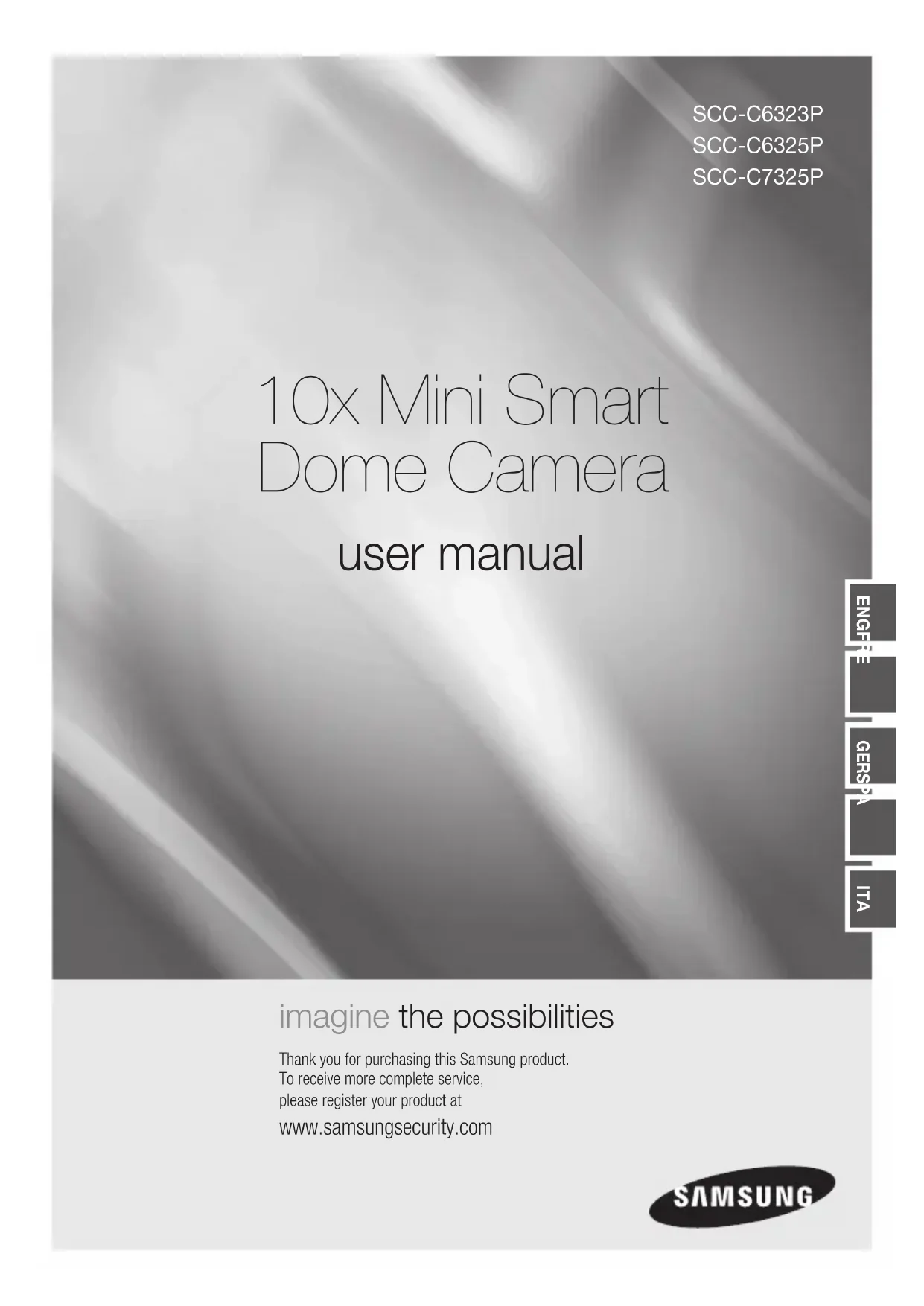
10x Mini Smart Dome Camera user manual SCC-C6323P SCC-C6325P SCC-C7325P imagine the possibilities Thank you for purchasing this Samsung product. To receive more complete service, please register your product at www.samsungsecurity.com ENG FRE GER SPA
CAUTION: TO REDUCE THE RISK OF ELECTRIC SHOCK, DO NOT REMOVE REAR COVER. NO USER SERVICEABLE PARTS INSIDE. REFER TO QUALIFIED SERVICE PERSONNEL.. This symbol indicates high voltage is present inside. It is dangerous to make any kind of contact with any inside part of this product. This symbol alerts you that important literature concerning operation and maintenance has been included with this product. WARNING To prevent damage which may result in fi re or electric shock hazard, do not expose this appliance to rain or moisture. WARNING Be sure to use only the standard adapter that is specifi ed in the specifi cation sheet. Using any other adapter could cause fi re, electrical shock, or damage to the product Incorrectly connecting the power supply or replacing battery may cause explosion, fi re, electric shock, or damage to the product. Do not connect multiple cameras to a single adapter. Exceeding the capacity may cause abnormal heat generation or fi re. Securely plug the power cord into the power receptacle. Insecure connection may cause fi re. When installing the camera, fasten it securely and fi rmly. A falling camera may cause personal injury. Do not place conductive objects (e.g. screwdrivers, coins, metal things, etc.) or containers fi lled with water on top of the camera. Doing so may cause personal injury due to fi re, electric shock, or falling objects. Do not install the unit in humid, dusty, or sooty locations. Doing so may cause fi re or electric shock. If any unusual smells or smoke come from the unit, stop using the product. In such case, immediately disconnect the power source and contact the service center. Continued use in such a condition may cause fi re or electric shock. If this product fails to operate normally, contact the nearest service center. Never disassemble or modify this product in any way. (SAMSUNG is not liable for problems caused by unauthorized modifi cations or attempted repair.) When cleaning, do not spray water directly onto parts of the product. Doing so may cause fi re or electric shock. If the camera is installed or rebooted after power failure when ambient temperature is below the freezing point, the dome cover is frosted. In this case, the frost will be disappeared after 3 hours after turning on the power. (It is noted that lowest guaranteed operating temperature is -45º C (-49º F) without wind.)
9English – 3 ENG Safety information CAUTION Do not drop objects on the product or apply strong shock to it. Keep away from a location subject to excessive vibrationor magnetic interference. Do not install in a location subject to high temperature (over 50°C), low temperature (below -10°C), or high humidity. Doing so may cause fi re or electric shock. If you want to relocate the already installed product, be sure to turn off the power and then move or reinstall it. Remove the power plug from the outlet when then there is a lightning. Neglecting to do so may cause fi re or damage to the product. Keep out of direct sunlight and heat radiation sources. It may cause fi re. Install it in a place with good ventilation. Avoid aiming the camera directly towards extremely bright objects such as sun, as this may damage the CCD image sensor. Apparatus shall not be exposed to dripping or splashing and no objects fi lled with liquids, such as vases, shall be placed on the apparatus. The Mains plug is used as a disconnect device and shall stay readily operable at any time.
Important Safety Instructions Read these instructions. Keep these instructions. Heed all warnings. Follow all instructions. Do not use this apparatus near water. Clean only with dry cloth. Do not block any ventilation openings. Install in accordance with the manufacturer’s instructions. Do not install near any heat sources such as radiators, heat registers, or other apparatus (including amplifi ers) that produce heat. Do not defeat the safety purpose of the polarized or grounding-type plug. A polarized plug has two blades with one wider than the other. A grounding type plug has two blades and a third grounding prong. The wide blade or the third prong is provided for your safety. If the provided plug does not fi t into your outlet, consult an electrician for replacement of the obsolete outlet. Protect the power cord from being walked on or pinched particularly at plugs, convenience receptacles, and the point where they exit from the apparatus. Only use attachments/accessories specifi ed by the manufacturer. Use only with cart, stand, tripod, bracket, or table specifi ed by the manufacturer, or sold with the apparatus. Unplug this apparatus when a card is used. Use caution when moving the cart/ apparatus combination to avoid injury from tip-over. Refer all servicing to qualifi ed service personnel. Servicing is required when the apparatus has been damaged in any way, such as powersupply cord or plug is damaged, liquid has been spilled or objects have fallen into the apparatus, the apparatus has been exposed to rain or moisture, does not operate normally, or has been dropped.
How to use OSD Menu Privacy Zone Mask Setup 26 Motion Setup 26 Function Setup 27 PRESET Setup 28 Auto Pan Setup 29 Pattern Setup 30 Scan Setup 30 Schedule Setup 32 Camera Setup 33 System Setup 34 System Initialize 36 Specifi cations Specifi cations 38 Dimension 41 ContentsEnglish – 7 ENG Introduction FEATURES Camera Specifi cations CCD Sensor : 1/4” Interline Transfer CCD Zoom Magnifi cation : x10 Optical Zoom, x10 Digital Zoom (Max x 100 Zoom) Day & Night Function Various Focus Mode: Auto-Focus / Manual Focus / Semi-Auto Focus. Independent or General Camera Characteristic Setup in Preset operation Powerful Pan/Tilt Functions Max. 360°/sec high speed Pan/Tilt Motion Using Vector Drive Technology, Pan/Tilt motions are accomplished in a shortest path. As a result, time to target view is reduced dramatically and the video on the monitor is very natural to watch. For jog operation using a controller, since ultra slow speed 0.05°/sec can be reached, it is very easy to locate camera to desired target view. Owing to zoom-proportional pan/tilt speed, camera can be moved to a desired position in accurate manner even though zoom ratio is high. Preset, Pattern, Auto Pan, Scan, Privacy Mask, Schedule and More… MAX. 127 Presets are assignable and characteristics of each preset can be set up independently, such as White Balance, Auto Exposure, Label and so on. Max. 8 Auto Pan can be stored. This enables to move camera repetitively between two preset positions with designated speed. Max. 4 of Patterns can be recorded and executed. This enables for camera to track a surveillance trajectory as closely as possible which are recorded from operator’s motion of joystick. Max. 8 Scan can be stored. To compose a surveillance trajectory, the Group can have max. 20 entities of Preset/Pattern/Scan functions. This enables for camera to move a combinations of those functions repetitively. Max. 4 Masks are settable independently to protect privacy zone. The mask is arbitrary-sized rectangular and locate any location in view space.
7 rules of Schedule can be assigned by day and time. Appropriate actions (such as Home, Preset, Auto Pan, Pattern, Scan) can be defi ned for each rule. Also, it is possible to make rule by Weekday and Allday to simplify the rule. PTZ(Pan/Tilt/Zoom) Control With RS-485 communication, max. 255 of cameras can be controlled at the same time. Pelco-D/ Pelco-P, Samsung protocol can be selected as a control protocol in the current version of fi rmware. OSD(On Screen Display) Menu OSD menu is provided to display the status of camera and to confi gure the functions interactively. Currently, 7 Languages are supported for OSD Menu: [ENGLISH/ESPAÑOL/FRANÇAIS/
DEUTSCH/ITALIANO/РУССКИЙ/PORTUGUÊS]
The information such as Camera ID, Pan/Tilt/ Zoom/Direction, Alarm Input & Output, date/time, current temperature and Preset can be displayed on screen. Each display item can be turned On or Off independently. Alarm I/O Functions 2 alarm sensor Inputs and 1 relay output are available. To reject external electric noise and shock perfectly, alarm sensor Input is decoupled with photo coupler. If an external sensor is activated, camera can be set to move to the corresponding Preset position. Relay output can be assigned to work with a certain preset. Reserved Presets for Special Purpose Besides regular 127 presets, direct calling of reserved presets enables to set up many of camera functions with without using OSD menu. For more information, refer to “Reserved Preset” in this manual.
Main Body Surface Mount Bracket Product & Accessories (SCC-C6325) Main Product Accessory
Main Body Surface Mount Bracket
Screw & Plastic Anchor (4Pcs)
Mount Bracket Option : Please use SADT-937WM for this purpose.Ú
Main Body Sun Shield Housing
PARTS NAME & FUNCTIONS
SCC-C6323❖ Main Unit / Surface Mount Bracket Back of Main Unit
Surface Mount Bracket This is used to install the camera directly on the ceiling. After separating this cover fi rst and then attach this directly to ceiling. Camera must be assembled at the last stage. Do not use this bracket when installing camera on the wall with wall mount bracket or on the ceiling with ceiling mount bracket. Separating Slit Using a coin, you can separate upper part lower body of the dome.
Dome Cover Do not detach protection vinyl from dome cover before fi nishing all installation process to protect dome cover from scratches or dust. DIP Switch Adjusts camera ID and protocols. Cable Duct When you want to install the camera on the surface of hard ceiling, you need to handle the cable through side of the dome. In this case, break the side wall bit and make the cable pass through the cable duct.
Surface Mount BracketDome CoverSeparating SlitDIP SwitchCable DuctEnglish – 11 ENG Introduction SCC-C6325❖ Dome Cover Do not remove the protection vinyl from dome cover before fi nishing all installation process to protect dome cover from scratches or dust. Surface Mount Bracket This is used to install the camera directly on the ceiling. After separating this cover, mount this bracket on to ceiling. Main body of the camera is going to be assembled again in the last stage. Do not use this bracket with wall mount bracket or ceiling mount bracket.
Lockup Screw Fixes main unit brackets like surface, wall, and ceiling. Cabling Terminal Block During installation, Power, Video, Communication, Alarm Input cables are connected on to this cabling terminal block. DIP Switch Adjusts camera ID and protocols.
Main Unit / Surface Mount Bracket Back of Main Unit Surface Mount BracketMounting HoleMain BodyDome CoverLockup Screw Cabling Terminal BlockDIP Switch12 – 10X MINI SMART DOME CAMERA Introduction
PARTS NAME & FUNCTIONS
SCC-C7325❖ Dome Cover Do not remove the protection vinyl from dome cover before fi nishing all installation process to protect dome cover from scratches or dust. Sun Shield Housing Lockup Screw Fixes main unit brackets like surface, wall, and ceiling.
Cabling Terminal Block During installation, Power, Video, Communication, Alarm Input cables are connected on to this cabling terminal block. DIP Switch Adjusts camera ID and protocols.
Main Unit / Surface Mount Bracket Back of Main Unit Sun Shield HousingMain BodyDome CoverLockup ScrewCabling Terminal BlockDIP SwitchEnglish – 13 ENG Installation
Before you install the camera, you should set the DIP switches to confi gure the camera ID, Baud rate, and communication protocol. Camera ID Setup ID number of camera is set using binary number. The example is shown bellow. Pin 12345678ID Value 1 2 4 8 16 32 64 128ex) ID=5ex) ID=10
off off off off off off off off The range of ID is 0~255. Factory default of Camera ID is 1. If you want to control a certain camera, you must match the camera ID with Cam ID setting of DVR or Controller. Communication Protocol Setup
Select the appropriate Protocol with DIP switch combination. Switch StateProtocolPin1 Pin2 Pin3 Pin4OFF OFF OFF OFF Auto ProtocolON OFF OFF OFF Pelco-DOFF ON OFF OFF Pelco-PON ON OFF OFF Samsung If you set the protocol as Auto Protocol, camera will automatically recognize the kind of Protocol. Auto Protocol supports Pelco-D and Samsung Protocol. If you want to control using DVR or system keyboard, their protocol must be identical to camera. Otherwise, you can not control the camera. If you changed camera protocol by changing DIP S/W, the change will be effective after you reboot the camera. Factory default of protocol is “Auto Protocol Communication Baud rate Setup Select the appropriate Baud rate with DIP switch combination. Switch StateProtocolPin5 Pin6 Pin7OFF OFF OFF 2400 BPSON OFF OFF 4800 BPSOFF ON OFF 9600 BPSON ON OFF 19200 BPSOFF OFF ON 38400 BPS Factory default of Baud rate is “9600 BPS”
Protocol Buad Rate Auto Select RS-485 Terminate ID Setting (1~255)14 – 10X MINI SMART DOME CAMERA Installation RS-485 Termination Resistor Pin 8 is used for ON/OFF of RS-485 Termination. Normally, it must be OFF state. Especially when you have trouble with long Daisy chain style connection, turn ON this termination switch of last camera.Pin 8 RS-485 Termination Resistor (On/Off)
SCC-C6323 ① Setup DIP Switch (see previous page).② Screw surface mount bracket to ceiling with 4 screws.
③ Placing lower body to Surface Mount bracket. The cable must be properly handled into hole of bracket or side of lower body.④ Make sure stopper pin of bracket pin is located the rightmost side of lower body groove as shown in the picture. Press the dome and turn clockwise till the pin is located leftmost side of groove. Detach protection vinyl from dome cover.
English – 15 ENG Installation ⑤ Tighten locking screw. ⑥ Connect Video, communication, power cable properly. (see next section) SCC-C6325 ① To pass cables to upside of ceiling, please, make about ũ60mm hole on the ceiling panel. ② Screw surface mount bracket to ceiling with 4 screws. ③ Wire cables to terminal block and connect the terminal blocks to main unit.
❖16 – 10X MINI SMART DOME CAMERA
Installation ④ Screw main unit to surface mount bracket with 4 lock-up screws. ⑤ Detach protection vinyl from dome cover.
INSTALLATION USING CEILING
MOUNT BRACKET (SCC-C7325) ① Install ceiling mount bracket on the ceiling using 4 screws provided. ② Turn sunshield clockwise after locating it in the pipe head of ceiling mount properly.English – 17 ENG Installation ③ After wiring cables to terminals, plug the terminals into the bottom of main unit. Then, fi x the main unit with sunshield with 4 screws. ④ Detach protection vinyl from dome cover.
INSTALLATION USING WALL
MOUNT BRACKET (SCC-C7325) ① Use the 4 screws (provided) to secure the wall mount bracket to the wall. ② Turn sunshield clockwise after locating it in the pipe head of wall mount properly.18 – 10X MINI SMART DOME CAMERA Installation ③ After wiring cables to terminals, plug the terminals into the bottom of main unit. Then, fi x the main unit with sunshield with 4 screws. ④ Detach protection vinyl from dome cover. CEnglish – 19 ENG Installation CABLING SCC-C6323❖ Dual Voltage DC 12V/AC 24VBNC Video1 (Black) : IN COM2 (Yellow) : IN 13 (Brown) : IN 24 (Red) : Relay Out5 (Orange) : Relay OutController/DVRIrDA SensorDoor SwitchSensors Lamp Relay Out Cabling Terminal Block SCC-C6325/ SCC-C7325❖ Dual Voltage DC 12V/AC 24VController/DVRBNC VideoRelay OutRelay OutIrDA SensorDoor SwitchSensors Lamp Relay Out Attaching the Core fi lter To reduce interference of electric wave. attach the core fi lter to BNC Cable (PAL Option) Attach the core fi lter closer to the jack of the product. Wind once! BNC Cable ( PAL Option)
- Note: To attach the core fi lter to BNC Cable, roll the cable over core fi lter once.
- Note: Be careful not to damage the cable when attaching the core fi lter.
- 20 – 10X MINI SMART DOME CAMERA Installation Power Connection Please, check the voltage and current capacity of rated power carefully. Rated power is indicated in the back of main unit. Power Mode Input Voltage Range Power Consumption C6323/ C6325 C7325 DC 12V DC 11V ~ 15V 8 W 12W AC24V AC 20V ~ 29V 10W 21W RS-485 Communication For PTZ control, connect this line to keyboard and DVR. To control multiple cameras at the same time, RS-485 communication lines of them is connected in parallel as shown below.
Video Connection Connect with BNC coaxial cable. Alarm Input Connection Sensor Input It is noted that short circuit between GND and Input pin means alarm activation.
If you want to use Alarm Input, the types of sensor must be selected in OSD menu. The sensor types are Normal Open and Normal. If sensor type is not selected properly, the alarm can be activated reversely. Normal Open (N.O) Sensor output is turned ON when sensor is activated Normal Close (N.C) Sensor output is turned OFF when sensor is activated Relay Output There are 4 Alarm Outputs and all of them are Relay contact type. Therefore, you do not have to care about polarity, AC/DC, and isolations between channels. Care must be taken for the power capacity of relay contact written above.
Before power is applied, please check the cables carefully. The camera ID of the controller must be identical to that of the camera to be controlled. The camera ID can be checked in the System Information of OSD Menu. If your controller supports multi-protocols, the protocol must be changed to match to that of the camera. If you changed camera protocol by changing DIP switch, the change will be effective after you reboot the camera. Since the operation method can be different for each controller available, refer to the manual for your controller if camera can not be controlled properly.
FUNCTION PRE-CHECK Check how to operate Preset, Scan, Auto Pan and Pattern function with controller or DVR in advance to operate camera function using them. (refer to your System keyboard Manual) If controller or DVR has no pattern button or function, use shortcut keys with preset numbers. For more information, refer to “Reserved Preset” in this manual. AUTO CALIBRATION If the camera is continuously subjected to very high temperature (over 50°C or 122°F) environment for a long time, it is possible for the camera to lose focus. As a result, you will get blurry image. In this case, it is recommended to turn on “AUTO CALIBRATION” by running Preset 165. If you execute AUTO CALIBRATION, camera will calibrate its focus at every 6 hours. To turn off this function, please, Run Preset 166.
Function Using the OSD menu, Preset, Pattern, Auto Pan, Scan and Alarm Input function can be confi gured for each application. Enter Menu <Go Preset> [95] RESERVED PRESET Description Some Preset numbers are reserved for direct access to specifi c functions in OSD menu. These direct commands via preset provide quick execution of
<Go Preset> [195] : Heater ON (Turn off after 5mins and switch to Auto mode) <Go Preset> [196] : Heater OFF (Turn off and switch to Manual mode) <Go Preset> [197] : Fan ON (Turn off after 5mins and switch to Auto mode) <Go Preset> [198] : Fan OFF (Turn off and switch to Manual mode) <Go Preset>[200] : Digital Zoom ON <Go Preset>[201] : Digital Zoom OFF
- 22 – 10X MINI SMART DOME CAMERA Operation PRESET Function Max. 127 positions can be stored as Preset position. The Preset number can be assigned from 1 to 128. It is noted that preset “95” is reserved for starting OSD menu. Camera characteristics (i.e. White Balance, Auto Exposure) can be set up independently for each preset and they are adjusted by using OSD menu. Four relay outputs can be controlled in conjunction with one Preset. Set Preset <Set Preset> [1~128] Run Preset <Go Preset> [1~128] Delete Preset To delete Preset, use OSD menu. AUTO PAN Function By using Auto Pan function, you can make camera to move between 2 Preset positions repeatedly. When Auto Pan function runs, camera moves from the preset assigned as the 1st point to the preset assigned as the 2nd point in CW(Clockwise) direction. Then camera moves from the preset assigned as the 2nd point to the preset assigned as the 1st point in CCW(Counterclockwise) direction. 1st Preset2nd Preset
Direction CCW Direction In case that the preset assigned as the 1st point is same as the preset assigned as the 2nd point, camera turns on its axis by 360˚ in CW(Clockwise) direction and then it turns on its axis by 360˚ in CCW(Counterclockwise) direction. Speed can be set up from 1˚/sec to 180˚/sec. Set Auto Pan To set Auto Pan, use OSD menu.
Run Auto Pan Method1) <Run Auto Pan> [Auto Pan NO.] [Enter] Method2) <Go Preset> [Auto Pan NO.+140] ex) Run Auto Pan 2 : <Go Preset> [142]] Delete Auto Pan To delete Auto Pan, use OSD menu. PATTERN Function Pattern Function enables to memorize the path (mostly curve path) created by keyboard controller. By running the pattern, the memorized path can be reconstructed exactly as it memorized whenever required. 4 Patterns are available and Maximum 1200 communication commands can be stored in a pattern. Set Pattern Pattern can be created by one of following two methods. Method 1) <Set Pattern> [Pattern NO.] Pattern editing screen is displayed as bellow. EDIT PATTERN 1[NEAR:SAVE / FAR:DELETE]0/0/X1/N Movement by Joystick and preset movement can be memorized in a pattern. The rest memory size is displayed in progress bar. To save the recording, press NEAR key and to cancel, press FAR key. Method 2) OSD Using OSD Menu: See the section “How to use OSD Menu”.
When the pattern is saved or executed, the PAN/TILT is operated with Auto Flip OFF mode. SCAN Function The Scan function allows running sequence of Presets, Patterns and/or Auto Pans. Max 8 Scan can be stored. Each Scan can have max 20 action entities which can be preset, pattern or Auto Pan. Dwell time means the time interval between actions and is adjustable in the menu. Besides, there is an option number with which Preset speed as well as the repetition number of Pattern and Auto Pan can be set up. Set Scan Use OSD Menu to create a Scan . Run Scan Method1) <Run Scan> [Scan No.] ex) Run Scan 2 : <Run Scan> [2] Method2) <Run Preset> [Scan No.+150] ex) Run Scan 2 : <Run Preset> [152] Delete Scan Use OSD Menu to delete. SCHEDULE Function The Schedule function allows running an appropriate function like Preset, Auto Pan, Pattern, Scan, Home move at designated day and time. For example, if you setup a rule Tuesday at 9:00AM and Preset 1 (say Main Gate), the camera will move to main gate every
Tuesday at 9:00AM. If you choose Weekday, camera will move to Main gate everyday except weekend. It is noted that due to the real time clock, the time data will be kept regardless of blackout. The initial time and day setup is essential to proper Schedule function. Set Schedule Use OSD Menu to create a Schedule Run Schedule Use OSD Menu of Schedule Master Enable Delete Schedule Use OSD Menu to delete. OTHER FUNCTIONS Preset Lock This function is made to protect preset data from unauthorized overwriting. If Preset Lock is ON, Preset save command using Hot Key is disabled while Preset save using OSD Menu is acceptable. Power Up Action This function enables to resume the last action executed before power down. Most of actions such as Preset, Pattern, Auto Pan and Scan are available for this function but Jog actions are not available to resume. Auto Flip In case that tilt angle arrives at the top of tilt orbit (90°), zoom module camera keep moving to opposite tilt direction (180°) to keep tracing targets. As soon as zoom module camera passes through the top of tilt direction (90°), images should be reversed automatically and
appears in screen. If this function is set to OFF, tilt movement range is 0 ~ 90°. Parking Action This function enables to locate the camera to specifi c position automatically if operator doesn’t operate the controller for a while. The Park Time can be defi ned as an interval from 1 minute to 4 hours. Alarm Input 2 Alarm Inputs are used. If an external sensor is activated, camera can be set to move to corresponding preset position. It is noted that the latest alarm input is effective if multiple sensors are activated.
Dwell TimePattern 5Preset 1Max 20 entitiesAuto Pan 524 – 10X MINI SMART DOME CAMERA Operation Privacy Zone Mask To protect privacy, MAX. 4 Privacy Masks can be created on the arbitrary position to hide objects such as windows, shops or private house. With Spherical Coordinates system, powerful Privacy Zone Mask function is possible. GENERAL/SPECIAL Image Setup WB(White Balance) and AE(Auto Exposure) can be set up independently for each preset. There are 2 modes, “General” mode & “Special” mode. The General mode means that WB or AE can be set up totally and simultaneously for all presets in “ZOOM CAMERA SETUP” menu. The Special mode means that WB or AE can be set up independently or separately for each preset in each preset setup menu. Each Special WB/AE value should activate correspondingly when camera arrives at each preset location. During jog operation, General WB/AE value should be applied. All Special WB/AE value will not be changed regardless of General WB/AE value change. Semi Auto Focus This mode enables to switch focus mode automatically operation by operation. Manual focus mode is selected during preset operation and Auto focus mode is recovered if jog operation is started. During Preset action, instead of auto focusing, manual focus data stored when it is created will be applied as soon as camera arrives to the preset. This is helpful to get well-focused image in a short time.
Current Pan/Tilt angle in degree, zoom magnifi cation and a compass direction. Camera ID Current Camera ID(Address). Action Title Followings are possible Action Titles and their meaning. “SET PRESET ×××” When Preset ××× is stored “PRESET ×××” When camera reach to Preset ××× “PATTERN ×” When Pattern × is in action “AUPx/PRESET XXX” When Auto Pan x is in action “UNDEFINED” When undefi ned function is called to run Preset Label The Label stored for specifi c Preset. Alarm Information This information shows current state of Alarm Input. The “I” means Input and “O” is output. If an Input is ON state it will show the number of input. If an Input is OFF state, ‘-’ will be displayed. In the same way “O:1” means output 1 is ON “O:-“ is OFF. Ex) When Point 2 of inputs are ON, and Output 1 is On, OSD will show as below I:-2 0:1 Image Flip Shows that images are currently reversed by Auto Flip Function. Temperature Current Temperature: Boxed “C” and “F” means Celsius and Fahrenheit respectively Date/Time Displays Current Date and Time.
The menu item surrounded with < > always means it has its sub menu. For all menu level, to go into sub menu, press NEAR or ENTER key. To go to up-one-level menu, press FAR key. To move from items to item in the menu, use joystick in the Up/Down or Left/Right. To change a value of an item, use Up/Down of the joystick in the controller. Press NEAR or ENTER key to save values and Press FAR key to cancel values. MAIN MENU ROOT MENU<SYSTEM INFORMATION><DISPLAY SETUP><MOTION SETUP><FUNCTION SETUP><CAMERA SETUP><SYSTEM SETUP><SYSTEM INITIALIZE> EXIT SYSTEM INFORMATION Shows System information such as current fi rmware version and communication settings. DISPLAY SETUP Enable/Disable of OSD display on Main Screen. MOTION SETUP Setup for motion related settings FUNCTION SETUP Setup for various functions such as Preset, Auto Pan, Pattern, Scan and Schedule. CAMERA SETUP Confi gure Camera related functions and data SYSTEM SETUP Confi gure for Basic system setup. SYSTEM INITIALIZE Initializes system confi guration and sets all data to factory default confi guration.
PTZ INFORMATION [ON/OFF/AUTO]
ALARM I/O [ON/OFF/AUTO]
PRIVACY ZONEMASK NO. 1 UNDEFINEDDISPLAY OFFCLEAR MASK CANCEL<EDIT MASK> BACK EXIT Select area in image to mask. MASK NO. [1~4] Select Mask number. If the selected mask has already data, camera moves as it was set. Otherwise, “UNDEFINED” will be displayed under “Mask NO”.
Sets if camera makes mask shows or not on images.
CLEAR MASK [CANCEL/OK]
Deletes data in the selected MASK NO. Privacy Zone Area Setup EDIT MASK 1MOVE TO TARGET POSITION[NEAR:SELECT/FAR:CANCEL]0/0/x1/N Move camera to area to mask. Then the menu to adjust mask size will be displayed.
Privacy Zone Size Adjustment EDIT MASK 1
(Left/Right) Adjusts mask width.
(Up/Down) Adjusts mask height. It is noted that during PAN/TILT control like jog action, the object behind the privacy mask can be disclosed in a short period of time.
To hide a certain zone completely regardless of high speed PT motions, it is recommended that the size of mask must be 20% bigger than original target size MOTION SETUP MOTION SETUPPRESET LOCK ONPWR UP ACTION ONAUTO FLIP ONJOG MAX SPEED 140/SECJOG DIRECTION NORMALFRZ IN PRESET OFF<PARKING ACTION SETUP><ALARM INPUT SETUP> BACK EXIT Setup the general functions of Pan/Tilt motions.
PRESET LOCK [ON/OFF]
This function is made to protect preset data from unauthorized overwriting. If Preset Lock is ON, it is impossible to create and delete Preset, Auto Pan, Pattern and Scan. It is only possible to run those functions. To create and delete those functions, use OSD menu.
POWER UP ACTION [ON/OFF]
Refer to “Other Functions” section.
Refer to “Other Functions” section. JOG MAX SPEED [2°/sec ~360°/sec] Sets maximum jog speed. Jog speed is inversely proportional to zoom magnifi cation. As zoom magnifi cation goes up, pan/tilt speed goes down.
JOG DIRECTION [INVERSE/NORMAL]
If you set this to ‘Normal’, the view in the screen is moving same direction with jog tilting. If ‘Inverse’ is selected, the view in the screen is moving reversely.
FREEZE IN PRESET [ON/OFF]
At start point of preset movement, camera starts freezing the image of start point. Camera keeps displaying the image of start point during preset movement and does not display the images which camera gets during preset movement. As soon as camera stops at preset end point, camera starts displaying live images which it gets at preset end point. This function availability should be different by models. Parking Action Setup PARKING ACTION SETUPPARK ENABLE OFFWATT TIME 00:10:00PARK ACTION HOME BACK EXIT If Park Enable is set to ON, camera runs assigned function automatically if there is no PTZ command during assigned “Wait Time”.
PARK ENABLE [ON/OFF]
WAIT TIME [5 seconds ~ 4 hour] The time is displayed with “hh:mm:ss” format and you can change this by 1 min unit. PARK ACTION
Ex) If HOME is selected for Park Action, camera will move to home position when there is no PTZ command during assigned “Wait Time.”
Alarm Input Setup ALARM INPUT SETUPALARM1 N.O PRESET1ALARM2 N.C NOT USED BACK EXIT Match the Alarm sensor input to one of Preset positions. If an external sensor is activated, camera will move to corresponding preset position when this item is predefi ned. ALARM TYPE [Normal OPEN(N.O) / Normal CLOSE](N.C)] Sets sensor input type. ALARM ACTION [NOT USED/HOME/PRESET 1~128/SCAN 1~8, PATTERN1~4, SCAN 1~4] For each Alarm input, you can assign counteraction functions (Preset, Auto Pan, Pattern and Scan). FUNCTION SETUP FUNCTION SETUP <PRESET SETUP><AUTO PAN SETUP><PATTERN SETUP><SCAN SETUP><SCHEDULE SETUP> BACK EXIT Confi gure 5 Special Functions with this menu PRESET SETUP 127 Presets from the number 1 to 128 can be assigned excluding preset 95 reserved for Menu.
Up to 8 Auto Pans are available, which makes camera to move slowly between two preset points. PATTERN SETUP Up to 4 patterns can be stored in the dome. In this function, path data created by manual move of Joystick are recorded and you can playback the identical path automatically whenever required. SCAN SETUP Up to 8 Scans can be defi ned. In a Scan, max 20 entities are assigned from any combinations of Preset/Auto Pan/Pattern. If you run a Scan, camera will execute each entry sequentially. SCHEDULE SETUP 7 rules of Schedule can be assigned by day and time. Appropriate actions (such as Home, Preset, Auto Pan, Pattern and Scan) can be defi ned for each rule. Also, it is possible to use Weekday and Weekend in a rule to make it simple. PRESET SETUP PRESET SETUP PRESET NO. 1<EDIT SCENE><LABEL> NORTH GATECLR PRESET CANCELCAM ADJUST GENERALALARM OUT - BACK EXIT PRESET Number [1~128] If a selected preset is already defi ned, camera moves to pre-defi ned position and preset characteristics such as Label and Relay Outputs show on monitor. If a selected preset is not defi ned, “UNDEFINED” shows on monitor.
Edits Label to show on monitor when preset runs. MAX. 10 alphabets are allowed.
CLEAR PRESET [CANCEL/OK]
Delete current Preset data
WB(White Balance) and AE(Auto Exposure) can be set up independently for each preset. There are 2 modes, “General” mode & “Special” mode. The General mode means that WB or AE can be set up globally for all presets in “CAMERA SETUP” menu. The Special mode means that WB or AE can be set up independently or separately for each preset in each preset setup menu. Each Special WB/AE value will be applied when camera arrives to the preset location. During jog operation, General WB/AE value should be applied. All Special WB/AE value will not be affected by General WB/AE value changes. If “Special’’ is selected, Menu to set WB/AE shows on monitor. Its default is GENERAL. ALARM OUT Relay Output can be linked with Preset run. The character“-“means disable while the number “1” representing each bit means ON. Ex) If it is set to “1”, Output relay will be ON whenever you call this Preset. Edit Preset Scene EDIT SCENE - PRESET 1MOVE TO TARGET POSITION[NEAR:SELECT/ FAR:CANCEL]0/0/x1/N ① Using Joystick, move camera to desired position. ② By pressing NEAR or ENTER key, save current PTZ data. ③ Press FAR key to cancel.
❖English – 29 ENG How to use OSD Menu Edit Preset Label LABEL - PRESET 1[█ ] ---------- 1234567890 OK ABCDEFGHIJ CANCEL KLMNOPQRST UVWXYZabcd efghijklmn opqrstuvwx yz<>-/:. ----------① Edits label to show on monitor when camera arrives at presets. In Edit Label menu, a reverse rectangular is cursor. As soon as fi nishing selecting alphabet, cursor moves to the next digit. Current Cursor Position ② Using Left/Right/Up/Down of joystick, move to an appropriate character from the Character set. To choose that character, press the NEAR or ENTER key.
Back Space Char.Space Char. If you want to use blank, choose Space character (“ ”). If you want to delete a character before, use back space character (“”).③ If you complete the Label editing, move cursor to “OK” and press NEAR or ENTER key to save completed label. To abort current change, move cursor to “Cancel” and press NEAR or ENTER key.
AUTO PAN SETUP APAN NO. 11ST POS. NOT USED2ND POS. NOT USEDAPAN SPEED 30/SECCLEAR APAN CANCEL BACK EXIT APAN Number [1~8]Selects Auto Pan number to edit. If a selected Auto Pan has not defi ned, “NOT USED” is displayed in 1st Position and 2nd Position1ST POSITION [PRESET 1~128]2ND POSITIONSet up the 2 position for Auto Pan function. If a selected preset is not defi ned, “UNDEFINED” will be displayed as shown below.AUTO PAN SETUPAPAN NO. 11ST POS. PRESET52ND POS. NOT USED UNDEFINEDWhen Auto Pan function runs, camera moves from the preset assigned as the 1st point to the preset assigned as the 2nd point in CW (Clockwise) direction. Then camera moves from the preset assigned as the 2nd point to the preset assigned as the 1st point in CCW (Counterclockwise) direction. In case that the preset assigned as the 1st point is same as the preset assigned as the 2nd point, camera turns on its axis by 360° in CW direction and then it turns on its axis by 360° in CCW direction.APAN SPEED [1°/sec ~180°/sec]Sets Auto Pan speed from 1°/sec to 180°/sec.CLEAR APAN [CANCEL/OK]Deletes current Auto Pan data.
Deletes data in current pattern EDIT PATTERN Starts editing pattern. Edit Pattern ① By using Joystick, move to start position with appropriate zoom. To start pattern recording, press NEAR or ENTER key. To exit this menu, press FAR key. EDIT PATTERN 1MOVE TO START POSITION[NEAR:START/ FAR:CANCEL]0/0/x1/N ② Move camera with joystick of controller or run preset function to memorize the path (mostly curve path) in a selected pattern. The total memory size and the rest memory size is displayed in the form of bar. Maximum 1200 communication commands can be stored in a pattern.
EDIT PATTERN 1[NEAR:SAVE / FAR:DELETE]0/0/X1/N
To save data and exit, press NEAR or ENTER key. To cancel recording and delete record data, press FAR key. SCAN SETUP SCAN SETUPSCAN NO. 1 UNDEFINEDCLEAR SCAN CANCEL<EDIT SCAN> BACK EXIT SCAN Number [1~8] Selects Scan number to edit. If a selected Scan number is not defi ned, “UNDEFINED” will be displayed under selected Scan number.
CLEAR SCAN [CANCEL/OK]
Deletes data in current Scan EDIT SCAN Starts editing Scan. Edit Scan ① Press NEAR or ENTER key in “NO” list to start Scan setup. EDIT SCAN 1NO. ACTION NO. DWELL OPT 1 NONE 2 NONE 3 NONE 4 NONE 5 NONE SAVE
❖English – 31 ENG How to use OSD Menu ② Note that MAX. 20 Functions are allowed in a Scan. Move cursor up/down and press NEAR or ENTER key to set up. EDIT SCAN 1NO. ACTION NO. DWELL OPT 1 NONE 2 NONE 3 NONE 4 NONE 5 NONE
SAVE [NEAR:EDIT ACT]
CANCEL [FAR :EDIT END]
③ Set up Action, Dwell time and Option. Note that selected item is displayed in reverse. Move cursor Left/Right to select items and move cursor Up/Down to change each value. EDIT SCAN 1NO. ACTION NO. DWELL OPT 1 NONE 2 NONE 3 NONE 4 NONE 5 NONE SAVE [
:CHANGE VAL.] ACTION NO.
[NONE/PRESET/AUTO PAN/PATTERN]
DWELL [1 second ~ 4 minutes] Sets Dwell Time between functions OPT Option. It represents preset speed (2~360) when preset is selected. It should be the number of repetition (1~255) when Pattern or Auto Pan is selected for Action
Set up items such as Action, NO., Dwell and OPT. EDIT SCAN 1NO. ACTION NO. DWELL OPT 1 PRESET 1 00:03 360 2 NONE 3 NONE 4 NONE 5 NONE SAVE [
:CHANGE VAL.] ⑤ After fi nishing setting up an Action, press NEAR or ENTER key to one-upper-level menu (Step ②). Move cursor Up/Down to select Action number and repeat Step ② ~ Step ④ to edit selected Scan. EDIT SCAN 1NO. ACTION NO. DWELL OPT 1 PRESET 1 00:03 360 2 NONE 3 NONE 4 NONE 5 NONE
SAVE [NEAR:EDIT ACT]
CANCEL [FAR :EDIT END]
⑥ After fi nishing setting up all Actions, press FAR key to exit. Then cursor should be moved to “SAVE.” Press NEAR or ENTER key to save data. EDIT SCAN 1NO. ACTION NO. DWELL OPT 1 PRESET 1 00:03 360 2 NONE 3 NONE 4 NONE 5 NONE SAVE
Decide whether Schedule function is active or not.
The meaning of each value: DAY Days: MON > TUE > WED> THU >
WKD: Weekday ALL: All days(Everyday) TIME 24hour Format ACT PRS(Preset), AUP(Auto Pan), PTN(Pattern), SCN(Scan), HOM(Home) ON/OFF Decide to make this rule effective or not If you fi nish a rule, press NEAR or ENTER key to select another rule. Repeat this procedure to fi ll up the schedule in mind. ③ Example The second rule means camera will move to Preset 12 position at 7:35 on every Wednesday. SCHEDULE SETUP MASTER ENABLE ON DAY TIME ACT NO ON1 MON 01:20 HOM ON2 WEN 07:35 PRS 12 ON3 THU 11:40 SCN 3 ON4 SAT 15:17 PAT 1 ON5 WEK 23:00 HOM ON6 UNDEFINED7 UNDEFINED BACK
- Note: If there are rules confl icts to each other, the higher number is, the higher priority has.
- Note: If you assign undefi ned function, there will be no action.
Sets camera focus mode. SEMIAUTO Mode This mode exchanges focus mode automatically between Manual Focus mode and Auto Focus mode. Manual Focus mode activates in preset operation and Auto Focus mode activates when jog operation starts. With Manual mode at presets, Focus data is memorized in each preset in advance and camera calls focus data in correspondence with presets as soon as camera arrives at a preset.
DIGITAL ZOOM [ON/OFF]
Sets digital zoom function to ON/OFF. If this is set to OFF, optical zoom function runs but zoom function stops at the end of optical zoom magnifi cation.
In Manual mode, Red and Blue level can be set up manually
Sets Backlight Compensation
DAY/NIGHT [AUTO1/AUTO2/DAY/NIGHT]
AUTO1 exchanges Day/Night mode faster than AUTO2. BRIGHTNESS [0~100] Adjusts brightness of images. Iris, Shutter Speed and Gain are adjusted automatically in correspondence with this value.
IRIS [AUTO/MANUAL(0~100)]
If Iris is set to Auto, Iris should have highest priority in adjusting AE and Shutter Speed should be fi xed. If Iris is set to Manual, Iris should be fi xed and Iris has lower priority in adjusting AE, in comparison with others. SHUTTER Speed [ESC/A. Flicker/Manual(×128~1/120000 sec)] If Iris is set to Manual and Shutter Speed is set to ESC, Shutter Speed should have highest priority. If Shutter Speed is set to A. Flicker, to remove Flicker, Shutter Speed should be set to 1/100 sec. for NTSC and 1/120 for PAL.
AGC [OFF/NORMAL/HIGH]
Enhances image brightness automatically in case that luminance level of image signal is too low.
DNR [OFF/LOW/MIDDLE/HIGH]
Enhances images by deducting noises when gain level of images is too high.
Activates Slow Shutter function when luminance of image (signal) is too dark. It is possible to set up the maximum number of frames piled up one on another by Slow Shutter function. SYSTEM SETUP SYSTEM SETUP<DATE/TIME SETUP><RELAY TYPE><PASSWORD><SET HOME POSITION><SET NORTH DIRECTION>LANGUAGE ENGLISH<FAN/HEATER SETUP> BACK EXIT SYSTEM SETUP You can set up DATE/TIME, RELAY TYPE, PASSWORD, HOME POSITION, NORTH POSITION. <FAN/HEATER SETUP> menu is only available in C7325 model. DATE/TIME SETUPDATE 01/JAN/2008(TUE)TIME 00:00:01(H/M/S) BACK EXIT DATE Date is displayed in dd/mmm/yyyy format. The day is automatically calculated when you set the date. TIME Time is displayed in HH:MM:SS format.
After you press the NEAR or ENTER key, each fi eld can be selected by Left/Right keys and the values
in the fi eld are changed using Up/Down keys. To save the updated data, press the NEAR or ENTER key again It is noted that the range of date setup is limited from 01/JAN/2000 to 31/DEC/2037.
Contact types of 1 Ch. RELAY OUTPUTS are defi ned. (NORMAL OPEN / NORMAL CLOSE) NORMAL OPEN NORMAL CLOSE EDIT PASSWORD[█ ] ---------- 1234567890 OK ABCDEFGHIJ CANCEL KLMNOPQRST UVWXYZabcd DISABLE efghijklmn opqrstuvwx yz<>-/:. PASSWORD SETUP You can defi ne 4 characters long password. If this function is set to ENABLE, it is required to type this password whenever to enter OSD MENU. It is noted that MASTER PSSWORD : “4321”
Bellow this temperature, the Heater will be tuned on automatically. Range: -10°C ~ 20°C (14°F ~ 68°F) FAN and HEATER are only available in C7325 model. SET HOME POSITIONMOVE TO TARGET POSITION[NEAR:SELECT/ FAR:CANCEL]0/0/x1/N
Home Position means the origin of PAN angle calculation. The value of PAN angle displayed on the screen is based on this Home Position. By using Joystick, move the camera to the desired position and press ENTER (NEAR/SAVE). It is noted that Home is not effective to Tilt angle.
If you change the location of Home position, all horizontal locations of functions such as preset, pattern, scan, auto pan, and privacy zone mask will be shifted based on changed Home position.
- Set Home Position? When you replace the camera block or the orientation of camera is changed due to maintenance operations, it is very diffi cult to maintain same pan orientation. Therefore, all function data depending on pan orientation such as preset, pattern, scan, auto pan, and privacy zone mask are not useful any more accordingly. However, even in this case, you can reuse the data if you redefi ne Set Home Position on the previous Home position. It is recommendable to memorize the target scene of current Home position. SET NORTH DIRECTIONMOVE TO TARGET POSITION[NEAR:SELECT/ FAR:CANCEL]0/0/x1/N
You can set up North direction. By using Joystick, move the camera to the desired NORTH position and press ENTER (NEAR/SAVE). The direction will be displayed in the screen
[PAN AXIS / TILT AXIS / ZOOM / DD]
DD is direction and will be displayed from: N/NE/E/SE/S/SW/W/NW
- 36 – 10X MINI SMART DOME CAMERA How to use OSD Menu LANGUAGE You can select a preferred Language of OSD display from 7 choices.
Deletes all confi guration data such as display, camera and motion setup and so on.
Initializes Display Confi guration
Initializes Camera Confi guration
Initializes Motion Confi guration
Initial Confi guration Table Display Confi guration
Specifi cations of this product can be subjected to change without notice. Check the voltage and current capacity of rated power carefully.English – 39 ENG Specifi cations Appearance Main Unit
Specifi cations of this product can be subjected to change without notice. Check the voltage and current capacity of rated power carefully.40 – 10X MINI SMART DOME CAMERA Specifi cations
Appearance Ceiling Mount Wall Mount
Specifi cations of this product can be subjected to change without notice. Check the voltage and current capacity of rated power carefully.English – 41 ENG Specifi cations DIMENSION Unit (mm) SCC-C6323❖ SCC-C6325❖ PIPE THREAD42 – 10X MINI SMART DOME CAMERA Specifi cations Unit (mm) Wall Mount Bracket
Correct Disposal of This Product (Waste Electrical & Electronic Equipment) (Applicable in the European Union and other European countries with separate collection systems) This marking on the product, accessories or literature indicates that the product and its electronic accessories (e.g. charger, headset, USB cable) should not be disposed of with other household waste at the end of their working life. To prevent possible harm to the environment or human health from uncontrolled waste disposal, please separate these items from other types of waste and recycle them responsibly to promote the sustainable reuse of material resources. Household users should contact either the retailer where they purchased this product, or their local government office, for details of where and how they can take these items for environmentally safe recycling. Business users should contact their supplier and check the terms and conditions of the purchase contract. This product and its electronic accessories should not be mixed with other commercial wastes for disposal.10x Mini Smart Dome Camera Manuel d’utilisation SCC-C6323P SCC-C6325P SCC-C7325P Imaginez les possibilités Nous vous remercions d’avoir choisi ce produit Samsung. Pour bénéfi cier d’un service plus complet, veuillez enregistrer votre produit sur le site www.samsungsecurity.com