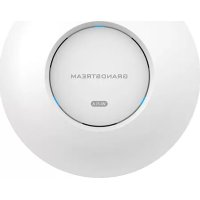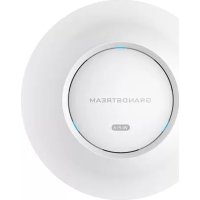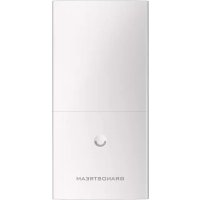
GWN7600 - Access Point GRANDSTREAM - Free user manual and instructions
Find the device manual for free GWN7600 GRANDSTREAM in PDF.



User questions about GWN7600 GRANDSTREAM
0 question about this device. Answer the ones you know or ask your own.
Ask a new question about this device
Download the instructions for your Access Point in PDF format for free! Find your manual GWN7600 - GRANDSTREAM and take your electronic device back in hand. On this page are published all the documents necessary for the use of your device. GWN7600 by GRANDSTREAM.
USER MANUAL GWN7600 GRANDSTREAM
natural_image
Circular white object with a central circular ring and the text 'BRANDSTREAM' on it, no other visible text or symbols.Grandstream Networks, Inc.
126 Brookline Ave, 3rd Floor
Boston, MA 02215. USA
Tel: +1 (617) 566 - 9300
Wireless Access Point
Quick Installation Guide
For Warranty and RMA information, please visit www.grandstream.com
Content
English....1
简体中文.... 11
Español....21
Français....31
Deutsch....41
Italiano....51
Polski....61
Português.... 71
Русский....81

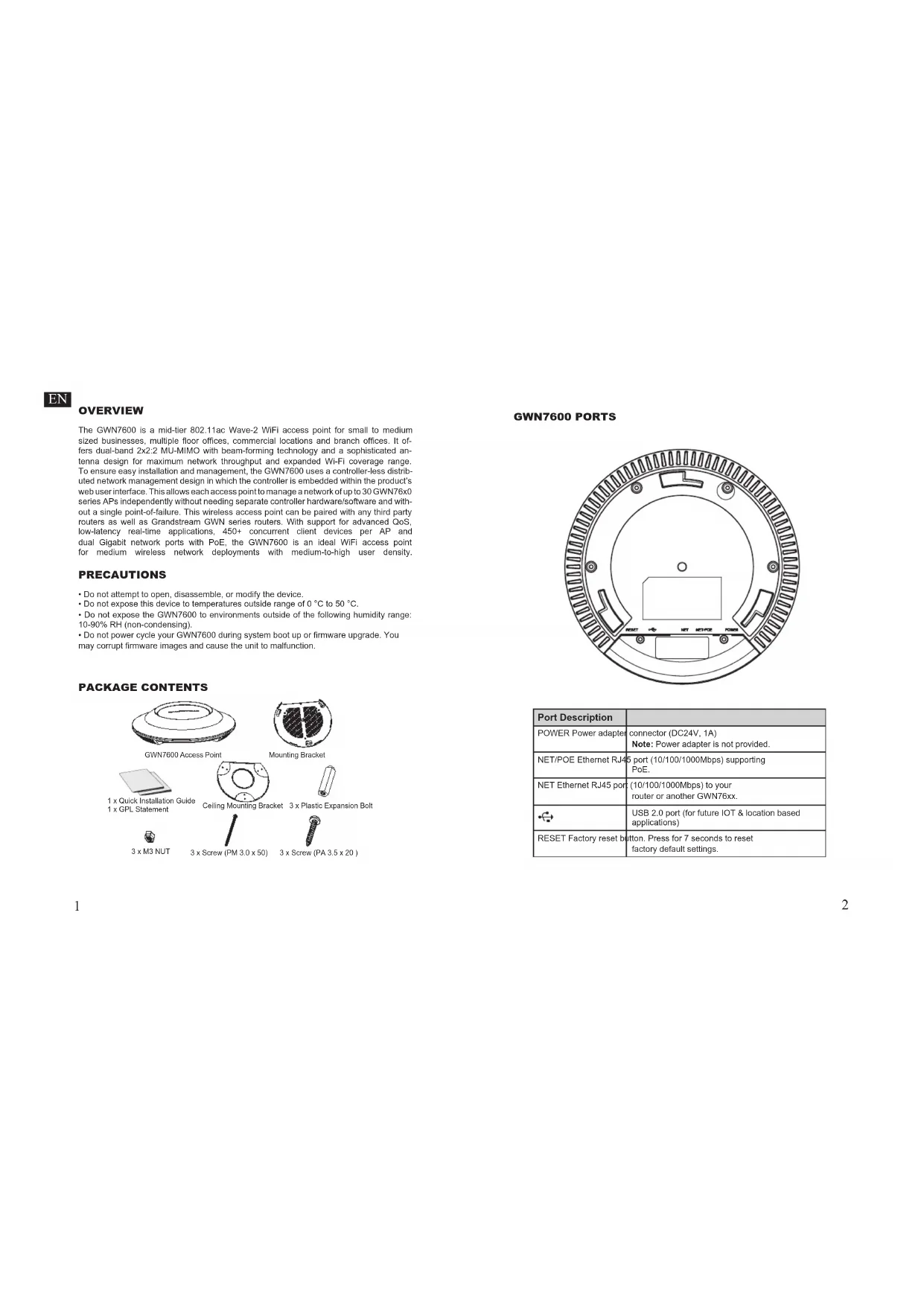
OVERVIEW
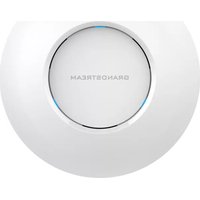
The GWN7600 is a mid-tier 802.11ac Wave-2 WiFi access point for small to medium sized businesses, multiple floor offices, commercial locations and branch offices. It offers dual-band 2x2:2 MU-MIMO with beam-forming technology and a sophisticated antenna design for maximum network throughput and expanded Wi-Fi coverage range. To ensure easy installation and management, the GWN7600 uses a controller-less distributed network management design in which the controller is embedded within the product's web user interface. This allows each access point to manage a network of up to 30 GWN76x0 series APs independently without needing separate controller hardware/software and without a single point-of-failure. This wireless access point can be paired with any third party routers as well as Grandstream GWN series routers. With support for advanced QoS, low-latency real-time applications, 450+ concurrent client devices per AP and dual Gigabit network ports with PoE, the GWN7600 is an ideal WiFi access point for medium wireless network deployments with medium-to-high user density.
PRECAUTIONS
- Do not attempt to open, disassemble, or modify the device.
- Do not expose this device to temperatures outside range of 0 °C to 50 °C.
- Do not expose the GWN7600 to environments outside of the following humidity range: 10-90% RH (non-condensing).
- Do not power cycle your GWN7600 during system boot up or firmware upgrade. You may corrupt firmware images and cause the unit to malfunction.
PACKAGE CONTENTS
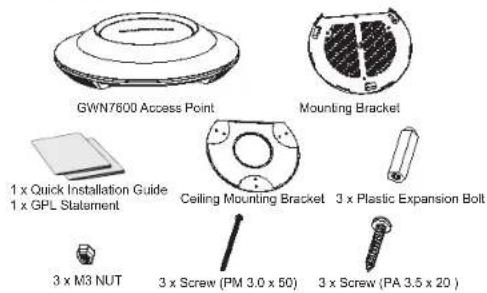
text_image
GWN7600 Access Point Mounting Bracket 1 x Quick Installation Guide 1 x GPL Statement Ceiling Mounting Bracket 3 x Plastic Expansion Bolt 3 x M3 NUT 3 x Screw (PM 3.0 x 50) 3 x Screw (PA 3.5 x 20)GWN7600 PORTS
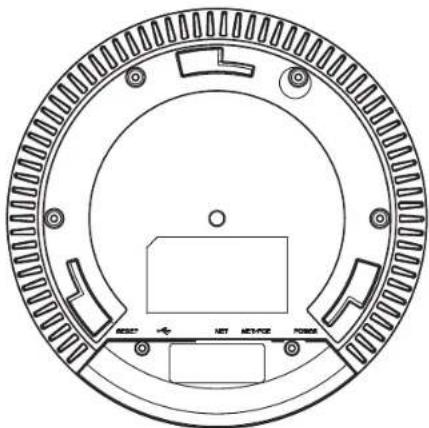
natural_image
Technical line drawing of a circular mechanical component with mounting holes and internal features (no text or symbols)| Port Description | |
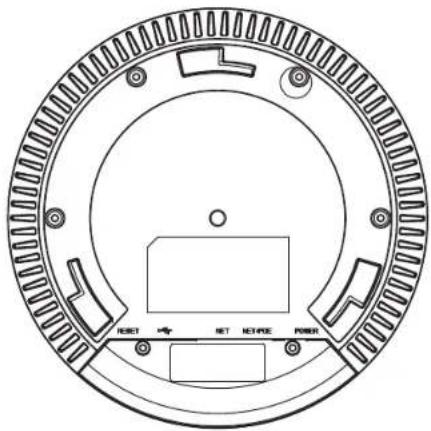
| POWER Power adapter | connector (DC24V, 1A)Note:Power adapter is not provided. |
| NET/POE Ethernet RJ45 port (10/100/1000Mbps) supporting PoE. | |
| NET Ethernet RJ45 port (10/100/1000Mbps) to your router or another GWN76xx. | |
| USB 2.0 port (for future IOT & location based applications) | |
| RESET Factory reset button. Press for 7 seconds to reset factory default settings. | |
HARDWARE INSTALLATION
GWN7600 can be mounted on the wall or ceiling. Please refer to the following steps for the appropriate installation.
Wall Mount
-
Position the mounting bracket at the desired location on the wall with the arrow pointing up.
-
Use a pencil to mark the four mounting holes (screw holes DIA 5.5mm, reticle hole DIA 25mm).
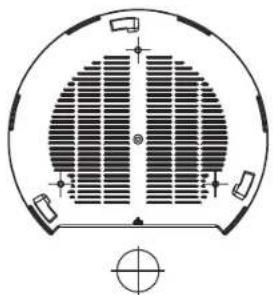
natural_image
Diagram of a circular mechanical or architectural component with internal structural lines and mounting points (no text or symbols)- Insert screw anchors into the 5.5 mm holes. Attach the mounting bracket to the wall by inserting the screws into the anchors.
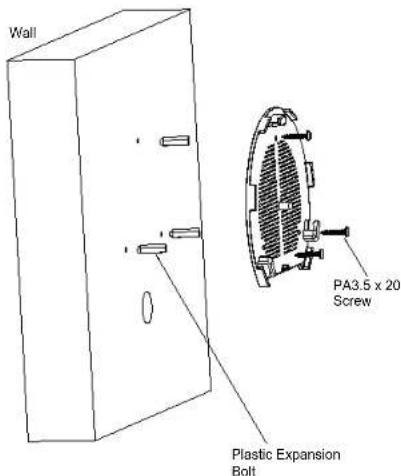
text_image
Wall PA3.5 x 20 Screw Plastic Expansion Bolt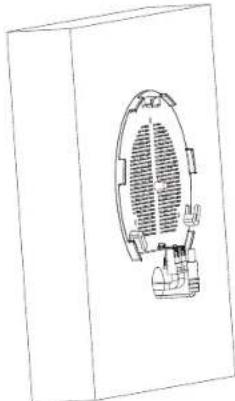
natural_image
Line drawing of a circular seating area with seating arrangement and furniture (no text or symbols)- Connect the power cable and the ethernet cable (RJ45) to the correct ports of your GWN7600.
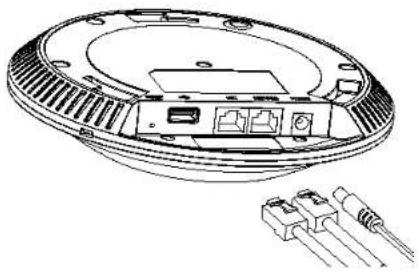
natural_image
Technical line drawing of a circular electronic device with internal components and connectors (no text or symbols)-
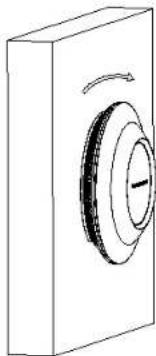
Align the arrow on the GWN7600AP with the arrow on the locking tab of the mounting bracket and ensure that your GWN is firmly seated on the mounting bracket.
-
Turn the GWN clockwise until it locks into place and fits the locking tab.
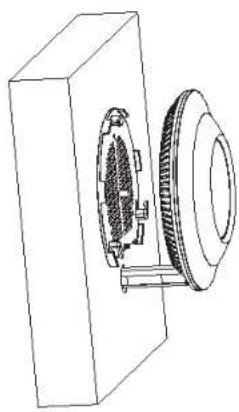
natural_image
Technical line drawing of a mechanical assembly with gears and housing (no text or symbols)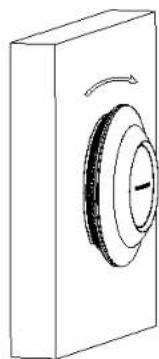
natural_image
Diagram of a mechanical component with a rotating ring and curved arrow indicating rotation (no text or symbols)Ceiling Mount
-
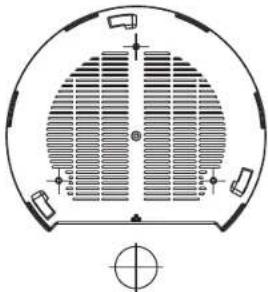
Remove the ceiling tile.
-
Place the ceiling backing plate in the center of the ceiling tile and mark the mounting screw holes (screw holes DIA 5.5mm, reticle hole DIA 25mm).
natural_image
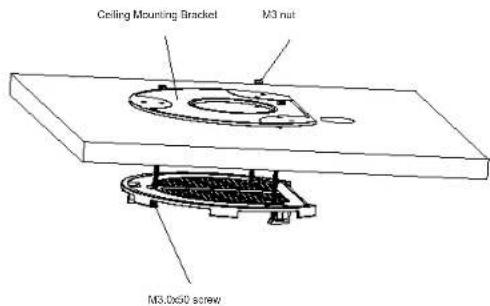
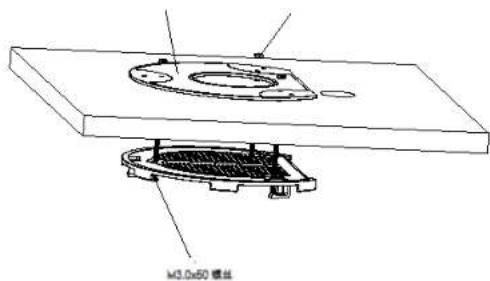
Top-down schematic of a circular mechanical or architectural component with internal grating and mounting brackets (no text or symbols)- Insert the screws through the mounting bracket.
text_image
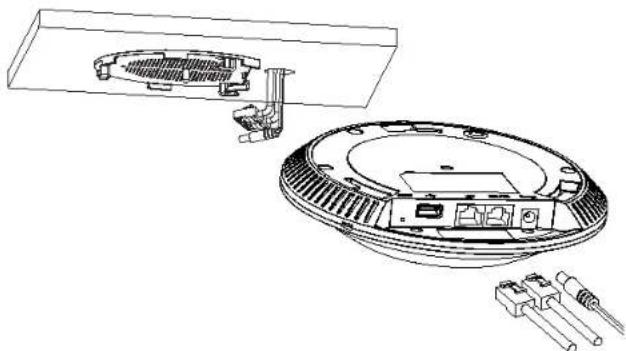
Ceiling Mounting Bracket M3 nut M3.0x50 screw- Connect the power cable and the Ethernet cable (RJ45) to the correct ports of your GWN7600.
natural_image
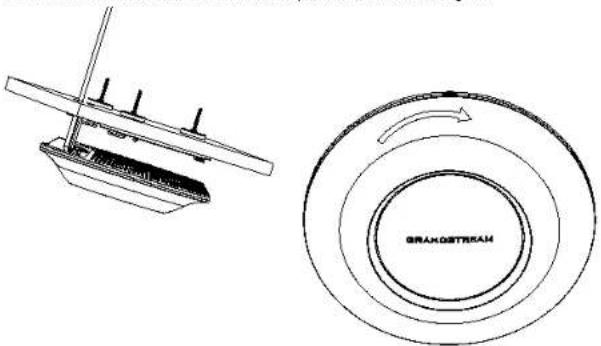
Technical line drawing of a mechanical assembly with exploded view and internal components (no text or symbols)- Align the arrow on the GWN7600AP with the arrow on the locking tab of the mounting bracket and ensure that your GWN is firmly sealed on the mounting bracket and connect the network and power cables.
- Turn the GWN clockwise until it locks into place and fits the locking tab.
natural_image
Technical line drawing of a mechanical component and its circular assembly with rotational arrow (no text or symbols)Note: Ceiling mounting is recommended for optimal coverage performance.
POWERING AND CONNECTING THE GWN7600
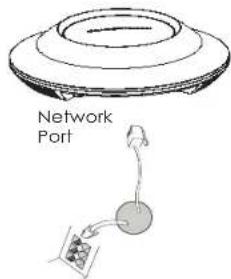
GWN7600 can be powered on using PoE switch using following steps:
Step 1: Plug a RJ45 Ethernet cable into the network port of the GWN7600
Step 2: Plug the other end into the uplink port of the power over Ethernet (PoE) switch.
text_image
Network PortRJ45 Ethernet Cable to Power over Ethernet (PoE) Switch
CONNECT TO GWN7600 DEFAULT WIFI NETWORK
GWN7600 can be used as standalone access point out of box, or after factory reset with Wi-Fi enabled by default.
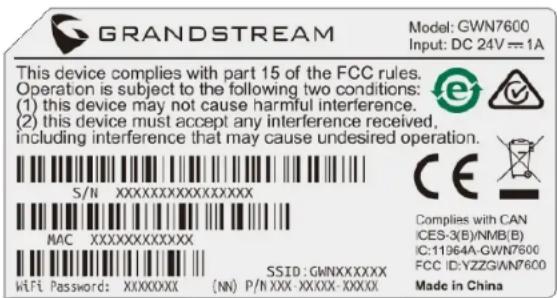
After powering the GWN7600 and connecting it to the network, GWN7600 will broadcast a default SSID based on its MAC address GWN[MAC's last 6 digits] and a random password.
Note: GWN7600's default SSID and password information are printed on the MAC tag of the unit.
text_image
GRANDSTREAM Model: GWN7600 Input: DC 24V == 1A This device complies with part 15 of the FCC rules. Operation is subject to the following two conditions: (1) this device may not cause harmful interference. (2) this device must accept any interference received, including interference that may cause undesired operation. S/N XXXXXXXXXXXXXXXXX MAC XXXXXXXXXXXX WiFi Password: XXXXXXX (NN) P/N XXX-XXXX-XXXX CE Complies with CAN ICES-3(B)/NMB(E) IC:11964A-GWN7600 FCC ID:YZZZGWN7600 Made in ChinaACCESSING THE CONFIGURATION INTERFACE
A computer connected to the GWN7600's SSID, or to the same network as the GWN7600 can discover and access its configuration interface using one of the below methods:
Method 1: Discover GWN7600 using its MAC Address.
- Locate the MAC address on the MAC tag of the unit, which is on the underside of the device, or on the package.
- From a computer connected to same network as the GWN7600, type in the following address using the GWN7600's MAC address on your browser https://gwn_
.local Example: if a GWN7600 has the MAC address 00:0B:82:8B:4E:28, this unit can be accessed by typing https://gwn_000b828b4e28.local on the browser.
Method 2: Discover GWN7600 using GWN DiscoveryTool.
- Download and install GWN DiscoveryTool from the following link:
http://www.grandstream.com/support/tools - Open the GWN DiscoveryTool, and click on Scan.
- The tool will discover all GWN7600 Access Points connected on the network showing their MAC and IP addresses.
- Click on Manage Device to be redirected directly to the GWN7600's configuration interface, or type in manually the displayed IP address on your browser.
text_image
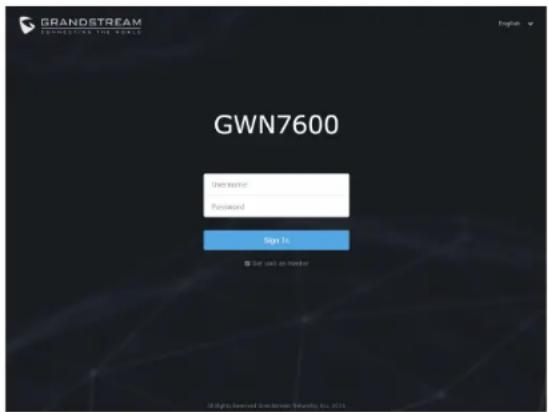
GRANDSTREAM OPHICUTIVE THE WORLD GWN7600 User Market Password Sign 13 Set up all member © Rights Reserved GrandStream Security, Inc. 2014Using one of the above methods, the login screen will appear. Type in "admin" in both Username and Password fields and click on Sign In.
Notes :
- Make sure that the GWN7600 is not already paired with another GWN7600/GWN7610 Access Point as slave, otherwise the configuration interface cannot be accessed.
- If the GWN7600 is already paired, make sure to unpair it first, or do a factory reset.
- For more information, please download the GWN7600 User Manual from:
http://www.grandstream.com/support
概述
natural_image
Technical line drawing of a circular mechanical component with mounting holes and a central rectangular block (no text or symbols)natural_image
Diagram of a circular mechanical or architectural component with internal grid structure and mounting points (no text or symbols)natural_image
Line drawing of a symmetrical architectural or mechanical structure with no visible text or symbolsnatural_image
Technical line drawing of a circular electronic component with internal components and two separate connectors (no text or symbols)natural_image
Technical line drawing of a mechanical assembly with a gear and housing (no text or symbols)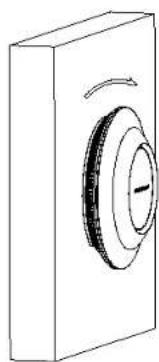
natural_image
Diagram of a mechanical component with a circular feature and rotational arrow (no text or symbols)顶式安装
natural_image
Diagram of a circular mechanical or architectural component with internal vertical divisions and mounting features (no text or symbols)- 将螺钉放入安装托架。
天花板安装支架
M3蜂帽
text_image
M3.0x50 模丝natural_image
Technical line drawing of a device housing and internal components (no text or symbols)natural_image
Technical line drawing of a mechanical component and its circular cross-section (no text or symbols)text_image
GRANDSTREAM Model: GWN7600 Input: DC 24V = 1A This device complies with part 15 of the FCC rules. Operation is subject to the following two conditions: (1) this device may not cause harmful interference. (2) this device must accept any interference received, including interference that may cause undesired operation. S/N XXXXXXXXXXXXXXX MAC XXXXXXXXXXXX WiFi Password: XXXXXXX (NN) P/N XXX-XX/XX-XXXX CE Complies with CAN ICES-3(B)/NMB(E) IC:11964A-GWN7600 FCC ID:YZZG/WN7600 Made in China访问配置界面
natural_image
Top-down schematic of a circular mechanical or architectural component with internal grid pattern and mounting brackets (no text or symbols)natural_image
Top-down line drawing of a modern office or meeting room layout with no visible text or symbolsnatural_image
Technical line drawing of a circular electronic component with internal components and connectors (no text or symbols)natural_image
Technical line drawing of a mechanical assembly with a gear and housing (no text or symbols)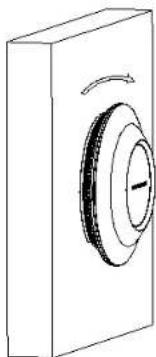
natural_image
Simple line drawing of a rectangular block with a circular component and an arrow indicating rotation (no text or symbols)Montura de Techo
natural_image
Top-down schematic of a circular mechanical or architectural component with internal striped pattern and mounting brackets (no text or symbols)natural_image
Technical line drawing of a mechanical assembly with exploded view and internal components (no text or symbols)text_image
GRANDSTREAM Model: GWN7600 Input: DC 24V==1A This device complies with part 15 of the FCC rules. Operation is subject to the following two conditions: (1) this device may not cause harmful interference. (2) this device must accept any interference received, including interference that may cause undesired operation. S/N XXXXXXXXXXXXXXXXX MAC XXXXXXXXXXXX WiFi Password: XXXXXXXX (NN) P/N XXX-XXXX-XXXXX. SSID: GWNXXXXXXX Made in China Complies with CAN ICES-3(B)/NMB(E) IC:11964A-GWN7600 FCC ID:YZZGWN7600text_image
GRANDSTREAM GWN7600 Login Get access Password Add It Get link to trader Single New York Stock Exchange, NY, 2019natural_image
Technical line drawing of a circular mechanical component with mounting holes and internal features (no text or symbols)natural_image
Top-down schematic of a circular mechanical or architectural component with internal grid pattern and mounting brackets (no text or symbols)natural_image
Architectural line drawing of a multi-level building facade with internal seating layout (no text or symbols)natural_image
Technical line drawing of a circular electronic device with internal components and connectors (no text or symbols)natural_image
Technical line drawing of a mechanical assembly with a gear and housing (no text or symbols)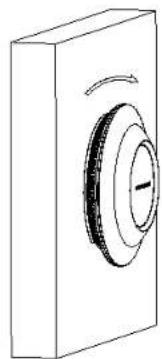
natural_image
Simple line drawing of a rectangular box with a circular button and curved arrow, no text or symbols present.Montage au Plafond
natural_image
Diagram of a circular mechanical or architectural component with internal structural lines and mounting points (no text or symbols)natural_image
Technical line drawing of an electronic device showing internal components and housing (no text or symbols)natural_image
Technical line drawing of a mechanical component with a circular component labeled 'BRAMOTHEAH' (no text or symbols beyond label)CONNEXION AU RESEAU WIFI PAR DEFAULT DU GWN7600
text_image
GRANDSTREAM Model: GWN7600 Input: DC 24V = 1A This device complies with part 15 of the FCC rules. Operation is subject to the following two conditions: (1) this device may not cause harmful interference. (2) this device must accept any interference received, including interference that may cause undesired operation. S/N XXXXXXXXXXXXXXXX MAC XXXXXXXXXXXXX WiFi Password: XXXXXXX (NN) P/N XXX-XXXX-XXXX SSID: GMNXXXXXX SSID: GWNXXXXXX Made in China Complies with CAN ICES-3(B)/NMB(B) IC:11964A-GWN7000 FCC ID:YZZZGWN7600ACCEDER A L'INTERFACE DE CONFIGURATION
text_image
GRANDSTREAM CONNECTING THE WORLD GWN7600 Username Password: Sign In Get user as motherhttp://www.grandstream.com/support
DE
ÜBERSICHT
natural_image
Technical line drawing of a circular mechanical component with mounting holes and internal features (no text or symbols)natural_image
Top-down schematic of a circular mechanical or architectural component with internal grid pattern and mounting brackets (no text or symbols)natural_image
Line drawing of a circular seating area with seating arrangement and furniture placement (no text or symbols)natural_image
Technical line drawing of a circular electronic device with internal components and connectors (no text or symbols)natural_image
Technical line drawing of a mechanical assembly with a gear and housing (no text or symbols)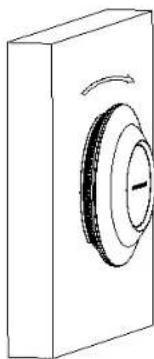
natural_image
Simple line drawing of a rectangular block with a circular component and an arrow indicating rotation (no text or symbols)Deckenmontage
natural_image
Top-down schematic of a circular mechanical or architectural component with internal divisions and mounting points (no text or symbols)natural_image
Technical line drawing of a mechanical assembly with two components, no visible text or symbolsSchraube M3 x 50
natural_image
Technical line drawing of a mechanical assembly with exploded view and internal components (no text or symbols)text_image
GRANDSTREAM Model: GWN7600 Input: DC 24V = 1A This device complies with part 15 of the FCC rules. Operation is subject to the following two conditions: (1) this device may not cause harmful interference. (2) this device must accept any interference received, including interference that may cause undesired operation. S/N XXXXXXXXXXXXXXXX MAC XXXXXXXXXXXXX WiFi Password: XXXXXXX (NN) P/N XXX-XXXX-XXXX. CE Complies with CAN ICES-3(B)/NMB(E) IC: 11964A-GWN7000 FCC ID: YZZGWN7600 Made in Chinatext_image
GRANDSTREAM GWN7600 username Password New to ■ Not useful as unique All rights reserved for GrandStream Database Inc. LLCnatural_image
Technical line drawing of a circular mechanical component with mounting holes and a central rectangular block (no text or symbols)natural_image
Diagram of a circular mechanical or architectural component with internal grid pattern and mounting points (no text or symbols)natural_image
Line drawing of a symmetrical mechanical or architectural component inside a rectangular frame (no text or symbols)natural_image
Technical line drawing of a circular electronic device with internal components and external connectors (no text or symbols)natural_image
Technical line drawing of a mechanical assembly with a gear and housing (no text or symbols)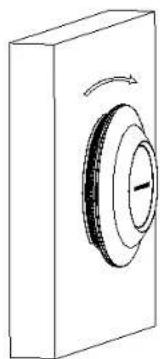
natural_image
Diagram of a mechanical component with a rotating ring and curved arrow, no text or symbols presentnatural_image
Top-down schematic of a circular mechanical or architectural component with internal structural layout (no text or symbols)natural_image
Technical line drawing of a mechanical assembly with exploded view and internal components (no text or symbols)natural_image
Technical line drawing of a mechanical component with a circular cross-section showing internal structure (no text or symbols)text_image
GRANDSTREAM Model: GWN7600 Input: DC 24V == 1A This device complies with part 15 of the FCC rules. Operation is subject to the following two conditions: (1) this device may not cause harmful interference. (2) this device must accept any interference received, including interference that may cause undesired operation. S/N XXXXXXXXXXXXXXXXX MAC XXXXXXXXXXXX WiFi Password: XXXXXXX (NN) P/N XXX-XXXX-XXXX CE Complies with CAN ICES-3(B)/NMB(E) IC:11964A-GWN7600 FCC ID:YZZZGWN7600 Made in Chinatext_image
GRANDSTREAM LOGISTING FOR WORLD GWN7600 Username Password Sign In ■ Let us call to matter © Rightward GlobalStream (Canada), Inc. 1014natural_image
Technical line drawing of a circular mechanical component with mounting holes and internal features (no text or symbols)natural_image
Top-down schematic of a circular mechanical or architectural component with internal grid structure and mounting points (no text or symbols)natural_image
Top-down line drawing of a circular seating area with seating arrangement and equipment (no text or symbols)natural_image
Technical line drawing of a circular electronic device with internal components and terminal connectors (no text or symbols)natural_image
Technical line drawing of a mechanical assembly with a gear and housing (no text or symbols)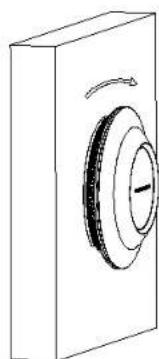
natural_image
Diagram of a mechanical component with a rotating ring and curved arrow indicating rotation (no text or symbols)Montaż na suficie
natural_image
Diagram of a circular mechanical or architectural component with internal structural lines and mounting points (no text or symbols)natural_image
Technical line drawing of a mechanical assembly with two components, no visible text or symbolssrube (PM 3 x 50)
natural_image
Technical line drawing of a device interior showing internal components and external wiring (no text or symbols)natural_image
Technical line drawings of a boat hull and its circular component with brand name 'BRANDSTREAM' (no text or symbols on the diagram itself)text_image
GRANDSTREAM Model: GWN7600 Input: DC 24V==1A This device complies with part 15 of the FCC rules. Operation is subject to the following two conditions: (1) this device may not cause harmful interference. (2) this device must accept any interference received, including interference that may cause undesired operation. S/N XXXXXXXXXXXXXXX MAC XXXXXXXXXXXX WiFi Password: XXXXXXX (NN) P/N XXX-XXXX-XXXX. CE Complies with CAN ICES-3(B)/NMB(E) IC:11964A-GWN7600 FCC ID:YZZGWN7600 Made in ChinaDOSTĘP DO INTERFEJSU KONFIGURACJI
text_image
GRANDSTREAM CONNECTING THE WORLD GWN7600 Username Password Sign In □ Get your code masterCONTEÚDO DO PACOTE
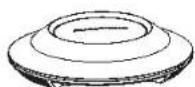
Access Point GWN7600
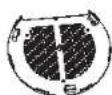
Suporte de Montagem

3 x Parafuso (PA 3.5 x 20 )
PORTAS DO GWN7600
natural_image
Technical diagram of a circular mechanical component with labeled parts (no text or symbols beyond basic labels)natural_image
Diagram of a circular mechanical or architectural component with internal structural lines and mounting points (no text or symbols)natural_image
Line drawing of a symmetrical mechanical or architectural component inside a rectangular frame (no text or symbols)natural_image
Technical line drawing of a circular electronic device with internal components and connectors (no text or symbols)natural_image
Technical line drawing of a mechanical assembly with a gear and housing (no text or symbols)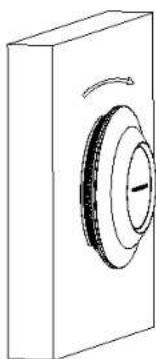
natural_image
Diagram of a mechanical component with a circular ring and rotational arrow, no text or symbols presentMontagem no Teto
natural_image
Diagram of a circular mechanical or architectural component with internal vertical divisions and mounting features (no text or symbols)natural_image
Technical line drawing of a mechanical assembly with exploded view and internal components (no text or symbols)natural_image
Technical line drawing of a ship's hull and circular component with no visible text or symbolstext_image
GRANDSTREAM Model: GWN7600 Input: DC 24V = 1A This device complies with part 15 of the FCC rules. Operation is subject to the following two conditions: (1) this device may not cause harmful interference. (2) this device must accept any interference received, including interference that may cause undesired operation. S/N XXXXXXXXXXXXXXXXX MAC XXXXXXXXXXXX WIFI Password: XXXXXXX (NN) P/N XXX-XXXX-XXXX CE Complies with CAN ICES-3(B)/NMB(B) IC:11964A-GWN7600 FCC ID: YZZG/WN7600 Made in Chinatext_image
GRANDSTREAM CONSULTING THE WORLD GWN7600 Username Password Sign to © 2018 Newspire Global Markets, Inc., 2018http://www.grandstream.com/support

ОБЗОР ПРОДУКТА
natural_image
Technical line drawing of a circular mechanical component with mounting holes and a central rectangular block (no text or symbols)natural_image
Diagram of a circular mechanical or architectural component with internal structural lines and a central circular feature, no text or symbols present.natural_image
Line drawing of a circular mechanical or architectural component with internal structural details (no text or symbols)natural_image
Technical line drawing of a circular electronic device with internal components and connectors (no text or symbols)natural_image
Technical line drawing of a mechanical assembly with a gear and housing (no text or symbols)