
Giga Party Audio MXT50 - Hi-Fi System SAMSUNG - Free user manual and instructions
Find the device manual for free Giga Party Audio MXT50 SAMSUNG in PDF.
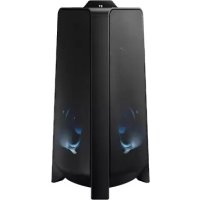



| Product Type | Hi-Fi System (Sound Tower) |
| Brand | Samsung |
| Model | Giga Party Audio MXT50 |
| Dimensions (L x H x D) | 351.0 x 651.0 x 323.0 mm |
| Weight | 11.6 kg |
| Power Supply | AC (power cord) |
| Output Power | Tweeter: 65 W x 2 (8 Ω), Woofer: 185 W x 2 (3 Ω) |
| Bluetooth | Yes, max transmission power 100 mW (2.4 GHz) |
| USB Ports | USB1 (5V/2.1A), USB2 (5V/0.5A) |
| Audio Inputs | AUX1 (3.5 mm), AUX2 (RCA), microphone input |
| Audio Outputs | GROUP PLAY OUT (RCA) |
| USB Audio Formats | MP3, WMA, AAC, WAV, FLAC (FAT/FAT32) |
| Wireless Functions | Group Play (up to 10 speakers), stereo mode, Bluetooth Multi (2 devices) |
| DJ Effects | NOISE, FILTER, CRUSH, CHORUS, WAHWAH with adjustable level |
| Sound Modes | PARTY, STANDARD, HIPHOP, EDM, ROCK, LATIN, HOUSE, REGGAE |
| Lighting | AMBIENT, PARTY, DANCE, THUNDERBOLT, STAR |
| Microphone | MIC jack with echo and volume settings |
| Operating Temperature | +5°C to +35°C |
| Operating Humidity | 10% to 75% |
| Standby Power Consumption | 2.0 W |
| Included Accessories | Main unit, remote control, AAA batteries, power cord, manual |
| Maintenance | Clean with a dry cloth. Do not expose to moisture. |
| Repairability | No user-serviceable parts. Contact qualified service center. |
Frequently Asked Questions - Giga Party Audio MXT50 SAMSUNG
User questions about Giga Party Audio MXT50 SAMSUNG
0 question about this device. Answer the ones you know or ask your own.
Ask a new question about this device
Download the instructions for your Hi-Fi System in PDF format for free! Find your manual Giga Party Audio MXT50 - SAMSUNG and take your electronic device back in hand. On this page are published all the documents necessary for the use of your device. Giga Party Audio MXT50 by SAMSUNG.
USER MANUAL Giga Party Audio MXT50 SAMSUNG
Thank you for purchasing this Samsung product.
To receive more complete service, please register
your product at www.samsung.com/register
SAFETY INFORMATION
SAFETYWARNINGS
TO REDUCE THE RISK OF ELECTRIC SHOCK, DO NOT REMOVE THE COVER (OR BACK).
NO USER-SERVICEABLE PARTS ARE INSIDE.
REFER SERVICING TO QUALIFIED SERVICE PERSONNEL.
Refer to the table below for an explanation of symbols which may be on your Samsung product.
| CAUTION RISK OF ELECTRIC SHOCK. DO NOT OPEN. | |
| This symbol indicates that high voltage is present inside. It is dangerous to make any kind of contact with any internal part of this product. | |
| This symbol indicates that this product has included important literature concerning operation and maintenance. | |
| Class II product: This symbol indicates that it does not require a safety connection to electrical earth (ground). If this symbol is not present on a product with a power cord, the product MUST have a reliable connection to protective earth (ground). | |
| AC voltage: This symbol indicates that the rated voltage marked with the symbol is AC voltage. | |
| DC voltage: This symbol indicates that the rated voltage marked with the symbol is DC voltage. | |
| Caution, Consult instructions for use: This symbol instructs the user to consult the user manual for further safety related information. | |
WARNING
- To reduce the risk of fire or electric shock, do not expose this appliance to rain or moisture.
CAUTION
- TO PREVENT ELECTRIC SHOCK, MATCH WIDE BLADE OF PLUG TO WIDE SLOT, FULLY INSERT.
- This apparatus shall always be connected to a AC outlet with a protective grounding connection.
- To disconnect the apparatus from the mains, the plug must be pulled out from the mains socket, therefore the mains plug shall be readily operable.
- Do not expose this apparatus to dripping or splashing. Do not put objects filled with liquids, such as vases on the apparatus.
- To turn this apparatus off completely, you must pull the power plug out of the wall socket. Consequently, the power plug must be easily and readily accessible at all times.
PRECAUTIONS
- Ensure that the AC power supply in your house complies with the power requirements listed on the identification sticker located on the rear of your product. Install your product horizontally, on a suitable base (furniture), with enough space around it for ventilation (7 10 cm) .Make sure the ventilation slots are not covered. Do not place the unit on amplifiers or other equipment which may become hot. This unit is designed for continuous use. To fully turn off the unit, disconnect the AC plug from the wall outlet. Unplug the unit if you intend to leave it unused for a long period of time.
- During thunderstorms, disconnect the AC plug from the wall outlet. Voltage peaks due to lightning could damage the unit.
- Do not expose the unit to direct sunlight or other heat sources. This could lead to overheating and cause the unit to malfunction.
-
Protect the product from moisture (i.e. vases), and excess heat (e.g. a fireplace) or equipment creating strong magnetic or electric fields. Unplug the power cable from the AC wall socket if the unit malfunctions. Your product is not intended for industrial use. It is for personal use only. Condensation may occur if your product has been stored in cold temperatures. If transporting the unit during the winter, wait approximately 2 hours until the unit has reached room temperature before using.
-
The battery used with this product contains chemicals that are harmful to the environment. Do not dispose of the battery in the general household trash. Do not expose the battery to excess heat, direct sunlight, or fire. Do not short circuit, disassemble, or overheat the battery. Danger of explosion if the battery is replaced incorrectly. Replace only with the same or equivalent type.
ABOUT THIS MANUAL
The user manual has two parts: this simple paper USER MANUAL and a detailed FULL MANUAL you can download.
USER MANUAL
See this manual for safety instructions, product installation, components, connections, and product specifications.
FULL MANUAL
You can access the FULL MANUAL on Samsung's on-line customer support centre by scanning the QR code. To see the manual on your PC or mobile device, download the manual in document format from Samsung's website. (http://www.samsung.com/support)
Design and specifications are subject to change without prior notice.
Sound Tower is a new name for Giga Party Audio.
CONTENTS
01 Checking the Components 2
Inserting Batteries before using the Remote Control (AAA batteries X 2)
02 Product Overview 3
Top Panel of the Sound Tower 3
Rear Panel of the Sound Tower 4
03 Connecting the Sound Tower 6
Connecting Electrical Power 6
How to use Audio Group 7
04 Connecting an External Device 13
Connecting using an Analogue Audio (AUX) Cable 13
Connecting a mobile device via Bluetooth 14
Connecting the Samsung TV via Bluetooth 17
05 Connecting a USB Storage Device 18
Software Update 19
06 Using the Remote Control 20
How to Use the Remote Control 20
How to use Sound Mode 22
How to use the DJ Effect 22
07 Using the Samsung Sound Tower (Giga Party Audio) app 23
Install Samsung Sound Tower (Giga Party Audio) App 23
Launching the Samsung Sound Tower (Giga Party Audio) App 23
08 Troubleshooting 24
09 Licence 25
10 Open Source Licence Notice 25
11 Important Notes About Service 25
12 Specifications and Guide 26
Specifications 26
01 CHECKING THE COMPONENTS
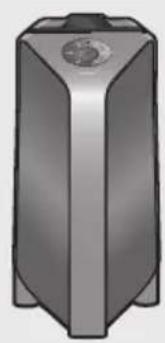
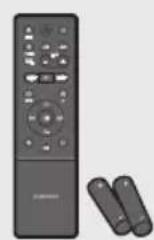
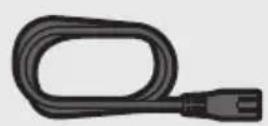
Sound Tower Main Unit Remote Control / Batteries Power Cord
- For more information about the power supply and power consumption, refer to the label attached to the product. (Label: Rear of the Sound Tower Main Unit)
- To purchase additional components or optional cables, contact a Samsung Service Centre or Samsung Customer Care.
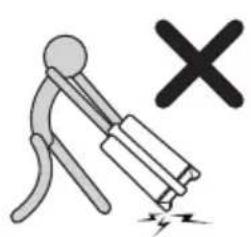
- When moving the product, do not drag or pull the product from the ground. Lift the product when moving the product.

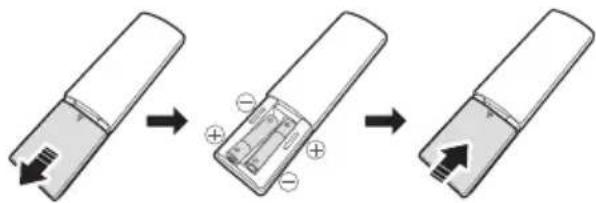
Inserting Batteries before using the Remote Control (AAA batteries X 2)
Slide the battery cover in the direction of the arrow until it is completely removed. Insert 2 AAA batteries (1.5V) oriented so that their polarity is correct. Slide the battery cover back into position.
02 PRODUCT OVERVIEW
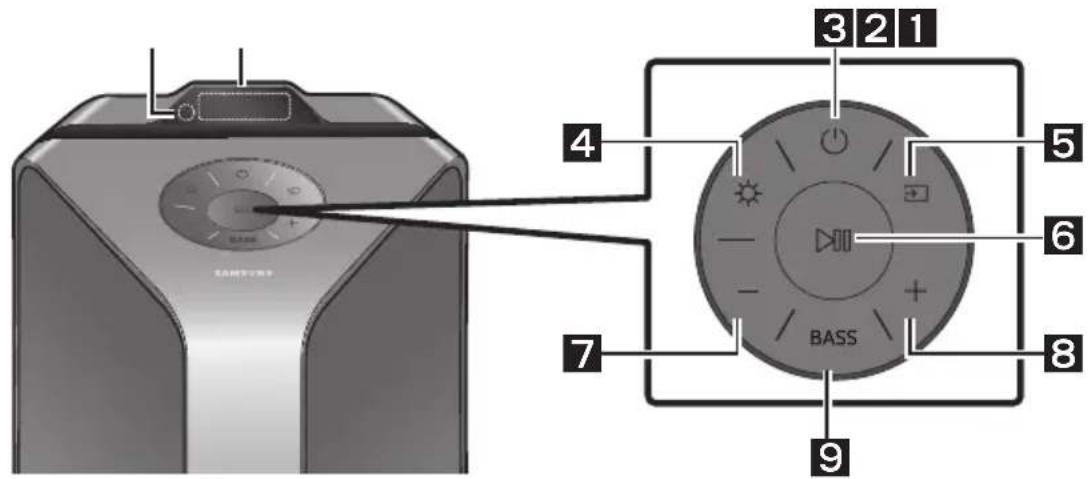
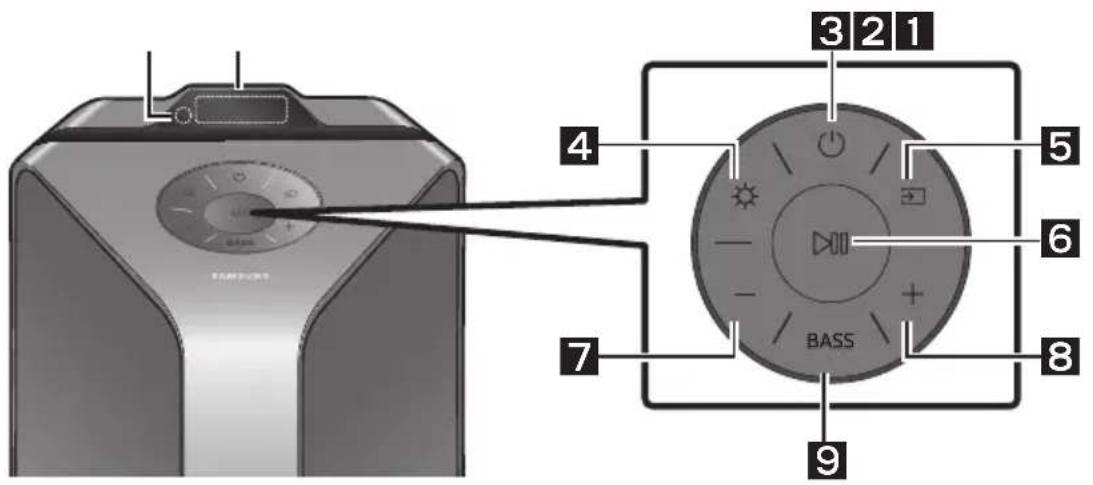
Top Panel of the Sound Tower
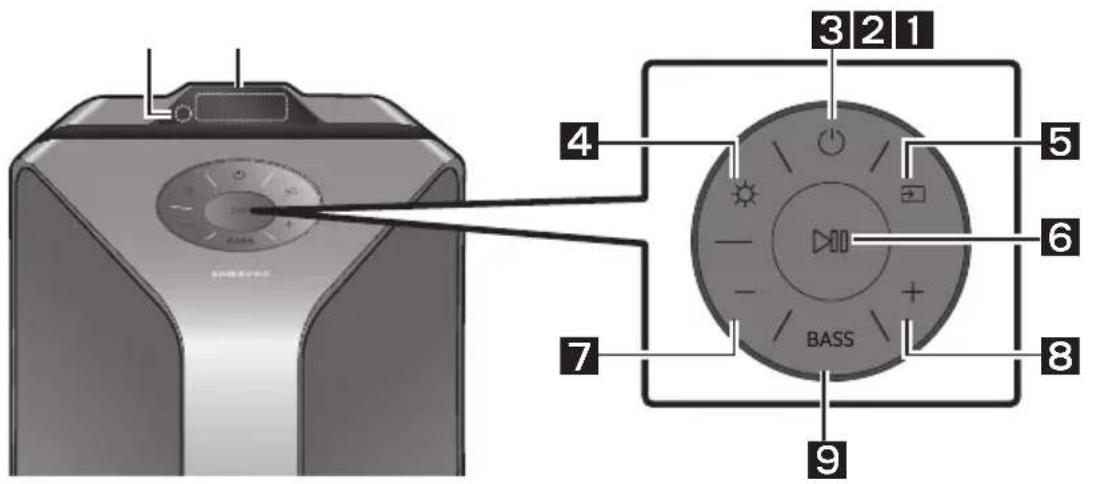
| 1 | Remote Sensor | When operating the Sound Tower system, please aim the front of the remote control at the remote sensor. |
| 2 | Display Window | Displays operating messages or current status of the Sound Tower system. |
| 3 | Power Turns the Sound Tower on and off. | |
| 4 | Light | Press the (Light) button to turn the Lighting Mode on. Press the button repeatedly to cycle through the available lighting modes: AMBIENT, PARTY, DANCE, THUNDERBOLT, STAR or OFF. |
| 5 | Source | Press to select a source connected to the Sound Tower. Press and hold the (Source) button for more than 5 seconds to enter the "SEARCHING TV" mode. |
| 6 | Play/Pause | • Play/Pause Press the button to pause a music file temporarily. When you press the button again, the music file plays. • Demo play Press and hold the button for more than 5 seconds to start the Demo play while the system is turned on. "DEMO" appears on the display and it plays demo music for 60 seconds. To cancel Demo Play, press and hold the button for more than 5 seconds during Demo Play. - If you input any commands while in demo play, 60 seconds timer is refreshed. - All the buttons on the remote control and rear panel are disabled while in demo play. If you want to use the remote control, cancel the demo play. - Demo play is cancelled when you change the source or power off the system. - Please be careful as it may play louder than the set volume. |
| 7 | Volume down | Press the - (Volume down) button to lower the volume. Press and hold the — (Volume down) button to quickly lower the volume. |
| 8 | Volume up | Press the + (Volume up) button to raise the volume. Press and hold the + (Volume up) button to quickly raise the volume. |
| 9 | BASS | Press the BASS button to use the powerful bass sound. Press it again to return to the normal sound. Press and hold the BASS button for more than 5 seconds to turn on or off the BLUETOOTH POWER function. |
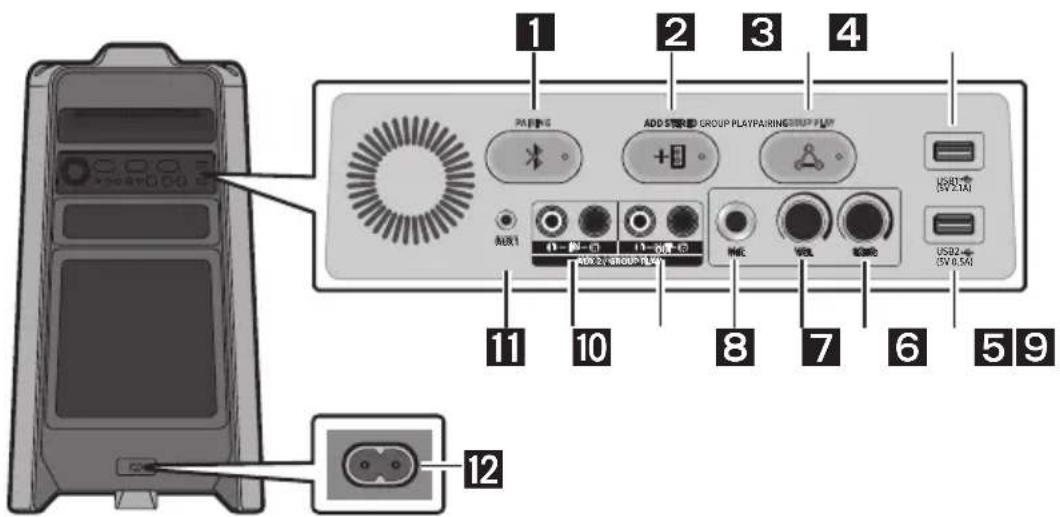
Rear Panel of the Sound Tower
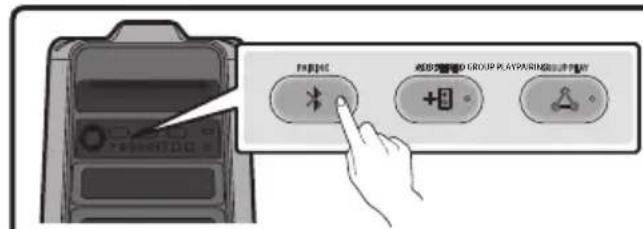
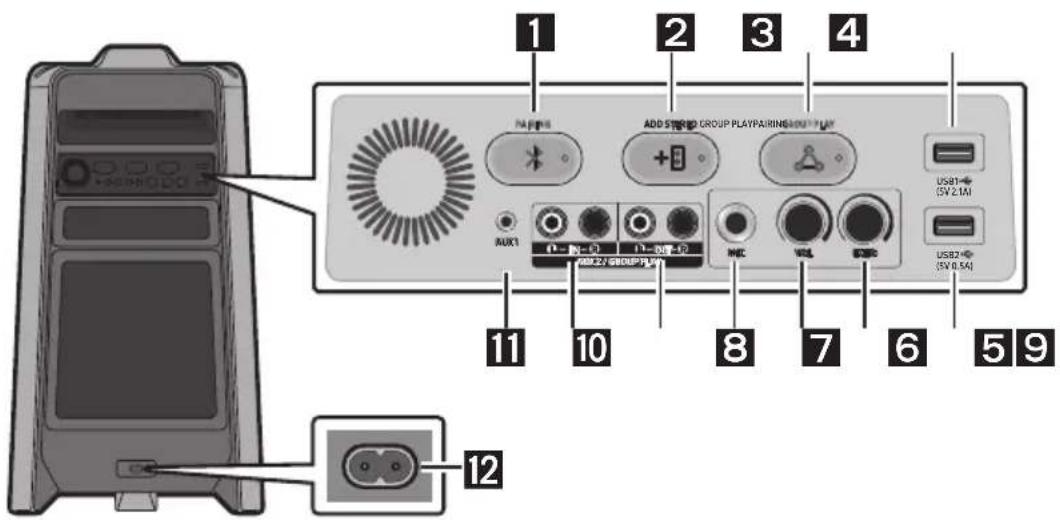
| 1 | Bluetooth PAIRING | Press the PAIRING button to enter the "BT PAIRING" mode. You can connect the Sound Tower to a new Bluetooth device in this mode by selecting the Sound Tower from the Bluetooth device's search list. |
| 2 | ADD STEREO | Press the ADD STEREO button to connect to another Sound Tower wirelessly. Press the ADD STEREO button again before connecting another Sound Tower to exit Stereo Group mode. When the connection is made, you can enjoy stereo sound. Press and hold the ADD STEREO button for more than 5 seconds to disconnect the Stereo Group mode. |
| 3 | GROUP PLAY | Press the GROUP PLAY button to connect up to ten Sound Tower systems wirelessly. Press the GROUP PLAY button again before connecting other Sound Tower to exit wireless Group Play. When the connection is made, you can use multiple Sound Tower systems at the same time using Group Play mode. Press and hold the GROUP PLAY button for more than 5 seconds to disconnect the wireless Group Play mode. |
| 4 | USB1 | Connect a USB device to the USB1 or USB2 ports on the main unit. If you connect your cell phone to the USB1 port, you can charge it. • Press the → (Source) button to select USB1 or USB2. |
| 5 | USB2 | |
| 6 | ECHO | You can give an echo effect to the sound from a connected microphone (MIC) by adjusting the ECHO knob. If you turn clockwise, the echo effect goes up, and if you turn counterclockwise, the echo effect goes down. |
| 7 | VOL | Use the VOL knob to adjust the volume of a connected microphone (MIC). If you turn clockwise, the volume goes up, and if you turn counter-clockwise, the volume goes down. |
| 8 | MIC Connect your microphone to the MIC jack. | |
| 9 | GROUP PLAY OUT Terminals | Use an Audio Cable (not supplied) to connect GROUP PLAY (OUT) terminals on the main unit to Audio In on an external analogue output device. • Be sure to match connector colours. • If the external analogue output device has only one Audio In jack, connect either left or right. |
| 10 | AUX2/ GROUP PLAY IN Terminals | Use an Audio Cable (not supplied) to connect AUX2 (IN) terminals on the main unit to Audio Out on an external analogue output device. • Be sure to match connector colours. • If the external analogue output device has only one Audio Out jack, connect either left or right. • Press the → (Source) button to select AUX2. • If the product is in AUX2 mode with no playback and no command input for more than 20 minutes, the system will turn off. • If the product is in AUX2 mode with playback for more than 8 hours and no command input, the system will turn off. |
| 11 | AUX1 | Use an Audio (AUX) Cable (not supplied) to connect AUX1 jack on the main unit to Audio Out on an external device. • If the product is in AUX1 mode with no playback and no command input for more than 20 minutes, the system will turn off. • If the product is in AUX1 mode with playback for more than 8 hours and no command input, the system will turn off. |
| 12 | Power | Connect the power cord to the Power jack and connect the other end of the power cord to a wall socket to supply electrical power to the Sound Tower. |
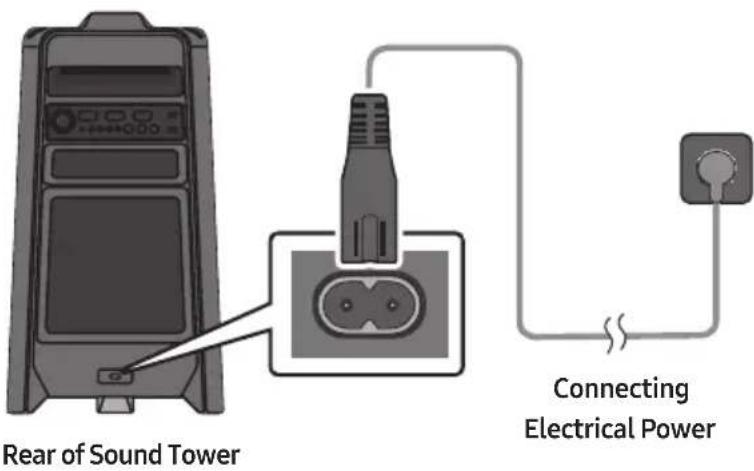
Connecting Electrical Power
Use the power cord to connect the Sound Tower to an electrical outlet in the following order:
Connect the power cord to the Sound Tower and then to a wall socket.
See the illustrations below.
- For more information about the required electrical power and power consumption, refer to the label attached to the product. (Label: Rear of the Sound Tower)
How to use Audio Group
You can connect multiple audio systems in a group to create a party environment and produce higher sound output. Set one Sound Tower as the HOST and any music played on it will be shared among any other Sound Tower systems in the Audio group.
Connecting the wired Group Play mode

Set up Group Play by connecting all the systems using audio cables (not supplied). Use the AUX or → (Source) button to change the source to AUX2 for every Sound Tower system except the 1st (or HOST) Sound Tower system.
NOTES
- The 1st Sound Tower HOST can play music from any source.
- Depending on the length or characteristics of the cable, there may be a difference in operating distance.
Connecting the wireless Group Play mode
You can connect up to ten Sound Tower systems with the wireless Group Play function.
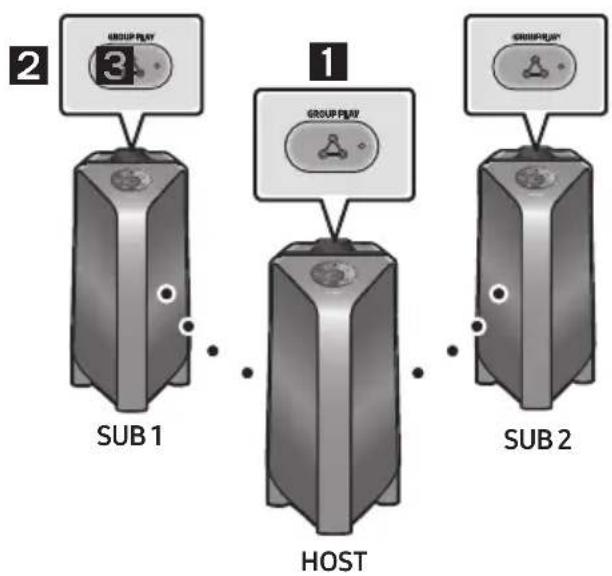
- Press the GROUP PLAY button on the HOST Sound Tower system. The "HOST" message appears on the display of the HOST Sound Tower and the LED blinks on the GROUP PLAY button.
- Press the GROUP PLAY button on the 2nd Sound Tower system (SUB 1). The "GROUP PLAY CONNECTED" message appears on the display and the GROUP PLAY button on both systems stops blinking.
- Press the GROUP PLAY button on the 3rd Sound Tower system (SUB 2). The "GROUP PLAY CONNECTED" message appears on the display and the GROUP PLAY button on the system stops blinking.
- If you want to add more Sound Tower systems, repeat step 3.
- Play music on the HOST Sound Tower. Sound outputs from all the connected systems.
NOTES
- If Sound Tower is connected with Samsung TV, Wireless Group Play is not available.
- The wireless Group Play connection is available for any Sound Tower system.
- Environmental conditions or other factors with connected devices may have effect on playback quality.
- If the red LED is on the GROUP PLAY button, an error has occurred in the wireless Group Play connection. Try step 1 to step 5 again.
- The ADD STEREO button and PAIRING button on the SUB Sound Tower systems are not available while in wireless Group Play mode.
- The ADD STEREO button on the HOST Sound Tower system is not available while in wireless Group Play mode.
-
When adding a SUB unit, if you press and hold GROUP PLAY on the SUB, before the "GROUP PLAY CONNECTED" message appears, it will become the HOST unit instead.
-
All SUB units must be connected one by one. For example, after HOST is connected, press GROUP PLAY button on SUB 1 to connect, and after SUB 1 is connected, you should connect SUB 2 and SUB 3 one by one sequentially.
- While using Group Play, currently connected Bluetooth devices are disconnected and Bluetooth connection is disabled.
- Bluetooth devices can search and connect with the HOST Sound Tower only.
- When in Group Play mode, the SUB cannot connect to a Bluetooth device.
- If you power off and then power on the Sound Tower or select any source other than BT on a SUB unit, in Group Play mode, the Group Play mode is disconnected.
- This product does not support aptX audio stream with Wireless Group Play mode.
Disconnecting the wireless Group Play mode
-
Press and hold the GROUP PLAY button over 5 seconds (HOST or SUB) after Group Play is connected or press the GROUP PLAY button (HOST or SUB) before Group Play is connected.
-
"OFF-GROUP PLAY" appears on the display and the LED above the GROUP PLAY button is off.
-
If you select any source other than BT on the SUB units or turn off the HOST Sound Tower, the Group Play mode is disconnected.
-
If the disconnection is made from the HOST Sound Tower, Group Play is disconnected.
LED Indications
| LED STATE Description | ||
| Green | Blink Waiting for a wireless Group Play connection. | |
| Solid The | wireless Group Play connection was successful. | |
| Red | Solid | There is an error with the wireless Group Play connection. |
NOTE
- In wireless connection, playback quality can be unstable depending on Bluetooth environment. For better play, please keep the device in wired Group Play mode.
Using a Smartphone and Stereo Group mode
Connect two Sound Tower and use them with your smartphone to enjoy stereo sound.
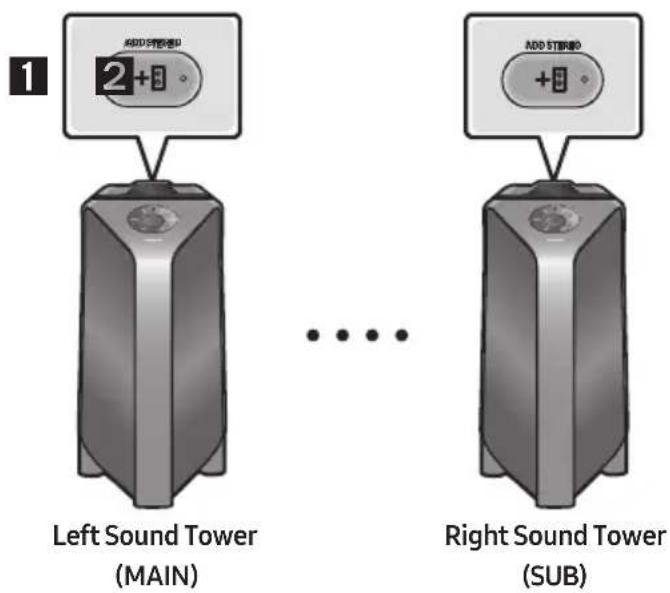
-
Press the ADD STEREO button on the left Sound Tower system. The "SEARCHING STEREO" message appears on the display and the LED blinks on the ADD STEREO button.
-
Press the ADD STEREO button on the right Sound Tower system. The "SEARCHING STEREO" message appears on the display and the LED blinks on the ADD STEREO button.
-
When the connection is made, The "LEFT" message appears on the MAIN Sound Tower system and "RIGHT" appears on the SUB Sound Tower system.
-
The MAIN Sound Tower system outputs left channel sound and the SUB Sound Tower system outputs right channel sound. Press the ADD STEREO button on the MAIN or SUB Sound Tower to change the sound channel of the Sound Tower.
-
Play music by connecting your smartphone to the MAIN Sound Tower and Bluetooth. Sound is output from both Sound Tower.
NOTES
- To use the Stereo Group mode, both Sound Tower systems must be the same model.
- Environmental conditions or other factors with connected devices may have effect on playback quality.
- If the red LED is on the ADD STEREO, an error has occurred in the Stereo Group connection. Try step 1 and step 3 again.
- Remote Controller, BTPAIRING, GROUP PLAY and → (Source) buttons on the SUB Sound Tower systems are disabled while in Stereo Group mode.
-
The GROUP PLAY button on the MAIN Sound Tower system is not available while in Stereo Group mode.
-
In mode other than "BT" (ex. USB, AUX mode), music is played only in MAIN Sound Tower and music is not played in SUB Sound Tower.
- The lighting colours between MAIN Sound Tower and SUB Sound Tower may vary.
- The Bluetooth device has the same name as MAIN Sound Tower and SUB Sound Tower when connected to the Bluetooth device, and only the MAIN Sound Tower can be connected.
- This product does not support aptX audio stream with Stereo Group mode.
- If you try to connect a Bluetooth device while Stereo Group is connecting, the Stereo Group mode may fail.
Terminate the Stereo Group mode
Press the ADD STEREO button (MAIN or SUB) for at least 5 seconds after the Stereo Group is connected.
- "OFF-STEREO MODE" appears on the display and the LED above the ADD STEREO button is off.
LED Indications
| LED STATE Description | ||
| Green | Blink Waiting for a Stereo Group connection. | |
| Solid The | Stereo Group connection is successful. | |
| Red Solid | There is an error with the Stereo Group connection. | |
Using Samsung TV and Stereo Group mode
Connect two Sound Tower by wire and use them with Samsung TV to enjoy stereo sound.
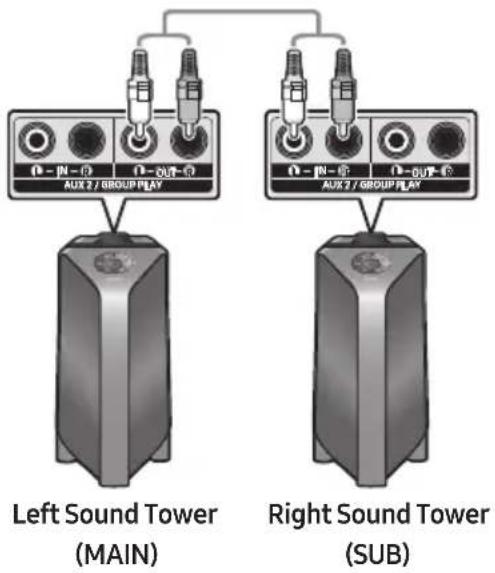
-
Refer to "Using a Smartphone and Stereo Group mode" to connect the two Sound Tower in a Stereo Group.
-
Connect the RCA cable to the AUX2 OUT on the MAIN and AUX2 IN on the SUB as shown by using the RCA cable (not supplied).
- In "BT" mode, press the "AUX" button on the MAIN Sound Tower remote control for at least 5 seconds. "SEARCHING TV STEREO" appears on the display.
- When the connection is complete, "TV STEREO MODE" appears in the display and then the current output CHANNEL is displayed.
- When the connection is complete, a "SEARCHING TV" message appears in the MAIN Sound Tower display and a "SUB" appears in the SUB Sound Tower display.
- The MAIN Sound Tower outputs the left channel sound and the SUB Sound Tower outputs the right channel sound. Press the ADD STEREO button on the MAIN or SUB Sound Tower to change the sound channel of the Sound Tower.
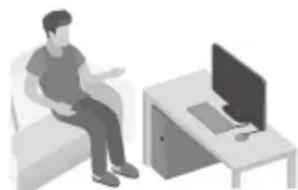
- Connect a TV and MAIN Sound Tower via Bluetooth to play music. Sound is output from both Sound Tower.
NOTES
- To use Stereo Group mode, both Sound Tower must be the same model.
- A red light on the LED on the ADD STEREO button indicates an error in the Stereo Group connection. Try Step 1 to 5 again.
- In Stereo Group mode, the remote control, BT PAIRING, GROUP PLAY, and → (Source) buttons on the SUB Sound Tower are disabled.
- The GROUP PLAY button on the MAIN Sound Tower is not available in Stereo Group mode.
- If Samsung TV supports a simple connection, the connection pop-up is automatically displayed on the TV, and if you select "Yes", it connects to the TV. If there is a previous connection history between Samsung TV and Sound Tower, it will be connected to Samsung TV without pop-up. For a simple connection to Samsung TV, refer to page 17.
- The lighting colours may vary between the MAIN Sound Tower and the SUB Sound Tower.
- When connecting to a TV, the names of the MAIN and SUB Sound Tower are the same in the Bluetooth list on the TV, and only the MAIN Sound Tower can be connected.
Terminating the Stereo Group mode connection
Press the ADD STEREO button (MAIN or SUB) for at least 5 seconds after the Stereo Group is connected.
- "OFF-STEREO MODE" appears in the display and the LED on the ADD STEREO button turns off.
04 CONNECTING AN EXTERNAL DEVICE
Connect to an external device via a wired or wireless network to play the external device's sound through the Sound Tower.
Connecting using an Analogue Audio (AUX) Cable
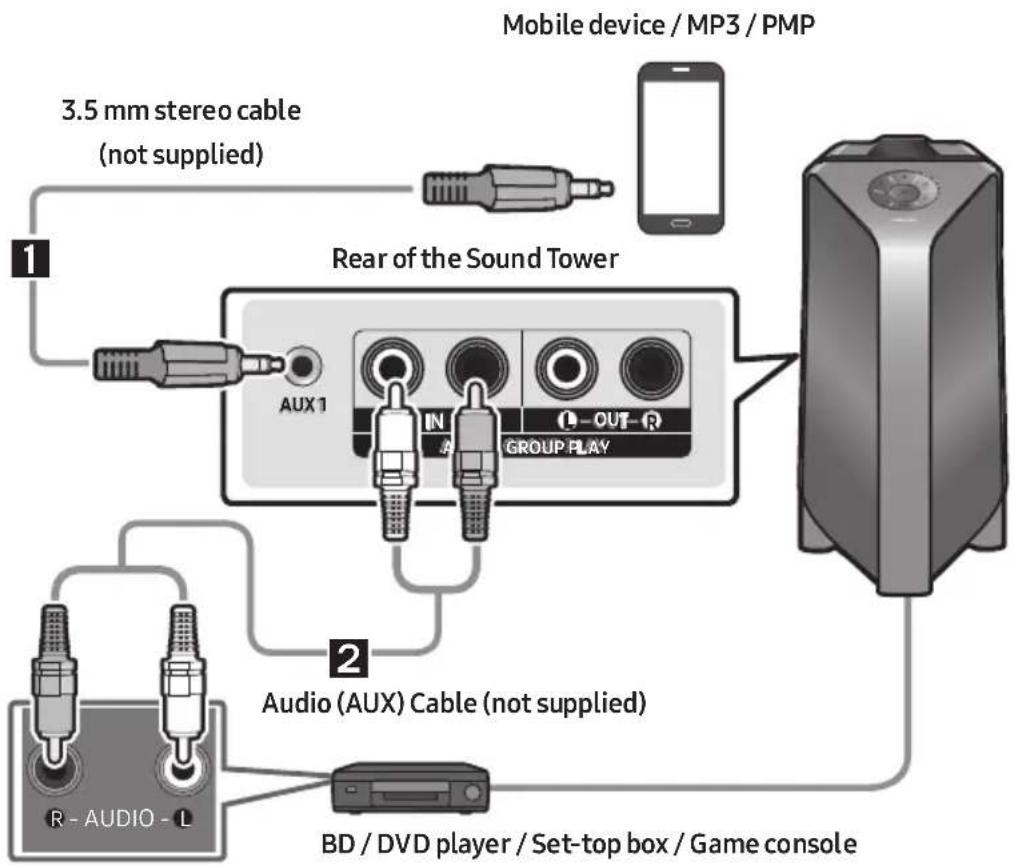
1 3.5 mm stereo Cable (AUX1)
-
Connect AUX1 jack on the main unit to the AUDIO OUT jack of the Source Device using an 3.5 mm stereo cable.
-
Select "AUX1" mode by pressing the → (Source) button on the top panel or on the remote control.
-
You can also select a source using AUX button on the remote control.
2 Audio Cable (AUX2)
-
Connect AUX2 (IN) terminals on the main unit to the AUDIO OUT terminals of the Source Device using an audio cable.
-
Select "AUX2" mode by pressing the → (Source) button on the top panel or on the remote control.
-
You can also select a source using AUX button on the remote control.
Connecting a mobile device via Bluetooth
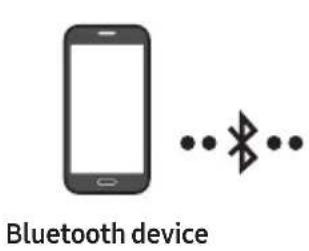
When a mobile device is connected using Bluetooth, you can hear stereo sound without the hassle of cabling.
The initial connection
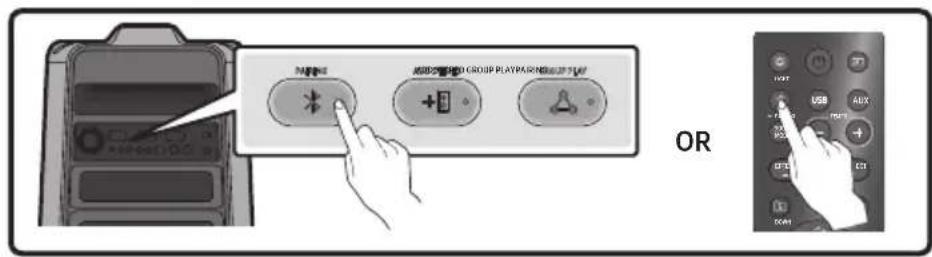
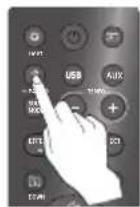
- Press and hold the PAIRING button on the remote control for more than 5 seconds to enter the "BT PAIRING" mode.
(OR) Press the PAIRING button on the rear panel.
-
On your device, select "[AV]MX-T50" from the list that appears.
-
When the Sound Tower is connected to the Bluetooth device, [Bluetooth Device Name] → "BT" appears in the front display.
-
Play music files from the device connected via Bluetooth through the Sound Tower.
If the device fails to connect
-
If a previously connected Sound Tower listing (e.g. "[AV] MX-T50") appears in the list, delete it.
-
Then repeat steps 1 and 2.
What is the difference between BT READY and BT PAIRING?
-
BT READY: In this mode, you can search for previously connected TVs or connect a previously connected mobile device to the Sound Tower.
-
BT PAIRING: In this mode, you can connect a new device to the Sound Tower. (Press and hold the PAIRING button on the remote control for more than 5 seconds or press the PAIRING button on the rear of the Sound Tower to enter the "BT PAIRING" mode.)
Bluetooth Multi connection
Sound Tower supports up-to two simultaneous Bluetooth device connections. Sound Tower can play music through one of the connected Bluetooth devices without disconnecting the second device.
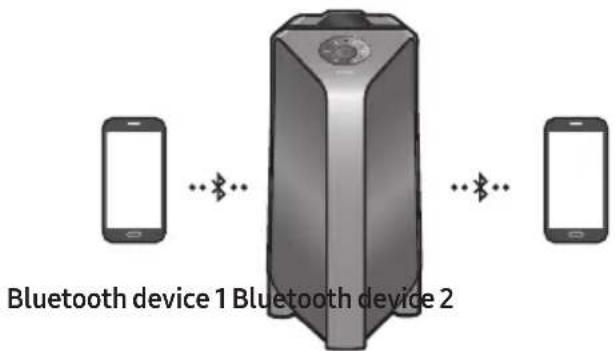
- Connect Sound Tower to the first device and the second device respectively for the first time. (See page 14)
- Music can be played on only one of the two connected devices, and when the music is played on the other device, the music on the playing device is paused.
NOTES
- If you want to connect Sound Tower to a third device, you can disconnect Sound Tower from one of the two currently connected devices and then connect Sound Tower to the third device.
- With the Sound Tower and two devices currently connected, when pairing to a new Bluetooth device, the devices currently connected may be disconnected.
- You can connect to two Bluetooth devices at the same time.
- If asked for a PIN code when connecting a Bluetooth device, enter <0000>.
- Environmental conditions or other factors with connected devices may have effect on playback quality.
- The Sound Tower automatically turns off after 20 minutes with no command input in the ready state.
-
The Sound Tower may not perform Bluetooth search or connection correctly under the following circumstances:
-
If there is a strong electrical field around the Sound Tower.
- If several Bluetooth devices are simultaneously paired with the Sound Tower.
-
If the Bluetooth device is turned off, not in place, or malfunctions.
-
Electronic devices may cause radio interference. Devices that generate electromagnetic waves must be kept away from the Sound Tower main unit - e.g., microwaves, wireless LAN devices, etc.
-
When the Sound Tower is connected to your TV by Bluetooth connection, the video on the TV and audio from the Sound Tower may not be synchronised because the distance between the Sound Tower and the TV is too far. It is recommended to move the Sound Tower closer to your TV within 1 meter.
-
When the speaker is in the Bluetooth Multi connection mode, you will need to connect the other Bluetooth device and speaker within a few minutes (Approx. 1 minute). Otherwise Bluetooth Multi connection mode will be cancelled.
- Bluetooth Multi connection may not be supported depending on the connected device's specifications.
- Removable/detachable Bluetooth devices (Ex:Dongle etc..), windows phone, laptops, TV, etc. do not support Bluetooth Multi connection.
- After Bluetooth Multi connection pairing, there may be a slight delay before music starts playing depending on the Bluetooth devices.
- If you move too far out of range from the Sound Tower without first disconnecting your Bluetooth device, it may take a few minutes to connect other Bluetooth devices. If you turn the Sound Tower off and back on, you can connect other Bluetooth devices without waiting.
LED Indications
| LED STATE Description | ||
| Blue | Fast Blink BT PAIRING mode | |
| Blink BT READY | DY mode | |
| Solid A Bluetooth device is connected. | ||
Using Bluetooth Power On
When the Sound Tower is turned off, you can connect your smart device via a Bluetooth connection to turn it on.
- Press and hold the BASS button on the remote control or on the top panel to set the Bluetooth Power On function on. "ON-BLUETOOTH POWER" appears on the display.
- When the Sound Tower is off, connect your smart device via Bluetooth. (For information on Bluetooth connections, refer to your smart device's manual.)
-
When the connection is complete, the Sound Tower turns itself on automatically in Bluetooth mode.
-
Select the desired music to play from your smart device.
NOTE
- Press and hold the BASS button for more than 5 seconds on the remote control or on the top panel to turn the Bluetooth Power On function on or off.
Each time you press the BASS button, the Sound Tower displays :
ON-BLUETOOTH POWER → OFF-BLUETOOTH POWER
Connecting the Samsung TV via Bluetooth
If Sound Tower connected with Samsung TV via Bluetooth, Sound Tower can be controlled by TV UI.
Volume + / - Mute On/Off and Power On/Off
Easy connect with Samsung TV (SEARCHING TV mode)
Sound Tower has "SEARCHING TV" mode for easy connect with Samsung TV.
- Press and hold → (Source) button on remote control or top panel then Sound Tower will start to search Samsung TV. The "SEARCHING TV" message appears on the display.
(Or, when the wired Stereo Group mode connection is complete, the "SEARCHING TV" mode is automatically activated.)
- If Samsung TV support easy connection, connection popup will be displayed on TV.
If Samsung TV has connected with Sound Tower before, Samsung TV will be connected without lookup.
- If Sound Tower can not find any Samsung TV within 5 minutes, Sound Tower will terminate "SEARCHING TV" mode and turn to "BT PAIRING" mode. If find any Samsung TV, Sound Tower will request connection to those TV.
NOTES
- While in wireless Group Play mode, searching TV is not available.
- To stop searching Samsung TV, turn off the Sound Tower or press the → (Source) or PAIRING button.
Sound Tower does not support multi connection if Samsung TV is connected. - While Samsung TV is connected, Sound mode is PARTY and SOUND MODE button is not available.
- While Samsung TV is connected, Sound Tower APP can not connect with Sound Tower.
- Connection popup may not be displayed according to TV spec.
- You can select and connect directly from the Bluetooth speaker list on your TV when the connection pop-up does not appear on your TV.
05 CONNECTING A USB STORAGE DEVICE
You can play music files located on USB storage devices through the Sound Tower.
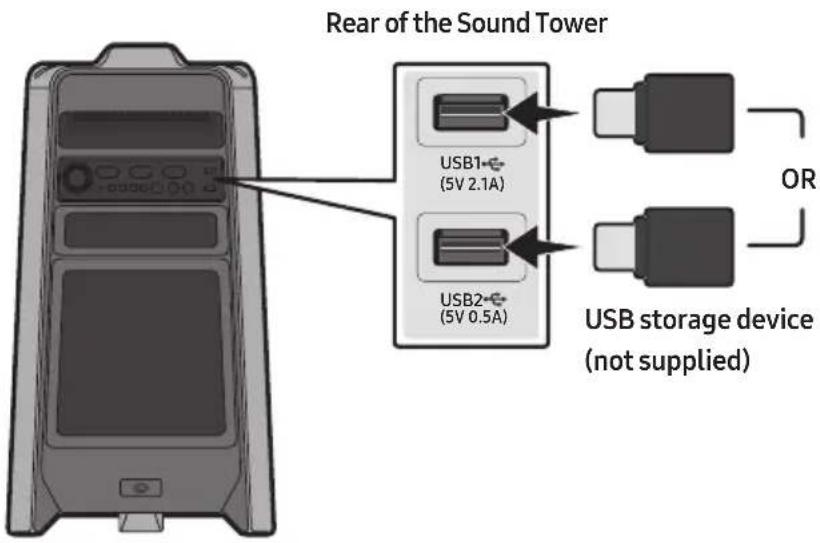
- Connect a USB storage device to the USB1 or USB2 jacks on your Sound Tower.
- Press the → (Source) button on the top panel or on the remote control, and then select "USB1" or "USB2".
- You can also select a source using USB button on the remote control.
- "USB1" or "USB2" appears in the display screen.
-
Play music files from the USB storage device through the Sound Tower.
-
The Sound Tower automatically turns off (Auto Power Down) if USB device is not connected, playback stopped, or there is no input for more than 20 minutes.
NOTES
- This product only supports USB storage devices that are formatted in the FAT and FAT32 file system.
-
This product does not support HDD storage or storage on mobile devices.
-
A maximum of 999 files can be played per USB storage device.
- A maximum of 256 folders can be read per USB storage device.
Supported Audio Formats
| File Extension | Audio Codec | Sampling Rate | Bit Rate |
| *.mp3 | MPEG 1 Layer3 32 kHz ~ 48 kHz 32 kbps ~ 320 kbps | ||
| MPEG 2 Layer3 16 kHz ~ 24 kHz 8 kbps ~ 160 kbps | |||
| MPEG 2.5 Layer3 8 kHz ~ 12 kHz 8 kbps ~ 160 kbps | |||
| *.wma WMA7/8/9 8 kHz ~ 48 kHz 32 kbps ~ 320 kbps | |||
| *.aac | AAC 8 kHz ~ 96 kHz < 1728 kbps | ||
| AAC-LC | 8 kHz ~ 96 kHz | < 1728 kbps | |
| HE-AAC | 8 kHz ~ 96 kHz < 1728 kbps | ||
| *.wav | PCM/LPCM/IMA_ADPCM | 8 kHz ~ 192 kHz | < 5 Mbps |
| *flac | - | 8 kHz ~ 192 kHz | < 5 Mbps |
NOTES
- This product does not support WMA Professional codec.
- The above table shows supported sampling rates and bit rates. Files in formats that are not supported will not play.
- AAC files only support the ADTS native format.
Software Update
Samsung may offer updates for the Sound Tower's system firmware in the future.
If an update is offered, you can update the firmware by connecting a USB device with the firmware update stored on it to the USB1 or USB2 port on your Sound Tower. For more information about how to download update files, go to the Samsung website at www.samsung.com → Support.
Then, enter or select the model number of your Sound Tower, select the Software & Apps option, and then Downloads. Note that the option names can vary.
06 USING THE REMOTE CONTROL
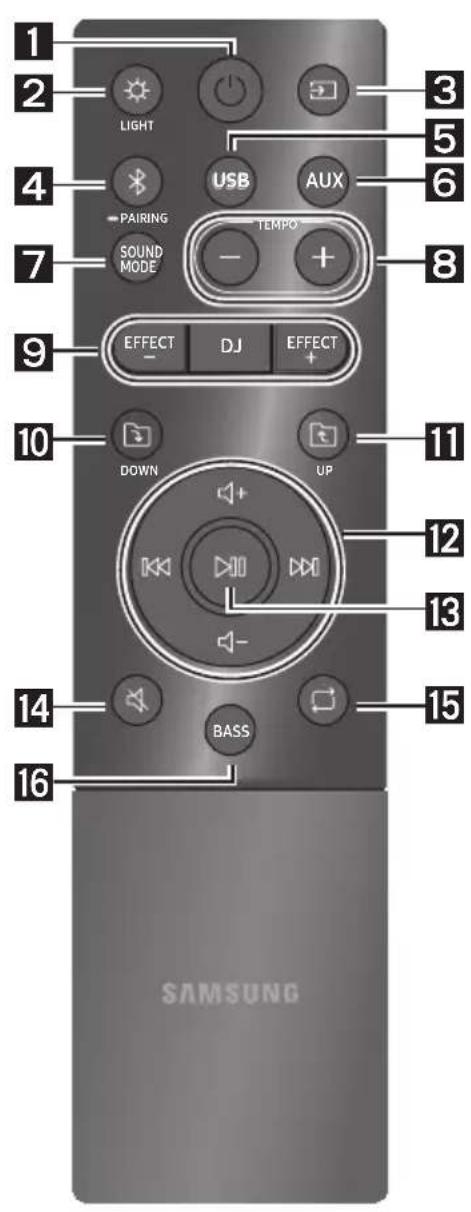
How to Use the Remote Control
| 1 | Power | Turn the Sound Tower on and off. |
| 2 | LIGHT | Press the (LIGHT) button to turn the Lighting Mode on. Press the button repeatedly to cycle through the available light modes: AMBIENT, PARTY, DANCE, THUNDERBOLT, STAR or OFF. |
| 3 | Source | Press to select a source connected to the Sound Tower. Press the button repeatedly to cycle through the available sources: BT, USB1, USB2, AUX1 or AUX2 . |
| 4 | Bluetooth PAIRING | Press to select a source connected directly to "BT" mode. Press and hold the button for more than 5 seconds to enter the "BT PAIRING" mode. You can connect the Sound Tower to a new Bluetooth device in this mode by selecting the Sound Tower from the Bluetooth device's search list. |
| 5 | USB | Press to select the USB1 or USB2 sources connected to the Sound Tower. |
| 6 | AUX | Press to select the AUX1 or AUX2 sources connected to the Sound Tower. |
| 7 | SOUND MODE | Press the button repeatedly to cycle through the available sound effects: PARTY, STANDARD, HIPHOP, EDM, ROCK, LATIN, HOUSE or REGGAE. |
| SOUND MODE | ||
| 8 | TEMPO+,- | Press the TEMPO + or TEMPO - buttons to change the tempo of the music up or down. ·This function only works in the USB1 and USB2 mode. |
| 9 | DJ | This function lets you turn on the DJ effect function. Press the button repeatedly to cycle through the available DJ sound effects: NOISE, FILTER, CRUSH, CHORUS, WAHWAH or OFF. |
| DJ | ||
| EFFECT+,- | Press the EFFECT + or EFFECT - buttons to change the level of the each DJ sound effect up or down. | |
| 10 | DOWN | Press the (DOWN) button to move to the next folder in the USB device. |
| Folder DOWN | ||
| 11 | UP | Press the (UP) button to move to the previous folder in the USB device. |
| Folder UP | ||
| 12 | Volume up, Volume down / Skip | ·Volume up, Volume down Press the (+ Volume up) or (Volume down) to adjust the volume level up or down. ·Music Skip Press the button to select the next music file. Press the (K) button to select the previous music file. Press and hold the button or the button for more than 3 seconds in USB play mode to search forward or search backward. Press and hold the button or the (K) button for more than 3 seconds again to get back to normal play. |
| 13 | Play / Pause | Press the button to pause a music file temporarily. When you press the button again, the music file plays. ·Auto Power Down Function To turn off Auto Power Down function while the unit is in AUX1, AUX2 mode, press and hold the (K) button for more than 5 seconds. ON-AUTO POWER DOWN / OFF-AUTO POWER DOWN appears on the display. |
| 14 | Mute | Press the (Mute) button to mute the sound. Press it again to unmute the sound. |
| 15 | Repeat | Press the (Repeat) button to use the Repeat function in "USB1"and "USB2" mode. Press the button repeatedly to cycle through the available repeat functions: ONE, FOLDER, ALL, RANDOM or OFF. |
| 16 | BASS | Press the BASS button to use the powerful bass sound. Press it again to return to the normal sound. Press and hold the BASS button for more than 5 seconds to turn on or off the BLUETOOTH POWER function. |
| BASS |
How to use Sound Mode
Your Sound Tower provides predefined equaliser settings that are optimised for particular music genres.
- Press the SOUND MODE button on the Remote control.
- Each time you press the SOUND MODE button, the Sound Tower cycles through the available sound effects: PARTY, STANDARD, HIPHOP, EDM, ROCK, LATIN, HOUSE or REGGAE.
NOTES
- Default sound mode is PARTY.
- When turned off, press and hold the button on product or remote control for more than 5 seconds to turn on in the default Sound Mode setting.
How to use the DJ Effect
The DJ Effect function lets you add DJ sound effects to your music. The level of each effect is adjustable.
- Press the DJ button on the Remote control.
-
Each time you press the DJ button, the Sound Tower cycles through the available DJ Effects:
-
NOISE: Create white noise and mixed with the original sound through the filter and output.
- FILTER : Creates an effect similar to the sound of only treble or bass.
CRUSH: Creates an effect that makes the original sound sharper. - CHORUS: Creates an effect similar to a singing chorus.
WAHWAH: Creates a 'Wah~ Wah~' effect. -
DJEFFECT OFF: Turns off the DJ Effect.
-
Press the EFFECT + or EFFECT - buttons to raise or lower the level of each of the DJ sound effects from -15 to +15.
NOTE
- When turned off, press and hold the button on product or remote control for more than 5 seconds to turn on in the default DJ Effect setting.
07 USING THE SAMSUNG SOUND TOWER (GIGA PARTY AUDIO) APP
Install Samsung Sound Tower (Giga Party Audio) App
To control this product with your Smart Device and the Samsung Sound Tower (Giga Party Audio) app, download the Samsung Sound Tower (Giga Party Audio) App from the Google Play Store or Apple App Store, and install it on your Smart Device.
NOTES
- The Samsung Sound Tower (Giga Party Audio) app is compatible with Android mobile phone devices running Android OS 6.0 or later.
- The Samsung Sound Tower (Giga Party Audio) app is compatible with Apple mobile devices running iOS 10.0 or later.
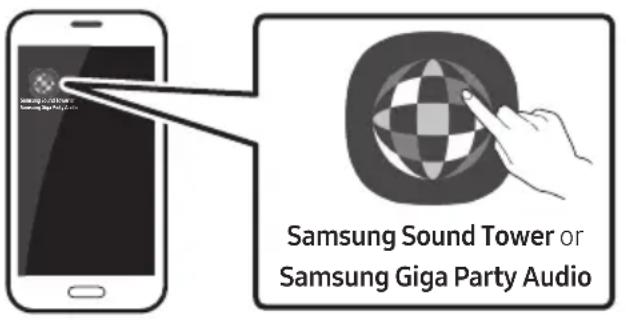
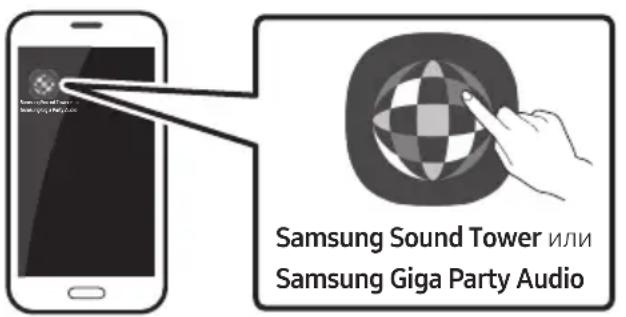
Market search : Samsung Sound Tower or Samsung Giga Party Audio

GETITON GooglePlay

Download on the App Store
Launching the Samsung Sound Tower (Giga Party Audio) App
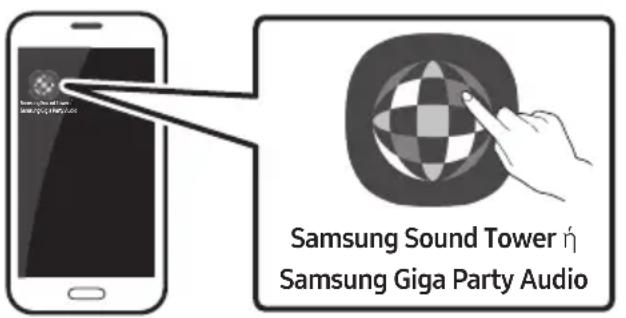
To launch and use the Samsung Sound Tower (Giga Party Audio) app, touch the Samsung Sound Tower (Giga Party Audio) icon on your smart device, and then follow the directions on the screen.
08 TROUBLESHOOTING
Before seeking assistance, check the following.
The unit will not turn on.
Is the power cord plugged into the outlet?
→ Connect the power plug to the outlet.
A function does not work when the button is pressed.
Is there static electricity in the air?
→ Disconnect the power plug and connect it again.
Sound dropouts occur in BT mode.
See the Bluetooth connection sections on page 14.
Sound is not produced.
Is the Mute function on?
→ Press the (Mute) button to cancel the mute function.
Is the volume set to minimum?
→ Adjust the Volume.
The remote control does not work.
Are the batteries drained?
→ Replace them with new batteries.
Is the distance between the remote control and Sound Tower main unit too far?
→ Move the remote control closer to the Sound Tower main unit.
Stereo Group connection is not working.
Is the system in wireless Group Play mode?
→ Disconnect the wireless Group Play mode and try Stereo Group connection again.
It cannot make a Bluetooth connection.
Is the system connected to another system in wireless Group Play mode or Stereo Group mode?
Try Bluetooth connection again after disconnecting the wireless Group Play or Stereo Group connection.
Are the two Bluetooth devices already connected?
→ Try Bluetooth connection again after disconnecting other Bluetooth connections.
The PAIRING button is not working.
Is the system in wireless Group Play mode or Stereo Group mode?
→ Try again after disconnecting the wireless Group Play or Stereo Group connection.
I want to switch the HOST (MAIN) system to the other in wireless Group Play or Stereo Group connection.
→ Disconnect Group Play mode, press the Speaker which you want make to HOST first, and after it displays "HOST" message, connect the others one by one.
→ With Stereo Group mode, MAIN is fixed. You can not change others as MAIN.
I want to play AUX1 or AUX2 more than 8 hours without control input.
→ Press and hold the button for more than 5 seconds in AUX1 or AUX2 mode to disable Auto Power Down Function. Change from ON-AUTO POWER DOWN to OFF-AUTO POWER DOWN.
I can't connect a SUB to Group play.
→After 1 hour, the HOST will block any additional SUB from being added. Press the GROUP PLAY button on HOST, after it display "HOST" message, the SUB can be reconnected.
It cannot make a "Wireless/Wired Group/Add Stereo/Bluetooth" connection.
Is the distance between systems too far?
It is recommended to make a "Wireless/Wired Group/Add Stereo/Bluetooth" pairing within 1 meter from the system.
The recommended operating distance between Sound Tower systems is closer than 10 meters.
09 LICENCE

Bluetooth
The Bluetooth® word mark and logos are registered trademarks owned by the Bluetooth SIG, Inc. and any use of such marks by Samsung Electronics Co., Ltd. is under license. Other trademarks and trade names are those of their respective owners.

Qualcomm aptX
Qualcomm aptX is a product of Qualcomm Technologies, Inc. and/or its subsidiaries. Qualcomm is a trademark of Qualcomm Incorporated, registered in the United States and other countries. aptX is a trademark of Qualcomm Technologies International, Ltd., registered in the United States and other countries.
10 OPEN SOURCE LICENCE NOTICE
To send inquiries and requests regarding open sources, contact Samsung via Email (oss.request@samsung.com).
11 IMPORTANT NOTES ABOUT SERVICE
- Figures and illustrations in this User Manual are provided for reference only and may differ from actual product appearance.
- An administration fee may be charged if either
(a) an engineer is called out at your request and there is no defect with the product (i.e. where the user manual has not been read).
(b) you bring the unit to a repair centre and there is no defect with the product (i.e. where the user manual has not been read).
- You will be informed of the administration fee amount before a technician visits.
12 SPECIFICATIONS AND GUIDE
Specifications
| Model Name MX-T50 | ||
| USB1/USB2 | USB1: 5V/2.1A USB2: 5V/0.5A | |
| Weight 11.6 kg | ||
| Dimensions (W x H x D) 351.0 x 651.0 x 323.0 mm | ||
| Operating Temperature Range +5°C to +35°C | ||
| Operating Humidity Range 10% ~ 75% | ||
| AMPLIFIER | Tweeter 65W x 2 | 8 ohm |
| Rated Output power | Woofer 185W x 2 | 3 ohm |
| WIRELESS DEVICE OUTPUT POWER BT max transmitter power | 100mW at 2.4GHz – 2.4835GHz | |
| Overall Standby Power Consumption (W) 2.0W | ||
| Bluetooth Port deactivation method | Press and hold the BASS button for more than 5 seconds to turn off Bluetooth Power function. | |
NOTES
Samsung Electronics Co., Ltd reserves the right to change the specifications without notice.
- Weight and dimensions are approximate.
- Hereby, Samsung, declares that this equipment is in compliance with Directive 2014/53/EU.
The full text of the EU declaration of conformity is available at the following internet address: http://www.samsung.com go to Support > Search Product Support and enter the model name.
This equipment may be operated in all EU countries.
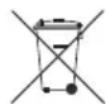
[Correct disposal of batteries in this product]
(Applicable in countries with separate collection systems)
This marking on the battery, manual or packaging indicates that the batteries in this product should not be disposed of with other household waste at the end of their working life. Where marked, the chemical symbols Hg, Cd or Pb indicate that the battery contains mercury, cadmium or lead above the reference levels in EC Directive 2006/66.
If batteries are not properly disposed of, these substances can cause harm to human health or the environment.
To protect natural resources and to promote material reuse, please separate batteries from other types of waste and recycle them through your local, free battery return system.
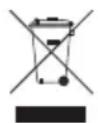
Correct Disposal of This Product
(Waste Electrical & Electronic Equipment)
(Applicable in countries with separate collection systems)
This marking on the product, accessories or literature indicates that the product and its electronic accessories (e.g. charger, headset, USB cable) should not be disposed of with other household waste at the end of their working life. To prevent possible harm to the environment or human health from uncontrolled waste disposal, please separate these items from other types of waste and recycle them responsibly to promote the sustainable reuse of material resources.
Household users should contact either the retailer where they purchased this product, or their local government office, for details of where and how they can take these items for environmentally safe recycling.
Business users should contact their supplier and check the terms and conditions of the purchase contract. This product and its electronic accessories should not be mixed with other commercial wastes for disposal.
For information on Samsung's environmental commitments and product specific regulatory obligations e.g. REACH, WEEE, Batteries, visit:
www.samsung.com/uk/aboutsamsung/sustainability/environment/our-commitment/data/
IOn3BaHe. Ako npOdykTbT IINI DNCKbT Ca
6nll CbxaHbAHn Ha CTyJeHO, Bb3MOxHo e
da ce 6pa3yBa KOHdeH3. Ako
TpaHcnpTopeypea npe3 3mata,
n3yaKaIte np6bn3nTeJHo 2 yaca dokaTo
ypeIbTIOCTnHcCTaHaTeMnepaTpa,
PpeDn da ro n3noJ3BaTe.
- Batepinte, KOINTe H3N03Bat B TO3n npOdyKT, CbIbPkaT XIMNKaJI, KOINTo Ca bpeHn 3a OKoJHaTa CpeJa. He n3XbPraIte 6atepnte c 6uNTe DOMAKINCKN OTnAbu. He n3XBpIaIte 6atepnte B oBn. He cb3daBaIte KbcO HanpeJKeHne, He pa3rIo6BaIte n He npeprBaIte 6atepnte. Ako 6atepnte He ce CMeHrt npabInHO, mMa onaCHOCT OT eKcNIO3n. CmehnTe camo cbC cbIu TIN INIe EKBVBaJIeHTHI.
3A TOBA
PbKOBOdCTBO
PbKOBOIDCTBOTO Ha nOTpe6nteIy IMa dBe yactn:
TOBa 06nKHOeNo PbKOBOJCTBO HA
IOTPENEJIy nnoDpo6HTo PbJHO
PbKOBOCTBO, KoTe MoKeTe Na n3TeJIneTe.

PbKOBOCTBO HA IOTPEBNTEJIa
IpoueTeTe TOBa pBkoBOIDCTBO 3a HNCTpyKcIM
3a 6e3oNaChOCT, INΦOpMaζηra 3a MoHTnpaHe
Ha npOdykTa, KOMnoHEHTN, CBbp3BaHe N
cneunKauHnHa npDyKaTa.

Пьлно РьковоДстBO
Moxkete da nojyute doctbno IbHO
PbKOBOIDCTBO B OHnaH ueHbpa Ha
Samsung 3a noДрьЖka Ha notpe6nteIte,
kaTo cKaHpaTe QR kOJa. 3a Ja cheTe
pBKOBOOCTBOTO Ha BaWnK KOMNIOTp npnn
MO6nJIHO yCTPOIcTBO, n3TeFneTe rB
Dokymenteh opmat ot ye6 caeta Ha Samsung.
(http://www.samsung.com/support)
IIN3aHbT n CneuΦnKaunTe noJleKgat Ha
npomHa 6e3 npedn3BecTne.
Sound Tower e HOBO nme 3a Giga Party Audio.
CbДьРЖAHNE
BkapBaHe Ha 6aTeepnIte npeIN n3POn3BaHe Ha nCTaHcNHOHTo ynpabLeHne (AAA 6aTeepnX2)
Topen napeHaSoundTower 3
3aien panen haSound Tower 4
03 Cbbp3BaHe Ha Sound Tower 6
Cbbp3BaHe Ha eJleKtpnuecko 3axpaHbaHe 6
Kak da n3no3BaTe Audio rpyna 7
04 Cbbp3BaHe Ha BbHsHo yctpoIcTBO 13
Cbbp3BaHe ype3 aHaIorOB aydno (AUX) ka6eJ 13
Cbbp3BaHe Ha Mo6uHNo yctpoNCTBO upe3 Bluetooth 14
Cbbp3BaHe Ha TeleBn3Op Samsung ype3 Bliotyc 17
05 Cbbp3BaHe Ha USB yctpoiCTBO 3a cbxpaHHe 18
CoΦTyepHa aKtuaIaIaIaIaIaIaIaIaIaIaIaIaIaIaIaIaIaIaIaIaIaIaIaIaIaIaIaIaIaIaIaIaIaIaIaIaIaIaIaIaIaIaIaIaIaIaIaIaIaIaI
06 I3noI3BaHe Ha dInCTaHcNoHHoTo ynpaBLeHne 20
Kak da ce n3noJ3Ba dNCTaHIOHHO ynpabIeHne 20
Kak da n3no13BaTe Pekim Ha 3Byk 22
Kak da n3no3BaTe DJ eΦeKT 22
CBeToIDNoDNH NHNKaUH
| Сbvетоюд | БСТОУHЕ | ИСанuele |
| Зелен | Мига Изчa | КВане 3a 6e3жична врьзka Group Play. |
| Вкlioунен Бe | Зжичнata врьзka Group Play e осыестveha. | |
| Червен Вк | Юунен Има Гецka c 6e3жична врьзka Group Play. | |
3ABEJIEXKKA
- Пи 6e3ЖИнha Bp3ka KaueCTBOTo Ha Bb3POn3BexJaHe Moke da e Hecta6nHOb 3aBnCmOcT OT Bluetooth cpeIata.
3a no-do6po Bb3npoun3Bekdahe noDlbpxkaIte yctpoictBOTo B ka6eJen Group Play peKIM.
OFF-STEREOMODE"ce noBBA Ha DCnpe N CBeToIODbT Ha 6yTOH ADD STEREO eN3KJIIOUeyH.
CBeToIONoHN HnDnKaaun
Bluetooth yctpouCTBO

NIM
PbPBOHaJHbPb3ka
- Hatachete 3aapbxte 6ytoH PAIRING Ha nctaHnOHTo ynpabHe He 3a noBce O T 5ceyni, 3a da Bne3e Te BpeKIM "BT PAIRING".
(HIN) HATINCHI PAIRING 6yToH Ha 3aDnnaHeJ.
-
Ha BaWETo yCTpoNCTBO, n36peTe "[AV] MX-T50"OT cINcBka, KOITo ce NOBABa.
-
Korato систета Sound Tower e свьрзан KaM Bluetooth yctpoiCTBOTo, [Име Ha Bluetooth yctpoiCTBO] → "BT" ce noявая Na пedingи дистпe.
-
Пускайт e Myзкални Файное ot yctpoiCTBOTo, CBbp3aHo Upe3 Bluetooth npe3 cnCTeMaTa Sound Tower.
Ako yctpoiCTBOTo He MoXe Da 6bIe CBbp3aHO
- Ako npéi n TOBa CBbP3aHn CnCTeMn Sound Tower (HaNP. "[AV] MX-T50") ce noBbT B cnncbKa, n3TpniTe rN.
CneiTOBa NOBTopeTe CTbNkn 1 n2.
Kakba e pa3nkaTa MeJy BT READY n BT PAIRING?
-
BT READY: B To3n peKIM, Bne moXeTe Da Tbpcnte 3a npEi TOBa Cbbp3aHn TeJeBn3Opn nn MO6nHNu yCTpOInCTBa KbM cnCTemata Sound Tower.
-
BT PAIRING: BTO3n peXHm, Bne moXeTe Da CBbpxKeTe HOBO yCTpoiCTBO KbM CnCTemata Sound Tower. (HaTusheTe n 3aDpBxKeTe PAIRING 6yToH Ha NcIctaHcNHOHOTo ynpaBLeHne 3a noBeue ot 5ceKHyn nn HATUSHE PAIRING 6yToH OT 3aDnHata cTpaHa Ha Sound Tower 3a da BnE3eTe B "BT PAIRING" peXHm.)
Download on the App Store
Стартупаны пиюжениTo Samsung Sound Tower (Giga Party Audio)
3a da cnapate n 3noIbATE npinloxeHneTo Samsung Sound Tower (Giga Party Audio),doKocheTe IKoHaT a Samsung Sound Tower (Giga Party Audio) Ha cboeTo cmapr yctpoiCTBO n cIeDbaiTe INHcTpkyCunITE Ha ekpaHa.
08 OTCTPAHЯBAHE HA HEN3ПРABHOCTN
Ipei da nonckate cepBn3no o6cnykBaHe, npOBepTe cJeHTo.
| Урексы не се вкlioоча. |
| Вкlioочen ли e зхранвашият кабел Ве lektprucheskn ИЗвор?→Сььржete щенися в Контакт. |
| Функциян не пботи приниatingа на habпскану 6утон. |
| Има ли сатично[elektpruchec'two B'ьВБьздуха?→Отуалуся захранвашию и гоCBьржete OTHOB. |
| В BT ржим се полоча в {@адове на 3ыука. |
| →Вижte паздениte за Bluetooth врьзka настарница 14. |
| He ce чува 3byк. |
| Вкlioоча ли e phункцияда Заглшаванe?→Натисные 6утон (Заглшаваи), за дaitmeнite phункцияда за TAGлшаваи. |
| Сnilata на 3ыука поставенä ли e наMinHMуm?→Perулирайte сnilata на 3ыука. |
| ДистанцioHHOTO управлиеныенфункциони. Изтошени ли са 6atepinite?→Смehete 6atepinite с hoBN. Пpekanelno rolламо ли e pa3ctomoneto Мexду дисанцioHHOTO управлие исsttemata Sound Tower?→Пpeмсетete дисанцioHHOTO управлиеп п-блздю Главеля мodyл на систематa Sound Tower. |
| Врьзкata Stereo руна не пботи. |
| Системата в 6e3жчени ржим Group Play ли e?→Пpeьсные 6e3жченит ржим Group Play и опигайе OTHOBO CBьрзванe на Stereo руна. |
| He moxe da ce ocbsqueCTBn Bluetooth Врьзka. |
| Система TCвьрзан LAесdpyra система В бeзшичen реким Group Play LAH Stereo груна? →Опітайte OTНОВоBluetooth врьзka сеД КATO пекьс悔te 6e3жуннaita врьзka Group Play LAH Stereo rрuya. |
| Вechе CBьрзан LAе сдBEBluetooth устюctва? →Опітайte OTНОВоBluetooth врьзka сeД КATO пекьс悔te ДругинеBluetooth Врьзк. |
| БутоныТ BAIRING He pa6otN. |
| Система TCвьрзан LAеВ 6e3шичEN реким Group Play LAH Stereo rрuya?→Опітайte OTНОВо сеД кATO пекьс悔te 6e3шичнaita врьзka Group Play LAH Stereo rрuya. |
| Искам DA ВКлоча HOST (MAIN) система КБМ дугн системВ 6e3шичNo Свьрзвае Group Play LAH Stereo rрuya. |
| →ИЗшичete реким Group Play, натусятЕ пьрBO Високовориные, кoimits Кato ce Да наразыte HOST, и сеД Кato ce пokages сьобшениTo "HOST", CBьржete OCTаHAJInte систем Ида по edha. →В реким Stereo rрuya MAIN система e ФИКсираHa. He можete DA npOMEЯte OCTaHAJInte систем Ha MAIN. |
| Искам DA пухна AUX1 LAH AUX2 NOBEue ot 8 ча 6e3 заявka 3a BxOD. |
| →Нат生态系统и заорьхte 6утоDA 5 сeкундь в реким AUX1 LAH AUX2, за LA ДeakтINВИраTe ФункциятА АВТOMATИно ИЗКЛIOУВан. Смehete OT ON-AUTO POWER DOWN Ha OFF-AUTO POWER DOWN. |
He Mora Da CBbpxa NOpUHHeHa CnCTema SUB B Group play.
→Cne1 1ac HOST 6Ioknpa I06abAyeTo Ha BCaKBN IOBnHIneHN SUB cInTeMn. Hatnche 6yToHa GROUP PLAY Ha HOST n CneI POKa3BaHe Ha CbO6uEHNeTo "HOST"SUB cInTeMaTAMoKe da 6bJe CBbp3aHa OTHOBO.
He moke da ce ocbuectBn Bpb3ka "Be3KHo/ Ka6eHa rpyna/Do6abn Ctepeo/Bluetooth".
IpekaIeHOrToJMo Ine e pa3cTOrHHeTo Mexy cnCTeMnte?
→ПpenOpbUHTeHNo eДа HanpaBInTe cDBoRABaHeTo "Бe3KnUHo/Ka6ElnHa rpyna/До6aBn Ctepeo /Bluetooth"В рamKInTe Ha 1 MeTbp OT cnCTeMaTa.
→Прелорьчтелно e Да pa6OTnte Ha pa3CTOЯнne мжду системпte Sound Tower no-manko ot 10 metpa.
09 リングEH3

Bluetooth
The Bluetooth® word mark and logos are registered trademarks owned by the Bluetooth SIG, Inc. and any use of such marks by Samsung Electronics Co., Ltd. is under license. Other trademarks and trade names are those of their respective owners.

Qualcomm aptX
Qualcomm aptX is a product of Qualcomm Technologies, Inc. and/or its subsidiaries. Qualcomm is a trademark of Qualcomm Incorporated, registered in the United States and other countries. aptX is a trademark of Qualcomm Technologies International, Ltd., registered in the United States and other countries.
10 BENEKKA 3A JIINCEH3A 3A OTBOPEH KOD
3a n3npaanshe Ha 3aINTBaHnI N 3aBKN BbB Bpb3Ka C n3TOUHNiTe C OTBOpEN KOD Ce CBpKTe cbc Samsung ype3 ImeJ (oss.request@samsung.com).
11BAKHN BELEXKKN3A OBCJIyXBAHETO
- Κифрип e n nIIOCTpaцnte B TOBa Рыковдъв 3a Notpe6nteЯ ca ПпсeoctabeHn сamO 3a Справka n Moга T da Се pa3nuaВAT OT DeiCTBNTeHnЯ n3rJIeД ha ИЗдeЛиЕТо.
- Je da ce haucn TaKca 3a aDMHNCtpnpaHe, aKO:
(a) e n3BnKaH TexnK NO BaIe HaCToBaHe N HЯMa IeΦeKT B npOdykTa (T.e. He CTe npOyei npkoBOdCTBOTO 3a Notpe6ntela)
(b) 3aHeceTe ypeDa B cepBn3eH ueHTbp NHaMa DeΦeKT B npOdyKTA (T.e. He cTe npOyei pBkoBOdCTBOTO 3a notpe6ntela).
Cymata 3a Ta3n TaKca 3a aDMNHnCTpnpaHe
Ie Bn 6bJe Cbo6uHa, Ipei Da ce
IN3BbPm KcKBaTo n Da e 6nlo pa6oTa nn
NoceHne Bkbln.
12 CNEUΦNKAUIN PbKOBOCTBO
TexHnueckxapaKTepeNCTnKN
Ako 6aTeepnTe He ce n3XbPJIrT npaBnIHO, Te3N BeIeCTBa MoRa T da IpeDn3BnKaT yBpeKdaHe Ha OBeShKOTo 3dpaBe NII Na OKoJHaTa CpeJa.
3a da ppeiHaNTe npipOHNTE pecypcn i 3a da cBdeIcTBaTe 3a MHOROKpaTHaTa ynoTpe6a Ha MaTePnAInHte pecypcn, moJIa OTdEJIaIe 6aTePnIte OT dpyrIte BnIOBe OTnaIbUHn IpoDyKtn n rPeuNKInpaIte nocpeIcTBom BaWata lokaHa cnCTema 3a 6e3PiATHO BpbuaHe ha 6aTePnI.
IpaBnH0 TpeTnpaHe Ha n3dJIneTo CneI KpA Ha eKcNlOaTaUHOHHMy JxHBOT (OtnaDbu, npedCTablaBaun eJekTpuecko neektpoHNo 6opyDahe)
(HaHnUHO B CtpaHn CbC CnCTeMn 3a pa3JeHn CmTeOcb6npaHe)
To3n 3NaK, noctaben Bbpyx n3denneto, herobn npnaJaleknoCTn nn neaTHMaTePnala, 03NaUba, ye npodukTbT n npinaJaleknoCTte (HaNPimep 3apndo yctpoiCTBO, cnyuallkn, USB ka6e) He 6nbda ce n3xBbpIaT 3aeHNO C dpynte 6ntobu OTpaDbuN, kOraTO n3teue ekcnloataunOHnT My jKBOT. Otdela Te3n yctpoiCTBa OT dpynte BVIOBn OTpaDbuN i rnpedabaTe 3a peuzknaphe. Cna3BaKn TOBa npabnilo He n3laRaTe Ha onacnoct 3dpabeto Ha dpuyn Xopa n npedna3BaTe Okolnata CpeDa ot 3ambpcaBaHe, npedn3BvkaHO OT 6e3koHTpOlnHO n3XBbpIaHe Ha oTpaDbuN. Ocben ToBa, noD6Ho OTROBOPHO NOBeHne Cb3daBA Bb3MOXHOCT 3a NOBtOpHO (ekolornuHO Cbo6pa3Ho) n3No13BaHe Ha MaTePnAHHte pecypcs.
ДомашнITEnotpe6nteItrp6BaJaCECBpbKJATCTbproBeuaHaIpe6Ho,OTKOROTOca3akyniIn
n3deJIneTo,INNCbCbOTBeTHaTMeCTHaDbPkaBHaareHcNIA,3aDaNOLyauTPODp6HnIHCTpyKcNKNbDe
nKORA MoRat Da 3aHeCat Te3u yctpoiCTBa 3a peunKlnpaHe,6eOonacHO 3a OKoJHata CpeJa.
KopnpaTHNBHTeNotpe6nteINcIeBaJaCeCBpbKAtCDOCTabUckaCNJaPNOBeprTycNoBnTaHa
doROBopa 3a NOKyPkA.ToBa n3dEIne IN HeROBte eJeKTPOHn PrinHaIeJXHocTn He 6NbJa ce CmecTBaT c
dpyrHtote OTNaDbuHa TbproBCKOTOppeIprTne.
3a Информацьо относо anraжименте на Samsung по отношени на okолнота среди и спесифчнite за пюдукта ретунаторни зальоженя, наразимер REACH, WEEE, 6atepin, nocete: www.samsung.com/uk/aboutsamsung/sustainability/environment/our-commitment/data/
SIGURNOSNE INFORMACIJE
SIGURNOSNA UPOZORENJA
DA BISTE SMANJILI OPASNOST OD ELEKTRICNOG UDARA, NE ODSTRANJUJTE POKLOPAC (ILI POLEDINU).
U UNUTRAŠNJOSTI NEMA DIJELOVA KOJE MOZE SERVISIRATI KORISNIK. PREPUSTITE SERVISIRANJE KVALIFICIRANOM SERVISNOM OSOBLJU.
Objašjenje symbola koji se mogu nalaziti na vašem proizvodu Samsung potražite u donjoj tablici.
| 4 | OPREZ OPASNOST OD ELEKTRICNOG UDARA NE OTVARAJTE | |
| 4 | Ovaj simbol znači da je struja u unutrašnjosti visokog napona. Opasno je dolaziti u bilo kakav doticaj s unutarnjim sklopopova proizvoda. | |
| 4 | Ovaj simbol naznačuje da je uz urežaj priložena važna dokumentacija o njejgovom radu i odžavanju. | |
| 4 | Proizvod II. razreda: Ovaj simbol označava da.nije potrebna sigurnosna veza s uzemljenjem. Ako se taj simbol ne nalazi na proizvodu s kabelom za napajanje, proizvod MORA imati pouzdan spoj na zašitno uzemljenje. | |
| ~ | AC napon: Ovaj simbol označava da nazivni napon označen navenedenim simbolom predstavlja AC napon. | |
| == | DC napon: Ovaj simbol označava da nazivni napon označen navenedenim simbolom predstavlja DC napon. | |
| i | Oprez, pogledajte upute za upotrebu: Ovaj simbol upićuje korisnika da potraži dodatne informacije u pogledu sigurnosti u korisničkom prisćniku. | |
UPOZORENJE
- Da biste smanjili opasnost od požara ili elektricnog udara, ne izlažite uredaj kisi ili vlazi.
OPREZ
DA BISTE SPRIJEČILI ELEKTRICNI UDAR, NAMJESTITE ŠIROKE KONTAKTE UTIKAÇA U SIOK UTOR, UMETNUT DO KRAJA.
- Ovaj uredaj treba uvijek biti spojen na uticnicu izmjenične struje sa zašitnim uzemljenjem.
- Da biste isključili urežaj iz struje, morate izvuci utikač iz strujne utičnice. Stoga strujni utikač treba biti spreman za rad.
- Ne izlažite ovaj uredaj kapanju ili prskanjutekućina. Ne stavljajte predmete punetekućine, poput vaza, na uredaj.
- Da bist potpuno isključili ovaj uredaj, morate izvuci utikač za napajanje iz zidne uticnice. Stoga utikač mora uvijek biti lako dostupan.
MJERE OPREZA
The Bluetooth® word mark and logos are registered trademarks owned by the Bluetooth SIG, Inc. and any use of such marks by Samsung Electronics Co., Ltd. is under license. Other trademarks and trade names are those of their respective owners.

Qualcomm aptX
Qualcomm aptX is a product of Qualcomm Technologies, Inc. and/or its subsidiaries. Qualcomm is a trademark of Qualcomm Incorporated, registered in the United States and other countries. aptX is a trademark of Qualcomm Technologies International, Ltd., registered in the United States and other countries.
10 OBAVIJESTO
LICENCIZA UPORABU SOFTVERA OTVORENOG KODA
Za slanje upita i zahtjeva u vezi otvorenih izvora obratite se tvrtki Samsung putem e-poste (oss.request@samsung.com).
11 VAŽNA NAPOMENA VEZANA UZ SERVIS
- Slike u ovom korisničkom priručniku služe kao samo kao referencec i mogu se razlikovati od stvarnog izgleda proizvoda.
- Moguca je naplata administrativne pristojbe u slučaju
(a) poziva inženjera na vaš zahtjev, a nema oštećenja na proizvodu (tj. ako niste pročitali korisnički prirucnik)
(b) da做一些te jedinicu na popravak u servis, a nema ostecenja na proizvodu (tj. akoniste prociitali korisnički prirucnik)
- S visinom administrativne pristoje bit cete upoznati prije poduzimanja bilo kakvih radnji ili kućnog posjeta.
12 SPECifikACIJE I VODIC
Specifikacije
| Naziv modela MX-T50 | ||
| USB1/USB2 | USB1: 5V/2,1A USB2: 5V/0,5A | |
| Težina 11,6 kg | ||
| Dimenzije (Š x V x D) 351,0 x 651,0 x 323,0 mm | ||
| Raspon radne temperature +5°C do +35°C | ||
| Raspon vlažnosti 10 % ~ 75 % | ||
| POJACALO Nazivna izlazna snaga | VF zvučnik 65W x 2, 8 ohm | |
| NF zvučnik 185W x 2, 3 ohm | ||
| IZLAZNA SNAGA BEŽICNOG UREDAJA Maks. snaga BT odašiljača 100mW | pri 2,4GHz - 2,4835GHz | |
| Ukupna potrošnja energije u stanju mirovanja (W) | 2,0W | |
| Bluetooth Način isključivanja ulaza | Pritisnite i držite gumb BASS dulje od 5 sekundi da biste isključili funkcjju Bluetooth Power. | |
NAPOMENE
Samsung Electronics Co., Ltd zadržava pravo izmjene specifikacija bez prethodne najave.
- Težina i dimenzije su približne.
www.samsung.com/uk/aboutsamsung/sustainability/environment/our-commitment/data/
BEZPEČNOSTNI INFORMACE
BEZPECNOSTNI VAROVÁNÍ
ABYSTE PřeDEŠLI RIZIKU URAZU ELEKTRICKÍM
PROUDEM, NEODNÍMEJTE ZADNI KRYT
PRISTROJE.
UVNITR PRISTROJE NEJSOU ZADNA SERVISNI MISTA. OPRAVU SVERTE KVALIFIKOVANEMU SERVISINI TECHNIKOVI.
The Bluetooth® word mark and logos are registered trademarks owned by the Bluetooth SIG, Inc. and any use of such marks by Samsung Electronics Co., Ltd. is under license. Other trademarks and trade names are those of their respective owners.

Qualcomm
aptX
Qualcomm aptX is a product of Qualcomm
Technologies, Inc. and/or its subsidiaries.
Qualcomm is a trademark of Qualcomm
Incorporated, registered in the United States and
other countries. aptX is a trademark of Qualcomm
Technologies International, Ltd., registered in the
United States and other countries.
10 POZNÁMKA K LICENCI OTEVRENEHO SOFTWARE
Das Benutzerhandbuch hat zwei Teile:这其中, there are two basic concepts. The first is the concept of a handbuch. It is a book that has been written by a number of people and which includes a description of the basic concepts and their definitions. The second is a text about how to use these concepts.
BENUTZERHANDBUCH
The Bluetooth® word mark and logos are registered trademarks owned by the Bluetooth SIG, Inc. and any use of such marks by Samsung Electronics Co., Ltd. is under license. Other trademarks and trade names are those of their respective owners.

Qualcomm aptX
Qualcomm aptX is a product of Qualcomm Technologies, Inc. and/or its subsidiaries. Qualcomm is a trademark of Qualcomm Incorporated, registered in the United States and other countries. aptX is a trademark of Qualcomm Technologies International, Ltd., registered in the United States and other countries.
10 BEKANNTMACHUNG ZU OPEN SOURCE LIZENZEN
The Bluetooth® word mark and logos are registered trademarks owned by the Bluetooth SIG, Inc. and any use of such marks by Samsung Electronics Co., Ltd. is under license. Other trademarks and trade names are those of their respective owners.

Qualcomm aptX
Qualcomm aptX is a product of Qualcomm Technologies, Inc. and/or its subsidiaries. Qualcomm is a trademark of Qualcomm Incorporated, registered in the United States and other countries. aptX is a trademark of Qualcomm Technologies International, Ltd., registered in the United States and other countries.
10 AVATUD LAHTEKOODI LITSENTSI TEATIS
www.samsung.com/ee/aboutsamsung/sustainability/environment/our-commitment/data/
INFORMATIONS RELATIVES À LA SECURITÉ
AVERTISSEMENTS
Download on the App Store
Lancement de l'application Samsung Sound Tower (Giga Party Audio)
The Bluetooth® word mark and logos are registered trademarks owned by the Bluetooth SIG, Inc. and any use of such marks by Samsung Electronics Co., Ltd. is under license. Other trademarks and trade names are those of their respective owners.

Qualcomm aptX
Qualcomm aptX is a product of Qualcomm Technologies, Inc. and/or its subsidiaries. Qualcomm is a trademark of Qualcomm Incorporated, registered in the United States and other countries. aptX is a trademark of Qualcomm Technologies International, Ltd., registered in the United States and other countries.
10 AVIS DE LICENCE LIBRE
Ekkivnon TnC Eapouync Samsung Sound Tower (Giga Party Audio)
Tia va ekkivnoe te kal va xpnouoioe te tnv eoapoyn Samsung Sound Tower (Giga Party Audio), ayviTe to eikoviilo Samsung Sound Tower (Giga Party Audio) otnv euiuovn ouokeu n oac kal, otn ouvexia, akoalouhoote tic oohyic stnyovn.
08ANTIMETΩΠΕH ΠPOBΑΗΜΑΝ
Ppotaou zntnoeTe BoonEua, eLeyEeTa npakatw.
H movadδa δev evepyonoleiαl.
Eiva to kawdi o trophiosia c uovd8emuvo otnv npici;
The Bluetooth® word mark and logos are registered trademarks owned by the Bluetooth SIG, Inc. and any use of such marks by Samsung Electronics Co., Ltd. is under license. Other trademarks and trade names are those of their respective owners.

Qualcomm aptX
Qualcomm aptX is a product of Qualcomm Technologies, Inc. and/or its subsidiaries.
Qualcomm is a trademark of Qualcomm Incorporated, registered in the United States and other countries. aptX is a trademark of Qualcomm Technologies International, Ltd., registered in the United States and other countries.
10 EIDOIOIHGHIA TIEADECIEXPHH ANIGMIKOV ANOXTOY KQIA
A Sound Tower felso panele 3
A Sound Tower hatsó panele 4
The Bluetooth® word mark and logos are registered trademarks owned by the Bluetooth SIG, Inc. and any use of such marks by Samsung Electronics Co., Ltd. is under license. Other trademarks and trade names are those of their respective owners.

Qualcomm aptX
Qualcomm aptX is a product of Qualcomm Technologies, Inc. and/or its subsidiaries. Qualcomm is a trademark of Qualcomm Incorporated, registered in the United States and other countries. aptX is a trademark of Qualcomm Technologies International, Ltd., registered in the United States and other countries.
10 NYICT FORRASKODU LICENC MEGJEGYZES
The Bluetooth® word mark and logos are registered trademarks owned by the Bluetooth SIG, Inc. and any use of such marks by Samsung Electronics Co., Ltd. is under license. Other trademarks and trade names are those of their respective owners.

Qualcomm aptX
Qualcomm aptX is a product of Qualcomm Technologies, Inc. and/or its subsidiaries. Qualcomm is a trademark of Qualcomm Incorporated, registered in the United States and other countries. aptX is a trademark of Qualcomm Technologies International, Ltd., registered in the United States and other countries.
10 AVVISO DI LICENZA OPEN SOURCE
http://www.samsung.com/it/aboutsamsung/sustainability/environment/our-commitment/data/
DROŠIBAS INFORMÁCIJA
DROŠIBAS BRIDINAJUMI
LAI SAMAZINATU ELEKTRISKAS STRAVAS
TRIECIENA RISKU, NENONEMIET PARSEGU (VAI KORPUSA AIZMUGURI).
DETALA, KURAS APKOPE BUTU JÄVEIC
LIETOTAJAM. UZTICIET APKOPI KVALIFICETIEM
APKOPES SPECIALISTIEM.
Skaidrojumus par simboliem, kas var but redzami uz jusu Samsung izstradajuma, skatiet talak tabula
08 PROBLEMU NOVER'SANA
The Bluetooth® word mark and logos are registered trademarks owned by the Bluetooth SIG, Inc. and any use of such marks by Samsung Electronics Co., Ltd. is under license. Other trademarks and trade names are those of their respective owners.

Qualcomm aptX
Qualcomm aptX is a product of Qualcomm Technologies, Inc. and/or its subsidiaries. Qualcomm is a trademark of Qualcomm Incorporated, registered in the United States and other countries. aptX is a trademark of Qualcomm Technologies International, Ltd., registered in the United States and other countries.
10 PAZINOJUMS PAR ATVERTA PIRMKODA LICENCI
The Bluetooth® word mark and logos are registered trademarks owned by the Bluetooth SIG, Inc. and any use of such marks by Samsung Electronics Co., Ltd. is under license. Other trademarks and trade names are those of their respective owners.

Qualcomm aptX
Qualcomm aptX is a product of Qualcomm Technologies, Inc. and/or its subsidiaries. Qualcomm is a trademark of Qualcomm Incorporated, registered in the United States and other countries. aptX is a trademark of Qualcomm Technologies International, Ltd., registered in the United States and other countries.
10 ATVIROSIOS PROGRAMINES IRANGOS LICENCIJOS PRANEŠIMAS
Gorny panel Sound Tower 3
Panel tylny Sound Tower 4
Gorny panel Sound Tower
Download on the App Store
The Bluetooth® word mark and logos are registered trademarks owned by the Bluetooth SIG, Inc. and any use of such marks by Samsung Electronics Co., Ltd. is under license. Other trademarks and trade names are those of their respective owners.

Qualcomm aptX
Qualcomm aptX is a product of Qualcomm Technologies, Inc. and/or its subsidiaries. Qualcomm is a trademark of Qualcomm Incorporated, registered in the United States and other countries. aptX is a trademark of Qualcomm Technologies International, Ltd., registered in the United States and other countries.
10 INFORMACJA O LICENCJI OPEN SOURCE
The Bluetooth® word mark and logos are registered trademarks owned by the Bluetooth SIG, Inc. and any use of such marks by Samsung Electronics Co., Ltd. is under license. Other trademarks and trade names are those of their respective owners.

Qualcomm
aptX
Qualcomm aptX is a product of Qualcomm
Technologies, Inc. and/or its subsidiaries.
Qualcomm is a trademark of Qualcomm
Incorporated, registered in the United States and other countries. aptX is a trademark of Qualcomm Technologies International, Ltd., registered in the United States and other countries.
10 NOTIFICARE DE LICENTÀ OPEN SOURCE
Pentru a trimite intrebari sì solicitāri referitoare la software-ul open source, contactaṭi Samsung prin e-mail (oss.request@samsung.com).
11 NOTÄ IMPORTANT DESPRE SERVICE
www.samsung.com/uk/aboutsamsung/sustainability/environment/our-commitment/data/
SIGURNOSNE INFORMACije
SIGURNOSNA UPOZORENJA
DA BISTE SMANJILI OPASNOST OD
ELEKTRICNOG UDARA, NE SKIDAJTE POKLOPAC
(ILI ZADNJU PLOCU).
UNUTRA SE NE NALAZE DELOVI KOJI SE MOGU SERVISIRATI. SERVISIRANJE POVERITE KVALIFIKOVANOM OSOBLJU SERVISA.
Gornji panel systemd Sound Tower 3
Zadnji panel formula Sound Tower 4
03 Povezivanje systemd Sound Tower 6
Gornji panel systemd Sound Tower
| 1 | Senzor za daljinski upravljač | Kada upravljate systemom Sound Tower, usmerite prednju stranu daljinskog upravljača ka senzoru za daljinski upravljač. |
| 2 | Prozor sa prikazom | Prikazuje operativne poruke ili trenutni statusSYSTEM Sound Tower. |
| 3 | Napajanje Ukjučuje i isključuje system Sound Tower. | |
| 4 | Osvetljenje | Pritisnite dugme (Osvetljenje) da biste uključili režim osvetljenja. Pritiskajte ovo dugme uzastopno kako biste kružili kroz dostupne režime osvetljenja: AMBIENT, PARTY, DANCE, THUNDERBOLT, STAR ili OFF. |
| 5 | Izvor | Pritisnite da biste izabrali izvor povezan na system Sound Tower. Pritisnite i zadržite pritsinutim dugme (Izvor) duže od 5 sekundi kako biste ušli u režim „SEARCHING TV". |
| 6 | Reprodukcija/Pauza | • Reprodukcia/Pauza Pritisnite dugme (Izov) da biste privremeno pauzirali muzicku datoteku. Kada ponovo pritsinete dugme, počće reprodukcija muzicke datoteke. • Reprodukcia demonstracije Pritisnite i zadržite pritsinutim dugme (Izov) od 5 sekundi kako bistePokrenuli Reprodukcija demonstracije dok je system uključen. Na ekranu ce se prižatni "DEMO", a muzika demonstracije ce se reproducovati tokom 60 sekundi. Da biste prekinuli Reprodukcija demonstracije, pritsnite i zadržite pritsinutim dugme (Izov) od 5 sekundi dok radi Reprodukcia demonstracije. - Ako unesete bilo koju komandu dok je reprodukcija demonstracije u toku, osvežićse se tajmer koji odbrojava 60 sekundi. - Dok je reprodukcija demonstracije u toku, nijedno dugme na daljinskom upravljacu nice u funkciji kao ni zadnja ploča s priključcima. Ako Želite da koristite daljinski upravljac, otkazite Reprodukcia demonstracije. - Reprodukcia demonstracije okazuje se kada promenite izvor ili isključite napajanje systema. - Molimo budite oprezni jer može da Čuje glasnjë od postavljene jačine. |
| 7 | Smanjivanje jačine zvuka | Pritisnite dugme — (Smanjenje jačine zvuka) da biste podesili niži nivo jačine zvuka. Pritisnite i zadržite dugme — (Smanjenje jačine zvuka) da biste brzo smanjili nivo jačine zvuka. |
| 8 | Povećavanje jačine zvuka | Pritiskanjem dugmeta + (Povećanje jačine zvuka) povećava se jačina zvuka. Pritisnite i zadržite dugme + (Povećanje jačine zvuka) da biste brzo povećali nivo jačine zvuka. |
| 9 | BASS | Pritisnite dugme BASS da biste koristili snažni zvuk basa. Ponovo ga pritsnite da biste vratili normalan zvuk. Pritisnite i zadržite pritsnutim dugme BASS duže od 5 sekundi kako biste uključili ili isključili funkcju BLUETOOTH POWER. |
Zadnji panel systemd Sound Tower
| 1 | Bluetooth PAIRING | Pritisnite dugme PAIRING da biste aktivirali režim „BT PAIRING". Sistem Sound Tower možete da povežete sa novim Bluetooth uredajem u ovom režimu採取 štoćete iz lista za pretragu na Bluetooth uredaju izabrati Sound Tower. |
| 2 | ADD STEREO | Pritisnite dugme ADD STEREO da biste se bežićno povezali sa drugim systemom Sound Tower. Ponovo pritsnite dugme ADD STEREO pre povezivanja drugog systemd Tone Tower da biste izašli iz režima Stereo Group. Kada se konekcija ostvari, možete uzivati u stero zvuku. Pritisnite i zadržite pritsnutim dugme ADD STEREO duže od 5 sekundi*kako biste prekinuli režim Stereo grupe. |
| 3 | GROUP PLAY | Pritisnite dugme GROUP PLAY da biste bežićno povezali do deset systemd Tone Tower. Ponovo pritsnite dugme GROUP PLAY pre povezivanja drugog systemd Tone Tower da biste izašli iz režima Group Play. Kada se veza uspostavi, možete da koristite više systemd Tone Tower u isto vreme pomoću režima Group Play. Pritisnite i zadržite pritsnutim dugme GROUP PLAY duže od 5 sekundi kako biste prekinuli bežićn režim Group Play. |
| 4 | USB1 | Povežite USB urežaj u port USB1 ili USB2 na glavnoj Jedinici. Mobilni Telefon možete da punite také štoćete da ga povežete u port USB1. • Pritisnite dugme → (Izvor) da biste izabrali USB1 ili USB2. |
| 5 | USB2 | |
| 6 | ECHO | Zvuku možete pridodati eho efekat sa priključenog mikrofona (MIC) poděsavanjem dugmeta ECHO. Ako ga okretene u smeru kazaljke na satu, efekat eha se povećava, a ako ga okretene u smeru suprotnom od kazaljke na satu, efekat eha se smanjupe. |
| 7 | VOL | Pomoću točkica VOL na glavnoj jeginici PODSE je acinu zvuka mikrofona (MIC). Ako ga okretene u smeru kazaljke na satu, jačina zvuka se povećava, a ako ga okretene u smeru suprotnom od kazaljke na satu, jačina zvuka se smanjupe. |
| 8 | MIC | Povežite mikrofon na priključak MIC. |
| 9 | Priključci GROUP PLAY OUT | Pomoću audio kabla (ne isporučuje se) povežite priključke GROUP PLAY (OUT) na glavnoj jeginici sa audio izlazom na spoljnom analognom izlaznom urežaju. • Pazite da se boje priključakaPoklapaju. • Ako spoljni anlogni izlazni urežaj ima samo jegan ulazni audio priključak, povežiteismo levi ili desni. |
| 10 | Priključci AUX2/ GROUP PLAY IN | Pomoću audio kabla (ne isporučuje se) povežite priključke AUX2 (IN) na glavnoj jeginici sa audio izlazom na spoljnom analognom izlaznom urežaju. • Pazite da se boje priključakaPoklapaju. • Ako spoljni anlogni izlazni urežaj ima samo jegan izlazni audio priključak, povežiteismo levi ili desni. • Pritisnite dugme → (Izvor) da biste izabrali AUX2. • Ako je proizvod u režimu AUX2 bez reproduccjie i nijedna komanda se ne unese dužed 20 minuta, sistem ce se isključiti. • Ako je proizvod u režimu AUX2 uz reproduccjiju duže od 8 sati i nijedna komanda se ne unese, sistem ce se isključiti. |
| 11 | AUX1 | Pomoću audio (AUX) kabla (ne isporučuje se) povežite priključak AUX1 na glavnoj jeginici sa audio izlazom na spoljnom urežaju. • Ako je proizvod u režimu AUX1 bez reproduccjie i nijedna komanda se ne unese dužed 20 minuta, sistem ce se isključiti. • Ako je proizvod u režimu AUX1 uz reproduccjiju duže od 8 sati i nijedna komanda se ne unese, sistem ce se isključiti. |
| 12 | Napajanje | Povežite kabla za napajanje u priključak Napajanje, a zatim povežite drugi kraj kabla za napajanje u vidnu utičnicu da biste dostavili elektricnu energiju systemd Tower. |
03 POVEZIVANJE SISTEMA SOUND TOWER
The Bluetooth® word mark and logos are registered trademarks owned by the Bluetooth SIG, Inc. and any use of such marks by Samsung Electronics Co., Ltd. is under license. Other trademarks and trade names are those of their respective owners.

Qualcomm aptX
Qualcomm aptX is a product of Qualcomm Technologies, Inc. and/or its subsidiaries. Qualcomm is a trademark of Qualcomm Incorporated, registered in the United States and other countries. aptX is a trademark of Qualcomm Technologies International, Ltd., registered in the United States and other countries.
10 OBAVESTENJE O LICENCI OTVORENOG IZVORNOG KODA
Svoje upite i zahteve u vezi sa otvorenim izvornim kodovima možete uputiti kompaniji Samsung putem e-poste (oss.request@samsung.com).
11 VAŽNA NAPOMENA O SERVISIRANJU
- Slike i ilustracije koje su upotrebljene u ovom korisničkom uputstvu date su samo kao reference i mogu se razlikovati od vašeg proizvoda.
- Administrativni troškovi mogu biti naplaceni u sledecim slučajevima:
(a) tehnicar je pozvan u vaš dom na vaš zahtev i ako proizvod不同程度 (tj. ako niste pročitali ovo korisničko uputstvo),
(b) vi donesete uredaj u servisni centar, a proizvod nije u kvaru (tj. ako niste pročitali ovo korisničko uputstvo).
www.samsung.com/uk/aboutsamsung/sustainability/environment/our-commitment/data/
BEZPEČNOSTNÉ INFORMÁCIE
BEZPECNOSTNÉ VAROVANIA
ABY STE PREDIŠLI RIZIKU VZNIKU POŽIARU A RIZIKU URAZU ELEKTRICKYM PRUDOM, NEODSTRANJTE PREDNÍ (ANI ZADNY) KRYT. ZARIADENIE SA NEPOKUSEDJE SVOJPOMOCNE OPRAVOVAT. OPRAVY PRENECHAJTE KVALIFIKOVANÉMU SERVISNÉMU PRACOVNIKOVI.
Vrchny panel zariadenia Sound Tower
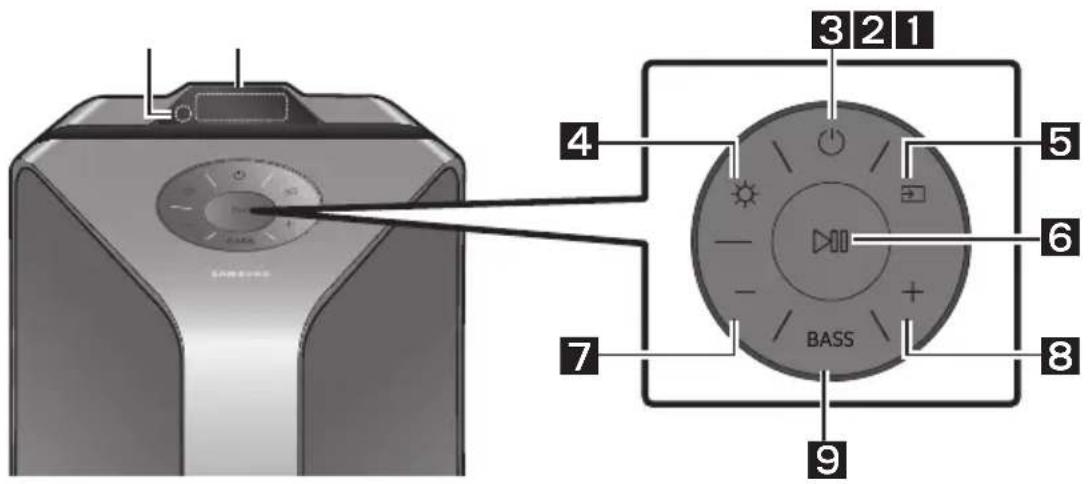
08 RIESENIE PROBLEMOV
The Bluetooth® word mark and logos are registered trademarks owned by the Bluetooth SIG, Inc. and any use of such marks by Samsung Electronics Co., Ltd. is under license. Other trademarks and trade names are those of their respective owners.

Qualcomm aptX
Qualcomm aptX is a product of Qualcomm Technologies, Inc. and/or its subsidiaries. Qualcomm is a trademark of Qualcomm Incorporated, registered in the United States and other countries. aptX is a trademark of Qualcomm Technologies International, Ltd., registered in the United States and other countries.
10 POZNÁMKA K LICENCIIS OTVORENÍM ZDROJOVÍM KÓDOM
The Bluetooth® word mark and logos are registered trademarks owned by the Bluetooth SIG, Inc. and any use of such marks by Samsung Electronics Co., Ltd. is under license. Other trademarks and trade names are those of their respective owners.

Qualcomm aptX
Qualcomm aptX is a product of Qualcomm Technologies, Inc. and/or its subsidiaries. Qualcomm is a trademark of Qualcomm Incorporated, registered in the United States and other countries. aptX is a trademark of Qualcomm Technologies International, Ltd., registered in the United States and other countries.
10 OBVESTILO O ODPRTOKODNIH LICENCAH
www.samsung.com/uk/aboutsamsung/sustainability/environment/our-commitment/data/

© 2019 Samsung Electronics Co., Ltd. All rights reserved.
Contact SAMSUNG WORLD WIDE
If you have any questions or comments relating to Samsung products, please contact the SAMSUNG customer care Centre.
| Area Contact Centre | Web Site |
| ■Europe | |
| UK 0333 000 0353 | www.samsung.com/uk/support |
| IRELAND (EIRE) 0818 717100 | www.samsung.com/ie/support |
| GERMANY 06190 77 555 77 | www.samsung.com/de/support |
| FRANCE 01 48 63 00 00 | www.samsung.com/fr/support |
| ITALIA 800-SAMSUNG (800.7267864) | www.samsung.com/it/support |
| SPAIN 91 175 00 15 | www.samsung.com/es/support |
| PORTUGAL 808 207 267 | www.samsung.com.pt/support |
| LUXEMBURG 261 03 710 | www.samsung.com/be_fr/support |
| NETHERLANDS 088 90 90 100 | www.samsung.com/nl/support |
| BELGIUM 02-201 24-18 | www.samsung.com/be/support (Dutch)www.samsung.com/be_fr/support (French) |
| NORWAY 216290 99 | www.samsung.com/no/support |
| DENMARK 707 01 970 | www.samsung.com.dk/support |
| FINLAND 030-6227 515 | www.samsung.com/fi/support |
| SWEDEN 0771 726 786 | www.samsung.com/se/support |
| POLAND 801-172-678* lub +48 22 607-93-33*Specialistyczna infolinia do obstugi zapytań dotycznych Telefonów komórkowych: 801-672-678* (oplata wedlug taryfya operadora) | http://www.samsung.com/pl/support/ |
| HUNGARY 0680SAMSUNG (0680-726-7864) | www.samsung.com/hu/support |
| AUSTRIA 0800 72 67 864 (0800-SAMSUNG) | www.samsung.com/at/support |
| SWITZERLAND 0800 726 786 | www.samsung.com/ch/support (German)www.samsung.com/ch_fr/support (French) |
| Area Contact Centre | Web Site |
| CZECH | 800 - SAMSUNG (800-726786) |
| SLOVAKIA | 0800 - SAMSUNG (0800-726786) |
| CROATIA | 072 726 786 |
| BOSNIA | 055 233 999 |
| NORTHMACEDONIA | 023 207 777 |
| MONTENEGRO | 020 405 888 |
| SLOVENIA | 080 697 267 (brezplačna številka) |
| SERBIA | 011 321 6899 |
| KOSOVO | 0800 10 101 |
| ALBANIA 045 620 | 020 |
| BULGARIA | *3000 Lěha na edin rpadská párazovop 0800 111 31 Bežilatěn za BCNUKIN opěpatopi |
| ROMANIA | *8000 (apel in retea) 08008-726-78-64 (08008-SAMSUNG) Apel GRATUIT Atenjie: Dacă efectuatji apelul din rejeaua Digi (RCS/RDS), vă rugăm sâne contactati formân numărul Telverde fãră ultimele două cifre, astfel: 0800872678. |
| CYPRUS | 8009 4000 only from landine, toll free |
| GREECE | 80111-SAMSUNG (80111 726 7864) only from land line (+30) 210 6897691 from mobile and land line |
| LITHUANIA 8-800 | -77777 |
| LATVIA | 8000-7267 |
| ESTONIA | 800-7267 |


- SAFETY INFORMATION
- SAFETYWARNINGS
- WARNING
- CAUTION
- PRECAUTIONS
- ABOUT THIS MANUAL
- USER MANUAL
- FULL MANUAL
- CONTENTS
- CHECKING THE COMPONENTS
- PRODUCT OVERVIEW
- CONNECTING THE SOUND TOWER
- CONNECTING AN EXTERNAL DEVICE
- CONNECTING A USB STORAGE DEVICE
- USING THE REMOTE CONTROL
- USING THE SAMSUNG SOUND TOWER (GIGA PARTY AUDIO) APP
- TROUBLESHOOTING
- LICENCE
- OPEN SOURCE LICENCE NOTICE
- IMPORTANT NOTES ABOUT SERVICE
- SPECIFICATIONS AND GUIDE
- SOUND TOWER MAIN UNIT REMOTE CONTROL / BATTERIES POWER CORD
- INSERTING BATTERIES BEFORE USING THE REMOTE CONTROL (AAA BATTERIES X 2)
- TOP PANEL OF THE SOUND TOWER
- CONNECTING ELECTRICAL POWER
- HOW TO USE AUDIO GROUP
- CONNECTING THE WIRED GROUP PLAY MODE
- NOTES
- CONNECTING THE WIRELESS GROUP PLAY MODE
- DISCONNECTING THE WIRELESS GROUP PLAY MODE
- LED INDICATIONS
- NOTE
- USING A SMARTPHONE AND STEREO GROUP MODE
- TERMINATE THE STEREO GROUP MODE
- USING SAMSUNG TV AND STEREO GROUP MODE
- TERMINATING THE STEREO GROUP MODE CONNECTION
- CONNECTING USING AN ANALOGUE AUDIO (AUX) CABLE
- MM STEREO CABLE (AUX1)
- AUDIO CABLE (AUX2)
- CONNECTING A MOBILE DEVICE VIA BLUETOOTH
- THE INITIAL CONNECTION
- IF THE DEVICE FAILS TO CONNECT
- WHAT IS THE DIFFERENCE BETWEEN BT READY AND BT PAIRING
- BLUETOOTH MULTI CONNECTION
- USING BLUETOOTH POWER ON
- CONNECTING THE SAMSUNG TV VIA BLUETOOTH
- EASY CONNECT WITH SAMSUNG TV (SEARCHING TV MODE)
- SUPPORTED AUDIO FORMATS
- SOFTWARE UPDATE
- SAMSUNG MAY OFFER UPDATES FOR THE SOUND TOWER'S SYSTEM FIRMWARE IN THE FUTURE
- HOW TO USE SOUND MODE
- HOW TO USE THE DJ EFFECT
- INSTALL SAMSUNG SOUND TOWER (GIGA PARTY AUDIO) APP
- LAUNCHING THE SAMSUNG SOUND TOWER (GIGA PARTY AUDIO) APP
- THE UNIT WILL NOT TURN ON
- IT CANNOT MAKE A BLUETOOTH CONNECTION
- THE PAIRING BUTTON IS NOT WORKING
- I CAN'T CONNECT A SUB TO GROUP PLAY
- IT CANNOT MAKE A "WIRELESS/WIRED GROUP/ADD STEREO/BLUETOOTH" CONNECTION
- IS THE DISTANCE BETWEEN SYSTEMS TOO FAR
- BLUETOOTH
- QUALCOMM APTX
- [CORRECT DISPOSAL OF BATTERIES IN THIS PRODUCT]
- (APPLICABLE IN COUNTRIES WITH SEPARATE COLLECTION SYSTEMS)
- CORRECT DISPOSAL OF THIS PRODUCT
- (WASTE ELECTRICAL & ELECTRONIC EQUIPMENT)
- A TOBA
- PBKOBODCTBO
- PBKOBOCTBO HA IOTPEBNTEJIA
- ПЬЛНО РЬКОВОДСТBO
- CBДЬРЖAHNE
- CBBP3BAHE HA SOUND TOWER
- CBBP3BAHE HA BBHSHO YCTPOICTBO
- CBBP3BAHE HA USB YCTPOICTBO 3A CBXPAHHE
- I3NOI3BAHE HA DINCTAHCNOHHOTO YNPABLEHNE
- CBETOIDNODNH NHNKAUH
- ABEJIEXKKA
- CBETOIONOHN HNDNKAAUN
- PBPBOHAJHBPB3KA
- AKO YCTPOICTBOTO HE MOXE DA 6BIE CBBP3AHO
- KAKBA E PA3NKATA MEJY BT READY N BT PAIRING
- СТАРТУПАНЫ ПИЮЖЕНИTO SAMSUNG SOUND TOWER (GIGA PARTY AUDIO)
- OTCTPAHЯBAHE HA HEN3ПРABHOCTN
- HE MORA DA CBBPXA NOPUHHEHA CNCTEMA SUB B GROUP PLAY
- HE MOKE DA CE OCBUECTBN BPB3KA "BE3KHO/ KA6EHA RPYNA/DO6ABN CTEPEO/BLUETOOTH
- IPEKAIEHORTOJMO INE E PA3CTORHHETO MEXY CNCTEMNTE
- リングEH
- BENEKKA 3A JIINCEH3A 3A OTBOPEH KOD
- BAKHN BELEXKKN3A OBCJIYXBAHETO
- CNEUΦNKAUIN PBKOBOCTBO
- IPABNH0 TPETNPAHE HA N3DJINETO CNEI KPA HA EKCNLOATAUHOHHMY JXHBOT (OTNADBU, NPEDCTABLABAUN EJEKTPUECKO NEEKTPOHNO 6OPYDAHE)
- (HAHNUHO B CTPAHN CBC CNCTEMN 3A PA3JEHN CMTEOCB6NPAHE)
- SIGURNOSNE INFORMACIJE
- SIGURNOSNA UPOZORENJA
- UPOZORENJE
- OPREZ
- MJERE OPREZA
- OBAVIJESTO
- LICENCIZA UPORABU SOFTVERA OTVORENOG KODA
- VAŽNA NAPOMENA VEZANA UZ SERVIS
- SPECIFIKACIJE I VODIC
- NAPOMENE
- BEZPEČNOSTNI INFORMACE
- BEZPECNOSTNI VAROVÁNÍ
- QUALCOMM
- APTX
- POZNÁMKA K LICENCI OTEVRENEHO SOFTWARE
- BENUTZERHANDBUCH
- BEKANNTMACHUNG ZU OPEN SOURCE LIZENZEN
- AVATUD LAHTEKOODI LITSENTSI TEATIS
- INFORMATIONS RELATIVES À LA SECURITÉ
- AVERTISSEMENTS
- DOWNLOAD ON THE APP STORE
- LANCEMENT DE L'APPLICATION SAMSUNG SOUND TOWER (GIGA PARTY AUDIO)
- AVIS DE LICENCE LIBRE
- EKKIVNON TNC EAPOUYNC SAMSUNG SOUND TOWER (GIGA PARTY AUDIO)
- ANTIMETΩΠΕH ΠPOBΑΗΜΑΝ
- H MOVADΔA ΔEV EVEPYONOLEIΑL
- EIDOIOIHGHIA TIEADECIEXPHH ANIGMIKOV ANOXTOY KQIA
- NYICT FORRASKODU LICENC MEGJEGYZES
- AVVISO DI LICENZA OPEN SOURCE
- DROŠIBAS INFORMÁCIJA
- DROŠIBAS BRIDINAJUMI
- PROBLEMU NOVER'SANA
- PAZINOJUMS PAR ATVERTA PIRMKODA LICENCI
- ATVIROSIOS PROGRAMINES IRANGOS LICENCIJOS PRANEŠIMAS
- INFORMACJA O LICENCJI OPEN SOURCE
- NOTIFICARE DE LICENTÀ OPEN SOURCE
- NOTÄ IMPORTANT DESPRE SERVICE
- POVEZIVANJE SYSTEMD SOUND TOWER
- GORNJI PANEL SYSTEMD SOUND TOWER
- ZADNJI PANEL SYSTEMD SOUND TOWER
- POVEZIVANJE SISTEMA SOUND TOWER
- OBAVESTENJE O LICENCI OTVORENOG IZVORNOG KODA
- VAŽNA NAPOMENA O SERVISIRANJU
- BEZPEČNOSTNÉ INFORMÁCIE
- BEZPECNOSTNÉ VAROVANIA
- VRCHNY PANEL ZARIADENIA SOUND TOWER
- RIESENIE PROBLEMOV
- POZNÁMKA K LICENCIIS OTVORENÍM ZDROJOVÍM KÓDOM
- OBVESTILO O ODPRTOKODNIH LICENCAH
- CONTACT SAMSUNG WORLD WIDE
Brand : SAMSUNG
Model : Giga Party Audio MXT50
Category : Hi-Fi System