Velop MX10600 - Router LINKSYS - Free user manual and instructions
Find the device manual for free Velop MX10600 LINKSYS in PDF.



| Product Type | Tri-band Wi-Fi mesh router (mesh system) |
| Model | Linksys Velop MX10600 |
| Dimensions (L x W x H) | 113 x 113 x 243 mm |
| Unit weight | 1.58 kg |
| Power supply | 12V, 4A (AC adapter included) |
| Ethernet port speed | Gigabit (10/100/1000 Mbps) |
| Radio frequencies | 2.4 GHz and 5 GHz |
| Number of antennas | 13 (internal) |
| Ports | 1x USB 3.0, 2x Gigabit Ethernet, 1x Gigabit Internet, 1x power |
| Buttons | Power on/off, WPS, Reset |
| LED indicator | Multi-color LED (blue, purple, red, yellow) for status |
| Wireless security | WPA2 Personal, WPA2 Enterprise, encryption up to 128 bits |
| Main features | Setup via Linksys app, parental controls, device prioritization, guest access, shared USB storage, speed test, WPS |
| App compatibility | iOS 11.4+ and Android 6+ |
| Operating temperature | 0 to 40 °C |
| Operating humidity | 10% to 80% without condensation |
| Maintenance and cleaning | Clean with a soft, dry cloth. Do not use liquids or abrasive products. |
| Spare parts and repairability | AC adapter and Ethernet cable included. No user-serviceable parts. Factory reset via Reset button. |
| General information | Brand: Linksys. Warranty: 2 years (standard). Support: linksys.com/support/Velop |
Frequently Asked Questions - Velop MX10600 LINKSYS
User questions about Velop MX10600 LINKSYS
0 question about this device. Answer the ones you know or ask your own.
Ask a new question about this device
Download the instructions for your Router in PDF format for free! Find your manual Velop MX10600 - LINKSYS and take your electronic device back in hand. On this page are published all the documents necessary for the use of your device. Velop MX10600 by LINKSYS.
USER MANUAL Velop MX10600 LINKSYS
Where to find more help 6
Set Up 7
9
Log in to the Linksys app 9
10
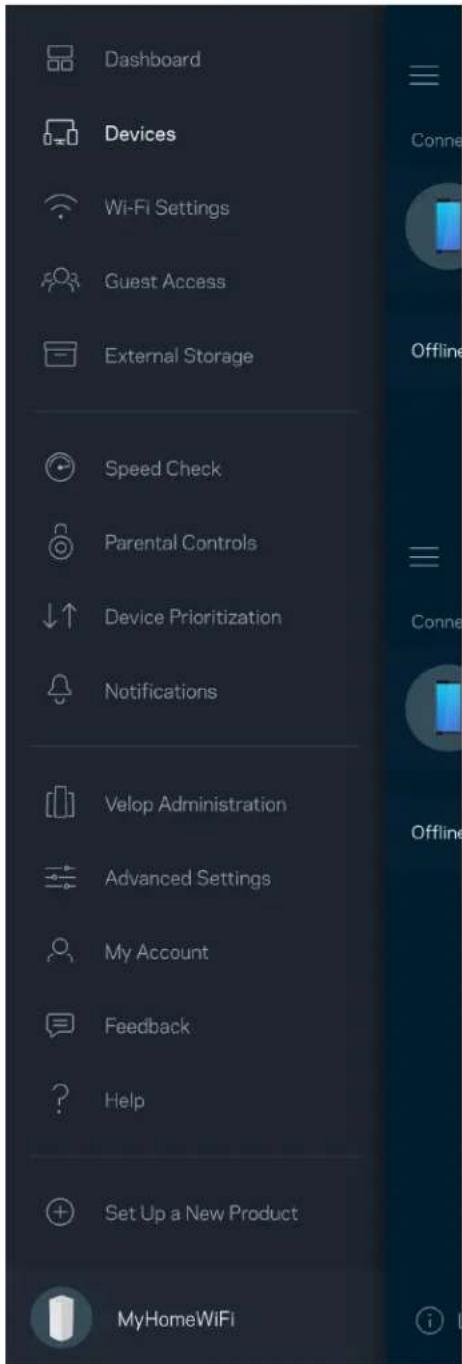
Devices 11
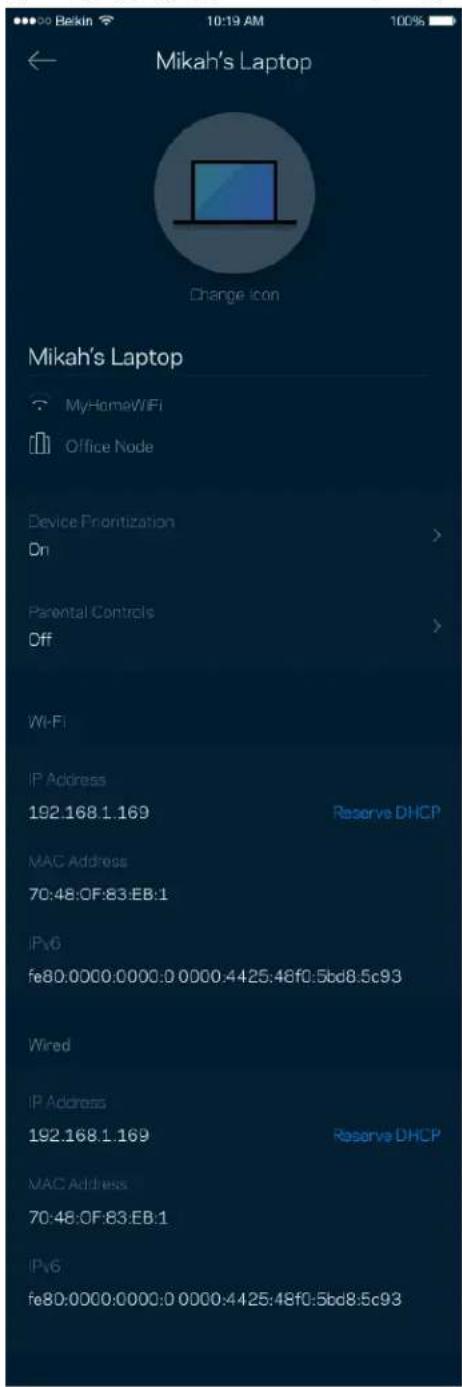
To view or change device details 12
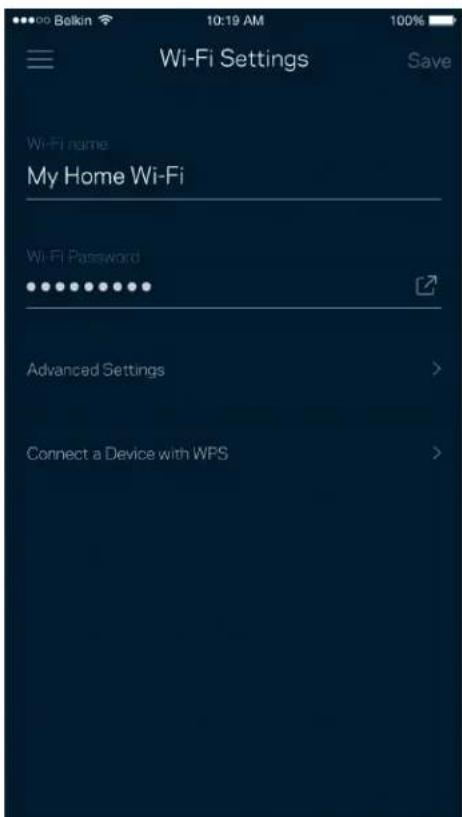
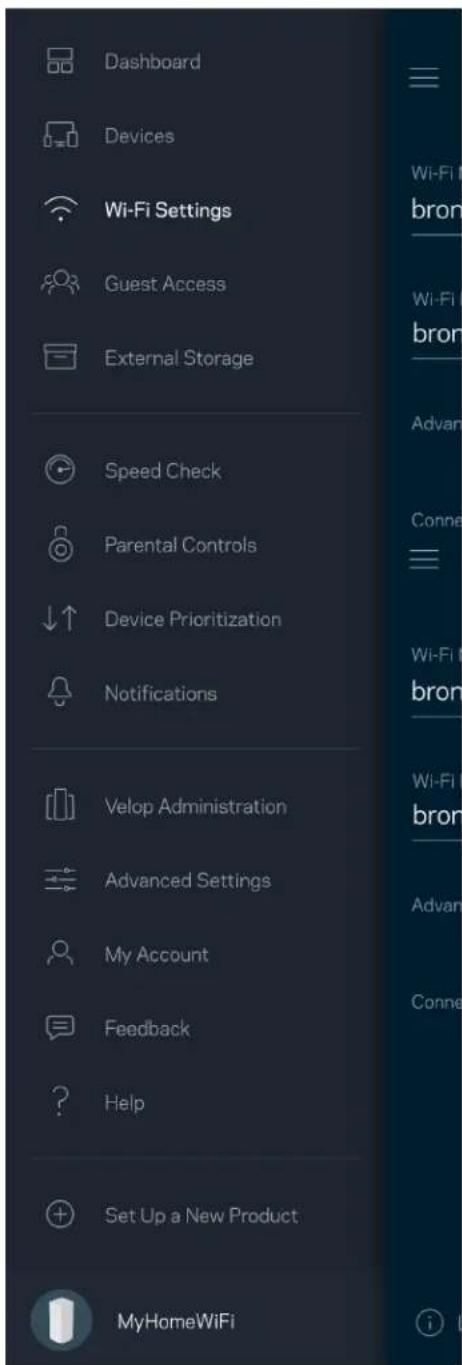
Wi-Fi Settings 13
Advanced Settings 14
Connect a Device with WPS 15
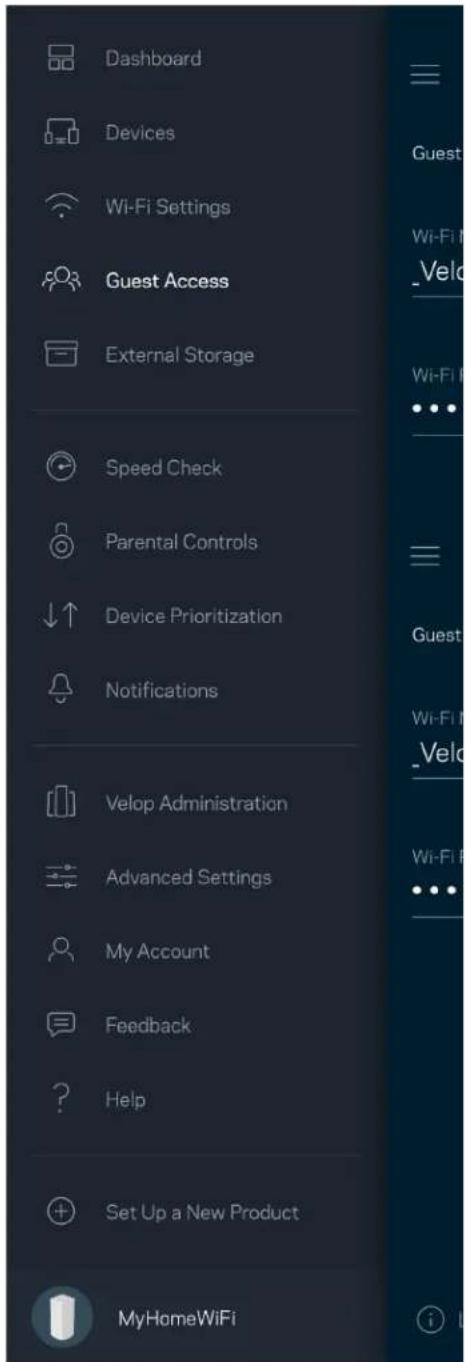
Guest Access 16
External Storage 17
Speed Check 18
Parental Controls 19
Device Prioritization 20
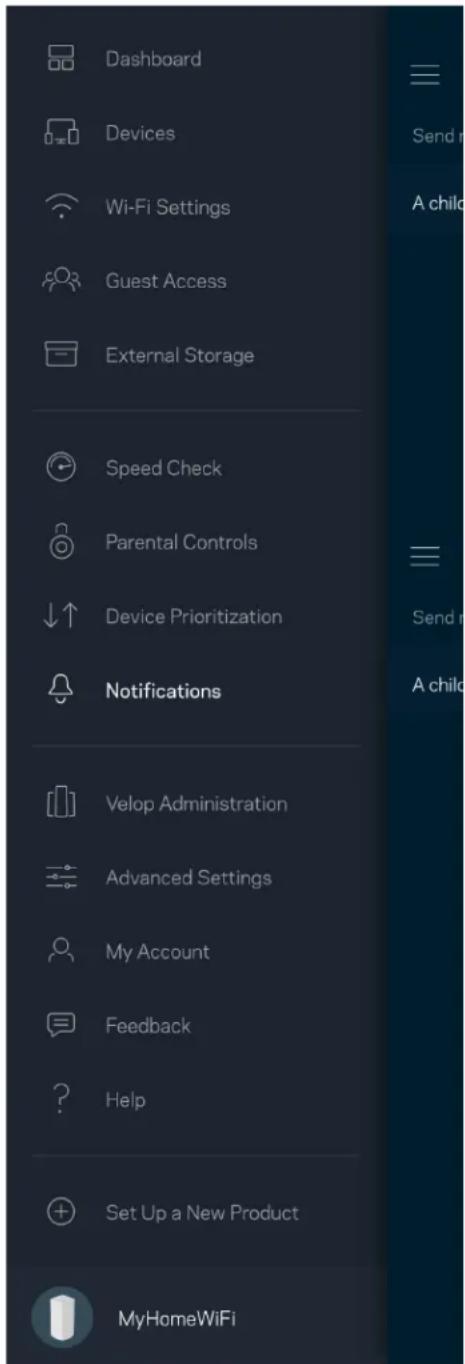
Notifications 21
22
Advanced Settings 24
Internet Settings 24
Port Settings 25
Wi-Fi MAC Filters 26
My Account 27
Feedback 28
Help 29
Connect Directly To Velop 30
Velopadminpassword 31
How to restore factory defaults 32
Specifications 33
Linksys Velop 33
Environmental 33
Product Overview
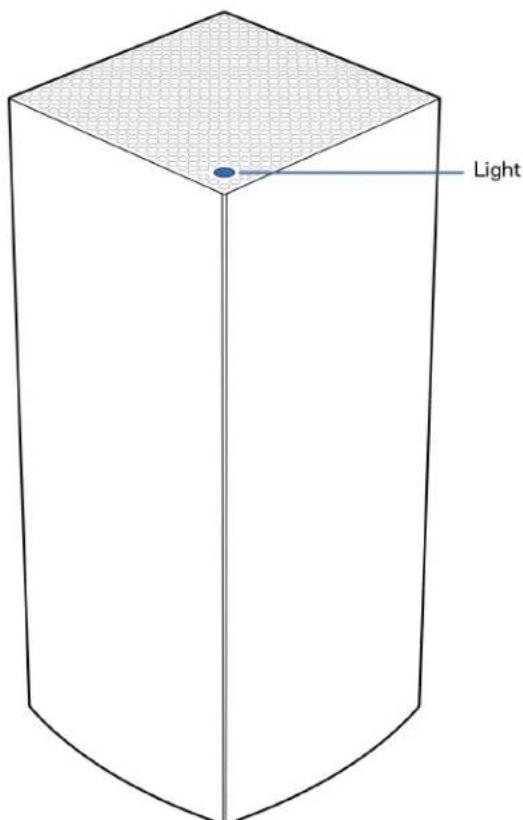
Front/top
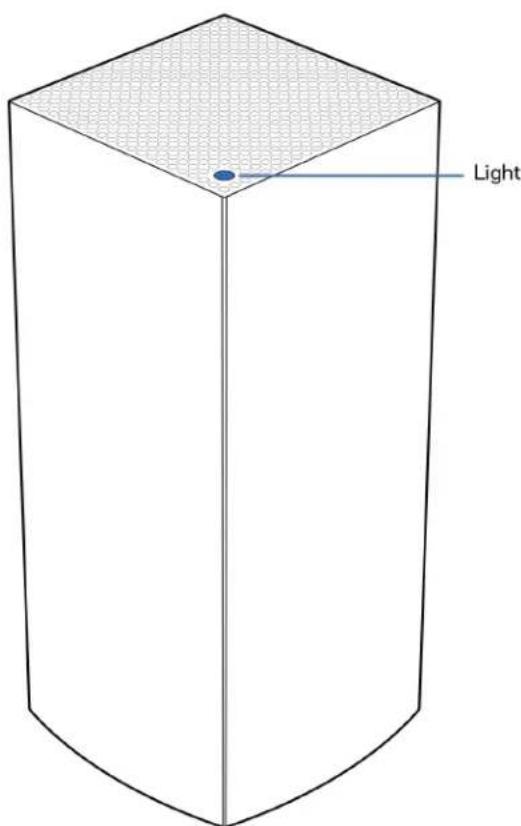
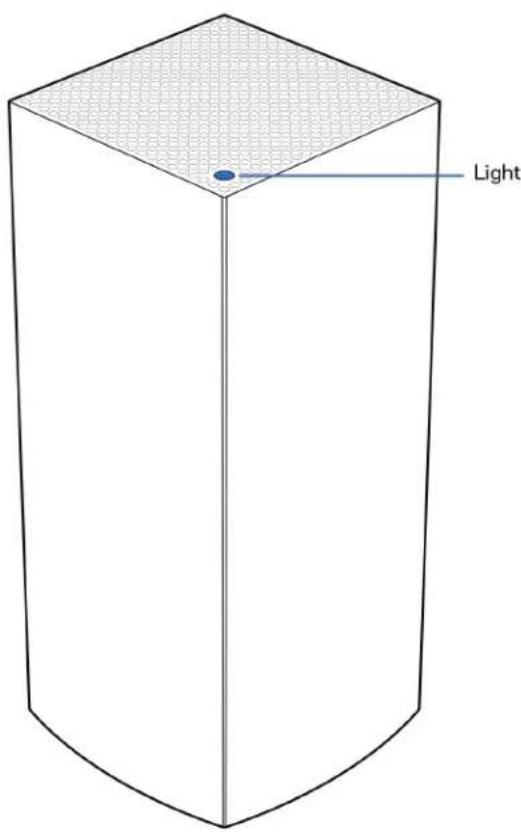
The light on the top of your node gives you information about the node's operation.
| Light status description | |
| Blinking blue Starting up | |
| Solid blue Connected | |
| Blinking purple | Setup in progress |
| Solid purple Ready for setup | |
| Blinking red Disconnected • Child node: too far • Parent node: unplugged from modem | |
| Solid red No internet from the modem | |
| Solid yellow Weak connection • Child node only | |
Back
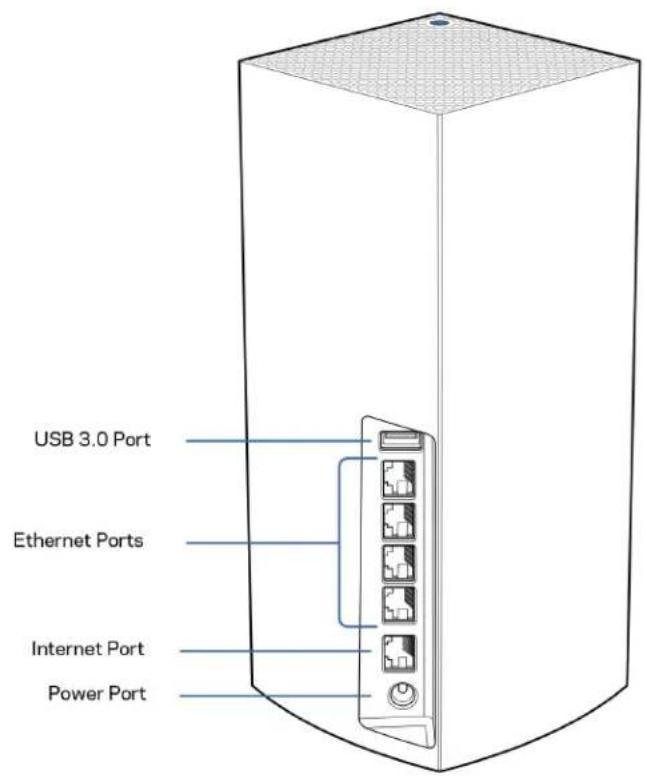
USB 3.0 port—Connect and share USB drives on your network. For local file sharing only (no FTP, media server or virtualUSB support). Also, not intended for sharing peripherals such as printers, scanners or cameras.
Ethernet ports—Connect ethernet cables to these Gigabit ethernet (10/100/1000) ports and to other wired devices on your network. If you have more than one node in your Velop system, use one of these ports to connect to your modem or modem-router.
Note—For best performance, use a CAT5e or higher rated cable on the Ethernet port.
Internet port—Connect an ethernet cable to the yellow gigabit (10/100/1000) port, and to a broadband internet cable/DSL or fiber modem. If you are using this router as a child node in a mesh Wi-Fi system, you can use this port to create a wired connection to another node.
Power port—Connect the included AC power adapter to this port.
Bottom
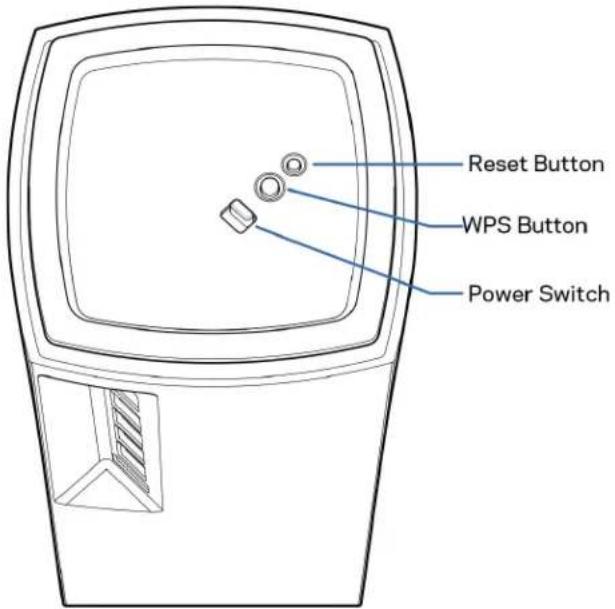
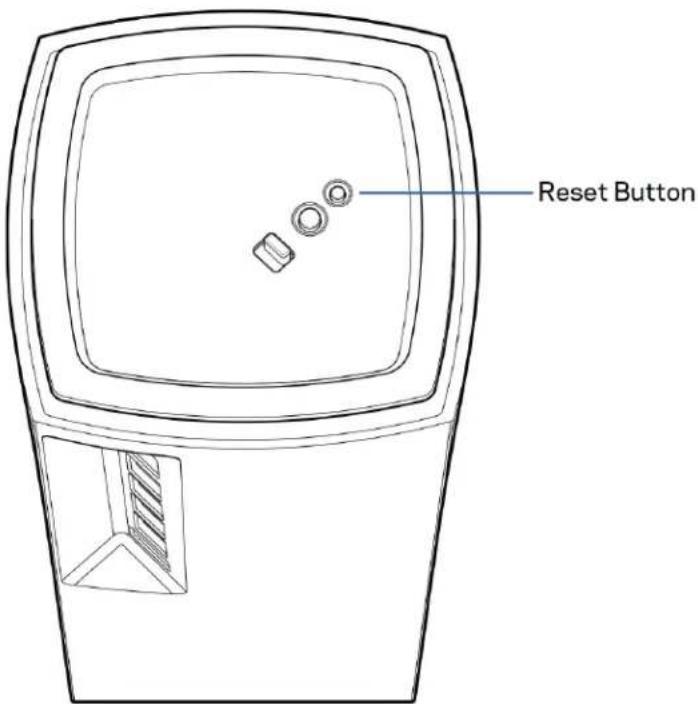
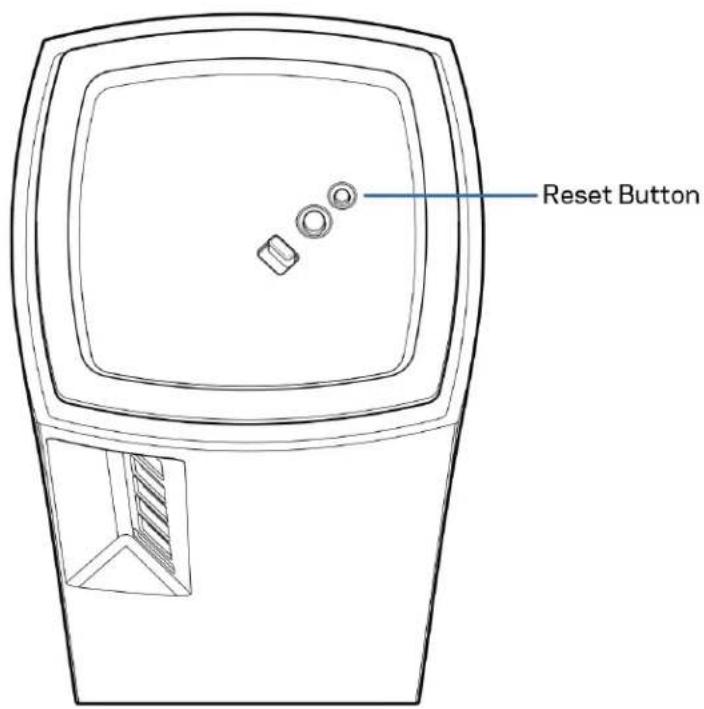
Reset button—Press and hold until the light on top of the node turns red, fades and flashes bright red again to reset the node to its factory defaults.
Wi-Fi Protected Setup button—Press to connect WPS-enabled network devices.
Power switch—Slide to | (on) to power on the node.
Help
Where to find more help
- Linksys.com/support/Velop
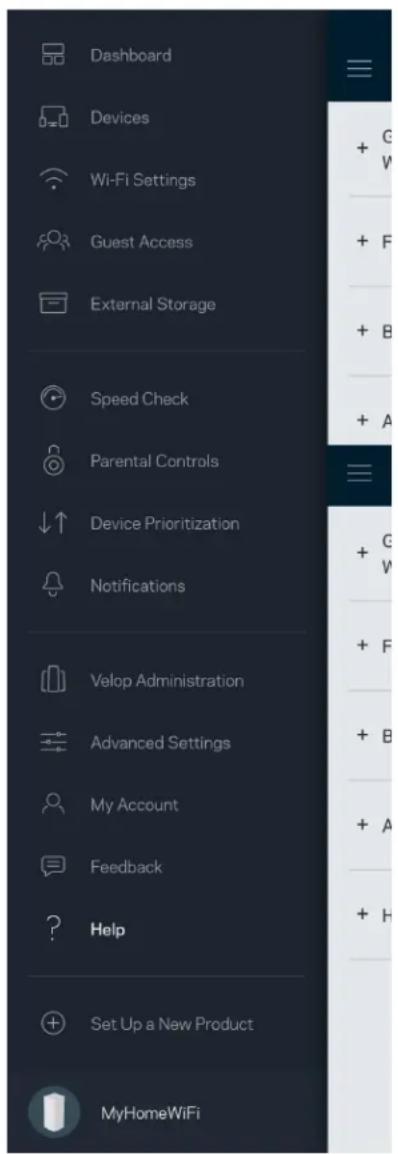
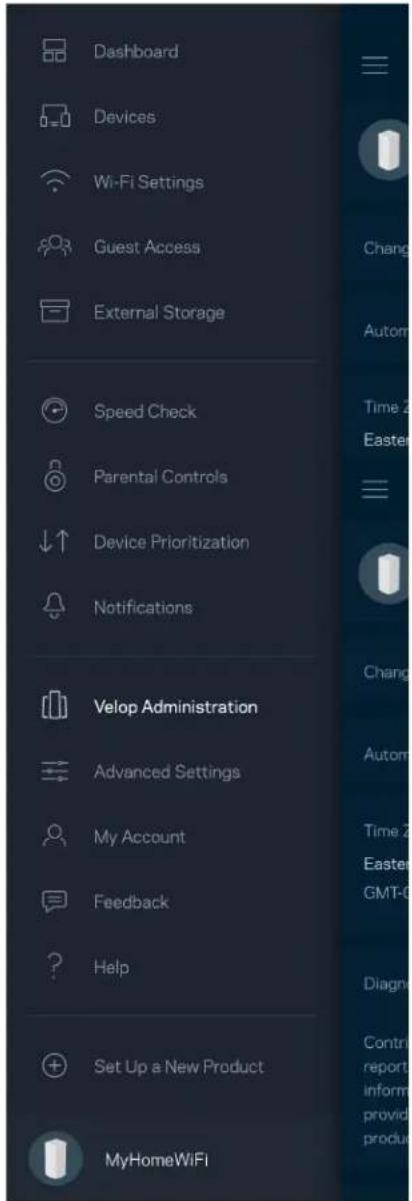
- Linksys app help (launch the app and click Help in the main navigation menu)
Note—Licenses and notices for third party software used in this product may be viewed on http://supportlinksys.com/en-us/license. Please contact http://supportlinksys.com/en-us/gplcodecenter for questions or GPL source code requests.
Set Up
IMPORTANT—Velop nodes can be set up as primary nodes or child nodes. A primary node must be connected with an ethernet cable to your modem or modem router. Once set up wirelessly, secondary nodes can be connected to another node wirelessly or with ethernet cables.
If you are adding this new node as parent node to an existing Velop whole home mesh Wi-Fi system, factory reset all nodes and add them to the system after the new node is setup and working.
Download the Linksys app. You need this app to set up Velop.
Go to the app store for your device and search for Linksys.

Install the app, open it and follow the instructions.
Note—The app works with iOS 11.4 and later, and Android 6 and later.
You will create a Linksys Smart Wi-Fi account so you can use the app to view or change your Velop system settings from anywhere you have an internet connection.
Among the many things you can do with Linksys Smart Wi-Fi:
- Change your Wi-Fi name and password
- Set up guest access
- Connect devices to Wi-Fi with WPS
- Block internet with parental controls
Test your internet connection speed
Note—During setup we'll send a verification email. From your home network, click the link in the email.
Other than plugging in the power and the ethernet cable, the app-based setup process does the work for you. Once connected, use the app to personalize your Wi-Fi by giving it a name and password. You also can give nodes names based on where they are so you can identify them in the rare case where things need attention.
Print this page, then record your Wi-Fi and account settings in the table as a reference. Store your notes in a safe place.
| Wi-Fi Name | |
| Wi-Fi Password | |
| Admin Password | |
| Guest Access Name | |
| Guest Access Password | |
| Linksys App Login Email | |
| Linksys App Password |
Velop System Settings
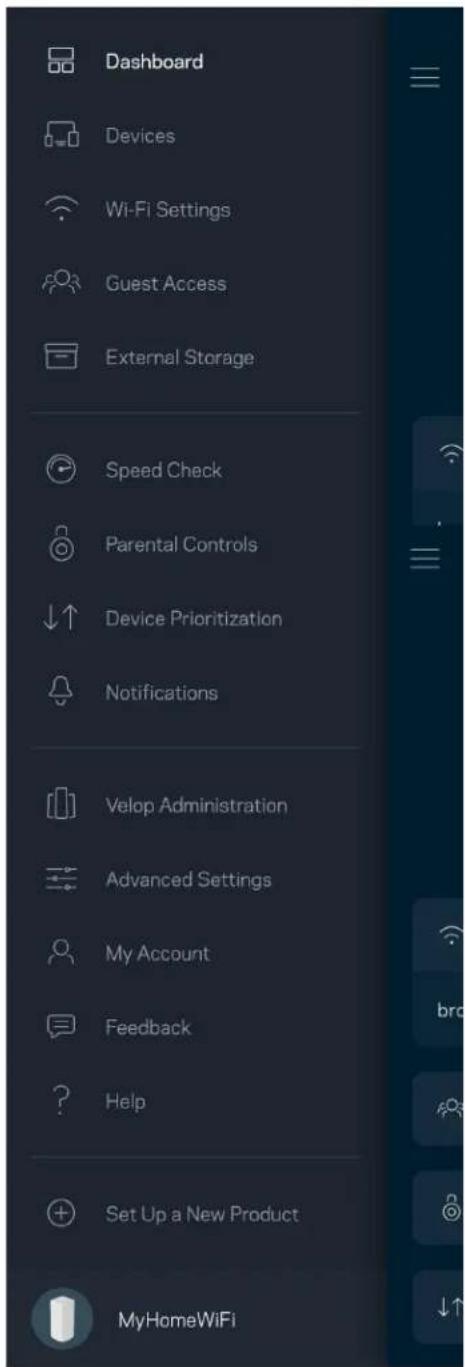
Using your Linksys app, you can view or change Velop system settings to make your Wi-Fi more secure or to work better with a device or game. You can access settings from anywhere in the world if you have an internet connection. You can also access settings using your router password when connected to your home network even if you do not have an internet connection.
Log in to the Linksys app
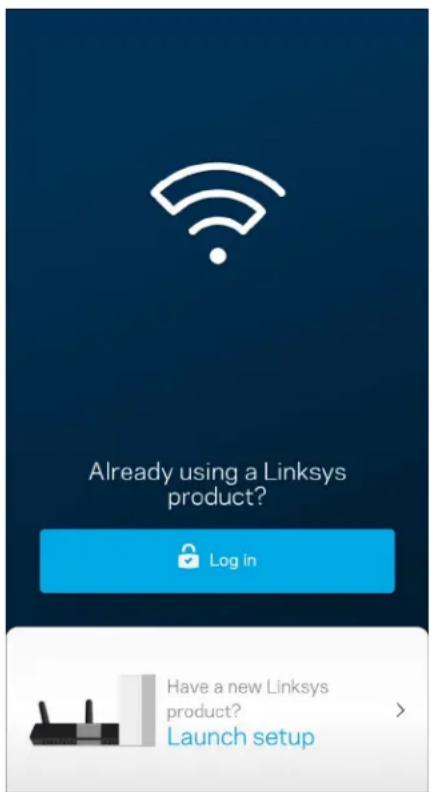
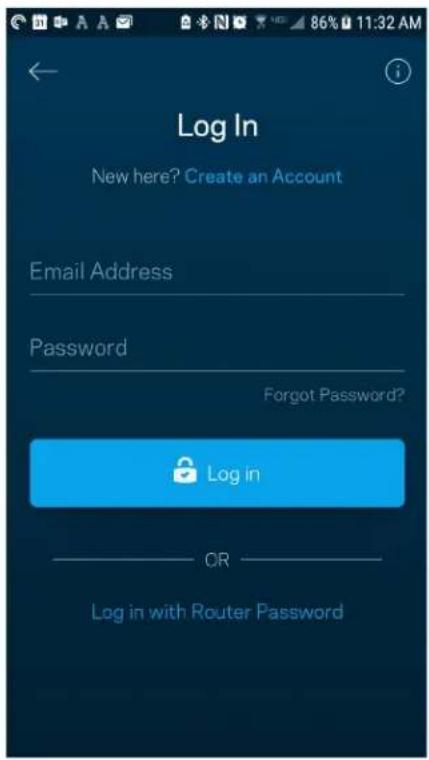
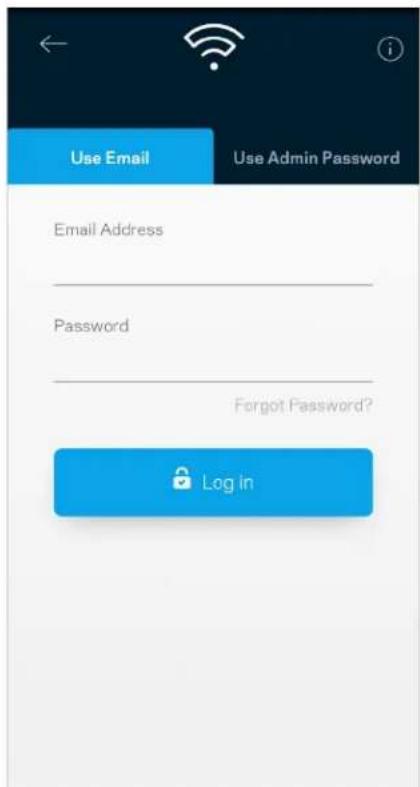
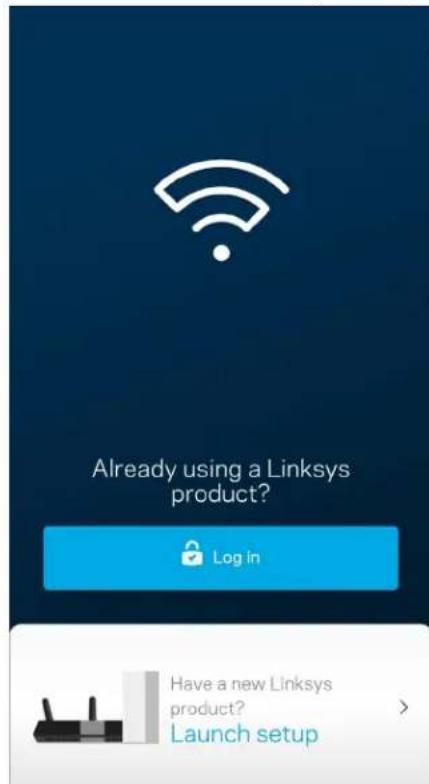
1. Open the Linksys app.
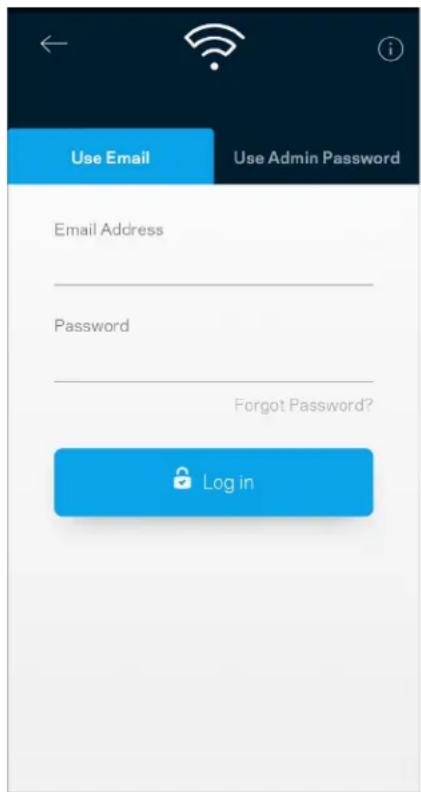
- Enter the email address you used when creating your account.
- Enter your account password.
- Tap Log in.
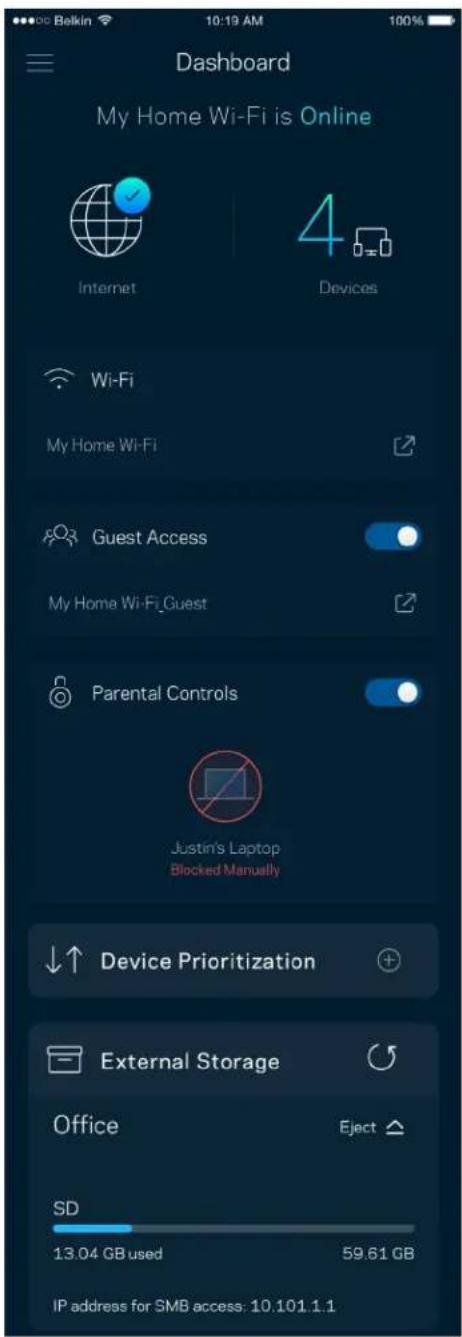
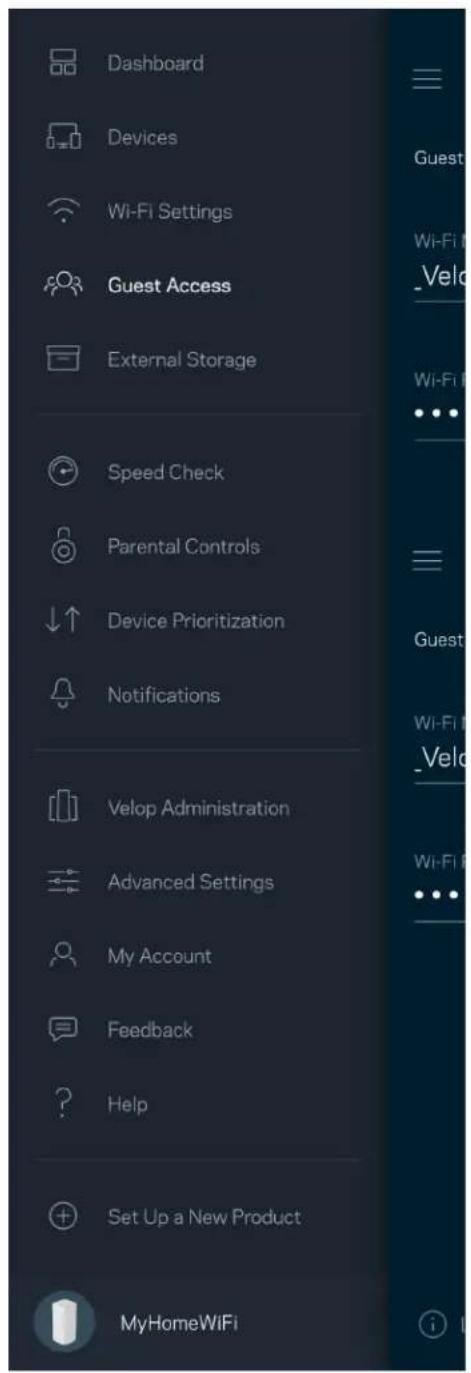
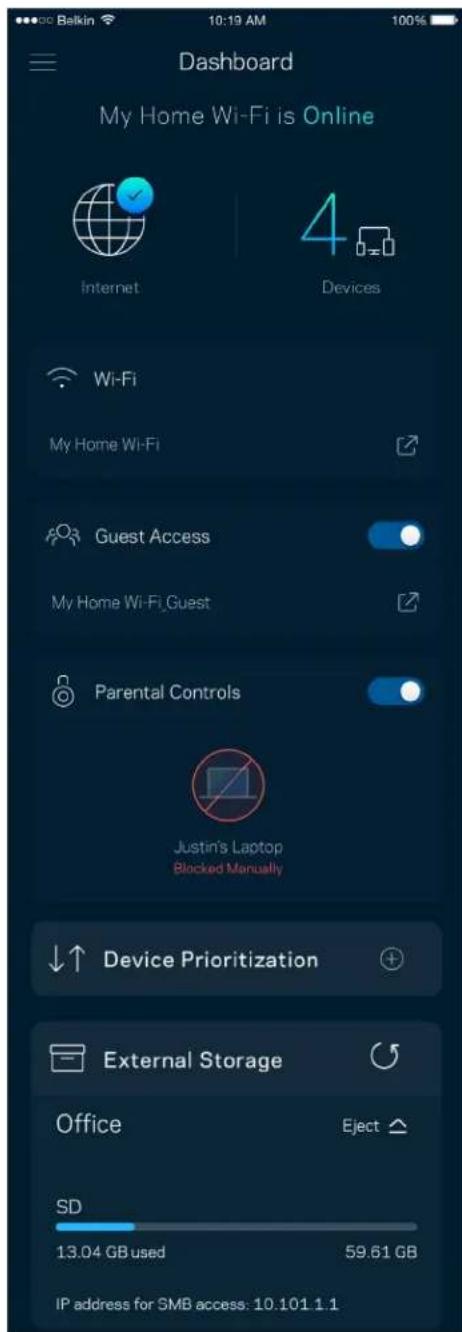
Dashboard
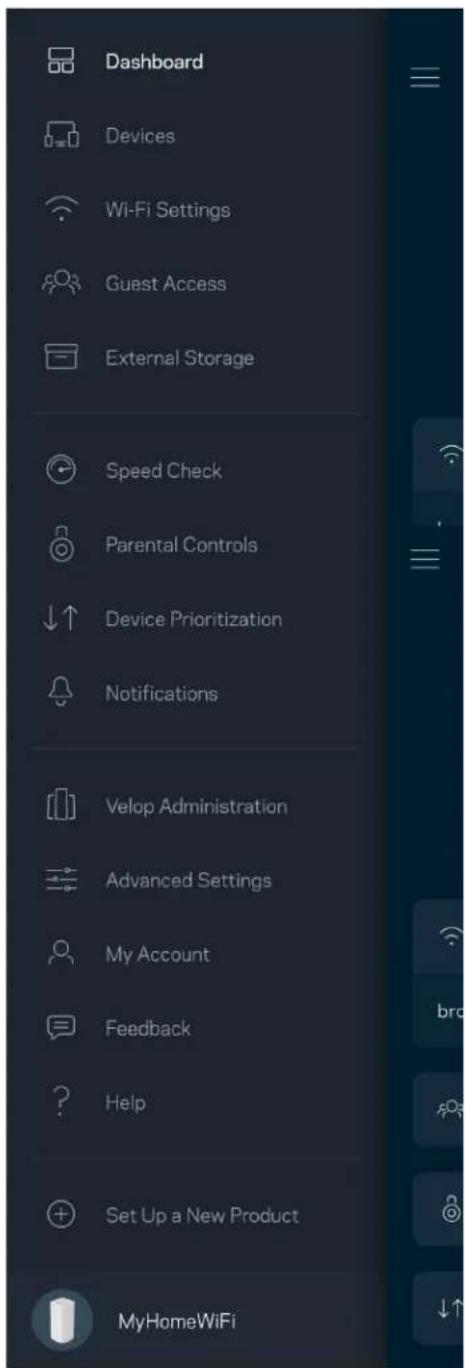
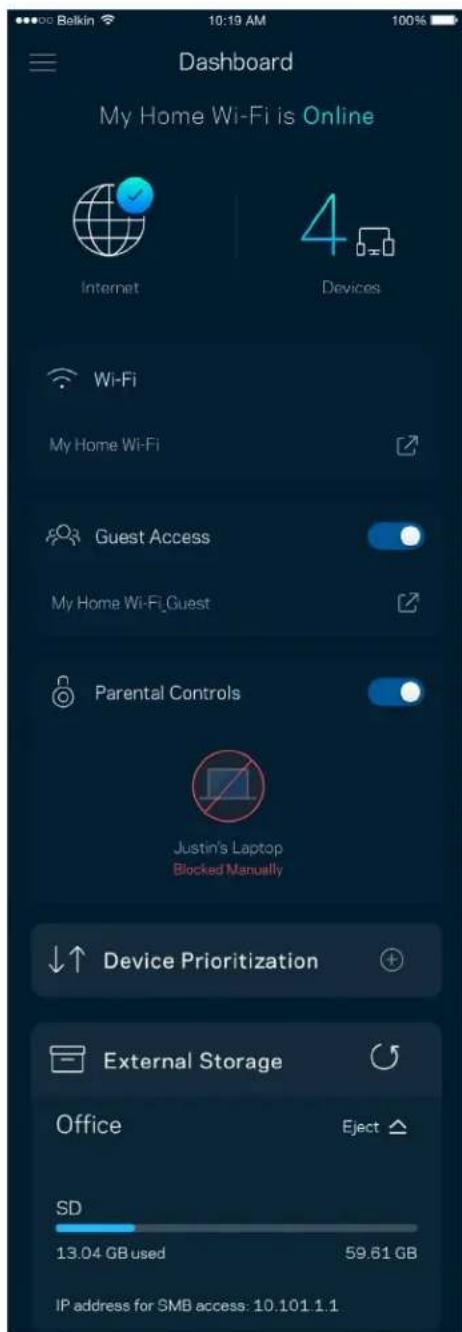
- Dashboard is a snapshot of your Wi-Fi. See how many devices are connected to your Velop system.
- Share Wi-Fi password and allow guest access to your Wi-Fi. Dashboard also shows you if any devices have parental controls on them or have been prioritized for Wi-Fi access.
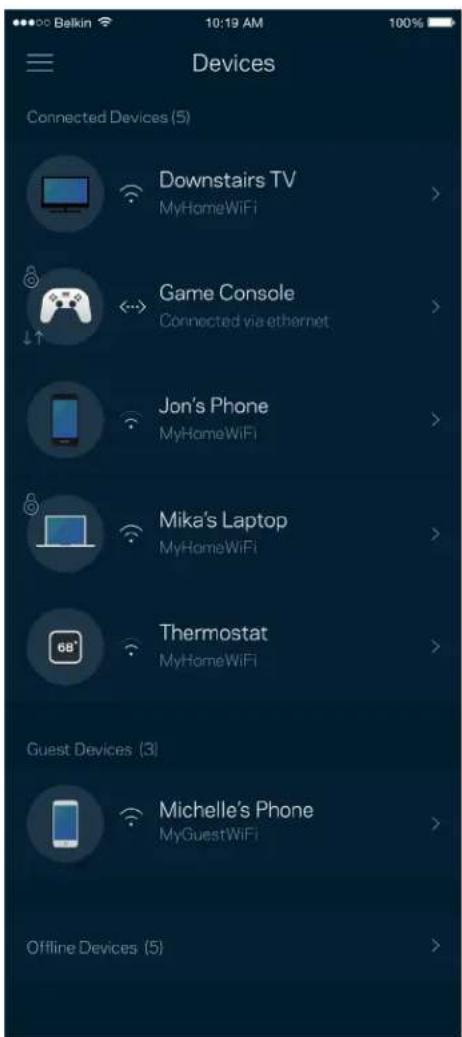
Devices
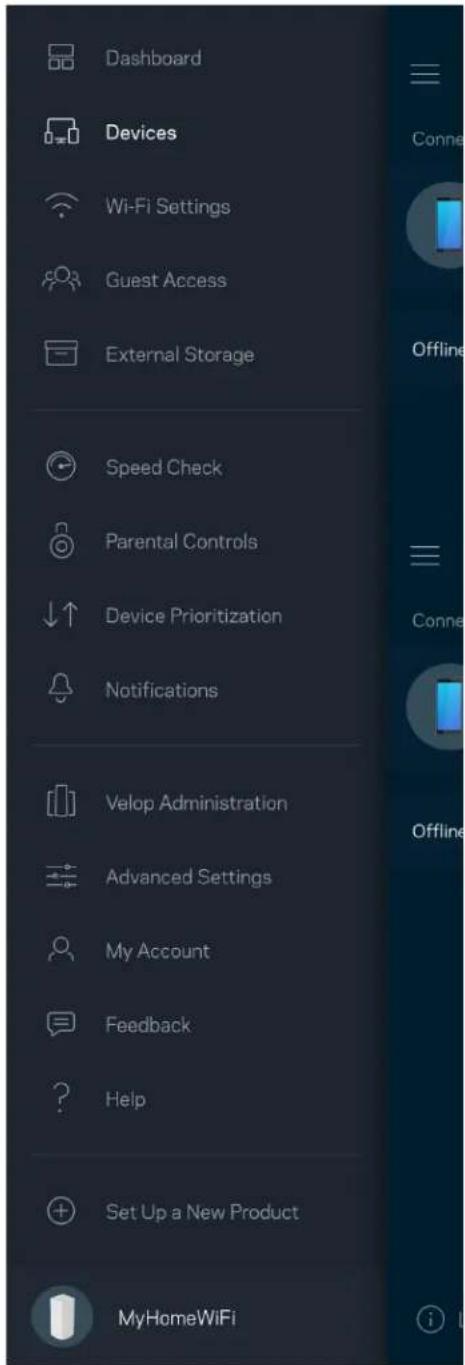
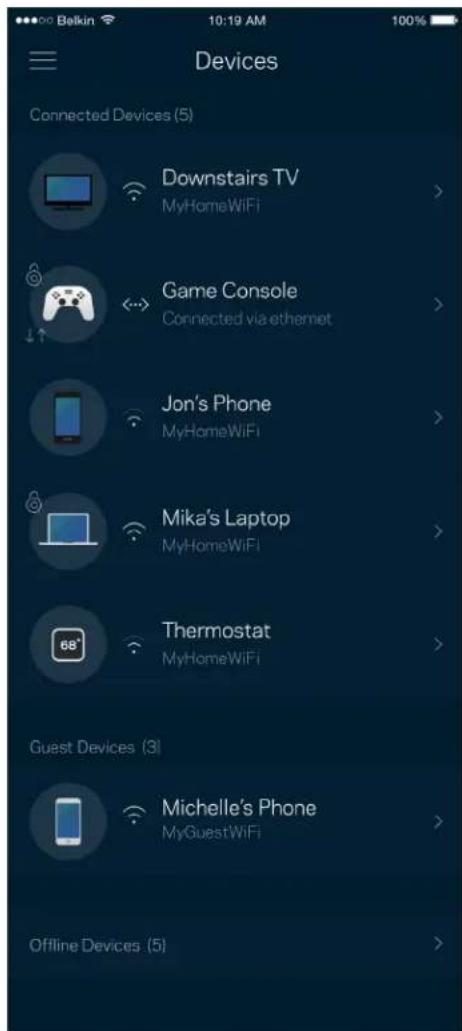
View and change details for all devices connected to your Wi-Fi. You can view devices on your main network and your guest network, or display information about each device.
To view or change device details
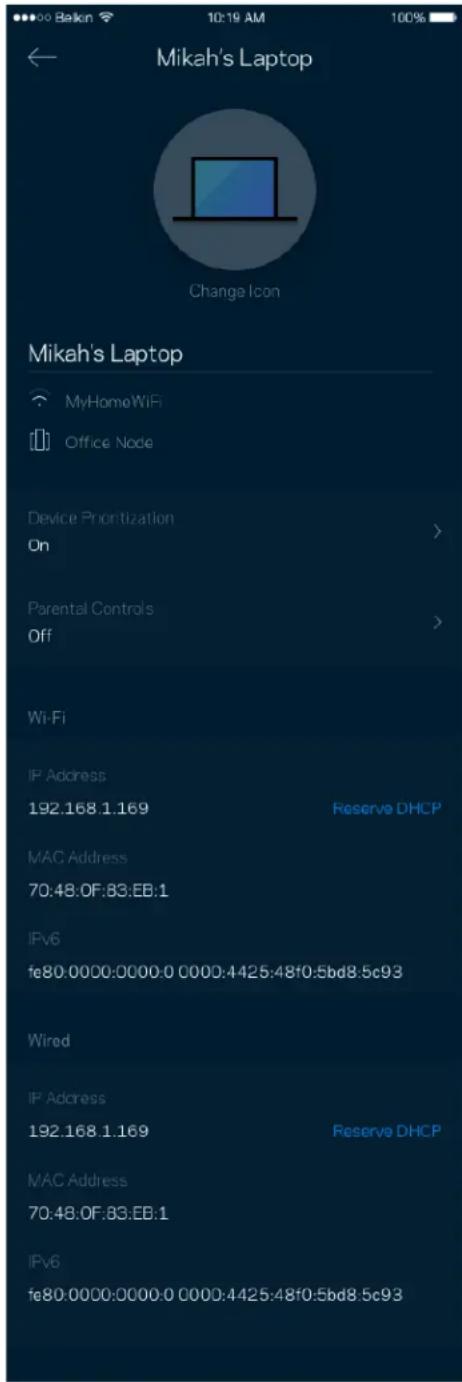
From the Devices screen you can edit device names and change the device icons. You also can prioritize devices, set parental controls, and see Wi-Fi details. Tap on any device to see details.
Wi-Fi Settings
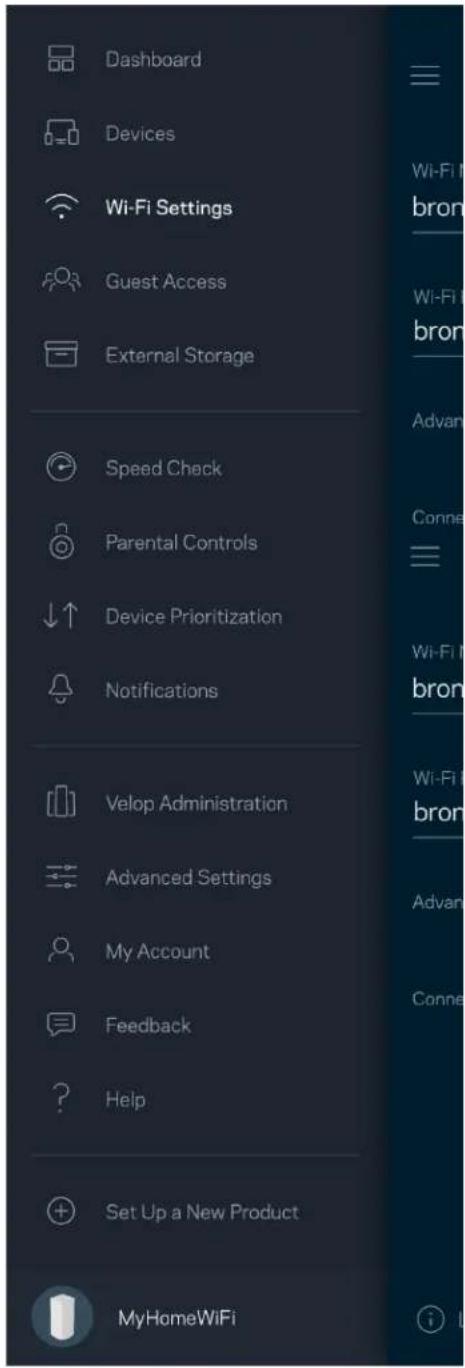
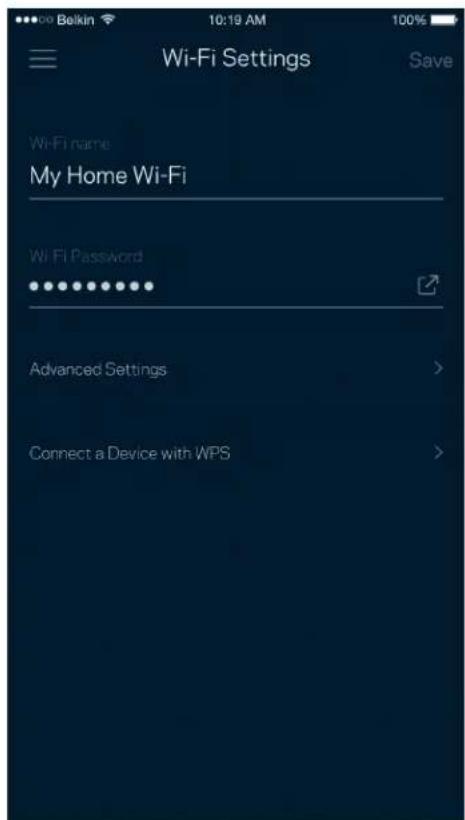
View or change your Wi-Fi name and password and connect devices using Wi-Fi Protected Setup™.
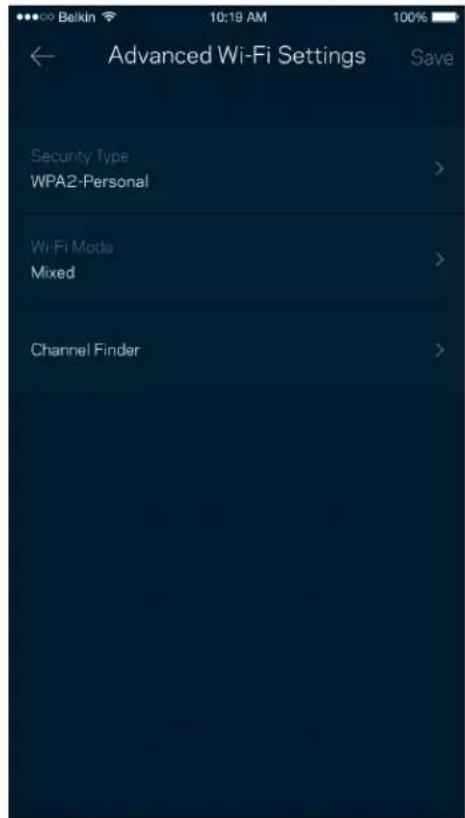
Advanced Settings
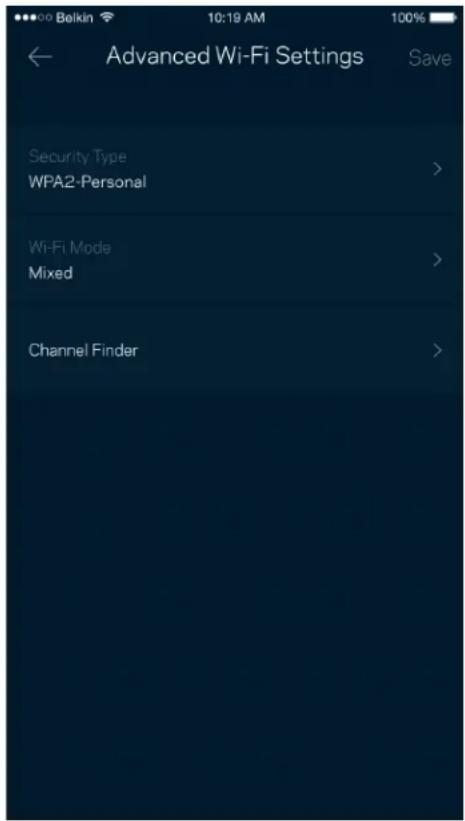
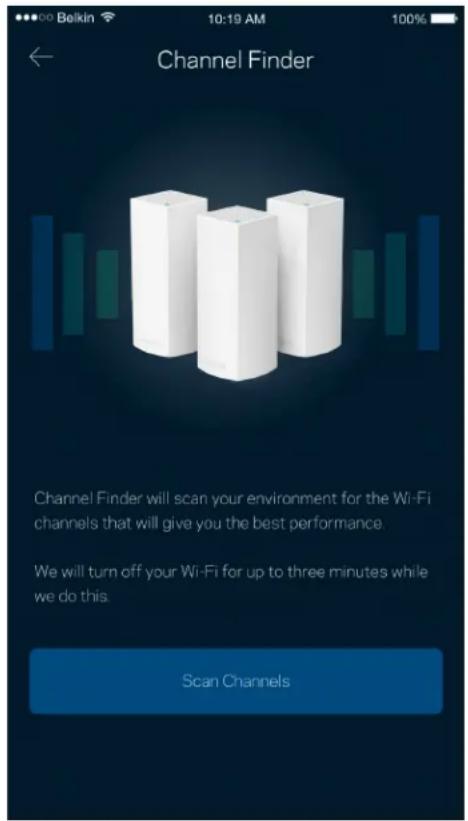
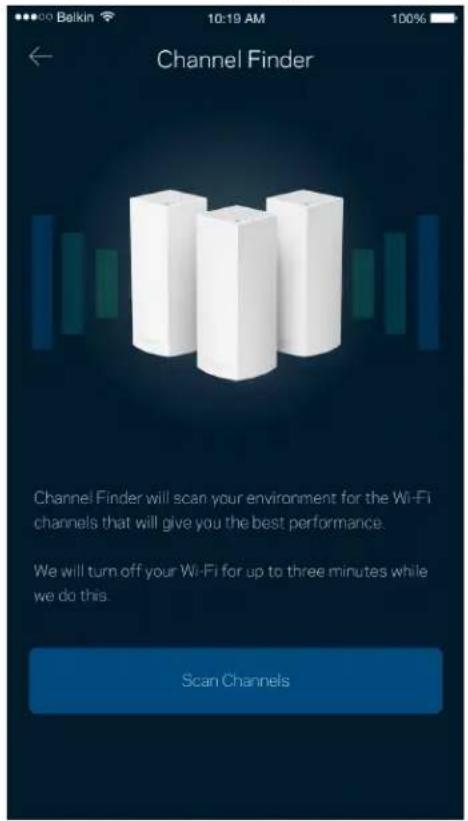
Advanced users can change the default security type and Wi-Fi mode. Do not change these unless you have a lot of experience with Wi-Fi networks. Channel Finder will search for the most-open Wi-Fi channels in your area to ensure you get the best performance from your Velop system. If you have more than one node in your Velop system, Channel Finder will find the best channel for each node.
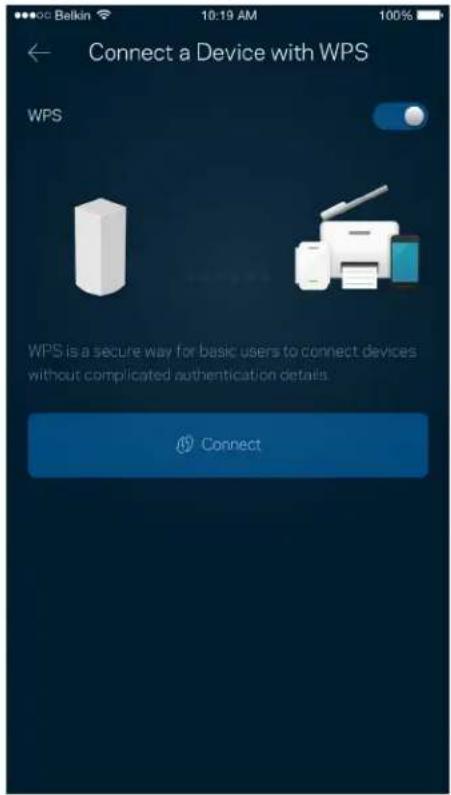
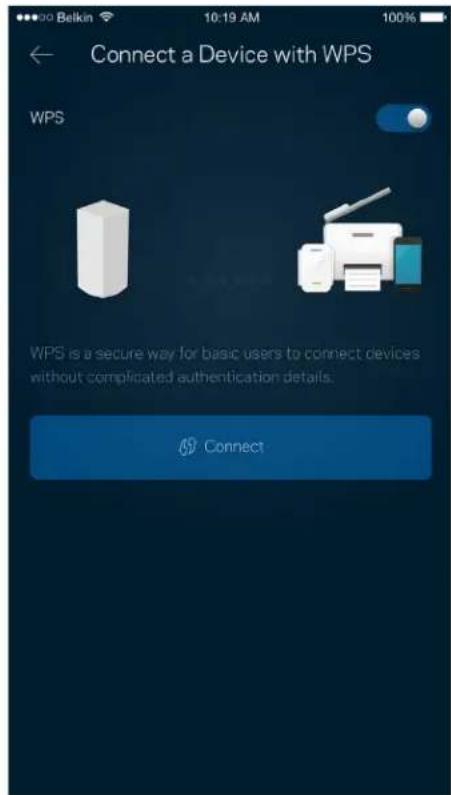
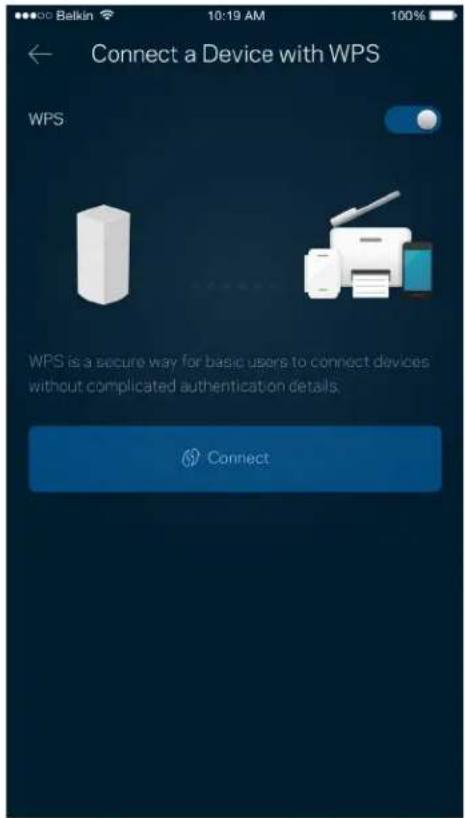
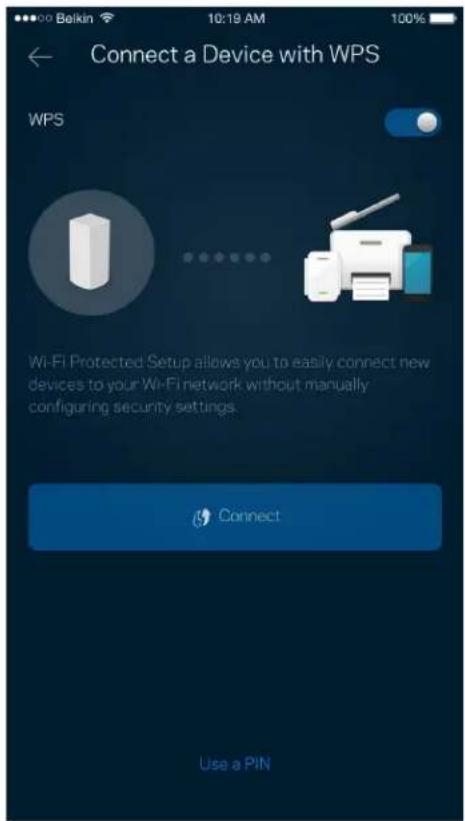
Connect a Device with WPS
Wi-Fi Protected Setup allows you to easily connect wireless devices to your Wi-Fi without manually entering security settings.
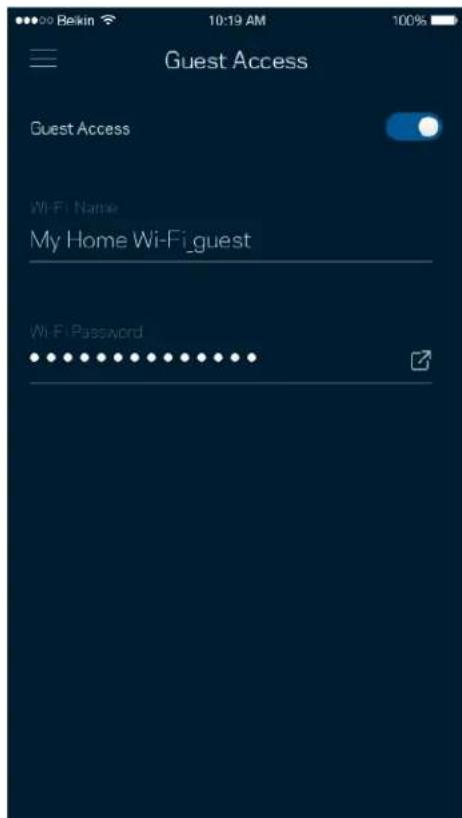
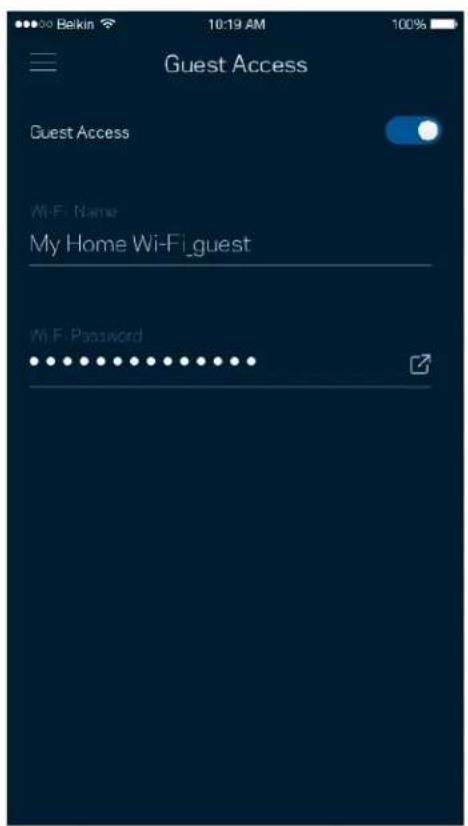
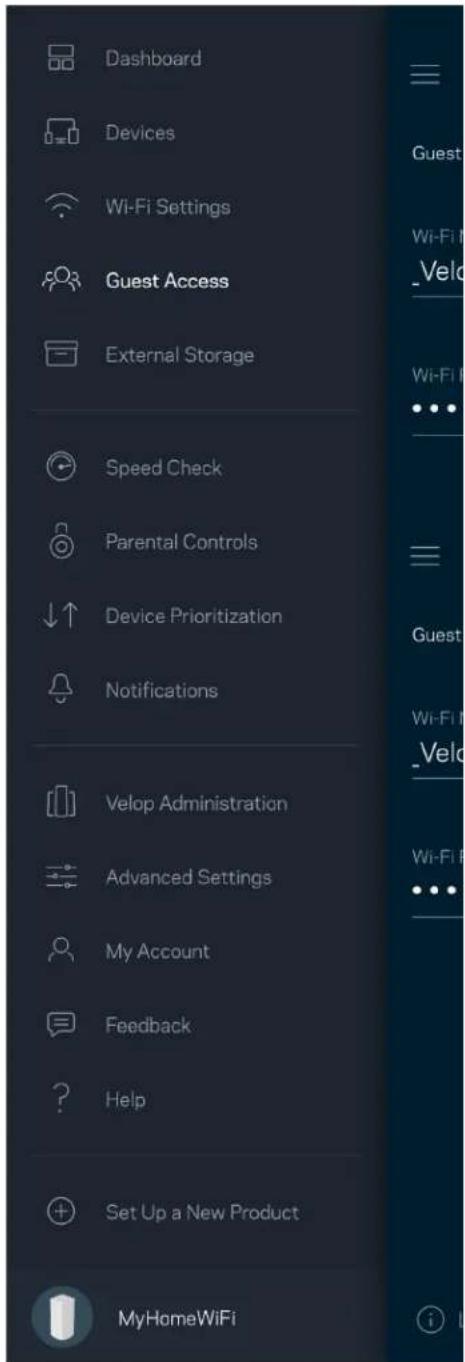
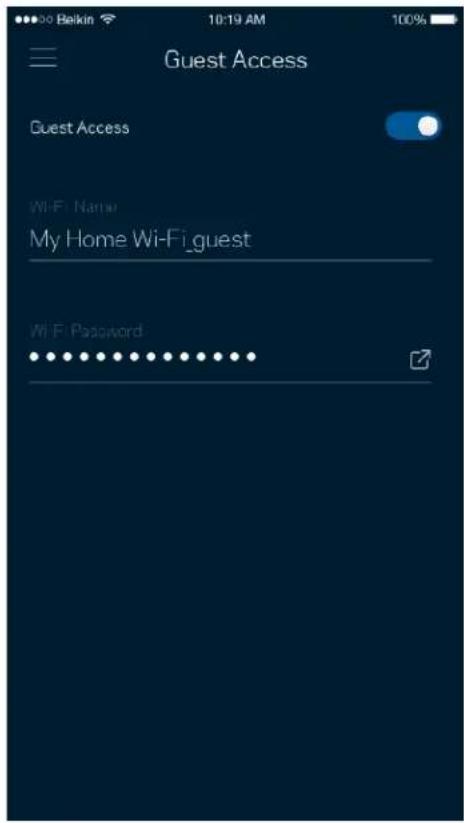
Guest Access
Use your Guest Access to allow guests to get online while restricting their access to other resources connected to your Wi-Fi. Send the password by text message or email.
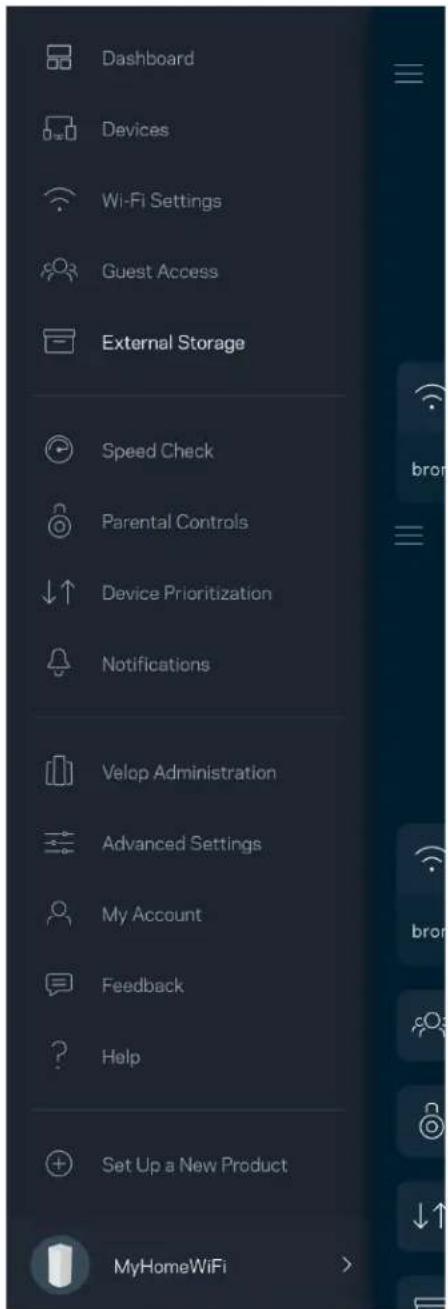
External Storage
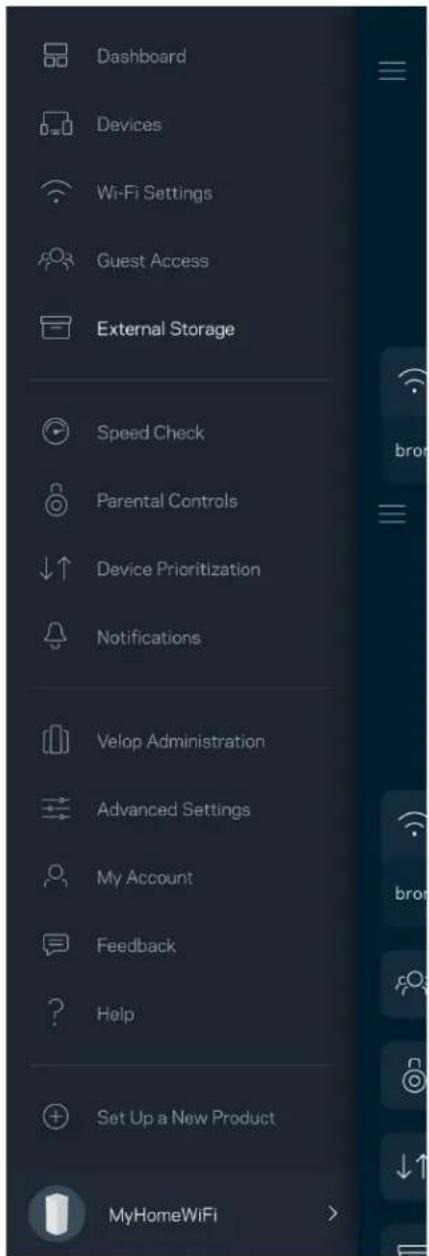
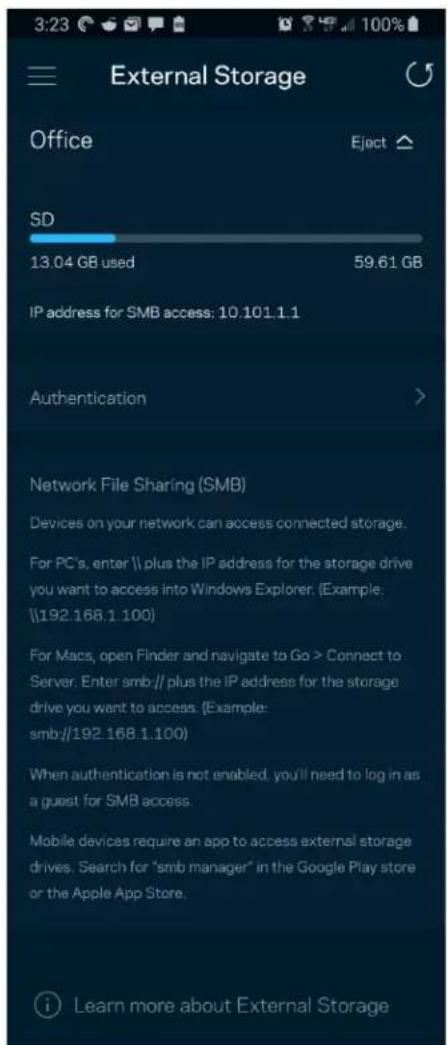
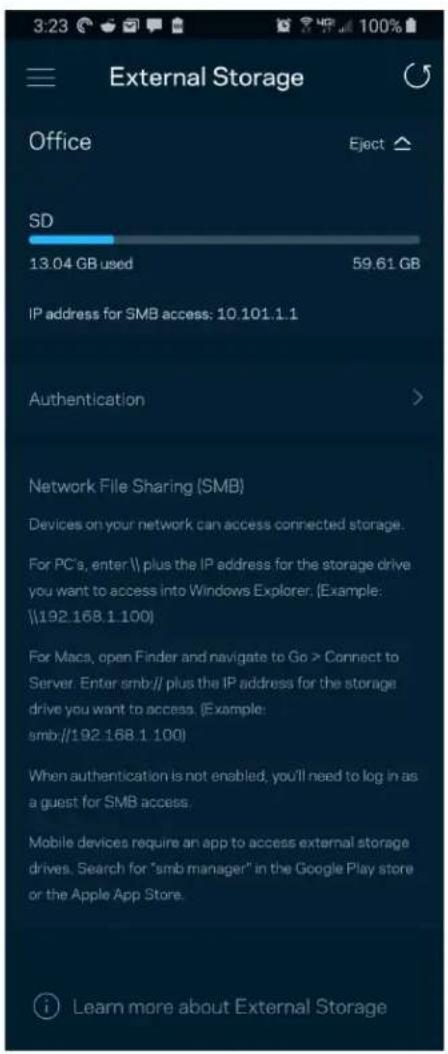
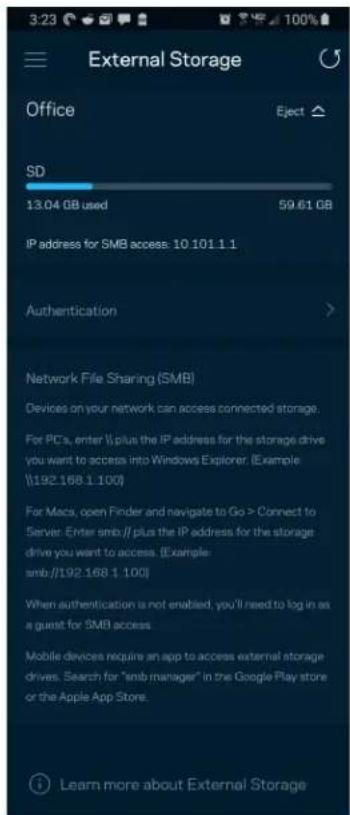
See which node an external drive is connected to, check the amount of free space left, and enable authentication by setting a username and password. (Only when a drive is plugged in to a node's USB port.) Be sure to tap Eject before removing a drive to avoid losing data.
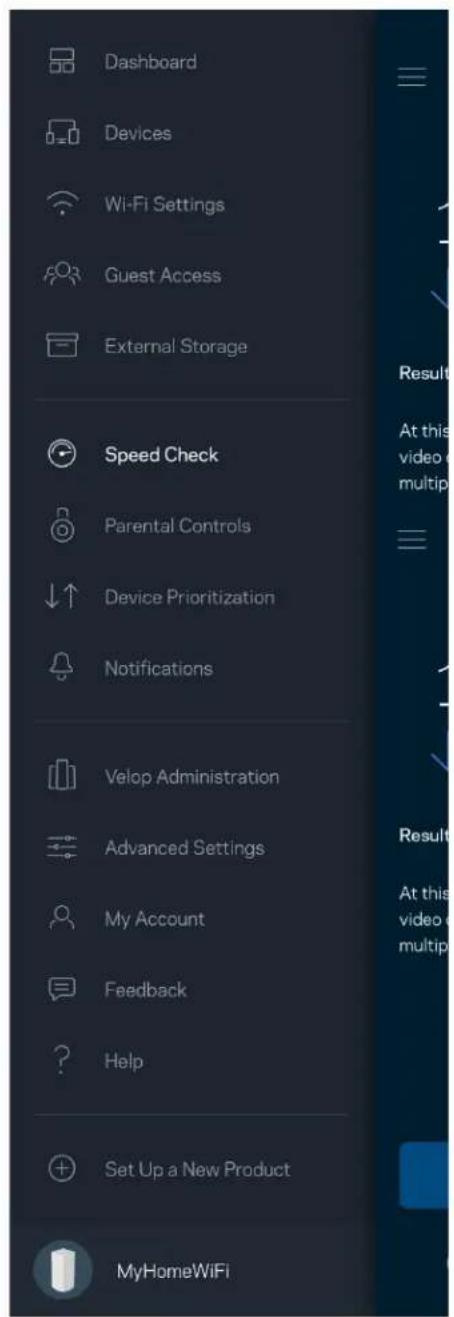
Speed Check
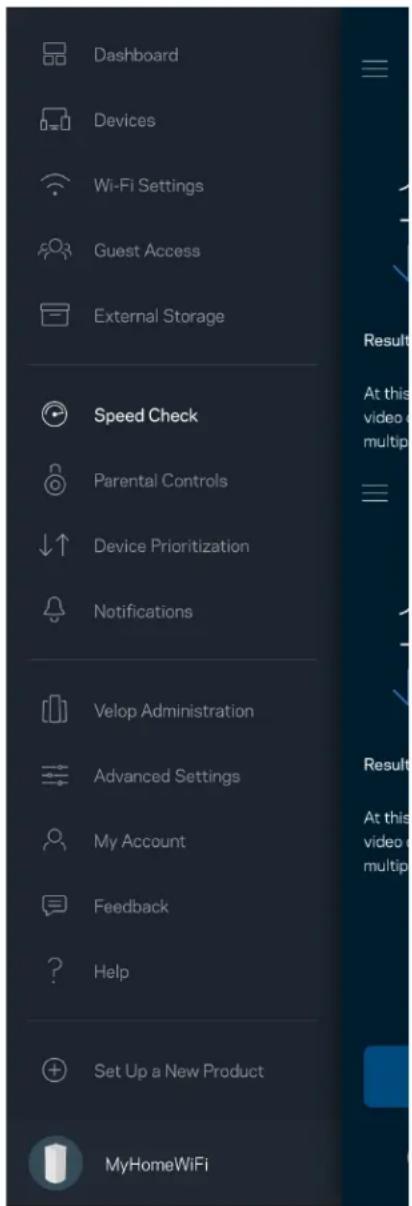
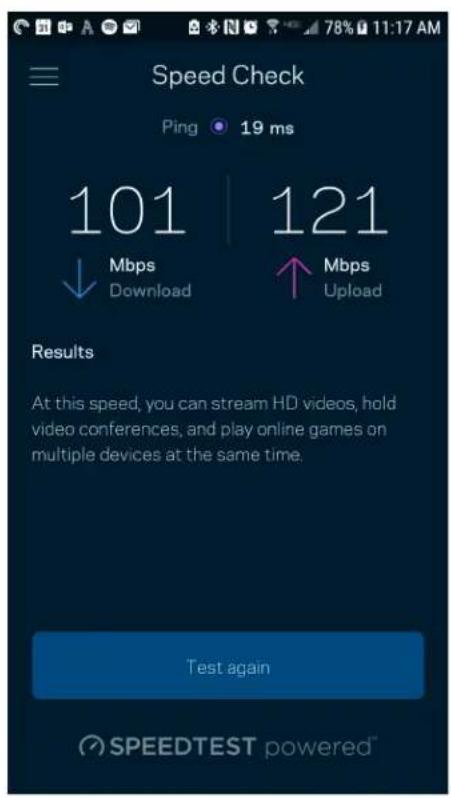
Run a speed check to make sure you are getting the speeds you are paying for. Speed check also helps in Device Prioritization because results determine how Wi-Fi is distributed to the prioritized devices.
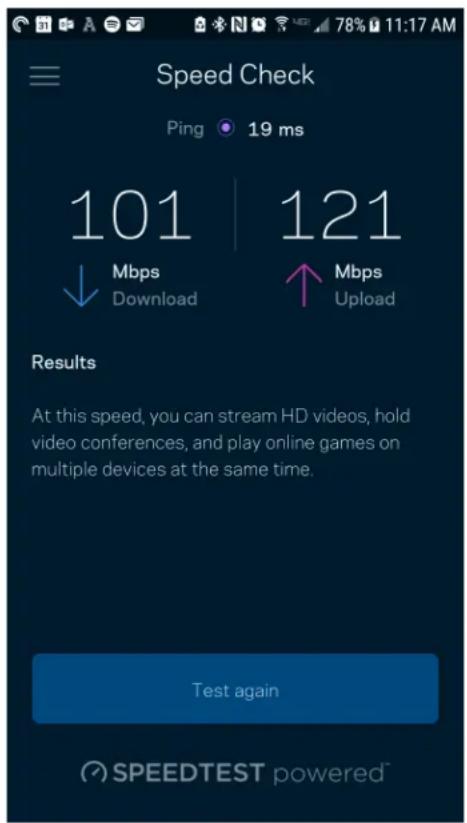
Download speed is the rate at which internet content is transferred to your Velop system.
- Upload speed is the rate at which you can upload content to the internet.
Note—Internet connection speeds are determined by a variety of factors, including ISP account type, local and worldwide internet traffic, and number of devices in your home that are sharing the internet connection.
Parental Controls
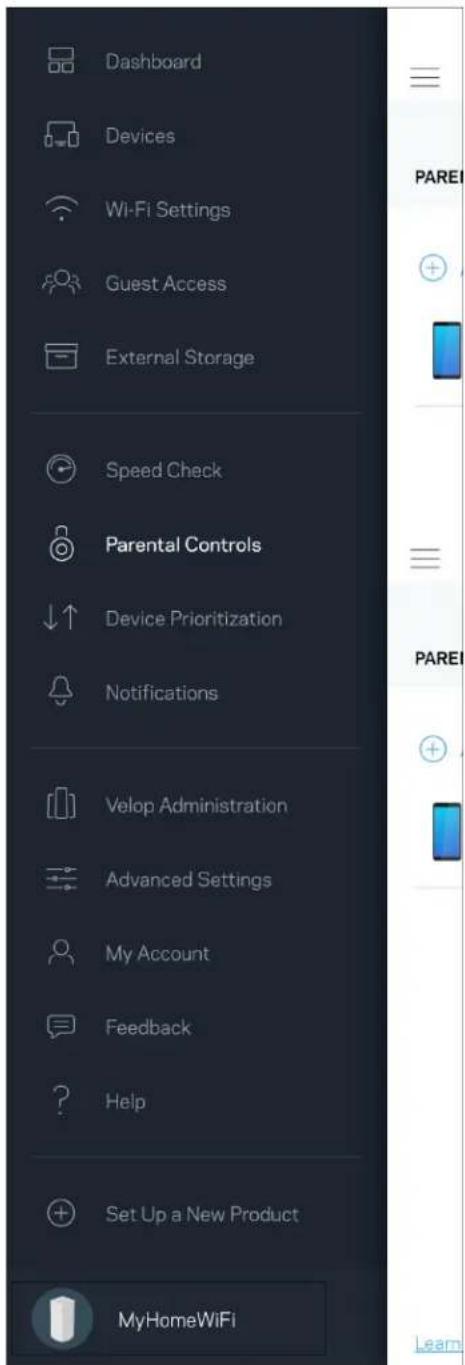
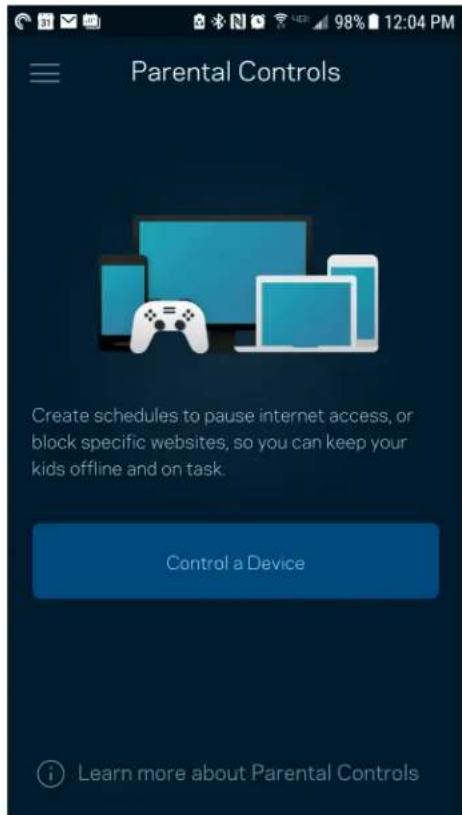
Parental controls allow you to control when your kids are online and what they're doing there. Pause internet to specific devices, or block specific websites.
Device Prioritization
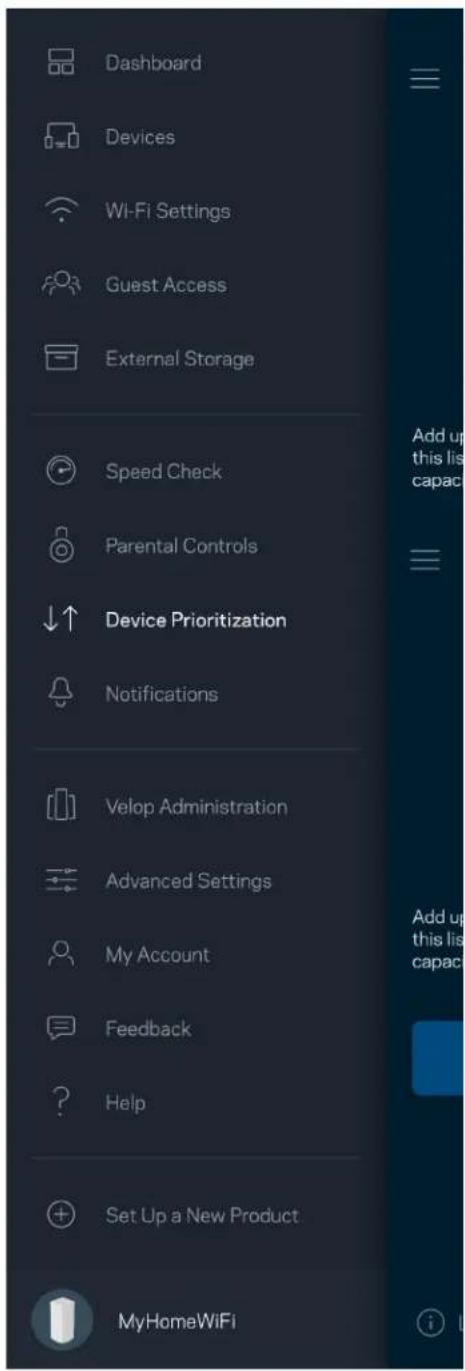
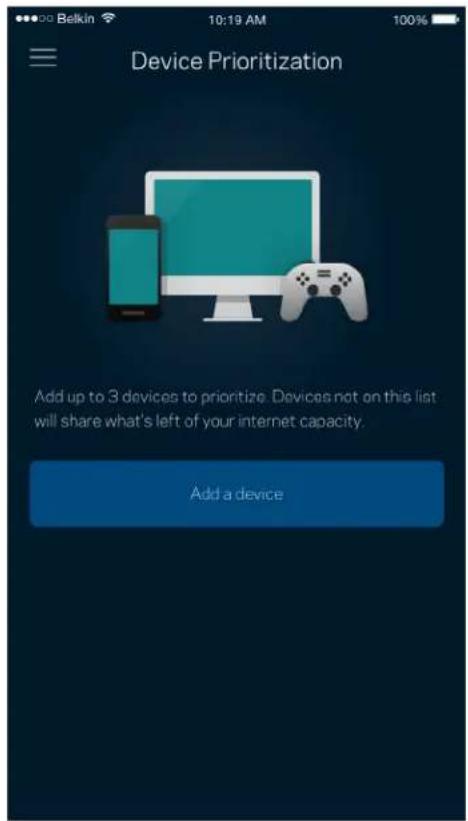
Choose up to three devices for priority usage of your internet connection. Those devices - wired and/or wireless - always will have the best access when connected. Velop runs a speed check to determine how to best distribute Wi-Fi to prioritized devices. Other devices will share the leftover capacity. Prioritized devices appear on Dashboard.
Notifications
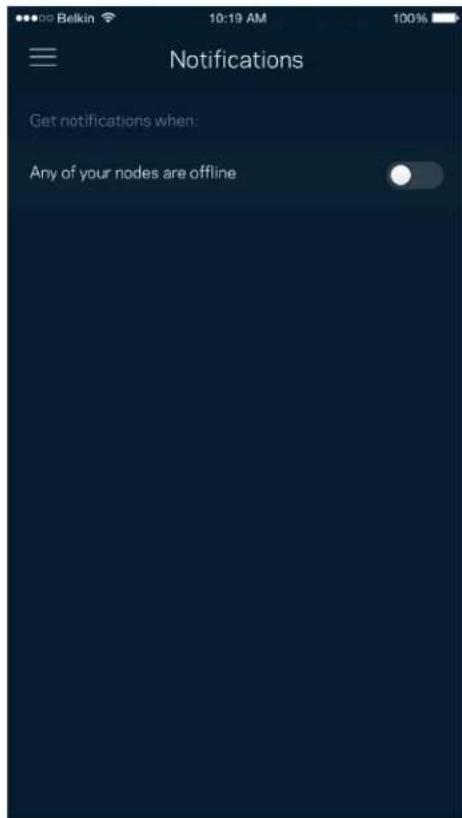
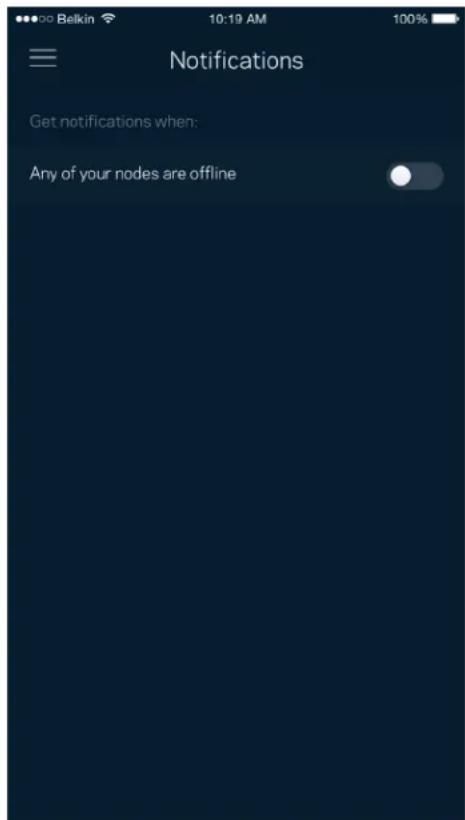
If you have more than one node, Velop can notify you when secondary nodes in your system go offline. Secondary nodes are any that are not wired to your modem. You have to turn on notifications in your mobile device settings to allow Velop to notify you.
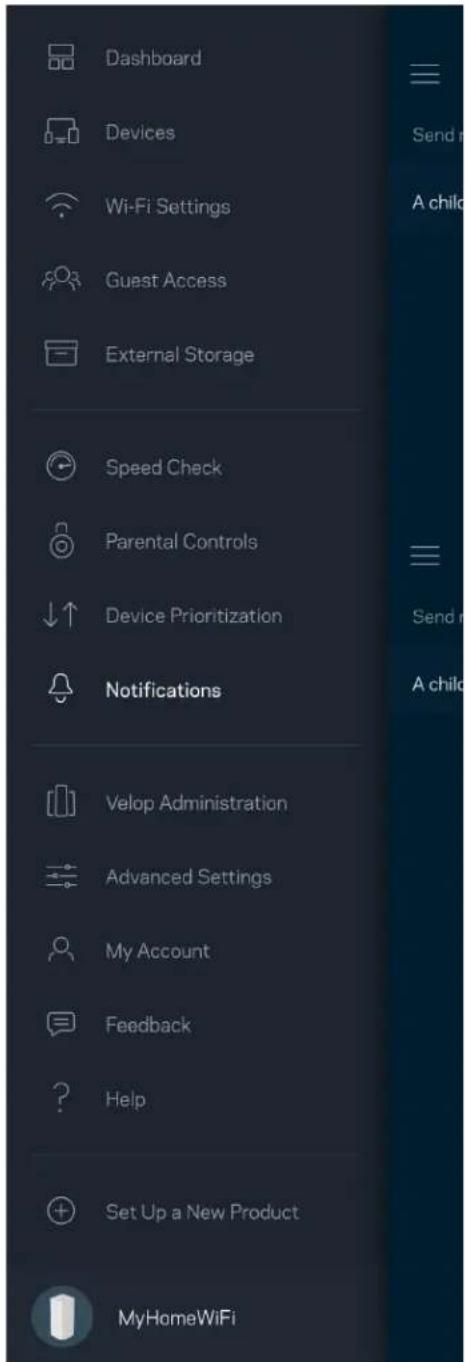
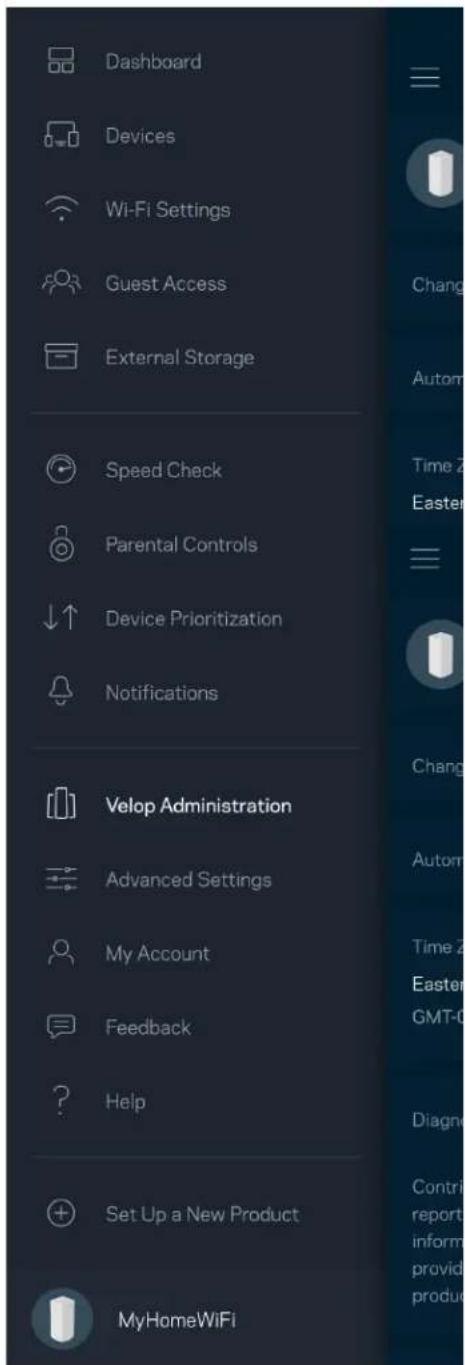
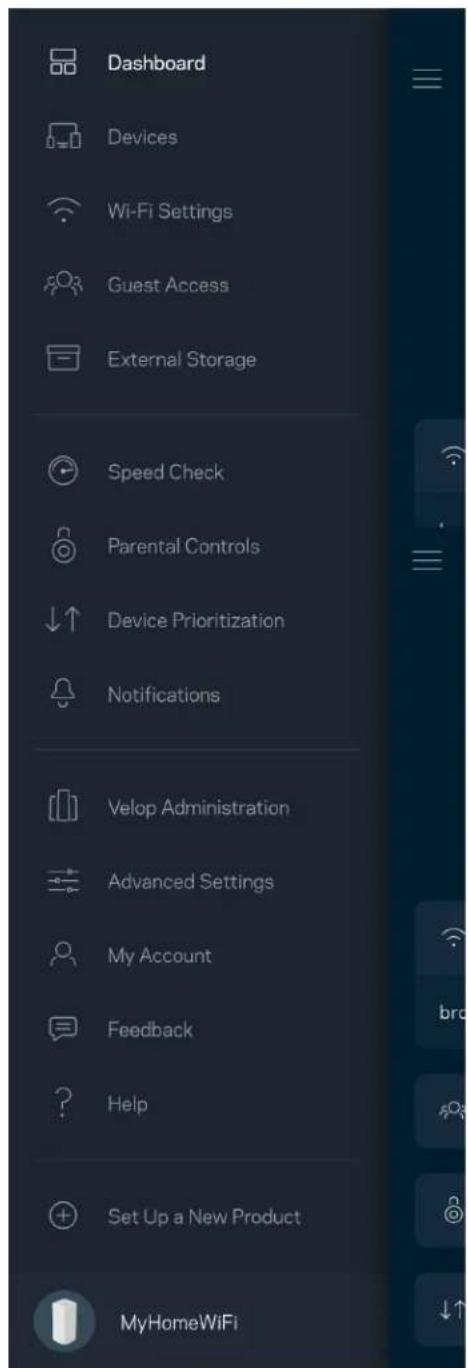
Velop Administration
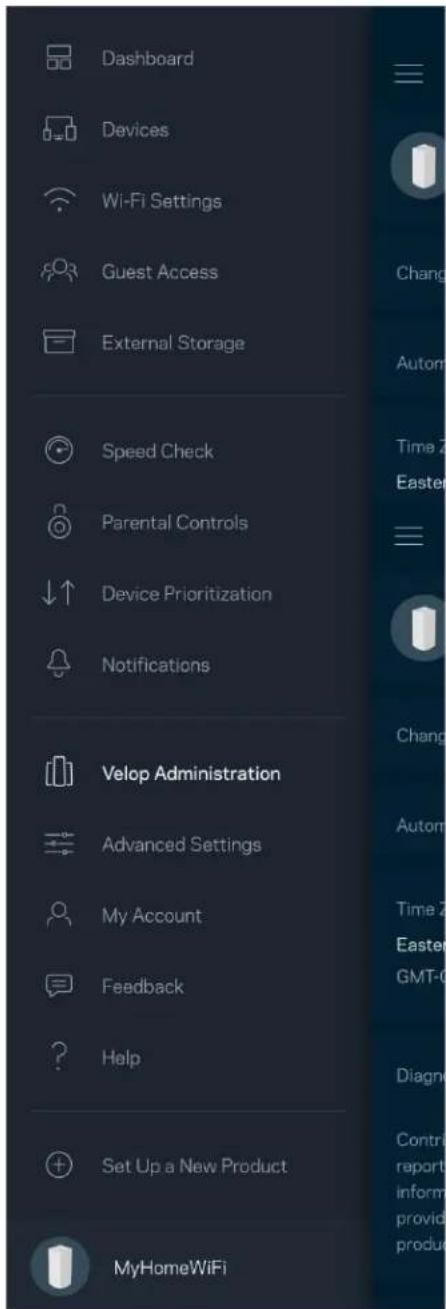
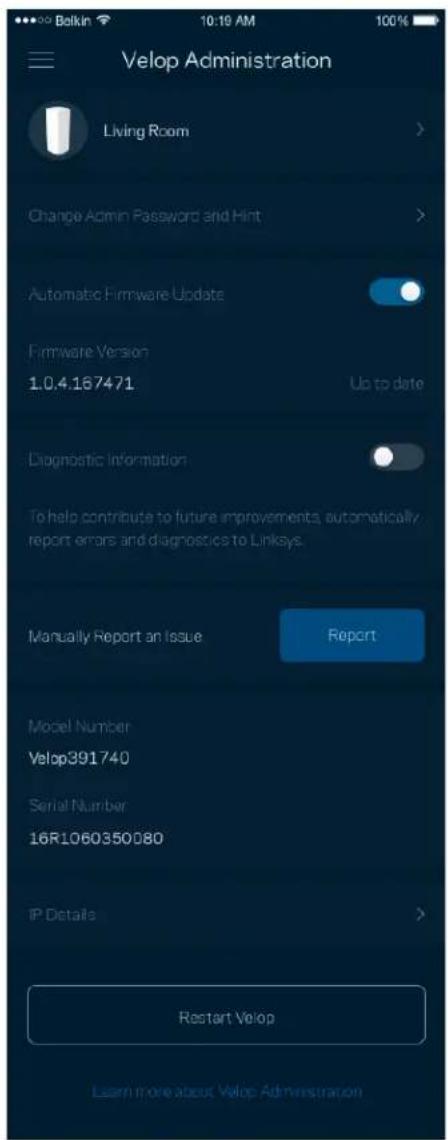
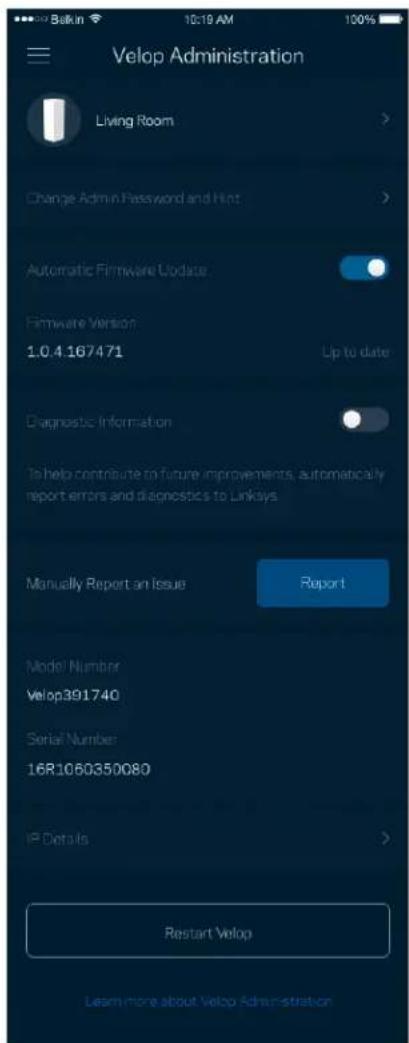
Use the Velop Administration screen to change the admin password and hint, and check various identifiers (model number, serial number, and IP details) for all nodes in your Wi-Fi.
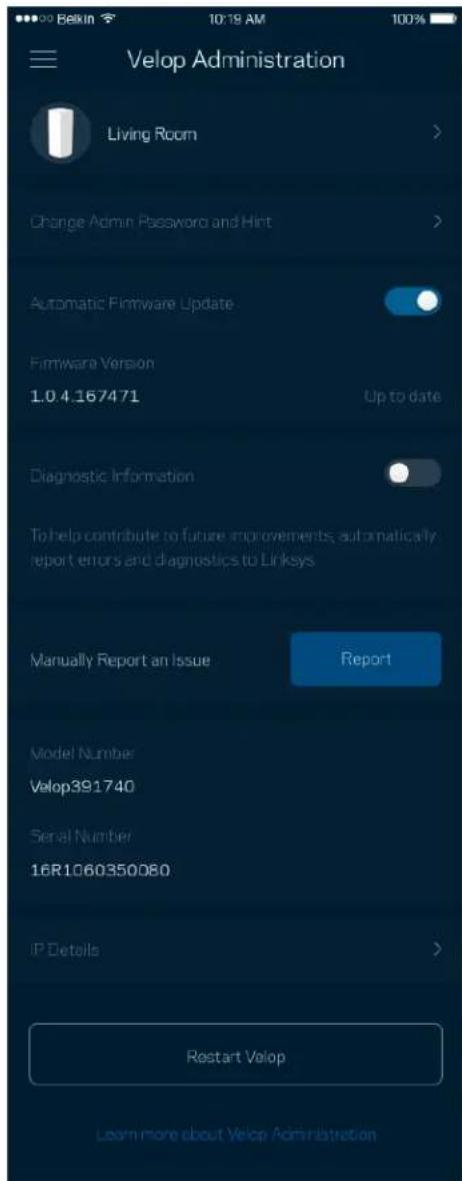
Opt in to automatically report crashes to Linksys and contribute to improving the Wi-Fi experience. You also can manually report specific issues to Linksys.
The following information will be sent with your description of the issue:
| • App version | • Login Type ( cloud: show email address associated, local: display "Velop admin") |
| • Device model | • WAN Connection type (display Wi-Fi or ethernet) |
| • Device OS version | • Time: date (mo/day/year, time, time zone) |
Advanced Settings
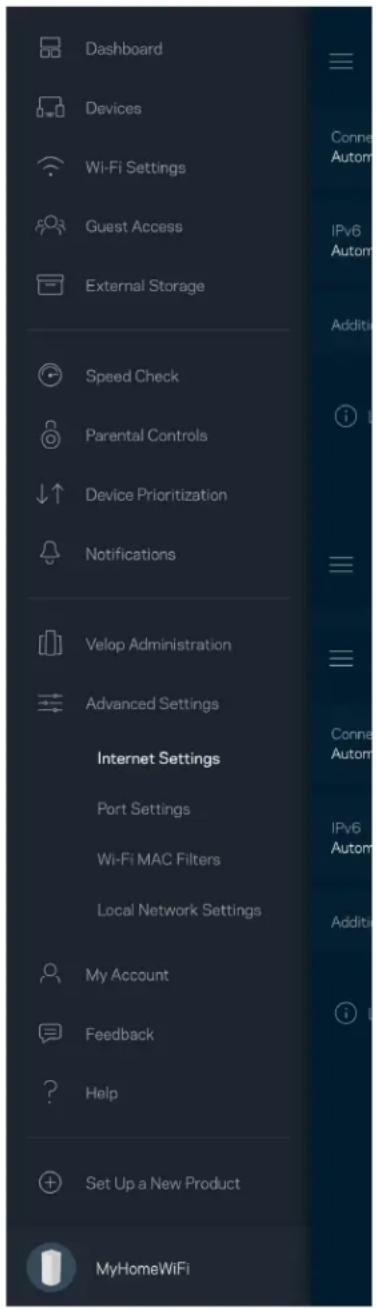
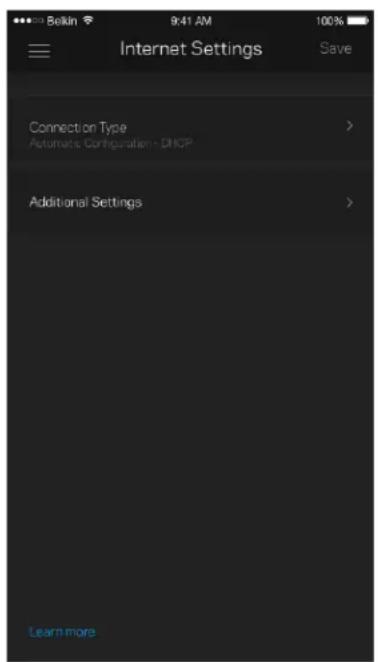
Internet Settings
You can choose how your Velop system connects to the internet. The default is Automatic
Configuration - DHCP. Other connection types depend on your internet service provider or how you plan to use your Velop system. Advanced users can use Additional Settings to clone MAC addresses and set MTU (maximum transmission unit).
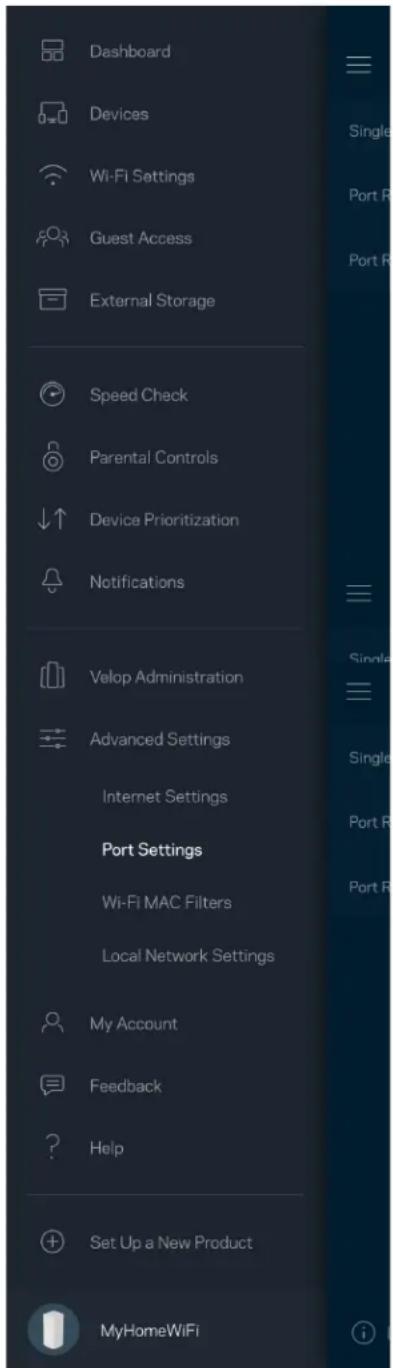
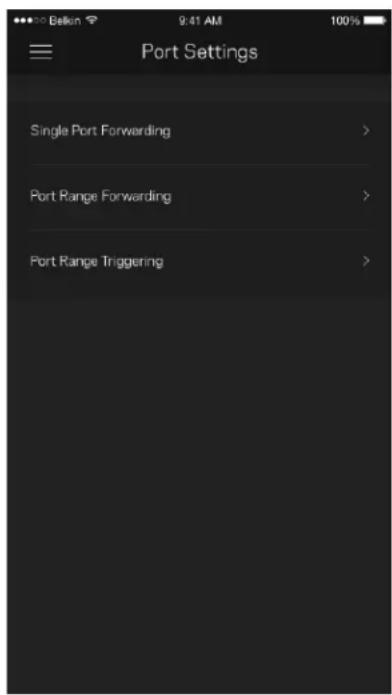
Port Settings
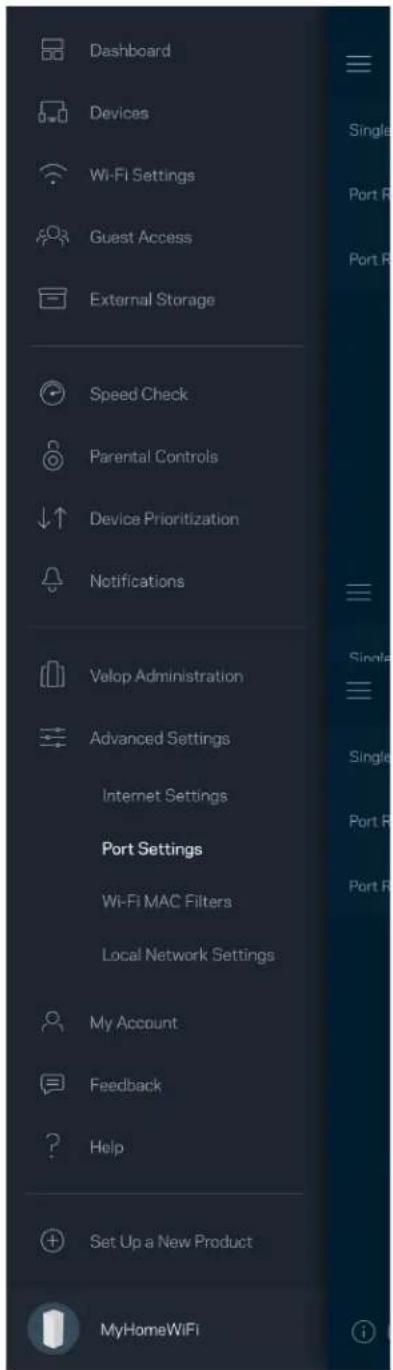
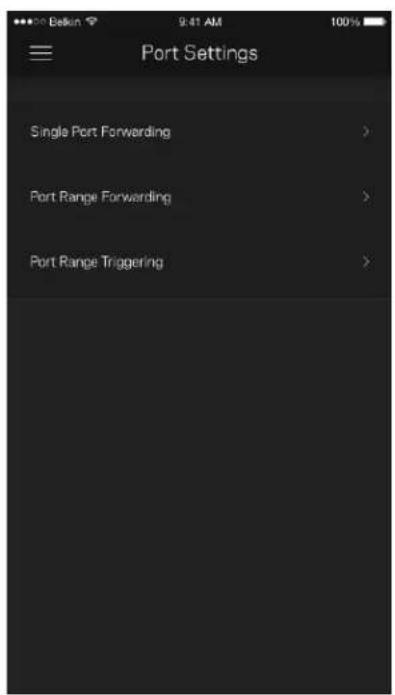
Port forwarding—for a single port, multiple ports or a range of ports—sends traffic inbound on a specific port or ports to a specific device or port on your Wi-Fi. In port range triggering, Velop watches outgoing data for specific port numbers. Velop remembers the IP address of the device that requests the data so that when the requested data returns, it is routed back to the proper device.
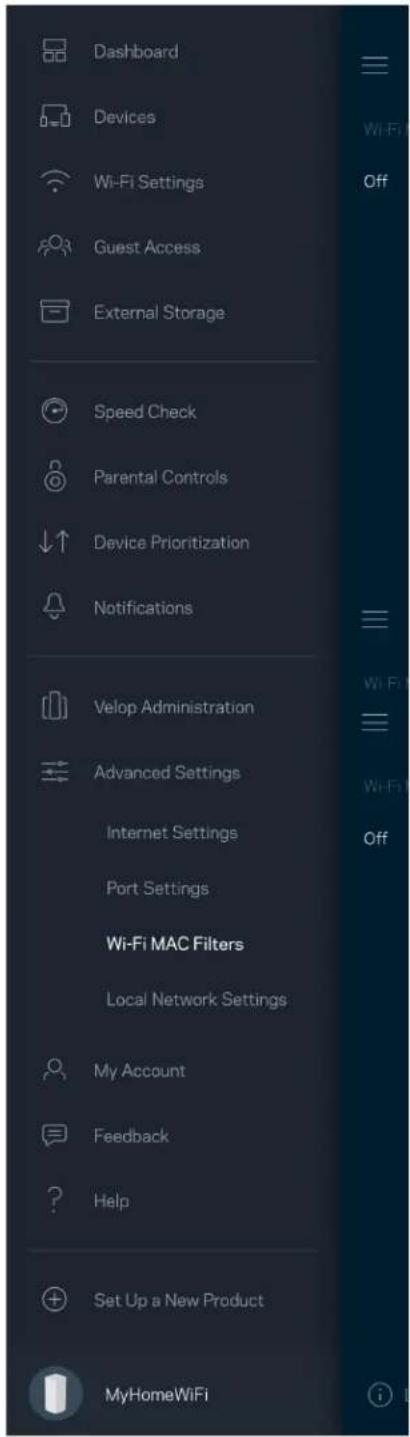
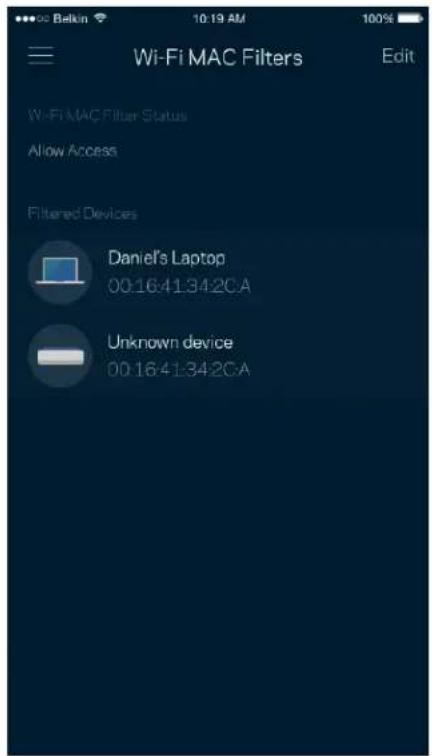
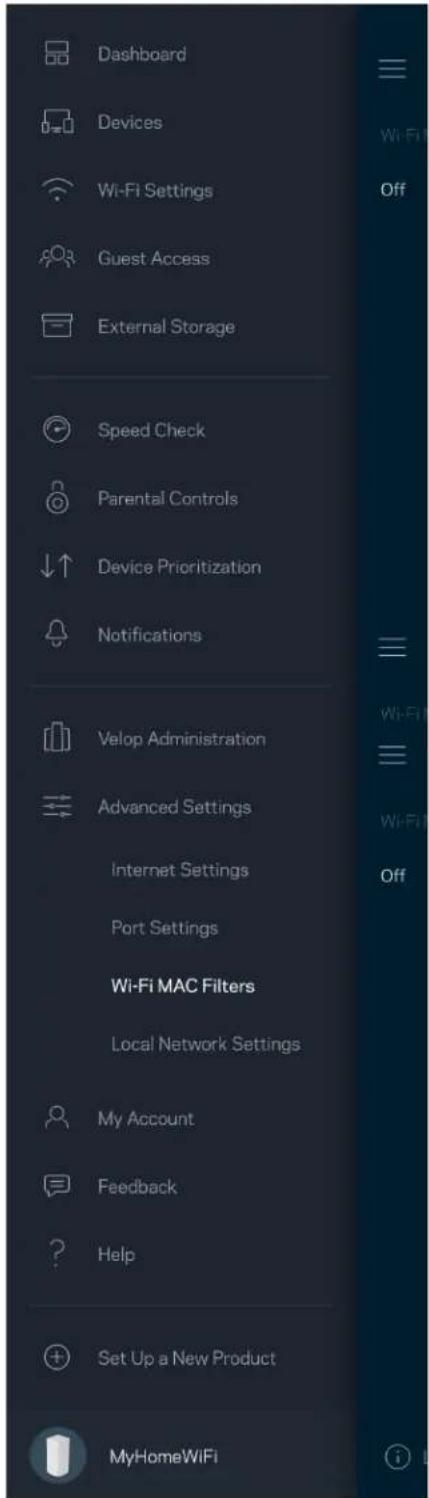
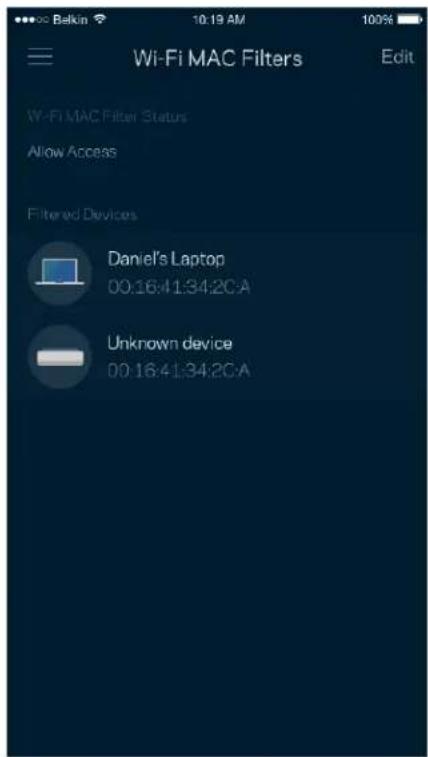
Wi-Fi MAC Filters
Every network device has a unique 12-digit MAC (media access control) address. You can create a list of MAC addresses and regulate how devices use your Wi-Fi.
My Account
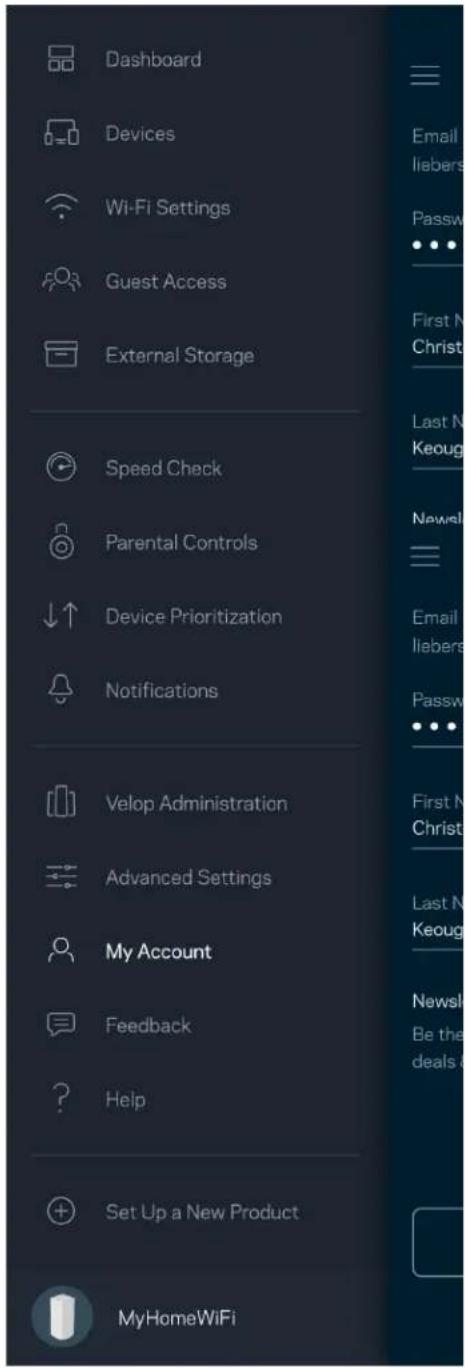
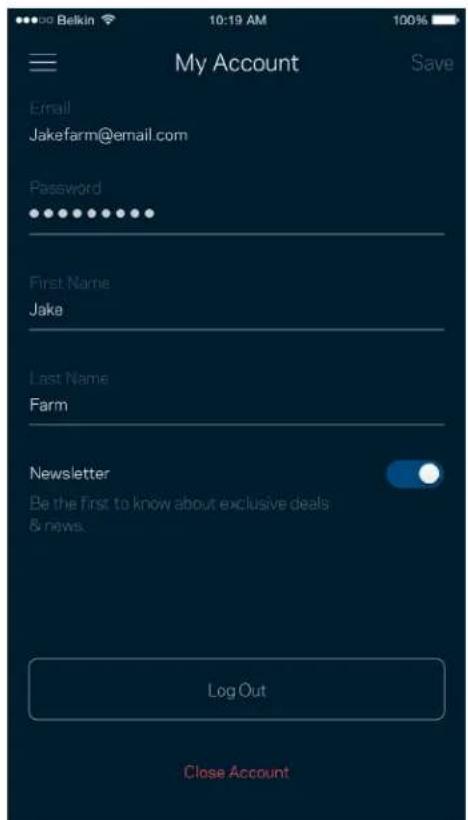
Change your Linksys app password and opt in to receive the latest news and deals from Linksys.
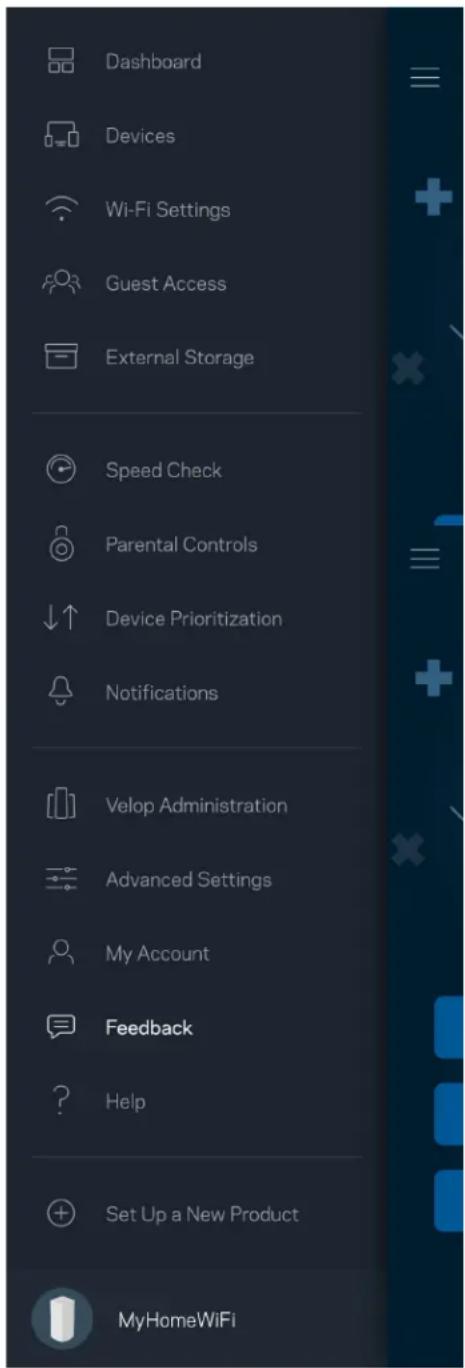
Feedback
Here's your chance to tell us what you think. Rate the app at your app store, send us a suggestion, or report an issue that's keeping you from a great experience.
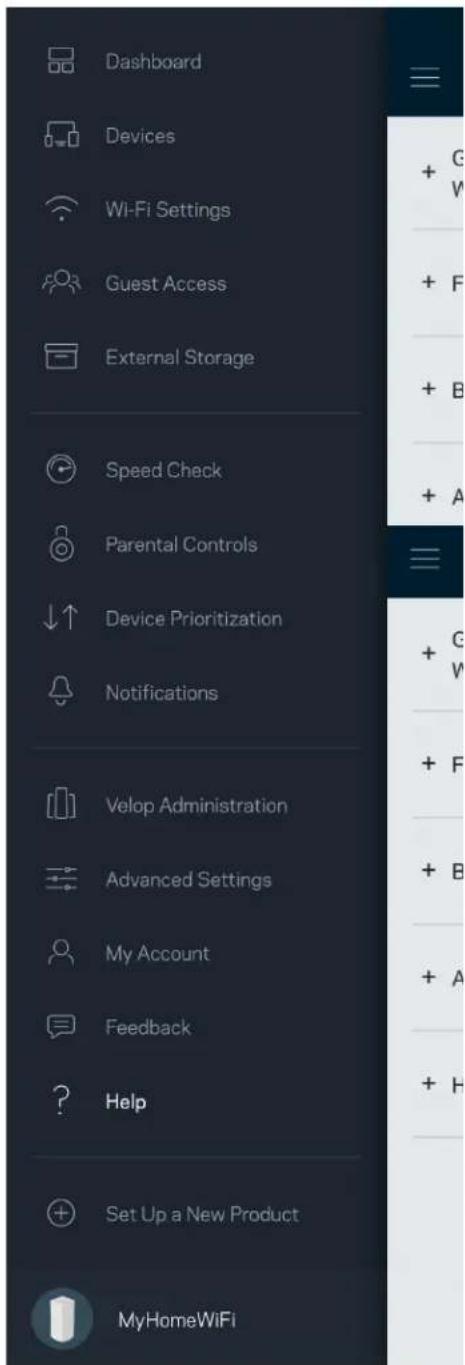
Help
Having trouble with the app? Just need a little more information about a feature? Tap Help for an explanation.
Connect Directly To Velop
If you are not connected to the internet you still can access your Velop system. Connect to your Wi-Fi name, launch the Linksys app and tap Log in with Router Password toward the bottom of the screen. You will not be able to access your Linksys Wi-Fi account when not online.
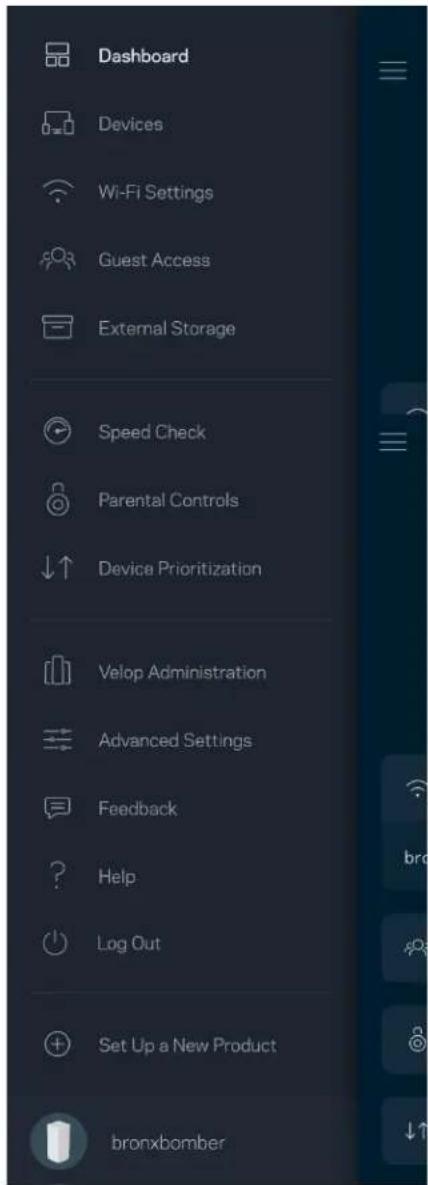
Velop admin password
We created a secure admin password during setup. To change it, tap Velop Administration and Change Velop Password and Hint.
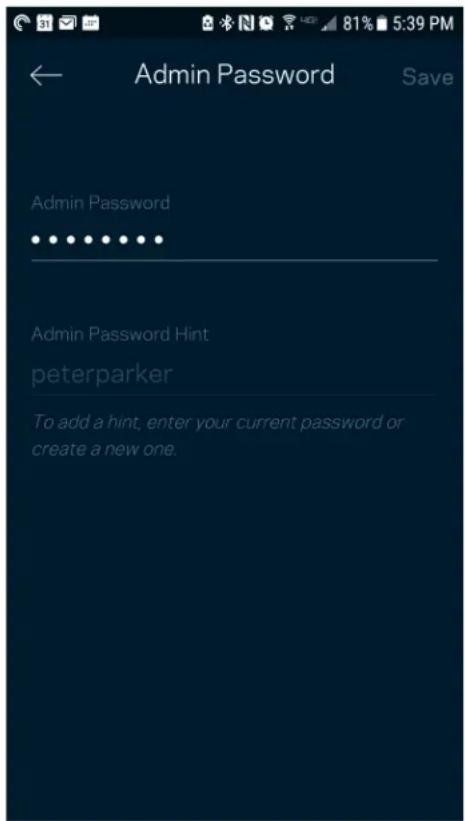
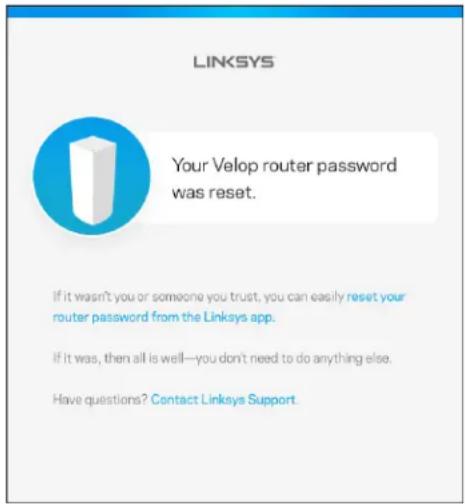
To keep your Velop system secure, we'll send you an email if someone changes the admin password.
How to restore factory defaults
You should never need to factory reset your Velop—a very disruptive process. A factory reset restores your Velop system to the state it was when you took it out of its box, requiring you to go through the setup process again. All settings you have customized in setup and since - things such as Wi-Fi name, passwords, security type - will be erased. All wireless devices will disconnect from your Wi-Fi.
To reset Velop:
- With your node connected to power and turned on, press and hold the Reset button on the bottom. The light on top of the node will turn red and fade in pulses. Do not release the button until the light goes out and then turns bright red.
Specifications
Linksys Velop
Model Name Velop (Tri-Band)
Model Number MX5300
Switch Port Speed 10/100/1000 Mbps
Radio Frequency 2.4 GHz and 5 GHz
of Antennas 13 (internal)
Ports USB 3.0,ethernet,internet,power
Buttons Power switch, WPS, reset
Light One, multicolored light for power and status
Security Features WPA2-Personal, WPA3-Personal
Security Key Bits Up to 128-bit encryption
Environmental
Dimensions 4.45 inches x 4.45 inches x 9.57 inches
Unit Weight 1.58 kg (3.48 lb)
Power 12V,4A
Certifications FCC, IC, CE, Wi-Fi (IEEE 802.11a/b/g/n/ac, draft 802.11ax)
Operating Temp. 32^ to 104^ (0 to 40^
Storage Temp. -4° to 140° F (-20 to 60° C)
Operating Humidity 10% to 80% relative humidity, non-condensing
Storage Humidity 5% to 90% non-condensing
Notes:
For regulatory, warranty, and safety information, go to Linksys.com/support/Velop.
Specifications are subject to change without notice.
Maximum performance derived from IEEE Standard 802.11 specifications. Actual performance can vary, including lower wireless network capacity, data throughput rate, range and coverage.
Performance depends on many factors, conditions and variables, including distance from the access point, volume of network traffic, building materials and construction, operating system used, mix of wireless products used, interference and other adverse conditions.
Visit linksys.com/support/Velop for award-winning technical support.
BELKIN, LINKSYS and many product names and logos are trademarks of the Belkin group of companies. Third-party trademarks mentioned are the property of their respective owners.
© 2019 Belkin International, Inc. and/or its affiliates. All rights reserved.
LINKSYS
GUIA DEL USUARIO
VELOP
AX5300
Modelo MX5300
Tabla de Contents
Administration Velop 22
Administration Velop
WPA2-Personnel, WPA3-Personnel
FCC, IC, CE, Wi-Fi (IEEE 802.11a/b/g/n/ac, draft 802.11ax)
. (GPL ) aagaaal gaaaia jaiia jaiaaai aaii aaiiaai iaii
3120
a 1 a a a a a a a a a a a a a a a a a a a a a a a a a a a a a a a a a a a a a a
| Wi-Fi | |
| Wi-Fi GSM | |
| JSSS | |
| GSM | |
| GSM | |
| GSM | |
| GSM | |
| GSM | |
| GSM | |
| GSM | |
| GSM | |
| GSM | |
| GSM | |
| GSM | |
| GSM | |
| GSM | |
| GSM | |
| GSM | |
| GSM | |
| GSM | |
| GSM |
i 100000000000000000000000000000000000000000000000000000000000
Linksys
.1
.2
aadall ygal k 3
J 4
Wif-Wi-Fi 1500000000000000000000000000000000000000000000000000000000000
la jia jia jia jia jia
eXbY, yyjai jai jai jai jai jai jai jai jai jai jai jai jai jai jai jai jai jai jai jai jai jai jai jai jai jai jai jai jai jai jai jai jai jai jai jai jai jai jai jai jai jai jai jai jai jai jai jai jai jai jai
Wi-Fi
Wi-Fi Protected SetupTM alldy j 15k, 1000000000000000000000000000000000000000000000000
Wi-Fi 5y yj yj yj yj yj yj yj yj yj yj yj yj yj yj yj yj yj yj yj yj yj yj yj yj yj yj yj yj yj yj yj yj yj yj yj yj yj yj yj yj yj yj yj yj yj yj yj yj yj yj y
i 1
Ji Jn Jn Jn Jn Jn Jn Jn Jn Jn Jn Jn Jn Jn Jn Jn Jn Jn Jn Jn Jn Jn Jn Jn Jn Jn Jn Jn Jn Jn Jn Jn Jn Jn Jn Jn Jn Jn Jn Jn Jn Jn Jn Jn Jn
e 1
Velop 1
y j 1
a 1
Your Velop router password was reset.
If it wasn't you or someone you trust, you can easily reset your router password from the Linksys app.
If it was, then all is well—you don't need to do anything else.
Have questions? Contact Linksys Support
a
e 111111111111111111111111111111111111111
:Velop laio 1
1 1
Linksys Velop
Cbpb3BaHeHa yctpoiCTBO c WPS 15
IocTbI 3a roCTH 16
BbHnHo cBxpaHbAHe Ha daHHn 17
IIpoBepka Ha ckopoctra 18
PoJnteJIckn KOHTpoJI 19
3aIaBAHe Ha npOpHTeTu Ha ycTpoiCTBaTa 20
N3BecTna 21
AdmHHnctpHpaHe Ha Velop 22
Pa3iHpeHH HacTpoIKN 24
HacrpoKn 3a HntepHeT 24
HacTpoKHa IopToBete 25
Wi-Fi MAC ΦnItpn 26
Moryakaynt 27
06paTHa Bpb3ka 28
IIomoi 29
Cebpnceme ce dupekmno c Velop 30
AdmHnHcTpaTopcKa npoJa 3a Velop 31
Kakda 863cmohoume fba6puHume hacmpouku no nodpa36upahe 32
Cneuguukauuu 33
Linksys Velop 33
ДаHHN 3a OKoJIHaTa cpeIa 33
Osshпразгелд на пpoукта
Преедна/торна част
CBeTlnHaTaB roHaTa yact Ha Bb3eJa Bn daBa HΦopMaun 3a pa6oTaTa My.
Cbbp3BaHe Ha yctpoiCTBOc WPS
Wi-Fi Protected Setup Bn daBa Bb3MoXHocT da Cbbp3BaTe lecho 6e3KuHn yctpoiCTBa KbM Baata Wi-Fi, 6e3 da BbBexkdaTe pbuHO hAcTpoiKnte 3a cnIpyHocT.
Docb3a roctn
N3noJ3BaIte DoCTbI 3a roCTn, 3a da daTe Bb3MOXHOCT Ha FOCTNTe 3a Bpb3Ka C INHTepHET, KaTO cbueBpeMeHNO orpaHnHTe DOCTbI na IM do dpyrnte pecypcn, Cbbp3aHn KbM BaWata Wi-Fi.
I3npaTe npoJaTa C TeKCTOBO cbo6eHne nn no mEnJ.

BaIaTa CnCTeMa CTaHaT OJJIaH. IOnbJIHNTeJIH N Bb3JI Na BCuKn Te3N, KOUTO He Ca CCBp3aHn C
Moema Bn ue3 ka6eHa Bpb3ka. Tpa6Ba da BkIIOHTe 3BecTna Ta HacTpOaKtHe Ha Mo6NlHTo cN
yctpoicTBO,3a da moKe Velop da Bu ybeomraBa.
AdmHnCtpnpaHe Ha Velop
Изпольайе ekрана Velop Administration (Аdmнисрираноа velop), за за смени адMinистразtopската napola и посkaЗа и за поверп te pa3лчнite ngentнikatopn (Homep Ha moдал, сорпен Homep и данни 3a IP) за BCNUK Bb3л Nвв Baшata Wi-Fi.
I36epete aTOMaTHUHO cbo6uBaHe Ha OTKa3HTe B Linksys N daTe CBOJ npHoc 3a noo6pBaHe Hapabotata Ha Wi-Fi. MoXeTe cbto Taka da cbo6uaBe pbuHo Ha Linksys 3a HrKoN npo6lemn.
3aedno c BaWeTo OnncAnHe Na npo6Iema ige 6bde n3npaTeHa cneHata HhOpMaunr:
EIN, MHOBUETHa CBeTInHa 3a 3axpaHbHeTo N cbCTOHNeto
3aunTHn fynKu
WPA2-Personal, WPA3-Personal
BHTOBeHaKJIoua3a3aunTa
128-6ntoBO uΦpObaHe
FCC, IC, CE, Wi-Fi (IEEE
802.11a/b/g/n/ac, npoeKt 3a
802.11ax)
Pa60Tha Temnepatypa
32^ do 104^ (Odo 40^)
TemnepaTypa 3a cbxpanenHe
-4°do140°F(-20do60°C)
Pa6oTHaBlaJxHocT
10%do80%OTHOCHTeHa
BlaJxHocT,6e3 KOHdeH3aLna
BlaXHocT 3a cbXpaHeHne
5%—90% 6e3 KOHdEHaUa
3a6eJekn:
3a npabHa nHΦopMaζη, rapaHcπιν ηγκαλaHησa 3a 6e3oNacHocT nocTe Linksys.com/support/Velop.
CneuΦnkaunTe npIeKaT Ha npomHa 6e3 npeIu3BecTne.
MaKcImaJIHnTe pa60THn NOKa3aTeJI Ca n3BLeueHn O T cneuΦnKaUHTe Ha CToIapT 802.11 Ha IEEE. DeIcTBnTEJIHnTe pa60THn NOKa3aTeJI MoT Da ca pa3LIuHn, BKIOUHTeJIHO No-HNCbK KanaunTe 3a pa60Ta B 6e3XnUHa MpeJka, npOpyckAteJIHa CnocobHocT 3a daHH, dnaNa3OH n PokpIne. EeKtNBocCTTa 3aBnCn OT MHOrO fakTopu, yclobn I npOMeHnIBn, BKIOUHTeJIHO pa3CToRHeNoTo OT ToOcTbN, o6ema Ha MPekOBnra TpaΦnk, CTPOTeJIHnTe MaTePnAIn N KOHCTpyKzIyTA, n3NOJ3BaHATA ONepauOnHn CnCTeMa, n3NOJ3BaHnKOMPJIeKT pOdyKTI 3a 6e3XnueH DoCTbN, cmUeHnra T a npyHn He6laorponpTn HycOBn.
Iocetete linksys.com/support/Velop 3a Bpb3ka c hawaTa TexHnuecka noDpBxK, yOcToBaHa C Harpa.
Administration of Velop
Certificeringer FCC, IC, CE, Wi-Fi (IEEE 802.11a/b/g/n/ac, draft 802.11ax)
EeWTeepk' aNooNkeuon
_t 1e nov kouo eiva ouvdepeevn uia eotepikn ovoa diokou, eayte nooc eueuepoc xwoc anoeve kau evpyonoutote tov eeyxo taotntac opicovtc ovopk npoaaoc. (Movotavmuovada
sikou eivai ouvdseseyn e 0pu USB evoc kou).Φovtiote va natoeEject (Exywn)


Port Settings (Puθμiσεις θυρων)
H npowonon hupac-yia ma a hupa, noa c hupc n eupoc uupv- anooteaa tnv eoepxoevn kkoopio a nouokekpivn hupa n hupc oia oukyekpivn ouokeun h upa oTo Wi-Fi oac. Kata tn v evpyonoinon eupouc thupw, to Velop eayxie ta eepxóeva deojeva yia oukyekpivouc apouw. To Velop uatai tn deltauvon IP tnc ouokeuc n onoi zntaei ta deojeva, etoi wote, otav ta zntoupeva deoepvea eniotpeovv, va stalouv niow on owotn oukeun.
Wi-Fi MAC Filters (DiItpa MAC aoupauou diktuou)
KaTe oukeun ktuou exe iuaovosk12hphiia diovuvan MAC (Media Access Control).Mnpite va 8nmuupynote e aiaotai tveuovewyMAC ka va puoiote noc ouiokuec xpauonolovv to Wi-Fi oac.
My Account (O loyapiaoou)
Velopi susteemi seaded 9
Linksyse rakendusse sisselogimine 9
Esipaneel 10
Seadmed 11
Velopi administratssoon 22
Tappemad seaded 24
Internetiseaded 24
Pordi seaded 25
Wi-Fi MAC-filtrid 26
Minu konto 27
Tagasiside 28
Abi 29
Velopi susteemi seaded
Device Prioritization (Gestion de la priorite) 20
Notifications 21
Velop Administration (Administration Velop) 22
Advanced Settings (Paramètres avances) 24
Parametres de connexion Internet 24
Velop Administration (Administration Velop)
External Storage (Kulso tahrely) 17
Sebességteszt 18
Daii F i 10000000000000000000000000000000000000000000000000000000000000000000000000000
长
FCC, IC, CE, Wi-Fi(IEEE)
802.11a/b/g/n/ac, draft 802.11ax)
32^ 104^ F(0 40^ C)
-4^ 140^(-20 60^)
10% ~ 80% 当大当大,
布 阿 合 豆 5 % 90 %
查古:
规,备中及间关国政为
☆皂是,
"Wi-Fi" MAC filtrai 26
Manopaskyra 27
Atsiliepimai 28
Pagalba 29
Tiesiogai prisijunkite prie ,Velop" 30
"Velop" administratoriaus slaptažodis 31
Device Prioritization (Apparaatprioritering) 20
Notifications (Meldingen) 21
Velop-beheer 22
Device Prioritization (Apparaatprioritering)
WPA2-Personal, WPA3-Personal
Beveiligingssteutel
Voedingswaarden 12V,4A
Certificering
FCC, IC, CE, Wi-Fi (IEEE 802.11a/b/g/n/ac, concept 802.11ax)
Bedrijfstemperatuur
0tot 40^
Opslagtemperatuur
-20 tot 60^
Velop-systeminnstlinger 9
Logg inn på Linksys-appen 9
Dashbord 10
Enheter 11
For a se aller endre enchetsdetaljer 12
Wi-Fi-innstlinger 13
Avanserte innstlinger 14
Velop-systeminnstillinger
Knapper Strømbryter, WPS, tilbakerstilling
Certificacoes FCC, IC, CE, Wi-Fi (IEEE 802.11a/b/g/n/ac, draft 802.11ax)
Temp. de funciona 0~40°C (32°~104 F)
Temp. de armazenamento -20-60°C (-4°~140 F)
Certificacoes FCC, IC, CE, Wi-Fi (IEEE 802.11a/b/g/n/ac, draft 802.11ax)
Temperatura de funciona 0 a 40^ C
Temperatura de armazenamento -20 a 60^ C
Hacmpouku cucmeMbI Velop 9
BxoD B npHIOJKeHne Linksys 9
IIaHeJIb MoHHTopHHra 10
YcTpoiCTBa 11
IpocmoTp H3MeHeHne CBeJeHn 06 yCtpoJCTbax 12
HacrtpoKn Wi-Fi 13
PacunpeHHbIe NaCTpOKn 14
IopKJIoueHne ycTpoiCTBa c IOMoIbIO WPS 15
TocTeBoIdoctyn 16
BheHHee xpaHJIInIe 17
H3mepenHe cKopocTn 18
PoJnteJIbckn KOHTpoJIb 19
IIphopHTeT yctpoiCTB 20
YBeDOMJIeHn 21
AdmHHnCTpHpoBaHne Velop 22
PacHHpeHHbIe HacTpoiKn 24
HactpoKn HntepHeTa 24
Hac trokkn nptoB 25
ΦnJIbTpbl MAC-aIpecoB Wi-Fi 26
Moryueta 3aHcB 27
OT3bIB 28
CnpabKa 29
HenocpedcmbeHoe noekluoyehue K Velop 30
IapOJIb aIIMnHnCTpaTopa Velop 31
BocsmohoeHe 3a0dckux Hacmpoek 32
Texnueckue xapakmepucmuku 33
Linksys Velop 33
Φn3Hueckne xapaKTepehCTHKN 33
0630p npoodykta
Bud cpepn/cbepxy
HnDnKaTOp Ha BepxHe nHaEny y3na npdeOCTaBnEe HnΦopMaunio o pa6ote y3na.
PoiKJIIOUeHHe yCTpOiCTBa c NOMOuIbI WPS
C nomou Wi-Fi Protected Setup moxno ydo6no noKIOUaTB 6ecnpoBnHbIe yCTpOcTBA K cTeN Wi-Fi, He BBOJn HAcTpoKn 6e3OpacHOCTn BpyHyU.
TocTeBOJdoCTyP
TocTeBOn DoCTyn DaET Bo3MOxHOCtB BaUIM FOCTaM NOpb3OBAtbcr INHTepHeTOM, Ho 6e3 DoCTyna K DpyrIm pecypcAm, NOdkNoueHHbIM K BaSei cTeN Wi-Fi. NapoIb MoXHo OTnpabNTb C nomoubIo SMScooocheHn nn no 3JIeKtpOHHO nOuTe.
Bheeshnee xpaHnIiSe
IocmToPte, K KaKomy y3ny NOdkHoueH BHeuHn DnCK, pOBepeBte KOJIueCTBO CBo6oHOro npocTpaHCTBa, KOtOpoe octaIOcB, N BKJIOHTe ayTeHTNΦnKaUIO, HAcTPONB Mm NOlb3OBaTeJI N
napoIb. (ToIbko KOrda dNcK noDKnOueH K y3ny USB nopTa.) O6raTeIbHo haxMnte N3Bney

pea n3BleueHem dNcKa, yTo6bI npDoTbpaTb NToepio daHHbIX.
AdmHHnCTpnpOBaHne Velop
Ha 3kpaHe «AdmHnHcTpnpoBaHne Velop» MoXHo n3MeHnTb napOJI b noDcKa3Ky aDMnHnCTpaTopa, a TaKxe npOBepntb pa3IuHbIe daHHbIe (Homep moJeI, cepHbI Homep, daHHbIe IP-aDpeCa) Bcex y3IOB BaWe cTe Ni Wi-Fi.
Moxho aBtOMaTnueckn OtnpaBnTb OChTeB O C6oX B Linksys, TTo6bl NmOuH Ham B yLyUeHn 6ecnpoBOndhix ycTpoiCTB. TaKxe MoxHo BpyHyIO OtnpaBnTb B Linksys coo6IeHn o6 onpeDeJIeHHbIX npo6IeMax.
BmecTe c onncannem Heonlaikn 6ydt OtnpaBHeHa CneDyUoAa HOpMaun:
WPA2-Personal, WPA3-Personal
Pa3pIHOCTb KIIIOUa 6e3oNaCHOCTN
128-6HTHoe WnΦpoBaHne
FCC, IC, CE, Wi-Fi (IEEE 802.11a/b/g/n/ac, 802.11ax — uephOBnK)
Pa6oay Tempepatypa 0T 0do 40^
Tempepatypxpanen
ot-20do60°C
BnaxKnocTb Bo3dyxa npn pa6oTe
0T 10do 80% OTHOCHTeJIbHOI BIAJXHOCTN6e3 KOHDeHcauN
BlaaXHoCTb Bo3dyxa npxpaHeHH
OT5do90%6e3KoHdEhcauN
Приимейсаня.
CbeHnO COOTBeCTBn Tpe6oBaHnM, rapaHTn N 6e3OnaChocTn cm. no aDpecy
Linksys.com/support/Linksys.com/support/Velop.
Texnueckne xapaektepnctnki Moryt 6bItb n3MeHehbl 6e3 yBeDoMJIeHna.
MaKcImaJIbHnI npON3BOOnTeJIbHOCTb paccHTaHa B COOTBETCTBm CO CneUΦNkAζrMm CTaHdapTa IEEE 802.11. ΦakTtueckne xapaKTEpcntkN, BKIOUaY eMKoCTb, npOpyCKHyO cNoCo6HOCTb, dIana3OH n NOKpbITHe 6ecnpoBOdHoi CETn, MOrTy OTNIuATbcra O Yka3aHHbIX. IpnON3BOOnTeJIbHOCTb 3aBcNTOT MHOINx φakTopOB, ycIOBn i NpeMeHHbIX BeLIuHN, B TOM uNcJIe pacCTOHRnO T TOckn DOctyNa, obbema CeTeBOrO TpaΦNka, MaTePnaJIoB N KOHcTpkyCmN 3dAHnR, IcNoJIb3yEmoN OepaCIOHHo CnCTeMbI, coUeTahnIg 6ecnpoBOdHix yCTpO'CTB, NOMex N dpyrnx He6laIaropnTbIx ycIOBn.