UNAEN1 - Other camera accessories SONY - Free user manual and instructions
Find the device manual for free UNAEN1 SONY in PDF.



| Product Type | USB-Ethernet Adapter |
| Brand | Sony |
| Model | UNAEN1 |
| LAN Interface | IEEE802.3 (10BASE-T) / IEEE802.3U (100BASE-TX), RJ-45 connector |
| USB Interface | USB compatible, Mini A plug |
| Power | Via USB bus, 5 V DC, max. 200 mA |
| Dimensions (W × H × D) | Approx. 69 × 26.5 × 35 mm |
| Cable length | Approx. 355 mm |
| Weight | Approx. 36 g |
| Operating temperature range | 0 °C to +40 °C |
| Storage temperature range | -20 °C to +60 °C |
| Main functions | LAN network connection via USB for compatible camcorder, supports 10BASE-T/100BASE-TX, LINK indicator (orange/green) |
| Maintenance and cleaning | Wipe with a dry, soft cloth. For stubborn dirt, use a cloth lightly moistened with neutral solvent, then dry. Do not use thinners, benzene, or alcohol. |
| Safety | Do not expose to rain or moisture. Do not use with telephone lines. Avoid high temperatures, dust, and vibration. |
| Supplied accessories | Instruction manual |
| Compatibility | Sony camcorders compatible with USB network adapter |
Frequently Asked Questions - UNAEN1 SONY
User questions about UNAEN1 SONY
0 question about this device. Answer the ones you know or ask your own.
Ask a new question about this device
Download the instructions for your Other camera accessories in PDF format for free! Find your manual UNAEN1 - SONY and take your electronic device back in hand. On this page are published all the documents necessary for the use of your device. UNAEN1 by SONY.
USER MANUAL UNAEN1 SONY
Operating Instructions
Mode d'emploi
Bedienungsanleitung
The model and Mac numbers are located on the back side of the unit.
Record the serial number in the space provided below.
Refer to these numbers whenever you call upon your Sony dealer regarding this product.
Model No.UNA-EN1 Mac No.
UNA-EN1
©2003 Sony Corporation
警告
安全のたてに
Before operating the unit, please read this instructions thoroughly, and retain it for future reference.
WARNING
To prevent fire or shock hazard, do not expose the unit to rain or moisture.
Regulatory Information
For the Customers in the USA
CAUTION
You are cautioned that any changes or modifications not expressly approved in this manual could void your authority to operate this equipment.
This device complies with part 15 of the FCC Rules. Operation is subject to the following two conditions: (1) This device may not cause harmful interference, and (2) this device must accept any interference received, including interference that may cause undesired operation.
NOTE:
This equipment has been tested and found to comply with the limits for a Class B digital device, pursuant to Part 15 of the FCC Rules. These limits are designed to provide reasonable protection against harmful interference in a residential installation.
This equipment generates, uses, and can radiate radio frequency energy and, if not installed and used in accordance with the instructions, may cause harmful interference to radio communications.
However, there is no guarantee that interference will not occur in a particular installation. If this equipment does cause harmful interference to radio or television reception, which can be determined by turning the equipment off and on, the user is encouraged to try to correct the interference by one or more of the following measures:
- Reorient or relocate the receiving antenna.
- Increase the separation between the equipment and receiver.
- Connect the equipment into an outlet on a circuit different from that to which the receiver is connected.
- Consult the dealer or an experienced radio/TV technician for help.
For the Customers in CANADA
This Class B digital apparatus complies with Canadian ICES-003.
Table of contents
Precautions on Use 5
Precautions on Handling 6
Maintenance 7
Parts identification 8
Before Use 9
Preparation 9
Connecting to a LAN with an Ethernet adaptor 9
Accessing the Internet 10
Disconnecting the USB-Ethernet adaptor from your camcorder 11
Connecting to xDSL, Cable modem, etc. 12
Troubleshooting 13
Specifications 14
Introduction
- USB connection enables data transmission between a LAN and a USB network adaptor compatible camcorder.
- The USB-Ethernet adaptor is a bus powered device and therefore power is supplied from camcorder.
- The USB-Ethernet adaptor automatically recognizes 10BASE-T/ 100BASE-TX*.
- The USB-Ethernet adaptor is compatible with 100BASE-TX, but the interface rate is dependant on the USB transmission rate.
Precautions on Use
Where not to place this device
Regardless of whether the USB-Ethernet adaptor is in use or in storage, do not place it in any of the following locations. Doing so may lead to breakdown.
- Locations of extremely high temperature
The temperature gets extremely high inside a car with the windows closed in summer or in strong sunshine, and leaving the USB-Ethernet adaptor inside may cause it to be deformed or break down. - Locations with excessive humidity, dust, soot or steam
Using the USB-Ethernet adaptor in such an environment may lead to fire or electric shock. - Locations where young children can touch it
There is a risk of injury, electric shock and breakdown. - In direct sunlight or near a heater
There is a risk of deformation or breakdown. - Locations of excessive vibration
- Locations with strong electromagnetism
- Locations with excessive sand
In locations such as the seashore and other sandy areas or where dust clouds occur, protect the USB-Ethernet adaptor from sand and dust.
There is a risk of breakdown.
Precautions on Handling
- Using the USB-Ethernet adaptor reduces battery remaining time, because they share the camcorder's battery.
- When not using the USB-Ethernet adaptor, disconnect it from your camcorder to prevent your camcorder's battery from going flat.
- Do not lift your camcorder by the USB-Ethernet adaptor or its cable.
- Do not pull out the connector by pulling the cable.
- Do not bend or apply excessive force to the cable.
- Only connect this USB-Ethernet adaptor to a designated network or telephone line
If you connect the USB-Ethernet adaptor to any of the following networks or telephone lines, an excessive current will flow through the connector leading to breakdown, overheating or fire. In particular, never connect to a home or office telephone line.
- Network other than 10BASE-T and 100BASE-TX type
- Ordinary telephone line
- ISDN (digital) compatible public telephone jack (analog, digital)
- PBX (digital private branch exchange) line
-Home or office telephone line -
Any other type of telephone line
-
Avoid incorrect connection
-
Do not allow any small pieces of metal inside the connector.
A short between pins may lead to fire or breakdown.
-
Insert the connector completely straight. Inserting it at an angle can cause a short between pins, which may lead to fire or breakdown.
-
Unplug the LAN cable before moving the USB-Ethernet adaptor Moving it with the LAN cable still connected may damage the cable or lead to fire, electric shock, or injury if the USB-Ethernet adaptor drops or falls over. Also be careful not to drop the USB-Ethernet adaptor.
Electromagnetic Interference
If you place the USB-Ethernet adaptor close to another electronic device, they may have an adverse effect on each other. In particular, noise from the device may enter a TV or radio if it is placed nearby. If this happens, carry out the following steps:
- Move the USB-Ethernet adaptor as far as possible from the TV or radio.
- Change the direction of the antenna of the TV or radio.
Maintenance
Wipe the USB-Ethernet adaptor with a soft dry cloth. If the USB-Ethernet adaptor is very dirty, wipe it using a cloth with a little neutral solvent added, and then wipe it dry again.
Do not use thinners, benzine, alcohol, etc., as they will damage the surface of the USB-Ethernet adaptor.
Parts identification
When connecting the USB-Ethernet adaptor, do so correctly by checking the shape of the connectors.

USB connector : For connection to a USB compatible camcorder. RJ-45 connector : For connection to the LAN cable.
Useable LAN cables
An unshielded twist pair straight cable (UTP)
- Category 3, 4, 5 with 10BASE-T
- Category 5 with 100BASE-TX
LINK Lamp
The status of the lamp indicates the communication status of the USB-Ethernet adaptor :
| Lamp Meaning | ||
| Orange | On | 10BASE-T communicating, no data transmission |
| Flashing | 10BASE-T communicating, transmitting data | |
| Green | On | 100BASE-TX communicating, no data transmission |
| Flashing | 100BASE-TX communicating, transmitting data | |
| - | Off | not communicating |
MAC address
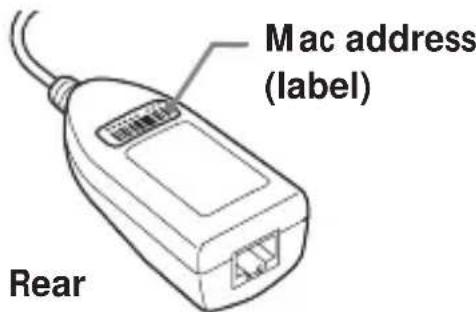
A cable modem may require the MAC address to be set. In that case, record the entry data (letters and numbers) written on this label.
Before Use
This USB-Ethernet adaptor is exclusively for use with a USB network adaptor compatible camcorder. Before use, refer to your "Network Function/Application Operating Instructions".
Preparation
To connect to the Internet, first you must connect the USB-Ethernet adaptor to a USB network adaptor compatible camcorder.
Connecting to a LAN with an Ethernet adaptor
Connect to the Internet via a LAN (Ethernet) using a USB-Ethernet adaptor.
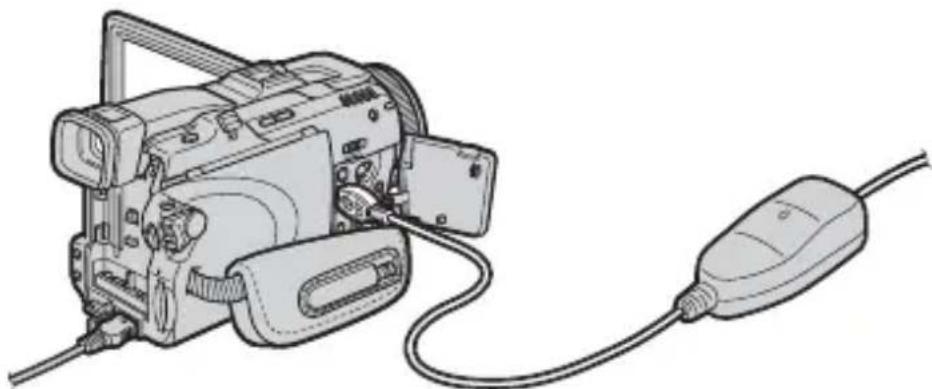
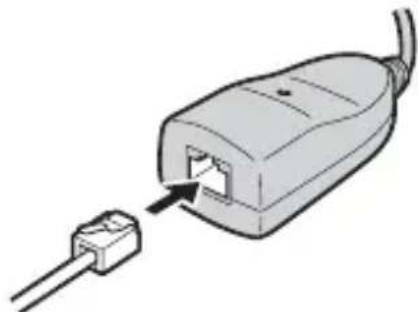
1 Connect the USB-Ethernet adaptor to the LAN cable.
Note
With 10BASE-T, use a category 3, 4, 5 unshielded twist pair straight LAN cable. With 100BASE-TX, use a category 5 unshielded twist pair straight LAN cable.
Preparation (continued)
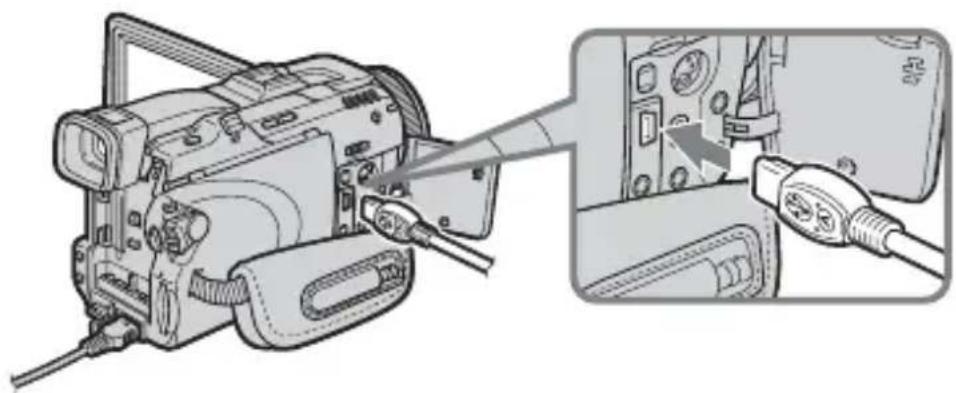
2 Attach the USB-Ethernet adaptor's USB connector to (USB) jack of your camcorder.
Note
The position of (USB) jack varies from model to model. For details, refer to your camcorder's instruction manual.
3 Set your USB network adaptor compatible camcorder's power switch to "MEMORY/NETWORK" to display the Network Menu.
Your camcorder is now ready for communication.
Note
Connect the USB-Ethernet adaptor directly to your camcorder. Neither this USB-Ethernet adaptor nor your camcorder is compatible with a USB hub.
Accessing the Internet
For details of how to log on, refer to your camcorder's "Network Function/Application Operating Instructions".
Disconnecting the USB-Ethernet adaptor from your camcorder
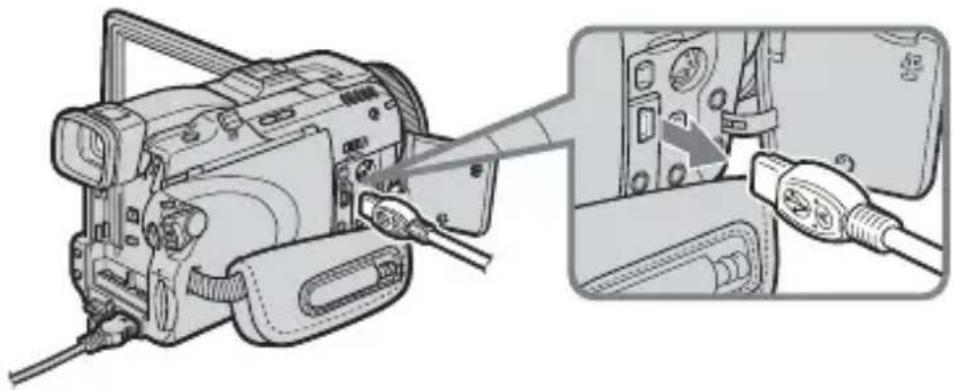
1 Remove the USB-Ethernet adaptor's USB connector from (USB) jack of your camcorder.
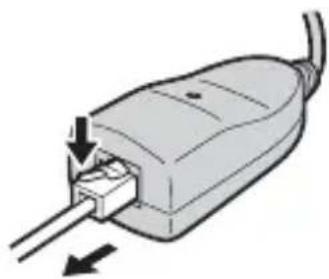
2 Remove the LAN cable from the USB-Ethernet adaptor.
Connecting to xDSL, Cable modem, etc.
- If the xDSL modem or cable modem is a router type
→ Connect the USB-Ethernet adaptor to the modem with a LAN cable. - If the xDSL modem or cable modem is a bridge type (1:1)
→ With the modem's Ethernet jack connected to a commercially available router, connect the USB-Ethernet adaptor to the router's Ethernet jack with a LAN cable. - If the xDSL modem or cable modem has no USB jack
→ You cannot use the USB-Ethernet adaptor with such a modem. Replace the modem with a router type. - For details on the modem, contact your xDSL or cable company.
- If your cable modem requires the MAC address to be set, you may only be able to use that address with a model that has been registered. For details, contact your cable company.
- The MAC address is written on the rear of the USB-Ethernet adaptor. (Page 8)
- You may not be able to use the USB-Ethernet adaptor when connecting in some public buildings such as hotels, for example, if authorization is required.
Troubleshooting
If you run into any problem using this unit, use the following table or visit our web site at http://www.sony.net/ to troubleshoot the problem. If you use a cable modem, you may have to change its settings. Check with the operating instructions of the cable modem, or your cable company. If the problem persists, contact your Sony dealer.
| Symptom Cause/Measures | |
| Cannot download browser pages | ·The LAN cable is not properly inserted into the USB-Ethernet adaptor. →Insert it properly. |
| Cannot log on | ·The USB-Ethernet adaptor is not properly connected to (USB) jack of your USB network adapter-compatible camcorder. →Connect it properly. ·Your USB network adaptor compatible camcorder is not switched to Network mode. →Set the POWER switch to “Memory/Network.” ·The cable modem cannot recognize the network adaptor →Switch off the cable modem and then switch it back on. →Set the cable modem to recognize the USB Ethernet adaptor. (Contact your cable company for details on how to set the cable modem.) |
| Cannot send or receive e-mail | ·The size of the attached image file is beyond the capacity of the mail server. →Reset the size of the attached image file to make it smaller. (Refer to your camcorder's instruction manual for how to set the size) |
| You cannot connect to the network after the USB-Ethernet adaptor is fitted, even when the computer is connected to the cable modem | ·The cable modem cannot recognize the computer →Switch off the cable modem and then switch it back on. →Set the cable modem to recognize the computer. (Contact your cable company for details on how to set the cable modem.) |
Specifications
LAN interface part
Interface standard IEEE802.3 (10BASE-T)/
IEEE802.3U (100BASE-TX)
Interface connector RJ-45
Access control CSMA/CD
USB interface part
Interface standard USB compatible
Interface connector Mini-A plug
Power supply Bus-powered
Operating voltage DC 5 V (supplied by USB interface)
Power consumption max. 200mA
General
Dimensions
approx. 69· 26.5· 35mm
(23/4·11/16·17/16 inches)
(width·height·depth)
Total cable length approx. 355mm (14 inches)
Weight approx. 36g (1.3 oz)
Operating temperature 0°C to +40°C
Storage temperature -20°C to +60°C
Accessories
Operating Instructions (1)
Design and specifications are subject to change without notice.
Français
Précautions concerning la manipulation
Stroomvoorziening Bus-powered
- 0000
0000 00 00 00 00 00 00
·□□□□ 00 00 00
0000 0000
·□□□
·□□ □□□
·□□□
USB-Ethernet
000 000 0000. 00 000 0000
- USB-Ethernet 1000000000000000000000000000000000000000000
USB-Ethernet
USB-Ethernet - 0000 0000 0000 0000
·□□□ 00000 0000 00 000 - USB-Ethernet
USB-Ethernet 1000000000000000000000000000000000000000000000000000
Printed on 100% recycled paper using VOC (Volatile Organic Compound)-free vegetable oil based ink.
Sony Corporation Printed in Japan
- 警告
- 安全のたてに
- WARNING
- REGULATORY INFORMATION
- FOR THE CUSTOMERS IN THE USA
- CAUTION
- NOTE
- FOR THE CUSTOMERS IN CANADA
- TABLE OF CONTENTS
- INTRODUCTION
- PRECAUTIONS ON USE
- WHERE NOT TO PLACE THIS DEVICE
- PRECAUTIONS ON HANDLING
- ELECTROMAGNETIC INTERFERENCE
- MAINTENANCE
- PARTS IDENTIFICATION
- LINK LAMP
- MAC ADDRESS
- BEFORE USE
- PREPARATION
- CONNECTING TO A LAN WITH AN ETHERNET ADAPTOR
- PREPARATION (CONTINUED)
- ACCESSING THE INTERNET
- DISCONNECTING THE USB-ETHERNET ADAPTOR FROM YOUR CAMCORDER
- CONNECTING TO XDSL, CABLE MODEM, ETC
- TROUBLESHOOTING
- SPECIFICATIONS
- LAN INTERFACE PART
- USB INTERFACE PART
- GENERAL
- ACCESSORIES
- FRANÇAIS
- PRÉCAUTIONS CONCERNING LA MANIPULATION
Brand : SONY
Model : UNAEN1
Category : Other camera accessories