
DMD210 - Electronic display EPSON - Free user manual and instructions
Find the device manual for free DMD210 EPSON in PDF.
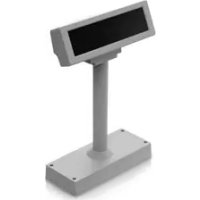



| Product type | Electronic customer display (customer screen) |
| Brand | Epson |
| Model | DMD210 |
| Display type | Fluorescent tube display (VFD) |
| Number of characters | 40 characters (20 columns x 2 rows, 5x7 dot matrix) |
| Display color | Green (505 nm) |
| Brightness | 700 cd/m² |
| Interface | RS-232 and USB 2.0 (Full-speed 12 Mbps) |
| Display unit dimensions | 260 (W) x 60 (D) x 83 (H) mm |
| Weight (display unit only) | Approx. 0.6 kg |
| Power supply | 21.6 ~ 26.4 VDC (provided by system, optional PS-180 or TM printer) |
| Power consumption | Approx. 6.0 W (RS-232 or USB self-powered) |
| Tilt angle | Maximum 36° (3 steps) |
| Maximum rotation angle | 330° |
| Lifespan | 20,000 hours |
| Operating temperature | Not specified in manual, indoor use |
| Operating humidity | Not specified in manual, avoid excessive humidity |
| Mounting options | DP-210 stand (tiltable), DP-502 bracket for TM printer |
| Configuration | DIP switches for communication settings and self-test |
| Safety | Disconnect before maintenance; do not open; use specified power source |
| Maintenance | Clean with a dry cloth; do not use flammable products nearby |
| Spare parts / Repairability | Contact an authorized Epson service center; do not repair yourself |
| General information | User manual available in multiple languages; download drivers from Epson website |
Frequently Asked Questions - DMD210 EPSON
User questions about DMD210 EPSON
0 question about this device. Answer the ones you know or ask your own.
Ask a new question about this device
Download the instructions for your Electronic display in PDF format for free! Find your manual DMD210 - EPSON and take your electronic device back in hand. On this page are published all the documents necessary for the use of your device. DMD210 by EPSON.
USER MANUAL DMD210 EPSON
All of the illustrations are at the beginning of this manual. They are identified by letters (A, B, C ...). Some of the illustrations have numbers in them. See the list below for the meaning of the numbers.
Illustration A:
- Screen
- POWER switch (bottom of the display)
Illustration B:
- Screen
- POWER Switch (bottom side of the display)
Illustration E:
- DIP switch
All rights reserved. No part of this publication may be reproduced, stored in a retrieval system, or transmitted in any form or by any means, electronic, mechanical, photocopying, recording, or otherwise, without the prior written permission of Seiko Epson Corporation. No patent liability is assumed with respect to the use of the information contained herein. While every precaution has been taken in the preparation of this book, Seiko Epson Corporation assumes no responsibility for errors or omissions. Neither is any liability assumed for damages resulting from the use of the information contained herein. Neither Seiko Epson Corporation nor its affiliates shall be liable to the purchaser of this product or third parties for damages, losses, costs, or expenses incurred by purchaser or third parties as a result of: accident, misuse, or abuse of this product or unauthorized modifications, repairs, or alterations to this product, or (excluding the U.S.) failure to strictly comply with Seiko Epson Corporation's operating and maintenance instructions.
Seiko Epson Corporation shall not be liable against any damages or problems arising from the use of any options or any consumable products other than those designated as Original Epson Products or Epson Approved Products by Seiko Epson Corporation.
EPSON is a registered trademark of Seiko Epson Corporation.
Exceed Your Vision and ESC/POS are registered trademarks or trademarks of Seiko Epson Corporation. All other trademarks are the property of their respective owners and used for identification purpose only. Product information is subject to change without due notice.
NOTICE:
The contents of this manual are subject to change without notice.
© Seiko Epson Corporation 2015. All rights reserved.
Restriction of Use
When this product is used for applications requiring high reliability/safety, such as transportation devices related to aviation, rail, marine, automotive, etc.; disaster prevention devices; various safety devices, etc.; or functional/precision devices, etc.; you should use this product only after giving consideration to including fail-safes and redundancies into your design to maintain safety and total system reliability. Because this product was not intended for use in applications requiring extremely high reliability/safety, such as aerospace equipment, main communication equipment, nuclear power control equipment, or medical equipment related to direct medical care, etc., please make your own judgment on this product's suitability after a full evaluation.
Safety Precautions
This section presents important information intended to ensure safe and effective use of this product. Please read this section carefully and store it in an accessible location.
WARNING:
Shut down your equipment immediately if it produces smoke, a strange odor, or unusual noise. Continued use may lead to fire. Immediately unplug the equipment and contact your dealer or a Seiko Epson service center for advice. Never attempt to repair this product yourself. Improper repair work can be dangerous.
Never disassemble or modify this product. Tampering with this product may result in injury or fire.
Be sure to use the specified power source. Connection to an improper power source may cause fire.
Do not allow foreign matter to fall into the equipment. Penetration by foreign objects may lead to fire.
If water or other liquid spills into this equipment, unplug the cables immediately, and then contact your dealer or a Seiko Epson service center for advice. Continued usage may lead to fire.
CAUTION:
Do not connect cables in ways other than those mentioned in this manual. Different connections may cause equipment damage and burning.
Be sure to set this equipment on a firm, stable, horizontal surface. The product may break or cause injury if it falls.
Do not use in locations subject to high humidity or dust levels. Excessive humidity and dust may cause equipment damage or fire.
Do not place heavy objects on top of this product. Never stand or lean on this product. Equipment may fall or collapse, causing breakage and possible injury.
Do not connect multiple extension struts. If the device topples over, there is a risk of damage or injury.
The horizontal rotating angle of the display unit is limited by a stopper. Do not apply excess force to rotate the display unit past the limit set by the stopper. Doing so may cause damage.
When you are attaching and detaching the cable, always check that the power switches of the customer display and the unit that it is connected to are turned off.
Take care when handling the customer display not to drop or knock it because it has a built-in fluorescent display tube.
If you do not use this product for an extended period of time, always disconnect the cables for safety. If you move the product, ensure that all of the cables are disconnected before moving it.
Do not use aerosol sprayers containing flammable gas inside or around this product. Doing so may cause fire.
Overview
DM-D110/DM-D210 is a compact customer display.
In accordance with your environment, you can use a serial cable or USB cable.
Part Names
See Illustrations A through E.
Options
Each of the options are used depending on the way the product is installed.
DP-110: DM-D110 dedicated stand. See Illustration A. DP-210: DM-D210 dedicated stand. See Illustration B. DP-502: Mounting bracket dedicated to DM-D110/DM-D210 (for TM printer). See Illustration C.
Downloading Drivers, Utilities, and Manuals
The latest versions of drivers, utilities, and manuals can be downloaded from one of the following URLs.
For customers in North America, go to the following web site:
http://www.epsonexpert.com/ and follow the on-screen instructions.
For customers in other countries, go to the following web site:
https://download.epson-biz.com/?service=pos
Precautions on Power-on
Ensure that you turn off the power to all the devices connected to this product before connecting the cables.
When connecting the AC adapter to DP-110/DP-210
DM-D110/DM-D210 starts operating when the power switch of DM-D110/DM-D210 is turned on.
Always ensure that you turn on the power switch of DM-D110/DM-D210 first, and then turn on the devices connected to it.
Note:
When the USB model of the EPSON TM printer is connected, the system may not be able to detect DM-D110/DM-D210 if the power to DM-D110/DM-D210 is turned on too late.
When connecting the USB bus power* to DM-D110
DM-D110 operates according to the power-on/off state on the host side regardless of the DM-D110 power-switch state.
- USB bus power is a way to supply power through the USB port on the host side such as the connected computer and TM printer.
When using the USB cable of DM-D110/DM-D210
□Do not connect to a USB connector of TM printer or USB hub which has limited power supply capacity. Doing so will exceed the power supply capacity and cause the TM printer or USB hub to break down. - USB RS-232 Convert Driver (DM-D110(USB)_VCPdriver_Ver.2.xx.zip) is required to use DM-D110/DM-D210. The driver is not included with DM-D110/DM-D210. Download it from the following URL, and install it before use. See "Downloading Drivers, Utilities, and Manuals" on page 5. After installing the above driver, the computer will recognize DM-D110/DM-D210 as a USB device and add a virtual COM port. This product will be recognized as a serial device and can be used via a COM port.
Note:
If you use a TM-i series or TM-DT series printer, you do not need to install USB RS-232 Convert Driver.
Changing the Orientation of the Display Unit
The angle and direction of the display unit can be changed by holding the struts with your hand while moving the display unit. The display unit will move with only light pressure, so do not apply more pressure once the unit stops moving. Applying excess force to move the display unit may cause damage.
When installed in the TM printer, there may be situations where the display unit cannot be turned to the desired direction. In these situations, remove the customer display and base unit, then adjust the position of the lug in the base unit before reattaching.
See Illustration D.
DIP Switches
The DIP switches configure the communication settings and whether a self-test is required.
See Illustration E.
CAUTION:
Do not remove the DIP switch cover until after turning the power off. Removing the cover while the power is turned on may damage the device.
Remove the cables from the computer and remove the cover of the dip switch. If the cables are still connected to the computer during operation, this product may break down.
DIP Switch 1 Functions
| DSW1 No. Function ON OFF Default Setting | ||||
| 1-1 Received Error Data Ignore “?” Display OFF | ||||
| 1-2 Received Data Length 7bit 8bit OFF | ||||
| 1-3 Parity | With Parity | No Parity | OFF | |
| 1-4 | Parity Selection | Even | Odd | OFF |
| 1-5 | Communication Speed Switching | Refer to “Transfer Speed Switching” | ON | |
| 1-6 | OFF | |||
| 1-7 | ON | |||
| 1-8 | Execute Self-Test (*1) | Yes | No | OFF |
| 1-9 | Internal use. Do not change. Fixed to OFF. | |||
| 1-10 | ||||
(*1) Executes the self-test once only when the power is turned on.
Transfer Speed Switching
| SW1-5 | SW1-6 | SW1-7 | Transfer Speed (bps) |
| ON | ON | ON 2400 | |
| OFF | ON | ON 4800 | |
| ON | OFF | ON | 9600*1 |
| OFF | OFF | ON | 19200*2 |
| ON | ON | OFF | 38400 |
| OFF | ON | OFF | 57600 |
| ON | OFF | OFF | 115200 |
| OFF | OFF | OFF | (Reserved) |
1 Default Setting 2 Setting that is used when connecting to the USB model of the EPSON TM printer.
Specifications
DM-D110
| Model DM-D110 DM | D110 + DP-110 DM-D110 + DP-502 | ||||
| Display type Fluorescent tube display | |||||
| Number of characters displayed | 40 characters (20 columns × 2 rows, 5 × 7 dot matrix) | ||||
| Display color Green (505 nm) | |||||
| Brightness 690 cd/m | 2 | ||||
| Character classes Alphanumeric: | 95 charactersInternational characters: 37 charactersGraphic characters: 128 characters × 12 pages | ||||
| Character composition 5 × 7 dot | matrix, cursor | ||||
| Character size 3.5 × 5.0 mm {0.14} | × 0.2" | ||||
| Character pitch 5.2 mm {0.2"} | |||||
| Interface Stndard RS-232/USB (USB 2.0, Communication speed: Full-speed (12 Mbps))Compliant | |||||
| Connector | RS-232 | RJ-45 | D-Sub 9 pin (female) | RJ-45 | |
| USB | USB | USB Type-A | |||
| Reliability | Lifespan 20,000 hours | ||||
| Power supply voltage | DC 21.6 ~ 26.4V(USB bus power operation: DC 4.75 ~ 5.25V) | ||||
| Power consumption | RS-232 operation: Approximately 3.6 WUSB self power operation: Approximately 3.6 WUSB bus power operation: Approximately 2.5 W | ||||
| External dimensions | Display unit | 165 (W) × 50.5 (D) × 69 (H) mm{6.5 (W) × 1.99 (D) × 2.72" (H)} | |||
| Base unit | - | 165 (W) × 110 (D) × 63 (H) mm{6.5 (W) × 4.33 (D) × 2.48" (H)} | 78 (W) × 164 (D) × 260 (H) mm{3.07 (W) × 6.46 (D) × 10.24" (H)} | ||
| External | 165 (W) × 50.5 (D) × 69 (H) mm{6.5 (W) × 1.99 (D) × 2.72" (H)} | 165 (W) × 110 (D) × 135 (H) mm{6.5 (W) × 4.33 (D) × 5.31" (H)} | 165 (W) × 164 (D) × 331 or 451 (H) mm{6.5 (W) × 6.46(D) × 13.03 or 17.76" (H)} | ||
| Mass | Approximately 0.29 kg{Approximately 0.64 lb} | Approximately 0.65 kg{Approximately 1.43 lb} | Approximately 0.55 kg{Approximately 1.21 lb} | ||
| Tilt angle | Maximum 48° (4 steps) | ||||
| Horizontal rotation angle | - | Maximum 90° | Maximum 330° | ||
| Power supply(RS-232/USB self power operation) | Supplied by system | PS-180 (Option) | Supplied by TM printer | ||
DM-D210
| Model DM-D210 DM-D210 + DP-210 DM-D210 + DP-502 | ||||
| Display type Fluorescent tube display | ||||
| Number of characters displayed 40 characters (20 columns × 2 rows, 5 × 7 dot matrix) | ||||
| Display color Green (505 nm) | ||||
| Brightness 700 cd/m | 2 | |||
| Character classes Alphanumeric: 95 charactersInternational characters: 37 charactersGraphic characters: 128 characters × 12 pages | ||||
| Character composition 5 × 7 dot matrix, comma/period/annunciator | ||||
| Character size 6.5 × 11.3 mm {0.26} × 0.45" | ||||
| Character pitch 9.9 mm {0.39"} | ||||
| Interface Standard RS-232/USB (USB 2.0, Communication speed: Full-speed(12 Mbps)) Compliant | ||||
| Connector | RS-232 | RJ-45 | D-Sub 25 pin(female) | RJ-45 |
| USB | USB Type A | |||
| Reliability | Lifespan 20,000 hours | |||
| Power supply voltage | DC 21.6 ~ 26.4V | |||
| Power consumption | RS-232 operation: Approximately 6.0 WUSB self power operation: Approximately 6.0 W | |||
| External dimensions | Display unit | 260 (W) × 60 (D) × 83 (H) mm{10.24 (W) × 2.36(D) × 3.27" (H)} | ||
| Base unit | - | 260 (W) × 110 (D) ×53 (H) mm{10.24 (W) × 4.33 (D) × 2.09" (H)} | 78 (W) × 164 (D) ×260 (H) mm{3.07 (W) × 6.46(D) × 10.24" (H)} | |
| External | 260 (W) × 60 (D) ×83 (H) mm{10.24 (W) × 2.36 (D) × 3.27" (H)} | 260 (W) × 110 (D) ×383 or 503 (H) mm{10.24 (W) × 4.33 (D) × 15.08 or 19.8" (H)} | 260 (W) × 164 (D) ×360 or 480 (H) mm{10.24 (W) × 6.46(D) × 14.17 or 18.9" (H)} | |
| Weight (Mass) | Approximately 0.6 kg{1.32 lb} | Approximately 0.98 kg{2.16 lb} | Approximately 0.85 kg{1.87 lb} | |
| Tilt angle | Maximum 36° (3 steps) | |||
| Horizontal rotation angle | Maximum 330° | |||
| Power supply | Supplied fromsystem | PS-180 (Option) | Supplied by TM printer | |
DM-D110/D210
https://download.epson-biz.com/?service=pos
https://download.epson-biz.com/?service=pos
https://download.epson-biz.com/?service=pos
Refer to illustrations A to E.
Options
EPSON is a registered trademark of Seiko Epson Corporation.
Exceed Your Vision ESC/POS are registered trademarks or trademarks of Seiko Epson Corporation.
All other trademarks are the property of their respective owners and are used only for identification purposes. The information about the product may change without prior notice.
NOTE.
The contents of this manual may be changed without notice.
Seiko Epson Corporation 2015. All rights reserved.
Restricted Use
If this product is used in conditions requiring high reliability/safety, for example, together with devices on aircraft, trains, ships, automobiles, etc.; together with emergency warning devices; together with various safety devices, etc.; together with functional/precision devices, etc.; then use this product only after taking measures to ensure fail-safe and redundancy, so that the safety and reliability of the system as a whole is ensured. Since this product is not intended for use in conditions requiring extremely high reliability/safety, for example, in the composition of aircraft control equipment, mainline communication equipment, atomic power plant control systems, or medical equipment used directly for diagnosis or treatment, etc., the decision to use this product for such purposes is your own responsibility after thorough evaluation.
Safety Precautions
This section contains information that helps ensure safe and effective use of this product. Read this section carefully and keep the instructions in an accessible place.
WARNING.
If smoke, an unusual odor, or an unusual noise occurs during use of the equipment, immediately turn it off. Continued use may lead to fire. Immediately disconnect the equipment from the power source and contact the manufacturer's sales representative or the Seiko Epson equipment service center for advice.
Do not attempt to repair this product yourself. Incorrect repair may be dangerous.
It is forbidden to disassemble or repair this product. Improper handling of the equipment may lead to injury or fire.
Use only the specified power source. Connecting the equipment to an incompatible power source may lead to fire.
Do not allow foreign objects to enter the equipment.
Foreign objects entering the equipment may lead to fire.
Before connecting and using the equipment, carefully read this manual and follow the recommendations of the manufacturer or the equipment discussion forum in the Seiko Epson company.
WARNING!
Connect the cable only in accordance with the instructions provided in this manual. Other use of the cable may lead to damage and malfunction of the equipment.
Install the equipment only on a stable, hard, horizontal surface. Falling of the equipment may lead to its damage or to injury.
Do not use the product in places with high humidity and dustiness of the air. Excessive humidity and dustiness may lead to damage or fire of the equipment.
Do not place heavy objects on the product. It is forbidden to stand on the equipment or lean on it. The equipment may fall or tip over; in both cases injury is possible.
It is forbidden to connect several devices in a stack. In case of tipping over of the device, there is a risk of its damage or injury.
The angle of horizontal rotation of the display is limited by a stop. Do not apply excessive force to rotate the display beyond the limits set by the stop. May lead to damage.
When connecting and disconnecting the cable, make sure that the power switches on the display for the client and the unit to which it is connected are turned off.
When handling the display for the client, avoid hitting it, as it is equipped with a built-in touch panel.
If this product is not used for a long time, disconnect the cables to ensure safety. Before moving the product, make sure that all cables are disconnected.
It is forbidden to use sprays containing flammable gas near this product. This may lead to fire.
Overview
The DM-D110/DM-D210 is a compact display for clients. Depending on the interface used, you can use a serial data transfer cable or a USB cable.
Part names
CM. ILLUSTRATIONS A-E.
Installation variations
The installation variations are used depending on the method of installing the product.
DP-110: Separate supply DM-D110. See illustration A. DP-210: Separate supply DM-D210. See illustration B. DP-502: Mounting bracket for DM-D110/DM-D210 (for TM printers). See illustration C.
Downloading drivers, utilities, and manuals
Drivers, utilities, and manuals of the latest versions can be downloaded from the following sites:
https://download.epson-biz.com/?service=pos
http://support.epson.ru
Safety precautions when connecting the power supply
Before connecting the power cable, make sure that all devices connected to this product are turned off.
Connecting the AC adapter to DP-110/DP-210
DM-D110/DM-D210 are turned on when the power switch of DM-D110/DM-D210 is closed.
DM-D110 operates depending on the on/off state of the host device, regardless of the state of the power switch of DM-D110.
*Power through the USB cable is a method of supplying power via the USB port on the host device, such as a computer or TM printer.
When using the USB cable DM-D110/DM-D210
Do not connect to the USB port on the printer or USB hub with limited power supply capability. This will exceed the power supply capability and cause the printer or USB hub to fail. To use the DM-D110/DM-D210, a USB RS-232 conversion driver (DM-D110(USB)_VCPdriver_Ver.2.xx.zip) is required. This driver is not included with the DM-D110/DM-D210. Download it from the following address and install it before use. See "Downloading Drivers, Utilities, and Manuals" on page 61. After installing the above driver, the computer will recognize the DM-D110/DM-D210 as a USB device and add a virtual COM port. This device will be recognized as a device with a serial interface, and it can be used via the COM port.
Note.
If you are using a TM-i or TM-DT series printer, you do not need to install the USB RS-232 conversion driver.
Changing the position of the display
The angle and direction of the display can be changed by holding the stand and moving the display. The display moves with a small amount of force, so do not apply additional force when it stops. Applying excessive force when moving the display may cause damage.
When installing on a TM printer, there may be situations where the display cannot be turned to the lower position. In such cases, it is recommended to remove the display from the stand and the main unit, then change the position of the protrusion on the main unit and install the equipment in place.
See illustration D.
DIP switches
DIP switches allow you to set communication settings and the necessity of self-diagnosis.
See illustration E.
CAUTION!
Do not remove the cover of the DIP switches while the power is on. Removing the cover while the power is on may cause damage to the device.
Disconnect the cables from the computer and remove the cover of the DIP switches. If the cables are connected to the computer during the work, this device may be damaged.
- Screen
- Display rotation (six-direction display)
MaJIHOK E:
5.ДBoxno3uicHnпермkau
Всі права захищено. Без попереднього письмового дозволу корпорації Seiko Epson Corporation жодну частину цього документа не можна відтворювати, зберігати у пошуковій системі або передавати у будь-якому вигляді та будь-якими засобами: електронними, механічними, фотографічними, шляхом відеозапису та іншими способами. Копіювання патентних зобов'язань не передбачається попові використання інформації, що міститься у цьому документі. Незважаючи на те, що виробники вжили всі можливі запобіжні заходи при підготовці цього документа, корпорація Seiko Epson не несе жодної відповідальності за помилки або упущення у ньому. Крім того, виробники не несуть жодної відповідальності за збитки у результаті використання цієї інформації.
Корпорація Seiko Epson та її філії не несуть відповідальності перед покупцем цього продукту або третьою стороною за шкоду, втрати, збитки або витрати покупця або третьої сторони внаслідок: нещасного випадку, неправильного використання або неналежної експлуатації цього продукту, а також несанкціонованого модифікування, ремонту або внесення змін або (за винятком випадків, передбачених законодавством) недотримання інструкцій з експлуатації та технічного обслуговування, наданих корпорацією Seiko Epson.
Корпорація Seiko Epson не несе жодної відповідальності за будь-які збитки або проблеми, що виникають у результаті використання будь-яких додаткових аксесуарів та витратних матеріалів, крім тих, що рекомендовані корпорацією Seiko Epson як оригінальна продукція компанії Epson або як продукція, схвалена компанією Epson.
© Seiko Epson Corporation 2015. Всі права захищено.
Обмеження використання
Цей продукт використовується в умовах, що вимагають забезпечення високого рівня надійності/безпеки, наприклад, зрізних пристроях на авіаційному, залізничному, водному, автомобільному транспорті тощо; аварійних пристроях оповіщення; різних пристроях забезпечення безпеки тощо; функціональних/резервних пристроях тощо, що використовуються для підтримки після проведення заходів щодо забезпечення відповідальності та дублювання, що забезпечують безпеку і надійність системи в цілому. Оскільки цей продукт призначений для використання в умовах, що вимагають забезпечення надзвичайно високого рівня надійності/безпеки, наприклад, з авіаційним обладнанням, устаткуванням магістрального зв'язку, у системах управління атомними електростанціями або з медичним обладнанням, що застосовується безпосередньо для лікування пацієнтів, користувач повинен прийняти власне рішення щодо можливості використання даного пристрою лише після всебічної оцінки.
Заходи техніки безпеки
У цьому розділі наведено важливу інформацію щодо безпечного та ефективного використання цього продукту. Уважно прочитайте цей розділ та зберігайте його у доступному місці.
ПОПЕРЕДЖЕННЯ
Виникнення обладнання несправно, якщо з нього йде дим, відчувається незвичайний запах або незвичайний шум. Продовження його використання у такому випадку може призвести до пожежі. Негайно вимкніть пристрій від мережі живлення та зверніться по допомогу до дилера або у сервісний центр компанії Seiko Epson.
Follow the instructions and use the product safely. Incorrect use may be hazardous.
Never disassemble or modify this product. Improper handling may cause injury or damage.
Use only the specified power source. Connecting to an incorrect power source may cause damage.
Do not allow children to handle the product unattended. Children putting small objects into the device may cause damage.
If the product or any part is damaged, unplug the cables and contact the dealer or the Seiko Epson Corporation service center.
WARNING:
Do not insert cables into the connectors described in this manual. Incorrect insertion may cause damage to the device or fire.
Place the device on a flat, horizontal surface. If the device falls, it may break or cause injury.
Do not use the device in areas with high humidity or dust. High humidity and dust may cause damage to the device or injury.
Do not place heavy objects on the device. Never stand or lean on this product. It may fall or tip over, causing damage and injury.
Do not insert any objects into the openings. If the device tips over, it may cause damage or injury.
The display can be tilted horizontally. Do not apply excessive force to tilt the display beyond the specified angle, as it may cause damage to the device.
When connecting or disconnecting cables, make sure that the cable connectors are correctly aligned with the device ports before plugging them in.
Be careful when handling the display to avoid dropping or hitting it, as it contains a fragile glass panel.
If you do not intend to use this product for an extended period, unplug it for safety. If you need to move the product, unplug the cables before moving it.
The buffer memory is independent of the device or its parts. This can lead to damage.
OzЯо
DM-D110/DM-D210 - Compact display. Depending on the environment, you can use a serial cable or a USB cable.
Name of parts
INB. Small label A.
Onui
When using, it depends on the installation method of the product.
DP-110: Stand for DM-D110. INB. Small label A. DP-210: Stand for DM-D210. INB. Small label B. DP-502: Mounting bracket for DM-D110/DM-D210 (for TM printer). INB. Small label C.
Downloading drivers, utilities, and manuals
The latest versions of drivers, utilities, and manuals can be downloaded from one of the following links.
Users in North America should visit the following site: http://www.epsonexpert.com/ and follow the on-screen instructions.
Users in other countries should visit the following site: https://download.epson-biz.com/?service=pos
Warning about power connection
Do not forget to turn off the power of all devices connected to this product before connecting cables.
AC adapter for DP-110/DP-210
DM-D110/DM-D210 new model, which replaces the DM-D110/DM-D210 display.
First, turn off the DM-D110/DM-D210 display, and then turn on the new device.
Note:
When the USB model of the EPSON TM printer is connected, the system may not recognize the DM-D110/DM-D210, and the DM-D110/DM-D210 display may not turn on automatically.
https://download.epson-biz.com/?service=pos
https://download.epson-biz.com/?service=pos
Precautions before use
Seiko Epson Corporation 2015. All rights reserved.
Before use
- ILLUSTRATION A
- ILLUSTRATION B
- ILLUSTRATION E
- NOTICE
- RESTRICTION OF USE
- SAFETY PRECAUTIONS
- WARNING
- CAUTION
- OVERVIEW
- PART NAMES
- OPTIONS
- DOWNLOADING DRIVERS, UTILITIES, AND MANUALS
- PRECAUTIONS ON POWER-ON
- WHEN CONNECTING THE AC ADAPTER TO DP-110/DP
- NOTE
- WHEN CONNECTING THE USB BUS POWER* TO DM-D
- WHEN USING THE USB CABLE OF DM-D110/DM-D
- CHANGING THE ORIENTATION OF THE DISPLAY UNIT
- DIP SWITCHES
- DIP SWITCH 1 FUNCTIONS
- TRANSFER SPEED SWITCHING
- SPECIFICATIONS
- DM-D
- DM-D110/D
- RESTRICTED USE
- INSTALLATION VARIATIONS
- SAFETY PRECAUTIONS WHEN CONNECTING THE POWER SUPPLY
- CONNECTING THE AC ADAPTER TO DP-110/DP
- WHEN USING THE USB CABLE DM-D110/DM-D
- CHANGING THE POSITION OF THE DISPLAY
- MAJIHOK E
- ОБМЕЖЕННЯ ВИКОРИСТАННЯ
- ЗАХОДИ ТЕХНІКИ БЕЗПЕКИ
- ПОПЕРЕДЖЕННЯ
- OZЯО
- NAME OF PARTS
- ONUI
- WARNING ABOUT POWER CONNECTION
- AC ADAPTER FOR DP-110/DP
- PRECAUTIONS BEFORE USE
- BEFORE USE
Brand : EPSON
Model : DMD210
Category : Electronic display