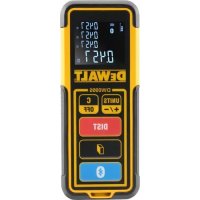
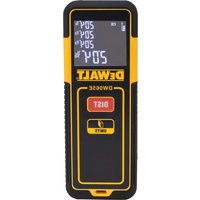
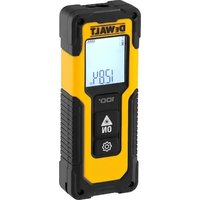
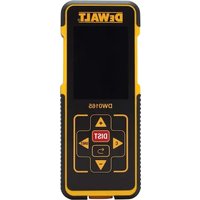
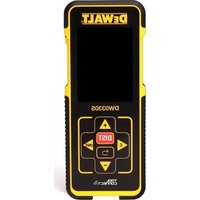
USER MANUAL DW099S DEWALT
- User Safety
- Battery Safety
- Setup (Load Batteries)
Operation
Warranty
- Error Codes
- Specifications
Retain all sections of this manual for future reference.
User Safety

WARNING:
Carefully read the Safety Instructions and Product Manual before using this product. The person responsible for the product must ensure that all users understand and adhere to these instructions.

WARNING:
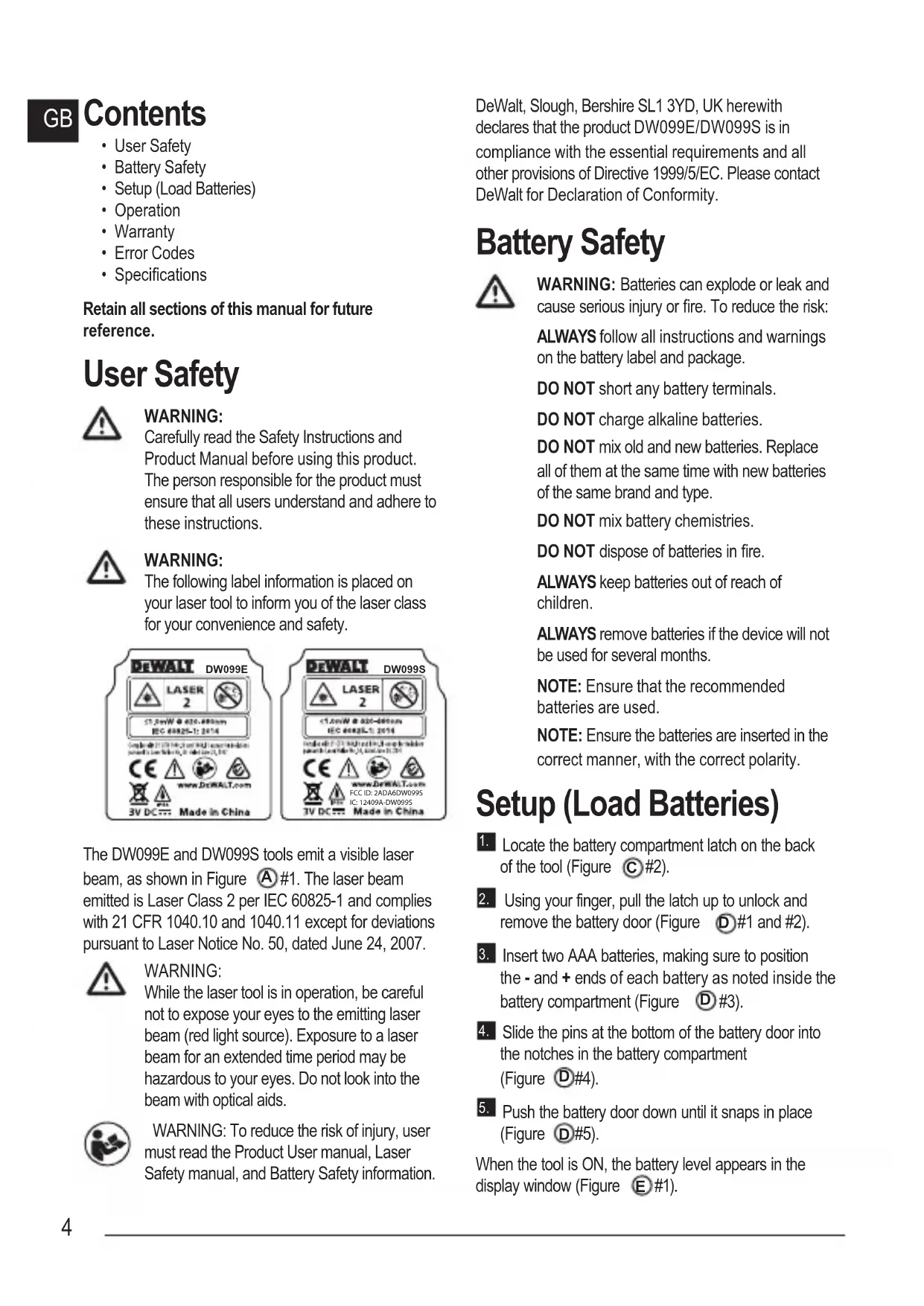
The following label information is placed on your laser tool to inform you of the laser class for your convenience and safety.
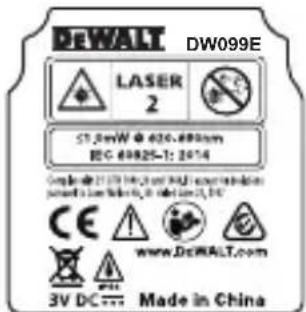
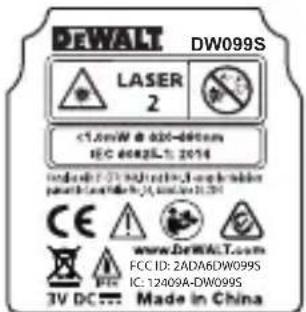
The DW099E and DW099S tools emit a visible laser beam, as shown in Figure A#1. The laser beam emitted is Laser Class 2 per IEC 60825-1 and complies with 21 CFR 1040.10 and 1040.11 except for deviations pursuant to Laser Notice No. 50, dated June 24, 2007.

WARNING:
While the laser tool is in operation, be careful not to expose your eyes to the emitting laser beam (red light source). Exposure to a laser beam for an extended time period may be hazardous to your eyes. Do not look into the beam with optical aids.

WARNING: To reduce the risk of injury, user must read the Product User manual, Laser Safety manual, and Battery Safety information.
DeWalt, Slough, Bershire SL1 3YD, UK herewith declares that the product DW099E/DW099S is in compliance with the essential requirements and all other provisions of Directive 1999/5/EC. Please contact DeWalt for Declaration of Conformity.
Battery Safety

WARNING: Batteries can explode or leak and cause serious injury or fire. To reduce the risk:
ALWAYS follow all instructions and warnings on the battery label and package.
DO NOT short any battery terminals.
DO NOT charge alkaline batteries.
DO NOT mix old and new batteries. Replace all of them at the same time with new batteries of the same brand and type.
DO NOT mix battery chemistries.
DO NOT dispose of batteries in fire.
ALWAYS keep batteries out of reach of children.
ALWAYS remove batteries if the device will not be used for several months.
NOTE: Ensure that the recommended batteries are used.
NOTE: Ensure the batteries are inserted in the correct manner, with the correct polarity.
Setup (Load Batteries)
- Locate the battery compartment latch on the back of the tool (Figure C#2).
- Using your finger, pull the latch up to unlock and remove the battery door (Figure D#1 and #2).
- Insert two AAA batteries, making sure to position the - and + ends of each battery as noted inside the battery compartment (Figure D#3).
- Slide the pins at the bottom of the battery door into the notches in the battery compartment (Figure D#4).
- Push the battery door down until it snaps in place (Figure D#5).
When the tool is ON, the battery level appears in the display window (Figure E #1).
Operation
Measuring Distance to a Wall or Object
- Click (Figure
A#5) to turn on the tool.
- The tool will measure the distance from the bottom of the tool to the wall or object (Figure F#1).
To measure from the top of the tool instead of the bottom (Figure F#2), hold for 2 seconds. On the display window, the tool icon will change from to (Figure E#5).
- Point the laser at the top of the tool (Figure A#1) toward the wall or object whose distance you need to measure (Figure F).
- Click to measure the distance from the tool to the wall or object.
- At the bottom of the display window (Figure A#2), view the current measurement (Figure E#3).
To take a new measurement, click DIST to move the current measurement up to the previous line on the display window (Figure E#2). Then repeat steps 2-5.
Measuring Distances Continuously
To take a series of measurements as you move around, change to Continuous Measure mode.
- Click (Figure
A#5) to turn on the tool.
- Point the laser at the top of the tool (Figure A#1) toward the wall or object whose distance you need to measure (Figure F).
- Click and hold for2 seconds to turn on the Continuous Measure mode.
- At the bottom of the display window (Figure A #2), view the current measurement (Figure E #3), which will keep changing as you move the tool.
- To take the current measurement (from the tool to the wall or object) and exit Continuous Measure mode, click DIST.
To take a new measurement, click DIST to move the current measurement up to the previous line on the display window. Then repeat steps 2-5.
Measuring Area
You can measure the area of a wall, floor, or object.
- Click (Figure
A#5) to turn on the tool.
- The tool will measure the distance from the bottom of the tool to the wall or object (Figure F#1).
To measure from the top of the tool instead of the bottom (Figure F#2), hold for 2 seconds. On the display window, the tool icon will change from to (Figure E#5).
- Click to show on the display window (Figure E#4).
-
Measure the width.
-
Point the top of the tool at one side of the target (wall, floor, or object).
- Position the tool at one end of the target and point the laser dot across the width. (Figure 1 shows where to position the tool if you are measuring from the bottom of the tool.)
-
Click to display the width measurement at the top of the display window.
-
Measure the length.
-
Position the tool at one end of the target and point the laser dot across the length. (Figure #2 shows where to position the tool if you are measuring from the bottom of the tool.)
-
Click to display the length measurement on the second line of the display window.
-
View the Area measurement at the bottom of the display window (Figure E#3).
GB
Measuring Volume
You can measure the volume of a room or object.
- Click (Figure A#5) to turn on the tool.
- The tool will measure the distance from the bottom of the tool to the wall or object (Figure F#1).
To measure from the top of the tool instead of the bottom (Figure F#2), hold for 2 seconds. On the display window, the tool icon will change from 品 to Figure E#5).
- Click twice to show on the display window (Figure E #4).
-
Measure the width.
-
Point the top of the tool at one side of the target (room or object).
- Position the tool at one end of the target and point the laser dot across the width. (Figure 1 shows where to position the tool if you are measuring from the bottom of the tool.)
-
Click DIST to display the width measurement at the top of the display window.
-
Measure the length.
-
Position the tool at one end of the target and point the laser dot across the length. (Figure #2 shows where to position the tool if you are measuring from the bottom of the tool.)
-
Click DIST to display the length measurement on the second line of the display window.
-
Measure the height.
-
Positon the tool at one end of the target and point the laser dot across the height. (Figure #3 shows where to position the tool if you are measuring from the bottom of the tool).
- Click DIST to display the height measurement on the third line of the display window.
View the Volume measurement at the bottom of the display window (Figure E#3).
Adding Measurements
You can add two measurements to get a total measurement of the two distances.
- Click (Figure A#5) to turn on the tool.
- The tool will measure the distance from the bottom of the tool to the wall or object (Figure F#1).
To measure from the top of the tool instead of the bottom (Figure F#2), hold for 2 seconds. On the display window, the tool icon will change from to (Figure E#5).
- Point the laser at the top of the tool (Figure A#1) toward the wall or object whose distance you need to measure.
- Click to measure the distance from the tool to the wall or object.
- Indicate that you want to add this measurement to the next measurement.
On the DW099E keypad, click (Figure A#7).

On the DW099S keypad, click (Figure B#1).

- Point the laser at the top of the tool toward the next wall or object.
- Click to measure the distance and add it to the previous measurement.
- View the total of the two measurements at the bottom of the display window (Figure E#3).
Subtracting Measurements
You can subtract one measurement from another.
- Click (Figure A#5) to turn on the tool.
- The tool will measure the distance from the bottom of the tool to the wall or object (Figure F#1).
To measure from the top of the tool instead of the bottom (Figure F#2), hold for 2 seconds. On the display window, the tool icon will change from 串 to Figure E#5).
- Point the laser at the top of the tool (Figure A#1) toward the wall or object whose distance you need to measure.
- Click to measure the distance from the tool to the wall or object.
-
Indicate that you want to subtract the next measurement from this measurement.
-
On the DW099E keypad, click +/− twice.
-
On the DW099S keypad, click twice.
-
Point the laser at the top of the tool toward the next wall or object.
- Click to measure the distance and subtract it from the previous measurement.
- View the difference between the two measurements at the bottom of the display window (Figure E #3).
Changing the Unit of Measure
Once the current measurement is taken (the device is not in Continuous Measure mode), you can change the unit of measure from decimal ft (6.21 ft) to fractional ft (6'02" 9/16), fractional ft to meters (1.894 m), meters to inches (74 9/16 in), or inches to decimal ft.
- On the DW099E keypad, click (Figure A#3).
On the DW099S keypad, hold (Figure B#1) until you see the measurement change (2-3 seconds).
Using Your DW099S With

If you have a DW099S, you can use its Bluetooth capability to pair it with the DeWALT Tool Connect application on your cell phone or tablet, and then record accurate measurements in your floor plans.
- From either or, download
the DeWALT Tool Connect application to your cell phone or tablet.
- Using the DeWALT Tool Connect application, capture the room or space for which you want to record the measurements, and build your floor plan.
- On the DW099S keypad, click to turn on the tool.
- If the Bluetooth® icon does not appear on the display window (Figure E #6), click on the keypad to turn on Bluetooth®.
- Use the DeWALT Tool Connect application to pair your cell phone or tablet to the DW099S.
- Use the DW099S to measure each wall in the room or space captured in the floor plan, and sync the measurements to the floor plan.
- Using the DeWALT Tool Connect application, save the floor plan.
Once you have saved the floor plan, you can export it to one of several different file formats, including PDF, DXF, or JPG, and print it or email it to other people (your realtor, home center, etc.).

Bluetooth
THE BLUETOOTH WORD MARK AND LOGOS ARE REGISTERED TRADEMARKS OWNED BY BLUETOOTH SIG, INC. AND ANY USE OF SUCH MARKS BY DEWALT INDUSTRIAL TOOL CO. IS UNDER LICENSE. OTHER TRADEMARKS AND TRADE NAMES ARE THOSE OF THEIR RESPECTIVE OWNERS."
The tool can be turned off in either of these ways:
- Press and hold for several seconds (until the display window clears).
- If you do not use the tool for 90 seconds, it will automatically turn off.
Three Year Limited Warranty
DeWALT will repair, without charge, any defects due to faulty materials or workmanship for three years from the date of purchase. This warranty does not cover part failure due to normal wear or tool abuse. For further detail of warranty coverage and warranty repair information, visit www.DeWALT.com or call 1-800-4-DeWALT (1-800-433-9258). This warranty does not apply to accessories or damage caused where repairs have been made or attempted by others. This warranty gives you specific legal rights and you may have other rights which vary in certain states or provinces.
In addition to the warranty, DeWALT tools are covered by our:
1 YEAR FREE SERVICE
DeWALT will maintain the tool and replace worn parts caused by normal use, for free, any time during the first year after purchase.
90 DAY MONEY BACK GUARANTEE
If you are not completely satisfied with the performance of your DeWALT Power Tool, Laser, or Nailer for any reason, you can return it within 90 days from the date of purchase with a receipt for a full refund - no questions asked.
RECONDITIONED PRODUCT: Reconditioned product is covered under the 1 Year Free Service Warranty. The 90 Day Money Back Guarantee and the Three Year Limited Warranty do not apply to reconditioned product.
FREE WARNING LABEL REPLACEMENT: If your warning labels become illegible or are missing, call 1-800-4-DeWALT or visit your local service center for a free replacement.
Protecting the Environment
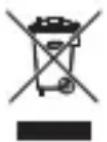
Separate collection. This product must not be disposed of with normal household waste.
Should you find one day that your DeWALT product needs replacement, or if it is of no further use to you, do not dispose of it with household waste. Make this product available for separate collection.

Separate collection of used products and packaging allows materials to be recycled and used again. Re-use of recycled
materials helps prevent environmental pollution and reduces the demand for raw materials.
Local regulations may provide for separate collection of electrical products from the household, at municipal waste sites or by the retailer when you purchase a new product.
DeWALT provides a facility for the collection and recycling of DeWALT products once they have reached the end of their working life. To take advantage of this service please return your product to any authorised repair agent who will collect them on our behalf.
You can check the location of your nearest authorised repair agent by contacting your local DeWALT office at the address indicated in this manual. Alternatively, a list of authorised DeWALT repair agents and full details of our after-sales service and contacts are available on the Internet at: www.2helpU.com.
Batteries
- When disposing batteries, think of the protection of the environment.
- Check with your local authorities for an environmentally safe way of battery disposal.
Error Codes
GB
If INFO appears on the display window with a Code number, perform the corresponding Corrective Action.
| Code Description Corrective Action | |
| 101 Received Signal Too Weak, Measuring Time Too Long | Use the target plate or change the target surface. |
| 102 Received Signal Too High | Target is too reflective. Use the target plate or change the target surface. |
| 201 Too Much Background Light Reduce the background light on the target area. | |
| 202 Laser Beam Interrupted Remove the obstacle and repeat the measurement. | |
| 203 Insufficient Power Replace the batteries. | |
| 301 Temperature Too High | Allow the device to cool down to a temperature within the specified Operating Temperature Range. |
| 302 Temperature Too Low | Allow the device to warm up to a temperature within the specified Operating Temperature Range. |
| 401 Hardware Error Switch the device on/off several times. If the error still occurs, return the defective device to the Service Center or distributor. Refer to the Warranty. |
| 402 Unknown Error | Contact the Service Center or distributor. Refer to the Warranty. |
| Range .1m to 30m (4in to 100ft) | |
| Measuring Accuracy* ± 2mm (± 3/32in)* | |
| Resolution** 1mm (1/16in)** | |
| Laser Class Class 2 (IEC/EN60825-1: 2014) | |
| Laser Type ≤ 1.0mW @ 620-690nm | |
| Laser/Backlight Automatic Switch-off After 30s | |
| Unit Automatic Switch-off After 90s | |
| Continuous Measuring Yes | |
| Area/Volume Yes | |
| Battery Life (2 x AAA) Up to 3000 Measurements (2500 with Bluetooth) |
| Dimension (H x D x W) 120 x 48.5 x 26mm (4.72 x 1.91 x 1.02in) |
| Weight (with Batteries) 100g (3.21oz) | |
| Storage Temperature Range -10°C ~ +60°C (14°F ~ 140°F) |
| Operating Temperature Range | 0°C ~ +40°C (32°F ~ 104°F) |
| *Measuring Accuracy depends on the current conditions:
· Under favorable conditions (good target surface and room temperature), up to 10m (33ft).
· Under unfavorable conditions (bright sunlight, a very weak reflecting target surface, or large temperature fluctuations),
the error can increase by to ± 0.25mm/m (± 0.003 in/ft) for distances over 10m (33ft).
**Resolution is the finest measurement you can see. In inches, that is 1/16". In mm, that is 1mm. |
Inhalt
1 AN D'ASSISTANCE GratisITE
1 VUODEN ILMAINEN HUOLTO
© 2017 DeWalt Industrial Tool Co., DEWALT Europe, DEWALT D-65510 Idstein, Germany 65509
Made in China
097395 - Rev A
July 2017