Actioncam 8s Plus - Camcorder ROLLEI - Free user manual and instructions
Find the device manual for free Actioncam 8s Plus ROLLEI in PDF.



User questions about Actioncam 8s Plus ROLLEI
0 question about this device. Answer the ones you know or ask your own.
Ask a new question about this device
Download the instructions for your Camcorder in PDF format for free! Find your manual Actioncam 8s Plus - ROLLEI and take your electronic device back in hand. On this page are published all the documents necessary for the use of your device. Actioncam 8s Plus by ROLLEI.
USER MANUAL Actioncam 8s Plus ROLLEI
- This product is a high-precision product, do not drop or hit it anywhere.
- Do not place the camera near to strong magnetism, such as magnets and motors. Please avoid to place the product near anything emitting strong radio waves, a strong magnetic field may cause the product to malfunction or damage the image and sound.
- Do not place the camera at high temperatures or direct sunlight.
- Use brand Micro SD cards as ordinary cards do not guarantee the proper use.
- Do not use Micro SD cards in or near magnetic places to avoid loss of data.
- During the charging process, if there is overheating, smoke or odor, please unplug the power immediately and stop charging to avoid fire.
- Please keep away the camera and its accessories from children to avoid choking or electric shocks.
- Store the product in a cool and dry place.
- Do not use the camera when it is low power or in charging.
- Do not attempt to open the case of the camera or modify it in any way, the warranty will be lost.
Explanation of symbols
The following symbols are used in this manual, on the actioncam or on the packaging.

Products marked with this symbol comply with all relevant community regulations of the European Economic Area.
Products marked with this symbol are operated with direct current.
Product Features
Image sensor 1/3.06", 13M resolution
Still image resolution 20M (5120x3840) (interpolated), 16M (4640x3480) (interpolated), 14M (4320x3240) (interpolated), 10M (3648x2736), 8M (3264x2448), 5M (2592x1944), 2M (1600x1200)
Video resolution 4K (3840x2160/60/30fps), 2.7K (2704x1520/30fps), 1080P (1920x1080/60/30fps), 720P (1280x720/120/60fps)
Video mode Normal, time lapse, slow motion, fast motion, loop
Photo mode Single, burst, countdown, time lapse, long exposure
Additional functions White balance for underwater, webcam function, electronic image stabilization
Lens Wide angle lens | aperture F = 2.8 | focal length f: 2,75 mm
Display 2" touchscreen (screen size 5,08 cm) and 1,33" selfie display
Memory Slot for microSD cards of up to SDXC 64 GB
Data format Still image: JPG | Video: MOV
Connectors microUSB 2.0, microHDMI, 1/4'' tripod thread
WiFi IEEE 802.11 /b/g/n 2.4 GHz
Remote Control Included 2,4 GHz remote control
Case Waterproof up to 10m
Battery life Up to 85 minutes with fully charged battery (4K)
Power Replaceable lithium-ion battery (1000 mAh/3.7 Wh)
Dimensions | Weight 65,5 x 43,8 x 26,5 mm | ca. 129 g / 109 g (with / without battery)
Scope of delivery Rollei Actioncam 8s Plus, underwater protective case for depths of up to 40m 2,4 GHz remote control, replaceable battery, 8 mounts, helmet mount, hook and loop fastener, stickers, cable ties, metal cable, USB cable and lens cloth
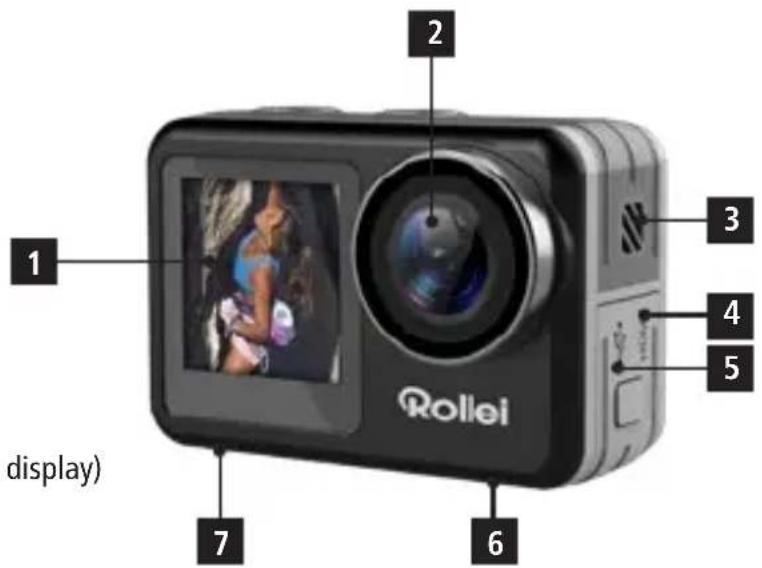
4 Camera Description
Selfie/Front Display
2 Lens
3 Built-In Speaker
4 Micro HDMI Slot
5 Micro USB Slot
6 1/4" Tripod Connection
7 Battery compartment & Micro SD Slot
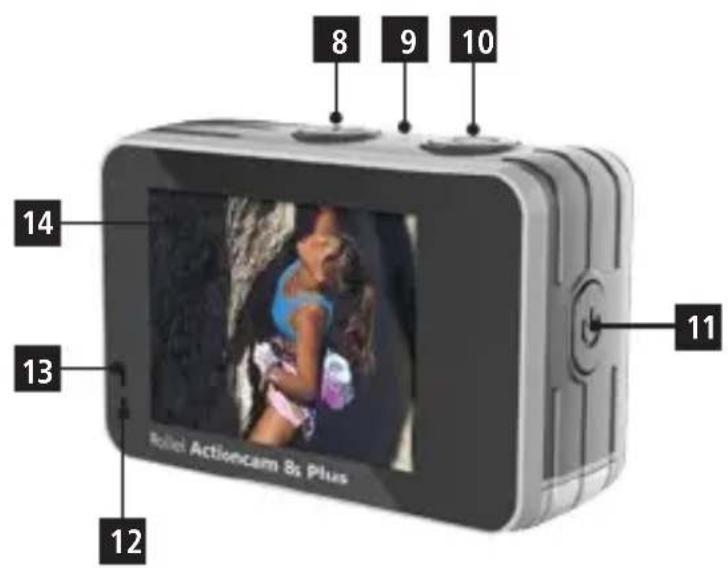
8 Mode Button (press for 3s - change to front display)
9 Built-In Microphone
10 Shutter/Select Button
11 Power/WiFi Button
12 Operation Indicator
13 Charging Indicator
14 Touch Display Screen
Waterproof Case
-
Insert Camera into Waterproof Case
-
Ensure the case is clean.
- Insert the camera and make sure the lens fits neatly in the lens cavity.
- Close the locking clamps.
- The camera can be mounted using the accessories provided.
Battery
Before using the device for the first time, you must fully charge the battery.
-
Charging the Battery
-
Connect the camera to a computer or USB power supply (5V/2A).
- The charging status light turns on while the battery is charging.
-
The charging status light turns off when the battery is fully charged.
-
Changing the Battery
-
Hold the camera so that you can see the camera display and slide the battery cover to the right to open the battery compartment.
- Remove the battery.
- Insert the new battery so the contacts line up with those of the camera.
Note: Operation is also possible while charging (e. g. via a power bank).
Getting Started
- Turn On: Press and hold the Power/WiFi Button for 3 seconds. When the camera is turned on, the Operation Indicator turns on.
- Turn Off: Press and hold the Power/WiFi Button for 3 seconds.
Modes of the Camera
The Rollei 8s Plus offers various photo and video modes. In the following we give you a short explanation of how they work:
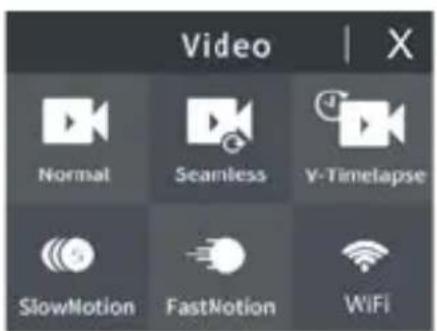
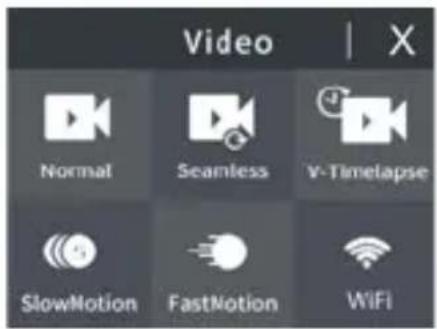
- "Normal" video mode: You can record a single video with normal speed.
- "Seamless" video mode: Here you can record in a loop. The loop recording can be set in an interval of 1 or 5 minutes. After this interval, a new recording is made and saved in each case. If the memory card is full, the recordings made so far will be overwritten.
- "V-Timelapse" video mode: In timelapse video mode the camera takes pictures every 0.5 seconds up to every minute and creates a video out of that. You can choose the video length from 5 minutes up to 60 minutes or endless.
- "SlowMotion" video mode: The camera records a sequence and replays it in slowmotion.
- "FastMotion" video mode: Here the camera replays the video faster than recorded, from double time up to 15 times faster. Compared to time-lapse video mode, these recordings are a little slower.
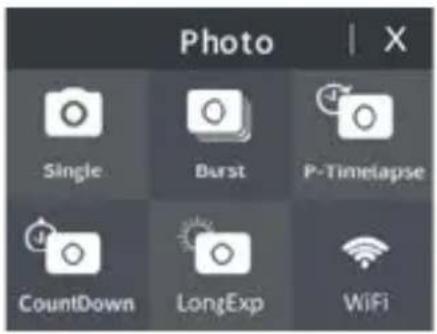
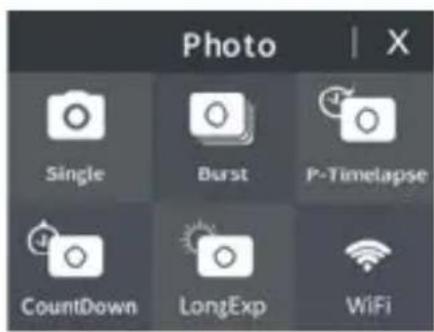
- "Single" photo mode: You can take a single shot.
- "Burst" photo mode: This allows you to take 3 shots/1s, 7 shots/2s, 15 shots/4s, 30 shots/8s.
- "P-Timelapse" photo mode: In timelapse photo mode the camera takes pictures every 0.5 seconds up to every minute for 5 to 60 minutes or unlimited.
- "CountDown" photo mode: You can set a timer on 2 or 10 seconds delay
- "LongExp" long exposure photo mode: It uses a long-duration shutter speed to sharply capture the stationary elements of images.
- Date Stamp: You can add a watermark to your pictures or videos, either with just the date or with date and time.
Touch Function
You can use the rear touch screen to access the functions of the camera.
- Swipe to the left or right to change between the video mode and the photo mode.
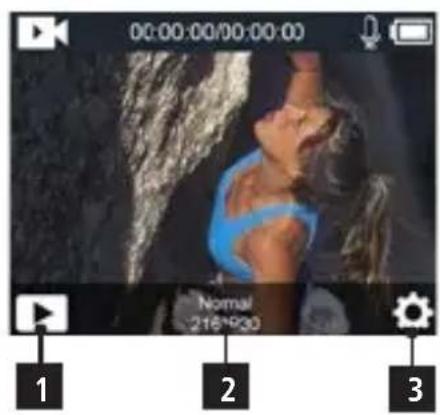
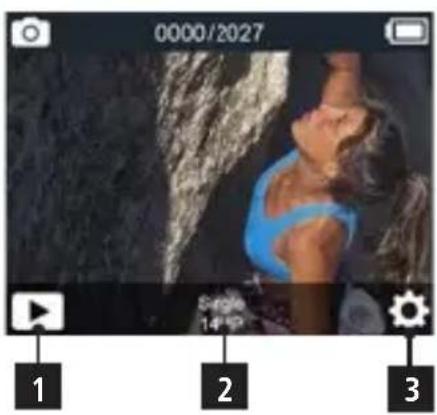
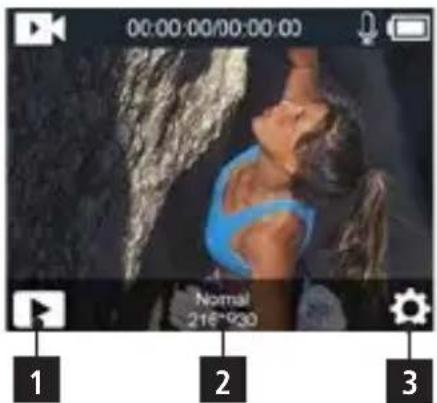
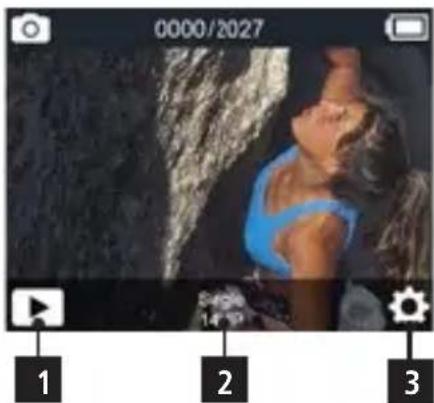
In the video or photo mode you can access the playback mode via the symbol in the left lower corner (1) and the settings with the symbol in the right lower corner (3). To access the mode menu, touch the lower middle part (2).
- Swipe up to access the mode menu of video and photo.
- Swipe down to open shortcuts to lock and power off for quick operations.
- To unlock touch the display and swipe from left to right, following the arrows, or press the Shutter/Select Button.
Button Function
Overview Menu: To get access to the mode settings, press the Shutter/Select Button for 3 seconds. Cycle through the menu (see above)
with the Mode Button, confirm with the Shutter/Select Button.
Video Mode
Press the Shutter/Select Button when power on to start recording. A red light on the screen will flash as well as the operation indicator while recording. Press Shutter/Select Button again to stop recording.
Photo Mode
Press the Shutter/Select Button to take a single picture.
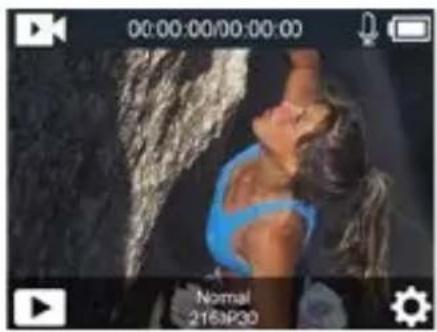
You can choose between video mode, photo mode, playback mode and settings by pressing the Mode Button shortly. Access the playback mode or the camera settings by confirming with the Shutter/Select Button. Cycle through the settings with the Power/WiFi Button and confirm with the Shutter/Select Button the requested options. Exit the menu with the Mode Button or by confirming the arrow back.
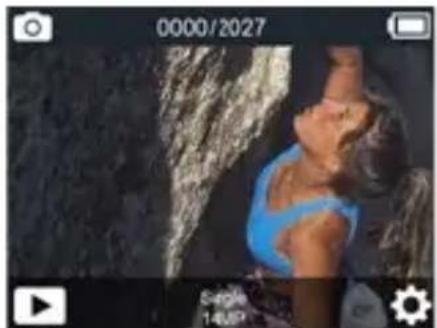
Settings
In the System Setting mode you can enter the settings for the system and choose different parameters for the camera.
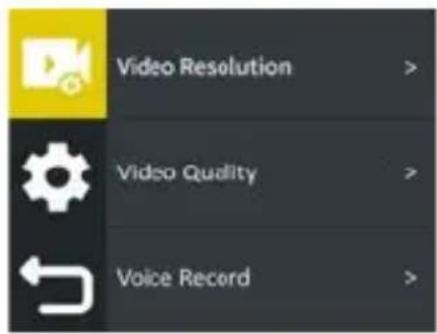
Parameters for the camera in video mode:
Video resolution: Here you can set the resolution of your recordings.
Video Quality: You can set the video quality between low, medium and high.
Voice Record: When it is on, sound is recorded, when it is off, recordings are without sound.
- EV: You can set the exposure compensation between -2.0 (image becomes darker) and +2.0 (image becomes brighter).
- Image Stabilization: With Image Stabilization turned on, the video will be smoother.
- Loop Record: Here you can take shots of the duration of the interval again and again and save them individually.
Timelapse Interval: You can set different intervals to determine the speed of the time lapse video.
- Timelapse Duration: You can determine the duration of your time-lapse recording here.
- Slow Motion Movie: You can turn this on or off. If this function is switched on, the playback of your recording depends on the resolution frame rate. The higher this is (up to max. 120 fps), the slower you can play back the video.
- Fast Motion Movie: This function describes the FastMotion function, which gives you a 2 to 15 times played back recording.
- Wind Noise Reduction: This function improves your sound recording in the video and suppresses ambient noise.
- Auto Low Light: In low light conditions, this function is useful for brightening your image.
- Metering: Here you can set the image area on which the camera focuses, e.g. in the center (Center), at different points (Multi) or at one point (Spot).
- Date Stamp: Here you can give your images a date stamp or a date & time stamp.
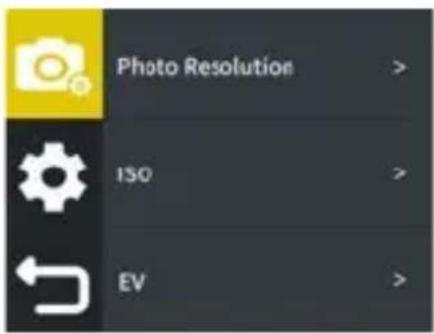
Parameters for the camera in photo mode:
- Photo Resolution: Here you can set the resolution of your pictures.
ISO: The ISO value can be adjusted automatically or set manually between 100 and 3200. - EV: You can set the exposure compensation between -2.0 (image becomes darker) and +2.0 (image becomes brighter).
- Timelapse Interval: You can set different intervals to determine the speed of time lapse shooting.
- Timelapse duration: You can determine the duration of your time-lapse recording here.
- Photo Burst: Here you can set how many series pictures you want to take in one time sequence.
- Delay Timer: This function describes the self-timer that you can set here.
- Long Exposure: Here you can set the extended exposure time of the photo.
- Metering: Here you can set the image area on which the camera focuses, e.g. in the center (Center), at different locations (Multi) or at one point (Spot).
- Date Stamp: Here you can give your photos a date stamp or a date & time stamp.
System settings:
- Power Frequency: Set the frequency of your ambient light to get the best results.
- Sounds: Here you can turn on and off the shutter sound, boot up sound, and key beep sound, and vary their volume.
- White Balance: Set different white balance settings for optimal recordings. There is also a white balance for underwater shots.
- Effects: Here you can apply various filters to your images.
Distortion Calibration: Use this function to straighten out the distortion at the edge of the image caused by the wide-angle lens. - Date & Time: Set the date and time here.
- Display Flip: This function rotates the display 180^ to allow the camera to be operated upside down.
- Screen Saver: Set to turn off the display automatically after a certain time.
- Auto Power Off: Sets the camera to turn off automatically after a certain time.
- Power On Auto Record: This function automatically starts recording a video directly when the camera is turned on with the previously set settings.
- USB: Set whether the camera is recognized as a removable disk (MSDC - mass storage device class) or webcam (PCCAM) when connected to a PC via USB.
Language: Change the language of the camera menu here. - Format Card: Format your memory card here, e.g. after a firmware update.
- System: Here you will find the function to reset the camera to factory settings, as well as information on the firmware (system info) and your memory card (card info).
Playback Video and Photo
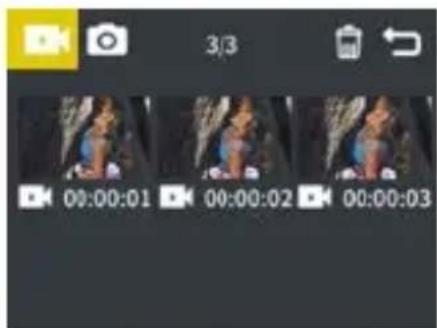
In the playback mode you can preview the videos and photos taken.
- Playback Files on Camera: Make sure the camera is in Video or Photo Playback menu. Press the corresponding symbol on the touch-screen or press the Power/WiFi button to cycle the videos or photos, then press the Shutter/Select Button to playback the videos.
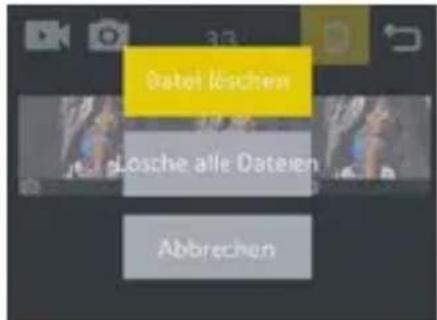
- Delete Files on Camera: On the symbol for deleting files mark the requested file first by touch or by pressing the Shutter/Select Button for a couple of seconds, then again shortly and again for a couple of seconds, then choose the deleting options with the Mode Button. Confirm by pressing the Shutter/Select Button, choose yes or no option with the Mode Button and confirm again with the Shutter/Select Button.
Selfie Mode / Switch to the Front Display
To switch displays, press the Mode Button for 3 seconds.
Webcam function
The Actioncam 8s Plus can also be used as a webcam. To do this, set the "USB" item in the settings menu to "PCCAM", make sure you insert a micro SD card and then connect the camera to your PC via USB.
As a webcam, the camera has a full HD resolution of 1920 × 1080 px and a frame rate of 30 fps.
Note: Please note that you need a separate microphone for audio transmissions, as the internal microphone is not used for this function.
The compatibility of the camera as a webcam also depends on the program used.
Connection of an external monitor
You can connect an external monitor via the micro HDMI port. You can use all resolutions of the camera as resolution, as long as the monitor supports them.
Note: The camera does not support live online streaming.
Remote Control
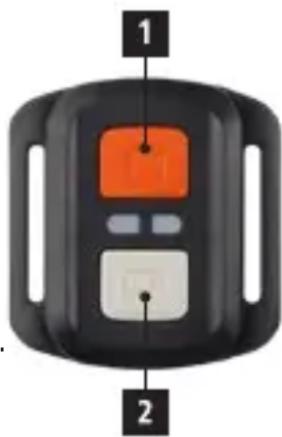
With the included remote control you can operate the action cam from a distance. There are two shutter buttons, one for the photo mode (1) and one for the video mode (2), which take a photo or start and end the recording of a video.
Radio frequency of the remote control: 2.412 - 2.472 GHz; transmitting power: 10 mW.
Note: Remote control is not waterproof.
Storage / Micro Cards
This camera is compatible with 8GB, 16GB, 32GB and 64GB capacity Micro SD and Micro SDXC memory card. You must use a micro SD card with a U3 or V30 speed rating at least. We recommend using brand-name memory cards for maximum reliability in high vibration activities.
Tips:
Memory card is not included in the standard package, you will need to buy an extra memory card.
- Please format the Micro SD, Micro SDXC memory card on the camera before using.
- Please restart the camera after formatting.
- Please insert the memory card in correct way, otherwise the card slot maybe damaged.
WiFi Setting / Operation via App
You can connect the camera to your smartphone via the integrated WiFi function. Turn the camera on and wipe up on the touchscreen to turn on WiFi using the mode menu, or briefly press the Power/WiFi Button to activate WiFi. The camera's WiFi is activated, the power indicator blinks, and the WiFi information (network name and network password "1234567890") appears on the camera's monitor. Then connect the camera to the smartphone by going to the WLAN settings of your smartphone, selecting the camera's network and connecting it. Download and install to your phone the free app "Rollei 8s/8s Plus" from Google play or Apple App store. After installing it, open the app and select the camera network from the list. You will see the camera on the phone's screen. To exit WiFi mode press the Power/WiFi Button shortly.
Frequency: 2.412 - 2.472 GHz; transmitting power: 10 mW
Firmware Updates
If the firmware changes, we bring out new updates that you can download and install yourself from our product page in the "Downloads" area. You can find the current firmware version on your camera in the menu under System/System Info. To install an update, please copy the file with the extension .BRN to your micro SD card using a card reader. Disconnect the memory card from the PC and insert it into the camera. Turn on the camera and confirm the firmware update by selecting the "Yes" option with the Power Button and then confirming with the Shutter Button. After the update is complete, the camera switches off. Format the Micro SD card in the actioncam via the settings menu before using it again.
Disposal

Dispos of packaging: For disposal, separate packaging into different types. Cardboard and board must be disposed of as paper and foil must be recycled.

Disposal of Waste Electrical and Electronic Equipment and/or Battery by users in private households in the European Union. This symbol on the product or on the packaging indicates that this cannot be disposed of as a household waste. You must dispose of your waste equipment and/or battery by handling it over to the applicable take-back scheme for the recycling of electrical
and electronic equipment and/or battery. For more information about recycling of this equipment and/or battery, please contact your city office, the shop where you purchased the equipment or your household waste disposal service. The recycling of materials will help to conserve natural resources and ensure that it is recycled in a manner that protects human health and environment.
Battery warning
- Never dismantle, crush, or pierce the battery, or allow the battery to short-circuit. Do not expose battery being placed in high temperature environment, if battery leaks or bulges, stop continue to use.
- Always charge using the charger. Risk of explosion if battery is replaced by an incorrect type.
- Keep the battery out of reach of children.
- Batteries may explode if exposed to naked fire. Never dispose of batteries in a fire.
- Disposed of used batteries observing local regulations.
- Before disposing the device, please remove the battery.
Conformity
The Rollei GmbH & Co. KG herewith declares, that the action camera "Rollei Actioncam 8s Plus" complies with the directive 2014/53/EU:
2011/65/EC RoHs Directive
2014/53/EU RED-Directive

The complete text of the EU Declaration of Conformity can be downloaded at the following Internet address: www.rollei.com/EGK/AC8sPlus
Video-Auflösung 4K (3840x2160/60/30fps), 2.7K (2704x1520/30fps), 1080P (1920x1080/60/30fps), 720P (1280x720/120/60fps)
Résolution video 4K (3840x2160 / 60 / 30fps), 2.7K (2704x1520 / 30fps), 1080P (1920x1080/60/30fps), 720P (1280x720/120/60fps)
www.rollei.com/EGK/AC8sPlus
Resolución de video 4K (3840x2160/60/30fps), 2.7K (2704x1520/30fps),
1080P (1920x1080/60/30fps), 720P (1280x720/120/60fps)
8M (3264x2448), 5M (2592x1944), 2M (1600x1200)
Risoluzione video 4K (3840x2160/60/30fps), 2.7K (2704x1520/30fps),
1080P (1920x1080/60/30fps), 720P (1280x720/120/60fps)
Modalità video Normale, Time lapse, slow motion, fast motion, loop
CharacteristicdoProduco
Resolucao de video 4K (3840x2160/60/30fps), 2.7K (2704x1520/30fps), 1080P (1920x1080/60/30fps), 720P (1280x720/120/60fps)
Modo video Normal, lapso de tempo,-camera lenta,-camera rapiida,loop
Avaluaon 4K (3840x2160/60/30fps), 2.7K (2704x1520/30fps), 1080P (1920x1080/60/30fps), 720P (1280x720/120/60fps)
Aeitoupyia icto Kavovikn, npdo xpvou, apy n kivnog, ynpnyopn kivnog, poxoc
Aeitoupyia qwtoypaipac Movó, pπn, avtioptpoqn μεtpnσn, πapodoxpovou, εyαλn εκθεσn
IpoTeC eIoupyie Iopponia uKoYia UTOpXia, AIToupyia Kapeac web, nEeTPOVIkN OtaepoToiOnn EIKovac
Φakos Eupuywioc φakoc | δiaqpaayma F = 2,8 | εσiakó μκoç f: 2,75 mm
Videoresolutie 4K (3840x2160/60/30fps), 2.7K (2704x1520/30fps), 1080P (1920x1080/60/30fps), 720P (1280x720/120/60fps)
WiFi-installing / Bediening via App
Video Rozliseń 4K (3840x2160/60/30fps), 2.7K (2704x1520/30fps), 1080P (1920x1080/60/30fps), 720P (1280x720/120/60fps)
Video Rozliseenie 4K (3840x2160/60/30fps), 2.7K (2704x1520/30fps), 1080P (1920x1080/60/30fps), 720P (1280x720/120/60fps)
Videoupplösning 4K (3840x2160/60/30fps), 2.7K (2704x1520/30fps), 1080P (1920x1080/60/30fps), 720P (1280x720/120/60fps)
WiFi-installing / Drift via app
Videotarkkuus 4K (3840x2160/60/30fps), 2.7K (2704x1520/30fps), 1080P (1920x1080/60/30fps), 720P (1280x720/120/60fps)
Videoopplønsing 4K (3840x2160/60/30fps), 2.7K (2704x1520/30fps), 1080P (1920x1080/60/30fps), 720P (1280x720/120/60fps)
Videomodus Normal, tids bortfall, sakte film, hurtig bevegelse, slyfe
Fotomodus Enkelt, burst, nedtelling, tids bortfall, lang ekspponering
Systeminnstillinger:
WiFi-innstilling / Betjening via app
Video-Auflösung 4K (3840x2160/60/30fps), 2.7K (2704x1520/30fps), 1080P (1920x1080/60/30fps), 720P (1280x720/120/60fps)
Videotilstand Normal, tidsforlob, langsom bevagelse, hurtig bevagelse, loop
Fototilstand Enkelt, burst, nedtaelling, tidsfald, lang ekspponering
Battery: 1x3 V = CR 2032
Made in China


www.rollei.com