OMP 90 - Smartphone OK - Free user manual and instructions
Find the device manual for free OMP 90 OK in PDF.


| Product type | Smartphone |
| Brand | OK |
| Model | OMP 90 |
| Dimensions | 119,5 x 54 x 15 mm |
| Weight | 77 g (with battery) |
| Battery | Lithium-ion 3.7 V, 600 mAh (model BL-4C) |
| Max talk time | 8 hours |
| Max standby time | 100 hours |
| GSM network | 900/1800 dual-band |
| Connectivity | Micro USB, headphone jack, FM radio (87-108 MHz) |
| External storage | MicroSD up to 32 GB |
| SIM cards | 2 slots (Dual SIM) |
| Camera | Built-in (photo and video capture) |
| Flashlight | Yes, activated by key 0 (3 seconds) |
| SOS function | Dedicated button, up to 5 emergency numbers |
| Maintenance and cleaning | Clean with a damp cloth, avoid solvents and immersion |
| Safety | Do not expose to water, do not disassemble, use supplied charger |
| Spare parts and repairability | Removable battery, SIM card and microSD accessible under the back cover |
Frequently Asked Questions - OMP 90 OK
User questions about OMP 90 OK
0 question about this device. Answer the ones you know or ask your own.
Ask a new question about this device
Download the instructions for your Smartphone in PDF format for free! Find your manual OMP 90 - OK and take your electronic device back in hand. On this page are published all the documents necessary for the use of your device. OMP 90 by OK.
USER MANUAL OMP 90 OK
natural_image
Blank white image with no visible content, text, or symbolsM. 0142018592 V16

ok.
OMP 90
Großtasten-Mobiltelefon // Big button mobile phone // Teléfono móvil de botón grande // Téléphone mobile à grosses touches

M CNF90 18032 V05 A HRinfo 12618 9:22 pm
212m - 100 x 125 nm
M. CRIPB 180302 V05 A HF,ndb 2
2018 9223
HERZLICHEN GLÜCKWUNSCH!
③ Audio player (Audio Player):
④ Video player (Video Player):
Thanks for your purchase of an ok. product. Please read this manual carefully and keep it for future reference.
IMPORTANT SAFETY INSTRUCTIONS. READ CAREFULLy AND KEEP FOR FUTURE REFERENCE.
- Read this user guide carefully before first use. It contains important safety information as well as instructions for the use and care of the device. Save the guide for later reference and include it with the device when transferring it to a third party.
- To avoid dangerous situations, do not use device for any purpose other than those described in the instructions. Improper use is dangerous and voids the warranty.
- This product is not intended to be used by persons (including children) with reduced physical, sensory or mental abilities or lack of experience and / or lack of knowledge unless they are supervised by a person responsible for their safety or have received instructions on how to use the product.
- Children should be supervised to ensure that they do not play with the product.
- The product shall not be exposed to dripping or splashing and no objects filled with liquids, such as vases, shall be placed on the product.
- Care should be taken so that no objects or liquids enter the enclosure through openings.
- No naked flame sources, such as lighted candles, should be placed on the product.
- Only use the provided adaptor.
- The adaptor power plug is used as the disconnect device; the disconnect device shall remain readily operable. To completely disconnect the power input, disconnect the adaptor power plug.
10.
DANGER! Excessive sound pressure from earphones and headphones can cause hearing loss. If you listen to loud music for a long time, your hearing may be impaired. Set to a moderate volume.
EN
-
Caution! There is danger of explosion from improper replacement of the battery. Replace battery only with the same or equivalent type of battery.
-
Never expose rechargeable batteries to excessive heat (e.g. bright sun, fire), and never throw them into fire. The rechargeable batteries could explode.
-
Never damage the rechargeable battery. Damaging the casing of the rechargeable battery might cause an explosion or a fire!
-
Never short-circuit the contacts of the rechargeable battery. Do not throw the rechargeable battery or the product into fire. There is a danger of fire and explosion!
-
Charge the rechargeable battery regularly, even if you are not using the product. Due to the rechargeable battery technology being used, you do not need to discharge the rechargeable battery first.
-
Never charge the rechargeable battery of the product unattended.
-
Remove the batteries from the product before disposal.
-
Use only under normal room conditions (temperature and humidity).
-
The product is intended to be used in moderate climates only. Do not use in tropical or very humid climates.
-
Do not move the product from cold into warm environments and vice versa. Condensation can damage the product and electric components.
-
The use of accessories and parts not specifically recommended by the manufacturer may cause injuries or damages and will result in forfeiture of the warranty.
-
Do not touch, press or rub the surface of the product with sharp or hard objects
-
To reduce the risk of fire or electric shock, do not expose the device to rain or humidity.
-
Never immerse electric parts of the product in water or other liquids while cleaning or using it. Never place the product under running water.
-
Do not place the product in the vicinity of devices producing strong magnetic fields (for example motors, loudspeakers, transformers).
-
Do not expose the product to direct sunlight, humidity, dirt, hot light sources or strong magnetic fields. Do not expose the product to high temperatures and strong vibrations and avoid high mechanical stress.
-
If the product shows damages, do not use it any longer and have it repaired by a qualified technician, or contact our customer service department. Do not disassemble the product, and do not try to repair it yourself.
- Attention! In the event of a malfunction as a result of electrostatic discharge and momentary electrical surges, unplug the appliance and plug it in again or remove the batteries and install it again.
- LED's are not replaceable.
- Attention! Please do not look directly into the light emanating from the LED. Do not point the LED light directly into the eyes.
INTENDED USE
This product is only suitable for making and receiving calls within a mobile phone network. Any other use can lead to damage to the product or personal injury.
The Imtron GmbH assumes no liability for damage to the product, for property damage or for personal injury due to careless or improper usage of the product, or usage of product which does not meet the manufacturer's specified purpose.
EN
26
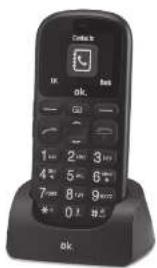
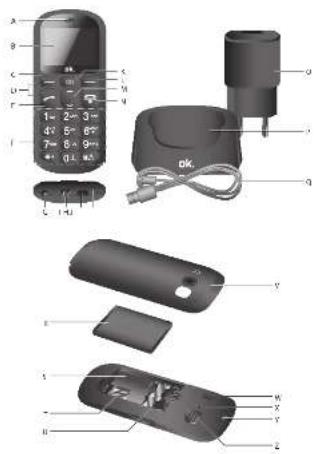
COMPONENTS
A. Receiver
B. Display
C. Function key
D. Volume key
E. Pick up call key
F. Numbering block
G. Torch
H. Charging terminal
I. Micro-USB-charging jack
J. Microphone
K. Camera button
L. Function key
M. Up/Down key
N. End call/ ON/OFF key
O. Adaptor
P. Charging station
Q. Charging cable with Micro-USB plug
R. Battery
S. Battery compartment
T. Memory card slot
U. SIM card slot (x2)
V. Cover
W. Speaker
X. Camera
Y. Opening for hanging loop (not included)
Z. SOS button
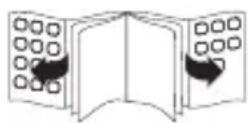
DISPLAyED SyMBOLS
 | Network's signal strength |
 | Battery's charging status |
 | New SMS |
 | Alarm set and activated |
 | Ringtone deactivated |
 | Emergency function activated |
BEFORE FIRST TIME USE
Remove the product and accessories carefully from the original packaging. It is recommended to keep the original packaging for storage. If you wish to dispose of the original packaging, please observe applicable legal provisions. Should you have any questions regarding proper disposal, contact your local waste management center.
Inspect the delivery contents for completeness and damages. Should the delivery contents be incomplete or damaged, contact your sales outlet immediately.
Before it is used for the first time your mobile phone must be assembled and the battery must be fully charged. Follow the directions in the following section in that regard.
INSERTING THE SIM CARD AND THE BATTERY

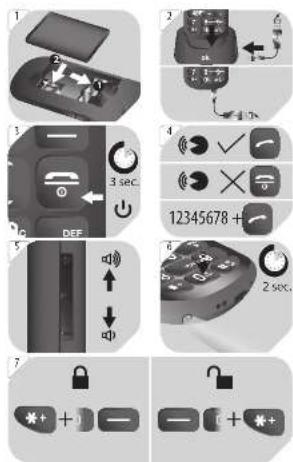
Remove the cover from the back. Slide a SIM card (1) into the appropriate slot. If you wish, slide a memory card (2) into the appropriate slot. Insert the battery provided. Make sure that the contacts are located on the correct side.
Note: This mobile phone can be used with 2 SIM cards.
EN
28
CHARGING THE BATTERY
2 Connect the charger and the plug-in power supply unit with the USB cable. Connect the supply unit to an outlet. Insert the mobile phone into the charger. Alternatively, you can also connect the micro USB charging plug directly to the micro USB socket.
Note: Before the device is used for the first time, the battery must be charged for 8 hours. The average charging time of an empty battery amounts to 2.5 hours.
OPERATION
Switching it Off/On
3 Hold the 🔍 key down for approx. 3 seconds, in order to switch the mobile phone on or off.
Call and Hang up key
4 Accepting a call
In order to accept an incoming call, press the √ key.
Declining / Ending a call
In order to decline an incoming call, or to end a conversation, press the key .
Calling
Enter the number with the number keys and press the √ key.
Volume
5 You can change the talk volume during the telephone call by means of the volume rocker switch.
+ button = increase
- button = decrease
Torch
6 To turn on/off the torch, press the 0 button approx. 3 seconds.
Locking keys
- Press the * key and then immediately press the Lock key in order to lock the keypad. - If the keypad is locked, press the unlock key and then immediately press the * in order to unlock the keypad If the display is switched off, press any key before hand in order to activate the display.
Caution! If the keypad is locked, only emergency calls can be made with the numbers 110 and 112.
SOS function
The telephone is equipped with an emergency call function. Up to 5 personal phone numbers can be entered for an automatic emergency call process.
Note: It is not permitted to enter the numbers of public entities such as police stations, fire stations or rescue control centres here. This is a question of a purely “private” emergency call.
- Press on the SOS key for 3 seconds in order to trigger the emergency call.
- The alarm will sound on the mobile phone and the first number entered on the list will be called. If the call is accepted, the mobile phone will turn on the hands-free mode and you can talk to the people that you have called. The emergency procedure will then be discontinued.
- If a call is not accepted within one minute, the next number on the list will be dialled and so on until the last number on the list is called. This procedure will be continued three times for each number. If a call is accepted, the emergency procedure will stop.
- If no connection is established, an alarm will sound on the telephone for an hour and the owner information will be displayed.
- You can interrupt the emergency call function at any time by pressing the Hang Up key.
EN
30
CONFIGURING MENU SETTINGS
The menu can be called up by pressing the Menu key. To navigate, press the rocker (up/down) key up or down. In order to select a menu item, press the OK key. The following items can be selected below:
- Contacts
- Messages
- Call logs
- SOS
- Multimedia
- FM radio
Organiser - Settings

Contacts
Options (Choose one contact)
-
To search for a name, insert the name into the search field by using the number keys. Alternatively, you can scroll through the entries also with the rocker button Up / down.
-
If you found the desired contact, press the call button to make a call. For more options, press the Options button. In the submenu followings are available:
① New
Add a new phone number to the phone book record. Choose the storage mode for SIM cards or cell phones.
② View contact:
View contact details
③ Edit:
Edit selected contact.
④ Write message:
Select a contact, send SMS.
⑤ Call:
To dial selected contact.
⑥ Delete:
Delete selected contact.
⑦ Delete multiple:
Delete selected several contacts.
⑧ Copy:
Copy contacts to phone from SIM.
⑨ Others:
- Kinship number:
set selected contact as speed dial on * or # button.
- Speed dial:
Set selected contact as speed dial on button 2-9.
- Memory status:
Display the storage status for phone and SIM card.
- Service number:
Appears when a SIM card is inserted.
EN
32

Messages
① Write message:
1. New SMS
Choose this menu to write a new SMS
1) Send: Select the recipient to send the message.
2) Insert template: Insert phone SMS template (you can customize message templates).
3) Add contact info: Insert a contact to recipient list
4) Add phiz: Insert phiz as you needed here.
5) Save as draft: Save edited SMS into draft box.
6) Exit: Quit SMS edit interface.
2. New MMS
Follow the on screen instruction to write a new MMS. You can attach a picture, audio or video file to the MMS.
| Symbol Function | |
 | Enter receiver or select from contacts. |
 | Insert subject line |
| TEXT Insert text message | |
 | Attach pictures |
 | Attach audio files |
 | Add pages |
② Inbox:
View message that has been received.
③ Outbox:
View the SMS which are not sent yet.
④ Drafts:
View the SMS saved in the draft box.
⑤ Sentbox:
View the sent SMS.
⑥ Templates:
View the SMS templates.
⑦ Voice mail server:
Manage voice mail messages (please contact your provider to check this service settings)
⑧ Message settings:
Set SMS style
⑨ Message capacity:
View SMS storage status for SIM and Phone.
EN
34

Call logs
① Missed calls: You can view all of missed calls
② Dialed calls: You can view all of dialed calls.
③ Received calls: You can view all of received calls.
④ Rejected calls: You can view all of rejected calls.
⑤ Delete all: Delete all call logs.
⑥ Call timers: Record the time for last call, the total time of dialed, received calls and a chronology of all the calls.
⑦ GPRS counter Count the internet data usage (For actual data usage, please check with your service provider)

SOS
① Owner info: Press Edit and enter information about yourself and your state of health (e.g. blood group, allergies, immunizations etc.). This information could be useful to helpers in the event of an emergency.
② SOS numbers: Set emergency number.
③ Kinship Number: Set selected contact as speed dial on * or # button.
④ SOS Button: Open / close the emergency button.
⑤ Emergency SMS: You can edit SOS SMS and activate/deactivated sending SMS.
⑥ SOS alert You can activate/deactivate SOS tone.

Multimedia
Multimedia functions
| Key/button | Function |
 | Take photo, start a recording or video playback. |
 | Volume setting |
Note:
- The phone has small built-in memory to save pictures which can be used as wallpaper in standby menu or as contact photo.
- If you want to make further use of multimedia functions, it is necessary to insert a micro SD card up to 32 GB (not supplied) to save the contents.
① Camera:
Press button to take pictures when entering camera mode.
② Video Recorder:
Press camera button to shoot video when entering camera mode, then refer to the related menu for other options.
Note: it is necessary to insert micro SD card before shooting video.
③ Audio player:
Create a folder named "my music" in the memory card and copy some MP3 files in it.
Note: Audio player can playback music from micro SD card.
④ Video player:
This function allows to playback video in "3gp" format which are available on micro SD card (not supplied).
⑤ Voice Recorder:
Allows to make voice recording through the built-in microphone.

FM radio
Turn on auto scan. After scanning is done, it will save the searched channels. In the option menu you can find all functions related to FM radio. To stop radio playback press key.
EN
36

Organiser
① My files:
Manage all the files on the phone or memory card. Use the options menu to display all the available actions.
② Calendar:
View calendar and create schedule.
③ Calculator:
Use calculator by pressing digits directly and use up/down keys to modify the operation type.
④ Alarm:
Create up to 3 alarms with preference setting.
⑤ STK:
Discover all the services stored on SIM card by the SIM card provider.

Settings
① Call settings
1) DUAL SIM:
Adjust SIM card settings.
2) Call Divert:
You can switch on immediate forwarding for calls.
3) Call Waiting:
Setting behaviour if there is a further call during a conversation.
4) Call barring:
Setting up blocking for outgoing and incoming calls
5) Hide ID:
Set to display or hide the own phone number on the receiver phone display when calling.
6 Flight mode:
Activate/deactivate flight mode.
Note: You may contact with your local operator first in order to use some functions.
② Phone settings
1) Date & time: Setting time/date format
2) Language settings: Setting menu display and input language
3) Shortcuts settings: Setting shortcut feature to enter certain menu with UP/DOWN keys.
4) Auto power on/off: Setting of phone automatically power on or off on specified time.
5) Restore factory setting: Restore factory setting and erase all saved data. The code is 1234.
③ Display
Following settings can be set here: - Wallpaper - Display (time/date + SIM card) - Contrast - Key backlight Select setting with Up/Down key and confirm with OK.
④ Security
Changing security settings such as turn on/off PIN/PUK (PUK2), change PIN code, turn on/off Phone lock and change phone password etc.
⑤ Profiles
1) Ring type:
Set incoming call mode: only ringtone, only vibration, silent or ringtone and vibrate.
2) Ring settings:
Set different ringtone and SMS tone.
3) Adjust volume:
Set different level of volume for incoming call, Message and Alarm etc.
4) Other alert rings:
Set other tones: key tone, dial tone,
⑥ Connections:
Select automatically select or manually select networks.
EN
CLEANING AND CARE
- Warning! When cleaning, never use solvents or abrasive materials, hard brushes, metallic or sharp objects. Solvents are harmful to human health and can attack plastic parts, while abrasive cleaning mechanisms and tools may scratch the surface(s).
- Clean the product's exterior surfaces with a slightly damp cloth and then dry them thoroughly. Make sure that no water enters the product interior (for example, through the switch).
TROUBLESHOOTING
If there are any problems during operation, please refer to the following table. If problems cannot be solved as indicated under Solution, please contact your manufacturer.
| Problem Possible | causes Solution | |
| Product does not function | Battery empty · Recharge batteries | |
| Cannot make/receive calls | No network connectionSIM card not correctly insert | Make a search for networkRe-insert the SIM card |
| No ringtone · Ringtone set to off mode | Set ringtone to ON | |
| Cannot make take pictures, video or voice record | Internal memory is fullMemory card is full | Delete some old filesReplace a new memory card |
DECLARATION OF CONFORMITY
Hereby, [Imtron GmbH] declares that the radio equipment type [OMP 90] is in compliance with Directive 2014/53/EU. The full text of the EU declaration of conformity is available at the following internet address:
Max. radio frequency power transmitted:
GSM900:33dBm±2dB
GSM1800:30dBm±2dB
Battery (ShenZhen Utility : Lithium Ion, 3.7 V --- / 600 mAh
Power Source Co., Ltd.) BL-4C
Max. talk time : 8 hrs
Period of availability : 100 hrs
USB connection : Micro USB
FM radio : 87-108 MHz
Measurements : 119.5 x 54 x 15 mm
MicroSD card : Support up to 32 GB
Weight : 77 g (with battery)
Plug in network supply and charger
(Shenzhen Baijunda Electronic Co., Ltd.): UT-133E-5100
Prim./sec nominal voltage Input: 100-240 V\~, 50/60 Hz, 0.2 A
Output: 5.0 V = , 1 A
Protection class : II
EN
40
DISPOSAL
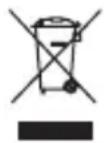
The crossed-out wheeled bin logo requires the separate collection of waste electric and electronic equipment (WEEE). Electric and electronic equipment may contain dangerous and hazardous substances. Do not dispose of this appliance as unsorted municipal waste. Return it to a designated collection point for the recycling of WEEE. By doing so, you will help to conserve resources and protect the environment. Contact your retailer or local authorities for more information.
Please dispose of batteries in an environmentally friendly manner. Do not put batteries into the household waste. Please use the return and collection systems in your community or contact the dealer where you purchased the product.
ENHORABUENA
④ Drafts (Borradores):
③ Audio player (Reproductor de audio):
⑥ Connections (Conexiones):
⑥ Delete (Supprimer):
DÉCLARATION DE CONFORMITÉ
Sortie: 5,0 V = = = , 1 A
③ Audio player (Lettore audio):
③ Calculator (Calcolatrice):
3) Call Waiting (Chiamata in attesa):
⑥ Connections (Collegamenti):
Batteria (ShenZhen Utility : Lithium Ion, 3.7 V --- / 600 mAh
Power Source Co., Ltd.) BL-4C
Uscita: 5,0 V = , 1 A