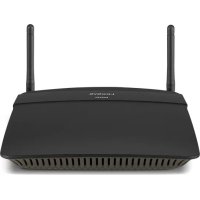
EA2750 - Router LINKSYS - Free user manual and instructions
Find the device manual for free EA2750 LINKSYS in PDF.



| Product Type | Linksys N600 Dual-Band Smart Wireless Router |
| Brand | Linksys |
| Model | EA2750 |
| Dimensions (without antennas) | 225.5 x 158 x 32.75 mm |
| Weight | 298 g |
| Power | 12 V, 1 A |
| Radio Frequencies | 2.4 GHz and 5 GHz |
| Ports | 1 Internet port (yellow), 4 Gigabit Ethernet ports (blue), 1 USB 2.0 port |
| Antennas | 2 external interchangeable antennas |
| Buttons | Power on/off, Reset, Wi-Fi Protected Setup |
| Wireless Security | WEP, WPA2, RADIUS, encryption up to 128 bits |
| Firewall | SPI (Stateful Packet Inspection), anonymous request filtering, MAC filtering |
| Key Features | Guest network, parental controls, media server (DLNA/UPnP), shared USB storage (FTP), media prioritization, VPN passthrough (IPSec/PPTP/L2TP), DDNS, DHCP, DHCP reservations, port forwarding, port triggering |
| Remote Management | Via Linksys Smart Wi-Fi (web interface and mobile app) |
| Supported File Systems | FAT, NTFS, HFS+ |
| Supported Browsers | Internet Explorer 8+, Firefox 4+, Google Chrome 10+, Safari 4+ |
| Certifications | FCC, IC, CE, Wi-Fi a/b/g/n, Windows 7, Windows 8 |
| Operating Temperature | 0 to 40 °C |
| Operating Humidity | 10 % to 80 % (non-condensing) |
| Maintenance and Cleaning | Clean with a soft, dry cloth. Do not use abrasive products or solvents. |
| Spare Parts and Repairability | Interchangeable antennas. For any repairs, contact Linksys technical support. |
Frequently Asked Questions - EA2750 LINKSYS
User questions about EA2750 LINKSYS
0 question about this device. Answer the ones you know or ask your own.
Ask a new question about this device
Download the instructions for your Router in PDF format for free! Find your manual EA2750 - LINKSYS and take your electronic device back in hand. On this page are published all the documents necessary for the use of your device. EA2750 by LINKSYS.
USER MANUAL EA2750 LINKSYS
Setting Up: Basics 8
Where to find more help....8
How to install your router 8
How to configure your router....10
How to connect to Linksys Smart Wi-Fi....10
How to disable remote access....10
How to connect directly to your router....11
How to improve your wireless connection speed....11
How to change your network's name and password....12
How to change your router's local access password....12
How to change your router's time zone ....13
How to test your Internet connection speed....14
How to connect devices to your network....15
How to connect a computer to your network....15
How to connect a USB printer ....15
How to connect other devices ....16
How to manually connect a network device....17
How to connect a network device using Wi-Fi Protected Setup™ 17
How to view device details....17
How to set up parental controls....19
How to configure your guest networks....20
How to back up your router configuration....22
How to customize Linksys Smart Wi-Fi....22
Using widgets 22
Customizing the Device List....22
Using an External Drive....24
Overview....24
How to attach a USB drive....24
How to use secured folder access....25
How to set up authorized users and shared folders....25
How to access shared folders....28
How to set up your router as a media server....29
How to connect your UPnP device to the media server....31
How to remotely access storage ....31
Setting Up: Advanced 33
How to manually set up your router 33
How to manually set up your Internet connection....34
How to associate multiple routers with your Linksys Smart Wi-Fi account .... 35
How to get the most out of your dual-band router ....35
Split your traffic....36
How to control access to your network....36
How to improve security using the built-in firewall....37
How to set up the DHCP server on your router ....39
How to set up DHCP reservations....40
How to access your network on the Internet....41
How to clone a MAC address....42
How to connect to your corporate office using a VPN....43
How to optimize your router for gaming and voice....44
How to enable Voice over IP on your network....46
How to configure UPnP 46
How to use a router as an access point....47
How to put your new router behind an existing router....49
How to expose a device to the Internet....52
Port Forwarding and Port Triggering....54
How to set up port forwarding....54
How to set up port forwarding for a single port ....54
How to set up port forwarding for multiple ports ....55
How to set up port forwarding for a range of ports....55
How to set up port range triggering for online gaming 57
Maintaining and Monitoring ....58
How to back up and restore your router configuration....58
How to upgrade the router's firmware....59
How to restore factory defaults....59
How to check the status of your router 60
How to turn off Ethernet port status lights 61
How to test your Internet connection....61
How to configure and use logs....62
Troubleshooting 64
Your router was not successfully set up....64
Your Internet cable is not plugged in message 65
Cannot access your router message 66
After setup....67
The Internet appears to be unavailable 67
Linksys Smart Wi-Fi does not open in your web browser 68
You cannot access Linksys Smart Wi-Fi 68
All other troubleshooting has been unsuccessful....68
Specifications 69
Linksys EA2750....69
Environmental....69
Product Overview
EA2750
Front/top view
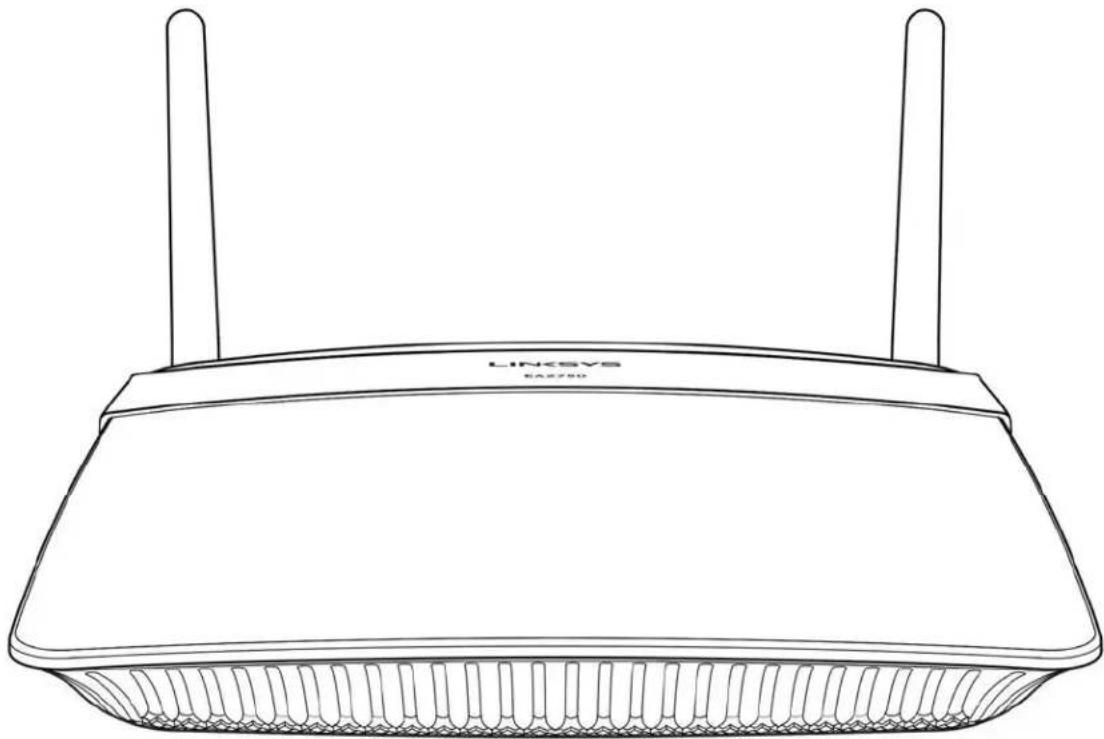
natural_image
Line drawing of a LINKSYS router with two top ports and a mesh base (no text or symbols on the device itself)2 x external adjustable antennas
Back view
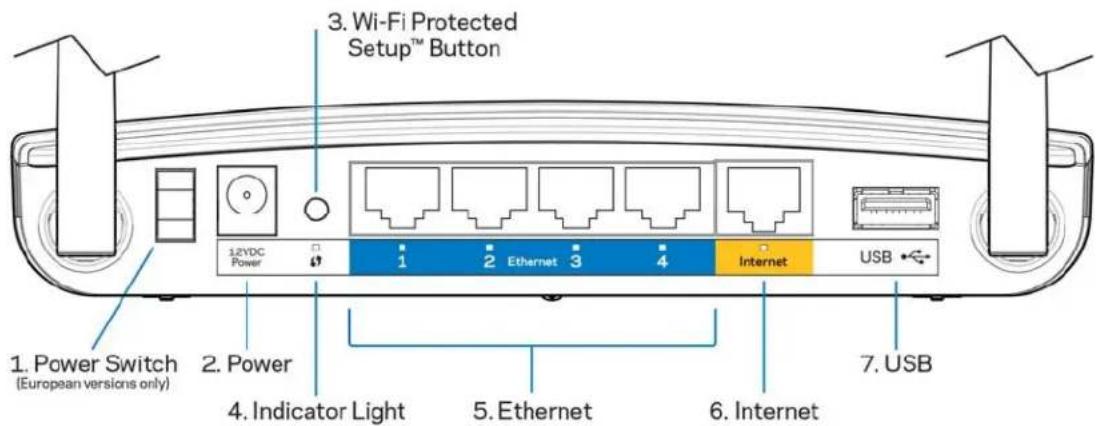
- Power switch----Toggle to turn on/off the router.
- Power port----Connect the included AC power adapter.
- Wi-Fi Protected Setup™ button----Press to configure wireless security on Wi-Fi Protected Setup-enabled network devices.
- Indicator light—Stays on steadily while power is connected and following a successful Wi-Fi Protected Setup connection. Flashes slowly during bootup, during firmware upgrades, and during a Wi-Fi Protected Setup connection. Flashes quickly when there is a Wi-Fi Protected Setup error.
- Ethernet ports—Connect Ethernet cables to these blue gigabit (10/100/1000) ports, and to wired devices on your network.
Note—For best performance, use CAT5e or higher rated cables on the Ethernet ports.
- Internet port—Connect an Ethernet cable to this yellow gigabit (10/100/1000) port, and to a broadband Internet cable/DSL or fiber modem.
Note—For best performance, use CAT5e or higher rated cables on the Ethernet ports.
- USB 2.0 port—Connect and share USB drives on your network or on the Internet.
Bottom view
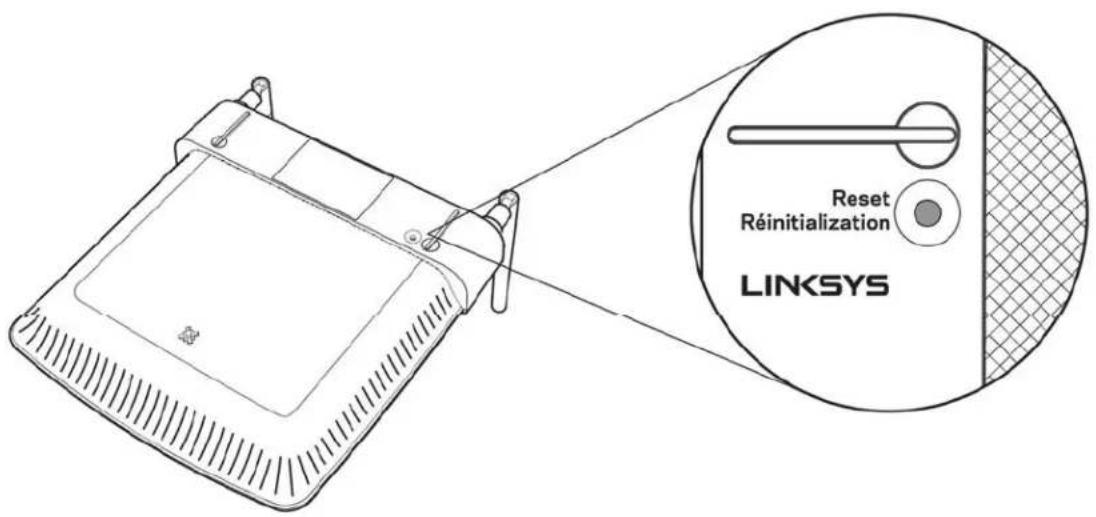
Reset button — Press and hold for until the power LED starts flashing to reset the router to factory settings. You can also restore the factory settings using Linksys Smart Wi-Fi from a web browser or the Linksys Smart Wi-Fi mobile app.
Setting Up: Basics
Where to find more help
In addition to this user guide, you can find help at these locations:
Linksys.com/support/EA2750 (documentation, downloads, FAQs, technical support, live chat, forums)
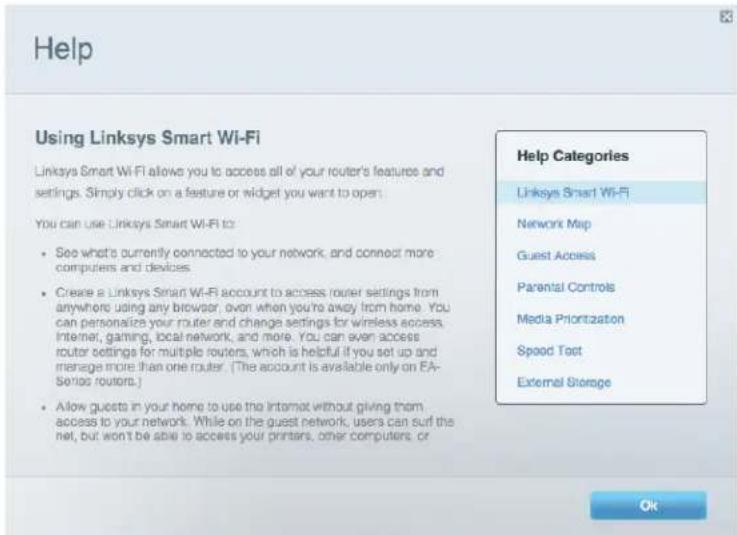
Linksys Smart Wi-Fi help (connect to Linksys Smart Wi-Fi, then click Help at the top of the screen)
How to install your router
If replacing an existing router, disconnect that router first.
Turn the antennas up and plug in your router to a power source. Connect the Internet cable from your modem to the yellow Internet port on your router. Wait until the indicator light on the back of the router is solid.
Connect to the secure wireless name shown in the Quick Start Guide that came with your router. (You can change the network name and password later. Note: You will not have Internet access until router setup is complete.
Open a web browser to launch the Linksys Smart Wi-Fi Router setup instructions. If you don't see the instructions, type linksyssmartwifi.com in the address bar.
At the end of setup, follow the on-screen instructions to set up your Linksys Smart Wi-Fi account. Use Linksys Smart Wi-Fi to configure your router from any computer with an Internet connection. Manage your router's settings:
- Change your router's name and password
-
Set up guest access
-
Configure parental controls
- Connect devices to your network
• Test your Internet connection speed
Note—As part of the router setup process, you will be sent a verification e-mail. From your home network, click the link in the email to associate your router with the Linksys Smart Wi-Fi account.
Tip—Print this page, then record your router and account settings in the table below as a reference. Store your notes in a safe place.
| 2.4 GHz Network Name | |
| Network Password | |
| 5 GHz Network Name | |
| Network Password | |
| Router Password | |
| Guest Network Name | |
| Guest Network Password | |
| Linksys Smart Wi-Fi Username | |
| Linksys Smart Wi-Fi Password |
How to configure your router
You can change router settings to make your network more secure or to work better with a device or game. Being able to adjust the settings while you're away from home can help make router administration easier. You can configure your router from anywhere in the world by using Linksys Smart Wi-Fi, but you can also configure your router directly from your home network.
Linksys Smart Wi-Fi may be available for your mobile device, as well. See your device's app store for information.
How to connect to Linksys Smart Wi-Fi
To connect to Linksys Smart Wi-Fi:
- Open your computer's web browser.
- Go to www.linksyssmartwifi.com and log into your account.

If you can't remember your password, click Forgot your password? and follow the on-screen instructions to recover it.
How to disable remote access
Disable remote access if you want to restrict access to your router to computers and devices that are connected to your home network.
To disable remote access:
- Log in to Linksys Smart Wi-Fi.
-
Under Router Settings, click Connectivity.
-
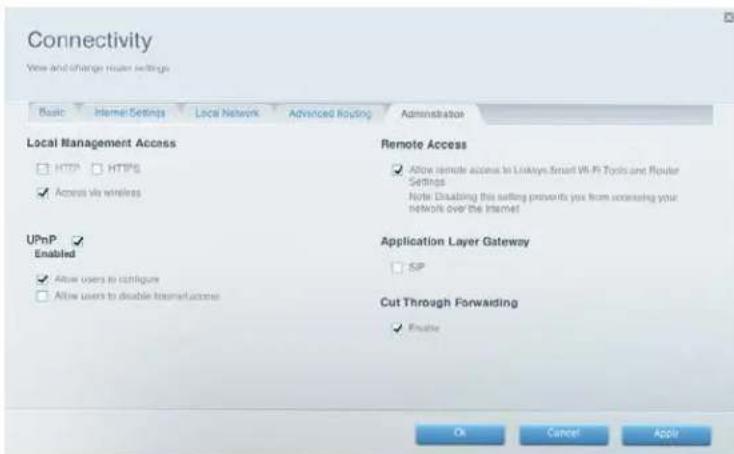
Click the Administration tab, then deselect Allow remote access to Linksys Smart Wi-Fi.
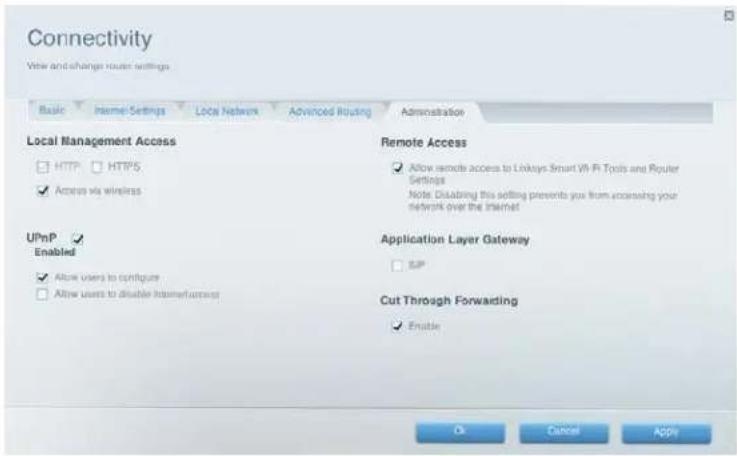
- Click Apply or Ok.
How to connect directly to your router
You can configure your router by directly accessing it on your home network instead of through the Internet-based Linksys Smart Wi-Fi.
To connect to your router while you are on your home network, visit www.linksyssmartwifi.com and log in using the router password you created when you installed your router. (If there is no Internet connection, click Click here in the bottom-right corner to log in with your router admin password.)
How to improve your wireless connection speed
Make sure that your router is in a good location.
- For the widest coverage area, install your router near the center of your home, and near the ceiling, if possible.
- Avoid placing the router on or near metal objects (file cabinets and metal furniture), reflective surfaces (glass or mirrors), or masonry walls.
- Any obstruction can weaken the wireless signal (even non-metallic objects), so the fewer obstructions between the router and the wireless device, the better.
- Place the router in a location away from other electronics, motors, and fluorescent lighting.
- Many environmental variables can affect the router's performance, so if your wireless signal is weak, place the router in several locations and test the signal strength to determine the ideal position.
- If possible, upgrade wireless network interfaces such as wireless network cards in computers from older wireless standards to 802.11n. If a wirelessly networked device uses an older standard, the performance of the entire wireless network may be slower.
How to change your network's name and password
If you change the name and password of your network all wireless devices connected to your router will lose their Internet connection until you reconnect them using the new network name and password.
To change your router's name and password:
Log into Linksys Smart Wi-Fi. (See How to connect to Linksys Smart Wi-Fi on page 10.)
- Under Router Settings, click Wireless.
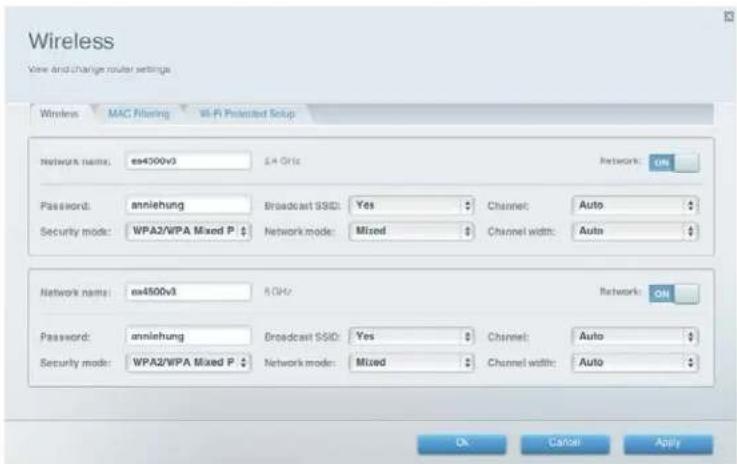
- Click the Wireless tab.
- To change the network name, type a new name in the Network name box.
- To change the network password, type a new password in the Password box.
- Click Apply to apply your changes.
How to change your router's local access password
Your router's local access password was set when you ran the router's setup software, but you can change it at any time. You need the router password to change router settings when you don't have an Internet connection. When you do have an Internet connection, log into your Linksys Smart Wi-Fi account by following the directions under "How to connect to Linksys Smart Wi-Fi" on page 10.
To change your router's local access password:
- Log into Linksys Smart Wi-Fi. (See "How to connect to Linksys Smart Wi-Fi" on page 10.)
- Click Connectivity under Router Settings.
-
Click the Basic tab.
-
Click Edit next to Router Password. Type your current password, then the new password. Confirm the new password and click Apply.

How to change your router's time zone
Your router's time zone should be set to your local time zone.
To set your router's time zone:
- Log into Linksys Smart Wi-Fi. (See "How to connect to Linksys Smart Wi-Fi" on page 10.)
- Click Connectivity under Router Settings.
- Click the Basic tab, then select your time zone in the Time Zone drop-down list and click Apply or Ok.
How to test your Internet connection speed
Note—To run the speed test, you must be accessing the Internet while connected to the router you are testing. You cannot run the speed test remotely.
To test your Internet connection speed:
Log into Linksys Smart Wi-Fi. (See "How to connect to Linksys Smart Wi-Fi" on page 10.)
- Click Speed Test under Smart Wi-Fi Tools.
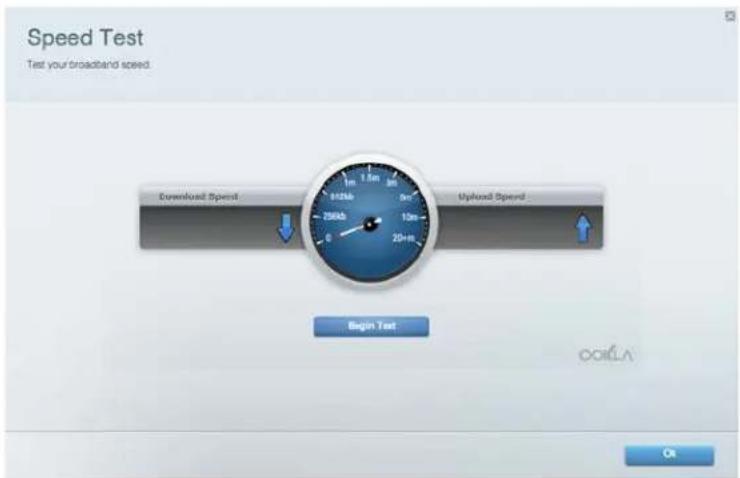
- Click Begin Test. The test measures your download and upload speeds.
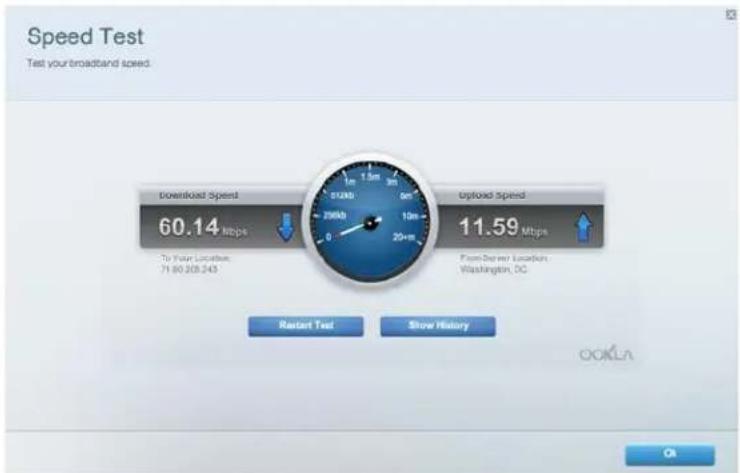
Note—Internet connection speeds are determined by a variety of factors, including ISP account type, local and worldwide Internet traffic, and number of devices in your home that are sharing the Internet connection.
- Click Restart Test to run it again, and click Show History to display the results of past tests.
How to connect devices to your network
Your router safely opens the Internet to your network, and all of your computers and network devices rely on your router to pass files, media, and network commands in an organized, error-free way. Whether connected wirelessly or with cables, each part of your network needs the router in order to work reliably with the other parts of your network.
How to connect a computer to your network
At the computer you want to connect, enter your network's connection information into your wireless manager.
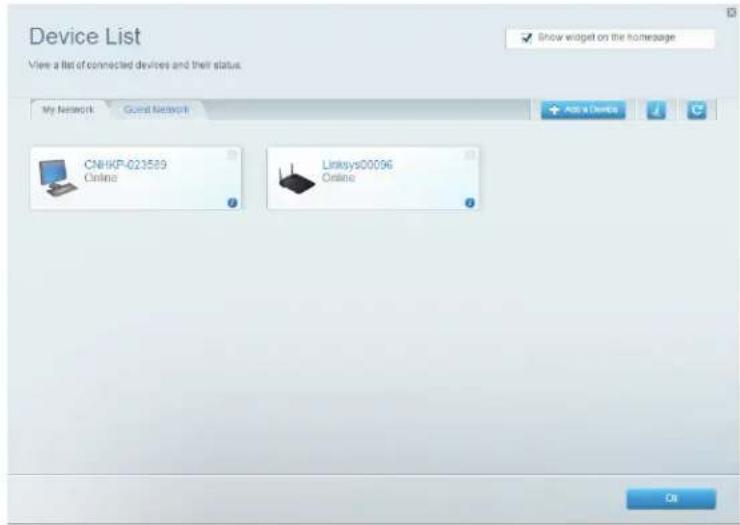
After that computer connects to your network, log in to Linksys Smart Wi-Fi, then click Device List to confirm that your router recognizes the new computer. You can use the Device List to monitor all network-attached devices.
How to connect a USB printer
To connect a USB printer to your network through the router's USB port:
- Log into Linksys Smart Wi-Fi. (See "How to connect to Linksys Smart Wi-Fi" on page 10.)
- Click Device List, then click Add a Device.
- Under Select the type of device to add to your network, click USB Printer.
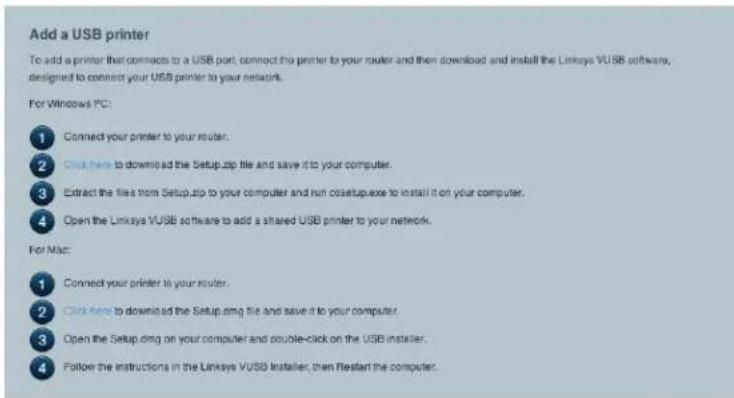
- Follow the on-screen instructions for downloading and installing the VUSB (virtual USB) software for your computer.
To connect a wireless printer to your network:
- Follow the printer's instructions to connect it to your network. Use the connection information available in Linksys Smart Wi-Fi.
- After that printer connects to your network, log into Linksys Smart Wi-Fi, then click Device List to confirm that your router recognizes the new printer.
When you set up a wireless printer make sure that it supports the WPA/WPA2 wireless encryption standard.
If your wireless printer supports Wi-Fi Protected Setup, you can use Wi-Fi Protected Setup to connect the printer to your network. (See "How to connect a network device using Wi-Fi Protected Setup" on page 17.)
How to connect other devices
Many other types of wireless network devices can connect to your home network.
- Game consoles
• Internet-capable TVs and media players
• Digital music players - Smartphones
Because of the wide variety of devices and methods of connecting, you must manually enter network information into the devices for a successful network connection.
Tip—For more instructions on connecting a game console to your network:
• "How to optimize your router for gaming and voice" 44
• "How to set up port forwarding" 54
• "How to set up port range triggering for online gaming" 57
How to manually connect a network device
To manually connect a device to your network:
- Follow the device's instructions to connect it to your network. Use the connection information available in Linksys Smart Wi-Fi.
- After the device connects to your network, log into Linksys Smart Wi-Fi, then click Device List to confirm that your router recognizes the new device.
How to connect a network device using Wi-Fi Protected Setup™
To connect a device using Wi-Fi Protected Setup:
• Plug in and turn on the network device.
• Under Wireless, click the Wi-Fi Protected Setup tab.
• Use one of the following methods to complete the setup:
If the device has a Wi-Fi Protected Setup button, press that button, then click the Wi-Fi Protected Setup button in Linksys Smart Wi-Fi or press the button on the side of your router.
If the device has a Wi-Fi Protected Setup PIN, type that number into the Device PIN box in Linksys Smart Wi-Fi, then click Register.
If the device's own setup asks for the router's Wi-Fi Protected Setup PIN, enter the number that appears under Router PIN in Linksys Smart Wi-Fi.
How to view device details
You can use Linksys Smart Wi-Fi to view any network device's network information. Use the Filter map drop-down menu to choose device type and connection type you would like displayed in the Device List.
To view network device details:
-
Log in to Linksys Smart Wi-Fi. (See "How to connect to Linksys Smart Wi-Fi" on page 10.
-
Under Smart Wi-Fi Tools, click Device List. The Device List screen opens.
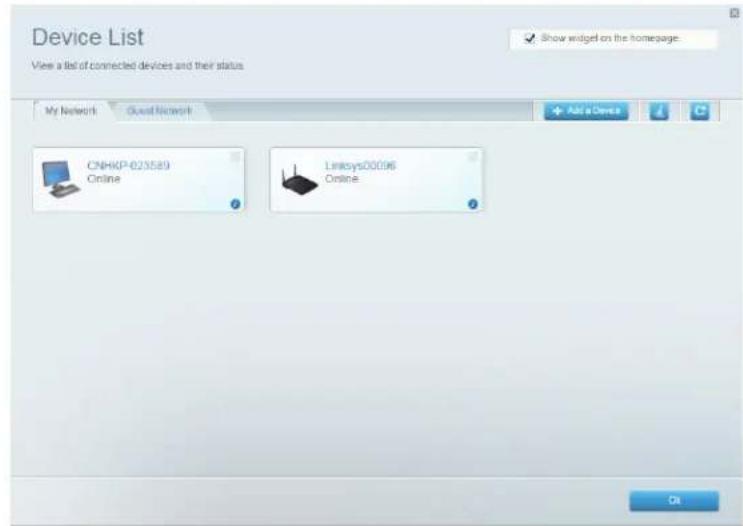
- Click a device.
Information about the device will appear on the screen.
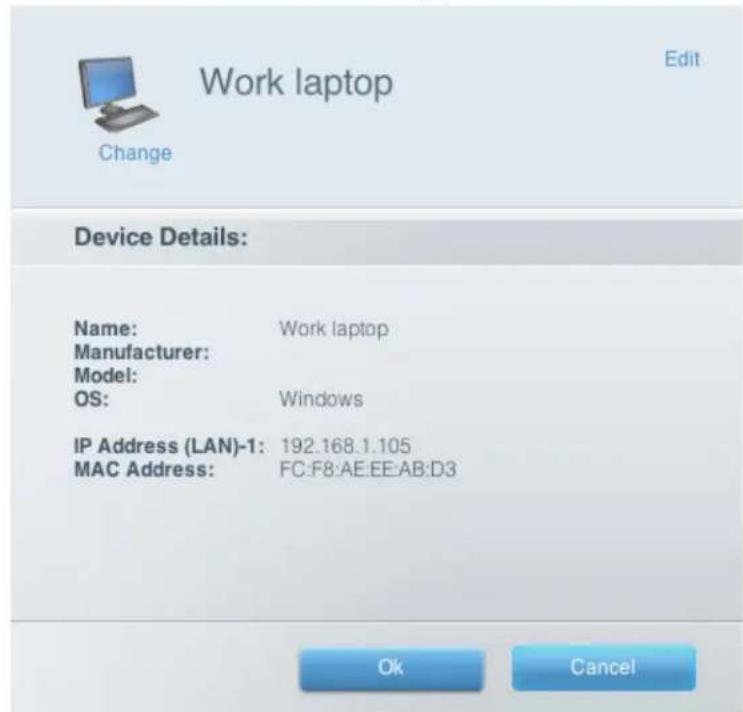
- Click Ok.
How to set up parental controls
With your router, you can use parental controls to do the following:
- Set the times that Internet access is allowed.
• Block websites that you specify. - Set the above restrictions for specific computers.
Tip—When someone tries to open a blocked website, a Linksys Smart Wi-Fi login page appears. To view the blocked content, you must log in to your Linksys Smart Wi-Fi account and change the parental control restrictions.
Log in to Linksys Smart Wi-Fi. (See "How to connect to Linksys Smart Wi-Fi" on page 10.) Under Smart Wi-Fi Tools, click Parental Controls.
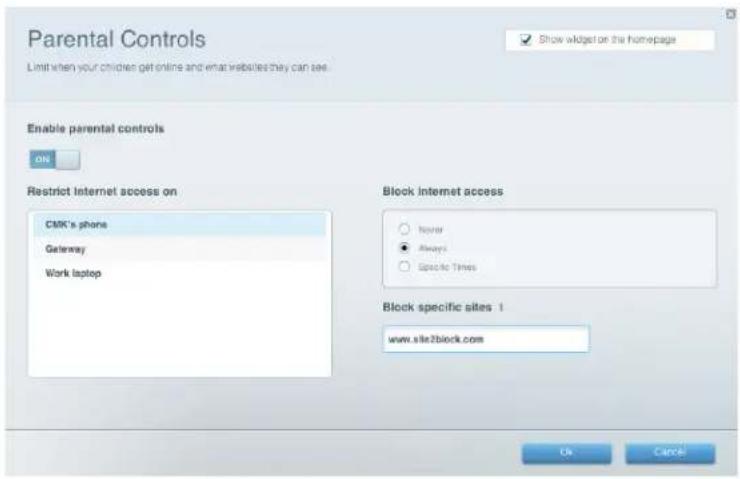
To turn on parental controls, slide the Enable parental controls switch so that ON is displayed.
Tip—It is not necessary to set parental controls over each computer on your home network. You can set the controls on only those computers that children can access.
To select a computer to apply parental controls to, click the name of the computer in the Restrict Internet access on list.
• To block Internet access on the selected computer(s), under Block Internet access:
a. Select Never to allow Internet access.
b. Select Always to always block Internet access.
c. Select Specific Times to set the times when Internet access is allowed.
d. Click Edit to change the Internet access schedule. You can click and drag to select or deselect a block of time.
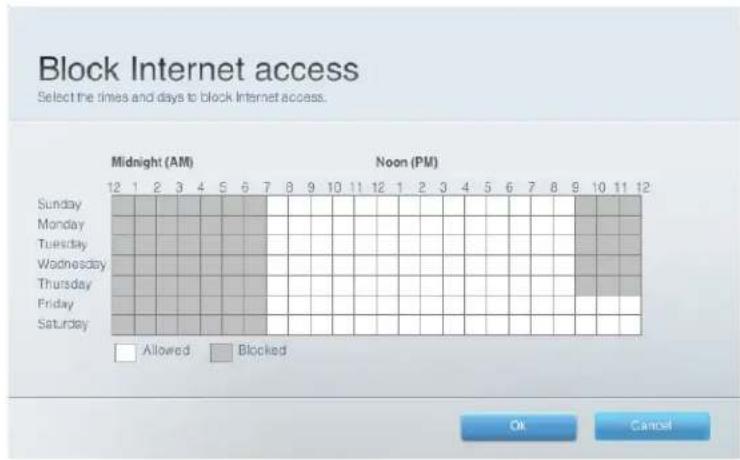
• To block specific websites:
a. Click Add next to Under Block specific sites.
b. Type the web address (URL) of the website to block, then click Ok. You can block up to 10 websites.
Tip—It is easier to copy and paste a web address than it is to type it in. Copy the address from your browser's web address box, then paste it into an available box in the Block specific sites field of Linksys Smart Wi-Fi.
- Click Ok to apply any other changes to parental controls.
How to configure your guest networks
You can use your router's guest networks to provide guests with access to the Internet, while restricting their access to other resources on your local network. To prevent unauthorized users from using your Internet access, your guest networks require a password be entered for Internet access. The guest networks are enabled by default.
Your router's guest networks and passwords were set when you ran the router's setup software, but you can change them at any time.
To set up guest access to your networks:
- Log into Linksys Smart Wi-Fi. (See "How to connect to Linksys Smart Wi-Fi" 10.)
• Under Smart Wi-Fi Tools, click Guest Access.
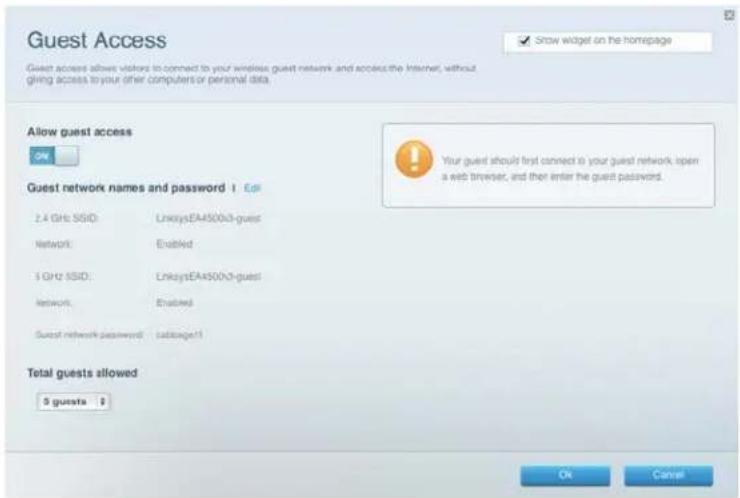
To turn guest access on or off, toggle the Allow guest access switch.
The guest network names are based on your 2.4 GHz and 5 GHz network names and are automatically generated.
To change the guest network names and passwords, click Edit next to Guest network names and password. Type the new names and passwords.
To change the number of simultaneous guest network users you want to allow, click the drop-down box under Total guests allowed, then click the number that you want.
Tip—To keep your guest networks secure, change the guest password when the guest no longer needs access to the account.
Click Ok to apply your changes.
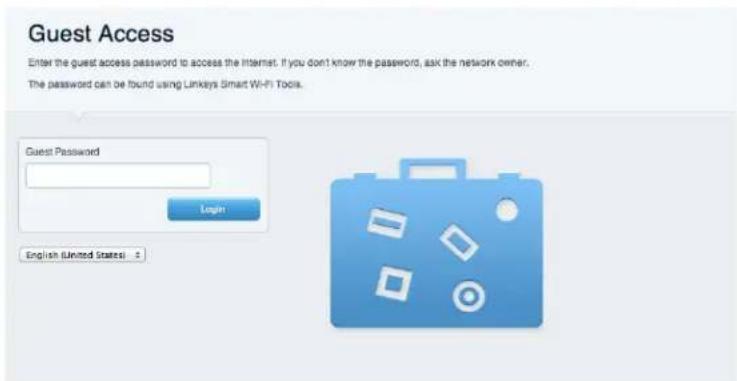
Tip—The first time your guest tries to access the Internet through a web browser, they will see the Guest access screen. To continue, they must enter the password you provided in the Password field, then click Login.
How to back up your router configuration
When you are done setting up your router, you should back up its settings so that you can restore them later if necessary. For instructions, see "How to back up your router configuration" on page 58.
How to customize Linksys Smart Wi-Fi
You can customize your Linksys Smart Wi-Fi home page by adding or removing widgets. Widgets are miniature versions of menus that let you change basic settings or check the status of your network.
Using widgets
To add a widget:
Log into Linksys Smart Wi-Fi. (See "How to connect to Linksys Smart Wi-Fi" on page 10.)
Open a menu, then select Show widget on the homepage in the upper-right corner.
To remove a widget:
On the home page, click the × in the upper-right corner of the widget you want to remove, or open a menu, then deselect Show widget on the homepage in the upper-right corner.
Customizing the Device List
You can change the icon and name of each device on your network.
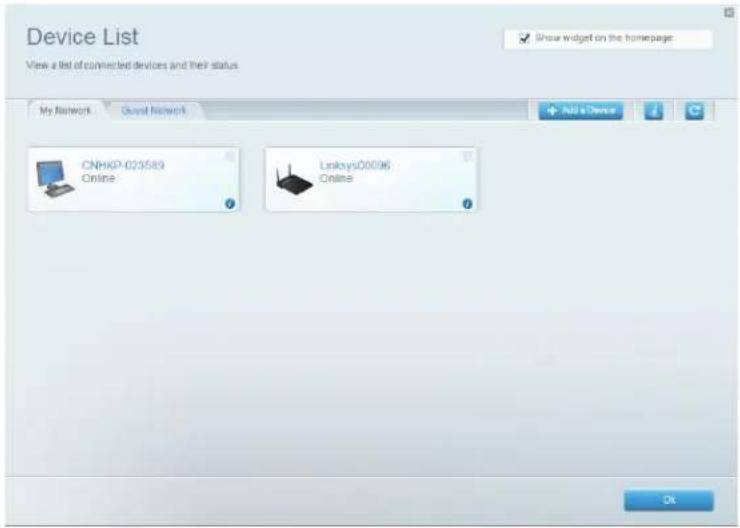
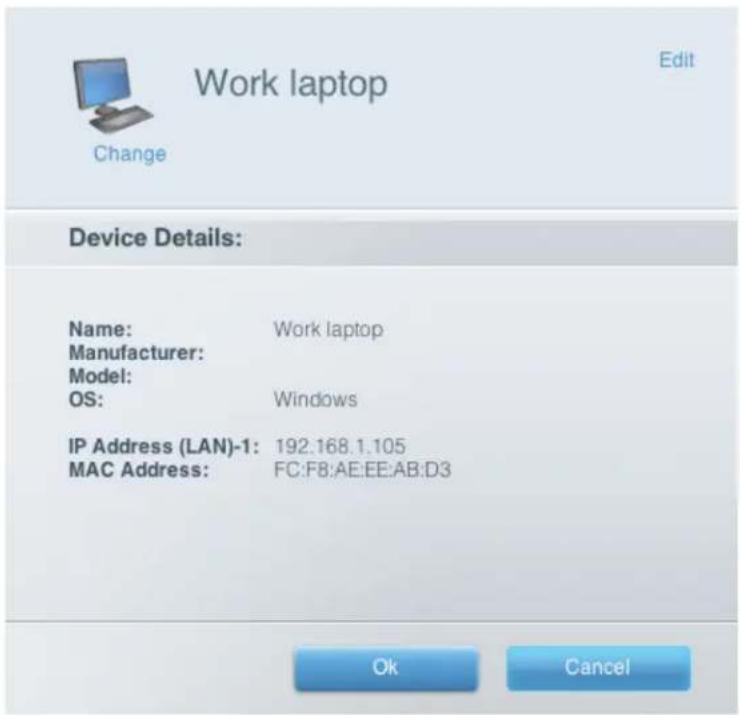
To change the name
- Click on the device.
- Click on Device Info
- Click on Edit in the upper right corner
- Type in a new name
To change the icon
- Click on the device
- Click on Device Info
- Click on Change under the current icon
- Choose a new icon from the available options
Clearing the Device List
The Clear Device List button will clear all device information and reboot the router. This will temporarily disconnect devices from your network as the router reboots. When devices automatically reconnect, they will reappear in the Device List. Linksys Smart Wi-Fi will keep customized names and icons when devices are re-identified on the network.
Using an External Drive
Overview
You can attach most USB drives (including a thumb drive or a high-capacity external drive) to the USB port on your router. You can then use the drive as networked storage, as a media server (for media-enabled devices such as a networked TV), and as an FTP (File Transfer Protocol) server. You can also specify which users can access the content on the drive.
How to attach a USB drive
If a USB drive is already connected to the router, and you want to attach a different drive to that USB port, you should safely disconnect the old drive first.
To safely remove a USB drive from the router:
- Log into Linksys Smart Wi-Fi, then click External Storage under Smart Wi-Fi Tools.
- In the Status tab, click Safely remove drive.
- Disconnect the old drive from the router.
To attach a USB drive to the router:
- Connect the USB drive to an available USB port on the back of your router. Your router will detect the drive.
To update the External Storage screen, you may need to click Refresh.
To view the status and settings of your attached drive:
- Log into Linksys Smart Wi-Fi. (See "How to connect to Linksys Smart Wi-Fi" on page 10.)
- Click External Storage under Smart Wi-Fi Tools.
The Status tab displays information such as the following:
• Drive capacity and use
- Secure folder access status
- Addresses for accessing shared folders, the FTP server, and media server
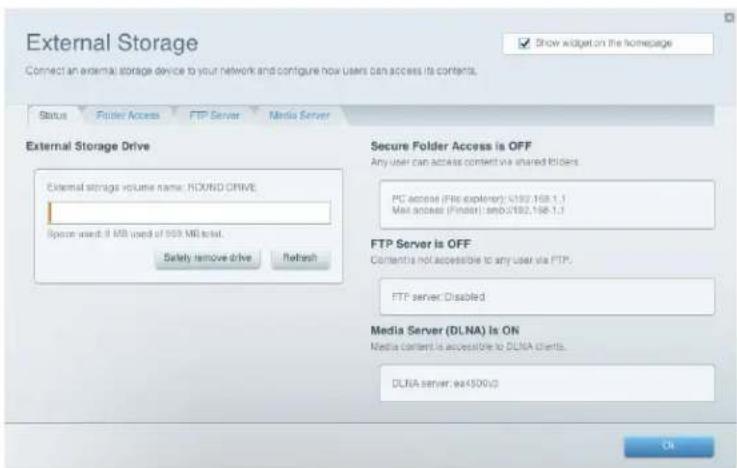
How to use secured folder access
By default, when you connect a USB drive to your router, the entire contents of the drive are available for read and write access to anyone on your local network (no login credentials are required). You can secure the drive and its folders by restricting access to only authorized users.
Tip—When Secure Folder Access is on, the entire USB drive is secured.
How to set up authorized users and shared folders
To enable access to shared folders:
Log in to Linksys Smart Wi-Fi. (See "How to connect to Linksys Smart Wi-Fi" on page 10.)
Click External Storage under Smart Wi-Fi Tools, then click the Folder Access tab.
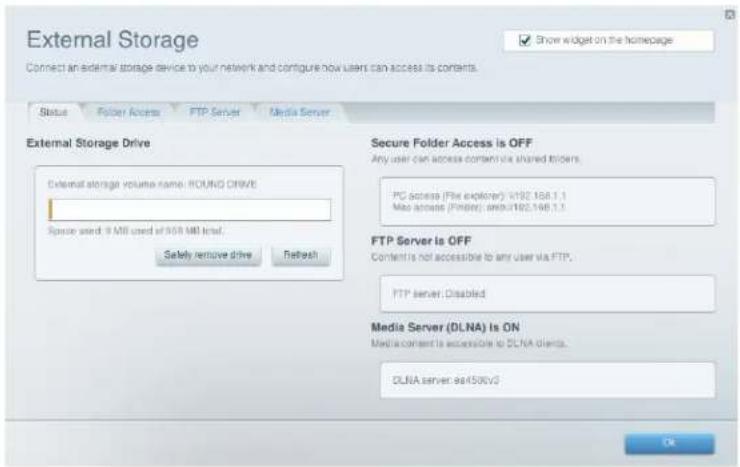
Click the setting for Secure Folder Access to turn it on.
In the Authorized users list, type a Username and Password for each new user.
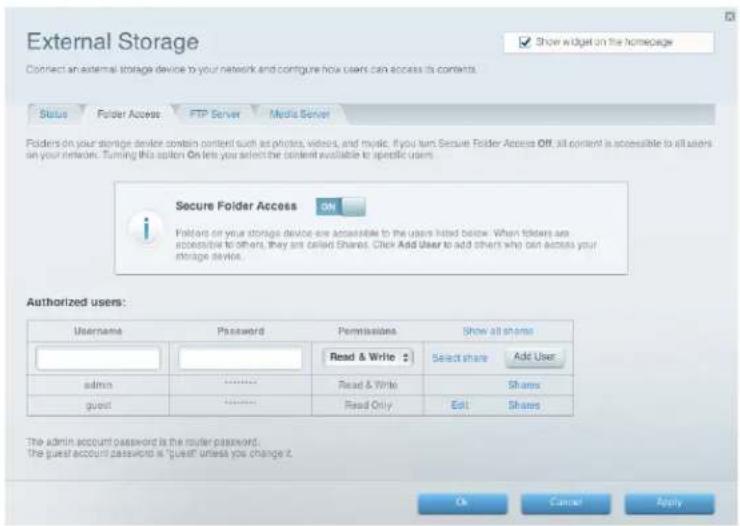
Tip—Two accounts, Admin and Guest, are already set up and cannot be deleted.
Select the permissions to give the user.
- Read Only lets the user read (open) the file.
- Read & Write lets the user read, rename, overwrite, or delete the file. The user can also save new files to the folder.
Click Select Share. The Select Existing Share dialog box will open.
A share is the name you give to folders you want to make accessible. If you already have shares set up, select the check box next to each share you want to grant the user access to, then click Ok.
If you do not have any shares set up, create a share.
Click the + button next to Create new share. The Create New Share dialog box will open.
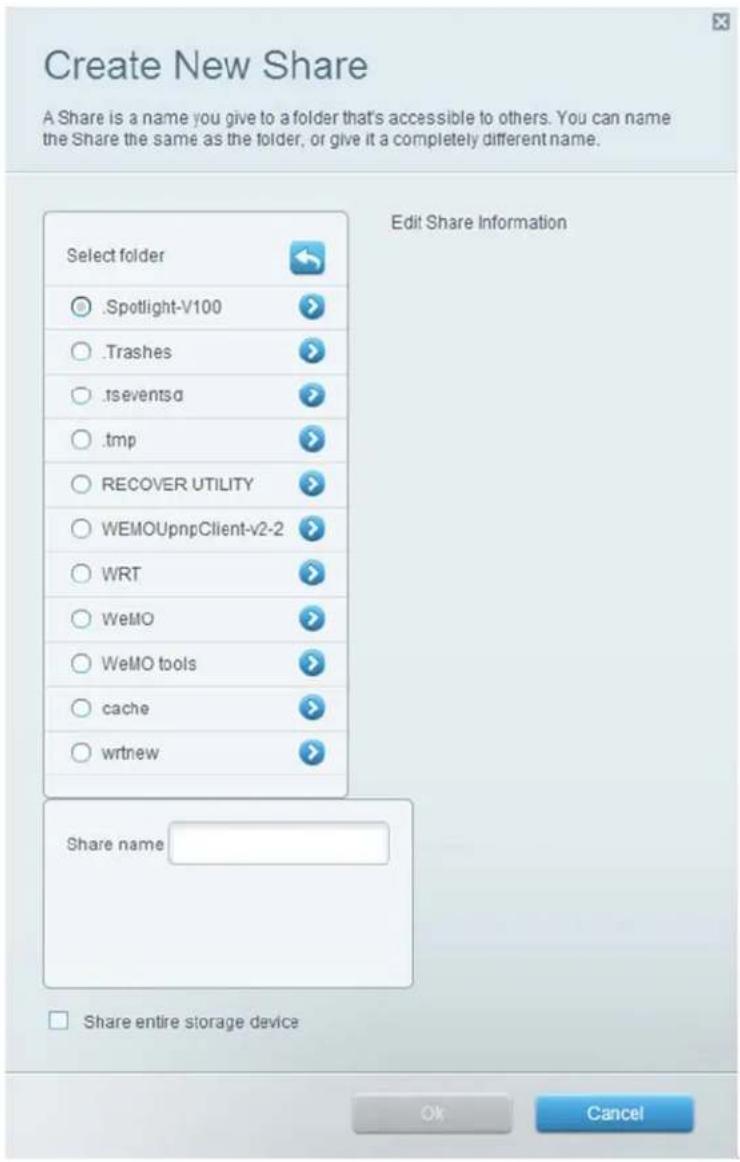
Select the folder that you want to share.
To view subfolders, click the button next to the right of the folder name.
To return to a parent folder, click the button at the top of the list. To select all folders on the drive, select Share entire storage device.
Tips—The share name automatically changes to the name of the folder you selected.
You cannot select more than one folder for each share.
To use a different share name for a folder, type the name in the Share name field.
Click Ok.
Select the check box next to each share you want to grant access to, then click Ok.
Click Add User.
In the Authorized users list, you can also do the following:
- Click Edit to change a user's credentials.
- Click Shares to change the shares that a user can access.
- Click Delete to delete the user account.
How to access shared folders
To access shared folders through Linksys Smart Wi-Fi, click External Storage under Smart Wi-Fi Tools.
In the Status tab, note the information in the box under Secure Folder Access is ON. This is the address you will need to access the shared folders from a file manager.
Enter the access address into your file manager.
Tip—You can also usually locate the folder by browsing through your computer's file manager.
Enter your user account name and password. The drive's contents (files and folders) appear in a window.
Use the file manager to open, copy, or view the folder's contents.
Tips—File managers display content in many ways, but you can usually use these common actions to navigate through folders:
- Click or double-click a folder name to open it.
- Click, double-click, or right-click a file to open, copy, or view it.
Drag a file from another window and drop it into the shared folder's window to copy it to the shared folder. (To copy a file to the shared folder, your user account must have write access.)
How to set up your router as a media server
A media server lets you share media content across your network. Your router can act as a media server if it has a USB drive attached and if you have UPnP AV (Audio and Video) or DLNA (Digital Living Network Alliance) devices in your home. Examples of UPnP AV-enabled devices include digital media players, gaming consoles with a built-in media player, and digital picture frames.
Example: You have a digital media adapter that sends content to your entertainment system. If your router is set up as a media server, the digital media adapter can access your router's attached USB drive.
You can specify which folders are used by the media server, add and delete folders, and specify how often the folders are scanned for new content.
To configure your router as a media server:
- Log in to Linksys Smart Wi-Fi. (See "How to connect to Linksys Smart Wi-Fi" on page 10.)
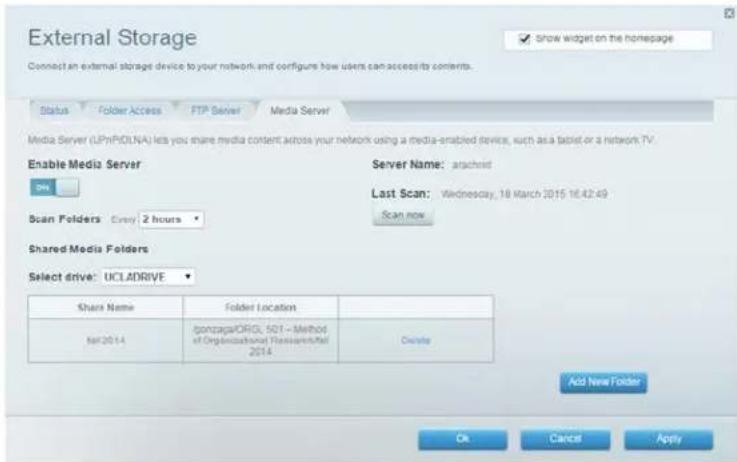
- Click External Storage under Smart Wi-Fi Tools. The External Storage screen opens.
- Click the Media Server tab.
-
Toggle the switch for Enable Media Server to turn it on.
-
Click Add New Folder. The Add a new folder dialog box opens.
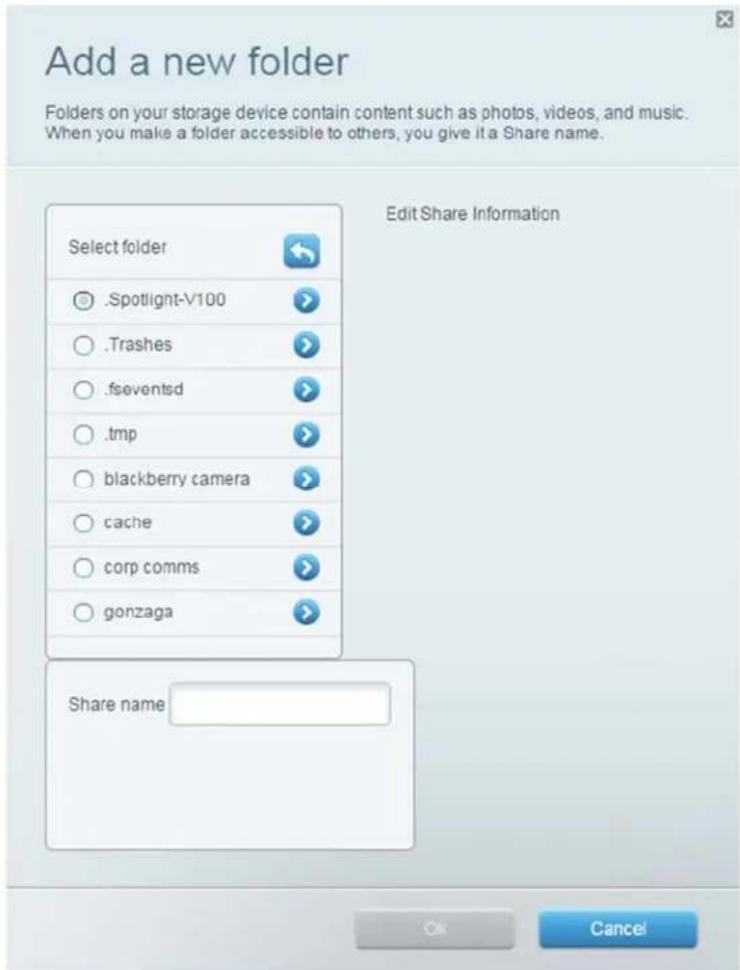
- Select the folder that you want to share.
- To view subfolders, click the button next to the right of the folder name.
- To return to a parent folder, click the button at the top of the list.
Tips—The share name automatically changes to the name of the folder you selected. You cannot select more than one folder at a time.
- Click Ok or Apply to save changes.
How to connect your UPnP device to the media server
After you set up your router's media server, you need to connect a UPnP-compatible device (such as a UPnP-compatible game console or digital media player) to the network so that you can play the media server's content.
To connect an UPnP device to your router's media server:
- Connect your UPnP device to your home network with wired (Ethernet cable) or wireless networking. If you are connecting wirelessly, you need to know your network's name and password. See your device's documentation for help.
- On your UPnP device, change the media source to the media server name you specified on your router. (See "How to set up your router as a media server" on page 29.)
- See your UPnP device's documentation for help with playing media on the device.
How to remotely access storage
After you enable the router's FTP (File Transfer Protocol) server, you can access the attached drive's files from anywhere by using either a web browser or FTP software.
To set up the FTP server:
- Log in to Linksys Smart Wi-Fi. (See "How to connect to Linksys Smart Wi-Fi" on page 10.)
- Click External Storage under Smart Wi-Fi Tools. The External Storage screen opens.
- Click the FTP Server tab.
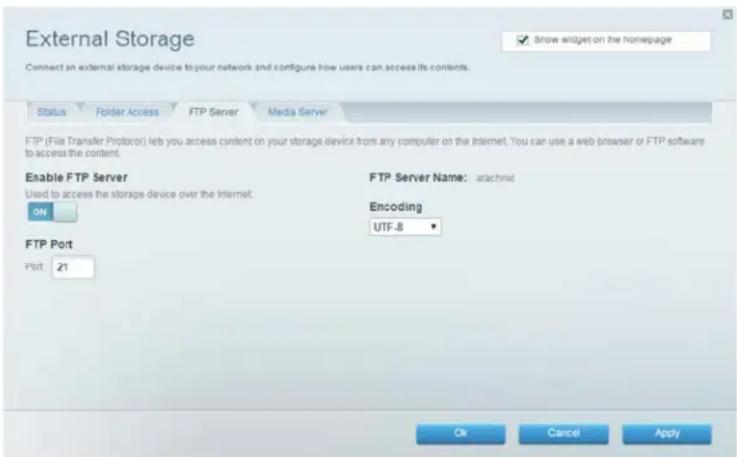
- Toggle the switch for Enable FTP Server to turn it on.
- We recommend that you keep the default settings for FTP Port and Encoding, unless you are an advanced user and have reason to change them.
- Click Ok or Apply.
-
Click the Status tab.
-
Note the information in the box under FTP Server. This is the information you will need to access the attached storage remotely.
- Be sure to use Secure Folder Access with FTP. If left unsecured, users on the Internet may be able to add and delete files on the drive.
To access the attached storage using a web browser:
- Open a web browser.
- In the browser's address or URL field, type the address that was provided on the Status tab above, starting with ftp://... If you have DDNS (Dynamic Domain Name Service), you can use your router's domain name instead.
- Enter your User Name and Password. This is the same User Name and Password that were set up in the shared folders Authorized users list. See "How to set up authorized users and shared folders" on page 25. The drive's contents (files and folders) appear in a browser window.
- Click a file to download it to your computer, or click and drag a file from your computer's file manager to the browser window to upload a file (only if you have read and write access).
To access the attached storage using FTP client software:
- Run your FTP client software.
- Refer to the software's help to determine how to connect to an FTP site with the following information:
a. The address that was provided on the Status tab above, starting with ftp://... If you have DDNS (Dynamic Domain Name Service), you can use your router's domain name instead.
b. The User Name and Password that were set up in the shared folders Authorized users list. See "How to set up authorized users and shared folders" on page 25.
c. The port and encoding specified during your FTP server setup (usually port 21, and UTF-8 encoding)
- Refer to the software's help to determine how to download and upload files.
Tips—FTP software and web browsers display FTP content in many ways, but you can usually use these common actions to navigate through FTP folders:
- Click a folder name to open it.
- Click a double period (..) or Up to a higher level directory to open a parent folder.
- Click or right-click a file to download or view it.
- Drag a file from another window and drop it into the FTP window to upload it. (To upload a file, your user account must have write access.)
Setting Up: Advanced
How to manually set up your router
Although the Linksys Smart Wi-Fi setup wizard is the easiest way to set up and maintain your router, advanced users may want to manually configure their router. Be careful when changing settings using this method.
Manually set up your router with a cable
- Plug in your router.
- Connect an Ethernet cable to the computer and to an available numbered Ethernet (blue) port on the back of your router.
• Type linksyssmartwifi.com into a browser. - Click I have read and accepted the License Terms for using this software, read the license agreement, then select the checkbox.
- Select /want to skip Setup and configure my router manually, and click Next. (If you do not have an Internet connection, click Login in the bottom-right of the next page and enter "admin" in the Access Router field.
Manually setup your router wirelessly
- Plug in your router and connect to your modem with an Ethernet cable in the yellow INTERNET port on the back of the router.
Make sure that your computer's wireless networking is turned on. - Connect to the secure wireless name shown in the Quick Start Guide that came with your router. (You can change the network name and password later.) If you need help connecting to the network, refer to your device documentation.
• Type linksyssmartwifi.com into a browser. - Click I have read and accepted the License Terms for using this software, read the license agreement, then select the checkbox.
- Select I want to skip Setup and configure my router manually, and click Next. (If you do not have an Internet connection, click Login in the bottom-right of the next page and enter "admin" in the Access Router field.
- If you have a Linksys Smart Wi-Fi account, enter your credentials. Create an account if you haven't already done so. Click Sign In.
- Enter your router admin password. The default is "admin". Click Login and configure your router settings.
After you finish changing settings, click Save and close the browser window.
Tip—For descriptions of the settings, click Help at the top of the screen.
How to manually set up your Internet connection
Running setup configures your router's Internet connection. However, for some ISPs (Internet Service Providers), especially those outside of the United States, you may need to manually configure your router's Internet connection.
How to configure basic Internet connection settings
Connect to your router and log in using the instructions under "How to manually set up your router" on this page.
Under Router Settings, click Connectivity. The Connectivity page will open to the Basic tab. Choose the Internet Settings tab.
IPv6 Internet connection settings
IPv6 is a new IP protocol that uses simplified packet headers and requires IPSec. It also has improved support for mobile IP and computing devices.
Note—To use your router's IPv6 Internet connection settings, IPv6 service from your ISP (Internet service provider) is required. For more information on this service, ask your ISP.
To manually configure your router's IPv6 settings:
- Use an Ethernet cable to connect your router to your computer.
- Log in to Linksys Smart Wi-Fi. (See "How to connect to Linksys Smart Wi-Fi" on page 10.)
- Under Router Settings, click Connectivity. The Connectivity page opens.
- Click the Internet Settings tab, and click IPv6.
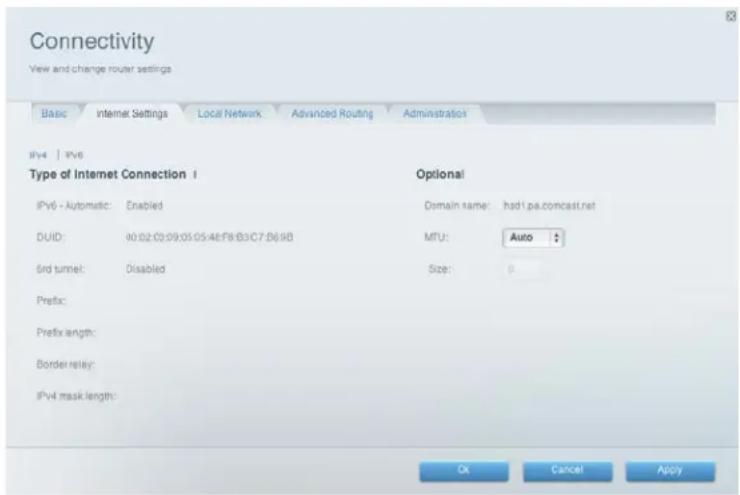
5. Click Edit.
You can now change the following settings:
• IPv6-Automatic—Select Enabled to use IPv6 for all network addressing.
- DUID(device user ID)----Used by DHCP to identify network clients.
- 6rd Tunnel----Allows your router to send IPv6 IP addresses over IPv4 networks. To enable this option, IPv6-Automatic must be unselected. To let your router handle the 6rd Tunnel settings (such as prefixes and address masks), change the 6rd tunnel setting to Automatic. Select Manual to change these settings manually.
- Prefix----Enter the prefix address used for the tunnel provided by your ISP.
- Prefix Length----Enter the prefix length used for the tunnel provided by your ISP.
- Border Relay----Enter the border relay address used for the tunnel provided by your ISP.
- IPv4 mask length----Enter the IPv4 address mask length used for the tunnel provided by your ISP.
Click Apply or Ok.
How to associate multiple routers with your Linksys Smart Wi-Fi account
To associate an additional router to your Linksys Smart Wi-Fi account:
- Run setup for the additional router. When setup is complete, you will be prompted to create a new Linksys Smart Wi-Fi account.
- Instead of creating a new account, click Sign In at the bottom of the screen.
- Enter your original Linksys Smart Wi-Fi account username and password, and click Sign In. The router will be added to your Linksys Smart Wi-Fi account.
To configure the new router, log in to Linksys Smart Wi-Fi, then select the router's SSID (network name) from the drop-down list at the top of the screen.
How to get the most out of your dual-band router
The most common reason people purchase dual-band routers is to ensure available bandwidth for streaming high-definition video. Users also want to make sure that their video streams won't be interrupted by other wireless network traffic. To get the most out of your dual-band router, you should upgrade your wireless clients and split your traffic.
Upgrade your wireless clients
If you have network adapters that support only legacy wireless network standards such as 802.11b, you should consider upgrading them with Wireless-N (802.11n) network adapters. Wireless-B (802.11b) devices can slow your entire wireless network. For the best performance, all of your wireless devices should support Wireless-N. You can then select Wireless-N Only as your Network Mode below.
Note—If you select Wireless-N Only, you may need to temporarily change your network settings to Mixed to provide access to guests without Wireless-N networking.
Split your traffic
The best way to improve your multimedia wireless performance is to split your wireless traffic between your router's bands (ranges of radio frequencies). Your router supports the 2.4 GHz band and the 5 GHz band, and handles the two bands as two separate wireless networks to manage the traffic.
The most common way to split wireless traffic is to use the 2.4 GHz band for basic Internet tasks such as web browsing, email, and downloads, and use the 5 GHz band for streaming multimedia.
Although the 2.4 GHz band may be more crowded with wireless traffic from your neighbors, it's fine for basic Internet traffic that is not time-sensitive such as email. Even though you are connected to your own wireless network, you are still sharing air time with nearby networks. The 5 GHz band is much less crowded than the 2.4 GHz band, so it's ideal for streaming multimedia. The 5 GHz band has more available channels, so it is more likely that you will have your own, interference-free channel for your wireless network.
By default, your dual-band router uses the same network name on both the 2.4 GHz band and the 5 GHz band. The easiest way to segment your traffic is to rename one of your wireless networks. With a separate, descriptive name, it will be easy to connect to the right network.
How to control access to your network
By default, setup enables industry-standard WPA2 (Wi-Fi Protected Access 2) security.
If you choose not to use the built-in security features of your router, you can still control access to your wireless network using MAC filtering. Every network device has a unique, 12-digit MAC (Media Access Control) address. Using MAC filtering, you can allow only known MAC addresses, and therefore known devices, onto your network. You can also exclude specific MAC addresses, denying them access to your network.
Tip—MAC filtering is not strong security. The best way to secure your network is to use the router's WPA2 security setting.
Example: Because each MAC filtering configuration is unique, this simplified example shows how to set up MAC filtering to allow only one device access to the network.
Tip—It is easier to select Allow to permit only known devices than to try to Deny (exclude) unknown devices.
To set up MAC filtering to allow one device access to your network:
- Log in to Linksys Smart Wi-Fi. (See "How to connect to Linksys Smart Wi-Fi" on page 10.)
- Under Router Settings, click Wireless. The Wireless page will open.
- Click the MAC Filtering tab.
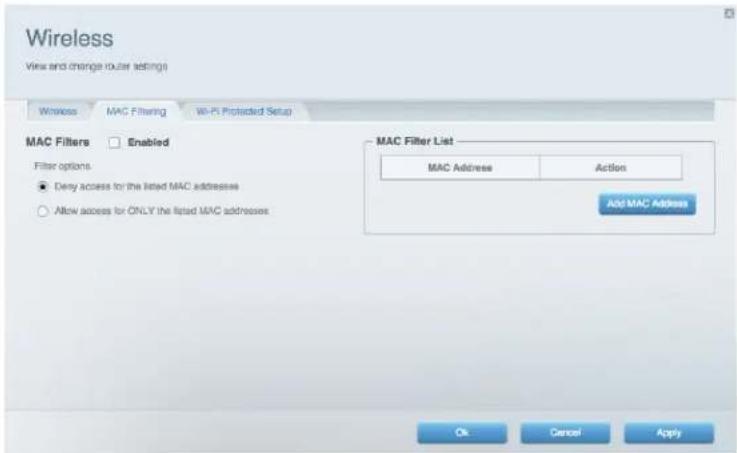
- Select Enabled next to MAC Filters.
- Click Yes when asked whether you want to continue.
- Select Allow access for ONLY the listed MAC addresses.
- Click Add MAC Address. Enter the MAC address into the MAC Filter List and click Apply.
How to improve security using the built-in firewall
By default, the firewall settings in your router work well in most home environments. You don't need to make changes. The SPI (Stateful Packet Inspection) firewall is enabled by default, and anonymous Internet requests and IDENT requests are filtered by default. All web filters are disabled, because enabling them may cause problems for sites that depend on ActiveX controls, Java, or cookies.
If you decide to change your firewall settings, log in to Linksys Smart Wi-Fi. (See "How to connect to Linksys Smart Wi-Fi" on page 10.) Under Router Settings, click Security. The Security page will open to the Firewall tab.
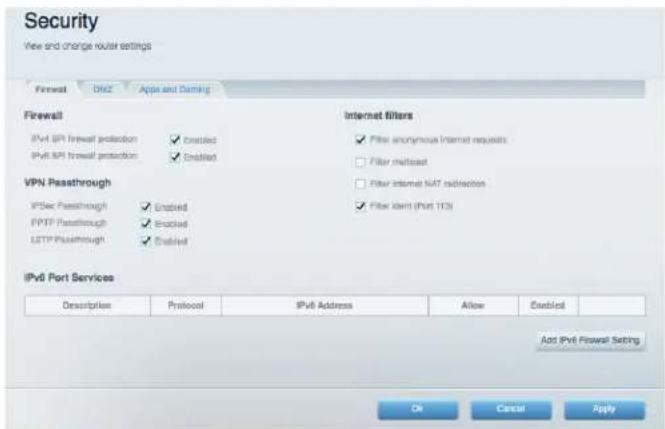
You can now change the following settings:
Firewall
- SPI firewall protection----This helps protect your local network from Internet threats. This option is enabled by default. This setting is separated into IPv6 and IPv4 options so that each can be handled separately.
Caution—To help protect your network, you should keep this option enabled.
VPN Passthrough:
- IPSec Passthrough --- IPSec (Internet Protocol Security) is a suite of protocols used to implement secure exchange of packets at the IP layer. The VPN clients on the local network can establish an IPSec VPN tunnel through the router. This option is enabled by default.
- PPTP Passthrough --- PPTP (Point-to-Point Tunneling Protocol) allows the PPP (Point-to-Point Protocol) to be tunneled through an IP network. The VPN clients on the local network can establish a PPTP VPN tunnel through the router. This option is enabled by default.
- L2TP Passthrough --- L2TP (Layer 2 Tunneling Protocol) enables point-to-point sessions using the Internet on the Layer 2 level. The VPN clients on the local network can establish an L2TP VPN tunnel through the router. This option is enabled by default.
Internet filters:
- Filter anonymous Internet requests----This filter blocks Internet requests from unknown sources such as ping requests. This option is enabled by default.
- Filter multicast—Multicasting allows a single transmission to simultaneously reach specific recipients within your local network. Select this option to block multicasting. This option is disabled by default.
- Filter Internet NAT redirection----This filter prevents a local computer from using a URL or Internet IP address to access the local server. Select this option to enable the filter. This option is disabled by default. On some router models, this setting applies to IPv4 Internet only.
- Filter ident (Port 133)—This filter prevents port 133 from being scanned by devices from the Internet. This option is enabled by default.
Tip—For more descriptions of each setting, click Help at the top of the screen.
Changing IPv6 firewall settings
The IPv6 firewall lets you customize IPv6 port services for applications. When users send these types of requests to your network via the Internet, the router will allow those requests to the appropriate computers.
Note—To use your router's IPv6 Internet connection settings, IPv6 service from your ISP (Internet service provider) is required. For more information on this service, ask your ISP.
To set IPv6 firewall settings:
- Log in to Linksys Smart Wi-Fi. (See "How to connect to Linksys Smart Wi-Fi" on page 10.)
- Under Router Settings, click Security. The Security page opens to the Firewall tab.
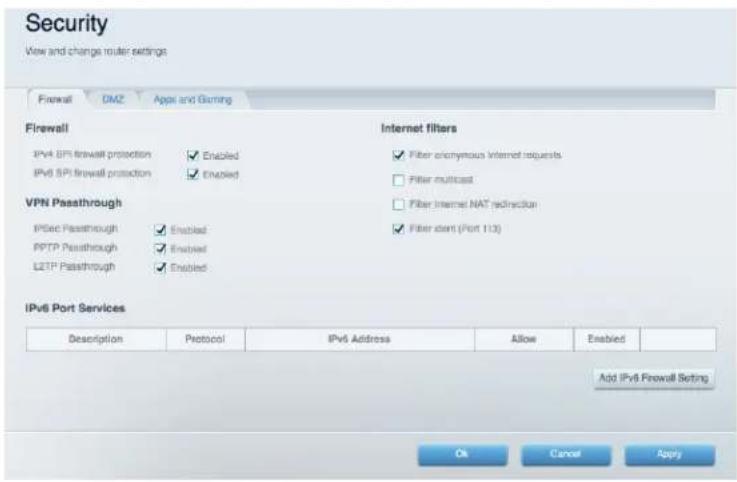
3. Click Add IPv6 Firewall Setting.
You can now change the following fields:
• Description----Enter a description of the application.
• Protocol----Select TCP, UDP, or Both (default).
- IPv6 Address----Enter the IPv6 address of the computer that should receive the traffic.
- Allow----Select the range of port(s) used by incoming traffic.
• Enabled----Select to enable IPv6 Port Services
4. Click Save. The list will update to show the new settings.
To change a saved setting, click Edit next to the setting.
To delete a saved setting, click Delete next to the setting.
Click Apply before leaving the page to be sure the changes are saved.
How to set up the DHCP server on your router
Your router can be used as a DHCP (Dynamic Host Configuration Protocol) server to automatically assign an IP address to each computer or device on your network. The DHCP server is enabled by default. If you already have a DHCP server on your network, or if you do not want to use your router as a DHCP server, you should disable this setting.
To configure your router's DHCP server settings:
- Log in to Linksys Smart Wi-Fi. (See "How to connect to Linksys Smart Wi-Fi" on page 10.)
-
Under Router Settings, click Connectivity.
-
Click the Local Network tab.
To disable the DHCP server, deselect the Enabled checkbox.
Leave the Enabled checkbox selected to edit the following settings:
- Start IP address
• Maximum number of users
• IP address range (not editable) - Client lease time
• Static DNS values
• WINS
Click Apply.
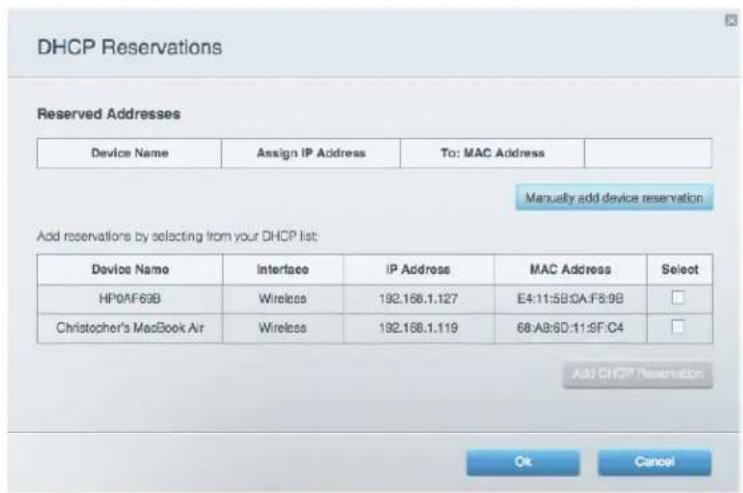
How to set up DHCP reservations
DHCP reservations allows you to assign a unique, fixed IP address to a specific device on your network. Assigning a fixed IP address is a good way to manage devices such as print servers, web cameras, network printers, and game consoles. A fixed IP address is also recommended if you want to use port forwarding for devices that need to receive inbound traffic from the Internet ("How to set up port forwarding" on page 54).
To configure DHCP reservations:
- Log in to Linksys Smart Wi-Fi. (See "How to connect to Linksys Smart Wi-Fi" on page 10.)
- Under Router Settings, click Connectivity.
- Click the Local Network tab, and click DHCP Reservations. The DHCP Reservations list opens, which lists attached network devices and current DHCP reservations.
-
Click the Select checkbox next to the device you want to reserve, and click Add DHCP Reservation.
-
Click Edit to change the reservation details, or click Delete to delete the reservation.
-
Click Ok.
Tip----For field descriptions, click Help at the top of the screen.
How to access your network on the Internet
If you want to remotely access a drive attached to your router or view a web camera on your home network, you need to be able to easily enter your network's address into a web browser.
Working with a DDNS (Dynamic Domain Name System) service provider, your router's DDNS feature lets you configure a domain name for your network, which you can then use to easily find your network on the Internet. If your ISP changes your network's IP address (which can happen frequently), the DDNS service providers detect the address change and continue to route your domain name to that address.
Tip—Before you configure DDNS on your router, you must sign up for DDNS service from a DDNS service provider that's supported by your router.
To set up DDNS:
- Sign up for DDNS service at www.dyndns.org.
Note—All of the information provided to you by the DDNS provider.
-
Log in to Linksys Smart Wi-Fi. (See "How to connect to Linksys Smart Wi-Fi" on page 10.)
-
Under Router Settings, click Security, then click the Apps and Gaming tab. The DDNS screen opens.
-
In the Select a provider drop-down list under the DDNS header, select your DDNS service provider.
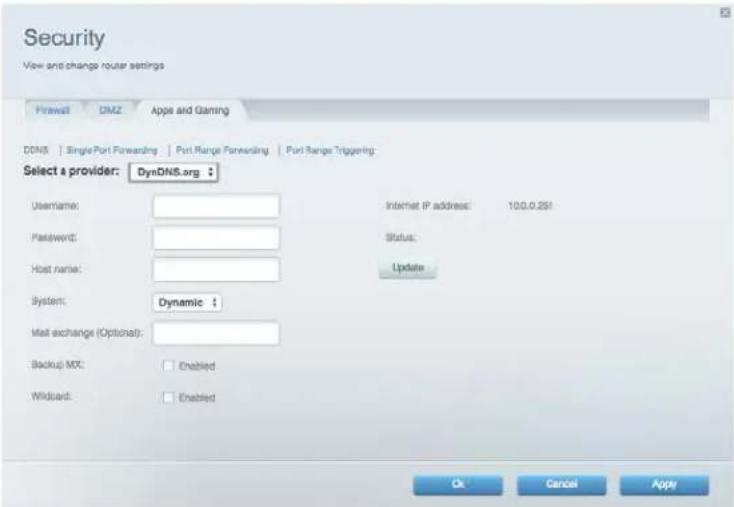
- Complete the fields with information provided by your DDNS provider, then click Ok.
To access the network from the Internet, enter the domain name provided by the DDNS service provider.
To access one of your network devices on the Internet:
- Configure the router to use port forwarding for the device (see "How to set up port forwarding for a single port" on page 54). Note the port number used for the device.
- Enter the domain name for your network followed by a colon and the port number. Using a network camera as an example, if the domain name registered with your DDNS provider is HappyBunny.linksysnet.com, and your Internet camera has been configured to use port 1024, you would enter: HappyBunny.linksysnet.com:1024
How to clone a MAC address
On any home network, each network device has a unique MAC (Media Access Control) address. Some ISPs register the MAC address of the device (usually a router or a computer) connected directly to the modem. If your computer's MAC address is registered with your ISP and you do not want to re-register the MAC address, then you can clone the address (assign the registered MAC address of your previous device to your new router). If you want to use the MAC address from an old router that you are replacing with your new router, you should first determine the MAC address of your old router, then manually enter it into your new router.
Note—For many ISPs that provide dynamic IP addresses automatically, the stored MAC address in the modem is reset each time you reset the modem. If you are installing this router for the first time, reset your modem before connecting the router to your modem. To reset your modem, disconnect power for about one minute, and reconnect power.
To clone a MAC address from your computer:
- Log into Linksys Smart Wi-Fi. (See "How to connect to Linksys Smart Wi-Fi" on page 10.)
- Under Router Settings, click Connectivity. The Connectivity page opens.
- Click the Internet Settings tab.
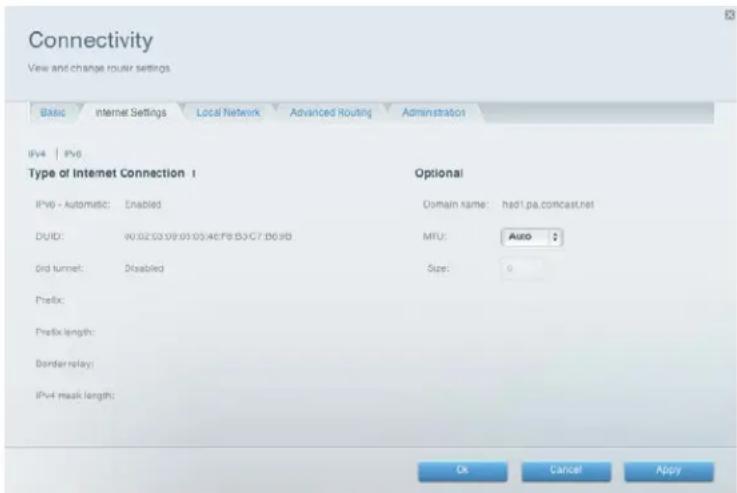
- Beside MAC Address Clone, click Enabled.
- Enter the 12-digit MAC address of your old router, then click Ok.
How to connect to your corporate office using a VPN
A VPN (Virtual Private Network) uses a public network such as the Internet to provide secure communications between a remote computer and another network. Corporations often provide VPN access to their networks to enable employees to work from remote offices or while traveling. Most corporate VPNs use the Internet.
For a typical VPN, the corporation installs a VPN gateway on their corporate network. Employees authorized to work remotely connect to the VPN gateway through the Internet using VPN software and security methods provided by their employers. Security and authentication requirements ensure a secure connection and access by only authorized users.
The default VPN settings in your router have been configured to pass through (allow) the most common types of VPN protocols. Usually, no changes are needed.
To change your VPN passthrough settings:
- Log into Linksys Smart Wi-Fi. (See "How to connect to Linksys Smart Wi-Fi" on page 10.)
- Under Router Settings, click Security. The Security page opens to the Firewall tab.
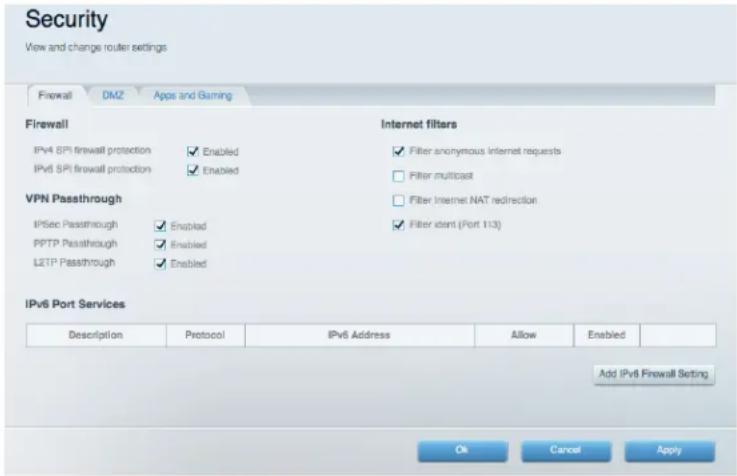
- Enable each setting that you want to change.
a. IPSec Passthrough --- IPSec (Internet Protocol Security) is a suite of protocols used to implement secure exchange of packets at the IP layer. The VPN clients on the local network can establish an IPSec VPN tunnel through the router. This option is enabled by default.
b. PPTP Passthrough --- PPTP (Point-to-Point Tunneling Protocol) allows the PPP (Point-to-Point Protocol) to be tunneled through an IP network. The VPN clients on the local network can establish a PPTP VPN tunnel through the router. This option is enabled by default. c. L2TP Passthrough --- L2TP (Layer 2 Tunneling Protocol) enables point-to-point sessions using the Internet on the Layer 2 level. The VPN clients on the local network can establish an L2TP VPN tunnel through the router. This option is enabled by default.
- Click Ok to save your changes.
How to optimize your router for gaming and voice
Your router can prioritize traffic between your network and the Internet. Performance for demanding, real-time applications, such as online gaming, VoIP calls, video streaming, and videoconferencing, can be improved by configuring media prioritization.
Prioritization settings are applied only to traffic that is uploaded to the Internet. The router cannot control the quality of the traffic after it reaches the Internet.
Tip—For more information on optimizing your router for online gaming, see "Port Forwarding and Port Triggering" on page 54.
To configure media prioritization:
- Log in to Linksys Smart Wi-Fi. (See "How to connect to Linksys Smart Wi-Fi" on page 10.)
- Under Smart Wi-Fi Tools, click Media Prioritization. The Media Prioritization screen opens.
- Turn on Prioritization if it is not already on.
- Click and drag high-priority devices from the Normal Priority list to the High Priority list.
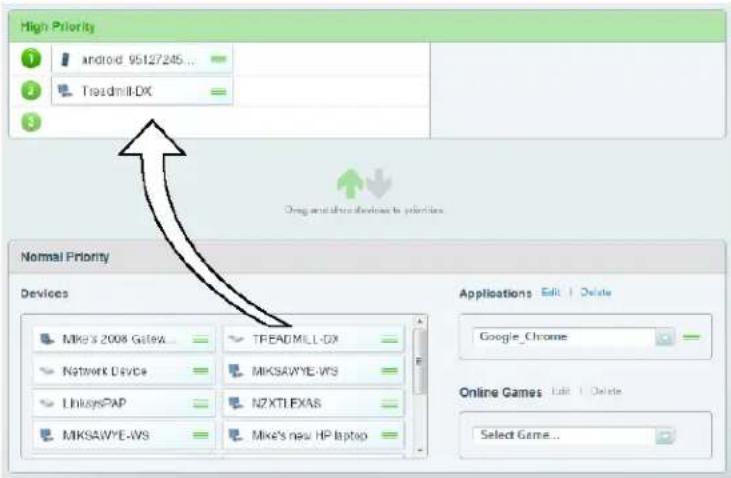
- To prioritize an application or game, select the name in the drop-down list, then click and drag the icon next to the name to the High Priority list.
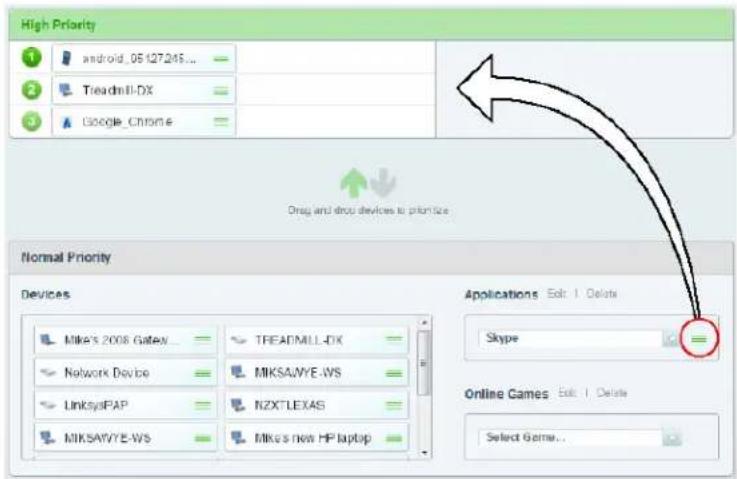
- If the application name isn't listed, select Add a New Application... at the bottom of the dropdown menu, and add the name.
Tip----If you want to add a new application or game, you need to know its port and protocol information (see the application or game's documentation for help).
- Click Settings. The Settings screen opens.
- Set the maximum Downstream Bandwidth. If you set the bandwidth lower than the actual bandwidth of your router, performance may be limited.
- Turn on WMM Support to help manage traffic priority with devices that support WMM.
Tip—WMM (Wi-Fi MultiMedia) Support is a wireless feature based on the IEEE 802.11e standard. WMM improves quality for audio, video, and voice applications by prioritizing wireless traffic. This feature requires that the wireless client devices in your network also support WMM.
- Turn off No Acknowledgement to have the router resend data if an error occurs.
- Click Ok.
How to enable Voice over IP on your network
VoIP (Voice over Internet Protocol) is a technology for using the Internet as an interface for telephone communications. To use VoIP, you need to get an account with a VoIP service provider. The VoIP service provider typically provides you with a telephone adapter that connects to your network. If you do not use your network to make phone calls, you don't need to change the default settings.
The Application Layer Gateway SIP (Session Initiation Protocol) allows SIP packets, used by some VOIP service providers, to get through your router's firewall.
To configure the router for VoIP:
-
Log in to Linksys Smart Wi-Fi. (See "How to connect to Linksys Smart Wi-Fi" on page 10.)
-
Under Router Settings, click Connectivity, then click the Administration tab.
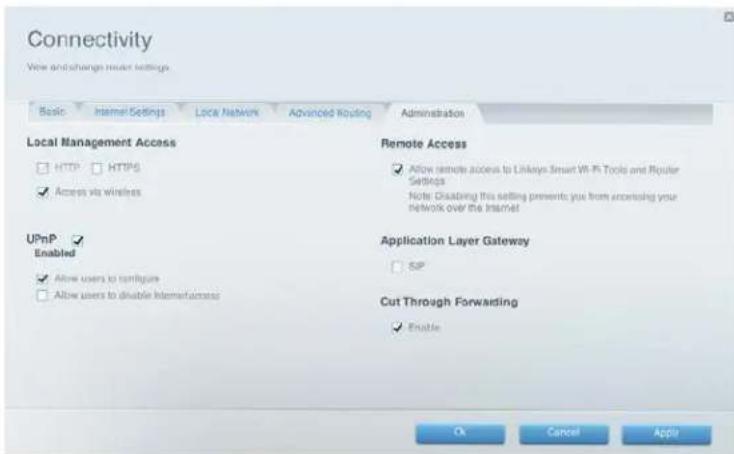
- Select the SIP checkbox under Application Layer Gateway if your VoIP service uses SIP.
OR
Deselect the SIP checkbox If your VoIP service uses other NAT traversal solutions such as STUN (Session Traversal Utilities for NAT), TURN (Traversal Using Relay NAT), or ICE (Interactive Connectivity Establishment).
Note—You may need to contact your VoIP service provider to determine the type of NAT traversal configuration they use.
How to configure UPnP
UPnP (Universal Plug and Play) allows devices connected to a network to discover each other and automatically create working configurations. Examples of UPnP-capable devices include web cameras, online gaming applications, and VoIP devices. UPnP is enabled by default.
To configure UPnP:
-
Log in to Linksys Smart Wi-Fi. (See "How to connect to Linksys Smart Wi-Fi" on page 10.)
-
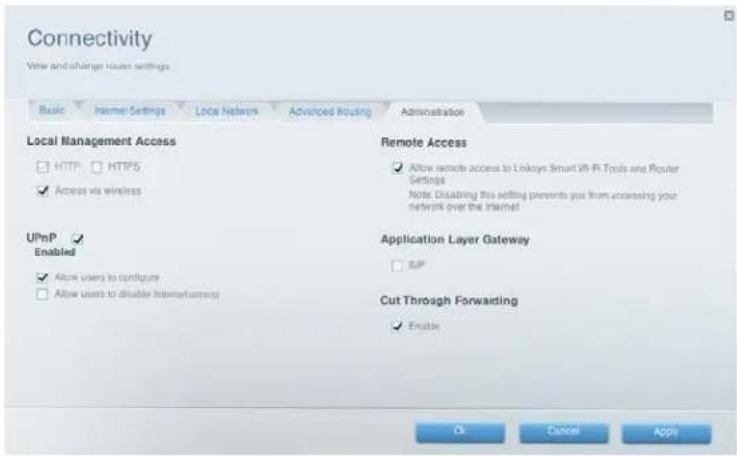
Under Router Settings, click Connectivity, then click the Administration tab.
-
To use UPnP, select Enabled (default) next to UPnP.
-
To allow changing router settings while using UPnP, select Allow Users to Configure.
-
To prevent local network users from disabling your Internet connection through UPnP, deselect the Allow users to disable Internet access checkbox.
-
Click Ok.
How to use a router as an access point
If you have a large area to cover with your wireless signal, or if part of your home has weak signals due to interference, you can use this router to extend the range of your old router's wireless network.
To set up your new router as an access point:
-
Use a network cable to connect this router's Internet port to the Ethernet or LAN port on the router that is connected to your modem.
-
Log in to Linksys Smart Wi-Fi. (See "How to connect to Linksys Smart Wi-Fi" on page 10.)
-
Under Router Settings, click Connectivity, then click the Internet Settings tab.
-
Click /Pv4.
-
For Type of Internet Connection, select Bridge Mode.
-
Click Obtain an IPv4 address automatically, then click Ok. The new router's LAN IP address will be changed and obtained from the router that is connected to your modem.
You can also use your old router to extend the range of your wireless network. This is a complex process, so this procedure assumes that you have some networking knowledge.
Tip—Check the documentation for your old router. Some brands of routers include either a switch on the outside of the case or a software option to convert it to an access point. If either of these options is available, follow your old router's instructions to convert it to an access point.
You need to take note of your new router's settings, and apply some of those settings to the old router so it can work as an access point.
To view your new router's settings:
- Make sure that your new router is connected to the Internet.
- Log in to Linksys Smart Wi-Fi. (See "How to connect to Linksys Smart Wi-Fi" on page 10.)
- Under Router Settings click Wireless. Take note of the Network name (SSID), Password, Security mode, and Channel.
- Under Router Settings, click Connectivity, then click the Local Network tab. Take note of the DHCP server's IP address range (192.168.1.100 to 192.168.1.149 by default).
To use your old router as an access point:
- With your computer connected to your old router, log into its browser-based administration utility.
Note—Save your changes by clicking Apply after finishing each step below.
- Open the setup page for the local network (LAN).
- In the Router IP address field, enter an unused IP address for the LAN network of your new router.
Example: Your new router has an IP address of 192.168.1.1, so you should choose an IP address on the 192.168.1.0 network. You can choose any address within the range of 192.168.1.2 to 192.168.1.254. You should exclude addresses in the range that will be used by the DHCP Server of your new router (192.168.1.100 to 192.168.1.149). A safe choice might be 192.168.1.250. Take note of this address, because this will be the address that you will use to manage your old router in the future. - In the Subnet Mask field, enter "255.255.255.0" or, if available, select that subnet mask from a drop-down list.
- Disable the DHCP server on your old router. (Because your old router will be operating as an access point instead of a router, you don't want it to distribute IP addresses. There should be only one active DHCP server on your network, and that should be your new router.)
To reconfigure the wireless network on your old router:
- Open the wireless network setup page.
- Change the network name (SSID) to match the name of your new network. Having the same network name and security settings enables you to seamlessly roam between your new router and your old router.
- Change the security mode to match the security mode on your new router.
-
Change the password (sometimes called the pre-shared key) on your old router to match the password on your new router.
-
Change the wireless channel to a non-conflicting channel. Some manufacturers have an Auto function for channel selection that automatically selects a wireless channel that does not interfere with other nearby wireless networks. If your old router supports an Auto function, select that. Otherwise, you may need to manually select the wireless operating channel on your old router. In the 2.4 GHz wireless spectrum, there are only three non-overlapping channels: 1, 6, and 11. Pick a channel that does not overlap the operating channel of your new router.
Example: Your new router is operating on channel 11, so configure your old router for either channel 1 or channel 6.
- Connect an Ethernet network cable to one of the LAN/Ethernet ports on your old router and an Ethernet port on your new router.
Caution----Do not connect the cable to the Internet port on your old router. If you do, you may not be able to set up the router as an access point on the current network.
How to put your new router behind an existing router
There are several reasons you might want to use your new router behind another router:
Case 1 You might be in an environment that shares the landlord's Internet connection with all tenants. In this case, you should put your own router behind the landlord's router in order to create your own private network and to isolate computers on your network from the rest of the building.
Case 2 You are sharing an office building Internet connection, and you want to control Internet access or the content viewed by your employees.
Case 3 You already have an existing network and you want to extend the network's range or add wireless capabilities to your network.
Case 4 You want to separate older, less secure network devices from the rest of the network.
In most cases, you can easily add your router to an existing wireless network by running Linksys Smart Wi-Fi. If you are unable to set up the additional router using the instructions below, see "To add another router to share an internet connection" on page 50 or "To extend your network or add wireless capabilities" on page 52.
To add your router to your existing wireless network:
-
Connect your router's Internet port to the LAN/Ethernet port on your existing (upstream) router or gateway.
-
Connect to the secure wireless name shown in the Quick Start Guide that came with your router. (You can change the network name and password later during router setup.) If you need help connecting to the network, refer to your device documentation. Note: You will not have Internet access until router setup is complete.
- Open a web browser and follow the instructions to complete your router's setup. If instructions do not appear in the web browser, enter linksyssmartwifi.com in the browser's address bar.
- At the end of setup, follow the on-screen instructions to set up your Linksys Smart Wi-Fi account.
Note--As part of the router setup process, you will be sent a verification e-mail. From your home network, click the link in the e-mail to associate your router with the Linksys Smart Wi-Fi account. Make sure that the link opens in a supported web browser, such as Internet Explorer 8 or higher, Firefox 8 or higher, Google Chrome 10 or higher, and Safari 5 (for Mac) or higher.
To add another router to share an Internet connection (cases 1 and 2 above):
Note—This is a complex process, so this procedure assumes that you have some networking knowledge.
- Determine the IP address range for your upstream (office or building) network.
To determine the address range by using a Windows computer:
a. Connect your computer to your upstream network's router.
b. Click Start, Run, type CMD, then click OK. The command prompt window appears.
c. Type "ipconfig," then press Enter.
Tip----Although you can determine your computer's IP address in many ways, this method is quick and relatively easy.
d. Take note of the IP address. For this example, the IP address will be 192.168.100.192.
To determine the address range by using a Mac computer:
a. Connect your computer to your upstream network's router.
b. From the Dock, click System Preferences, click Network, then click Ethernet (or USB Ethernet) in the window to the left. A network status window opens.
c. Take note of the IP address. For this example, the IP address is 192.168.100.139.
Example: The above examples show that upstream IP addresses are on the 192.168.100.0 network. (The "0" indicates the entire network.) Your upstream network's address may be different. The default address of your new Linksys router is 192.168.1.1. In setting up one router behind another, you must make sure that the local network on your new router is different than the network of your upstream router. In the above example, because the default local network on your Linksys router 192.168.1.0 is on a different subnet than the office network's 192.168.100.0, you will be able to place your Linksys router behind the other router.
- Connect an Ethernet network cable to a LAN/Ethernet port on your upstream network to the yellow Internet port on your router.
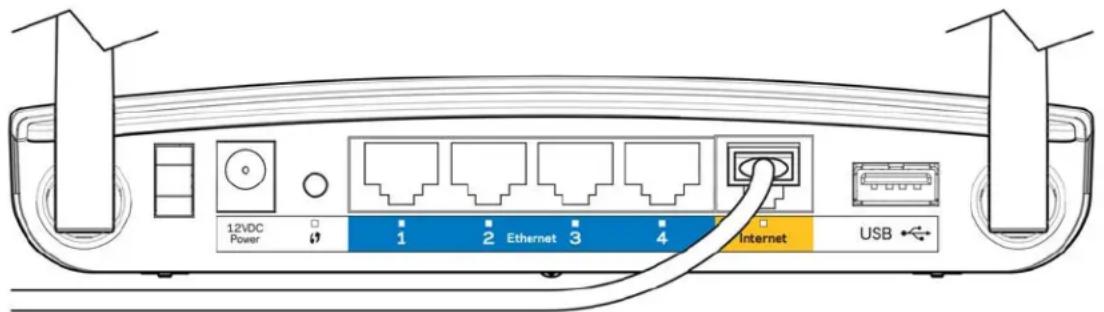
Caution—Connect the upstream network to your router's yellow Internet port, not one of the blue Ethernet ports. If you connect to an Ethernet port, you create IP addressing problems for the office network.
Tips—An office network often has a wall plate with an Ethernet port that you can connect to. If you are doing this in a home environment (without wall ports), connect an Ethernet network cable between a LAN port on your upstream router and the Internet port on your Linksys router.
Computers connected to your new router are now on the same network, and are isolated from the upstream network. However, you will still have access to the Internet through the upstream router (by way of your new router). Because two routers are between your computer and the Internet, Internet traffic undergoes two network address translations. This is sometimes referred to as Double NAT.
Your computers can also use the built-in capabilities of your new router, such as parental controls. If you need further control over the type of content your employees or family access, you can create an account with an Internet filtering site such as www.opendns.com or www.bsecure.com. After you create an account with them, use their DNS in place of your ISP's DNS.
To use an outside DNS:
- Log into Linksys Smart Wi-Fi. (See "How to connect to Linksys Smart Wi-Fi" on page 10.)
- Under Router Settings, click Connectivity.
-
Click the Local Network tab.
-
Complete the Static DNS fields with the information provided by your content filtering provider.
- Click Ok.
To extend your network or add wireless capabilities (cases 3 and 4 above), do one of the following:
Note----This is a complex process, so this procedure assumes that you have some networking knowledge.
- Follow the instructions above for adding a router to share an Internet connection.
One example of this might be to provide a separate wireless network for your children to keep their wireless network traffic separate from your wireless network. You might also want to isolate one network from another network so that network shares aren't visible across networks. In this case, use an Ethernet cable to connect the Internet port of the downstream router to one of the LAN ports of the upstream router. Make sure that the local network subnets on the two routers are different.
OR
- You can extend your network by turning the downstream router into an access point. (See "How to use a router as an access point" on page 47.) When you use a router as an access point, computers connected to the access point are on the same IP subnet as all other devices connected to the router. File, printer, and media sharing is much easier if all devices are on the same subnet.
How to expose a device to the Internet
If you are operating a web server, a mail server, or a web camera, you may want to expose that device to the Internet so anybody can access it. Your router includes a DMZ (Demilitarized Zone) feature that forwards all inbound ports presented on the WAN interface, except those that are specifically forwarded, to an individual IP address or MAC address. This feature is normally not used, because it presents significant security risks to the device that you designate for the DMZ. The DMZ device is not protected by the built-in firewalls, Internet filters, or router web filters, and is open to attacks from hackers.
A much safer way of exposing devices to the Internet would be to use port forwarding. See "How to set up port forwarding" on page 54.
To set up a device in the DMZ:
- Configure your device with a static IP address. See your device's documentation for help with setting a static IP address or use DHCP reservation (see "How to set up the DHCP reservations" on page 40).
-
Log in to Linksys Smart Wi-Fi. (See "How to connect to Linksys Smart Wi-Fi" on page 10.)
-
Under Router Settings, click Security, then click the DMZ tab.
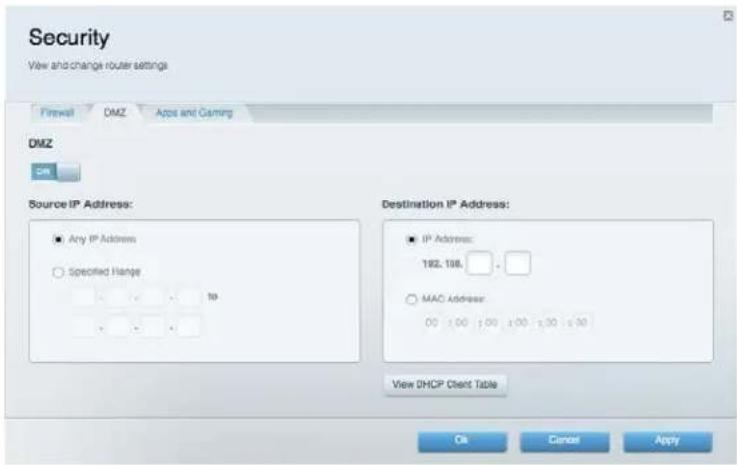
- Click the button for DMZ to turn it on.
- In the Source IP Address section, select Any IP Address to allow access to your DMZ device from the entire Internet, or select Specified Range and enter a range of allowed source addresses.
- In the Destination IP Address section, enter the last three digits of the IP address of the device that will be in the DMZ. The rest of the IP address is already completed.
OR
If you want to specify the 12-digit MAC address of the device instead of setting up a DHCP address reservation, you can replace Step 6 with the following steps:
- In the Destination IP Address section, select MAC Address, then click View DHCP Client Table. The DHCP Client Table screen opens.
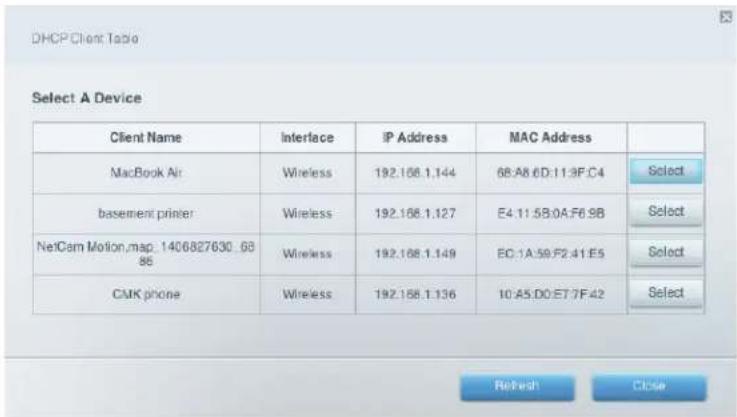
- Click Select next to the device that you want to place in the DMZ, then click Close. The corresponding MAC address is copied into the MAC Address field.
- Click Ok.
Port Forwarding and Port Triggering
How to set up port forwarding
Port forwarding is a feature that forwards inbound traffic from the Internet on a specific port or ports to a specific device or port on your local network.
Set up port forwarding for the following:
- A single port (see "How to set up port forwarding for a single port" below on this page)
• Multiple ports (see "How to set up port forwarding for multiple ports" on page 55)
• A range of ports (see "How to set up port forwarding for a range of ports" on page 55)
How to set up port forwarding for a single port
Single port forwarding forwards inbound traffic from the Internet on a specific port to a single device on your local network. An example of single port forwarding would be sending inbound web requests, typically on port 80, to a web server.
Tip—See the device's documentation for port and protocol information.
To set up single port forwarding:
-
Follow your device's instructions for configuring it with a static IP address or use DHCP reservation to assign it a permanent address (see "How to set up DHCP reservations" on page 40).
-
Log in to Linksys Smart Wi-Fi. (See "How to connect to Linksys Smart Wi-Fi" on page 10.)
-
Under Router Settings, click Security.
-
Click the Apps and Gaming tab.
-
Click Single Port Forwarding. The Single Port Forwarding screen opens.
-
Click Add a new Single Port Forwarding.
-
In the Application name field, enter a descriptive name.
-
In the External Port field, type the external port number (not always required).
-
In the Internal Port field, type the internal port number (not always required).
-
In the Protocol drop-down list, select TCP, UDP, or Both (default).
-
In the Device IP# field, complete the IP address you have reserved for the computer you want to forward Internet traffic to.
-
Select the Enabled checkbox then click Save. If you don't want to use port forwarding but want to keep the information in the table, unselect the checkbox.
How to set up port forwarding for multiple ports
Some applications require forwarding of multiple ports. VNC (Virtual Network Computing) software that allows you to operate your computer remotely from anywhere on the Internet is an example of an application that requires multiple ports to be forwarded. To forward to multiple ports, create additional entries to forward additional ports to the same IP address.
Example: You want to set up your computer so you can remotely access it using VNC software. By default, VNC uses TCP ports 5800 and 5900.
To set up single port forwarding for multiple ports:
- Make sure that the software you want to use has been installed on a networked computer.
- Log in to Linksys Smart Wi-Fi. (See "How to connect to Linksys Smart Wi-Fi" on page 10.)
- Set up DHCP reservation for the IP address of the computer on which you installed the software. (See "How to set up the DHCP server on your router" on page 39.)
- Under Router Settings, click Security.
- Click the Apps and Gaming tab.
- Click Single Port Forwarding. The Single Port Forwarding screen opens.
- Click Add a new Single Port Forwarding.
- In the Application name field, enter a descriptive name.
- Enter in the same port number for the External Port and the Internal Port.
- In the Protocol drop-down list, select TCP, UDP, or Both (default).
- In the Device IP# field, complete the IP address you have reserved for the computer you want to forward Internet traffic to.
- Select the Enabled checkbox, then click Save. If you don't want to use port forwarding but want to keep the information in the table, deselect the checkbox.
Note—If you want to use software such as VNC on multiple computers, you will need to reconfigure the default ports that VNC uses on each additional computer. Then, create additional port forwarding entries for each additional computer. See your software's documentation for help.
How to set up port forwarding for a range of ports
Some applications require forwarding to a range of ports.
Example: You want to set up your computer so you can use BitTorrent, a popular peer-to-peer file sharing application. BitTorrent uses port 6881 by default. If that port is busy, the requesting BitTorrent client tries the next port in sequence. The most common configuration for home routers with a single BitTorrent computer is to set up port forwarding using a range of ports starting with 6881 and ending with port 6889.
To set up port range forwarding:
- Log in to Linksys Smart Wi-Fi. (See "How to connect to Linksys Smart Wi-Fi" on page 10.)
- Set up a DHCP reservation for the IP address of the computer on which you installed the software. (See "How to set up the DHCP server on your router" on page 39.) In this example, the IP address of the desktop computer with a BitTorrent client installed is 192.168.1.140.
- Under Router Settings, click Security.
- Click the Apps and Gaming tab.
- Click Port Range Forwarding. The Port Range Forwarding screen opens.
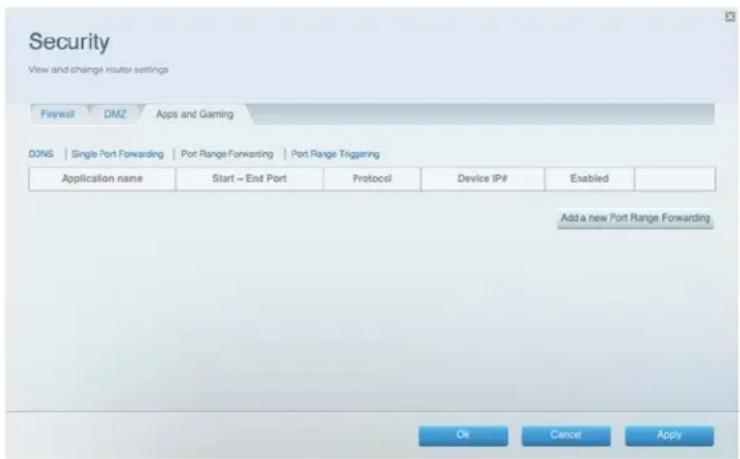
- Click Add a new Port Range Forwarding.
- In the Application name field, enter a descriptive name.
- In the Start \~ End Port fields, enter the range or ports. For this example, the range is "6881 - 6889".
- Select TCP as the protocol.
- In the Device IP# field, complete the IP address of the device running the software. In this example, you would enter "140".
- Select the Enabled checkbox then click Save. If you don't want to use port range forwarding but want to keep the information in the table, deselect the checkbox.
Tips----To use software like BitTorrent on multiple computers on your network, create additional entries with a unique range of ports as shown above. BitTorrent works only with ports between 6881 and 6999.
Depending on your computer's firewall software, you may need to open a range of ports in your firewall to enable software that uses port range forwarding.
How to set up port range triggering for online gaming
Port range triggering allows the router to watch outgoing data for specific port numbers. The IP address of the computer that sends the matching data is remembered by the router, so that when the requested data returns through the router, the data is routed back to the proper device. An example of port range triggering would be to enable a USB or Bluetooth headset for online chat and gaming.
To set up port range triggering for multiple entries:
- See your device documentation for information on the ports that the device uses.
- Log in to Linksys Smart Wi-Fi. (See "How to connect to Linksys Smart Wi-Fi" on page 10.)
- Under Router Settings, click Security.
- Click the Apps and Gaming tab.
- Click Port Range Triggering. The Port Range Triggering screen opens.
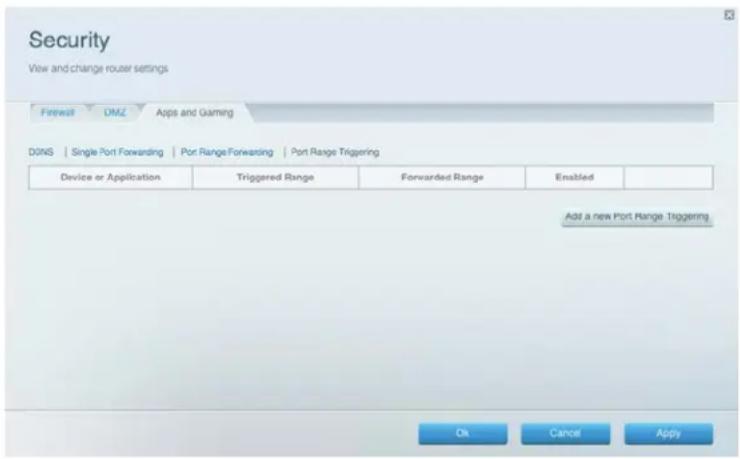
- Click Add a new Port Range Triggering.
- In the Device or Application field, enter a descriptive name (such as "PS3 Headset").
- For single ports, enter the same port number in each Triggered Range and Forwarded Range field.
- For port ranges, enter the same number ranges in each set of Triggered Range and Forwarded Range fields.
- Select the Enabled checkbox, then click Save. If you don't want to use port range triggering but want to keep the information in the table, deselect the checkbox.
Maintaining and Monitoring
How to back up and restore your router configuration
As with any valuable data, you should back up your router configuration. Your router might contain many customized settings. Those settings would be lost if you reset your router to its factory defaults, and you would need to re-enter all of them manually. If you back up your router configuration, restoring settings is easy.
Note—You can only back up the router configuration locally (not remotely).
To back up your router configuration:
- Log in to Linksys Smart Wi-Fi. (See "How to connect to Linksys Smart Wi-Fi" on page 10.)
- Under Router Settings, click Troubleshooting.
- Click the Diagnostics tab.
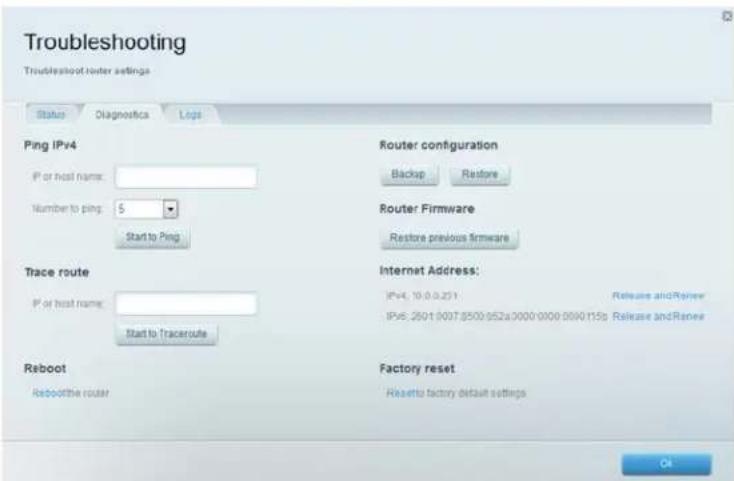
- Under Router configuration, click Backup.
- Specify a file location, then click Save.
Tip-To save multiple backup files, include the backup date in the filename as you save.
To restore your router configuration:
- Log in to Linksys Smart Wi-Fi. (See "How to connect to Linksys Smart Wi-Fi" on page 10.)
- Under Router Settings, click Troubleshooting.
-
Click the Diagnostics tab.
-
Under Router configuration, click Restore. The Restore Router Configuration dialog box opens.
- Click Choose File to navigate to the location of your configuration file, then select the file and click Open.
- To restore the configuration, click Start to Restore.
How to upgrade the router's firmware
Linksys may periodically publish a firmware upgrade either to fix a problem or to add features to your router.
Important—Do not interrupt the upgrade process. You should not turn off the router or press the Reset button during the upgrade. Doing so may permanently disable the router.
Tips—Your router automatically checks for available updates and installs them by default. Use the following instructions only if the automatic firmware update has been turned off.
To upgrade the router's firmware:
- Log in to Linksys Smart Wi-Fi. (See "How to connect to Linksys Smart Wi-Fi" on page 10.)
- Under Router Settings, click Connectivity.
- Click the Basic tab.
- Under Firmware Update, click Check for Updates.
- If an available update is found, follow the on-screen instructions to install it.
Tip----To have your router automatically check for updates and install them, selectAutomatic under Router Firmware Update.
How to restore factory defaults
If you've tried previous troubleshooting steps and your network still doesn't work, you may need to restore your router's factory defaults. To restore your router to factory defaults, you can use the Reset button on the router or use Linksys Smart Wi-Fi.
To reset your router using the reset button:
CAUTION—Whenever you restart the router, all logs that are not saved will be lost.
- With your router connected to power and turned on, press and hold the Reset button on the back of your router until the power indicator flashes.
To reset your router to factory defaults using Linksys Smart Wi-Fi:
- Log in to Linksys Smart Wi-Fi. (See "How to connect to Linksys Smart Wi-Fi" on page 10.)
-
Under Router Settings, click Troubleshooting.
-
Click the Diagnostics tab.
- Under Factory reset, click Reset.
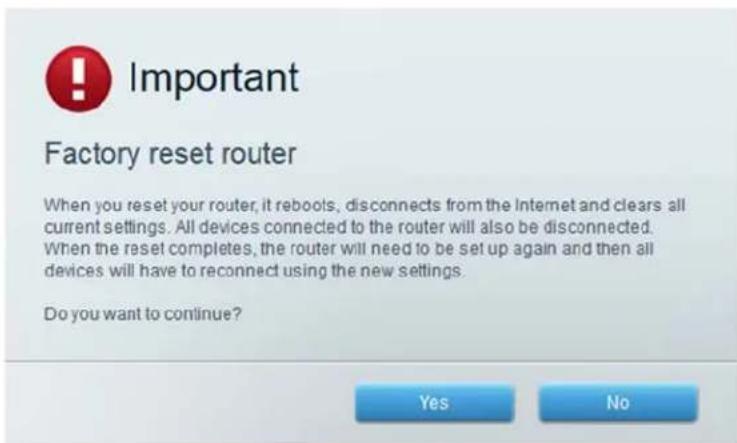
- Click Yes to confirm. All settings and logs will be deleted, and your router will return to its factory default settings.
How to check the status of your router
Your router status tells you whether you have a secure Internet connection and informs you about the status of your network-connected devices.
To check your router status:
- Log in to Linksys Smart Wi-Fi. (See "How to connect to Linksys Smart Wi-Fi" on page 10.)
- Under Router Settings, click Troubleshooting.
- Click the Status tab. Detailed information about your router status is displayed.
Tip----For field descriptions, click Help at the top of the screen.
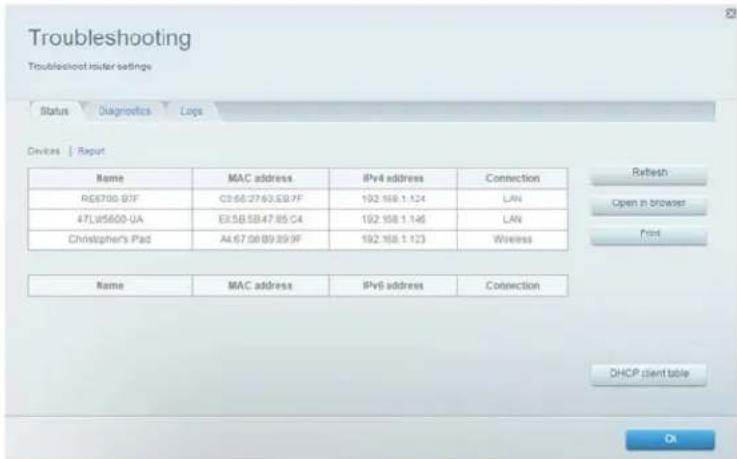
-
To view a list of connected network devices, click Devices. To view a full report of your router status, click Report.
-
Click Ok to close the screen.
How to turn off Ethernet port status lights
Depending on the placement of the router in a home, you might find the lights distracting. You can turn off the lights using Linksys Smart Wi-Fi.
To turn off the lights:
-
Log in to Linksys Smart Wi-Fi. (See "How to connect to Linksys Smart Wi-Fi" on page 10.)
-
Under Router Settings, click Connectivity.
-
Click the Basic tab.
-
Under Activity Lights, click the ON/OFF button.
How to test your Internet connection
Your router includes two diagnostic tests, Ping and Trace route, that let you check network connections, including network devices and your Internet connection.
To diagnose your Internet connection:
-
Log in to Linksys Smart Wi-Fi. (See "How to connect to Linksys Smart Wi-Fi" on page 10.)
-
Under Router Settings, click Troubleshooting.
-
Click the Diagnostics tab.
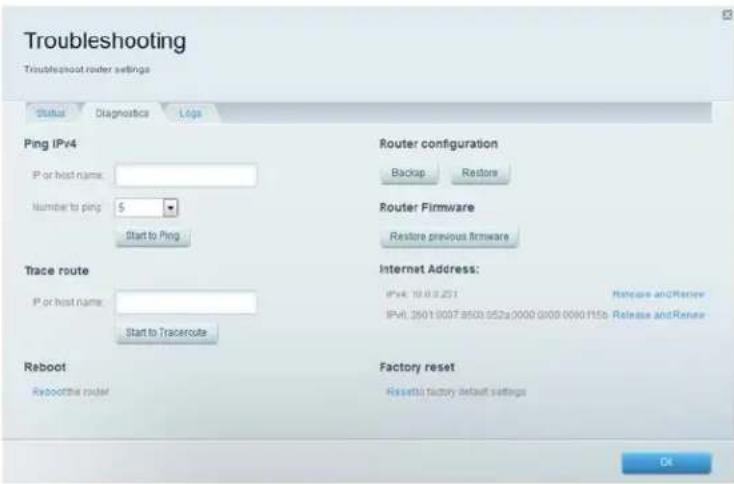
To check whether an address can be reached, do the following:
-
Under Ping IPv4, enter an IP address or URL into the IP or host name field.
-
Select a number of times to ping from the Number to ping drop-down list.
-
Click Start to Ping. A window will open showing the ping test results. You will see a response for each successful ping.
Note—If an Internet URL fails to respond to ping, it doesn't necessarily mean that the site is down. For security reasons, some sites are configured to not respond to ping requests.
To trace the route that packets take between your router and a specific address:
- Under Trace route, enter an address in the IP or host name field.
- Click Start to Traceroute. A window will open with the test results.
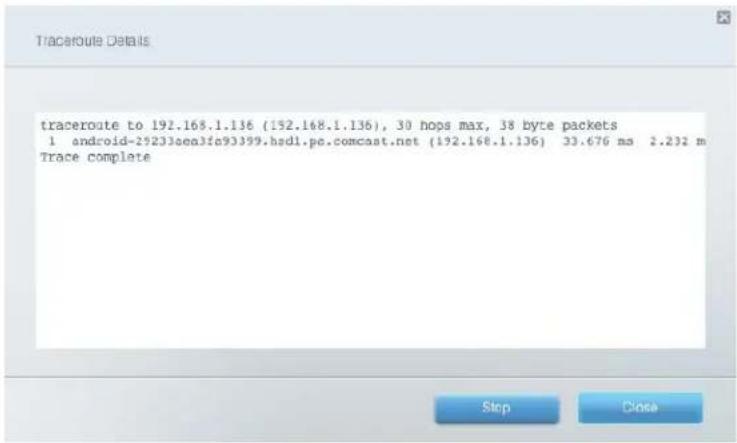
How to configure and use logs
Your router can track all traffic for your Internet connection and record that information in a log. To enable and view logs:
- Log in to Linksys Smart Wi-Fi. (See "How to connect to Linksys Smart Wi-Fi" on page 10.)
- Under Router Settings, click Troubleshooting.
- Click the Logs tab.
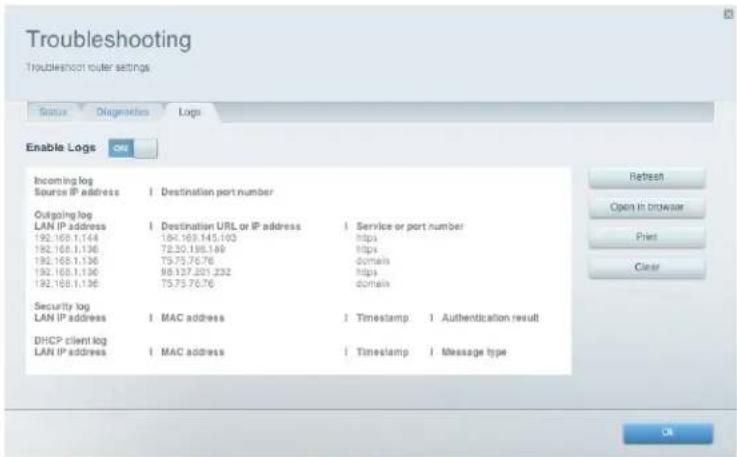
- To enable logs, click the button next to Enable Logs to turn them on.
You can view the logs directly in the list, open the logs in a separate browser window, or print the logs.
Troubleshooting
This chapter can help you solve common setup issues and connect to the Internet. You can find more help from our award-winning customer support at Linksys.com/support/EA2750.
Your router was not successfully set up
If Linksys Smart Wi-Fi did not complete the setup, you can try the following:
- Press and hold the Reset button on your router with a paperclip or pin until the LED starts blinking (about 10 seconds). Install the router again.
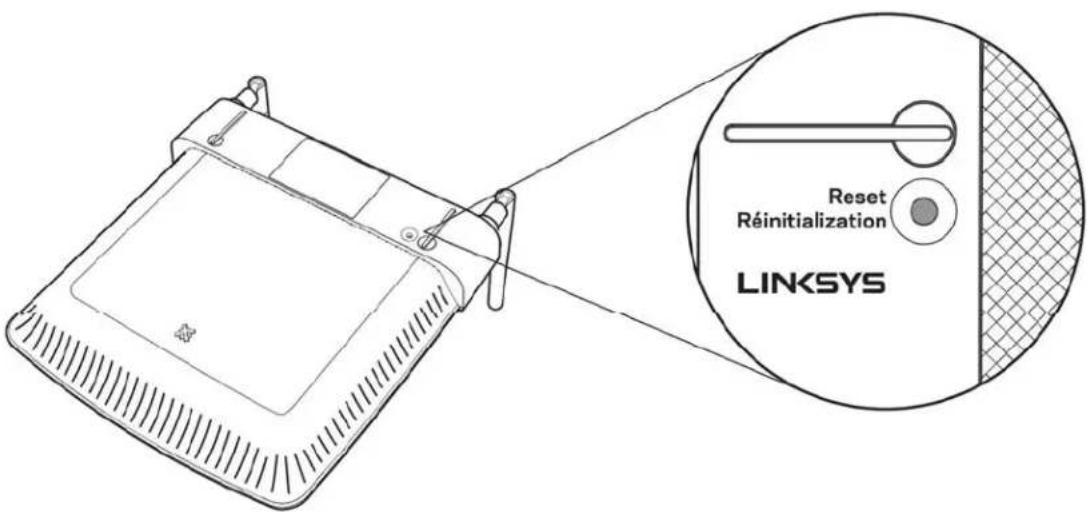
- Temporarily disable your computer's firewall (see the security software's instructions for help). Install the router again.
• If you have another computer, use that computer to install the router again.
Your Internet cable is not plugged in message
If you get a "Your Internet cable is not plugged in" message when trying to set up your router, follow these troubleshooting steps.
- Make sure that an Ethernet or Internet cable (or a cable like the one supplied with your router) is securely connected to the yellow Internet port on the back of the router and to the appropriate port on your modem. This port on the modem is usually labeled Ethernet, but may be named Internet or WAN.
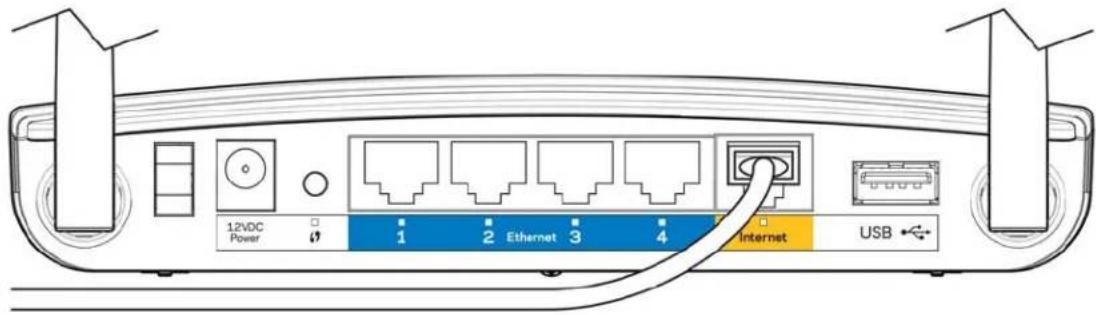
• Make sure that your modem is connected to power and is turned on. If it has a power switch, make sure that it is set to the ON or I (as opposed to O) position.
- If your Internet service is cable, verify that the cable modem's CABLE port is connected to the coaxial cable provided by your ISP.
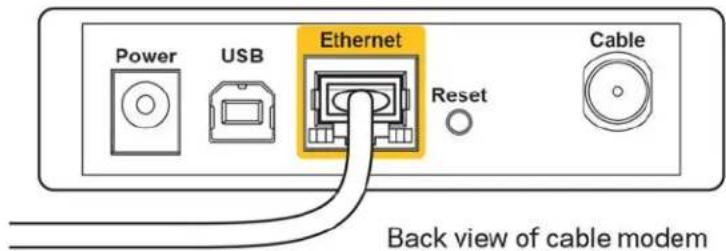
- If your Internet service is DSL, make sure that the DSL phone line is connected to the modem's DSL port.
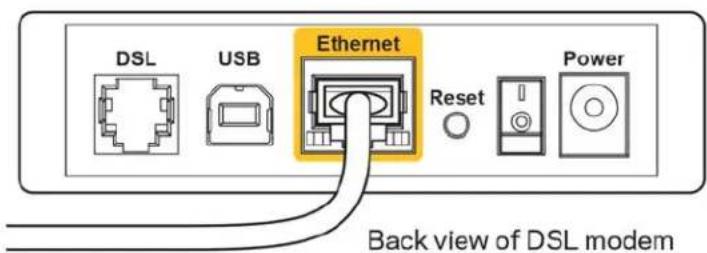
- If your computer was previously connected to your modem with a USB cable, disconnect the USB cable. Install the router again.
Cannot access your router message
To access your router, you must be connected to your own network. If you currently have wireless Internet access, the problem may be that you have accidentally connected to a different wireless network.
To fix the problem on Windows computers*:
-
On your Windows desktop right-click the wireless icon in the system tray.
-
Click View Available Wireless Networks. A list of available networks will appear.
-
Click your own network name. Click Connect. In the example below, the computer was connected to another wireless network named JimsRouter. The wireless network name of the Linksys EA2750 router, BronzeEagle in this example, is shown selected.
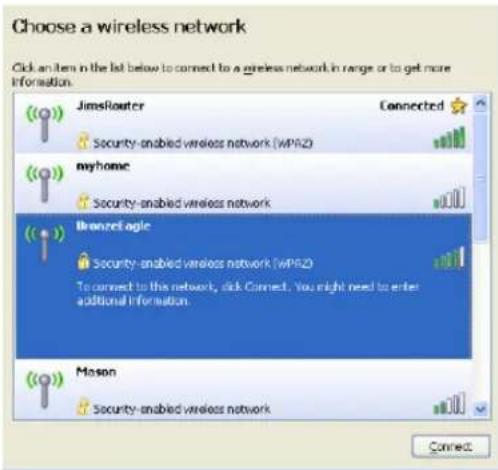
-
If you are prompted to enter a network key, type your password (Security Key) into the Network key and Confirm network key fields. Click Connect.
-
Your computer connects to the network, and you should now be able to access the router.
*Depending on your version of Windows, there could be some differences in wording or icons in these steps.
To fix the problem on Mac computers:
-
In the menu bar across the top of the screen, click the Wi-Fi icon. A list of wireless networks will appear. Linksys Smart Wi-Fi has automatically assigned your network a name.
-
In the example below, the computer was connected to another wireless network named JimsRouter. The wireless network name of the Linksys EA2750 router, BronzeEagle in this example, is shown selected.
-
Click the wireless network name of your Linksys EA2750 router (BronzeEagle in the example).
-
Type your wireless network password (Security Key) into the Password field. Click OK.
After setup
The Internet appears to be unavailable
If the Internet has difficulty communicating with your router, the problem may appear as a "Cannot find [Internet address]" message in your Web browser. If you know that the Internet address is correct, and if you've tried several valid Internet addresses with the same result, the message could mean that there's a problem with your ISP or modem communicating with your router.
Try the following:
• Make sure that the network and power cables are securely connected.
• Make sure that the power outlet that your router is connected to has power.
- Reboot your router.
- Contact your ISP and ask about outages in your area.
The most common method of troubleshooting your router is to turn it off, then back on again. Your router can then reload its custom settings, and other devices (such as the modem) will be able to rediscover the router and communicate with it. This process is called rebooting.
To reboot your router using the power cord:
- Disconnect the power cord from the router and the modem.
- Wait 10 seconds, and reconnect the power cord to the modem. Make sure it has power.
- Wait until the modem's online indicator has stopped blinking (about two minutes). Reconnect the power cord to the router.
- Wait until the power indicator stops blinking. Wait two minutes before trying to connect to the Internet from a computer.
To reboot your router using Linksys Smart Wi-Fi:
- Log in to Linksys Smart Wi-Fi. (See "How to connect to Linksys Smart Wi-Fi" on page 10.)
- Under Router Settings, click Troubleshooting.
- Click the Diagnostics tab.
- Under Reboot, click Reboot.

Important
Rebooting the router
Rebooting the router disconnects it from the Internet, causing all connected devices to lose Internet connectivity. When the reboot completes, the router and all devices will be reconnected.
Do you want to continue?
Yes
No
- Click Yes. The router will reboot. While the router is rebooting, all connected devices will lose their Internet connection, and will automatically reconnect when the router is ready again.
Linksys Smart Wi-Fi does not open in your web browser
The latest versions of the most common Web browsers work with Linksys Smart Wi-Fi.
• Internet Explorer 8 or higher
- Firefox 8 or higher
• Google Chrome 35 or higher
• Safari 5 (for Mac) or higher
You cannot access Linksys Smart Wi-Fi
To access your router directly, see "How to manually set up your router" on page 33.
All other troubleshooting has been unsuccessful
If you tried previous troubleshooting steps and your network still doesn't work, you may need to restore your router's factory defaults, which are the most common settings used in home networks. Resetting the router erases your custom settings, so you must restore the settings after. We recommend that you back up your configuration before resetting your router to factory defaults. See "How to back up and restore your router configuration" on page 58.
To restore your router to factory defaults, you can use the Reset button on the router or use Linksys Smart Wi-Fi. For instructions, see "How to restore factory defaults" on page 59.
Specifications
Linksys EA2750
Model Name Linksys Smart Wi-Fi Router N600
Description Dual-Band N Router with Gigabit and 1×USB
Model Number EA2750
Switch Port Speed 10/100/1000 Mbps (gigabit Ethernet)
Radio Frequency 2.4 GHz and 5 GHz
# of Antennas 2 External Antennas (Interchangeable)
Ports Power, 1 x USB 2.0, Internet, Ethernet (1-4),
Buttons Reset, Wi-Fi Protected Setup, Power
Back Panel Indicators Ethernet (1-4), INTERNET, Wi-Fi Protected Setup, USB, Power
UPnP Supported
Security Features WEP, WPA2, RADIUS
Security Key Bits Up to 128-bit encryption
Storage File System FAT, NTFS, and HFS+
Support
Browser Support Internet Explorer 8 or higher, Firefox 4 or higher, Google Chrome 10 or higher, and Safari 4 or higher
Environmental
Dimensions 8.87" x 6.22" x 1.29" without antennas
(225.5 × 158 × 32.75 mm)
Unit Weight 10.51 oz. (298 g)
Power 12V, 1A
Certifications FCC, IC, CE, Wi-Fi a/b/g/n, Windows 7, Windows
8
Operating Temp. 32 to 104°F (0 to 40°C)
Storage Temp. -4 to 140° F (-20 to 60° C)
Operating Humidity 10 to 80% relative humidity, non-condensing
Storage Humidity 5 to 90% non-condensing
Notes:
For regulatory, warranty, and safety information, see the CD that came with your router or go to Linksys.com/support/EA2750.
Specifications are subject to change without notice.
Maximum performance derived from IEEE Standard 802.11 specifications. Actual performance can vary, including lower wireless network capacity, data throughput rate, range and coverage.
Performance depends on many factors, conditions and variables, including distance from the access point, volume of network traffic, building materials and construction, operating system used, mix of wireless products used, interference and other adverse conditions.
Visit linksys.com/support/EA2750 for award-winning technical support.
BELKIN, LINKSYS and many product names and logos are trademarks of the Belkin group of companies. Third-party trademarks mentioned are the property of their respective owners.
© 2016 Belkin International, Inc. and/or its affiliates. All rights reserved.
LINKSYS
Guía de usuario
Router N600 Smart Wi-Fi de Linksys
EA2750
Tabla de contenidos
natural_image
Line drawing of a LINKSYS router with two top ports and a mesh base (no text or symbols on the device itself)2 antenas externas ajustables
Vista trasera
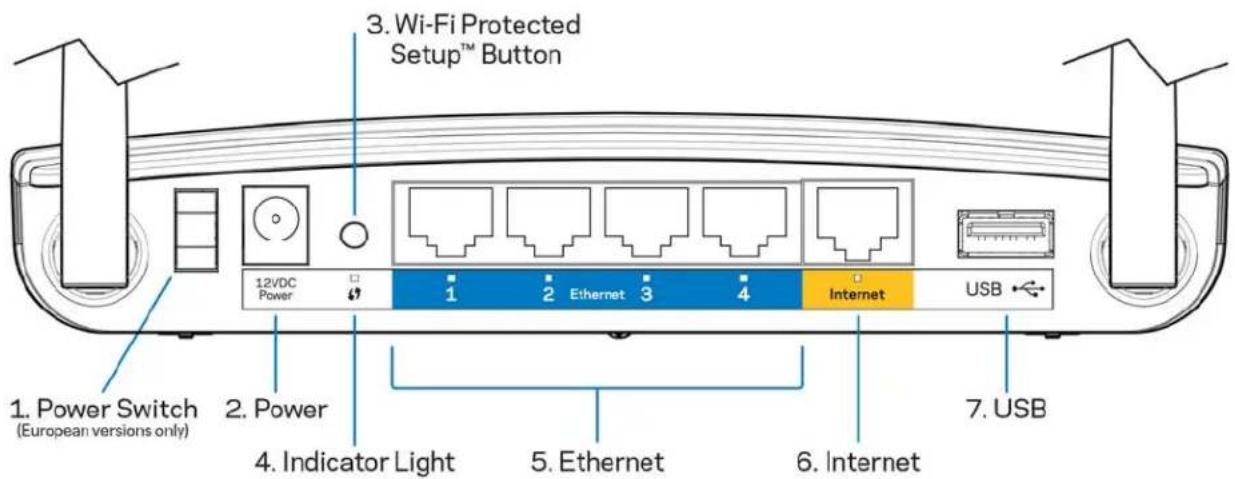
- Haga clic en Apply (Aplicar) o Ok (Aceptar).
- Bajo Select the type of device to add to your network (Seleccionar el tipo de dispositivo para agregar a su red) haga clic en USB Printer (Impresora USB).
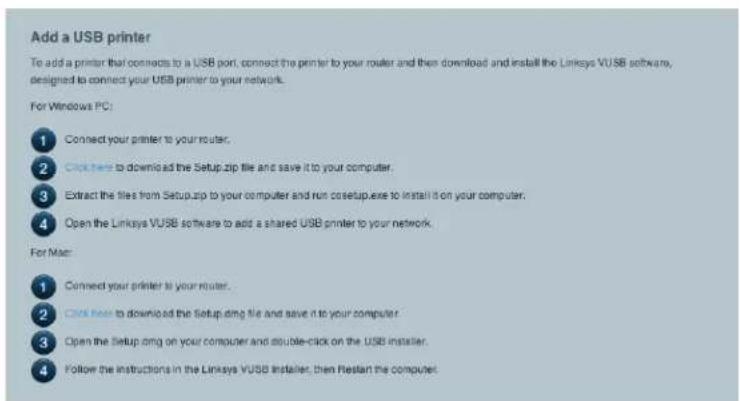
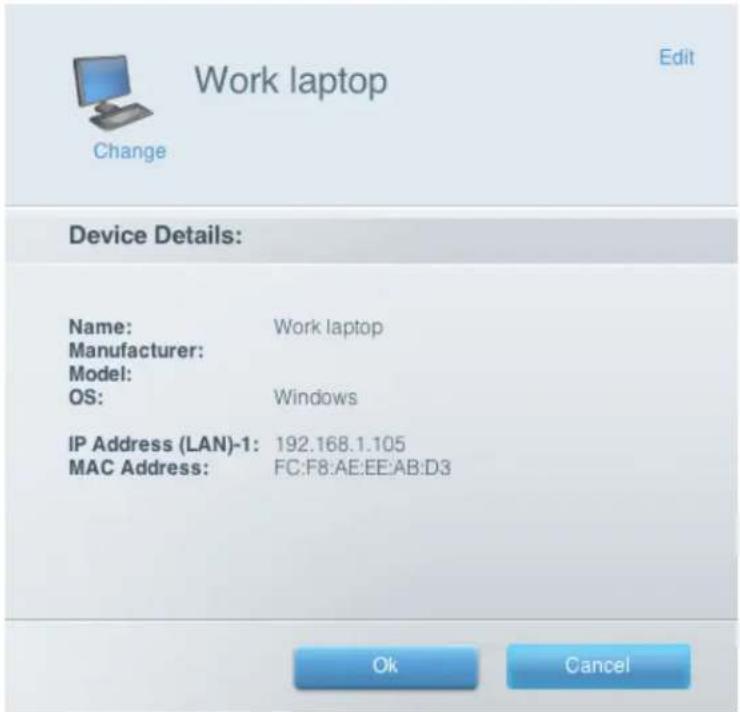
Factory reset router
When you reset your router, it reboots, disconnects from the Internet and clears all current settings. All devices connected to the router will also be disconnected. When the reset completes, the router will need to be set up again and then all devices will have to reconnect using the new settings.
Do you want to continue?
Yes
No
natural_image
Line drawing of a LINKSYS router with two top ports and a mesh base (no text or symbols on the device itself)2 antennes externes ajustables
Vue arrière
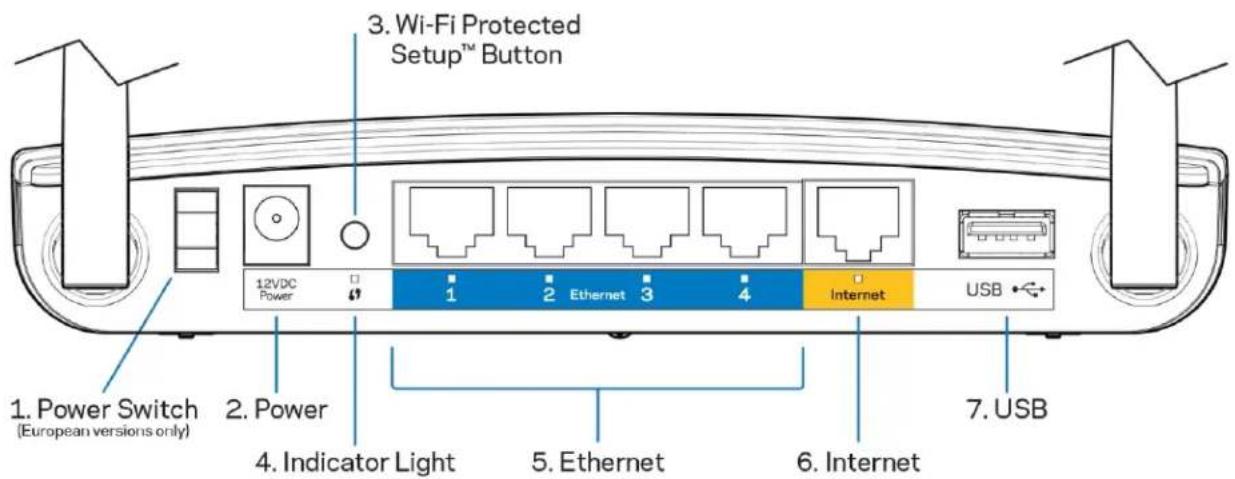
4. Cliquez sur OK.
bar
Block Internet access Select the times and days to block Internet access. | Day | Allowed | Blocked | |---|---|---| | Sunday | 12 | 0 | | Monday | 12 | 0 | | Tuesday | 12 | 0 | | Wednesday | 12 | 0 | | Thursday | 12 | 0 | | Friday | 12 | 0 | | Saturday | 12 | 0 |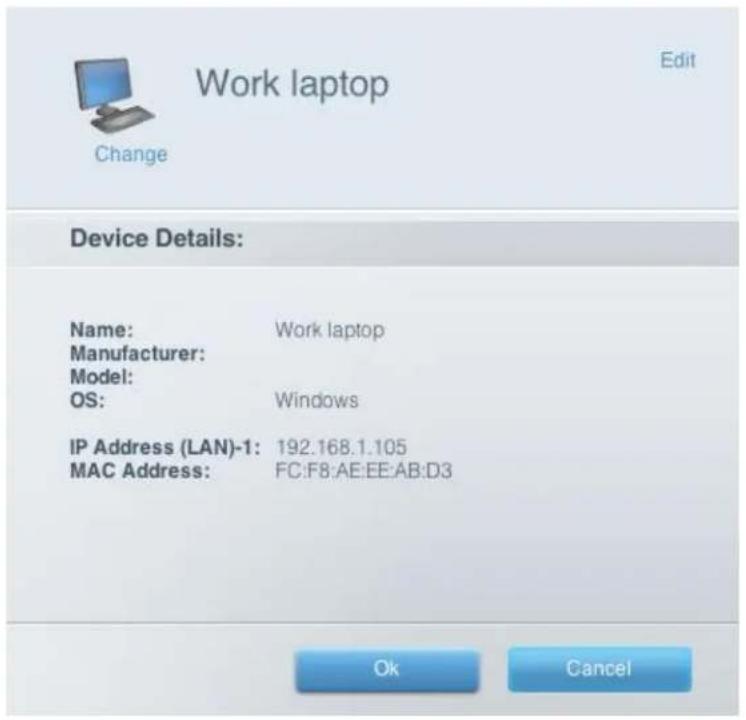
Pour changer le nom
VPN Passthrough (Intercommunication VPN):
Factory reset router
When you reset your router, it reboots, disconnects from the Internet and clears all current settings. All devices connected to the router will also be disconnected. When the reset completes, the router will need to be set up again and then all devices will have to reconnect using the new settings.
Do you want to continue?
Yes
No
64....iL t many AkniL
64....
natural_image
Line drawing of a LINKSYS router with two top ports and a mesh base (no text or symbols on the device itself)(Linksys.com/support/EA2750
(اللهيمات) Help Linksys Smart Wi-Fi
Help
Using Linksys Smart Wi-Fi
Linksys Smart Wi-Fi allows you to access all of your router's features and settings. Simply click on a feature or widget you want to open.
You can use Linksys Smart Wi-Fi to:
• See what's currently connected to your network, and connect more computers and devices.
- Create a Linksys Smart Wi-Fi account to access router settings from anywhere using any browser, even when you're away from home. You can personalize your router and change settings for wireless access, Internet, gaming, local network, and more. You can even access router settings for multiple routers, which is helpful if you set up and manage more than one router. (The account is available only on EA-Series routers.)
- Allow guests in your home to use the internet without giving them access to your network. While on the guest network, users can surf the net, but won't be able to access your printers; other computers, or
Help Categories
Linkeys Smart Wi-Fi
Network Map
Guest Access
Parental Controls
Media Prioritization
Speed Test
External Storage
OK
لفي يقثيت الموجه
If you have not yet created a Linksys Smart Wi-Fi account, click the Create Account button in the upper right corner of the page.

Use your Linkys's Smart WiFi account to access your home network from anywhere, at any time, even from your mobile device. Easily connect new devices, set parental controls, get access to Smart WiFi mobile Apps, and more.
For more information click here
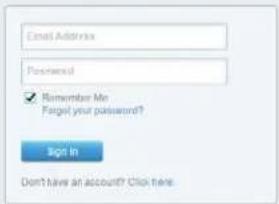

Connectivity (Router Settings) 2
Fi-Allow remote access to Linksys Smart Wi Administration 3. ن引领وق علامة للديوب (الإدارة) (مُشْمَلَّغَجِيَد) Administration
.)Fi-Linksys Smart Wi (العَسْمَاحِبَالَوَصُولَ عَنْيُغْدَ إِلَى)
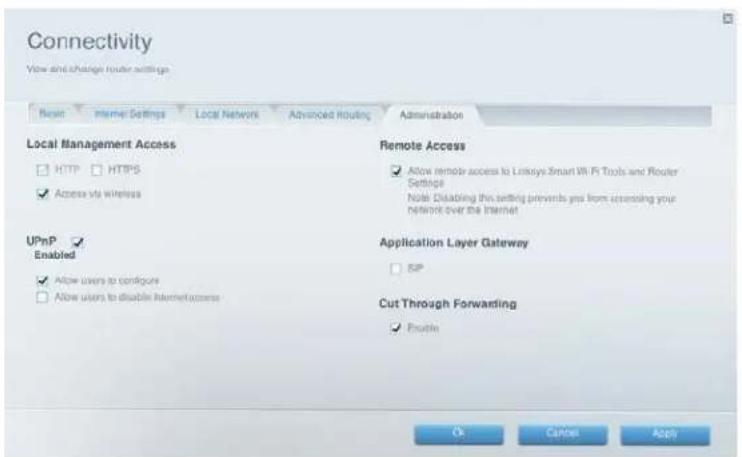
الhwج
غي يركىفیة
Begin Test 2. ناقlefوق.
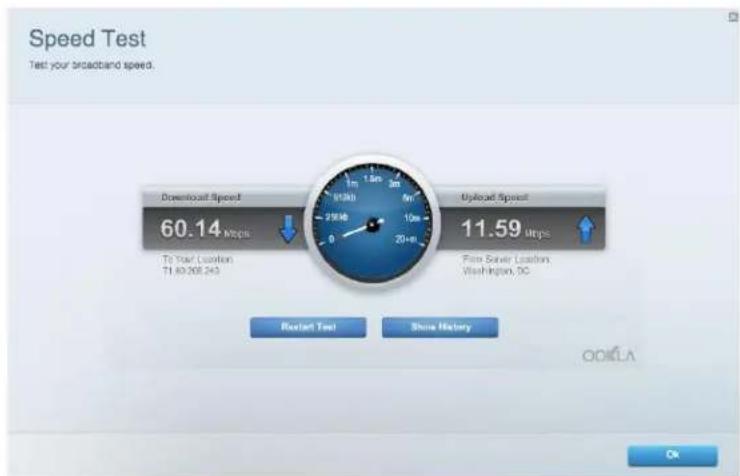
3 Select the type of device to add to your network ضمن
.)USB طباعة( USB Printer
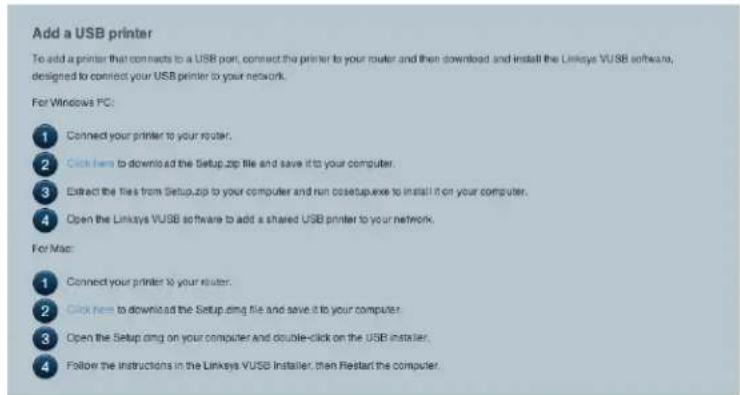
15 Wi-Fi Protected Setup
bar
Block Internet access Select the times and days to block Internet access. | Day | Allowed | Blocked | |---|---|---| | Sunday | 0 | 0 | | Monday | 0 | 0 | | Tuesday | 0 | 0 | | Wednesday | 0 | 0 | | Thursday | 0 | 0 | | Friday | 0 | 0 | | Saturday | 0 | 0 |Total guests allowed
Enter the guest access password to access the Internet. If you don't know the password, ask the network owner. The password can be found using Linkays Smart Wi-Fi Tools.
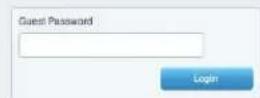
English (United States) 2

natural_image
Blue suitcase icon with white geometric shapes (no text or symbols)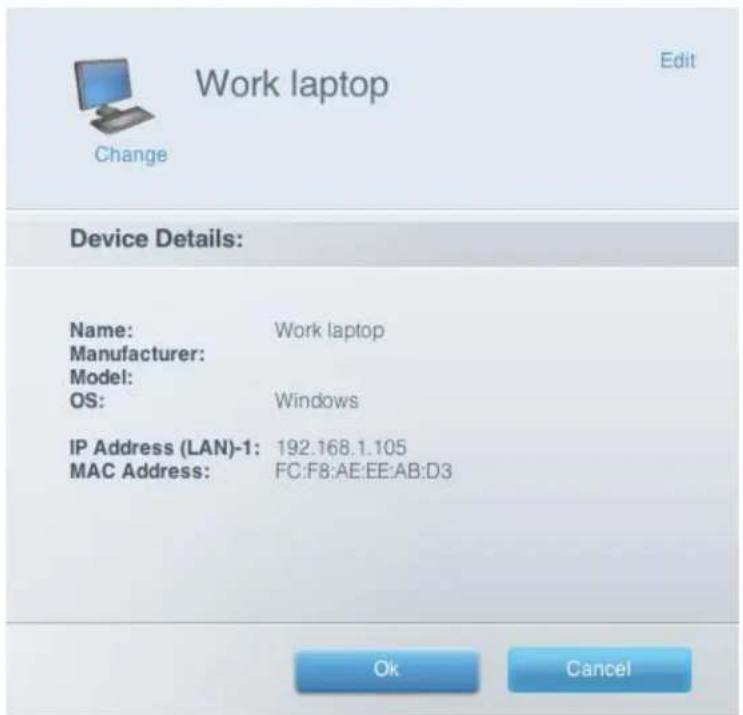
.)FTP Enable FTP Server 4. بدل وضعفتاح
- نوصیبالغراظ تلیت إلى عدارات اقترطی ئلکل جن (Encoding) FTP Port
أسباب ل tangي رها.
I have read and accepted the License Terms for using this software
الصال ( Connectivity ) ( Connectivity ) ( Connectivity ) ( Connectivity ) ( Connectivity ) ( Connectivity ) ( Connectivity ) ( Connectivity ) ( Connectivity ) ( Connectivity ) ( Connectivity ) ( Connectivity ) ( Connectivity ) ( Connectivity ) ( Connectivity ) ( Connectivity ) ( Connectivity ) ( Connectivity ) ( Connectivity ) ( Connectivity ) ( Connectivity ) ( Connectivity ) ( Connectivity ) ( Connectivity ) ( Connectivity ) ( Connectivity ) ( Connectivity ) ( Connectivity ) ( Connectivity ) ( Connectivity ) ( Connectivity ) ( Connectivity ) ( Connectivity ) ( Connectivity )
Connectivity ( Connectivity ) ( Connectivity ) ( Connectivity ) ( Connectivity ) ( Connectivity ) ( Connectivity ) ( Connectivity ) ( Connectivity ) ( Connectivity ) ( Connectivity ) ( Connectivity ) ( Connectivity ) ( Connectivity ) ( Connectivity ) ( Connectivity ) ( Connectivity ) ( Connectivity ) ( Connectivity ) ( Connectivity ) ( Connectivity ) ( Connectivity ) ( Connectivity ) ( Connectivity ) ( Connectivity ) ( Connectivity ) ( Connectivity ) ( Connectivity ) ( Connectivity ) ( Connectivity ) ( Connectivity ) ( Connectivity ) ( Connectivity ) ( Connectivity ) ( Connectivity )
.)MAC ( MAC Filters ) Enabled .4
- ناقlefوق Yes
MAC Allow access حَدْد٥.
)MAC Filter List MAC (Add MAC Address). 7
Apply ناقرفوق (بطیق)
:VPN ∪ ∪ ∪ ∪ ∪ ∪ ∪ ∪ ∪ ∪ ∪ ∪ ∪ ∪ ∪ ∪ ∪ ∪ ∪ ∪ ∪ ∪ ∪ ∪ ∪ ∪ ∪ ∪ ∪ ∪ ∪ ∪ ∪ ∪ ∪ ∪ ∪ ∪ ∪ ∪ ∪ ∪ ∪ ∪ ∪ ∪ ∪ ∪ ∪ ∪ ∸ ∪ ∪ ∪ ∪ ∪ ∪ ∪ ∪ ∪ ∪ ∪ ∪ ∪ ∪ ∪ ∪ ∪ ∪ ∪ ∪ ∪ ∪ ∪ ∪ ∪ ∪ ∪ ∪ ∪ ∪ ∪ ∪ ∪ ∪ ∪ ∪ ∪ ∪ ∪ ∪ ∪ ∪ ∪ ∪ ∪ ∪ ∪ ∪ ∪ ∩
.3. IPv6 Firewall Setting Add IPv6 Firewall Setting
ي مُنْكَ الَأَنْتَهِير لِجْقُولَ لِلَّكَيْة:
Connectivity ( Connectivity ) ( Connectivity ) ( Connectivity ) ( Connectivity ) ( Connectivity ) ( Connectivity ) ( Connectivity ) ( Connectivity ) ( Connectivity ) ( Connectivity ) ( Connectivity ) ( Connectivity ) ( Connectivity ) ( Connectivity ) ( Connectivity ) ( Connectivity ) ( Connectivity ) ( Connectivity ) ( Connectivity ) ( Connectivity ) ( Connectivity ) ( Connectivity ) ( Connectivity ) ( Connectivity ) ( Connectivity ) ( Connectivity ) ( Connectivity ) ( Connectivity ) ( Connectivity ) ( Connectivity ) ( Connectivity ) ( Connectivity ) ( Connectivity ) ( Connectivity )
(Enabled MAC Address Clone) 4. بجلب (مچکن)
- لَتَحِيد أُلْيَة تُطْيَق أُولِيَة، حَدْدِ سَمْ طَكِيلِ قَلَّنَ مَةٍ لَالْضِيلِ مَثْمِ الْقَرْفُ وَقٍ لِهُّقِنَةٍ لَالْمَجٍ اورْ لِقَاسِم وَلِسْ جَهَا لِدِّقِظَنَ مَةٍ (High Priority) herأَلْيَة
ل VOC عة.)
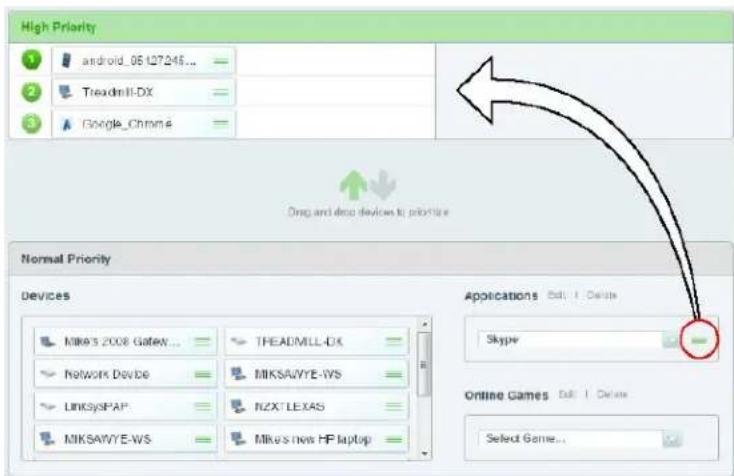
Local Network Connectivity (Router Settings) 4
- فيcheck Port IP (Router IP address)
مُحَالَ: إِذَاكَانِّلَّلَمُحُهُ لَجْيَاتِيُتُمُلِ لَجْيَةٍ عَوَانٍ 192.168.1.1. فِيْجَبَ اجْيَارِ عَوَانٍ مِيْشِكَةٍ 192.168.1.0. في مُهْنَكَ اجْيَارِ
.Enter "ipconfig," -c
- نقرفوق للزر DMZ
DMZ (العَمْجَلَّاِيْمُرَدَ) (Any IP Address) IP (Source IP Address). 5
View DHCP (MAC Address) (Destination IP Address). 7
- Add a new Port Range Forwarding
Backup Router configuration ضجن .4
Check for Updates Firmware Update .4
Factory reset router
When you reset your router, it reboots, disconnects from the Internet and clears all current settings. All devices connected to the router will also be disconnected. When the reset completes, the router will need to be set up again and then all devices will have to reconnect using the new settings.
Do you want to continue?
Yes
No
الجعم(اللّقَأُهِيْدِ) مِنْحَذفَكُلْ إِلْعَدَادَاتِ وَلَكَسْجَلَاتِ، قِيَعَوَدِ لَحُجُعْهُ الْلَى إِجَدَادَاتِ لَجِنْعِ اقْتَرْطِيْيَةٍ. 5.
) Cannot access your router
BronzeEagle , EA2750
Rebooting the router disconnects it from the Internet, causing all connected devices to lose Internet connectivity. When the reboot completes, the router and all devices will be reconnected.
Do you want to continue?
Yes
No
لَعْمِ (بِتُدَمِ إِعَادَقُشْهِ فِلِّّّّالَمُجْحَ دَبِيْنِ مِكُ تَجْرِي إِعَادَقُشْهِ فِلِّّّّّالَمُجْحَ قَضْقَ دَكَلَّّّ الْأَجْ مَزَةٍ لِيْتُصْلِ قَدْتُ هَا عَيْى الْأَصْلِ الْبِّ الْمُذْتِ، وَتَمْم . 5.
natural_image
Line drawing of a LINKSYS router with two top ports and a mesh base (no text or symbols on the device itself)- Кликнете върху ОК.
Enter the guest access password to access the Internet. If you don't know the password, ask the network owner. The password can be found using Linksys Smart Wi-Fi Tools.
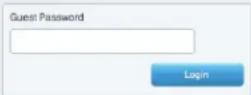
English (United States)

natural_image
Blue suitcase icon with white geometric shapes (no text or symbols)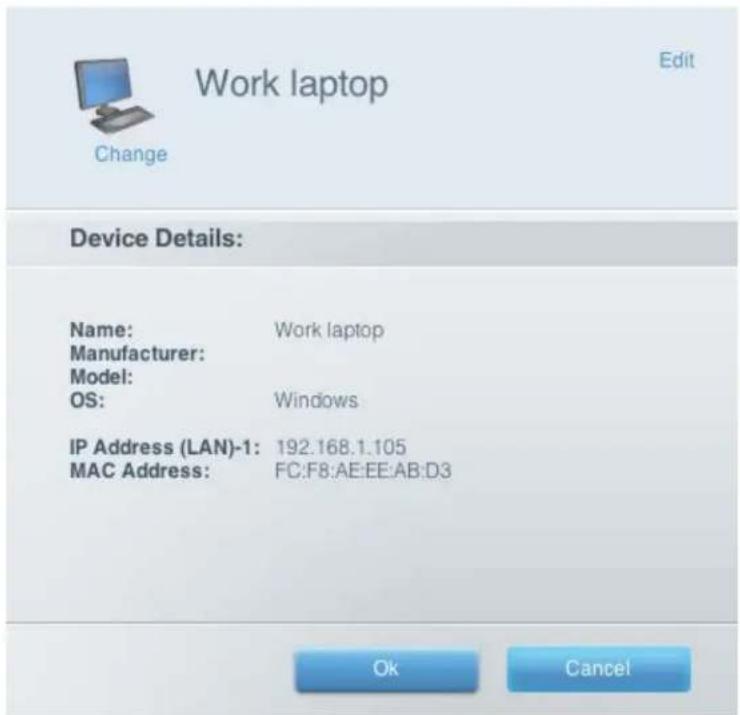
За да смените името
Factory reset router
When you reset your router, it reboots, disconnects from the Internet and clears all current settings. All devices connected to the router will also be disconnected. When the reset completes, the router will need to be set up again and then all devices will have to reconnect using the new settings.
Do you want to continue?
Yes
No
natural_image
Line drawing of a LINKSYS router with two top ports and a mesh base (no text or symbols on the device itself)Postup instalace routeru
- Klepněte na OK.
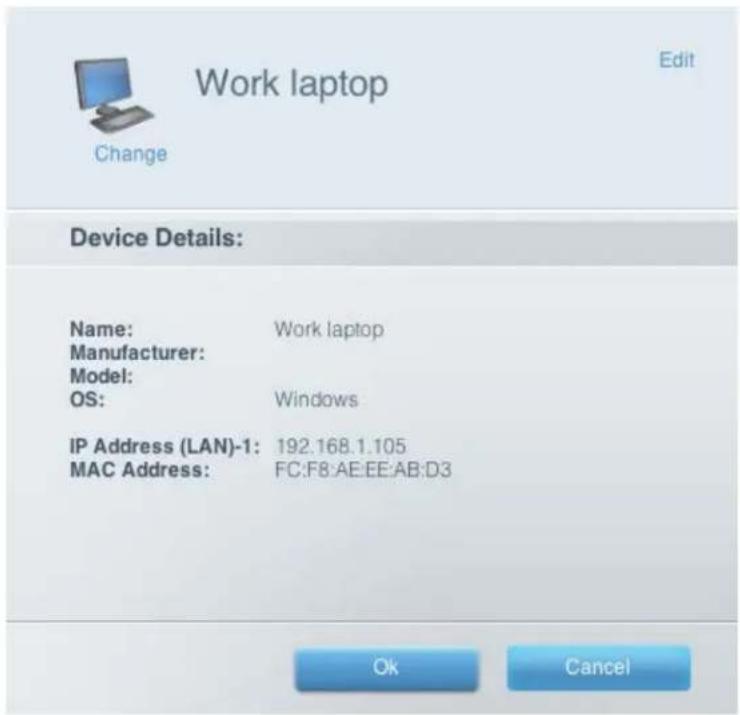
Postup změny názvu
Factory reset router
When you reset your router, it reboots, disconnects from the Internet and clears all current settings. All devices connected to the router will also be disconnected. When the reset completes, the router will need to be set up again and then all devices will have to reconnect using the new settings.
Do you want to continue?
Yes
No
Rebooting the router disconnects it from the Internet, causing all connected devices to lose Internet connectivity. When the reboot completes, the router and all devices will be reconnected.
Do you want to continue?
Yes
No
Installation: Avanceret....33
Manuel installation af router ....33
natural_image
Line drawing of a LINKSYS router with two top ports and a mesh base (no text or symbols on the device itself)Installation af routeren
- Klik på Begin Test (Start test). Testen måler download- og uploadhastigheden.
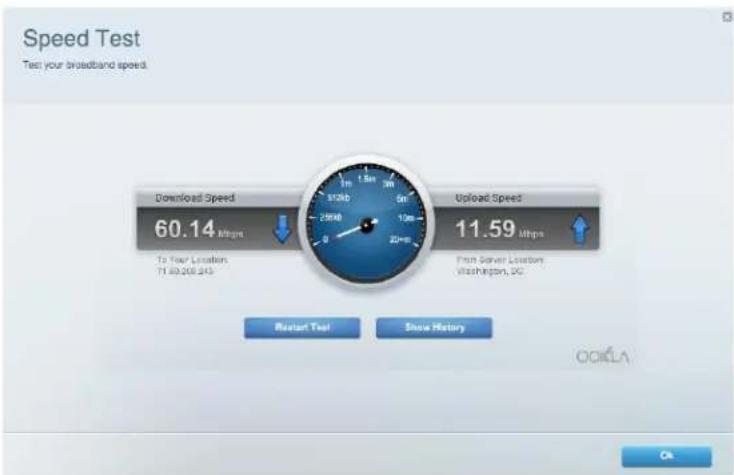
- Klik på en enhed.
- Klik på OK.
bar
Block Internet access Select the times and days to block Internet access. | Day | Midnight (AM) | Noon (PM) | |---|---|---| | Sunday | 12 | 1 | | Monday | 1 | 2 | | Tuesday | 1 | 3 | | Wednesday | 1 | 4 | | Thursday | 1 | 5 | | Friday | 1 | 6 | | Saturday | 1 | 7 | | Sunday | 7 | 8 | | Monday | 7 | 9 | | Tuesday | 7 | 10 | | Wednesday | 7 | 11 | | Thursday | 7 | 12 | | Friday | 7 | 13 | | Saturday | 7 | 14 | | Sunday | Allowed | Allowed | | Monday | Allowed | Allowed | | Tuesday | Allowed | Allowed | | Wednesday | Allowed | Allowed | | Thursday | Allowed | Allowed | | Friday | Allowed | Allowed | | Saturday | Allowed | Allowed | | Sunday | Allowed | Blocked | | Monday | Allowed | Blocked | | Tuesday | Allowed | Blocked | | Wednesday | Allowed | Blocked | | Thursday | Allowed | Blocked | | Friday | Allowed | Blocked | | Saturday | Allowed | Blocked | | Sunday | Allowed | Blocked | | Monday | Allowed | Blocked | | Tuesday | Allowed | Blocked | | Wednesday | Allowed | Blocked | | Thursday | Allowed | Blocked | | Friday | Allowed | Blocked | | Saturday | Allowed | Blocked | | Sunday | Allowed | Blocked | Ok Cancel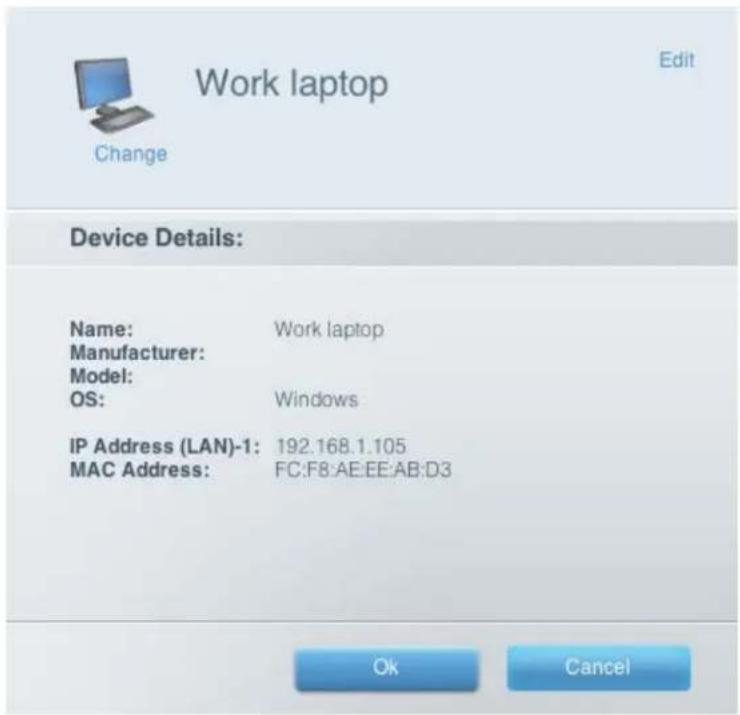
Klik på indstillingen for Secure Folder Access (Sikker mappeadgang) for at aktivere den.
- Klik på Add IPv6 Firewall Setting (Tilføj IPv6-firewallindstilling).
Factory reset router
When you reset your router, it reboots, disconnects from the Internet and clears all current settings. All devices connected to the router will also be disconnected. When the reset completes, the router will need to be set up again and then all devices will have to reconnect using the new settings.
Do you want to continue?
Yes
No
- For at aktivere logfiler skal du klikke på knappen ved siden af Enable Logs (Aktiver logfiler) for at slå dem til.
Knapper Nulstil, Wi-Fi Protected Setup, strøm
natural_image
Line drawing of a LINKSYS router with two top ports and a mesh base (no text or symbols on the device itself)2 externe verstellbare Antennen
Rückseite

- Klicken Sie auf Ok.
Block Internet access
Select the times and days to block internet access.
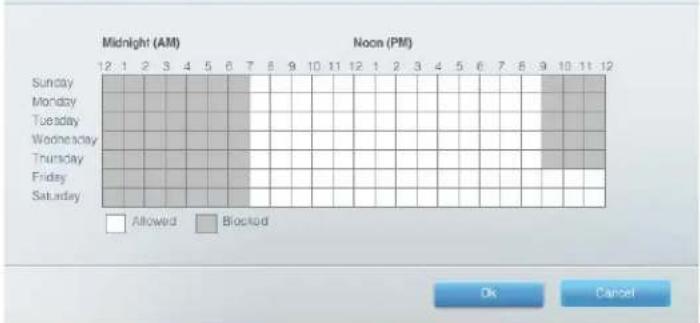
Enter the guest access password to access the Internet. If you don't know the password, ask the network owner.
The password can be found using Linksys Smart Wi-Fi Tools.
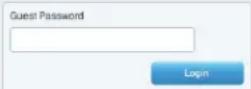
English (United States)

natural_image
Blue suitcase icon with white geometric shapes (no text or symbols)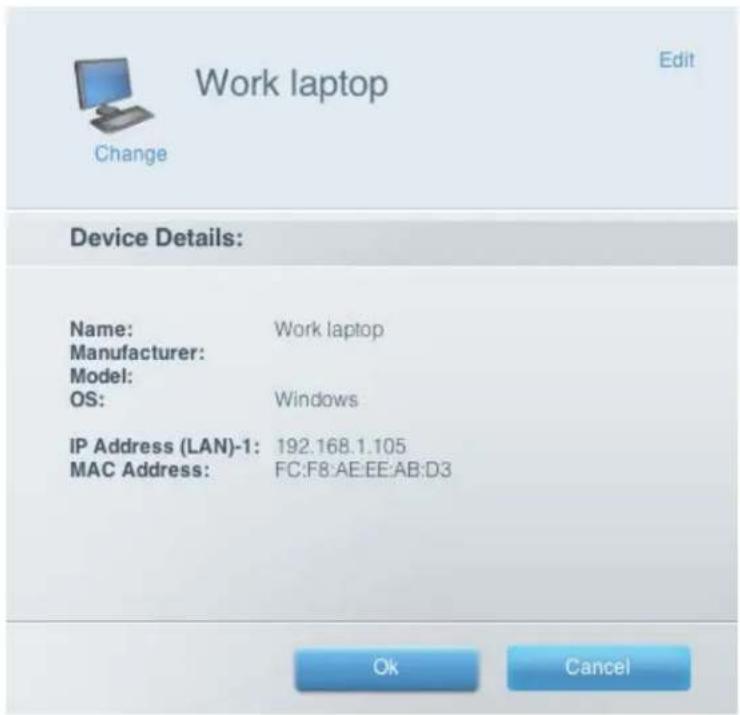
Factory reset router
When you reset your router, it reboots, disconnects from the Internet and clears all current settings. All devices connected to the router will also be disconnected. When the reset completes, the router will need to be set up again and then all devices will have to reconnect using the new settings.
Do you want to continue?
Yes
No
Rebooting the router disconnects it from the Internet, causing all connected devices to lose Internet connectivity. When the reboot completes, the router and all devices will be reconnected.
Do you want to continue?
Yes
No
natural_image
Line drawing of a LINKSYS router with two top ports and a mesh base (no text or symbols on the diagram itself)Linksys Smart Wi-Fi allows you to access all of your router's features and settings. Simply click on a feature or widget, you want to open.
You can use Linkeye Smart Wi-Fi to:
- See what's currently connected to your network, and connect more computers and devices.
- Create a Linkays Smart Wi-Fi account to access router settings from anywhere using any browser, even when you're away from home. You can personalize your router and change settings for wireless access, Internet, gaming, local network, and more. You can even access router settings for multiple routers, which is helpful if you set up and manage more than one router. (The account is available only on EA-Series routers.)
- Allow guests in your home to use the internet without giving them access to your network. While on the guest network, users can surf the net, but won't be able to access your printers, other computers, or
Help Categories
Linksys Smart Wi-Fi
Network Map
Guest Access
Parental Controls
Media Prioritization
Speed Test
External Storage
OK
bar
Block Internet access Select the times and days to block Internet access. | Day | Allowed | Blocked | |---|---|---| | Sunday | 0 | 0 | | Monday | 0 | 12 | | Tuesday | 0 | 0 | | Wednesday | 0 | 0 | | Thursday | 0 | 0 | | Friday | 0 | 12 | | Saturday | 0 | 12 | Ok | 0 | 0 | | Cancel | 0 | 0 |Enter the guest access password to access the Internet. If you don't know the password, ask the network owner. The password can be found using Linksys Smart Wi-Fi Tools.
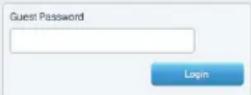
English (United States) ‡

natural_image
Blue suitcase icon with white geometric shapes (no text or symbols)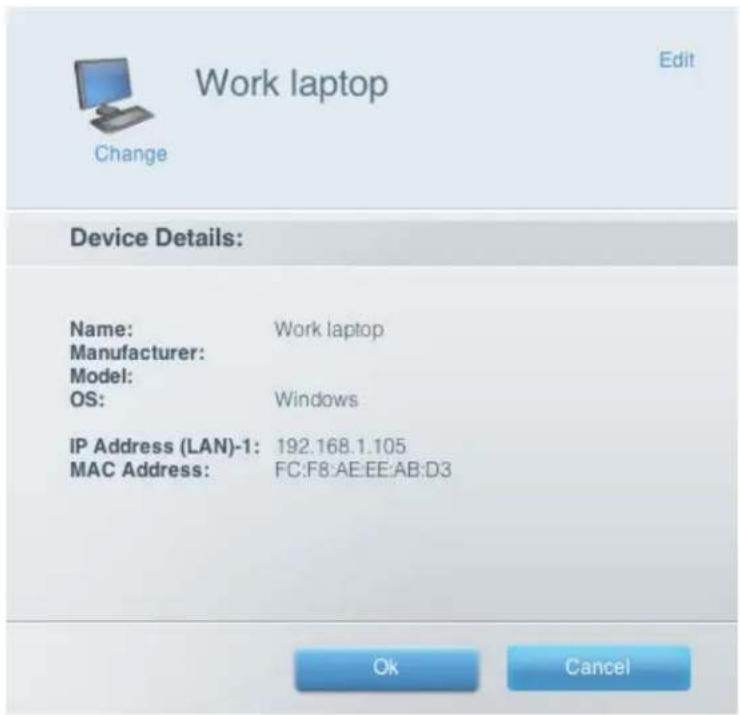
• Filter anonymous Internet requests (
Factory reset router
When you reset your router, it reboots, disconnects from the Internet and clears all current settings. All devices connected to the router will also be disconnected. When the reset completes, the router will need to be set up again and then all devices will have to reconnect using the new settings.
Do you want to continue?
Yes
No
Rebooting the router disconnects it from the Internet, causing all connected devices to lose Internet connectivity. When the reboot completes, the router and all devices will be reconnected.
Do you want to continue?
Yes
No
natural_image
Line drawing of a LINKSYS router with two top ports and a mesh base (no text or symbols on the device itself)2 antenas externas ajustables
Vista trasera
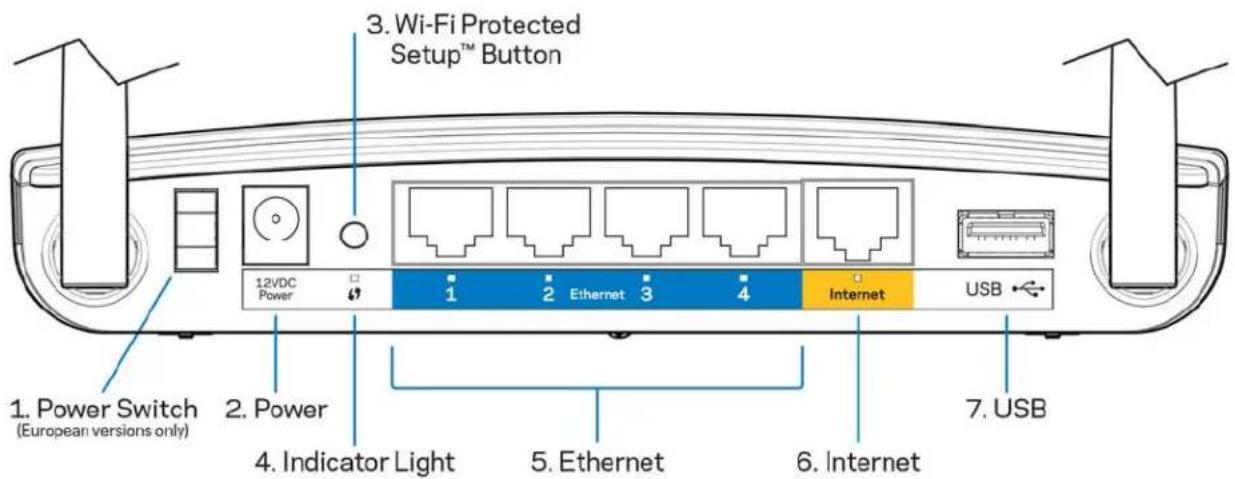
Cómo instalar la router
- Haga clic en Apply (Aplicar) u OK
- Bajo Select the type of device to add to your network (Seleccione el tipo de dispositivo para agregar a su red) haga clic en USB Printer (Impresora USB).
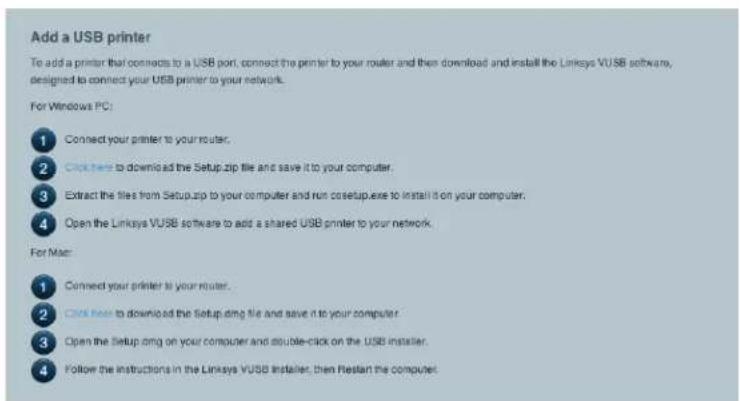
bar
Block Internet access Select the times and days to block Internet access. | Day | Midnight (AM) | Noon (PM) | |---|---|---| | Sunday | 12 | 1 | | Monday | 12 | 1 | | Tuesday | 12 | 1 | | Wednesday | 12 | 1 | | Thursday | 12 | 1 | | Friday | 12 | 1 | | Saturday | 12 | 1 | | Sunday | 5 | 6 | | Monday | 5 | 7 | | Tuesday | 5 | 8 | | Wednesday | 5 | 9 | | Thursday | 5 | 10 | | Friday | 5 | 11 | | Saturday | 5 | 12 | The chart displays a grid where each cell represents the number of internet accesses for that day or time of day. The legend indicates gray cells represent 'Blocked' access and white cells represent 'Altered' access. No numerical values are provided for this data series.Enter the guest access password to access the internet. If you don't know the password, ask the network owner.
The password can be found using Linksys Smart Wi-Fi Tools.
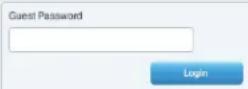
English (United States)

natural_image
Blue suitcase icon with scattered geometric shapes (no text or symbols)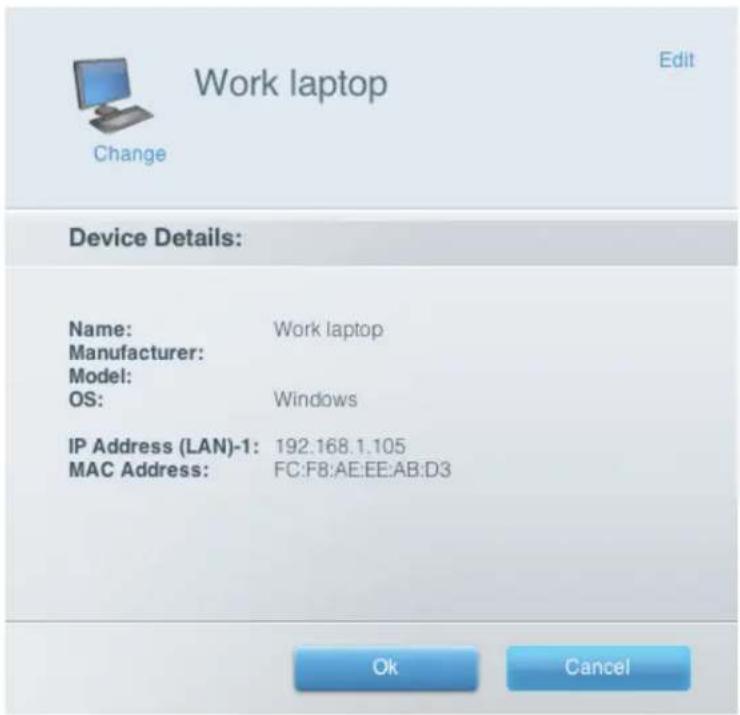
Factory reset router
When you reset your router, it reboots, disconnects from the Internet and clears all current settings. All devices connected to the router will also be disconnected. When the reset completes, the router will need to be set up again and then all devices will have to reconnect using the new settings.
Do you want to continue?
Yes
No
Rebooting the router disconnects it from the Internet, causing all connected devices to lose Internet connectivity. When the reboot completes, the router and all devices will be reconnected.
Do you want to continue?
Yes
No
natural_image
Line drawing of a LINKSYS router with two top ports and a mesh base (no text or symbols on the device itself)Kuidas installida ruuterit?
- Klöpsake nupul OK.
Enter the guest access password to access the Internet. If you don't know the password, ask the network owner.
The password can be found using Linksys Smart Wi-Fi Tools.
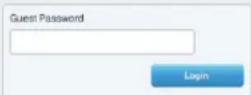
English (United States)

natural_image
Blue suitcase icon with white geometric shapes (no text or symbols)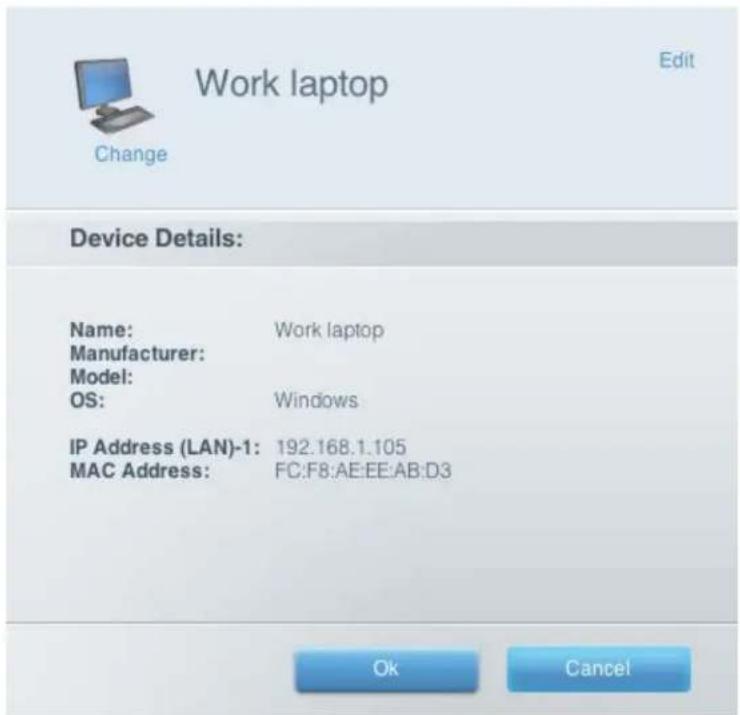
Nime muutmiseks
Vajutage sättele Secure Folder Access (turvaline ligipääs kaustadele), et see sisse lülitada.
-
Klöpsake lülitil Enable Media Server (luba meediaserver), et see sisse lülitada.
-
Vajutage Add New Folder (lisa uus kaust). Avaneb dialoogiaken Add a new folder (loo uus kaust).
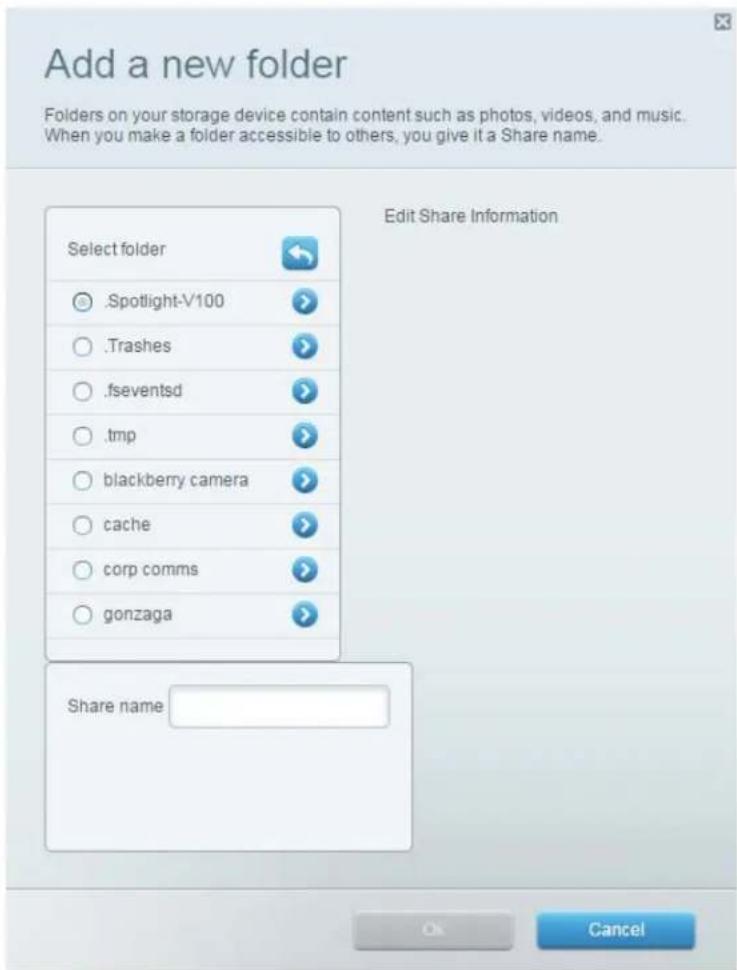
eheküljel
5. Klöpsake nupul Edit (muuda).
4. Logimise lubamiseks klôpsake nupul kirje Enable Logs (luba logid) kôrval.
natural_image
Line drawing of a LINKSYS router with two top ports and a mesh base (no text or symbols on the device itself)Reitittimen asentaminen
bar
Block Internet access Select the times and days to block Internet access. | Day | Allowed | Blocked | |---|---|---| | Sunday | 12 | 0 | | Monday | 12 | 0 | | Tuesday | 12 | 0 | | Wednesday | 12 | 0 | | Thursday | 12 | 0 | | Friday | 12 | 0 | | Saturday | 12 | 0 |Enter the guest access password to access the Internet. If you don't know the password, ask the network owner.
The password can be found using Linksys Smart Wi-Fi Tools.
English (United States)

natural_image
Blue suitcase icon with white geometric shapes (no text or symbols)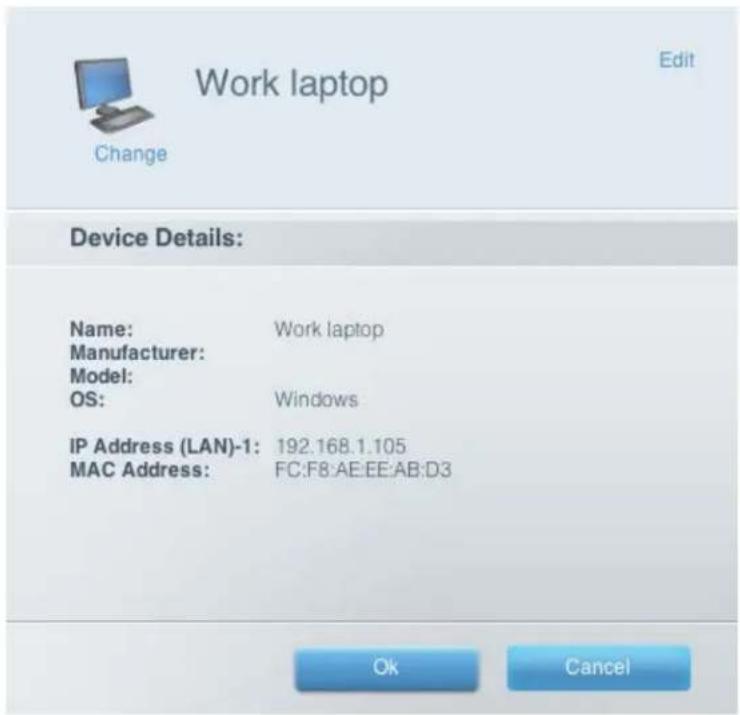
Nimen muuttaminen
Factory reset router
When you reset your router, it reboots, disconnects from the Internet and clears all current settings. All devices connected to the router will also be disconnected. When the reset completes, the router will need to be set up again and then all devices will have to reconnect using the new settings.
Do you want to continue?
Yes
No
Rebooting the router disconnects it from the Internet, causing all connected devices to lose Internet connectivity. When the reboot completes, the router and all devices will be reconnected.
Do you want to continue?
Yes
No
natural_image
Line drawing of a LINKSYS router with two top ports and a mesh base (no text or symbols on the device itself)4. Cliquez sur OK.
bar
Block Internet access Select the times and days to block Internet access. | Day | Allowed | Blocked | |---|---|---| | Sunday | 12 | 0 | | Monday | 1 | 0 | | Tuesday | 1 | 0 | | Wednesday | 1 | 0 | | Thursday | 1 | 0 | | Friday | 1 | 0 | | Saturday | 1 | 0 |Enter the guest access password to access the Internet. If you don't know the password, ask the network owner. The password can be found using Linksys Smart Wi-Fi Tools.
English (United States) ‡

natural_image
Blue suitcase icon with white geometric shapes (no text or symbols)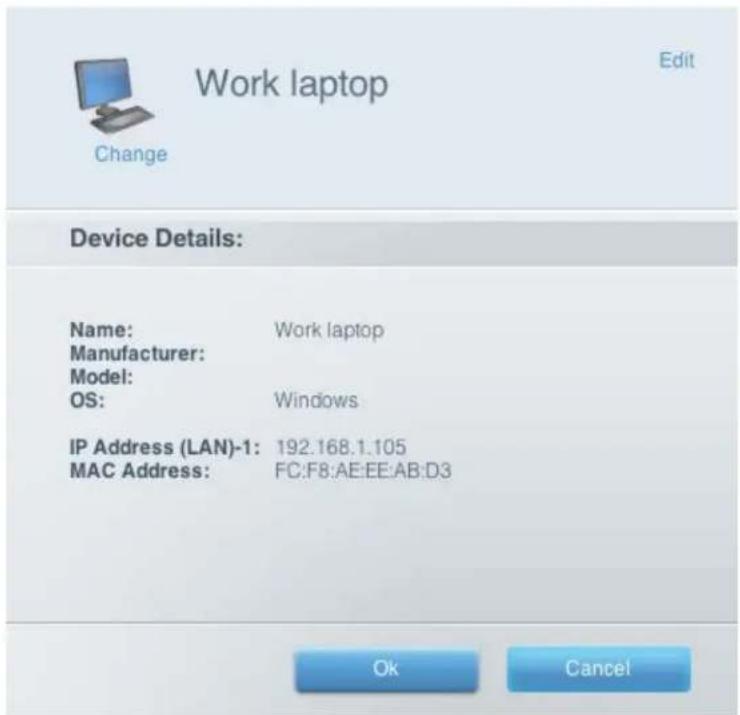
natural_image
Line drawing of a LINKSYS router with two top ports and a mesh base (no text or symbols on the device itself)2 x vanjska podesiva antena
Stražnja strana
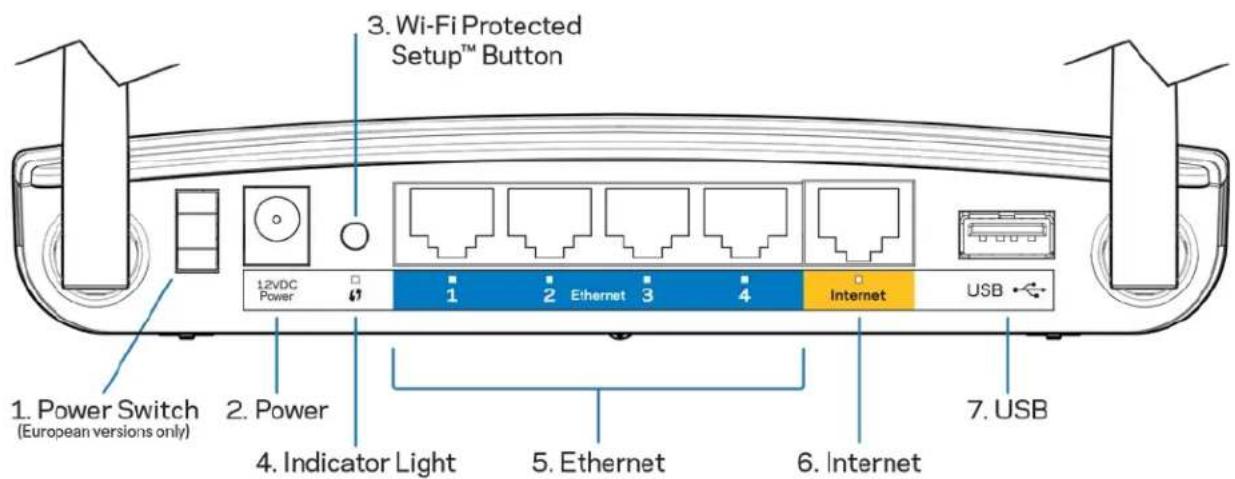
-
Kliknite na karticu Wireless (Bežično).
-
Za promjenu mrežnog naziva unesite novi naziv u okvir Network name (Mrežni naziv).
-
Za promjenu mrežne lozinke unesite novu lozinku u okvir Password (Lozinka).
-
Kliknite na Apply (Primijeni) da biste primijenili promjene.
Test brzine vaše internetske veze
Napomena - da biste testirali brzinu, morate imati pristup internetu dok ste povezani na usmjerivač koji testirate. Brzinu ne možete testirati daljinski.
Za testiranje internetske veze:
- Kliknite Begin Test (Započni ispitivanje). Ovaj test mjeri vaše brzine preuzimanja i slanja.
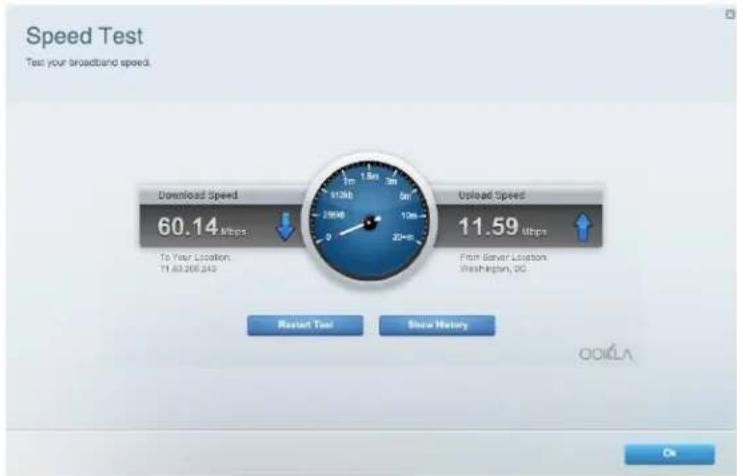
Napomena - brzina internetske veze određena je nizom faktora, uključujući vrstu računa kod pružatelja usluga pristupa internetu, lokalnog i svjetskog prometa internetom i broja uređaja u vašem domu koji rabe tu istu internetsku vezu.
- Pod Select the type of device to add to your network Odaberite vrstu uređaja koji ćete dodati u svoju mrežu), kliknite USB Printer (USB pisač).
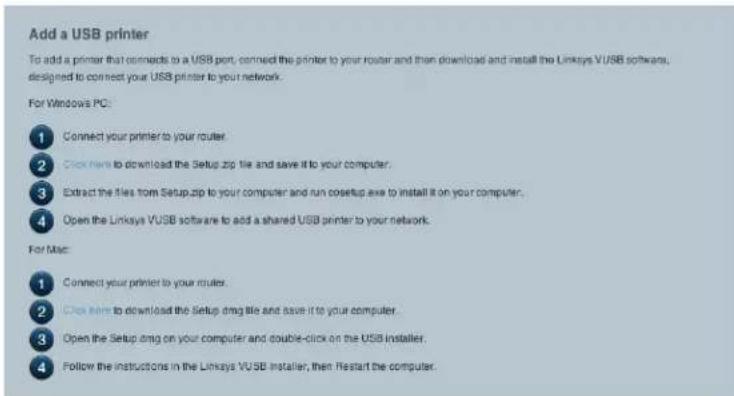
- Kliknite na OK (U redu).
Postavljanje roditeljskog nadzora
Za uključivanje roditeljskog nadzora, kliznite sEnable parental controls(Omogući roditeljski nadzor) tako da se prikaže ON (Uklj.).