L1731 - Monitor DGM - Free user manual and instructions
Find the device manual for free L1731 DGM in PDF.


| Product Type | 17" TFT LCD Monitor |
| Dimensions (W x H x D) | 372 mm x 369 mm x 170 mm |
| Net Weight | 3.7 kg |
| Power Supply | 100-240 VAC, 50/60 Hz (built-in) |
| Power Consumption (active) | Less than 48 W |
| Power Consumption (standby) | Less than 3 W |
| Maximum Resolution | 1280 x 1024 (SXGA) |
| Screen Size | 17 inches |
| Viewing Angle (horizontal/vertical) | 140° / 140° |
| Contrast | 500:1 (typical) |
| Brightness | 300 cd/m² (typical) |
| Response Time (Tr+Tf) | 12 ms |
| Displayable Colors | 16.7 million (True color) |
| Pixel Pitch | 0.264 mm x 0.264 mm |
| Video Inputs | VGA (D-Sub 15-pin), DVI-D* (optional) |
| Audio Input | Stereo jack |
| Built-in Speakers | 2 speakers |
| Tilt Angle | -5° to +20° |
| Power Management | VESA DPMS |
| PC Compatibility | Up to 1280 x 1024 @ 75 Hz (non-interlaced) |
| LED Indicator | Green (on), Orange (standby) |
| Operating Temperature | 5°C to 40°C |
| Operating Humidity | 20% to 80% RH |
| Certifications | UL/CUS, FCC/B, CE |
| Cleaning | Dry soft cloth (avoid solvents) |
Frequently Asked Questions - L1731 DGM
User questions about L1731 DGM
0 question about this device. Answer the ones you know or ask your own.
Ask a new question about this device
Download the instructions for your Monitor in PDF format for free! Find your manual L1731 - DGM and take your electronic device back in hand. On this page are published all the documents necessary for the use of your device. L1731 by DGM.
USER MANUAL L1731 DGM
Attaching the Base to the Monitor
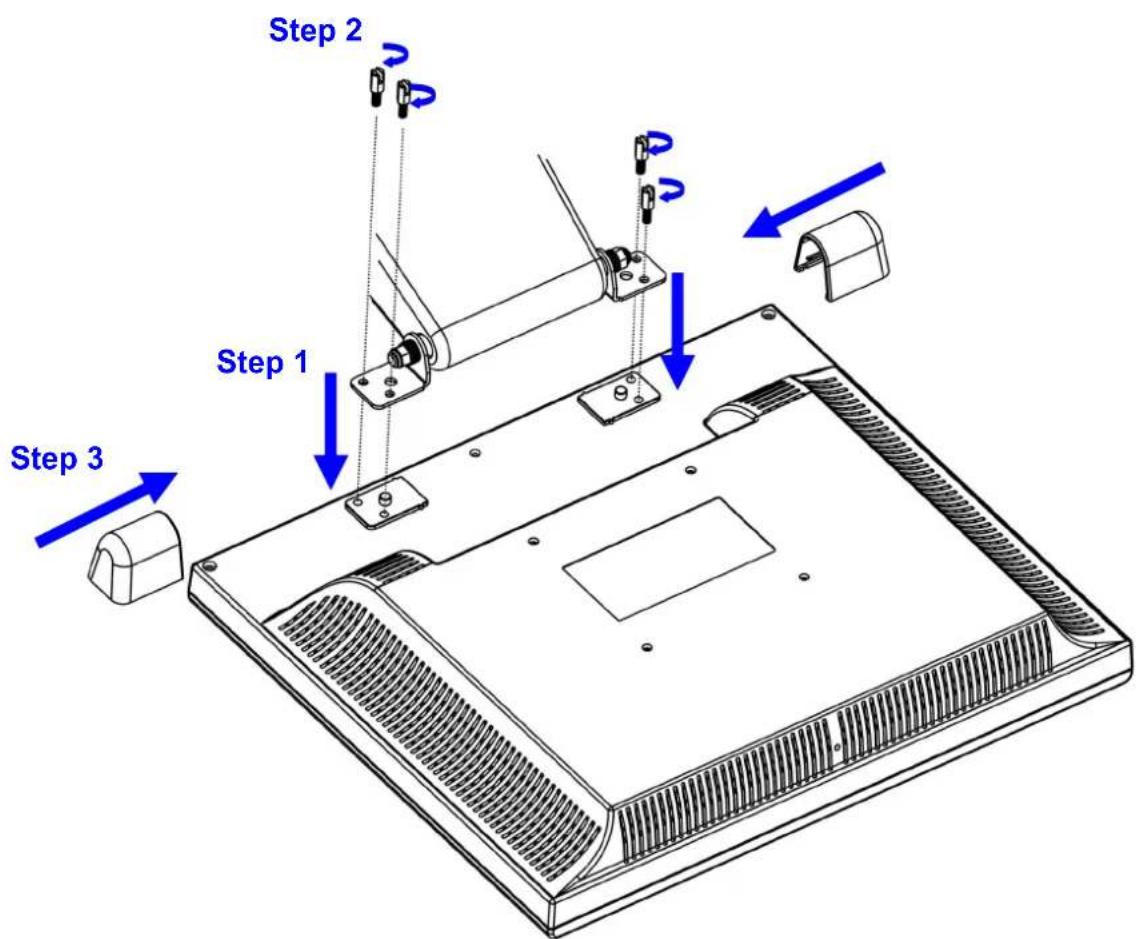
English 2
繁體中交 9
简體中文 16
Français 23
Deutsch 30
Italiano 37
Espanol 44
Portugues 51
Dutch 58
Notice 3
Safety Information. 3
Precaution. 3
Package Contents. 3
Hardware Installation. 4
Control Buttons. 4
OSD (On-Screen Display) Menu Mode. 5-6
Troubleshooting. 7
Supported Timing. 7
Specification. 8
Notice
- All Information in this manual may change from time to time without prior notice.
To ensure safety operation of this product, please read the following menu carefully before using this product.
Safety Information
- Do not place anything wet on the monitor or the power cord.
- Be sure to turn the monitor off before plugging the power cord into the socket.
- Be sure to check the power cord and the other cords are securely and rightly connected.
Do not attempt to open the monitor. You may be hurt by electric shock. For service, call your place of purchase.
Precaution
- Do not expose the monitor to direct sunlight or heat.
- Do not spill liquid on the monitor.
- Do not use your monitor when magnets or electronic products are operating nearby.
- Do not use harsh chemicals or strong cleaning solvents to clean the monitor screen. Wipe it with clean, soft clothes applied with mild solution.
- Do not place anything on your monitor. Bad ventilation may elevate temperature in the monitor.
- Do not use your fingers to touch the LCD Screen directly. Fingerprint that contains oil and may be difficult to clean.
Package Contents
Our LCD monitor contains these following items. Make sure you get items listed below, otherwise contact to your dealer or store.
| 17” TFT LCD Monitor |
| External Univ15 pin D-sub (RGB Analog) Input Signal Cable | Power Cord | ||
| Audio Connector : Stereo Phone Jack | * DVI Cord |
| User's Manual | Menu |
*NOTICE: DVI function is optional feature.
Hardware Installation
Be carefully to your LCD monitor, it's very exquisite but easy to broken. Turn off LCD's and PC's power before you set it up. Follow our installation step by step.
Input
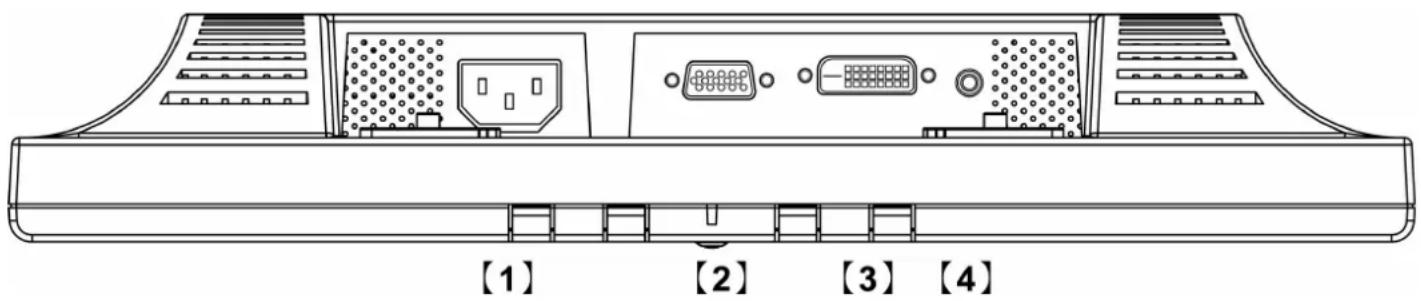
【1】AC Input : This is for connecting the power cable.
【2】VGA PORT : This can be connected with the D-Sub 15 pin signal Cable.
【3】DVI port : This can be connected with the DVI signal Cable.
【4】Audio In : This can be connected to the PC audio-out connector of sound resource.
*NOTICE: DVI function is optional feature.
Control Buttons
There are 5 keys for user to set up the monitor, including "Auto Adjust", "OSD menu", "Power", "Adjust < -> ", "Adjust < +> ". The following descriptions are the introduction of these Keys.
Auto Adjust (Function)--
A Function Select Button: This button allows you to select the control functions up in the OSD.
Hotkey: Press this button to apply the monitor setting automatically.
Menu (Function)--
M Function Select Button: This button allows you to select the control functions down in the OSD.
Hotkey: Press this button to get a pop-up OSD menu.

Power: Turn the LCD power on and off. When the power is on, the light is showing green, Stand by will be orange.
- Adjust < - > : Decrease the option value in the OSD menu.
- Adjust < + > : Increase the option value in the OSD menu. Switch the DVI operating environment to RGB.
OSD (On-Screen Display) Menu Mode
- Please adjust your Speaker Volume via your PC computer Speaker Volume control icon.
- Please note that Sound will continue to play when your monitor is off, to turn off please turn off your PC computer or mute the Speaker Volume control icon.
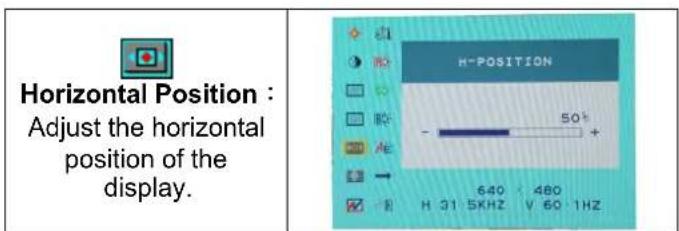
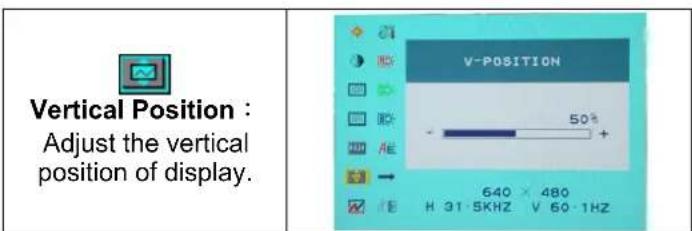
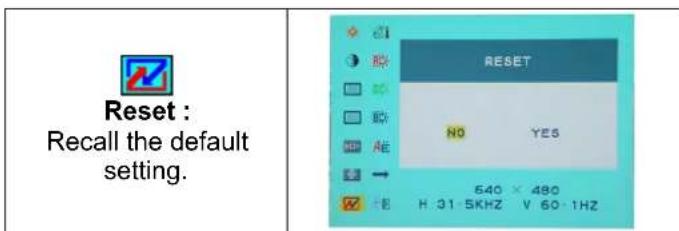
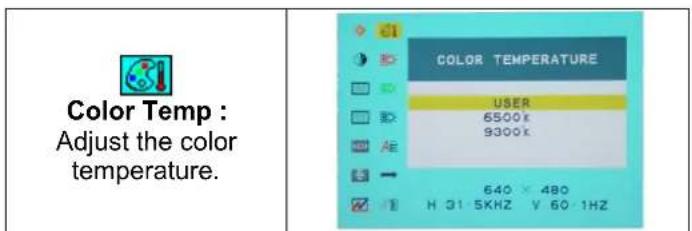
- Press the OSD button to access menu, and press Increase / Decrease button for adjustment.
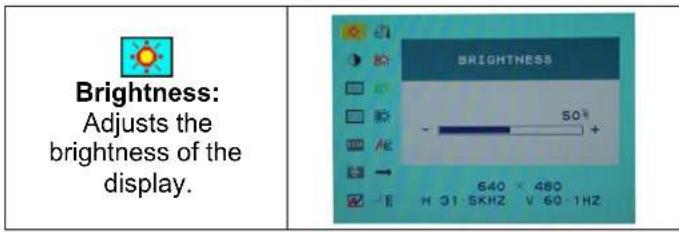
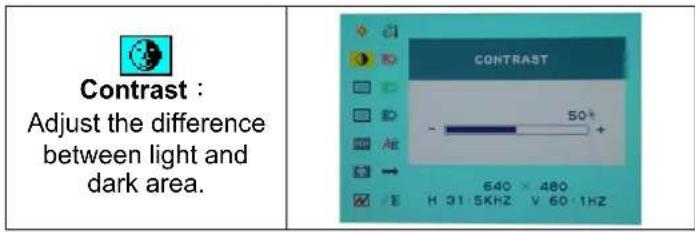
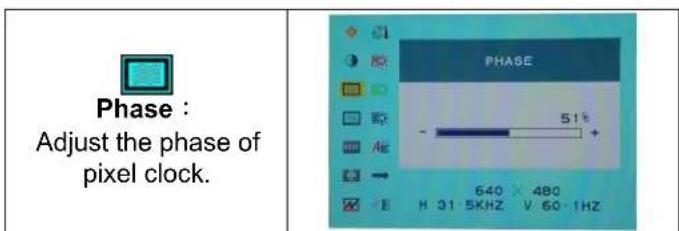
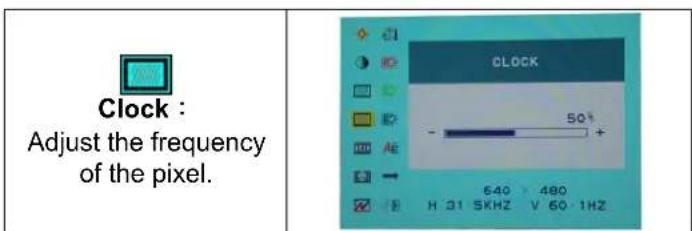
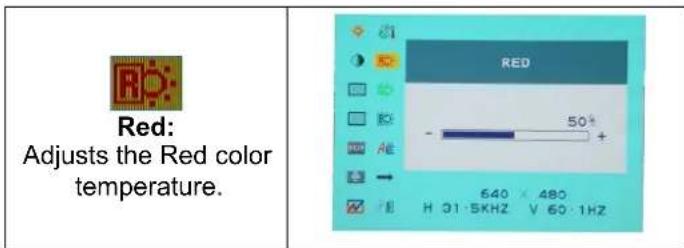
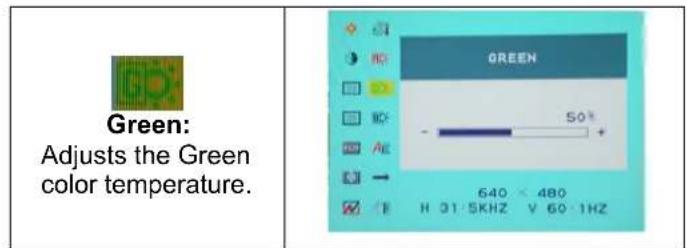
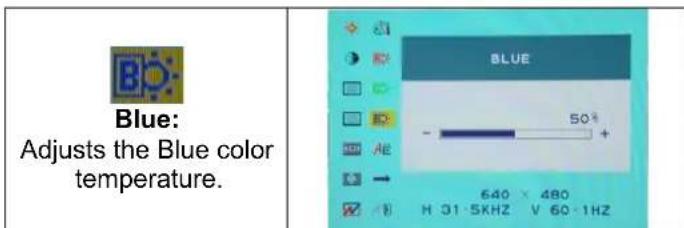
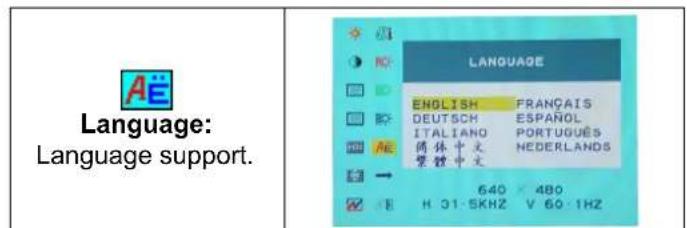

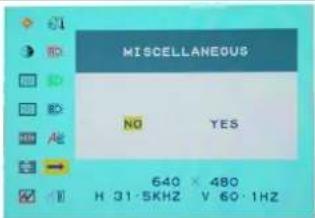
Miscellaneous
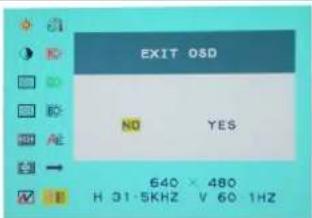
"No" will take you to the exit menu. "Yes" will bring you to the sub menus of the Miscellaneous menu.

EXIT: g and Leave.
Miscellaneous
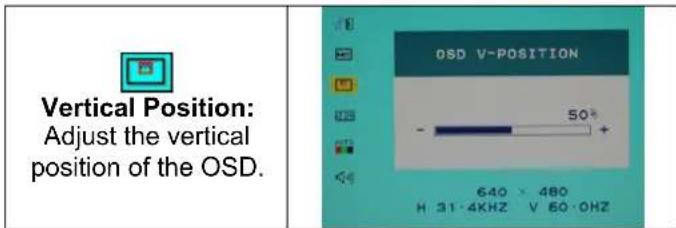
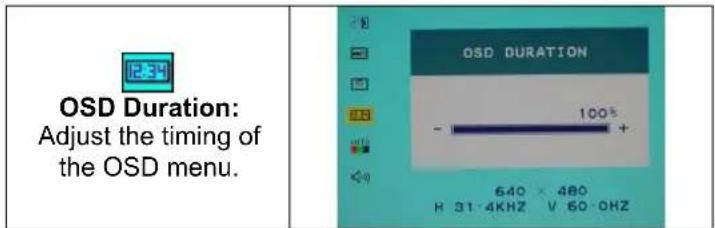
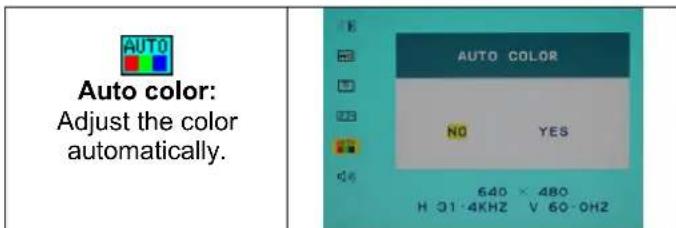
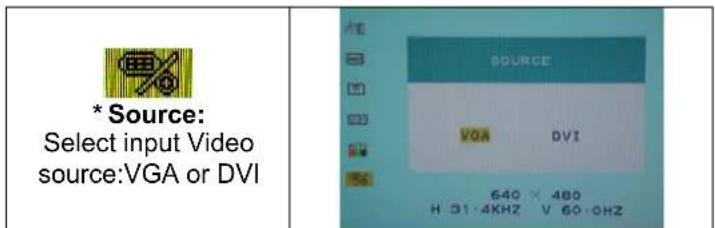
Notice: * Source is optional feature.
Troubleshooting
Make sure that your monitor is properly installed if you have encountered any trouble using this product.
There is no picture on the screen.
Check: 1.Power saving mode. Press any key and move the mouse to deactivate the mode.
- Signal cable connector pins. If there are bent or missing pins, consult your place of purchase.
Characters look too dark or too light
Check: Using OSD Menu to adjust the Brightness.
When your monitor shall be adjusted?
Check: If the resolution of frequency is being changed.
. The text appears on the screen are unclear.
Check: Make sure the resolution or refresh rate match with the Display Mode.
Supported Timing
| Item Standards Resolution | Dot Clock (MHz) | Vertical Scanning Frequency (Hz) | Horizontal Scanning Frequency (KHz) | Sync Polarity or composite sync (H/V) | Operating Mode | ||
| 1 | NEC PC | 98 | 640x400 | 21.05 | 56.42 | 24.83 | -/- |
| 2 | MAC 13" mode 640x4 | 80 | 30.24 | 66.67 | 35.00 | -/- | A/D/G |
| 3 | MAC 16" mode 832x6 | 24 | 57.28 | 74.55 | 49.73 | -/- | A/D/G |
| 4 | MAC 17" mode 1024x | 768 | 80.00 | 75.02 | 60.24 | -/- | A/D/G |
| 5 | VGA | 640x350 | 25.18 | 70.09 | 31.47 | +/- | |
| 6 | VGA | 640x480 | 25.18 | 59.94 | 31.47 | -/- | |
| 7 | VESA | 640x480 | 31.50 | 72.81 | 37.86 | -/- | |
| 8 | VESA | 640x480 | 31.50 | 75.00 | 37.50 | -/- | |
| 9 | VESA | 800x600 | 36.00 | 56.25 | 35.16 | +/+ | |
| 10 | SVGA | 800x600 | 40.00 | 60.32 | 37.88 | +/+ | |
| 11 | VESA | 800x600 | 50.00 | 72.19 | 48.08 | +/+ | |
| 12 | VESA | 800x600 | 49.50 | 75.00 | 46.88 | +/+ | |
| 13 | VGA | 720x400 | 28.32 | 70.09 | 31.47 | -/+ | |
| 14 | XGA | 1024x768 | 65.00 | 60.00 | 48.36 | -/- | |
| 15 | VESA | 1024x768 | 75.00 | 70.07 | 56.48 | -/- | |
| 16 | VESA | 1024x768 | 78.75 | 75.03 | 60.02 | +/+ | |
| 17 | 1024x768 | 71.64 | 66.13 | 53.96 | +/+ | ||
| 18 | VESA | 1152x864 | 108.00 | 75.00 | 67.50 | +/+ | |
| 19 | 1152x870 | 100 | 75.06 | 68.68 | -/- | ||
| 20 | VESA | 1280x960 | 108.0 | 60.0 | 60.0 | +/+ | |
| 21 | VESA | 1280x1024 | 108.0 | 60.02 | 63.98 | +/+ | |
| 22 | VESA | 1280x1024 | 127.0 | 69.85 | 74.88 | +/+ | |
| 23 | VESA | 1280x1024 | 135.0 | 75.03 | 79.98 | +/+ | |
| 24 | SUN | 1024x768 | 64.13 | 59.98 | 48.29 | H+V | |
| 25 | SUN | 1024x768 | 74.25 | 70.04 | 56.59 | H+V | |
A = Analog Mode; D = Digital Mode, G = Sync On Green Mode
If the input timing is closed to one of the above, generally it can be displayed well by optimum adjusting.
Specification
| LCD Panel | Type | 17.0" TFT Active Matrix LCD Display |
| Viewing Angle | H:140°, V:140° | |
| Contrast Ratio | 500:1 (Typical) | |
| Brightness | 300 cd/m2 (Typical) | |
| Response Time(Tr+Tf) | 12 ms | |
| Display Colors | 16.7M colors(True color) | |
| Max Resolution | 1280X1024(SXGA) | |
| Pixel Pitch | 0.264mm(H)x0.264mm(V) | |
| Input Signals | VGA | VGA compatible analog RGB Composite sync supported |
| DVI* | DDWG compliant Single Link TMDS Digital Visual | |
| Interface (DVI) | ||
| Compatibility | PC Up to 1280X1024@75Hz | z(Non-interlaced) |
| Connector | VGA | D-sub 15-pins |
| DVI* | DVI-D* | |
| Audio | Stereo Phone Jack | |
| Power | A/C Input | |
| Power | Voltage | Built-in universal power supply: 100-240 VAC, 50/60 Hz |
| Consumption | Active < 48 Watt Max. | |
| Power saving mode | Standby < 3 Watt | |
| Internal Speaker | Speaker x 2 | |
| User Interface | LED Indicator Active | - Green |
| Standby - Orange | ||
| Operating Condition | Temperature | Operating:5°C to 40°C |
| Humidity | 20% ~ 80% R.H. | |
| Dimensions | Physical 372mm(W) x 369m | m(H) x 170mm(D) |
| Net Weight | 3.7Kg | |
| Tilt Angle | -5° dip and 20° elevation | |
| DDC | DDC2B | |
| Power Management | VESA DPMS | |
| Regulation (Certifications) | UL/CUS, FCC/B, CE |
Notice: * DVI is optional.
Miscellaneous (DIVERS)

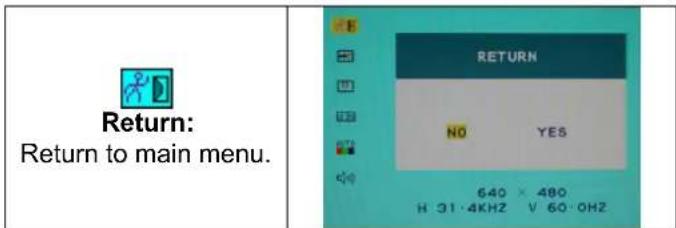
Return:
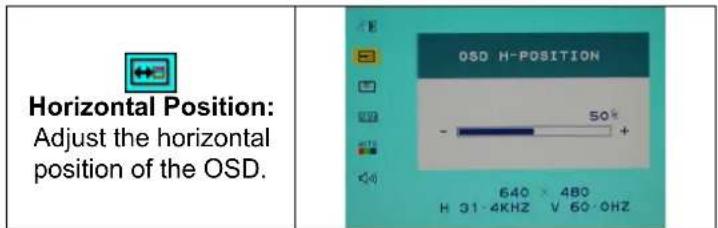
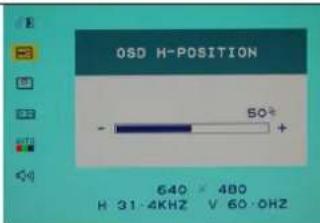
Horizontal Position:
Ajuste la position orizontale de l'OSD.
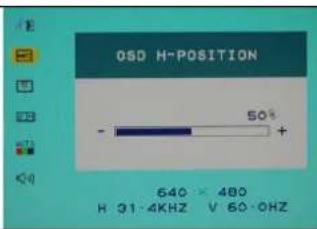

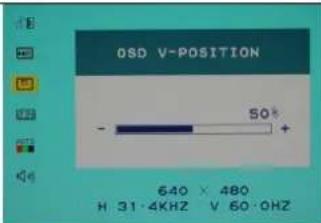
Vertical Position:
Miscellaneous (VERSCHIEDENES)

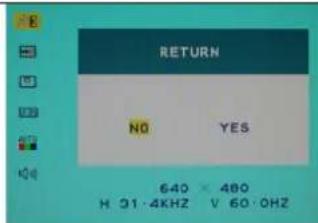
Return:
(Zurück)Zum
Zurückkehren zum
Hauptmenu.

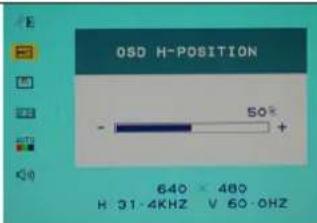
Horizontal Position:
(Horiz. Position des
OSD)Zum horizontalen
Verschieben des
OSD-Menus auf dem
Bildschirm.

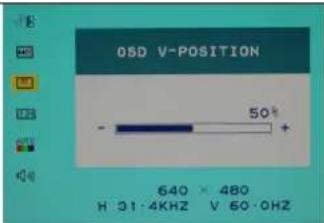
Vertical Position:
(Vertik. Position des
OSD)Zum vertikalen
Verschieben des
OSD-Menus auf dem
Bildschirm.

OSD Duration:
(OSD-Dauer) Zum
Horizontal Position:
Horizontal Position:
Horizontal Position:
Ajustamento de posicao horizontal do menu OSD.

Vertical Position:
Ajustamento de posicao vertical do menu OSD.

OSD Duration:
Opmerking: * DVI is optioneel.